One good thing about virtual private networks (VPNs) is that when they don't work, the problem is almost always solvable without technical training. Although it's aggravating when your VPN randomly drops your connection, the chances are good that you can handle the issue yourself without getting tech support involved.
If your VPN is repeatedly disconnecting from the server, I recommend dealing with the problem immediately. When you have your kill switch on as good cybersecurity habits dictate, VPN drops will kick you off the internet. Without that feature enabled, it'll expose your real identity and location online. That’s not a big deal if you’re just aiming to, say, stream an international sporting event, but it could be an existential issue if you’re using the VPN as a workaround against government censorship. Either way, you can address the issue by working through the eight troubleshooting steps below and checking whether they've solved your problem.
8 reasons your VPN keeps disconnecting
I've organized these root causes in ascending order of how much effort the solution takes. Try the easier fixes before moving on to the more complex or expensive ones.
1. You're using the VPN on too many devices at once
Most VPNs limit the number of devices you can connect at the same time on a single subscription. Some services, like Surfshark, claim to offer unlimited simultaneous connections, but they'll still cut you off if they see signs of abuse. Generally, you can install the VPN on as many devices as you like; it just can't be actively running on more than the limit.
If you're trying to connect to the VPN on a new device and it repeatedly disconnects, check how many other phones, computers or smart TVs it's already running on. Pay attention to devices where you have the VPN set to auto-connect on startup, as you may have missed that it's running. Disconnect from the VPN on one of those devices and try again on the new one.
2. Your VPN server is slow or overloaded
The problem often rests with the VPN server you're trying to connect to. Providers regularly shut down servers for routine maintenance. Sometimes, a server is technically online, but it's under such a heavy user load that it can't maintain a connection. It's also possible that the server is so physically far away from you that the connection keeps timing out.
In cases like these, the answer is simple: use another server. Pick a different server by disconnecting the VPN and reconnecting to the same location. If the new server has the same problems, try another location, assuming you don't need an IP address in a specific country.
3. You're using an unstable VPN protocol
As I explained in my article on how a VPN works, a VPN protocol is the set of instructions at the heart of everything a VPN does. Not all protocols are the same. For example, OpenVPN over TCP prioritizes speed over connection stability, causing more frequent disconnections. It's also possible for certain networks to block some VPN protocols but not others (see #8).
If changing servers didn't help your unstable connection, try switching protocols. WireGuard, OpenVPN over UDP and IKEv2 are best for stability. You can almost always find the protocol options in the Settings page of your VPN app.
4. Power-save settings are interfering
A VPN almost always runs in the background. In some cases, a device's battery saver settings might shut down the VPN to stop the battery from draining. See if turning off power-save mode stops your VPN from disconnecting randomly (and maybe plug in your device while you're at it).
5. Your internet connection isn't stable
Your VPN needs to pass traffic through an ISP like any other online app — it just encrypts that traffic first. If you don't have a good internet connection, you won't have a good VPN connection. When you notice your VPN randomly disconnecting, check whether you have problems with your home internet connection. Resetting your modem by turning it off for at least 10 seconds may solve the problem, but you can also just wait for your internet to improve with time.
6. Another program is interfering with the VPN
Other security programs are a frequent cause of VPN disruptions. If you connect to an office VPN, for example, you likely won't be able to have a personal VPN running at the same time. Likewise, if you use an antivirus program or have a firewall on your device, it may be blocking your VPN from connecting. See if you can configure the firewall to allow traffic through a port used by a VPN protocol.
7. Your software is out of date
If none of the fixes have worked so far, you can often solve your connection problems by updating all the software involved. For optimal security, you should be installing updates the moment they're available anyway, so this will protect you even if it doesn't directly solve your VPN problem.
Update your VPN client and your operating system, then try connecting again. If you're still having problems, try updating your router. You can reach its control panel by entering its default IP address into the URL bar of your browser. Update it as well, then try once more.
8. Your network or ISP is blocking VPN traffic
There's a chance that your problem originates with your network or ISP, not on the VPN or any device you own. Some networks, especially at offices and schools, automatically block any VPN traffic they detect. These restrictions can even be imposed by entire countries, most infamously in China.
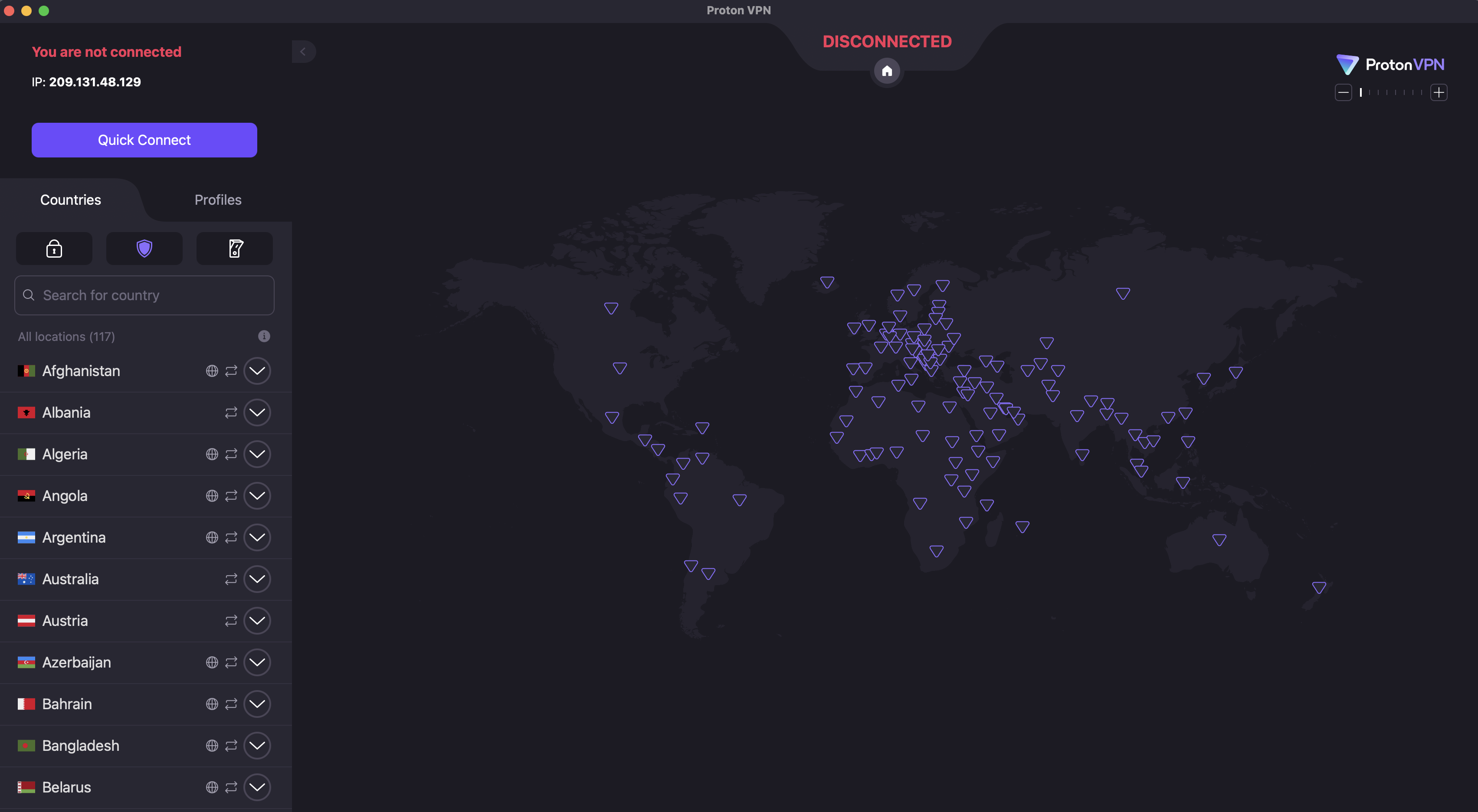
Should this turn out to be your problem, turn on any obfuscation features that may be built into your VPN. Using an obfuscated protocol, connect to a server outside the location being censored, then use the internet as normal. This will be much more difficult if you're in a country where VPNs are illegal or restricted, but there's still hope — if you can safely send an email, contact a VPN provider and ask if they'll send you a configuration directly. Proton VPN is one company that's officially willing to do that.
If you still find your VPN disconnecting mid-session, you may have a rare problem that doesn't show up on this list. Contact your VPN's support staff and do what they recommend. If possible, chat with a live support technician so you can tell them what you've already tried.
This article originally appeared on Engadget at https://www.engadget.com/cybersecurity/vpn/why-does-my-vpn-keep-disconnecting-130000620.html?src=rss
This is going to be one of the shortest articles in my series on how to cancel your subscriptions to the best VPNs. Unlike most providers, Mullvad VPN does not automatically renew an expired subscription unless you tell it to. Thanks to its unique pricing approach, cancelling Mullvad is the default option.
When you sign up for Mullvad, you pay for as many months upfront as you want at the constant rate of 5 Euro per month (varying with exchange rates). Each month, Mullvad takes 5 Euro out of your account until there's nothing left. If you're no longer satisfied with Mullvad, all you have to do is stop putting money in.
The Mullvad account dashboard.
Sam Chapman for Engadget
If you happen to have originally signed up for Mullvad earlier than the middle of 2022, you may have an auto-renewal account grandfathered in. Mid-2022 is when Mullvad stopped auto-renewing subscriptions and got rid of PayPal integration altogether, but people who had signed up before then had the option to leave auto-renewal on.
If you're in this group, cancelling is simple. Just sign into your account page, click on the word Subscriptions, then click Unsubscribe.
How to cancel Mullvad if you subscribed through an app store
There's one more exception to the usual method of cancelling Mullvad. If you got your subscription through an app store instead of Mullvad's website or app, the app store is the one processing your money. You'll need to cancel through them instead.
On an iPhone or iPad, open the Settings app, whose icon shows gray gears. Tap your name at the top of the screen to reach your Apple ID page, then tab Subscriptions. Scroll down until you find your Mullvad subscription, tap it, then hit Cancel Subscription.
On an Android phone, open the Google Play Store, whose icon is a triangle in the Google colors. At the top-right, tap the circle with the first letter of your username in it. Hit Payments & Subscriptions, scroll down to find Mullvad, then tap it and hit Cancel Subscription.
How to delete your Mullvad account
You can go the extra mile and delete your account if you're sure you'll never want to use Mullvad again. Send an email to support@mullvadvpn.net, provide your account number and request that the account be terminated. You'll get a reply confirming deletion.
How to get a refund from Mullvad
Mullvad offers refunds on any purchase within 14 days. To start a refund request, send an email to support@mullvadvpn.net, including your Mullvad account number and your payment token. If you aren't sure what your payment token is, find the charge for Mullvad on your bank statement and look for something in the format VPN*(10-digit number).
Payments made in cash can't be refunded, apparently because that's considered a form of money laundering in Sweden. If you got Mullvad through a voucher, request your refund through the store the voucher came from.
Best Mullvad alternatives
Mullvad is one of the best VPNs, especially in terms of privacy. However, I've found it to be a bit slow at times, with a somewhat limited server network. Luckily, Proton VPN is almost as private as Mullvad — the only thing it's missing is the ability to sign up without an email. It's also got a larger server network and better overall download speeds.
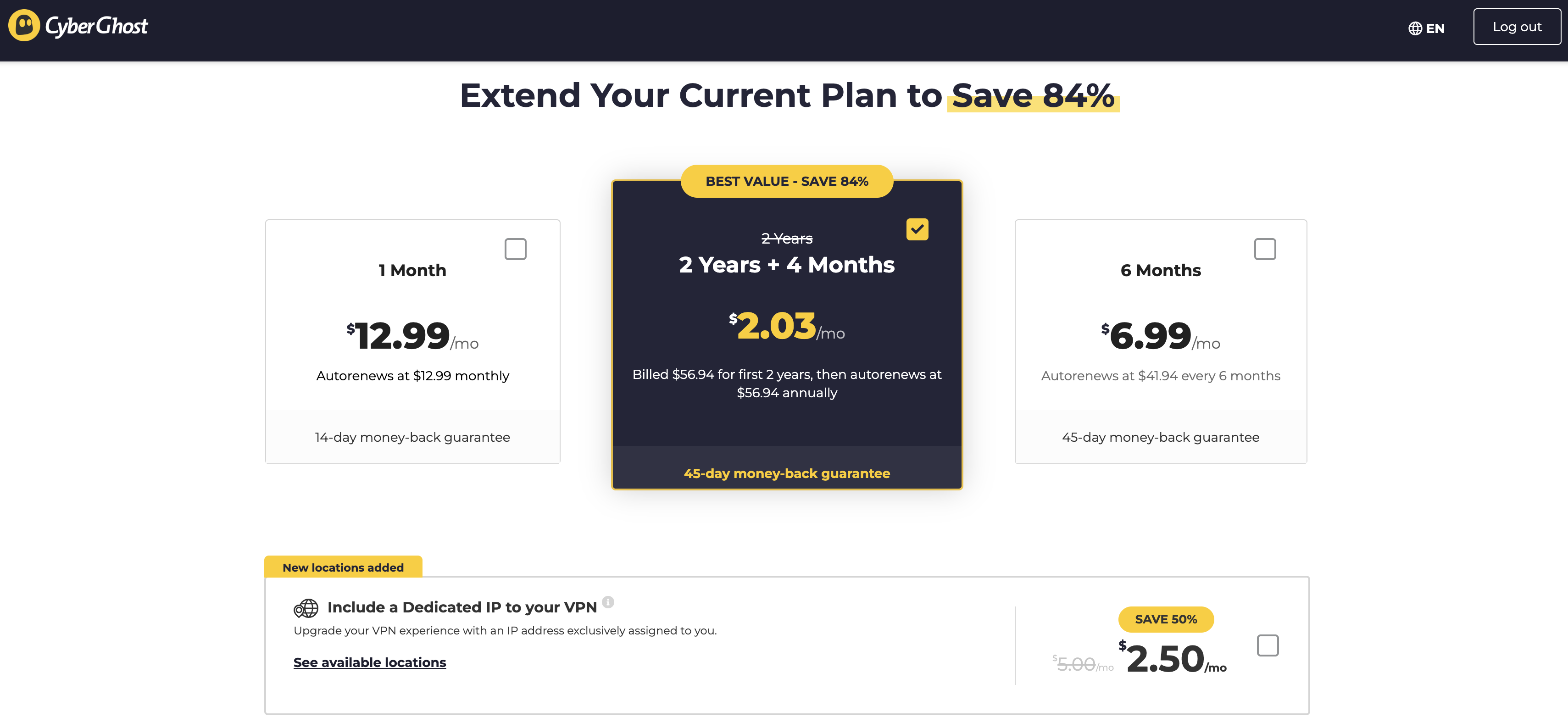
Windscribe is another privacy-optimized VPN with a better record than Mullvad in my unblocking tests. Surfshark is the fastest VPN of them all, while ExpressVPN is ideal for beginners. If you liked Mullvad's cheap pricing, CyberGhost is a highly affordable alternative.
This article originally appeared on Engadget at https://www.engadget.com/cybersecurity/vpn/how-to-cancel-mullvad-vpn-200000516.html?src=rss
Mullvad, a virtual private network (VPN) named after the Swedish word for "mole," is often recognized as one of the best VPNs for privacy. I put it on my best VPN list for exactly that reason. I've got huge respect for the extra lengths Mullvad goes to in order to ensure its user's privacy.
To give you a preview, Mullvad is one of the few VPNs — other than my normal privacy recommendation, Proton VPN — that lets users pay entirely in cash. But even Proton VPN asks for an email address to make an account and uses a few marketing cookies on its own website. Mullvad represents every account as a randomly generated 16-digit code and uses no marketing cookies whatsoever.
That's just one example of how Mullvad goes beyond the call of duty to keep users private. But while privacy is the most important aspect of a VPN alongside security, it's not the only thing that matters. For this review, I set out to investigate whether Mullvad pairs its rights-protecting bonafides with versatile, convenient and enjoyable VPN apps. Using our rigorous VPN testing procedure, I'll rate Mullvad in 11 areas. You can find a summary of my results in the table below, skip to the sections that matter most to you or just read my final advice in the conclusion.
Editor's note (2/11/26): We've overhauled our VPN coverage to provide more detailed, actionable buying advice. Going forward, we'll continue to update both our best VPN list and individual reviews (like this one) as circumstances change. Most recently, we added official scores to all of our VPN reviews.Check out how we test VPNs to learn more about the new standards we're using.
Findings at a glance
Category
Notes
Installation and UI
All apps share roughly the same user interface
Apps are responsive and easy to navigate, with no design choices that would threaten beginners
Lack of "fastest server" button is an issue
Browser extension is only available on Firefox and still in beta
Speed
Reasonably good average latency
Reduces download speeds by 26 percent and upload speeds by 17 percent
Speed declines are consistent and chartable
All speed metrics are quite good on nearby servers
Security
Only uses WireGuard protocol
No IP address leaks, even when switching servers
Packet test showed successful encryption
Pricing
Always costs 5 Euro per month, though prices outside Europe depend on exchange rates
No auto-renewal — membership lasts until money runs out
Can pay using cash or by purchasing scratch-off vouchers on Amazon
14 day money-back guarantee, except on cash payments
Bundles
Only app besides the VPN is the free Mullvad Browser, which removes the tracking habits of typical web browsers
Allows several smaller VPNs to use its servers in their networks
Privacypolicy
No vague lines or loopholes in privacy policy
Only saves account numbers and expiration dates for each user
Uses an extremely limited range of cookies with no marketing trackers
Has undergone a total of 17 audits of different aspects of its service
Swedish police demanded customer information in 2023; Mullvad couldn't comply because the data wasn't logged
Virtual location change
Unblocked Netflix 13 out of 15 times
When it failed, virtual location was still changed
Server network
90 locations in 50 countries, majority in North America and Europe
No virtual servers whatsoever
Features
DAITA conceals traffic patterns that might let an AI identify what sites you visit
Uses quantum-resistant encryption on WireGuard
Can choose your own multihop entry and exit points
Several options for getting around nation-level firewalls
Can block ads, trackers, malware and other unwanted content using predetermined DNS block lists
Supports IPv6 traffic
Kill switch and stronger lockdown mode
Split tunneling by app
Customer support
Help center includes useful filters to find the topic
Well-written articles with good internal linking
No live chat support, but staff answers emails quickly
Can view app logs at any time
Background check
Founded in 2009 in Sweden; still owned and operated by initial founders
User account numbers were exposed in a 2023 incident, but Mullvad quickly closed the leak
Installing, configuring and using Mullvad
Let's start by examining how Mullvad feels as a piece of software. In this section, I'll be testing its desktop apps for Windows and Mac, its mobile apps for Android and iOS and its browser extension for Firefox. To start with the installation process, Mullvad downloads and installs in a snap on mobile. On desktop, installation requires a few more steps than is typical, but the app guides you quickly through everything.
Across the board, my only serious complaint is that there's no option for automatically choosing the fastest server. You can usually assume that the nearest one to you will be the fastest, but there's always the chance of an unusual server overload. It's a bizarre oversight for an app that otherwise goes out of its way to be usable.
Windows
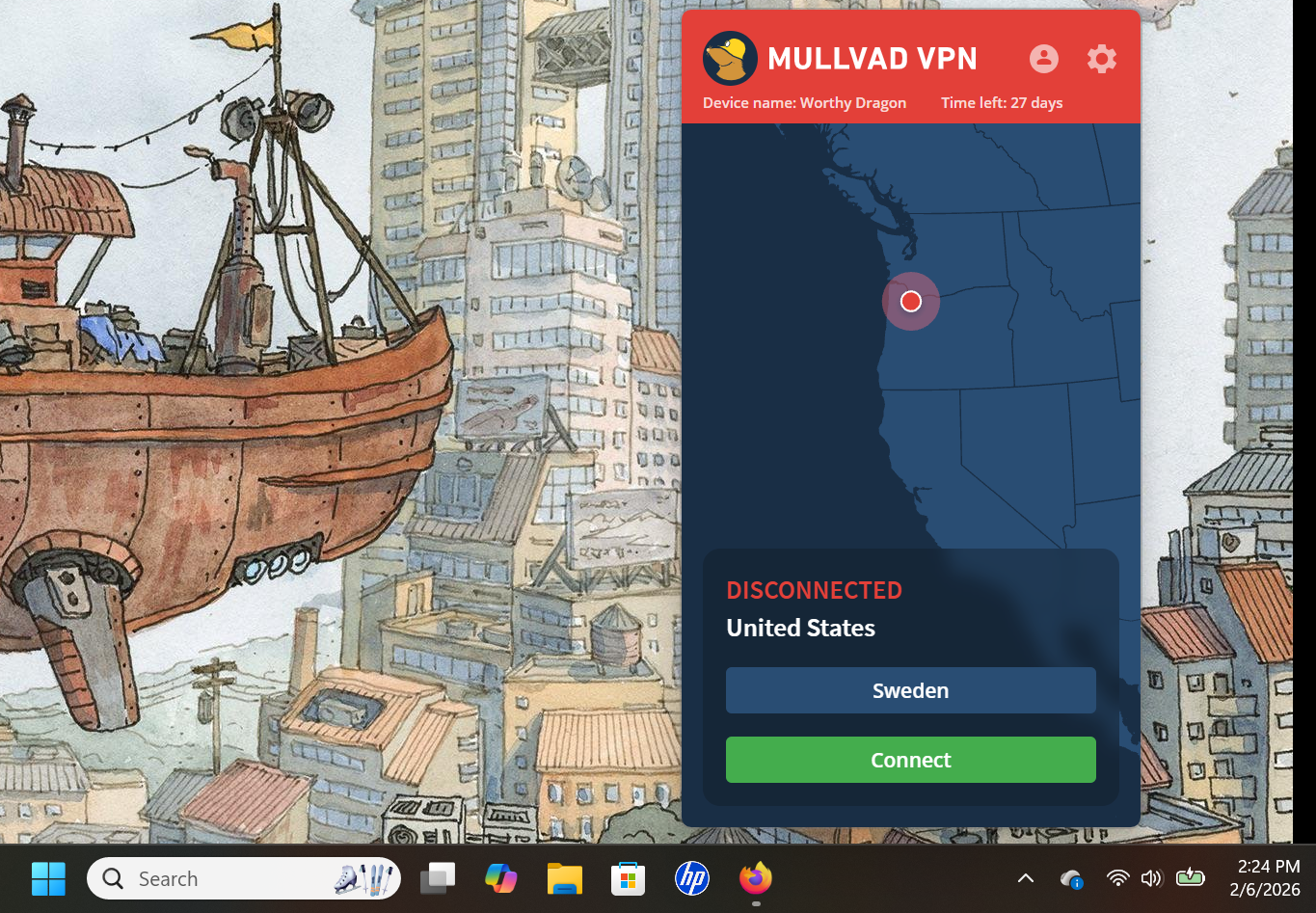
Mullvad's Windows app has a slim UI that uses space efficiently without being too cramped. It doesn't give you a lot of information, such as live speed tests or data in transit, but I've mostly found that to be needless filler on VPN apps.
Mullvad on Windows.
Sam Chapman for Engadget
Speaking of needless filler, the map may be a little bigger than it needs to be, but maps on VPN clients aren't just about teaching you geography — they do a lot to make the apps more welcoming to casual users who might not otherwise fire up security software. In fact, Mullvad's UI is admirably beginner-friendly, befitting its focus on privacy for everybody rather than just the tech-savvy.
All the settings are accessed by clicking the gear in the top-right. Here, you can turn on DAITA (Mullvad's defense against AI traffic scanning), activate multihop and control Mullvad's other features. There are also some quality-of-life features for the UI itself, such as whether it remains pinned to the taskbar or operates as a standalone window. Some options, especially under the VPN settings tab, are a bit technical, but don't need to be touched for a good experience.
Mac
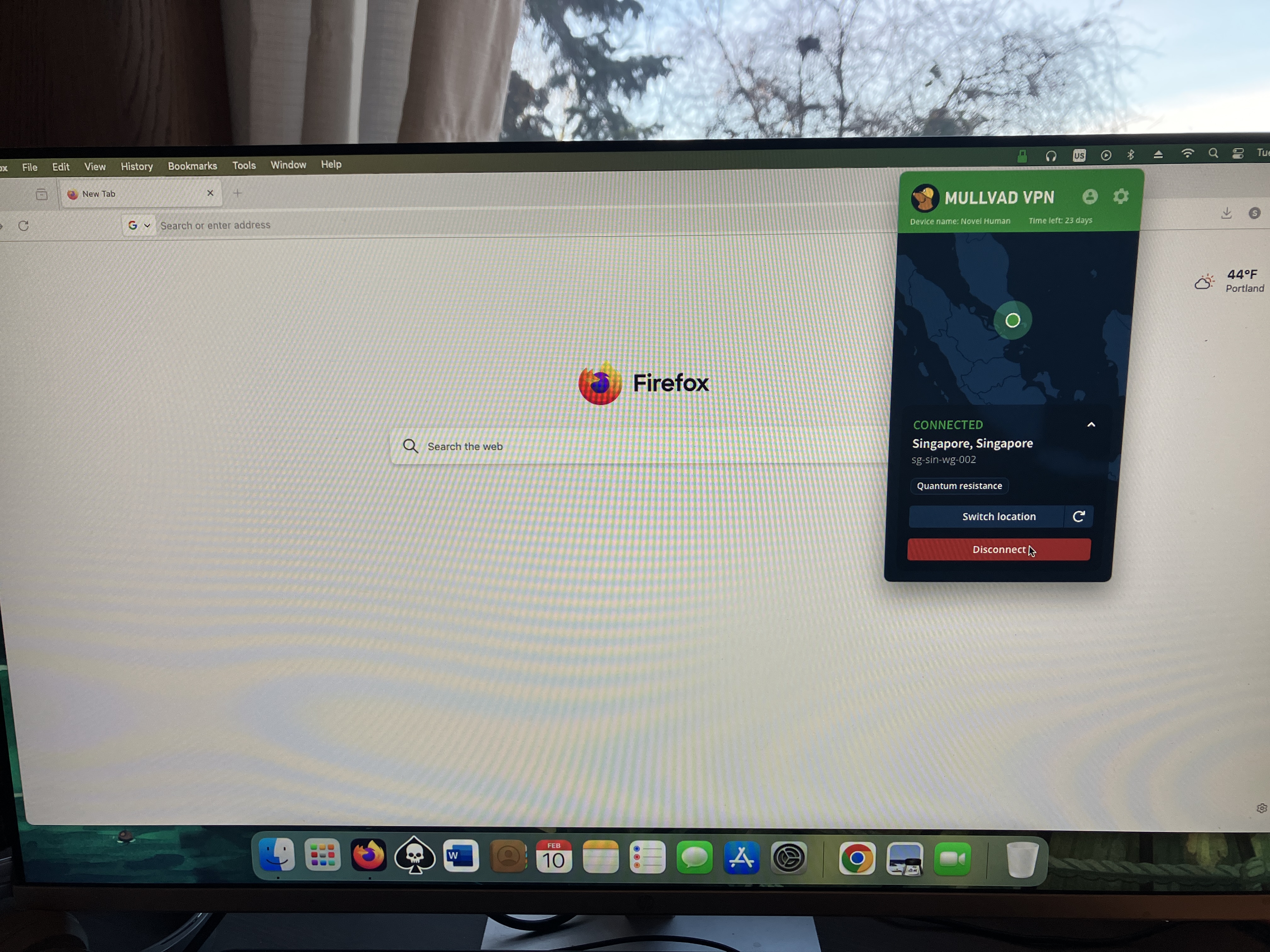
Mullvad's macOS app is quite similar to its Windows app, both in terms of the interface and the features offered. The big difference used to be that macOS lacked split tunneling, but that's been added in a recent update. The only serious distinction now is that the Mac client can't be unpinned from the taskbar, which is just a little bothersome.
Mullvad on Mac.
Sam Chapman for Engadget
Other than that, you'll find every setting you need under the gear, just like on Windows. Similarly, connections to VPN servers happen quickly, and selecting locations from the menu is very straightforward. While connected on either app, you can click the circular arrow by your location to swap to another server in the same location — highly convenient if you're trying to unblock Netflix.
Android
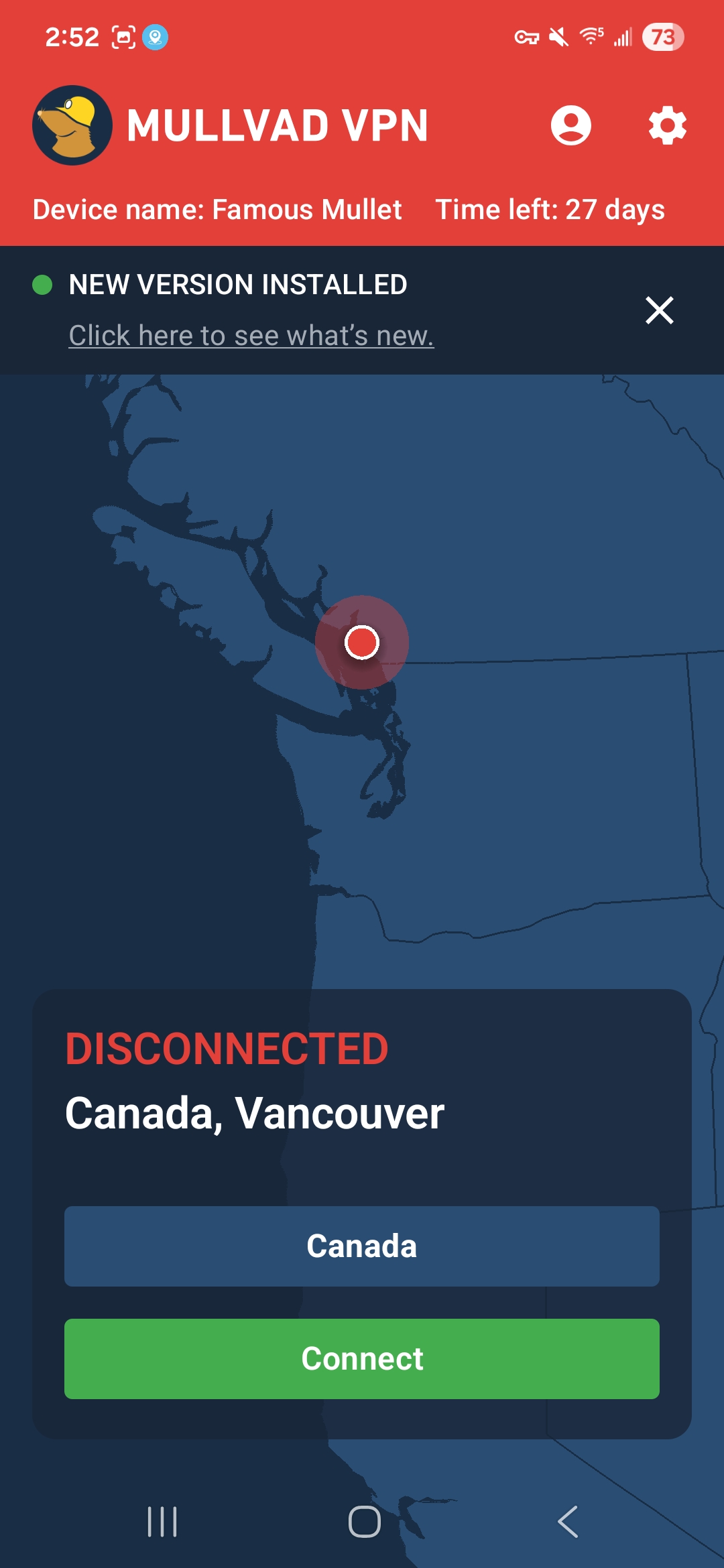
Mullvad's Android app has the same nearly-perfect design approach as all its other apps. The main page has nothing on it but the connect/disconnect button, the choice of server locations, a map and the buttons for your account information and preferences. Those preferences are a manageable set of options that are almost all managed with simple on-off switches. It's all highly responsive and annoyance-free.
Mullvad on Android.
Sam Chapman for Engadget
iOS
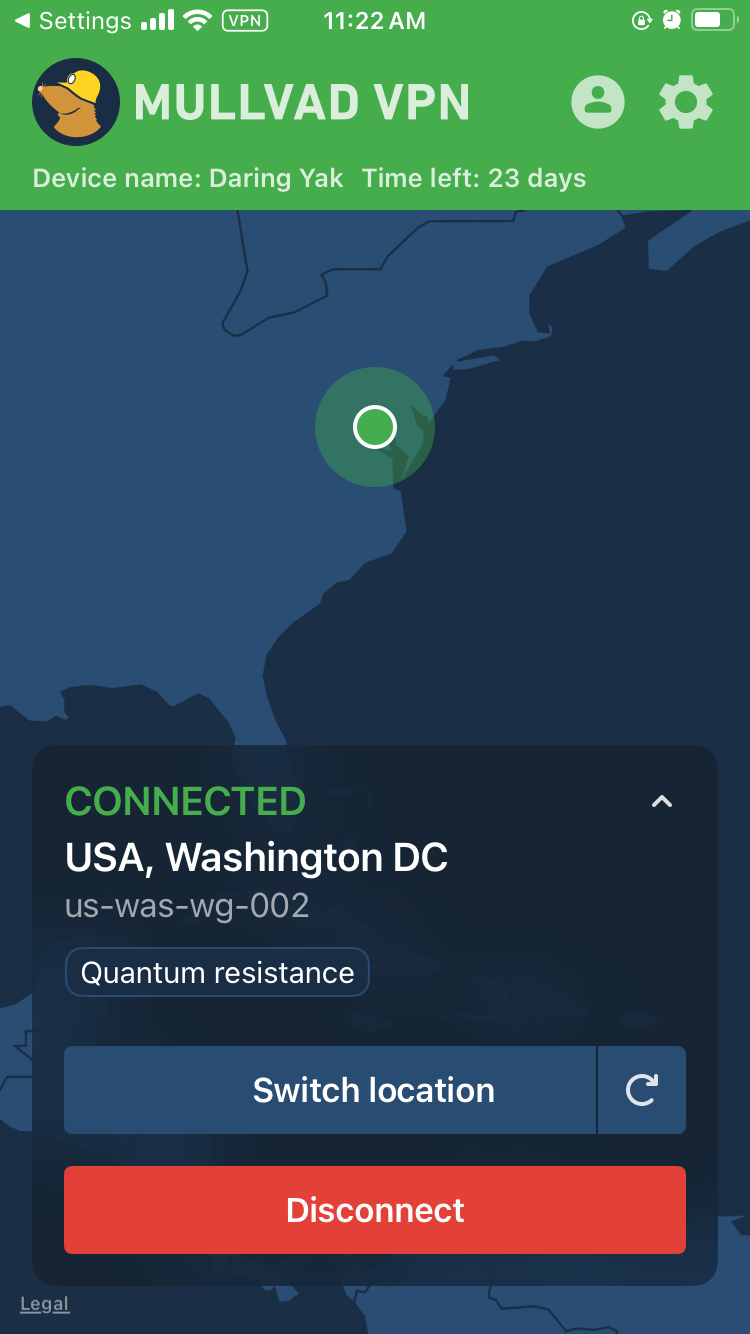
Mullvad's iOS app looks very similar to its apps on every other platform. The front page is kept simple, with large controls in the foreground and a map taking up most of the space. Everything else is located in the menu accessed through the gear icon at top right. Neither mobile app has the options for toggling the UI itself that the desktop apps have, but it's mostly free of quality-of-life problems to start with.
Mullvad on iPhone.
Sam Chapman for Engadget
Browser extensions
Mullvad's browser extension is only compatible with Firefox. You can't actually connect to the VPN through this extension. Its main functions are to tell you whether you're connected to a Mullvad server and to connect to a SOCKS5 proxy in a Mullvad location. If you do this while connected to Mullvad through the desktop app, you'll get a second layer of protection, similar to the multi-hop feature.
The Firefox extension is a rare misfire for Mullvad — perhaps fair, since it's still in beta. Its only real feature is something that the desktop app already does perfectly well, and it looks like a software malfunction to boot. However, given Mullvad's track record, I'm confident they'll figure out what to do with it in time.
Mullvad speed test
A VPN almost always slows browsing speeds and increases latencies. It's unavoidable, given the extra steps a VPN protocol adds to the process of getting online. The trick is to find VPNs that keep the slowdown to a minimum, using a combination of regular maintenance, good planning and smart load balancing.
For this test, I used speedtest.net to check how six of Mullvad's server locations influenced three key speed metrics. Ping measures latency, the time in milliseconds (ms) that one data packet needs to travel between a client device and an ISP. Download speed measures the amount of data in Megabits that a web browser can download in one second. Upload speed tracks how much data can be uploaded in a second. We're looking for low latencies and high download and upload speeds.
Server location
Ping (ms)
Increase factor
Download speed (Mbps)
Percentage drop
Upload speed (Mbps)
Percentage drop
Portland, USA (unprotected)
15
—
58.96
—
5.85
—
Seattle, USA (fastest location)
23
1.5x
55.07
6.6
5.51
5.8
Montreal, Canada
165
11.0x
44.28
24.9
4.62
21.0
Fortaleza, Brazil
307
20.5x
40.96
30.5
4.65
20.5
Prague, Czechia
368
24.5x
43.17
26.8
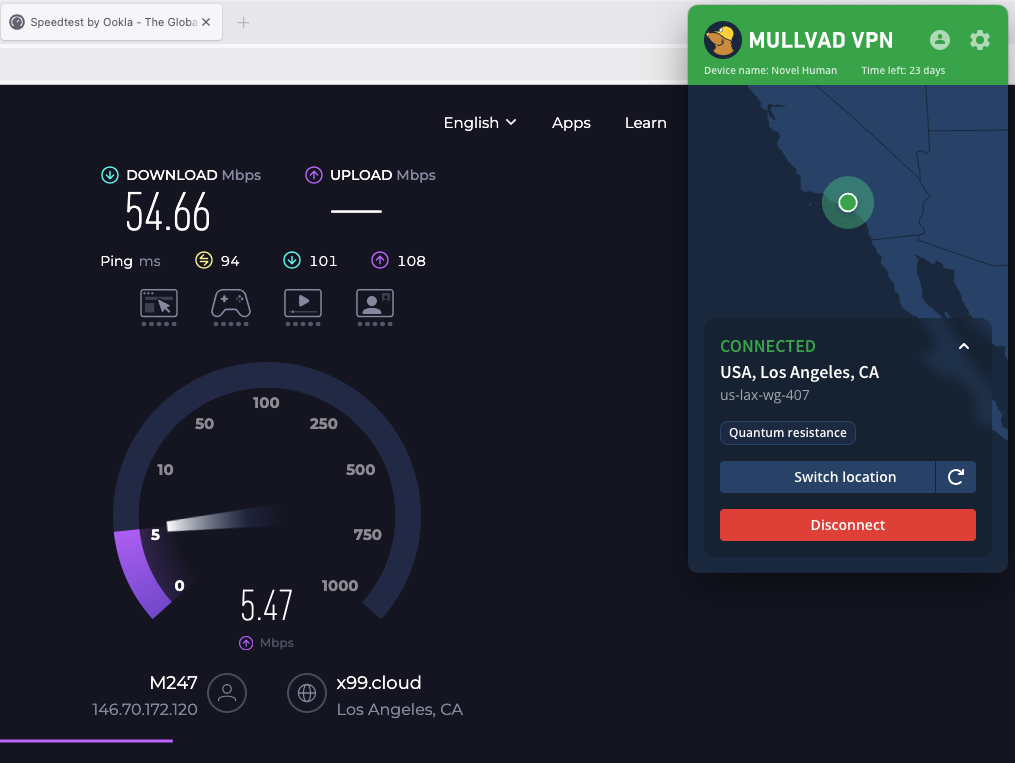
5.47
6.5
Lagos, Nigeria
528
35.2x
37.41
36.6
4.61
21.2
Bangkok, Thailand
473
31.5x
39.76
32.6
4.13
29.4
Average
311
20.7x
43.44
26.3
4.83
17.4
I'll start with the bad news: the tests didn't exactly make Mullvad look like a speed demon. Its speeds have gone up and down in the years I've been using it, and right now they appear to be on the downswing. If you use locations all around Mullvad's server network, you can expect your download speeds to decrease by about 26 percent and your upload speeds to decline by 17 percent.
However, it's important to put those numbers in perspective. First, Mullvad's numbers aren't markedly worse than the ones I got when testing CyberGhost. Its speeds are average, but by definition, most things are average. Its average worldwide latency is actually better than Surfshark, the current champion of download and upload speeds.
Speed-testing a Mullvad server in Los Angeles.
Sam Chapman for Engadget
It's also nice that Mullvad's speed drops follow a predictable curve. Lots of VPNs have unexpectedly sharp declines in certain locations, frequently in Africa. By contrast, Mullvad's speed decreases pretty much as a direct function of how far from the server you are. This not only makes speed drops easier to plan around, but also means you can expect very good speeds on nearby servers.
This property of being fastest on servers near the user is another sign of Mullvad's focus on its core privacy mission. If anonymity is your main reason for using a VPN, it doesn't matter what your IP address is, so long as it's not your real one. Using a nearby Mullvad server should guarantee you an internet connection that's both fast and private.
Mullvad security test
To be secure, a VPN has to check two critical boxes. It must provide you with a secondary IP address without leaking your real one, and it must encrypt your communications with its servers so your activity can't be traced. In the sections below, I'll see whether Mullvad meets those requirements.
VPN protocols
VPNs use protocols to mediate between end devices, ISPs and their own servers. The first step is to ensure that the service you're considering uses protocols that have expert confidence. Mullvad has kindly made this step easy for me by using only WireGuard on all its apps, with no OpenVPN, IKEv2 or in-house unique protocols.
There's no question that WireGuard is a solid protocol. It uses the ChaCha20 stream cipher for symmetric encryption and Poly1305 for authentication, both uncrackable with current technology. Mullvad has even added its own fix for WireGuard's one flaw, its need to save static IP addresses — the Mullvad implementation is set up to delete the IP address if it goes 10 minutes without being used.
Even so, it's unfortunate to lose the ability to change protocols, which is one of the most common steps for troubleshooting a VPN connection. I understand Mullvad's reasoning for cutting out OpenVPN (it claims the cryptography isn't strong enough) but don't agree. It's one of this provider's few unforced errors.
Leak test
There's a straightforward test to determine if your VPN is leaking. Load up any website that shows your IP address — I personally use ipleak.net — and see what IP and location it reveals without your VPN active. Then activate the VPN and refresh the page. If you see your real IP address anywhere, your VPN is leaking.
Testing Mullvad for IP leaks.
Sam Chapman for Engadget
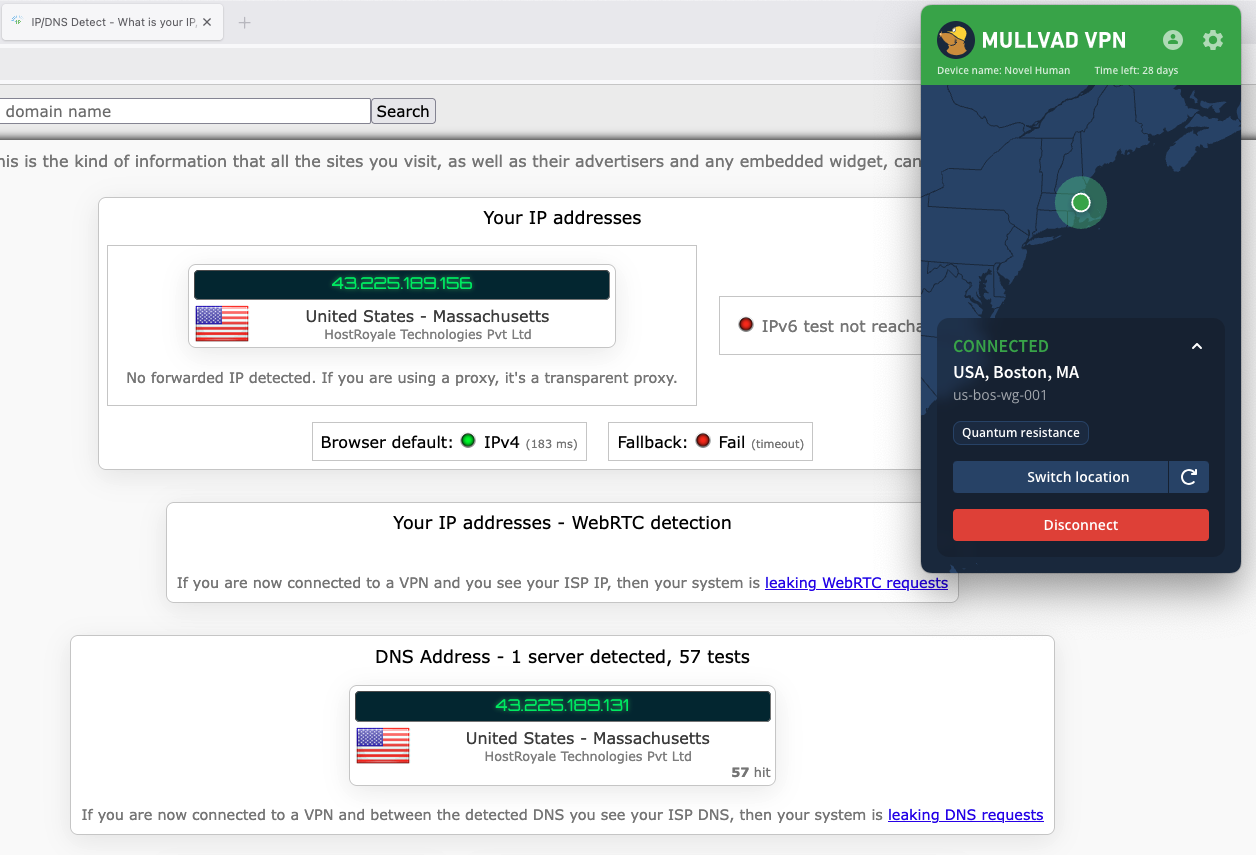
I ran that test on five Mullvad servers. Each time, the website showed me the IP address of the VPN server, concealing my real one. To keep things simple, I ran the initial tests with IPv6 blocked via the Mullvad client. When I turned it on and tried again, the IPv6 traffic didn't leak any more than the IPv4 did. I also saw no signs of WebRTC leaks. Unless you set up a custom DNS server, Mullvad also uses its own DNS, which remains entirely within the VPN tunnel.
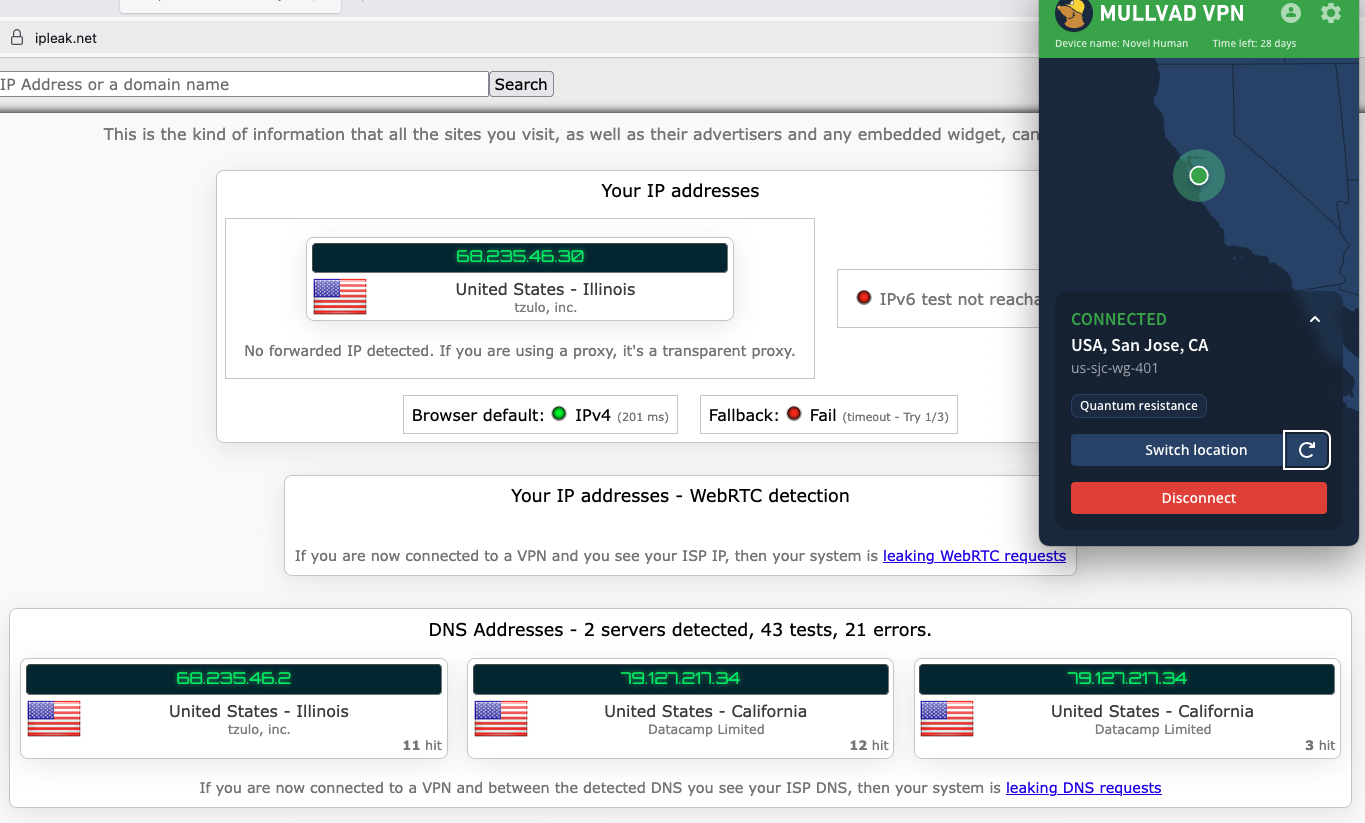
I had one more leak test to try. Frequently, VPNs are leak-proof when maintaining a connection to one server but drop encryption when switching between servers. That problem is why I ultimately couldn't recommend Norton VPN. Luckily for me, Mullvad has a button that lets you shuffle to another server in the same location, so I used that to see if it stayed leak-proof.
Mullvad doesn't leak your IP even while changing servers.
Sam Chapman for Engadget
As you can see in the screenshot, Mullvad jumped seamlessly from one server to another without showing my real location in-between. On a practical level, that's enough for me to declare Mullvad leak-proof.
Encryption test
For one final experiment, I used the WireShark packet sniffer to see whether the data Mullvad sent from my computer to my ISP was encrypted. After capturing a few packets, I was gratified to see that they were totally unreadable to interlopers. Most established VPNs pass this test, but it's still important for due diligence.
How much does Mullvad cost?
Mullvad's pricing structure is one of the most unusual things about it. This is normally the section where I untangle 47 different Pro+ and Business- accounts that are all sold at three different durations. Mullvad couldn't be further from that. It costs 5 Euro a month — that’s it. Each 5-Euro subscription can be used on five devices at once.
It manages payments through a system inspired by parking meters. When you sign up for Mullvad, you'll buy as much time as you want. That time will count down until it expires, unless you top it up with more 5-Euro payments. If you run out of money, Mullvad won't charge you a new subscription fee because you didn't tell it not to. It'll just stop working until you pay again. Every payment also comes with a 14-day money-back guarantee, except for payments made in cash.
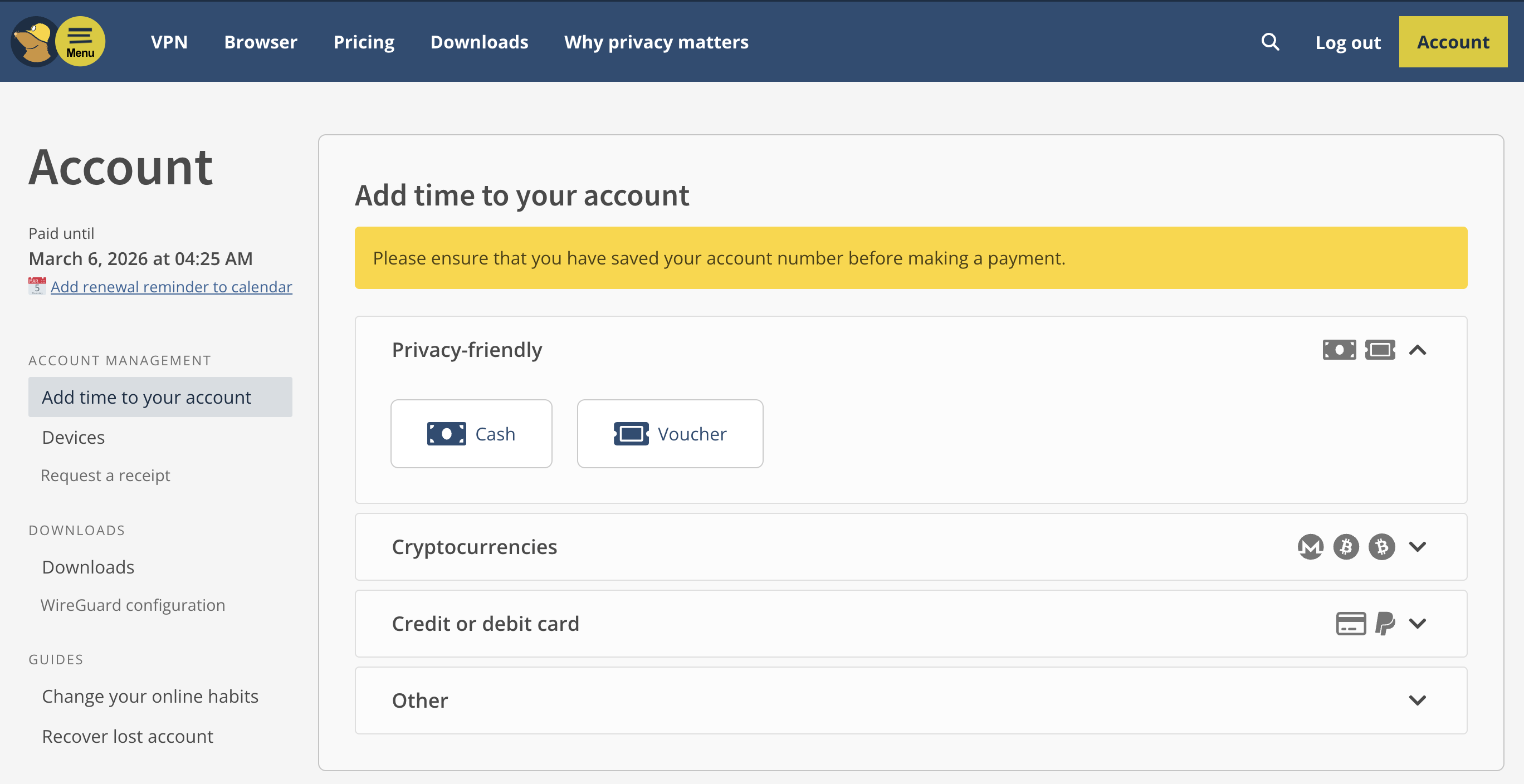
The Mullvad account dashboard.
Sam Chapman for Engadget
The only real complexity in the process is that Mullvad always figures out its prices in Euro, so outside the EU, the cost per month is affected by exchange rates. If you happen to live in a country where the government's economic policy shuttles between capricious and arbitrary, you might want to grab a few months in advance.
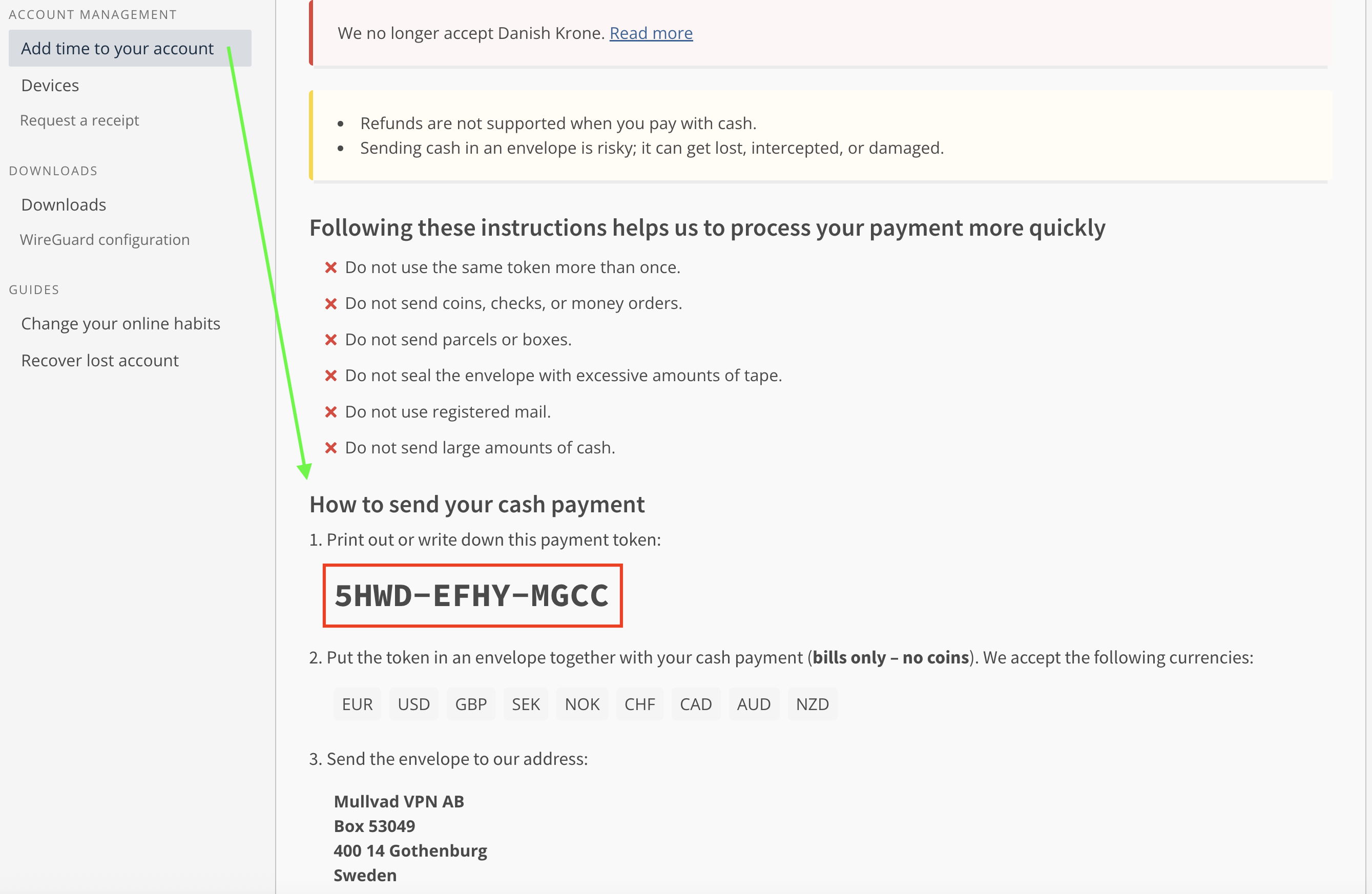
The other most interesting thing about Mullvad's pricing is the options you can use to pay. For maximum privacy, you can pay with cash using the payment token you'll find on your account page. Note that this is not the same as your account number. To find it, log into your dashboard on Mullvad.net, click Add time to your account in the left-hand bar, then click the button labeled Cash and scroll down. Make your cash payment by writing the token on an envelope and mailing it to Sweden (full instructions here).
Unredacted, in case any hackers out there want to buy me some more time.
Sam Chapman for Engadget
You can also get untraceable Mullvad vouchers by paying cash at participating retail locations. Most of them are in Europe, but you can order them from Amazon. While your payment to Amazon won't be private, the voucher can't be linked directly to your VPN account, since the actual number is hidden behind a scratch-off panel. It's actually pretty ingenious.
Of course, you can also pay using any of the normal methods, including credit cards, cryptocurrency and bank wires (though not PayPal). But the more private methods are always there for people who need them.
Mullvad side apps and bundles
Mullvad is that rare VPN that's still content to be a VPN and not an all-inclusive security suite. No shade to NordVPN or Surfshark, whose extra features are generally quite good, but it's nice to see at least one of the top providers staying focused.
Although Mullvad doesn't have any partners that sell their products alongside its VPN, it does have several partnerships with other VPNs who use its network as the basis for their own products. MalwareBytes Privacy VPN, Mozilla VPN, Tailscale and Obscura can all be considered Mullvad side apps if you squint.
Mullvad Browser
Mullvad's only product other than the VPN is Mullvad Browser, which is free to download and works on Windows, macOS and Linux. Mullvad Browser works in the background, blocking common methods of browser fingerprinting that can be used to deduce your identity even when you have a VPN running.
For example, it automatically reports your time zone as UTC, disguises personal preferences like font and window size, scrambles information sent by APIs and conceals your browser version and computer operating system. It's also in private mode by default, which doesn't hide what your ISP sees but is useful for concealing your activity from other people that might use your computer.
Close-reading Mullvad's privacy policy
Since privacy is Mullvad's main selling point, this section is even more important than usual. Loopholes in the privacy policy of the privacy VPN would be deeply ironic. Fortunately, Mullvad's privacy policy backs up its high-flying rhetoric. It's a short, pointed and readable document with no problems I could discern. Mullvad has no parent company or subsidiary it might use as a loophole, and no clauses in its policy are left open to interpretation. It's a masterpiece of the privacy-policy genre.
The document is actually three policies: a privacy policy, a no-logging policy and a cookie policy. The privacy policy lists all the times Mullvad might collect data about a user. That's exactly two situations — using financial information to process payments (which will be entirely anonymous if you use cash or a voucher) and using your email address to track support tickets you open. That's it.
The no-logging policy is a bit longer, but mostly because it's explaining exactly how Mullvad manages to run a VPN service with so little information on individual users. For each account, it stores a number and an expiration date, plus public keys and tunnel addresses if you're using WireGuard (deleted at most 10 minutes after your session ends). Everything else is completely anonymized. Mullvad even claims that its 500,000 or so user accounts could have been created by the same user 500,000 times, which I suppose is one way to spend 2.5 million Euro.
The cookie policy is the shortest because Mullvad uses exactly five cookies. One saves your login status in your browser, one saves your language preferences, one protects its site from being used in a specific kind of forgery hack and the other two are for handling Stripe payments.
Independent privacy audits
Mullvad corroborates its privacy policy with regular audits of various aspects of its service. Currently, there are 17 audits listed on its website, including four infrastructure audits by Cure53. All of its apps have been separately audited and found to be solid. It has been a couple of years since the last full infrastructure audit in 2024, but given how many other targeted reviews Mullvad has gone through since then, it's hard to be too upset about the pause.
In 2023, Mullvad achieved the holy grail of VPN privacy: being ordered by subpoena to turn over customer information and not being able to comply because that information didn't exist. Nothing compares to a VPN's privacy being tested in the wild like this.
Can Mullvad change your virtual location?
Sometimes, a VPN appears to be working, but still reveals your real location to websites. Netflix is a useful proxy for this. To unblock a streaming site like Netflix, a VPN needs to change your virtual location while not appearing to do so — if Netflix sees any hint of VPN traffic, you'll get blocked with the hated proxy error. I used five different locations to check whether Mullvad is up to the streaming task.
Server location
Unblocked Netflix?
Changed content?
Vancouver, Canada
3/3
3/3
Gothenberg, Sweden
2/3
2/3
Istanbul, Turkey
3/3
3/3
Johannesburg, South Africa
3/3
3/3
Singapore, Singapore
2/3
2/3
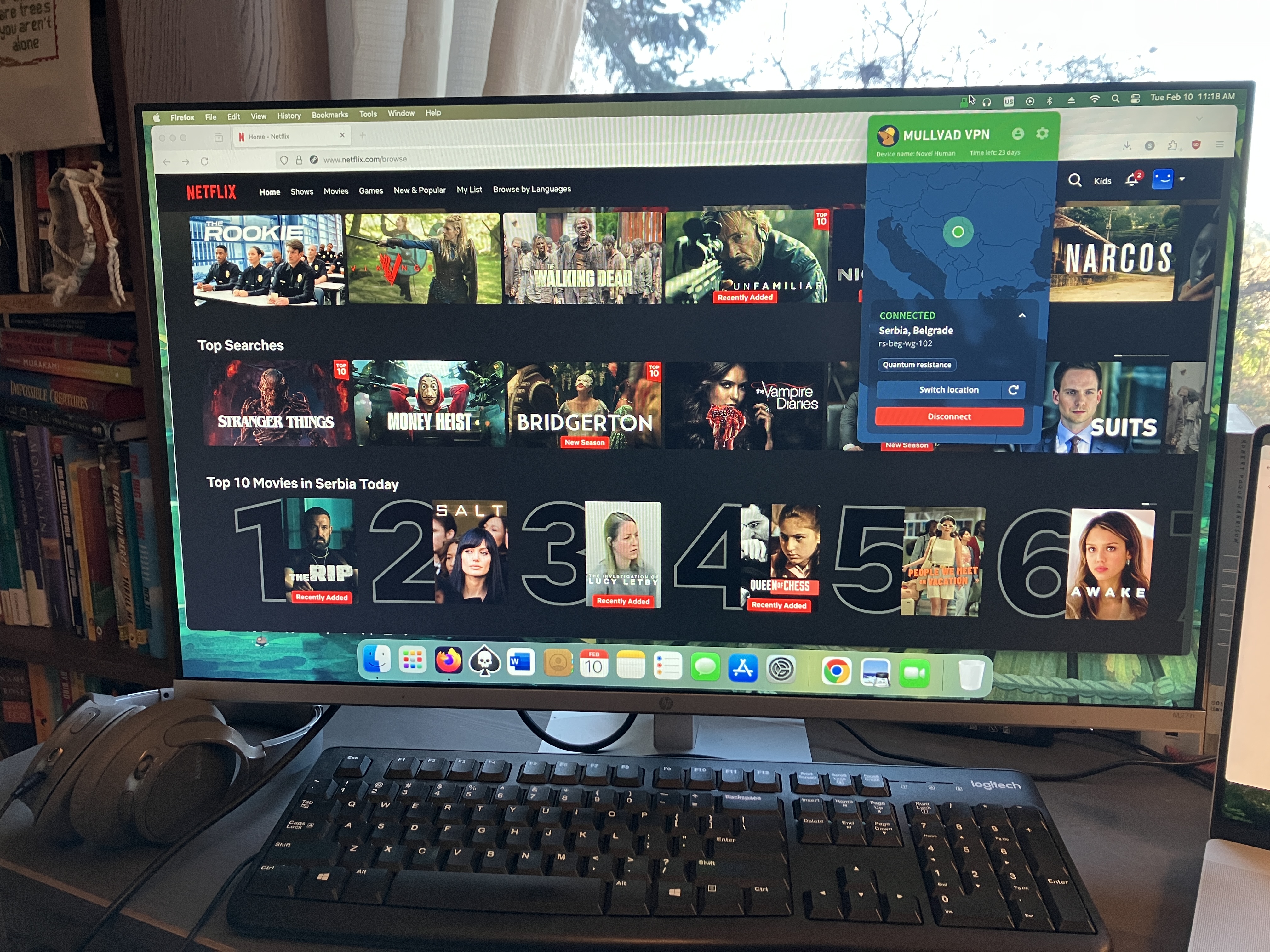
Mullvad did well for streaming, but it didn't manage a perfect score like its fellow anti-establishment VPN Windscribe did. Two of the 15 servers I tested failed to unblock Netflix, one in Singapore and one in Mullvad's hometown of Gothenburg. I also had trouble logging into Netflix while connected to a Vancouver server, though that server did unblock the site consistently once I got inside.
Mullvad's servers all tricked Netflix into believing my new location.
Sam Chapman for Engadget
In Mullvad's defense, no location failed more than once. It's completely possible to get good streaming performance out of this VPN; you just have to be willing to click the server refresh button a few times. Privacy is still the main use case for Mullvad, but it's fine for streaming too.
Investigating Mullvad's server network
Mullvad has 90 server locations in 50 countries and territories. Unusually for a VPN, users can choose between all 590 of its total servers, including several in each location. There's even a list on its website that shows you the status of every server.
Mullvad does not use virtual server locations, so every server is physically located in the place where it claims to be. Here's how they're distributed.
Region
Countries with servers
Total server locations
North America
3
25
South America
5
6
Europe
29
41
Africa
2
2
Middle East
2
2
Asia
7
8
Oceania
2
6
Total
50
90
Over half the countries with servers are in Europe and over two-thirds of the cities with servers are in either Europe or North America. That lopsided network is a limitation of Mullvad's refusal to use virtual server locations, since its real servers have to be concentrated in nations developed enough to host data centers. With an all-real network, it's easier to tell which servers will give you the fastest performance, but you can't simulate as much of the world as you can with larger services like ExpressVPN.
The good news is that there's at least two real server locations on every continent. Mullvad has a surprisingly robust presence in South America and two bare-metal servers in Africa, which is more than some other VPNs have. In the end, though, the best application of Mullvad is to protect the online privacy of users in North America, Europe and eastern Asia.
Extra features of Mullvad
Most of Mullvad's features are augmentations to the VPN itself, rather than side options that do other things. Some of them are bread-and-butter, like the kill switch and split tunneling, but a few you won't find anywhere else. Note beforehand that Mullvad does not support port forwarding, so if you depend on that for your torrenting, try another VPN.
DAITA AI defenses
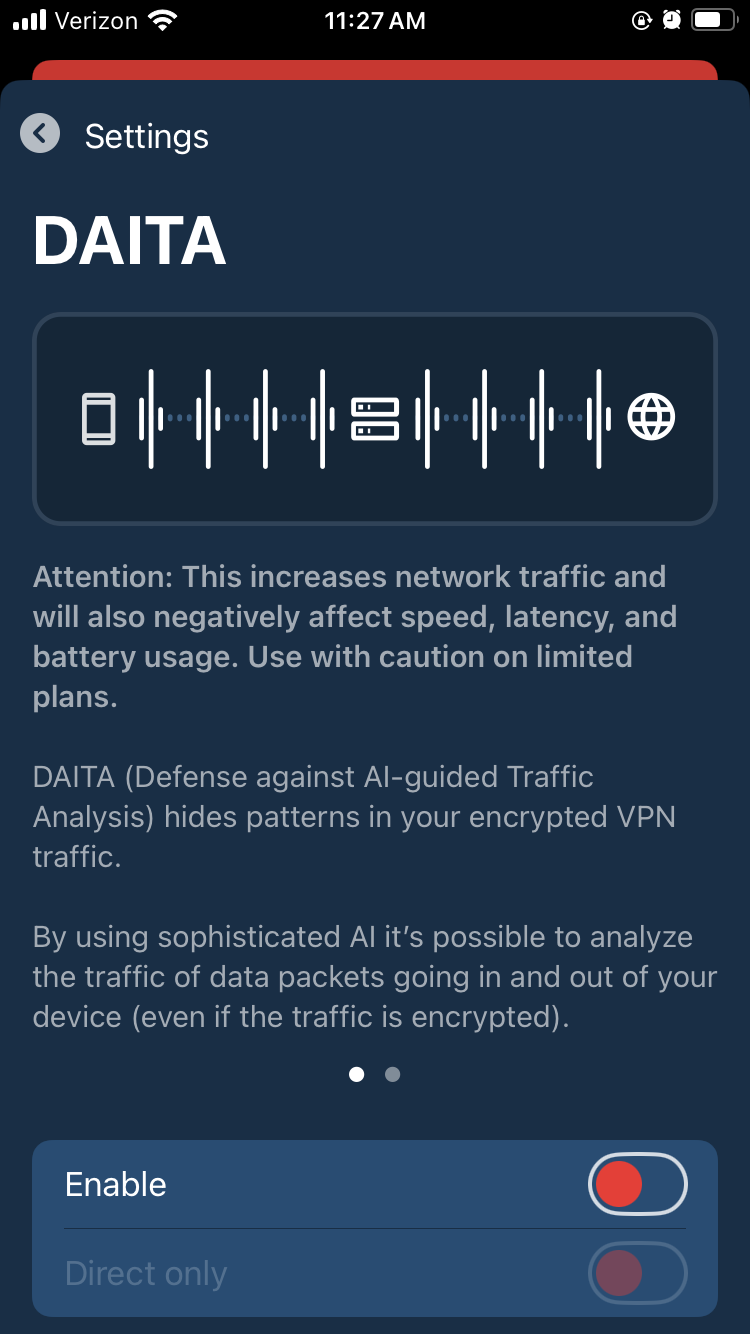
Mullvad's most novel feature is a recent one. DAITA, which stands for Defense against AI-guided Traffic Analysis, can be toggled on and off in the Mullvad app. According to Mullvad, certain patterns in how browsers communicate with websites can be analyzed by AI to reveal the truth behind encrypted internet history. DAITA hides those packets by filling communications with background noise so the AI won't know what's real.
Mullvad's anti-AI settings.
Sam Chapman for Engadget
DAITA is a laudably forward-looking feature, but as Mullvad itself admits, it will make your browsing speeds slower and drain your battery. I recommend only using it for activities you really want to hide.
Quantum resistance
Mullvad's desktop apps establish quantum-proof WireGuard tunnels by default. Quantum computing isn't yet a threat to WireGuard, but it may become dangerous in the future, so Mullvad is getting ahead of the problem (along with a few other services like NordVPN). When quantum resistance is active, Mullvad encapsulates its keys using the current standard mechanism, ML-KEM.
Anti-censorship
If you find yourself in a country where government censorship makes it hard to access the internet, Mullvad has options that might help. These anti-censorship features can be used to get around firewalls that block visible VPN traffic. You have several options, including changing your WireGuard port, randomizing your port number, disguising your VPN traffic as an ordinary HTTPS connection or using an obfuscated Shadowsocks proxy.
Mullvad's anti-censorship involves more features than most VPNs have in this area. This makes it a bit less user-friendly, but a lot more likely to work. If you're new to getting around censorship, Mullvad's help center has a helpful page about using its anti-censor settings.
Multihop
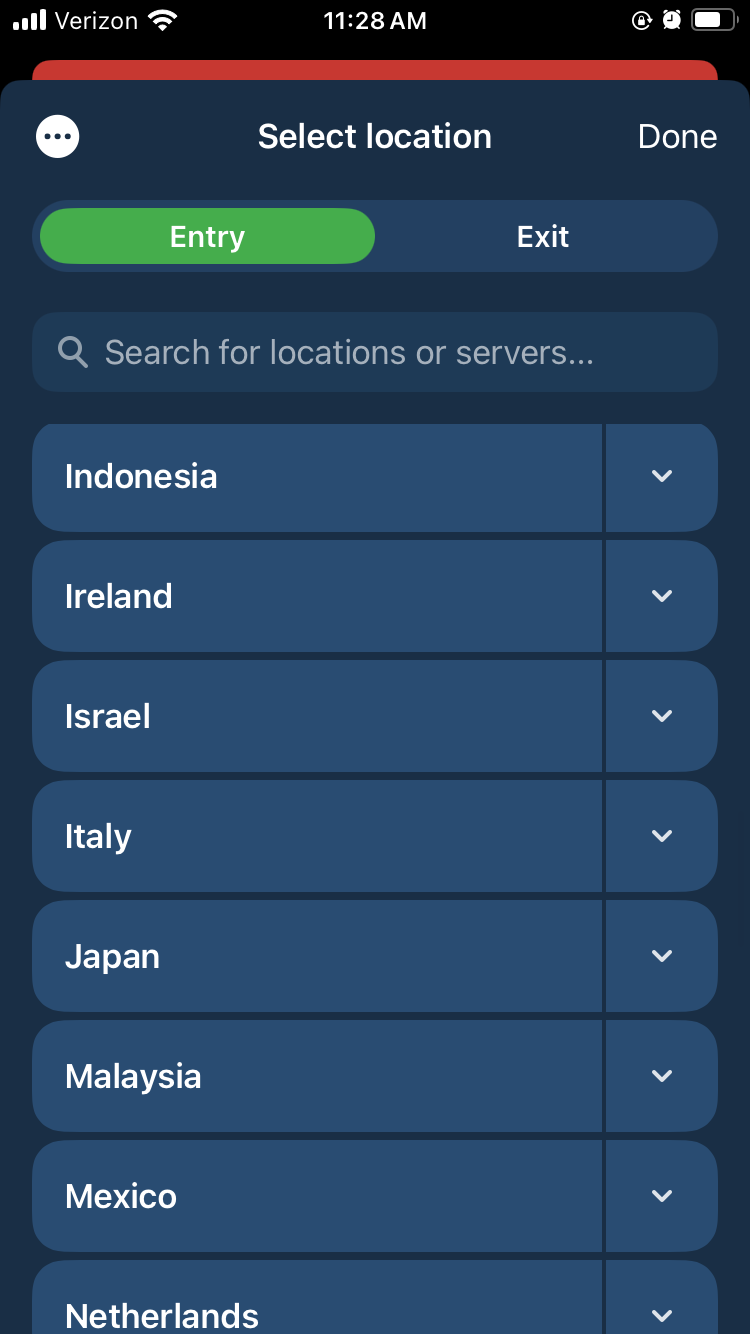
Many VPNs offer a double-hop connection that routes your traffic through two servers instead of one, adding a redundant layer of encryption in case one server malfunctions. Mullvad pulls ahead of the competition (except Surfshark, which also does this) by allowing you to choose your entry and exit servers. When you activate the multihop option and open the server list, you'll be prompted to pick two locations instead of one.
Mullvad's server list with multihop enabled.
Sam Chapman for Engadget
This means you can select an entry server that's close to you and an exit server in any country whose location you want to spoof, letting you fine-tune your own performance. It's way nicer than being railroaded into certain paths.
DNS content blockers
Mullvad includes six blocklists that can keep you or your family members from looking at unwanted content: ads, trackers, malware, gambling, adult content and social media. These lists can't be customized like Windscribe's R.O.B.E.R.T. blocks can, so you're limited to just turning them on and off.
IPv6 support
The internet is gradually transitioning from the old IPv4 standard over to IPv6, which will allow many more addresses to be shared out. Mullvad is one of a few VPNs looking ahead to the IPv6 era. You can leave it to block all IPv6 traffic, but if you do need IPv6 for any reason, you can enable it while still being connected to a Mullvad server.
Kill switch and lockdown mode
Mullvad comes with two features that protect against unexpectedly losing your VPN defenses. The first is a kill switch, a common VPN option that cuts off internet access if the VPN tunnel ever fails. This simple measure helps guard against accidental leaks.
Lockdown mode is the stronger option. While it's active, you will be unable to get on the internet unless you connect to a Mullvad server first. This will remain true if you turn the connection off yourself and even if you quit the app.
Split tunneling
Split tunneling is available on Mullvad's apps for every system except iOS. It lets you send some apps outside the VPN tunnel so they get online with your normal IP address. It's helpful if you have some apps that don't work with the VPN active — this is common with online banking, as an example. Another common application is to protect a torrenting client in the background while using your browser unprotected for better speeds.
Mullvad customer support options
Mullvad makes two forms of support available in the app. You can report a problem by going to Settings -> Support -> Report a problem, typing your question (requested to be in either English or Swedish, though they'd probably be able to read a question run through Google Translate) and optionally providing your email. You can also view the app's logs at any time, which can be useful to help a technician diagnose your problem.
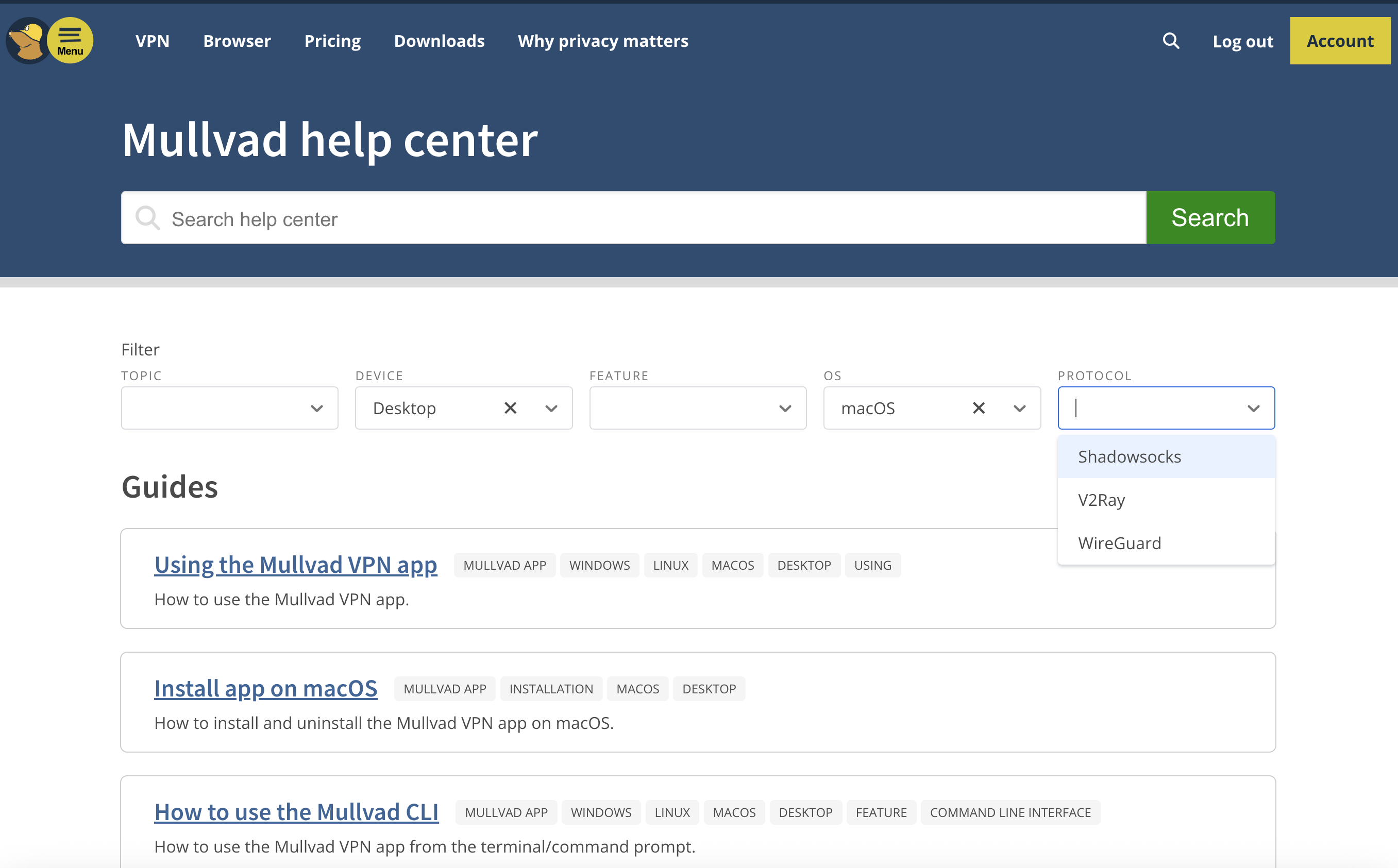
If you'd rather search for a solution at your own pace, you can go to that same page and click FAQs and Guides instead. This opens the help center in a browser.
Mullvad's help center, including the dropdown filter menus.
Sam Chapman for Engadget
I love Mullvad's approach to laying out its FAQs. Instead of crowding topics into five or six categories and making you guess whether your problem falls under setup, usage or troubleshooting, Mullvad gives you a set of dropdown filters to narrow down the articles which might relate to your problem.
By the time you've named which device, OS and protocol you're dealing with, you won’t have many articles left to sift through. There is an annoying tendency for certain sets of filters to reduce the number of surfaced links to zero, but for those cases, there's a search bar that also works well.
The articles themselves are good enough that I referred to them several times while writing this review. Some of them are a bit overlong, but they're diligent about including both internal and external links to get you where you're going fast.
Live support experience
This is normally where I cover how it feels to get live chat support from the VPN I'm reviewing. However, Mullvad doesn't have live chat support. That's unfortunate, although it's still better than Windscribe's approach of forcing you to banter with a sarcastic robot. Instead, I sent a question via email to Mullvad's support team, and got a response within 24 hours.
Mullvad background check
Mullvad was founded in 2009 in Sweden. It's still owned and operated by its original founders. According to a detailed timeline on its website, its 16-year history has been as uneventful as any user could ask for, with not much changing except updates to stay on the technological leading edge. The only controversy mentioned in Mullvad's own materials is the 2023 police raid of its headquarters, which (as I covered in the privacy section) only makes them look better.
So as not to take Mullvad at its word, I scoured the last 16 years of news items and user reports to search for any other blemishes on its record. Based on that research, I found no reason to doubt Mullvad's honesty about its location, owners or team.
I found just one leak that wasn't noted on Mullvad's own site. In 2023, a security research group called ZATAZ alleged that it found anonymized information on Mullvad users saved on an Internet Archive page, including account numbers (linked article is in French). According to ZATAZ, Mullvad contacted the Archive and got the page deleted.
To my mind, the only mistake Mullvad made in response to the ZATAZ allegations was not making a public statement about the incident. I can see why they didn't think it was a big deal, since even logging into someone else's Mullvad account wouldn't show you their browsing history, but it's always better to communicate about these things.
Final verdict
Mullvad is a VPN that knows what it wants to be and achieves that goal with flying colors. It's not trying to be an everything app — it does privacy and does it well. That's not to say it has nothing going on outside the VPN itself, as its DNS blockers, AI defenses and split tunneling all work smoothly. But if you want a VPN that's not ashamed to be a VPN, Mullvad is the right choice.
Of course, it has its own compromises. It's solidly in the middle of the speed pack and occasionally trips up when unblocking streaming sites. The lack of any protocols other than WireGuard grates on me a bit, since it reduces the user's options for troubleshooting. With all that said, those are minor hiccups on a VPN that does such a thorough job keeping you anonymous online.
This article originally appeared on Engadget at https://www.engadget.com/cybersecurity/vpn/mullvad-vpn-review-near-total-privacy-with-a-few-sacrifices-130000056.html?src=rss
A free trial to a virtual private network (VPN) can mean a few different things. Several of the best VPNs let you try them out without paying. A rare few, and only one on this list, let you try them without submitting payment information at all. Some VPNs have forever free plans that let you use them indefinitely without paying, as long as you're OK with some limits.
For the most part, though, your best chance to test a VPN for free is to pay for a subscription. Then, if you don't like the service, you can get your money back before the refund guarantee expires. This takes a bit more work, and some services have very tight turnarounds. However, it'll get you the most time with the most complete version of the VPN.
With that out of the way, let's talk about the best VPN free trials for each definition of "free trial." I'll start with VPNs that actually have free trials, most of which require a payment method and only work on mobile devices. The next section lists the best forever free plans. Finally, I'll share instructions for how to use a VPN money-back guarantee as a free trial.
Best VPNs with free trials
Best VPN forever free plans
Using VPN money-back guarantees as free trials
Although VPN free trials are great when you can get them, you'll enjoy a lot more flexibility by taking advantage of refund guarantees. Almost every provider has a money-back guarantee that doesn't require you to prove a specific problem. You'll probably have to deflect some upselling attempts before you actually get the refund, but most policies do promise you all your money back, with no pro-rating.
I like to download VPNs on their one-month plans so I can put the full service through my usual battery of tests. A 30-day money-back guarantee grants you enough time to learn whether you can use the VPN long-term. If you don't like the service, the standard method for getting a refund is to get in touch with customer support on the VPN provider's help page.
This article originally appeared on Engadget at https://www.engadget.com/cybersecurity/vpn/best-vpns-with-free-trials-130000435.html?src=rss
When we say that NordVPN is a good VPN that's not quite great, it's important to put that in perspective. Building a good VPN is hard, as evidenced by all the shovelware VPNs flooding the market. NordVPN may not be perfect, but it's easily top-five caliber and excels in certain use cases.
First, the bad: NordVPN's apps could all stand to undergo a little more quality control, with elements distracting from other elements and inconsistent designs from platform to platform. At least one of its FAQ pages directly contradicts itself. And while all the server locations could unblock Netflix, the one in Nigeria still showed U.S. content, indicating that our real location might have leaked.
However, there's a lot of good to balance that out. Speeds are fantastic and we saw no other hint of any kind of leak. Its server network is expansive and not overly reliant on virtual locations. The vast majority of servers are ideal for unblocking foreign websites. The real draw, though, is the extra features, including the innovative and flexible Meshnet, plus a malware blocker that acts more like a full antivirus and forward-looking quantum resistant encryption.
Editor's note (9/24/25): We've overhauled our VPN coverage to provide more detailed, actionable buying advice. Going forward, we'll continue to update both our best VPN list and individual reviews (like this one) as circumstances change. Most recently, we added official scores to all of our VPN reviews.Check out how we test VPNs to learn more about the new standards we're using.
Check out a summary of our NordVPN review in the table below.
Category
Notes
Installation and UI
Connections happen quickly and features are easy to use on all platforms
UI sometimes gets in the way; map screens can be clunky and apps come with unnecessary notifications
Surprisingly, the best UI may be in the browser extension
Speed
Extremely fast download speeds with only a 6.4-percent average drop
Good latencies on nearby servers, but farther ones have some lag
Fast upload speeds, but losses spiked in a few locations
Security
Uses acceptable protocols with uncracked encryption
NordWhisper obfuscated protocol recently implemented on Windows, Android and Linux
No DNS, WebRTC or IPv6 leaks on five test servers
Pricing
Best plan is the 2-year Basic for $81.36, or $3.39 per month
Basic gives you the complete VPN
If you get a multi-year plan, be sure to manually renew in order to keep the promotional rates
Bundles
Plus tier adds advanced malware protection and NordPass password manager
Complete plan adds NordLocker cloud storage
Prime tier adds ID theft protection and insurance features
Privacy policy
NordVPN does not log user activity on the VPN, a policy backed up by several third-party audits
However, it does log potentially identifiable device information unless you opt out in settings
Some concerning liberties taken in the overall Nord policy, but no documented malfeasance
Virtual location change
Four out of five test servers unblocked Netflix three times running, including virtual India location
Location in Nigeria got into Netflix, but didn't change available titles
Server network
153 server locations in 117 countries and territories
Server network is about 40 percent virtual, including all locations in Africa
Features
Extra servers grant additional privacy (double VPN, Onion over VPN, obfuscation) or specific optimizations (P2P, dedicated IP)
Threat Protection blocks dangerous domains and the Pro upgrade has some antivirus capability
Dark Web Monitor reports to you when any sensitive information has appeared on clandestine leak sites
Presets let you activate several settings with one click
Post-quantum encryption is nice, but not necessary yet
Kill switch is a useful safety feature on all apps
Split tunneling by app on Windows and Android, and by URL on browser extensions
Customer support
Written FAQs, live chat and email support
Live chat connected to an expert human within a minute
FAQs are poorly organized and contain some conflicts, but well-written on average
Background check
NordVPN is headquartered in Panama, while its parent company Nord Security is based in the Netherlands
2018 theft of public keys was a mistake, but NordVPN did almost everything right in response
Claims of law enforcement collaboration are overblown — NordVPN will comply with requests, but that doesn't mean they'll have information to provide
Installing, configuring and using NordVPN
NordVPN's biggest strengths are its speeds and the range of options it puts at your fingertips. User experience is important, but it's not quite as front-and-center as it is with ExpressVPN and Proton VPN. Here's how the apps run on all the major platforms.
Windows
The Windows app is the first instance of NordVPN's UI being not bad enough to complain about, but not good enough to be considered excellent. The initial connection process is a little slow, and it's far easier to connect than it is to disconnect (click the power button while connected to shut the VPN off). The map takes up space that would have been better allocated to the server list.
Sam Chapman for Engadget
The minor problems continue in the settings list, which makes the mistake of not keeping all its tabs visible in the window — if you open one, you have to click back to the main menu to reach another page. The pages themselves are easy to use; it's just a bit clunkier than it could have been.
Mac
Setup is swift and easy on Mac, but the full NordVPN interface is a little awkward. The vast majority of the main window is taken up by a large map, which is mostly useless. There's no way to zoom out to see the whole world, and you can't choose between servers in each country unless you zoom way in. The server list on the left-hand side is almost always more useful.
Sam Chapman for Engadget
The preferences panel is better. All the tabs come with clear explanations of their function, and are laid out so the menu is always visible, unlike the Windows app. The gear icon at the bottom includes its own set of tabs that encompass most of the common functions, including changing your VPN protocol, activating the kill switch and setting the VPN to automatically connect on untrusted networks.
Android
NordVPN on mobile can be described in much the same way as its desktop apps: generally great, occasionally getting in its own way. On Android, the map screen is much more helpful. It's expandable to the entire world and allows you to choose between servers within a country. On the other hand, the important settings are buried in the Profile tab, and the app notifies you about your "security score" to pressure you into activating certain settings.
Sam Chapman for Engadget
To find the general settings page on Android, tap the bottom-right Profile tab and scroll down. Except for Threat Protection, which has its own tab on the main window, every feature is located here. It's probably necessary to keep the main app from getting cluttered, but still mildly frustrating.
iOS
The NordVPN iOS app resembles a compressed version of the macOS client, for better or worse. As with Android, most of its features are in the bottom-right Profile tab. It works well most of the time, but often feels slightly cumbersome. There's a bit too much on the screen, and a bit too much of the stuff has nothing to do with the VPN's core function.
Sam Chapman for Engadget
As an example, you can't log into your account within the app — you have to load your Nord account page in a web browser. Forced app switching is a design choice that truly needs to die. That said, VPN connections happen quickly. If you tend to simply leave your VPN active, you probably won't notice any of this stuff.
Browser extensions
Most VPN browser extensions consist of the same features on a smaller scale, and NordVPN's — on Chrome, Firefox and Edge — are no exception. They are important for one reason, though: they're the only way to split tunnels by URL and the only split tunneling at all on macOS and iOS. Despite being more compact, they're also easy to use, making for an excellent quick-start VPN solution.
Sam Chapman for Engadget
NordVPN speed test
All VPNs slow down your average browsing speeds by adding extra steps into the connection process. When we test speed, we're looking for the VPN to drag as little as possible on your unprotected speeds. Download speed will be the most important stat for most users, since that determines how fast web pages load and how quickly videos can buffer.
Latency is important for live connections like video chats, games and live streaming. Latency increases with distance — in the test below, data packets were sent to the remote server, then back to our home network. Upload speeds likewise influence your live two-way communications and are also vital for torrenting. Let's see how NordVPN performs on all three metrics.
Server location
Latency (ms)
Increase factor
Download speed (Mbps)
Percentage drop
Upload speed (Mbps)
Percentage drop
Unprotected (Portland, OR, USA)
22
--
59.20
--
5.86
--
Seattle, WA, USA (Fastest)
44
2x
57.21
3.4
5.62
4.1
New York, NY, USA
177
8x
56.90
3.9
5.60
4.4
Stockholm, Sweden
371
16.9x
55.94
5.5
5.63
3.9
Istanbul, Turkey
411
18.7x
53.02
10.4
5.78
5.9
Hong Kong
350
15.9x
56.18
5.1
5.72
2.4
Johannesburg, South Africa
602
27.4x
53.26
10.0
5.67
3.3
Average
326
14.8x
55.42
6.4
5.54
4.0
To summarize: NordVPN's download speeds are the fastest we've seen and its upload speeds and latency tie with the best. Downloads only dropped by an average of 6.4 percent across the globe and readings were mostly consistent — the servers in question performed much the same in each test. We even threw in Turkey and South Africa, two locations that commonly cause problems, but NordVPN still kept the drop to 10 percent.
Sam Chapman for Engadget
Latency is more a product of physical distance than VPN infrastructure, but you can still see differences between services. When tested on a similar range of locations, ExpressVPN and Proton VPN both kept average latencies under 300 ms. NordVPN's average came out to 326 milliseconds, though we should note that its latency increased less than Proton's on the closest server.
Upload speeds declined an average of four percent, but there were a few anomalously high readings in Istanbul that skewed those numbers up. Without that location, NordVPN's upload rates would also have been the industry's current best.
NordVPN security test
No matter how well-built a VPN looks from the outside, there are several ways its security can fail. The most common problems are outdated protocols with weak encryption, failing to block IPv6 traffic or inadvertent leaks from sending DNS requests outside the encrypted tunnel. We'll start by looking for those common leak sources, then check whether NordVPN's encryption might be failing in less traceable ways.
VPN protocols
A VPN protocol is a set of rules used to get data quickly and safely from your device to a VPN server and back, even while that data is encrypted. Different protocols are connected with different encryption algorithms and can impact the speed, security and stability of your connection.
When testing VPN security, the first step is to see if it's using any protocols like PPTP that are outdated and crackable, or homebrewed protocols with unclear security. NordVPN users have four options for protocols: OpenVPN, IKEv2 (not available on Mac or iOS), NordLynx and NordWhisper (available on Windows, Android and Linux only).
Sam Chapman for Engadget
OpenVPN and IKEv2 are both standard protocols you'll find on most VPN providers. Both use various strengths of the Advanced Encryption Standard (AES), with OpenVPN defaulting to AES-256 and IKEv2 to AES-128. OpenVPN can be set to UDP (faster but less stable) or TCP (more reliable but slower). So far, so secure.
NordLynx is unique to NordVPN, but it's not that far off the beaten track — it's just WireGuard with extra security. WireGuard normally works by saving a stable IP address for each connection, which raises the very slight risk of exposing a user. NordLynx adds a second layer of abstraction that means those stable addresses are never revealed. Since NordVPN strongly recommends it for most situations, we used it for all our tests in this review.
Finally, there's NordWhisper, a new protocol introduced in early 2025 that disguises your VPN traffic as normal web traffic to evade blanket web blocks. It's likely to be slower than the other protocols, so don't use it unless everything else has been blocked. We also don't recommend counting on it too much in general — large-scale censorship technology, like the Great Firewall of China, tends to rely on blocklists of known VPN servers, whose identity NordWhisper can't disguise.
Leak test
Our first order of business was to check five test servers to see if they leaked our real IP address — staying away from the ones in the speed test in order to get as comprehensive a picture of NordVPN's security as possible. With help from ipleak.net, we found all five to be free of the three major types of leaks.
DNS leaks occur when a VPN sends DNS requests (in short, how your browser knows which websites to show you) outside its encrypted tunnel. By default, NordVPN uses its own private DNS servers, which our tests showed to effectively prevent leaks.
WebRTC leaks are caused by real-time communication protocols sending information outside the VPN, which may reveal your real IP address. NordVPN is consistently successful at keeping WebRTC inside the tunnel, but you can have your browser block it if you're still worried.
IPv6 leaks happen when a VPN only blocks IPv4 traffic and lets v6 through. NordVPN automatically blocks IPv6 traffic while it's active, so an IPv6 leak is all but impossible.
Sam Chapman for Engadget
Although that's all great news, it is still possible for leaks to occur without a clear explanation, so we ran one final test on NordVPN.
Encryption test
Wireshark is a program that captures detailed images of information sent over a device's internet connection. Even though our tests showed NordVPN to be free of leaks, we wanted to inspect it at the most granular level. Using WireShark, we recorded the traffic sent to an unencrypted HTTP site, before and after connecting to each NordVPN test server.
Every server showed the same pattern: readable plaintext before, encrypted ciphertext after. If there is a security flaw remaining in NordVPN, it's unlikely to be relevant to the overwhelming majority of users.
How much does NordVPN cost?
NordVPN's pricing structure looks convoluted at first, but it's much simpler than it appears. A Basic subscription gets you full VPN functionality, and all the other tiers just add more features. If all you need is a VPN, you only need to concern yourself with the left side of the table below.
The best deal for a Basic NordVPN subscription, which lets you connect to NordVPN with up to 10 devices at once, costs $81.36 for two years when you pay upfront ($3.39 per month). One year of the same plan costs $59.88 in advance ($4.99 per month) or $12.99 for one month at a time. The table below shows the complete cost; for more information on plans above Basic, see "side apps and bundles" in the next section.
Plan
1-month cost
1-year cost
2-year cost
Basic
$12.99
$59.88 ($4.99/month)
$81.36 ($3.39/month)
Plus
$13.99
$71.88 ($5.99/month)
$105.36 ($4.39/month)
Complete
$14.99
$83.88 ($6.99/month)
$129.36 ($5.39/month)
Prime
$17.99
$107.88 ($8.99/month)
$177.36 ($7.39/month)
The longer plans save money, but be careful: if you let them expire, you'll automatically renew at the more expensive one-year plan. Enough customers claim to have been auto-renewed at the higher rate that they've launched a class-action lawsuit against NordVPN, accusing the company of deceptive pricing practices and making renewals too difficult to cancel. A NordVPN PR rep said they could not comment on ongoing legal action, "other than to state that we are and always have been very clear about the recurring nature of our services." No court date has been set so far.
That said, there's a fairly straightforward workaround in the meantime: To prevent the auto renewal, log out of your NordVPN account, then sign up for a discounted plan again using the same email. As long as you do this before your subscription expires, your new account should link to your old one, keeping you subscribed at the introductory rate.
Free trials and refunds
Every NordVPN plan comes with a 30-day money-back guarantee. If you cancel and request a refund before 30 days are up, you'll get the full cost back. The only way to try it for free without paying is to get the app on Android, where there's a seven-day trial through the Google Play Store.
NordVPN side apps and bundles
NordVPN is part of a larger family of Nord Security products, which you can save money on if you need more than one. We won't review all of them here, but for reference, here's everything you'll get from the higher subscription tiers.
Basic: VPN on 10 devices, specialty servers, DNS ad-blocking, Meshnet
Plus: All Basic features, plus malware scanning, extra scam blocking, tracker blocking, NordPass password manager, data breach scanner
Complete: All Plus features, along with 1TB of NordLocker encrypted cloud storage
Prime: All Complete features, plus NordProtect features like dark web monitoring, credit monitoring, ID theft insurance and extortion insurance
Another tier called Ultra includes a subscription to Incogni, a data removal service run by Nord's partner Surfshark. The Ultra bundle is only available in certain countries, since NordVPN is still testing it; users outside the test countries can still add Incogni service at checkout. There also used to be a NordVPN family plan, but it seems to have been eliminated after Nord expanded the devices per subscription to 10.
You can get a dedicated IP address on NordVPN to ensure you have the same IP every time you connect. This lets you configure remote firewalls to let you through while you're connected to the VPN. A dedicated IP costs $8.99 per month, $70.68 for a year ($5.89 per month) or $100.56 for two years ($4.19 per month).
The NordVPN pricing page lists access to a Saily eSIM plan as a perk, though mysteriously, none of the existing plans seem to include it yet. A lot of VPNs are expanding into the eSIM space, so this may change soon.
Close-reading NordVPN's privacy policy
A VPN privacy policy isn't just empty words — it's a contract between the provider and its users. If a service openly defied its own policy, it could be sued for false advertising. VPNs tend to sneak loopholes into their privacy policies instead of flouting them outright; these loopholes can shed light on how the provider actually views your privacy.
This policy applies to all Nord Security apps. It's impossible to create an account without a valid email address, but you can use a separate email masking service to make that anonymous. The policy also explicitly says that your email address will be added to a marketing mailing list, though you can opt out. Irritating, but not a privacy risk in itself.
We're more concerned about the later statement that it may process data without the user's consent "under the legal basis of our or third parties' legitimate interest." This clause covers some cases we'd agree are legitimate, such as identifying people who launch cyberattacks from NordVPN servers. But Nord also considers it "legitimate interest" to process your personal data "to improve or maintain our services and provide new products and features."
Reached for comment, a NordVPN representative said that using personal data in this way "generally involves aggregated, depersonalized or technical information." That's somewhat reassuring, but the "generally" leaves a bit too much wiggle room. Ideally, we'd prefer that personal data exist wholly in the "consent only" section.
The section on sharing your data with third parties only lists "some of" the service providers who may receive your information. Among these are Google Analytics, which is known to store personal data on U.S. servers — all of which are potential security risks in the age of DOGE. Other unnamed "third parties" are involved in targeting ads at users of Nord websites.
The NordVPN representative said that "since some partners, such as payment processors, can vary by region or specific service and may change over time depending on our operational needs, we do not publish a fixed list." They added that all third parties are "contractually required to handle personal data in accordance with applicable laws and industry standards."
We aren't using this to condemn Nord; many of these practices are fairly standard in the VPN industry. But it's important to know about all the potential leakage points before trusting your deepest secrets to any company.
NordVPN specific policies
The NordVPN privacy policy doesn't add much atop the general Nord notice. It does track session activity connected to your username to make sure you're staying within the 10-device limit, but it automatically deletes these logs 15 minutes after you disconnect. The logs also don't include your IP address or the addresses of VPN servers you used.
Sam Chapman for Engadget
The only real problem we found is that NordVPN apps collect information about your activity on the app by default. This doesn't include information about your browsing habits, but it does include unique traits that could conceivably be used for "device fingerprinting" — in which a third party can deduce a user's identity through clues about their device. You can turn this off in the General settings.
A NordVPN spokesperson told us that the data collected is "not personally identifiable," and that the company takes "deliberate steps to strip out anything that could be linked back to a specific person." This presumably means the data is aggregated so it only shows general trends, not any one device's activity. That's a lot less risky, but we still recommend switching the setting off.
Third-party privacy audits
NordVPN has passed five independent audits of its privacy policy so far, most recently from Deloitte in late 2024. Annoyingly, you can only read the entire report by logging into a Nord account, but it at least doesn't have to be a paid account.
The audit found that NordVPN was following its own no-logs policy. Specifically, the Deloitte Lithuania investigators concluded that "the configuration of IT systems and management of the supporting IT operations is properly prepared, in all material respects in accordance with the NordVPN's description set out in the Appendix I." (Appendix I of the report is identical to NordVPN's privacy policy.)
Can NordVPN change your virtual location?
You'll be most interested in this section if you mainly use a VPN to change their location for streaming. To see if NordVPN could unlock new streaming libraries, we picked a new batch of five test servers, then logged onto Netflix. Since Netflix tries to block all VPN servers to prevent copyright issues, our first question was whether we'd get through at all.
Our second question: would connecting to a NordVPN server actually change what Netflix library we saw? It should, given that NordVPN seems leak-proof, but thoroughness demands we check anyway. Here's what we found.
Server location
Netflix unblocked?
Content changed?
Canada
Yes
Yes
Argentina
Yes
Yes
Germany
Yes
Yes
India
Yes
Yes
Nigeria
Yes
No
Four out of five locations worked perfectly. On a Canadian server, we were able to stream Star Trek: The Next Generation, which left American Netflix years ago. The Argentine server gave us access to something called Pasion de Gavilanes, which we'd never heard of but sounds great.
Sam Chapman for Engadget
The only problem was Nigeria. We tested it several times, connected to multiple different Nigerian locations, but saw our American Netflix library every time. We then ran a leak test on Nigeria, which wasn't one of our security test locations, and found it to be working normally. It's hard to say what happened, especially since the Nigeria server doesn't appear to be virtual, but we can confirm that it wasn't working.
Investigating NordVPN's server network
NordVPN has servers in 153 cities in 117 countries. Out of all total options, 62 are virtual locations (about 40 percent), where the server is really located somewhere else. This makes it possible to get servers into more places, but depending on your actual location relative to the server, it may perform differently than you expect.
Sam Chapman for Engadget
Virtual locations have allowed NordVPN's server network to grow quite extensive, with lots more locations in South America, Africa and Asia than the industry standard. Check out the distribution in the table.
Region
Countries and territories with servers
Total server locations
Total virtual server locations
North America
15
36
12
South America
10
10
6
Europe
48
57
11
Africa
10
10
10
Middle East
7
7
4
Asia
24
26
18
Oceania
3
7
1
Total
117
153
62 (40.5 percent)
The relatively low proportion of virtual locations (nearly identical to that of ExpressVPN) is a good sign, as it means NordVPN has been growing its server network thoughtfully. Some VPNs — looking at you, HMA — inflate their server lists as a marketing point without seriously considering what it takes to maintain such a large network. That thankfully doesn't seem to be the case here.
Extra features of NordVPN
Here's everything you get with a NordVPN app other than the VPN itself. There's a lot going on here, so we'll limit ourselves to a sketch of each feature.
Specialty servers
As soon as you load NordVPN, you'll see a list of special servers near the top of the right-hand column. We'll go over each of them in order.
Dedicated IP: As discussed in the bundles section, a dedicated IP address costs extra. With this, you'll always connect with the same IP, which is private to you alone. It may be worth the price if you find yourself getting asked for CAPTCHAs a lot more while connected to NordVPN — though for what it's worth, that didn't happen to us.
Double VPN: This sends your connection through a second VPN server before it reaches your ISP. The second server is your apparent location. There are 10 endpoints to choose from. As you might imagine, your internet will run slower with two VPN servers in the mix, so only use this if you seriously need security.
Obfuscated servers: These are only available on OpenVPN. Obfuscation can help you get around firewalls that seek out and block VPN traffic. If you can't get online with NordVPN when you're on a certain network, obfuscated servers might work.
Onion Over VPN: After encrypting your data as normal, these servers send it through several nodes of the Tor network, granting you the total anonymity of onion routing while keeping you safe from malicious relays. It's available in two locations, Netherlands and Switzerland, and — like double VPN — is best used only when you need the utmost privacy.
P2P: NordVPN only allows torrenting on its peer-to-peer servers, but fortunately, it's got P2P servers in 114 countries — only three fewer than it has in total. NordVPN keeps your download and upload speeds very fast on average, so you shouldn't have trouble torrenting from any location.
Meshnet
Meshnet is NordVPN's most unique and exciting feature by a long shot. By logging into the same NordVPN account on multiple devices, you can connect those devices directly through a NordLynx tunnel without needing a NordVPN server in between.
Sam Chapman for Engadget
Essentially, you're using your own devices as VPN servers — obviously not great for privacy, but amazing for accessing web services in other countries. While two devices are connected, you can transfer files between them through the NordLynx tunnel. You can even invite friends and use their devices.
Threat Protection
NordVPN has two levels of antivirus: Threat Protection and Threat Protection Pro. The former is a simple DNS filter that stops your browsing from loading unsafe web pages while NordVPN is active. It's the highest level available on Android, iOS and Linux, or on any Basic subscription.
Sam Chapman for Engadget
Threat Protection Pro, which Plus subscribers or higher can set up on Windows and Mac, can work even when you aren't connected to a NordVPN server. It acts more like a standalone antivirus by scanning downloaded files for malware, and can even block trackers. Basic Threat Protection (without Pro) can block some trackers by filtering out domains known to use them, but doesn't block the trackers directly.
Dark Web Monitor
While active, Dark Web Monitor continually searches known data breach dump sites on the dark web and notifies you if it ever finds your account email address. If you get that notification, change any passwords associated with the address. With a Prime subscription, you can also have it search for your phone number, social security number or other financial information.
Presets
Presets let you set up one-click VPN connections with a desired group of settings, a lot like Proton VPN's Profiles. NordVPN comes pre-loaded with presets that optimize for "Downloads," "Speed" and "Browsing," which sounds to us like the same thing three times.
More usefully, you can create presets for particular countries, then add website shortcuts that will appear once you've connected. You could, for example, set one that connects to a specific location, then add a shortcut to a streaming site available in that location.
Post-Quantum encryption
Experts widely believe that quantum computers will eventually make our current encryption algorithms obsolete, but there's almost no consensus on when that will actually happen — except that it hasn't happened yet. Knowing that, NordVPN's "post-quantum encryption" feature comes across as a bit premature, but it's reassuring that someone is thinking about it.
Having said that, we don't recommend using post-quantum encryption yet. It works by layering one of the known quantum-proof encryption standards on top of a standard NordLynx session, which makes your VPN connection slower and more erratic. Until we can verify a real quantum cyberattack, post-quantum encryption is a needless precaution.
Kill switch
A kill switch cuts off your internet the instant you lose your connection to a NordVPN server. This protects you in case a server unexpectedly fails, and as a side benefit, prevents you from connecting to any fake VPN servers. You should keep the kill switch on at all times.
Split tunneling
Split tunneling is available on NordVPN's Windows and Android apps (and Android TV by extension), along with its browser extensions. On Windows and Android, it splits by app: you can determine which apps get online through the VPN and which go unprotected. The browser extensions let you split by URL, so the VPN only protects certain sites.
NordVPN customer support options
NordVPN's apps link directly to its online help center. As always, we went in with a specific question in mind: whether the basic level of Threat Protection could block trackers, and if so, what kind. We found the categories on the written support page difficult to parse, especially the troubleshooting section — would the average user appreciate the difference between "app issues," "connection issues" and "errors"?
We correctly guessed that our question would be under "Using NordVPN -> Features," but the introductory article on Threat Protection and Threat Protection Pro was buried at the bottom of the list. Unfortunately, that made things more confusing, as this article says that Threat Protection (not Pro) both does and doesn't block trackers. In NordVPN's favor, however, using the search bar brought us instantly back to that article without any confusion.
The live support experience
Using NordVPN's live chat was a smooth and reassuring experience. From the time we decided to ask directly, it took us less than a minute to connect with a real person, who quickly cleared up the confusion and promised to update the confusing support page (we'll check back to see if they actually do).
Sam Chapman for Engadget
One other option is an email support form, which can be found both on the website and in the help sections of NordVPN apps. This is best for complex problems that require screenshots to explain, and promises a response within 24 hours.
NordVPN background check
NordVPN was founded in 2012. Launching with its desktop apps, it moved to iOS and Android in 2016, then added apps for browser extensions and smart TVs. Its developer, Nord Security, has no parent company, and its history is relatively uncontroversial. We've documented two notable incidents below, plus more about Nord Security's operations.
Headquarters and ownership
Nord Security was founded in Lithuania, and maintains offices there. Although Nord Security is registered in Amsterdam, NordVPN operates under a separate license in Panama, which makes any data requests subject to Panama's courts.
Finland server breach
The first serious incident in NordVPN's history began in March 2018, when unidentified hackers managed to steal three private keys from one of Nord's data centers in Finland. Researchers didn't notice the leak until October 2019, well after the stolen keys had expired, but NordVPN's encryption was still technically vulnerable for several months.
We say "technically," because it was really only the outer layer of encryption — and even if they'd broken through it all, the hackers would only have seen browsing activity, not usernames, passwords or anything else sensitive. If anything, NordVPN's response actually makes us trust it more. It ended its relationship with the contractor who ran the Finnish data center and revamped its policies to eliminate the kind of negligence that led to the breach.
Arguably, its only real error was not immediately disclosing the breach. NordVPN learned about the leak and started addressing it in May 2018, but the news didn't break until more than a year later. That timing probably made it look more suspicious than any actual mishandling did.
Law enforcement compliance
Another minor controversy erupted in 2022, when PCMag and other outlets reported that NordVPN had edited its website to say that it would comply with data requests from law enforcement. NordVPN responded with a new post that said nothing had changed: their policy was always to comply with lawful requests, which — provided the requests were lawfully submitted through a Panamanian court — is literally their only option.
We're inclined to agree. VPNs are legal companies. They wouldn't last long if they openly declared their intent to break the law. The key is that when law enforcement comes calling, there shouldn't be anything to show them, as with the Turkish seizure of ExpressVPN. That's why verifiable no-logging policies are so important.
Final verdict
NordVPN is a great service on its own merits. It only suffers from having to be compared with the likes of ExpressVPN and Proton VPN. For example, its P2P servers are good for torrenting, but not as useful without Proton's port forwarding. It's fast, but speed tests fluctuated just a little more than Express.
NordVPN's extra features are the best reason to pick it over its rivals. With Meshnet, you can theoretically set up a VPN connection anywhere in the world, and no other VPN has anything close to Meshnet's file transfer powers. Threat Protection Pro is also great if you can get it, adding file scanning to bolster the typical approach of just blocking suspicious DNS addresses. Specialty servers round out the offering, with double VPN maintaining good speeds with extra safety and Onion over VPN being among the safest ways to use Tor.
This article originally appeared on Engadget at https://www.engadget.com/cybersecurity/vpn/nordvpn-review-2025-innovative-features-a-few-missteps-163000578.html?src=rss
VPNs have a mixed reputation, primarily because you can use the technology to hide your location and identity on the internet. Even the best VPNs can be used to conceal crimes and make the perpetrators harder to track. Fortunately, most of the world's governments (at least for now) recognize that VPNs are just technology that can be used for good or ill.
That means VPNs are legal in almost every country in the world. The countries that do restrict VPNs tend to be those where internet freedoms are already curtailed, like Russia, China, Iran and North Korea. There are distinct gradations between those nations, though. And the days of worry-free VPN access elsewhere in the world is starting to show cracks: Currently free jurisdictions — including the UK, France and even several US states — are now considering bans.
Is it legal to use a VPN?
The answer is almost always yes. In every country except the ones listed in the next section, there are no legal penalties for visiting a VPN website, downloading a VPN or connecting to a VPN server.
In the last few years, however, some countries that were once beacons of online liberty have started considering bans. This is part of a chain reaction that started with age verification laws for websites deemed harmful to children, most prominently the UK's Online Safety Act. Once everyone realized that anyone could circumvent the OSA by using a VPN server in another country, UK politicians began trying to ban VPNs as well. The same thing is currently happening in France. In the US, Wisconsin and Michigan are both proposing age verification laws and VPN bans.
For now, though, none of these VPN bans have passed into law. Some have been defeated by the coordinated efforts of activists, including one Swiss proposal that would have forced Proton VPN to relocate.
In countries that do ban or restrict VPN usage, the laws can take several forms. Some countries have made all VPNs unlawful to use. Others only allow VPNs approved by the government — approval which usually comes from agreeing to share information with law enforcement. In some other countries, it's legal to use a VPN, but you'll face extra penalties if you use one to commit a crime. I'll go through all these categories in the next section.
Where are VPNs illegal?
This section is a complete list of countries where using a VPN is a legal risk. If a country isn't on this list, you can assume it's safe to use a VPN. Even nations with bad internet freedom scores, like Saudi Arabia and Indonesia, often don't have anti-VPN laws to avoid scaring off international business.
One more important note is that anti-VPN laws are much more likely to be enforced against locals than foreigners. I'm not saying you should tempt fate, just noting that there are very few cases of a traveler being prosecuted in another country solely for using a VPN.
Countries where VPNs are totally banned
VPNs are completely outlawed in four countries. Three of them — Belarus, Turkmenistan and North Korea — are isolated authoritarian regimes that restrict internet freedoms as part of nationwide crackdowns on all civil and political liberties. Iraq, while slightly more liberal overall, banned VPNs in 2014 in an attempt to kick the Islamic State off the internet. Twelve years later, the ban remains in place.
Uganda is a special case. In 2018, the African nation enacted the world's first social media tax, which the government called necessary to raise funds but which was criticized as a backhanded assault on free speech. VPNs can get around the tax, so Ugandan internet service providers (ISPs) are required to block VPN traffic. However, there's no law on the books against using a VPN, so as long as you bring a service with obfuscation (like NordVPN) you're good to go.
Countries where only approved VPNs are allowed
More common than banning VPNs altogether is restricting VPN usage to those approved by the government. This lets the powers that be grant limited VPN access to businesses for economic reasons, while also being able to yank it away as a method of control. It also means VPNs with a license to operate are likely to report data or install surveillance backdoors.
The nations that handle VPNs this way are China, Russia, Iran, Venezuela, Bahrain, Myanmar, Pakistan, India, Turkey and Oman. These countries don't ban all VPNs, but target popular providers with intermittent crackdowns and threats.
China in particular uses the so-called Great Firewall, the world's most sophisticated suite of censorship technologies, to prevent its citizens from even visiting the homepages of VPN companies. If you plan to travel in China and want to maintain access to the outside world, download a VPN before you go — and remember that using it while there will technically put you in violation of the law.
Russia is a textbook case of a selective VPN ban, with businesses allowed to use approved VPNs and everyone else left to scramble against periodic mass blocks. Turkey's autocratic government has also tried to crack down on VPN usage by blocking VPN sites, but clumsy implementation has left a lot of holes, allowing Instagram and other social media to remain a free speech lifeline for Turks.
Countries with extra penalties for using VPNs to view blocked websites
In a few countries, it's legal to use any VPN, but against the law to use them for illegal activities. You might say, "Duh, I'm aware that breaking the law is illegal," but there is a meaningful difference — some crimes are crimier than others. Just like you'll get a much harsher sentence if you rob someone with a weapon, you'll face steeper penalties for using a VPN to view content the government is trying to block. Countries that operate like this include Vietnam, Egypt and the UAE.
Potential future VPN bans
Today, a number of countries once considered free and tolerant are proposing wide-ranging age verification laws, usually for reasons that boil down to "think of the children!" If enacted — as the UK’s Online Safety Act has shown — they effectively offer a choice between two equally unacceptable alternatives: Live with a censored version of the internet, or get broader access only once you sacrifice your online anonymity.
VPNs are the easiest and most direct workaround to this rising tide of censorship, which is why those same governments have them in their legislative crosshairs. The threat of enforcement chills free activity in a connected world where enforcers can't be everywhere at once.
For now, laws against VPN usage are still largely vague, inconsistent and unevenly applied. As citizens, we can work to make our voices heard and fight against these initiatives before they become law. In the meantime, you may well want to get install your VPN of choice on as many devices as possible — and get your other cybersecurity ducks in a row while you’re at it.
This article originally appeared on Engadget at https://www.engadget.com/cybersecurity/vpn/are-vpns-legal-170000878.html?src=rss
ExpressVPN is launching a new cybersecurity suite consisting of four standalone products: a password manager called ExpressKeys, a masked email relay called ExpressMailGuard, an encrypted AI platform called ExpressAI and an app called Identity Defender that monitors public information for any threats to your identity. All four apps are being rolled into ExpressVPN's existing multi-tiered pricing structure.
ExpressKeys and ExpressMailGuard have officially launched and are now available to subscribers. Identity Defender launches for U.S. customers only on February 26. ExpressAI was originally planned to launch today, but ExpressVPN decided yesterday to hold it back in order to refine the experience. Its new launch date remains to be determined.
ExpressKeys and Identity Defender are based on existing products, but they're being relaunched for the new suite. ExpressKeys replaces ExpressVPN Keys, the password manager formerly controlled from the ExpressVPN app. By separating password management into its own app, ExpressVPN hopes to be able to update it more quickly without needing to ship a whole new version of the VPN. Everyone who currently has an Advanced or Pro subscription with ExpressVPN Keys will see it automatically replaced with ExpressKeys.
Identity Defender is only available in the United States, and so far only to users who created their accounts after October 28, 2024. Available for Advanced and Pro subscribers, Identity Defender consists of a data removal service, an identity theft insurance policy and a set of crawlers that scan for any suspicious activity around your personal information. Like ExpressKeys, it's transitioning from an integrated VPN feature to a standalone app.
ExpressMailGuard is a service for creating burner email addresses. If you're not comfortable handing over your real email address when creating a new account, you can use MailGuard to generate a fake address that forwards all email to your real inbox. If one of your aliases starts getting a lot of spam, you can cut off its access. It's managed through a separate dashboard that will be available to all ExpressVPN subscribers.
ExpressAI is an AI platform that saves all user-inputted data on strictly encrypted servers. It's apparently end-to-end encrypted, doesn't use your prompts to train its model and never saves uploads on persistent memory. It also has guardrails against processing harmful requests.
All these apps are in line with ExpressVPN's usual ethos. They're not innovations; all four can be easily compared to existing products. Instead, like the VPN itself — which rode this model to a spot on my best VPN list — they're focused on performing unsexy tasks well. The ability to bundle them with an ExpressVPN subscription should make them appealing to customers who are already fans of the core VPN product.
This article originally appeared on Engadget at https://www.engadget.com/cybersecurity/vpn/expressvpn-launches-four-new-standalone-apps-140000686.html?src=rss
So you've decided you need a virtual private network to hide your browsing activity from your ISP, change your virtual location, stay safe on public Wi-Fi and enjoy all the other benefits. The inevitable next question is: "Should I pay for one? If so, how much?"
All the best VPNs cost money, but it can be hard to tell an overpriced service apart from one that's priced according to its value. On this page, I'll share the costs for top VPN services, calculate the industry average and explain what makes VPNs cost as much as they do. At the end, I'll share a few tips for making a VPN fit your budget.
How much is a VPN?
I'd like to start by introducing the complexity of the problem. If you just want the numbers, you’ll find those in the sections below.
The main thing that makes VPNs so hard to budget for is that providers aren't always honest about how much they're charging. They rarely lie outright, but they often overcomplicate their pricing structures and hide increases in the fine print.
Let's take CyberGhost as an example, since I just reviewed it. A one-month subscription to CyberGhost costs $12.99 — simple enough. However, you can also get a six-month subscription by paying $41.94 upfront, though the website more prominently calls this "$6.99 per month." Finally, you can pay $56.94 for a 28-month subscription, but only once; after that, it'll be $56.94 for a year.
These prices are subject to change.
Sam Chapman for Engadget
As you can see in the image, the website heavily emphasizes the average monthly price, in text that dwarfs the actual price you'll pay at checkout. This gets even worse with services like NordVPN that have multiple tiers of subscription as well as multiple durations. It's not uncommon to see 10 or more prices quoted for the exact same VPN.
The best way to cut through the confusion and shop on your own terms is to compare different VPNs at the same duration and subscription tier. For example, you could find the cost of one year of the most basic available plan, since most basic subscriptions still include full VPN service. In the next two sections, I'll compare and average the basic tiers of my top seven VPNs at the monthly and yearly levels.
Average monthly cost of a VPN
Here's what the best VPNs cost per month. The numbers below are for subscribing to one month at a time, excluding any discounts and special deals.
Proton VPN: $9.99
ExpressVPN: $12.99
Surfshark: $15.45
NordVPN: $12.99
CyberGhost: $12.99
Mullvad: $5.98 (depends on dollar/euro exchange rate)
As you can see, $12.99 is a normal price for one month of a VPN — but the average price is somewhat lower, as several providers sell monthly plans for less. In general, expect to pay in the range between $10 and $13. Companies like Surfshark sometimes inflate their monthly prices in a bid to drive more traffic toward the longer plans.
Mullvad is also an outlier, since you can only ever subscribe to it month-by-month. There are other outliers, such as Astrill, which costs a whopping $30 per month. But the above holds true for all the best-regarded providers.
Average yearly cost of a VPN
If you choose to sign up for a year at a time, you'll probably save money but you'll have to pay more upfront. VPNs offer long-term deals to pump their cash flow and active user numbers. One-year costs for the top seven VPNs are written below as a lump sum, since several of them add extra months to the first subscription period so they can quote a lower monthly price. Since CyberGhost doesn't have a one-year plan, I've replaced it with Windscribe.
Proton VPN: $47.88
ExpressVPN: $52.39 for the first subscription, $99.95 afterwards
Surfshark: $47.85
NordVPN: $59.88 for the first subscription, $139.08 afterwards
Windscribe: $69.00
Mullvad: $71.82 (depends on dollar/euro exchange rate)
hide.me: $54.99
Average: $57.69
For one year of a VPN service, you can expect to pay somewhere between $45 and $70. Note that at least two services, ExpressVPN and NordVPN, raise prices after the first year, so account for that in your budget if you really like them.
Why do VPNs cost so much?
The length of the subscription is the biggest factor in determining how much you'll pay. Beyond that, it's all a bit fuzzy. Commercial VPNs are still a relatively new industry, so there's not a lot of standardization in the pricing.
Most of the variation in cost comes from competition: VPNs value themselves lower to offer a better deal than their rivals, or higher if they think they've got a unique differentiator. Astrill gets away with charging $30 a month because of a widespread belief that it's the best VPN for China (in truth, no VPN can be sure of working in China 100 percent of the time).
Another factor that might influence a VPN's price is the cost of maintaining its infrastructure. For each new server location, the provider has to either rent space in an existing data center, build its own physical server farm or set up a virtual server with an IP address from a particular location.
On Proton VPN, for example, you can switch locations by clicking the name of any country in the list on the left.
Sam Chapman for Engadget
Once the locations exist, they have to be maintained, including regular changes to their IP address so firewalls don't identify and block them. Loads at locations need to be balanced between servers and technology has to be upgraded as faster solutions become available.
Since VPNs can have hundreds of server locations, all that upkeep doesn't come cheap, and customers often eat the cost. Factor in the price of extra features outside core VPN functionality and you'll understand why these companies are so desperate for liquidity that they'll offer discounts over 80 percent — as long as you hand over a lump sum right now.
What about free VPNs?
VPNs can get pricey, especially if you want high quality. But some VPNs charge nothing at all. Is there any reason not to go with free VPNs every time?
The answer is a pretty clear yes; paying for a VPN is almost always a better idea. When we rounded up the best free VPNs, only three got our unqualified recommendation. All three were paid services with free plans, and all come with strict limitations on server locations, data usage and other privileges.
The unfortunate reality is that free VPNs come with downsides no matter which one you use. Plenty of them are hacked-together apps with little value, thrown together to make a quick buck. Others turn you into the product by selling your data to advertisers or renting out your home IP address. Some drop any pretense and plant malware directly on your device.
These risks, which are often invisible to the end user, are the reason I almost always advise going with a free VPN funded by a paid plan, like Proton VPN, hide.me or Windscribe. Those plans may be restricted, but at least the provider's motives are out in the open: they make money off the paid plan and they want you to switch to it.
How to save money on a VPN
If you've decided to pay for a VPN but want to stretch your budget as much as possible, the tips below can push your cybersecurity dollar a bit farther. To begin with, the general advice on choosing a VPN always applies: read expert opinions, check the reviews and use the free trial to test its speed and security.
Get a long-term plan. If you're confident that you'll actually use the VPN for the whole duration, there's no reason not to go with a 12-month or 24-month subscription. These are win-win deals that genuinely do save you a lot of money overall.
Cancel auto-renewal. VPN accounts are set to automatically renew by default. In some cases, this can inadvertently lock you into a higher-priced long-term plan. I recommend cancelling auto-renew right after subscribing even if you're sure you want to continue. From there, you can create a new account to get the introductory rate again — or go with a different VPN to get a better deal.
Look for resubscription deals. Another perk of cancelling immediately is that the VPN will often try to woo you back with exclusive discounts. Stay strong until your subscription is a month or two from expiring, then look for emails offering better rates.
Wait for seasonal discounts. If you can hold off until November, most VPNs offer steep discounts from Black Friday season all the way through New Year's. Check around other holidays too, as VPNs will take any excuse for marketing; CyberGhost is offering a Valentine's Day deal as I type this. We also keep track of the best VPN deals you can get at any time of the year.
Use the VPN to save money on streaming. Most streaming services are more expensive than VPNs. If you use a VPN to access more content without adding a new streaming subscription, you'll come out ahead. For example, if you only have Netflix but want to watch Schitt’s Creek, you can pay $16.99 per month for Peacock without ads — or $9.99 per month for Proton VPN to unblock Netflix Canada, which features that show.
Shop for regional discounts. Like the previous point, this won't save you money on the VPN itself, but might save you enough money on other expenses that you turn a profit. Changing your virtual location can get you discounts on purchases where prices vary by region, especially travel costs.
This article originally appeared on Engadget at https://www.engadget.com/cybersecurity/vpn/how-much-do-vpns-cost-170000567.html?src=rss
When talking about the best VPNs, I frequently warn about the dangers of trusting free VPNs without verifying them. Although there are a few free VPNs worth recommending, many other free providers are ineffective, malicious or looking to profit off their users (or sometimes all three). Even the best free VPNs work a lot better once you subscribe and access their full service.
This can be frustrating if you want to enjoy the benefits of a VPN but don't have the budget for yet another subscription. To help you out, I put together a list of the best paid VPN services you can get cheaply. Every name on the list comes with my full recommendation — I'll never recommend a VPN that doesn't protect you, no matter how affordable.
Before I get started, I want to define "cheap," since VPNs often bamboozle the customer with muddled pricing schemes. Most providers have long-term subscription plans with big discounts, and many of them compensate by making their monthly plans more expensive. On this list, I'll recommend services with cheap subscriptions for both the short and long term, plus one favorite that balances both.
Best cheap VPNs for 2026
Other VPNs we tested with good deals
A couple of VPNs have decent pricing options attached to worthy services but weren't quite strong enough to make the list. Both these services get my hearty recommendation; they're just hard to justify as "cheap."
ExpressVPN
ExpressVPN recently switched to a multi-tier pricing model. The Basic pricing tier gets you complete VPN service but doesn't include the full set of features. The best price on that is $78.18 for 28 months, which works out to $2.79 per month. Although that sounds great, it's more expensive than both Surfshark and CyberGhost at the same duration and renews at the even higher price of $99.95 per year ($8.33 per month).
Still, as I wrote in my full ExpressVPN review, it's an outstanding service overall. Thanks to its sensible app layouts and focus on doing simple tasks well, I find it especially good for introducing beginners to what a VPN can do.
NordVPN
NordVPN is another provider that I gave a relatively positive review. I really like its boundary-pushing features, especially the various types of highly specialized servers. Its pricing isn't bad, exactly, but even the Basic level is more expensive than just about everyone else at every duration. NordVPN's fast download speeds and wide server network make it worthwhile for lots of users, but it's hard to recommend to people on a budget.
What to look for in a good cheap VPN
Looking for an affordable VPN is the same as looking for any kind of VPN; it just requires more care. The worst VPNs usually present themselves as free, but there's also a fair number of mediocre options that think low prices have to mean a mediocre service. If you want to use a VPN but don't have much extra cash, take some additional care in a few areas of your search.
First, don't subscribe to a VPN — or even download any of its apps — if you haven't verified its security. To do that, start by checking what experts have to say about it. If a VPN is truly unsafe, chances are high that somebody has already sounded the alarm. You can also check the list of protocols the VPN offers. If it's anything other than OpenVPN, WireGuard or IKEv2, do a deep dive to make sure it's using worthwhile encryption.
If you've verified that the VPN isn't a virus, check to see if it has a free trial or a guaranteed money-back period. This will give you some risk-free time to do hands-on tests. Our article on how we test VPNs includes several tests you can run on your own computer, phone or tablet. Check the VPN's speed, make sure it has the server locations you need and look for anything that might be leaking your real IP address.
Read the VPN's privacy policy and make sure you're comfortable with how much information it saves. Some VPNs emphasize privacy more than others. Finally, before your free trial or refund period expires, make sure to double-check on the pricing structure of the VPN you're choosing — it's possible that it will only be cheap for the first subscription period.
This article originally appeared on Engadget at https://www.engadget.com/cybersecurity/vpn/best-cheap-vpn-170000957.html?src=rss
Virtual private networks (VPNs) have been household technology for a while now, but there's still a lot of uncertainty around them. This is partly due to the fact that they can conceal online activity that local or national governments deem illegal — up to and including, say, circumventing ID checks for age verification. Consumers aren't helped by the sheer amount of duds sold in app stores right next to the best VPNs, especially when they're purposefully exploiting moments that have people rushing to shore up their online anonymity. If you've almost decided to start using a VPN, you may be wondering if the services you're looking at are actually safe.
Unfortunately, the answer is a hard "it depends." VPNs are technology that can work well or poorly, just like they can be used for good or evil. There's nothing intrinsically dangerous about using a VPN — whether or not one is safe comes down to who built it and how they're running it. The good news is that there are easy ways to tell whether you’re using one of the good ones.
The question "Are VPNs really safe?" can also mean something else — "Is using a VPN enough to keep me safe online?" I'll get into that too, but to spoil the ending: VPNs are important security tools, but they aren't enough to protect against all digital threats by themselves. Also, to be clear, I'm talking here about commercial VPNs like Proton VPN and ExpressVPN, not commercial VPNs like NordLayer or Cisco AnyConnect.
What makes a VPN unsafe?
There are two main things that can make me call a VPN unsafe: negligence and malice. A negligent VPN doesn't protect against the dangers it's supposed to ward off, leaving you more exposed than if you weren't using a VPN at all. A malicious VPN is designed to make you less safe so the people behind it can profit.
Some ways a negligent VPN might endanger its users:
Using outdated protocols with cracked encryption, like PPTP, or homebrewed protocols with insufficient security. A weakly secured protocol might expose your search activity.
Allowing leaks by using public DNS servers rather than setting up their own system to resolve requests. This risks revealing what websites the VPN's users are visiting.
Leaking the user's real location by failing to block or properly manage IPv6.
Leaving its servers in the hands of unvetted third parties, who might let them get hacked.
Failing to include a kill switch, which puts users at risk of connecting to false servers.
Some ways a VPN can be malicious:
Making its money from in-app ads, especially if those ads contain trackers.
Harvesting the user's residential IP address and selling it as a proxy.
Tracking the user's activity and selling it to advertisers.
Planting malware on the user's device.
I want to stress again that none of these risks are inherent to how a VPN works. VPNs aren't required to be dangerous in any way. There are plenty of good ones, which makes it all the more important to pick the bad ones out of the lineup. In the next section, I'll discuss how to do that.
How to tell if a VPN is safe
The process of checking up on a VPN starts before you buy it. Before you consider downloading any VPN app, do your research and learn as much as you can. Read review sites like Engadget, but also try to get reports from regular users on social media and app stores. Be suspicious of five-star reviews that are light on specifics — the more positive reviews from actual users, the better.
While researching, look for any cases in which the VPN failed in its mission to protect customers. Did it ever turn information over to police, despite having a no-logs policy? Were any of its servers ever breached by hackers in ways that put other users in danger? Is it cagey about key information, like where it's based or who its parent company is?
You can also close-read the VPN's privacy policy, like I do in my VPN reviews. A privacy policy is a legal document that can invite lawsuits if the provider ignores it outright, so most companies prefer to plant vague loopholes instead. Read the policy and decide for yourself if it makes any unacceptable exceptions to "no logs ever."
If the answer to all those questions is no, your next step is to download the VPN and test it. Every worthwhile VPN has a guaranteed refund within a certain period, so you can use that time to test the factors below. If you like the results, you can subscribe for longer; if not, you can cancel and get your money back. Here's what to look for during the refund period:
Check which VPN protocols are available. The best expert-verified protocols are OpenVPN, IKEv2 and WireGuard. If the VPN uses a protocol other than these three, make sure it's using an unbreakable encryption cipher like AES-256 or ChaCha20.
Test for leaks. You can run a simple leak test using a website like ipleak.net or whatismyipaddress.com. Just check your normal IP address, connect to a VPN server, then check again. If the IP address you see is the same as before, the VPN is leaking.
Find the kill switch. A kill switch prevents you from accessing the internet while you're not connected to its associated VPN. This is critical to prevent certain types of hack that rely on fake servers to work. Most top VPNs have a kill switch or a similar feature with a different name (such as Windscribe's Firewall).
See if the apps are open-source. A VPN making its services available for viewing on Github states powerfully that it has nothing to hide. Anonymity is an inalienable right for individuals, but VPN apps aren't people — the more transparent the code, the better.
Test its other security features. If the VPN has a blocker for ads, malware or trackers, see if it prevents banner ads from loading. Try connecting to a test malware site like www.ianfette.org or httpforever.com and check if the VPN blocks it.
There's one more factor that generally denotes a safe VPN: paid subscriptions. I'm not going to claim that all free VPNs are dangerous, but if a service claims to be always free with no need whatsoever to pay, you have to ask how it makes money. VPNs that don't charge for subscriptions usually turn their users into the product, selling their data to advertisers or for use as residential proxies.
Is a VPN enough to keep you safe online?
Another way in which VPNs aren't totally safe is that they aren't, by themselves, a total solution for cybersecurity. A VPN does one specific task: it replaces your IP address with an anonymous server and encrypts communication with that server so your real device can't be seen. This means you won't reveal your identity or location in the normal course of using the internet.
However, if you reveal information another way, then all bets are off. If you click a sketchy link that downloads malware onto your computer, that malware doesn't care that your IP address is concealed — it's already where it needs to be. Similarly, if you leak critical information in a social post, or privately give it up to a phishing scammer, a VPN won't help.
I put together a list of 12 cybersecurity habits that'll keep you safe from nearly all threats online. Getting a VPN is one of them, but there are 11 others, including strengthening your passwords, immediately installing updates and conditioning yourself to spot social engineering hacks. Don't fall into the trap of thinking you're untouchable just because you use a VPN.
The safest VPNs
It can be a lot of work to figure out whether a VPN is safe and trustworthy. If you just want to pick one you can use without having to open a federal case, check out my best VPN roundup or best free VPN list — or just use one of the suggestions in this section.
Proton VPN, my favorite VPN, is majority-owned by the nonprofit Proton foundation, has open-sourced its entire product family and has never suffered a serious hack or breach. Despite some controversy around its parent company, ExpressVPN remains secure; its servers have been confiscated at least once and found to hold no information.
NordVPN suffered a hack in 2018 and learned the right lessons from it, doubling down on security at its server locations. Similarly, Surfshark was criticized for using a weak authentication method and deprecated it entirely in 2022. Often, a VPN responding correctly to a security breach looks better than one which has never been attacked at all — sometimes strength can only be known in adversity.
This article originally appeared on Engadget at https://www.engadget.com/cybersecurity/vpn/are-vpns-really-safe-the-security-factors-to-consider-before-using-one-130000539.html?src=rss