It’s a busy time for the reviews team and Engadget, and with Apple announcing new devices this week, we aren’t letting up any time soon. New products from Samsung, Dell, Google and ASUS headline the roundup this time, and we’ve got a few unique items to discuss as well. Read on to catch up on anything you might’ve missed, including the latest installment of Pokémon.
Samsung Galaxy S26 Ultra
This year’s Samsung flagship phone may not impress you with a load of new features, but there’s one in particular that senior reporter Sam Rutherford was wowed by. “This goes double for the S26 Ultra, whose biggest upgrade — the Privacy Display — is something meant to stop other people from snooping at what you're doing.,” he said. “When it's on, you probably won't even be able to tell, which is kind of the point.”
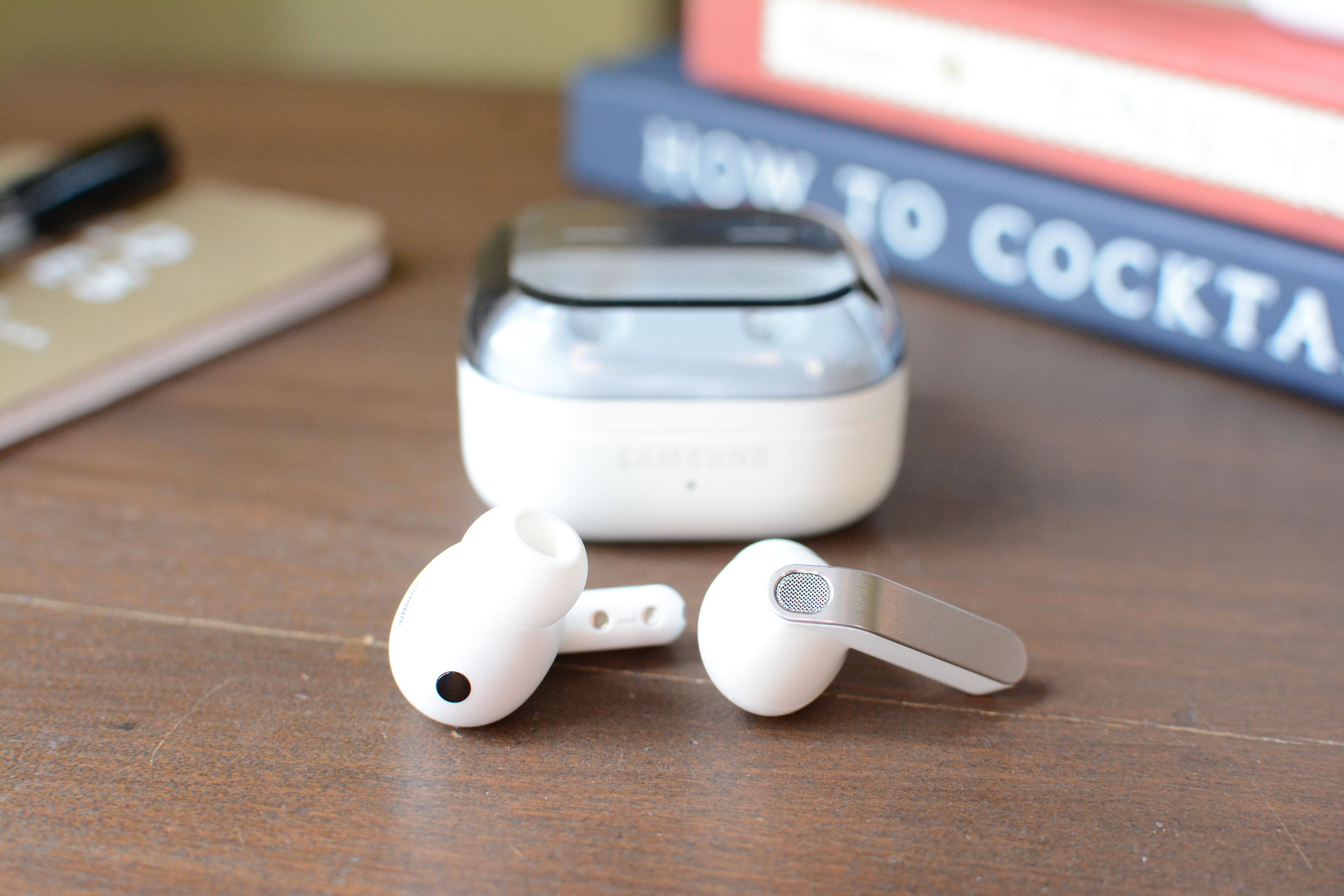
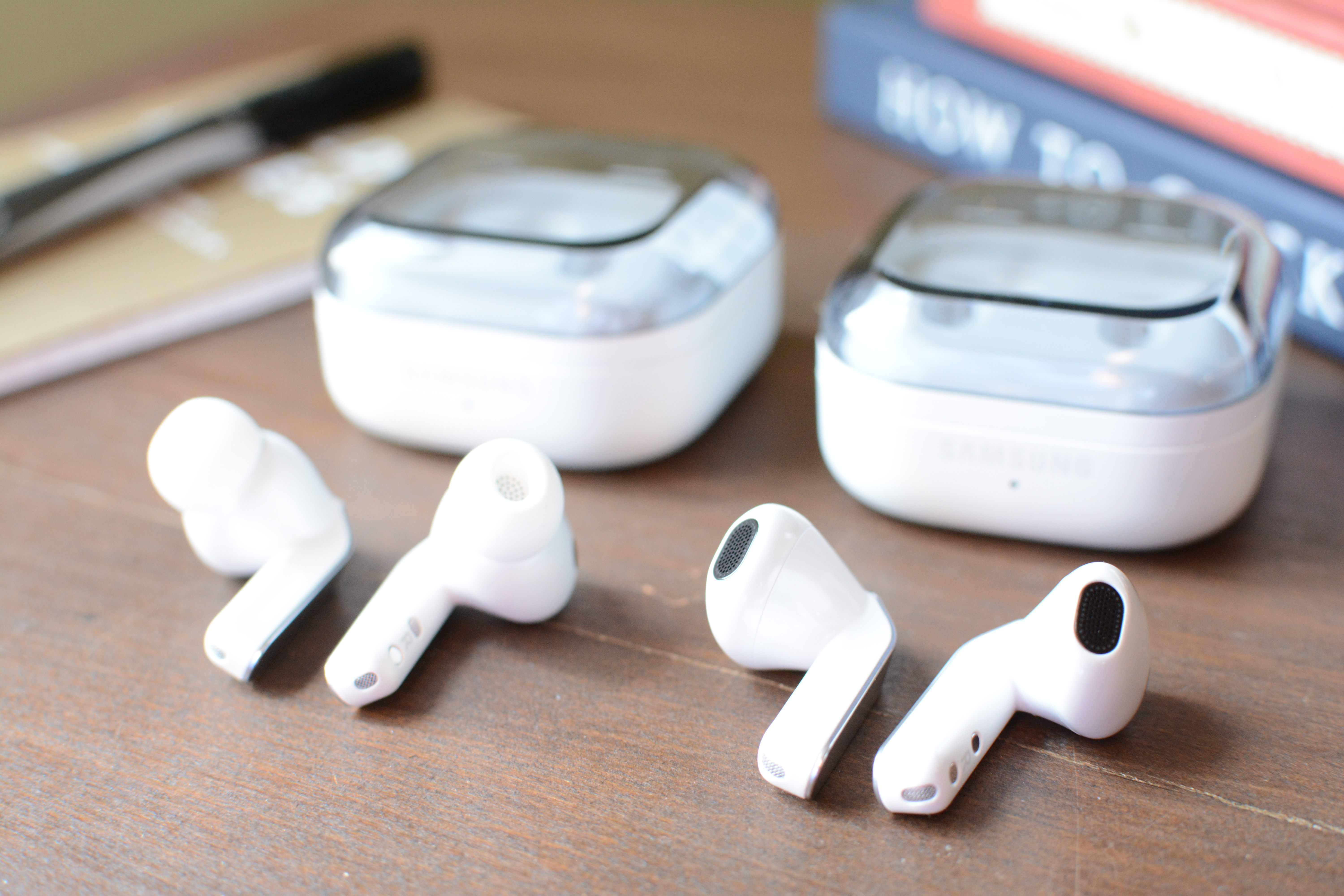
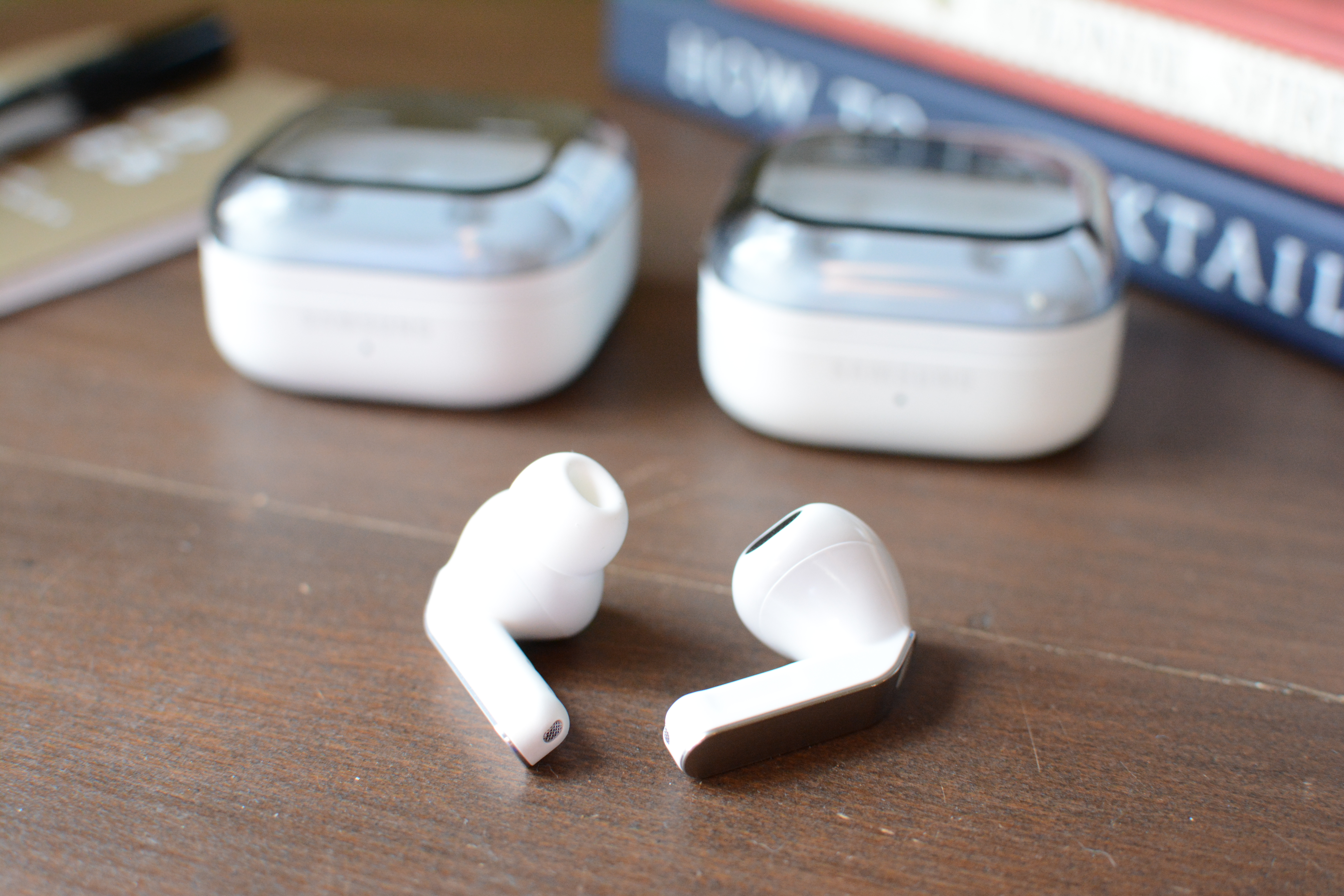
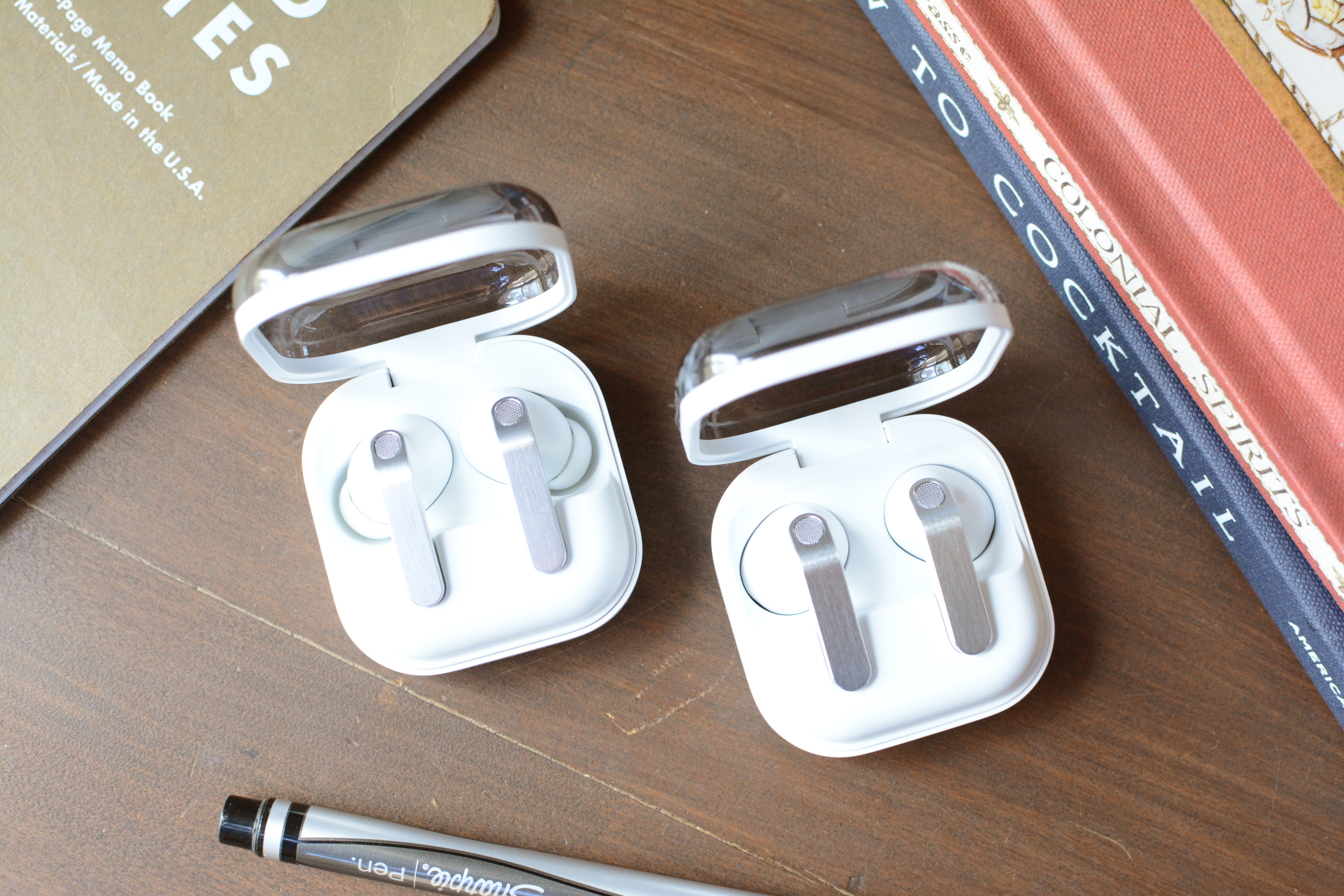
Samsung Galaxy Buds 4 and 4 Pro
Samsung went all-in with with AirPods mimicry last year, and that continues on the Galaxy Buds 4 and 4 Pro. However, despite big improvements to sound quality and the continued addition of new features, Samsung could certainly do more. “The company is really only lagging behind Apple in two areas: hearing health and heart-rate tracking,” I wrote. “Samsung currently offers the option to amplify voices on its earbuds, but it hasn’t built a hearing test or the hearing protection tools Apple has. The biggest update on the AirPods Pro 3 was the addition of heart-rate tracking last year, which would be a great foundation for a fitness-focused version of the Galaxy Buds.”
Dell XPS 14 (2026)
We review a lot of devices that are almost excellent, except for one big flaw. That’s the case with the new XPS 14, where senior reporter Devindra Hardawar had a hard time with very basic functionality. “If I were to judge the XPS 14 based purely on its specs and design alone, it would be my favorite Windows laptop available today,” he wrote. “Dell is so close to making a PC that’s a true MacBook Pro competitor, it's a shame a simple keyboard issue holds the XPS 14 back from true greatness.”
Google Pixel 10a
Google’s A-series devices have consistently been a great option if you’re looking to spend less on phone but still want a capable handset. Despite minimal upgrades on the Pixel 10a, that sentiment still holds true. “On the one hand, part of me wants to dock points because Google has added so few updates,” senior reporter Igor Bonifacic said. “On the other, the 10a is still a great phone for $500, and at a time when consumer electronics are becoming more expensive by the day, the fact it hasn't gone up in price is a small miracle.”
ASUS ProArt GoPro Edition PX13
Creators often need a combination of power and display quality in a laptop that would be overkill for most of us. For those who do need it, contributing reporter Steven Dent found the ASUS ProArt GoPro Edition PX13 nearly checked all the boxes. “ASUS is one of the few PC manufacturers trying to compete with Apple in the creator market, and with the ProArt GoPro Edition laptop, it has largely succeeded,” he said. “This model offers excellent performance and battery life, a huge amount of memory, a very nice OLED HDR display, a nice range of ports and an excellent keyboard and trackpad.”
Ambient Dreamie, Seattle Ultrasonics and more
We also recently reviewed a couple of off-beat gadgets, both of which earned high marks from our team. The Ambient Dreamie is a “bedside companion” that functions as an alarm clock with both bedtime and morning routines. Weekend editor Cheyenne MacDonald was so impressed by how it improved her sleep that she bought one for herself. And the Seattle Ultrasonics C-200 was dubbed “the future of kitchen knives” by Sam.
Sam also played a few hours of Pokémon Pokopia and he was charmed by the new take on gameplay for the series. Lastly, Devindra put the Falcon Northwest FragBox through its paces, discovering a powerful gaming rig in machine that looks a bit like a box of fried chicken
This article originally appeared on Engadget at https://www.engadget.com/engadget-review-recap-galaxy-s26-ultra-galaxy-buds-4-dell-xps-14-and-more-140435975.html?src=rss
Samsung caught flak for the Galaxy Buds 3. The company’s mimicry of Apple’s AirPods was all too obvious last year when it opted for a stem or “blade” design after several generations of putting touch controls on the main housing of its earbuds. The Galaxy Buds 4 and Galaxy Buds 4 Pro continue that trajectory, as Samsung keeps adding new features with direct parallels to AirPods. The good news is, both models have been improved in various ways, all while their prices stay the same.
A refined design that’s still too familiar
On last year’s Galaxy Buds models, Samsung introduced its “blade” design and overall shapes that clearly took inspiration from Apple’s earbuds. While all of that remains the same on the Galaxy Buds 4 lineup, Samsung made some refinements that at least gives its earbuds a more polished look.
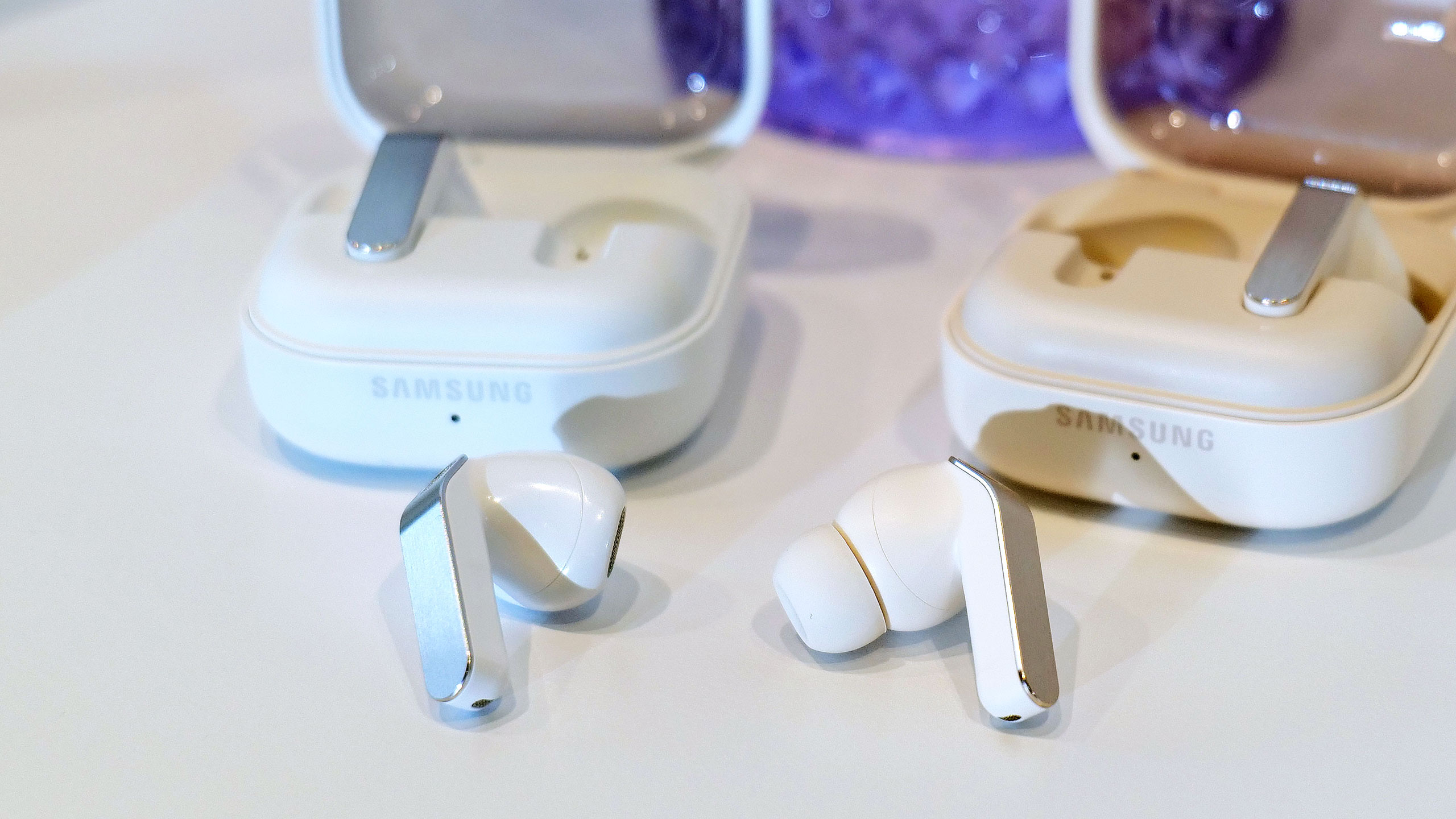
The angular “blade” is gone from both the open-fit Galaxy Buds 4 and silicone-tipped Galaxy Buds 4 Pro. That stem is now a flat panel with a thin metal cover, but it’s still called the blade (thanks, Samsung). And thank the gods, the gimmicky blade lights on the last Pro model are now gone. The Galaxy Buds 4 and 4 Pro both have an indented area that accepts both swipes and presses for the onboard controls, a design choice that makes that area easy to find by touch alone. Aside from that, the overall shape of both Galaxy Buds 4 models remains mostly the same, and they’re both pretty much the same size too.
One big change for the Galaxy Buds 4 duo is the charging case. Since the buds now lay flat in there instead of sitting vertically in the case on the previous model, Samsung has gone back to its rounded square shape from older generations. The company did, however, keep the translucent lids, so you can clearly see if the earbuds are in the case without having to open it.
In addition to their styles (the Buds 4 are open fit while the Pro have ear tips), a notable distinction between the two is their ingress protection (IP) levels. The Galaxy Buds 4 Pro is rated IP57, which is good enough for dust protection and full immersion in up to three feet for 30 minutes, while the Galaxy Buds 4 is IP54. That latter number means you’re only guarded against dust intrusion and water splashes.
Useful features, if you have a Samsung phone
Samsung Buds 4 Pro
Billy Steele for Engadget
A few years ago, Samsung offered iPhone users the same suite of features as those onGalaxy phones. Those days are long gone. Like Apple does with AirPods and Google with Pixel Buds, Samsung requires you to pair a Galaxy phone to get the most out of a pair of Galaxy Buds 4 or 4 Pro. If you opt for the open-fit model though, you’ll have to sacrifice a few features.
Let’s start with the tools that are available on both versions. You can expect Adaptive EQ 2.0, 360 audio with head tracking, Auracast, automatic switching, head gestures and both touch and swipe controls across the board. Both models also offer AI assistance via either Bixby or Gemini.
Voice features are where the two models primarily differ. The Galaxy Buds 4 Pro has voice detection that automatically lowers the volume and activates ambient sound mode when you start speaking. The pricier version also offers hands-free access to an AI assistant without having to touch the earbuds or your connected device.
Pretty much all of this stuff requires a Samsung phone. Sure, you can use the basics — ANC, onboard controls and ambient sound — from the likes of iPhones and Macs. But the more advanced items like voice detection, head gestures and automatic switching won’t be available there. As before, there’s an app for Android users with non-Galaxy phones, but things like UHD audio and higher-quality calls are not available on those devices. If you do have a Galaxy phone, everything is baked into the Bluetooth menu, just like Apple does with AirPods.
Shockingly good sound quality
Samsung Galaxy Buds 4 Pro (left) and Samsung Galaxy Buds 4 (right)
Billy Steele for Engadget
I’ve come to expect good sound from the Galaxy Buds line. I usually go into any new Samsung audio review knowing I”ll be getting average audio quality at the very least. On last year’s Galaxy Buds 3, the sound performance was well above average for both sets, and that continues on the two latest models. However, if audio is your main priority, the Galaxy Buds 4 Pro is the better pick.
Like Samsung did with the Galaxy Buds 3 Pro, this year’s 4 Pro has a two-way driver setup with an 11mm “super-wide” woofer and a 5.5mm planar tweeter. While the woofer is larger than what’s inside the 3 Pro, the tweeter is smaller. Those components combine for shockingly good sound quality for a pair of Samsung earbuds. I was truly surprised when I put the Galaxy Buds 4 Pro in my ears for the first time and played aya’s electro-tinged hexed! The driving bass line on “off the ESSO” is energetic yet nuanced, vocals are cutting and clear, while the synths and other percussive elements pierce through the mix. The Galaxy Buds 4 Pro deftly handled everything I threw at it, from Spiritbox’s heavy metal to the mellow acoustic tunes on Muscadine Bloodline’s 2025 release.
The Galaxy Buds 4 aren’t a sonic slouch by any means. It’s true you’ll get deeper bass and more overall clarity and detail from the Pro model, but prospective buyers who desire an open fit don’t have to sacrifice too much in the sound department. There’s still punchy bass and crunchy highs, with enough midrange to fill in the gaps adequately. I noticed the biggest difference on that aya track, where the bass isn’t as deep or detailed and the rest of the mix isn’t quite as dynamic as it is on the Galaxy Buds 4 Pro.
Active noise cancellation that still needs work
Samsung Galaxy Buds 4 Pro (left) and Galaxy Buds 4 (right)
Billy Steele for Engadget
While both Galaxy Buds 4 models offer active noise cancellation (ANC), the Pro version has what Samsung calls Adaptive Active Noise Cancellation 2.0 versus just Adaptive Active Noise Cancellation on the other. The company didn’t go into much detail about the differences, other than to say the ANC performance on the Galaxy Buds 4 Pro is superior. Hence the 2.0, I guess.
ANC performance was a major issue on the Galaxy Buds 3 and that continues on the Galaxy Buds 4. Samsung just hasn’t managed to crack the noise cancellation code on open-fit earbuds the same way Apple has with its “regular” AirPods. In fact, the ANC on this new model makes such a modest difference, I’d wager most customers would prefer to trade it for longer battery life (or a lower price). I only kept it on in the interest of my battery rundown, otherwise I wouldn’t have used it at all. It’s definitely more like active noise reduction than outright cancellation.
Thankfully, noise cancellation is a different story on the Galaxy Buds 4 Pro. It’s still not going to silence the world like the second-gen Bose QuietComfort Ultra Earbuds can, but Samsung’s tech does just enough to make it useful in most circumstances. I found it particularly adept at blocking moderate levels of constant noise, like a clothes dryer, fan or white noise machine. It’s the sudden jolts of racket where the Pro struggles. The Buds 4 Pro also does a decent job at muffling human voices, which caused my family much frustration.
Calls and voice quality
Samsung Galaxy Buds 4 Pro (left) and Galaxy Buds 4 (right)
Every audio company claims its special sauce is the key to the clearest calls, and Samsung is no different. The company boasts that its combo of a 16kHz super wideband mode, DNN noise reduction and personalized beamforming mics offer “calls so clear, it’s stunning.” Of course, that promise requires a Galaxy S26 series phone — not just the earbuds.
I was shocked to discover how well I sounded in quiet environments as both of these earbuds offer voice quality that’s crisp and clear. If you move to a noisy spot, both models will completely block any background roar, but you will sound slightly digitized on the other end. This was more apparent on the Galaxy Buds 4, but it’s noticeable on both versions. That’s due to all the audio processing Samsung is doing to mute those distractions.
To top it all off, the ambient sound mode on the Galaxy Buds 4 Pro is very natural, which means you won’t be yelling to hear yourself during calls or meetings.
The competition
If you’re looking for the best earbuds to use with a Samsung phone, the Galaxy Buds 4 and 4 Pro are your best options. Again, like Apple does with the AirPods and Google with the Pixel Buds, Samsung continues to offer the most advanced and most useful features to the Galaxy faithful. If you don’t really care about that synergy, the second-gen Bose QuietComfort Ultra Earbuds are currently my top pick. That set won’t wow you with features, but the combination of excellent sound quality and the best ANC performance make them hard to beat. Plus, multipoint Bluetooth connectivity offers easy switching between a Galaxy S26 and a MacBook.
Wrap-up
With each passing year, Samsung draws closer to offering Galaxy phone users a true like-for-like AirPods rival. The company is really only lagging behind Apple in two areas: hearing health and heart-rate tracking. Samsung currently offers the option to amplify voices on its earbuds, but it hasn’t built a hearing test or the hearing protection tools Apple has. The biggest update on the AirPods Pro 3 was the addition of heart-rate tracking last year, which would be a great foundation for a fitness-focused version of the Galaxy Buds.
Everything else continues to improve on a familiar formula. Samsung has bolstered overall sound quality and ANC performance, even if the noise canceling abilities of the Galaxy Buds 4 remain somewhat lackluster. The design changes offer a more premium look and the gradual addition of modern features like head gestures help the company keep pace with the competition. While the Galaxy Buds 4 and 4 Pro are both good, Samsung really needs to take bigger swings with new features to make its earbuds the must-buy that AirPods are for iPhone users.
This article originally appeared on Engadget at https://www.engadget.com/audio/headphones/samsung-galaxy-buds-4-and-4-pro-review-impressive-audio-imperfect-anc-190000202.html?src=rss
When cooking pizza with the high heat of an outdoor oven, you have to rotate your pies to ensure even cooking. That’s usually done by hand, but Ooni’s latest accessory automates the process. The company announced the Rotating Stone for its Koda 2 lineup, which helps distribute heat evenly across the surface of a pizza so that it’s consistently cooked all the way around.
Ooni says its Rotating Stone has a mechanism around its perimeter rather than a central pivot. According to the company, this takes care of any wobbling or stalling that might otherwise occur — even when heavy cookware is used. The new accessory also has two rotation modes, continuous and 90 degrees, so you can conserve battery life if you don’t need the full range of motion.
The Rotating Stone’s external module houses a LIDAR sensor for hands-free control. By simply waving your hand or a pizza peel, you can start or stop the rotation. What’s more, Ooni says the Rotating Stone can be installed in less than 10 minutes.
The Rotating Stone is available for the Koda 2, Koda 2 Pro and Koda 2 Max for $329, $349 and $399 respectively. If you need the oven too, bundles are priced at $799, $1,099 and $1,649.
This article originally appeared on Engadget at https://www.engadget.com/home/kitchen-tech/ooni-debuts-a-rotating-stone-for-its-koda-2-pizza-ovens-200000857.html?src=rss
We’ve known Apple would follow up its blockbuster film F1: The Moviewith live coverage of F1 races in 2026. Now that we’re approaching the first grand prix weekend of the year, the company has provided details on what fans can expect to see inside the Apple TV app and beyond.
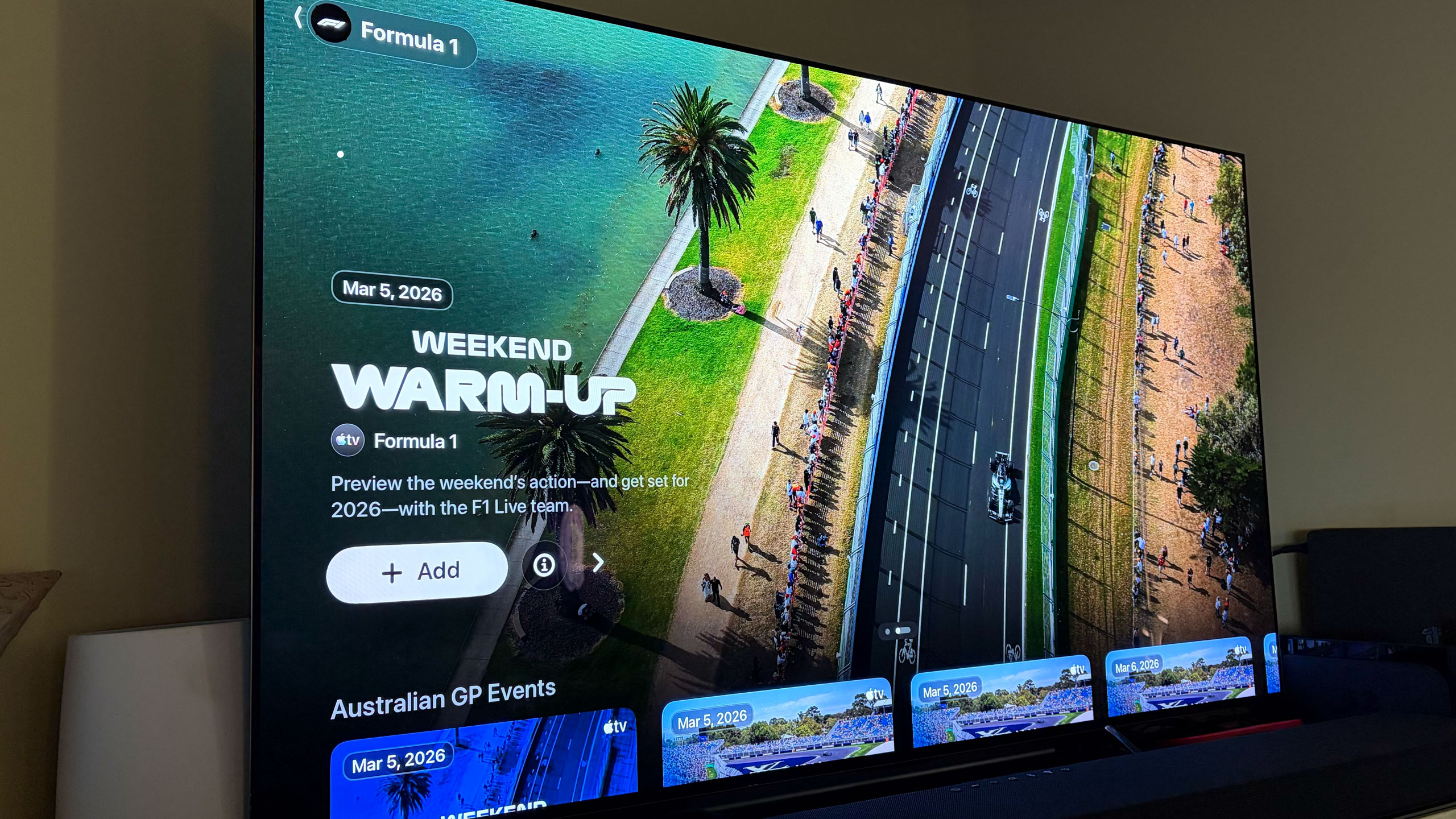
There’s already a dedicated F1 channel in the Apple TV app, which is where you’ll stream races live when the time comes. You can also watch practice sessions, sprint races and both pre- and post-race coverage. Apple offers a number of additional F1 videos there (I’d recommend watching the one on the new rules) and you’ll be able to stream the latest season of Drive To Survive on Apple TV as well.
Apple will offer the F1 TV feed as the main broadcast alongside the Sky Sports feed for all races. If you’ll recall, ESPN used to show the Sky Sports feed with Sky’s commentary team for its coverage of F1. Apple says it’ll broadcast every grand prix in 4K (Dolby Vision) with 5.1 audio (no mention of Dolby Atmos).
As part of Apple’s deal with F1, Apple TV subscribers get F1 TV Premium for the 2026 season. This gives you access to things like onboard cameras, team radios and live telemetry in addition to live coverage of the entire grand prix weekend. So, you can watch races on Apple TV or F1 TV, depending on your app preferences, or use the additional features of F1 TV Premium as a second (or third, etc.) screen setup. Netflix will also broadcast the Canadian Grand Prix in May as part of the deal that brought Drive To Survive to Apple TV.
Multi-view for F1 on Apple TV
Apple
Full replays for all sessions will be available in the Apple TV app as well. Apple will offer a condensed race in 30 minutes replay option too, and the company says it’s working to hide spoilers in case users are watching after the race begins or concludes.
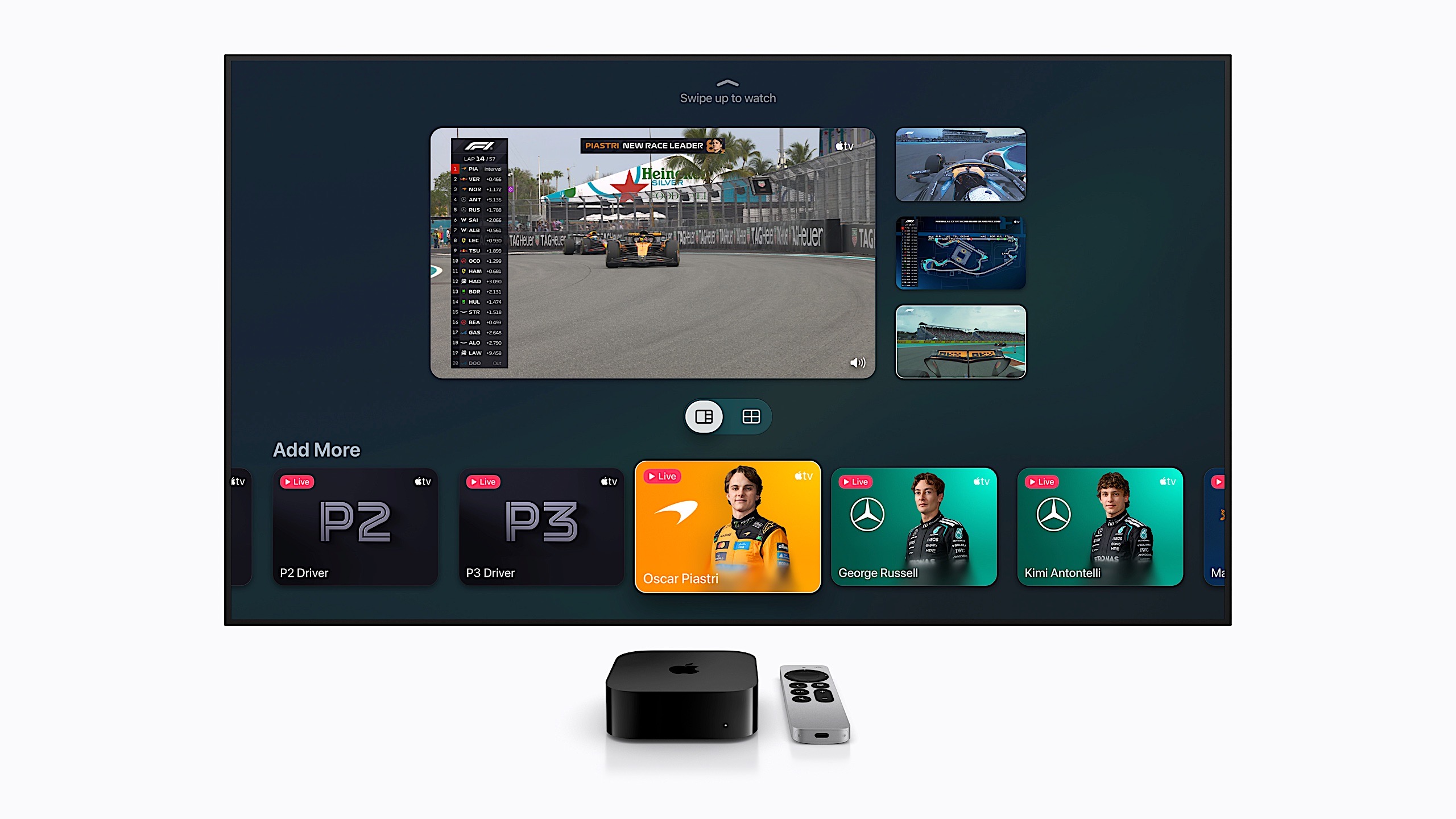
Apple has cooked up some new features for F1 grands prix as it takes over broadcast rights in the US. When you click on the F1 channel in the Apple TV app, the current grand prix week’s content is up top and you have the option to follow F1 so that you get notifications about the various events. Apple will provide a Driver Tracker, Driver Data and dedicated feeds for P1, P2 and P3. You can also watch the driver onboard cameras for each car in the Apple TV app. So, you don’t necessarily have to venture out to F1 TV for those things.
Apple will provide various Multiview options so you can put the main broadcast next to driver cams and race data. The company will offer some preset configurations, but you can make your own Multiview mix too. If you like Mercedes, for example, you can watch the main feed with driver cameras from Russell and Antonelli right beside it. Apple says Multiview will support up to five feeds at once (one main in the middle with two smaller ones on each side).
The Formula 1 channel on Apple TV
Billy Steele for Engadget
If you can only listen to races, you can hear live coverage and commentary in Apple Music through a dedicated radio streaming channel. There are also updated features for Apple News, Apple Sports and Apple Maps, the latter of which will have detailed info for fans attending in-person so they can hopefully avoid any surprises — like road closures — on race day.
The first race of the season is in Australia (March 6-8). Practice begins Friday with qualifying on Saturday and the grand prix on Sunday. Or if you live in the US, that will be Thursday night through Saturday night (race begins at 11PM ET).
This article originally appeared on Engadget at https://www.engadget.com/entertainment/streaming/everything-you-need-to-know-about-streaming-f1-on-apple-tv-190600771.html?src=rss
Samsung isn’t waiting a full year to reveal its latest Galaxy Buds. The company debuted the Galaxy Buds 4 and Galaxy Buds 4 Pro at its Galaxy S26 Unpacked event where the hot topic was three new phones. When it comes to Samsung’s earbuds, the company has overhauled the shape and design while improving sound quality, active noise cancellation (ANC) and adding new features. As always, the best of what the Galaxy Buds 4 lineup has to offer will be reserved for people with a recent Samsung phone.
While the company is keeping its AirPods-esque “blade” design, it retooled that element to ditch the angular shape and the gimmicky lights. It’s now a flat, metal panel and the area that allows for pinch controls has been engraved so that your fingers find it easily. In terms of shape, Samsung says it analyzed data from hundreds of millions of ear data points and ran over 10,000 simulations to improve overall fit with smaller earbuds. The Galaxy Buds 4 remain an open-fit design while the Pro version has a tip that seals off your ears. Like before, the company kept the transparent lids for the charging cases, although this time the earbuds lay flat in those rather than standing up.
Inside of the Galaxy Buds 4 Pro, Samsung is using a wider woofer as part of its two-way driver setup for cleaner bass. That configuration’s dedicated tweeter should also deliver natural, rich treble, according to the company. Both Galaxy Buds 4 models support high quality audio up to 24bit/96kHz (from a recent Samsung device) and direct multi-channel 360 audio is available as well.
Samsung Galaxy Buds 4 and Galaxy Buds 4 Pro
Sam Rutherford for Engadget
Although the Galaxy Buds Pro 4 got the bulk of the ANC upgrades, Samsung says it improved noise-canceling performance for both models. The company promises effective noise blocking for transit sounds — engine noise from buses, trains or planes — in addition to “everyday background noise.” What’s more, both of the Galaxy Buds 4 devices feature ambient sound mode, adaptive EQ and adaptive ANC, with the latter two applying adjustments automatically as needed.
The Pro model can also detect the user’s voice and increase ambient sound for conversations — a feature that’s held over from the Galaxy Buds 3 Pro. When you stop talking, the earbuds will automatically resume ANC. The Galaxy Buds 4 Pro also has a Siren Detect feature that activates ambient sound so that you can hear safety alerts like alarms or emergency vehicles.
The new item that pushes the Galaxy Buds 4 Pro closer to the AirPods Pro 3 is head gestures. Samsung will now let users manage calls and interact with Bixby by nodding or shaking their head side to side. As before, the Galaxy Buds remain a conduit to Bixby, but they’re also a gateway to Gemini and Perplexity — all of which can be accessed hands-free via voice controls.
The Galaxy Buds 4 ($180) and Galaxy Buds 4 Pro ($250) are available for pre-order today before hitting shelves on March 11. Both models will be available in black and white, and there’s a pink gold option on the Pro, although that third color is a Samsung online exclusive.
This article originally appeared on Engadget at https://www.engadget.com/audio/headphones/samsungs-redesigned-galaxy-buds-4-lineup-has-retooled-sound-improved-anc-and-new-features-180000718.html?src=rss
Gather ‘round, it’s time to catch up on the latest batch of Engadget reviews. Whether you missed our in-depth testing of Sony’s latest flagship earbuds or a truly unique ASUS laptop, I’ve compiled our recent reviews so you can get up to speed quickly. Read on for the list that also includes a love letter to a tiny camera and another VPN option that worth considering.
Sony WF-1000XM6
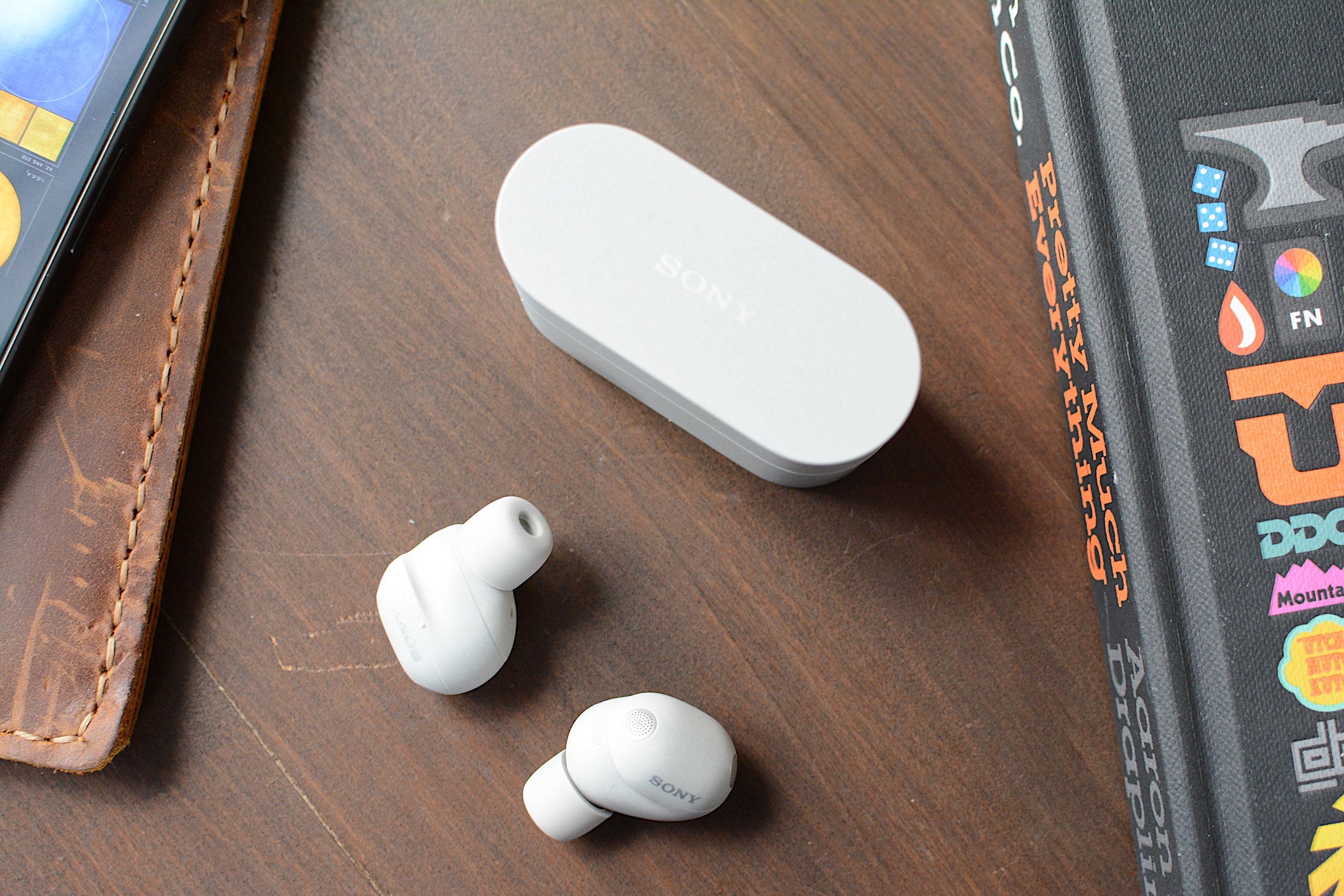
Sony’s 1000X earbuds have always been the top pick in our best wireless earbuds guide. With the M6 though, the company doesn’t do enough to clearly separate itself from the competition like it has in the past. “The two most obvious places the company is lagging behind the competition is ANC performance and overall voice quality, not to mention my continued dissatisfaction with the fit that Sony’s foam tips provide,” I wrote.
ASUS Zenbook Duo (2026)
If you’re looking for something unique in your next laptop, the ASUS Zenbook Duo is worth considering. Dual screens? Yep. Detachable keyboard? Sure. Good battery life? It does that too. “I'm a believer that one day people will eventually embrace typing on screens with laptops just like they have for smartphones,” senior reporter Sam Rutherford explained. “However, even if you're not willing to make that jump just yet, the Zenbook Duo still has all of its bases covered.”
Kodak Charmera
It's so cute
Cheyenne MacDonald for Engadget
A tiny $30 camera was too cute for our editors to resist. Despite the subpar images it captures, they’re still smitten with the thing. “I've been pleasantly surprised by how much I'm enjoying the Charmera experience,” weekend editor Its crunchy photos are just good enough to feel like they're successfully preserving a moment in time. And being so tiny, it's really convenient to bring everywhere.”
Mullvad VPN
Senior writer Sam Champman’s latest VPN review is Mullvad, which he says is often regarded as one of the best in terms of overall privacy. “It's not trying to be an everything app — it does privacy and does it well,” he noted. “Of course, it has its own compromises. It's solidly in the middle of the speed pack and occasionally trips up when unblocking streaming sites. The lack of any protocols other than WireGuard grates on me a bit, since it reduces the user's options for troubleshooting.”
This article originally appeared on Engadget at https://www.engadget.com/engadget-review-recap-sony-wf-1000xm6-asus-zenbook-duo-and-more-130000298.html?src=rss
Sony’s 1000X earbuds have been at the top of Engadget’s best wireless earbuds list since we first published it. With each new generation, the company managed to retain its crown, primarily thanks to a massive collection of features and an effective mix of sound quality and active noise cancellation (ANC) performance. Today, Sony revealed the latest entry in the series, the WF-1000XM6, delivering yet another redesign both inside and out. The company’s tried and true formula of features and audio performance remains, but it may no longer be enough to elevate the M6 above the competition.
Design
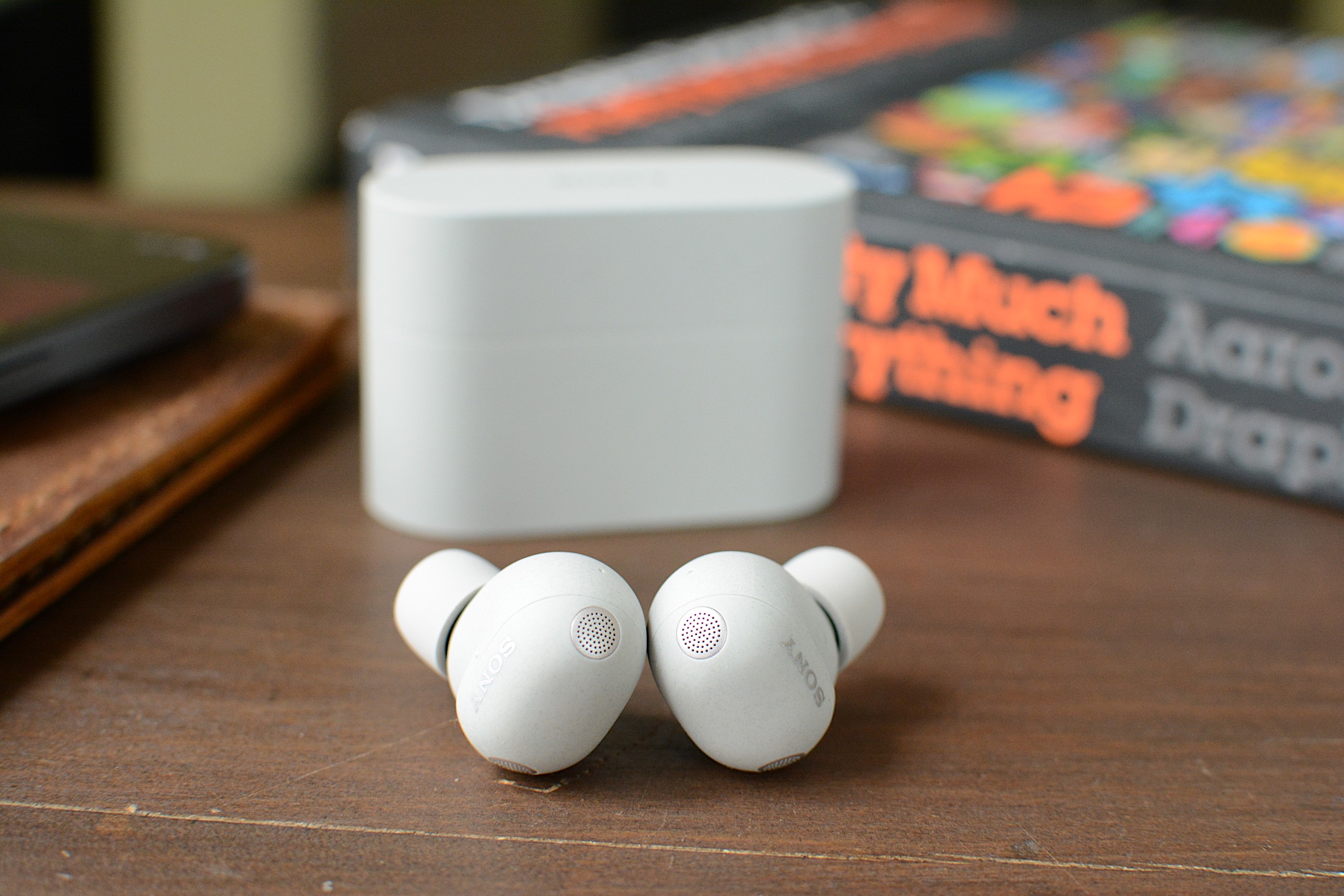
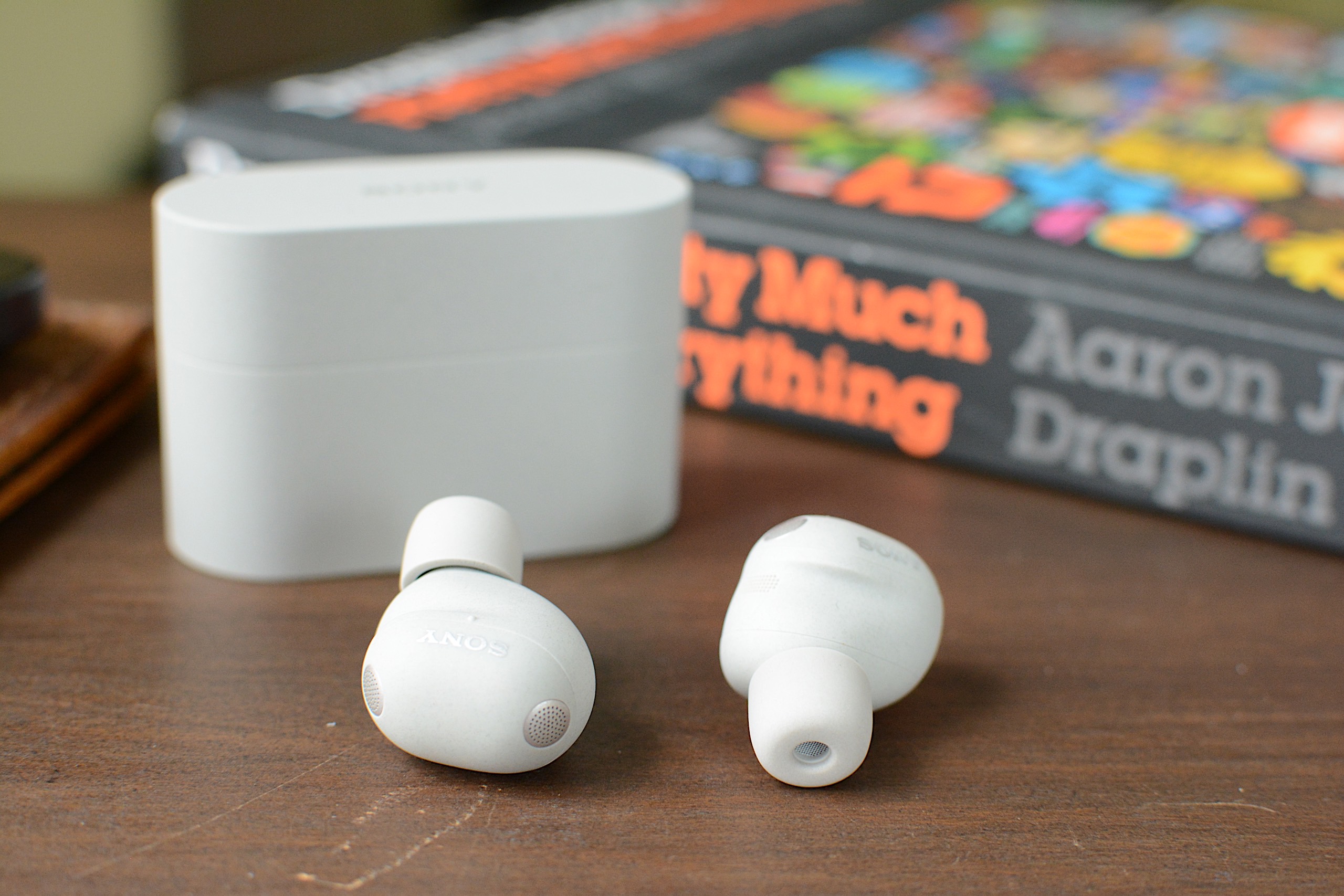
For the third time in a row, Sony overhauled the 1000X earbuds’ design. While the WF-1000XM5 was a clear revision of the WF-1000XM4, the M6 is a departure from both of them. The company managed to reduce overall size even further by using a rounder, pill-shaped enclosure for the earbuds’ main housing. I certainly applaud Sony for making these as tiny as possible, but I’m still not a fan of the company’s foam ear tips.
Sony introduced foam ear tips on the 1000XM4 earbuds and that led to an unstable fit during my testing. In fact, I ended up switching to the silicone M3 tips for a better feel. Things were slightly better on the M5, but the company regressed here on the M6. I tried every size of ear tips in the box and the fit test in the Sound Connect app only ever confirmed an air-tight seal in my right ear. This can impact sound quality and ANC performance, and the earbuds don’t feel like they’re sitting far enough inside my ears. I never got used to the fit in my three weeks of testing.
The exterior panel of the WF-1000XM6 is still touch sensitive, accepting a variety of taps for playback controls, calls, noise settings and more. Sony also included a repeated tapping gesture that’s used for volume control. Keep tapping on the right earbud to raise the volume and do so on the left to lower it. My disdain for touch controls is well-documented at this point, but the M6 reliably and quickly responded without me having to repeat a tap sequence.
WF-1000XM6 features
The WF-1000XM6 accepts taps for touch-based controls.
As is typically the case with its 1000X earbuds, Sony has loaded the M6 with features. Nearly all of these are holdovers from previous models, including Adaptive Sound Control that can automatically adjust settings based on your activity or location. Speak-to-Chat still pauses audio and activates ambient sound when you start talking, but it’s also still easily duped by coughs or clearing your throat. A quick access feature can put Amazon Music, Apple Music, Endel, Spotify and YouTube Music two or three taps away, depending on how you configure it.
The M6 earbuds also allow you to accept and reject calls with head gestures and you’ll have the option to pipe in your own voice during a call. Sony retained its existing option of operating the earbuds with voice commands: If you say “Assistant,” you can then ask it to play, pause, skip and replay songs. It will also adjust the volume for you, but that’s the extent of its abilities.
Sony included some handy power management features as well. First, there’s an Auto Power Save mode that will disable any custom EQ settings, DSEE Extreme upscaling, Speak-to-Chat and voice control/voice assistant to reduce power consumption when the M6 hits 20 percent battery remaining. A Battery Care tool will extend the life of the earbuds’ battery by stopping charging before it reaches 100 percent. Lastly, Automatic Power Off will turn the earbuds off when they’re outside of the case and haven’t been worn for some time.
Basic conveniences like multipoint Bluetooth, wireless charging and IPX4 water resistance are also here. Wear detection is onboard and you can use Sony’s EQ presets to alter the sound profile, or make your own and save them for future use. The Sound Connect app puts the battery levels of the individual earbuds and the case front and center, and you can edit the main screen to hide the features displayed there if you don’t need them.
Sound quality and ANC performance
Sound quality is one of Sony's strengths and that continues on the M6.
Billy Steele for Engadget
If Sony’s long list of features is its top advantage over the competition, overall sound quality is number two. For the WF-1000XM6, the company built new drivers with soft edges for deeper bass and a more rigid, lightweight dome for clearer treble. There are also notches around the edges for “clearer and smoother” sound quality overall, according to Sony. And of course, DSEE Extreme upscaling helps to recover details lost to compression while 360 Reality Audio and Spatial Sound Optimization are available for more immersive listening.
I found the M6 earbuds at their best with the stock EQ and DSEE Extreme active, much like I have on previous 1000X models. The sound is deep and warm, with thick bass that’s adequate without ever overpowering the mix. Highs cut through and there’s ample midrange, keeping those finer details from getting lost. Erika de Casier’s atmospheric Lifetime is a great example of what the WF-1000XM6 can do. Vocals seem to float over the top of the bassline and drums, with percussive piano chopping though and subtle synth details popping up throughout. When strings arrive on “Seasons,” the M6 ushers them into a prominent position rather than relegating them behind the beat.
On the WF-1000XM6, the chaos of Spiritbox’s “Holy Roller” doesn’t get condensed to a messy heavy metal roar either. And there’s plenty of texture in the synth-driven noise of Nine Inch Nails’ “As Alive As You Need Me To Be.” Even more straightforward rock tracks like Jimmy Eat World’s “Bleed American” have ample punch, with a wide soundstage that never feels claustrophobic or sounds compressed. Overall, the WF-1000XM6 holds its own against the best-sounding earbuds you can buy right now, though some of the competition, like Technics, have an edge in the way they handle the subtlest of nuances in songs.
If you were hoping for knock-out ANC abilities, I must report that the WF-1000XM6 isn’t the noise-canceling powerhouse that is Bose’s QC Ultra Earbuds. The M6 struggles mightily with human voices. While that’s the downfall of many ANC earbuds, you’ll want to keep it in mind if you plan to wear these in the office. I found I could also still hear constant noise sources like fans and white noise machines when wearing the M6 — items that the QC Ultra Earbuds combat effectively.
Using the WF-1000XM6 for calls
The WF-1000XM6 isn't as adept at calls as Sony advertises.
Billy Steele for Engadget
For calls, Sony says the M6 uses AI for both background noise reduction and voice capture with the beamforming microphones. What’s more, the earbuds are equipped with eight total mics for ANC and calls, plus bone conduction tech for improved voice pickup. Unfortunately, all of that doesn’t lead to stellar performance during calls. While the WF-1000XM6 is perfectly usable for voice and video calls, the overall quality is far from pristine. To make matters worse, the earbuds make you sound overly processed when you encounter significant background noise. Since the company prided itself on the upgrades here, the results are disappointing.
Battery life
Sony says the WF-1000XM6 will last up to eight hours on a charge or 24 hours when you factor in the full longevity of the charging case. During a battery test that I mostly ran with ANC active, I had no trouble hitting that single-charge figure. That’s with the volume around 75-80 percent and includes calls and virtual meetings where I switched over to ambient sound mode.
It’s worth noting that I had DSEE Extreme upscaling active the entire time, which can impact battery life. Plus, if you use the aforementioned Auto Power Save mode, you can extend play time when you have about a quarter of a tank left. Going without some of the M6’s best features in the interest of having tunes for a workout or commute is a fair trade in my book.
The competition
The WF-1000XM6 is still a compelling option, but it's not the clear favorite anymore.
Billy Steele for Engadget
When sizing up the competition for the WF-1000XM6, you have to choose your priorities. Simply put, no other company offers the comprehensive suite of features that Sony does. That’s been true for a while now and it continues with this model. If you want the strongest active noise cancellation, that will be Bose’s second-generation QuietComfort Ultra Earbuds. If the best sound quality is your goal, the Technics AZ100 is your best bet in this price range. I’ll also mention Sennheiser’s Momentum True Wireless 4 which offers great sound quality, respectable ANC and a comfier fit than the M6, but that set is almost two years old at this point.
Wrap-up
Sony continues its run of great earbuds with the WF-1000XM6, but this model isn’t the polished package that some of its predecessors were. The two most obvious places the company is lagging behind the competition is ANC performance and overall voice quality, not to mention my continued dissatisfaction with the fit that Sony’s foam tips provide. The M6 is also more expensive than the previous version was at launch, which makes it even harder to overlook any flaws. What you will get on the WF-1000XM6 is a ton of features, great sound quality and reliable touch controls in a smaller package. And for some, that might be enough to make you forget about the rest.
The WF-1000XM6 is available today in silver and black for $330.
This article originally appeared on Engadget at https://www.engadget.com/audio/headphones/sony-wf-1000xm6-review-facing-tougher-competition-160000652.html?src=rss
We’re starting to hit our stride in 2026. Now that February is here, our reviews team is flush with new devices to test, which means you’ve got a lot to catch up on if you haven’t been following along. Read on for a roundup of the most compelling new gear we’ve tested recently from gaming, PCs, cameras and more.
Nex Playground
If you still have a fondness for the Xbox Kinect, the Nex Playground might be right up your alley. Senior reporter Devindra Hardawar recently put the tiny box through its paces and found an active gaming experience that’s fun for the whole family. “While I have some concerns about the company’s subscription model, Nex has accomplished a rare feat: It developed a simple box that makes it easy for your entire family to jump into genuinely innovative games and experiences,” he wrote.
MSI's Prestige 14 Flip AI+
Devindra also tested MSI’s latest laptop, the powerful Prestige 14 Flip AI+. While the machine got high marks for its performance, display and connectivity, he noted that the overall experience is hindered by subpar keyboard and truly awful trackpad. “As one of the earliest Panther Lake laptops on the market, the $1,299 Prestige 14 Flip AI+ is a solid machine, if you're willing to overlook its touchpad flaws,” he explained. “More than anything though, the Prestige 14 makes me excited to see what other PC makers offer with Intel's new chips.”
Shokz OpenFit Pro
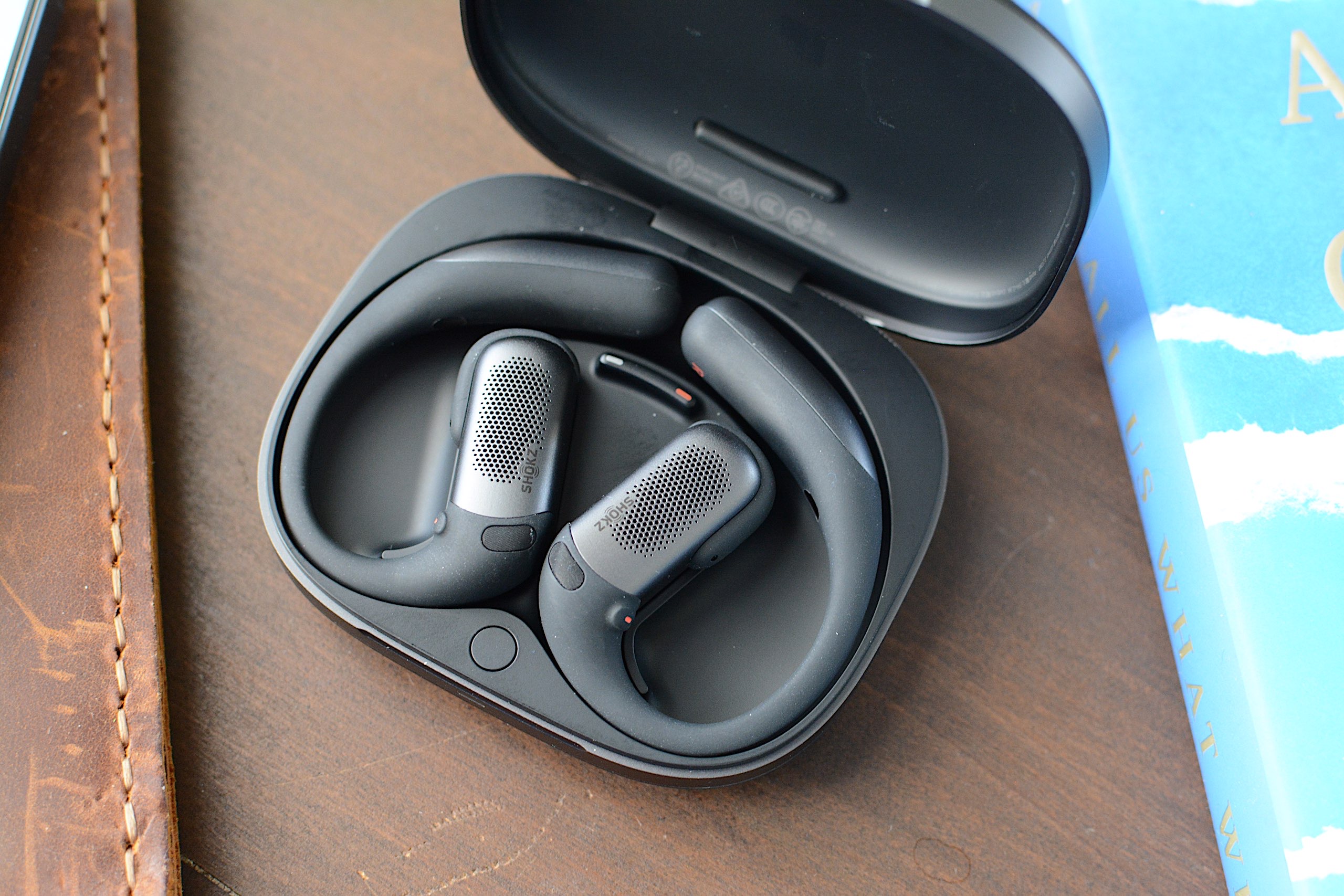
Fresh off of its Best of CES selection, I conducted a full review of the OpenFit Pro earbuds from Shokz. I continue to be impressed by the earbuds’ ability to reduce ambient noise while keeping your ears open. And the overall sound quality is excellent for a product that sits outside of your ears.
Sony A7 V
Contributing reporter Steve Dent has been busy testing cameras to start the year. This week he added the Sony A7 V to the list, noting the excellent photo quality and accurate autofocus. “The A7 V is an incredible camera for photography, with speeds, autofocus accuracy and image quality ahead of rivals, including the Canon R6 III, Panasonic S1 II and Nikon Z6 III,” he said. “However, Sony isn’t keeping up with those models for video.”
Apple AirTag (2026)
Our first Editors’ Choice device of 2026 is Apple’s updated AirTag. All of the upgrades lead to a better overall item tracker, according to UK bureau chief Mat Smith. “There's no doubt the second-gen AirTags are improved, and thankfully, upgrading to the new capabilities doesn’t come at too steep a cost,” he concluded.
This article originally appeared on Engadget at https://www.engadget.com/engadget-review-recap-shokz-openfit-pro-nex-playground-sony-a7-v-and-more-123400089.html?src=rss
Rarely does a set of open-fit earbuds actually impress me. I tend to find them underwhelming because overall sound quality is subpar compared to the more “traditional” in-ear models. Any promise of noise reduction, or a far-fetched claim of noise cancellation, usually doesn’t hold true. The first time I used the Shokz OpenFit Pro ($249.95) I was immediately met with better audio performance than I’d just experienced on Sony’s new LinkBuds Clip and noise reduction technology that actually lessened some distractions. These aren’t the perfect set of open earbuds, but they have a lot more to offer than most of the competition.
Design
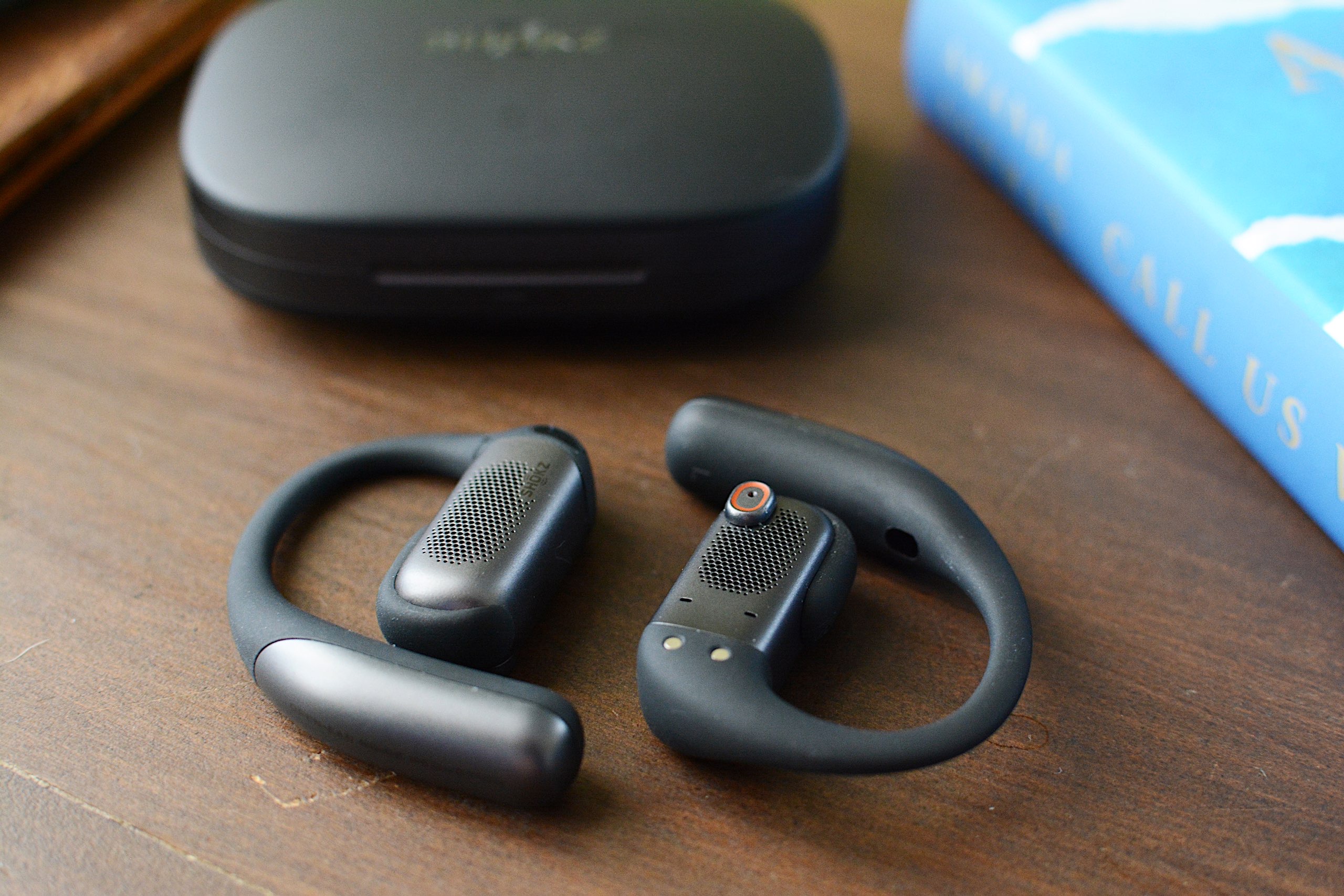
Shokz has a number of over-the-ear hook earbud designs under its belt, and they all carry the OpenFit name. That is also an apt description of these products since they all sit outside of your ear canal, which inherently allows you to remain aware of your surroundings. The company currently offers the OpenFit 2 and 2+ in addition to the OpenFit Air, at prices ranging from $120 to $200. The OpenFit Pro looks similar to its predecessors, albeit with a slightly smaller main housing and more pops of silver. Those ear hooks have a titanium wire inside and are wrapped in “ultra-soft” silicone. They’re plenty flexible and provide a secure yet comfortable fit for daily wear and workouts.
Both earbuds of the OpenFit Pro have tiny physical controls for media playback, volume adjustments, calls and noise settings. The various actions are customizable through the Shokz app. During several weeks of testing, these buttons responded quickly to my clicks and using them didn’t cause the OpenFit Pro to shift out of place.
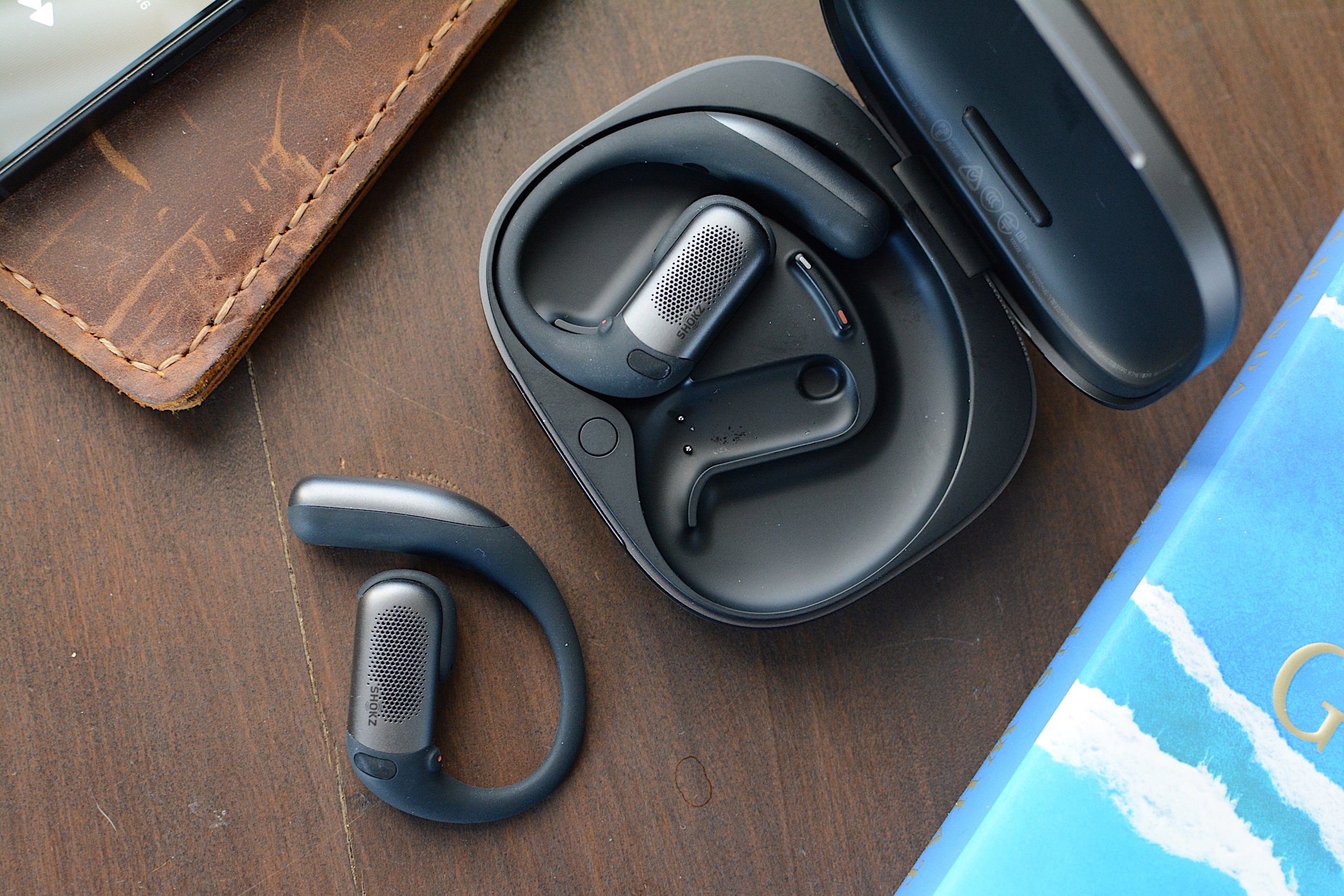
The OpenFit Pro comes with a charging case that's larger than most other earbuds, which is understandable since Shokz had to accommodate that ear hook. However, the case is quite flat, so it doesn’t take up too much room and easily fits in a small pocket. There’s a USB-C port around back for charging and a Bluetooth pairing button inside. The case also supports wireless charging, if your charging pad is large enough.
Noise reduction vs. noise cancellation
The OpenFit Pro is the first set of Shokz earbuds with what the company calls Open-Ear Noise Reduction. This is essentially the company’s take on active noise cancellation (ANC), but it’s designed to be effective with earbuds that don’t enter your ear canals. Since your ears aren't completely sealed off from the noise of the outside world, Shokz is limited in just how much sound it can reduce. But I’m happy to report the company’s microphone and algorithm combo is actually quite effective.
Shokz says its noise reduction works best in moderately loud environments, like offices and cafes. I’ve found the OpenFit Pro does well to reduce the distraction of constant noise sources like HVAC systems, fans and white noise machines. The earbuds completely silenced a particularly raucous HVAC fan in my hotel room during CES. It's not the most effective at cutting down environmental noise, but in exchange you get a more comfortable set of earbuds while also remaining somewhat alert and aware of your surroundings
Other OpenFit Pro features
The rectangular housings of the OpenFit Pro hold larger drivers
Billy Steele for Engadget
The OpenFit Pro is Shokz’ most premium set of earbuds, so the features don’t end at noise reduction. Head tracking, customizable EQ, multipoint pairing, find my earbuds and wear detection are also available here. The company’s app displays battery percentages for each earbud and the case right at the top of the main screen with access to the rest of its tools just below. You don’t have to go searching and tapping through menus until you’ve found what you’re looking for. As someone who has to contend with a lot of headphone apps, I appreciate when all of the options are quickly available from the home screen.
Like other companies offer on their open-type earbuds, Shokz has given the EQ settings a few presets specifically designed for the open nature of the product. Those include a Vocal option that boosts mids for audiobooks or calls and a Private mode that reduces high frequency sounds to prevent leakage. I usually kept the OpenFit Pro around 70 percent volume, which is loud enough that a nearby neighbor in a quiet room could hear the muffled rage of Incendiary’s “Echo of Nothing.”
Another audio feature that’s worth mentioning is Dolby Atmos support. More specifically, the OpenFit Pro is “optimized for Dolby Atmos,” thanks in part to the aforementioned Dolby Head Tracking. You can disable the enhanced audio and head tracking individually in the Shokz app, but I found leaving Atmos on all the time, even when I wasn’t listening to Dolby Atmos music, gave the earbuds a more immersive, more detailed sound profile.
Sound quality and calls
Overall sound quality is another area where the OpenFit Pro shines. Many open-design earbuds struggle to manage much bass or detailed highs, both of which Shokz has addressed with its driver design. Dual 11x20mm diaphragms power a larger, rectangular driver that’s the equivalent of a 16.7mm round driver in a “normal” set of earbuds. For comparison, most in-ear models typically use 10-12mm drivers, with smaller designs housing 6-8mm units. Shokz says it tuned the OpenFit Pro with what it calls OpenBass 2.0 and DirectPitch 3.0, features that provide better bass performance and audio that’s beamed more directly into your ears.
All of that combines for some truly impressive audio performance in a set of open earbuds. The OpenFit Pro still doesn’t muster the bombastic bass that earbuds like the WF-1000XM5 offer, but the low-end performance here is greatly improved over other open models like the LinkBuds Clip. While Thrice’s “Silhouette” still has enough driving kick drum, bass guitar and riffs to do the track justice, there isn’t as deep of a growl as the song has on flagship options from Bose, Sony and Sennheiser.
The OpenFit Pro case is large, but it's not overly bulky
Billy Steele for Engadget
There’s also more clarity and detail in the tuning here than on other open models, which is on full display when listening to albums like Wet Leg’s alternative masterpiece moisturizer. I love how I can hear the texture of the guitars and drums, and even the vocals, which are the kind of subtle details open earbuds typically lack.
I should also mention that overall sound quality will depend on how the OpenFit Pro sits on your ears. I can easily improve the bass tone if I slightly push the earbuds in closer to my ear canals, but all of the observations I just made were with the earbuds in their natural resting position.
Shokz says the three-microphone setup that assists with its noise reduction tech also helps with calls. That configuration, combined with AI-powered voice recognition, should be able to block over 99 percent of background noise and deliver sharper vocal clarity overall. While that first part holds true — the OpenFit Pro does a great job canceling any ambient roar — the overall voice quality here is below average. It will certainly work for casual chats, but I wouldn’t recommend it for regular work calls or any scenario where you might need to record what you’re saying. My voice sounded muffled during calls and voice memos, more like I would over speakerphone than a set of carefully tuned earbuds.
OpenFit Pro battery life
Shokz promises up to 12 hours of battery life on the OpenFit Pro with up to 50 hours of total use when you factor in the charging case. That’s with noise reduction disabled though; you can expect up to six hours with that turned on (24 hours total with the case). During weeks of testing, I never encountered any issues hitting those figures and the OpenFit Pro never struggled to get through a full work day of music, podcasts and calls using a combination of the default Open Mode and Noise Reduction mode.
As I mentioned, the charging case can be topped up wirelessly if you have a compatible accessory that’s large enough. And if you find yourself with a pair of completely dead earbuds, Shokz includes a quick-charge feature that gives you up to four hours of use in 10 minutes.
The competition
The OpenFit Pro earbuds sitting in their charging case
Billy Steele for Engadget
If you’re looking for something that closely resembles the design of the OpenFit Pro, Shokz’ other OpenFit models are likely your best alternatives. The $200 OpenFit 2+ offers 11 hours of battery life and Dolby Audio with both physical buttons and touch controls. The most affordable option, the OpenFit Air ($120), lasts up to six hours on a charge but doesn’t have enhanced audio or wireless charging. As you step down from the OpenFit Pro, you’re missing out on noise reduction, Dolby Atmos and longer battery life.
JBL will soon have three models of its own to rival the Shokz OpenFit line. The Soundgear Sense is currently available for $165 and the Sense Pro and Sense Lite are coming in March for $200 and $150, respectively. These all have a variety of seemingly handy features, but none of them offer any kind of noise reduction and they all have shorter battery life than the OpenFit Pro and OpenFit 2+. I also cannot vouch for them as I haven’t tested any of JBL’s open designs yet.
Wrap-up
Shokz has achieved a rare feat. The company managed to build a set of open-fit earbuds that retain all of those inherent benefits while also providing some relief from distractions with noise reduction. No, the over-the-ear hook design isn’t for everyone — especially if you wear glasses — but the comfy, secure fit and IP55 rating make these a great choice for workouts. The OpenFit Pro is also good enough to be your all-around set of earbuds, and that noise reduction can be beneficial in the office or your favorite work from home space. Sound quality is better than you’ll find on most open earbuds as well, but you’ll probably enjoy not having anything crammed into your ears most. And you don’t have to make too many sacrifices here for that satisfaction.
This article originally appeared on Engadget at https://www.engadget.com/audio/headphones/shokz-openfit-pro-review-reducing-distractions-while-keeping-your-ears-open-130000443.html?src=rss
Our reviews team is rested up after the CES grind and we’re back to business. This week we reviewed the latest devices from Valerion, Canon, Samsung and Sony, covering a wide range of product categories in the process. Grab yourself a beverage and cozy up with all the reviews you might’ve missed.
Valerion VisionMaster Max
The weeks leading up to the Super Bowl are a popular time to upgrade home theater setups before the big game. One way to do that is Valerion’s VisionMaster Max — if you’re willing to splurge. “The Valerion VisionMaster Max is a highly capable indoor projector that offers the best image quality I’ve seen thanks to the dynamic iris and Enhanced Black Level features,” contributing reporter Steve Dent discovered. “However, it’s also a lot more expensive than rival models at $5,000. It’s pretty hard to justify that extra money, unless you’re really fussy about picture accuracy and gaming performance, or need other features like the 1Gbps ethernet port.”
Canon EOS R6 III
If you’re primarily shooting video these days, contributing reporter Steve Dent just wrapped up testing with the Canon EOS R6 III. While he said it’s great for video, the photo quality isn’t the absolute best you can get right now. “If it’s mainly photography you’re interested in, though, Sony’s $2,900 A7 V is a better choice,” he said. “It matches the R6 III’s resolution, price and autofocus but offers superior dynamic range and lower rolling shutter distortion.”
Samsung Bespoke Fridge with AI
We don’t often review appliances here at Engadget, but Samsung’s AI-infused refrigerator caught the attention of senior reporter Sam Rutherford. You may not think you need a 32-inch display in your kitchen or cameras in your fridge, but Sam argues once you try them you may never go back. “You may not agree or want to pay this much for features like this just yet, but Samsung's Bespoke AI 4-Door French Door refrigerator has convinced me there's a happy home for smarter iceboxes,” he concluded.
Sony LinkBuds Clip
Clip-on earbuds have been constantly popping up over the last few years. Many of the key players in headphones have tried their hand at the open-wear form factor with Sony being the latest to jump on board. While the company embraces the inherent perks of these designs, the LinkBuds Clip doesn’t do enough to rise above the competition. “Subpar bass performance and the omission of some of Sony’s more attractive features (and even some basic ones) mean the company hasn’t done enough to distinguish the Clip from the competition in an obvious way,” I wrote.
This article originally appeared on Engadget at https://www.engadget.com/engadget-review-recap-valerion-visionmaster-max-canon-eos-r6-iii-and-samsung-bespoke-fridge-123000849.html?src=rss