Engadget review recap: Two new Macs, the PS5 Pro and more

Techtober rolled straight into November this year. The first week of the month was a busy one at Engadget HQ as we published a number of high-profile reviews over the last few days. There's the MacBook Pro and Mac mini from Apple alongside the beastly (and expensive) PS5 Pro. Plus, we've got yet another VR headset and more ereaders for the bookworms. Read on to catch up on all of this week's reviews and for a tease of what's coming next. 

Our Mac expert Devindra Hardawar had a busy week. Publishing four reviews in total, he primarily focused on an Apple double dip. He put the new M4-powered MacBook Pro through its paces in both 14- and 16-inch sizes. Unsurprisingly, the new chips offer a speed boost, but there are also updates to the display, webcam and battery life. Spec upgrades remain pricey, but if you opt for a machine with M4 Pro or M4 Max power, you'll also gain Thunderbolt 5 support. 

"If you're running an M1 MacBook Pro, or still trucking along with an Intel model, you'll definitely see some notable performance gains from these machines," he explained. "But if you've got an M2 or M3 MacBook Pro, the M4 hardware is less of a qualitative leap."

The second part of Devindra's double-header was the new Mac mini, which is also now powered by Apple's M4 chips. You'll notice the biggest speed boost with the M4 Pro here and 16GB RAM is now standard. Of course, a key change is the smaller size, and the front-mounted USB-C and headphone ports will come in handy. 

"The Mac mini was the fastest computer I've reviewed this year, at least when it comes to CPU benchmarks," he wrote. "I've grown used to being impressed by Apple Silicon, but the M4 Pro in our review unit (which was also equipped with 48GB of RAM) was still a bigger leap ahead than I expected."

Devindra also assisted senior gaming reporter Jessica Conditt with the highly anticipated PlayStation 5 Pro review this week. It's no surprise the duo confirmed that the PS5 Pro is the most powerful console ever, powered by a faster GPU that unlocks 4K/60 fps action. There are new ray tracing features too, and the console comes with a 2TB SSD. But, you'll pay a high price for this one, and not every game has Pro-level enhancements for you to enjoy. 

"There's no doubt that the PS5 Pro is a niche product, not an upgrade targeted at all PS5 owners," they said. "It's meant for the Sony devotees who want the absolute best PlayStation experience, and who will never upgrade to a gaming PC."

Devindra finished up his marathon week with latest HTC Vive VR headset. Unfortunately, great design is hampered by a high price, limited gaming library and older components. Simply put, "it still delivers decent standalone VR, despite using an aging CPU and lenses," he explained. "But for a $999 headset, it’s a shame HTC Vive didn’t try harder to make the Focus Vision stand out."

Commerce editor Amy Skorheim reviewed both the new Kindle Paperwhite Signature Edition and the new standard Kindle this week, pitting them against each other in a direct face off. While the OG is still a workhorse, the more premium option offers more features. But, as Amy found, you might not need them. 

"It comes down to whether you think a heightened experience will make you read more," she said. "If so, then it’s probably worth the price jump in the long run. But if you’re just looking for a no-frills way to read books, go for the base Kindle." 

I know I teased the Sonos Arc Ultra review for this week, but our audio expert (hi!) needed a little more testing time with the soundbar. I doubly promise that one is coming early next week for your Veterans Day reading. We still have one new Mac on the horizon, and we're expecting to wrap up the iMac (2024) review next week too. And there's yet another Amazon review coming soon with the updated Fire HD 8. 

This article originally appeared on Engadget at https://www.engadget.com/engadget-review-recap-two-new-macs-the-ps5-pro-and-more-150004732.html?src=rss

Engadget review recap: Two new Macs, the PS5 Pro and more

Techtober rolled straight into November this year. The first week of the month was a busy one at Engadget HQ as we published a number of high-profile reviews over the last few days. There's the MacBook Pro and Mac mini from Apple alongside the beastly (and expensive) PS5 Pro. Plus, we've got yet another VR headset and more ereaders for the bookworms. Read on to catch up on all of this week's reviews and for a tease of what's coming next. 

Our Mac expert Devindra Hardawar had a busy week. Publishing four reviews in total, he primarily focused on an Apple double dip. He put the new M4-powered MacBook Pro through its paces in both 14- and 16-inch sizes. Unsurprisingly, the new chips offer a speed boost, but there are also updates to the display, webcam and battery life. Spec upgrades remain pricey, but if you opt for a machine with M4 Pro or M4 Max power, you'll also gain Thunderbolt 5 support. 

"If you're running an M1 MacBook Pro, or still trucking along with an Intel model, you'll definitely see some notable performance gains from these machines," he explained. "But if you've got an M2 or M3 MacBook Pro, the M4 hardware is less of a qualitative leap."

The second part of Devindra's double-header was the new Mac mini, which is also now powered by Apple's M4 chips. You'll notice the biggest speed boost with the M4 Pro here and 16GB RAM is now standard. Of course, a key change is the smaller size, and the front-mounted USB-C and headphone ports will come in handy. 

"The Mac mini was the fastest computer I've reviewed this year, at least when it comes to CPU benchmarks," he wrote. "I've grown used to being impressed by Apple Silicon, but the M4 Pro in our review unit (which was also equipped with 48GB of RAM) was still a bigger leap ahead than I expected."

Devindra also assisted senior gaming reporter Jessica Conditt with the highly anticipated PlayStation 5 Pro review this week. It's no surprise the duo confirmed that the PS5 Pro is the most powerful console ever, powered by a faster GPU that unlocks 4K/60 fps action. There are new ray tracing features too, and the console comes with a 2TB SSD. But, you'll pay a high price for this one, and not every game has Pro-level enhancements for you to enjoy. 

"There's no doubt that the PS5 Pro is a niche product, not an upgrade targeted at all PS5 owners," they said. "It's meant for the Sony devotees who want the absolute best PlayStation experience, and who will never upgrade to a gaming PC."

Devindra finished up his marathon week with latest HTC Vive VR headset. Unfortunately, great design is hampered by a high price, limited gaming library and older components. Simply put, "it still delivers decent standalone VR, despite using an aging CPU and lenses," he explained. "But for a $999 headset, it’s a shame HTC Vive didn’t try harder to make the Focus Vision stand out."

Commerce editor Amy Skorheim reviewed both the new Kindle Paperwhite Signature Edition and the new standard Kindle this week, pitting them against each other in a direct face off. While the OG is still a workhorse, the more premium option offers more features. But, as Amy found, you might not need them. 

"It comes down to whether you think a heightened experience will make you read more," she said. "If so, then it’s probably worth the price jump in the long run. But if you’re just looking for a no-frills way to read books, go for the base Kindle." 

I know I teased the Sonos Arc Ultra review for this week, but our audio expert (hi!) needed a little more testing time with the soundbar. I doubly promise that one is coming early next week for your Veterans Day reading. We still have one new Mac on the horizon, and we're expecting to wrap up the iMac (2024) review next week too. And there's yet another Amazon review coming soon with the updated Fire HD 8. 

This article originally appeared on Engadget at https://www.engadget.com/engadget-review-recap-two-new-macs-the-ps5-pro-and-more-150004732.html?src=rss

The best AirPods for 2024

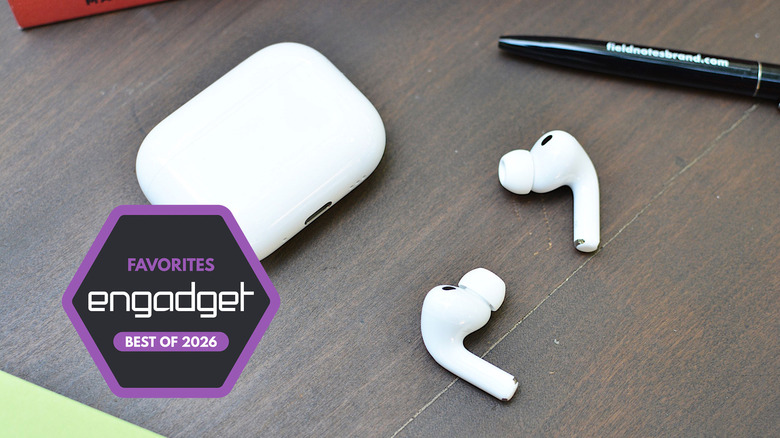
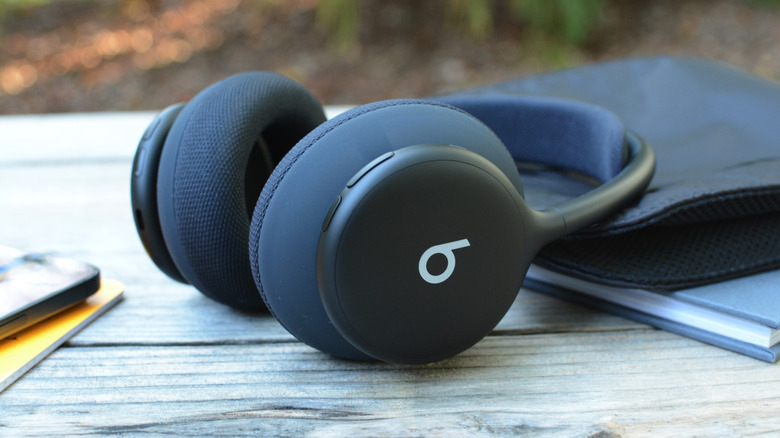
You don’t need a set of AirPods to get wireless audio from your iPhone, iPad or Mac, but Apple’s earbuds and headphones offer a lot of convenient integrations with its other products that you won’t find anywhere else. After helping popularize true wireless earbuds with its original AirPods, the company has expanded its lineup to include noise-canceling models and a set of over-ear headphones. Here’s what you need to know about AirPods in general, along with the best overall, budget and over-ear picks from Apple’s current slate of products.

When it comes to Apple’s earbuds and headphones, there are several things you’ll want to keep in mind before making your final decision. First, the AirPods are the open-design earbuds with no tip that allow some environmental noise to come into your ears at all times. The AirPods Pro are the model with the soft ear tips that completely close off your ear, which enables features like more powerful noise cancellation and the hearing test. Lastly, the AirPods Max are Apple’s over-ear headphones, and currently the company’s only option for wireless headphones at all that aren’t made by Beats.

There are a few features that are available across all models as they’ve become inherent to the AirPods experience. First, you can expect Automatic Switching between Apple devices that are synced with your iCloud account. This means that AirPods will automatically change to your phone when you get a call while you’re listening to music on a MacBook, for example. It’s functionally similar to multipoint Bluetooth, but the feature isn’t limited to two devices like most earbuds and headphones. Second, hands-free access to Siri is the default, allowing you to ask the assistant for help without touching your AirPods. And lastly, Personalized Spatial Audio with dynamic head tracking is available across the entire lineup, even on the most affordable version of the AirPods 4.

If you don’t think any of the AirPods options are right for you, consult our recommendations on the best wireless earbuds and best wireless headphones for some alternatives.

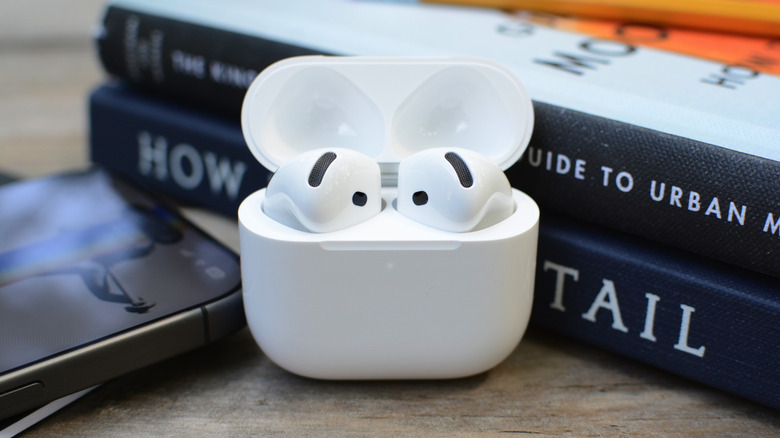
The AirPods 4 with ANC represent the first time active noise cancellation has been available on the open-wear, “regular” AirPods. Design-wise, they’re the same as the non-ANC model, so the difference is entirely in the features list. This more expensive version adds Adaptive Audio, Transparency mode, Conversation Awareness and a wireless charging case. The ANC isn’t as powerful as the AirPods Pro 2, partially due to the fact that the AirPods 4 doesn’t completely seal off your ears. The noise-canceling performance is definitely useful though, working best with constant, low-frequency annoyances like fans and white noise machines. Lastly, you won’t get access to Apple’s hearing test and hearing aid features, partially due to the fact that the AirPods 4 with ANC doesn’t seal off your ears, which would affect accuracy and effectiveness.

This article originally appeared on Engadget at https://www.engadget.com/audio/headphones/best-airpods-100041810.html?src=rss

Engadget review recap: Amazon’s colorful Kindle, DJI’s latest action cam and more

I think my colleague Cherlynn Low jinxed us in the last installment with her mention of a slower than usual October. The last week of the month was jam-packed with news, especially from Apple, so we're in for a busy few weeks of reviews to finish out the year. This week, we tested Amazon's long-awaited color E Ink ereader, a DJI action cam that's finally a worthy GoPro rival and Google's latest tv-streaming device. Here's a quick round-up of the week's in-depth reviews, and a quick preview of what's to come in the post-Halloween deluge. 

by Valentina Palladino

After years of users clamoring for a color E Ink option, Amazon finally obliged with the Kindle Colorsoft. This model fills a key gap in the company's ereader lineup, with swift performance and a host of conveniences. The key problem is that it's expensive at $280, plus there's a blue tint to the display when warm light it off. What's more, text isn't as sharp when reading in black and white. Still, this new model will be great for things like graphic novels and other material where you really need to see things in full color. "While it’s very late to the color E Ink party, the Kindle Colorsoft is a solid premium ereader that provides an excellent experience both in color and black and white," Valentina notes

by Steve Dent

Our camera expert Steve Dent put DJI's new action cam through its paces to see if the company did enough to catch up to the likes of GoPro. The short answer is yes, as the Osmo Action 5 Pro has the best battery life of any model in the category on top of good low-light performance, useful subject tracking and built-in memory. Color quality and video sharpness could be better, but DJI has finally given the competition something to worry about with this model. 

"It’s one of the best action cameras I’ve used, with battery life well above rivals, a solid waterproof construction and full support for DJI’s Mic 2," Steve writes. "If low-light performance is key, head straight for DJI’s Action 5 Pro."

by Amy Skorheim

Another streaming device from Google? Yep! The Google TV Streamer isn't a perfect option for your living room, but according to buying advice reporter Amy Skorheim, there's a lot to like about this tiny gadget. Google doubled the price compared to the previous option, which isn't great, and the company didn't include an HDMI cable or support for Wi-Fi 6 or 6E. Once you dive in though, the mix of great UI, attractive design, speedy performance and smart home compatibility make the TV Streamer a handy device. 

"Yes, the extra RAM and storage is great, but there are a few features — like Wi-Fi 6E support, true assistant capabilities, screaming processor speeds — that Google could have packed in to make the $100 price tag unassailable," Amy explains. "The Google TV Streamer is responsive and quick, packing the best streaming interface out there with smart home features that are useful and properly integrated."

Over the course of three days this week, Apple announced a new iMac, Mac mini and MacBook Pro, all of which are powered by the company's M4 chips. The biggest design overhaul came in the Mac mini, which truly lives up to its name now that it's a five-inch by five-inch box that's two inches tall, which isn't much bigger than an Apple TV 4K. Of course, the changes to iMac and MacBook Pro warrant a new slate of reviews, so we'll be putting all three machines to the test in the weeks to come. 

Sonos' follow-up to the Arc soundbar started shipping this week, and I've received our review unit for testing. Dubbed the Arc Ultra, this model should offer better bass performance from the soundbar itself, before you connect a separate wireless subwoofer. It's the debut for the company's Sound Motion tech, which increases that low-end tone without the need for larger components inside the living room speaker. Look for my review on this unit as early as next week. 

Gamers have likely been anticipating a barrage of PS5 Pro reviews, and ours is coming soon as launch day is November 7. As our gaming guru Jessica Conditt shared in her preview last month, it's not a console you need, but rather one that you'll definitely want. Stay tuned for our in-depth thoughts on how the combination of increased power and added tricks factor into that $700 price tag. 

This article originally appeared on Engadget at https://www.engadget.com/engadget-review-recap-amazons-colorful-kindle-djis-latest-action-cam-and-more-140046906.html?src=rss

Engadget review recap: Amazon’s colorful Kindle, DJI’s latest action cam and more

I think my colleague Cherlynn Low jinxed us in the last installment with her mention of a slower than usual October. The last week of the month was jam-packed with news, especially from Apple, so we're in for a busy few weeks of reviews to finish out the year. This week, we tested Amazon's long-awaited color E Ink ereader, a DJI action cam that's finally a worthy GoPro rival and Google's latest tv-streaming device. Here's a quick round-up of the week's in-depth reviews, and a quick preview of what's to come in the post-Halloween deluge. 

by Valentina Palladino

After years of users clamoring for a color E Ink option, Amazon finally obliged with the Kindle Colorsoft. This model fills a key gap in the company's ereader lineup, with swift performance and a host of conveniences. The key problem is that it's expensive at $280, plus there's a blue tint to the display when warm light it off. What's more, text isn't as sharp when reading in black and white. Still, this new model will be great for things like graphic novels and other material where you really need to see things in full color. "While it’s very late to the color E Ink party, the Kindle Colorsoft is a solid premium ereader that provides an excellent experience both in color and black and white," Valentina notes

by Steve Dent

Our camera expert Steve Dent put DJI's new action cam through its paces to see if the company did enough to catch up to the likes of GoPro. The short answer is yes, as the Osmo Action 5 Pro has the best battery life of any model in the category on top of good low-light performance, useful subject tracking and built-in memory. Color quality and video sharpness could be better, but DJI has finally given the competition something to worry about with this model. 

"It’s one of the best action cameras I’ve used, with battery life well above rivals, a solid waterproof construction and full support for DJI’s Mic 2," Steve writes. "If low-light performance is key, head straight for DJI’s Action 5 Pro."

by Amy Skorheim

Another streaming device from Google? Yep! The Google TV Streamer isn't a perfect option for your living room, but according to buying advice reporter Amy Skorheim, there's a lot to like about this tiny gadget. Google doubled the price compared to the previous option, which isn't great, and the company didn't include an HDMI cable or support for Wi-Fi 6 or 6E. Once you dive in though, the mix of great UI, attractive design, speedy performance and smart home compatibility make the TV Streamer a handy device. 

"Yes, the extra RAM and storage is great, but there are a few features — like Wi-Fi 6E support, true assistant capabilities, screaming processor speeds — that Google could have packed in to make the $100 price tag unassailable," Amy explains. "The Google TV Streamer is responsive and quick, packing the best streaming interface out there with smart home features that are useful and properly integrated."

Over the course of three days this week, Apple announced a new iMac, Mac mini and MacBook Pro, all of which are powered by the company's M4 chips. The biggest design overhaul came in the Mac mini, which truly lives up to its name now that it's a five-inch by five-inch box that's two inches tall, which isn't much bigger than an Apple TV 4K. Of course, the changes to iMac and MacBook Pro warrant a new slate of reviews, so we'll be putting all three machines to the test in the weeks to come. 

Sonos' follow-up to the Arc soundbar started shipping this week, and I've received our review unit for testing. Dubbed the Arc Ultra, this model should offer better bass performance from the soundbar itself, before you connect a separate wireless subwoofer. It's the debut for the company's Sound Motion tech, which increases that low-end tone without the need for larger components inside the living room speaker. Look for my review on this unit as early as next week. 

Gamers have likely been anticipating a barrage of PS5 Pro reviews, and ours is coming soon as launch day is November 7. As our gaming guru Jessica Conditt shared in her preview last month, it's not a console you need, but rather one that you'll definitely want. Stay tuned for our in-depth thoughts on how the combination of increased power and added tricks factor into that $700 price tag. 

This article originally appeared on Engadget at https://www.engadget.com/engadget-review-recap-amazons-colorful-kindle-djis-latest-action-cam-and-more-140046906.html?src=rss

Meater’s Pro Duo keeps tabs on grill temps with two smart probes and Wi-Fi

Wireless food probes come in handy on the grill, allowing you to maneuver as needed without a maze of cables to navigate. In the case of Meater's recent products, these devices let you keep tabs on both food and ambient grill temperatures simultaneously. There's no doubting their utility, but often you need more than one to get the job done. Sometimes you need to cook steaks to different temperatures or accurately monitor the breast and thigh of your Thanksgiving turkey, for example. Meater already offers a four-probe option with the Pro XL, but it's $349.95, and might be overkill for some backyard cooks.

Today, the Traeger-owned company debuted the Meater Pro Duo, a dual-probe model that swaps Bluetooth for Wi-Fi to extend wireless range. The charger connects to your home network and then to Meater Cloud, which will allow you to monitor food and grill temps from anywhere on your phone. This dock also features its own battery (charges using USB-C), so you don't have to worry about swapping out batteries. As before, Meater says fully charged probes can last for up to 24 hours, which is more than enough for even the longest brisket cooks. If you do find yourself in a pinch, a five-minute charge will give you two hours of use. 

Meater has once again opted for stainless steel probes, and both have six temperature sensors (five internal, one ambient). These components allow the probes to withstand searing temperatures up to 1000 degrees Fahrenheit. The company says the internal sensors work up to 221 degrees Fahrenheit and are accurate to half a degree. Similar to previous Meater models, the probes are waterproof, which means you can use them for deep frying and sous vide. But, more importantly, it also means they're dishwasher safe. 

The Pro Duo probes send cooking data to Meater's app, which allows you to monitor progress on your phone. The software offers a number of cooking profiles based on the food you're preparing and a guided cooking system can walk you through every step of the process. There's also an estimator algorithm at work here, providing a calculation as to when your food will be ready (including rest time). 

The Meater Pro Duo is available now for pre-order for $199.95 from the company's website. Shipments begin November 15.

This article originally appeared on Engadget at https://www.engadget.com/home/kitchen-tech/meaters-pro-duo-keeps-tabs-on-grill-temps-with-two-smart-probes-and-wi-fi-134530562.html?src=rss

Meater’s Pro Duo keeps tabs on grill temps with two smart probes and Wi-Fi

Wireless food probes come in handy on the grill, allowing you to maneuver as needed without a maze of cables to navigate. In the case of Meater's recent products, these devices let you keep tabs on both food and ambient grill temperatures simultaneously. There's no doubting their utility, but often you need more than one to get the job done. Sometimes you need to cook steaks to different temperatures or accurately monitor the breast and thigh of your Thanksgiving turkey, for example. Meater already offers a four-probe option with the Pro XL, but it's $349.95, and might be overkill for some backyard cooks.

Today, the Traeger-owned company debuted the Meater Pro Duo, a dual-probe model that swaps Bluetooth for Wi-Fi to extend wireless range. The charger connects to your home network and then to Meater Cloud, which will allow you to monitor food and grill temps from anywhere on your phone. This dock also features its own battery (charges using USB-C), so you don't have to worry about swapping out batteries. As before, Meater says fully charged probes can last for up to 24 hours, which is more than enough for even the longest brisket cooks. If you do find yourself in a pinch, a five-minute charge will give you two hours of use. 

Meater has once again opted for stainless steel probes, and both have six temperature sensors (five internal, one ambient). These components allow the probes to withstand searing temperatures up to 1000 degrees Fahrenheit. The company says the internal sensors work up to 221 degrees Fahrenheit and are accurate to half a degree. Similar to previous Meater models, the probes are waterproof, which means you can use them for deep frying and sous vide. But, more importantly, it also means they're dishwasher safe. 

The Pro Duo probes send cooking data to Meater's app, which allows you to monitor progress on your phone. The software offers a number of cooking profiles based on the food you're preparing and a guided cooking system can walk you through every step of the process. There's also an estimator algorithm at work here, providing a calculation as to when your food will be ready (including rest time). 

The Meater Pro Duo is available now for pre-order for $199.95 from the company's website. Shipments begin November 15.

This article originally appeared on Engadget at https://www.engadget.com/home/kitchen-tech/meaters-pro-duo-keeps-tabs-on-grill-temps-with-two-smart-probes-and-wi-fi-134530562.html?src=rss

How to use Apple’s AirPods Pro 2 as a hearing aid

Now that iOS 18.1 is available to the masses, Apple’s new hearing aid feature is ready for use. The tool is one of three hearing health items the company announced alongside the iPhone 16 in September. Another one of those, the “clinically-validated” hearing test, is an essential part of being able to use the AirPods Pro 2 as a hearing aid. With an up-to-date iPhone and those earbuds, you can employ hearing assistance tools without visiting a doctor or buying off-putting hearing aids. Simply take a five-minute test, and if the software determines you have mild to moderate hearing loss, you can immediately enable Apple’s FDA-approved hearing aid. Here’s a step-by-step guide on how to use it.

Despite the unchanged design, Apple has packed an assortment of updates into the new AirPods Pro. All of the conveniences from the 2019 model are here as well, alongside additions like Adaptive Transparency, Personalized Spatial Audio and a new touch gesture in tow. There’s room to further refine the familiar formula, but Apple has given iPhone owners several reasons to upgrade.
Billy Steele for Engadget

Before you can access Apple’s hearing aid, you’ll need to make sure your iPhone is updated to iOS 18.1 and your AirPods Pro 2 have the latest firmware (7B19). None of the new hearing health features will show up in the AirPods settings or in the Apple Health app if you don’t have both of those updates. What’s more, you won’t be able to run the hearing test or use the hearing aid feature on the first-gen AirPods Pro.

You can check your current iOS version from the iPhone Settings menu. Scroll down to General and tap Software Update. From here, you can see which version of iOS you’re running and if you’ve got a pending update that’s ready to download and install. Once again, you’re looking for iOS 18.1 here since this is the software version that delivers the suite of hearing health features.

To check the firmware on your AirPods Pro 2, connect the earbuds to your iPhone and navigate to the Settings menu. Here, your AirPods Pro 2 should appear near the top of the list and tapping that option will take you into the settings. You can also access AirPods Pro 2 details from the Bluetooth menu by tapping the “i” icon next to the device name.

Once you’re in the AirPods settings menu, scroll all the way down to the bottom of the main screen. One of the last things you’ll see is a bunch of firmware info, including the current version for the AirPods Pro 2. If you see 7B19, you’re good to go. If not, your earbuds haven’t updated yet, but you can try to force them to do so instead of waiting for the over-the-air process to take place on its own.

To do this, connect the AirPods Pro 2 to your iPhone for at least 30 seconds and play music to confirm the connection is stable. Then put the earbuds back on in the charging case and close the lid, keeping the AirPods Pro 2 in range of the iPhone. Now check Bluetooth settings, and if you see the AirPods Pro 2 stay connected for more than 10 seconds while in the charging case with the lid closed, then that should indicate that the update is in progress.

Apple's hearing test is a quick, easy-to-follow evaluation right in your pocket.
Billy Steele for Engadget

After you’ve confirmed that you have the necessary updates for your phone and earbuds, you’ll have to take Apple’s hearing test before the hearing aid features will show up. The only way around this is to upload an audiogram from your doctor in the Apple Health app. Either way, you’ll need to exhibit mild to moderate hearing loss (26-60 dBHL) for the Hearing Assistance section of the AirPods Pro 2 menu to be available to you.

Apple gives you two places to access its hearing test, and both of them are easy to find. The first is in the AirPods menu, which you can get to from the main Settings menu or from the Bluetooth menu. The Hearing Health section is prominently displayed on the main screen, just under the Noise Control options. In Hearing Health, Take a Hearing Test will be the third item after Hearing Protection and Hearing Assistance, and it will appear in blue.

In the Health app, the fastest way to get to the hearing test is to tap Browse on the menu on the main Summary screen. From there, select Hearing with the blue ear icon and scroll down to Get More From Health. Here, you’ll see the option to take the hearing test with the AirPods Pro 2.

There are two places to find Apple's hearing test on your iPhone.
Billy Steele for Engadget

After you take Apple’s hearing test, or upload your results from your doctor in the Health app, you’ll be able to access the Hearing Assistance section of the Hearing Health features in the AirPods settings. The hearing aid feature resides here, where you can turn it on or off as needed. It’s worth noting that Apple will ask if you want to set up Hearing Assistance immediately if your hearing test results meet the criteria for mild to moderate hearing loss.

On the main Hearing Assistance screen, you’ll see options for enabling/disabling the hearing aid and Media Assist. There are options for adjusting the hearing aid feature and choosing how the system applies Media Assist. The later tool uses your hearing profile to improve the sound for music, videos and calls. You can choose to have it only apply the personalization to either music and videos or calls and FaceTime. By default, it will re-tune the audio for all of them.

Under Adjustments beneath the hearing aid toggle, you’ll have the ability to tweak amplification, balance, tone and ambient noise reduction via individual sliders. You can also enable/disable the swipe gesture on AirPods Pro 2 that will adjust amplification when hearing aid mode is active (versus volume control for normal use). At the bottom of this menu, you can enable/disable Conversation Boost, the tool that specifically targets human voices that Apple debuted in 2021. When the hearing aid is enabled, you’ll see a second slider in the Control Center with an ear icon where you can adjust amplification and you can also tweak this setting on an Apple Watch.

Hearing aid will only be enabled when Noise Control is set to transparency, but Media Assist will still work in Adaptive, ANC and off modes. What’s more, the hearing aid and hearing protection features can be used simultaneously in transparency mode, with the later being active by default. And once again, you can turn the hearing aid tool off entirely at any time in the Hearing Assistance menu from the AirPods settings.

It could take a few days, or even a few weeks, for you to acclimate to the hearing aid feature. You can use the AirPods Pro 2 as hearing aids for up to six hours on a charge, and you’ll want to wear them as much as possible when you first start using them for this purpose. Once your hearing profile is enabled on the AirPods Pro 2, you shouldn’t share the earbuds with anyone else. This is due to the fact that adjustments have been made to compensate for the specific frequencies you have trouble hearing. That personalization would lead to weird tuning for someone else.

This article originally appeared on Engadget at https://www.engadget.com/audio/headphones/how-to-use-apples-airpods-pro-2-as-a-hearing-aid-173049967.html?src=rss

How to use Apple’s AirPods Pro 2 as a hearing aid

Now that iOS 18.1 is available to the masses, Apple’s new hearing aid feature is ready for use. The tool is one of three hearing health items the company announced alongside the iPhone 16 in September. Another one of those, the “clinically-validated” hearing test, is an essential part of being able to use the AirPods Pro 2 as a hearing aid. With an up-to-date iPhone and those earbuds, you can employ hearing assistance tools without visiting a doctor or buying off-putting hearing aids. Simply take a five-minute test, and if the software determines you have mild to moderate hearing loss, you can immediately enable Apple’s FDA-approved hearing aid. Here’s a step-by-step guide on how to use it.

Despite the unchanged design, Apple has packed an assortment of updates into the new AirPods Pro. All of the conveniences from the 2019 model are here as well, alongside additions like Adaptive Transparency, Personalized Spatial Audio and a new touch gesture in tow. There’s room to further refine the familiar formula, but Apple has given iPhone owners several reasons to upgrade.
Billy Steele for Engadget

Before you can access Apple’s hearing aid, you’ll need to make sure your iPhone is updated to iOS 18.1 and your AirPods Pro 2 have the latest firmware (7B19). None of the new hearing health features will show up in the AirPods settings or in the Apple Health app if you don’t have both of those updates. What’s more, you won’t be able to run the hearing test or use the hearing aid feature on the first-gen AirPods Pro.

You can check your current iOS version from the iPhone Settings menu. Scroll down to General and tap Software Update. From here, you can see which version of iOS you’re running and if you’ve got a pending update that’s ready to download and install. Once again, you’re looking for iOS 18.1 here since this is the software version that delivers the suite of hearing health features.

To check the firmware on your AirPods Pro 2, connect the earbuds to your iPhone and navigate to the Settings menu. Here, your AirPods Pro 2 should appear near the top of the list and tapping that option will take you into the settings. You can also access AirPods Pro 2 details from the Bluetooth menu by tapping the “i” icon next to the device name.

Once you’re in the AirPods settings menu, scroll all the way down to the bottom of the main screen. One of the last things you’ll see is a bunch of firmware info, including the current version for the AirPods Pro 2. If you see 7B19, you’re good to go. If not, your earbuds haven’t updated yet, but you can try to force them to do so instead of waiting for the over-the-air process to take place on its own.

To do this, connect the AirPods Pro 2 to your iPhone for at least 30 seconds and play music to confirm the connection is stable. Then put the earbuds back on in the charging case and close the lid, keeping the AirPods Pro 2 in range of the iPhone. Now check Bluetooth settings, and if you see the AirPods Pro 2 stay connected for more than 10 seconds while in the charging case with the lid closed, then that should indicate that the update is in progress.

Apple's hearing test is a quick, easy-to-follow evaluation right in your pocket.
Billy Steele for Engadget

After you’ve confirmed that you have the necessary updates for your phone and earbuds, you’ll have to take Apple’s hearing test before the hearing aid features will show up. The only way around this is to upload an audiogram from your doctor in the Apple Health app. Either way, you’ll need to exhibit mild to moderate hearing loss (26-60 dBHL) for the Hearing Assistance section of the AirPods Pro 2 menu to be available to you.

Apple gives you two places to access its hearing test, and both of them are easy to find. The first is in the AirPods menu, which you can get to from the main Settings menu or from the Bluetooth menu. The Hearing Health section is prominently displayed on the main screen, just under the Noise Control options. In Hearing Health, Take a Hearing Test will be the third item after Hearing Protection and Hearing Assistance, and it will appear in blue.

In the Health app, the fastest way to get to the hearing test is to tap Browse on the menu on the main Summary screen. From there, select Hearing with the blue ear icon and scroll down to Get More From Health. Here, you’ll see the option to take the hearing test with the AirPods Pro 2.

There are two places to find Apple's hearing test on your iPhone.
Billy Steele for Engadget

After you take Apple’s hearing test, or upload your results from your doctor in the Health app, you’ll be able to access the Hearing Assistance section of the Hearing Health features in the AirPods settings. The hearing aid feature resides here, where you can turn it on or off as needed. It’s worth noting that Apple will ask if you want to set up Hearing Assistance immediately if your hearing test results meet the criteria for mild to moderate hearing loss.

On the main Hearing Assistance screen, you’ll see options for enabling/disabling the hearing aid and Media Assist. There are options for adjusting the hearing aid feature and choosing how the system applies Media Assist. The later tool uses your hearing profile to improve the sound for music, videos and calls. You can choose to have it only apply the personalization to either music and videos or calls and FaceTime. By default, it will re-tune the audio for all of them.

Under Adjustments beneath the hearing aid toggle, you’ll have the ability to tweak amplification, balance, tone and ambient noise reduction via individual sliders. You can also enable/disable the swipe gesture on AirPods Pro 2 that will adjust amplification when hearing aid mode is active (versus volume control for normal use). At the bottom of this menu, you can enable/disable Conversation Boost, the tool that specifically targets human voices that Apple debuted in 2021. When the hearing aid is enabled, you’ll see a second slider in the Control Center with an ear icon where you can adjust amplification and you can also tweak this setting on an Apple Watch.

Hearing aid will only be enabled when Noise Control is set to transparency, but Media Assist will still work in Adaptive, ANC and off modes. What’s more, the hearing aid and hearing protection features can be used simultaneously in transparency mode, with the later being active by default. And once again, you can turn the hearing aid tool off entirely at any time in the Hearing Assistance menu from the AirPods settings.

It could take a few days, or even a few weeks, for you to acclimate to the hearing aid feature. You can use the AirPods Pro 2 as hearing aids for up to six hours on a charge, and you’ll want to wear them as much as possible when you first start using them for this purpose. Once your hearing profile is enabled on the AirPods Pro 2, you shouldn’t share the earbuds with anyone else. This is due to the fact that adjustments have been made to compensate for the specific frequencies you have trouble hearing. That personalization would lead to weird tuning for someone else.

This article originally appeared on Engadget at https://www.engadget.com/audio/headphones/how-to-use-apples-airpods-pro-2-as-a-hearing-aid-173049967.html?src=rss

How to take Apple’s hearing test with the AirPods Pro 2

When iOS 18.1 arrived earlier this week, Apple delivered the highly-anticipated suite of hearing health features that it announced at the iPhone event in September. This includes hearing aid and hearing protection tools, as well as a “clinically-validated” hearing test in your pocket. With the combination of an iPhone and a pair of second-gen AirPods Pro, you can take a hearing test that’s similar to what you’d get at an audiologist’s office without leaving home. Most importantly, the whole thing takes about five minutes and gives you detailed results immediately. Here’s a step-by-step guide on how to use it.

AirPods Pro (2022) review
Billy Steele for Engadget

Before you can access Apple’s hearing test, you’ll need to make sure your iPhone is updated to iOS 18.1 and your AirPods Pro 2 have the latest firmware (7B19). None of the new hearing health features will show up in the AirPods settings or in the Apple Health app if you don’t have both of those updates. What’s more, you won’t be able to run the hearing test or use any of the other new tools on the first-gen AirPods Pro (2019 model).

You can check your current iOS version from the iPhone Settings menu. Scroll down to General and tap Software Update. From here, you can see which version of iOS you’re running and if you’ve got a pending update that’s ready to download and install. Once again, you’re looking for iOS 18.1 here since this is the software version that delivers the suite of hearing health features.

To check the firmware on your AirPods Pro 2, connect the earbuds to your iPhone and navigate to the Settings menu. Here, your AirPods Pro 2 should appear near the top of the list and tapping that option will take you into the settings. You can also access AirPods Pro 2 details from the Bluetooth menu by tapping the “i” icon next to the device name. 

Once you’re in the AirPods settings menu, scroll all the way down to the bottom of the main screen. One of the last things you’ll see is a bunch of firmware info, including the current version for the AirPods Pro 2. If you see 7B19, you’re good to go. If not, your earbuds haven’t updated yet, but you can try to force them to do so instead of waiting for the over-the-air process to take place on its own.

To do this, connect the AirPods Pro 2 to your iPhone for at least 30 seconds and play music to confirm the connection is stable. Then put the earbuds back in the charging case and close the lid, keeping the AirPods Pro 2 in range of the iPhone. Now check Bluetooth settings, and if you see the AirPods Pro 2 stay connected for more than 10 seconds while in the charging case with the lid closed, that should indicate the update is in progress.

There are two places to find Apple's hearing test on your iPhone.
Billy Steele for Engadget

Apple allows you access its hearing test from two places, and both of them are easy to find. The first is in the AirPods menu, which you can get to from the main Settings menu or from the Bluetooth menu. The Hearing Health section is prominently displayed on the main screen, just under the Noise Control options. In this section, “Take a Hearing Test” will be the third item after Hearing Protection and Hearing Assistance, and it will appear in blue.

In the Health app, the fastest way to get to the hearing test is to tap Browse on the menu on the bottom of main Summary screen. From there, select "Hearing" with the blue ear icon and scroll down to “Get More From Health.” Here, you’ll see the option to take the hearing test with the AirPods Pro 2.

Apple's hearing test is a quick, easy-to-follow evaluation right in your pocket.
Billy Steele for Engadget

After you update your devices and find the hearing test, the hardest part is over. The software-based test guides you through the entire process, with detailed info on what you can expect and what the results mean for you. After you select “Take Hearing Test,” you’ll tap “Get Started” to begin the process. First, the software will ask you if you’re 18 or older, if you’re experiencing allergy or cold symptoms and if you’ve been in a loud environment (like a concert) in the last 24 hours. The second two items could impact the accuracy of your test if the answer is yes to either one.

On the next screen, the AirPods and iPhone tandem will make sure that your surroundings are quiet enough for the hearing test. Too much background noise will make it difficult for you to hear the more subtle tones during the screening. Next, the setup will make sure that the AirPods Pro 2 fit properly in your ears and that they provide an adequate seal for the test. You’ll be notified that Do No Disturb will be active during the test to prevent distractions and active noise cancellation (ANC) mode will be enabled at this point. The test will then offer some sample tones and let you know that each tone during the test will play three times.

When the test begins, you’ll simply tap the screen of your iPhone when you hear a tone (you only have to tap once for each tone). The test begins with your left ear before moving over to the right. Don’t worry if you miss one: the test will repeat any of the sounds it thinks you missed along the way. When the test is over, you’ll immediately get the results on your iPhone for each ear, including a detailed audiogram that shows which frequencies you struggle hearing (if any). Results are also viewable in the Health app at any time, and you can export a PDF to share with a doctor or for other purposes as needed.

If you have little to no hearing loss, Apple’s tool will offer suggestions on how to keep your hearing healthy and inform you that no changes are needed to the tuning of your AirPods Pro 2. If you exhibit mild to moderate hearing loss, the software will ask if you want to set up Apple’s Hearing Assistance features which include hearing aid, Media Assist and Conversation Boost. Lastly, if the test determines that you have severe or profound hearing loss, Apple will recommend that you see a professional for further evaluation. 

AirPods Pro 2 hearing aid features are only designed for users with mild to moderate hearing loss and the hearing test can only measure hearing loss under 85 dBHL. Here’s how the hearing loss categories break down, according to the World Health Organization:

  • Little to No Loss: Up to 25 dBHL

  • Mild Loss: 26 - 40 dBHL

  • Moderate Loss: 41 - 60 dBHL

  • Severe Loss: 61 - 80 dBHL

  • Profound Loss Above: 80 dBHL

This article originally appeared on Engadget at https://www.engadget.com/audio/headphones/how-to-take-apples-hearing-test-with-the-airpods-pro-2-173014978.html?src=rss