How to track your sleep and view your sleep data in Apple Health

Apple Health brings sleep tracking, scheduling and long-term analysis into one place, with your iPhone acting as the hub and the Apple Watch doing the overnight monitoring. Once everything is set up, Apple Health can show how long you slept each night, how consistent your sleep schedule is and how much time you spend in different sleep stages. Here is how to get started, track your sleep and review your data.

Sleep tracking in Apple Health relies on two things: You need to set up Sleep in the Health app on your iPhone, and you need a compatible Apple Watch to wear to bed. While you can set sleep schedules without a watch, detailed sleep data — including sleep stages — requires an Apple Watch.

Sleep tracking is available on all watchOS 8 (or later) models and setup starts in the Health app on your iPhone. Open Health, tap Browse and then tap Sleep. If this is your first time setting it up, you will see an option to get started. Apple Health will guide you through choosing a sleep goal, setting a bedtime and wake-up time and deciding whether you want one sleep schedule for every day or different schedules for weekdays and weekends.

During setup, you can also enable sleep reminders and a wind-down period. Wind Down reduces distractions before bedtime by activating features like Focus mode and dimming notifications at a set time before sleep. These settings are optional but they help keep your schedule consistent, which improves the quality of the data Apple Health collects over time.

Once Sleep is configured, Apple Health automatically syncs those settings to your Apple Watch. You can adjust your sleep schedule later by returning to the Sleep section in Health and tapping Full Schedule and Options. Any changes you make here update on both your iPhone and Apple Watch.

To track sleep, your Apple Watch needs to be worn overnight and have enough battery to last until morning. If the battery drops below 30 percent before bedtime, your watch will prompt you to charge it first. Sleep tracking also relies on Sleep Focus which activates automatically based on your sleep schedule. Once Sleep Focus has been set, open the Settings app on your Apple Watch, tap Sleep and ensure that Track Sleep with Apple Watch is turned on. With both features enabled your watch can monitor sleep automatically without any manual start or stop each night. 

Comfort matters when wearing a watch to bed, so many people prefer a softer band for sleep. As long as the watch fits securely and stays in contact with your wrist, it can track sleep without issue.

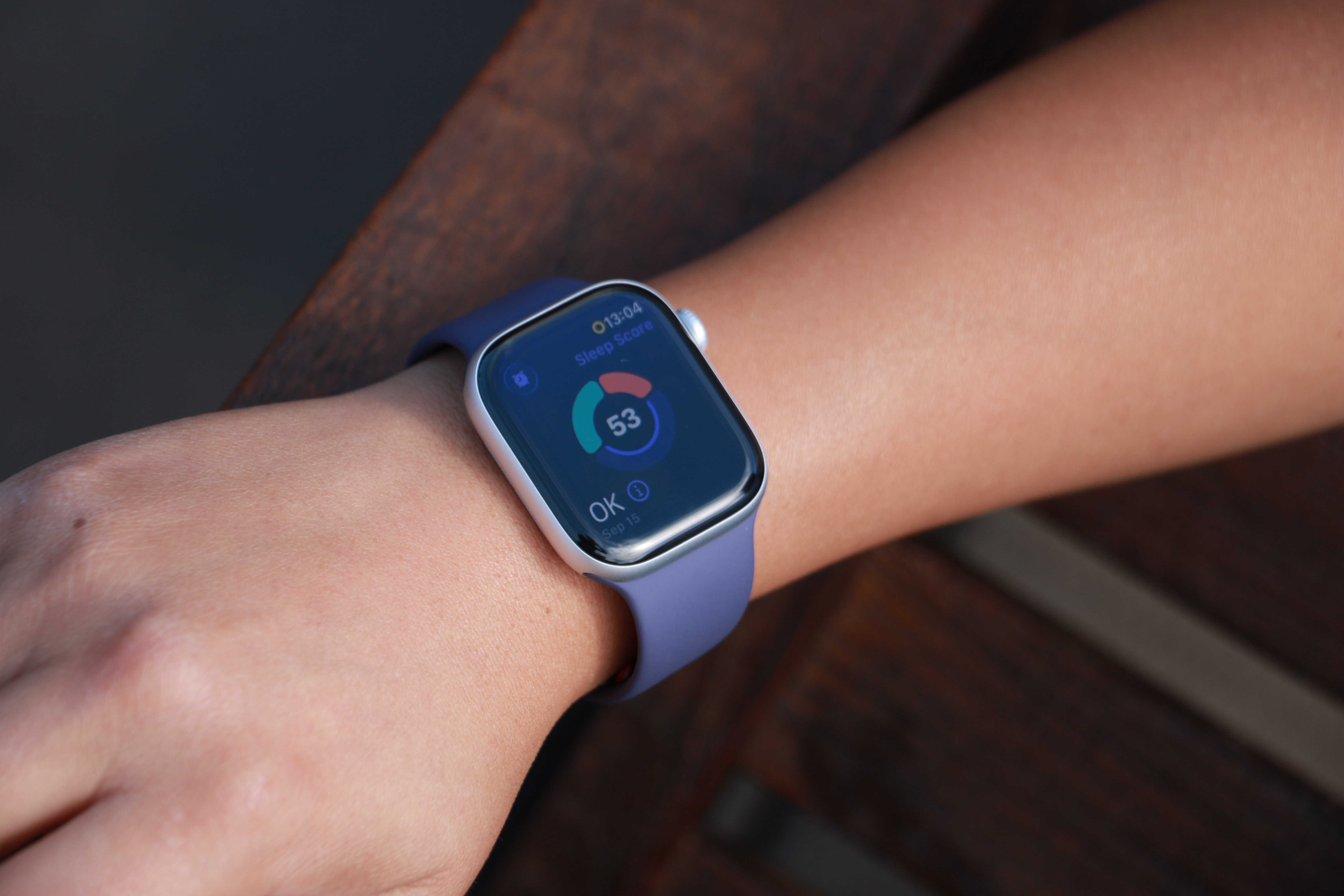
The Apple Watch Series 11 on a person's wrist, showing a ring with three segmented arcs encircling a Sleep Score of 53 and the description "OK" in the bottom left.
Cherlynn Low for Engadget

When Sleep Focus is active, the Apple Watch uses its accelerometer and heart rate sensor to detect when you are asleep and awake. Newer models also track sleep stages, including time spent in REM, core and deep sleep. Apple Health combines this information into a single overnight record that appears in the Sleep section the next morning.

You do not need to start or stop sleep tracking manually. As long as you follow your sleep schedule or enable Sleep Focus before bed, the Apple Watch automatically does everything else. If you wake up early or go to bed later than planned, Apple Health adjusts the data based on actual movement and heart rate rather than just your scheduled times. In addition, some Apple Watch models (SE 3 or higher) support on-device Siri, enabling you to ask questions such as “how much sleep did I have last night?” for a more immediate response.   

To see your sleep data, open the Health app on your iPhone and tap Browse, then Sleep. At the top of the screen, you will see a chart showing how long you slept the previous night. Tapping this chart reveals a detailed breakdown, including time asleep, time in bed and sleep stages (if available).

Scrolling down shows trends over longer periods. You can switch between daily, weekly, monthly and six-month views to see patterns in your sleep duration and consistency. Apple Health also highlights whether you are meeting your sleep goal and how regular your schedule has been.

Under Highlights, Apple Health may surface insights such as changes in average sleep time, variations in sleep stages or your nightly sleep score. Sleep scores provide a simplified summary of how well you slept, and is based on factors such as duration, consistency and restfulness. These summaries update automatically as more data is collected over time.

If your Apple Watch supports sleep stages, Apple Health displays how much time you spent in REM, core and deep sleep. These stages give context to your overall sleep quality, though Apple emphasizes trends over individual nights. Occasional short nights or unusual stage distributions are normal.

Over time, Apple Health makes it easier to spot patterns. Consistently short sleep durations, irregular bedtimes or frequent awakenings become clearer when viewing weekly or monthly summaries. This makes the Sleep section useful not just for nightly check-ins but for understanding longer-term habits.

Apple Health allows you to add or edit sleep data if needed manually. In the Sleep section, tap Add Data to log sleep that was not recorded automatically. This can be useful if you forget to wear your watch or take a nap without it.

You can also manage which devices contribute sleep data by scrolling to the bottom of the Sleep screen and tapping Data Sources and Access. This is helpful if you use third-party sleep apps or multiple devices.

Once set up, sleep tracking in Apple Health runs quietly in the background. With a consistent schedule and a charged Apple Watch, your sleep data builds into a clear picture of your nightly rest, all stored securely within Apple’s health platform.

This article originally appeared on Engadget at https://www.engadget.com/mobile/smartphones/how-to-track-your-sleep-and-view-your-sleep-data-in-apple-health-130000023.html?src=rss

Two years of NordVPN’s Complete plan is 70 percent off

NordVPN is offering a significant discount on its two-year plans, with 70 percent off its Complete tier and up to 78 percent off overall. For the Complete tier, the deal brings the total cost down to $130 for 24 months

NordVPN regularly appears on Engadget’s list of the best VPN services thanks to its wide server network, strong security tools and consistent performance across devices. NordVPN’s latest promotion puts one of its most comprehensive plans at a price that undercuts many competing premium VPN subscriptions.

The Complete tier includes full access to NordVPN’s core VPN service, which encrypts internet traffic and masks a user’s IP address to help protect online activity on public Wi-Fi networks and at home. Subscribers can use the service on multiple devices, including phones, tablets, laptops and smart TVs, with apps available for major operating systems. It also includes access to NordPass (more on that below), an ad blocker and 1TB of cloud storage. You’ll find similar discounts on all of NordVPN’s other plans: Basic, Plus and Prime.

Beyond the basics, NordVPN offers features like threat protection to help block malicious websites and trackers, as well as specialty servers designed for added privacy or faster performance in specific scenarios. In our NordVPN review, the service was praised for its evolving feature set and overall reliability, even as the VPN market becomes increasingly competitive.

Engadget regularly tracks VPN pricing trends and this offer compares favorably with other current promotions. It also appears alongside NordVPN deals featured in Engadget’s ongoing roundup of the best VPN discounts available right now, which compares offers from multiple major providers.

Those looking for additional security tools may also want to note that NordVPN’s Complete plan bundles in extra services beyond the VPN itself. One of those is NordPass, the company’s password management app. NordPass is also discounted as part of a separate promotion, if you’re primarily looking for a password manager rather than a VPN. The Premium tier is currently 50 percent off, bringing the price down to $36 for two years. NordPass Premium adds features such as cross-device password syncing, secure password sharing and breach monitoring, which alerts users if stored credentials appear in known data leaks.

Both offers are available for a limited time, though Nord has not specified an end date for the promotion. If you’re still unsure whether NordVPN is right for you, it offers a 30-day money-back guarantee, so you can change your mind and get a full refund.

This article originally appeared on Engadget at https://www.engadget.com/deals/two-years-of-nordvpns-complete-plan-is-70-percent-off-123000301.html?src=rss

How to turn on hypertension alerts on Apple Watch

Apple has steadily expanded the Apple Watch’s health monitoring features over the years, moving beyond fitness tracking into areas that can offer early insight into potential medical concerns. One of the most recent additions is hypertension alerts, which are designed to notify users when their blood pressure trends are elevated over time. While Apple Watches cannot directly measure blood pressure, this feature can still play a useful role in highlighting patterns that may be worth discussing with your doctor. Here, we’ll explain what hypertension alerts do, how they work and how to enable and manage them on the Apple Watch.

Hypertension alerts are designed to identify long-term trends that may indicate elevated blood pressure. Instead of relying on a traditional cuff measurement, the Apple Watch analyzes a combination of health data collected over a 30-day period, including heart rate, movement patterns and other contextual information stored in the Health app. Using this data, the system looks for sustained changes that align with patterns commonly associated with hypertension.

If your Apple Watch detects a trend suggesting elevated blood pressure over an extended period, it’ll send you a notification. These alerts are not intended to diagnose hypertension or replace medical testing. Instead, they serve as an early signal that something may have changed and that you may want to seek further monitoring or professional advice.

Apple emphasizes that hypertension alerts are designed for users who have not already been diagnosed with high blood pressure. Instead, they are meant to raise awareness rather than confirm a condition.

Hypertension alerts require a compatible Apple Watch model (Apple Watch Series 9 or later, or Apple Watch Ultra 2 or later) paired with a supported iPhone (iPhone 11 or later). The feature also depends on recent versions of watchOS and iOS, as it relies on updated health algorithms and background data analysis. To use hypertension alerts you must be 22 years of age or older, not be pregnant and not have been diagnosed with hypertension. You also need to ensure that your Apple Watch’s Wrist Detection feature is turned on.  

To receive meaningful alerts, your Apple Watch needs sufficient data. This means wearing the watch regularly, including during sleep if sleep tracking is enabled, and keeping health details such as age, sex, height and weight up-to-date in the Health app. The system uses long-term trends, so alerts will not appear immediately after enabling the feature.

Hypertension alerts are managed through the Health app on the paired iPhone. The feature cannot be enabled directly from the watch itself. During setup, the Health app will ask for confirmation that the user has not been diagnosed with hypertension. It may also prompt a review of health details such as date of birth and biological sex, as this information helps improve the accuracy of trend analysis.

To get started, open the Health app on the iPhone paired with the Apple Watch. From the main Health screen, tap your profile in the top corner. Select Health Checklist from the available Features. Next, you’ll need to tap Hypertension Notifications, confirm your age and whether or not you’ve ever been diagnosed with hypertension. Tap Continue and follow the on-screen prompts for information on how the notifications work. Once you have done this, tap Done and you’ll be all set. 

Once enabled, the feature runs automatically in the background. There is no need to manually start monitoring or interact with the feature daily.

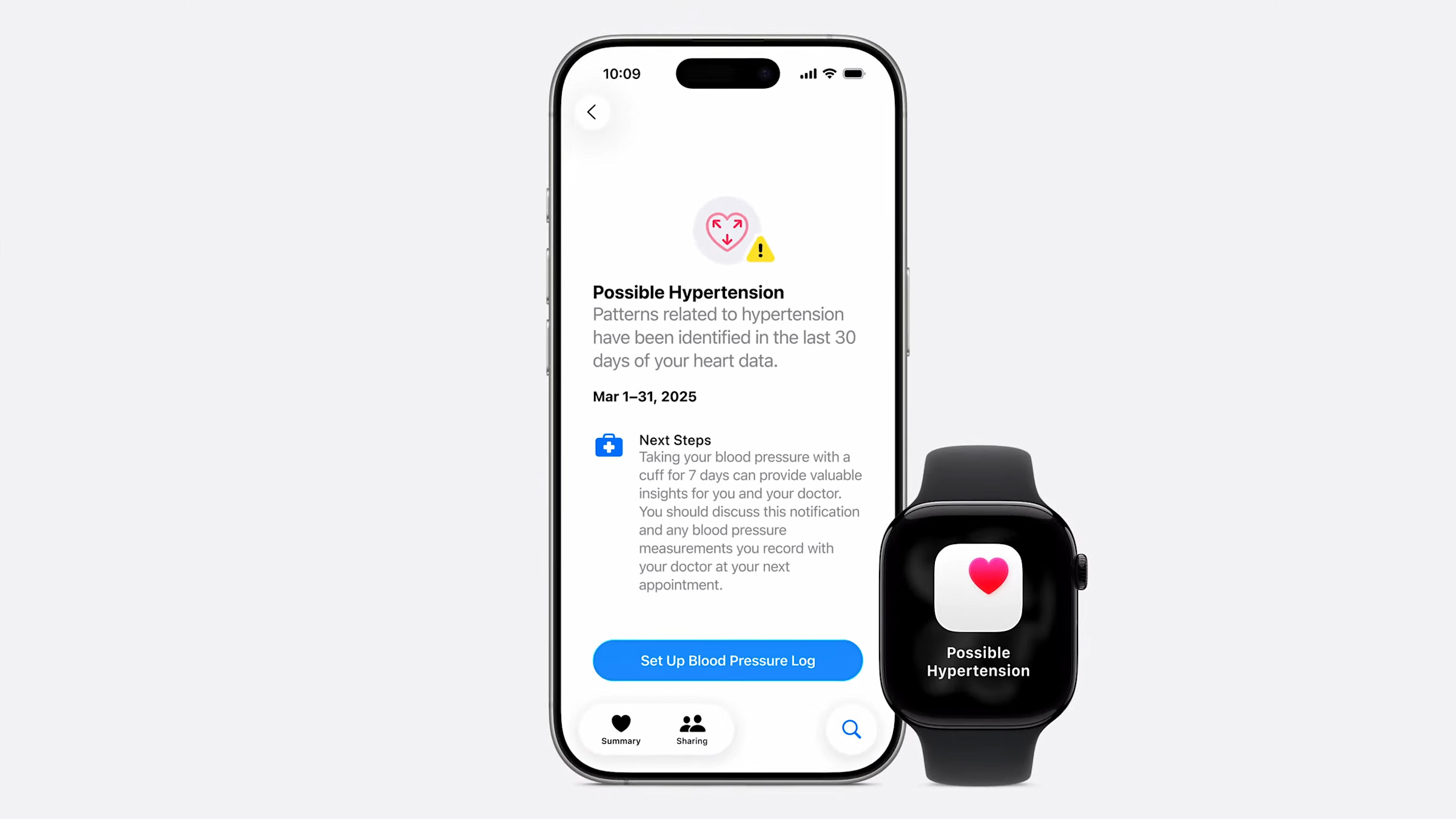
The new apple watch series 11 can help identify hypertension
Apple

When hypertension alerts are turned on, notifications appear on both the Apple Watch and the paired iPhone. These alerts typically explain that a long-term trend suggesting elevated blood pressure has been detected, along with guidance on next steps.

Users can manage how and when these notifications appear by adjusting notification settings for the Health app. This includes choosing whether alerts appear on the lock screen, in Notification Center or as time-sensitive notifications on Apple Watch.

Health data related to hypertension alerts can be reviewed at any time in the Health app. While Apple Watch does not display a specific blood pressure number, users can view contextual information and educational material explaining what the alert means and what actions may be appropriate.

Hypertension often develops gradually and may not cause noticeable symptoms in its early stages. Because of this, many people are unaware of elevated blood pressure until it is identified during a routine medical check.

Hypertension alerts can let you know of subtle changes that might have otherwise gone unnoticed. For some users, an alert may prompt earlier conversations with a doctor, additional blood pressure monitoring at home or lifestyle changes such as adjustments to diet, activity or sleep habits.

It is important to treat these notifications as informational rather than diagnostic. Apple Watch does not provide specific blood pressure readings and cannot confirm hypertension on its own.

Receiving a hypertension alert does not mean that there is an immediate medical emergency. Apple recommends using the alert as a prompt to pay closer attention to your cardiovascular health.

Many users choose to follow up by measuring blood pressure using a traditional cuff at home or by scheduling a check with a healthcare professional. A doctor can provide proper testing, diagnosis and guidance based on clinical measurements and individual risk factors.

It is also worth reviewing lifestyle factors that can influence blood pressure, such as physical activity levels, sleep quality, stress and diet. Apple Watch can already help track many of these areas, which may provide useful context when discussing health concerns with a professional.

Hypertension alerts are not available in all regions and may be subject to regulatory approval. The feature also requires consistent Apple Watch use over time to generate reliable trend data.

Most importantly, the Apple Watch does not measure blood pressure directly. The alerts are based on correlations and trends rather than direct readings, which means they should not be used as a substitute for medical equipment or professional care.

This article originally appeared on Engadget at https://www.engadget.com/wearables/how-to-turn-on-hypertension-alerts-on-apple-watch-130000090.html?src=rss

How to use Workout Buddy with Apple Watch and iOS 26

Apple’s iOS 26 and watchOS 26 introduced a new fitness companion called Workout Buddy. This feature uses Apple Intelligence to provide spoken feedback during workouts and give motivation based on your activity history. Workout Buddy analyzes your pace, heart rate, distance and other metrics to deliver real-time encouragement and performance insights directly through connected Bluetooth headphones. It works in conjunction with the Workout app on Apple Watch and is partially controlled through the Fitness app on iPhone. This guide walks you through everything needed to set up and use Workout Buddy effectively during workouts.

It’s important to note that Workout Buddy is not a full coaching program. Instead, it adds to your workout with spoken cues that reflect how your session is going. Workout Buddy can remind you of your weekly activity totals, alert you to personal bests or performance milestones and provide an overview when you’re finished. It is designed to feel like a supportive training partner rather than a strict coach.

The feature operates in English by default and uses a text-to-speech model trained on voices from Apple Fitness+ trainers. It is available for a subset of workout types, including running, walking, cycling, high-intensity interval training (HIIT) and strength training. It requires on-device Apple Intelligence, which means you’ll need to keep one of the latest iPhones running updated software nearby during workouts. 

Supported models include iPhone 15 Pro, iPhone 15 Pro Max and any iPhone 16 model. You’ll also need an Apple Watch running watchOS 26.  

Before Workout Buddy appears in your Fitness app or Workout app you must ensure a few things are in place. First, your Apple Watch must be running watchOS 26 or later and paired to an iPhone with iOS 26 installed. Second, your iPhone must be capable of on-device Apple Intelligence, meaning you must own one of the supported iPhone models we mentioned above and have Apple Intelligence enabled in the phone’s settings.

You’ll also need Bluetooth headphones paired with either your iPhone or your Apple Watch. Workout Buddy’s audio feedback cannot play through the watch speaker so headphones are essential. Lastly, your device language must be set to English, at least initially. If any of these things are missing, the option to enable Workout Buddy may not appear.

While much of the interaction with Workout Buddy happens on Apple Watch during workouts, you can enable it and choose voice options from the Fitness app on iPhone.

Open the Fitness app on your iPhone and tap the Workout tab at the bottom. Scroll through the list of workout types until you find one you plan to use with Workout Buddy. Tap the waveform bubble icon associated with that workout. This will bring up settings where you can turn on Workout Buddy. Flip the toggle to enable it and choose a voice from the available options. Once you have selected a voice, close that screen and your choice is saved. When you start this workout type on Apple Watch, Workout Buddy will activate.

Enabling Workout Buddy for a workout type on iPhone means you do not need to toggle it on separately on Apple Watch each time for that specific workout. However, you may still adjust it from the watch interface for more granular control.

To use Workout Buddy during a session, open the Workout app on your Apple Watch. Turn the Digital Crown to scroll through and select the workout you want to do, such as Outdoor Run, Outdoor Walk, Outdoor Cycle, HIIT or Strength Training. If you want to see all available workouts, tap the Add button at the bottom.

Once the workout type is selected, look for the Alerts button on screen. Tap Alerts then scroll until you see Workout Buddy. Tap Workout Buddy and flip the switch to on. You will then be asked to choose a voice if one is not already selected on your iPhone. After selecting the voice, return to the previous screen and tap Start. Workout Buddy will begin working as soon as the workout does.

Once you start an exercise on your Watch or iPhone, Workout Buddy will speak to you through your connected headphones. The feedback is designed to be encouraging and relevant to your pace, performance or milestones. It may mention your current progress toward activity goals, pace, splits, personal bests or other highlights from your fitness data. At the end of your session Workout Buddy will offer a summary of key metrics like duration distance and calorie burn.

While a workout is active, you can temporarily mute the audio if you need silence. On Apple Watch during the session, swipe right to reveal controls then tap Mute. This pauses Workout Buddy’s spoken commentary without disabling the feature entirely.

Workout Buddy is enabled on a per-workout-type basis. If you prefer voice feedback for running but silence for strength training, you can enable it for one and leave it off for the other. The Fitness app on iPhone allows you to set a default voice preference for each workout type. On Apple Watch you can quickly toggle the feature on or off before starting a session.

If Workout Buddy does not appear as an option for a particular workout type, you may need to check compatibility. Apple’s documentation indicates that only certain types* are supported initially and that the option will not appear for unsupported workouts.

*Apple Watch SE (2nd generation), Apple Watch SE 3, Apple Watch Series 6, Apple Watch Series 7, Apple Watch Series 8, Apple Watch Series 9, Apple Watch Series 10, Apple Watch Series 11, Apple Watch Ultra, Apple Watch Ultra 2, Apple Watch Ultra 3

If Workout Buddy fails to activate make sure your devices meet the requirements outlined above. Confirm that your iPhone with Apple Intelligence is nearby and that Bluetooth headphones are connected. If audio feedback is missing, ensure headphones are paired correctly and that the language is set to English. Some users have reported that if the headphones are paired only to the Watch rather than the iPhone, it can interfere with feedback. Switching to the iPhone often resolves that issue.

For workout types where Workout Buddy previously worked but suddenly does not appear, you may try toggling the feature off and on again in the Fitness app or rebooting both devices. In rare cases removing and re-adding the workout type on Apple Watch can refresh the settings.

This article originally appeared on Engadget at https://www.engadget.com/wearables/how-to-use-workout-buddy-with-apple-watch-and-ios-26-130000922.html?src=rss

How to pair AirPods with any device

AirPods work most smoothly with Apple hardware, but they also connect reliably to Android phones, Windows laptops and other Bluetooth devices. The pairing process depends on the platform in use although the basics remain the same. Once the AirPods are placed in pairing mode, most devices detect them quickly and handle the remaining steps in the background. The guide below explains how to pair AirPods with Apple products, how the process differs on newer iPhones that support H2 features and how to connect them to non-Apple devices.

Apple builds AirPods to pair almost instantly with devices in its own ecosystem. Opening the charging case near an unlocked iPhone or iPad usually brings up an on-screen prompt. Tapping Connect links the earbuds to the device and to every other Apple product signed into the same iCloud account. After that, switching between devices is automatic. Audio output follows the active device as long as each product is using updated software and is signed in with the same Apple ID.

If the pairing prompt does not appear, there are a few simple checks that help things move along. Opening the Control Center and selecting the audio output menu confirms whether the AirPods already appear as an available device. If they are listed there, choosing them establishes the connection. If they do not appear, opening the Settings app and checking Bluetooth usually reveals whether the AirPods are in range or already recognized. Opening the case while viewing the Bluetooth menu often triggers the pairing card once more.

The process is similar across Apple Watch and Mac. When the AirPods are already linked to an iPhone, they tend to show up automatically on a paired Apple Watch. On Mac, opening System Settings and viewing the Bluetooth section reveals the same device list seen on an iPhone. Selecting the AirPods from that list completes the connection and also syncs the pairing status back to every other Apple device using the same account.

Some newer iPhones support features enabled by the H2 chip used in newer AirPods models. With compatible AirPods, models such as iPhone 15 Pro, iPhone 15 Pro Max and the iPhone 16 lineup tend to deliver a faster and more responsive setup experience. When an AirPods case is opened near one of these phones, the device quickly detects the earbuds and displays the pairing card with little delay. This also tends to speed up transitions between devices and improves reliability when switching audio sources.

If the fast pairing prompt does not appear on a newer iPhone, reopening the case while the phone is unlocked is usually enough to reinitiate the process. It also helps to confirm that Bluetooth is turned on. Placing the AirPods back in the case for a few seconds and trying again will often reset the pairing state if the earbuds were connected elsewhere.

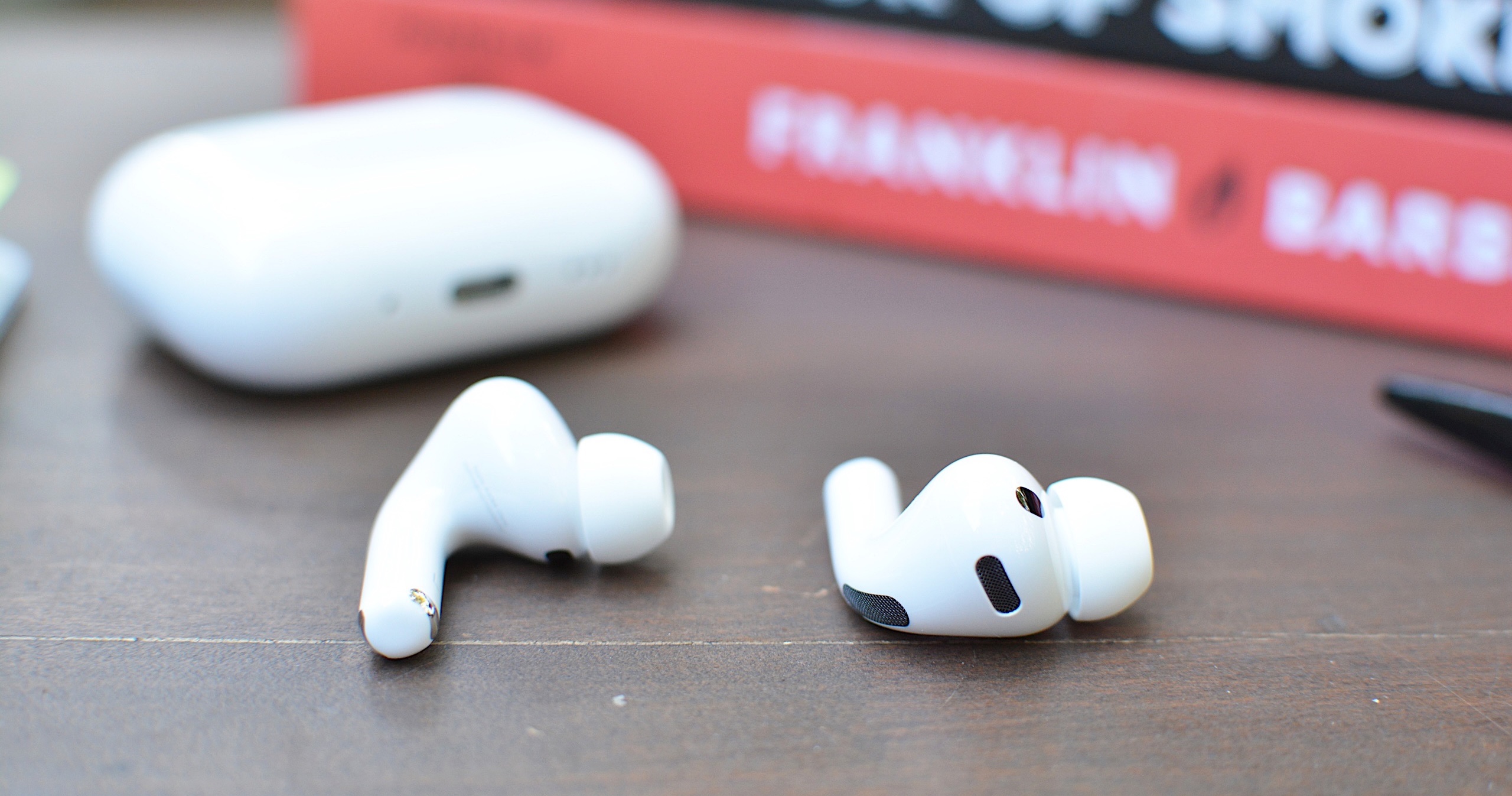
AirPods Pro 3
AirPods Pro 3
Engadget

Every AirPods model supports a manual pairing mode. This is essential when linking the earbuds to devices outside the Apple ecosystem, or when the automatic prompt fails to appear on an iPhone or Mac. On older AirPods models, pairing mode is activated by opening the lid and pressing and holding the setup button on the back of the case until the LED light flashes white. Newer models, including AirPods 4 and AirPods Pro 3, use a touch-based method instead. With the lid open, tapping the area near the LED light places the earbuds into pairing mode. Leaving the lid open keeps the AirPods discoverable for nearby devices. Closing the case ends the process and requires it to be repeated if the device fails to detect them.

Pairing mode does not remove any previous connections. It simply makes the AirPods available to new devices, which is helpful when switching between ecosystems. However, connecting to a new device usually takes priority. If the AirPods are already linked to something else that is nearby, turning off Bluetooth on the previously connected device prevents interference and helps the new device detect them more easily.

Although AirPods are designed for Apple hardware, they function like any other Bluetooth earbuds on Android. Opening the case and placing the AirPods in pairing mode allows Android phones to detect them through the standard Bluetooth menu. The earbuds appear in the list of available devices and selecting them initiates the connection. Once paired, AirPods work for calls and media playback. Some features, such as automatic ear detection and battery status indicators, may require a third-party app on Android and are not supported at a system level. Features such as spatial audio and device switching remain exclusive to Apple’s ecosystem but day-to-day performance is consistent on Android.

If the AirPods fail to appear, refreshing the Bluetooth device list on the Android phone usually helps. Making sure the earbuds are still in pairing mode is essential since the white LED indicator stops flashing after a short period. Reopening the case and holding the button again, or tapping on the front for newer models, restores discoverability.

Windows 11 handles AirPods as a regular audio device. Opening the Bluetooth and Devices menu in System Settings displays a list of nearby accessories. With the AirPods in pairing mode, the laptop should detect them and display them as an audio device. Selecting them completes the process and adds the earbuds to the device’s known accessories. Windows generally reconnects to AirPods automatically on future sessions as long as Bluetooth remains enabled.

If the earbuds do not appear in the list, toggling Bluetooth off and back on helps the system refresh the device scan. Checking whether the AirPods are already linked to a different device is another useful step. Windows sometimes struggles to take over a connection when the earbuds remain in range of a previously paired phone so disabling Bluetooth on the other device often resolves the issue.

Most pairing problems come down to the AirPods not being in discoverable mode or being connected to another device nearby. Resetting the earbuds solves many problems. On AirPods models with a setup button, placing the AirPods in the case, leaving the lid open and holding the button until the LED turns amber then white restores the factory pairing state. On newer models without a physical button, place the AirPods in the case, close the lid for about 30 seconds, then open it and quickly tap the front of the case three times. The status light should then flash amber and then white, to indicate that the reset is complete. This clears previous connections and makes the AirPods behave as if they are new out of the box. 

Low battery levels can also interrupt pairing. Ensuring both the earbuds and the case have enough charge prevents unexpected disconnections during setup. Interference from other wireless accessories affects pairing on crowded networks. Moving to a quieter spot or turning off surrounding Bluetooth devices helps the AirPods stand out when scanning.

AirPods are built to pair quickly with Apple devices but they also integrate smoothly with other platforms. Keeping the earbuds in pairing mode and confirming that Bluetooth is enabled on the device in use ensures a smooth setup every time. Once connected, the AirPods tend to remember the device and reconnect whenever they are nearby which keeps day-to-day use simple regardless of the platform.


This article originally appeared on Engadget at https://www.engadget.com/audio/headphones/how-to-pair-airpods-with-any-device-140000234.html?src=rss

The best gear to help you stick to your New Year’s resolutions

The start of a new year always feels like a reset button. Everyone’s talking about moving more, eating better, sleeping longer or finally taming their digital chaos. But resolutions rarely survive on willpower alone. The right tools or piece of tech can make those goals easier to keep by turning motivation into a habit. Whether you’re trying to close your rings, track your progress or just build better routines, these smart picks make self-improvement feel a little more achievable, and a lot more enjoyable.

Gear that can help you stick to your New Year's resolutions

This article originally appeared on Engadget at https://www.engadget.com/the-best-gear-to-help-you-stick-to-your-new-years-resolutions-130000389.html?src=rss

How to set up a PS5 for a child

Setting up a PS5 for a child means you can offer an age-appropriate and safe platform for them to play. Sony made its parental control tools more comprehensive in recent years and they allow families to manage screen time, block unsuitable content, guide online interactions and approve purchases. The process is straightforward once the right menus are in view, but it helps to understand how each feature works before handing over the controller.

The system uses individual accounts for each family member, and these accounts determine what a child can access. A parent or guardian assigns restrictions to the child’s profile and the console enforces them more consistently than earlier PlayStation systems. The process begins with creating a child account, then linking it to the Family Management section of the adult account, and finally adjusting controls on the console itself.

A child account is required before you can use any parental controls. This account is linked to the family manager’s PlayStation account and cannot be converted into an adult account until the child reaches the appropriate age under local regulations.

From the PS5 Home screen, navigate to Settings, Family and Parental Controls then choose Family Management. The system will request the family manager’s password before any changes can be made. Select Add Family Member and choose Add a Child. The console generates a QR code that opens a secure PlayStation webpage on a phone or browser. This page guides the setup process and ties the new account to the family group.

The form asks for the child’s date of birth first. Sony uses this to assign default age restrictions and to determine which features are allowed. A small credit card charge may be requested to verify the adult’s identity. The next steps involve entering an email address for the child, creating a password and selecting basic settings for content access, communication and spending. The child account must then be verified through a link sent to the provided email address. This ensures the account can use PlayStation Network features including any future purchases through the PlayStation Store.

Once complete, the new profile appears in the Family Management list on the PS5. This profile is now ready for fine-tuning.

The PS5 keeps all parental controls in Family and Parental Controls within the main Settings menu. This section is organized into Playtime Settings, Content Restrictions, Communication and User-Generated Content and Spending controls. Each area can be adjusted separately for every child account in the family group.

Playtime controls help set boundaries for gaming sessions. Select the child’s profile, then open Playtime Settings. Limits can be set by total daily hours or by specific time windows. The console can be configured to notify the child when time is nearly up, or to log them out automatically once the limit is reached. These settings apply across the child’s account, so they remain active even if the child switches between PS5 consoles in the same household.

Parents can choose how strictly the system enforces these rules. For example, the console can continue to display warnings without blocking gameplay or it can stop activity when the allotted time ends. Playtime reports can also be viewed through the family manager’s PlayStation account or the PS App.

Sony’s content filters are based on age ratings from the ESRB in the United States and equivalent regional boards in other countries. In Family Management, select the child’s profile and then select Parental Controls. Here, parents can set an age level for games. Titles above this level will not launch without approval from the family manager.

Blu-ray and DVD content can also be restricted and the system browser can be disabled entirely. If the family uses services that stream movies or TV shows through the console, those apps often apply their own content filters, but the PS5 can serve as a first line of control.

PlayStation 5
Engadget

Online communication can be limited to prevent unwanted contact. In Parental Controls, select Communication and User-Generated Content. This area controls messaging, voice chat, profile sharing and the ability to see or share player-created media such as screenshots and video clips.

Online play can also be adjusted. For younger kids, it may be helpful to block online multiplayer entirely until they better understand online etiquette and safety. For older children, communication can be limited to friends only. The PS5 respects these limits across all supported games.

A child account cannot use payment cards directly, but it can spend funds from the family manager’s wallet. Spending limits can be set in the child’s profile under Family Management. Parents can choose a monthly spending cap or block purchases altogether. Any attempt to exceed the limit requires approval from the family manager.

This feature covers games, add-ons, subscriptions and in-game currency. It ensures surprises on the credit card are less likely, especially in titles that promote quick digital purchases.

Once controls are set, the child can be added as a user on the console. Return to the home screen and select the user icon to switch users. Choose Add User, then select Get Started. Sign in using the child account’s email address and password.

The console guides the profile setup process and prompts for an online ID, avatar and privacy preferences. These steps help personalise the child’s space on the PS5. The system may request a locally created passcode that prevents access to parental controls without the family manager’s approval. This passcode should be unique and not shared with the child.

After setup is complete, the child will see a version of the PS5 tailored to the restrictions applied. Games that exceed the assigned age rating will appear with a lock icon and the console will block any actions that the family manager has limited.

Playtime and permissions can be managed remotely through Sony’s PS App or the PlayStation website. This makes it easier to adjust rules without taking over the TV. The app also provides notifications when playtime is running low or when the child attempts to access restricted content.

Sony’s Family Management tools synchronise across devices. Changes made from a phone appear on the PS5 within seconds. This helps maintain consistent rules, especially in homes with more than one console.

A child-ready PS5 is more than a restriction tool. It creates a safer environment for learning how to navigate digital spaces, interact with friends and handle screen time. Sony’s updated controls take much of the pressure off parents by enforcing rules in predictable ways that are difficult to bypass. Once everything is configured, the child can enjoy the console’s library while staying within the boundaries that support healthy gaming habits.

This article originally appeared on Engadget at https://www.engadget.com/gaming/playstation/how-to-set-up-a-ps5-for-a-child-160039866.html?src=rss

How to set up an iPad for a child

Creating a child-friendly iPad takes a few extra steps, but Apple’s tools make the process relatively straightforward. From creating a child’s Apple ID to adjusting Screen Time and privacy settings, you can shape how your child uses the device and protect them from inappropriate content. The process varies slightly depending on whether the iPad is new or already in use, but the principles are the same: set up a managed account, connect it to Family Sharing and fine-tune the controls that keep your child’s digital space safe.

Every kid using an iPad should have their own Apple ID. This allows you to manage their account through Family Sharing and gives them access to features like iCloud, the App Store and Messages under your supervision. Apple requires parents to create accounts for children under 13, which can be done directly from your own device.

Open the Settings app on your iPhone or iPad, tap your name at the top and select Family. Tap Add Member, then Create Child Account, and follow the onscreen prompts. You’ll need to provide your child’s name and birth date, along with parental consent using your own Apple ID password. Once created, the account is automatically added to your Family Sharing group.

If your kid already has an account, you can invite them to join your Family Sharing setup instead. On the iPad, go to Settings > Family > Add Member, then select Invite People to send a request to their existing Apple ID email address. When they accept, you’ll be able to manage parental controls from your own device.

Family Sharing brings all your family’s Apple devices together under one umbrella. It lets you share subscriptions, purchases and iCloud storage, while giving you oversight of your child’s activity. The Ask to Buy feature, for example, requires your approval before your child can download apps or make in-app purchases, helping to avoid surprise charges.

To enable Family Sharing on your iPad, go to Settings > [your name] > Family, then tap Add Member if your child isn’t already added. You can manage shared purchases, location sharing and Screen Time settings from here. Linking devices through Family Sharing also makes it easier to locate a lost iPad and maintain consistent restrictions across all your family’s devices. For broader setup advice, see Engadget’s guide on how to set up a phone or tablet for a child.

Once your child’s account is linked, you can use Screen Time to manage how the iPad is used. Screen Time is found under Settings > Screen Time, and it lets you set time limits, restrict certain apps, and monitor usage reports.

When first opening Screen Time on your child’s iPad, tap This is My Child’s iPad. You’ll be prompted to create a unique Screen Time passcode. This passcode is different from the iPad’s unlock code and prevents your child from changing settings without permission, so make sure you remember it. From here, you can configure several key features.

Downtime allows you to block all but essential apps and calls during certain hours, such as bedtime or homework time. App Limits sets daily time limits for categories such as games, entertainment or social networking. You can also set Communication Limits to control who your child can contact throughout the day and during Downtime, which is useful for if you only want them to message family members or trusted friends. The Always Allowed section lets you choose essential apps, such as Messages or educational tools, that remain accessible at all times.

You can adjust these settings from your own device if your child is part of your Family Sharing group. Screen Time reports provide detailed insight into how the iPad is used, so you can see which apps are used the most and make adjustments as needed.

Content and Privacy Restrictions offer finer control over what your kid can and cannot do with their iPad. To enable them, go to Settings > Screen Time > Content & Privacy Restrictions, and toggle them on.

Within this menu, you can manage App Store purchases and downloads, disabling in-app purchases or preventing your child from installing or deleting apps. You can also filter explicit content in Apple Music, TV, and Books, and apply web restrictions in Safari to limit adult content. Under Web Content, choose Limit Adult Websites or specify certain sites that are allowed or blocked.

Privacy controls extend beyond content. You can manage location services, camera and microphone access and other sensitive permissions. For example, turning off location sharing in certain apps can help safeguard your child’s privacy. You can also prevent changes to accounts, passcodes and cellular settings, ensuring that restrictions remain consistent.

Beyond Screen Time, Apple includes additional tools to make iPads safer for children. In Safari, you can enable SafeSearch to filter explicit results in search engines. Restrict AirDrop under Settings > General > AirDrop to limit sharing to Contacts Only or turn it off completely, reducing the potential for exposure to unsolicited files.

Messages includes a Communication Safety feature that uses on-device machine learning to detect sensitive images. When enabled, the iPad will blur images that contain nudity and offer guidance before the child can view them. You’ll find this under Settings > Screen Time > Communication Safety. It works entirely on the device and doesn’t send data to Apple, preserving privacy while offering extra protection.

If your child uses Game Center, you can limit multiplayer games, profile visibility and the ability to add friends. These small adjustments can prevent unwanted social interactions or exposure to inappropriate content in online games.

For younger children or toddlers, Guided Access can keep them focused on a single app and prevent them from accidentally navigating elsewhere. To enable it, open Settings > Accessibility > Guided Access, then toggle it on and set a passcode.

Once it’s active, open the app you want your child to use and triple-click the top button (or the Home button on older models). Guided Access locks the iPad to that app until you end the session with your passcode. You can disable hardware buttons or touch input areas to avoid navigating elsewhere in the app or accessing playback controls. This feature is ideal when you want your child to watch a video or use an educational app without interruption.

After initial setup, it’s important to revisit these settings occasionally. Children’s needs change as they grow, and Apple regularly adds new parental features with each iPadOS update. Keep the iPad updated by going to Settings > General > Software Update, and review restrictions periodically to ensure they still fit your child’s age and usage patterns.

Setting up an iPad for your child isn’t just about managing screen time or blocking certain apps. It’s about creating a space that encourages safe exploration while maintaining healthy boundaries. With Apple’s parental tools, you can find the right balance between freedom and supervision, making the iPad a secure and educational part of your child’s digital world.

This article originally appeared on Engadget at https://www.engadget.com/mobile/tablets/how-to-set-up-an-ipad-for-a-child-160001671.html?src=rss

How to redeem game codes on the Nintendo Switch 2

Digital game codes remain one of the simplest ways to add new titles to a Nintendo library. The Nintendo Switch 2 handles code redemption in a familiar way, building on the same process used on the original Switch. You can redeem a download code directly from the eShop on the console, or through a browser on a phone or desktop. Both routes link the purchase to the same Nintendo Account so the redeemed title appears on any compatible device tied to that account. The process is quick once you know where to look. Here is how to redeem game codes on Switch 2 through the console and online.

A Nintendo Account is required and the Switch 2 must be connected to the internet for on-device redemption. Most codes contain sixteen characters made up of letters and numbers. The characters are displayed on a physical card, on a receipt or in a confirmation email from a retailer. The characters should be entered exactly as supplied. Each code can only be redeemed once and becomes linked to the Nintendo Account used during the process.

Redeeming a code through the Switch 2 itself is the most direct approach because the download begins as soon as the code is accepted.

Start on the Switch 2 home screen and open the Nintendo eShop icon. The console will prompt you to choose the user profile that should receive the content. Each user profile has a separate eShop purchase history, so pick the correct one before moving on.

Once the eShop loads, look for the Redeem Code option in the main menu. On the Switch 2, this appears in the left navigation panel alongside the store’s standard browsing categories. Select Redeem Code to open a screen with an input field and the on-screen keyboard.

Enter the sixteen-character code carefully. Codes may contain similar-looking characters particularly when numbers and letters appear in the same sequence. After entering the full set of characters select OK to move forward. The system checks the code and shows a confirmation page with the game or content tied to it.

If the code is valid, select Redeem to finish the process. The game will appear on the home screen as soon as the redemption is complete. A progress bar shows the download status until the installation finishes. If the game includes a Switch and Switch 2 version, the system will prompt you to choose which version to download.

If the game does not begin downloading head to the All Software view or the Download Management screen to confirm the status. The redeemed title should be visible with either a queued or active download.

Nintendo also supports online redemption through its digital store, which is useful if you are away from the console or prefer to type the code on a full keyboard. The redeemed title will still appear in your account’s purchase history and can be downloaded later from the Switch 2.

Open a browser on a phone, tablet or computer and go to the Nintendo Account login page. Sign in using the account linked to your Switch 2. Once logged in navigate to the code redemption page for the Nintendo eShop. This page contains a text box where you can paste or type the code.

Enter the code exactly as provided and select Next. A confirmation screen appears with the game details. Select Redeem to finalize the action. The content is now tied to your account and ready to download on your console.

If the console is in sleep mode and has auto downloads enabled, the game may start downloading immediately. Otherwise open the eShop on the Switch 2 later and check the Download Management section for your queued title.

Every redeemed game becomes part of your Nintendo Account’s digital library. This applies across devices tied to the same account, which means that games purchased on a Switch or a browser will still appear when you sign in on a Switch 2. If the game supports cloud backup through Nintendo Switch Online, save data will sync once the game is installed.

Some games offer separate versions for the original Switch and Switch 2. When this applies, you’ll be asked to pick which version you want to download. The choice does not usually affect your ownership but it determines which software build is installed on the device.

If a code fails, Nintendo advises checking that the characters are entered correctly and confirming that you are using a download code rather than a control number, which often appears on the same card. Codes for DLC downloads require the base game on the destination console. Region restrictions also apply so the code must match the region of your Nintendo Account’s eShop.

The Switch 2 keeps the familiar eShop structure that users have relied on since the original console. Keeping this process consistent simplifies the transition for families with multiple consoles and reduces the friction of carrying existing purchases forward. Nintendo Accounts continue to serve as the backbone for digital ownership which makes it easy to claim a code on one device and access the game on another.

The updated interface on the Switch 2 adds clarity to navigation but code redemption still works the same way on both platforms. This continuity ensures that retailers can distribute standard sixteen-character download codes and users can rely on simple steps to activate them.

This article originally appeared on Engadget at https://www.engadget.com/gaming/nintendo/how-to-redeem-game-codes-on-the-nintendo-switch-2-130059847.html?src=rss

How to set up an Apple Watch for a child

Giving a child an Apple Watch can offer extra peace of mind and tools that promote independence in a controlled way. Apple’s Family Setup feature makes it possible for a kid to use an Apple Watch without owning an iPhone, and the feature set has expanded thanks to recent watchOS updates. It supports communication controls, location tools, Schooltime limits and privacy protections that allow a parent or guardian to manage how the device is used throughout the day.

The setup process begins with creating or signing in with a child’s Apple ID. It continues with adding them to your Family Sharing group on an iPhone and pairing a compatible Apple Watch through the Apple Watch app. Once the watch is linked, you can adjust a range of parental controls that shape how the watch works at home, at school and when the child is out and about.

Family Setup requires a cellular-capable Apple Watch such as the Apple Watch SE or Series 6 or later. A cellular connection allows the watch to operate independently without an iPhone nearby. The watch must be running a recent version of watchOS and the iPhone used for setup must be running the latest iOS version.

If the watch is not new, it needs to be erased before it can pair with a new user. This can be done directly on the watch through the Settings menu by choosing the general reset option. Once the device is reset it can be paired again from the Apple Watch app.

Family Setup relies on each child having their own Apple ID. This allows their data, messages, activity goals and device settings to remain separate from other people in the household. If your kid already has an Apple ID, it can be used during setup. If they do not have one, the Apple Watch app will prompt you to create one as you go through the pairing process.

A child’s Apple ID is linked to Family Sharing, which lets the organizer manage permissions from a single iPhone. A parent or guardian can approve contacts, handle screen time requests and view location updates without needing to touch the watch itself. Setting this up first ensures that the watch can be paired smoothly later.

Family Sharing is the foundation for managing the watch, and it’s all controlled through the Settings app on your iPhone. Once Family Sharing is open you can tap the option to add a family member then follow the prompts to link the child’s Apple ID to the group. This also makes you the family organizer, which gives you control of purchase approvals, communication limits and other shared features.

Once the child is added to Family Sharing their information becomes available when you begin pairing the Apple Watch. This makes the process faster since the watch can immediately associate itself with the correct Apple ID.

Turn on the Apple Watch and place it near your iPhone. A prompt should appear directing you to use your iPhone for setup. If the prompt does not appear, you can open the Apple Watch app, go to All Watches and choose Add Watch. The app will then ask if the device is being set up for you or for a family member. Choose the family member option and continue.

The camera on your iPhone is used to pair the devices. Align the Apple Watch face inside the frame on your screen until the pairing animation is recognized. Once the connection is made the app will ask which family member the watch is for. Select the child’s profile to continue through the remaining steps.

The app will guide you through choosing which wrist the watch will be worn on, setting a passcode, signing in with the child’s Apple ID and enabling services such as Siri and location tracking. You can also set up activity goals tailored to the child’s age and fitness level.

Once the Apple Watch is paired, the Watch app becomes the main place to manage how it works. The Family Setup interface is designed to give parents and guardians control without needing to handle the watch directly. Most adjustments can be made at any time from the iPhone used for setup.

Screen Time controls allow you to set limits for communication and app use. You can restrict access to certain features during specific times of day, create downtime schedules and manage content restrictions for websites and apps. These settings mirror the Screen Time system used on other Apple devices which makes it easier to keep rules consistent across the household.

Approved contacts can be managed through the communication limits menu. This ensures that the child can send messages and make calls only with approved people. If you add or remove contacts, they are updated instantly on the watch.

Location sharing is handled through the Find My app. You can view the child’s location and set notifications that alert you when they arrive at or leave a particular place. This is useful for school pickups or after-school activities. The watch uses on-device processing for location and messages which helps maintain privacy.

School time is one of the most important parental controls for younger users. It limits interaction with the watch during school hours by locking access to most apps and features. Only the time and a simple yellow icon appear on the screen while Schooltime is active. You can schedule Schooltime from the Apple Watch app so that it automatically turns on and off at the right times each day.

Focus modes offer another layer of control. These modes can reduce distractions during homework, bedtime or other family routines. Each Focus mode can limit notifications and activity alerts so the child is not interrupted when they need to concentrate.

Emergency SOS is enabled during setup and can be managed afterward in the Apple Watch app. It allows the child to contact emergency services by holding the side button. You can also assign an emergency contact who will receive a notification if SOS is triggered.

The Medical ID should include relevant details such as allergies or medical conditions. This information can be accessed by emergency responders if needed.

The watch uses on-device processing for messages, location and Siri requests which helps protect your child’s data. Location sharing can be turned on or off at any time and you can manage which apps are allowed to use location services. Communication permissions can also be updated as the child’s needs change.

Apps installed on the watch can be controlled from the Apple Watch app. You can remove apps, restrict access or hide notifications at any time to maintain a balanced experience.

This article originally appeared on Engadget at https://www.engadget.com/wearables/how-to-set-up-an-apple-watch-for-a-child-120051230.html?src=rss