For years, the technology world has looked toward Cupertino for the “next iPhone”—a device that would fundamentally alter our relationship with the digital world. For a brief moment, it appeared that the device might be the Apple Vision Pro. However, as we move through 2025, a different narrative has emerged from the supply chain and […]
We as a curious species are always intrigued by the prospects of the future, and predicting what the timeline holds for us is always exciting. That’s where we all get lost in the world of concepts that are far ahead of time, giving us a glimpse of what our imagination could manifest into. Clean energy vehicles have remained the perfect canvas to paint one’s imagination into forms that subtly portray the vision for coming generations based on their perceptions, habits, and style.
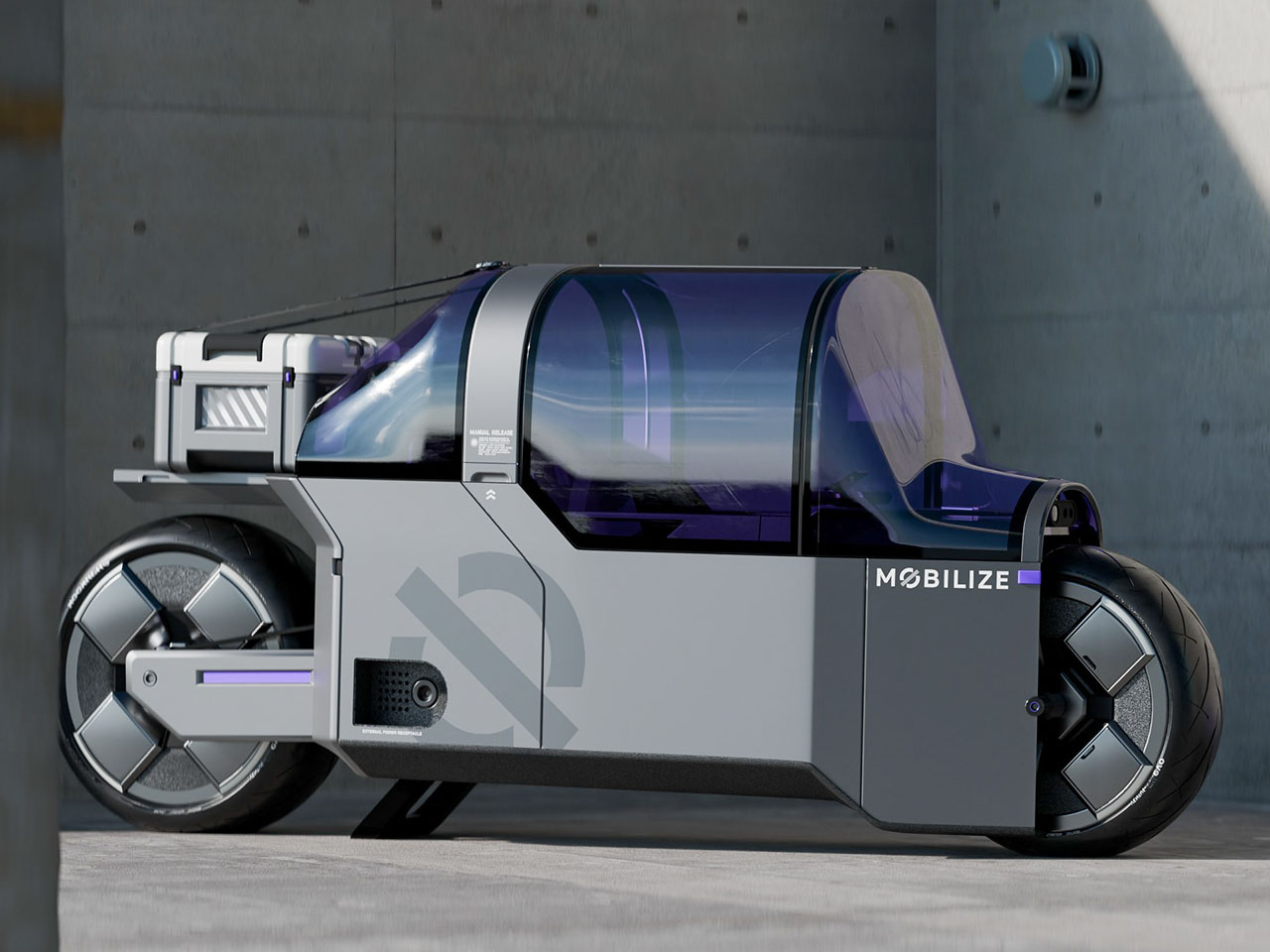
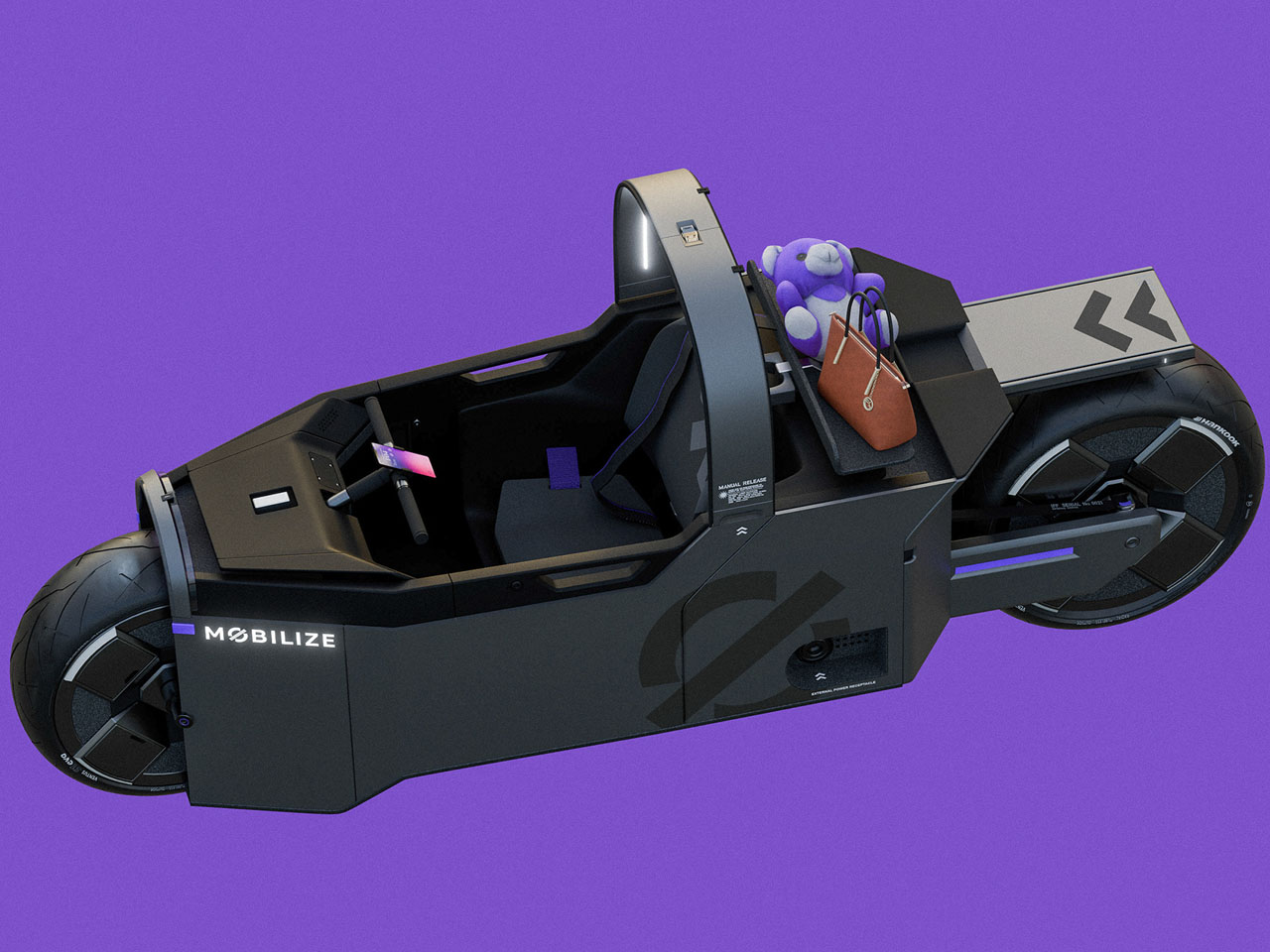
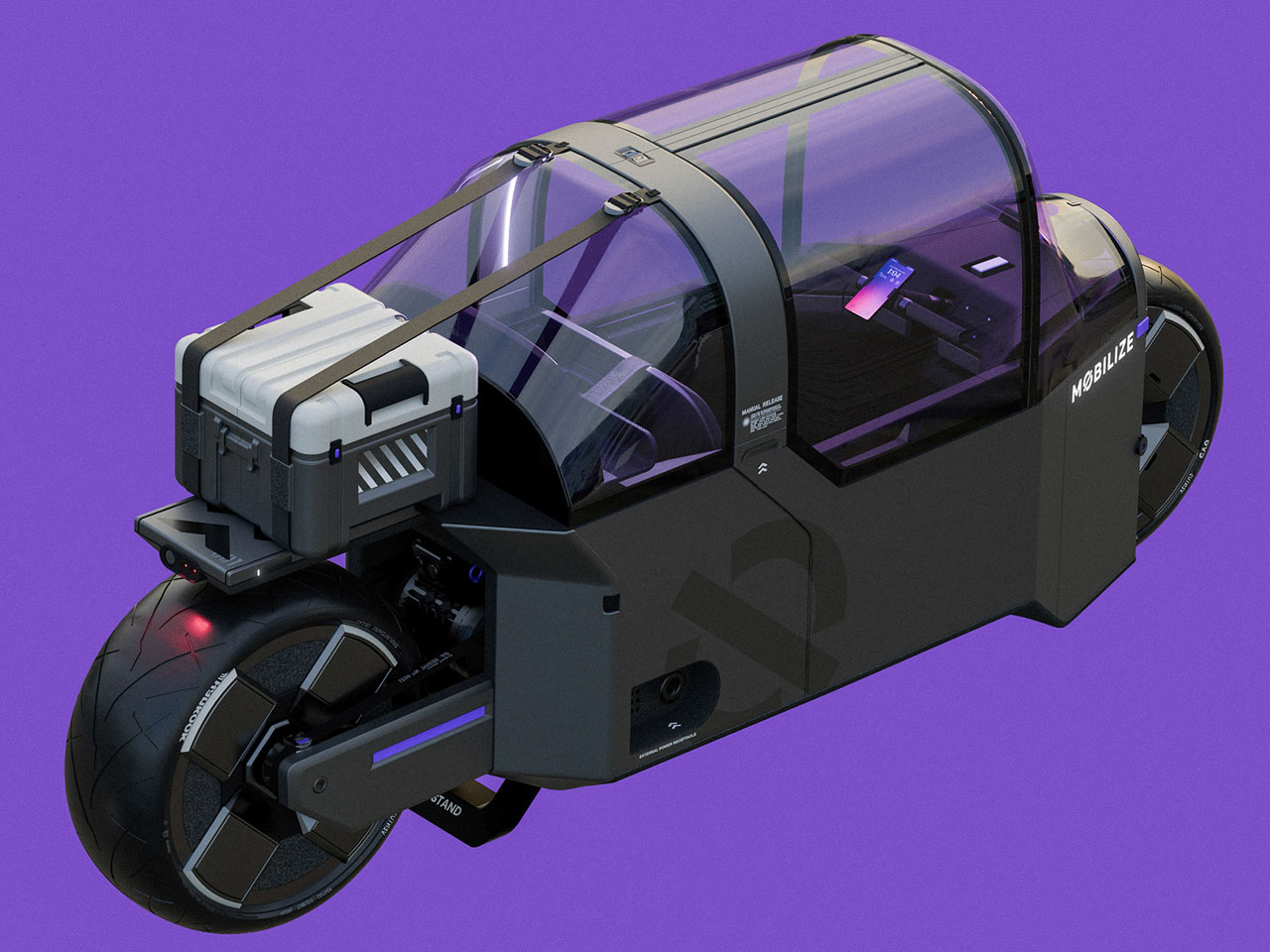
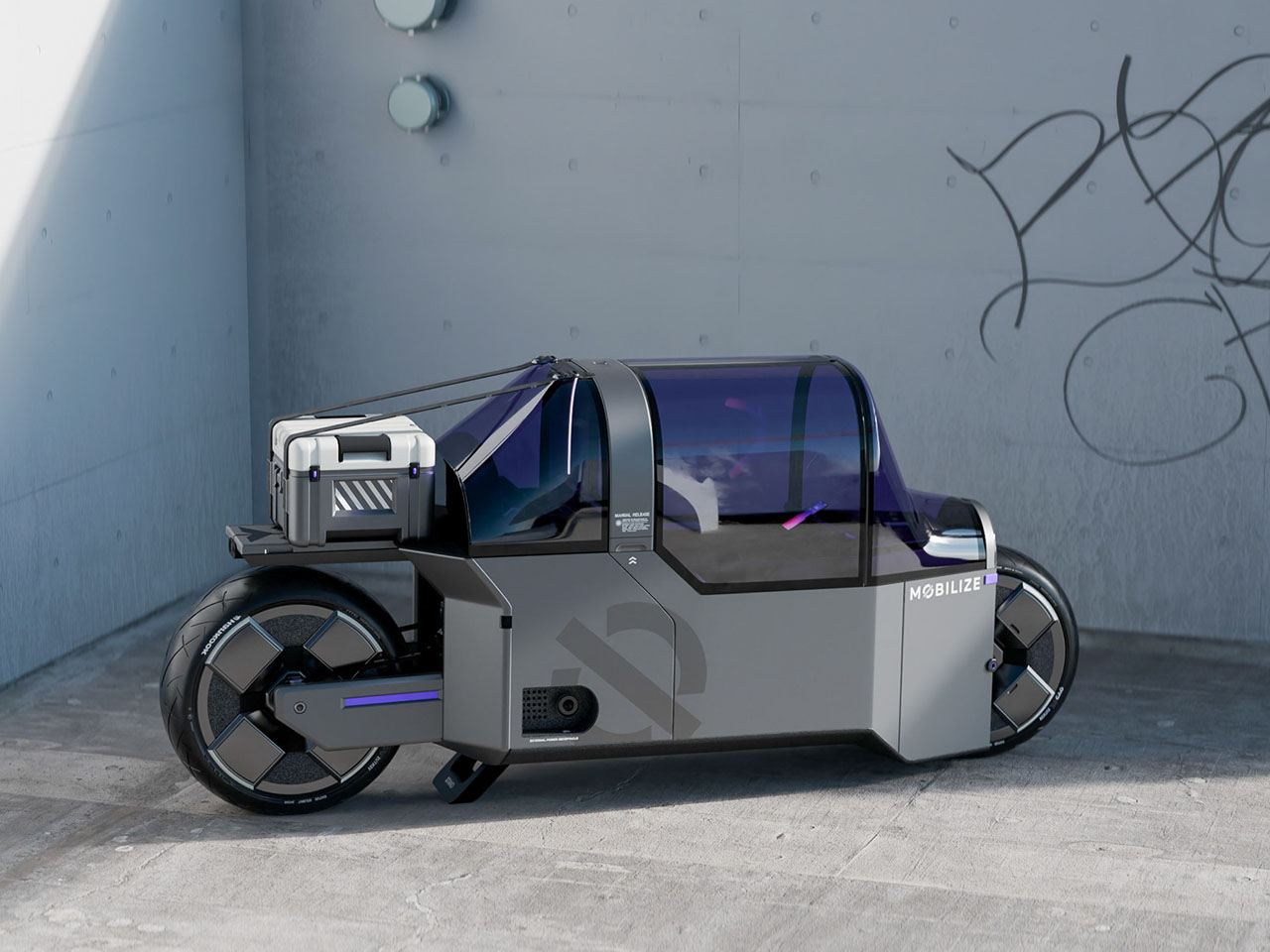
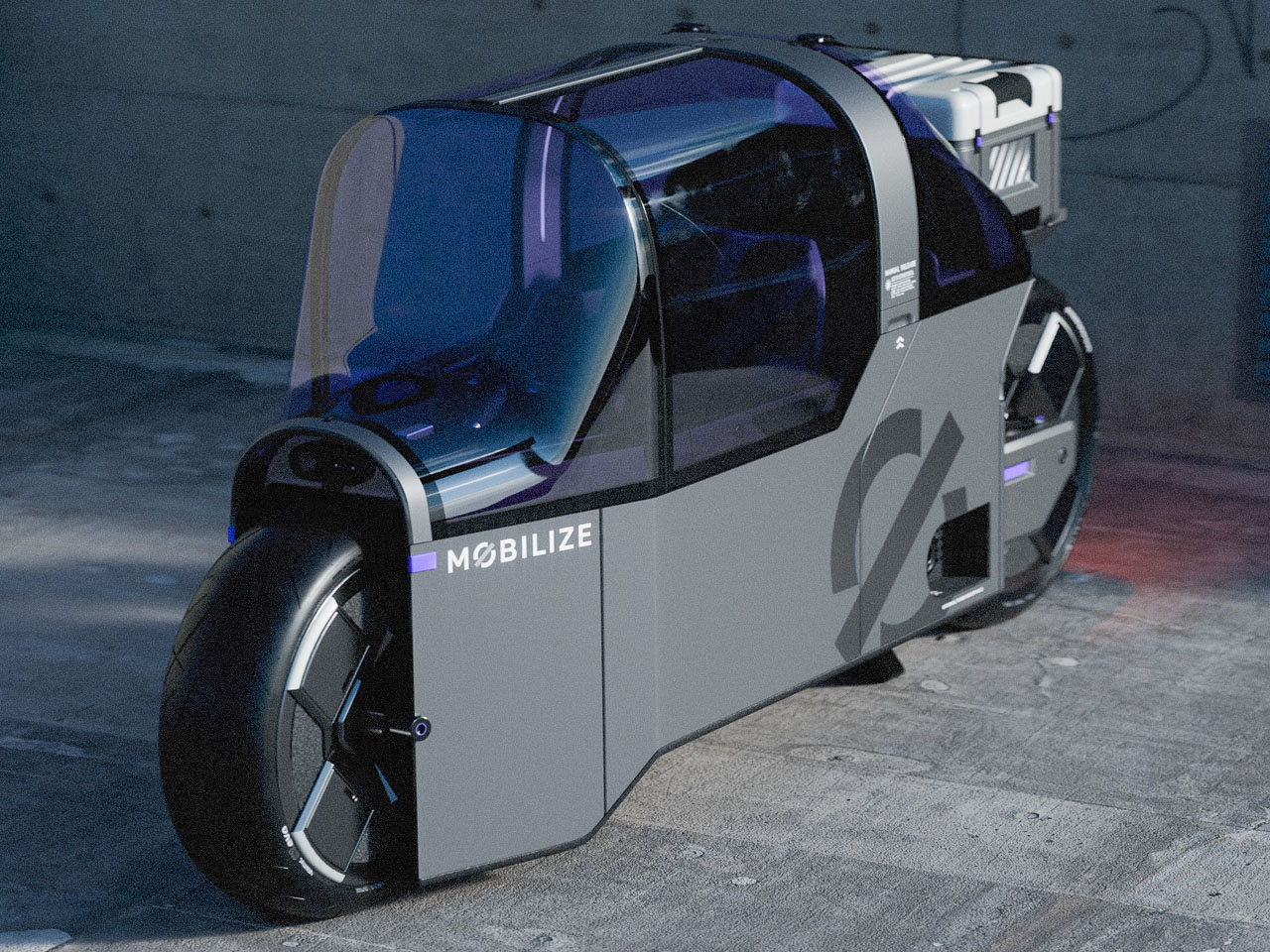
The design sphere is heavily influenced by pop culture cues, and so is the creation of vehicles. Electric bike concepts have piqued our interest for their out-of-the-box forms and the skins they are draped in. This electric bike of the future carries a similar hip vibe that’s tailored for Gen Alpha. The form of the two-wheeler is dominated by the ultra-secure sitting position and the private pod that eludes the freedom associated with conventional bikes of the current times.
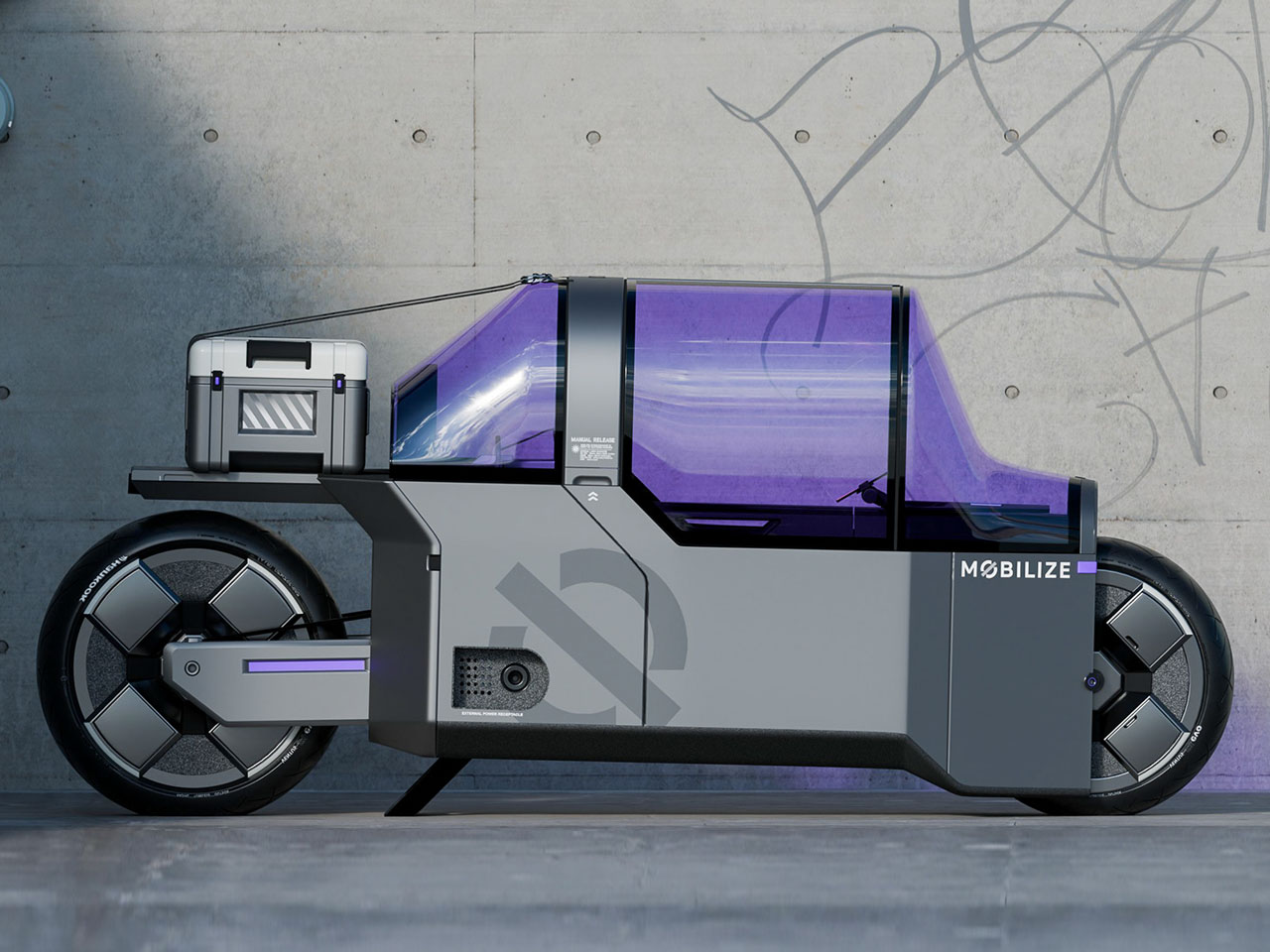
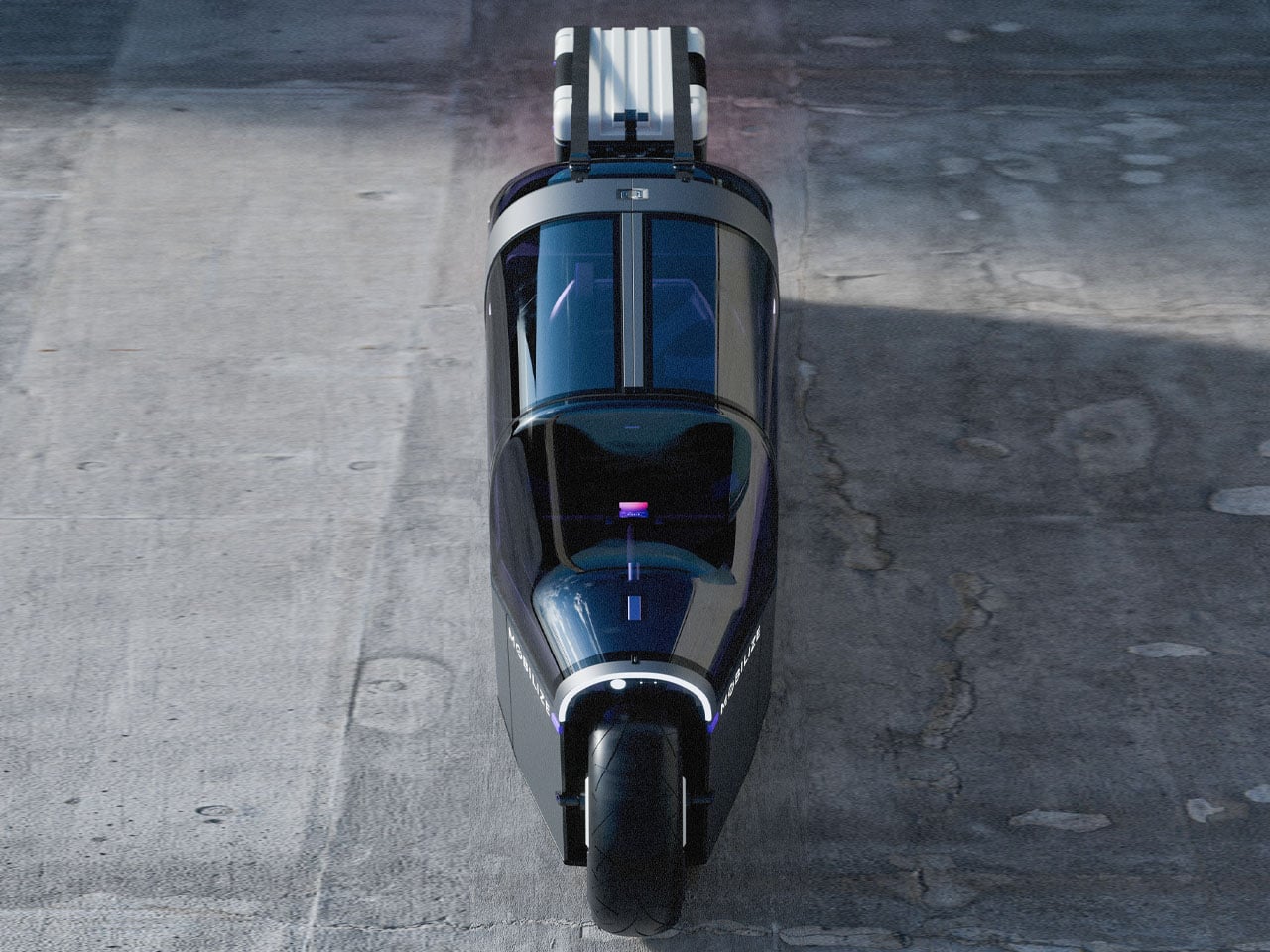
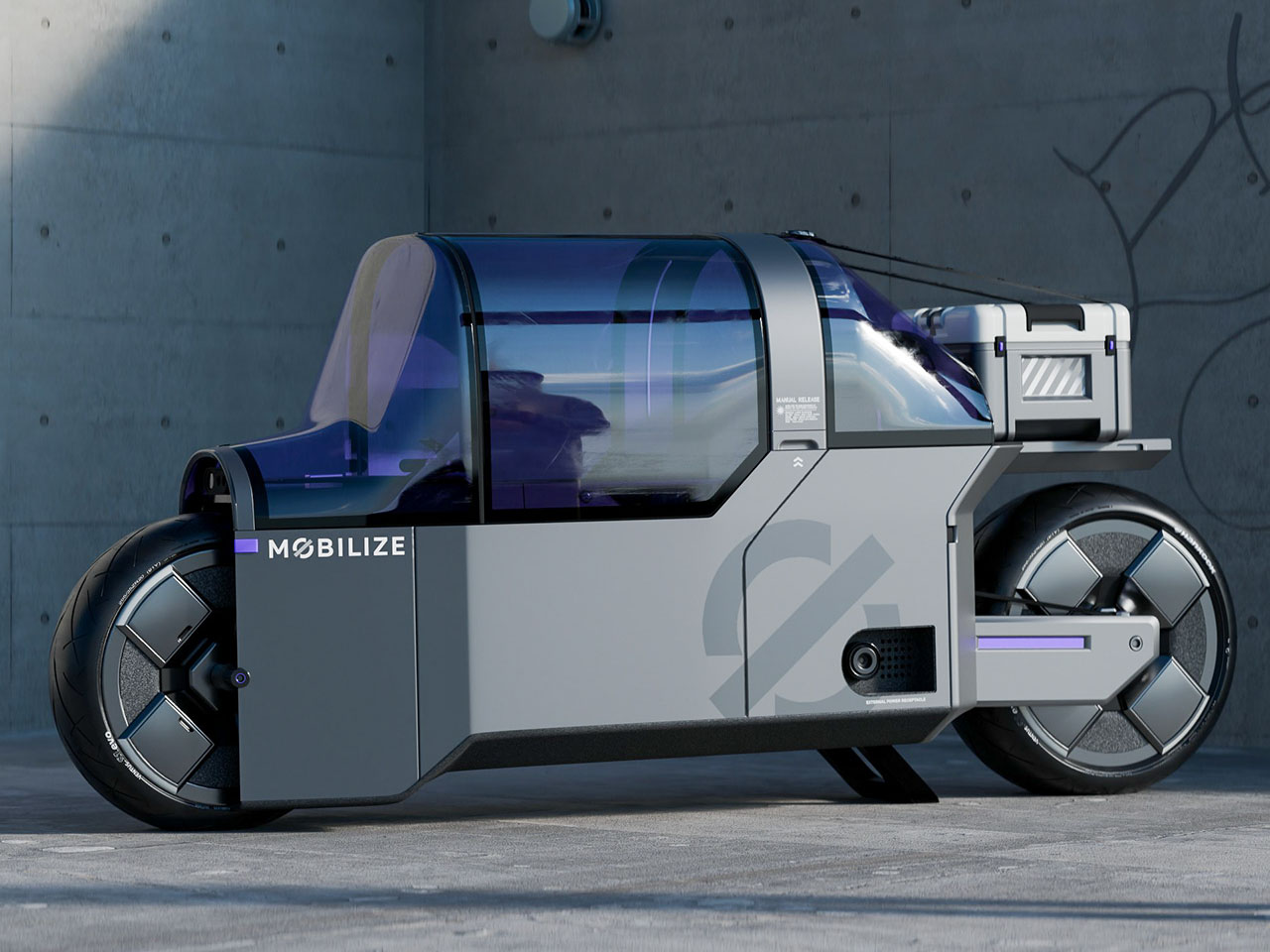
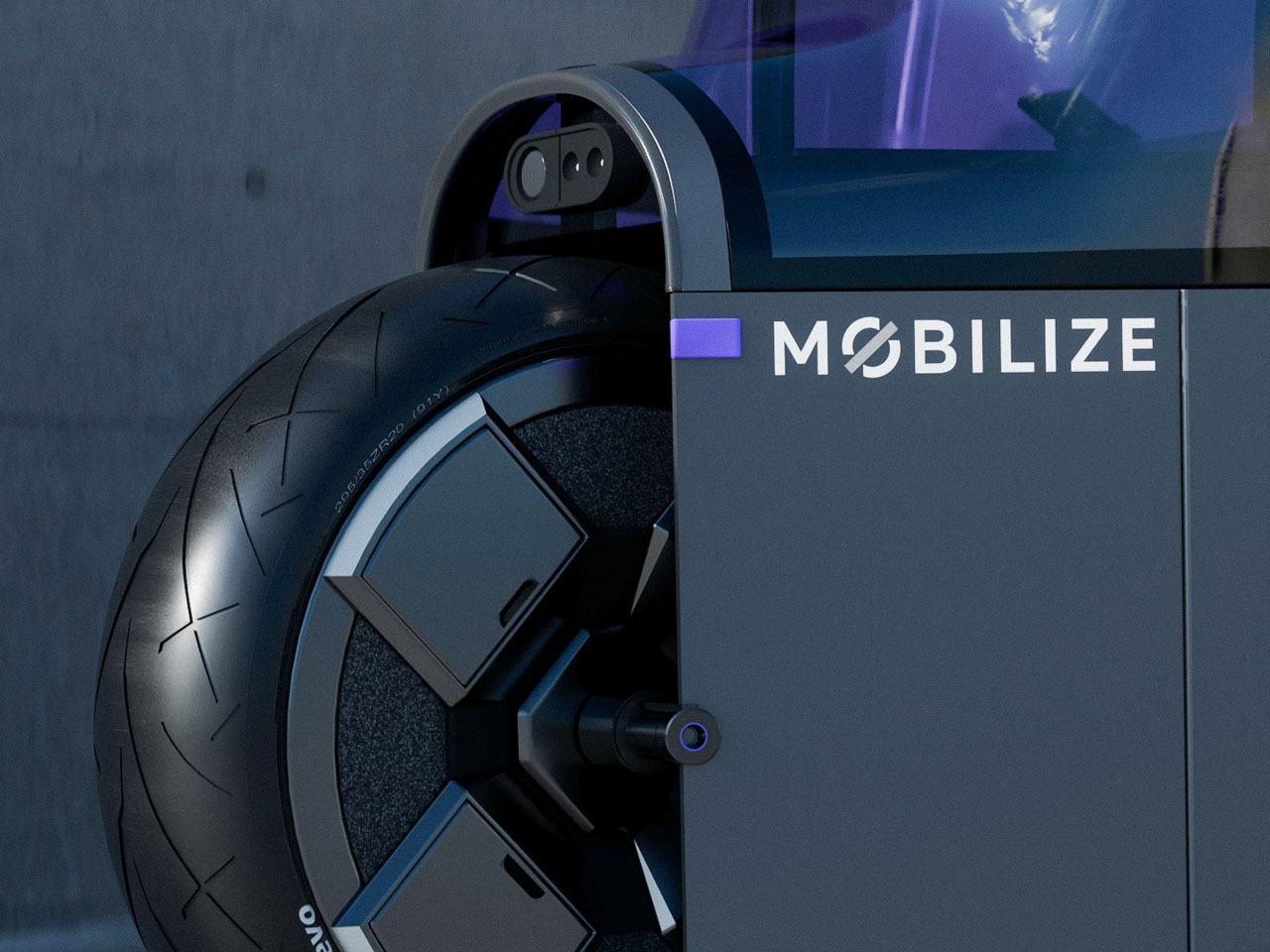
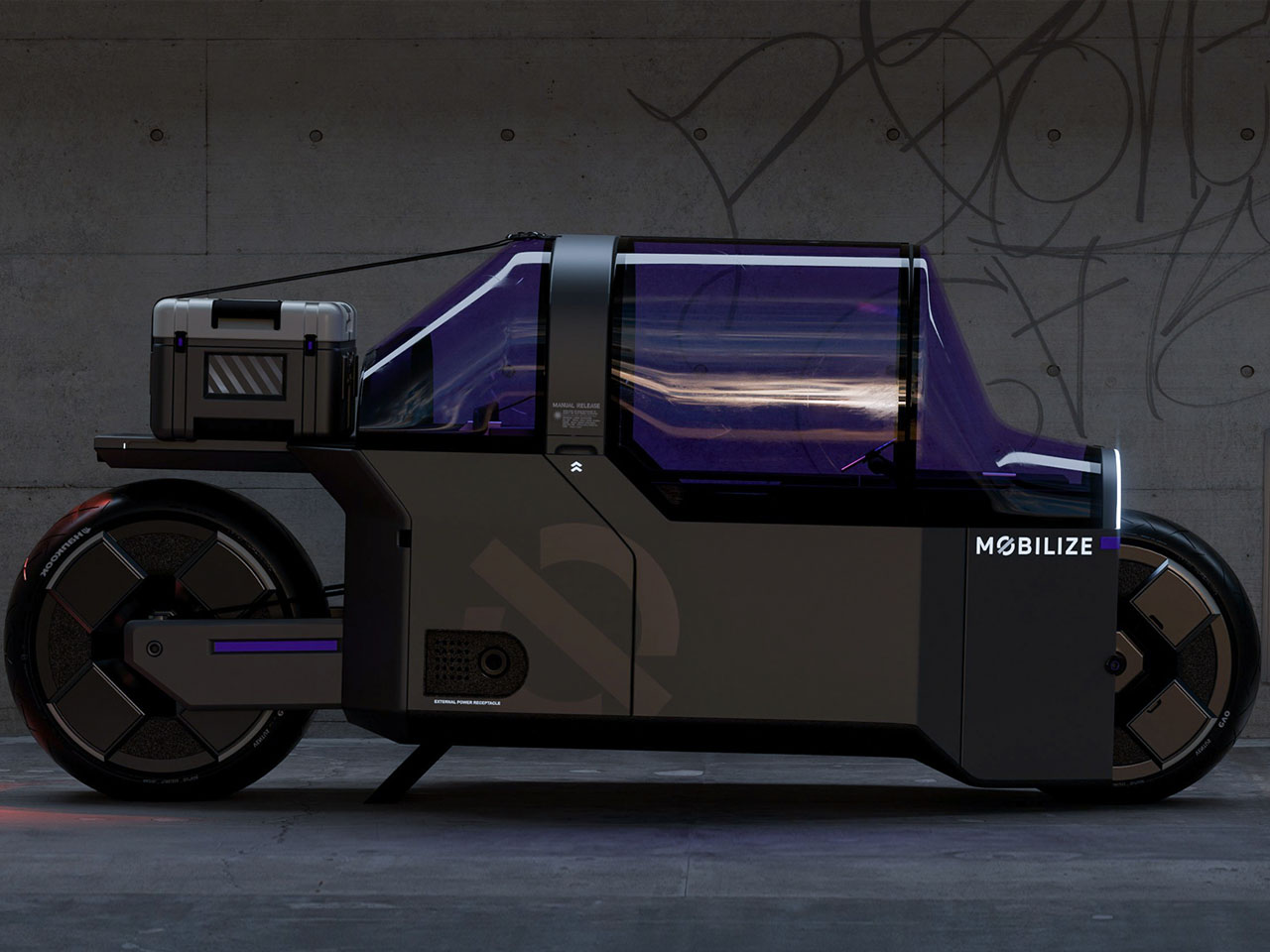
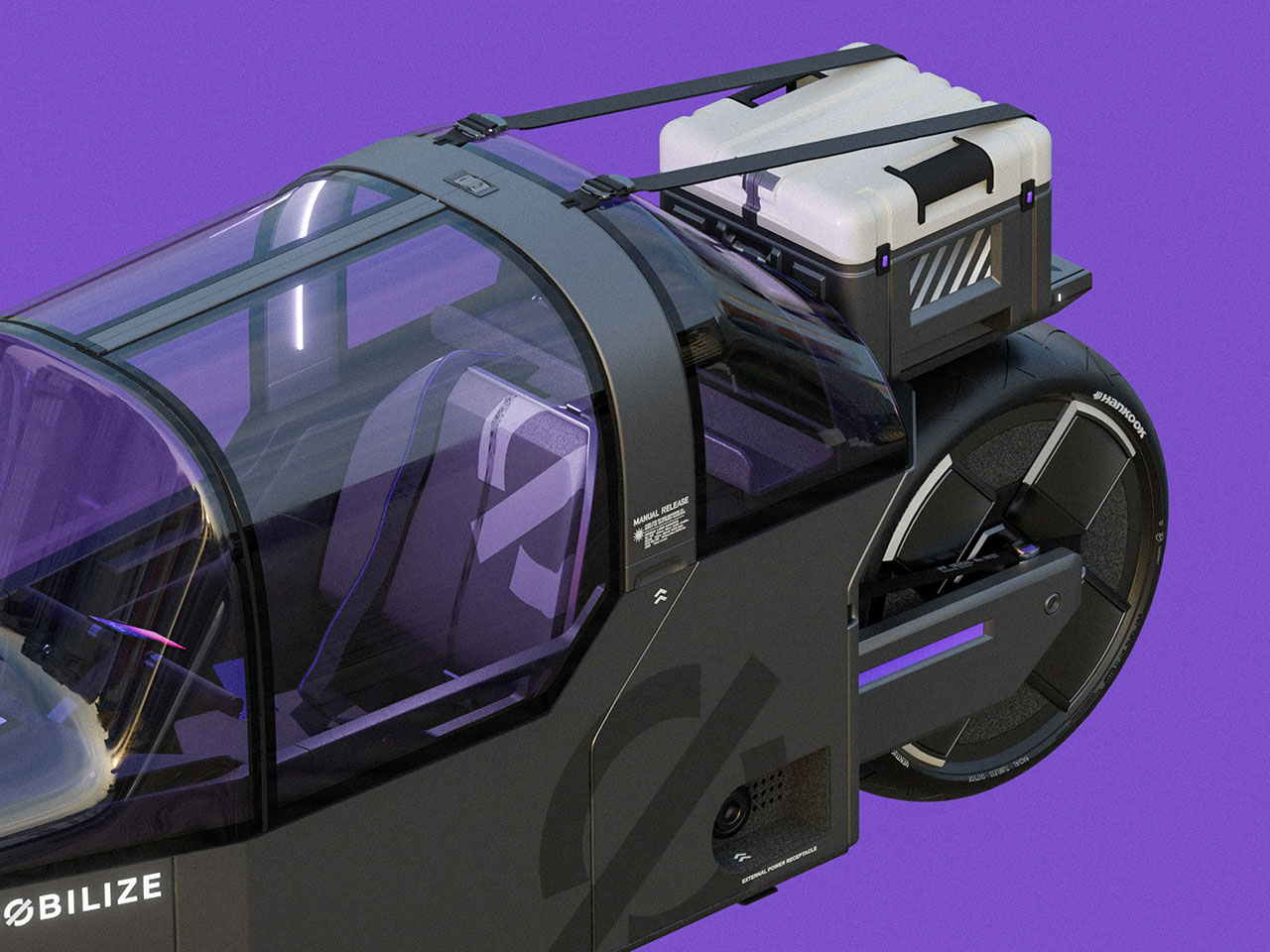
Dubbed NANO Mobilize, the urban vehicle is heavily inspired by the dynamic world of fashion and streetwear. The idea is a two-wheeler designed by the young generation and obviously targeted for the young and restless. On the outside, the bike carries the industrial design element that’s definitive of the uber cool character without compromising on the functionality. The driver’s sitting area is securely encapsulated in a panoramic, rounded glass section. Contrary to the café racer persona in the structure, the sitting position is akin to a four-wheeler, emphasizing the comfort-laden character.
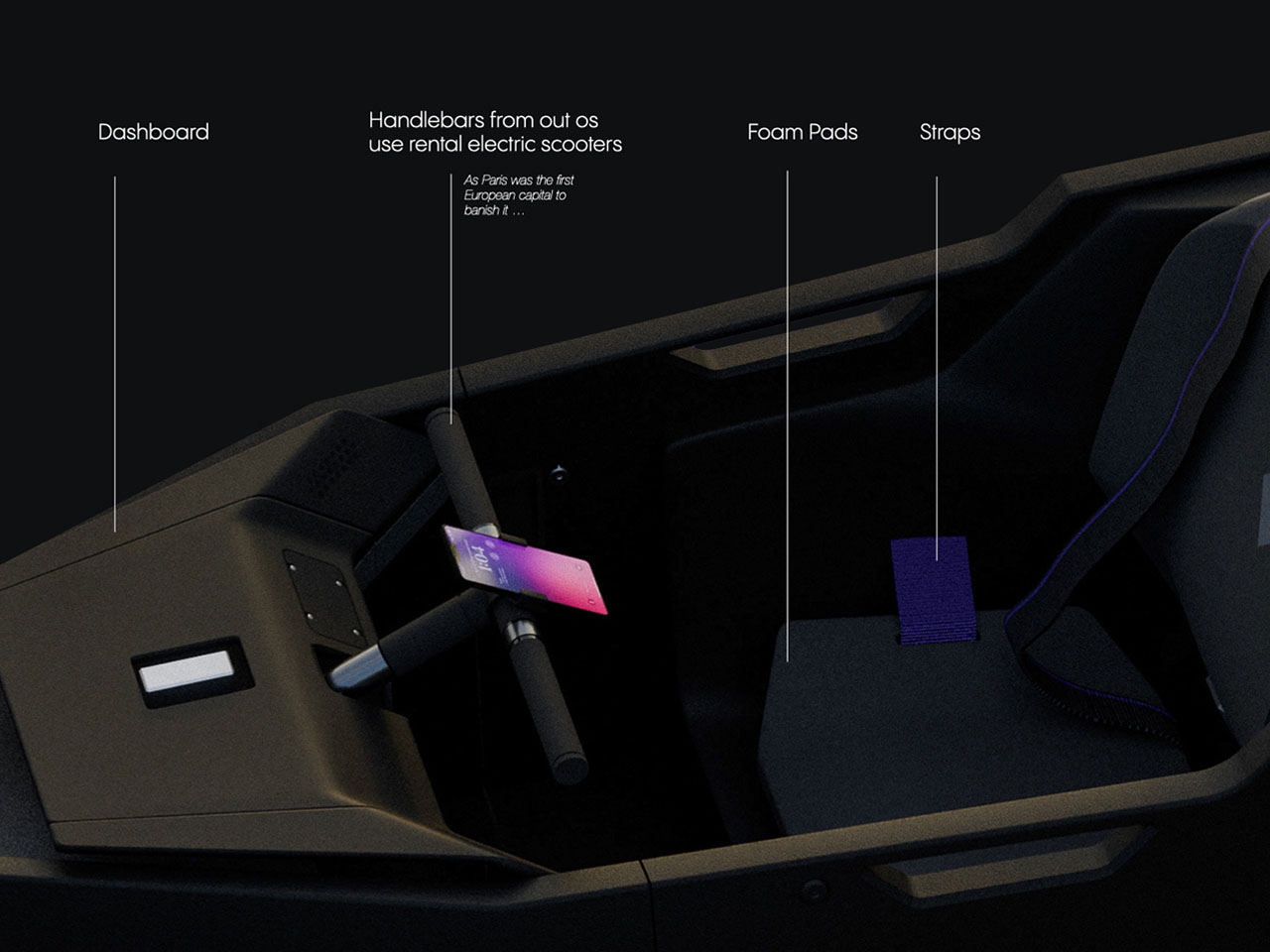
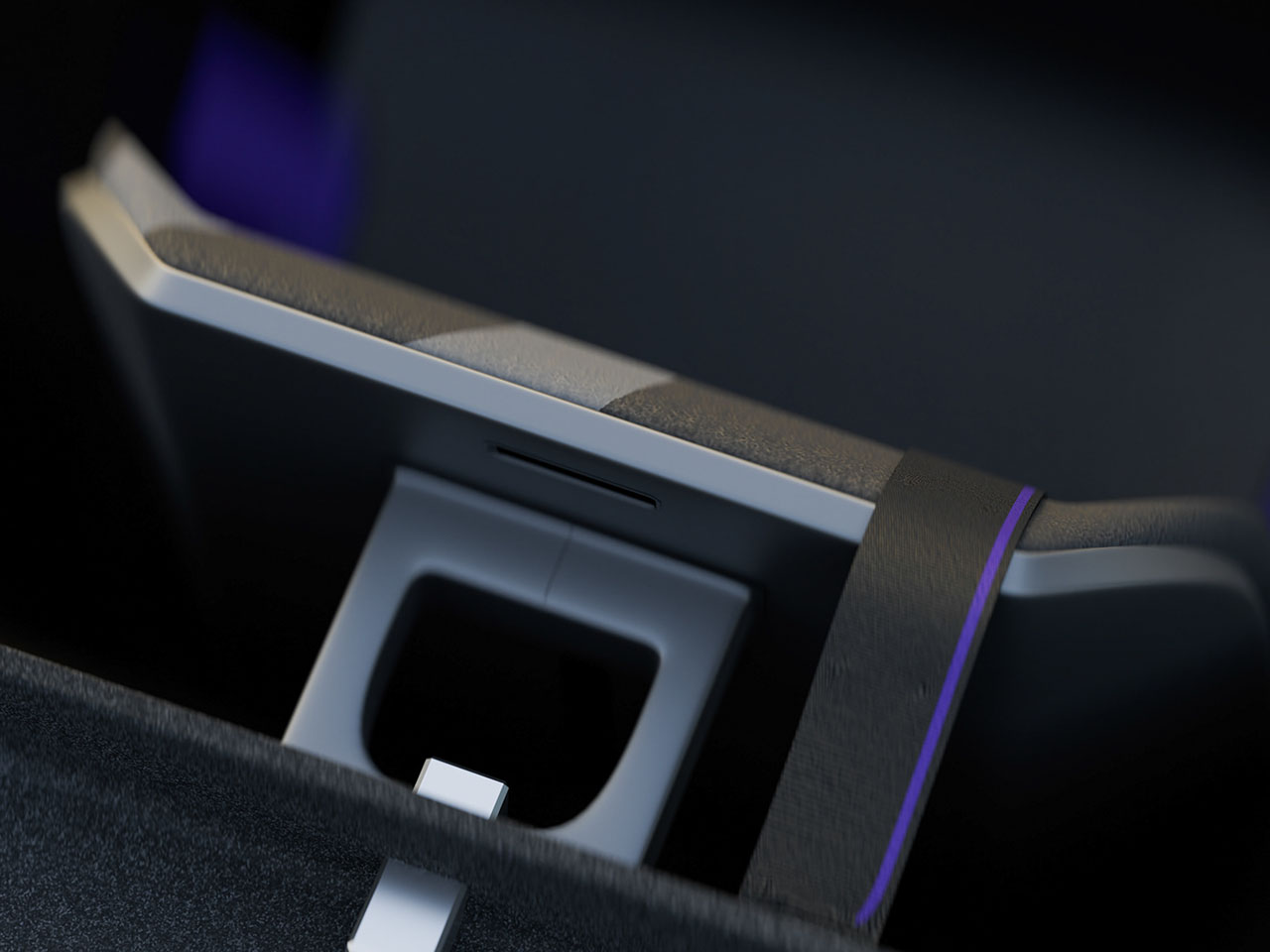
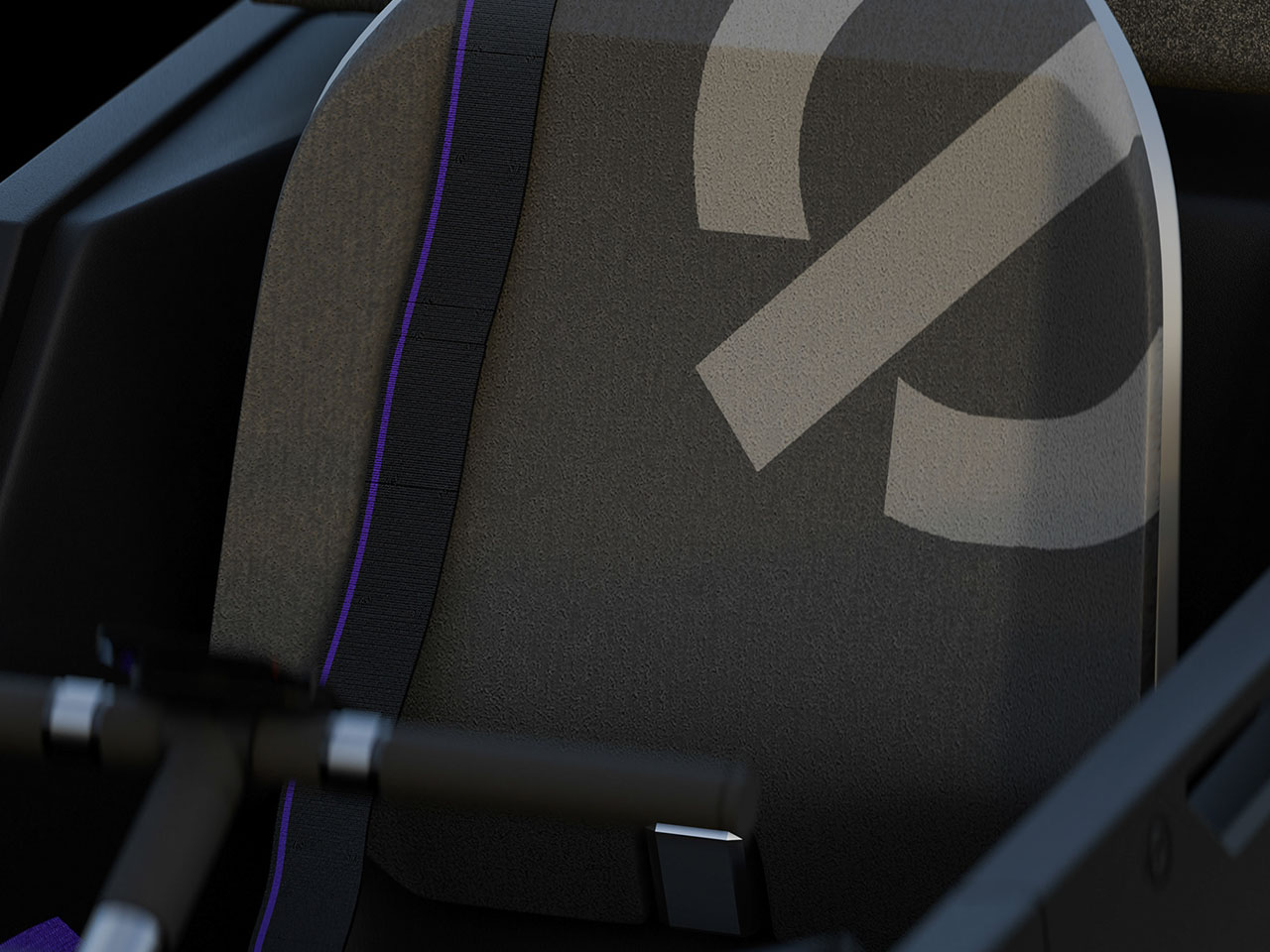
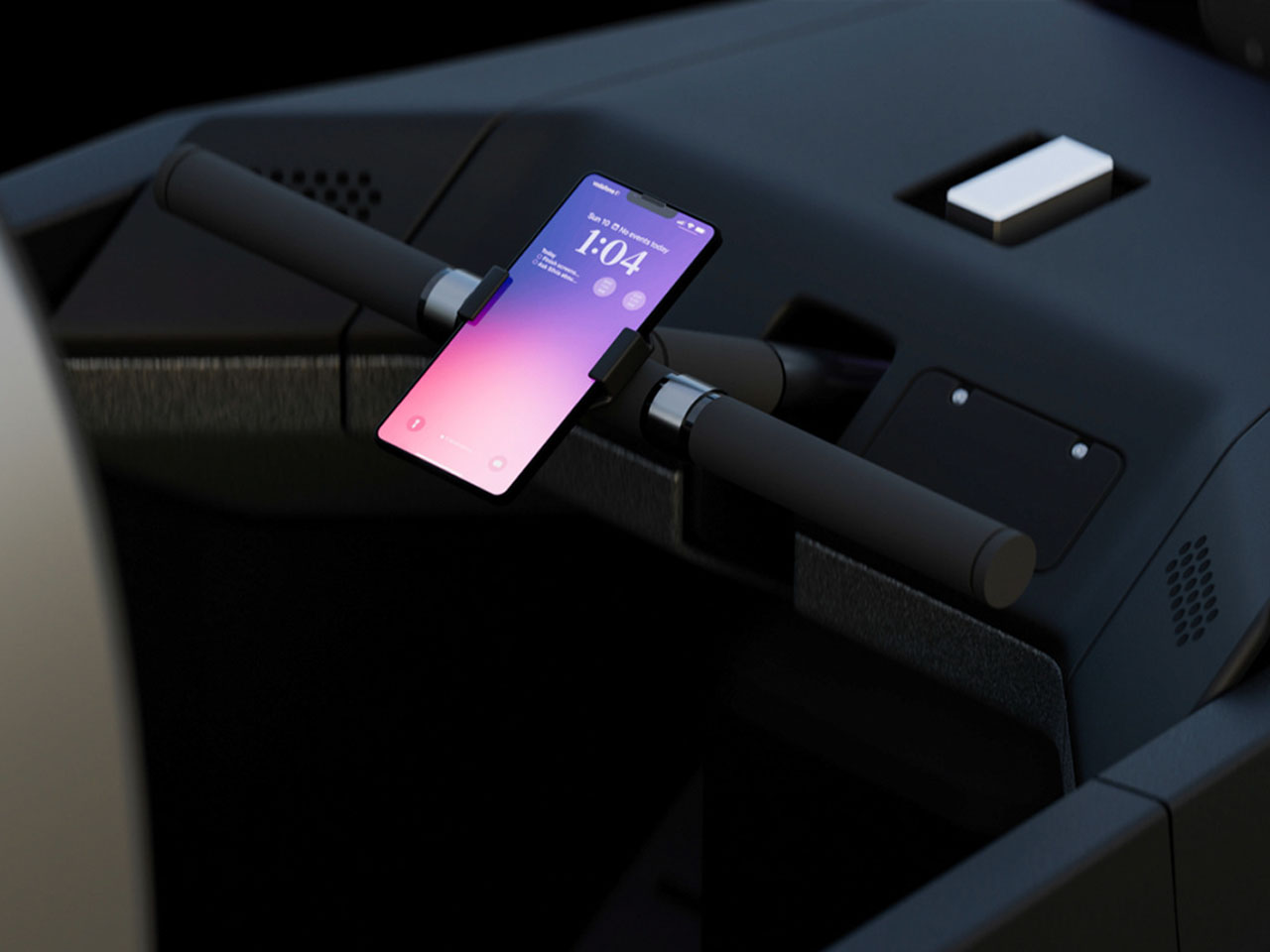
While not made for the claustrophobic section of the community, this translucent boundary is for a private interior that comes in handy in the self-drive mode. The rider can relax and check on the social media feed with a dock for the phone integrated into the steering section. Well, you can call it more of a handlebar that reminds us of the rental electric scooters. For your absolute favorite items, there is space behind the seating area. There is ample room to stretch your legs and relax on long journeys.
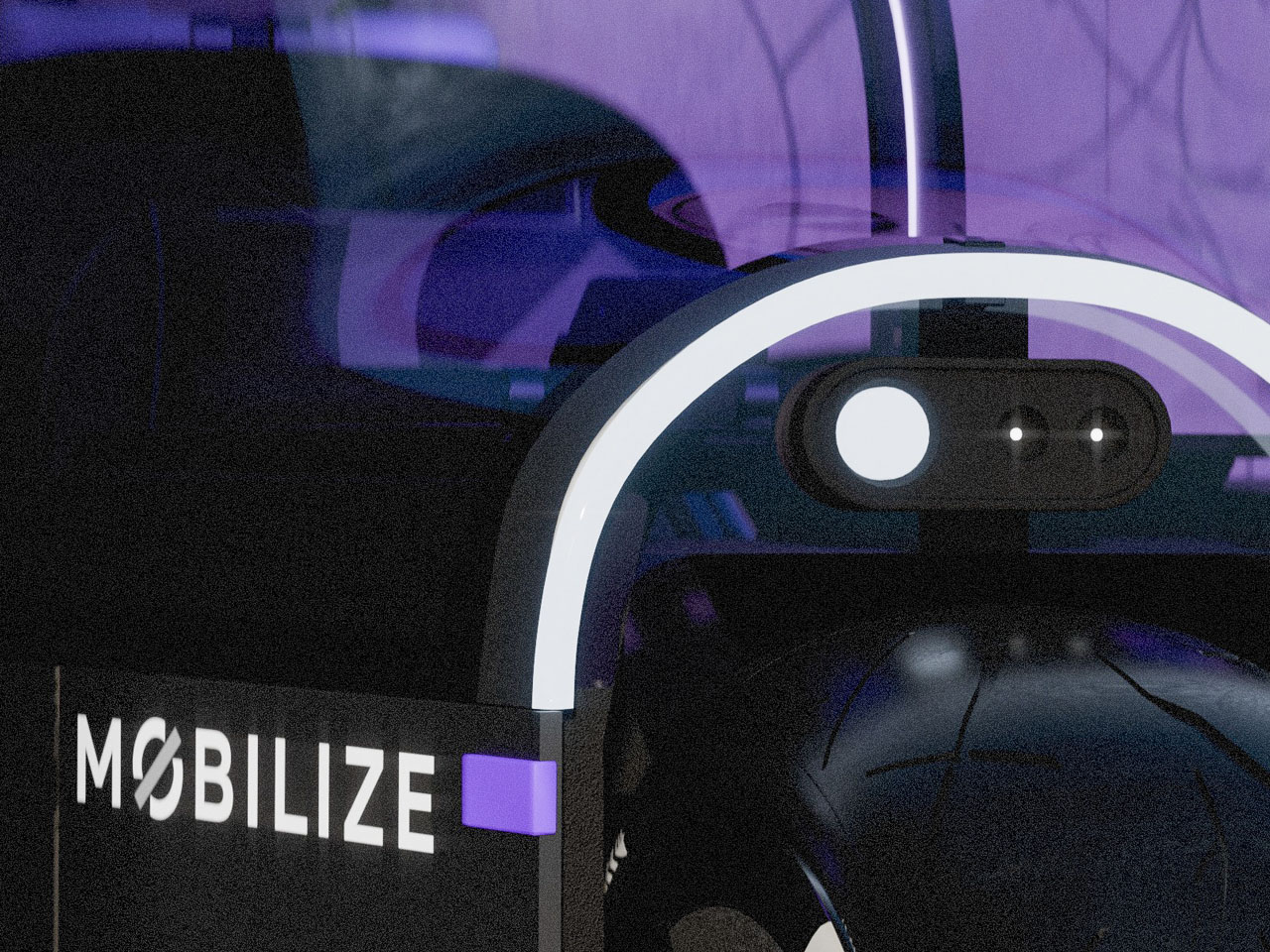
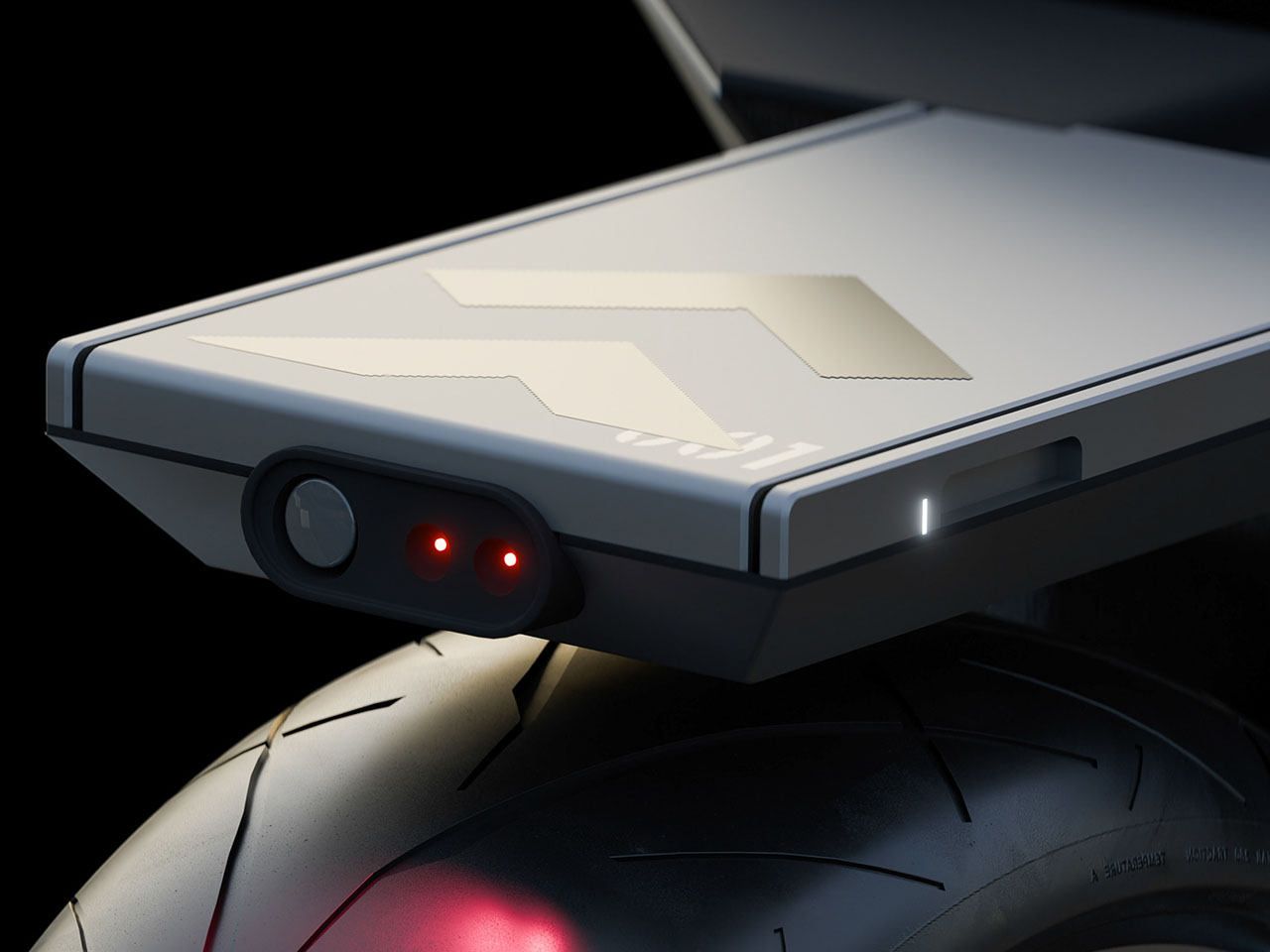
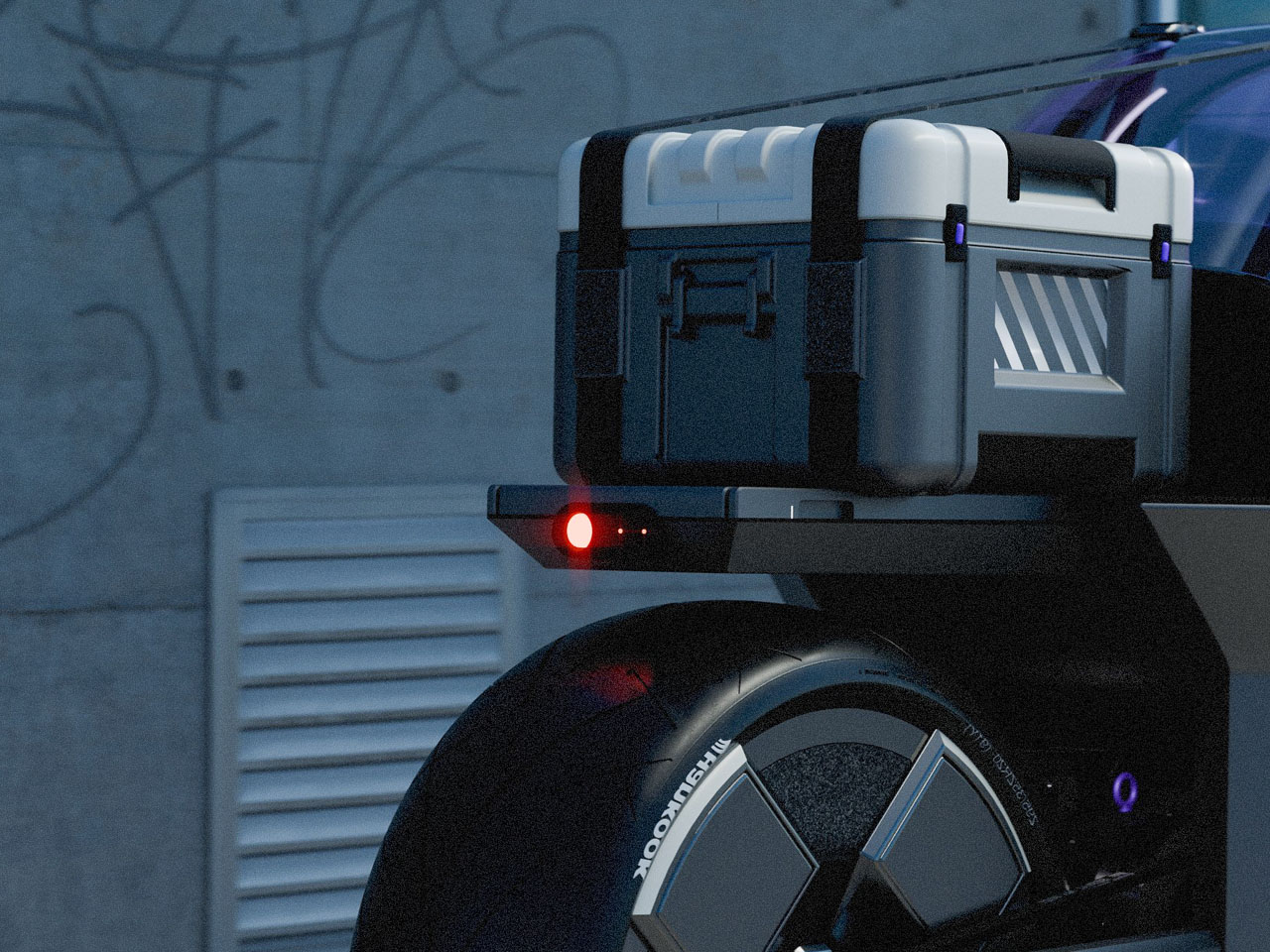
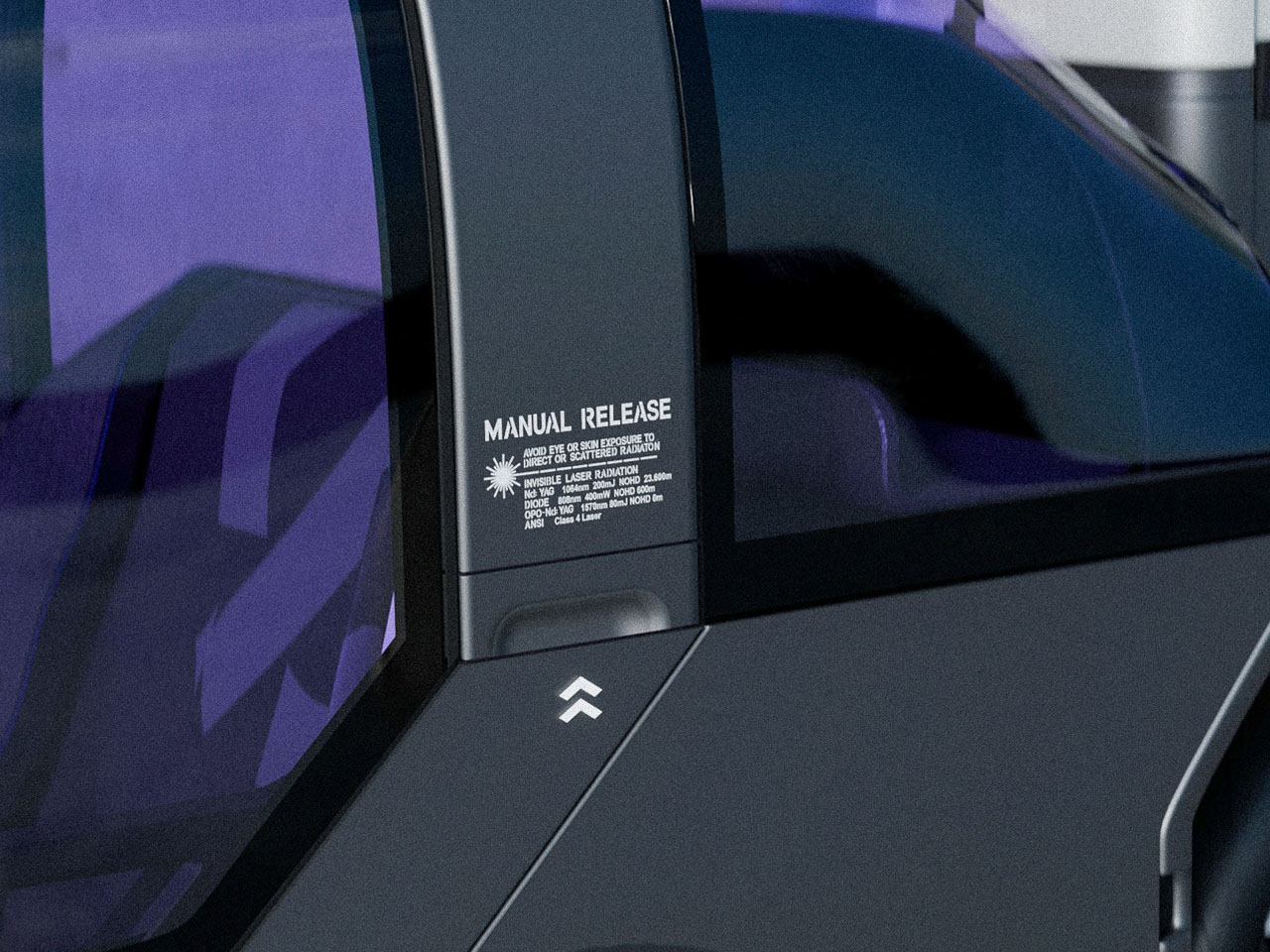
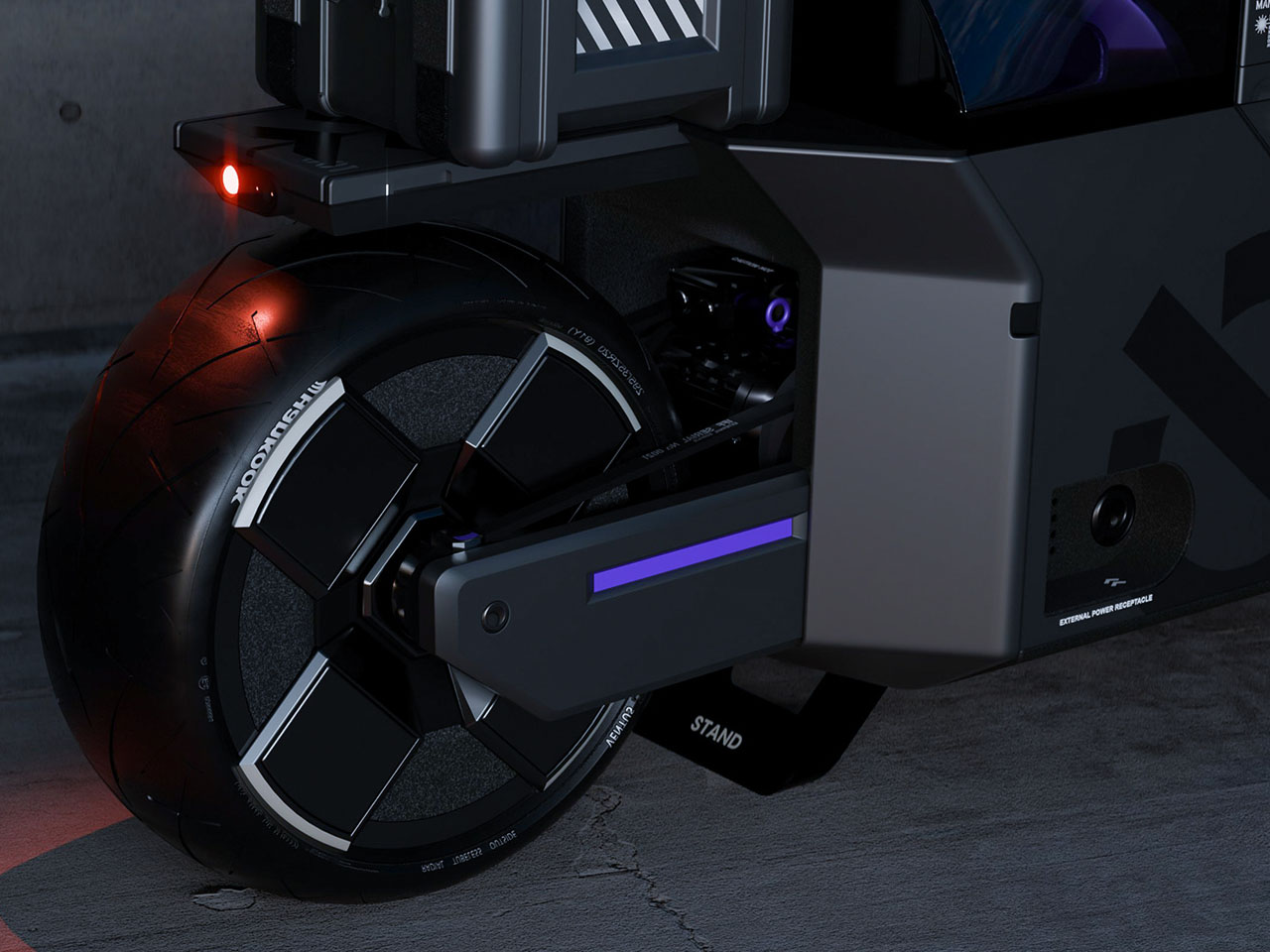
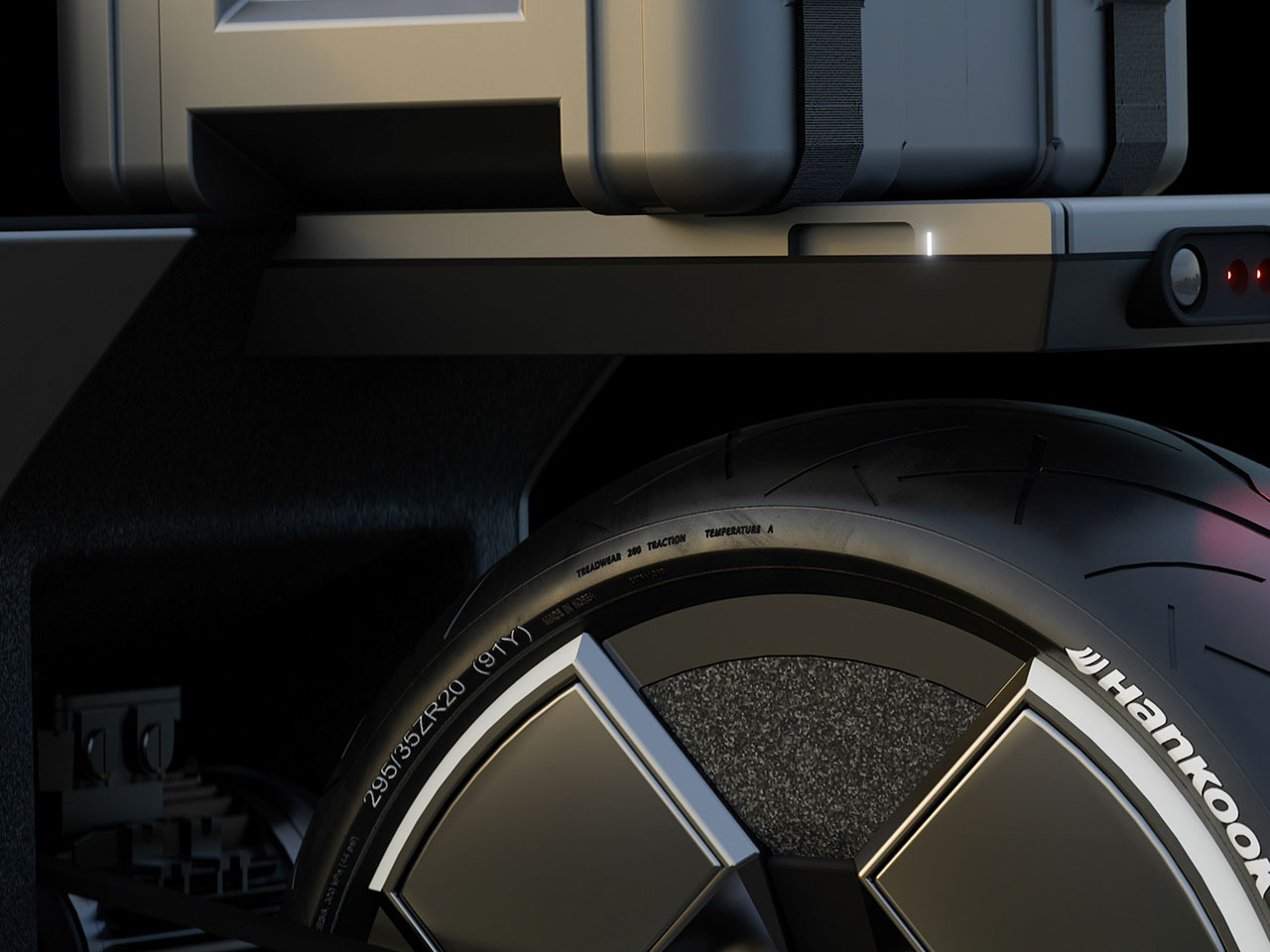
The electric battery is stored in the rear bottom section, above which is the carrier for hauling essentials, except for items you can’t risk keeping outside. Entry to the inside is initiated by pressing the Manual Release button, which opens up the interior section. The bike is secured by a lightweight metal frame that runs along the length of the rims. The headlights take a peculiar arched form with an array of single big LEDs and two smaller ones denoting the high and low beams on the bike. The taillights are more muted down with just the roundish red LEDs to warn motorists behind.
What if understanding a massive, tangled codebase could be as simple as asking a question or clicking a link? Enter Google’s Gemini Code Wiki, a new AI tool that’s transforming how developers interact with their code. Unlike traditional documentation that often lags behind or gets buried in complexity, this AI-powered platform offers real-time, automated insights […]
Looking to maximize the potential of your iPhone this December? The latest lineup of free apps offers a range of tools to enhance productivity, organization, and entertainment. Whether you’re managing files, staying on top of important dates, or enjoying music, these eight apps from iReviews are designed to simplify your daily routine and elevate your […]
Have you ever wondered what it would feel like to hold the future of handheld gaming in your hands? The AYN Odin 3 might just be the answer. With its Snapdragon 8 Elite chipset and a breathtaking OLED display, this device promises to redefine what portable gaming can achieve. Whether you’re a retro enthusiast reliving […]
The anticipated release of iOS 26.2 has captured the attention of Apple users and developers, as it promises to bring refinements and updates to the iOS ecosystem. Currently in its third beta phase, the update has not received any new beta versions for the past two weeks. This pause has sparked speculation about whether Apple […]
What happens when a report meant to inform and protect instead raises more questions than answers? That’s the dilemma surrounding Anthropic’s recent claims of an AI-orchestrated cyberattack allegedly carried out by a Chinese state-sponsored hacking group. While the premise is undeniably alarming, a proprietary AI model weaponized for espionage, the report itself has sparked skepticism […]
The iPhone 18 Pro Max is shaping up to be one of Apple’s most ambitious releases, blending advanced technology with thoughtful design refinements. While some updates build on the foundation of previous models, others hint at a bold evolution in Apple’s approach to innovation. Below is an in-depth look at the rumored features and upgrades […]
Have you ever wished your operating system could truly adapt to your needs, making every interaction feel seamless and personalized? The Windows 11 25H2 update might just be the fantastic option you’ve been waiting for. With bold enhancements like AI-powered widgets, a more intuitive Start Menu, and productivity-boosting tools like Microsoft 365 Copilot, this update […]
One of the iPhone’s many accessibility features is something Apple calls "Magnifier," which uses the smartphone's cameras to magnify and identify objects in the world around you. For Global Accessibility Awareness Day in May this year, Apple brought Magnifier to the Mac, opening up even more places the assistive tool can be used, like classroom or work environments where you might already have a MacBook pulled out.
Magnifier requires macOS 26 Tahoe and can work with a built-in webcam, a connected third-party camera or an iPhone via Apple's Continuity feature. Provided your MacBook can run Apple’s latest software update, it’s a natural fit for zooming in on a whiteboard at the back of a large lecture hall or getting a closer look at documents on a desk in front of you. You can use the app to both capture an individual image you want to refer to later, or to analyze text in a live video feed. But where to begin? Here’s how to set up and use Magnifier on your Mac.
How to use Magnifier to identify and display text
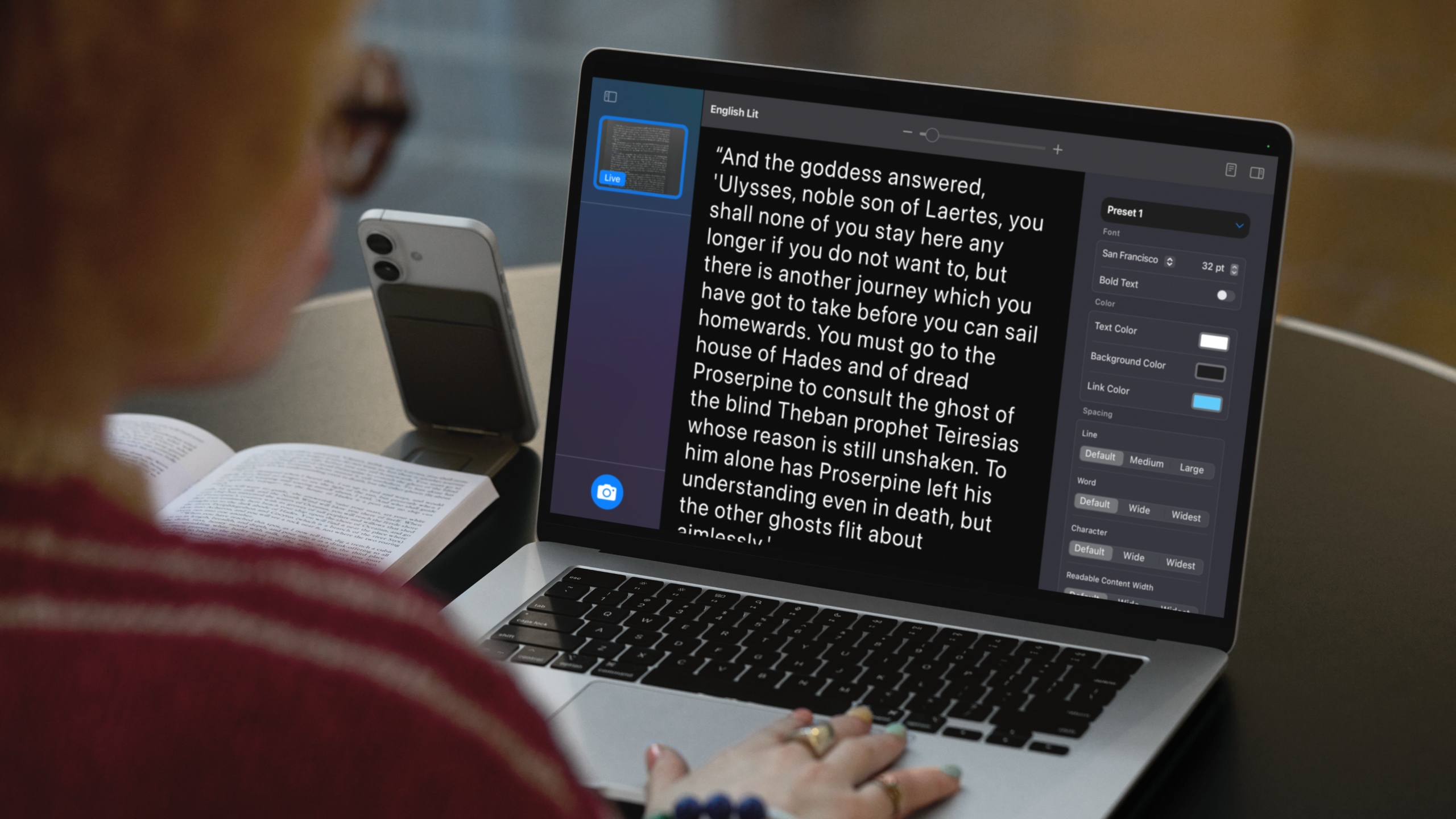
A MacBook using Magnifier and a connected iPhone to identify and format text from a book.
Apple
Magnifier's most powerful feature uses the MacBook's machine learning capabilities to identify, display and format text that your camera captures. This works with text your camera can see in the room around you, and things it captures via macOS' Desk View feature. For example, to view documents on your desk:
Open Magnifier.
Click on the Camera section in Magnifier's menu bar and then select your Desk View camera from the dropdown menu.
Click on the Reader icon (a simple illustration of a document) near the top-right of your Magnifier window.
Click on the sidebar menu icon to access settings to format text.
Apple gives you options to change the color, font and background of text Magnifier identifies, among other customization options. If you'd prefer to capture faraway text, you can position a webcam or iPhone camera facing away from you and swap to it via the Camera section in Magnifier's menu bar.
You can also listen to any text Magnifier has identified by clicking on the Play button in the top-right corner of Magnifier's reader mode. Clicking the Pause button will pause playback, clicking the Skip Forward or Skip Backward buttons skip through lines of text, and if you want to adjust playback speed, you can click on the 1x button and pick a speed from the dropdown menu.
How to use Magnifier to zoom in on yourself
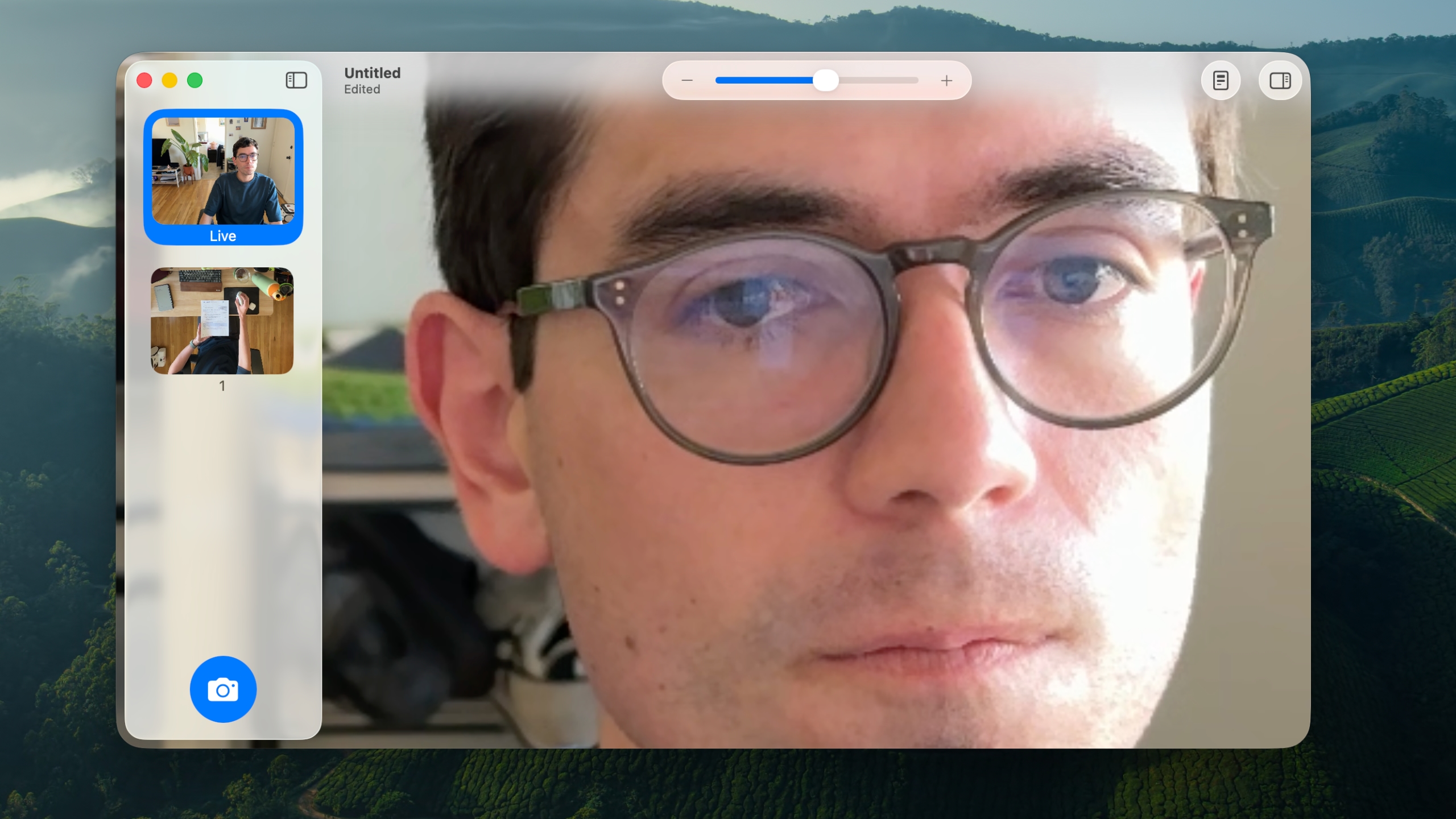
Magnifier can identify text, but it also works as a way to get a zoomed in view of your own face.
Ian Carlos Campbell for Engadget
By default, Magnifier uses your MacBook's built-in webcam, which means you'll see a view of yourself and whatever's behind you if you don't have another camera selected. This might not be usual for seeing faraway text, but it is handy if you're applying makeup, putting in contacts or doing anything else where you need a detailed view of your face.
In my tests, using Magnifier worked the best with my MacBook's built-in webcam or an iPhone. When I tried using a third-party webcam from Logitech, my live camera feed was noticeably laggy. Your mileage may vary, but if you experience any issues with your own webcam, it's worth trying your built-in webcam to see if that helps. You can swap between cameras and zoom in to your camera feed inside the Magnifier app:
Open Magnifier.
In the top menu bar, select Camera and then click on the camera you'd like to use in the dropdown menu.
Use the slider in the top center of the Magnifier window to zoom in on yourself.
You can see a live feed of your zoomed in view in Magnifier's main window. If you click on the Camera button in the bottom-left corner of the app, you can also snap a photo to review later. Any photos you capture will appear in Magnifier's left sidebar menu. Clicking on them lets you view them, zoom in on them and adjust their visual appearance (Brightness, Contrast and other visual settings) via the Image section in Magnifier's menu bar.
This article originally appeared on Engadget at https://www.engadget.com/computing/laptops/how-to-use-magnifier-on-a-macbook-to-zoom-in-on-faraway-text-080100677.html?src=rss