If you are looking for considerable storage on your microSD card. You will be pleased to know that memory solution provider KIOXIA, has recently announced the start of mass production for its 2TB microSDXC memory card, the EXCERIA PLUS G2. KIOXIA announced prototyping of the 2TB microSDXC last year and has now finished its development […]
Sponsored: 20th Dec, 2023 /PRNewswire/ — Ugreen, a global leader in consumer electronics and charging technology, plans to unveil its highly anticipated Nexode Pro Series, the newest in line of revolutionary fast charging products. This series will introduce four cutting-edge chargers, each offering exceptional features and performance. To start, these chargers incorporate the latest in […]
Apple has released iOS 16.7.4 for some of its older devices, the software was released along with iOS 17.2.1 for the current range of iPhones and now we get to find out what is included in this update. The video below from Half Man Half Tech gives us a look at the new iOS 16.7.4 […]
When Elon Musk first took over Twitter, those of us in the tech media had all kinds of theories about how the acquisition might bring about the death of the 17-year-old platform.
Some posited that his inept attempts at cost-cutting would cause irreparable damage to Twitter’s infrastructure or that mass resignations would lead to catastrophic instability. But as is so often the case with Musk, predictions were in vain. Twitter did die this year, but the way it played out was both more boring and more stupid than anyone could have possibly imagined.
Musk killed Twitter by slowly making it useless for those who relied on it for real-time information, by choking off conversations from those not willing to pay, by flooding users’ timelines with spammy blue-check sycophants and renaming the company X. He killed it by re-platforming actual Nazis and far-right trolls and Alex Jones and boosting anti-semitism so loudly the site's largest remaining advertisers and most prominent users abandoned the platform in droves. Though you can still go to www.twitter.com and see a website that vaguely resembles the thing we used to call Twitter, it’s only a dull echo of what it once was.
- via Getty Images
The beginning of the end
While you could argue the death spiral began the second Musk walked into Twitter HQ carrying a sink 14 months ago, the platform we all knew began to die three months later, when Musk abruptly decided to ban third-party client apps from its platform and put the rest of its API behind an outrageously expensive paywall.
Twitter had long been an outlier among its social media peers for having a relatively open platform. It gave researchers tools to access the full history of all public conversations on Twitter. It allowed developers to build their own apps on top of its platform, which fostered a small but robust ecosystem of third-party Twitter clients.
Third-party apps like Tweetbot and Twitterific had a relatively small (but devoted) following, but they also played a significant role in defining the culture of Twitter. In the early days of Twitter, the company didn’t have its own mobile app, so it was third-party developers that set the standard of how the service should look and feel. Third-party apps were often the first to adopt now-expected features like in-line photos and video, and the pull-to-refresh gesture. The apps are also responsible for popularizing the word “tweet” and Twitter’s bird logo.
And while many of these apps had become less prominent in recent years, they were emblematic of the way that Twitter, at its best, empowered its users to shape the platform.
Likewise, having an open and readily-available API meant that Twitter, while not the largest social platform, could play an outsize role in shaping online culture. Because its firehose of data was easily accessible to researchers, the public conversations that happened there fueled studies into everything from global elections to public health.
By closing its API to developers and the research community, Musk made it clear he was not interested in using Twitter for anything that couldn’t make him a buck in the process. Twitter’s data was simply another part of the platform to commodify. Nearly a year later, making Twitter’s API inaccessible to all but those with the deepest pockets may not seem like even the tenth-most consequential change to happen under Musk, but it showed just how willing he was to alienate influential communities on Twitter. It was also a major warning sign of what was to come.
Twitter’s current lords & peasants system for who has or doesn’t have a blue checkmark is bullshit.
If killing Twitter’s API was a quiet warning sign, the complete destruction of Twitter “verification” was a five-alarm fire. Twitter’s verification system was always flawed, but it hinged on the basic premise that the company had some evidence the accounts it verified belonged to the actual people claiming them and that those were people or organizations of some importance. When Musk rolled out his poorly thought out paid verification scheme last year, it went horribly and predictably wrong almost immediately because he failed to uphold any kind of identity check.
Despite the chaotic initial rollout, verification's now-meaningless status did not become fully apparent until this year. After a wave of thousands of spammers, scammers and Musk sycophants signed up for verification, Twitter began removing “legacy” verification from thousands of accounts.
The algorithmic boost provided to the new paid-for wave of blue checks, combined with the promise of a potential share of ad revenue, has drastically altered the dynamics of conversation on Twitter. Verified accounts are given priority ranking in replies and search results, regardless of the size of their following or their engagement — which has made Twitter even less relevant and useful. And the promise of potential ad revenue has incentivized the worst kind of engagement bait.
The result is that even the most carefully curated timelines have become filled with useless spam. And fraudsters are increasingly using pay-to-play verification to carry out scams targeting people trying to reach legitimate customer service channels.
X marks… the death of Twitter
If you were to look for a singular moment when Twitter died, however, it happened in July, when Musk announced that the company would now be known as X. The company changed its name, logo and everything formerly associated with the bird app.
This was more than an ill-considered rebrand. X, a letter with which Musk has long been fascinated, represented, literally, the end of Twitter. For as much as Musk has said it’s about creating an “everything app,” it’s also about fully severing any ties to the expectations and norms associated with Twitter. Want to break verification? Want to charge new users for the privilege of posting? Want to make news stories unreadable? Want to maliciously slow down links to competitors’ websites? Want to re-platform the most heinous peddlers of hate and conspiracy theories? Those actions may have been at odds with Twitter’s mission, but at X, it’s all just another Tuesday. As CEO Linda Yaccarino told CNBC “the rebrand represented really a liberation from Twitter.”
Justin Sullivan via Getty Images
It’s unclear if Musk will ever succeed at creating anything resembling an “everything app” where users will be able to use X to run their “entire financial world.” So far, users seem to have little interest in the somewhat random assortment of new features that have been introduced, like live shopping and aggregating job listings. What Musk has succeeded at, however, is reshaping the platform in his own image.
But if there was any doubt remaining about whether the platform had a chance, Musk has almost single handedly wiped out what remained of Twitter’s ad business. After boosting an antisemitic conspiracy theory and repeatedlyfailing to prevent ads from appearing near pro-Nazi content, many of the company’s largest remaining advertisers have halted their spending on the platform.
Musk, naturally, responded by telling advertisers “go fuck yourself,” while speculating that the loss of ad dollars could “kill the company.”
But it’s not just advertisers who have fled an increasingly toxic platform. Many of the biggest and most-followed accounts have stopped posting in recent weeks. X’s infrastructure continues to slowly crumble, with random featuresconstantlybreaking. Meanwhile, all this has only strengthened the growing number of X competitors, and especially the Meta-owned Threads app. Threads is surging, landing at number four on Apple’s list of most-downloaded apps of the year, despite a late summer launch. X, which has seen steady declines in traffic and engagement, did not make the list.
This article originally appeared on Engadget at https://www.engadget.com/how-twitter-died-in-2023-and-why-x-may-not-be-far-behind-143033036.html?src=rss
If you would like to expand your laptop workspace you might be interested in new portable dual monitors offering a aspect ratio of 16:9 and a resolution of 1920 x 1080 pixels at 60 Hz. The ultra-thin 14.0’’ FHD Direct-connect Monitor, a portable dual-monitor device designed for laptops. This device is not only lightweight and […]
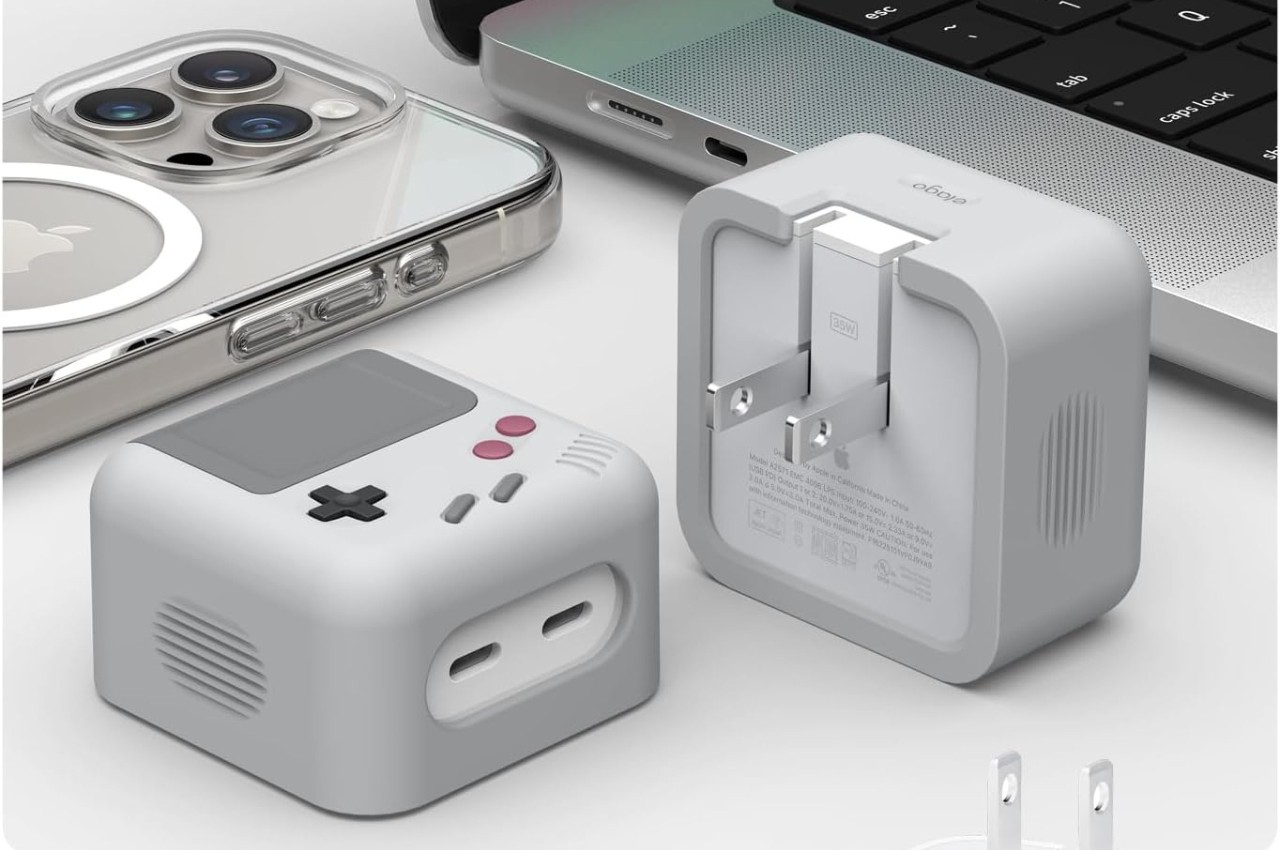
When we use chargers for our devices, we usually just go for the ones that come with said device and don’t really think about other accessories to go with it. That’s because they’re almost always used exclusively for one purpose only: to juice up our smartphone, tablet, and other accessories. But who says you can’t have fun with it right? If you’re into the whole retro is cool again thing, then this new wrap for a charger from elago may be the one for you.
Designer: elago
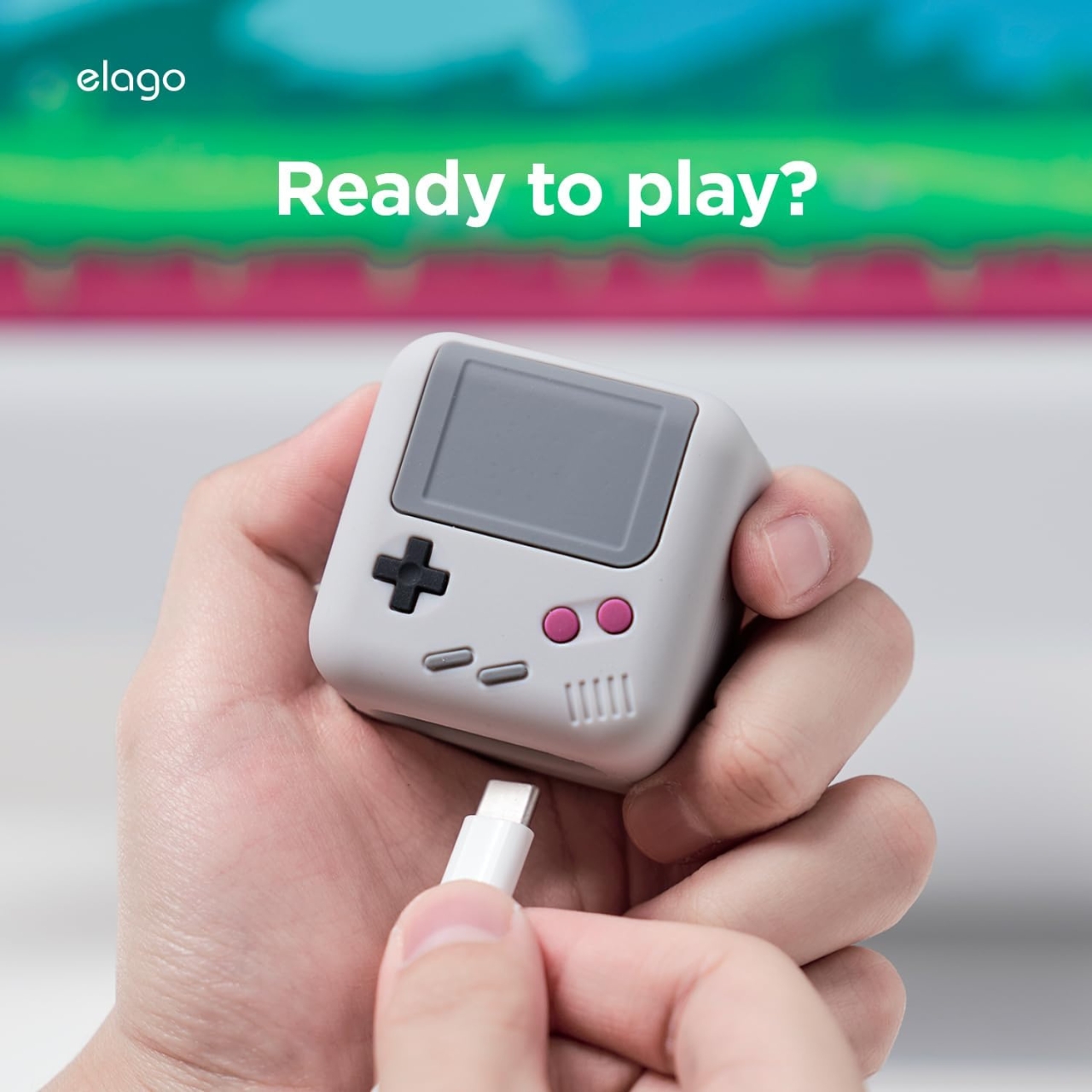
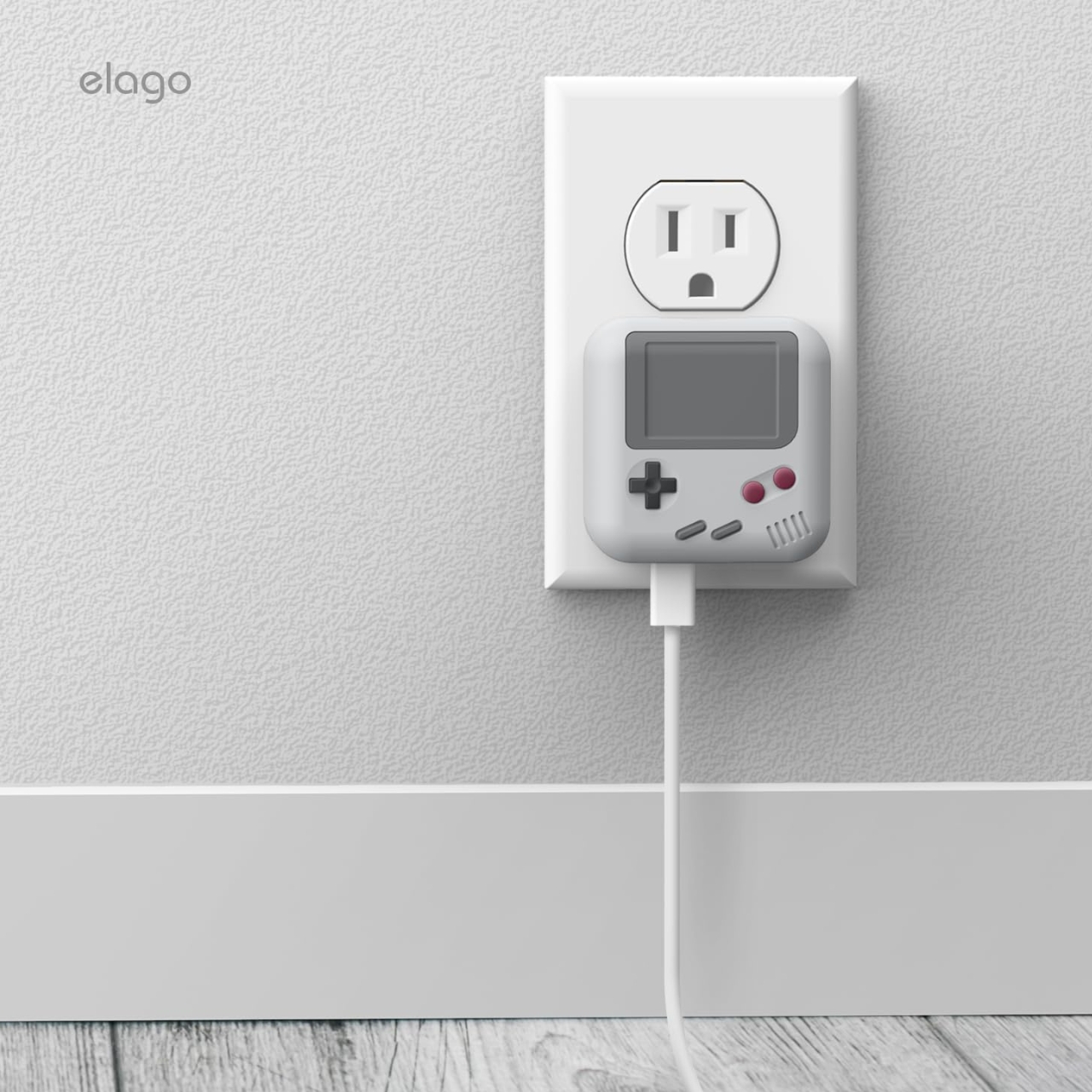
Elago has been bringing their nostalgic accessories a-game as we’ve seen some Nintendo-inspired designs from them this year. The newest one that they’re releasing is a Game Boy cover for your Airpods charger. Basically, the “wrap” will turn your charger into the coolest thing ever, at least for those who can recognize the now-classic Game Boy design. It’s similar to the MagSafe wallet that they recently announced as well.
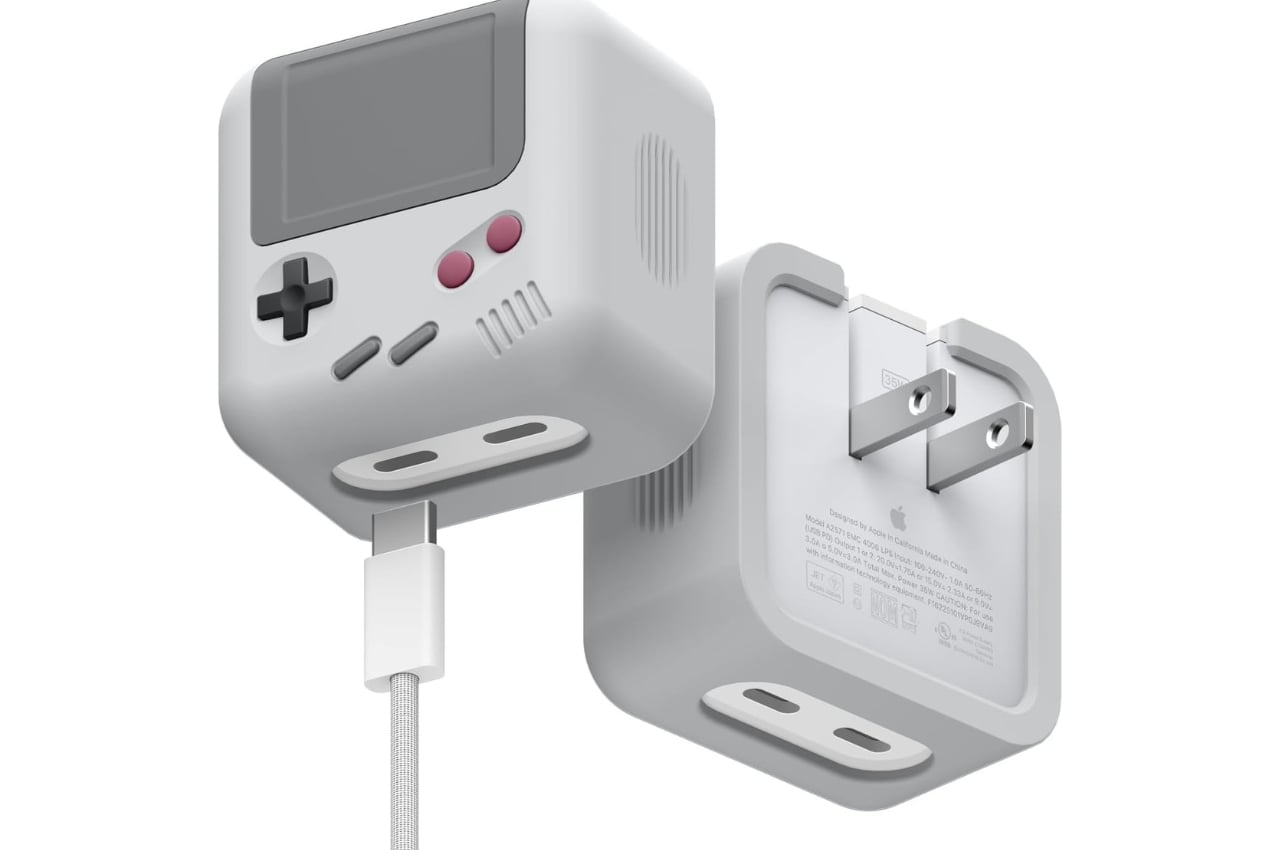
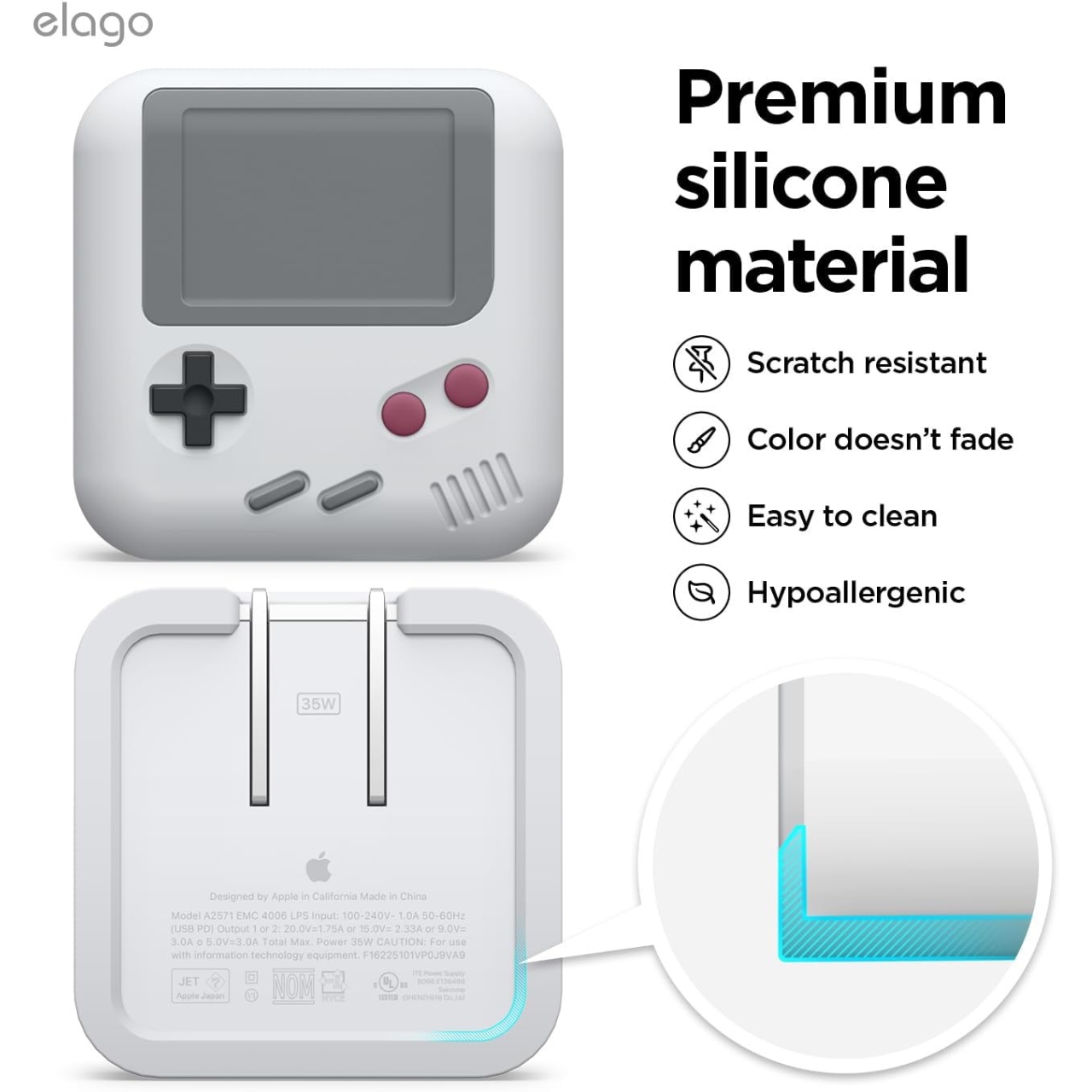
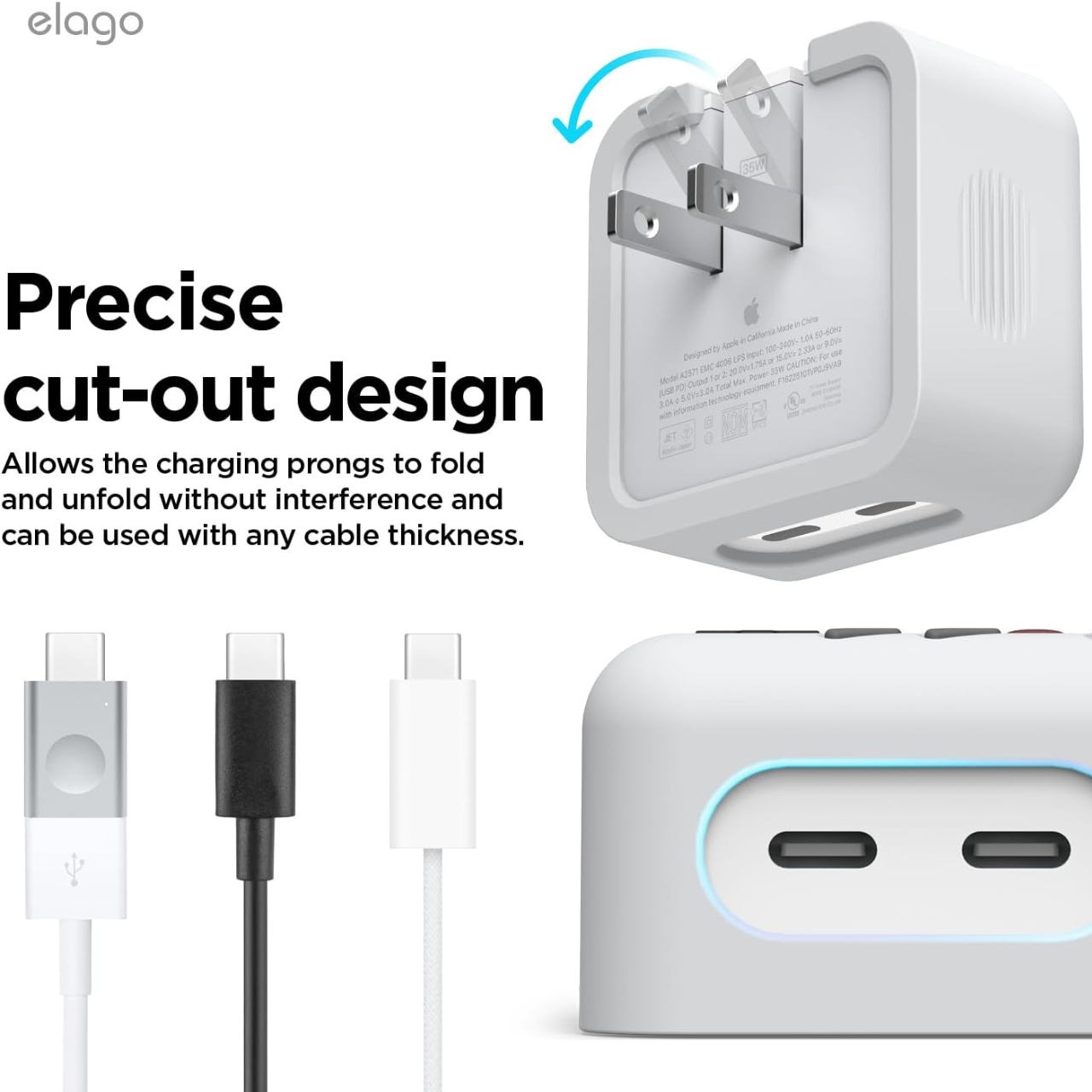
The wrap is compatible for the Apple 35W Dual USB-C Power Adapter that powers up your Airpods. It basically looks like the Game Boy interface with the face buttons, D-Pad, and other elements that you’re used to seeing in the Nintendo device. Of course these don’t have any function except to be nostalgic aesthetic. It uses soft silicone material and has a larger cutout around the dual USB-C jacks so it can be used with any cable thickness.
It is a pretty cute addition to your charger and aside from looking cool, it is also able to protect it from scratches, bumps, drops, dirt, and oils because of the material. It is available in Light Grey, Black, and Sand Pink and costs only around $15.
The ability to create web applications without extensive coding knowledge is a significant advantage in today’s AI driven world. Allowing anyone to create both online and mobile applications without the need for any knowledge of coding or programming languages. No-code web building platforms have emerged as a vital tool for entrepreneurs, businesses, and creative individuals […]
TomTom has announced a new partnership with Microsoft to bring Generative AI to vehicles, TomTom has developed an advanced AI-powered voice assistant which is based on the Microsoft Azure OpenAI Service. The company has said that this new solution, which is built into the TomTom Digital Cockpit can be integrated into in-car infotainment systems and […]
I’ve always been pretty money-conscious, but I didn’t really get into budgeting until I was in my mid-twenties. “Budgeting” is generous — I thought I was budgeting, but really I was using a crude Google Sheet system to track my expenses every month. I didn’t truly understand the difference between those two things until I started looking into ways to upgrade. It had been working fine for me, but as I got older and wanted to grow my savings, save up for a home down payment and a wedding and generally do more “adult” things with my money, I started to scour the internet for alternatives. I settled on You Need a Budget (YNAB) about four years ago and I’ve enjoyed it so much that I keep using it even after achieving some of those milestones.
The YNAB Method is an approach to budgeting that resonated with me then and still does today. I won’t belabor the basics here, but put simply, you’re to give every dollar a “job” as soon as you get paid by taking care of immediate needs first and then accounting for the rest of your true expenses. The way YNAB does this is basically by acting like a digital envelope system where you can customize all of your envelopes (or “categories”) and the amount of money you need for each (“targets”), and dump money into all of them every time you get paid. For example, I know I need $65 each month to pay for internet, so I have an internet category in YNAB with a target of $65 each month that’s due by the 15th, since I’ll need that money to pay the bill on the 20th of every month.
Follow that example for all of the rest of your expenses like rent or mortgage payments, groceries, electricity, insurance premiums and you’ll have a full YNAB budget in place. You can (and should) also do that for “true” expenses, which include things like hair cuts and car maintenance in the YNAB system. You may not need a specific amount of money for things like that every month, but you can plan for them by saving a little every time you get paid — so by the time you need to get that hair cut ahead of a wedding or unexpectedly need a new set of tires, you have at least some, if not all, of the money necessary to pay it.
YNAB
I was already taking stock of my standard expenses and setting aside money for those first and foremost, but YNAB made the process much easier. It’s worth noting that was already part of my routine. I was privileged enough to get a decent financial education from my parents growing up (mantras like “pay yourself first” come to mind, and I see taking care of your most necessary expenses as a way of accomplishing that).
The game-changer for me was considering my “true expenses,” which added up quickly. The inevitable weekly takeout order, veterinary bills for our cat, train and rideshare fees and the like were all things I knew I needed to pay for but didn’t previously deal with until the time came. In YNAB, you can create categories for all true expenses and plan for them each month (or week, depending on how you budget/get paid) so there’s (hopefully) never a question of how you’re going to pay for any of them.
If you’re able to do this and get your expenses in order, it’s possible that you’ll find you have money left over each paycheck. Then you can expand your budget to think about other true expenses or sinking funds you may want to address. My line between true expenses and sinking funds is blurry at best, but the latter are just allocated monies you set aside for variable expenses that you know are inevitable like home maintenance or insurance premiums.
Holiday gifts were big for me; every year, I have even more people in my life that I need to buy gifts for during the holiday season and I never planned for that in advance before using YNAB. Now, I have a “holiday gifts” category with a generous target that I put money toward every month and set to be “due” every year in early October. As soon as sales start to kick in during the fall, I have a pool of money with which I can buy all of my loved ones’ gifts.
I should say that YNAB appeals to my Type-A, über-organized personality, but you can’t plan for everything. A few years back, I unexpectedly had to spend about $500 for some car repairs and I didn’t have quite that much in my “car maintenance” sinking fund. Instead of panicking, I moved some money over from my “clothing” category to cover the remainder of the costs. It was a bit painful psychologically (I love seeing those little green progress bars in the YNAB app), but it didn’t impact my finances at all. YNAB accounts only for the money you actually have, regardless of which category it’s in, so I wasn’t spending anything that I couldn’t afford. That’s really important to me, as someone who tries to live within their means — and as much as possible, below it — to avoid lifestyle creep.
YNAB
Getting back to those “adult” priorities I mentioned before: YNAB was one of the key things that helped me and my partner save up a home down payment and the funds we’d need to pay for our wedding simultaneously, without feeling too stretched along the way. We cut down (not cut out, mind you) on all unnecessary expenses and aggressively saved during this five-year period, and YNAB made keeping track of it all easy.
But I would like to stress that the service was just one of the things that helped, and there were other factors that contributed as well. It’s not realistic to suggest budgeting alone is the answer to all of one’s money prayers. But it’s certainly a step in the right direction and a good habit to build over time.
I consider YNAB up there with 1Password as one of the few services I’m happy to pay for every year because of how much it adds to my life. However, it’s worth noting that you don’t have to pay for YNAB to start budgeting using its tenants. The YNAB method, the envelope system and zero-based budgeting are all very similar and you can do them all with less expensive tools, and even manually with physical envelopes and cash. There are plenty of online communities with flourishing examples of how you can get started without paying for yet another subscription. I recommend checking out Taylor Budgets, Budget Treasures and other similar YouTube channels for more inspiration.
This article originally appeared on Engadget at https://www.engadget.com/what-we-bought-how-ynab-gives-me-peace-of-mind-and-keeps-my-money-in-check-140049410.html?src=rss
Creating stickers from photos is an easily overlooked iPhone feature tucked into iOS 17. Using Apple’s machine learning algorithms that quickly separate a subject from its background, it extracts pictures of you, your friends or pets (or anything else it detects as the picture’s subject), transforming them into digital decals. It even makes animated stickers from Live Photos to slap onto iMessage chats or Markup tools. Here’s how to create your own.
What are iPhone stickers?
In Apple’s ecosystem, stickers are digital versions of their real-world counterparts. They debuted in iOS 10, Apple’s 2016 iPhone operating system, allowing users to place cut-outs of fun images onto iMessage bubbles for more personalized reactions.
Apple
Creating iPhone stickers from photos is new to iOS 17, and so is their location. In older versions of iOS, you had to navigate the iMessage App Store (in the Messages app) and app drawer to find them. In the new software’s more streamlined approach, you only have to tap the plus icon next to a message, choose Stickers and pick the one you want. (More on that below.)
How to create stickers from photos in iOS 17
Here’s how to make custom stickers from your photos on Apple’s latest iPhone software:
In the Photos app on your iPhone, choose a picture you want to transform into an iPhone sticker. Tap on the photo to open it in a full-screen view.
Touch and hold your finger on the photo’s subject. For example, if it’s a picture of your dog making a derpy face, hold your finger down on the pup until you see an animated effect highlighting the subject. (If it doesn’t work on the first try, do it again.)
In the popup menu that appears above the subject, choose “Add Sticker.” If you don’t see that text, tap on the arrow (>) at the right end of the options box until you find it. After tapping “Add Sticker,” the decal will appear below in the same drawer you’ll see in the Messages app.
Optionally, hold your finger down on it in the stickers drawer and choose “Add Effect” from the menu. You can give it a standard outline, add a comic style, transform it into a puffy sticker or make it shiny.
Tap the X button or swipe down to close the Stickers menu at the bottom of the screen.
How to create stickers from Live Photos in iOS 17
Apple’s Live Photo adds (roughly) three-second video clips captured before and after pressing the shutter button. If you took your source picture as a Live Photo, you can turn it into an animated iPhone sticker through the following steps:
Open the iOS Photos app, and tap on the Live Photo you want to turn into an animated sticker. It should now take up your phone’s entire screen.
Hold your finger down on the photo’s subject. Wait until you see an animated ripple effect protruding and highlighting the subject. (Try again if it doesn’t catch the first time.)
In the menu above the subject, choose “Add Sticker.” If you don’t see that option, tap the right arrow at the end of the menu. After tapping “Add Sticker,” you’ll see the subject appear in a drawer below with your custom stickers.
You should see a pop-up menu above the sticker. If you don’t, hold your finger down on the sticker in the list. Choose “Add Effect.” A new screen with effects options will appear.
In addition to sticker effect options, you’ll see “Off” on the upper left. Tap that until it changes to “Live.” You now have an animated sticker.
Press the X button or swipe down to close the sticker drawer.
How to use custom stickers in iMessage
Apple
Here’s how to use your new photo sticker in the Messages app:
In Messages, open a chat thread.
Press the + button to the left of the text box.
Choose “Stickers.”
If you don’t see your custom sticker in the “recently used” menu below, tap the sticker icon (between the 9:00 clock and smiley face icons, above the stickers but below the text box) to find it.
If you want to place the sticker in a reply, tap the one you want. Or, if you’re going to include it as a reaction on top of a chat bubble, hold your finger down on the sticker and drag it onto the message to which you want to react.
How to use custom stickers in Markup
You can also add stickers to photos, screenshots, PDFs, email attachments and other documents:
Open an image or file you want to add a sticker to. It could be through the Photos app, Files, Mail, Notes or any other app that supports Markup edits.
If you’re in Photos, tap “Edit,” then choose the Markup icon (upward-facing pen on the upper right). If you’re in Files or another app where you already see the icon, skip the “Edit” step and only tap the pen symbol.
Once you’ve opened the Markup menu, tap the + sign at the far right of the bottom toolbar (next to the color palette and pencil).
Tap “Add Sticker.”
Choose the custom sticker you just made.
It should appear with a blue bounding box atop the original photo or document. Drag the corners to resize, or slide your finger across the screen to move it.
Tap outside the bounding box to place the sticker.
This article originally appeared on Engadget at https://www.engadget.com/how-to-create-stickers-on-the-iphone-with-your-photos-on-ios-17-133039376.html?src=rss