As part of Wikipedia's 25th anniversary, parent company Wikimedia announced a slew of partnerships with AI-focused companies like Amazon, Meta, Perplexity, Microsoft and others. The deals are meant to alleviate some of the cost associated with AI chatbots accessing Wikipedia content in enormous volumes by giving the tech companies streamlined access.
As noted by The Verge, the timeline on these deals is a little squirrely. The Wikipedia foundation says that several companies became enterprise partners "over the past year," while listing Amazon, Google and Meta as "existing" partners. It appears today is the first time they have been officially announced.
The organization sounded the alarm on this issue last year, saying the reduction in traffic due to LLMs and AI summaries could prove existential for the nonprofit and the world's largest online encyclopedia. Wikipedia's 65 million free articles have served as rich training data for AI chatbots, but all that scraping has driven up server costs at the organization.
Wikimedia had been hoping to move these large firms over to its enterprise platform to help with costs. "It took us a little while to understand the right set of features and functionality to offer if we're going to move these companies from our free platform to a commercial platform ... but all our Big Tech partners really see the need for them to commit to sustaining Wikipedia's work," Lane Becker, president of Wikimedia Enterprise told Reuters.
Under the deal, these companies will have access to high-throughput APIs that can supply chatbot systems with content from Wikipedia as well as Wikimedia’s other projects, including Wikivoyage, Wikibooks, Wikiquote and more.
This article originally appeared on Engadget at https://www.engadget.com/ai/wikimedia-announces-ai-partners-including-meta-and-microsoft-162834383.html?src=rss
We’ve all heard of couch surfing, but Fender and Samsung have made it their 2026 mission to make couch shredding a thing. Samsung TV users will soon be able to take guitar lessons from the comfort of their living rooms, with the first TV edition of the Fender Play app set to arrive in the first half of this year.
Debuted at CES, players can choose from video-based lessons for both electric and acoustic guitar, as well as bass and — for all the wannabe Jake Shimabukuros or George Formbys (one for the Brits) among you — the ukulele. There are on-demand courses for different levels of skill, with each lesson built around a wide spectrum of well-known songs, everything from The Beatles' "Blackbird" to Olivia Rodrigo's "Drivers License".
If you’re a bit more confident in your axe-wielding prowess, Jam Mode allows you to play along to genre-specific playlists. Call in the kids to watch and you’ve got your very own Woodstock.
Fender Play is already available on a variety of screens via the App Store and Google Play, but with your TV likely being the largest one you own, you won’t have to squint to make out those chord progressions. You can already use the app on a TV by pairing your iPhone or Android device to your Apple TV or Chromecast, but Samsung’s native TV app is more immediate.
Fender Play first launched way back in 2017 and has a number of virtual instructors who teach all levels of guitar players. A subscription costs $20 per month or $150 annually, and there’s a seven-day trial if you want to see what it’s all about. It will, for some reason, only be available on Samsung TVs released in 2025 or later (no word on support for older models at a later date) in the coming months.
This article originally appeared on Engadget at https://www.engadget.com/entertainment/fenders-guitar-lessons-are-coming-to-samsung-tvs-later-this-year-134551816.html?src=rss
Apple has been putting more onus on its services for the past several years — the company makes tens of billions of dollars in revenue from that side of the business, which it claimed had a record year in 2025. Apple is nudging a little more in that direction with a new subscription bundle called Apple Creator Studio.
This allows creators to pay a single fee ($13 per month or $129 per year) to use Final Cut Pro, Logic Pro, Pixelmator Pro, Motion, Compressor and MainStage. Subscribers will get access to “premium content” in Pages, Keynote and Numbers (as well as in Freeform later this year). Of course, there are AI features too. Apple Creator Studio will be available starting on January 28 and you can try it out at no cost through a one-month free trial.
College students and educators can subscribe to Apple Creator Studio for $3 per month or $30 per year. Up to six people can access all of the plan’s features if one person in a Family Sharing group subscribes.
Apple noted that Final Cut Pro, Pixelmator Pro, Logic Pro, Motion, Compressor and MainStage will still be available as one-time purchases for Mac through the Mac App Store. Given that those can be pretty pricy (going up to $300 for Final Cut Pro), the subscription could be enticing to many burgeoning creators.
This seems like Apple’s attempt to muscle in on Adobe’s territory, especially now that it’s bringing AI features to many of these apps. Adding new features to productivity apps like Numbers and Keynote means Apple’s taking a shot at the likes of Microsoft 365 Copilot (yeeeeah, that’s what Office is called now) and Google Workspace as well.
On Mac and iPad, Final Cut Pro has a new feature called Beat Detection. Apple suggests this makes “editing video to the rhythm of music fast and fun.” It uses an AI model from Logic Pro to analyze music tracks and display a Beat Grid. The idea here is to visualize song parts, beats and bars to help editors align their cuts with the music.
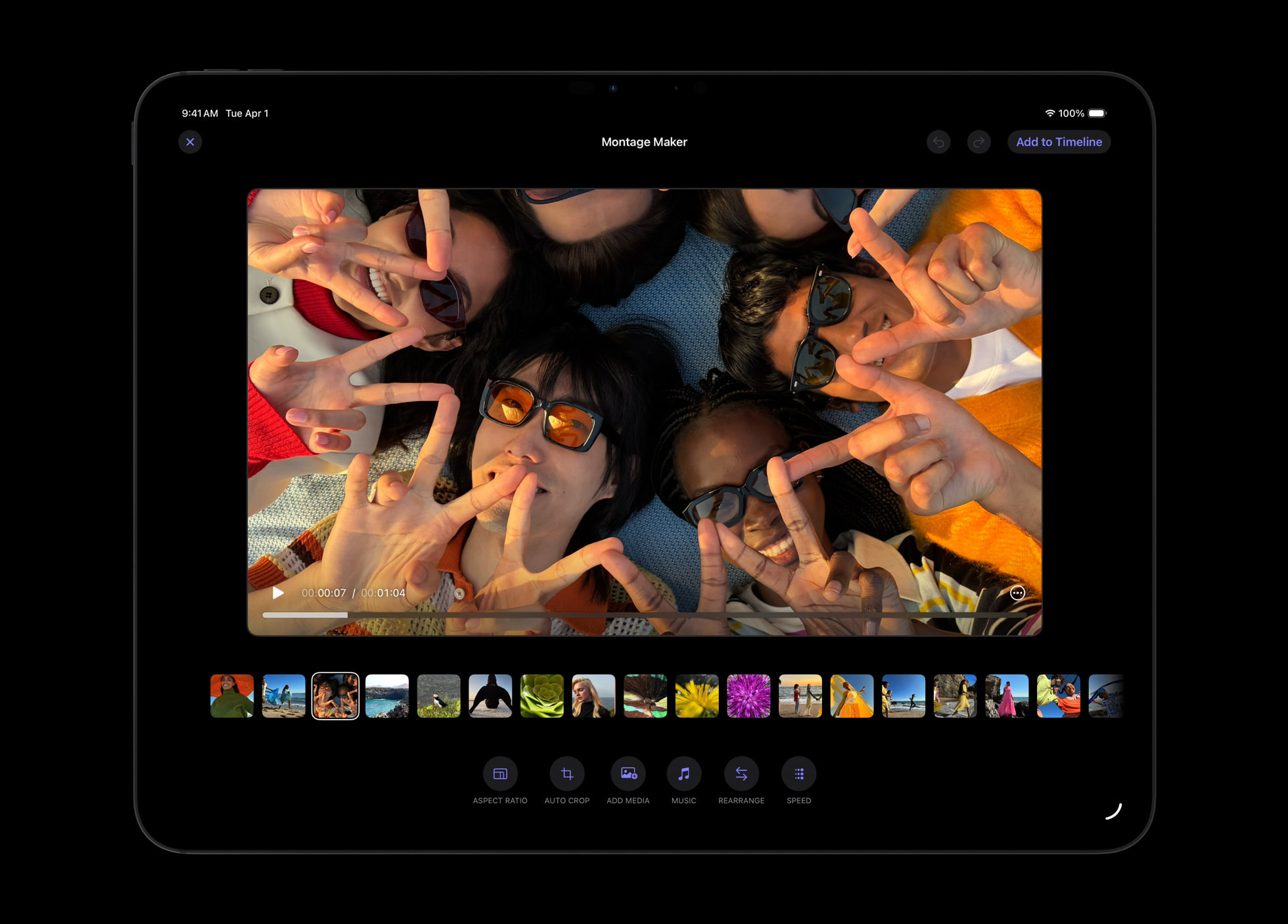
The Montage Maker tool in Final Cut Pro on an iPad.
Apple
An AI-powered Montage Maker tool can stitch together “a dynamic video based on the best visual moments within the footage.” You’ll be able to tweak these montages and use an Auto Crop tool to reframe the clip into a vertical format to make it a better fit for social media. Final Cut Pro has transcript and visual search functions too.
Logic Pro, MainStage, Pixelmator Pro (which is coming to iPad with Apple Pencil support) and Motion will all have AI-powered features as well. As you might expect, you’ll need an Apple Intelligence-capable device to use some of these.
Apple is also introducing something called the Content Hub. This media library includes “curated, high-quality photos, graphics and illustrations.”
As for Keynote, Pages, and Numbers, you’ll be able to access premium templates and themes in those otherwise-free apps with a Apple Creator Studio plan. Subscribers will be able to try beta versions of new features, such as a way to generate a draft of a Keynote presentation text based on an outline, and a Magic Fill tool to generate formulas and fill in tables in Numbers.
This article originally appeared on Engadget at https://www.engadget.com/apps/apple-bundles-creative-apps-such-as-final-cut-pro-and-logic-pro-into-a-single-subscription-145210038.html?src=rss
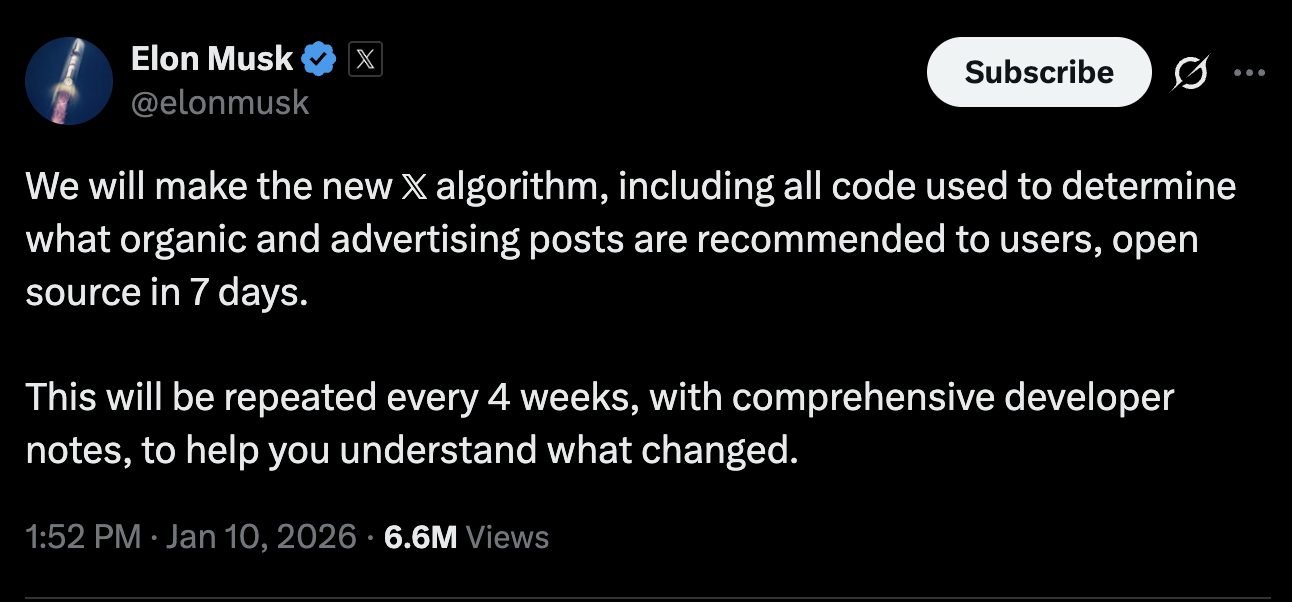
X may soon provide more insight into how its algorithm works. On Saturday, Elon Musk posted on the platform to say that the company "will make the new X algorithm, including all code used to determine what organic and advertising posts are recommended to users, open source in 7 days."
Elon Musk's X post about open-sourcing the algorithm.
Screenshot/X
Musk has been making promises of open-sourcing the algorithm since his takeover of Twitter, and in 2023 published the code for the site's "For You" feed on GitHub. But the code wasn't all that revealing, leaving out key details, according to analyses at the time. And it hasn't been kept up to date. Of the making the new algorithm open source, Musk said in his post, "This will be repeated every 4 weeks, with comprehensive developer notes, to help you understand what changed."
This article originally appeared on Engadget at https://www.engadget.com/big-tech/elon-musk-says-xs-new-algorithm-will-be-made-open-source-next-week-225721656.html?src=rss
Meta's messaging app WhatsApp could soon be subject to deeper scrutiny (and punishment) under the European Commission's Digital Services Act, Reuters reports. Because the app's broadcasting feature WhatsApp Channels grew to around 51.7 million average monthly active users in the European Union in the first six months of 2025, the feature has crossed the 45-million-person barrier that lets DSA rules apply.
A platform is designated as a "very large online platform" or VLOP once it has 45 million monthly users or more, according to the European Commission. Once an app or service passes that amount, it's subject to the DSA and all its rules about how digital platforms should operate, particularly around removing illegal or harmful content. Companies can be fined up to six percent of their global annual revenue for not complying with the DSA.
WhatsApp traditionally functions as a private messaging app, but its Channels feature, which lets users make one-sided posts to anyone who follows their channel, does look a lot more like Meta's other social media platforms. "So here we would indeed designate potentially WhatsApp for WhatsApp Channels and I can confirm that the Commission is actively looking into it and I wouldn't exclude a future designation," a Commission spokesperson said in a daily news briefing Reuters viewed.
Engadget has asked Meta to comment on WhatsApp’s possible new designation. We’ll update this article if we hear back.
The possibility that WhatsApp could become a regulatory target in the EU was first reported in November 2025, but Meta has been dealing with DSA-related fines since well before then. Meta was charged with violating the EU law in October 2025 because of how it asks users to report illegal content on Facebook and Instagram. Earlier that month, a Dutch court also ordered the company to change how it presents the timelines on its platforms because people in the Netherlands were not "sufficiently able to make free and autonomous choices about the use of profiled recommendation systems" in the company's apps.
This article originally appeared on Engadget at https://www.engadget.com/social-media/whatsapp-might-soon-be-subject-to-stricter-scrutiny-under-the-eus-digital-services-act-191000354.html?src=rss
In a move that should surprise nobody, Google is stuffing more Gemini AI into Gmail. A host of new features, some of which are already familiar to Workspace users, are rolling out today for Gmail users in the US. Some are free, while others require a Google AI Pro or Ultra subscription.
The first premium feature is AI Overviews, the same name as a similar feature in Google Search. Gmail’s version lets you ask questions about your messages in the search bar, using natural language. Google uses the example of, "Who was the plumber that gave me a quote for the bathroom renovation last year?" It’s hard to imagine that saving much time over a basic search for "plumber quote" or “plumbing estimate,” but maybe it could help in some situations.
There's also a free portion of AI Overviews that summarizes mail threads for easy catch-ups. However, the ability to ask your inbox questions requires a subscription.
Meanwhile, Proofread is a subscription-only feature that's essentially Grammarly for Gmail. As you'd guess, it suggests improvements in grammar, word choice, conciseness, voice and sentence structure.
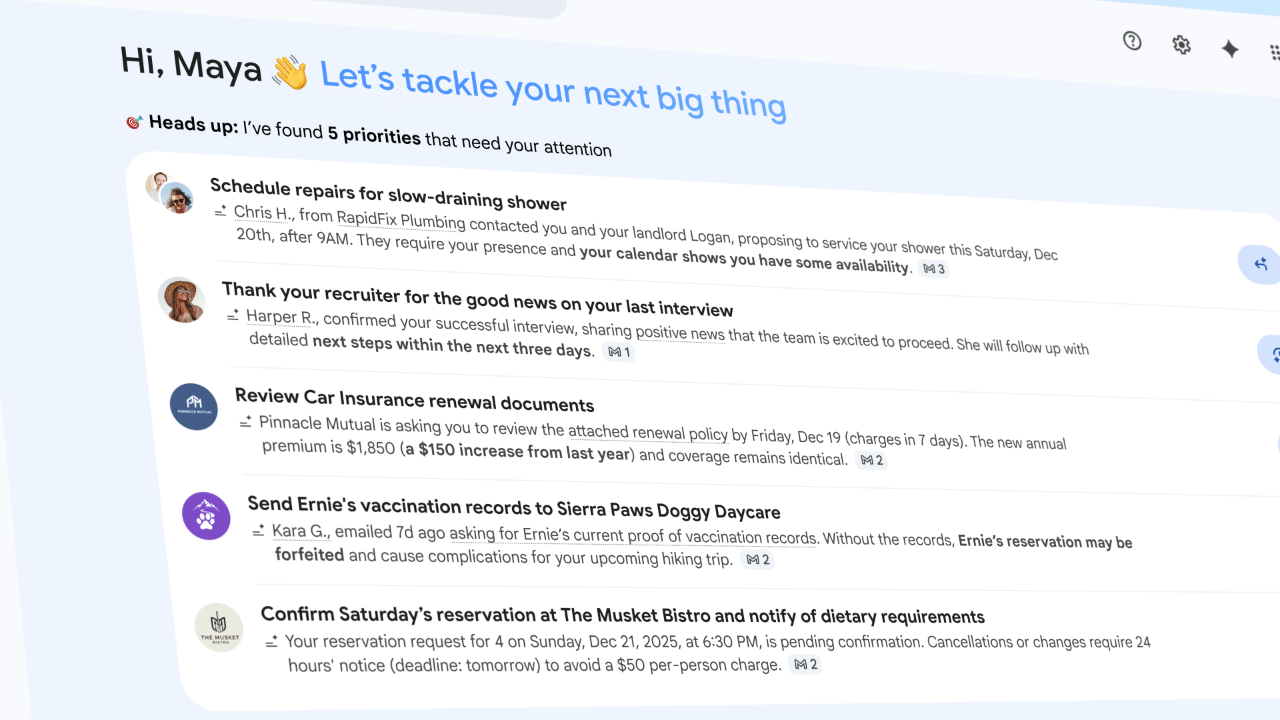
AI Inbox
Google
Finally, there's the AI Inbox, a feature that "filters out the clutter so you can focus on what's most important." Google says it's like a personal briefing that flags to-dos and catches you up on what it thinks is most important. (It identifies VIPs based on frequent contacts, your contact list, and inferred relationships.) The company claims, without adding further detail, that this all "happens securely with the privacy protections you expect from Google." AI Inbox is another subscription-only feature.
Now onto the free stuff. Help Me Write is a tool for all Gmail users that generates email copy from a prompt. This kind of thing should be well-familiar by now, as Big Tech increasingly encourages users to avoid drafting anything from scratch. And Suggested Replies can draft replies for you that mimic your tone and style. (Google describes it as a next-gen version of Smart Replies.) Help Me Write and Suggested Replies are rolling out to everyone (no subscription required) today.
The new Gemini-powered features begin rolling out to Gmail today. Although they're starting with English speakers in the US, Google says they'll arrive in more languages and regions "in the coming months."
This article originally appeared on Engadget at https://www.engadget.com/ai/gmail-is-getting-a-gemini-ai-overhaul-130000422.html?src=rss
Disney+ will add vertical videos to its service in the US sometime this year, in hopes that they can entice viewers to engage with its app every day. The company has made the announcement at its Tech + Data Showcase event at CES 2026. Disney first dabbled in vertical content with Verts, which launched for the ESPN app in August 2025, giving it the insight it needed on how its users respond to the video format.
Erin Teague, Disney Entertainment’s EVP of Product Management, told Deadline that the company will use the format for all kinds of content. The service isn’t just planning to use it as a vehicle for movie and series teasers, but also for original short-form programming. She didn’t say what kinds of original programming Disney+ will be adding as vertical videos to its app, but vertical micro-dramas have become incredibly popular over the past year.
“We’re obviously thinking about integrating vertical video in ways that are native to core user behaviors,” Teague said. “So, it won’t be a kind of a disjointed, random experience.” The company is targeting Gen Z and Gen Alpha users, in particular, since they’re not inclined to sit and watch long-form content on their phones for hours. Disney said in a statement that the experience will “evolve as it expands across news and entertainment” and will be personalized for users, with making the service “a must-visit daily destination” as its goal. After all, if a user is already in the app, they’re more likely to explore and watch the service’s programming.
This article originally appeared on Engadget at https://www.engadget.com/entertainment/streaming/disney-is-launching-vertical-videos-this-year-120000776.html?src=rss
It's only been a few months since Meta announced that it would open its smart glasses platform to third-party developers. But one startup at CES is already showing off how the glasses can help power an intriguing set of accessibility features.
Hapware has created Aleye, a haptic wristband that, when paired with Ray-Ban Meta smart glasses, can help people understand the facial expressions and other nonverbal cues of the people they are talking to. The company says the device could help people who are blind, low vision or neurodivergent unlock a type of communication that otherwise wouldn't be available.
Aleye is a somewhat chunky wristband that can vibrate in specific patterns on your wrist to correspond to the facial expressions and gestures of the person you're talking to. It uses the Meta Ray-Ban glasses's computer vision abilities to stream video of your conversation to the accompanying app, which uses an algorithm to detect facial expressions and gestures.
The bumps on the underside of the Aleye vibrate to form unique patterns.
Karissa Bell for Engadget
Users can customize which expressions and gestures they want to detect in the app, which also provides a way for people to learn to distinguish between the different patterns. Hapware CEO Jack Walters said in their early testing people have been able to learn a handful of patterns within a few minutes. The company has also tried to make them intuitive. "Jaw drop might feel like a jaw drop, a wave feels more like a side to side haptics," he explains.
The app is also able to use Meta AI to give vocal cues about people's expressions, though Hapware's CTO Dr. Bryan Duarte told me it can get a bit distracting to talk to people while the assistant is babbling in your ear. Duarte, who has been blind since a motorcycle accident at the age of 18, told me he prefers Aleye to Meta AI's other accessibility features like Live AI. "It will only tell me there's a person in front of me," he explains. "It won't tell me if you're smiling. You have to prompt it every time, it won't just tell you stuff."
Hapware has started taking pre-orders for the Aleye, which starts at $359 for the wristband or $637 for the wristband plus a year subscription to the app (a subscription is required and otherwise will cost $29 a month). A pair of Ray-Ban Meta glasses is also not included, though Meta has also been building a number of its own accessibility features for the device.
This article originally appeared on Engadget at https://www.engadget.com/wearables/this-haptic-wristband-pairs-with-meta-smart-glasses-to-decode-facial-expressions-214305431.html?src=rss
Installing a virtual private network (VPN) on an iPhone or iPad is easy. The days are gone when Apple users had to be content with the leavings from the Windows ecosystem — in 2026, all the best VPN services have secure, user-friendly iOS apps on par with every other platform. If you've decided to add a VPN to your iPhone to stay anonymous online and change your virtual location, you've got plenty of great choices.
Since you're here, chances are you're familiar with the benefits of using a VPN, including security on public Wi-Fi and the ability to explore streaming libraries in other countries. But you may still be daunted by the process of actually choosing, installing and configuring a VPN on your iPhone.
In this article, I'll walk you through the steps, including how to configure a VPN manually without going through a service. Check out my how to use a VPN piece for more general information.
How to choose an iPhone VPN
One of the trickiest parts of installing an iPhone VPN is picking the right service. That brings us to our first pro tip: Don’t just go to the App Store and search on “VPN.” That will simply front-load whichever vendor(s) are paying for top placement (note the little “Ad” icon) as well as a laundry list of free services that come with big caveats. There are dozens of mobile VPNs out there, and many of them don't put the user first (for example, I reported last year on popular VPNs that failed to disclose shared security flaws). Choosing hastily can leave you stuck with an iOS VPN that's either mediocre or actively harmful.
Before downloading an iPhone VPN, do some research into the provider's background. A dependable VPN should have a well-written customer support page, a clear timeline of its history and a way to tell at a glance who actually owns and operates it. Check the reviews on the app store — it should have at least several hundred, almost all 4s and 5s.
iPhone users have a particular advantage here: several VPNs let you download their iOS app and start using it without paying. You can use this free trial period to put the VPN through its paces. Start by testing its speed using Ookla speedtest or a similar app. You should also use an IP address checker to make sure it isn't leaking; to confirm this, just check your phone's IP address before and after connecting to the VPN and make sure it's different the second time.
To keep things simple, my top recommendation for all platforms is Proton VPN. Out of all VPNs, it strikes the best balance of solid security, fast performance, useful features and a commitment to user privacy. Other iPhone VPNs I love include ExpressVPN, Surfshark and NordVPN.
How to install a VPN on your iPhone
Installing an iPhone VPN is like installing any other app. Just go to the App Store, find the VPN you've chosen and download it onto your phone. When it finishes downloading, open the app to grant permissions and finish setup. However, since there are a couple of potential sticking points, I'll run through the steps in more detail.
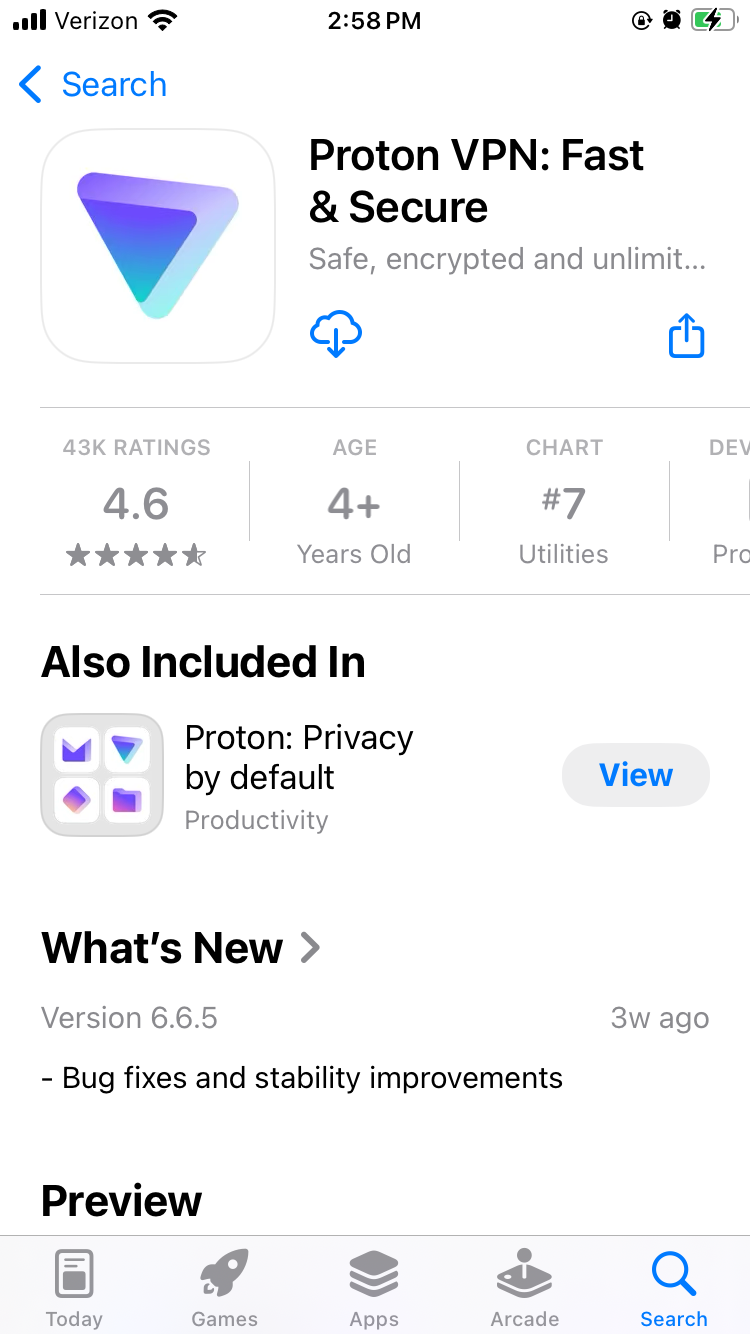
Proton VPN on the iOS app store.
Sam Chapman for Engadget
Open the App Store.
Tap the search bar and type in the name of your chosen VPN. Hit Search and look through the list of results. Be careful to pick the right one — there are some "mockbuster" VPNs that try to snare people looking for well-known names. As a rule, the one with the most reviews is the service worth using.
On the page for the VPN app, tap Get. Enter your Apple ID and password to begin the installation.
Once installation is complete, either tap Open in the App Store or find the new VPN icon on your home screen.
Create a VPN account with a username and password. Most services let you do this within the app, but you may have to shift temporarily to a browser, so make sure you've got internet access.
Choose a subscription. If there's a free trial, grab it and use it to test the VPN. If not, or if it's already expired, choose a plan that fits your budget and needs. Longer-term plans tend to save you money on average, but cost more at the start.
On the VPN app, log in with your new credentials. You're now ready to get started.
If you aren't interested in paying for software right now, you can still get an iOS VPN. Check out my list of the best free VPNs, which all have iPhone apps. We also constantly update a curated list of the best VPN deals for bargain hunters.
How to configure and use a VPN on your iPhone
An iOS VPN is generally usable with the default settings. Even so, it's a good idea to look through the options — you may not end up using all of them, but many of them are vital security checks or important quality-of-life boosters.
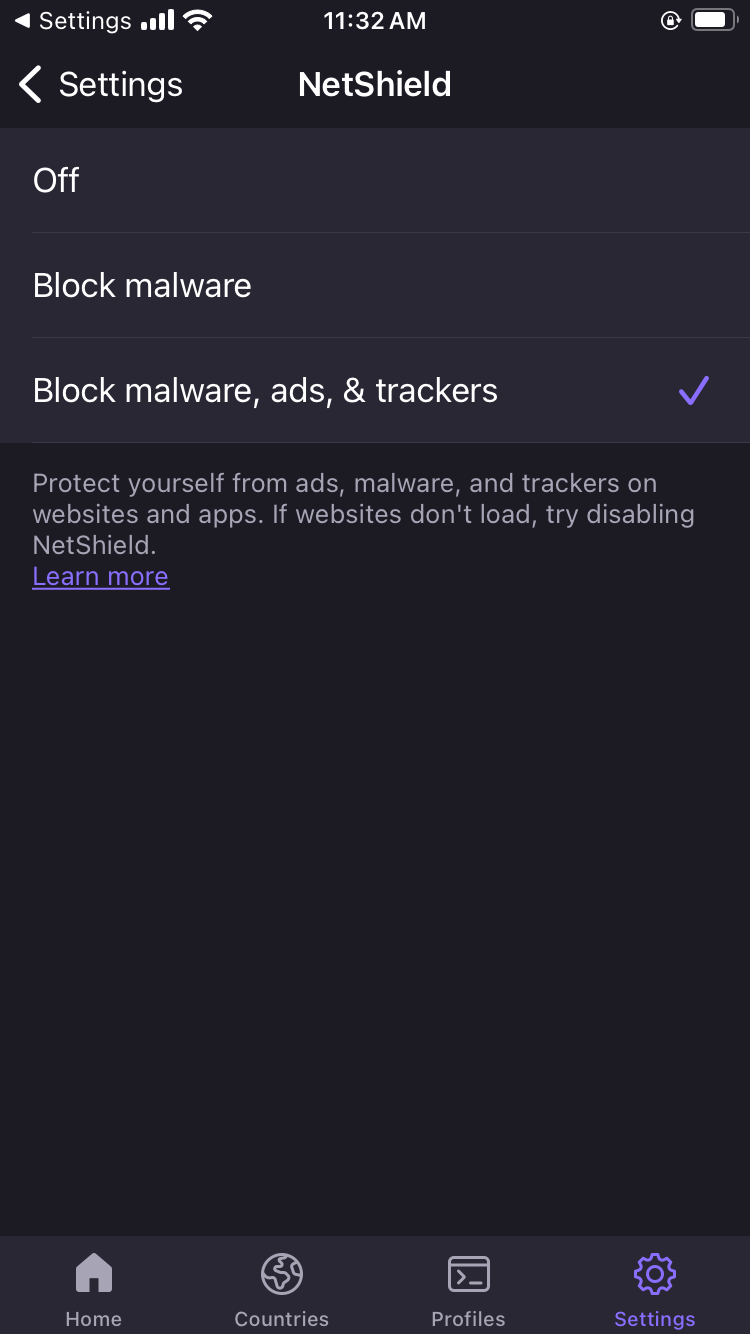
Proton VPN's NetShield content blocker on iOS.
Sam Chapman for Engadget
Here are some quick steps to make sure you're getting the best performance. These settings are in different places on each VPN, but most can be found by clicking a button with a gear icon, or any page labeled "settings" or "preferences."
Turn on the kill switch. This will protect you from broadcasting any data the VPN hasn't encrypted. In the event the VPN suddenly disconnects, the kill switch also cuts off your internet connection.
Set the VPN to always reconnect automatically if it disconnects. The method for doing this varies between services, so check the VPN's help page. Some (like Proton VPN) have an always-on VPN setting in the app itself, while others (like ExpressVPN) handle it through iOS settings.
Configure split tunneling. Not many iPhone VPNs have this option, but if yours does, you can use it to let certain apps or websites skip the VPN tunnel. Make sure to only bypass the VPN on sites and apps that share no sensitive information, or that refuse to work with a VPN active (some banks are like this).
If your VPN has a feature for blocking ads and malware domains, I recommend using it — the worst it can do is not work. Some also include parental controls, in case you're setting up the VPN on your child's phone.
Create shortcuts. Sometimes called Profiles, this relatively common feature lets you connect to the VPN and open a certain website with one tap.
Decide when and how you want the VPN to send you notifications.
Check available protocols. It's almost always best to let the VPN pick for you, but if you want to choose for yourself, IKEv2 is generally the fastest.
Look over the server list to see what choices are available.
When choosing a VPN server, think about what you need the VPN for. If you're just using it for privacy, pick the fastest server (or let the VPN app choose it for you). On the other hand, if you want to watch a movie or TV show that's only on streaming in another country, choose the fastest server in that country. If you're on a good VPN, it still shouldn't slow you down too much.
If you have the address of a VPN server and the necessary credentials, iOS lets you set up your own VPN and connect directly. This is less convenient than using a provider app, since you need to know the details about every server you connect to, but it's nice if you're worried about trusting your privacy to a third party. It can also be convenient for quickly accessing a work or school VPN from your phone. Here's how to do it.
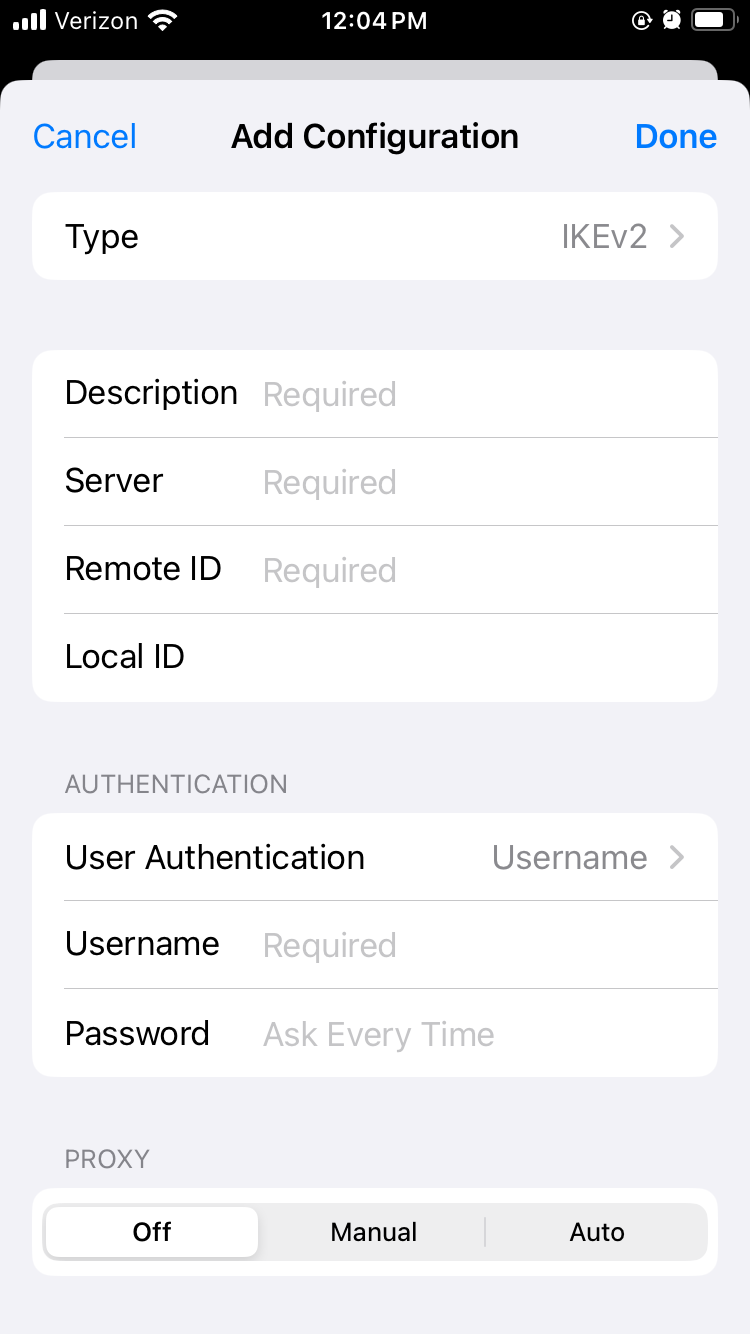
Manually setting up a VPN connection on iOS.
Sam Chapman for Engadget
Open the Settings app. Scroll down and tap General.
Scroll down again and tap VPN & Device Management. Tap the word VPN on the new page, then tap Add VPN Configuration. You should reach the screen shown above.
Make sure Type is set to IKEv2, then enter the Description, Server and Remote ID for the server you're connecting to (plus the Local ID if there is one).
Your source for the server information should also have told you if it authenticates access with a username/password or certificate. Pick the correct option, then enter the credentials required.
Tap the Done button or the blue checkmark at the top-right of the screen.
You'll arrive back on the previous menu with your new VPN option available. Toggle it on to connect. To turn it off, return to the same menu and deactivate the switch.
Do you need an iPhone VPN?
Whenever you get online, your internet service provider (ISP) assigns an IP address to your device — a unique fingerprint that follows you throughout the session. Your ISP may sell this knowledge to marketers to target ads at you, or in worse cases, collaborate with governments willing to violate their citizens' rights to privacy.
When you use a VPN, though, your real IP address is hidden behind that of the VPN server, so nothing you do on the internet connects back to you. That's why I always advise using a VPN on any device, including iPhones, that connects to the internet. It's even more important on the unprotected public networks you sometimes find in cafes and hotels. On the fun side, you can also use a VPN to change your virtual location to show you different content libraries on Netflix and other streaming platforms.
One more thing: I often hear iPhone users ask whether they need a VPN, since iCloud Private Relay comes standard on iOS devices. Just to clear this up, iCloud Private Relay is not a VPN. As you can see from this support page, your ISP can still see your real IP address when it’s active.
This article originally appeared on Engadget at https://www.engadget.com/cybersecurity/vpn/how-to-use-a-vpn-on-iphone-201743118.html?src=rss
Spotify is rolling out more social features to keep people on the platform. It's adding a new tool to its messaging platform that lets users see what their friends and family members are listening to in real time.
Once activated, a user's listening activity will be displayed at the top of the chat. The other person in the chat can tap the bar to play a particular track, save it or react with an emoji. People can also, of course, comment directly to either praise or rag on the song selection.
There's another little addition to Spotify's messaging system. Users will now be able to invite chat participants to start a Jam, which is the app's collaborative listening feature. Premium users will find a "Jam" button in the top right corner, which sends an invite. This lets two people add tracks to a shared queue and listen together. Free users can join one of these sessions, but cannot initiate.
It's worth noting that the messaging platform is currently just a one-on-one affair. There's no option for a group chat, so users won't be able to spy on multiple people simultaneously. These tools are rolling out gradually for iOS and Android right now, but won't be broadly available for a few weeks.
This article originally appeared on Engadget at https://www.engadget.com/entertainment/music/spotify-now-lets-you-share-what-youre-listening-to-in-real-time-via-chat-173749120.html?src=rss