At the NVIDIA GTC AI conference, ASUS introduced their latest creations: the ESC NM1-E1 and ESC NM2-E1 GPU AI supercomputing servers. These powerhouses are equipped with the newest NVIDIA technologies, including the B200 Tensor Core GPU and the GB200 Grace Blackwell Superchip. They’re designed to cater to a wide array of AI server performance needs, […]
MG has launched their latest hybrid in the UK, the MG3 Hybrid+ and pricing for the car starts at £18,495, for the SE model, there is also a second model in the range called the Trophy and this retails for £20,495. The new MG3 Hybrid+ comes with a 7-year/80,000-mile warranty and the car features a […]
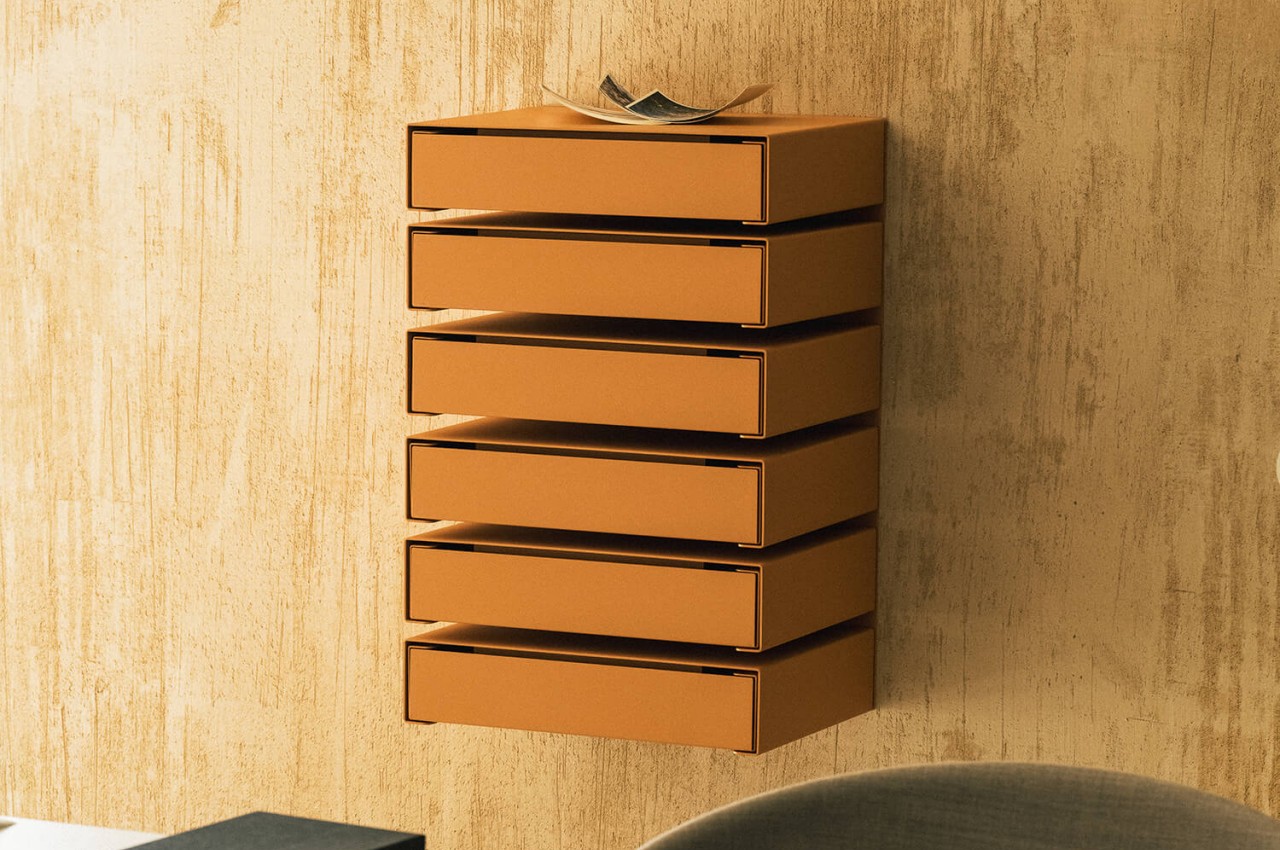
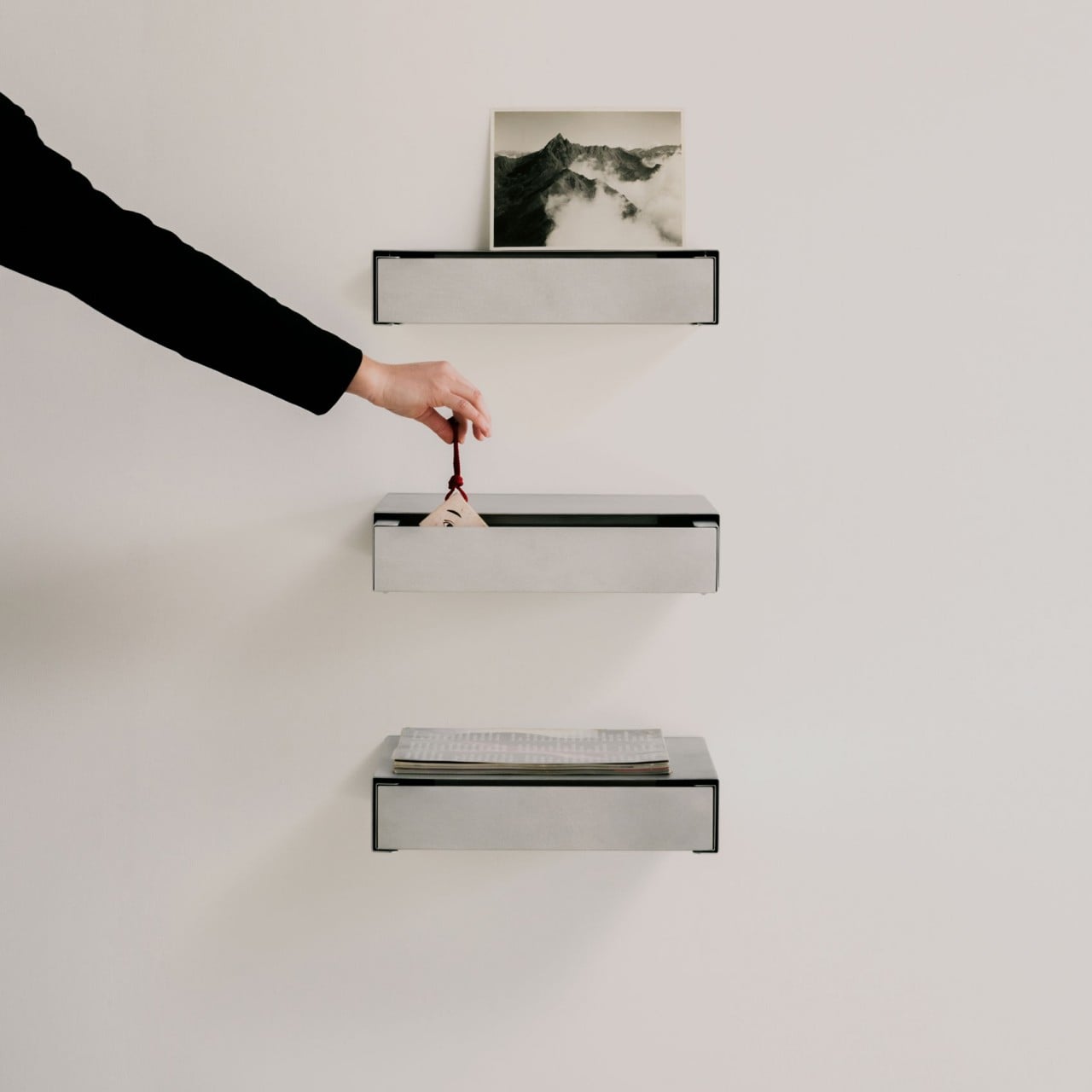
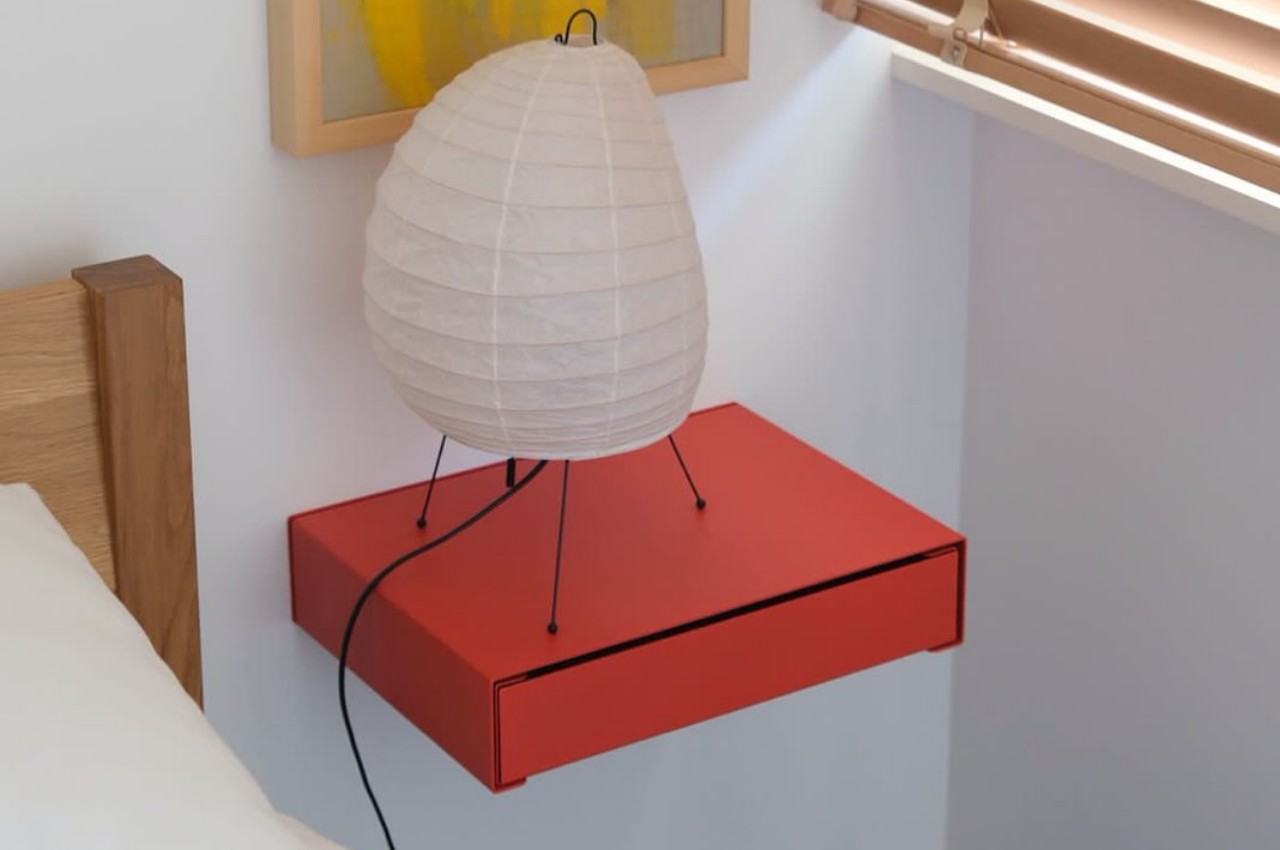
Storage containers are inescapable facts of life, especially in this day and age where we collect so many material possessions. These vessels can range from plastic boxes to wooden furniture like shelves and cabinets, all of which trade floor space for that storage capacity. Unfortunately, floor space is also becoming a luxury these days, and we can’t simply expand the area in proportion to our growing storage needs. We need to be smarter about the way we use storage and what we use for storage, and no, stacking them up to the ceiling isn’t a viable solution nor a safe one. These drawers, in contrast, do offer a better alternative by taking advantage of the free space that we have found on our walls.
Storage boxes are a common sight in many households. They’re simple, convenient, and often stackable. They also take up precious floor space, and stacking them so high can become a safety hazard if left unchecked. Ideally, we’d “Marie Kondo” our excess possessions, but we’ll always still end up with stuff we can’t simply throw out. We obviously need more storage, but we also don’t have more floor space to use. What we do have, however, is plenty of free wall space that isn’t even taken up by decorations.
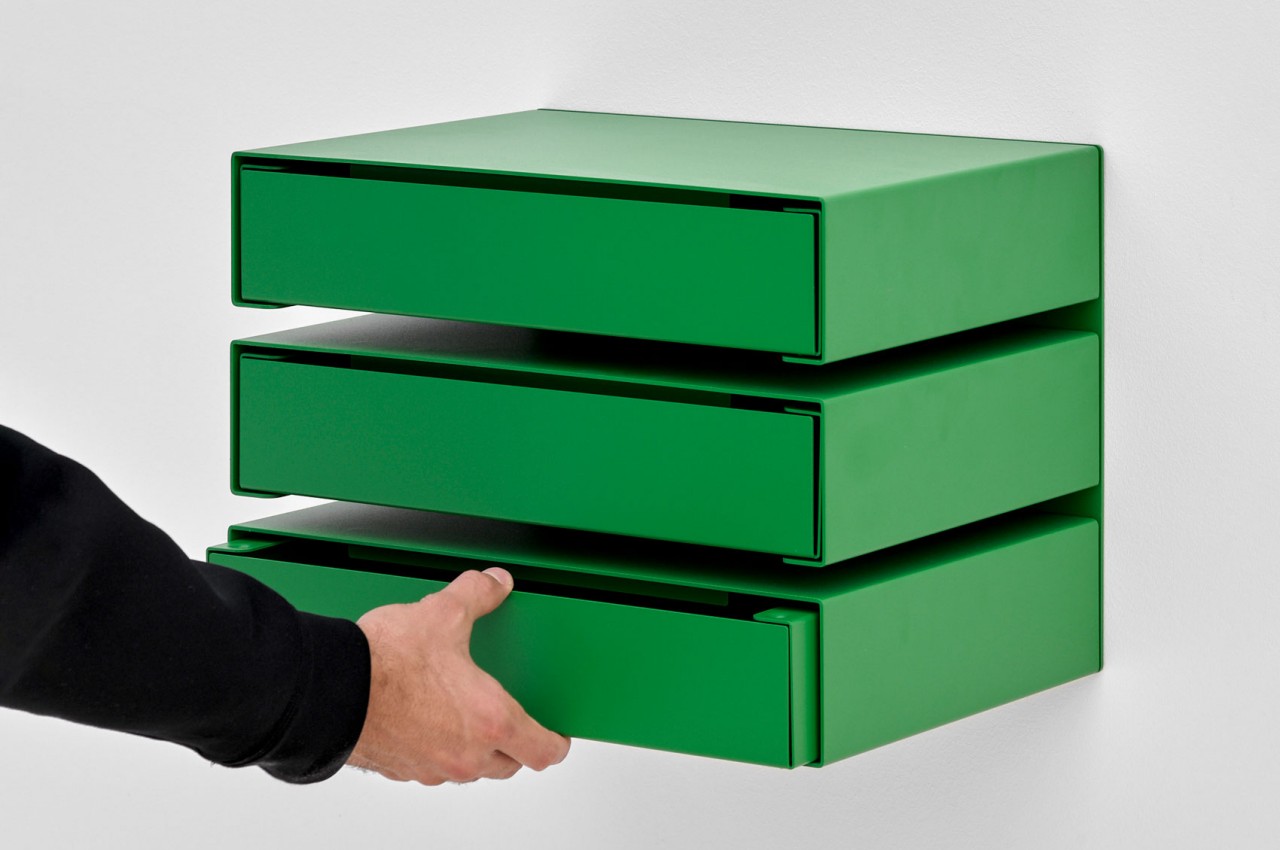
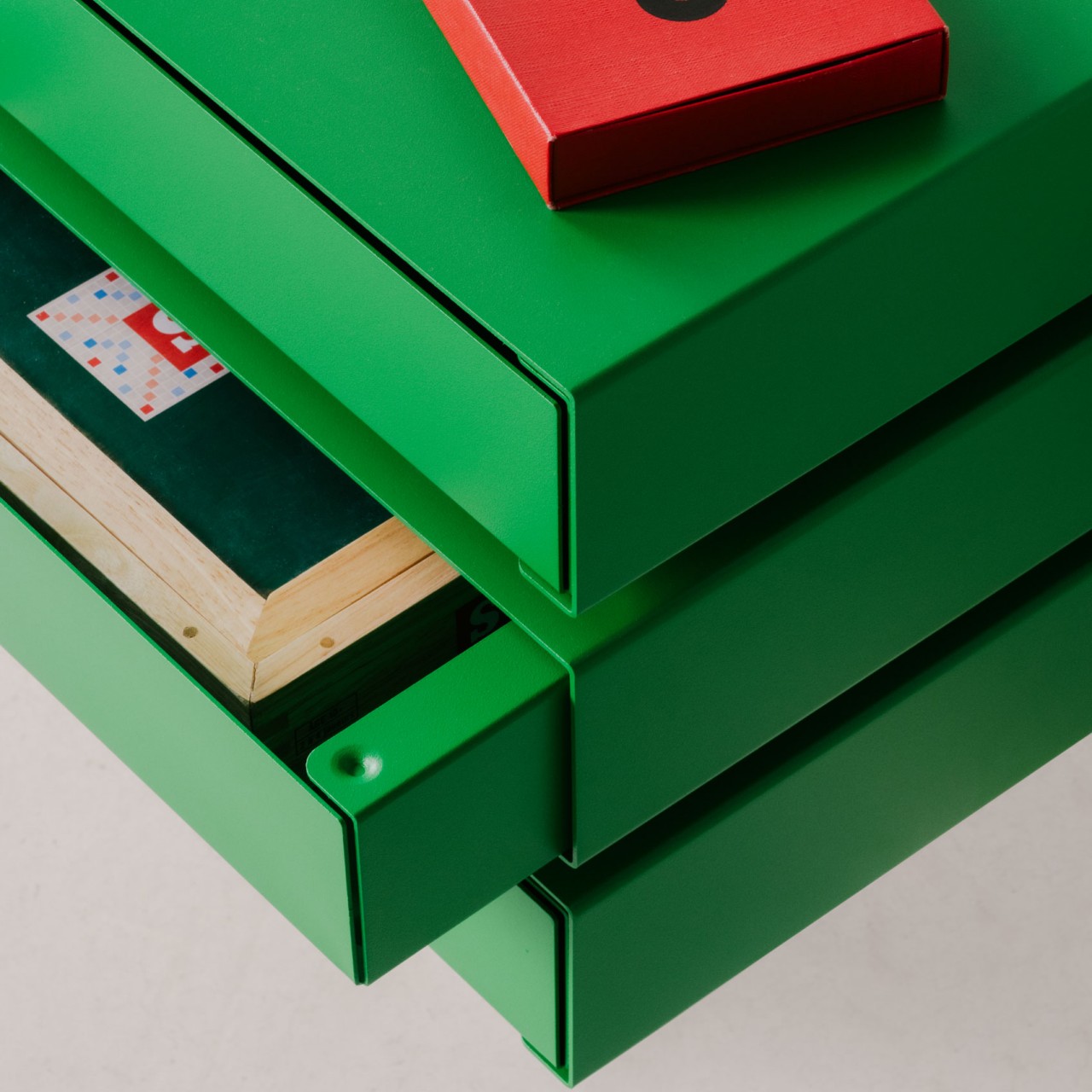
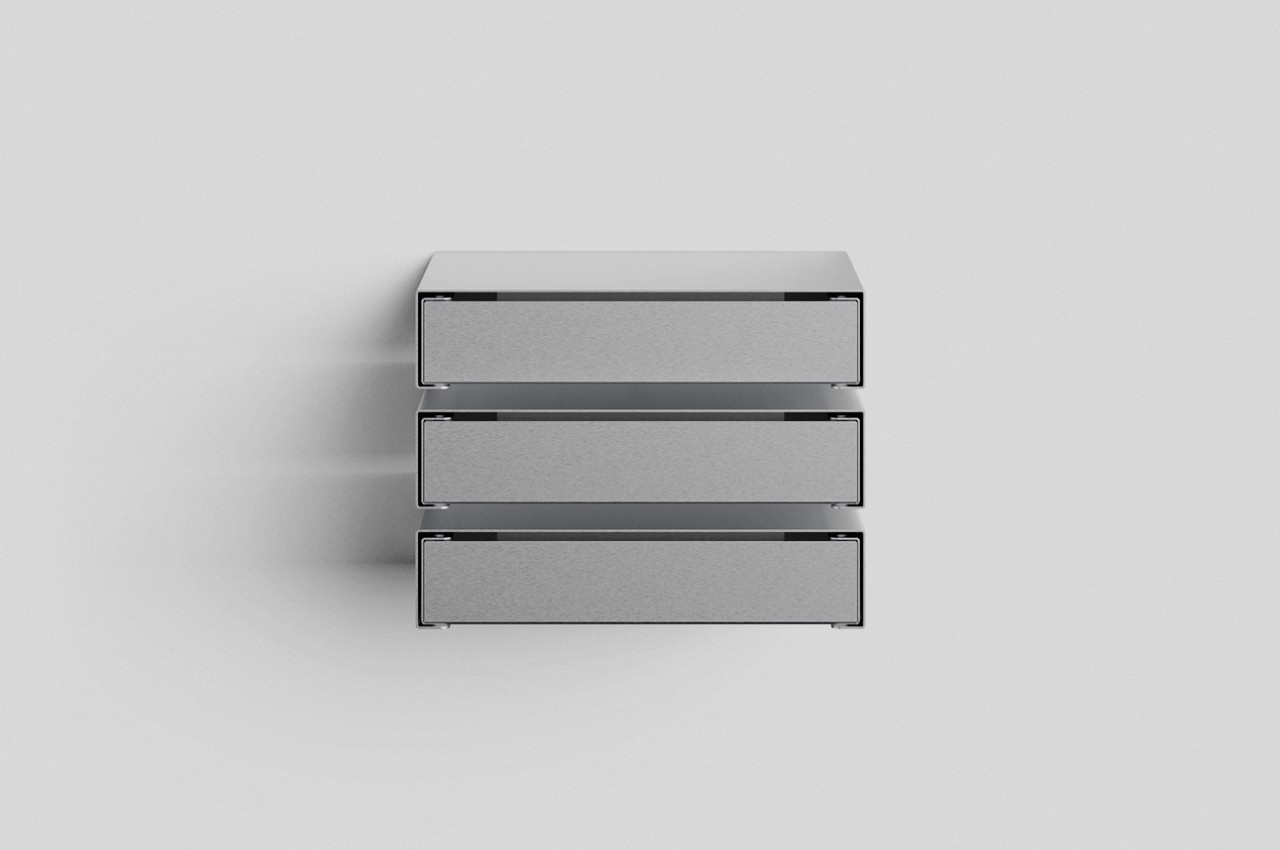
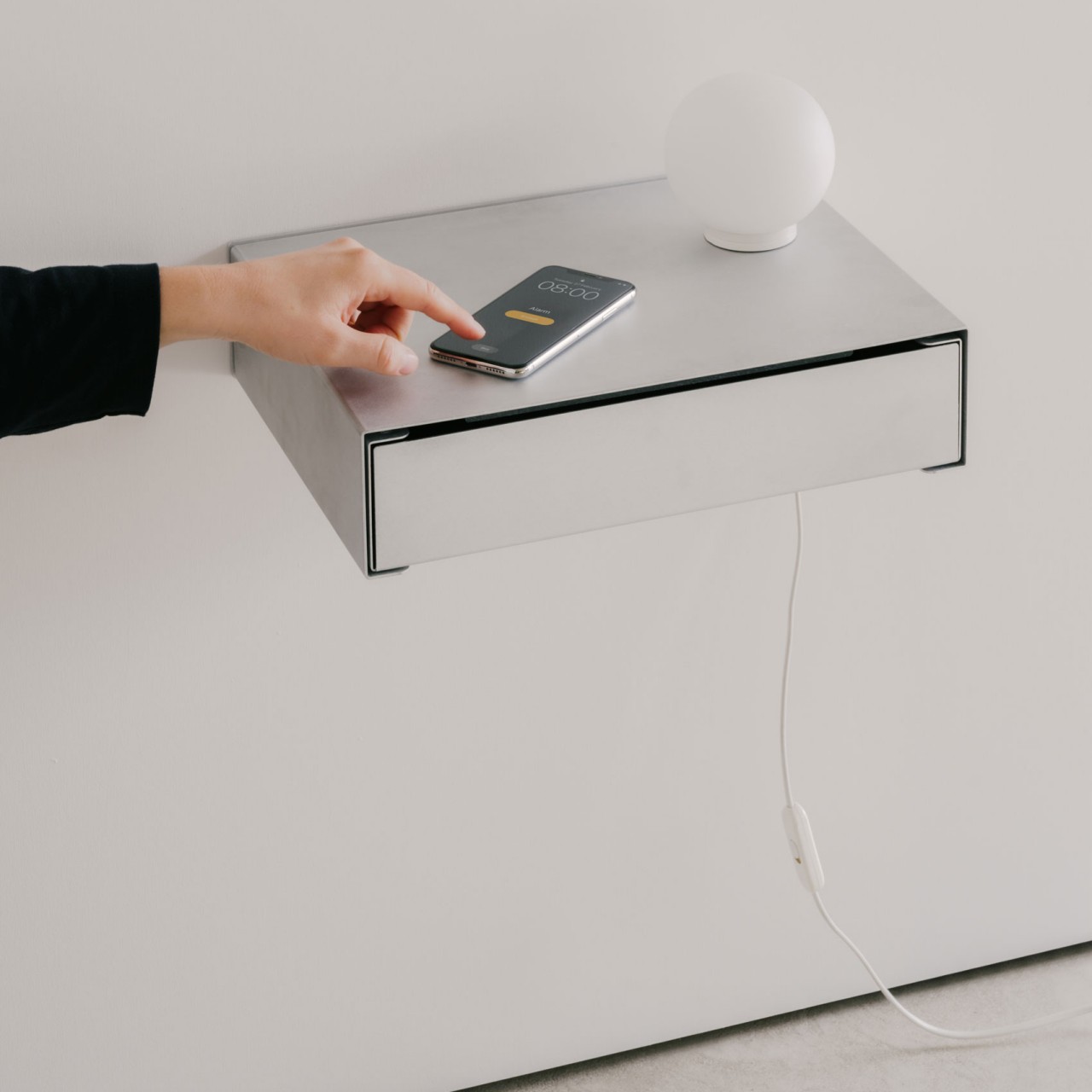
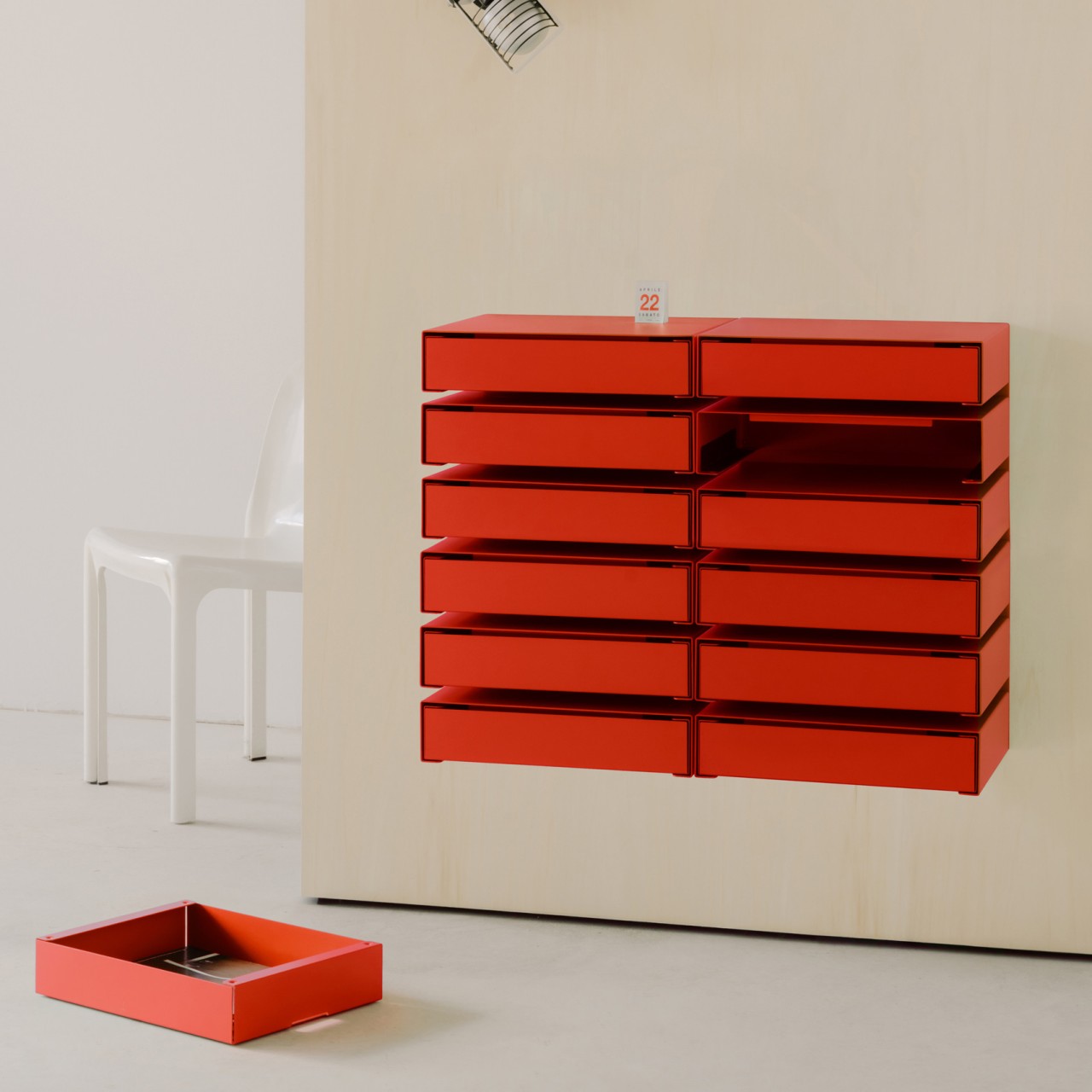
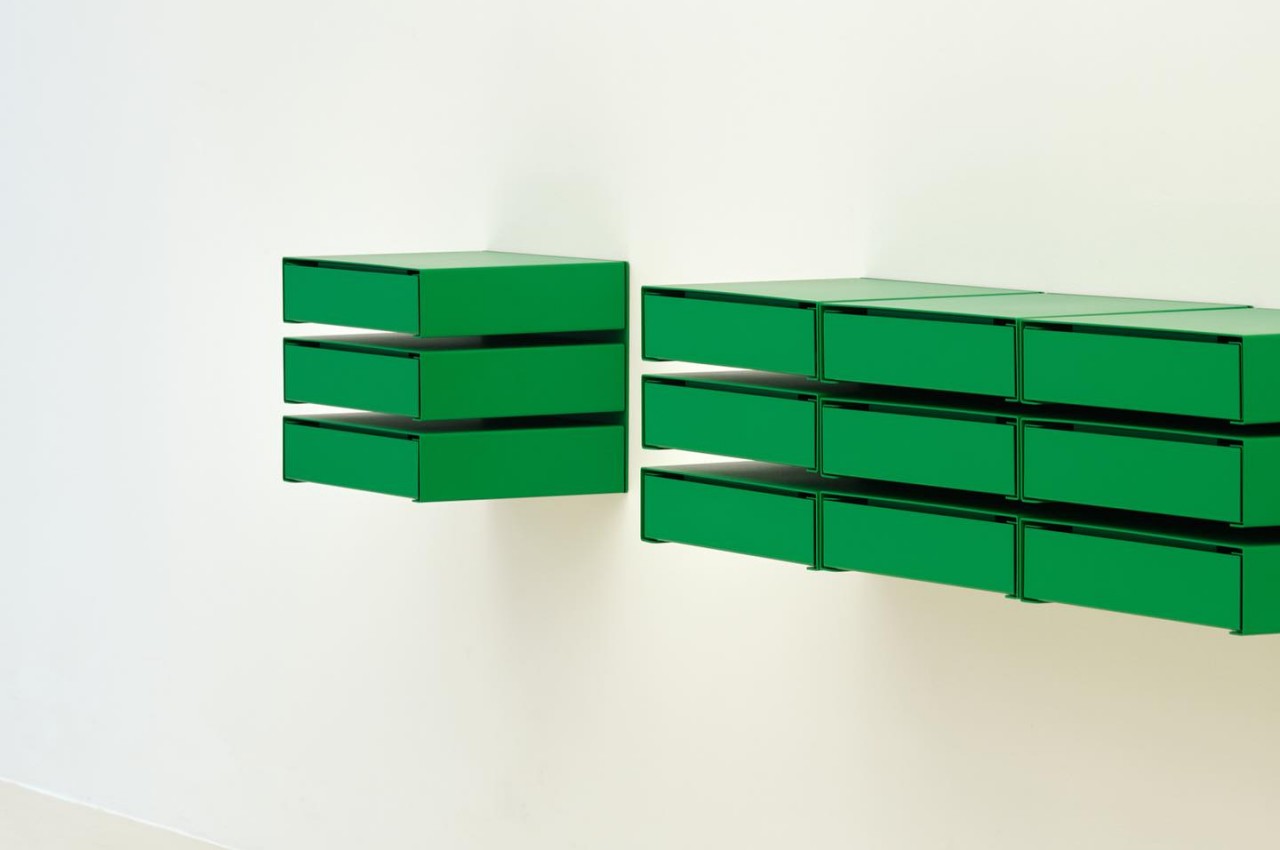
The KGT Wall Units evolved from metal storage boxes that could be individually stacked just like any conventional storage box. As the name implies, these boxes are mounted on a wall rather than lying on the floor. In this manner, they actually behave more like drawers rather than boxes, but the function and purpose are the same: to hide your possessions from view.
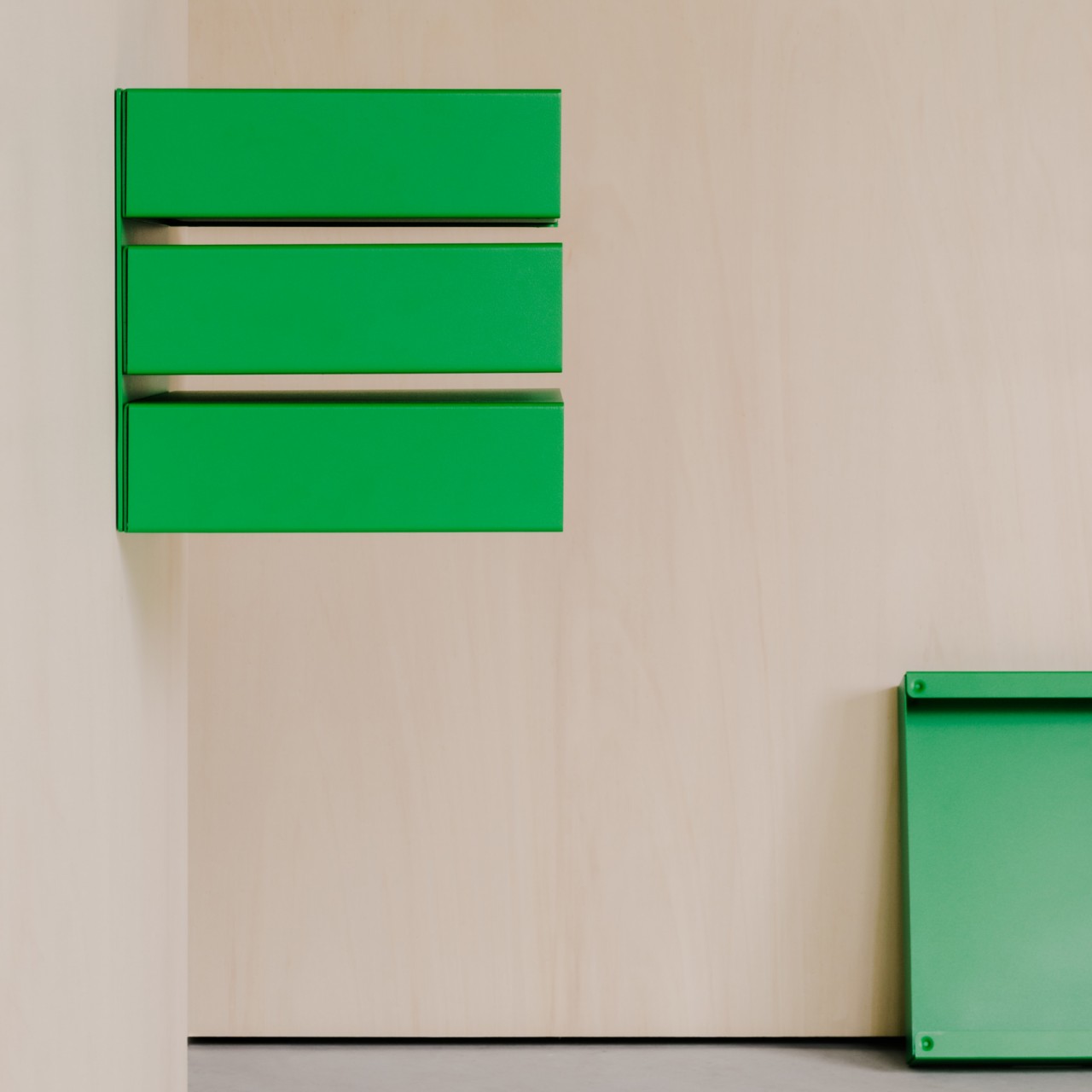
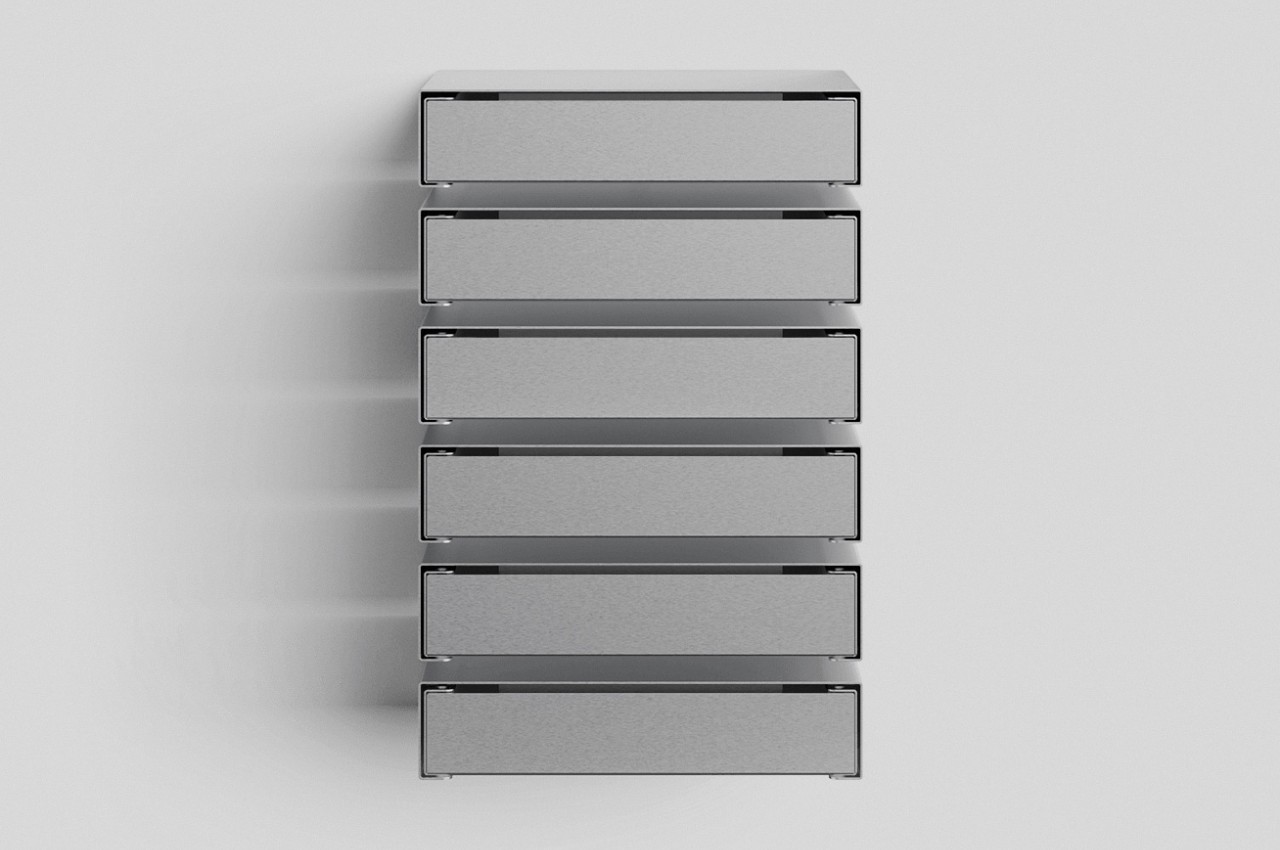
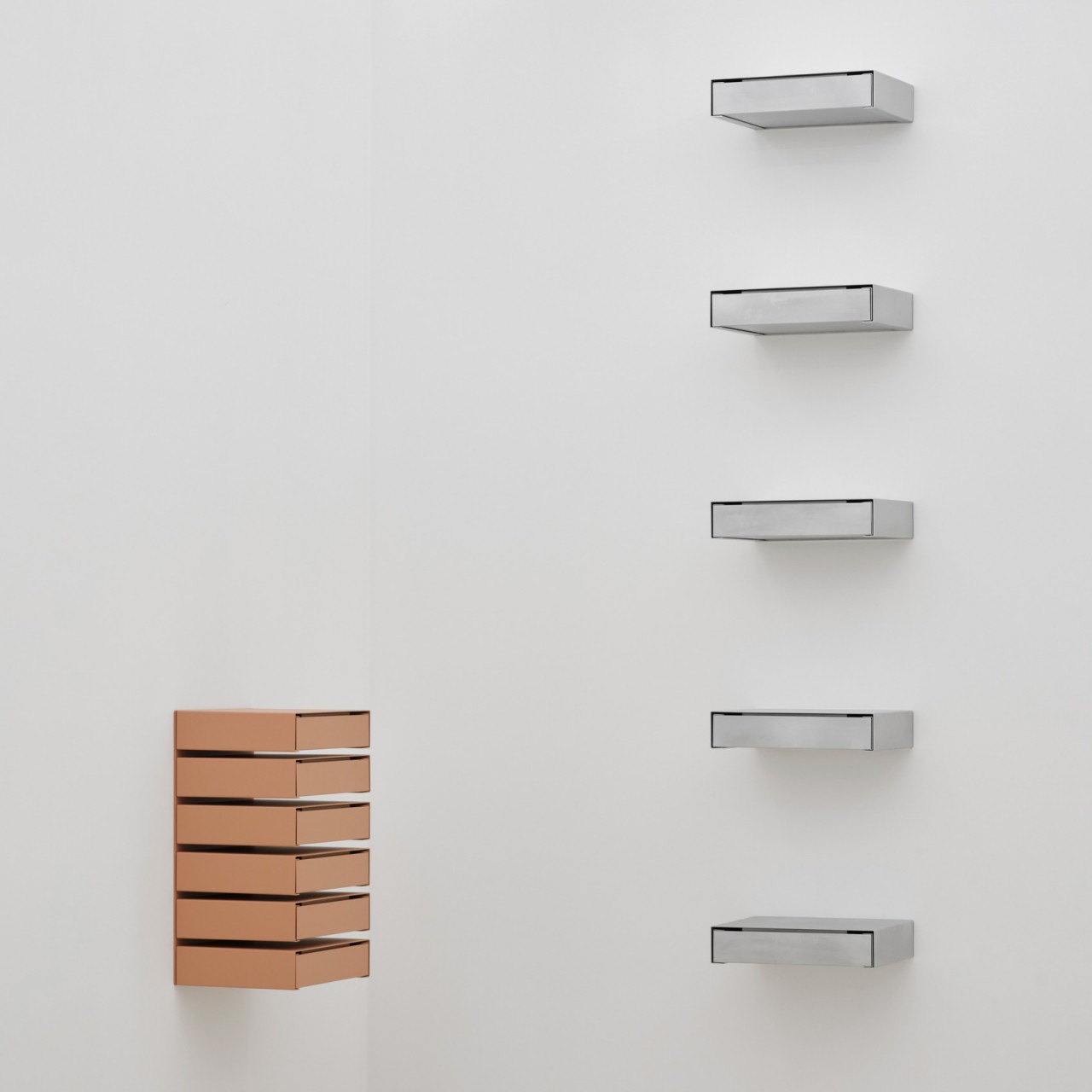
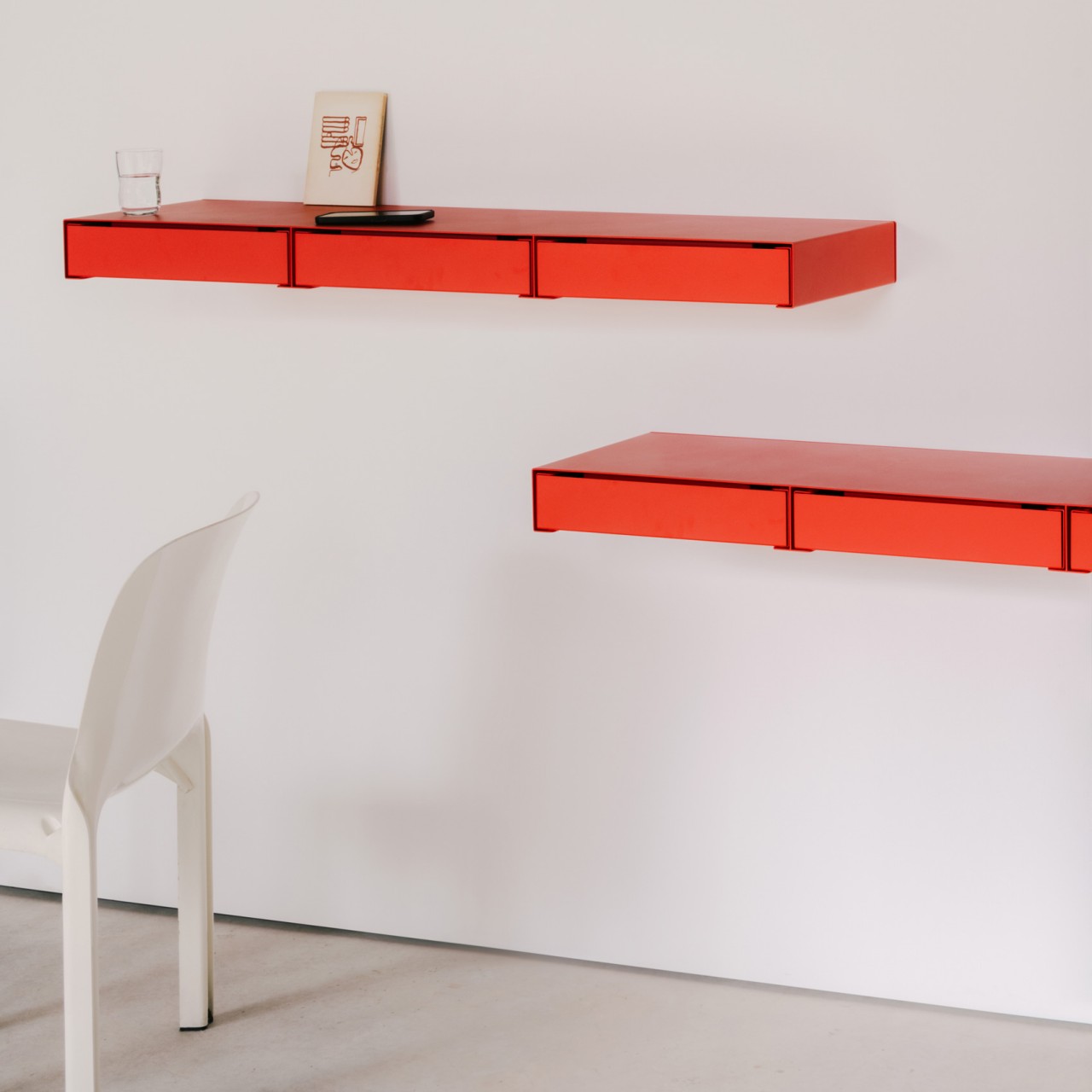
Of course, these can’t be stacked like normal boxes because they have to be screwed to a wall for stability. In fact, each unit has a fixed number of drawers, either one, three, or six in a vertical arrangement. There is one other variant where the drawers line up side-by-side, creating a long horizontal row instead. Of course, there’s no limitation on how you combine those units and how many you use. You could even have a whole stack of three six-unit drawers for a total of 18, or 18 individual drawers, presuming you have enough vertical clearance.
More than just their practical utility, however, these wall-mounted drawers add aesthetic value to a space, something ordinary stacked boxes don’t often provide. The gaps between each drawer bring some negative space that visually balances the unit, and the top of each unit becomes yet another space to utilize for things you want people to see. With a powder-coated finish, these seemingly floating drawers provide more than just smart storage but also visual interest to your space, all without cluttering your floor even further.
If you are interested in building your very own sophisticated AI assistant, one that can converse with users, answer their questions, and become an integral part of your customer service or personal project. You will be pleased to know that James Briggs has created a full walk-through of how you can use Claude 3 Opus […]
Hey there! If you’re into snapping pics or making videos with your phone, you’ve gotta check out what the iPhone’s camera can do. Seriously, it’s like having a pro camera right in your pocket, especially with the iPhone 14 Pro and iPhone 15 Pro models. They’re game-changers for anyone who loves capturing life’s moments or […]
Almost every major PC maker has dabbled with the idea of a dual-screen laptop at some point. Way back in 2011, Acer released the Iconia 6120 sporting not one but two 14-inch displays. Then at CES 2017, Razer showed off Project Valerie which bumped the panel count to three before demoing something a bit less extravagant a year later in Project Linda. Fast forward to 2020, when Dell dazzled us with the Concept Duet. Even Apple gave the category a go on the old MacBook Pros with Touch Bars, only to reverse course and ditch them completely a couple of years ago.
Meanwhile, Lenovo has an entire family of devices dating back to the original Yoga Book and culminating most recently in the Yoga Book 9i, with the latter coming extremely close to turning the promise of dual-screen laptops into an actual appealing choice. But now after several generations of its own devices, ASUS has put everything together with the Zenbook Duo. It’s a super sleek machine with two screens that’s barely larger than a similarly sized clamshell. There’s also a detachable keyboard and a built-in kickstand for maximum adaptability. And starting at $1,500, the Zenbook Duo doesn’t command a massive premium for something with a ton of extra utility. So while it’s been quite a journey to get here, ASUS has finally made a dual-screen laptop that proves once and for all that two screens really are better than one.
Design
One of the most impressive things about the Zenbook Duo is that it doesn’t look like some kind of Frankendeivce. It’s just a regular-looking 14-inch laptop. Even after you open it, things still look normal with a physical keyboard and touchpad, not to mention a healthy selection of ports around the outside (two Thunderbolt 4, one USB 3.2 Type-A and a full-size HDMI 2.1 jack). A small part of me wishes ASUS had found room for some kind of SD card reader, but I understand if there just wasn’t space.
It’s only after you remove the keyboard that things get interesting because as soon as you do, the Duo’s second display springs to life. From here, you have a ton of options. Tapping three fingers on the lower panel summons a floating touchpad. Alternatively, eight fingers makes a virtual keyboard appear, which you can follow with a swipe up to reveal a traditional keyboard/trackpad combo. But the cool thing is that because these are all virtual stand-ins, it's easy to swap in a new layout (like for other languages), move the touchpad off to the side or call up a numpad if you need to do some data entry. There’s just so much more flexibility when half of a laptop’s interior isn’t taken up by a rigid set of physical keys.
Photo by Sam Rutherford/Engadget
But things keep getting better, because on the bottom of the Duo is a flap that folds out into a kickstand. This allows you to prop the system up and use both screens as proper displays, sort of like a portable dual-monitor setup but all in a single self-contained system. And because the detachable keyboard connects wirelessly over Bluetooth, you can place it in front (or wherever you want) just like a desktop. The one small drawback to this design is that if you rotate the Duo’s displays into portrait orientation side by side, the design of the kickstand means there’s no way to adjust how far it tilts. This heavily favors the stacked setup with one display above, which is fine because I think that arrangement is more useful in most situations.
Another pleasant surprise is that for a device with two screens, the Zenbook Duo isn’t much bigger or heavier than a typical clamshell. It weighs 3.6 pounds and measures 0.78 inches thick versus the 2.82 pounds and 0.59 inches for a standard Zenbook 14 OLED. And when compared to something like a Dell XPS 14 (3.7 pounds and 0.71 inches thick), both systems are practically the same size.
Photo by Sam Rutherford/Engadget
My one gripe is that ASUS’ dark gray paint job color doesn’t help the Duo stand out. It’s almost like someone who wears subdued colors to avoid drawing attention. But this design is fantastic and I wish ASUS would give this laptop (and the engineers who designed it) the flowers it deserves.
Displays and software
The centerpiece of the Duo is its pair of 14-inch displays, which are an absolute delight. Not only do the matching OLED panels offer strong brightness (around 500 nits), they also pump out rich and accurate colors (100 percent of DCI-P3). But the real magic is when you use both panels together.
Photo by Sam Rutherford/Engadget
Moving apps from one display to another is as simple as dragging and dropping or using the handy menus that appear at the top of the display. In addition, there’s a floating button in the bottom left for ASUS’ ScreenXpert software, which provides shortcuts for adjusting brightness (separately or as a pair), disabling specific panels or pulling up handy widgets for things like a control panel, a handwriting recognition tool, news and weather and more. If the goal was to get as much value out of the Duo’s two displays, I think ASUS’ software does a pretty good job.
The downside to all this is that despite ASUS’ best efforts, Windows 11 and many apps still aren’t fully optimized for systems like this. For example, when I played a round of Teamfight Tactics and wanted to pull up some game stats on the lower display, I ran into an issue where the virtual touchpad stopped working. It was only after I set the game to borderless window mode, closed the game and relaunched everything that it started working again. Granted, situations like this were rare, but it’s important to remember that when you’re using a cutting-edge device, there may be some bugs or awkward interactions.
Performance
Photo by Sam Rutherford/Engadget
The Zenbook Duo comes with an Intel Core Ultra 7 155H processor, 16GB of RAM and a 1TB NVMe SSD. While you can upgrade it with double the memory and a faster Ultra 9 chip, I found the base configuration to be plenty fast. On tests like Geekbench 6 and PCMark 10, the Zenbook Duo turned in results that were identical to those from similarly equipped clamshells, including ASUS’ own Zenbook 14 OLED. This is great because it means there’s not a ton of overhead due to the addition of a second screen and even when setup in desktop mode, dragging apps from one display to another felt snappy and responsive. The obvious drawback is that unlike some 14-inch systems such as the XPS 14, there’s no room for a discrete GPU, which makes the Zenbook Duo better suited to general productivity than more demanding tasks like video editing.
Battery life
You might think a system with two screens would be a battery hog, but the Zenbook Duo fared better than expected. With just one screen on, it lasted 13 hours and 12 minutes on our video rundown test, which is pretty much equivalent to (actually a touch longer than) the Zenbook 14 OLED (12:43). And with both screens going, the Duo’s time only dropped to 10:17, which is still more than enough to survive an entire workday.
Wrap-up
Photo by Sam Rutherford/Engadget
OK, so the Zenbook Duo delivers on the promises of dual-screen laptops. But one question I get a lot is who are devices like this actually for? The most obvious application is for people who carry a portable monitor around while traveling. But more generally, this thing is aimed at anyone who appreciates multiple monitors and wants a system that can recreate that experience in a more travel-friendly way, which is something the Zenbook Duo does with aplomb. The best part though is that it doesn’t make major sacrifices to do so, because thanks to its detachable keyboard, it can function just like any other clamshell when space is tight (like on an airplane).
When you have room to spread out, it transforms into a portable workstation with plenty of screen space for a project up top and bonus real estate for Slack, email, video calls or anything else you might need down below. It's got ample ports so you don’t need to carry a dongle around and thanks to its gorgeous OLED screens, your work (or play) always looks great. The Zenbook Duo can do everything a traditional laptop can and more. Yes, the software experience could be a bit more polished, though that’s not entirely on ASUS. We still need a new version of Windows to provide better OS support for dual-screen machines. But considering all the struggles and multiple generations it took to get here, the Zenbook Duo is a marvelous torchbearer for a new class of portable PCs.
This article originally appeared on Engadget at https://www.engadget.com/asus-zenbook-duo-review-specs-price-the-first-dual-screen-laptop-worth-buying-130016756.html?src=rss
Almost every major PC maker has dabbled with the idea of a dual-screen laptop at some point. Way back in 2011, Acer released the Iconia 6120 sporting not one but two 14-inch displays. Then at CES 2017, Razer showed off Project Valerie which bumped the panel count to three before demoing something a bit less extravagant a year later in Project Linda. Fast forward to 2020, when Dell dazzled us with the Concept Duet. Even Apple gave the category a go on the old MacBook Pros with Touch Bars, only to reverse course and ditch them completely a couple of years ago.
Meanwhile, Lenovo has an entire family of devices dating back to the original Yoga Book and culminating most recently in the Yoga Book 9i, with the latter coming extremely close to turning the promise of dual-screen laptops into an actual appealing choice. But now after several generations of its own devices, ASUS has put everything together with the Zenbook Duo. It’s a super sleek machine with two screens that’s barely larger than a similarly sized clamshell. There’s also a detachable keyboard and a built-in kickstand for maximum adaptability. And starting at $1,500, the Zenbook Duo doesn’t command a massive premium for something with a ton of extra utility. So while it’s been quite a journey to get here, ASUS has finally made a dual-screen laptop that proves once and for all that two screens really are better than one.
Design
One of the most impressive things about the Zenbook Duo is that it doesn’t look like some kind of Frankendeivce. It’s just a regular-looking 14-inch laptop. Even after you open it, things still look normal with a physical keyboard and touchpad, not to mention a healthy selection of ports around the outside (two Thunderbolt 4, one USB 3.2 Type-A and a full-size HDMI 2.1 jack). A small part of me wishes ASUS had found room for some kind of SD card reader, but I understand if there just wasn’t space.
It’s only after you remove the keyboard that things get interesting because as soon as you do, the Duo’s second display springs to life. From here, you have a ton of options. Tapping three fingers on the lower panel summons a floating touchpad. Alternatively, eight fingers makes a virtual keyboard appear, which you can follow with a swipe up to reveal a traditional keyboard/trackpad combo. But the cool thing is that because these are all virtual stand-ins, it's easy to swap in a new layout (like for other languages), move the touchpad off to the side or call up a numpad if you need to do some data entry. There’s just so much more flexibility when half of a laptop’s interior isn’t taken up by a rigid set of physical keys.
Photo by Sam Rutherford/Engadget
But things keep getting better, because on the bottom of the Duo is a flap that folds out into a kickstand. This allows you to prop the system up and use both screens as proper displays, sort of like a portable dual-monitor setup but all in a single self-contained system. And because the detachable keyboard connects wirelessly over Bluetooth, you can place it in front (or wherever you want) just like a desktop. The one small drawback to this design is that if you rotate the Duo’s displays into portrait orientation side by side, the design of the kickstand means there’s no way to adjust how far it tilts. This heavily favors the stacked setup with one display above, which is fine because I think that arrangement is more useful in most situations.
Another pleasant surprise is that for a device with two screens, the Zenbook Duo isn’t much bigger or heavier than a typical clamshell. It weighs 3.6 pounds and measures 0.78 inches thick versus the 2.82 pounds and 0.59 inches for a standard Zenbook 14 OLED. And when compared to something like a Dell XPS 14 (3.7 pounds and 0.71 inches thick), both systems are practically the same size.
Photo by Sam Rutherford/Engadget
My one gripe is that ASUS’ dark gray paint job color doesn’t help the Duo stand out. It’s almost like someone who wears subdued colors to avoid drawing attention. But this design is fantastic and I wish ASUS would give this laptop (and the engineers who designed it) the flowers it deserves.
Displays and software
The centerpiece of the Duo is its pair of 14-inch displays, which are an absolute delight. Not only do the matching OLED panels offer strong brightness (around 500 nits), they also pump out rich and accurate colors (100 percent of DCI-P3). But the real magic is when you use both panels together.
Photo by Sam Rutherford/Engadget
Moving apps from one display to another is as simple as dragging and dropping or using the handy menus that appear at the top of the display. In addition, there’s a floating button in the bottom left for ASUS’ ScreenXpert software, which provides shortcuts for adjusting brightness (separately or as a pair), disabling specific panels or pulling up handy widgets for things like a control panel, a handwriting recognition tool, news and weather and more. If the goal was to get as much value out of the Duo’s two displays, I think ASUS’ software does a pretty good job.
The downside to all this is that despite ASUS’ best efforts, Windows 11 and many apps still aren’t fully optimized for systems like this. For example, when I played a round of Teamfight Tactics and wanted to pull up some game stats on the lower display, I ran into an issue where the virtual touchpad stopped working. It was only after I set the game to borderless window mode, closed the game and relaunched everything that it started working again. Granted, situations like this were rare, but it’s important to remember that when you’re using a cutting-edge device, there may be some bugs or awkward interactions.
Performance
Photo by Sam Rutherford/Engadget
The Zenbook Duo comes with an Intel Core Ultra 7 155H processor, 16GB of RAM and a 1TB NVMe SSD. While you can upgrade it with double the memory and a faster Ultra 9 chip, I found the base configuration to be plenty fast. On tests like Geekbench 6 and PCMark 10, the Zenbook Duo turned in results that were identical to those from similarly equipped clamshells, including ASUS’ own Zenbook 14 OLED. This is great because it means there’s not a ton of overhead due to the addition of a second screen and even when setup in desktop mode, dragging apps from one display to another felt snappy and responsive. The obvious drawback is that unlike some 14-inch systems such as the XPS 14, there’s no room for a discrete GPU, which makes the Zenbook Duo better suited to general productivity than more demanding tasks like video editing.
Battery life
You might think a system with two screens would be a battery hog, but the Zenbook Duo fared better than expected. With just one screen on, it lasted 13 hours and 12 minutes on our video rundown test, which is pretty much equivalent to (actually a touch longer than) the Zenbook 14 OLED (12:43). And with both screens going, the Duo’s time only dropped to 10:17, which is still more than enough to survive an entire workday.
Wrap-up
Photo by Sam Rutherford/Engadget
OK, so the Zenbook Duo delivers on the promises of dual-screen laptops. But one question I get a lot is who are devices like this actually for? The most obvious application is for people who carry a portable monitor around while traveling. But more generally, this thing is aimed at anyone who appreciates multiple monitors and wants a system that can recreate that experience in a more travel-friendly way, which is something the Zenbook Duo does with aplomb. The best part though is that it doesn’t make major sacrifices to do so, because thanks to its detachable keyboard, it can function just like any other clamshell when space is tight (like on an airplane).
When you have room to spread out, it transforms into a portable workstation with plenty of screen space for a project up top and bonus real estate for Slack, email, video calls or anything else you might need down below. It's got ample ports so you don’t need to carry a dongle around and thanks to its gorgeous OLED screens, your work (or play) always looks great. The Zenbook Duo can do everything a traditional laptop can and more. Yes, the software experience could be a bit more polished, though that’s not entirely on ASUS. We still need a new version of Windows to provide better OS support for dual-screen machines. But considering all the struggles and multiple generations it took to get here, the Zenbook Duo is a marvelous torchbearer for a new class of portable PCs.
This article originally appeared on Engadget at https://www.engadget.com/asus-zenbook-duo-review-specs-price-the-first-dual-screen-laptop-worth-buying-130016756.html?src=rss
The Nerdy Novelist has been trying out a new way for users to control ChatGPT responses more precisely using AutoCrit. A program designed to improve ChatGPT writing by making it sound more human and addressing common weaknesses. Imagine you’re crafting a story, an article, or any piece of writing, and you want it to resonate […]
Elon Musk’s AI team has recently released Grok-1, a large language model with 314 billion parameters. This mixture of experts model, which has not yet been quantized, was put through its paces in various areas, including coding, logic, reasoning, and censorship. One of the most impressive aspects of Grok-1 is its ability to generate code […]
The Google Pixel Buds Pro scored an 87 in our review thanks to the addition of solid active noise cancellation (ANC), a punchy base, and reliable touch controls. This generation is the first to include ANC, which can be reason enough to consider an upgrade. The earbuds are a good choice for working out, too, as they offer IPX4 water resistance.
The Pixel Buds Pro also offer wireless charging and a quick-charge feature that juices the earbuds up to one hour of ANC listening in five minutes. Speaking of charging, Google's earbuds can hold 11 hours of charge and 31 in total with the case's boost.
However, there are a few aspects Google still needs to work on, such as spatial audio, which needs more support to function well. There's also the call quality, which is far from the clearest of all the earbuds on the market. But, at $61 off, these issues become less of a dealbreaker.
This article originally appeared on Engadget at https://www.engadget.com/the-google-pixel-buds-pro-drop-to-139-for-the-amazon-big-spring-sale-124850130.html?src=rss