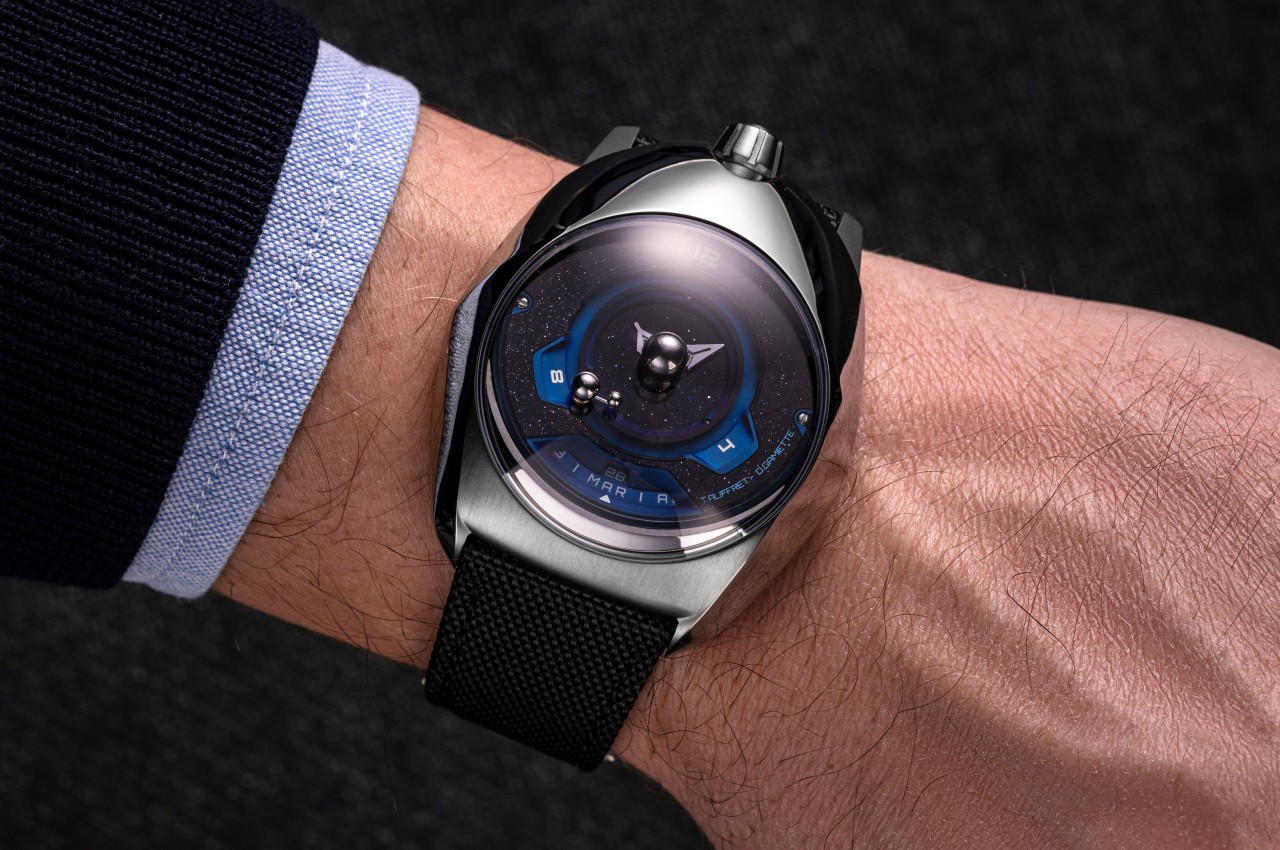
Although the measurement of time is mostly a human construct, it has its basis in the natural world. A day is the time it takes for the sun to rise, set, and rise again, a month is how long it takes for the moon to go through all four of its phases, and a year is how long the seasons last. All of these, including the change of seasons, are pretty much the result of the orbit of the Earth around the sun and the orbit of the Moon around the Earth. It’s a movement that happens on a regular cadence without fail, which is to say it happens like clockwork. It’s no surprise, then, to find an elegant and luxurious watch that brings all these elements together, letting you watch not only the passage of time each day but also the journey of our planet and its companion.
Designer: Theo Auffret (Complication), Olivier Gamiette (Case, Dial) for SpaceOne Watches
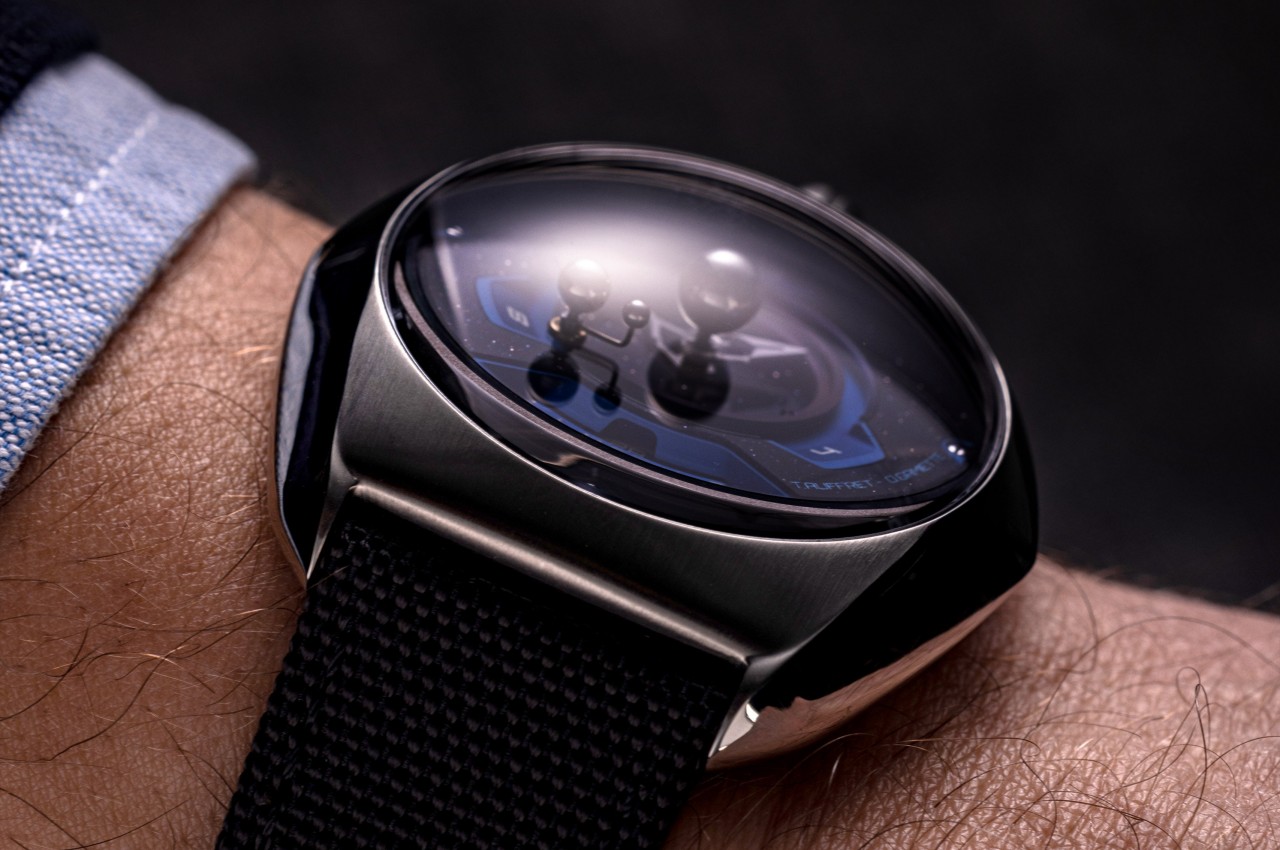
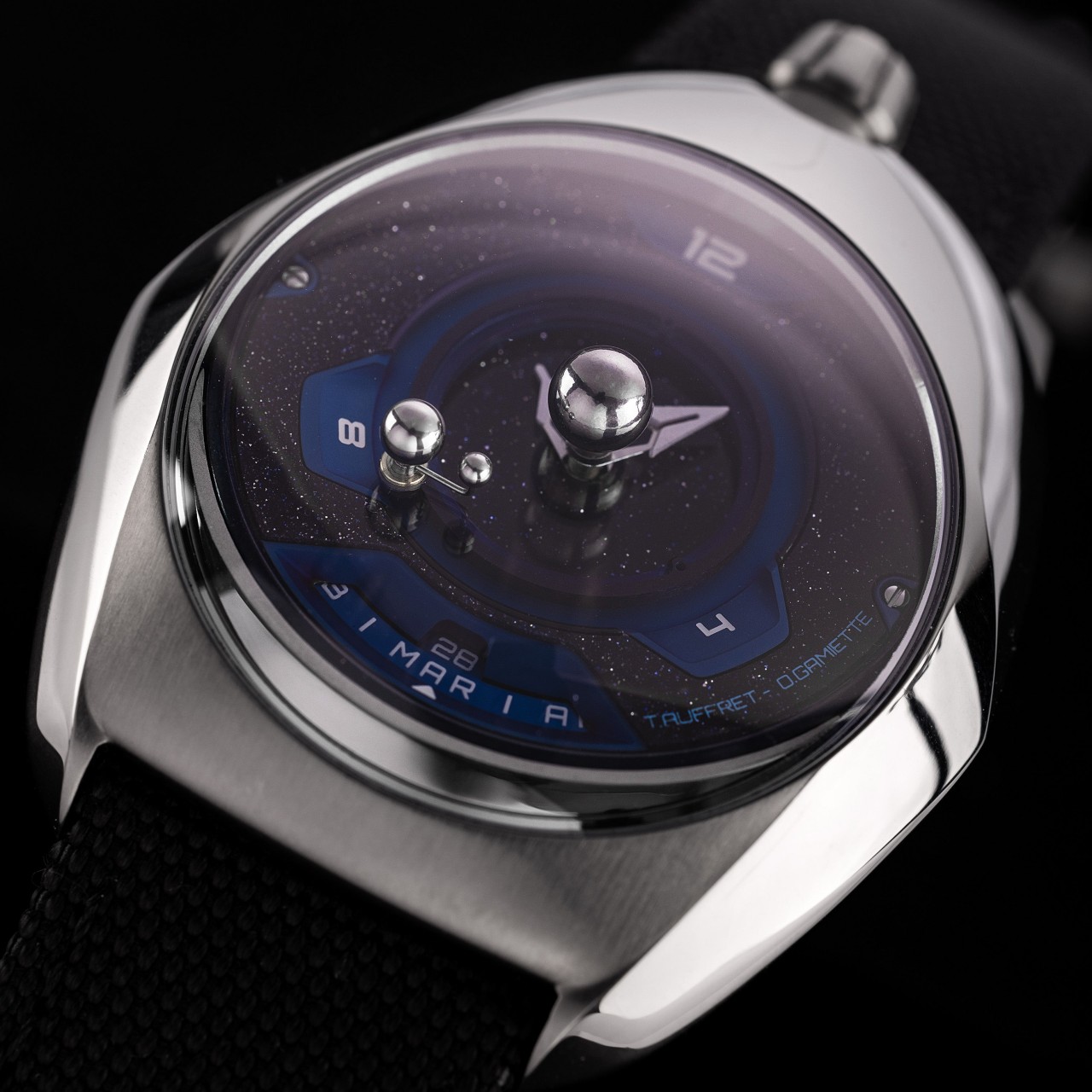
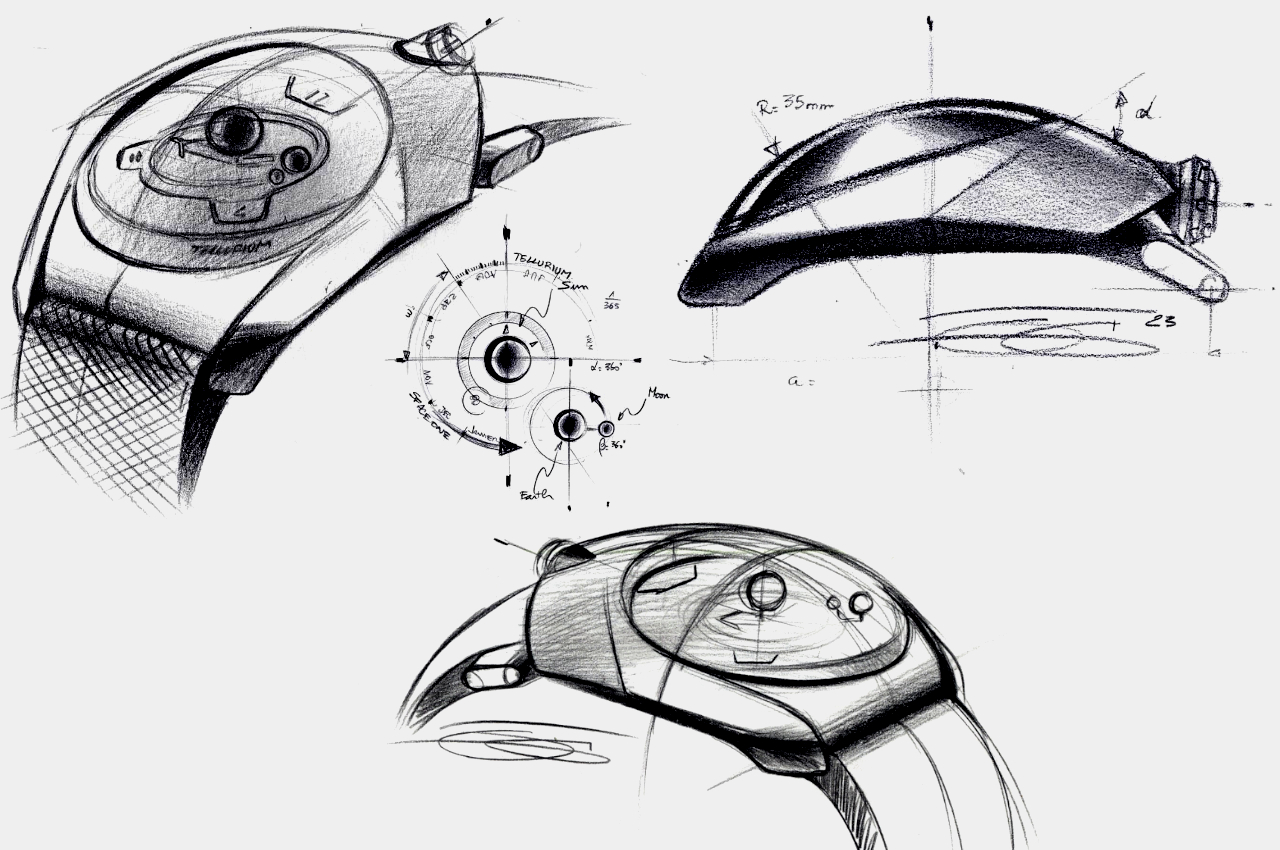
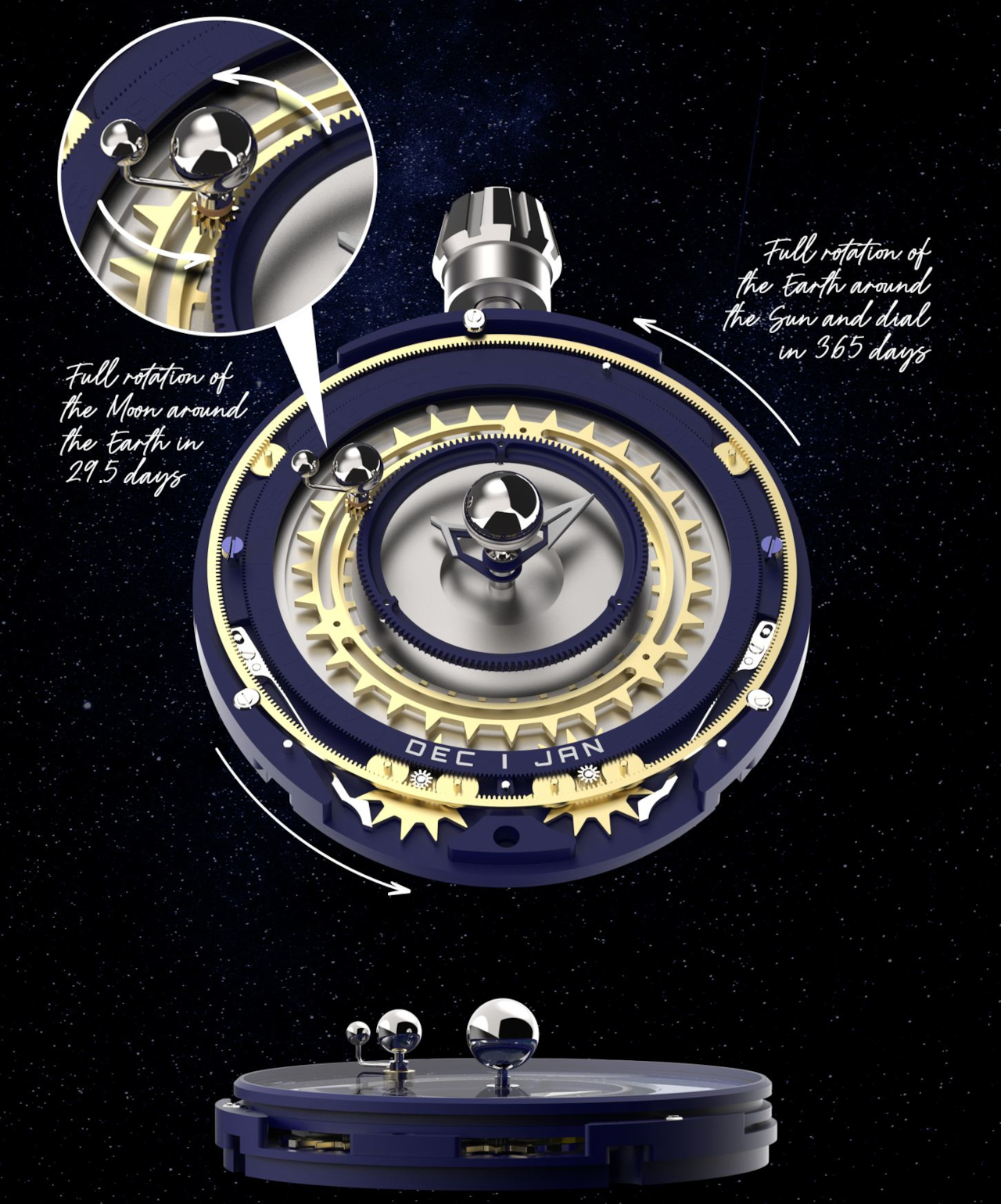
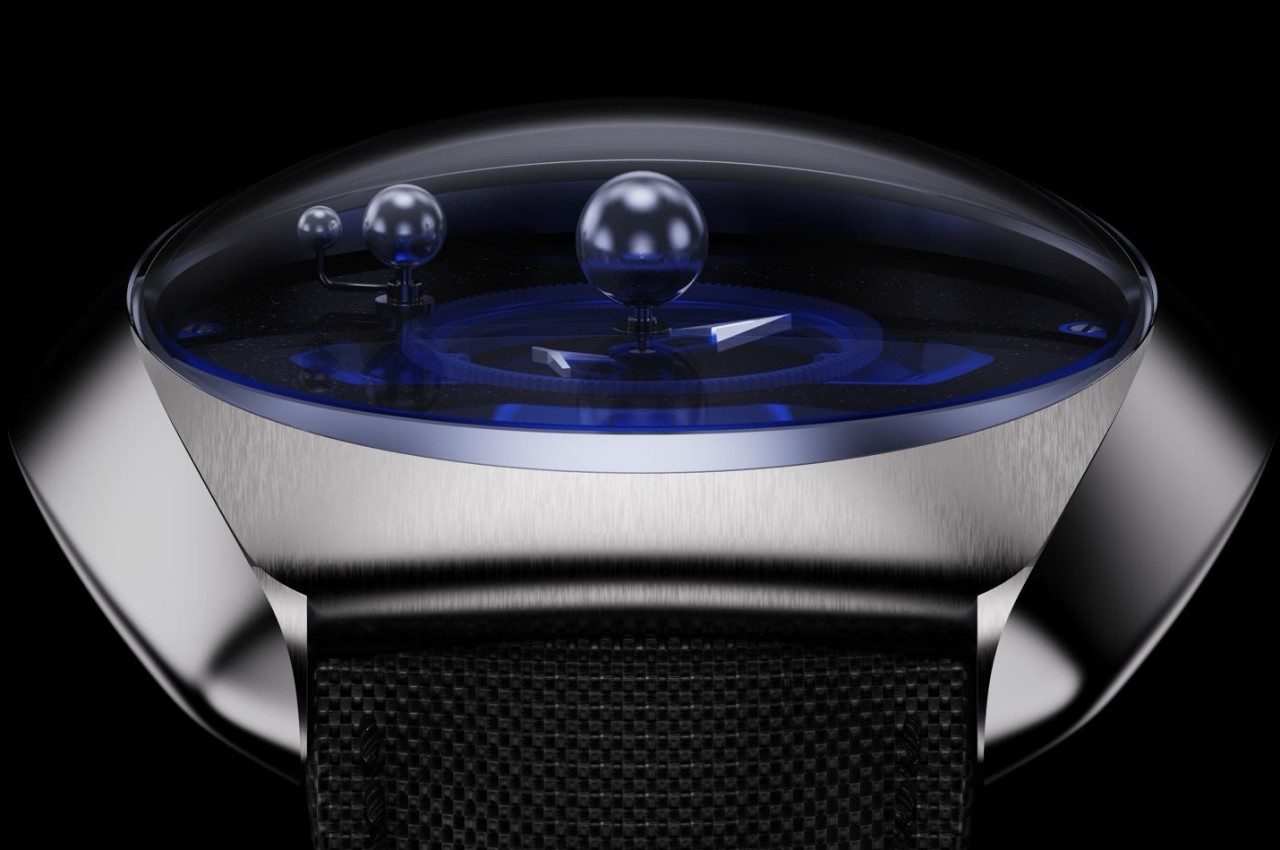
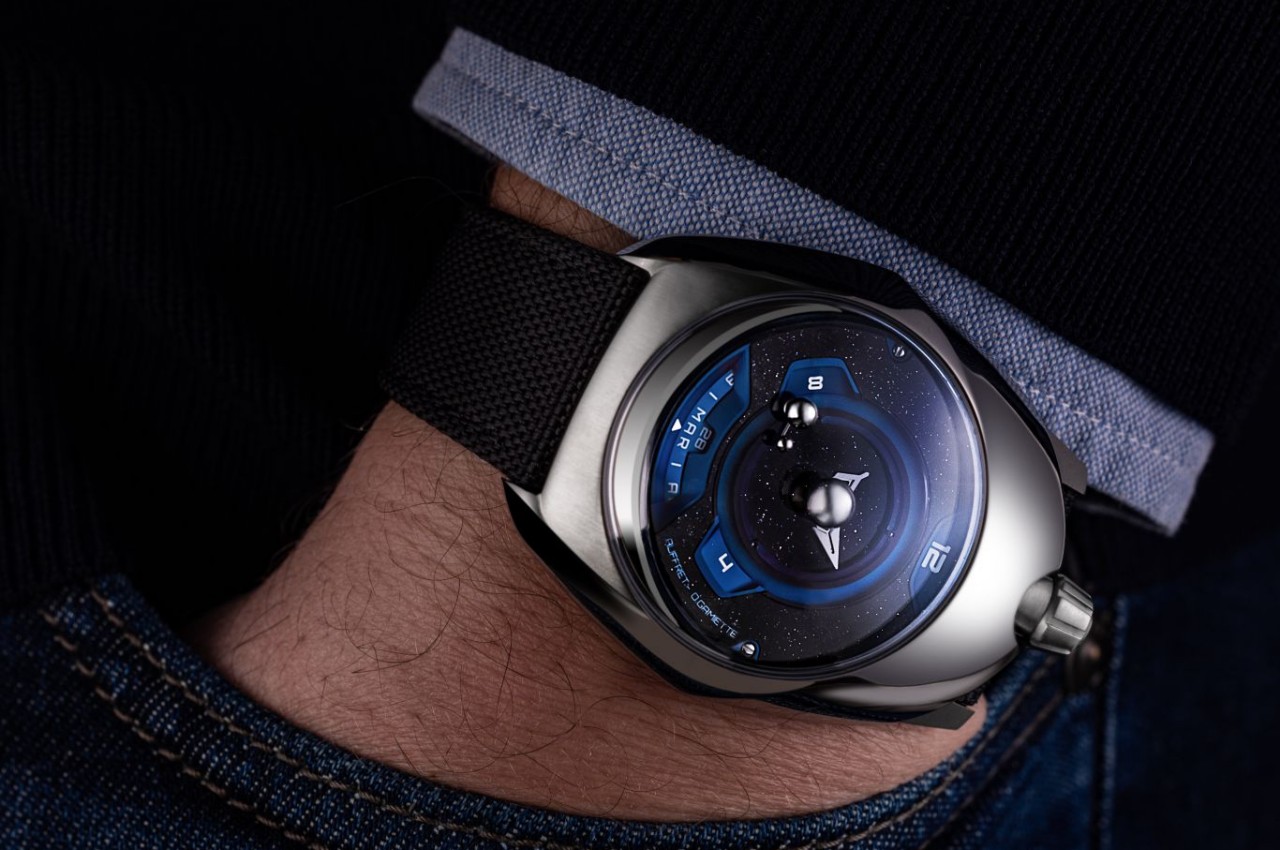
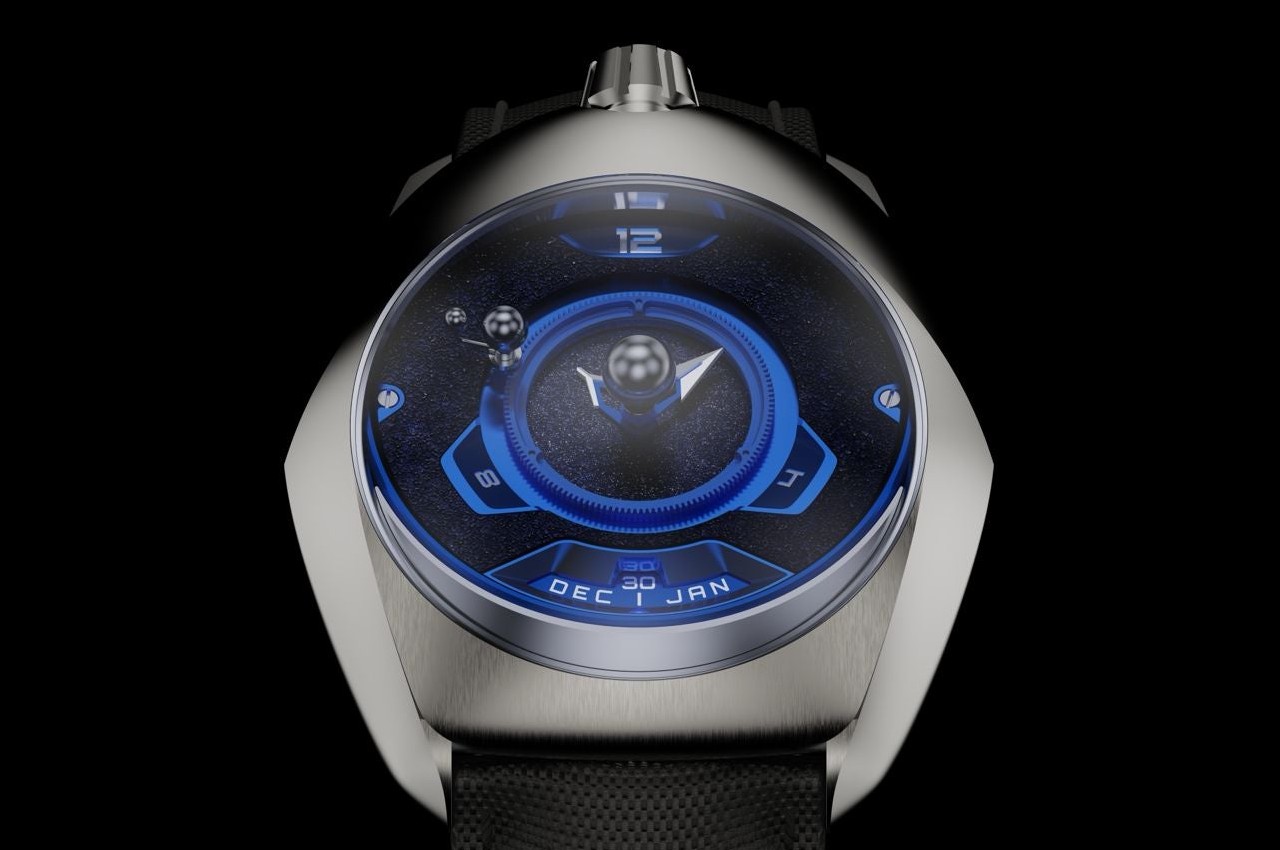
Analog watches are already quite complex because of the mechanisms that make the parts move, but the SpaceOne Tellurium takes that to a whole new level with additional complications for its unique complication (pun intended). Aside from the typical hour and minute hands, this titanium watch also shows tiny versions of the Earth and the Moon going around a proportionally minuscule sun in the middle. The smaller spheres don’t simply go around the watch and call it a day, though, because the movement of these miniature Earth and Moon mirror the actual rhythm of their celestial counterparts.
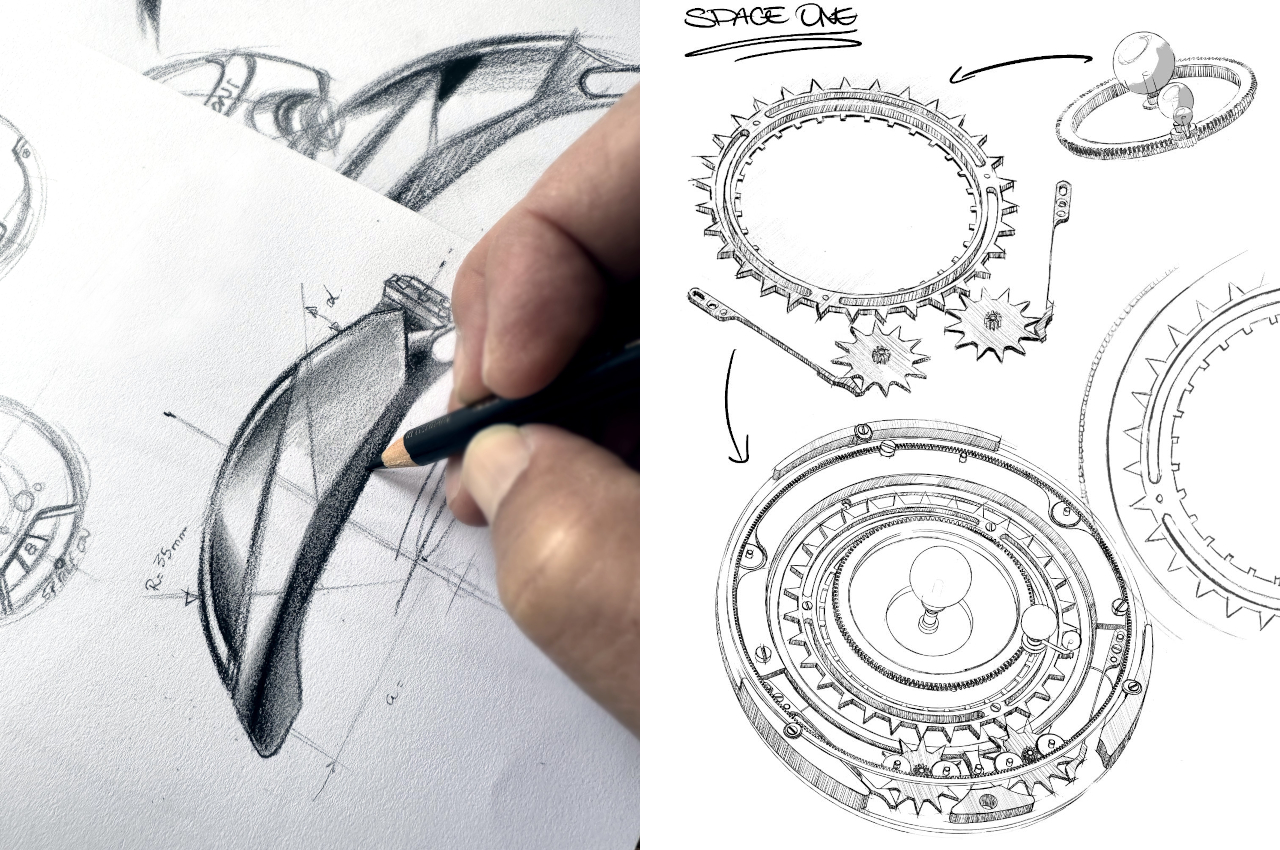
Connected to the watch’s Soprod Caliber P024 movement is a star wheel with 31 teeth, representing the days in a month. When the date changes, this wheel advances two small star wheels, both with 12 teeth, that advance the month and move the Tellurium complication, respectively. The Earth, and therefore also the Moon, is connected to a ring with 365 teeth, which makes it complete a revolution once a year. With this mechanism, you can accurately follow the movement of the Earth and the Moon and even predict the next full or new moon phases. Consequently, it also means you will need to adjust and fine-tune the watch every time the number of days in a month changes between 30 and 31.
The watch’s celestial beauty is complemented by its premium materials and stunning design. Grade 5 titanium gives the case and strap buckle durability and lightness while also lending an elegant appearance. Instead of the typical quarter division of numbers, the watch face is divided into three sections only, forming a triangular shape that feels more suitable for a space-inspired design. This visual is further enhanced by a black and blue color scheme, with a sprinkle of white dots to represent stars against the darkness of space.
If you are searching for a wireless gaming mouse that can keep up with your lightning-fast reflexes and deliver pinpoint accuracy. It might be worth your while checking out the new ROG Keris II Ace wireless gaming mouse unveiled earlier this year and soon-to-be available to purchase. With its cutting-edge 42,000-dpi ROG AimPoint Pro optical […]
Are you grappling with the ever-so-common dilemma of vanishing storage space on your iPhone, especially after the iOS 17 update? You are not alone. Many users find themselves puzzled by the ‘System Data’ that seems to consume a hefty chunk of their storage, leaving them wondering how to reclaim some of that precious space without […]
Jeffrey Hui, a research engineer at Google, discusses the integration of large language models (LLMs) into the development process using Llama.cpp, an open-source inference framework. He explains the benefits of running LLMs locally, particularly for prototyping projects where API calls can be costly or internet access is unreliable. The framework is optimized for on-device use, […]
Daily planner apps have become an indispensable tool for individuals seeking to optimize their time management and streamline their tasks with unparalleled precision. With a plethora of options available at your fingertips, the process of selecting the ideal app to simplify your schedule can be a daunting task. This meticulously curated list of the year’s […]
In this article, we look at a range of awesome iPhone automation that you should check out. In the digital era where efficiency and personalization reign supreme, the iPhone emerges as a formidable ally, thanks to its suite of automation features. The recent video by iReviews sheds light on how these functionalities can redefine the […]
Smart plugs aren’t the most complicated smart home device — they really just turn stuff off and on — but they do make life a little easier. Since using smart plugs, I’ve grown accustomed to having the living room lamps click on just before sunset and go off when I say goodnight to Alexa or the Google Assistant/Gemini (Siri can turn off a few of my lights, but isn’t compatible with all of them). Most smart home device makers have a plug or two in their lineups, but finding one that’s compatible with your chosen ecosystem, that’s easy to set up and reliably connects can involve a little trial and error. That’s why we tried more than a dozen models to find the best smart plugs you can buy right now..
Best smart plugs for 2026
The best outdoor smart plugs for 2026
Most people will likely use outdoor plugs for two things: patio lighting and holiday string lights. The devices are designed for the outdoors with a weatherproof protection rating of IP64 or higher, which means they’re impervious to dust and can handle splashing water from rain and sprinklers. They have a longer Wi-Fi range than indoor plugs, for obvious reasons, and many have dual outlets, with individual control over each one.
Setup is the same as for indoor plugs: you’ll use your phone to help the plug find your Wi-Fi using its companion app. The only tricky part is getting your phone within Bluetooth range of the plug (which it uses to initialize setup) and in Wi-Fi range at the same time. I had to awkwardly stand at a triangulated point in the middle of my driveway to get things communicating properly. Once set up, the plugs will communicate using your router for voice and app control and your phone needn’t be anywhere near the plug.
Best uses for a smart plug
Before you buy one, it helps to know how a smart plug works best. They are designed for things that have an on/off switch, making them great for doing things like turning regular ol’ lamps into smart lights. If you want a fan to move some air around before you get home, a smart plug can help. You can load a basic coffee maker with grounds and water the night before and wake up to a fresh pot in the morning. And instead of an air purifier running all day, you could set it to just run when you’re away.
But gadgets that need to be programmed further, or require a stand-by mode, aren't ideal. If you want to control built-in lights, you’ll need a smart light switch, which are more involved than smart plugs as they can involve in-wall installation. Smart bulbs are also an option for automation, and we have an entire guide devoted to those.
Some smart plugs can even monitor how much energy they use and display those figures within their companion app. That might not be much use on its own, as lamps with LED light bulbs consume very little energy, but it could help you keep tabs on your overall energy consumption.
What to consider when buying a smart plug
Setup and use
Adding a smart plug to your home is relatively simple. You’ll use the manufacturer’s app to initially connect, after which you can add the plug to a compatible smart home ecosystem so you can use voice control and other features. Both the brand’s app and your smart home app will let you name the plug, set schedules and program “routines” which provide automation for multiple smart devices at once. But as you can guess, a manufacturer’s app only lets you control products from that brand. If you want whole-home automation, operating, say, a plug from TP-Link’s Kasa, a smart bulb from Philips Hue, a smart thermostat from Honeywell and a camera from Arlo without switching apps, you’ll need to use a smart home platform, which means you’ll need to consider compatibility.
Compatibility
Smart home devices connect through wireless protocols, often using more than one to communicate with your phone, smart speaker, router and in some cases, one another. The majority of smart plugs use Wi-Fi, but some have recently incorporated Matter, a relatively new wireless standard intended to solve integration issues between different brands and manufacturers, while also improving security and reliability.
More of these smart plugs are coming to market and, for now, most Matter devices work via Wi-Fi, Bluetooth and a low-power mesh network called Thread. Matter requires a controller that stays at home, like a hub or smart speaker, to manage things when you’re out and about.
As for Bluetooth, most plugs, including all Matter plugs, use the short-range protocol to get the device set up for the first time. Some can continue to run on Bluetooth in the absence of another option, but the connection isn’t as reliable and you won’t be able to control the plug when you’re away from home, or perhaps even just on the other side of the apartment.
Because Matter is relatively new, it may be easier to consider the manufacturer’s system you’d use the most. There are four major “branded” smart home platforms: Amazon’s Alexa, Google Home, Apple’s HomeKit and Samsung’s SmartThings. The first two work with the widest range of brands and are compatible with both iOS and Android devices. HomeKit not only limits app access to Apple devices, but it’s also compatible with fewer plugs. You can also turn to open-source software like Home Assistant or go with the larger functionality of IFTTT if you want to, say, have your lights turn off when your Uber arrives. For the purposes of our testing, we stuck with the four big players. Nearly every plug we looked at clearly stated which platforms it works with, both on the packaging and retail product pages.
Of course, there’s no rule that says you have to stick with one home assistant. You might have an Echo Dot in the basement, a HomePod in the living room and a Google Nest Mini in the kitchen, each controlling any compatible devices. My kid has a great time telling Alexa to turn on a light then asking Google's Gemini to turn it back off.
Photo by Amy Skorheim / Engadget
Hubs and smart plugs
All of our top picks recommended here don’t require a hub and connect directly to your home’s Wi-Fi router. That means if you already have wireless internet and a smartphone or tablet, you can quite literally plug and play. The exception is Apple’s HomeKit. If you want to pair up a compatible plug with that platform, you’ll need a HomePod speaker, Apple TV or an iPad that stays in your home to enable remote control when you’re away.
Some smart plugs require a hub regardless of which platform you use. For our guide, we focused on the simplicity (and lower cost) of options that work on their own, but hub-dependent devices may make sense in certain situations. Some companies, like Aqara and Lutron for example, make a vast range of smart home products, adding automatic shades, window sensors, smart locks and air quality monitors to the more traditional cameras and plugs. If you’re going all-in on one brand and plan to get a plethora of connected devices, a hub can keep your Wi-Fi network from getting too crowded and provide a more seamless setup with reliable connectivity. Zigbee devices use their own protocol (different from Wi-Fi or Bluetooth) and also requires a hub.
Sharing
Once a plug is set up with your platform and voice assistant of choice, anyone can control the plug just by talking. If someone else wants to control things with their phone, things get more complicated. Google makes it easiest, allowing you to invite another person just by tapping the + button within the Home app. Whomever you invite will have full access to your connected devices – including cameras – so this is only for people you trust the most.
HomeKit makes it similarly easy to grant app access to someone else, but as with most things Apple, it only works for other iOS users. Amazon only allows you to share access to your Echo, not your connected home devices.
Many smart plug manufacturers allow you to share control through their app by inviting another person via email. But this only grants access to devices of that brand. Hopefully as Matter expands, multi-admin features will become more widespread.
If you get a new Wi-Fi network
Most people will wirelessly connect their smart plugs to their home’s Wi-Fi router. Matter, Z-Wave, Thread and other smart home protocols can work over local networks, but for most setups, the signals telling your plugs what to do will be dispatched through your router. If you happen to get a new one (like I did when it became clear my very basic gateway could not handle the number of smart home devices being tested) you’ll need to take a few steps to get everything reconnected.
Depending on the brand, the steps may simply involve using the plug’s companion app to update your credentials (network name and password). Or it will require deleting the device in the companion app, doing a factory reset (typically by pressing the onboard button for 10 seconds) and setting up the plug like it's brand new. GE Sync and Emporia plugs allow for a credentials update via their apps, others, like TP-Link Kasa and Meross plugs require deletion and a factory reset to get along with your new network. Amazon’s smart plug updates automatically after updating the associated Echo device.
How we tested the best smart plugs
Before I decided which smart plugs to test, we considered brands Engadget staffers have had the best experiences with, both in review capacity and personally. We also checked out other online reviews. I then looked at factors like price, compatibility and relative popularity. Then, I tested about a dozen plugs using their companion apps and the four major smart home ecosystems. With lamps, lights, heaters, fans and more plugged into them, I set schedules, create routines, use voice control and generally live with the devices to evaluate them. I and continue to test good candidates as new models hit the market.
Other smart plugs we tested
Eve Energy Strip
The Eve Energy Strip only works with HomeKit and it’s a bit more expensive than our pick for a smart strip. But it’s an exceedingly attractive device complete with an aluminum frame and easy-to-read LED buttons. Those act as both indicators and manual switches for each of the three, individually controlled and nicely spaced plugs. Setup happens through the HomeKit app but after that, you can control the plug (and curiously, many other smart home devices active in your HomeKit profile) through the Eve Energy app. Here, you’ll be able to create schedules and automations as well as monitor the plug’s energy usage.
Meross Matter plug (MSS115)
I wasn’t able to test the Meross Matter plug fully. It requires Wi-Fi splitting, a process that’s certainly possible for the average consumer, but more involved than it should be, considering the more than dozen other plugs I’ve tested don’t require such a step. The plug itself also blocked the other outlet. Meross has an updated version of the Matter device on the way, one that looks to solve both issues and we’ll update this guide accordingly once we’ve had a chance to test it.
Roku Smart Plug
Roku’s smart home gear is basically Wyze equipment with an app and packaging that are more purple. The Roku smart plug performed just fine with both compatible voice assistants (Alexa and Gemini). The companion app doesn’t offer scheduling that revolves around the timing of the sunset in your area, but the plugs go for less than $10 each and if you’ve got a Roku TV or streaming device set up and want to keep everything on-brand, it could be a fit.
Aquara Smart Plug
The Aqara plug requires an Aqara hub. In tests, the connectivity was solid and the companion app allowed for useful if/then automations that can rope in other Aqara devices like locks, window shades, cameras and more. The plug also worked well with voice assistants from Amazon, Google and Apple. As a stand-alone plug, however, it’s tough to recommend the nearly $100 combo to anyone who isn’t planning to get a complete Aqara smart home setup.
Smart plug FAQs
What are the disadvantages of a smart plug?
While they’re great when everything is working properly, smart plugs can be frustrating, adding a layer of complication to the simple act of turning on a light, if something goes wrong. For example: If your Wi-Fi goes out, your smart plug won’t work. If the smart plug loses its connection to your router, it won’t work. If you change your Wi-Fi password or provider, you’ll have to re-program your smart plugs. If you forget what you named a particular plug during setup, you may be faced with an irritating conversation with your voice assistant. The best way to avoid some of those problems is to get a plug that works reliably, which is one of the features we considered for this guide.
How much power does a smart plug draw?
Smart plugs don’t draw much more power than whatever you’re plugging into them. True, they remain on standby to await instructions from your smart assistant or other controller, so they’re always using a small amount of power. But if, for example, you set a light to automatically turn off at night, and that light would otherwise stay on unnecessarily, the smart plug will save far more energy than the watt or two extra that it draws.
Do smart plugs use Bluetooth?
Some smart plugs use Bluetooth to connect to your phone during setup. After that, most connect to your home’s Wi-Fi network.
What appliances should not be plugged into a smart plug?
Common sense will help you determine what not to plug in. Obviously anything dangerous like power tools should not be plugged into a smart plug. Appliances that require supervision, such as space heaters and curling irons, shouldn’t be set to turn on automatically if no one will be around. You also shouldn’t bother with anything that needs further programming. Simple on/off appliances like lamps and fans work best.
This article originally appeared on Engadget at https://www.engadget.com/home/smart-home/best-smart-plug-131542429.html?src=rss
Installing Outlook for Windows on your PC can be a straightforward process, but sometimes users may encounter various challenges that hinder the installation. If you’re running Windows 11 or 10 and trying to install Outlook from the Microsoft Store, this comprehensive guide will help you navigate through the troubleshooting steps to overcome any hurdles and […]
Water dispensers are essential and well, indespensable, for any office or even homes (if you don’t have a water filtering system). But a lot of times, these dispensers are just functional and a clunky fixture in our kitchens or pantries. We don’t really look for a pretty or well-designed one since we just need it to give us clean water to drink. One challenge though is that you have to walk to and from it several times a day and that those water jugs are pretty hard to replace or refill.
Designer: Lee Yi Chung for Square Design Works
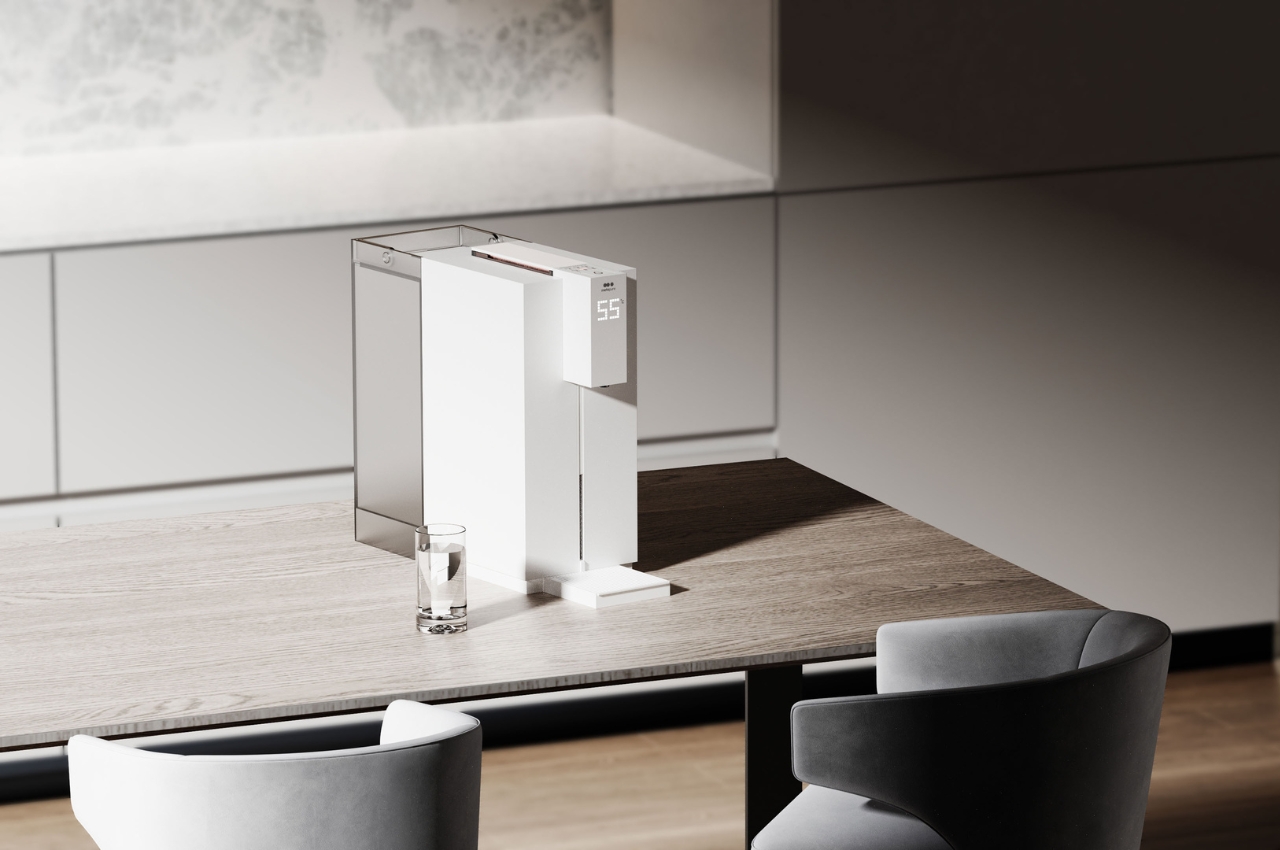
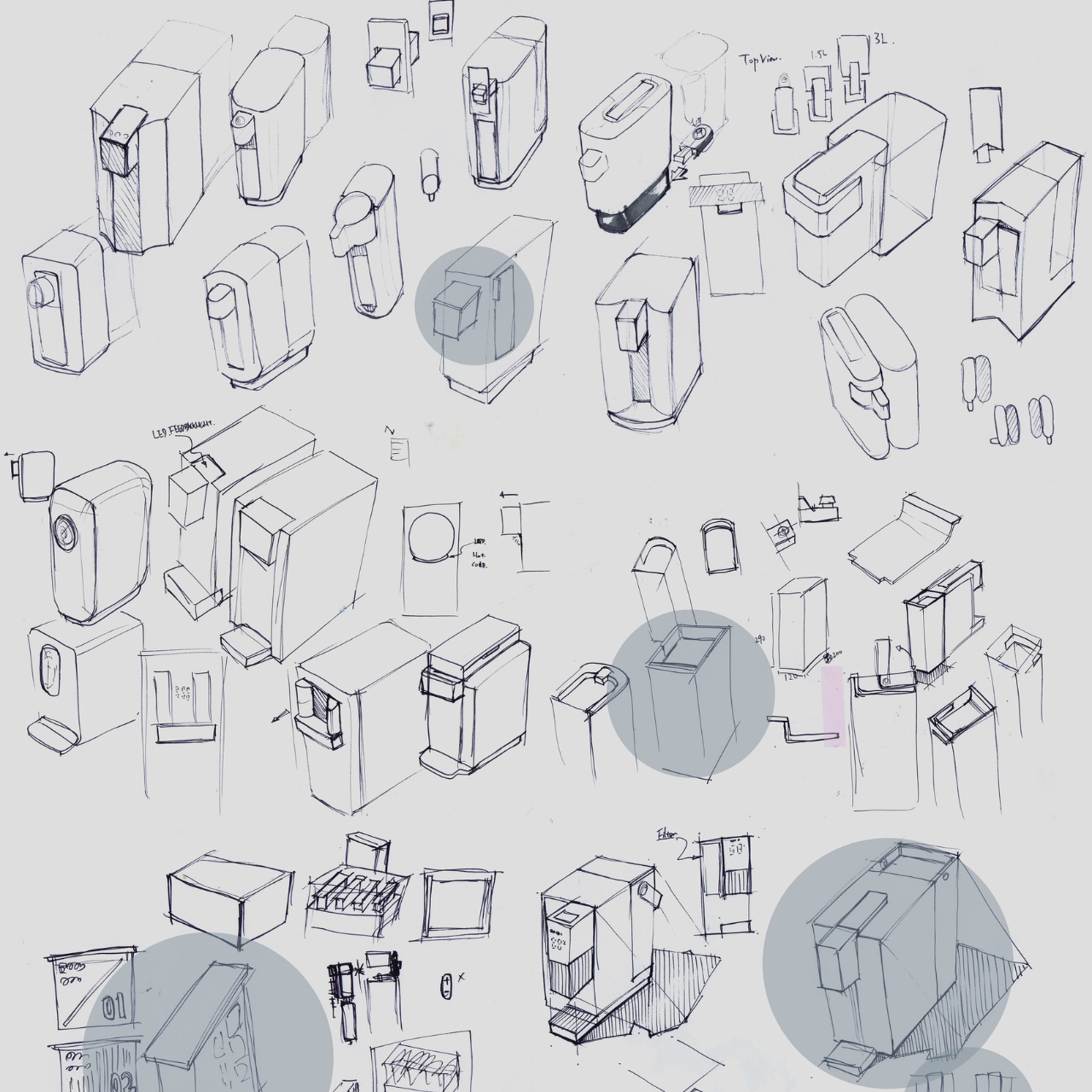
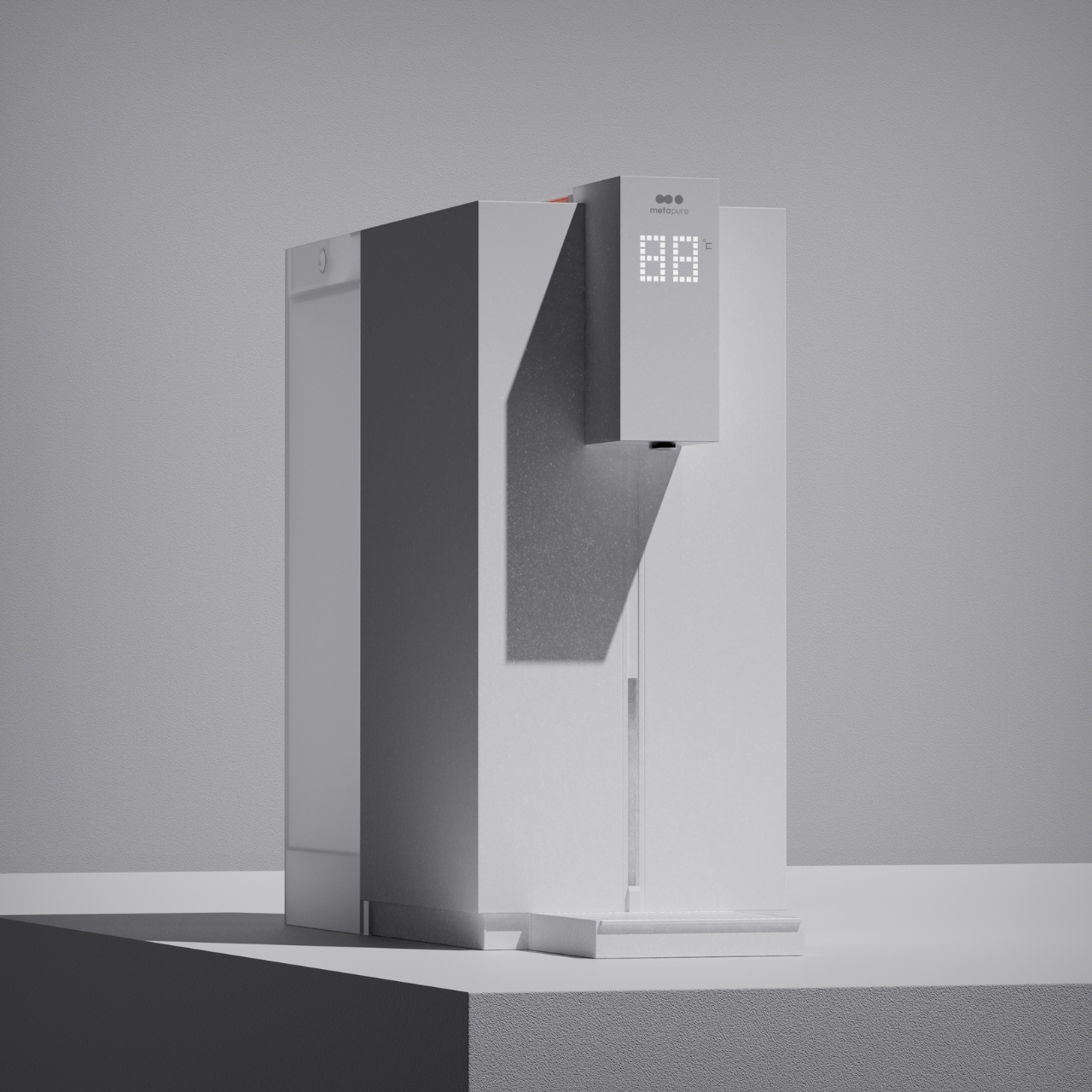
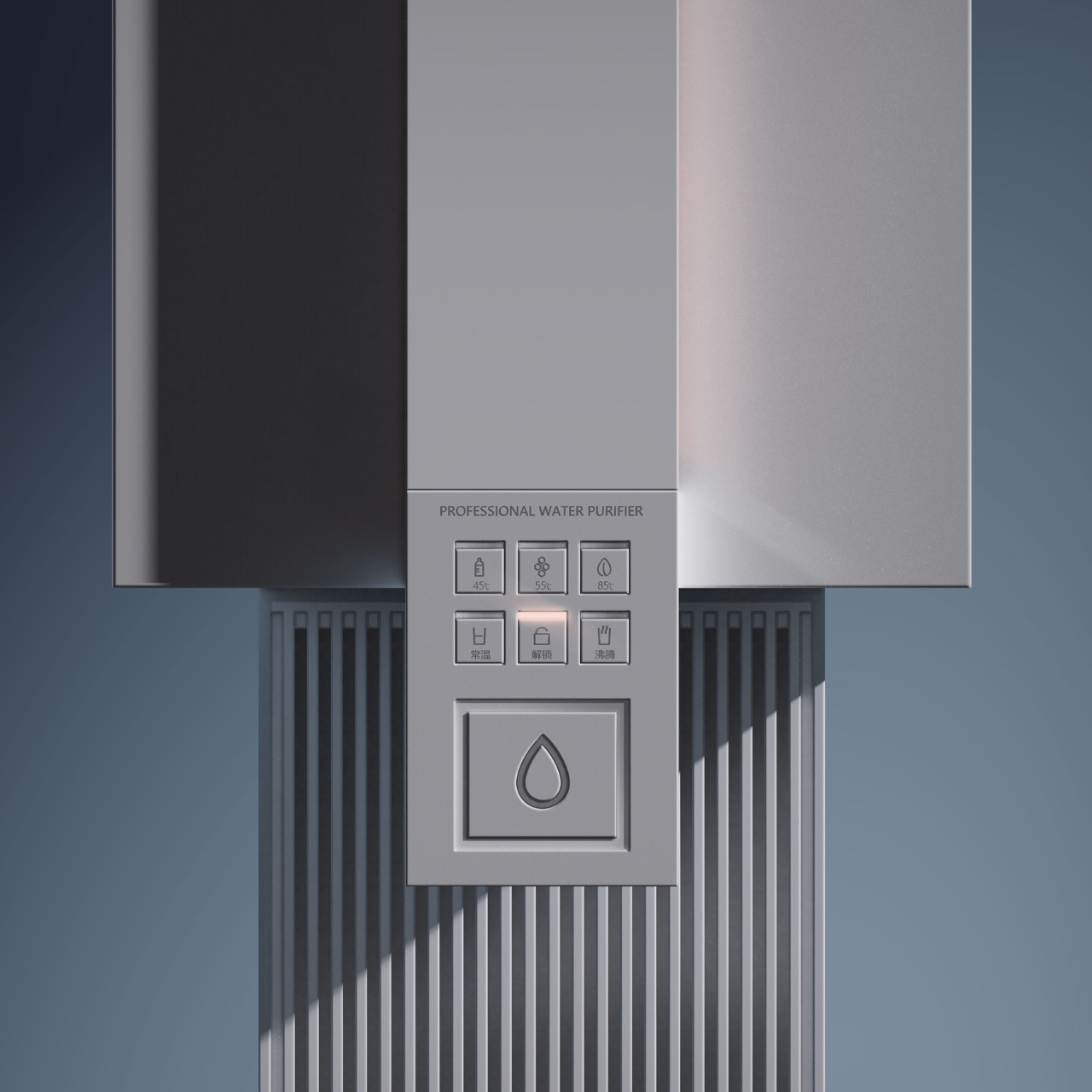
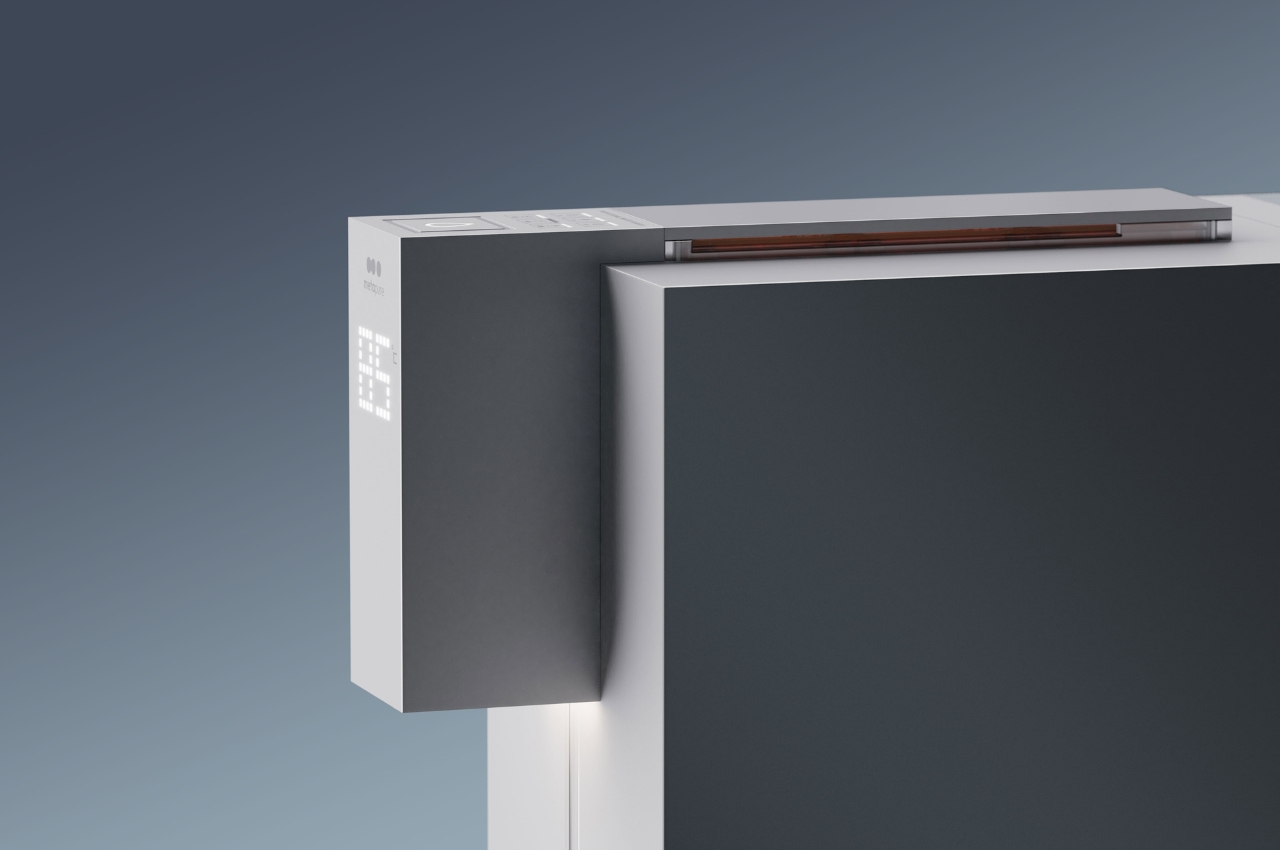
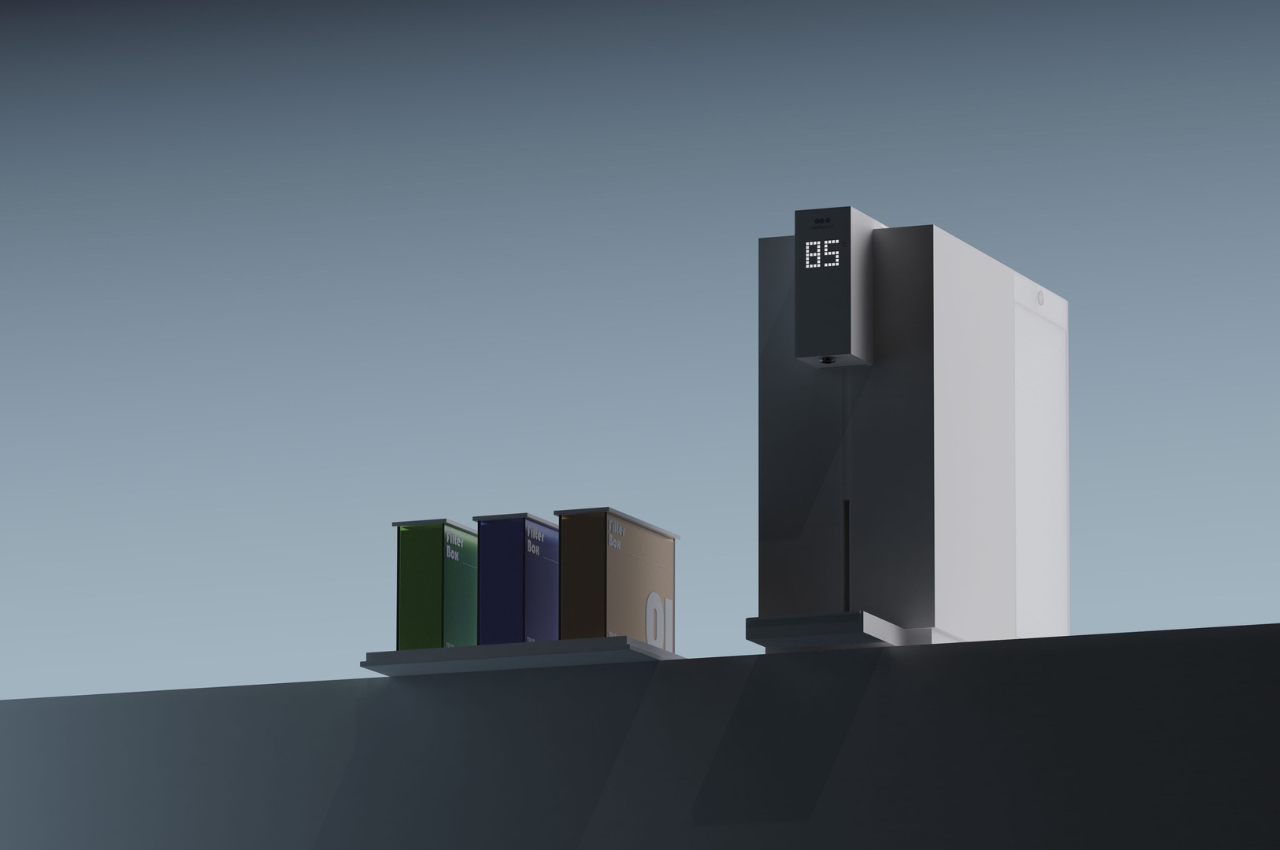
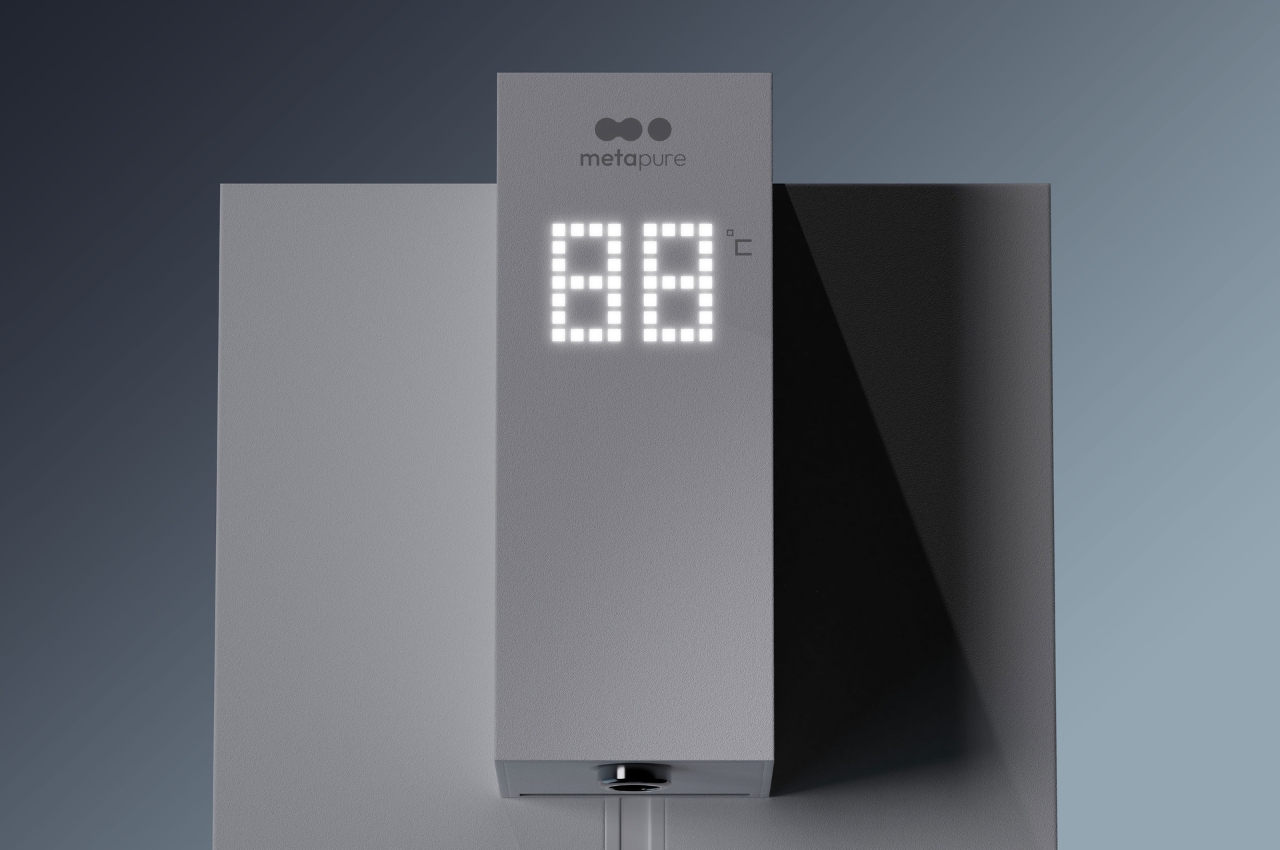
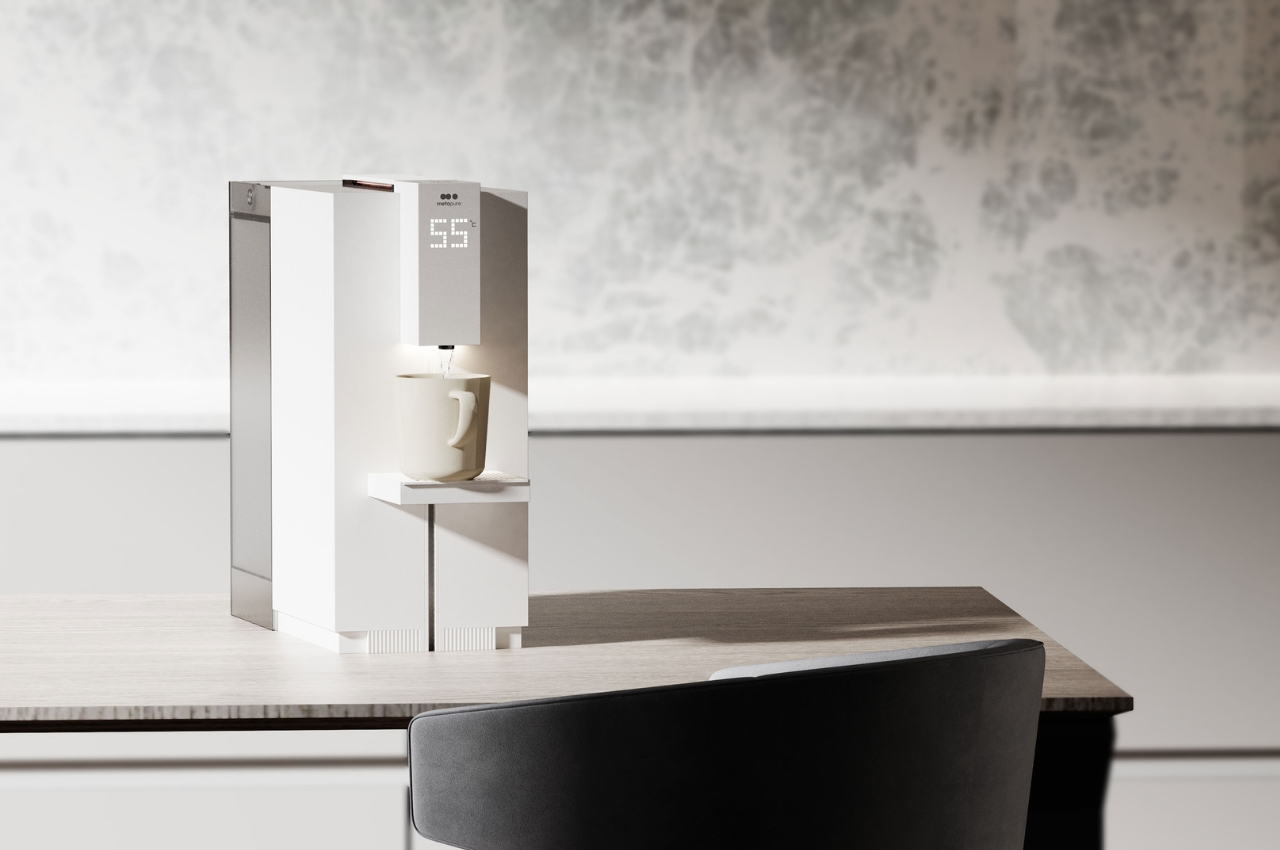
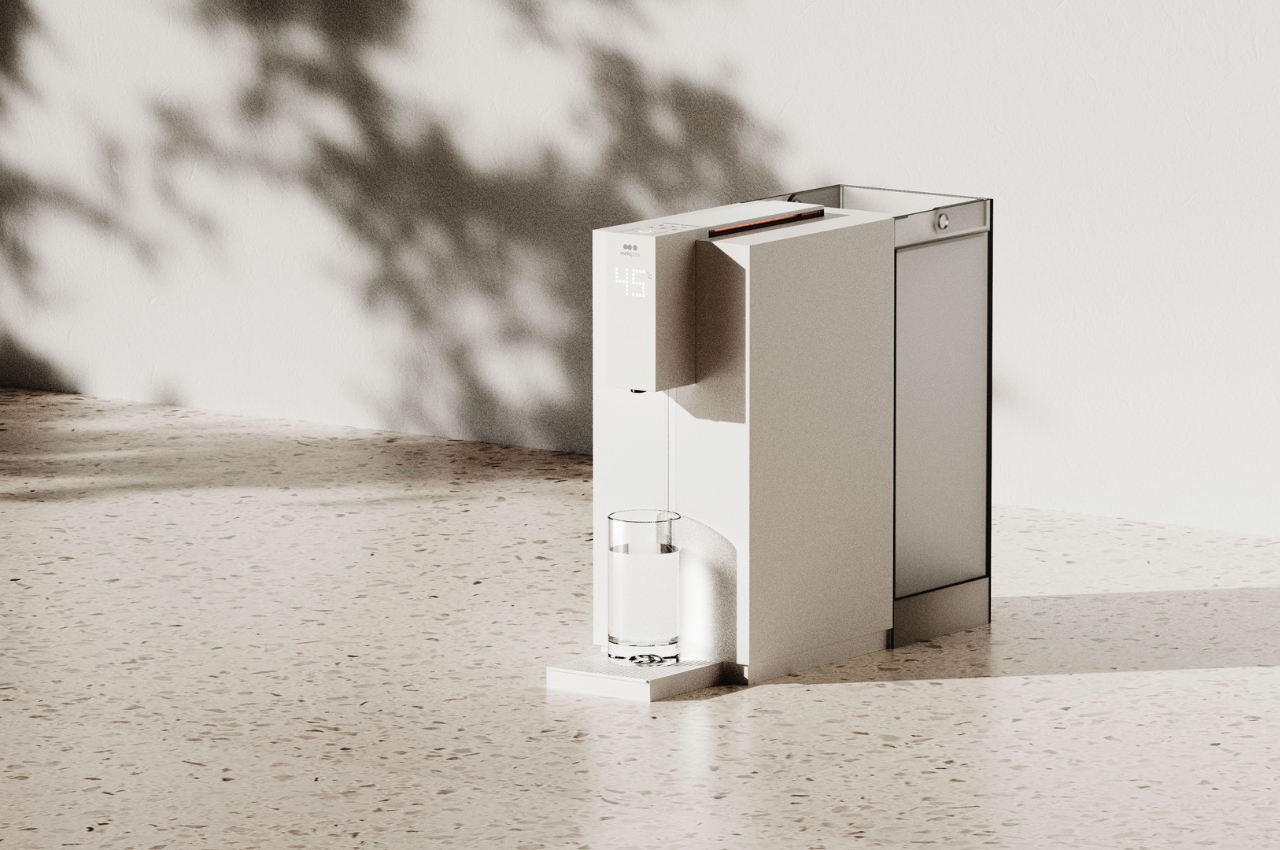
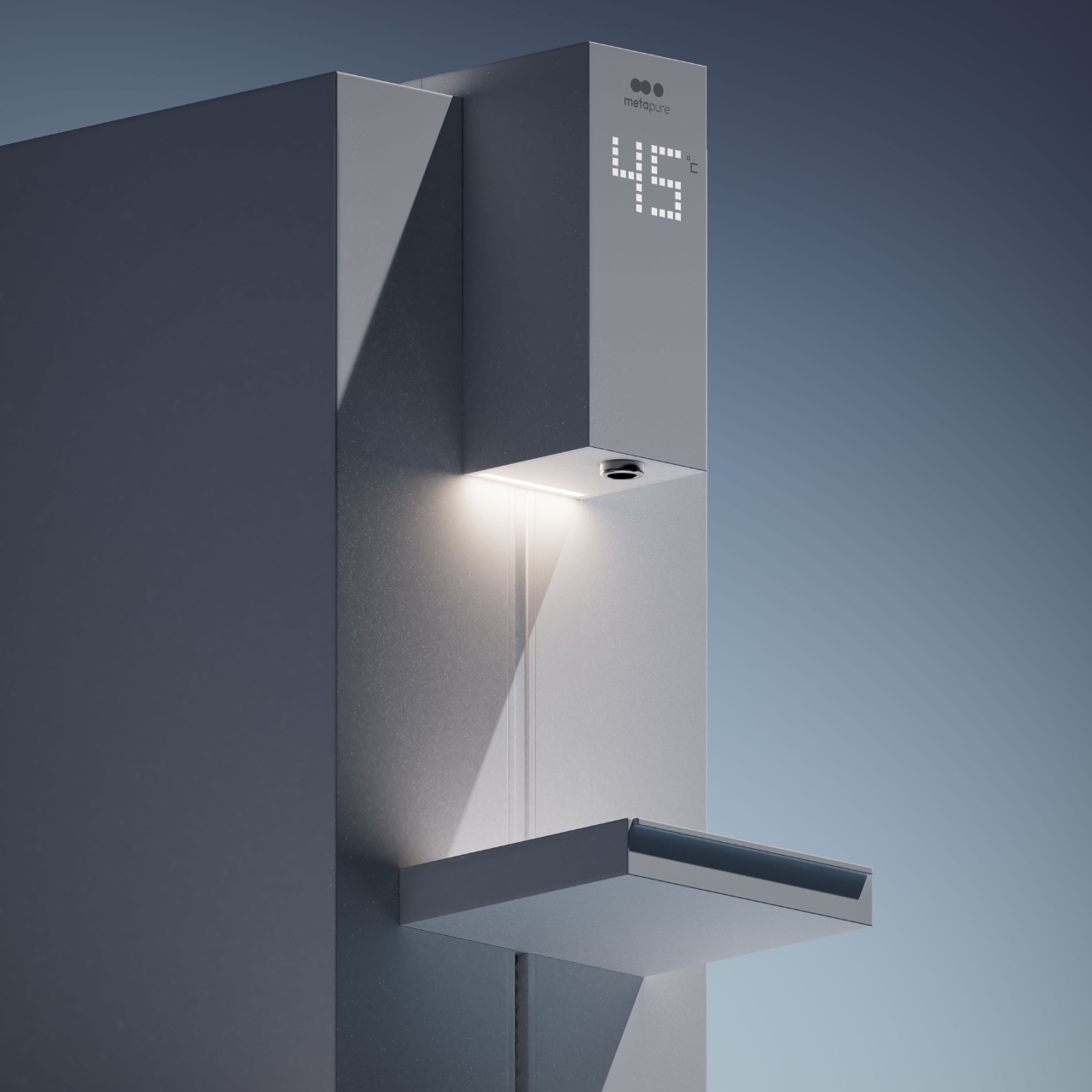
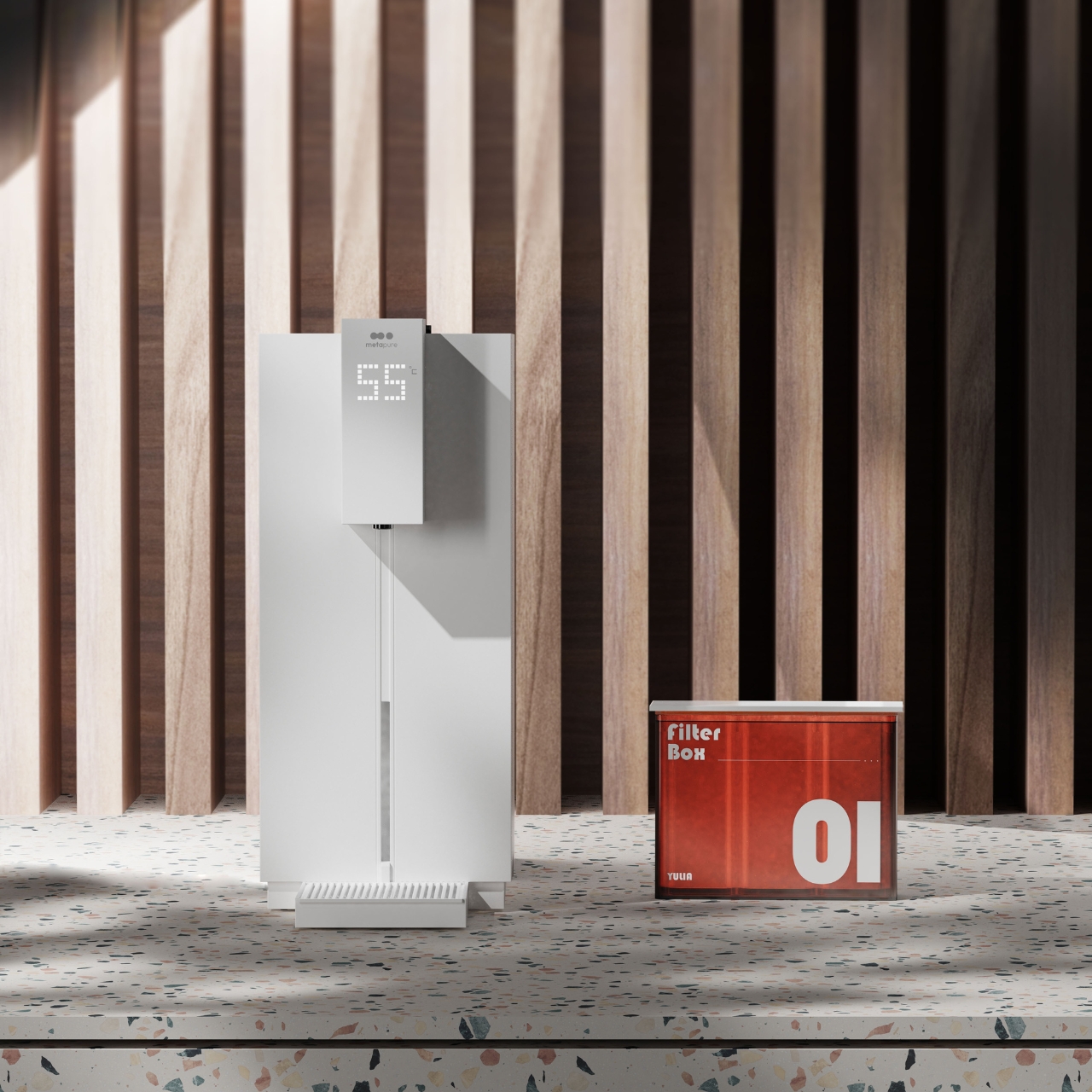
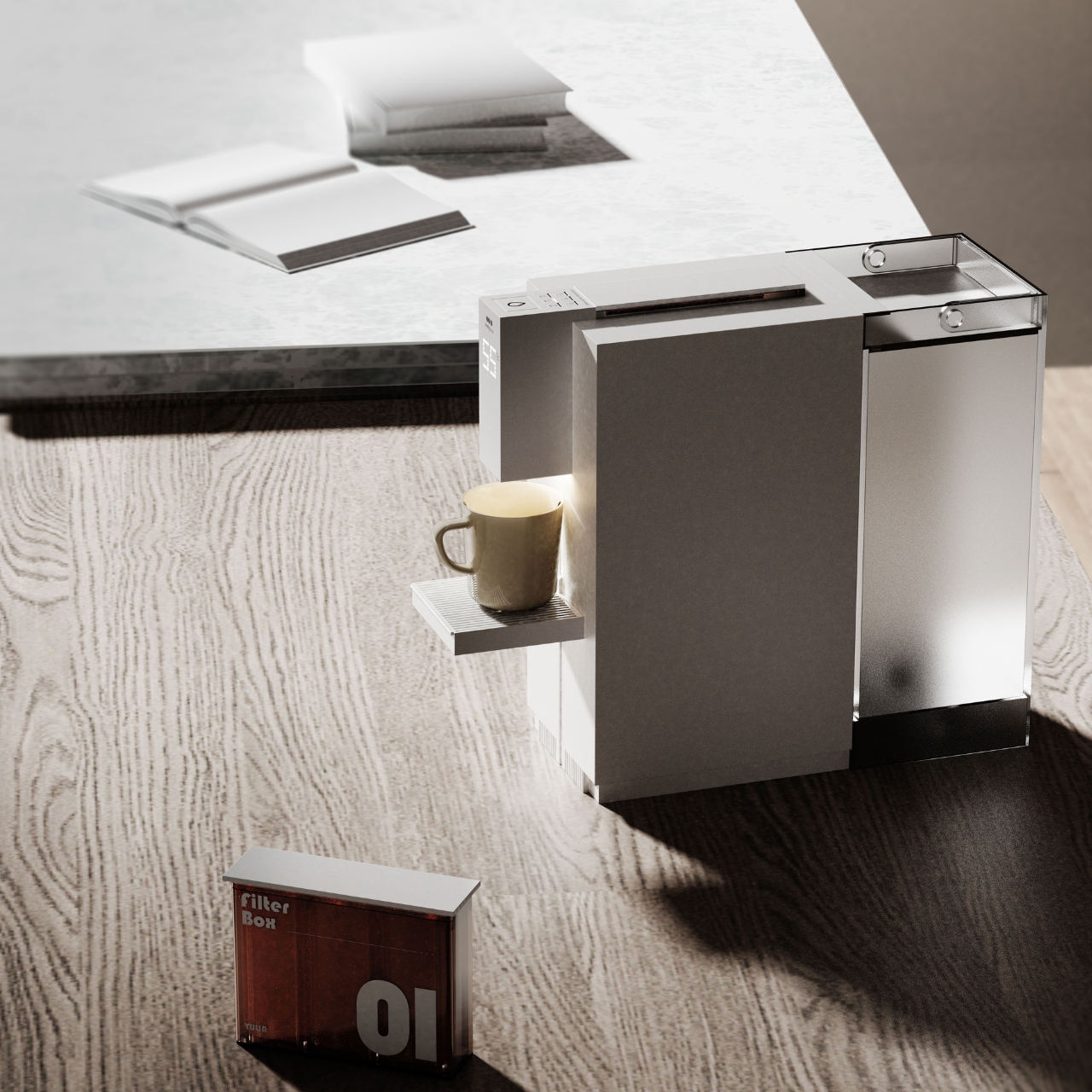
The Metapure Desktop Water Dispenser is a concept for a well-designed dispenser that can actually be stored on your desk, dining table, or your meeting table. It looks like a combination of a coffee maker and a printer’s ink refilling system. The machine itself is minimalist looking and with various controls built in so you can adjust the temperature so the water can fit in with your needs, whether you want it cold or hot or anything in between.
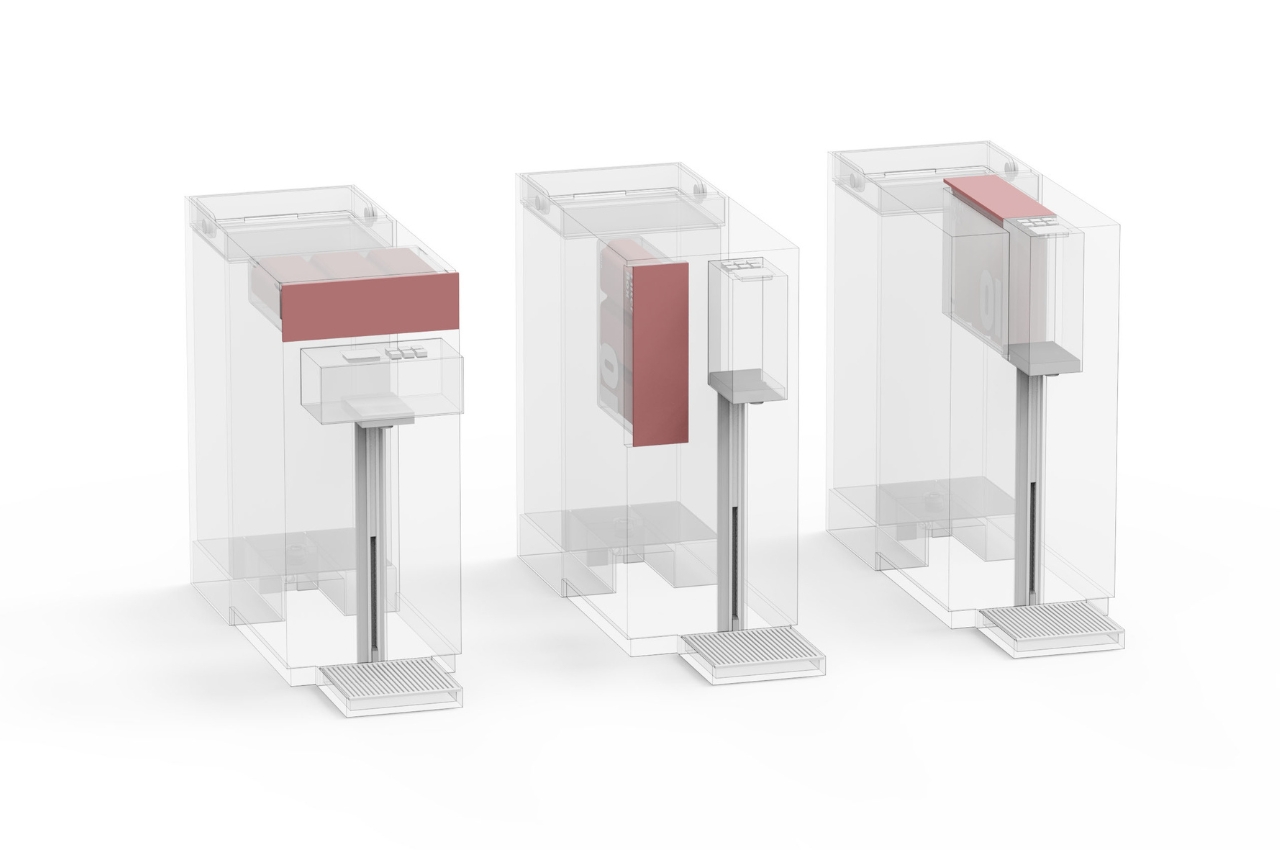
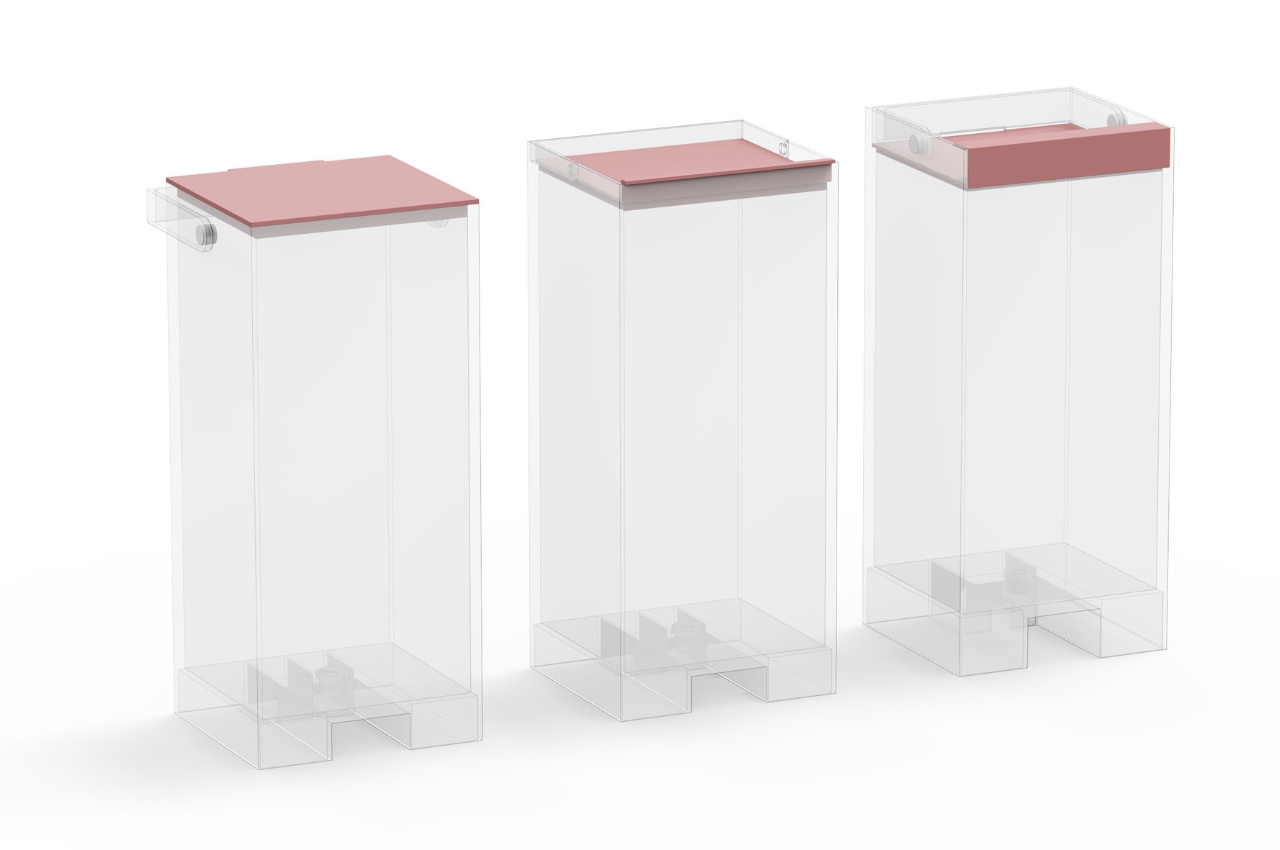
The refilling of water dispensers can sometimes be challenging so for this concept, they thought of something that would be pretty easy and can be done by anyone. You can just put the water inside the device (similar to some coffee makers and coffee capsule machines) and then there is a filter box placed inside. The filters look like those ink cartridges that you use for printers so we assume that taking them out and replacing them is also pretty easy.
If you’re using different kinds of cups and bottles, you will also be able to adjust the tray for these different accessories so there will be no water splashing. As a concept, this one is pretty interesting and is also good looking so you won’t need to hide it in the pantry. As someone who struggles with water dispensers, this is something I will be interested in if it eventually gets made into an actual product.
With the constant evolution of technology, particularly in smartphones, maintaining privacy has become a crucial concern for many users. The iPhone, renowned for its advanced features and capabilities, also includes several settings that, while intended to enhance the user experience, may raise privacy concerns for some. If you’re among those who value their privacy above […]