Apple’s touchscreen MacBook will reportedly have a dynamic interface

Apple's plan to add touchscreens to its premium MacBook Pros is coming into focus. Bloomberg reports that when the new laptops launch this fall, they'll feature a Dynamic Island, not unlike Apple's iPhones, and an interface that changes depending on where you touch your Macbook's screen.

This "dynamic interface" is reportedly designed to make the transition between mouse input and touch input smoother on Apple's new laptops. Bloomberg says that if users touch an onscreen button, the version of macOS running on these new MacBook Pros will be able to pull up a contextual menu "that provides more relevant options for touch commands." Parts of the interface, like macOS' menu bar, will also be able to enlarge to make menu items easier to select with a finger. Those tweaks are on top of the expected features from touchscreen Apple products, like smooth scrolling and the ability to pinch and zoom into and out of images, files and web pages. The only thing missing from these increasingly iPad-like laptops, per Bloomberg, will be a touchscreen keyboard, because they'll already have a more comfortable physical keyboard attached.

To make these new laptops extra enticing, both the 14-inch and 16-inch touchscreen MacBook Pros will feature OLED screens for the first time, likely the reason Apple will be able to include a Dynamic Island-style webcam in the first place. Up until now, the company has offered OLED screens on its iPhones, Apple Watches and more recently the iPad Pro, but it hasn't brought the display technology to laptops. That could reportedly change with these new MacBook Pros.

Plenty of Windows laptops include touchscreens, and Microsoft and its partners have incorporated dynamic interface elements in the past to make these touchscreens more natural to use with Windows. Apple is late to the party in this respect, but it's also potentially set up to succeed. Much of modern macOS already looks touch-friendly, and Apple's has expended significant effort making it possible to port touch-based iPad apps to macOS and develop applications across platforms. That, paired with the right interface, could make the experience of using a touchscreen MacBook nicer out of the box, even if it doesn't get rid of the awkwardness of reaching over your keyboard to touch a screen.

This article originally appeared on Engadget at https://www.engadget.com/computing/laptops/apples-touchscreen-macbook-will-reportedly-have-a-dynamic-interface-231929456.html?src=rss

Falcon Northwest FragBox review: A compact gaming rig that does everything right

Mafia: The Old Country demands to be played on an enormous screen. As much as I love my 32-inch Alienware OLED gaming monitor, it doesn't do justice to Mafia's cinematic vistas of Sicily. But, I also wanted to play that game in its full 4K glory, with none of the compromises of today's game consoles. So why not just shove a tiny gaming desktop under my home theater? Enter the Fragbox, Falcon Northwest's revamped small form factor gaming PC. While it's very expensive, starting at $3,997, it's incredibly powerful and gives you the freedom to easily upgrade the hardware down the line. 

I know what you're thinking: "A $4,000 desktop, in this economy?" That pricing also doesn't include upgrading from the stock NVIDIA's RTX 5070 GPU, as well as adding more RAM and larger SSDs, all of which could drive the price up thousands more. I initially planned to review the FragBox back in early December 2025, before the AI-induced RAMaggedon made memory, storage and other components dramatically more expensive. Falcon Northwest is mainly known as a boutique and high-end system builder, so its wealthier clientele can likely weather the pricing storm. If you're looking for a deal, though, you won't find it here.

So what, exactly, is a FragBox? Imagine a typical mid-tower desktop squashed down to a system that's only 10.2-inches tall, 10.5-inches wide and 15.9-inches deep. When Falcon initially debuted the FragBox in 2003, it was notable for being a genuinely small PC that used full-sized parts. That's still a main selling point today: It can still fit in large NVIDIA GPUs, including the beefy RTX 5090, as well as either Intel's latest Core Ultra chips or AMD's Ryzen 9000 CPUs. A huge 280mm radiator sits at the top pulling out hot air, and it also serves as an All-in-One (AIO) liquid cooler for the CPU. 

At 25 pounds, the FragBox isn't exactly light, but its sturdy metal handle makes it easy to move around. Most mid-tower desktops usually weigh between 20 and 35 pounds, depending on their case material. But they're also much larger and harder to squeeze into tight spaces. The FragBox's relatively squat size makes it easy to shove into a home entertainment center, or just sit on the corner of your desk. If you need a bit more height clearance, you can also remove the handle from the top panel. Just be sure there’s enough room for some airflow — all of that heat has to go somewhere, right?

Falcon Northwest FragBox
Devindra Hardawar for Engadget

Despite its density, the FragBox's elegant design makes it a cinch to access to all of the system's components. Just unscrew the side and top panels and you can easily remove the GPU, RAM, storage and other major components. There are three slots of M.2 SSDs, as well as two locations for 2.5-inch drives and a spot for a large 3.5-inch HDD. The system is bundled with a 1,200W power supply, which should be more than enough to handle future GPUs and CPUs. 

Ports are plentiful as well: There are two USB-A and one USB-C connections right up front, alongside a headphone jack. On the rear, you've got your typical assortment of mid-tower connections, including four USB-A 2.0 connections, seven USB-A 3 ports, one 20G USB-C 3.2 port, 2.5G Ethernet, HDMI and DisplayPort. Our RTX 5090 review unit also included three DisplayPort jacks and one HDMI connection (which you'll see on most GPUs). Wi-Fi 6E was also built into our unit, but Falcon says that Wi-Fi 7 is now standard with new builds.

Falcon Northwest FragBox
Devindra Hardawar for Engadget

The FragBox, thankfully, lacks the garish LEDs and cheesy thermal glass you find on more ostentatious gaming rigs. Falcon Northwest's aluminum case looks and feels stately, like an old-school luxury car. If you want something flashier, you can shell out an additional $400 for a custom UV printed case or $149 for a UV-printed front panel.

Our review unit was equipped with AMD's Ryzen 9950X3D CPU, NVIDIA's RTX 5090, 96GB of DDR5 RAM and a 2TB SSD, which adds up to a whopping $7,995. Five months ago, it would have cost $7,047 —- you can thank the RAM shortage for the price jump.

Even before benchmarking or running any games, I expected it to be a beast. In PCMark 10, the FragBox scored a whopping 13,810, which is around 500 points higher than my mid-tower system with the same CPU and GPU. It also scored the highest 3DMark Speedway and Port Royal ray tracing scores I've ever seen. Even more impressive, the FragBox's fans were barely audible under load, and the CPU and GPU sat at a chill 52C and 65C, respectively

CPU

GeekBench 6 CPU

GeekBench 6 GPU

Cinebench 2024

Falcon Northwest FragBox

3,445/22,787

390,148

N/A

Desktop with AMD Ryzen 9 9950X3D, RTX 5090

3,366/18,950

381,400

134/2,124

Desktop with AMD Ryzen 9 7900X, RTX 5090

2,822/14,216

358,253

113/1,103

Apple Mac Studio M4 Max

4,090/26,394

116,028

190/2066

To get back to my initial point, it ran Mafia: The Old Country in 4K flawlessly, with every graphics setting cranked all the way up. While playing on my 120-inch projector home theater setup, the game reached 62 fps natively, and flipping on DLSS upscaling and frame generation bumped that up to 120 fps. Not that you need a super higher framerate for a slow-paced, mostly cinematic action game. I was just happy to be playing without any compromises — even the PS5 Pro can't reach the same level of graphical fidelity as the monstrously powerful RTX 5090. 

Falcon Northwest FragBox
Devindra Hardawar for Engadget

I'm no stranger to big-screen PC gaming, but previously I've had to run a laughably long HDMI cable from my desktop to make it work. I'm just too old for that mess now. And it also doesn't work consistently, especially at higher framerates, thanks to the massive bandwidth required to pump out 4K at high refresh rates. In-home game streaming is also an option, but that's not great when you're blowing games up to an enormous TV or projector screen. It's just too hard to ignore the imperfections of streaming compression. (Admittedly, I need to test newer high-bandwidth options, especially after I was impressed by NVIDIA's GeForce Now upgrade last year.)

The FragBox also made it easy to jump into all of my recent Steam titles, including Mewgeneics and Arc Raiders on a big screen. Unfortunately, Windows itself remains a key stumbling block for home theater PC gaming. You'll still need to keep a keyboard and PC around to deal with the initial OS configuration. And even once I enabled Steam's Big Picture mode, which offers excellent controller options, I still occasionally had to deal with Windows Updates and other annoyances. 

Falcon Northwest FragBox
Devindra Hardawar for Engadget

Microsoft is currently trying to optimize Windows for gaming handhelds, and it's reportedly doing even more to make a future PC-powered Xbox feel more console-like. For now, though, using a Windows PC in your home theater doesn't feel much different than it did a decade ago. Steam is your savior, Windows is your enemy. Or you could just save thousands of dollars and buy a $500 PlayStation 5 or $700 PS5 Pro, instead. The latter will still get you smooth framerates and a healthy dose of ray tracing, without the annoyance of Windows, keyboards and mice.

But if you just want a compact and insanely powerful gaming desktop, and you don't mind spending a premium, it's hard to deny that the FragBox gets everything right.

Update 2/23, 1:48PM: Added updated information about Wi-Fi 7, handle removability and pricing.

This article originally appeared on Engadget at https://www.engadget.com/computing/falcon-northwest-fragbox-review-a-compact-gaming-rig-that-does-everything-right-130000837.html?src=rss

The best cheap Windows laptops for 2026

You don’t need to spend a fortune to get a capable Windows laptop. For everyday tasks like web browsing, writing documents, streaming video or handling schoolwork, a well-chosen budget machine can still deliver a smooth, reliable experience. The challenge is cutting through the noise to find affordable options that balance performance, build quality and battery life without serious compromises.

For many buyers, timing is no longer optional. With Windows 10 support now officially over, upgrading has become a necessity rather than a nice-to-have. The picks below focus on cheap Windows laptops that can handle day-to-day workloads comfortably while keeping you current on software and security updates. If you’re open to spending more for extra power or premium features, our broader guide to the best Windows laptops covers higher-end alternatives as well.

While you can do a lot even when spending little on a Windows laptop, you must set your expectations accordingly. The biggest downside when purchasing a budget laptop (of any kind, really) is limited power. You’ll want to carefully consider a few specs, the most important among them being the processor (CPU). Many Windows laptops under $500 run on Intel Celeron or Pentium chipsets, but you can find some with Core i3/i5 and AMD Ryzen 3/5 CPUs at the higher end of the price spectrum.

We recommend getting the most powerful CPU you can afford because it will dictate how fast the computer will feel overall. Memory (RAM) is also important because, the more you have, the easier it will be for the laptop to manage things like a dozen browser tabs while you edit a Word document and stream music in the background.

When it comes to storage, consider how much you want to save locally. If you primarily work in Google Docs or save most things in the cloud, you may not need a machine with a ton of onboard storage. Just remember that your digital space will also be taken up by apps, so it may be worth getting a little extra storage than you think you need if you know you’ll be downloading big programs. A final side note: solid state drives (SSDs) are ubiquitous at this point, not to mention faster and more efficient than hard drives (HDDs), so we recommend getting a laptop with that type of storage.

As for screens, there’s a healthy mix of HD (720p resolution) and FHD (1080p) options in this price range and we recommend springing for a notebook with a 1080p display if you can. Touchscreens aren’t as common in the budget space as standard panels, but you’ll only really miss one if you get a 2-in-1 laptop.

Before we get to our recommended specs for a cheap Windows laptop, it’s worth mentioning that Microsoft clearly lays out the true minimum requirements for any Windows 11 machine. Those include a 1GHz or faster processor that includes two or more cores, at least 4GB of RAM and 64GB of available storage space. That’s the bare minimum to run Windows 11; we recommend giving yourself some wiggle room by choosing a machine that will perform well now and for years to come.

  • CPU: Intel Core i3 or AMD Ryzen 3 processors, at minimum

  • RAM: At least 8GB

  • Storage: At least 128GB SSD

  • Screen: At least 1080p FHD

It’s essential to prioritize what’s important to you. But at the lower end of the budget, a good laptop may not offer everything you need, whereas a great one might. Although most machines come with features like Bluetooth, built-in Wi-Fi and additional ports, you might find not all of them come with the specifics you require, like an SD card slot, webcam, charger, and so on. Be sure to check the spec list of any laptop you’re considering before you buy, especially if you need specific connectors and capabilities.

See Also:

As for Copilot+, don’t expect to see much of it on truly affordable Windows laptops just yet. Microsoft’s AI features and Copilot assistant require certain specs to run, namely a powerful neural processing unit (NPU), 16GB of RAM and 256GB of storage. Currently, the cheapest Copilot+ AI PCs will run you about $700, so if you’re willing to pay more for those perks, check out our best laptops guide for more options.

If you’re looking for either a gaming laptop or a “Windows on Arm” laptop, both categories will require you to spend more money than we’re discussing here.

The cheap Windows laptop market moves fast, and — unlike nearly all of our other buying guides — we haven't necessarily tested each specific configuration listed below. However, the combination of these technical specifications and familiar brands represent exactly the sort of entry-level laptops we'd recommend to shoppers in this price range based on our thorough research and expert knowledge.

The best cheap laptop models change all the time. Unlike more expensive, flagship machines, these notebooks can be updated a couple times each year. That can make it hard to track down a specific model at Amazon, Best Buy, Walmart or any other retailer. Also, we’ve seen prices vary widely depending on the configuration and retailer you’re looking at.

You can ensure you’re getting a quality laptop by doing a few things. First and foremost, make sure you get a machine that follows the recommended specs we list above. Also, make sure you’re buying from a reputable retailer, including big-box stores like Walmart, Best Buy and Costco, online shops like Amazon or direct manufacturers like Dell, HP, Lenovo and others. If you have a physical store near you (likely a Best Buy in the US), it’s never a bad idea to go play around with some laptops in person before choosing one.

If you decide to shop online from the likes of Amazon or Walmart, double check the seller of the laptop you’re considering. For example, many items on Amazon are “shipped and sold” by Amazon and those are typically the best options. You’ll see that information on Amazon on the right sidebar on a product page, under the Add to Cart and Buy Now buttons. Third-party sellers are common in the affordable laptop space. Amazon sometimes classifies laptop manufacturers as third-party sellers, so you may see a laptop shipped and sold by HP or Dell — that’s a good thing, since it’s coming directly from the manufacturer.

However, there are other third-party electronics sellers out there. We recommend clicking on the third-party seller’s name on Amazon or Walmart (yes, Walmart has them, too) to see how much positive feedback and how many five-star ratings they’ve received from buyers.

You may be inclined to recommend a Chromebook or a tablet to anyone considering a budget Windows laptop computer. Those instincts aren’t wrong, but Chromebooks and tablets aren’t the best buy for everyone. Tablets have the most portability, but they will only work for the most mobile-competent users like kids who have been grabbing smartphones out of their parents’ hands since they’ve been dexterous enough to do so. Tablets can also be just as expensive as some of the cheapest Windows laptops, and that’s without a mouse or keyboard.

Chromebooks are a good alternative for those that basically live in a browser, the trade-off being you must give up the “traditional desktop.” And Chrome OS is a more limited operating system than Windows when it comes to the programs you can install and run.

What can you realistically accomplish on a cheap Windows laptop? Quite a bit, especially if you’re doing one thing (or a limited number of things) at a time. They’re great for everyday tasks like web browsing, checking email, video streaming and more. All of those things can be done on Chromebooks as well, but Windows laptops have a big advantage in Microsoft Office. While yes, there is a browser based version, the native, desktop apps are considered a must have for many and will run smoothly on even the most bare-bones budget laptop. The only caveat is that you may run into some slowdown on low-powered devices if you’re multitasking or working with large data sets in Excel or a lot of photos and graphics in Powerpoint.

When it comes to specs, a bright spot for Windows laptops is storage. Even the most affordable devices tend to have at least a 128GB solid state drive. That will come in handy if you prefer to keep your most important files saved locally on your laptop's hard drive. In contrast, cheaper Chromebooks often have less storage because they’re built on the assumption that you’ll save all of your documents in the cloud. Not only is that less convenient when you need to work offline, but it also limits the size of programs and files that you can download. So, Chromebooks aren't the best for hoarding Netflix shows before a long trip or for use as a gaming laptop.

Windows also has thousands of apps that you can download from its app store. Chromebooks have some Chrome apps, numerous browser extensions and the ability to download Android apps, but quality control is… inconsistent. Android apps, in particular, often haven’t been optimized for Chrome OS, which makes for a wonky user experience. Windows may not have as many apps as Android, but at least the experience is fairly standard across the board.

Windows also gives you the ability to download and use programs from other sources, like direct from the developer. You can run things like Adobe Creative Suite, certain VPNs and programs like GIMP, Audacity and ClipMate on a Windows device, which just isn’t possible on Chrome OS. Chromebooks limit you to the apps and programs in The Play Store and the Chrome Extensions store, reducing any others to unusable, space-sucking icons in your Downloads folder.

This article originally appeared on Engadget at https://www.engadget.com/computing/laptops/best-affordable-windows-laptops-123000512.html?src=rss

The best MacBook accessories for 2026

Apple’s MacBooks don’t need much help out of the box, but the right accessories can make a noticeable difference in how you use them day to day. Whether that means adding more ports, creating a cleaner desk setup or making your laptop easier to travel with, there’s a growing ecosystem of gear designed to fill in the gaps Apple leaves behind. A good accessory should feel like an extension of your MacBook, not a workaround.

The picks below are meant to work smoothly with macOS and today’s USB-C-only reality, whether you’re using a lightweight MacBook Air or a higher-end MacBook Pro. From practical essentials to quality-of-life upgrades, these accessories are meant to help you get more done without adding unnecessary bulk or friction.

This article originally appeared on Engadget at https://www.engadget.com/computing/accessories/best-macbook-accessories-150014737.html?src=rss

ASUS Zenbook Duo (2026) review: Two screens really are better than one

It takes time for novel designs to catch on. But even so, I am still wondering why the Zenbook Duo hasn't had a bigger impact on the market after ASUS released its first true dual-screen laptop two years ago. Notebooks like these provide the kind of screen space you'd typically only get from a dual monitor setup, but in a much more compact form factor that you can easily take on the road. It could be that people were wary of an unfamiliar design, shorter battery life or buying a first-gen product — all of which are understandable concerns. However, now that ASUS has given the ZenBook Duo a total redesign for 2026, the company has addressed practically all of those barriers to entry while making it an even more convincing machine for anyone who could use more display space. Which, in my experience, is pretty much everyone.

Editor’s note: The 2026 ASUS Zenbook Duo is expected to be available for pre-order sometime in late February, with general availability slated for March.

For the new model, ASUS didn't mess with the laptop's basic layout too much. Instead, the company polished and tightened everything up, resulting in a system that weighs about the same (3.6 pounds) while reducing its overall size (12.1 x 8.2 x 0.77 to 0.92 inches) by five percent. Critically, you still get a built-in kickstand on the bottom and a detachable keyboard that you move wherever you want. There’s also a decent number of ports, including two USB-C with Thunderbolt 4, one USB-A 3.2 jack, HDMI 2.1 and a combo audio port. That said, I do wish ASUS had found room for an SD card reader of some kind, though given the Zenbook Duo's unique design, I get why that didn't make it. 

The Zenbook Duo's detachable keyboard gives users a ton of flexibility when it comes to utilizing both of the laptop's displays.
Sam Rutherford for Engadget

One of the Zenbook Duo's most important design upgrades is a new "hideaway" hinge that reduces the gap between the laptop's two screens. Not only does this make the laptop easier and more pleasant to use in dual-screen mode, it also allows the entire system to lay flat on a table, which is nice for drawing or sharing your screen with someone sitting opposite you. Unfortunately, while my review unit didn’t come with one, ASUS says its forthcoming Pen 3.0 will come bundled with the Zenbook Duo in the US, so you won’t need to pay extra for it.

Another small but appreciated improvement is the new pogo pins below the lower display, which provides a more secure and reliable way of keeping the laptop's detachable keyboard topped up. In my experience, even after running multiple rundown tests that completely drained the Duo's battery, I never had to charge up the keyboard on its own. It was always smart enough to sip electricity from the main system in the background, though it also has a built-in USB-C port for power just in case. On the flipside, if you're not scared of typing on glass, you can still use the lower screen as a keyboard and touchpad, or as a place to display widgets for news, the weather, performance and more. 

As someone who loves a desktop with dual monitors, I can't overstate how nice it is to have similar built-in functionality on a laptop.
Sam Rutherford for Engadget

The standout feature on the Zenbook Duo continues to be its dual displays, and now for 2026, they look better than ever. Both OLED panels have a 144Hz refresh rate with a 2,880 x 1,800 resolution while also covering 100 percent of the DCI-P3 spectrum. And while its nominal brightness of 500 nits for SDR content is just OK, ASUS makes up for that with peaks of up to 1,000 nits in HDR. And to make both screens even more enjoyable, ASUS managed to shrink the size of their bezels down to just 8.28mm. That's a reduction of 70 percent compared to the previous model, so now there's even less getting in the way of you utilizing these screens to their fullest.

The Zenbook Duo can be configured with a range of new Intel Core Ultra 7 and Core Ultra 9 processors, including the X9 388H chip used on our review unit. For general use and productivity, the laptop is super smooth and responsive, though that shouldn't be a surprise coming from Intel's latest top-of-the-line mobile CPU. However, for those seeking max performance, some of the benchmark numbers aren't quite as impressive as you might expect. That’s because ASUS has limited the Duo's TDP (thermal design power) to 45 watts — which is shy of the chip's 80-watt turbo power limit.

The kickstand in back adds a bit a bulk, but it's better than not having one at all like with Lenovo's Yoga Book.
Sam Rutherford for Engadget

In PCMark 10, the Zenbook Duo only managed a score of 7,153 compared to 9,651 from a Dell XPS 14, despite the latter having a lower-tier Intel Core Ultra X7 358H processor. That said, in other tests like Geekbench 6, the Duo had no trouble staying on top with a multicore score of 17,095 versus 9,651 for the Dell. 

Another pleasant surprise is that because the Duo's chip comes with Intel's upgraded Arc B390 integrated GPU, this thing has plenty of oomph to game on, let alone edit videos or other similar tasks. In Elden Ring at 1,920 x 1,200, the Zenbook maintained a relatively stable framerate between 55 and 60 fps on high settings, which is great considering this thing doesn't have discrete graphics. This means as long as you don't mind fiddling with game options a bit, you should be able to play newer AAA games without too much trouble. 

The left side of the Zenbook Duo features a full-size HDMI connector along with a USB-C port, plus a backup USB-C jack for charging the detachable keyboard.
Sam Rutherford for Engadget

You'd think a laptop with two displays would be super power hungry. However, by increasing the capacity of its cell from 75WHrs to 99WHrs, ASUS has made the Zenbook Duo's endurance (or lack thereof) a complete non-issue. On PCMark 10's Modern Office rundown test, the laptop lasted 18 hours and 33 minutes in single-screen mode. Granted, that's nearly four hours less than what we got from MSI's Prestige 14 Flip AI+, but considering that's the longest-lasting notebook we've ever tested, I'm not bothered. When compared to ASUS' own Zenbook A14 (18:16), things are basically a wash, which I think is a win for the Duo, as the A14 is meant to be an ultralight system with an emphasis on portability and longevity. 

Obviously, battery life takes a hit when you're using both displays. However, when I re-ran our battery test with its two displays turned on, the Duo still impressed with a time of 14:23. This is more than enough to give you the confidence to set this thing up in dual-screen mode even when an outlet isn't close at hand. Thankfully, for times when you do need a power adapter, the charging brick on ASUS' cable is rather compact, so it's not a chore to lug it around. 

The Zenbook Duo's battery life is good enough you won't always need its power brick. Thankfully, when you do, ASUS' 100-watt adapter is relatively compact.
Sam Rutherford for Engadget

I'm a believer that one day people will eventually embrace typing on screens with laptops just like they have for smartphones. However, even if you're not willing to make that jump just yet, the Zenbook Duo still has all of its bases covered. Its detachable keyboard gives you a pleasant experience while freeing up the bottom of the notebook to be a second display. This allows you to have something similar to a traditional dual-monitor desktop but in a chassis that you can easily take on the road without any major compromises. 

The 2026 Zenbook Duo combines a compact design with strong performance, plenty of ports and surprisingly good battery life. Sure, it's a touch heavier than a typical 14-inch laptop, but its two screens more than make up for a little added weight and thickness. That leaves price as the Duo's remaining drawback, and starting at $2,100 (or $2,300 as reviewed), it certainly isn't cheap. 

However, when you consider that a similarly equipped rival like a Dell XPS 14 costs just $50 less for a single screen, that price difference is rather negligible. Alternatively, if you opt for a more affordable ultraportable and then tack on a decent third-party portable monitor, you're still likely looking at a package that costs between $1,500 and $1,800. Plus, that setup is significantly bulkier and more annoying to carry around. So while the Zenbook Duo might be an unconventional pick right now, it has all the tools to deliver unmatched portable productivity and I don’t think it will be too much longer until the masses catch on.

This article originally appeared on Engadget at https://www.engadget.com/computing/laptops/asus-zenbook-duo-2026-review-two-screens-really-are-better-than-one-140000982.html?src=rss

MSI Prestige 14 Flip AI+ review: An ultraportable for Arc Raiders, thanks to Intel’s Panther Lake

MSI Prestige 14 Flip AI+ is a surprisingly powerful ultraportable held back by a clunky trackpad. It's a shame, really, because it's very well-designed and thanks to Intel’s Panther Lake CPU, it can even run games like Arc Raiders without breaking a sweat. It also has more ports than most thin and light machines, its OLED screen is great for productivity work and at three pounds it's easy to carry around all day. But curse its mechanical trackpad — why does it even exist when Apple, Microsoft and others have been able to implement excellent haptic touchpads for years? Come on now.

With its grey case, subdued design and somewhat chunky bezels, the MSI Prestige 14 Flip AI+ doesn't exactly make a striking impression. From afar, you can tell it's certainly thin, and it's also clear that MSI made the most of its slim case by shoving in two USB-A ports, two USB-C connections, a single HDMI port and a headphone jack. It would have been nice to have some sort of SD card slot too, but at least the Prestige 14 can connect to older accessories, monitors and TVs without a USB-C hub. 

Once you pick it up, though, the Prestige 14's three-pound frame feels downright remarkable. It's just a tad heavier than the 2.7-pound MacBook Air, but its screen size directly competes with the 3.4- to 3.6-pound 14-inchMacBook Pro. The "Flip" in its name also means it’s versatile, with the ability to rotate its screen into a tablet mode, or a variety of tent configurations.

What makes the MSI Prestige 14 Flip AI+ truly interesting is its Intel Core Ultra X7 358H processor, which features 16 cores and a maximum speed of 4.8GHz. Specifically, it features four P-cores for speedy performance, eight efficient E-cores and four low-power E-cores. The Ultra X7 is also one of the new Panther Lake chips with gobs of graphics power in Intel's Arc B390 GPU, giving them far more gaming chops than previous ultraportable chips. The laptop also sports 32GB of RAM, which is the ideal amount for serious productivity work, and a roomy 1TB SSD. 

MSI Prestige 14 Flip AI+
Devindra Hardawar for Engadget

The Prestige 14's stylus-friendly 14-inch OLED screen helps to distract from its mundane case design, with the typical deep black levels and excellent contrast I appreciate from OLED, together with bold 100 percent DCI-P3 color coverage. It makes just about everything look great, though I wish MSI offered more than a 60Hz refresh rate — a 90Hz or 120Hz screen would make scrolling through web pages look far smoother. 

And speaking of the stylus, that’s tucked away at the bottom of the Prestige 14. I didn’t find it particularly useful for notetaking, but for those who do it’s easy to stow away. It’s just too thin for extended handwriting, and anyone doing serious notetaking or digital art would be better off with a larger stylus or dedicated drawing pad. 

MSI Prestige 14 Flip AI+ in tent mode
Devindra Hardawar for Engadget

After seeing a relatively slim Lenovo Panther Lake laptop reaching 190 fps in Battlefield 6, using only Intel's built-in Arc B390 GPU, I was eager to see how that new hardware would perform in the real world. Simply put, the MSI Prestige 14 Flip AI+ didn't disappoint. It scored 10,169 points in PCMark 10, the highest score we've seen yet on a Windows PC. 

And yes, that includes plenty of powerful gaming systems like the Alienware 16 Area 51 (8,245 points) and the Razer Blade 18 (7,703), both of which were running Intel's last-gen Core Ultra 9 275HX chip. Of course, those systems have faster GPUs, like NVIDIA's RTX 5080, but PCMark 10 doesn't lean too heavily on graphics performance. The Prestige 14 edged close to the M5 MacBook Pro in Geekbench 6's multi-threaded CPU test, scoring 16,633 points compared to Apple's 18,003. But the MacBook Pro reigned supreme in the single-threaded test, scoring 4,310 points compared to the MSI's 2,864. 

Computer

PCMark 10

Geekbench 6

Geekbench 6 GPU

Cinebench 2024

MSI Prestige 14 Flip AI+ (Intel Core Ultra X7 358H)

10,169

2,864/16,633

56,425

117/719

Apple MacBook Pro 14-inch (M5, 2025)

N/A

4,310/18,003

48,840

197/1,034 | GPU: 6,143

Dell 16 Premium (Core Ultra 7 255H, NVIDIA RTX 5070)

7,780

2,711/15,919

109,443

127/1,104

When it came to games, the Prestige 14 reached a surprisingly high 80-95 fps in Arc Raiders while playing in 1080p with medium graphics settings, as well as AMD's FSR3 upscaling and 2x frame generation. Without those AMD features, Arc Raiders ran at 45-50 fps, which is still respectable for an ultraportable. To my surprise, Intel's XeSS upscaling technology wasn't available in Arc Raiders during my testing, but there's a good chance that tool would eke out even more performance. (I've asked Intel about XeSS's omission, and will update when I hear back.)

In Cyberpunk 2077, The Prestige 14 hit 35 fps while playing in 1080p with default settings. Flipping on Intel's XeSS frame generation bumped that to 45 fps. If you're used to the 30 fps performance of consoles, those numbers are still vaguely playable, but they certainly fall short of the 60 fps PC players typically look for. It's best to think of the MSI Prestige 14 Flip AI+ as a laptop where you can play games sometimes, perhaps while you're away from your gaming desktop. It's certainly not a replacement for a dedicated gaming laptop.

For more prosaic productivity tasks, like juggling dozens of browser tabs and editing large images, the Prestige 14 didn't break a sweat. Its healthy 32GB of RAM gave it plenty of breathing room for multi-tasking, and unlike other ultraportables, I didn't notice any serious performance dips while running on battery. On that note, the Prestige 14 also lasted a whopping 22 hours and 15 minutes in PCMark 10's battery benchmark. That's the highest figure we've ever seen from a laptop, and it's a promising sign of what we can expect from other Panther Lake systems. 

MSI Prestige 14 Flip AI+ keyboard and trackpad
Devindra Hardawar for Engadget

While there's clearly plenty to love about the MSI Prestige 14 Flip AI+, I was less impressed with its mechanical trackpad and keyboard. Perhaps I've been spoiled by the more responsive haptic trackpads from the competition, but the Prestige 14's old-school trackpad kept slowing me down with missed clicks and other annoyances. The laptop's keyboard felt similarly cheap, with a lack of depth and comfort that I've come to expect from other ultraportables in the $1,299 price range. Even after hours of testing, I had a hard time typing on the Prestige 14 at full speed without errors. It's a shame that MSI gets so much right, but is hindered by these weak components.

MSI Prestige 14 Flip AI+ in tablet mode
Devindra Hardawar for Engadget

As one of the earliest Panther Lake laptops on the market, the $1,299 Prestige 14 Flip AI+ is a solid machine, if you're willing to overlook its touchpad flaws. More than anything though, the Prestige 14 makes me excited to see what other PC makers offer with Intel's new chips. It's taken a while, but now Intel finally has some decent competition against Apple's M-series hardware. The era of gaming with ultralight machines is finally here.

This article originally appeared on Engadget at https://www.engadget.com/computing/laptops/msi-prestige-14-flip-ai-review-an-ultraportable-for-arc-raiders-thanks-to-intels-panther-lake-160000606.html?src=rss

Maingear’s latest retro gaming desktop takes you back to the Quake era

Maingear is back with another nostalgia-fueled gaming PC. The Retro98 may look like it's made for playing Quake while you wait for The Phantom Menace trailer to drop. But on the inside, the beige box is powerful enough to slay today's most demanding AAA games. "You're not going to find this PC at your local Radio Shack," Maingear promises.

If you're at least middle-aged, the Retro98's exterior is instantly familiar. The hand-built tower includes an LED fan-speed display, a working turbo button and a power-lockout key. Sticking with the nostalgic motif, its front I/O is hidden behind the Maingear logo. I can already hear The Beastie Boys' “Intergalactic” playing in the background.

Fortunately, you won't be limited to 1998 games. (Dope as they are.) It has up to a Ryzen 9 9950X3D processor, GeForce RTX 5090 graphics, 64GB Kingston Fury RAM and 4TB Kingston FURY Renegade NVMe Gen5 SSD. The maxed-out version (described by Maingear as "unapologetically overkill") even includes open-loop liquid cooling.

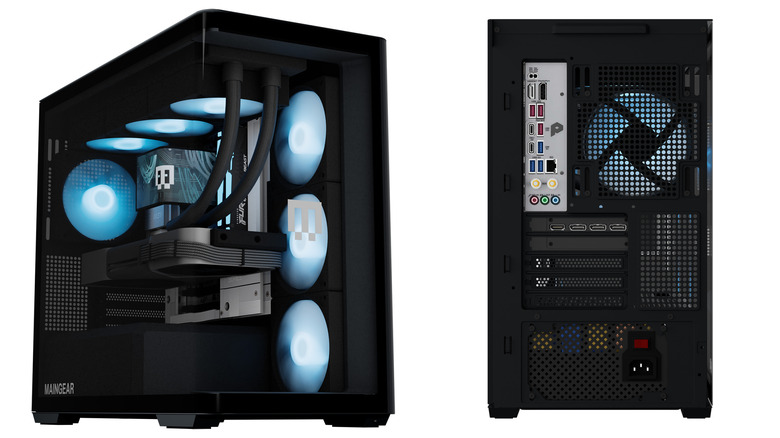
Two beige-tower PCs that look like they were ripped from 1998. One is opened, revealing modern components inside.
The Retro98 starts at $2,500 and goes all the way up to $9,799.
Maingear

Now for the bad news. As you might expect from a retro novelty PC like this, you'll have to pay a pretty penny. The base model (Intel Core Ultra 7 265K / NVIDIA GeForce RTX 5070) costs $2,499. There are two other standard tiers, priced at $3,499 and $4,999. Finally, the open-loop-cooled "Alpha" build is a whopping $9,799. Hey, those aren't 1998 prices!

The Retro98 also has an extremely limited run. Maingear is producing only 32 standard units and six alpha units. The company says it won't bring this build back once those sell out. However, there is a workaround for tinkerers: Since it's based on the SilverStone FLP02 tower PC case, you could grab one of those and build your own.

Those wealthy and nostalgic enough to take the plunge can order the Retro98 today from Maingear’s website.

This article originally appeared on Engadget at https://www.engadget.com/gaming/pc/maingears-latest-retro-gaming-desktop-takes-you-back-to-the-quake-era-174958445.html?src=rss

The best laptops you can buy in 2026, tested and reviewed

Choosing the best laptop can be a bit of a challenge, especially when “good enough” now covers everything from entry-level Chromebooks for college students to premium machines built for serious multitasking and heavier creative work. Specs can blur together fast, but a few basics still matter, like processing power, battery life and whether you’re getting enough storage for the long haul. For many people, that means looking for something that lands in the sweet spot with modern ports, a solid display and at least a 512GB SSD so you’re not juggling external drives a month after you bring your new laptop home.

Out of all of the notebooks we've tested and reviewed recently, we consider Apple's 13-inch MacBook Air M4 to be the best laptop for most people, and this is still the case for our top picks to start off the new year. It's powerful enough to handle most tasks (even light video editing); it has a great screen and built-in speakers; and its battery could last over 18hours (depending on what you're doing, of course). The MacBook Air M4 is also one of the lightest and thinnest systems we've reviewed, and it's dead silent, thanks to a fanless design.

Of course, not everyone wants a MacBook, and there are excellent Windows laptops and Chromebooks out there, too. Windows systems offer a range of configurations, from budget to high-end UHD screens with stunning IPS panels that boast high nits for vivid brightness. Chromebooks, on the other hand, tend to be more affordable and are great for users who mostly work online. Whether you need a powerhouse for creative work, a compact system for note-taking, or a laptop that can handle family movie night, there’s something for everyone in today’s laptop market.

Depending on the type of laptop you’re looking to buy, there are some specs we think you should look for to get a machine that’s powerful enough for your needs and future-proof for the next couple of years (at least). Here's a cheat sheet for you to use when you're shopping.

  • At least M2 processor

  • At least 16GB of RAM

  • At least 256GB of SSD storage

  • The most recent generation processor available from Intel or AMD

  • At least 16GB of RAM

  • At least 256GB of SSD storage (512GB SSD is a safer baseline if you plan to keep lots of files locally)

  • Intel Core i processor

  • At least 8GB of RAM (4GB is the bare minimum for a basic Chromebook)

  • At least 128GB of storage, preferably a SSD

  • At least AMD Ryzen 9000 series or Intel 14th Gen Core CPU

  • At least 16GB of RAM (ideally 32GB if you can swing it)

  • At least 1TB of SSD storage

  • For GPU recommendations, check out our guide to buying the best GPU for your needs

  • The most recent generation processor available from Intel or AMD

  • At least 8GB of RAM

  • At least 256GB of SSD storage (consider a 512GB SSD if you can swing it)

Engadget has been reviewing laptops for two decades, and while the definition of what a portable PC is has changed considerably since, our obsession with testing their limits and serving up informative buying advice remains the same. Be it a hybrid tablet like Microsoft's Surface machines, a rotating 2-in-1 convertible like HP's Spectre x360s or a plain old clamshell notebook, our review process follows similar beats. How does it look and feel? How fast is it? Whether it’s a Windows device powered by an Intel Core i5 or higher, a MacBook or a Chromebook, we aim to answer the most important question: Is it actually worth your hard-earned cash? We also pay close attention to portability, webcam quality and display features, including IPS panels and nits of brightness, as they can make a big difference in daily use.

There's a good chance you've already committed to an operating system, but my advice is to be as flexible as possible. These days, most major software is compatible with both Macs and PCs. (Of course, it's another story if you've become dependent on an Apple-only app like Final Cut Pro.) Web-based apps, naturally, will work on any platform with an internet browser.

If you're an Apple-loyalist, there aren't many reasons to consider Windows laptops (unless you want a secondary gaming machine). But for Windows users, macOS is becoming more tempting every year. Apple's MacBooks, powered by its M-series Silicon chips, are among the fastest and most efficient laptops we've ever seen. They're incredibly well-built and have outstanding battery life to boot. MacOS itself is also an easy platform to learn, especially if you're used to iOS and iPadOS.

That brings up another point: iPhone users may want to consider Macs because of the seamless integration with Apple's other platforms. You can't respond to iMessage conversations easily or hop into FaceTime chats on Windows PCs, but doing so is simple on Macs. (Microsoft's Phone Link app lets you send iOS users individual texts, but not media or group chats.) Android users, meanwhile, may be better off with Windows, as Phone Link can make calls, synchronize all your texts and also access your phone's photos.

If cloud gaming is your priority, Windows laptops with NVIDIA’s GeForce Now or Xbox Cloud Gaming compatibility may offer more flexibility and decent performance, especially when paired with fast internet speeds. Chromebooks also make a compelling case here as an affordable, lightweight solution for casual cloud gaming sessions.

As for whether you’ll want a PC with a dedicated Copilot AI button on the keyboard, that depends on how often you see yourself using Microsoft’s generative tools. Given we’re only just seeing the first slate of AI PCs, it would be wiser to wait out the hype and see what improvements might come over time.

And what about ChromeOS? Chromebooks are a smart and (typically) inexpensive way to do things like web browsing and hopping on a few video chats, but for most, they're not the best choice as a primary computer. There aren't many apps or games that work offline, and they also don't work with powerful software suites like Adobe's (you can use the stripped-down Adobe Express and Photoshop online tools, though).

Chromebooks are great secondary machines to use alongside a more powerful Mac or PC, and they're popular in schools because they're cheap and easy for IT workers to manage. And if all you need is web browsing access, or a notebook for a kid, a Chromebook might be enough.

If, for some reason, you’re looking for a powerful ChromeOS system, there are also Chromebook Plus models to consider. These machines sport faster processors and more RAM than typical Google notebooks, and they can also tap into a few of the company’s online AI features, like AI image generation and photo processing.

You can expect to spend between $1,000 and $1,800 for a new laptop these days, depending on the configuration. If you're looking for more of a workhorse, that could cost you well over $2,000 for additional RAM, storage, as well as a beefier graphics card and CPU. But you can also find some good laptops under $1,000 if you're willing to overlook build quality (or buy a refurbished or previous generation machine, which we highly recommend). For entry-level systems, you’ll often have to decide whether you’d rather prioritize processing power or storage, especially if 512GB SSD upgrades bump the price. Systems with AMD chips tend to come in cheaper than their Intel counterparts, but the bulk of their cost will come down to other components like RAM and storage.

I’ve included our favorite affordable model in this best laptop buying guide, but we have a list of the best budget laptops that you can check out as well.

So how portable do you want your laptop to be? That's the ultimate question you need to ask when choosing between various screen sizes. 13-inch machines have become a solid starting point for most shoppers — it's enough real estate for the majority of tasks like emailing and writing, and it also helps keep machines relatively light (typically between two to three pounds). Thanks to manufacturing advancements, these dainty machines sometimes even come with larger screens (the smaller MacBook Air actually has a 13.6-inch display).

If you have trouble seeing fine text, we’d recommend going for a display larger than 13 inches. ASUS’s Zephyrus G14 is a solid 14-inch option for gamers, and we’re also seeing more productivity-focused machines aim for that size, like the Dell 14 Premium and MacBook Pro. While 14-inch notebooks are a bit heavier than 13-inch models, coming in between three to four pounds, their screens are noticeably roomier.

For artists, or anyone else who needs a large canvas, a 15-inch laptop may make the most sense. They typically weigh between 3.5 and 4.5 pounds, but that extra heft may be worth it to fit wider video editing timelines or Photoshop windows. And, as you'd expect, you'll also pay a bit more for a 15-inch notebook compared to smaller ones (the 15-inch MacBook Air starts at $1,199, while the smaller model goes for $999). PC makers are also replacing 15-inch systems with 16-inch versions, which will give you even more space to work.

If you're in the market for a business laptop, size and portability might be key considerations. A lightweight yet powerful system with a long battery life can make a world of difference if you travel frequently for work.

You can still find laptops with 17-inch or 18-inch screens, but those are typically gaming systems or souped-up workstations. They're not meant for mere computing mortals.

These days, most laptops ship with a few USB-C ports, which can handle both charging and speedy data transfers. Apple's MacBooks also include a separate connection for MagSafe power, and you'll find custom power connections on some PCs like Microsoft's Surface. Older USB Type-A connections are less common now, but they still pop up in systems like HP's Spectre x360 14, as well as many models from ASUS.

For gamers or creators who rely on discrete graphics, ensuring your laptop has the right ports for external monitors or GPUs is crucial. DisplayPort or HDMI connections can also ensure you’re ready for dual- or multi-screen setups for more immersive experiences. Similarly, if you want to save high-resolution files or install multiple games, you might need to consider additional hard drive space; external hard drives are pretty affordable, as long as you have a proper port to connect them.

If you're a fan of wired headphones, it's worth keeping a close eye on headphone jack availability. They usually include a USB-C to 3.5mm adapter, but that's a clunky solution, and it also takes up a USB port. Sure, most people use wireless earbuds and cans today, but it's still helpful to have a wired one around for when those devices run out of juice.

Most laptops today offer Wi-Fi 6 or 6E and Bluetooth 5.0 or later, which should mean faster and more stable connections if you have compatible routers and devices. While Wi-Fi 7 routers have started appearing, that spec hasn't made its way into laptops yet. As for cellular coverage, there are notebooks like the Surface Pro 9 and Samsung Galaxy Book models that offer integrated 5G. But from our testing, that feature may not be worth the cost of a separate data plan. Instead, you could tether to your smartphone or invest in a wireless hotspot that can keep multiple devices online.

A laptop's battery life depends on several factors: The power draw from the screen and other hardware, the optimizations used to avoid unnecessary power drain, and, of course, the size of the actual battery. One of our previous favorite systems, the Dell XPS 13, lasted 13 hours and 15 minutes in the PCMark 10 battery benchmark. In real-world testing, I was able to use it for a day and a half without needing a recharge. The MacBook Air 13-inch, meanwhile, more than 18 hours in our benchmark and kept running for more than two work days of my typical workflow. In general, you should expect a modern laptop to last at least eight hours.

If battery life is your absolute priority, I'd strongly suggest looking at Macs over Windows PCs. Apple's M-series chips are essentially mobile hardware, with all of the power efficiency you'd expect from something originally designed for phones. Qualcomm’s upcoming Snapdragon chips could help Windows PCs compete with Apple’s astonishing battery life, but we’ve yet to see those in action. Chromebooks also typically get decent battery life (as long as you don’t overstuff them with power-draining tabs).

A laptop's refresh rate refers to the amount of times its screen is cycled every second. Modern displays like IPS LCDs and OLEDs support 60Hz refresh rates at a minimum, but we're seeing more devices offering 120Hz, 240Hz and beyond. The higher the number, the faster the screen is refreshed, which ultimately leads to a smoother experience while mousing around or scrolling through web pages. (If you want to get a sense of what a slow refresh rate looks like, just grab an e-reader like the Kindle and try to flip between book pages.)

While high refresh rates used to be reserved for gaming laptops, nowadays we're seeing more mainstream machines like the Dell 14 Premium offer 120Hz (or variable rates that move between 60Hz and 120Hz).

If you’re buying a new laptop, you’ll want to make sure it’s powered by the latest CPUs so you’re not short on processing power a year from now. For Windows PCs, that includes Intel’s Core Ultra chips for thin-and-light machines or the 14th-gen HX chips for beefier systems. The Core Ultra series have NPUs for handling AI tasks, while the HX hardware does not – they’re based on Intel’s previous chip architecture, and they’re more focused on delivering raw horsepower. Intel's older 13th-gen and 12th-gen laptop chips also don't have NPUs, so keep that in mind if you're looking at used systems.

You'll also see AMD's Ryzen 8000 and 9000 chips in plenty of new systems like the ASUS Zephyrus G14 and Razer Blade 14. Those CPUs mainly target gaming laptops and high performance systems, while you'll still find AMD’s older Ryzen 7000 chips in ultraportables. AMD's main advantage is that its chips also include Radeon graphics, which are far more capable than Intel's Arc hardware (though those are getting better).

Qualcomm’s new Snapdragon X Elite and X Plus are also an option in Copilot+ PCs (more on those below). Since they’re based on mobile chip designs, they’re likely also more power efficient than AMD and Intel’s hardware. In the past, we’ve avoided recommending Snapdragon chips because they led to a slow and frustrating Windows experience. But Microsoft claims it’s rebuilt Windows 11 around Snapdragon’s Arm-based architecture, which should lead to far faster performance and better app compatibility.

As for Apple's laptops, you'll be choosing between the M4 Pro, M4 Max and M5, each of which is progressively more powerful.

On the graphics side of things, a GPU, or graphics processing unit, is the component that communicates directly with a laptop's display. Laptop CPUs all have some form of integrated GPU: Intel has either its standard graphics or beefier Arc hardware, while AMD's chips include fast Radeon mobile graphics. If you want to play demanding games at high speeds (measured in frames per second, or fps), or if you need some extra power for rendering video or 3D models, you can configure a laptop with a dedicated GPU like NVIDIA's RTX 40-series hardware or AMD's Radeon RX 7000. Just be sure to leave room in your budget if you want a powerful GPU, as they typically add $300 or more to the cost of a laptop.

Apple's M-series chips, meanwhile, have GPU cores that can perform as well as NVIDIA’s and AMD's lower-end dedicated GPUs. That's quite the accomplishment for systems like this (especially the MacBook Air and 14-inch MacBook Pro), and it's another reason we highly recommend Apple's notebooks.

Simply put, an AI PC is a computer equipped with a neural processing unit (NPU), which is designed to handle AI-related tasks. Much like how GPUs tackle heavy-duty gaming and rendering workloads, NPUs are designed to handle the complex math necessary for AI workloads. They’re also far more power efficient than CPUs or GPUs, which could lead to better battery performance in laptops. While many factors go into NPU performance, for the most part we measure their potential speed by TOPS (tera operations per second).

We were primed for AI PCs based on the chips Intel and AMD announced in 2023. Intel unveiled its "Core Ultra" CPUs in December, its first to include an NPU for AI work. AMD also announced its Ryzen 8040 AI mobile chips that month (and it couldn't help but say they were faster than Intel's new hardware). But in May, Microsoft announced its Copilot+ initiative, which is pushing major PC makers to deliver premium AI PCs with specifications including 16GB of RAM, 256GB SSDs and NPUs with at least 40 TOPS of AI performance.

Copilot+ is more than just a marketing term: Microsoft is also launching AI-powered features in Windows 11 that take advantage of powerful NPUs. That includes Recall, which can help you locate anything you’ve done on your PC (whenever it finally launches), as well as Cocreator in Paint, which can generate AI images based on text prompts and doodles.

If you buy an AI PC that isn’t Copilot+ certified, you’ll still be able to use some features like Windows Studio Effects, which can blur your background in video calls or keep you in frame. Developers like Adobe and Audacity are also building features into their apps that can take advantage of NPUs.

At the time of this post, Chromebook Plus notebooks can also access a few of Google’s online AI features, like image generation and photo processing.

The ThinkPad X9-14 Aura Edition is a great spiritual successor to the ThinkPad X1 Carbon, offering the best that business laptops have to offer. That includes long battery life packed into a thin and light chassis. This is an optimal ultraportable business laptop.

While the price might give you some pause, we tested the lowest configuration, and found that the X9-14’s performance is excellent for casual business users. The only issue with quality is that the keyboard is lacking. It’s mushier than we’d like, which could get a bit tiresome throughout the day. You’ll still miss out on a USB Type-A port, so you may need to carry a Type-C hub with you.

Where the ThinkPad X9-14 will win you over is its bold OLED screen. Combo that with its well-rounded audio, and the ThinkPad X9-14 makes for an excellent multimedia device in and out of the workplace.

Aside from its lovely OLED screen, the ASUS Zenbook 14 OLED doesn't stand out from the crowded laptop field in any way. It just looks dull and boring, especially compared to the strikingly beautiful ASUS Zephyrus G14, which also came out this year. While you can probably find the Zenbook 14 for a decent price, I'd recommend holding out for something with a bit more personality (and with a less wobbly screen hinge).

The Razer Blade has almost everything you'd want in a 14-inch gaming notebook, but it's far pricier than the Zephyrus G14 on this list, and it doesn’t even have an SD card reader. It would be a solid competitor once its price falls a bit, and it's certainly a great option if you just have to have a jet-black laptop.

Framework gave its modularity magic to the Laptop 16, delivering a gaming notebook where almost every single component is user replaceable. But you'll have to pay a pretty penny to snag it with upgraded hardware, and its optional Radeon 7700S GPU was surprisingly slow.

The Alienware m16 r2 has been revamped with a slimmer case, but it’s otherwise a fairly typical gaming laptop. It’s a solid option for Alienware fans, but you’ll find better hardware and deals elsewhere.

The Zenbook Duo is a fascinating dual-screened notebook, and according to my colleague Sam Rutherford it’s the first of its kind that’s worth buying. But its unique hardware isn’t really meant for mainstream consumers, and Windows 11 still doesn’t support multi-screen setups well enough to make full use of the Zenbook Duo’s ample canvas.

Dell’s XPS 16 is big and beautiful, but it’s far too expensive compared to the competition. Plus, it uses a capacitive row of function keys that you basically can’t see under bright light and has too few ports for a machine of this size.

See Also:

It’s hard to come up with an average battery life for laptops, since that will ultimately depend on what you’re doing with them. An ultraportable like the MacBook Air that sips power can last around 20 hours in our battery benchmark, and around two full work days of real-world usage. But a gaming laptop may last only a few hours if you’re actively playing something while on battery. At this point, Macs are delivering far better battery life than PCs, thanks to Apple’s Silicon chips, but Microsoft claims Copilot+ systems with Qualcomm chips will also get over 20 hours of batter life.

The more RAM you have, the more things your computer can do simultaneously. For that reason, we recommend buying PCs and Macs with at least 16GB of RAM. That gives you enough memory to have several applications open at once, as well as web browsers filled with RAM-hogging tabs. Many PC games also require at least 16GB of RAM. While you could use a system with 8GB of RAM for basic tasks, you’ll quickly run into slowdowns and error messages as your apps stack up. Many laptops, especially ultraportables, don’t let you upgrade RAM, too – so you’ll have to buy an entirely new computer if you didn’t equip enough memory at the start.

If you’re a hardcore gamer, programmer or planning to render videos or 3D models, then you may want to go for 32GB of RAM or more. And if you just need a secondary laptop for lighter work – perhaps a no-frills system for writing – then you can probably get by with 8GB. Just be sure to keep those browser tabs in check.

There is no one-size-fits-all solution when it comes to laptop storage. You’ll typically find configurations between 256GB and 1TB SSDs (solid state drives) on most laptops, and I’d recommend most people get at least 512GB. That’ll be enough space for large apps, music and video files without stressing your system too much. If you’re a media hoarder, or want to play a ton of games, then it’s definitely worth getting a 1TB SSD.

If you’ll mainly be streaming your shows and music, and would rather invest in RAM or other hardware, then 256GB of storage would be serviceable. I’d recommend staying away from any machine with 128GB of storage though. Most of that will be taken up by the operating system, and you’ll likely run into issues cramming in large apps after a few months.

We recommend springing for extra built-in storage or investing in a portable SSD for backing up your most important files. It's also worth noting that Chromebooks tend to come with less built-in storage — 32GB, 64GB or 128GB — since ChromeOS encourages users to save their files in the cloud rather than on the device. In that case, 128GB is plenty.

You can expect to spend between $1,000 and $1,800 for a typical 13-inch laptop today. As I explained above, you'll pay more if you want to stuff in more RAM or better GPU hardware. But you can also find deals below $1,000 if you look for refurbished or older-generation models.

Simply put, macOS is the operating system in all of Apple's notebooks and desktops, while Windows powers the vast majority of PCs. You'll also find Chromebooks running Google's ChromeOS, but those are basically just web browsers running on top of Linux.

Debating the differences between Windows and Macs is something PC nerds have been doing since the '80s, so we won't be declaring a winner here. There are some small, negligible distinctions, like using a Command versus a Control key, how file explorers work and concerns about viruses and security. For the most part, those are minor issues or have become moot thanks to better built-in security.

But if you care more about playing the newest games, you'll want to have a Windows system. If you're more focused on creative apps, like Photoshop, Premiere and Final Cut Pro, then macOS may be a better fit (especially if you're running an iPhone).

There is no single "best" laptop brand, but judging from this guide alone, we're generally impressed by notebooks from Apple, Dell and ASUS. They all offer fast, reliable and sturdy machines. HP also makes some eye-catching devices if you want an option that’s the most aesthetic. Those four brands, along with Lenovo and Acer, dominate laptop sales worldwide. We'd avoid systems from any retail store brands, or companies that don't have a major presence in the US.

October 2025: Updated to add the latest MacBook Pro.

September 2025: Added a new "specs to look for" section.

August 2025: Updated our top picks to include the Dell 14 Premium.

May 2025: Updated to ensure top picks and details are still accurate.

March 2025: Updated to include the M4-powered MacBook Air.

November 2024: Updated to include the M4-powered MacBook Pros.

August 2024: Updated to include the Lenovo ThinkPad X1 Carbon Gen 12.

This article originally appeared on Engadget at https://www.engadget.com/computing/laptops/best-laptops-120008636.html?src=rss

MSI’s refreshed Prestige series laptops are now available to buy

The latest lineup of MSI's Prestige laptops is now available to buy. The company unveiled its next-generation business laptop at CES earlier this month, all of them powered by the latest Intel Core Ultra Series 3 processors.

Available in configurations that include up to the Intel Core Ultra 9, the updated Prestige series are equipped with chunky 91Wh batteries and, depending on the model, offer over 30 hours of 1080p video playback. In more real-world terms, if you’re on a work trip and know you won’t always have a power supply to hand, you can trust one of these to get you through a day of heavy multi-tasking.

The new Prestige models are encased in full aluminum and are slimmer than their predecessors. They feature vapor chamber cooling and dual-fan architecture to ensure they stay cool and quiet while you work. If you pick up one of the convertible 2-in-1 Flip models, you can work with a stylus too.

There’s a 2.8K OLED display option for the Prestige 16 and 16 Flip, with support for VRR and DisplayHDR True Black 1000. The Flip 14 keeps the OLED, but the resolution drops to FHD+ and you lose the VRR.

The full lineup is now available in the US, with prices starting at $1,299. 

This article originally appeared on Engadget at https://www.engadget.com/computing/laptops/msis-refreshed-prestige-series-laptops-are-now-available-to-buy-165234479.html?src=rss

Microsoft issues emergency fix after a security update left some Windows 11 devices unable to shut down

If you weren't able to shut down your Windows 11 device recently, Microsoft has rolled out an emergency fix addressing a couple of critical bugs that popped up with its latest January 2026 Windows security update. The latest "out-of-band" update repairs an issue for some Windows 11 devices that would only restart when users tried to shut down or hibernate. The same update restores the ability for Windows 10 and Windows 11 users to log into their devices via remote connection apps.

Microsoft said the inability to shut down or hibernate affected Windows 11 devices using Secure Launch, a security feature that protects a computer from firmware-level attacks during startup. As for the remote connection issue, Microsoft explained in its Known issues page that credential prompt failures were responsible when users tried to log in remotely to affected Windows 10 and 11 devices.

According to WindowsLatest, some lingering issues with the January 2026 Windows security update are still affecting users, like seeing blank screens or Outlook Classic crashing. Back in October, Microsoft had to issue another emergency fix for Windows 11 related to the Windows Recovery Environment. For those still hesitant to upgrade to Windows 11, Microsoft is allowing you to squeeze some more life out of Windows 10 by enrolling in Extended Security Updates.

This article originally appeared on Engadget at https://www.engadget.com/computing/microsoft-issues-emergency-fix-afer-a-security-update-left-some-windows-11-devices-unable-to-shut-down-192216734.html?src=rss