Apple Vision Pro Air Typing experience takes a small step toward usability

It’s truly mind-blowing to see virtual objects floating before our eyes, but the magic and illusion start to break down once we try to manipulate those objects. Input has always been a tricky subject in mixed reality, either because we can’t see our actual hands or we can’t feel what we’re supposed to be touching, which is physically nothing. Until the perfect haptic feedback gloves become a reality, we have to make do with tricks and workarounds to make input less awkward and more convenient. That’s especially true with typing on air, and Apple is apparently using some special techniques to offer a more usable experience on the Vision Pro mixed reality headset.

Designer: Apple (via Brian Tong)
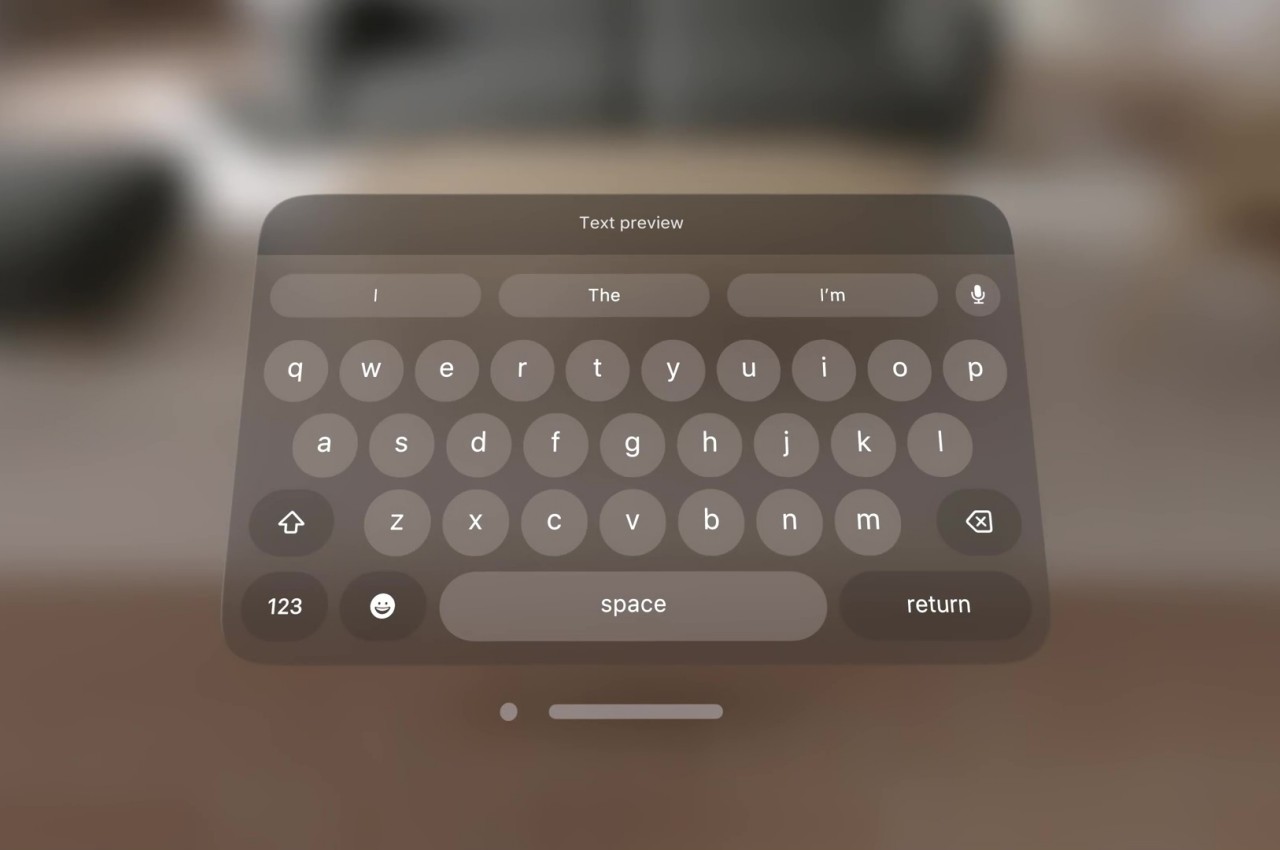
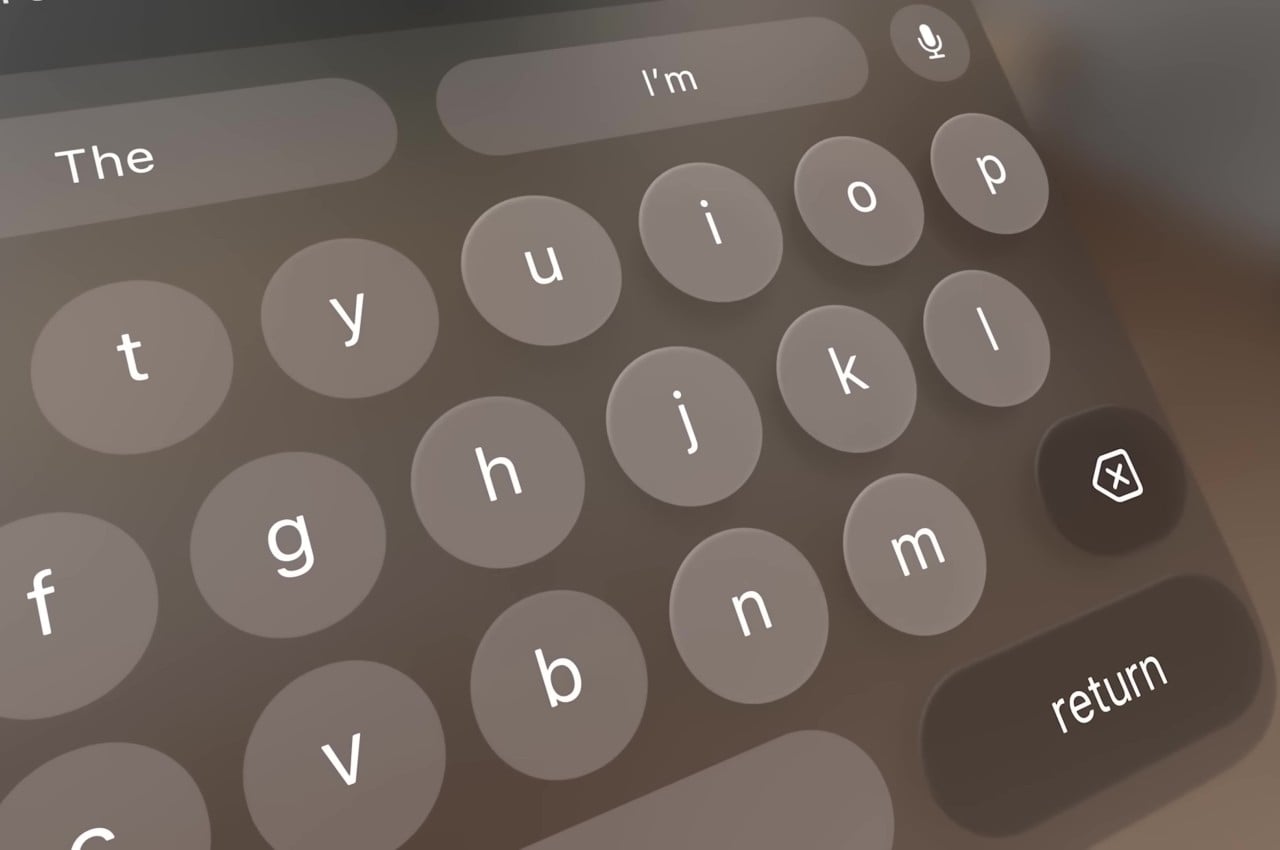
Apple’s first teaser for the Vision Pro headset and visionOS platform didn’t show typing of any sort. It focused, instead, on icons, windows, and menus, virtual 3D objects that are easier to interact with using hand gestures. Of course, sooner or later you will be faced with the need to input text, and the usual method of voice recognition won’t always cut it. visionOS, fortunately, does include a virtual floating keyboard like other VR systems, but the way you use it is quite special and, to some extent, ingenious.
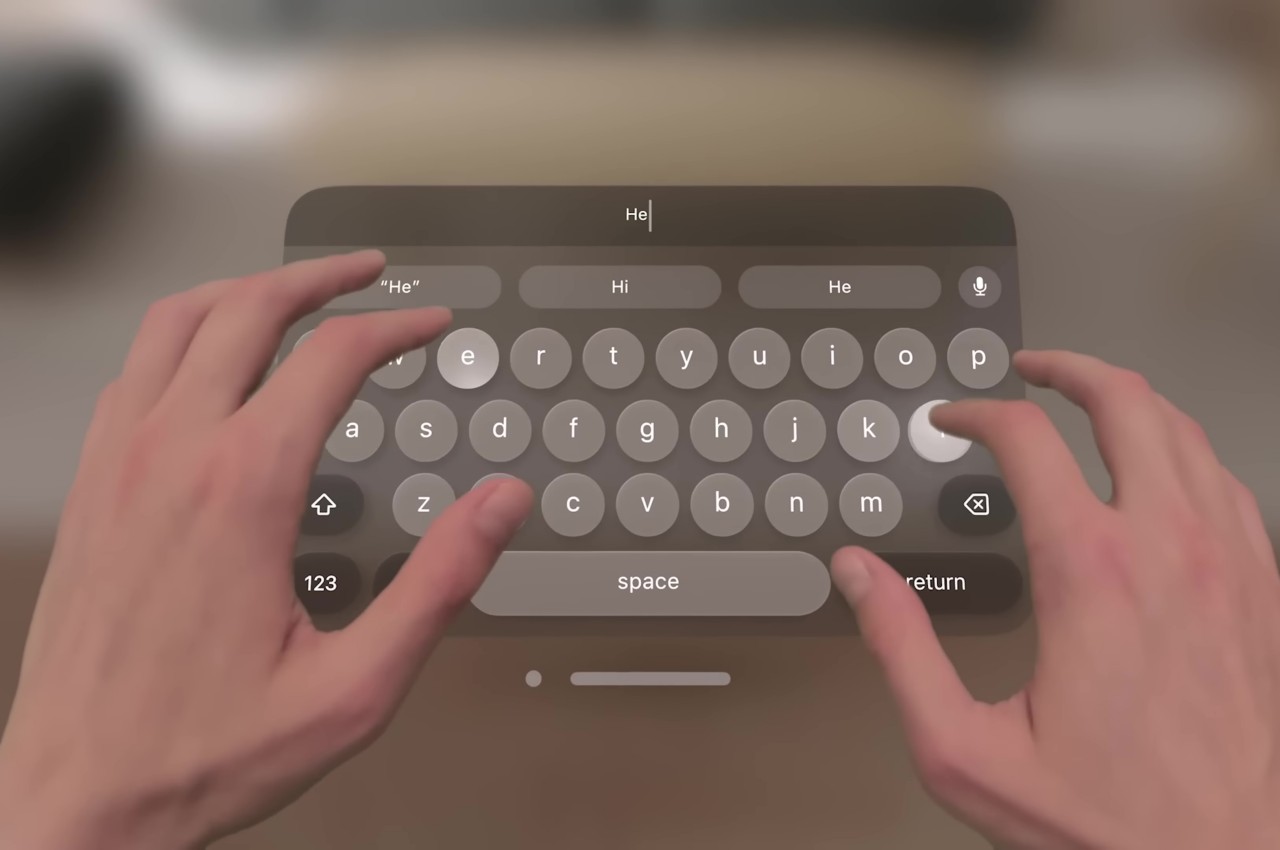
For one, you can interact with the keyboard like you would any part of the Vision Pro’s interface, which is to look at the UI element to focus on it and then use hand gestures. In this case, pinching a letter is the equivalent of selecting it, just like what you’d do for menu items or icons in visionOS. It makes the gesture grammar consistent, but it’s also an awkward way to type.
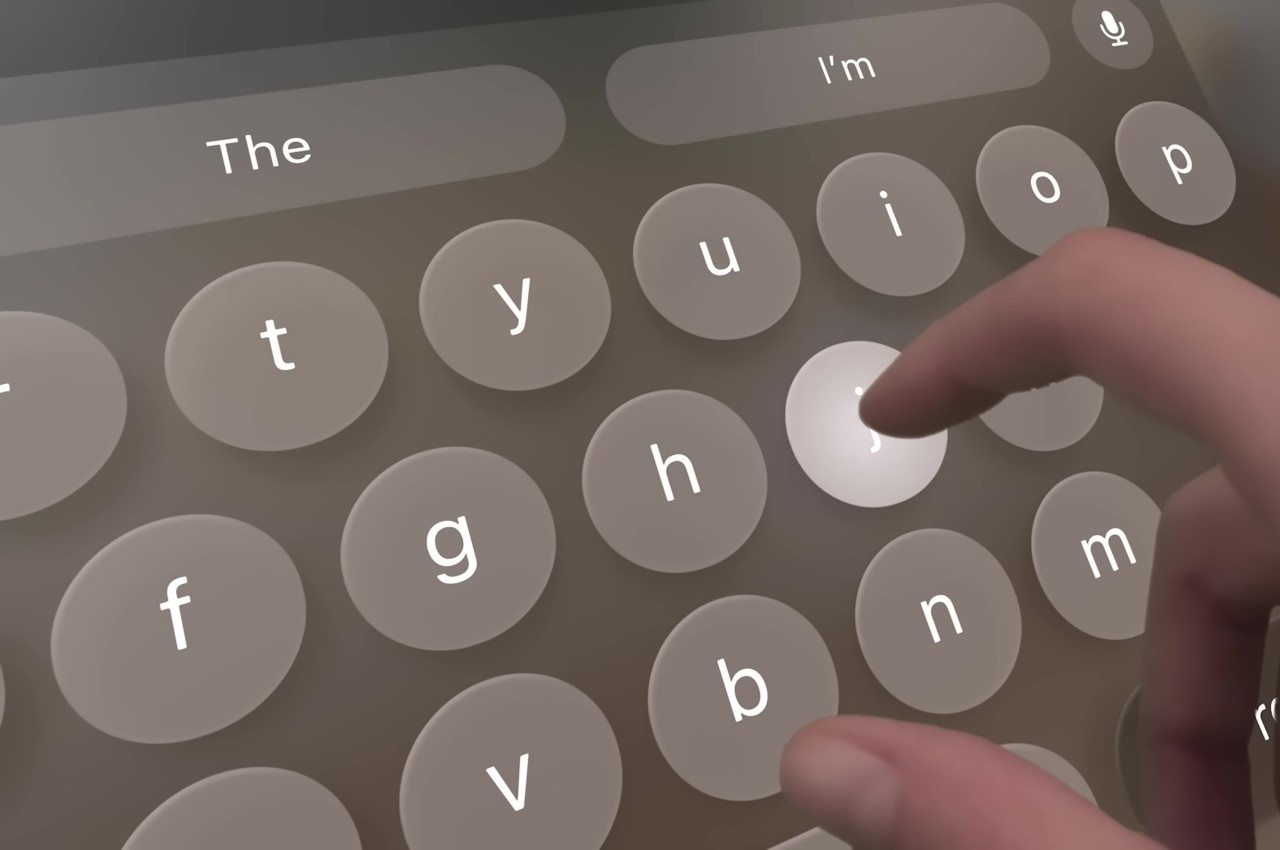
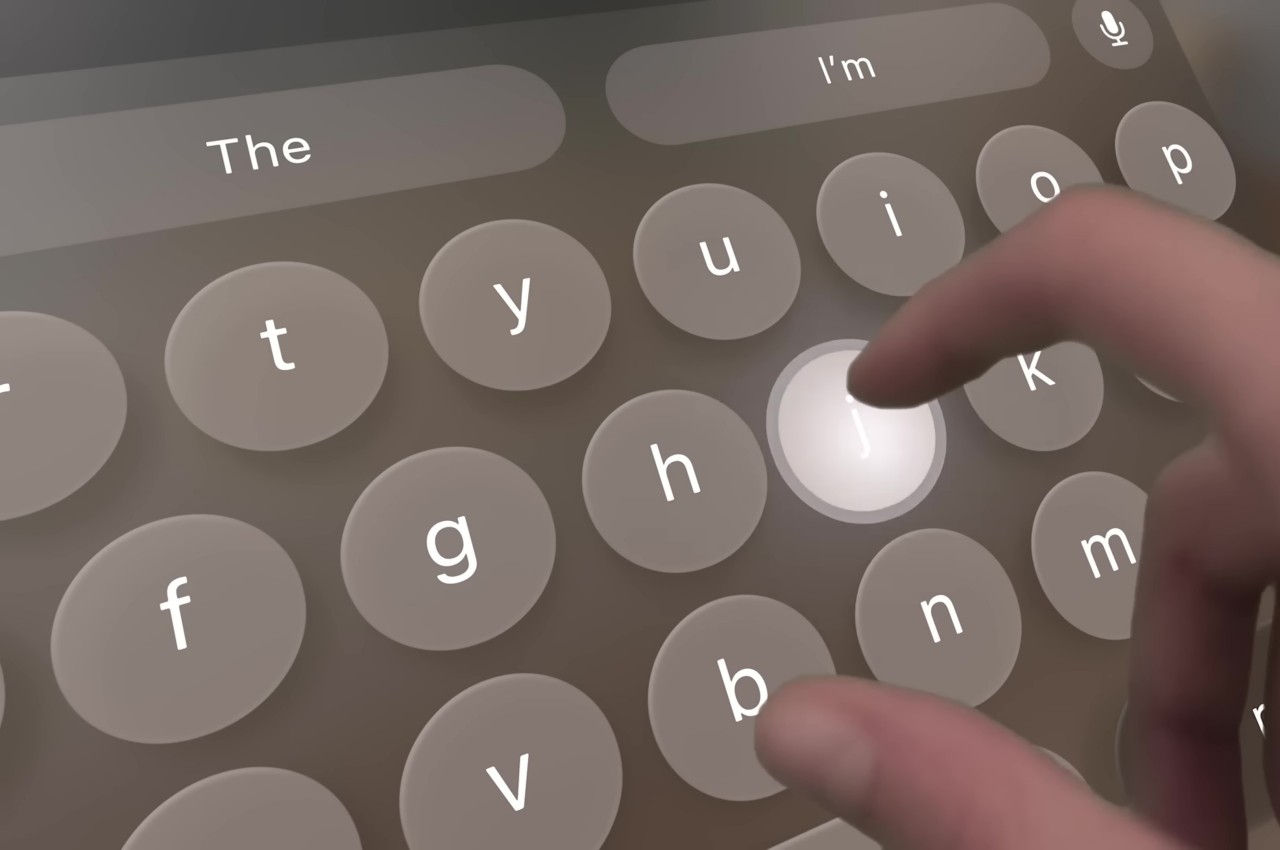
You can also “peck” at the keys with your fingers, making you feel like you’re typing on air. The difference that the Vision Pro makes, however, is that it tricks your eyes into believing you’re actually pressing down on those keys. Thanks to Apple’s flavor of spatial computing, hovering your real-world finger on a virtual key makes that key glow, and tapping on it results in an animation that looks like the key is actually moving down, just like on a real keyboard. There’s also a haptic sound, similar to the clicking sound effect you’d normally hear on an iOS virtual keyboard, to complete that audiovisual illusion.

Of course, your fingers aren’t actually hitting anything physical, so there’s still a disconnect that will probably confuse your brain. The visual effect, which is really only possible thanks to spatial computing, is still an important step forward in helping our minds believe that there’s a “real” three-dimensional object, in this case, a keyboard, right in front of us. It’s not going to be the most efficient way to input text, but fortunately, you can connect a wireless keyboard to the Vision Pro and you’ll be able to see your actual hands typing away on it.
The post Apple Vision Pro Air Typing experience takes a small step toward usability first appeared on Yanko Design.
Figma Creator Micro Keyboard gives designers all the shortcuts they need

Computers are powerful tools that enable all kinds of workflows, including designing products, architectures, or artwork. As powerful as they may be, the devices that we currently have for creating these digital artifacts aren’t exactly conducive to the creative process. Keyboards are large and clunky, and while there are indeed styluses that act like electronic pens, they still require the use of keys at some point or another. Keyboard shortcuts are supposed to help manage those dozens if not hundreds of actions available, but the finger gymnastics and memorization required create more stress and break the creative workflow. That is why custom-made keyboards are becoming popular among creators and designers, and this newest addition offers plenty of power in a small and cute package.

Designer: Figma x Work Louder

Almost all software for designers and creatives makes use of keyboard shortcuts so that you don’t have to dig through countless menus every time you need to do something. Sadly, the way keyboards work means you have to string a series of keys that may or may not have anything related to the action like Ctrl and Z keys to undo and Ctrl and Y to redo. Not only does it make it harder to remember these shortcuts, they can also be painful for your fingers in the long run.

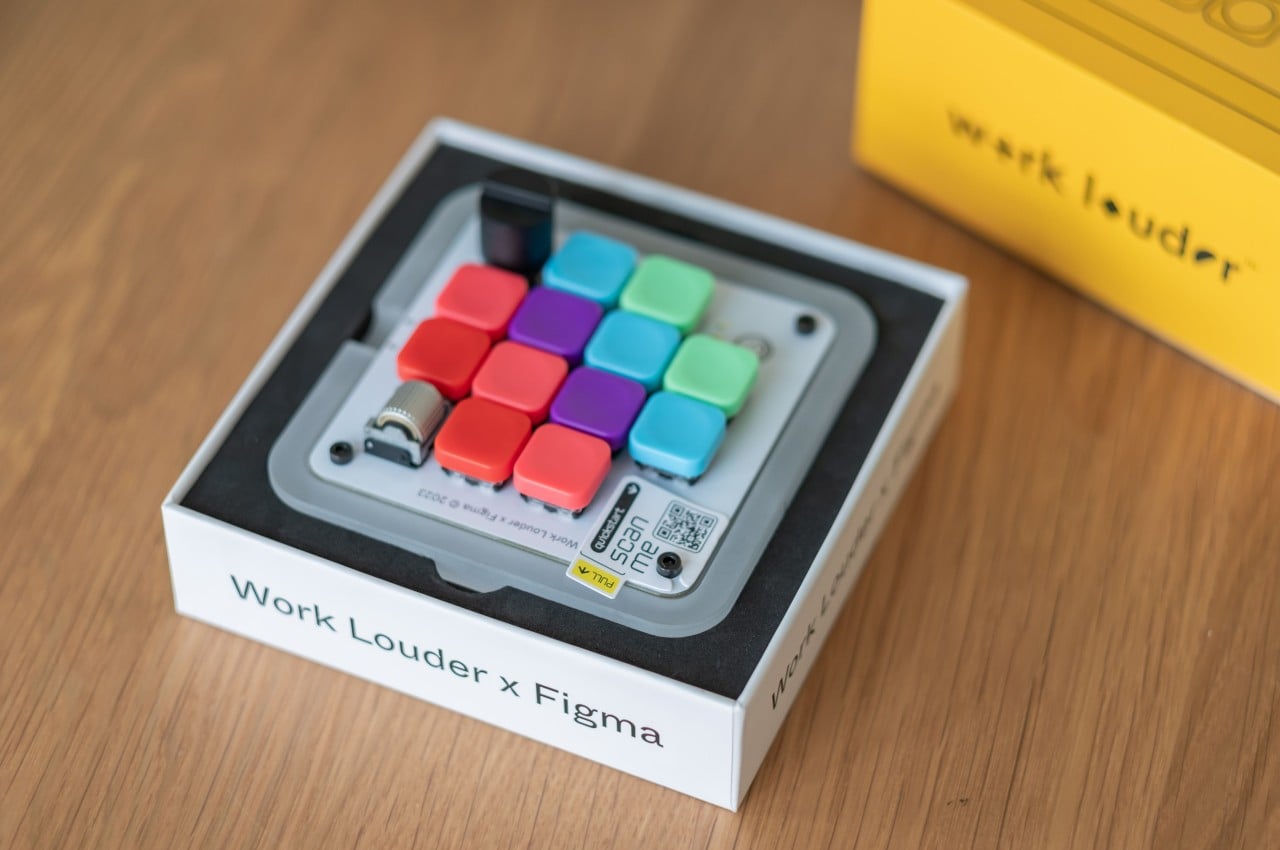
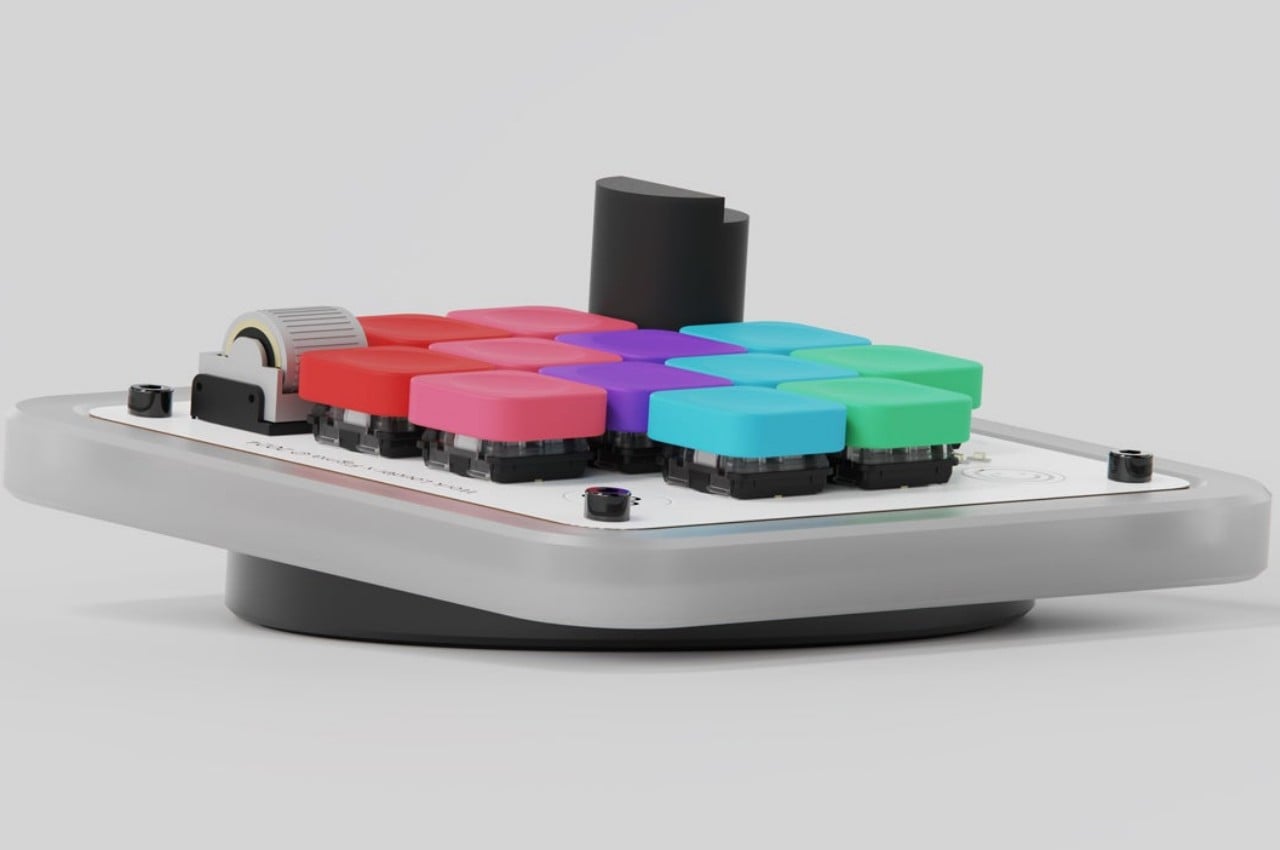
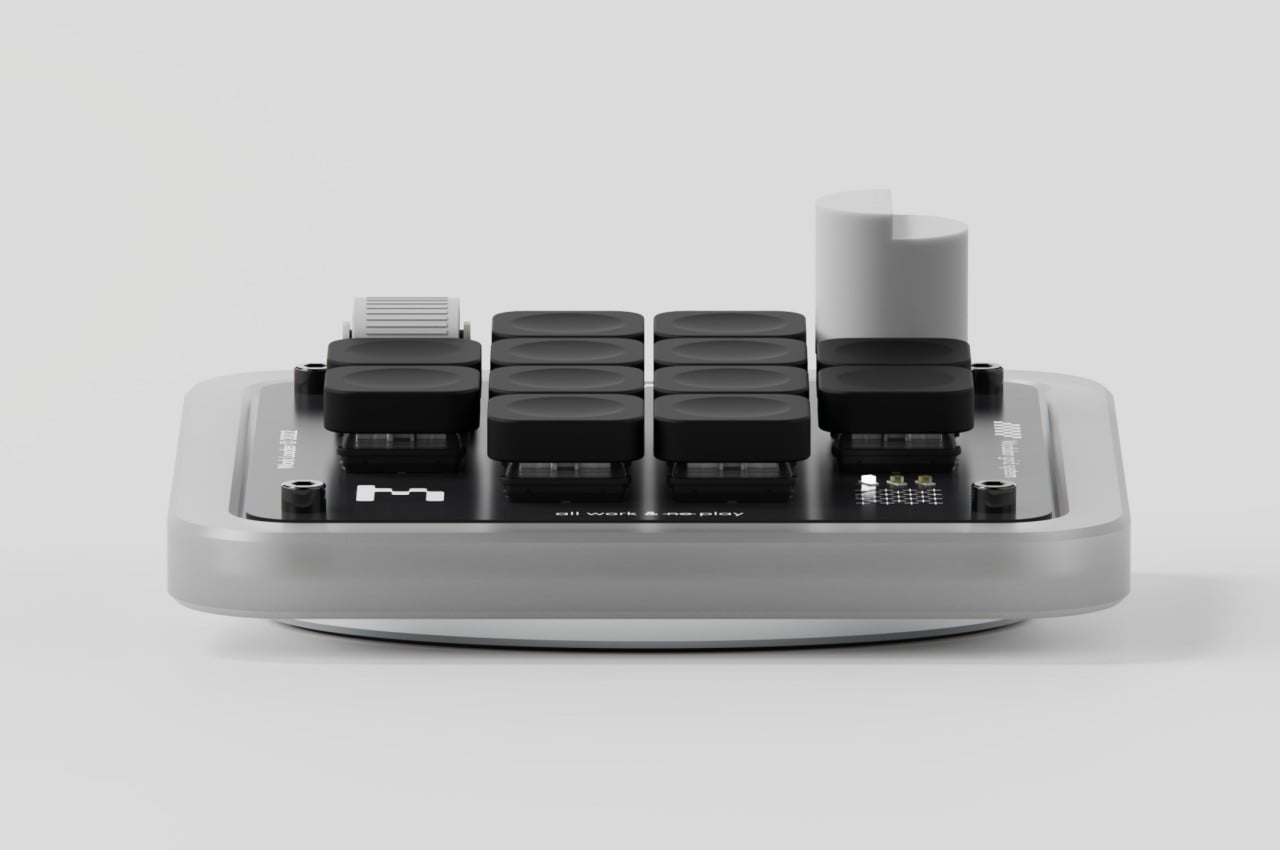
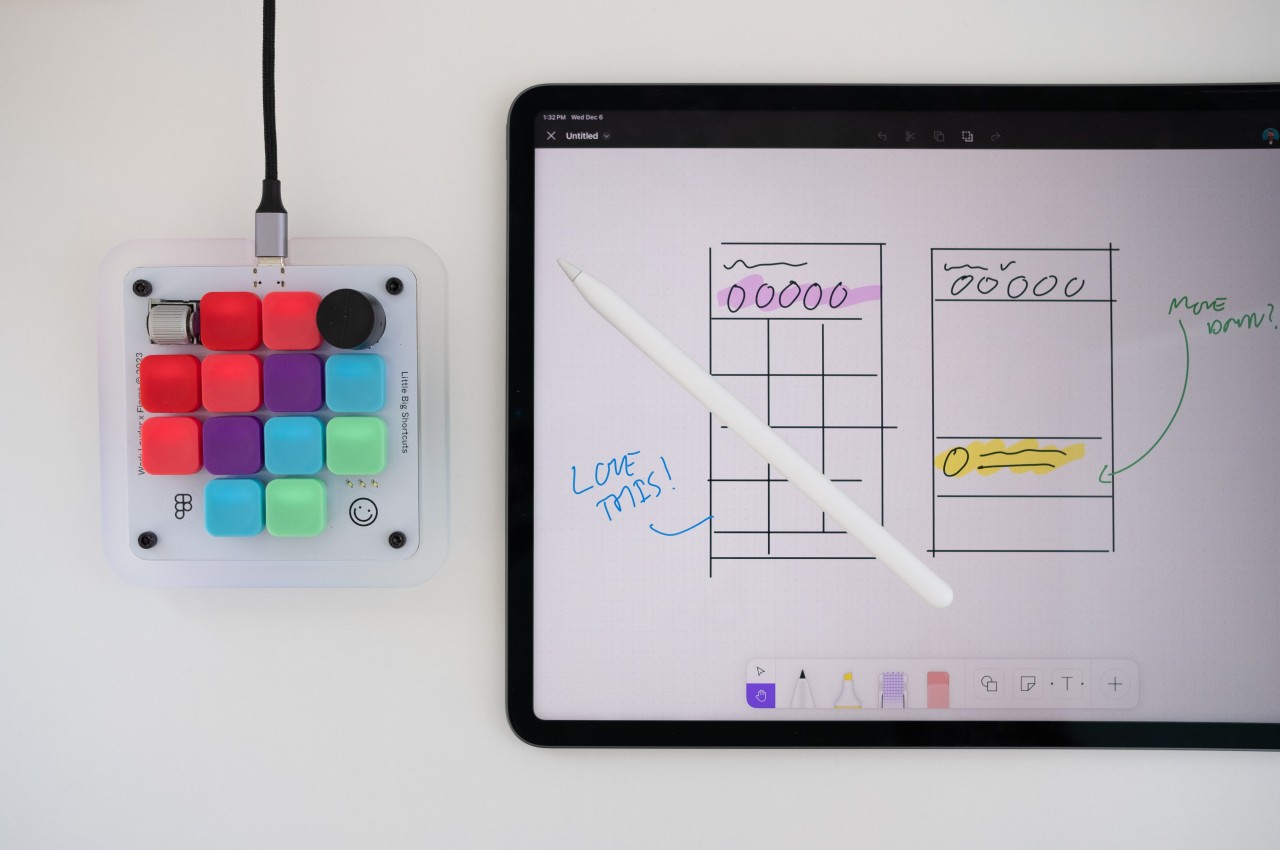
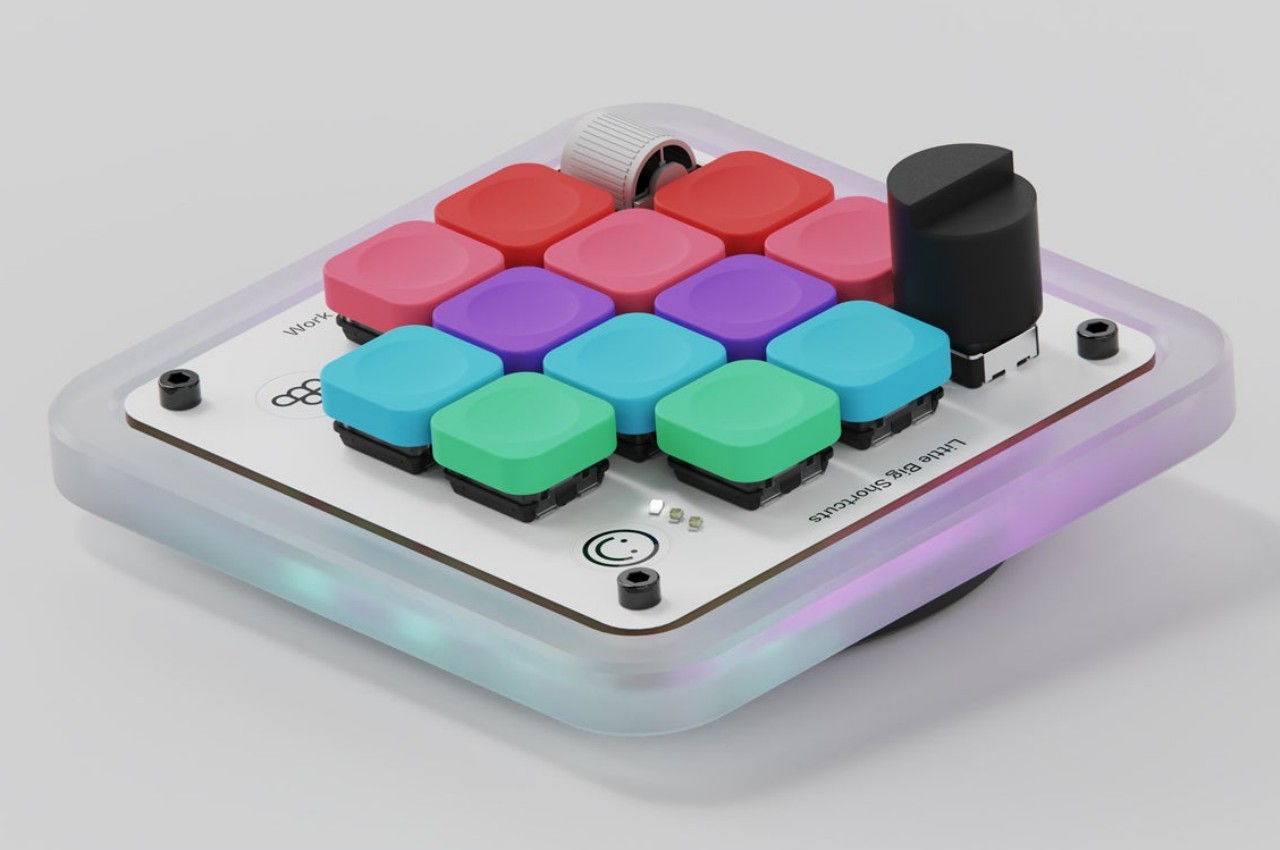
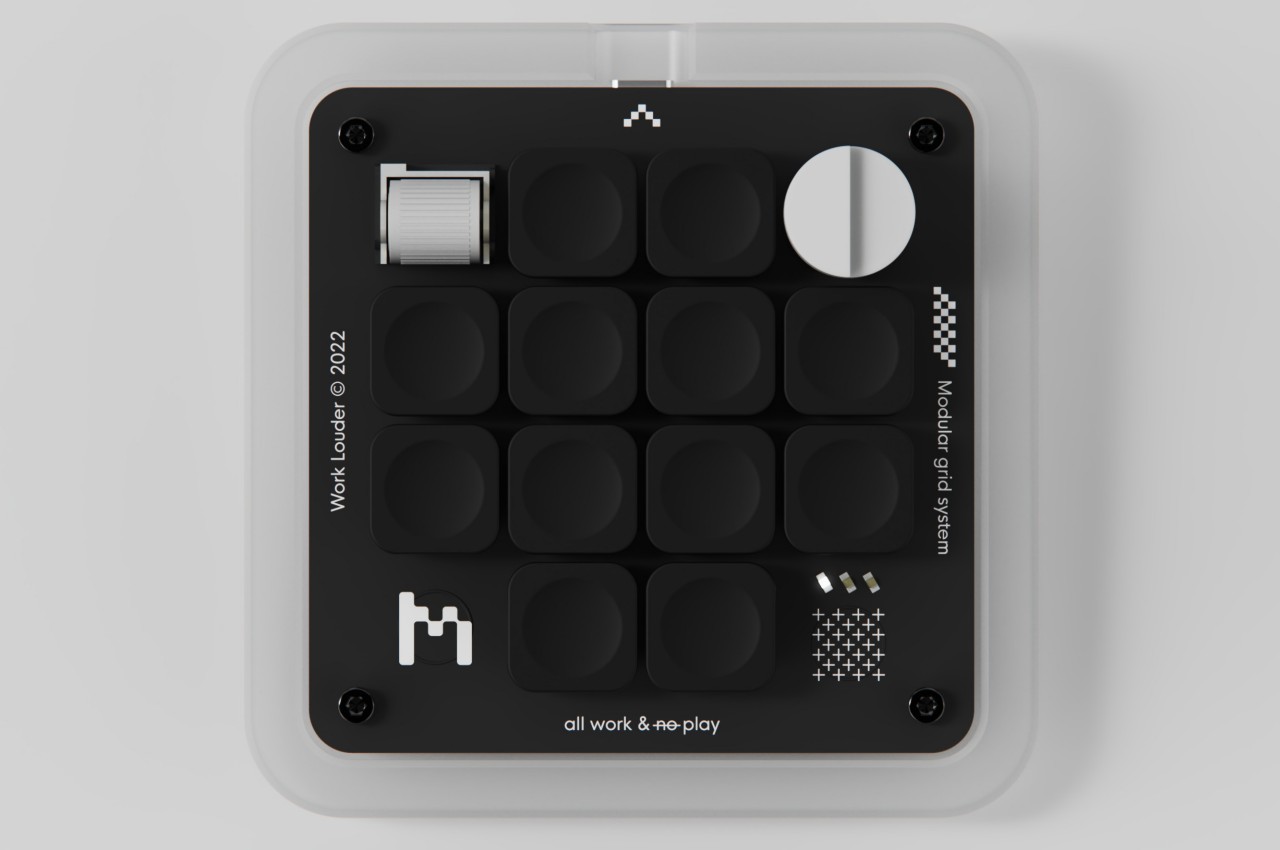
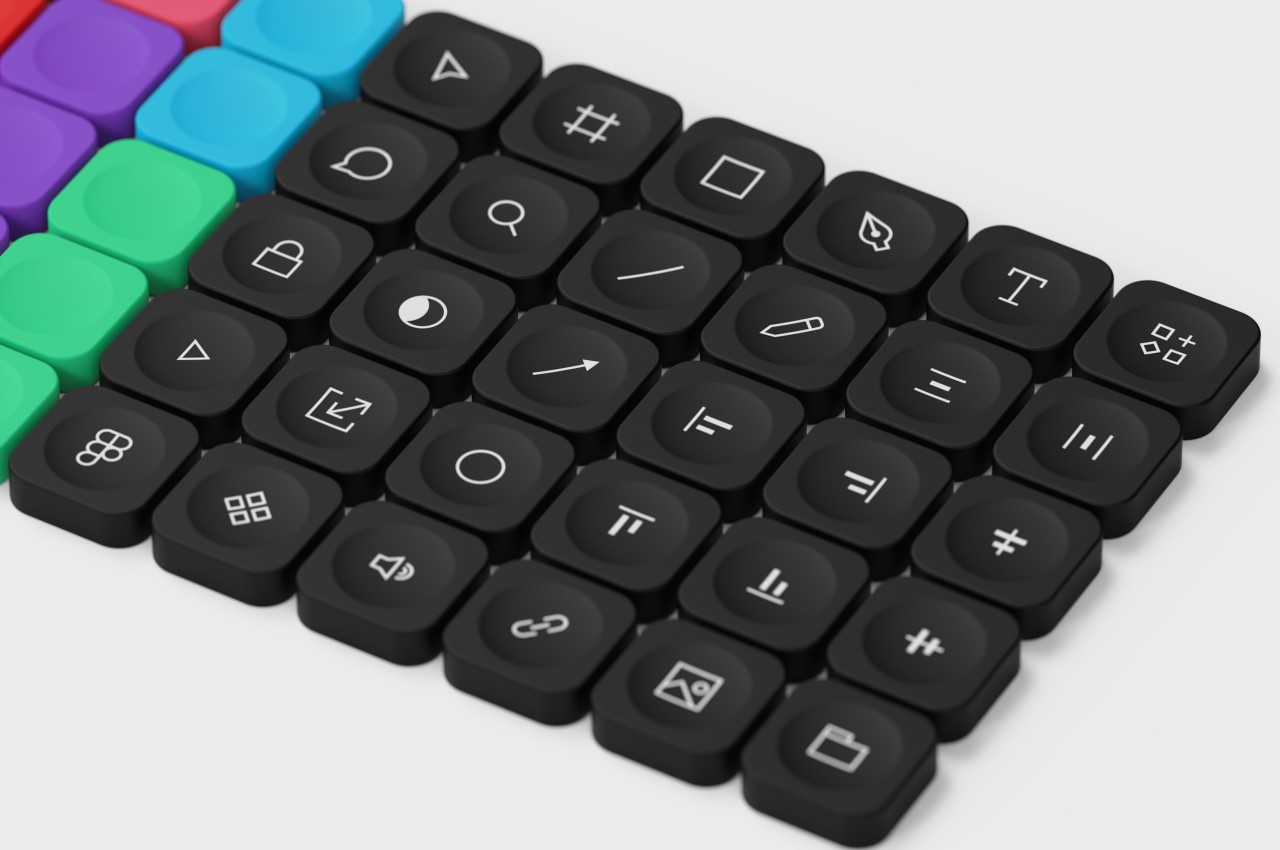
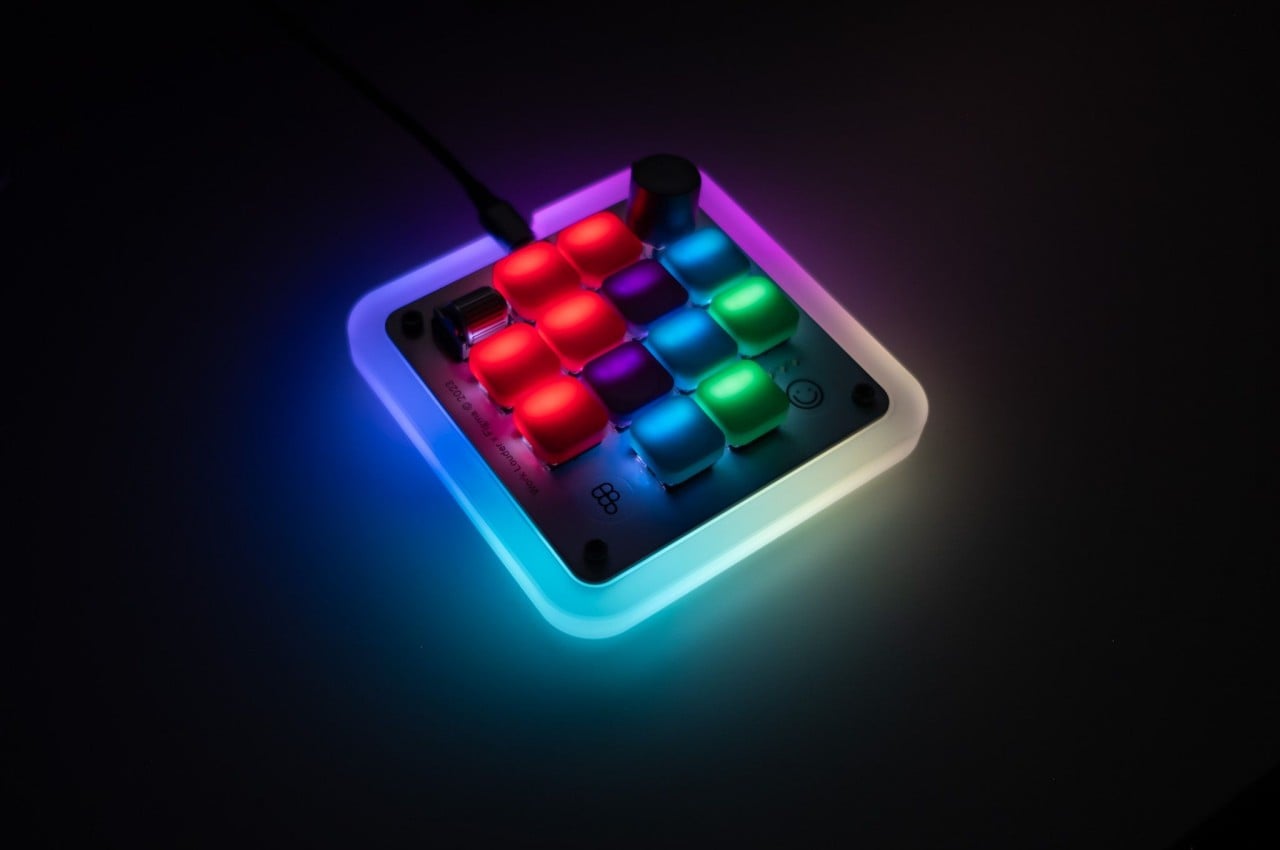
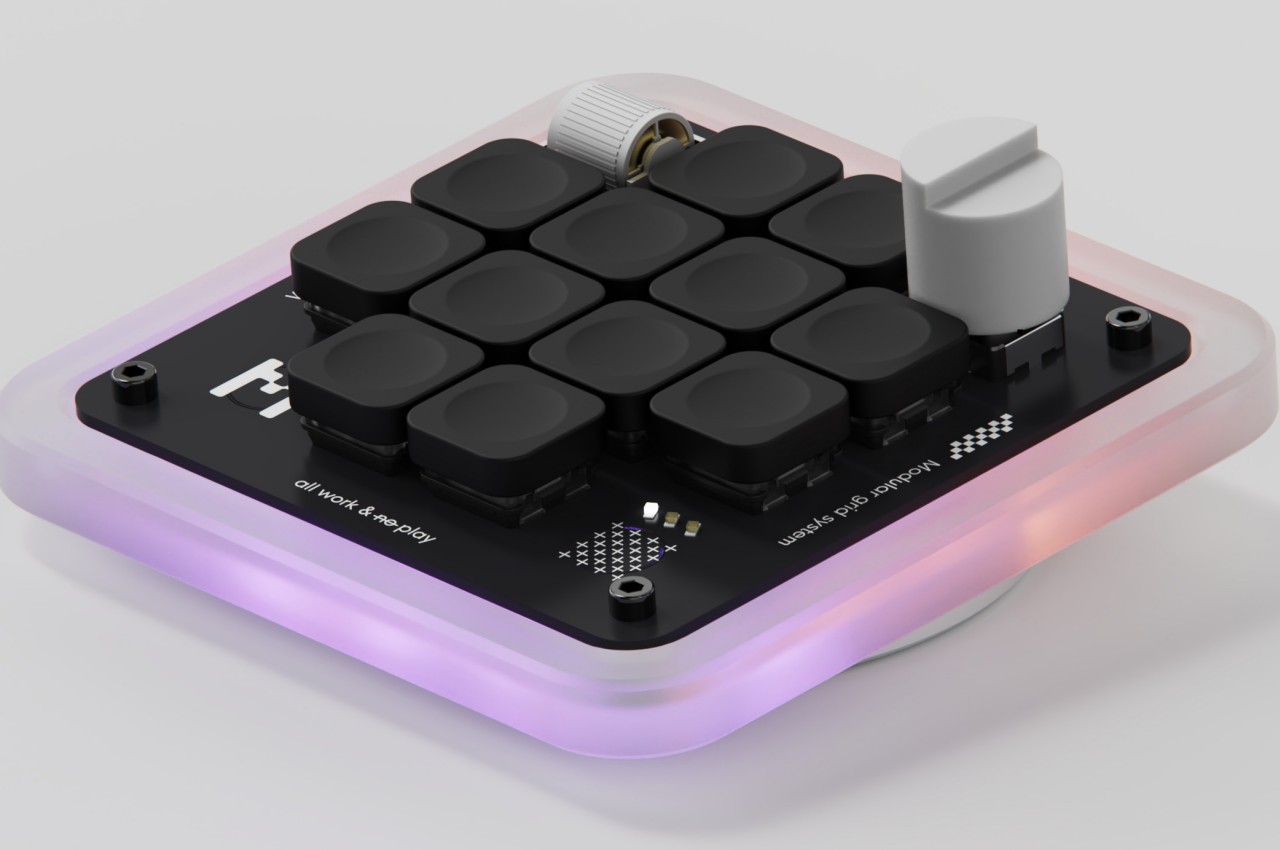
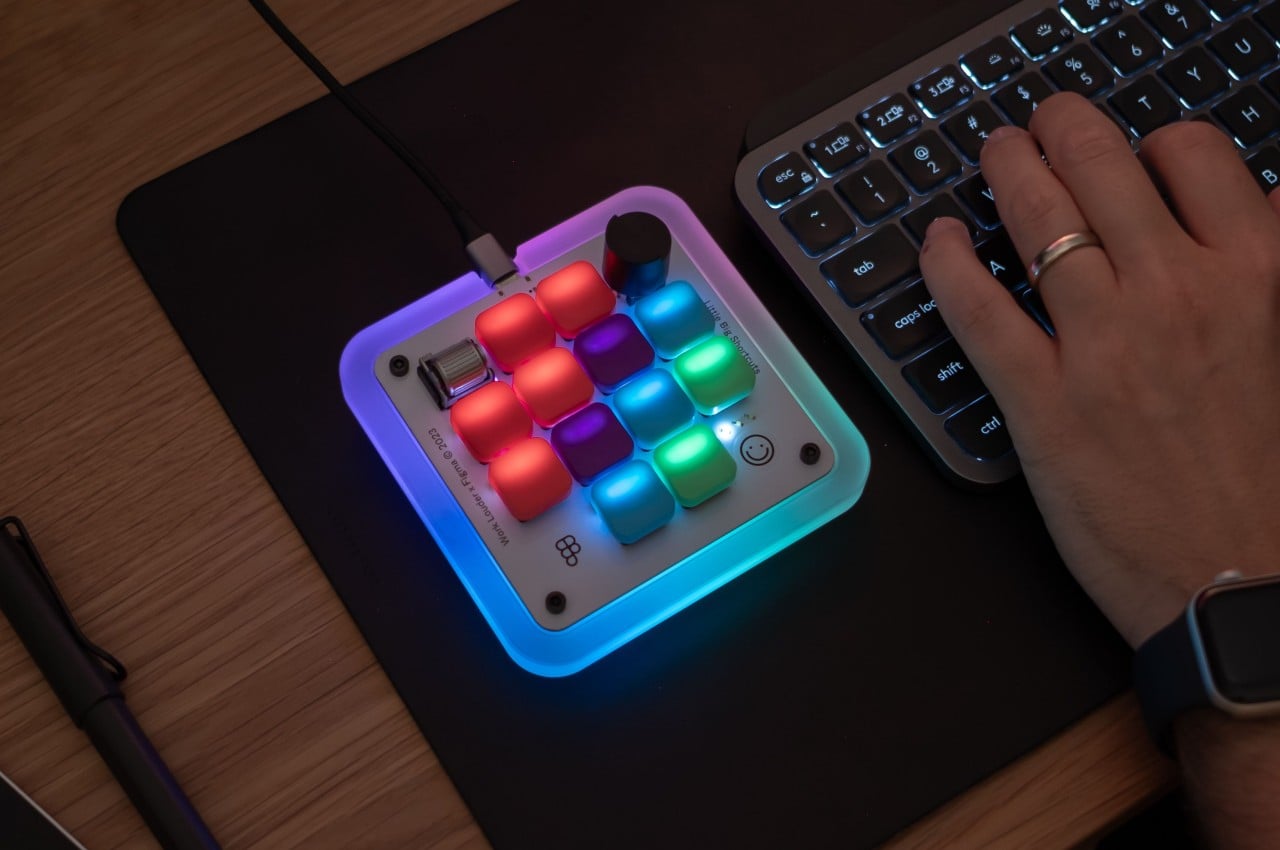
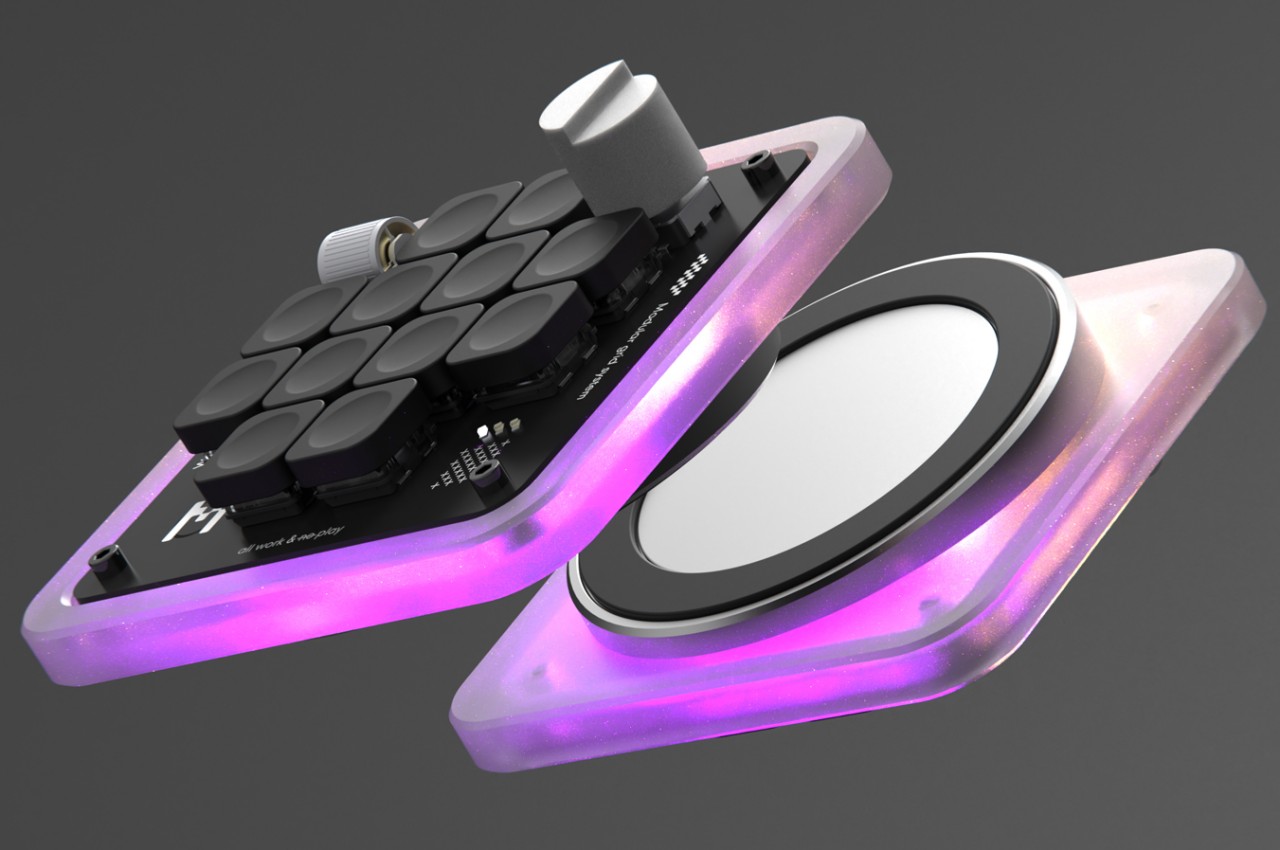
Enter the Figma Creator Micro Keyboard, a small square keyboard with only 12 mechanical keys arranged in a cross formation. The idea is that you can map each of the keys to a single function so you don’t have to press two or more keys to get the same outcome. Of course, 12 keys won’t be enough for many software (Figma itself has over 150 possible actions), but the Figma Creator has four “layers” so that each key can actually have four actions. That gives you a total of 48 keys in groups of 12, available by simply tapping a capacitive sensor in the corner.

In addition to these keys, there are two analog controls available as well, a dial and a wheel, both of which are also clickable. These can be mapped to changing brush sizes or going through a sequence of undos and redos in rapid succession, basically, anything that would involve a slider or list of some sort. These are must-haves for digital painting and design software, proving how this keyboard was made with this kind of work specifically in mind.

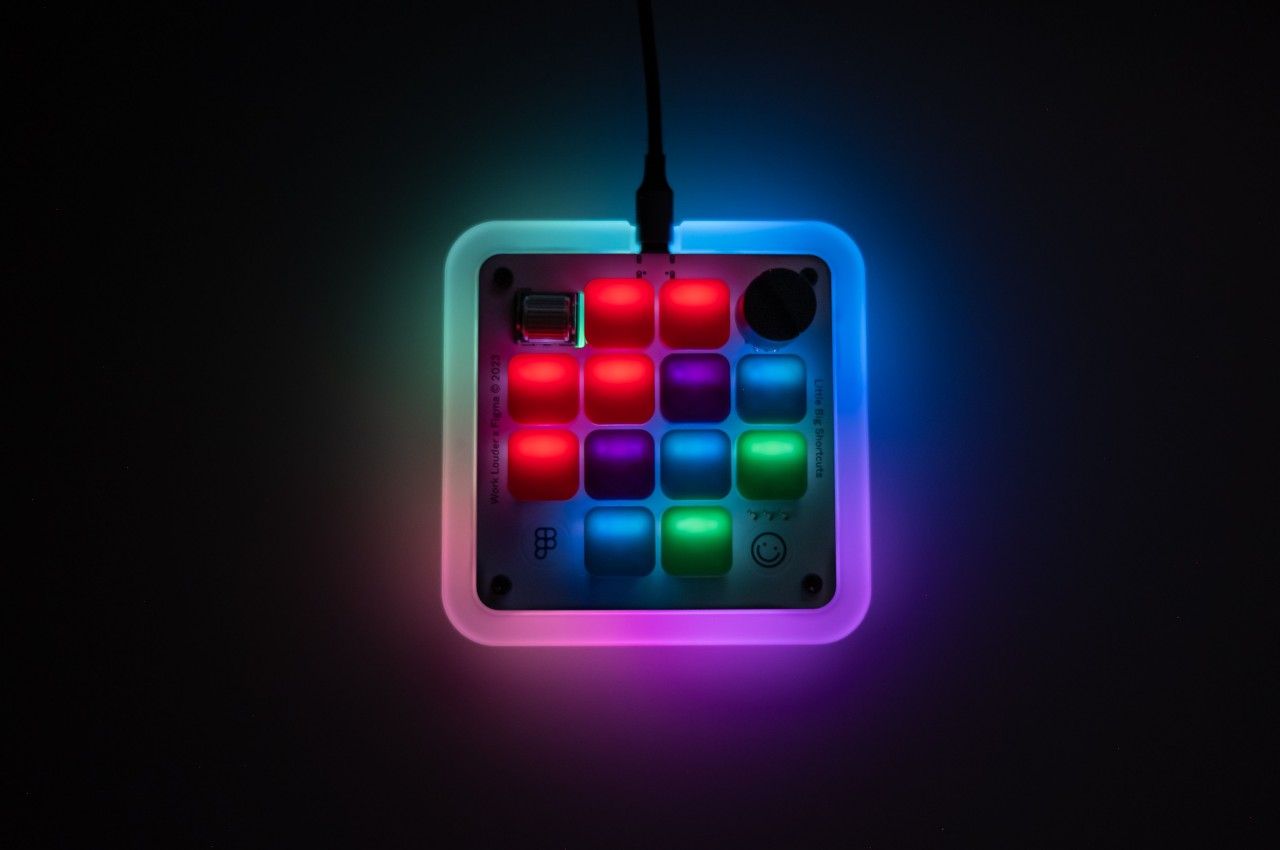
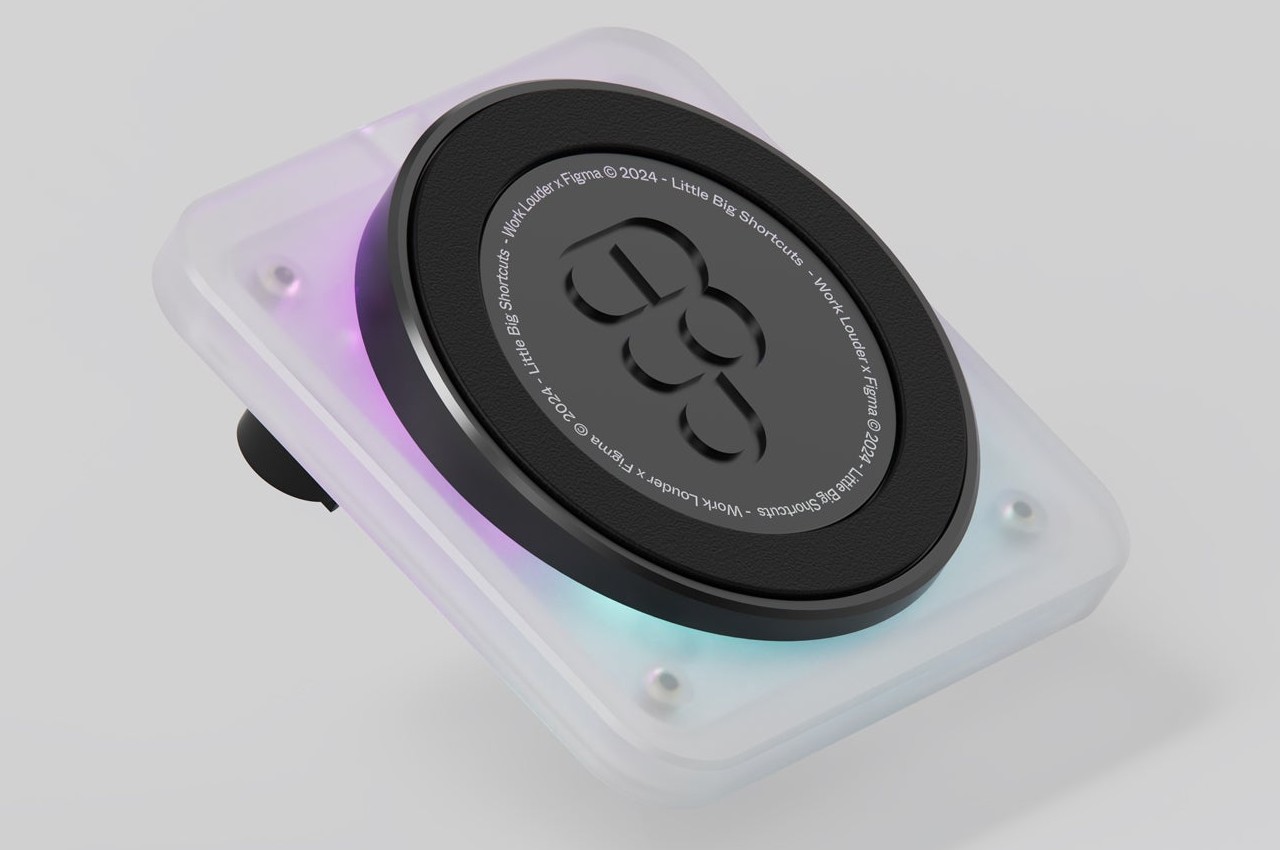
The design of the keyboard itself is quite captivating and fun, using a frosted polycarbonate case that lets the RGB lighting inside shine through. The low-profile concave keycaps are replaceable, so you can pick your theme or design to match your mood and workflow. The catch is that the keyboard costs $139 and is currently still on pre-order, though it does make for a worthwhile investment if you find your fingers always aching and sore after an intense work session.

The post Figma Creator Micro Keyboard gives designers all the shortcuts they need first appeared on Yanko Design.
AI-assisted keyboard streamlines workflow for IT professionals and content creators

If you ever wondered what the next big leap in technology could be, it surely is artificial intelligence. Set to take the world we live in by storm in the coming decade, the future is exciting as we all witness the metamorphosis in our daily routine thanks to this promising evolution.

As a coder or content creator, if you always wanted AI to be by your side to streamline processes, now is a good time to be alive. So, why not a mechanical keyboard that employs AI to your advantage to stay ahead of the curve?

Designer: Junha Kahm

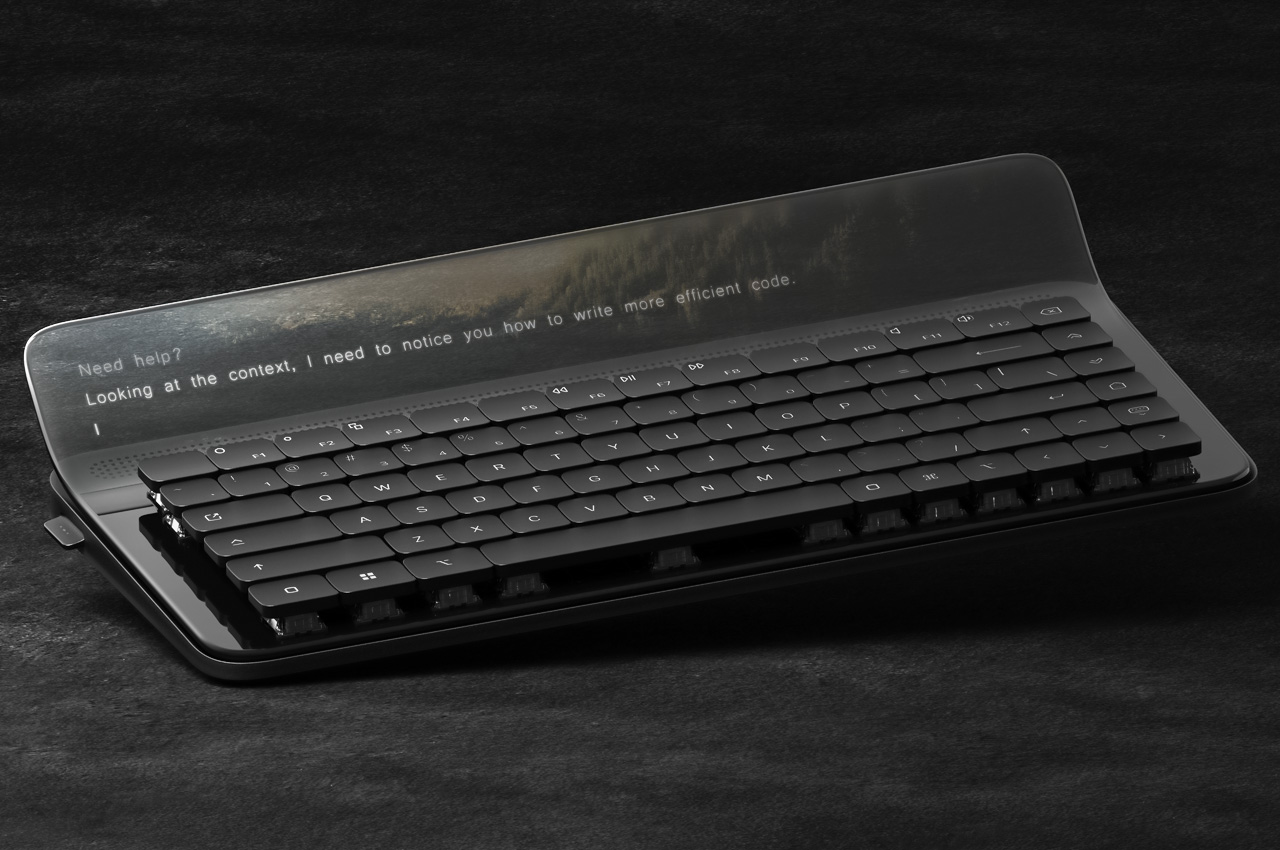
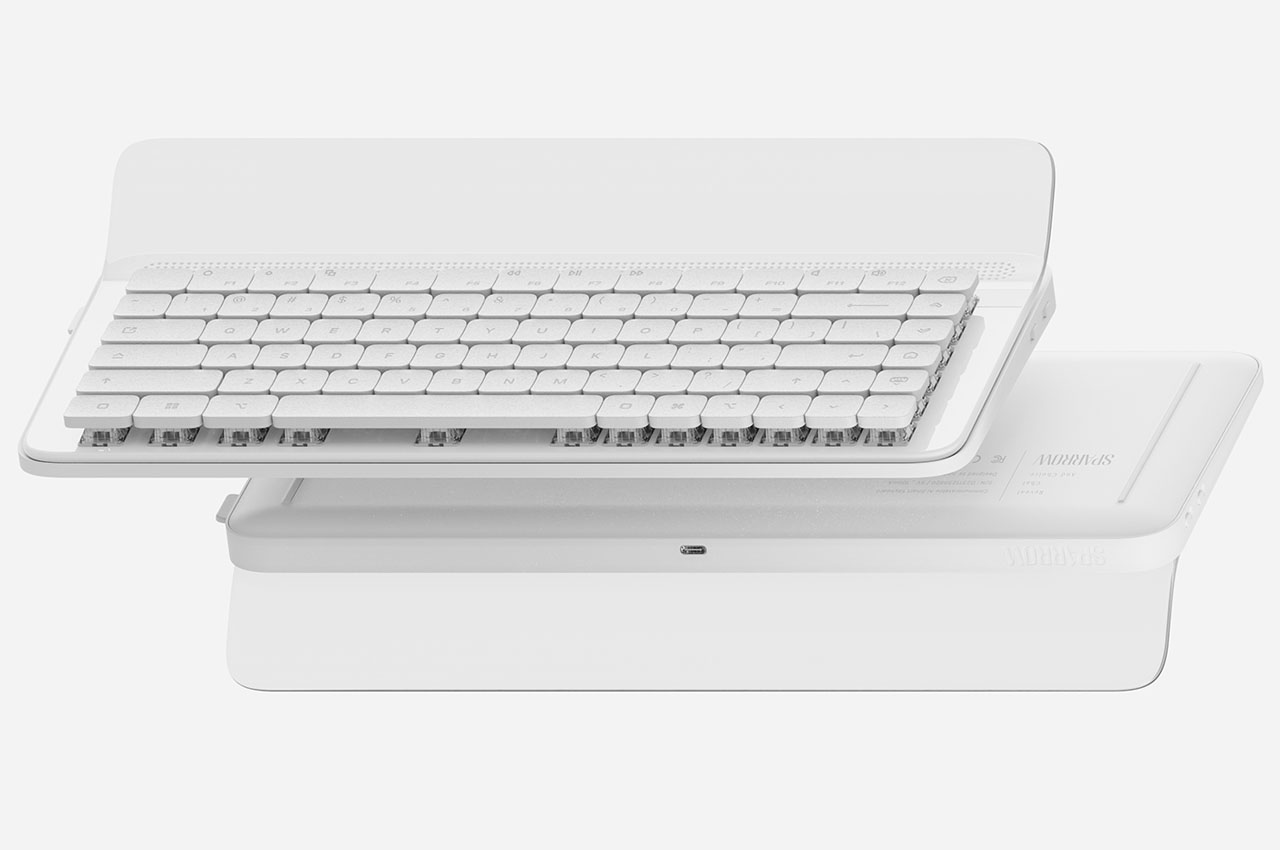
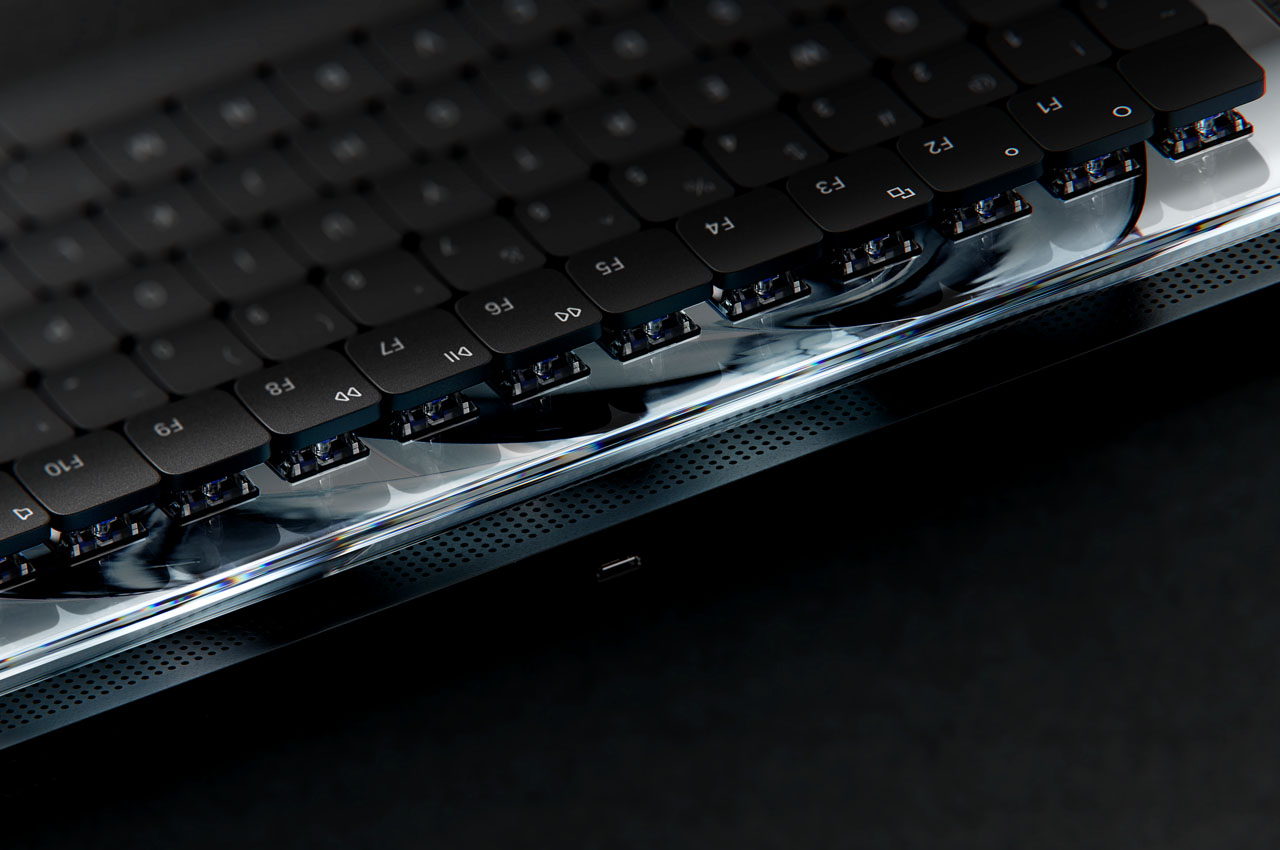
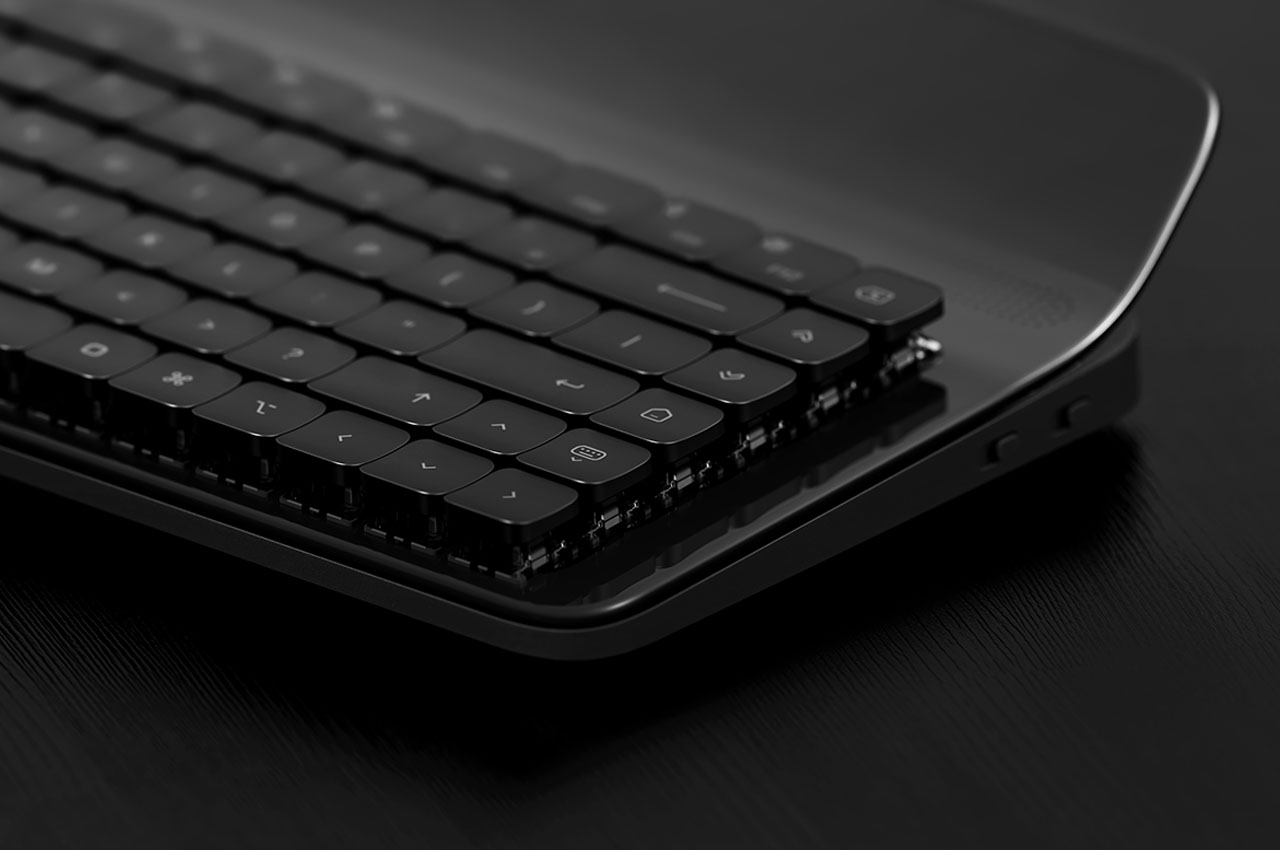
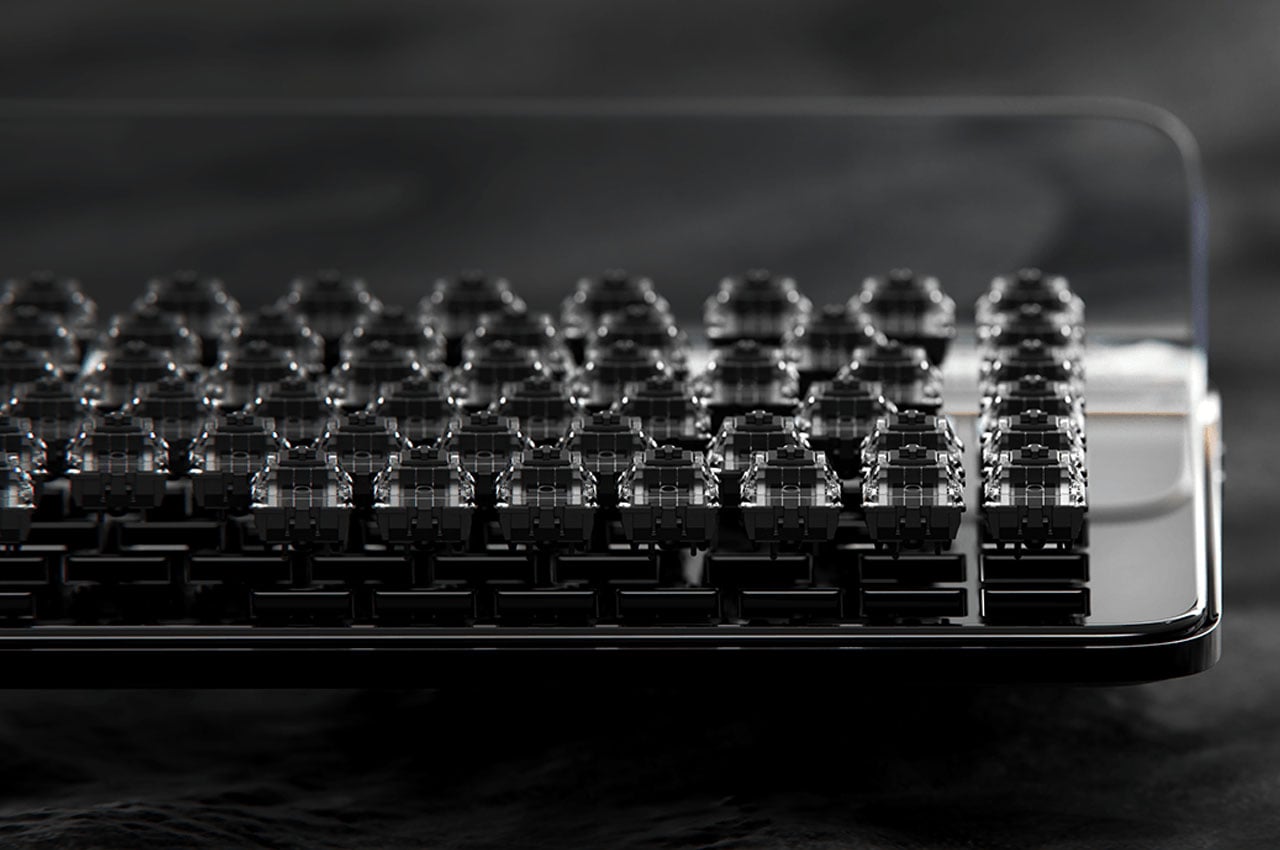
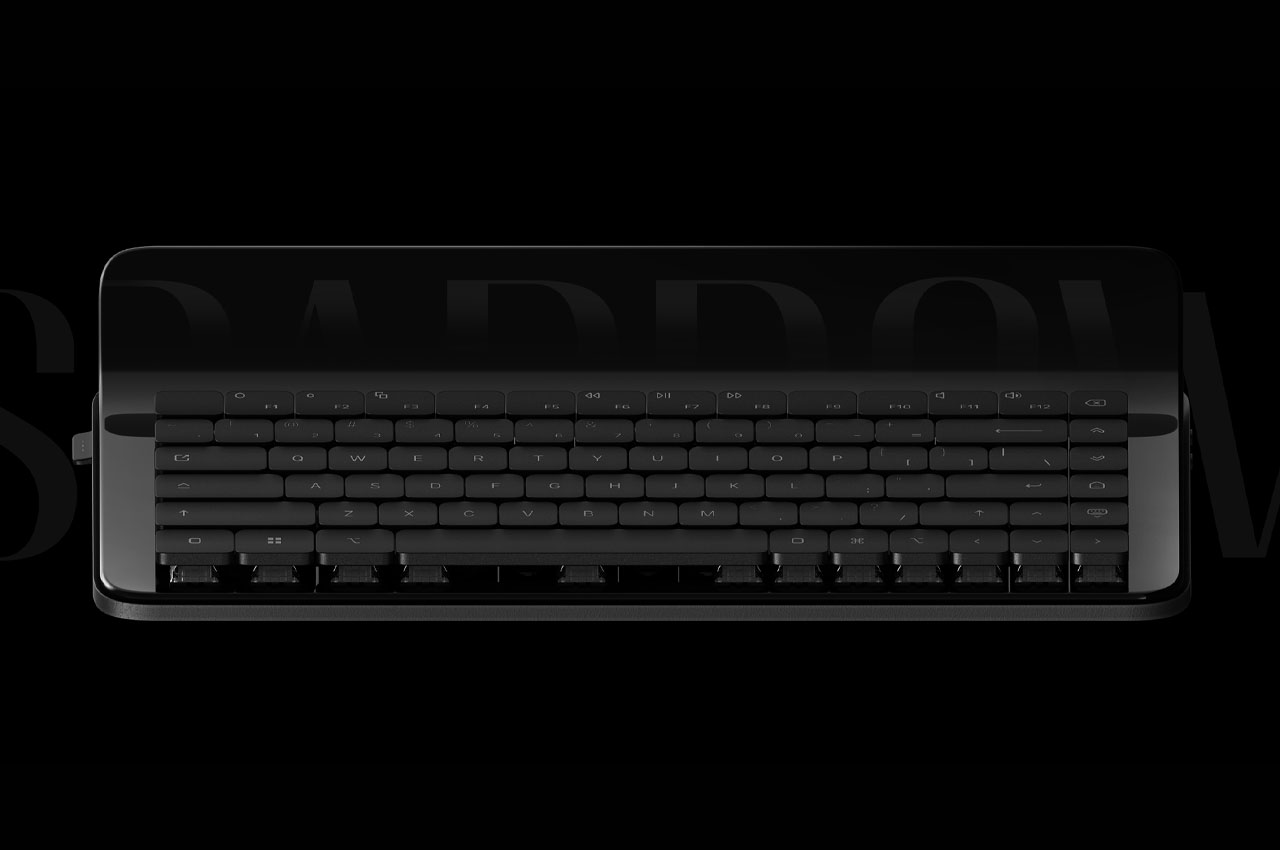
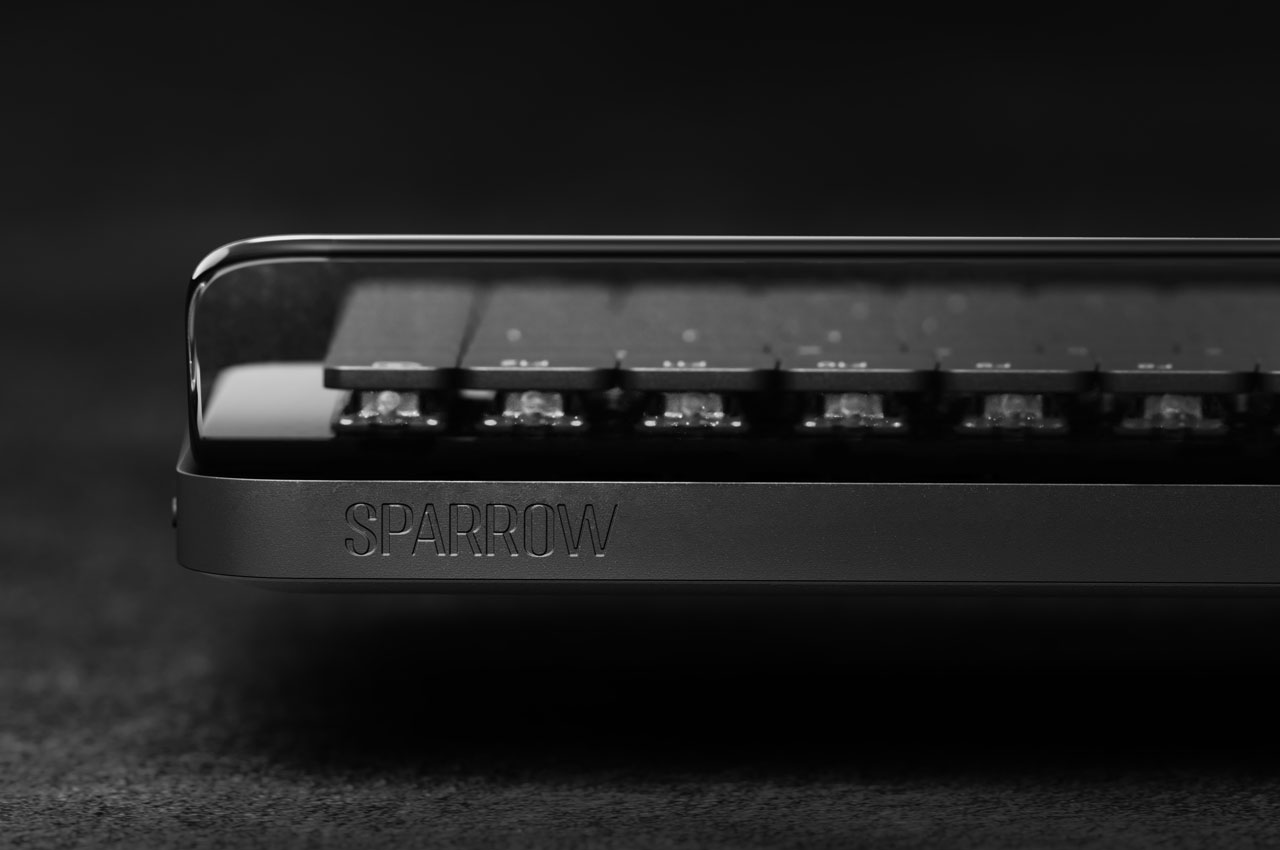
While most of us prefer the Logitech MX Mechanical Keyboard, Corsair K70 RGB Pro, 8Bitdo Retro Mechanical Keyboard or Keychron Q Series – the Sparrow AI keyboard wants to dethrone them all with functionality so unique, that you’ll want to grab it right away. As the name suggests, the keyboard is tailored for productive workflow out of the box with its advanced AI-assisted features.

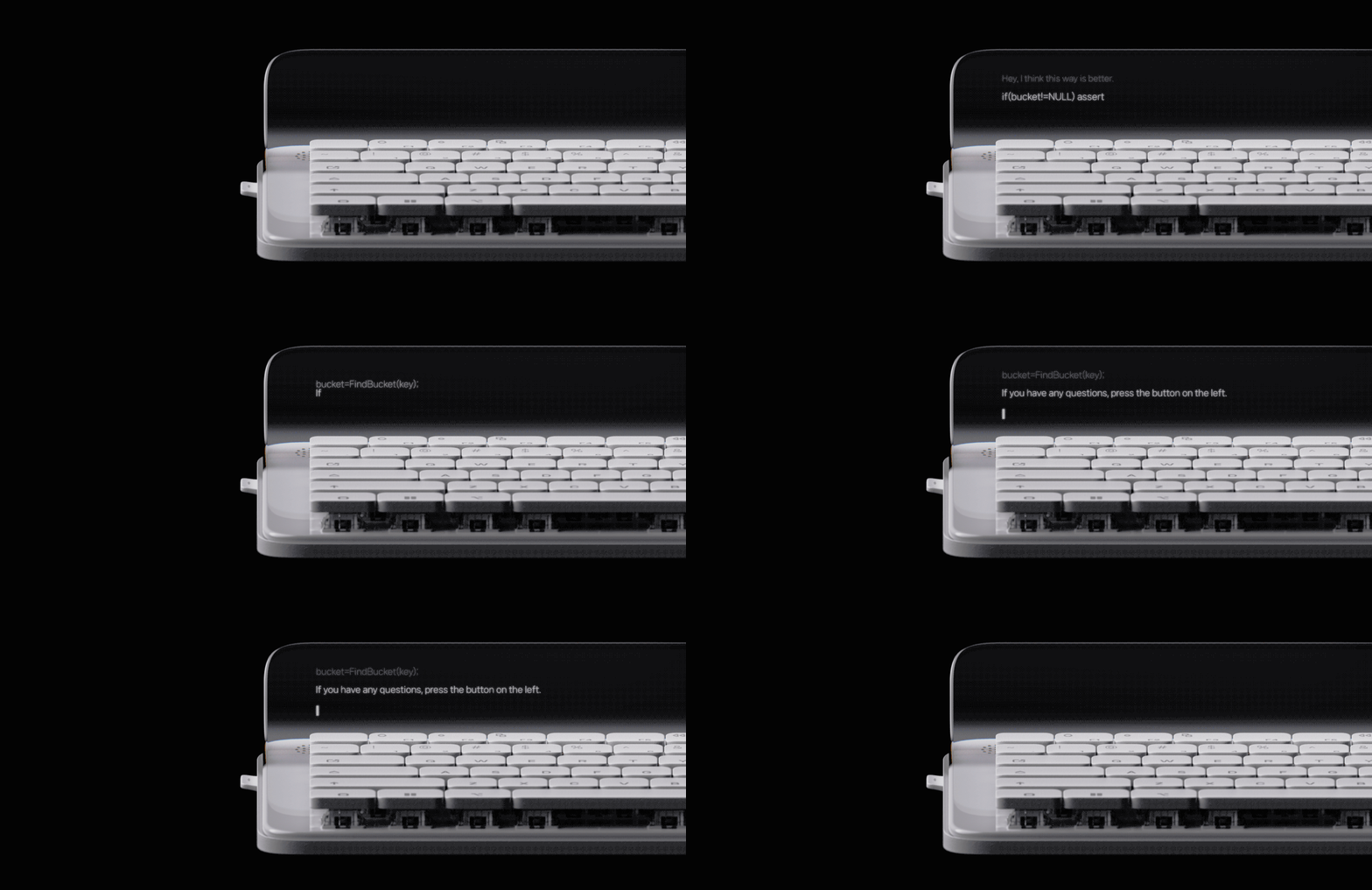
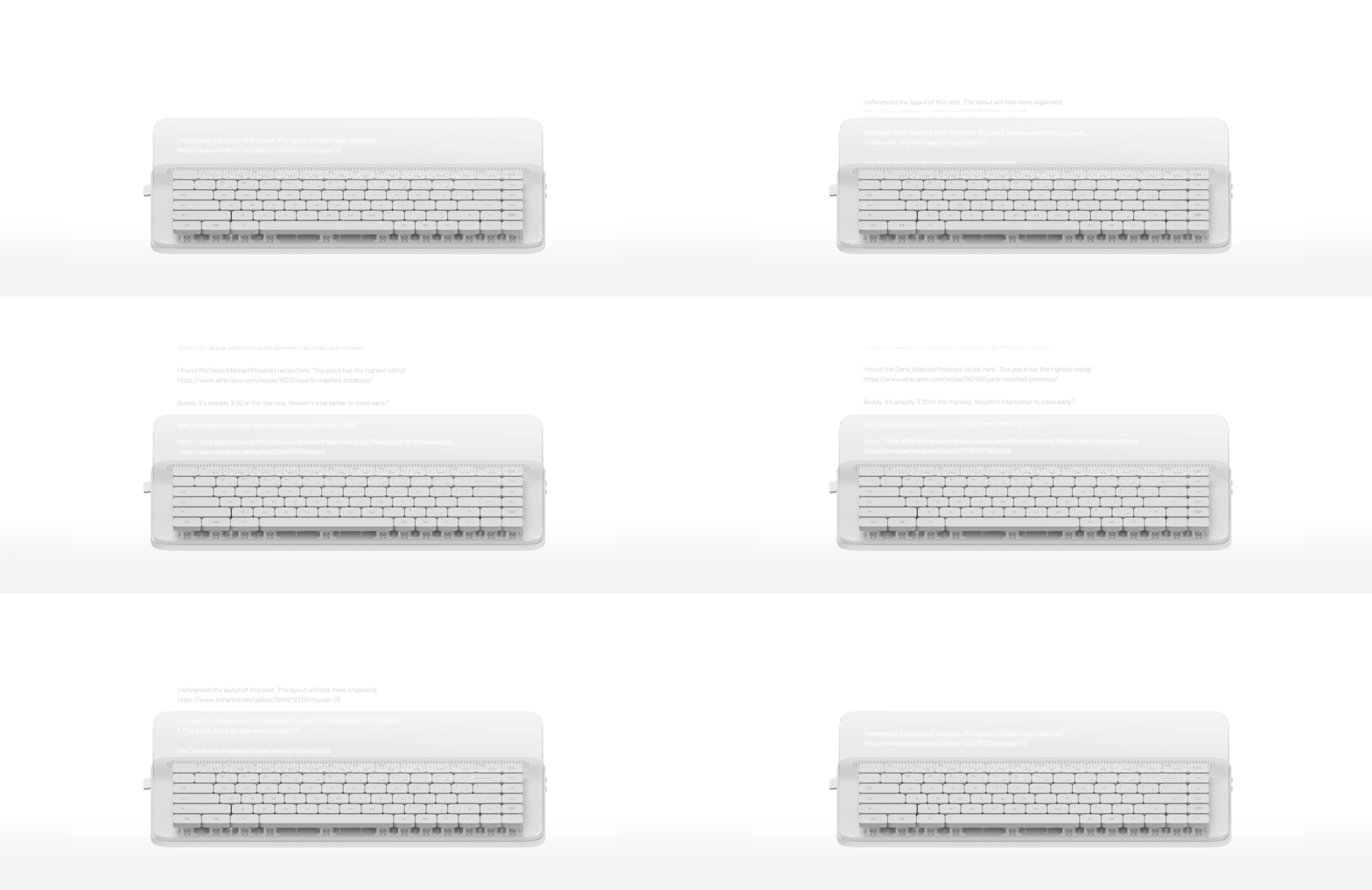
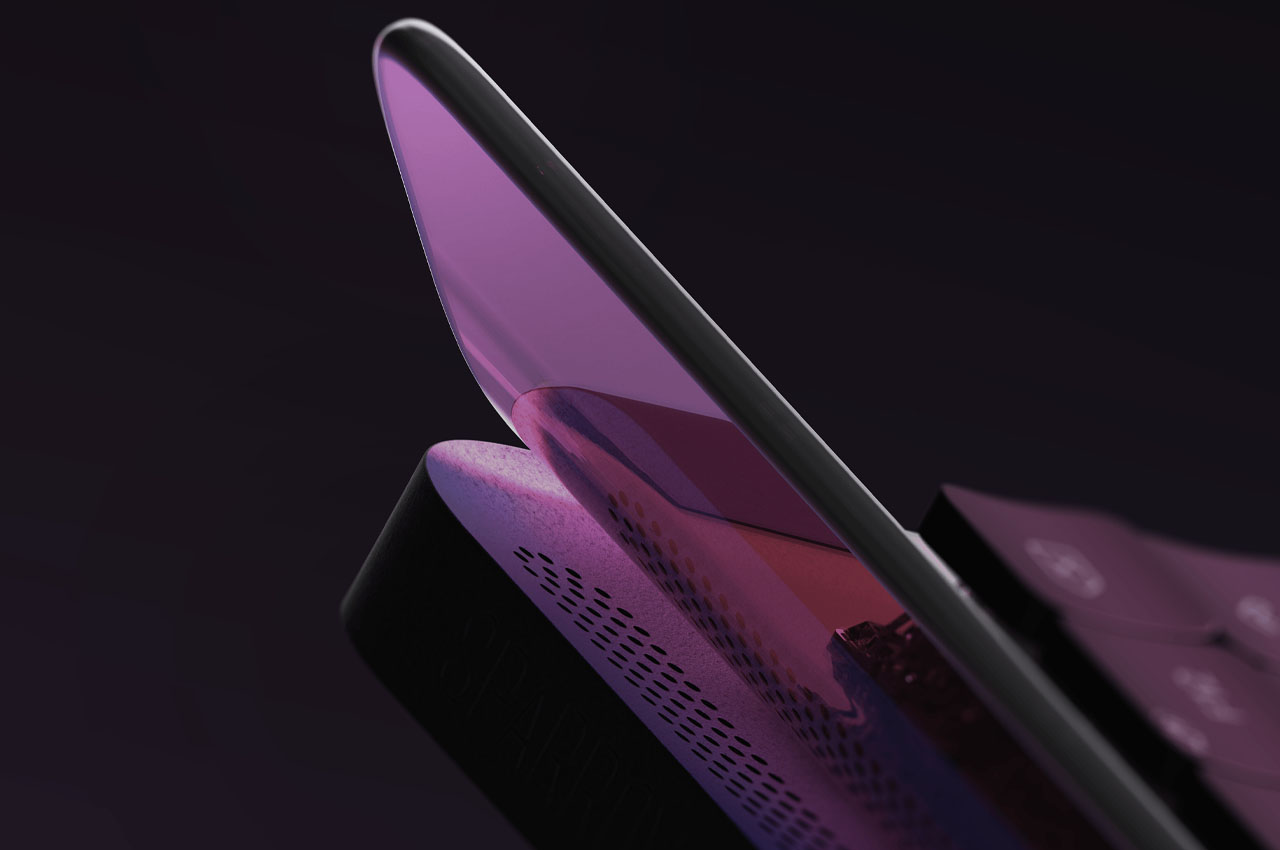
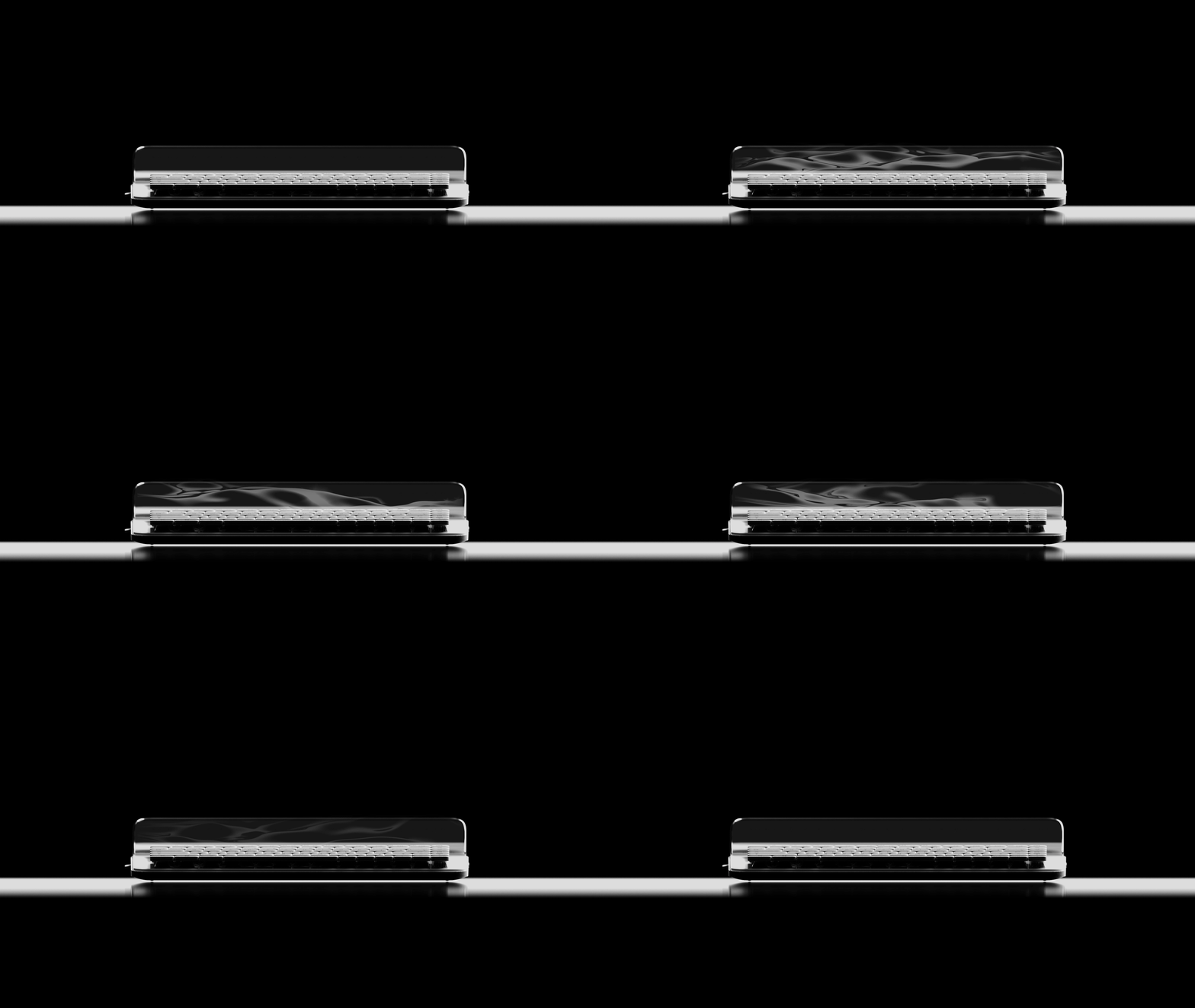
The smart keyboard has a semi-transparent display on the front that constantly keeps giving useful inputs and insight about the things you are typing on it. For example, if you are a coder and typing down lines of code and by mistake inputting a wrong code, Sparrow is mindful enough to suggest a rectification. The same is true for content creators who can benefit from the keyboard’s constant learning ability to weed any errors out of the workflow.

If you want to interact with the peripheral, there’s a switch button on the left that allows you to have a conversation right on the keyboard interface rather than going to your preferred AI program for help. When you want to use the traditional keyboard function and turn off any AI assists, it is as simple as toggling off the switch button.

This idea of an AI-assisted keyboard has every reason to make it past the concept and prototype stage. What do you think?

The post AI-assisted keyboard streamlines workflow for IT professionals and content creators first appeared on Yanko Design.