For years, we’ve been wondering when Samsung would actually bring Ballie, its cute household companion robot, to market and now we finally have our answer: it won’t. After the planned summer 2025 release window came and went, the company has opted not to release the gizmo as a consumer product, at least not for the foreseeable future.
According to Bloomberg, Samsung has "indefinitely shelved" the robot. A spokesperson told the publication that the company will keep Ballie around as an "active innovation platform" internally. "After multiple years of real-world testing, it continues to inform how Samsung designs spatially aware, context-driven experiences, particularly in areas like smart home intelligence, ambient AI and privacy-by-design," the spokesperson added.
There’s a sliver of a chance that Samsung will eventually bring Ballie to market, but that seems unlikely as things stand. So, six years after we first clapped eyes on the robot at CES 2020, (and two years after a redesigned larger version debuted), it appears to be doomed as a consumer device.
It’s a bit of a shame, as Ballie seemed like a fun gadget. In fairness to Samsung, companies are now likely having to be more judicious about what products — especially more experimental ones — go into full production amid rising costs of things like RAM.
This article originally appeared on Engadget at https://www.engadget.com/home/smart-home/you-wont-be-able-to-buy-samsungs-household-ballie-robot-after-all-104529942.html?src=rss
We're halfway through CES 2026, and it’s clear that it's going to be a rough year for the PC industry. In this episode, Devindra chats with Engadget's Dan Cooper about Intel, AMD, NVIDIA and the sad state of the PC industry. We've got some new CPUs, but the volatile RAM market will likely make everything expensive this year. Also, they dive into Dell's revival of the XPS brand, as well as iPolish's smart nails and Subtle's AI-powered VoiceBuds.
Hosts: Devindra Hardawar and Dan Cooper Producer: Devindra Hardawar Music: Dale North
This article originally appeared on Engadget at https://www.engadget.com/computing/engadget-podcast-ces-2026-and-the-rocky-year-ahead-for-the-pc-industry-221500019.html?src=rss
Samsung Display is the part of its giant parent company that makes OLEDs, LCDs and other screens for both Samsung devices and anyone else that can afford them. This year, it’s going all-in on OLEDs of the future. And that meant things like foldable displays with invisible creases, robots hurling basketballs at supertough OLED panels, and OLED screens packed into baffling form factors for no good reason.
Creases
Samsung Display
The “seamless” foldable display that might be a part of a future foldable iPhone disappeared from the booth during our tour, reappearing when it was time to leave. (This is an image provided by Samsung Display.) The device was labelled as an R&D concept, but it somehow disguised the crease in the center of the main display, making the (unlabelled) Galaxy Z Fold on the left look like a messy first-iteration foldable. There's still a crease there Will it actually form part of Apple’s foray into foldables, or just part of the Z Fold 8?
Why not both?
Put an OLED on it
Mat Smith for Engadget
This isn’t a record player you’ll ever buy. You don’t need an OLED display on the side of your wireless headphones, but you could have them. I liked the cute OLED pendants; a customizable near-future button badge, but a lot of this is just devices for the sake of making them.
The booth tour had a small segment dedicated to portable gaming OLED, adding more possibilities whether that’s an eye-sight for FPS games or extra HUD for the most important info.
The world’s brightest OLED TV
Mat Smith for Engadget
Reaching 4,500-nit brightness, I had to squint when sat in front of this beastly OLED. For reference, consumer-level TVs typically peak at around 2,700 nits. Compared to other display technologies, OLED can achieve deeper contrast and more accurate color reproduction, but it often lacks the brightness of rival TV technologies. Not for this prototype. Let me get my sunglasses.
Kobe!
Mat Smith for Engadget
I didn’t consider OLED displays to be more fragile than other display technology, but that didn’t stop Samsung Display from installing a robot arm that throws a basketball at a hoop with a backboard made of 18 foldable OLEDs. With a bang, making Samsung Display execs and engineers nearby increasingly anxious as the days of CES go on.
Foldables have come a long way
Mat Smith for Engadget
After Samsung finally solved the problem of weight and thickness with the Galaxy Z Fold 7, it made life hard for itself again with the TriFold, with 50 percent more foldable screen. But it's worth seeing how Samsung’s foldables have evolved over the past few years. A solid reminder that the first Galaxy Fold (2019) was beefy.
The next big thing in gaming displays
Mat Smith for Engadget
Samsung Display has begun mass production of its 360Hz QD-OLED panel, with new “V-Stripe” RGB pixel structures. Inside each pixel, subpixels are vertically aligned, which appears to improve the clarity of text edges and other small contrast objects. While it was framed at the booth as a boon for office workers, a corner was dedicated to gaming applications.
Screens across your sedan
Mat Smith for Engadget
Digital cockpits are the lifeblood of a CES showfloor, and Samsung Display’s version is predictably loaded with yet more OLEDs. The centerpiece is a “Flexible L” display that flows into the dashboard. A dedicated 13.8-inch display on the passenger side also slides out of the dash.
This article originally appeared on Engadget at https://www.engadget.com/home/home-theater/samsung-display-ces-2026-playful-demos-and-mysterious-prototypes-220407696.html?src=rss
Samsung Display is the part of its giant parent company that makes OLEDs, LCDs and other screens for both Samsung devices and anyone else that can afford them. This year, it’s going all-in on OLEDs of the future. And that meant things like foldable displays with invisible creases, robots hurling basketballs at supertough OLED panels, and OLED screens packed into baffling form factors for no good reason.
Creases
Samsung Display
The “seamless” foldable display that might be a part of a future foldable iPhone disappeared from the booth during our tour, reappearing when it was time to leave. (This is an image provided by Samsung Display.) The device was labelled as an R&D concept, but it somehow disguised the crease in the center of the main display, making the (unlabelled) Galaxy Z Fold on the left look like a messy first-iteration foldable. There's still a crease there Will it actually form part of Apple’s foray into foldables, or just part of the Z Fold 8?
Why not both?
Put an OLED on it
Mat Smith for Engadget
This isn’t a record player you’ll ever buy. You don’t need an OLED display on the side of your wireless headphones, but you could have them. I liked the cute OLED pendants; a customizable near-future button badge, but a lot of this is just devices for the sake of making them.
The booth tour had a small segment dedicated to portable gaming OLED, adding more possibilities whether that’s an eye-sight for FPS games or extra HUD for the most important info.
The world’s brightest OLED TV
Mat Smith for Engadget
Reaching 4,500-nit brightness, I had to squint when sat in front of this beastly OLED. For reference, consumer-level TVs typically peak at around 2,700 nits. Compared to other display technologies, OLED can achieve deeper contrast and more accurate color reproduction, but it often lacks the brightness of rival TV technologies. Not for this prototype. Let me get my sunglasses.
Kobe!
Mat Smith for Engadget
I didn’t consider OLED displays to be more fragile than other display technology, but that didn’t stop Samsung Display from installing a robot arm that throws a basketball at a hoop with a backboard made of 18 foldable OLEDs. With a bang, making Samsung Display execs and engineers nearby increasingly anxious as the days of CES go on.
Foldables have come a long way
Mat Smith for Engadget
After Samsung finally solved the problem of weight and thickness with the Galaxy Z Fold 7, it made life hard for itself again with the TriFold, with 50 percent more foldable screen. But it's worth seeing how Samsung’s foldables have evolved over the past few years. A solid reminder that the first Galaxy Fold (2019) was beefy.
The next big thing in gaming displays
Mat Smith for Engadget
Samsung Display has begun mass production of its 360Hz QD-OLED panel, with new “V-Stripe” RGB pixel structures. Inside each pixel, subpixels are vertically aligned, which appears to improve the clarity of text edges and other small contrast objects. While it was framed at the booth as a boon for office workers, a corner was dedicated to gaming applications.
Screens across your sedan
Mat Smith for Engadget
Digital cockpits are the lifeblood of a CES showfloor, and Samsung Display’s version is predictably loaded with yet more OLEDs. The centerpiece is a “Flexible L” display that flows into the dashboard. A dedicated 13.8-inch display on the passenger side also slides out of the dash.
This article originally appeared on Engadget at https://www.engadget.com/home/home-theater/samsung-display-ces-2026-playful-demos-and-mysterious-prototypes-220407696.html?src=rss
Samsung Display is the part of its giant parent company that makes OLEDs, LCDs and other screens for both Samsung devices and anyone else that can afford them. This year, it’s going all-in on OLEDs of the future. And that meant things like foldable displays with invisible creases, robots hurling basketballs at supertough OLED panels, and OLED screens packed into baffling form factors for no good reason.
Creases
Samsung Display
The “seamless” foldable display that might be a part of a future foldable iPhone disappeared from the booth during our tour, reappearing when it was time to leave. (This is an image provided by Samsung Display.) The device was labelled as an R&D concept, but it somehow disguised the crease in the center of the main display, making the (unlabelled) Galaxy Z Fold on the left look like a messy first-iteration foldable. There's still a crease there Will it actually form part of Apple’s foray into foldables, or just part of the Z Fold 8?
Why not both?
Put an OLED on it
Mat Smith for Engadget
This isn’t a record player you’ll ever buy. You don’t need an OLED display on the side of your wireless headphones, but you could have them. I liked the cute OLED pendants; a customizable near-future button badge, but a lot of this is just devices for the sake of making them.
The booth tour had a small segment dedicated to portable gaming OLED, adding more possibilities whether that’s an eye-sight for FPS games or extra HUD for the most important info.
The world’s brightest OLED TV
Mat Smith for Engadget
Reaching 4,500-nit brightness, I had to squint when sat in front of this beastly OLED. For reference, consumer-level TVs typically peak at around 2,700 nits. Compared to other display technologies, OLED can achieve deeper contrast and more accurate color reproduction, but it often lacks the brightness of rival TV technologies. Not for this prototype. Let me get my sunglasses.
Kobe!
Mat Smith for Engadget
I didn’t consider OLED displays to be more fragile than other display technology, but that didn’t stop Samsung Display from installing a robot arm that throws a basketball at a hoop with a backboard made of 18 foldable OLEDs. With a bang, making Samsung Display execs and engineers nearby increasingly anxious as the days of CES go on.
Foldables have come a long way
Mat Smith for Engadget
After Samsung finally solved the problem of weight and thickness with the Galaxy Z Fold 7, it made life hard for itself again with the TriFold, with 50 percent more foldable screen. But it's worth seeing how Samsung’s foldables have evolved over the past few years. A solid reminder that the first Galaxy Fold (2019) was beefy.
The next big thing in gaming displays
Mat Smith for Engadget
Samsung Display has begun mass production of its 360Hz QD-OLED panel, with new “V-Stripe” RGB pixel structures. Inside each pixel, subpixels are vertically aligned, which appears to improve the clarity of text edges and other small contrast objects. While it was framed at the booth as a boon for office workers, a corner was dedicated to gaming applications.
Screens across your sedan
Mat Smith for Engadget
Digital cockpits are the lifeblood of a CES showfloor, and Samsung Display’s version is predictably loaded with yet more OLEDs. The centerpiece is a “Flexible L” display that flows into the dashboard. A dedicated 13.8-inch display on the passenger side also slides out of the dash.
This article originally appeared on Engadget at https://www.engadget.com/home/home-theater/samsung-display-ces-2026-playful-demos-and-mysterious-prototypes-220407696.html?src=rss
It's only been a few months since Meta announced that it would open its smart glasses platform to third-party developers. But one startup at CES is already showing off how the glasses can help power an intriguing set of accessibility features.
Hapware has created Aleye, a haptic wristband that, when paired with Ray-Ban Meta smart glasses, can help people understand the facial expressions and other nonverbal cues of the people they are talking to. The company says the device could help people who are blind, low vision or neurodivergent unlock a type of communication that otherwise wouldn't be available.
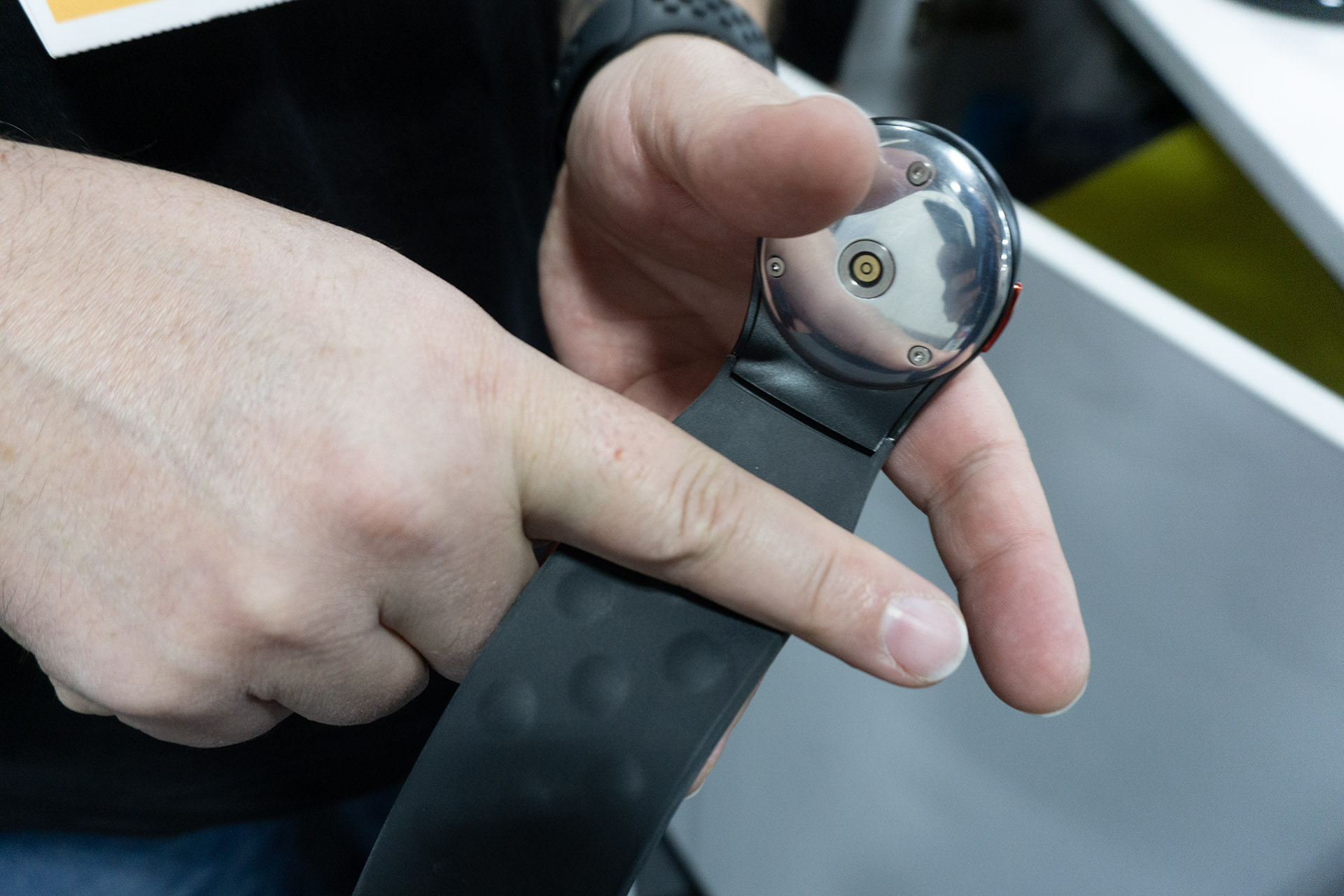
Aleye is a somewhat chunky wristband that can vibrate in specific patterns on your wrist to correspond to the facial expressions and gestures of the person you're talking to. It uses the Meta Ray-Ban glasses's computer vision abilities to stream video of your conversation to the accompanying app, which uses an algorithm to detect facial expressions and gestures.
The bumps on the underside of the Aleye vibrate to form unique patterns.
Karissa Bell for Engadget
Users can customize which expressions and gestures they want to detect in the app, which also provides a way for people to learn to distinguish between the different patterns. Hapware CEO Jack Walters said in their early testing people have been able to learn a handful of patterns within a few minutes. The company has also tried to make them intuitive. "Jaw drop might feel like a jaw drop, a wave feels more like a side to side haptics," he explains.
The app is also able to use Meta AI to give vocal cues about people's expressions, though Hapware's CTO Dr. Bryan Duarte told me it can get a bit distracting to talk to people while the assistant is babbling in your ear. Duarte, who has been blind since a motorcycle accident at the age of 18, told me he prefers Aleye to Meta AI's other accessibility features like Live AI. "It will only tell me there's a person in front of me," he explains. "It won't tell me if you're smiling. You have to prompt it every time, it won't just tell you stuff."
Hapware has started taking pre-orders for the Aleye, which starts at $359 for the wristband or $637 for the wristband plus a year subscription to the app (a subscription is required and otherwise will cost $29 a month). A pair of Ray-Ban Meta glasses is also not included, though Meta has also been building a number of its own accessibility features for the device.
This article originally appeared on Engadget at https://www.engadget.com/wearables/this-haptic-wristband-pairs-with-meta-smart-glasses-to-decode-facial-expressions-214305431.html?src=rss
Installing a virtual private network (VPN) on an iPhone or iPad is easy. The days are gone when Apple users had to be content with the leavings from the Windows ecosystem — in 2026, all the best VPN services have secure, user-friendly iOS apps on par with every other platform. If you've decided to add a VPN to your iPhone to stay anonymous online and change your virtual location, you've got plenty of great choices.
Since you're here, chances are you're familiar with the benefits of using a VPN, including security on public Wi-Fi and the ability to explore streaming libraries in other countries. But you may still be daunted by the process of actually choosing, installing and configuring a VPN on your iPhone.
In this article, I'll walk you through the steps, including how to configure a VPN manually without going through a service. Check out my how to use a VPN piece for more general information.
How to choose an iPhone VPN
One of the trickiest parts of installing an iPhone VPN is picking the right service. That brings us to our first pro tip: Don’t just go to the App Store and search on “VPN.” That will simply front-load whichever vendor(s) are paying for top placement (note the little “Ad” icon) as well as a laundry list of free services that come with big caveats. There are dozens of mobile VPNs out there, and many of them don't put the user first (for example, I reported last year on popular VPNs that failed to disclose shared security flaws). Choosing hastily can leave you stuck with an iOS VPN that's either mediocre or actively harmful.
Before downloading an iPhone VPN, do some research into the provider's background. A dependable VPN should have a well-written customer support page, a clear timeline of its history and a way to tell at a glance who actually owns and operates it. Check the reviews on the app store — it should have at least several hundred, almost all 4s and 5s.
iPhone users have a particular advantage here: several VPNs let you download their iOS app and start using it without paying. You can use this free trial period to put the VPN through its paces. Start by testing its speed using Ookla speedtest or a similar app. You should also use an IP address checker to make sure it isn't leaking; to confirm this, just check your phone's IP address before and after connecting to the VPN and make sure it's different the second time.
To keep things simple, my top recommendation for all platforms is Proton VPN. Out of all VPNs, it strikes the best balance of solid security, fast performance, useful features and a commitment to user privacy. Other iPhone VPNs I love include ExpressVPN, Surfshark and NordVPN.
How to install a VPN on your iPhone
Installing an iPhone VPN is like installing any other app. Just go to the App Store, find the VPN you've chosen and download it onto your phone. When it finishes downloading, open the app to grant permissions and finish setup. However, since there are a couple of potential sticking points, I'll run through the steps in more detail.
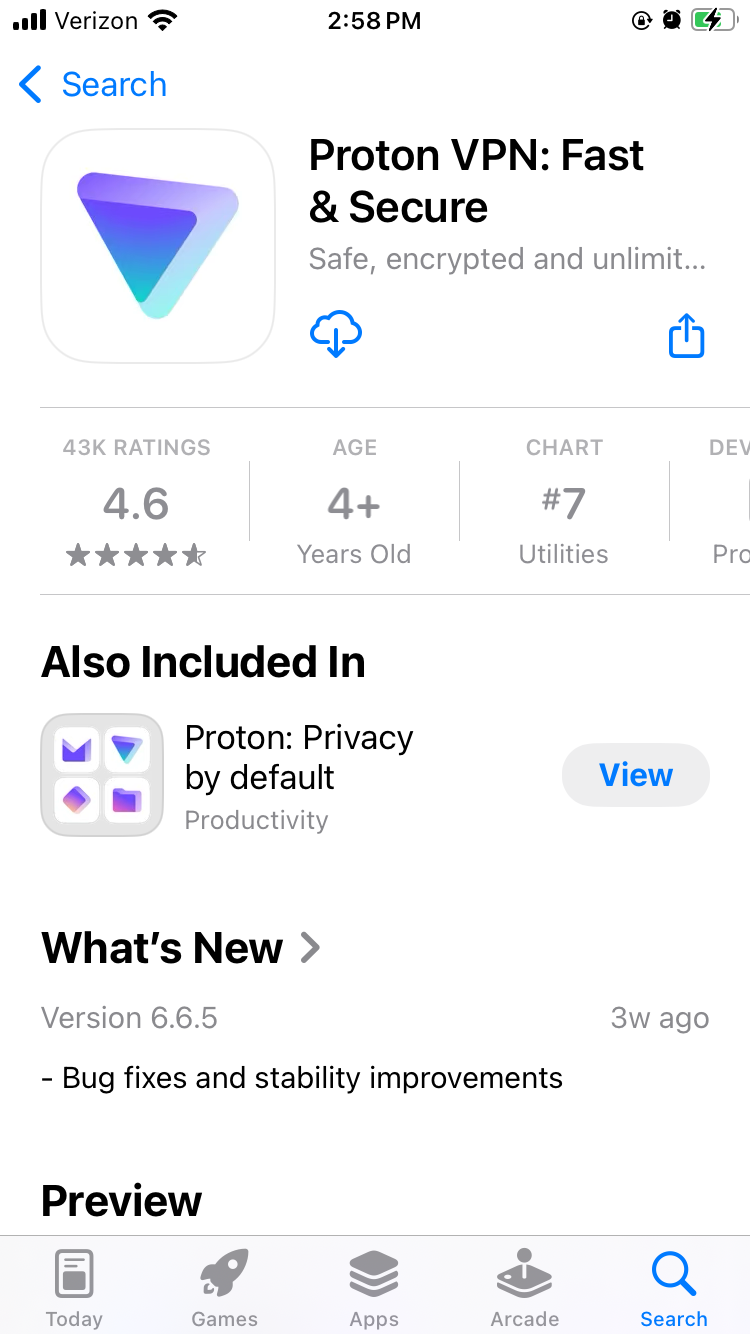
Proton VPN on the iOS app store.
Sam Chapman for Engadget
Open the App Store.
Tap the search bar and type in the name of your chosen VPN. Hit Search and look through the list of results. Be careful to pick the right one — there are some "mockbuster" VPNs that try to snare people looking for well-known names. As a rule, the one with the most reviews is the service worth using.
On the page for the VPN app, tap Get. Enter your Apple ID and password to begin the installation.
Once installation is complete, either tap Open in the App Store or find the new VPN icon on your home screen.
Create a VPN account with a username and password. Most services let you do this within the app, but you may have to shift temporarily to a browser, so make sure you've got internet access.
Choose a subscription. If there's a free trial, grab it and use it to test the VPN. If not, or if it's already expired, choose a plan that fits your budget and needs. Longer-term plans tend to save you money on average, but cost more at the start.
On the VPN app, log in with your new credentials. You're now ready to get started.
If you aren't interested in paying for software right now, you can still get an iOS VPN. Check out my list of the best free VPNs, which all have iPhone apps. We also constantly update a curated list of the best VPN deals for bargain hunters.
How to configure and use a VPN on your iPhone
An iOS VPN is generally usable with the default settings. Even so, it's a good idea to look through the options — you may not end up using all of them, but many of them are vital security checks or important quality-of-life boosters.
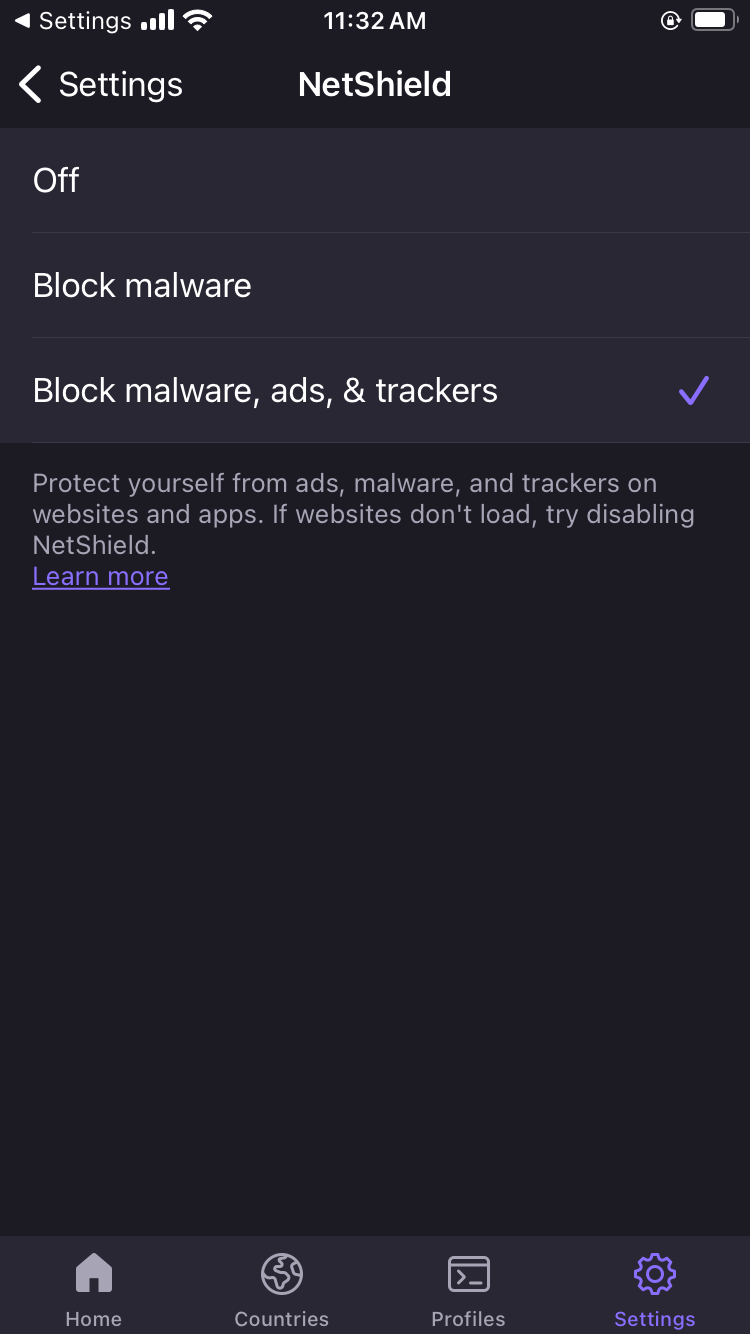
Proton VPN's NetShield content blocker on iOS.
Sam Chapman for Engadget
Here are some quick steps to make sure you're getting the best performance. These settings are in different places on each VPN, but most can be found by clicking a button with a gear icon, or any page labeled "settings" or "preferences."
Turn on the kill switch. This will protect you from broadcasting any data the VPN hasn't encrypted. In the event the VPN suddenly disconnects, the kill switch also cuts off your internet connection.
Set the VPN to always reconnect automatically if it disconnects. The method for doing this varies between services, so check the VPN's help page. Some (like Proton VPN) have an always-on VPN setting in the app itself, while others (like ExpressVPN) handle it through iOS settings.
Configure split tunneling. Not many iPhone VPNs have this option, but if yours does, you can use it to let certain apps or websites skip the VPN tunnel. Make sure to only bypass the VPN on sites and apps that share no sensitive information, or that refuse to work with a VPN active (some banks are like this).
If your VPN has a feature for blocking ads and malware domains, I recommend using it — the worst it can do is not work. Some also include parental controls, in case you're setting up the VPN on your child's phone.
Create shortcuts. Sometimes called Profiles, this relatively common feature lets you connect to the VPN and open a certain website with one tap.
Decide when and how you want the VPN to send you notifications.
Check available protocols. It's almost always best to let the VPN pick for you, but if you want to choose for yourself, IKEv2 is generally the fastest.
Look over the server list to see what choices are available.
When choosing a VPN server, think about what you need the VPN for. If you're just using it for privacy, pick the fastest server (or let the VPN app choose it for you). On the other hand, if you want to watch a movie or TV show that's only on streaming in another country, choose the fastest server in that country. If you're on a good VPN, it still shouldn't slow you down too much.
If you have the address of a VPN server and the necessary credentials, iOS lets you set up your own VPN and connect directly. This is less convenient than using a provider app, since you need to know the details about every server you connect to, but it's nice if you're worried about trusting your privacy to a third party. It can also be convenient for quickly accessing a work or school VPN from your phone. Here's how to do it.
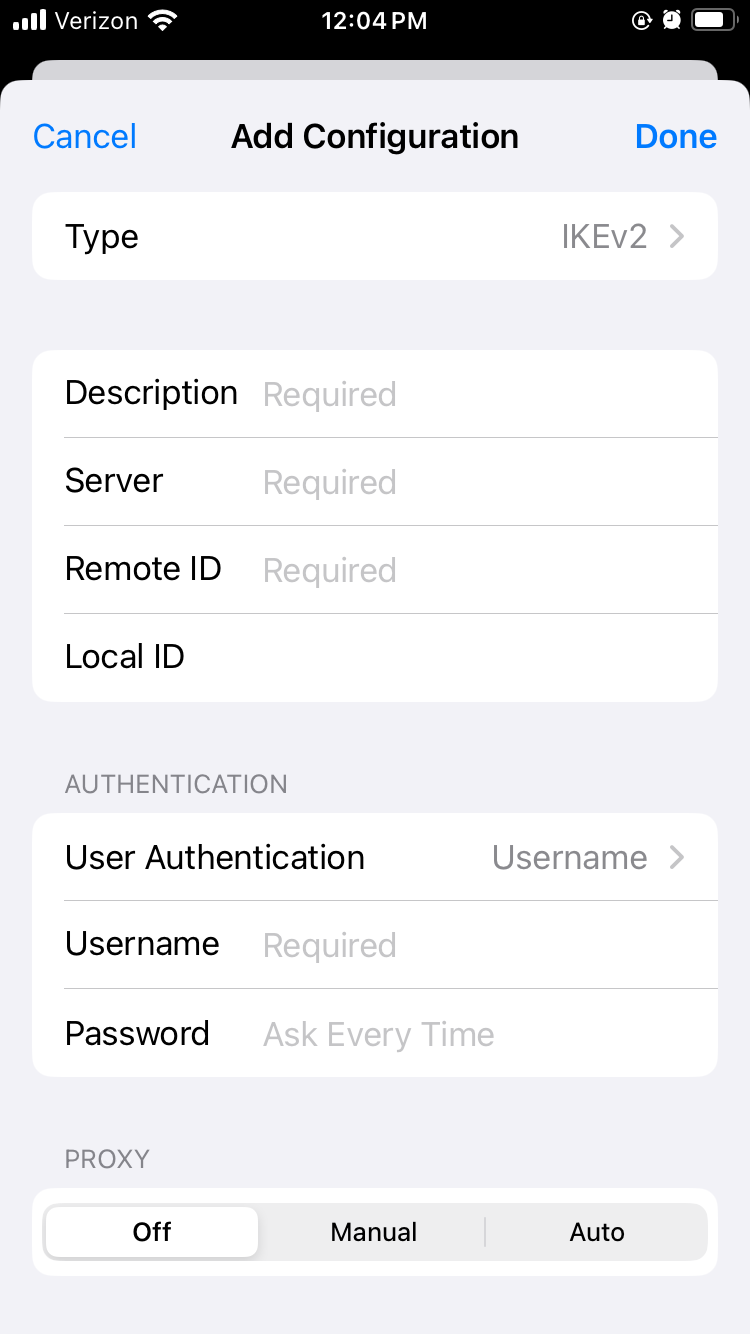
Manually setting up a VPN connection on iOS.
Sam Chapman for Engadget
Open the Settings app. Scroll down and tap General.
Scroll down again and tap VPN & Device Management. Tap the word VPN on the new page, then tap Add VPN Configuration. You should reach the screen shown above.
Make sure Type is set to IKEv2, then enter the Description, Server and Remote ID for the server you're connecting to (plus the Local ID if there is one).
Your source for the server information should also have told you if it authenticates access with a username/password or certificate. Pick the correct option, then enter the credentials required.
Tap the Done button or the blue checkmark at the top-right of the screen.
You'll arrive back on the previous menu with your new VPN option available. Toggle it on to connect. To turn it off, return to the same menu and deactivate the switch.
Do you need an iPhone VPN?
Whenever you get online, your internet service provider (ISP) assigns an IP address to your device — a unique fingerprint that follows you throughout the session. Your ISP may sell this knowledge to marketers to target ads at you, or in worse cases, collaborate with governments willing to violate their citizens' rights to privacy.
When you use a VPN, though, your real IP address is hidden behind that of the VPN server, so nothing you do on the internet connects back to you. That's why I always advise using a VPN on any device, including iPhones, that connects to the internet. It's even more important on the unprotected public networks you sometimes find in cafes and hotels. On the fun side, you can also use a VPN to change your virtual location to show you different content libraries on Netflix and other streaming platforms.
One more thing: I often hear iPhone users ask whether they need a VPN, since iCloud Private Relay comes standard on iOS devices. Just to clear this up, iCloud Private Relay is not a VPN. As you can see from this support page, your ISP can still see your real IP address when it’s active.
This article originally appeared on Engadget at https://www.engadget.com/cybersecurity/vpn/how-to-use-a-vpn-on-iphone-201743118.html?src=rss
Fujifilm just revealed the Instax mini Evo Cinema camera, which looks suspiciously like a vintage Super 8. More specifically, it was designed to mimic the Single-8 from 1965, which was a rival unit to the Super 8. Fujifilm's latest device captures video, just like its retro inspiration.
Wow, the new FUJIFILM Instax Mini EVO Cinema camera looks nuts.. esp the decade slider thing for the looks. If the cost isn't nuts this could be a must have... Needs to be around $249/299ish to be a hit https://t.co/6w8JPsBxIgpic.twitter.com/plcmNhfyT7
However, this is an Instax and the line has primarily been dedicated to snapping and printing out still images on the fly. The Evo Cinema can still do that, albeit in a slightly different way. Users shoot a video and the camera can convert a shot from the footage into an Instax print. That's pretty cool. The bad news? It requires some kind of QR code tomfoolery.
The camera also comes equipped with something called the Eras Dial, which has nothing to do with Taylor Swift and everything to do with adjusting various effects and filters to create footage "inspired by different eras." There are ten "eras" to choose from, including a 1960s vibe. The filter levels here are adjustable. We'll have to take a look at some footage to see how everything translates.
Fujifilm
Fujifilm is dropping the Instax Evo Cinema on January 30, but only in Japan for now. We don't have a price yet.
This is just the latest nifty camera gizmo the company has thrust upon the world. It recently released an Instax model that has a secondary camera for selfies.
This article originally appeared on Engadget at https://www.engadget.com/cameras/fujifilms-latest-instax-camera-looks-like-a-vintage-super-8-194537863.html?src=rss
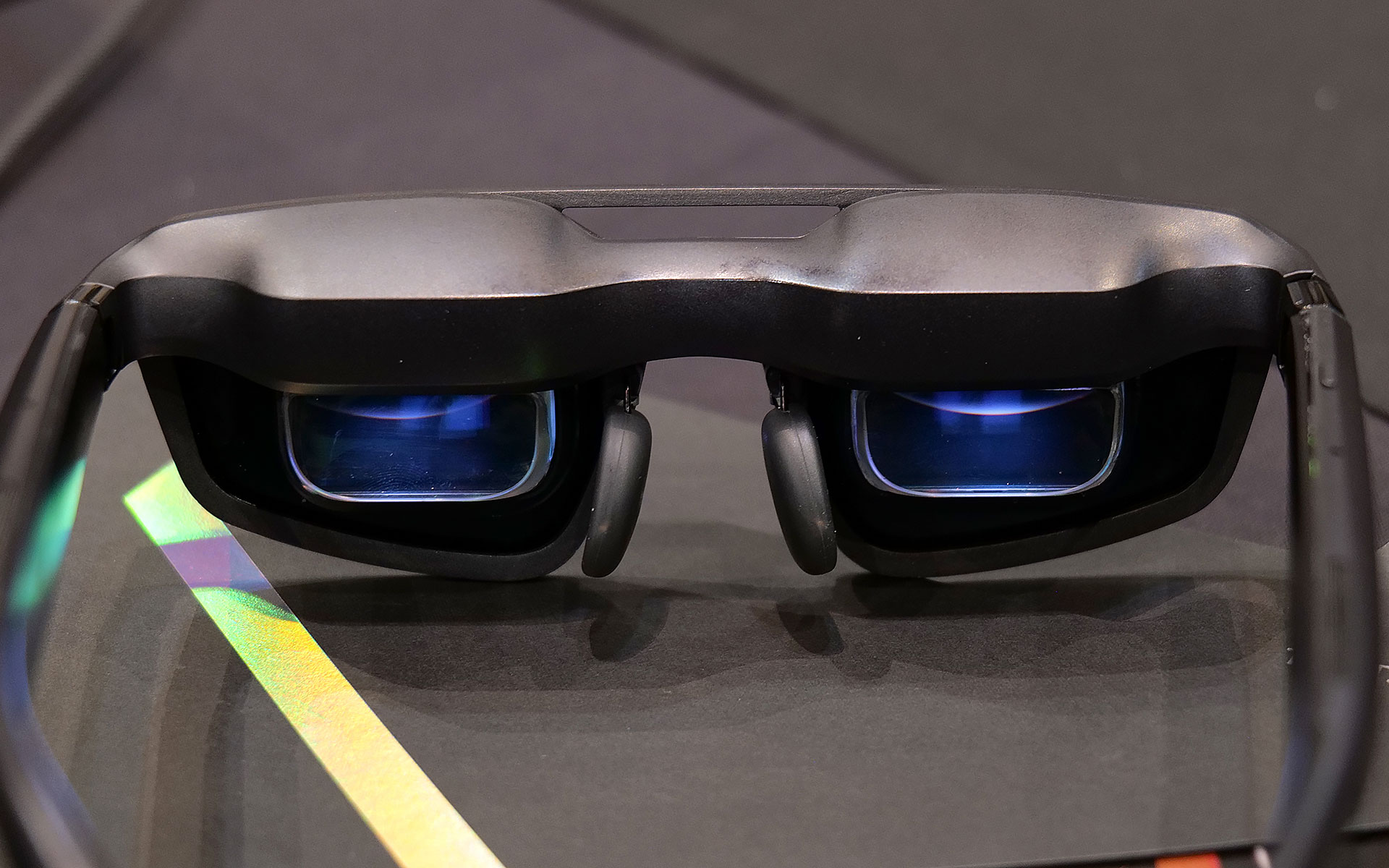
The latest generation of smartglasses can create huge virtual screens without the need to lug around giant monitors are a real boon to frequent travelers. However, their specs aren’t often tailored to the needs of gamers, so at CES 2026, ASUS and XREAL partnered to make a pair with two very important features you don’t normally get from rivals.
The new ROG XREAL R1 AR glasses are based on the existing XREAL One Pro, so naturally they share a lot of the same components and specs including dual micro-OLED displays with a per-eye resolution of 1,920 x 1,080, three degrees of freedom (natively), 700-nit peak brightness, 57-degree FOV and built-in speakers tuned by Bose. However, the big difference on the R1s is that instead of maxing out with a 120Hz refresh rate, ASUS and XREAL’s collab goes all the way up to 240Hz. That’s a pretty nice bump, especially for people with older hardware or anyone who might not have access to a high refresh rate display or just doesn’t want to lower their standards while traveling.
The ROG XREAL R1 AR smartglasses deliver 1,920 x 1,080 resolution to each eye with a 240Hz refresh rate and 57-degree FOV.
Sam Rutherford for Engadget
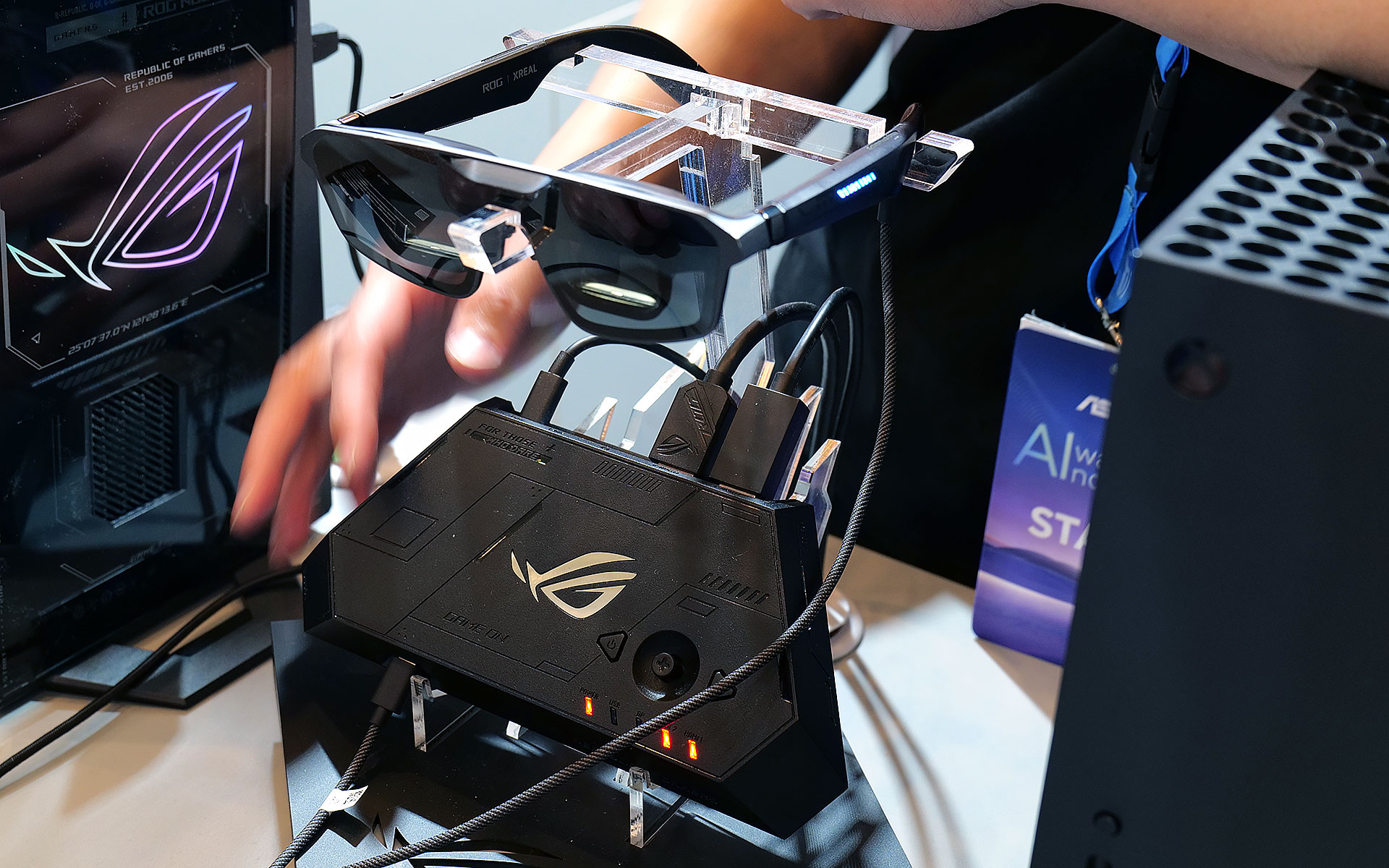
The other big addition is the R1’s included ROG Control Dock, which from what I’ve seen is slightly better suited for home use. It’s designed to be a simple hub with two HDMI 2.0 jacks, one DisplayPort 1.4 connector and a couple of USB-C slots (one is for power), so you can quickly switch between multiple systems like your desktop and console with a single touch. That said, depending on the situation you might not even need the dock at all because the R1s can also be connected to compatible PCs or gaming handhelds like the ROG Ally X and ROG Xbox Ally X (see the synergy there?) directly via USB-C.
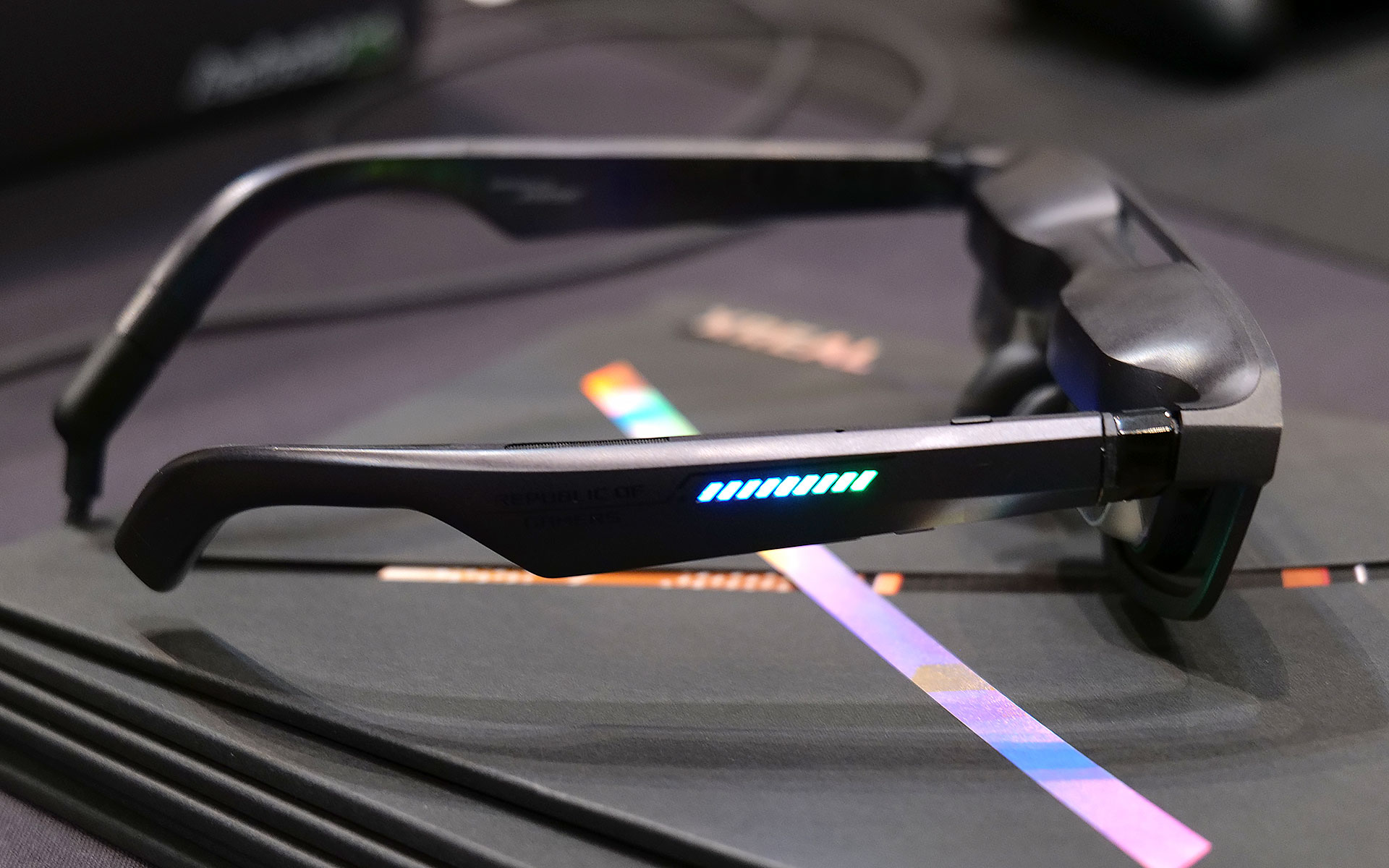
When I got to try them out at CES, the R1s delivered a very easy to use and relatively streamlined kit. At 91 grams, they are barely heavier than the original XREAL One Pro (87g) so they don’t feel too weighty or cumbersome. I also really like the inclusion of electrochromic lenses, which allow you to change the tint of the glasses with the touch of a button. This lets you adjust how much or little light you want to come in through the front to best suit your environment. And thanks to support for three DOF, you have the ability to pin your virtual screen in one location or let it follow you around.
Of course, ASUS and XREAL couldn't resist putting RGB lighting on the ROG XREAL R1 AR smartglasses.
Sam Rutherford for Engadget
Now it is important to remember that in order to get 240Hz on the smartglasses, you need hardware capable of pushing the kind of performance. So depending on the title, when the R1s are connected to something like a gaming handheld, you might not be able to get there. Luckily, I had the chance to use the specs when connected to a PC as well, which let me really appreciate the smoothness you get from faster refresh rates. General image quality was also quite good thanks to the glasses’ 1080p resolution, so I had no trouble reading text or discerning small UI elements.
The ROG Control dock makes it easy to connect multiple devices to the ROG XREAL R1 AR smartglasses, but it may be a bit too bulky to pull out in tight situations like on a plane.
Sam Rutherford for Engadget
My one small gripe is that I kind of wish its 57-degree FOV was a tiny bit bigger, but that’s more of a limitation of current optical technology as there aren't a ton of similarly sized specs that can go much higher (at least not yet). That said, even with its current FOV, you can still create up to a 171-inch virtual screen at four meters away, which is massively bigger than any portable screen you might entertain carrying around.
Unfortunately, ASUS and XREAL haven’t announced official pricing or a release date for the R1s yet, but hopefully they won’t cost too much more than the XREAL One Pro, which are currently going for $649.
This article originally appeared on Engadget at https://www.engadget.com/gaming/pc/asus-and-xreal-teamed-up-at-ces-to-make-gaming-smartglasses-with-two-important-upgrades-190500897.html?src=rss
When LG announced that it would demo a laundry-folding, chore-doing robot at CES 2026, I was immediately intrigued. For years, I've wandered the Las Vegas Convention Center halls and wondered when someone might create a robot that can tackle the mundane but useful tasks I despise like folding laundry. With CLOiD (pronounced like "Floyd"), LG has proven that this is theoretically possible, but probably not likely to happen any time soon.
I went to the company's CES booth to watch its demonstration of CLOiD's abilities, which also include serving food, fetching objects and fitness coaching. During a very carefully choreographed 15-minute presentation, I watched CLOiD grab a carton of milk out of the fridge, put a croissant in an oven, sort and fold some laundry and grab a set of keys off a couch and hand them to the human presenter.
Throughout the demonstration, LG showed off how its own appliances can play along with the robot. When it rolled over to the fridge, the door automatically opened, as did the oven. When the LG-branded robot vacuum needed to move around a hamper, CLOiD helpfully cleared the path. But the robot also moved very slowly, which you can see in the highlight video below.
The appliance maker is selling the setup as a part of its vision for a "zero labor home" where its appliances and, I guess, robotics technology can come together to take care of all your chores and household upkeep. Maybe I'm jaded from a decade of watching CES vaporware, but I left the slick demo thinking the concept is unlikely to amount to much anytime soon.
On one hand, it is exciting to see robots competently performing tasks that would actually be useful to most people. But this technology is still far from accessible. Even LG isn't making any firm commitments about CLOiD's future as anything more than a CES demo. The company has instead said that CLOiD is a signal of its interest in creating "home robots with practical functions" and "robotized appliances," like fridges with doors that can open automatically.
That may be a more reasonable target for the company (and yet another way for LG to sell us more appliance upgrades). But it's still pretty far from anything approaching the fantasy of a "zero labor home."
This article originally appeared on Engadget at https://www.engadget.com/home/smart-home/lgs-cloid-robot-can-fold-laundry-and-serve-food-very-slowly-181902306.html?src=rss