Have you ever wished your operating system could truly adapt to your needs, making every interaction feel seamless and personalized? The Windows 11 25H2 update might just be the fantastic option you’ve been waiting for. With bold enhancements like AI-powered widgets, a more intuitive Start Menu, and productivity-boosting tools like Microsoft 365 Copilot, this update […]
One of the iPhone’s many accessibility features is something Apple calls "Magnifier," which uses the smartphone's cameras to magnify and identify objects in the world around you. For Global Accessibility Awareness Day in May this year, Apple brought Magnifier to the Mac, opening up even more places the assistive tool can be used, like classroom or work environments where you might already have a MacBook pulled out.
Magnifier requires macOS 26 Tahoe and can work with a built-in webcam, a connected third-party camera or an iPhone via Apple's Continuity feature. Provided your MacBook can run Apple’s latest software update, it’s a natural fit for zooming in on a whiteboard at the back of a large lecture hall or getting a closer look at documents on a desk in front of you. You can use the app to both capture an individual image you want to refer to later, or to analyze text in a live video feed. But where to begin? Here’s how to set up and use Magnifier on your Mac.
How to use Magnifier to identify and display text
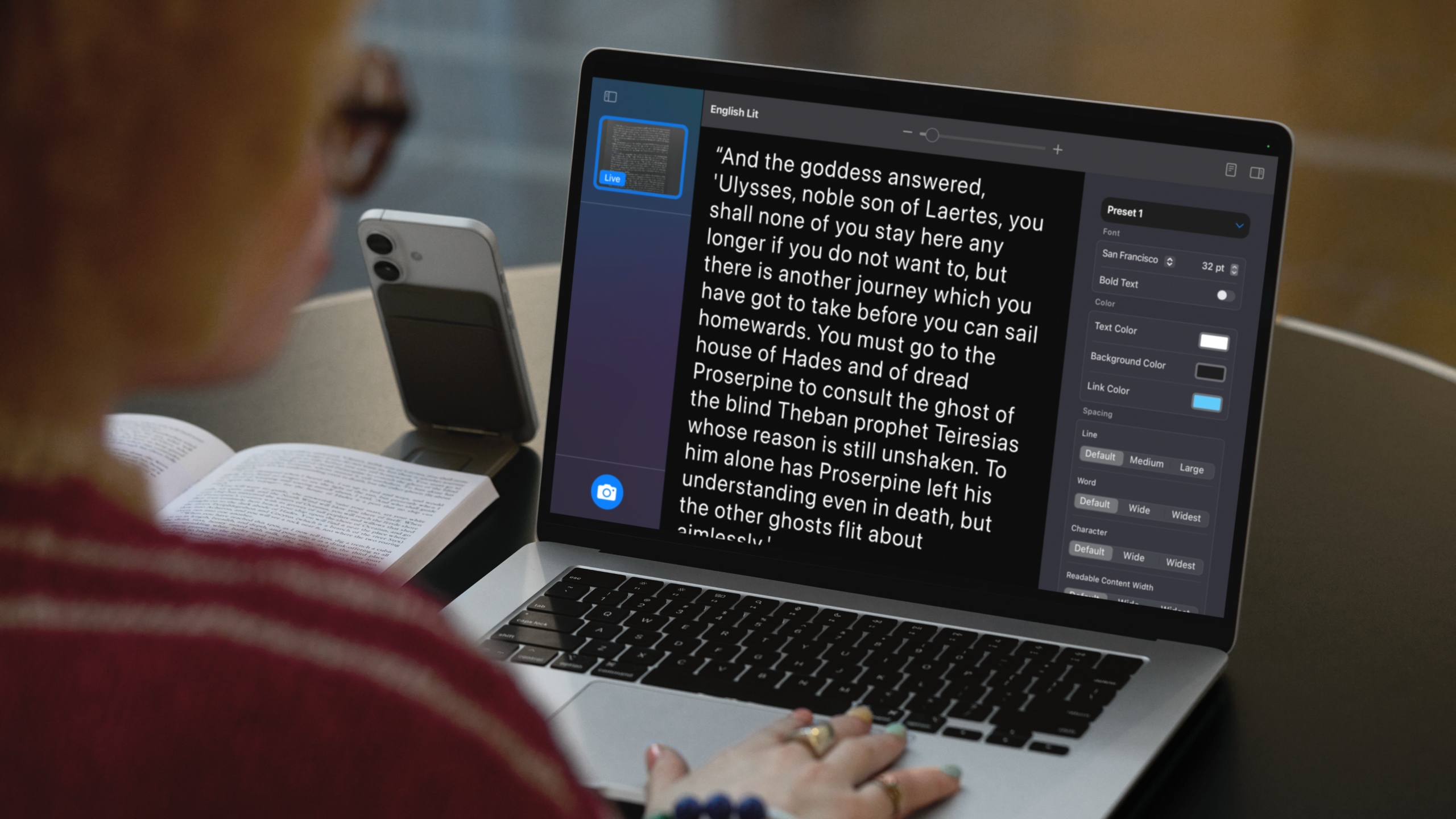
A MacBook using Magnifier and a connected iPhone to identify and format text from a book.
Apple
Magnifier's most powerful feature uses the MacBook's machine learning capabilities to identify, display and format text that your camera captures. This works with text your camera can see in the room around you, and things it captures via macOS' Desk View feature. For example, to view documents on your desk:
Open Magnifier.
Click on the Camera section in Magnifier's menu bar and then select your Desk View camera from the dropdown menu.
Click on the Reader icon (a simple illustration of a document) near the top-right of your Magnifier window.
Click on the sidebar menu icon to access settings to format text.
Apple gives you options to change the color, font and background of text Magnifier identifies, among other customization options. If you'd prefer to capture faraway text, you can position a webcam or iPhone camera facing away from you and swap to it via the Camera section in Magnifier's menu bar.
You can also listen to any text Magnifier has identified by clicking on the Play button in the top-right corner of Magnifier's reader mode. Clicking the Pause button will pause playback, clicking the Skip Forward or Skip Backward buttons skip through lines of text, and if you want to adjust playback speed, you can click on the 1x button and pick a speed from the dropdown menu.
How to use Magnifier to zoom in on yourself
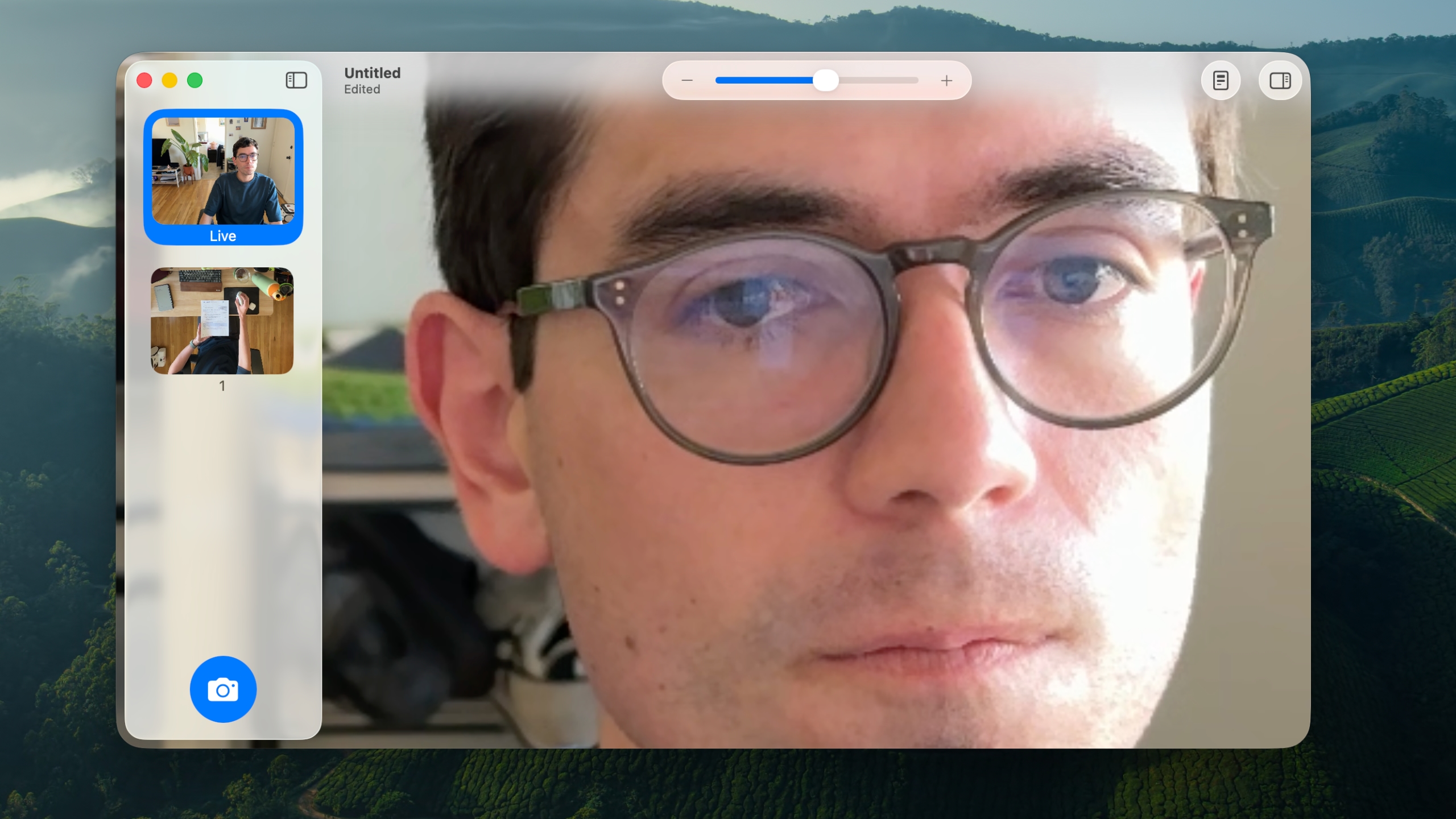
Magnifier can identify text, but it also works as a way to get a zoomed in view of your own face.
Ian Carlos Campbell for Engadget
By default, Magnifier uses your MacBook's built-in webcam, which means you'll see a view of yourself and whatever's behind you if you don't have another camera selected. This might not be usual for seeing faraway text, but it is handy if you're applying makeup, putting in contacts or doing anything else where you need a detailed view of your face.
In my tests, using Magnifier worked the best with my MacBook's built-in webcam or an iPhone. When I tried using a third-party webcam from Logitech, my live camera feed was noticeably laggy. Your mileage may vary, but if you experience any issues with your own webcam, it's worth trying your built-in webcam to see if that helps. You can swap between cameras and zoom in to your camera feed inside the Magnifier app:
Open Magnifier.
In the top menu bar, select Camera and then click on the camera you'd like to use in the dropdown menu.
Use the slider in the top center of the Magnifier window to zoom in on yourself.
You can see a live feed of your zoomed in view in Magnifier's main window. If you click on the Camera button in the bottom-left corner of the app, you can also snap a photo to review later. Any photos you capture will appear in Magnifier's left sidebar menu. Clicking on them lets you view them, zoom in on them and adjust their visual appearance (Brightness, Contrast and other visual settings) via the Image section in Magnifier's menu bar.
This article originally appeared on Engadget at https://www.engadget.com/computing/laptops/how-to-use-magnifier-on-a-macbook-to-zoom-in-on-faraway-text-080100677.html?src=rss
The Samsung Galaxy S26 Ultra is generating significant buzz in the flagship smartphone market, with leaks hinting at a range of exciting features. From faster charging capabilities and a new wireless standard to expanded color options and software enhancements with One UI 8.5, the S26 Ultra is shaping up to be a device that could […]
What if your AI assistant didn’t just respond but truly understood you? Imagine a tool so precise it follows your instructions to the letter, yet so adaptable it can shift effortlessly between casual chats and solving intricate problems. That’s the promise of GPT-5.1, OpenAI’s latest leap forward in artificial intelligence. With its dual models—GPT-5.1 Instant […]
The digital nomad lifestyle thrives on adventure, independence, and flexibility. Remote workers around the world now blend their careers with exploration, finding new ways to stay connected and productive. Smart travelers know that success on the road depends on preparation and resourceful choices. A few key strategies can turn each destination into a smoother experience […]
Have you ever wished your spreadsheets could think for themselves? Imagine an Excel feature so advanced it doesn’t just assist you, it acts as your personal data analyst, automating complex tasks and delivering insights in real time. Enter AI Agent Mode, a innovative tool in Microsoft Excel that’s transforming how professionals handle data. Whether you’re […]
The Samsung Galaxy Z TriFold represents a bold step forward in the evolution of foldable smartphones. With its unique dual-fold design, this device transitions seamlessly between a compact smartphone and a 10-inch tablet, offering users a versatile experience that blends productivity and entertainment. By incorporating advanced materials, innovative multitasking features, and a high-performance chipset, […]
Apple Shortcuts provide a powerful way to streamline your daily routines, offering tools to automate tasks, boost productivity, and customize workflows. By integrating automation with artificial intelligence, these shortcuts enable you to handle everything from managing files to discovering entertainment options with ease. The video below from Stephen Robles explores practical applications of Apple Shortcuts, […]
The first Move+ made a bold promise: what if your “painkiller” was a band of light instead of a bottle of pills? By wrapping medical-grade red and near-infrared LEDs around your joints, it tried to tackle the inflammation at the source, not just blur it out. Move+ 2.0 arrives as the next pass at that concept, with a more polished chassis, smarter ergonomics, and a clearer pitch that this is not a gadget for your shelf, but a piece of recovery infrastructure you actually wear.
The real story behind the 2.0 update is a shift in how the device delivers light. Pain, after all, is rarely skin deep. Kineon’s answer was to build a hybrid system, pairing 660nm red LEDs with 808nm near-infrared lasers. While LEDs are great for surface-level recovery, the focused, coherent light from the lasers is engineered to penetrate several centimeters deeper, reaching the actual joint capsules, cartilage, and muscle tissue where chronic inflammation hides. It’s a clever engineering choice that directly addresses the limits of LED-only panels, aiming to deliver a therapeutic dose where it truly matters, whether that’s inside a shoulder with tendinitis or a knee struggling with arthritis.
The new adjustable strap is noticeably slimmer and more pliable, designed to solve the ergonomic puzzle of wrapping something securely around tricky areas like the shoulders or glutes. With reinforced stitching, premium materials, and a quick-release function, it feels less like a medical brace and more like a piece of high-end athletic gear. Kineon also includes bridging clips to connect the modules closer together and a separate extender strap. These simple but practical additions ensure the device can comfortably fit both on smaller treatment areas and larger body types or span across the lower back, making the entire system more versatile out of the box.
Even the travel case gets a thoughtful overhaul. Finished in vegan leather with a redesigned interior, it treats the Move+ 2.0 like a piece of premium electronics, not a clunky medical aid. The new layout, with dedicated bridge holders and a simplified charging tray, is about removing the small points of friction that often lead to expensive recovery tools being left at home. It affirms the idea that for a device like this to be effective, it has to be with you when you need it, whether that’s at the gym, in a hotel room, or after a long flight.
By combining LEDs and lasers, the Move+ 2.0 is positioned to address a whole spectrum of common complaints that live deep in the body’s machinery. The issues it targets, from frozen shoulder and carpal tunnel to gout and cartilage damage, are the kind of stubborn problems that often resist simple surface treatments. The device is not just for post-workout soreness; it is designed as a tool for managing the kind of chronic, nagging conditions that can disrupt daily life.
Beyond the hardware, Kineon is building out the digital side of the recovery equation. The new companion app acts as a logbook and a coach, letting you track sessions, monitor progress, and access a library of educational videos and guided recovery programs. This turns the Move+ 2.0 from a purely physical tool into a smarter system. Instead of just treating a sore spot ad hoc, the app provides a framework for managing chronic conditions over time, offering insights and guidance that help connect the daily sessions to a longer-term healing strategy.
At just $399, the entire package feels cohesive, including not just the 3 light modules and adjustable strap, but also the travel case, a charging dock, and a USB-C charging cable. Kineon is clearly positioning the Move+ 2.0 as a serious piece of performance and recovery gear, designed to sit comfortably alongside a high-end smartwatch or a percussion massager. It’s a tool built for a wide spectrum of nagging, persistent issues, from the athlete’s case of tennis elbow to the office worker’s carpal tunnel. By wrapping sophisticated medical technology in a thoughtfully designed, user-friendly package, Kineon is making a strong argument that the future of pain management might look a lot less like a pill and a lot more like a piece of well-designed hardware.