The appropriately-named Lists tool allows people to filter chats via a myriad of custom categories. Users can create lists for family members, friends, coworkers, neighbors or just about anyone else. The platform says that these tools “help you focus on the conversations that are most important, when you need them.”
Just like the Favorites feature, users can add both group chats and one-on-one chats to any list. Look for the “+” icon in the filter bar at the top of the Chats tab to get started. WhatsApp is introducing this update today, but it’s a tiered rollout so it could take a few weeks to reach everyone.
This article originally appeared on Engadget at https://www.engadget.com/apps/whatsapp-custom-lists-are-here-to-help-you-keep-track-of-convos-173525237.html?src=rss
Google is bringing its Gemini AI assistant into more of its software suite, announcing several new features for Google Maps. Users looking for ideas about places to go in Maps can now ask conversational questions about the type of location they want and receive answers from Gemini. Maps can also use AI to respond to deeper queries about a specific locale. When you're looking at a location on Maps, Gemini can also provide a summary of reviews. These AI-powered features will roll out to the Maps app on Android and iOS beginning this week.
The Immersive View Maps feature introduced last year is growing. Google can now apply AI to show what locations will look like at the date and time a person will be present. Immersive View will be available in 150 cities internationally, including Brussels, Kyoto and Frankfurt. New place categories, such as college campuses, are also being added.
Driving directions are getting an update too. A button to add stops to driving directions will let users explore notable landmarks or stops along their route. Navigation has also been improved to show more exact details about potentially complicated areas of a route, such as clearer directions about what lane to be in or when to merge. The enhanced driving experience will be available on both Android and iOS, the rollout starts next month in more than 30 metro areas.
Waze is also receiving the Gemini treatment in today's announcements. Conversational Reporting that will allow drivers to use natural language to alert the app to road hazards or delays. And why limit AI to Maps when it can be on the whole planet? Google Earth is also getting generative AI tools specifically targeting urban planners with fast access to data.
This article originally appeared on Engadget at https://www.engadget.com/big-tech/google-is-adding-gemini-ai-powered-tools-to-maps-140045971.html?src=rss
Nintendo has launched its own music streaming service that caters to fans of its games, including Mario and Animal Crossing. Fans will be able to listen to their favorite game tracks on their phones through the new Nintendo Music app, which has a user interface that pretty much looks like Spotify. The tracks are organized by game, so people can play the whole OST for specific titles if they want, but they can also listen to character playlists like a selection of songs performed by Animal Crossing's K.K. Slider.
If they're in the mood for certain songs, they can hit up one of the pre-made themed playlists, which put together tracks for themes like "boss battle" and "victory." The app offers mood playlists, as well, that groups tracks with similar vibes, such as soft, relaxing songs for bedtime listening. One feature that's probably unique to the service is spoiler prevention. If the listener adds a certain game to the setting, the app will hide the soundtracks that could give away a surprise ending or an unexpected final boss, among other potential spoilers. They can also extend a single track and keep it playing on repeat for up to an hour if that's all they want to listen to.
Fans can access the new Nintendo Music service with a Switch Online membership, though they can start listening to game tracks even if they're still on free trial. Every member on a Switch Online Family membership can also access it, so they don't need to pay for an individual subscription.
Nintendo Music, a new smart-device app exclusively for #NintendoSwitchOnline members, lets you stream or download music from Nintendo’s library of soundtracks!
This article originally appeared on Engadget at https://www.engadget.com/entertainment/streaming/nintendo-music-is-a-streaming-service-for-switch-online-subscribers-130035796.html?src=rss
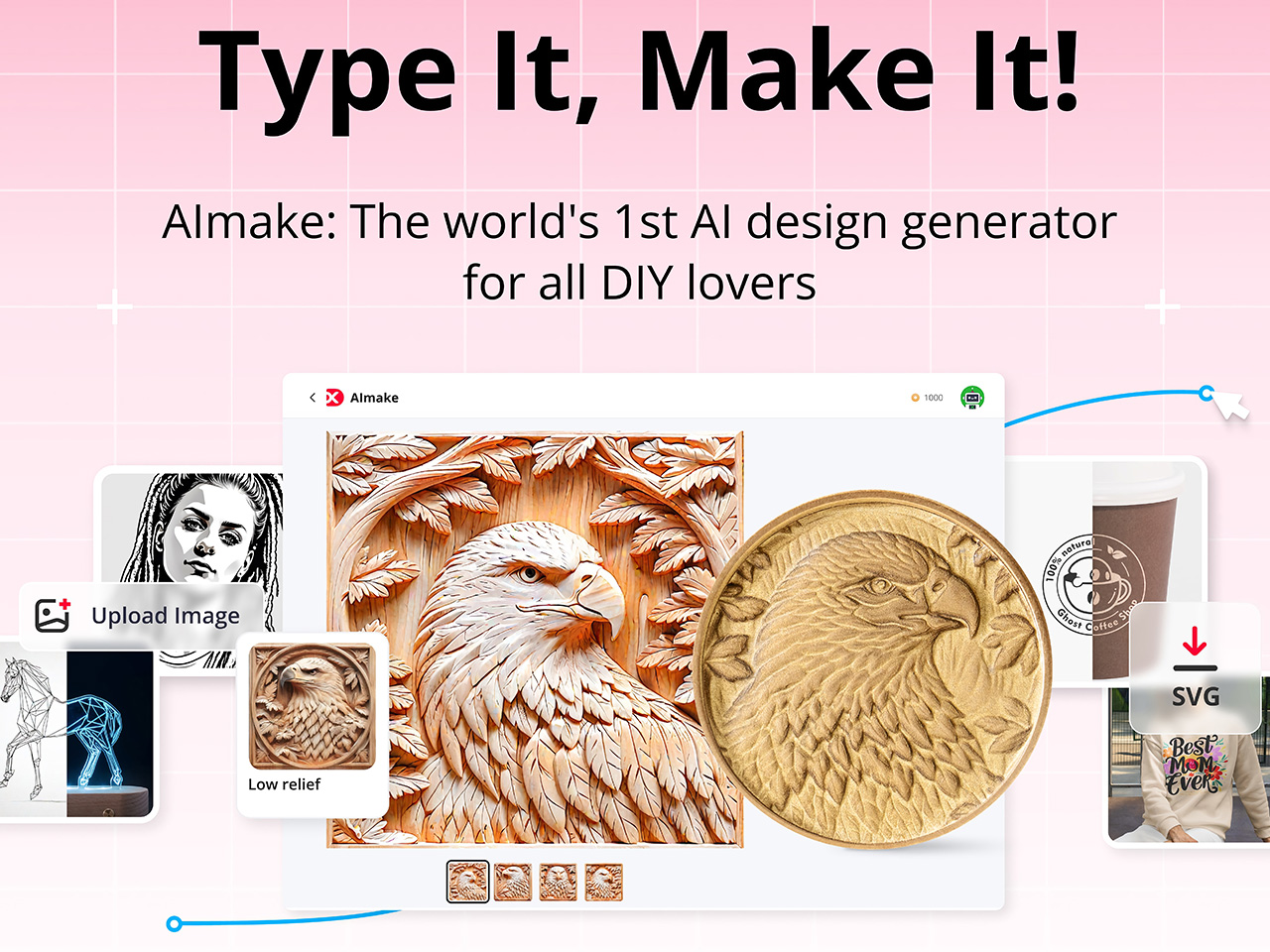
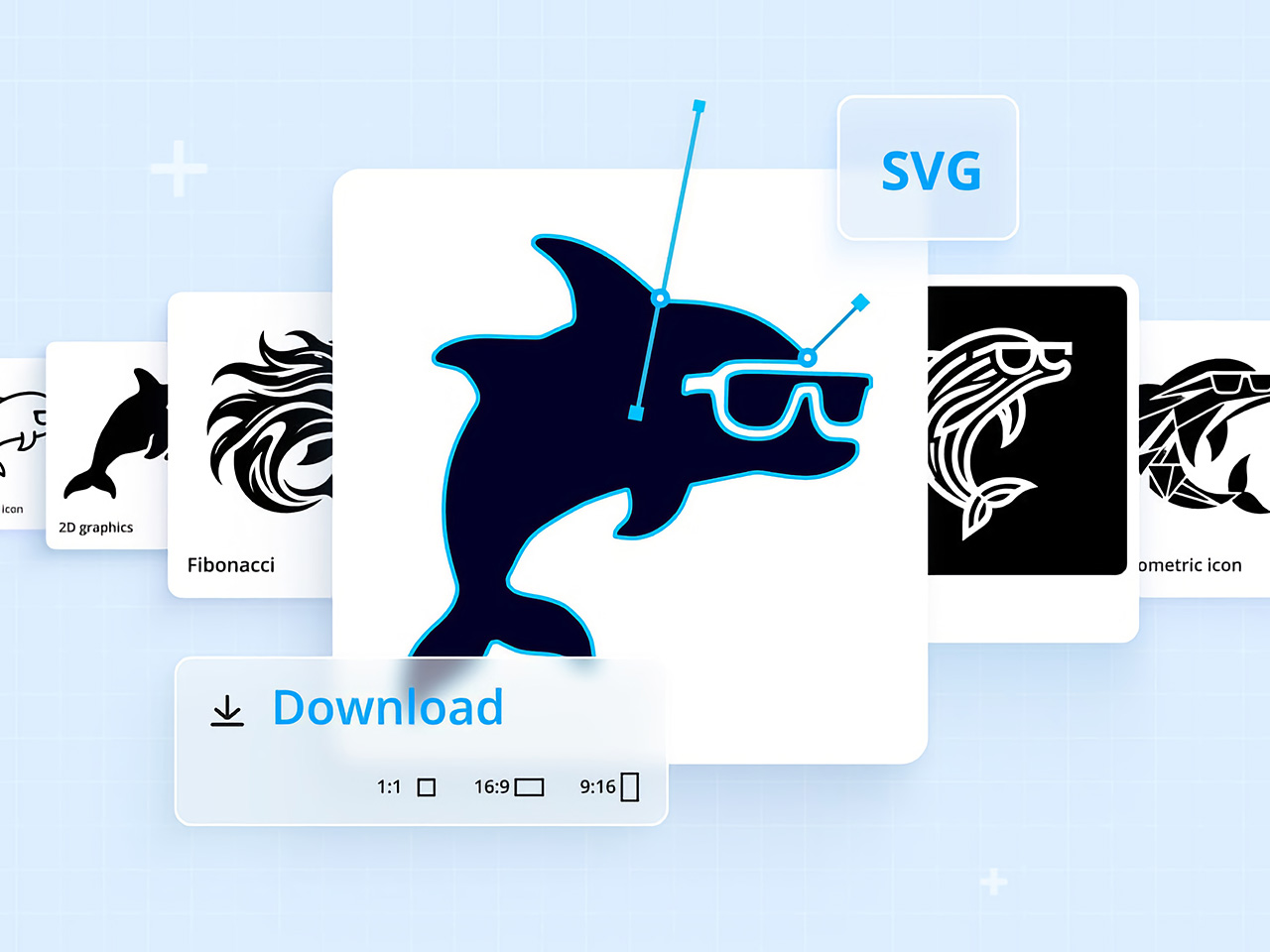
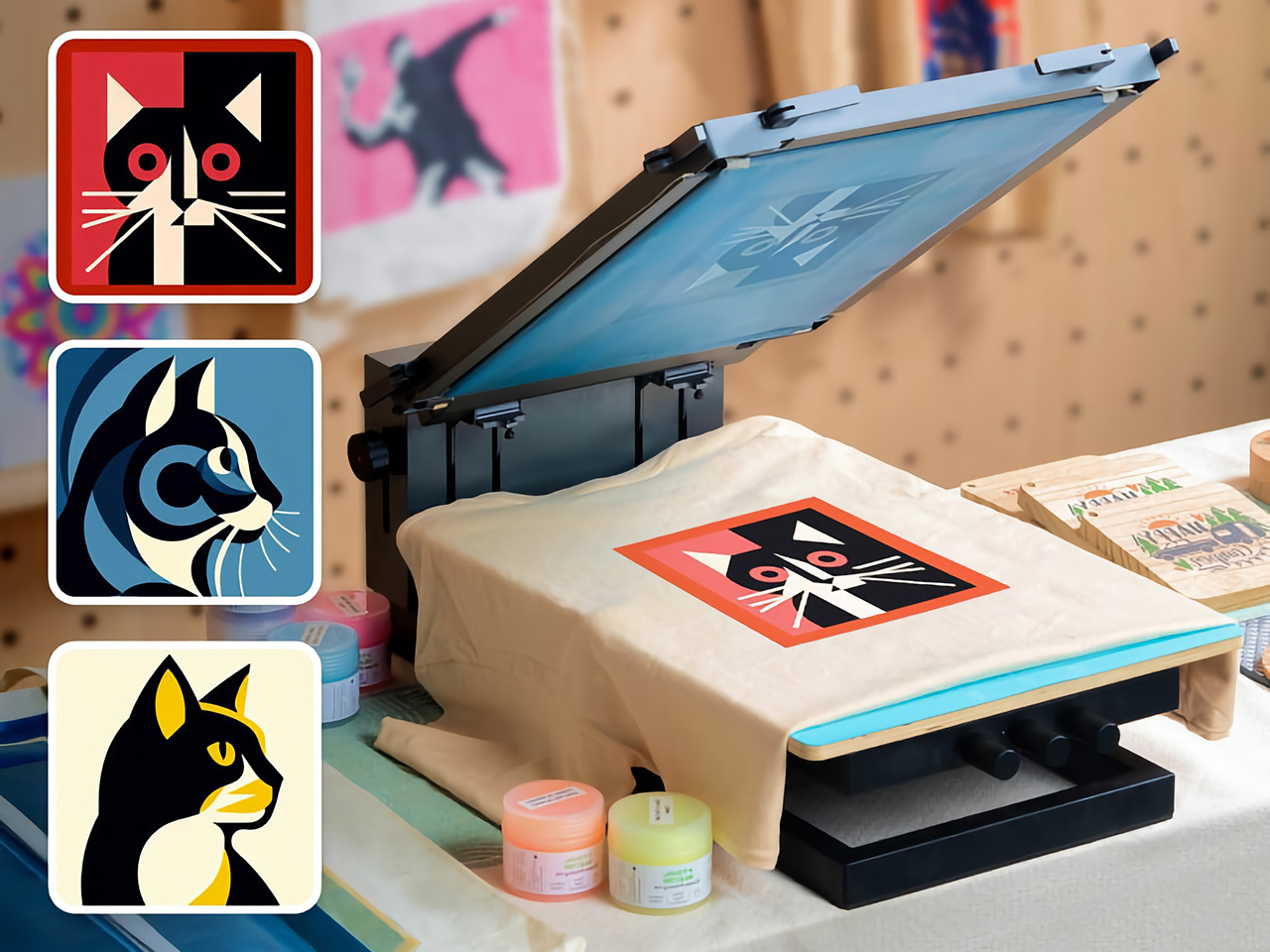
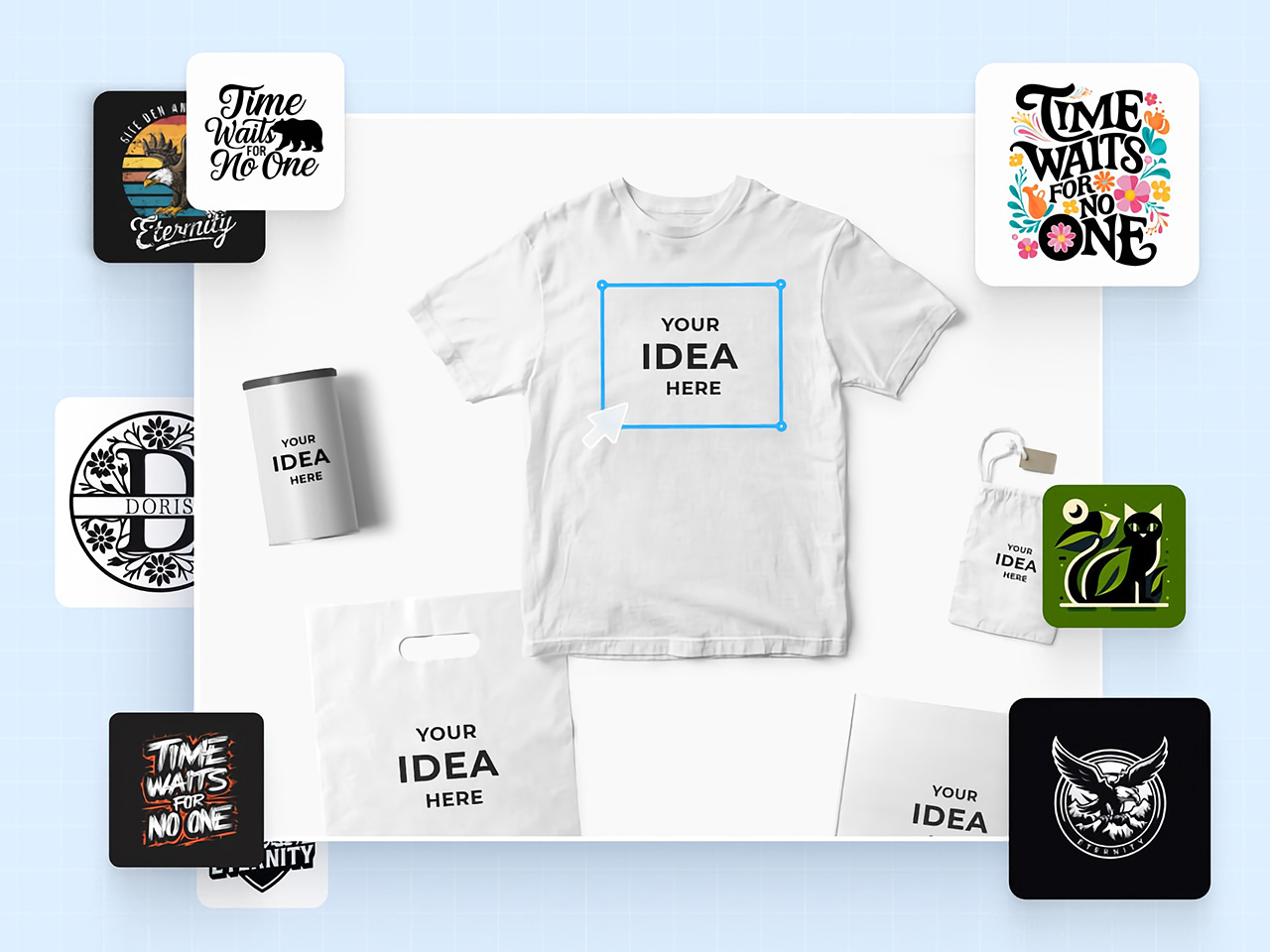
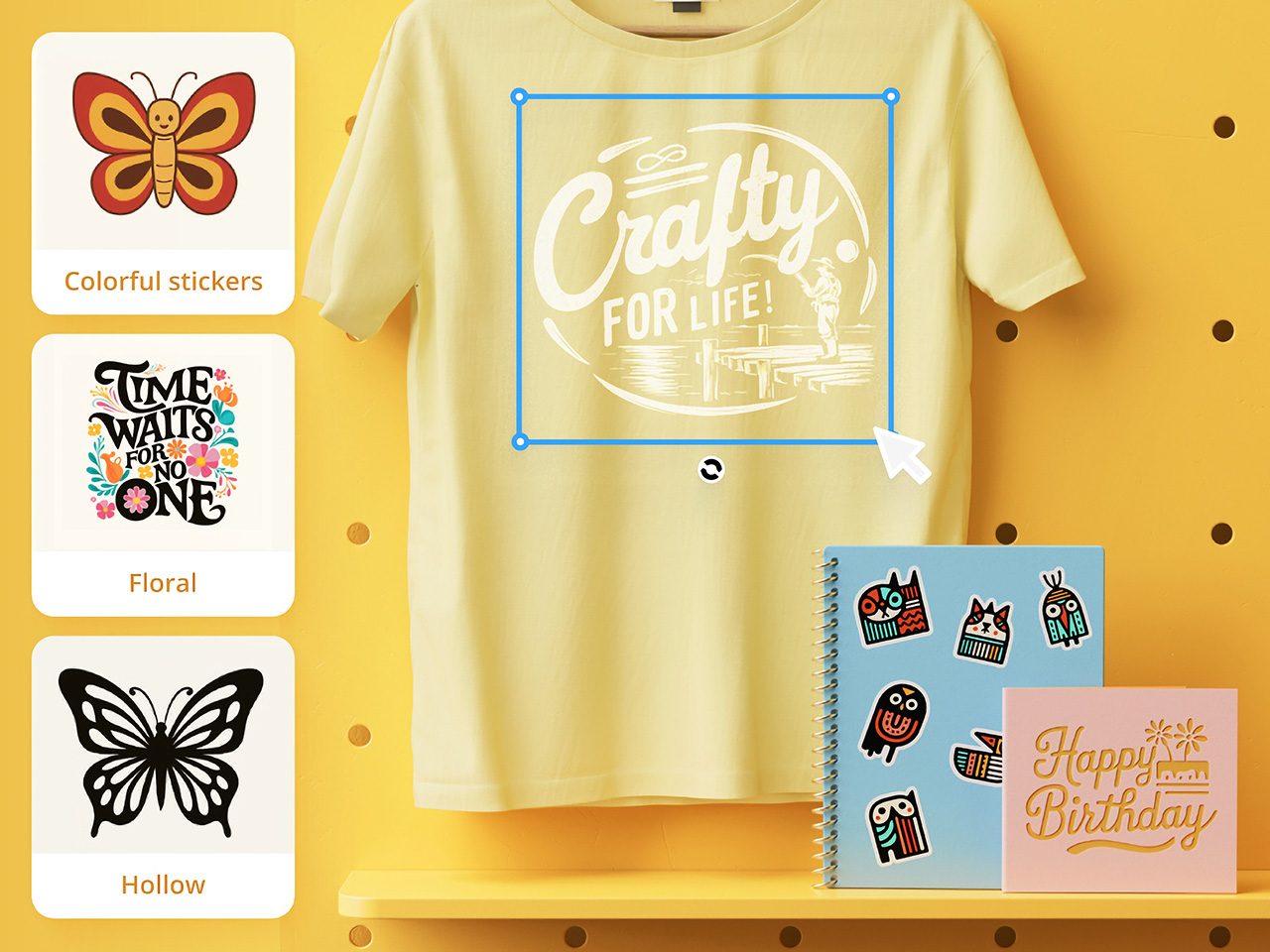
For long, AI tools have just been limited to graphical work, with not so much of it spilling into tangible industrial design. Sure, you could create logos and artwork for your products, but you still can’t “create” products using AI – something that xTool is hoping to change with its new software, AIMake. Simply put, AIMake is a GenAI tool that’s optimized for working with graphical output, but in a manner that’s fine-tuned for industrial design. With a prompt-based interface, AIMake allows you to create artwork that’s ready for 2D printing, laser-etching/engraving, and even embossing. AIMake offers as many as 70 different styles to apply to your prompt, generating everything from ready-to-print logos, to editable SVGs for screen-printing, and even low-relief 3D engraving. Alongside the AIMake feature, xTool’s also unveiling DesignFind – an asset marketplace for DIY enthusiasts and professional creators to access free and paid project files from users across the globe.
Generate Ready-To-Use Artwork for Laser Cutting and Screen Printing
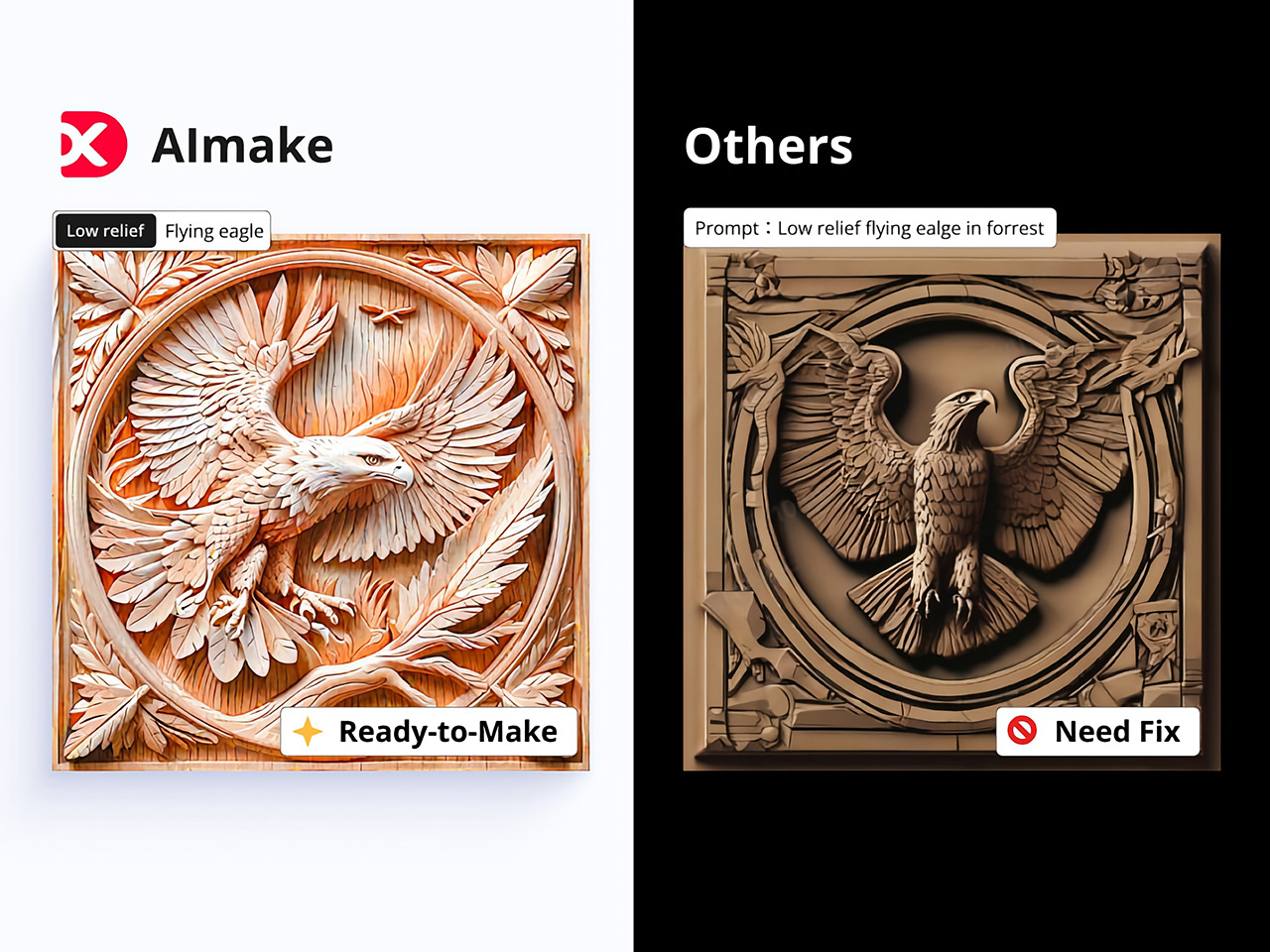
Traditionally, preparing files for laser engraving or screen printing can be complex and technical, involving vector graphic software, high-res images, or detailed edits to achieve the clean lines and solid contrast needed for these processes. AIMake addresses this by letting users skip these steps; with it, designers can input descriptive prompts, such as “geometric fox engraving with high contrast,” and watch as the AI turns this concept into a polished, ready-to-engrave file.
This direct-to-laser capability is a shift for designers, providing an AI tool that reduces reliance on graphic software or tedious vector adjustments. Instead, AIMake generates crisp, high-contrast designs that integrate seamlessly with xTool’s laser engravers, ensuring that the visual quality aligns with what’s needed for physical production. Whether creating art for metal, wood, or glass, AIMake optimizes the image for the specific demands of laser engraving, relief carving, and screen printing.
From Vision to Reality with Prompt-Based Design
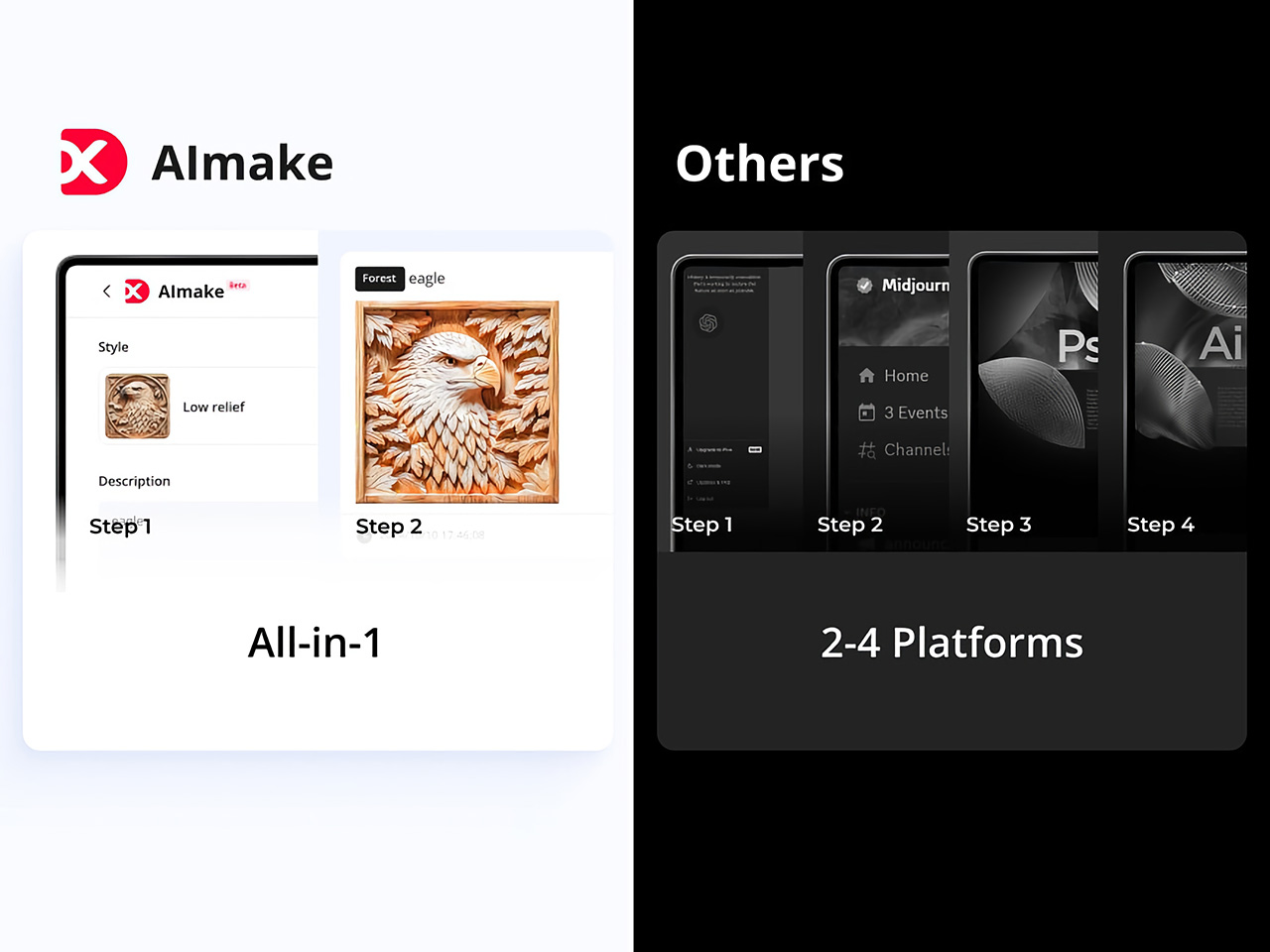
AIMake’s intuitive, prompt-based design system is key to its simplicity. Users enter a text description—anything from detailed portrait specs to broad aesthetic concepts—and the app’s AI engine generates a corresponding laser-compatible design. This means users can focus on creativity and concept rather than technical adjustments, using AIMake’s AI to refine the design automatically.
With this setup, designers of all backgrounds can produce intricate laser-cut images without needing advanced skills in vector graphics. For example, a prompt like “portrait of a lion, full mane, high detail, silhouette” can create a design with defined, laser-friendly lines and strong contrast, ready for immediate use in xTool’s compatible engravers. This system combines the efficiency of digital AI rendering with the tactile quality of handmade engraving, which helps streamline the creative workflow for designers and hobbyists alike.
Intuitive Controls make AI Creation easy for Beginners and Experts
xTool designed AIMake with both ease of use and versatility in mind, giving beginners and seasoned pros the tools they need for success. The platform allows new users to select from pre-set styles, such as vector templates or laser-friendly text effects, while offering advanced controls for adjusting details like line thickness and contrast.
Integration with xTool hardware, such as the D1 and M1 laser engravers, enables immediate testing and adjustments on physical materials, which saves time and minimizes material waste. For the designer seeking to perfect a project, these tools and settings remove the usual trial and error often required by other engraving software. This integration also lets users work on complex designs with the assurance that their final piece will match the original vision.
DesignFind: A Creative Hub for DIY and Professional Makers
DesignFind is a versatile platform for DIY enthusiasts and professional creators alike, offering a wide array of design assets for laser cutting, engraving, and more. With support for materials like wood and acrylic, users can explore diverse project categories, from home decor and jewelry to seasonal gifts for holidays and special occasions.
Key features include a library of free, shared templates—such as cutting boards and multi-layered designs—and premium assets like 3D models and detailed SVG files. Additionally, AIMake users can enhance their projects with DesignFind’s resources, making it easy to combine AI-generated designs with the platform’s extensive community assets. The “Featured Creators” section showcases work from top designers, inspiring new and seasoned creators with unique, ready-to-use projects.
Practical Applications Across Different Industries
AIMake’s functionality extends beyond personal design and has practical applications across various industries. Designers working with an array of fabrication devices (especially ones from xTool) can use AIMake to create logos, product designs, or custom merchandise. Small businesses can use it to create professional, engraving-ready designs without needing graphic design software, and crafters can generate unique pieces with ease.
In education, AIMake is a valuable asset, offering schools and makerspaces a chance to introduce students to digital design with hands-on projects. By using simple text inputs, students can quickly visualize and produce projects without needing prior experience in traditional graphic design tools. This flexibility gives learners and instructors alike more freedom to explore digital fabrication.
AIMake and the Future of Design Tools
AIMake sets a new standard for GenAI in tangible product design, showing how generative AI can seamlessly enhance the design process, making it more accessible, practical, and enjoyable. As AI technology continues to evolve, tools like AIMake represent a future where design creation is faster yet well within the control of creators.
For anyone working in creative design, AIMake offers an engaging blend of functionality and innovation, serving as both a creative assistant and a precision tool. Whether you’re producing intricate artwork, branding assets, or custom goods, AIMake’s versatile platform offers a little something for everyone. With AIMake, xTool is opening new pathways for artists and designers—one prompt at a time.
For long, AI tools have just been limited to graphical work, with not so much of it spilling into tangible industrial design. Sure, you could create logos and artwork for your products, but you still can’t “create” products using AI – something that xTool is hoping to change with its new software, AIMake. Simply put, AIMake is a GenAI tool that’s optimized for working with graphical output, but in a manner that’s fine-tuned for industrial design. With a prompt-based interface, AIMake allows you to create artwork that’s ready for 2D printing, laser-etching/engraving, and even embossing. AIMake offers as many as 70 different styles to apply to your prompt, generating everything from ready-to-print logos, to editable SVGs for screen-printing, and even low-relief 3D engraving. Alongside the AIMake feature, xTool’s also unveiling DesignFind – an asset marketplace for DIY enthusiasts and professional creators to access free and paid project files from users across the globe.
Generate Ready-To-Use Artwork for Laser Cutting and Screen Printing
Traditionally, preparing files for laser engraving or screen printing can be complex and technical, involving vector graphic software, high-res images, or detailed edits to achieve the clean lines and solid contrast needed for these processes. AIMake addresses this by letting users skip these steps; with it, designers can input descriptive prompts, such as “geometric fox engraving with high contrast,” and watch as the AI turns this concept into a polished, ready-to-engrave file.
This direct-to-laser capability is a shift for designers, providing an AI tool that reduces reliance on graphic software or tedious vector adjustments. Instead, AIMake generates crisp, high-contrast designs that integrate seamlessly with xTool’s laser engravers, ensuring that the visual quality aligns with what’s needed for physical production. Whether creating art for metal, wood, or glass, AIMake optimizes the image for the specific demands of laser engraving, relief carving, and screen printing.
From Vision to Reality with Prompt-Based Design
AIMake’s intuitive, prompt-based design system is key to its simplicity. Users enter a text description—anything from detailed portrait specs to broad aesthetic concepts—and the app’s AI engine generates a corresponding laser-compatible design. This means users can focus on creativity and concept rather than technical adjustments, using AIMake’s AI to refine the design automatically.
With this setup, designers of all backgrounds can produce intricate laser-cut images without needing advanced skills in vector graphics. For example, a prompt like “portrait of a lion, full mane, high detail, silhouette” can create a design with defined, laser-friendly lines and strong contrast, ready for immediate use in xTool’s compatible engravers. This system combines the efficiency of digital AI rendering with the tactile quality of handmade engraving, which helps streamline the creative workflow for designers and hobbyists alike.
Intuitive Controls make AI Creation easy for Beginners and Experts
xTool designed AIMake with both ease of use and versatility in mind, giving beginners and seasoned pros the tools they need for success. The platform allows new users to select from pre-set styles, such as vector templates or laser-friendly text effects, while offering advanced controls for adjusting details like line thickness and contrast.
Integration with xTool hardware, such as the D1 and M1 laser engravers, enables immediate testing and adjustments on physical materials, which saves time and minimizes material waste. For the designer seeking to perfect a project, these tools and settings remove the usual trial and error often required by other engraving software. This integration also lets users work on complex designs with the assurance that their final piece will match the original vision.
DesignFind: A Creative Hub for DIY and Professional Makers
DesignFind is a versatile platform for DIY enthusiasts and professional creators alike, offering a wide array of design assets for laser cutting, engraving, and more. With support for materials like wood and acrylic, users can explore diverse project categories, from home decor and jewelry to seasonal gifts for holidays and special occasions.
Key features include a library of free, shared templates—such as cutting boards and multi-layered designs—and premium assets like 3D models and detailed SVG files. Additionally, AIMake users can enhance their projects with DesignFind’s resources, making it easy to combine AI-generated designs with the platform’s extensive community assets. The “Featured Creators” section showcases work from top designers, inspiring new and seasoned creators with unique, ready-to-use projects.
Practical Applications Across Different Industries
AIMake’s functionality extends beyond personal design and has practical applications across various industries. Designers working with an array of fabrication devices (especially ones from xTool) can use AIMake to create logos, product designs, or custom merchandise. Small businesses can use it to create professional, engraving-ready designs without needing graphic design software, and crafters can generate unique pieces with ease.
In education, AIMake is a valuable asset, offering schools and makerspaces a chance to introduce students to digital design with hands-on projects. By using simple text inputs, students can quickly visualize and produce projects without needing prior experience in traditional graphic design tools. This flexibility gives learners and instructors alike more freedom to explore digital fabrication.
AIMake and the Future of Design Tools
AIMake sets a new standard for GenAI in tangible product design, showing how generative AI can seamlessly enhance the design process, making it more accessible, practical, and enjoyable. As AI technology continues to evolve, tools like AIMake represent a future where design creation is faster yet well within the control of creators.
For anyone working in creative design, AIMake offers an engaging blend of functionality and innovation, serving as both a creative assistant and a precision tool. Whether you’re producing intricate artwork, branding assets, or custom goods, AIMake’s versatile platform offers a little something for everyone. With AIMake, xTool is opening new pathways for artists and designers—one prompt at a time.
For long, AI tools have just been limited to graphical work, with not so much of it spilling into tangible industrial design. Sure, you could create logos and artwork for your products, but you still can’t “create” products using AI – something that xTool is hoping to change with its new software, AIMake. Simply put, AIMake is a GenAI tool that’s optimized for working with graphical output, but in a manner that’s fine-tuned for industrial design. With a prompt-based interface, AIMake allows you to create artwork that’s ready for 2D printing, laser-etching/engraving, and even embossing. AIMake offers as many as 70 different styles to apply to your prompt, generating everything from ready-to-print logos, to editable SVGs for screen-printing, and even low-relief 3D engraving. Alongside the AIMake feature, xTool’s also unveiling DesignFind – an asset marketplace for DIY enthusiasts and professional creators to access free and paid project files from users across the globe.
Generate Ready-To-Use Artwork for Laser Cutting and Screen Printing
Traditionally, preparing files for laser engraving or screen printing can be complex and technical, involving vector graphic software, high-res images, or detailed edits to achieve the clean lines and solid contrast needed for these processes. AIMake addresses this by letting users skip these steps; with it, designers can input descriptive prompts, such as “geometric fox engraving with high contrast,” and watch as the AI turns this concept into a polished, ready-to-engrave file.
This direct-to-laser capability is a shift for designers, providing an AI tool that reduces reliance on graphic software or tedious vector adjustments. Instead, AIMake generates crisp, high-contrast designs that integrate seamlessly with xTool’s laser engravers, ensuring that the visual quality aligns with what’s needed for physical production. Whether creating art for metal, wood, or glass, AIMake optimizes the image for the specific demands of laser engraving, relief carving, and screen printing.
From Vision to Reality with Prompt-Based Design
AIMake’s intuitive, prompt-based design system is key to its simplicity. Users enter a text description—anything from detailed portrait specs to broad aesthetic concepts—and the app’s AI engine generates a corresponding laser-compatible design. This means users can focus on creativity and concept rather than technical adjustments, using AIMake’s AI to refine the design automatically.
With this setup, designers of all backgrounds can produce intricate laser-cut images without needing advanced skills in vector graphics. For example, a prompt like “portrait of a lion, full mane, high detail, silhouette” can create a design with defined, laser-friendly lines and strong contrast, ready for immediate use in xTool’s compatible engravers. This system combines the efficiency of digital AI rendering with the tactile quality of handmade engraving, which helps streamline the creative workflow for designers and hobbyists alike.
Intuitive Controls make AI Creation easy for Beginners and Experts
xTool designed AIMake with both ease of use and versatility in mind, giving beginners and seasoned pros the tools they need for success. The platform allows new users to select from pre-set styles, such as vector templates or laser-friendly text effects, while offering advanced controls for adjusting details like line thickness and contrast.
Integration with xTool hardware, such as the D1 and M1 laser engravers, enables immediate testing and adjustments on physical materials, which saves time and minimizes material waste. For the designer seeking to perfect a project, these tools and settings remove the usual trial and error often required by other engraving software. This integration also lets users work on complex designs with the assurance that their final piece will match the original vision.
DesignFind: A Creative Hub for DIY and Professional Makers
DesignFind is a versatile platform for DIY enthusiasts and professional creators alike, offering a wide array of design assets for laser cutting, engraving, and more. With support for materials like wood and acrylic, users can explore diverse project categories, from home decor and jewelry to seasonal gifts for holidays and special occasions.
Key features include a library of free, shared templates—such as cutting boards and multi-layered designs—and premium assets like 3D models and detailed SVG files. Additionally, AIMake users can enhance their projects with DesignFind’s resources, making it easy to combine AI-generated designs with the platform’s extensive community assets. The “Featured Creators” section showcases work from top designers, inspiring new and seasoned creators with unique, ready-to-use projects.
Practical Applications Across Different Industries
AIMake’s functionality extends beyond personal design and has practical applications across various industries. Designers working with an array of fabrication devices (especially ones from xTool) can use AIMake to create logos, product designs, or custom merchandise. Small businesses can use it to create professional, engraving-ready designs without needing graphic design software, and crafters can generate unique pieces with ease.
In education, AIMake is a valuable asset, offering schools and makerspaces a chance to introduce students to digital design with hands-on projects. By using simple text inputs, students can quickly visualize and produce projects without needing prior experience in traditional graphic design tools. This flexibility gives learners and instructors alike more freedom to explore digital fabrication.
AIMake and the Future of Design Tools
AIMake sets a new standard for GenAI in tangible product design, showing how generative AI can seamlessly enhance the design process, making it more accessible, practical, and enjoyable. As AI technology continues to evolve, tools like AIMake represent a future where design creation is faster yet well within the control of creators.
For anyone working in creative design, AIMake offers an engaging blend of functionality and innovation, serving as both a creative assistant and a precision tool. Whether you’re producing intricate artwork, branding assets, or custom goods, AIMake’s versatile platform offers a little something for everyone. With AIMake, xTool is opening new pathways for artists and designers—one prompt at a time.
For long, AI tools have just been limited to graphical work, with not so much of it spilling into tangible industrial design. Sure, you could create logos and artwork for your products, but you still can’t “create” products using AI – something that xTool is hoping to change with its new software, AIMake. Simply put, AIMake is a GenAI tool that’s optimized for working with graphical output, but in a manner that’s fine-tuned for industrial design. With a prompt-based interface, AIMake allows you to create artwork that’s ready for 2D printing, laser-etching/engraving, and even embossing. AIMake offers as many as 70 different styles to apply to your prompt, generating everything from ready-to-print logos, to editable SVGs for screen-printing, and even low-relief 3D engraving. Alongside the AIMake feature, xTool’s also unveiling DesignFind – an asset marketplace for DIY enthusiasts and professional creators to access free and paid project files from users across the globe.
Generate Ready-To-Use Artwork for Laser Cutting and Screen Printing
Traditionally, preparing files for laser engraving or screen printing can be complex and technical, involving vector graphic software, high-res images, or detailed edits to achieve the clean lines and solid contrast needed for these processes. AIMake addresses this by letting users skip these steps; with it, designers can input descriptive prompts, such as “geometric fox engraving with high contrast,” and watch as the AI turns this concept into a polished, ready-to-engrave file.
This direct-to-laser capability is a shift for designers, providing an AI tool that reduces reliance on graphic software or tedious vector adjustments. Instead, AIMake generates crisp, high-contrast designs that integrate seamlessly with xTool’s laser engravers, ensuring that the visual quality aligns with what’s needed for physical production. Whether creating art for metal, wood, or glass, AIMake optimizes the image for the specific demands of laser engraving, relief carving, and screen printing.
From Vision to Reality with Prompt-Based Design
AIMake’s intuitive, prompt-based design system is key to its simplicity. Users enter a text description—anything from detailed portrait specs to broad aesthetic concepts—and the app’s AI engine generates a corresponding laser-compatible design. This means users can focus on creativity and concept rather than technical adjustments, using AIMake’s AI to refine the design automatically.
With this setup, designers of all backgrounds can produce intricate laser-cut images without needing advanced skills in vector graphics. For example, a prompt like “portrait of a lion, full mane, high detail, silhouette” can create a design with defined, laser-friendly lines and strong contrast, ready for immediate use in xTool’s compatible engravers. This system combines the efficiency of digital AI rendering with the tactile quality of handmade engraving, which helps streamline the creative workflow for designers and hobbyists alike.
Intuitive Controls make AI Creation easy for Beginners and Experts
xTool designed AIMake with both ease of use and versatility in mind, giving beginners and seasoned pros the tools they need for success. The platform allows new users to select from pre-set styles, such as vector templates or laser-friendly text effects, while offering advanced controls for adjusting details like line thickness and contrast.
Integration with xTool hardware, such as the D1 and M1 laser engravers, enables immediate testing and adjustments on physical materials, which saves time and minimizes material waste. For the designer seeking to perfect a project, these tools and settings remove the usual trial and error often required by other engraving software. This integration also lets users work on complex designs with the assurance that their final piece will match the original vision.
DesignFind: A Creative Hub for DIY and Professional Makers
DesignFind is a versatile platform for DIY enthusiasts and professional creators alike, offering a wide array of design assets for laser cutting, engraving, and more. With support for materials like wood and acrylic, users can explore diverse project categories, from home decor and jewelry to seasonal gifts for holidays and special occasions.
Key features include a library of free, shared templates—such as cutting boards and multi-layered designs—and premium assets like 3D models and detailed SVG files. Additionally, AIMake users can enhance their projects with DesignFind’s resources, making it easy to combine AI-generated designs with the platform’s extensive community assets. The “Featured Creators” section showcases work from top designers, inspiring new and seasoned creators with unique, ready-to-use projects.
Practical Applications Across Different Industries
AIMake’s functionality extends beyond personal design and has practical applications across various industries. Designers working with an array of fabrication devices (especially ones from xTool) can use AIMake to create logos, product designs, or custom merchandise. Small businesses can use it to create professional, engraving-ready designs without needing graphic design software, and crafters can generate unique pieces with ease.
In education, AIMake is a valuable asset, offering schools and makerspaces a chance to introduce students to digital design with hands-on projects. By using simple text inputs, students can quickly visualize and produce projects without needing prior experience in traditional graphic design tools. This flexibility gives learners and instructors alike more freedom to explore digital fabrication.
AIMake and the Future of Design Tools
AIMake sets a new standard for GenAI in tangible product design, showing how generative AI can seamlessly enhance the design process, making it more accessible, practical, and enjoyable. As AI technology continues to evolve, tools like AIMake represent a future where design creation is faster yet well within the control of creators.
For anyone working in creative design, AIMake offers an engaging blend of functionality and innovation, serving as both a creative assistant and a precision tool. Whether you’re producing intricate artwork, branding assets, or custom goods, AIMake’s versatile platform offers a little something for everyone. With AIMake, xTool is opening new pathways for artists and designers—one prompt at a time.
For long, AI tools have just been limited to graphical work, with not so much of it spilling into tangible industrial design. Sure, you could create logos and artwork for your products, but you still can’t “create” products using AI – something that xTool is hoping to change with its new software, AIMake. Simply put, AIMake is a GenAI tool that’s optimized for working with graphical output, but in a manner that’s fine-tuned for industrial design. With a prompt-based interface, AIMake allows you to create artwork that’s ready for 2D printing, laser-etching/engraving, and even embossing. AIMake offers as many as 70 different styles to apply to your prompt, generating everything from ready-to-print logos, to editable SVGs for screen-printing, and even low-relief 3D engraving. Alongside the AIMake feature, xTool’s also unveiling DesignFind – an asset marketplace for DIY enthusiasts and professional creators to access free and paid project files from users across the globe.
Generate Ready-To-Use Artwork for Laser Cutting and Screen Printing
Traditionally, preparing files for laser engraving or screen printing can be complex and technical, involving vector graphic software, high-res images, or detailed edits to achieve the clean lines and solid contrast needed for these processes. AIMake addresses this by letting users skip these steps; with it, designers can input descriptive prompts, such as “geometric fox engraving with high contrast,” and watch as the AI turns this concept into a polished, ready-to-engrave file.
This direct-to-laser capability is a shift for designers, providing an AI tool that reduces reliance on graphic software or tedious vector adjustments. Instead, AIMake generates crisp, high-contrast designs that integrate seamlessly with xTool’s laser engravers, ensuring that the visual quality aligns with what’s needed for physical production. Whether creating art for metal, wood, or glass, AIMake optimizes the image for the specific demands of laser engraving, relief carving, and screen printing.
From Vision to Reality with Prompt-Based Design
AIMake’s intuitive, prompt-based design system is key to its simplicity. Users enter a text description—anything from detailed portrait specs to broad aesthetic concepts—and the app’s AI engine generates a corresponding laser-compatible design. This means users can focus on creativity and concept rather than technical adjustments, using AIMake’s AI to refine the design automatically.
With this setup, designers of all backgrounds can produce intricate laser-cut images without needing advanced skills in vector graphics. For example, a prompt like “portrait of a lion, full mane, high detail, silhouette” can create a design with defined, laser-friendly lines and strong contrast, ready for immediate use in xTool’s compatible engravers. This system combines the efficiency of digital AI rendering with the tactile quality of handmade engraving, which helps streamline the creative workflow for designers and hobbyists alike.
Intuitive Controls make AI Creation easy for Beginners and Experts
xTool designed AIMake with both ease of use and versatility in mind, giving beginners and seasoned pros the tools they need for success. The platform allows new users to select from pre-set styles, such as vector templates or laser-friendly text effects, while offering advanced controls for adjusting details like line thickness and contrast.
Integration with xTool hardware, such as the D1 and M1 laser engravers, enables immediate testing and adjustments on physical materials, which saves time and minimizes material waste. For the designer seeking to perfect a project, these tools and settings remove the usual trial and error often required by other engraving software. This integration also lets users work on complex designs with the assurance that their final piece will match the original vision.
DesignFind: A Creative Hub for DIY and Professional Makers
DesignFind is a versatile platform for DIY enthusiasts and professional creators alike, offering a wide array of design assets for laser cutting, engraving, and more. With support for materials like wood and acrylic, users can explore diverse project categories, from home decor and jewelry to seasonal gifts for holidays and special occasions.
Key features include a library of free, shared templates—such as cutting boards and multi-layered designs—and premium assets like 3D models and detailed SVG files. Additionally, AIMake users can enhance their projects with DesignFind’s resources, making it easy to combine AI-generated designs with the platform’s extensive community assets. The “Featured Creators” section showcases work from top designers, inspiring new and seasoned creators with unique, ready-to-use projects.
Practical Applications Across Different Industries
AIMake’s functionality extends beyond personal design and has practical applications across various industries. Designers working with an array of fabrication devices (especially ones from xTool) can use AIMake to create logos, product designs, or custom merchandise. Small businesses can use it to create professional, engraving-ready designs without needing graphic design software, and crafters can generate unique pieces with ease.
In education, AIMake is a valuable asset, offering schools and makerspaces a chance to introduce students to digital design with hands-on projects. By using simple text inputs, students can quickly visualize and produce projects without needing prior experience in traditional graphic design tools. This flexibility gives learners and instructors alike more freedom to explore digital fabrication.
AIMake and the Future of Design Tools
AIMake sets a new standard for GenAI in tangible product design, showing how generative AI can seamlessly enhance the design process, making it more accessible, practical, and enjoyable. As AI technology continues to evolve, tools like AIMake represent a future where design creation is faster yet well within the control of creators.
For anyone working in creative design, AIMake offers an engaging blend of functionality and innovation, serving as both a creative assistant and a precision tool. Whether you’re producing intricate artwork, branding assets, or custom goods, AIMake’s versatile platform offers a little something for everyone. With AIMake, xTool is opening new pathways for artists and designers—one prompt at a time.
Proton announced the debut of an Apple TV app for its virtual private network. The new app, which was "among the most requested features from our community," according to the company's blog post, is available for download from the App Store on any Apple TV. It will allow customers with a paid Proton VPN plan to stream their media content from any location on Apple's set-top box.
Proton VPN was our favorite when we reviewed it in 2023, and it's still our top pick this year for a virtual private network. The service boasts excellent features for security, privacy and usability. Our only real complaint was that the free tier comes with a lot of limitations. But if you're interested in the company's platform, Proton is currently running an early Black Friday deal where you can snag one or two year plans at a steep discount.
This article originally appeared on Engadget at https://www.engadget.com/cybersecurity/vpn/proton-brings-its-vpn-to-apple-tv-with-new-app-204549019.html?src=rss
Google CEO Sundar Pichai just revealed that AI now generates more than a quarter of new code for its products, according to a company earnings call transcribed by Ars Technica. In other words, AI tools are already having an absolutely mammoth impact on the development of software.
Pichai did say that human programmers oversee the computer-generated code, which is something. The CEO noted that AI coding helps with “boosting productivity and efficiency," ensuring that engineers “do more and move faster.”
There’s no two ways around it. 25 percent is a lot, and Google is just one company relying on AI algorithms to perform complex coding tasks. According to Stack Overflow’s 2024 Developer Survey, over 75 percent of respondents are already using or are “planning to use” AI tools to assist with software development. Another survey by GitHub indicated that 92 percent of US-based developers are currently using AI coding tools.
This leads us to the rampaging elephant in the room. As AI continues to gobble up coding tasks, human experience starts to dwindle. This could eventually lead to a decreased knowledge base in which humans don’t know how to fix errors created by AI algorithms that were, in turn, created by other AI algorithms. We could be staring down an ouroboros of confusion where it’s nearly impossible to detect bugs amidst generations of AI code. Fun times!
We aren’t quite there yet, but AI-assisted coding shows no signs of slowing down. The process started its meteoric rise back in 2022 when GitHub widely launched its Copilot program. Since then, companies like Anthropic, Meta, Google and OpenAI have all released AI-coding software suites. GitHub recently announced that Copilot can now be used with models from Anthropic and Google, in addition to OpenAI.
This article originally appeared on Engadget at https://www.engadget.com/ai/google-ceo-says-a-quarter-of-the-companys-new-code-is-already-ai-generated-180038896.html?src=rss