Resetting your Mac to factory settings is a critical process when preparing to sell, give away, or refresh your device. This procedure ensures that all personal data is erased, your Apple account is disconnected, and the Mac is restored to its original state. While the process is straightforward, careful preparation is essential to avoid losing […]
NVIDIA’s recent pivot from its gaming roots to a focus on artificial intelligence (AI) and data center technologies has sparked significant discussion among its user base. As outlined by Jacobweeby, this shift has been driven by the growing demand for AI applications, such as training large language models and powering autonomous systems, which have become […]
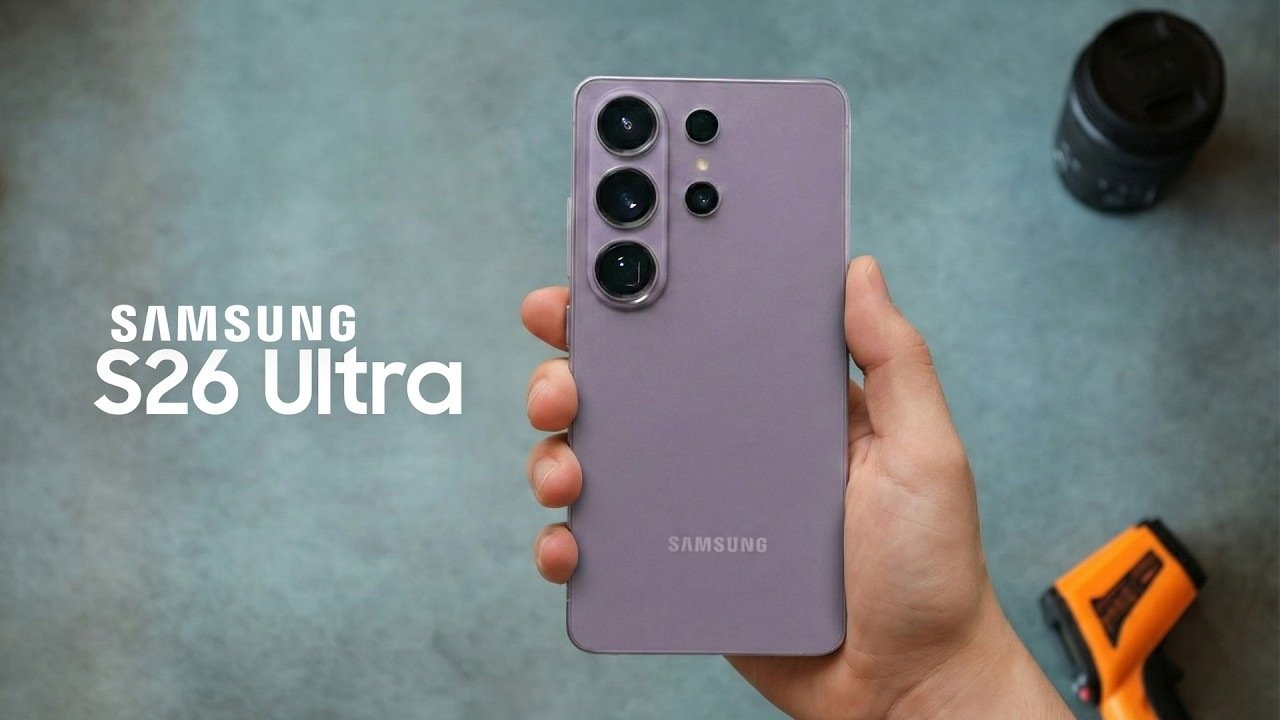
The Samsung Galaxy S26 Ultra introduces a series of carefully considered camera enhancements that aim to refine and elevate your photography experience. While the hardware remains largely consistent with its predecessor, the updates focus on improving image quality in key areas, particularly under challenging conditions. From enhanced low-light performance to more accurate color reproduction, these […]
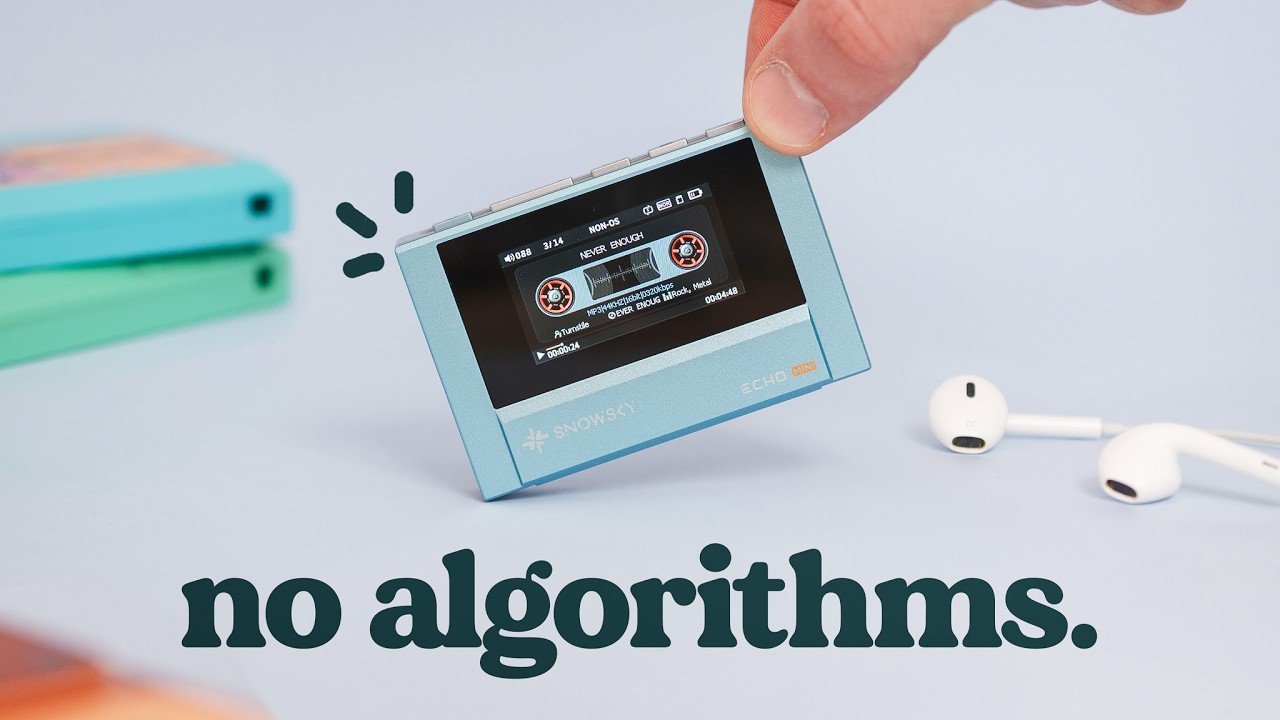
The SnowSky Echo Mini offers a compact, cassette-inspired alternative to streaming services, as overviewed by Byte Review. This device combines retro aesthetics with modern features like USB-C charging and Bluetooth compatibility, making it a practical option for those seeking a focused, phone-free music experience. With support for microSD card expansion and a headphone jack, it […]
Reading seriously on a tablet means fighting the device as much as the text. Notifications creep in, brightness is calibrated for apps rather than paper, and the browser is always one tap away. E-ink devices have been solving that distraction problem for years, but most are sized for novels rather than the dense PDFs, research papers, and annotated books that require space to actually work on.
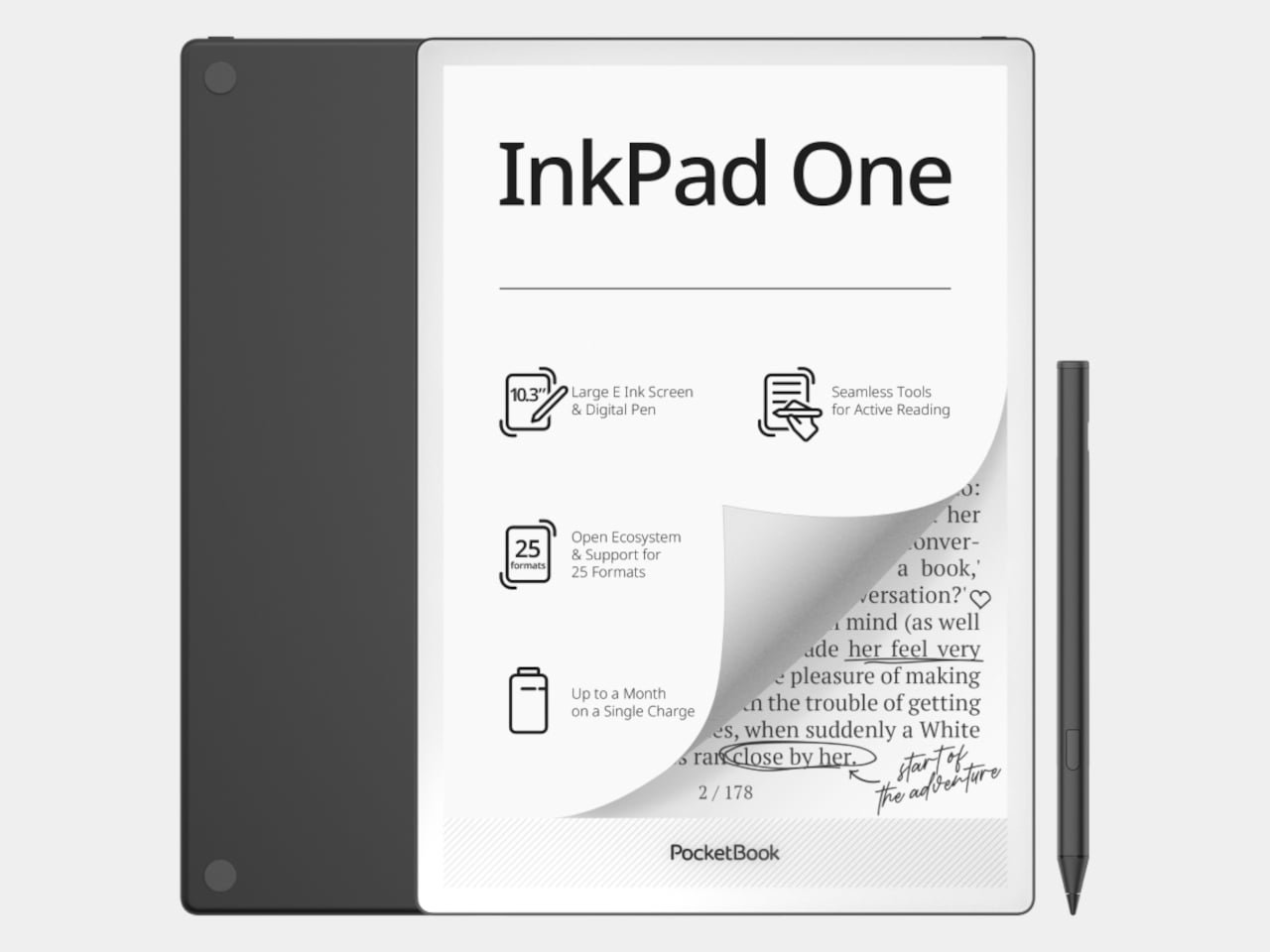
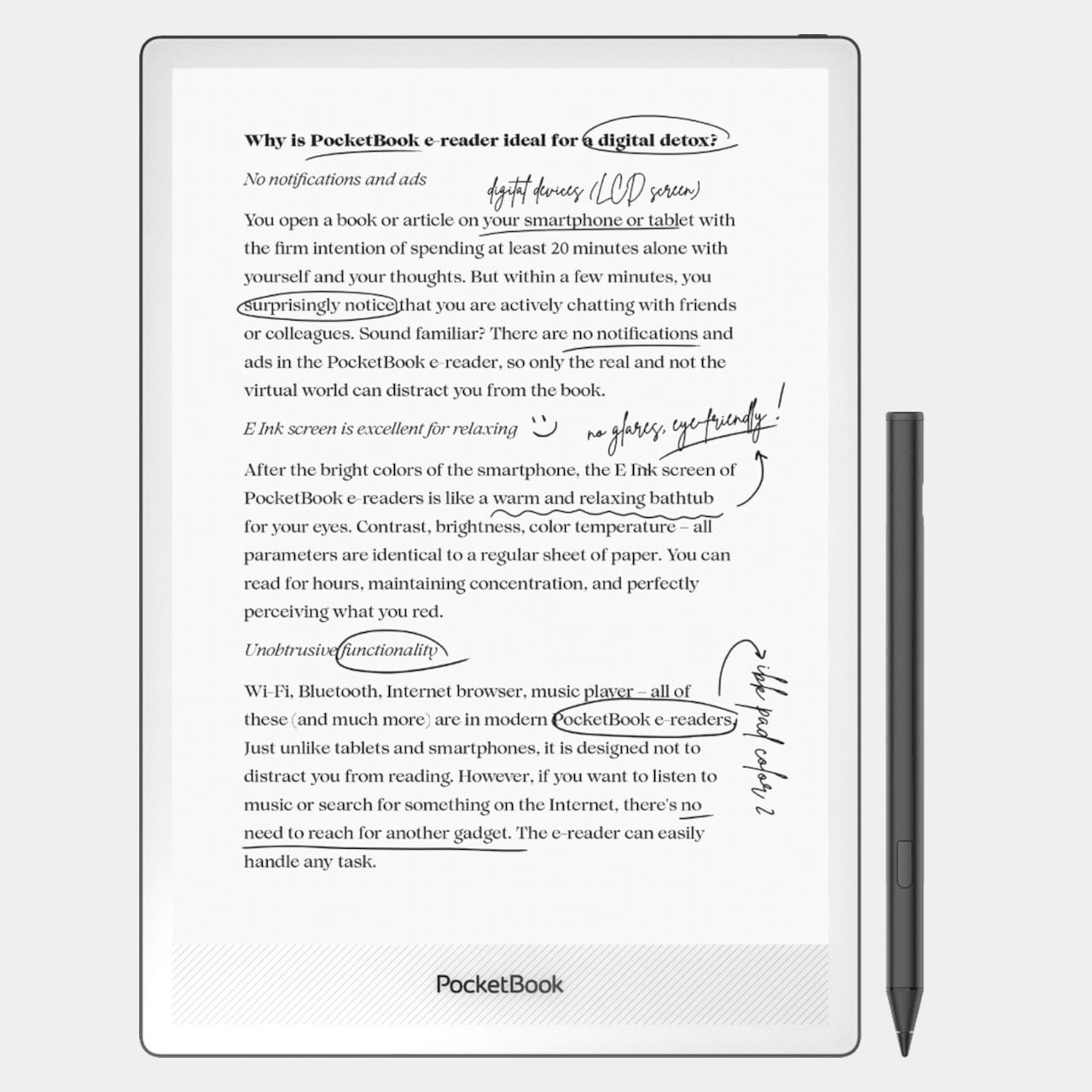
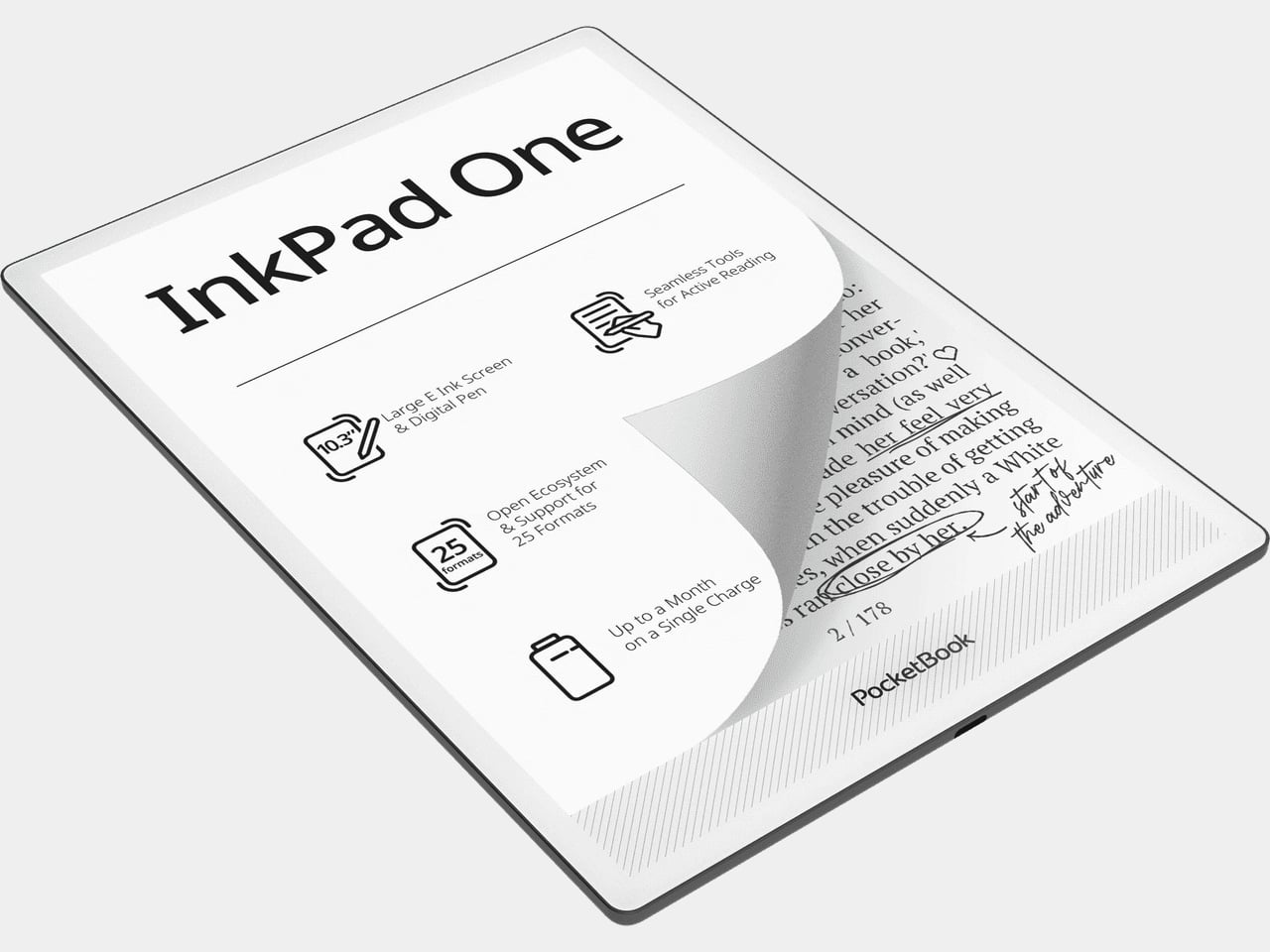
The PocketBook InkPad One is a 10.3-inch e-ink slate with a stylus, running a Linux-based reading interface instead of an Android tablet OS. The aluminum frame is 5.15mm thin and wraps an E Ink Mobius display, which uses a plastic substrate rather than glass, making it lighter and more resistant to the casual impacts that happen in bags and on desks.
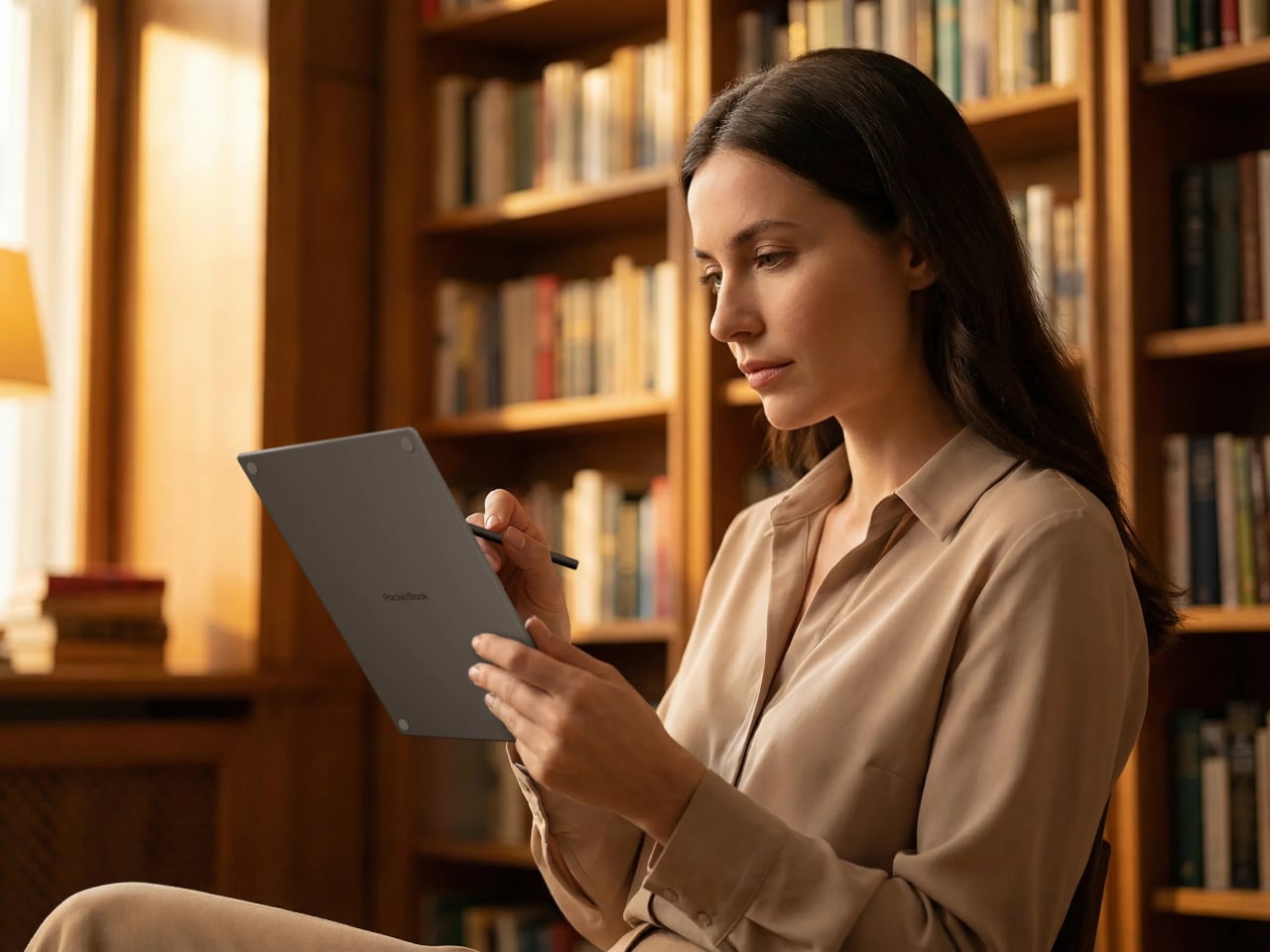
The key interaction design choice is “Comment Mode,” where finger touch handles page navigation and the stylus handles everything else, highlights, notes, and annotations on the same page you’re reading. That split means you can navigate naturally without accidentally triggering the pen, which matters when 60-page PDFs are the main material. The included PocketBook Stylus 2 is positioned as a reading-first annotation tool rather than a speed-writing device.
The E Ink Mobius panel runs at 1404×1872 resolution and 226 ppi, with SMARTlight adjusting both brightness and color temperature together. Long evening sessions of marking up papers under warm indoor light are where color temperature adjustment earns its presence. Battery life is rated at up to two months on a single charge, backed by a 3700mAh cell.
The open ecosystem is where InkPad One separates from store-locked readers. It supports 25 file formats natively without conversion, including EPUB, PDF, CBR, CBZ, and AZW, plus Adobe DRM and LCP DRM for protected content. Library borrowing via Libby is built in, so you can borrow from a public library and read on the same device where your own PDFs live, without format gymnastics.
Bluetooth 5.0 and built-in Text-to-Speech round out the feature set. TTS reads aloud any text file and resumes from where you stopped, useful when switching from reading to listening during a commute. Audiobook formats including M4A, MP3, and OGG are supported natively alongside the reading library, all synced via PocketBook Cloud and compatible with Dropbox.
InkPad One sits in a useful gap, less locked-in than store-driven readers like Kindle, less Android-cluttered than BOOX or Bigme devices, and bigger than most small e-readers for anything involving dense text and active annotation. It’s a calm, thin tool for people who want to work with what they read rather than just collect it.
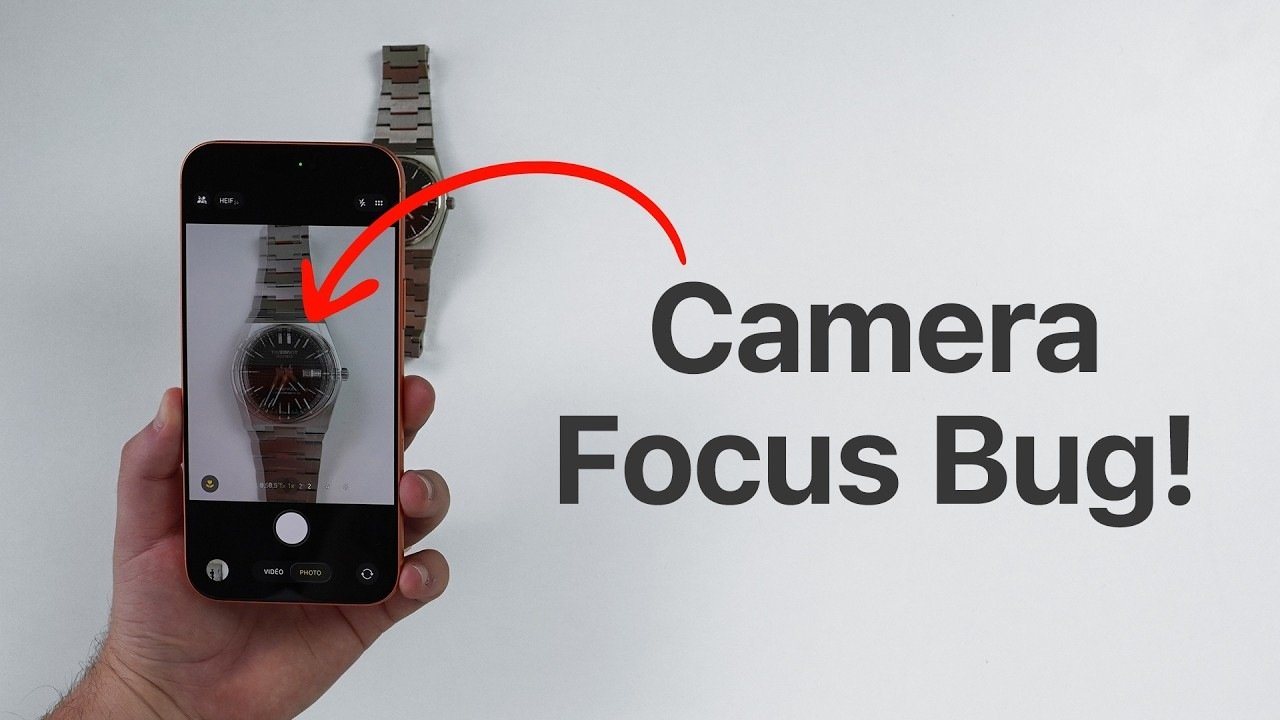
If your iPhone camera seems to switch lenses automatically when taking close-up shots, you’re not imagining it. This behavior is an intentional feature designed to enhance macro photography. While it aims to improve the quality of close-up images, many users find the automatic lens switching disruptive. Understanding how this feature works and learning how to […]
KittenTTS, developed by Kitten ML, is a compact and efficient text-to-speech (TTS) system designed for resource-constrained environments. As explained by Sam Witteveen, it operates seamlessly on edge devices, mobile platforms, and browsers, offering reliable voice synthesis without the need for GPU acceleration. The system includes three model variants, Nano, Micro, and Mini, ranging from 15 […]
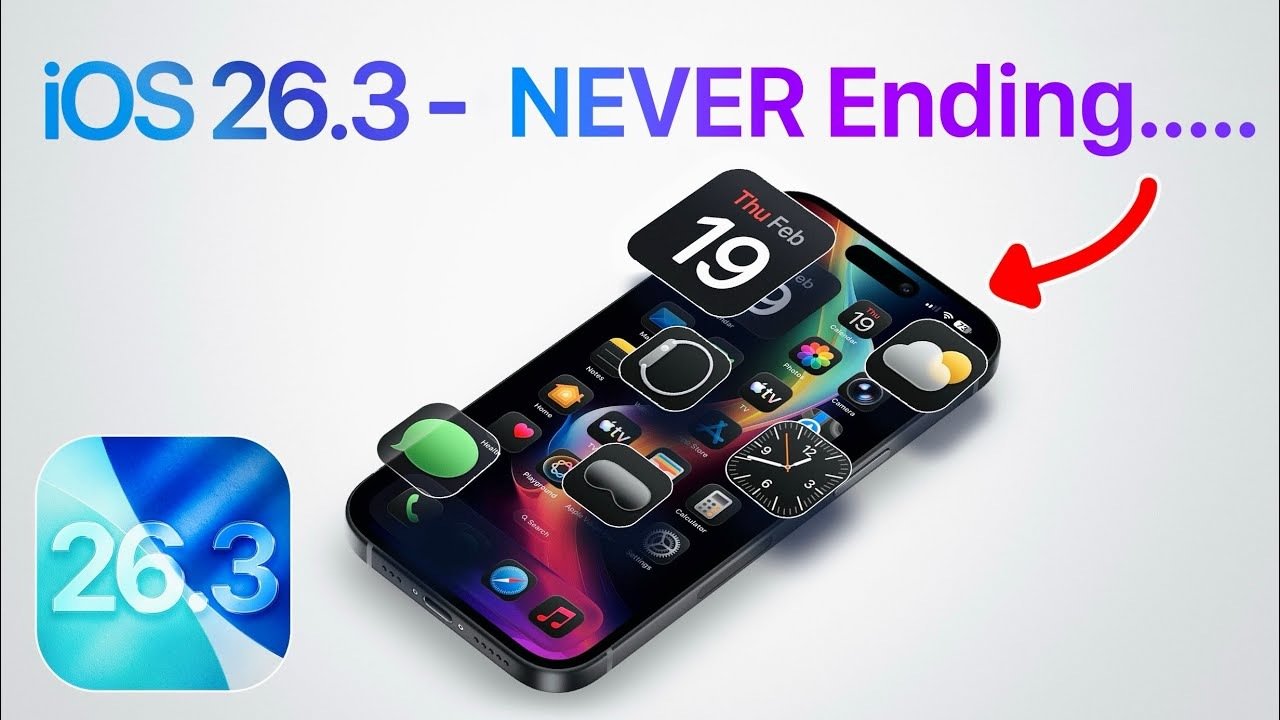
Apple’s iOS 26.3 introduces over 30 critical security patches, modest performance enhancements, and slight improvements in battery life. However, it also brings minor bugs and connectivity challenges, leaving users divided on its overall value. If you’re considering whether to update, this detailed breakdown of its features, drawbacks, and implications will help you make an informed […]
DeepSeek V4 Lite and GPT 5.3 (Garlic) represent two of the most-discussed developments in artificial intelligence this week, as overviewed by Universe of AI. DeepSeek V4 Lite, overviewedly leaked through unofficial channels, has demonstrated impressive efficiency in generating scalable vector graphics (SVG) code, producing intricate designs like an Xbox controller in just 54 lines. Meanwhile, […]
You don’t need to spend a fortune to get a capable Windows laptop. For everyday tasks like web browsing, writing documents, streaming video or handling schoolwork, a well-chosen budget machine can still deliver a smooth, reliable experience. The challenge is cutting through the noise to find affordable options that balance performance, build quality and battery life without serious compromises.
For many buyers, timing is no longer optional. With Windows 10 support now officially over, upgrading has become a necessity rather than a nice-to-have. The picks below focus on cheap Windows laptops that can handle day-to-day workloads comfortably while keeping you current on software and security updates. If you’re open to spending more for extra power or premium features, our broader guide to the best Windows laptops covers higher-end alternatives as well.
What to look for in a budget-friendly Windows laptop
While you can do a lot even when spending little on a Windows laptop, you must set your expectations accordingly. The biggest downside when purchasing a budget laptop (of any kind, really) is limited power. You’ll want to carefully consider a few specs, the most important among them being the processor (CPU). Many Windows laptops under $500 run on Intel Celeron or Pentium chipsets, but you can find some with Core i3/i5 and AMD Ryzen 3/5 CPUs at the higher end of the price spectrum.
We recommend getting the most powerful CPU you can afford because it will dictate how fast the computer will feel overall. Memory (RAM) is also important because, the more you have, the easier it will be for the laptop to manage things like a dozen browser tabs while you edit a Word document and stream music in the background.
When it comes to storage, consider how much you want to save locally. If you primarily work in Google Docs or save most things in the cloud, you may not need a machine with a ton of onboard storage. Just remember that your digital space will also be taken up by apps, so it may be worth getting a little extra storage than you think you need if you know you’ll be downloading big programs. A final side note: solid state drives (SSDs) are ubiquitous at this point, not to mention faster and more efficient than hard drives (HDDs), so we recommend getting a laptop with that type of storage.
As for screens, there’s a healthy mix of HD (720p resolution) and FHD (1080p) options in this price range and we recommend springing for a notebook with a 1080p display if you can. Touchscreens aren’t as common in the budget space as standard panels, but you’ll only really miss one if you get a 2-in-1 laptop.
Before we get to our recommended specs for a cheap Windows laptop, it’s worth mentioning that Microsoft clearly lays out the true minimum requirements for any Windows 11 machine. Those include a 1GHz or faster processor that includes two or more cores, at least 4GB of RAM and 64GB of available storage space. That’s the bare minimum to run Windows 11; we recommend giving yourself some wiggle room by choosing a machine that will perform well now and for years to come.
Specs to look for in an affordable Windows laptop
CPU: Intel Core i3 or AMD Ryzen 3 processors, at minimum
RAM: At least 8GB
Storage: At least 128GB SSD
Screen: At least 1080p FHD
It’s essential to prioritize what’s important to you. But at the lower end of the budget, a good laptop may not offer everything you need, whereas a great one might. Although most machines come with features like Bluetooth, built-in Wi-Fi and additional ports, you might find not all of them come with the specifics you require, like an SD card slot, webcam, charger, and so on. Be sure to check the spec list of any laptop you’re considering before you buy, especially if you need specific connectors and capabilities.
As for Copilot+, don’t expect to see much of it on truly affordable Windows laptops just yet. Microsoft’s AI features and Copilot assistant require certain specs to run, namely a powerful neural processing unit (NPU), 16GB of RAM and 256GB of storage. Currently, the cheapest Copilot+ AI PCs will run you about $700, so if you’re willing to pay more for those perks, check out our best laptops guide for more options.
If you’re looking for either a gaming laptop or a “Windows on Arm” laptop, both categories will require you to spend more money than we’re discussing here.
Best cheap Windows laptops for 2026
The cheap Windows laptop market moves fast, and — unlike nearly all of our other buying guides — we haven't necessarily tested each specific configuration listed below. However, the combination of these technical specifications and familiar brands represent exactly the sort of entry-level laptops we'd recommend to shoppers in this price range based on our thorough research and expert knowledge.
What to know about the budget Windows laptop market
The best cheap laptop models change all the time. Unlike more expensive, flagship machines, these notebooks can be updated a couple times each year. That can make it hard to track down a specific model at Amazon, Best Buy, Walmart or any other retailer. Also, we’ve seen prices vary widely depending on the configuration and retailer you’re looking at.
You can ensure you’re getting a quality laptop by doing a few things. First and foremost, make sure you get a machine that follows the recommended specs we list above. Also, make sure you’re buying from a reputable retailer, including big-box stores like Walmart, Best Buy and Costco, online shops like Amazon or direct manufacturers like Dell, HP, Lenovo and others. If you have a physical store near you (likely a Best Buy in the US), it’s never a bad idea to go play around with some laptops in person before choosing one.
If you decide to shop online from the likes of Amazon or Walmart, double check the seller of the laptop you’re considering. For example, many items on Amazon are “shipped and sold” by Amazon and those are typically the best options. You’ll see that information on Amazon on the right sidebar on a product page, under the Add to Cart and Buy Now buttons. Third-party sellers are common in the affordable laptop space. Amazon sometimes classifies laptop manufacturers as third-party sellers, so you may see a laptop shipped and sold by HP or Dell — that’s a good thing, since it’s coming directly from the manufacturer.
However, there are other third-party electronics sellers out there. We recommend clicking on the third-party seller’s name on Amazon or Walmart (yes, Walmart has them, too) to see how much positive feedback and how many five-star ratings they’ve received from buyers.
What about Chromebooks and tablets?
You may be inclined to recommend a Chromebook or a tablet to anyone considering a budget Windows laptop computer. Those instincts aren’t wrong, but Chromebooks and tablets aren’t the best buy for everyone. Tablets have the most portability, but they will only work for the most mobile-competent users like kids who have been grabbing smartphones out of their parents’ hands since they’ve been dexterous enough to do so. Tablets can also be just as expensive as some of the cheapest Windows laptops, and that’s without a mouse or keyboard.
Chromebooks are a good alternative for those that basically live in a browser, the trade-off being you must give up the “traditional desktop.” And Chrome OS is a more limited operating system than Windows when it comes to the programs you can install and run.
What Windows laptops do well
What can you realistically accomplish on a cheap Windows laptop? Quite a bit, especially if you’re doing one thing (or a limited number of things) at a time. They’re great for everyday tasks like web browsing, checking email, video streaming and more. All of those things can be done on Chromebooks as well, but Windows laptops have a big advantage in Microsoft Office. While yes, there is a browser based version, the native, desktop apps are considered a must have for many and will run smoothly on even the most bare-bones budget laptop. The only caveat is that you may run into some slowdown on low-powered devices if you’re multitasking or working with large data sets in Excel or a lot of photos and graphics in Powerpoint.
When it comes to specs, a bright spot for Windows laptops is storage. Even the most affordable devices tend to have at least a 128GB solid state drive. That will come in handy if you prefer to keep your most important files saved locally on your laptop's hard drive. In contrast, cheaper Chromebooks often have less storage because they’re built on the assumption that you’ll save all of your documents in the cloud. Not only is that less convenient when you need to work offline, but it also limits the size of programs and files that you can download. So, Chromebooks aren't the best for hoarding Netflix shows before a long trip or for use as a gaming laptop.
Windows also has thousands of apps that you can download from its app store. Chromebooks have some Chrome apps, numerous browser extensions and the ability to download Android apps, but quality control is… inconsistent. Android apps, in particular, often haven’t been optimized for Chrome OS, which makes for a wonky user experience. Windows may not have as many apps as Android, but at least the experience is fairly standard across the board.
Windows also gives you the ability to download and use programs from other sources, like direct from the developer. You can run things like Adobe Creative Suite, certain VPNs and programs like GIMP, Audacity and ClipMate on a Windows device, which just isn’t possible on Chrome OS. Chromebooks limit you to the apps and programs in The Play Store and the Chrome Extensions store, reducing any others to unusable, space-sucking icons in your Downloads folder.
This article originally appeared on Engadget at https://www.engadget.com/computing/laptops/best-affordable-windows-laptops-123000512.html?src=rss