OnePlus 15R review: A 165Hz display and big battery for $700

I know what you're thinking, didn't OnePlus release a new phone just last month? It did. A little over five weeks after the announcement of the OP15, the company is back with the OnePlus 15R, a more affordable version of its new flagship that starts at $700 (or $200 less than its sibling). Off the top, this will be a shorter review because most of what I said about the OnePlus 15 also applies to the OP15R. It's a great phone that asks you to make one pretty significant compromise. 

Design and display
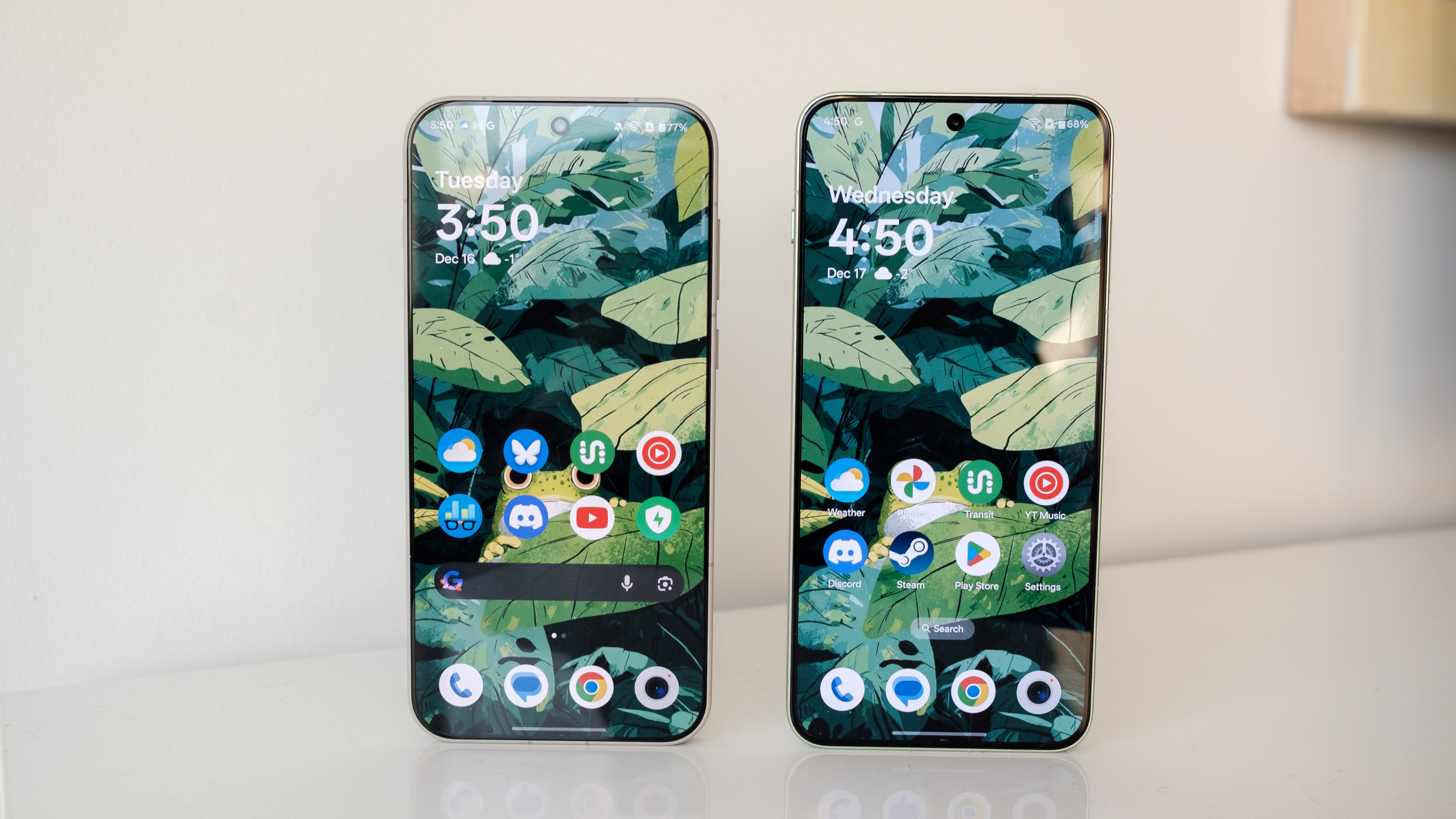
The OnePlus 15R's screen is slightly cooler than that of the OnePlus 15.
Igor Bonifacic for Engadget

Like the OnePlus 15, the 15R looks like the OnePlus 13s and 13T, a pair of smaller, 6.32-inch phones the company released in India and China this past spring. I said the design of the OP15 was boring and derivative of the iPhone 16 Pro. The 15R has done nothing to change that opinion. With one fewer camera, the OP15R doesn't look much different from the iPhone 12 I've been hanging on to since 2020. 

That said, I'm more fond of the 15R's mint breeze color (the phone is also available in charcoal black) than the sand storm shade of my OP15. We're big fans of minty phones here at Engadget, and OnePlus has gone with a particularly pleasing hue of the color with its new phone. With the redesign, OnePlus has also improved the phone's waterproofing, bringing it in line with the OP15. The new handset is IP69K-certified against moisture and dust, meaning it can withstand heated water shot at it at pressure. Like the OP15, the 15R trades OnePlus' old Alert Slider for a new Plus Key. It functions like the iPhone's Action button, allowing you to add a shortcut for a favorite feature. For example, you can configure it to open the camera app or act as a do not disturb toggle, among a few other options.  

One departure from the OP15 is that the 15R has a larger 6.83-inch display, making it slightly taller than its sibling. OnePlus is marketing this as one reason buyers might pick the 15R over the OP15, but holding the phones side by side, there's not much difference between the two. They're both big, and you'll either like that or won't.

On top of being big, the 15R's screen can refresh at a fast 165Hz in games. The two displays are also comparable in terms of resolution and brightness; both can push 1,800 nits of brightness. One difference I noticed is the OnePlus 15 has a warmer panel, even when the two phones are set to the same colorspace. I've reached out to OnePlus to find what might be causing the disparity, but for now it may be due to a quality control issue or oversight in the company's software.  

One last thing, OnePlus has upgraded the 15R to add an ultrasonic fingerprint sensor beneath the screen. This is placed in a nice spot toward the bottom third of the display, and it's fast and accurate.   

Performance and battery
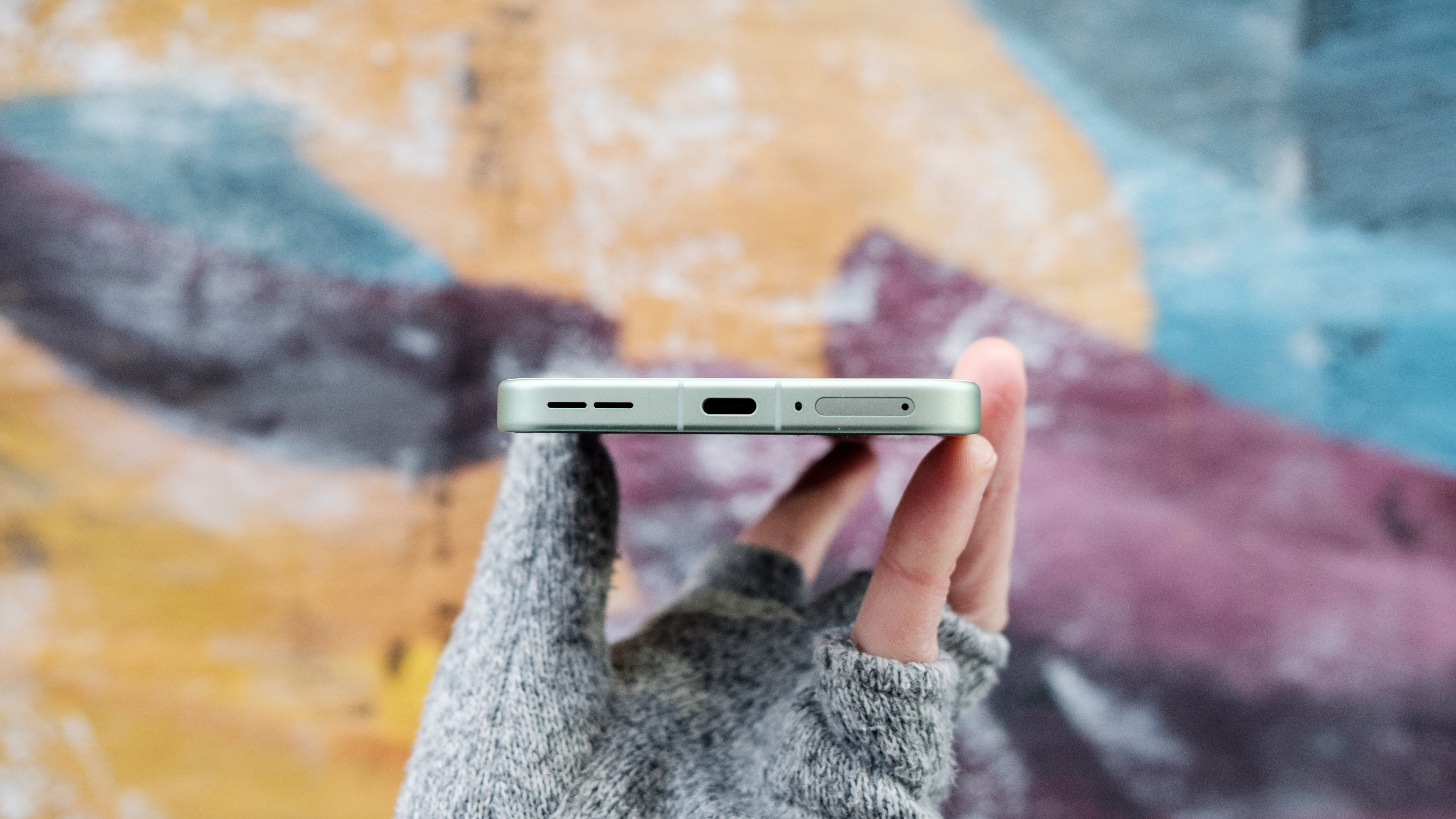
The OnePlus 15R is also slightly thinner than the OnePlus 15.
Igor Bonifacic for Engadget

The OnePlus 15R is the first phone in North America to arrive with Qualcomm's latest Snapdragon 8 Gen 5 chipset. Not to be confused with the Snapdragon Gen 5 Elite in the OP15, this new chipset is similar to Qualcomm's flagship system-on-a-chip but has a weaker CPU and GPU. This is reflected in benchmarks like Geekbench 6 where the OP15 handily outperforms the OP15R. It's not even close, either, with the OP15 delivering standout single- and multi-core scores of 3,773 and 11,293, while the 15R put up more modest results of 2,857 and 9,512. 

From that perspective, you're losing a fair amount of performance, but real-world use tells a different story. Outside of the handful of games such as Call of Duty: Mobile and PUBG that support the OP15 and 15R's 165Hz displays, the Snapdragon 8 Gen 5 offers more than enough muscle for the majority of applications. Even for most games (like the ones I like to play, including Diablo Immortal and League of Legends: Wild Rift), the Snapdragon 8 Gen 5 is a great match. 

OnePlus also hasn't skimped on the 15R's other internal components. You're still getting 12GB of LPDDR5X Ultra RAM and 256GB of UFS 4.1 storage. That's the same configuration as the base model of the OP15. This translates to a phone that doesn't miss a beat when switching between apps and loading files like images and videos.  

The 15R has a slightly bigger battery, coming in at 7,400mAh, up from 7,300mAh on the OP15. In practice, the two phones offer the same amount of battery life. Putting them through both Engadget's video rundown test, they both ran for 38 hours before their batteries died (which makes sense given the OP15R has a bigger screen). Like the OP15, the 15R comes with the OnePlus 55W SUPERVOOC charger in the box. The adapter can get the 15R from dead to 100 percent in less than an hour. If you hate charging your phone, the 15R makes that process as painless as possible, with a battery that both lasts long and won't be at the outlet for hours.            

Cameras
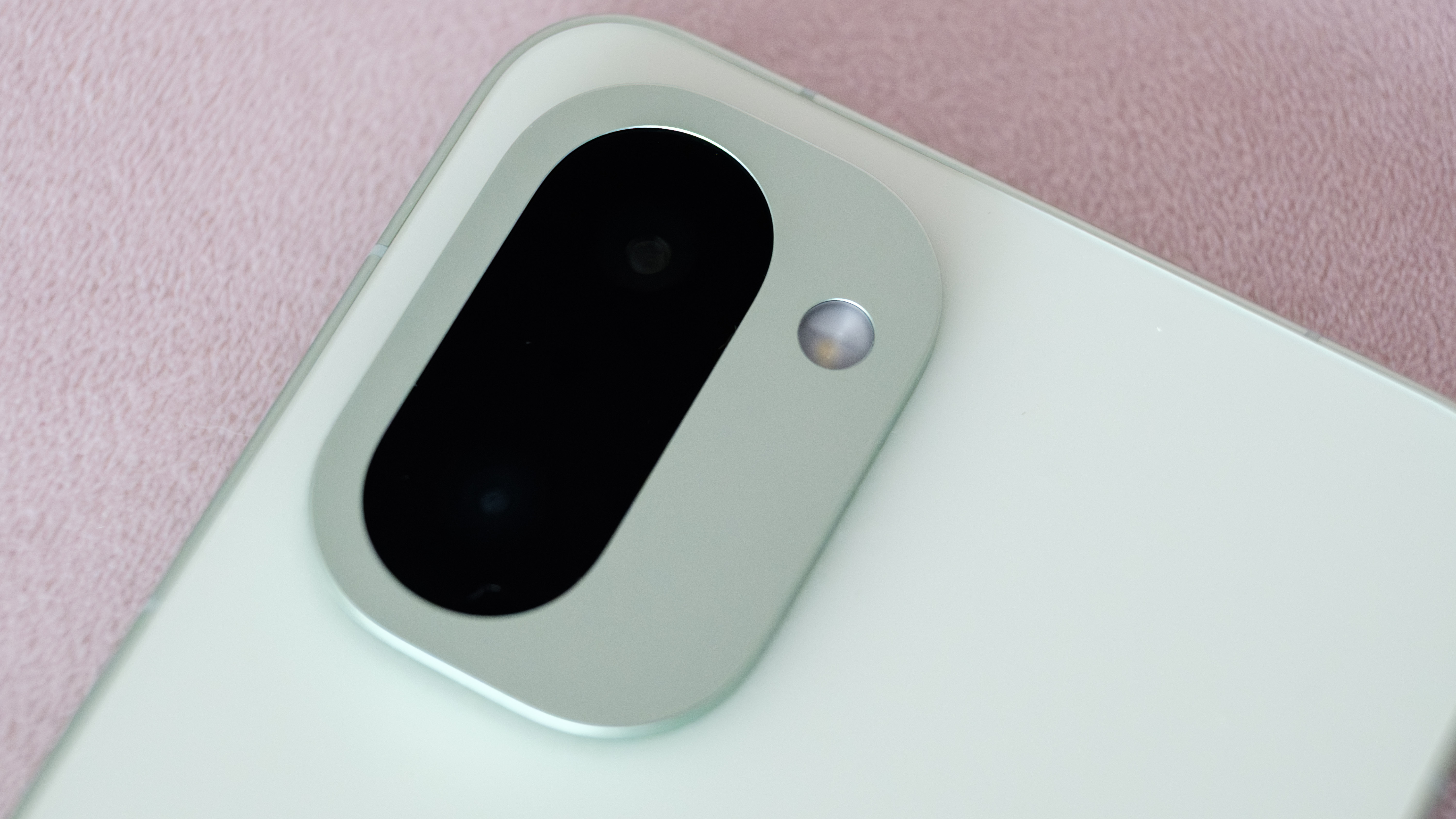
A closeup of the OnePlus 15R's camera module.
Igor Bonifacic for Engadget

By this point you're probably wondering what OnePlus cut from the OP15 to make the 15R more affordable. The answer — quite literally — is an entire camera. The new phone is missing a telephoto camera, something you could find on its predecessor, the OnePlus 13R. And as far as I can tell, the two remaining cameras use the same 50-megapixel and 8MP sensors OnePlus shipped on last year's model. The company also hasn't upgraded the glass on either camera. That leaves the selfie camera as the only area to see some change in the form of a sharper 32MP sensor and the addition of autofocus.       

Unfortunately, none of the 15R's cameras stand out. As a whole, they suffer from the same set of problems that plague the OnePlus 15's cameras. They're fine out on a sunny day, but as soon as the light becomes a bit challenging, the 15R struggles with shadow details, resulting in muddy pictures. The more I've used both the OP15 and 15R, the more I've come to the conclusion that OnePlus needs to go back to the drawing board with its new Detail Max Engine. It feels like it's holding back what should, at least on paper, be solid hardware.

Software
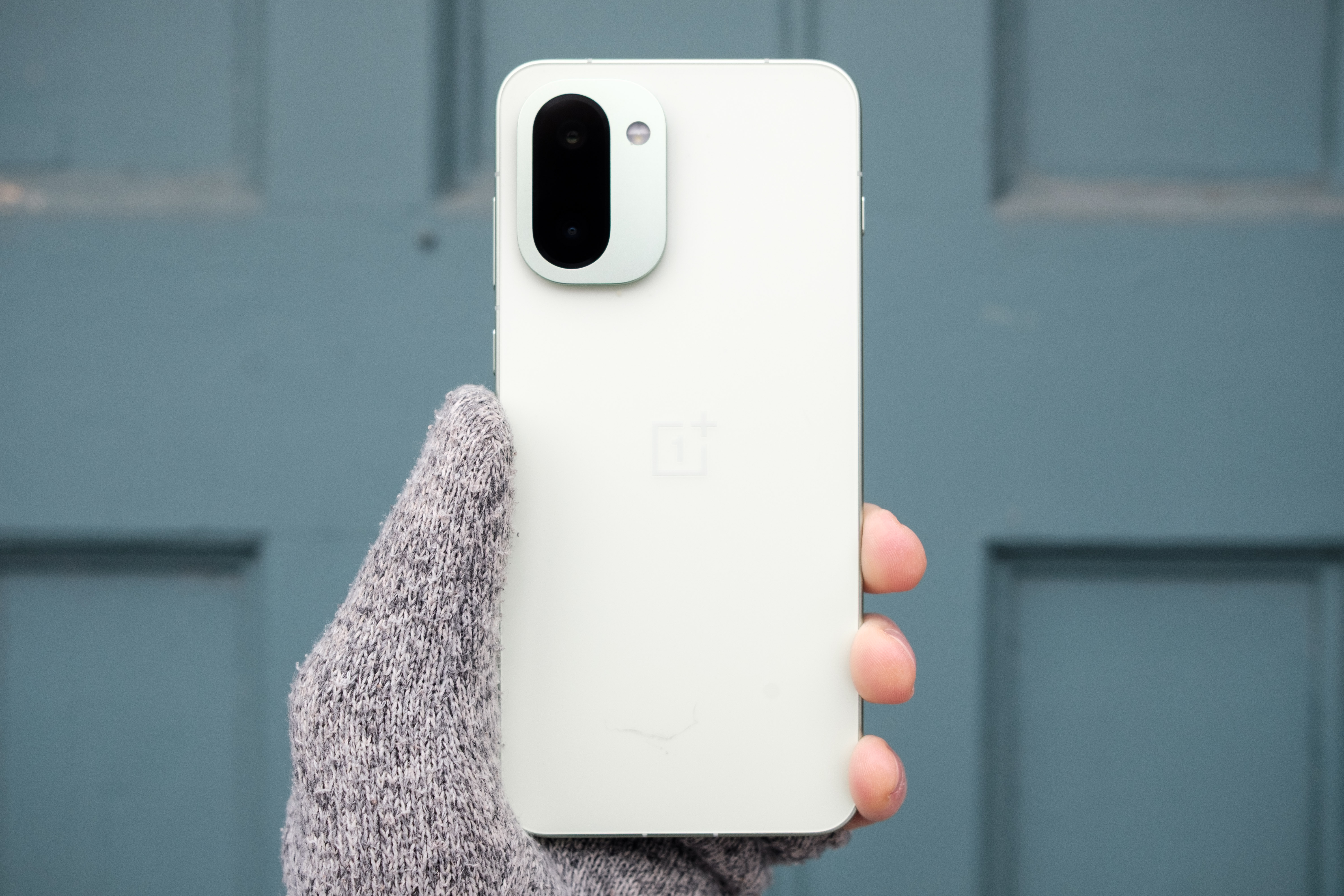
Despite it's large size, the OnePlus 15R isn't too heavy.
Igor Bonifacic for Engadget

There's not much to say here other than the 15R ships with OxygenOS 16, just like the OP15. OnePlus has also promised to support the 15R for the same amount of time as the OP15: four years with software updates and six years with security patches. That's a shorter window than Google and Samsung, both of which promise seven years on all their latest phones. It's hopefully something that OnePlus decides to change starting with the OnePlus 16. The reason I bring that up is that the company’s version of Android is one I like a lot. OxygenOS is slick, with animations that highlight the speed of the 15R's processor and display. The fact the phone comes with the latest version of OxygenOS means you also get access to all of the company's newest AI features, including its Mind Space hub where you can save screenshots and notes for an on-device model to transcribe and summarize.    

 Wrap-up
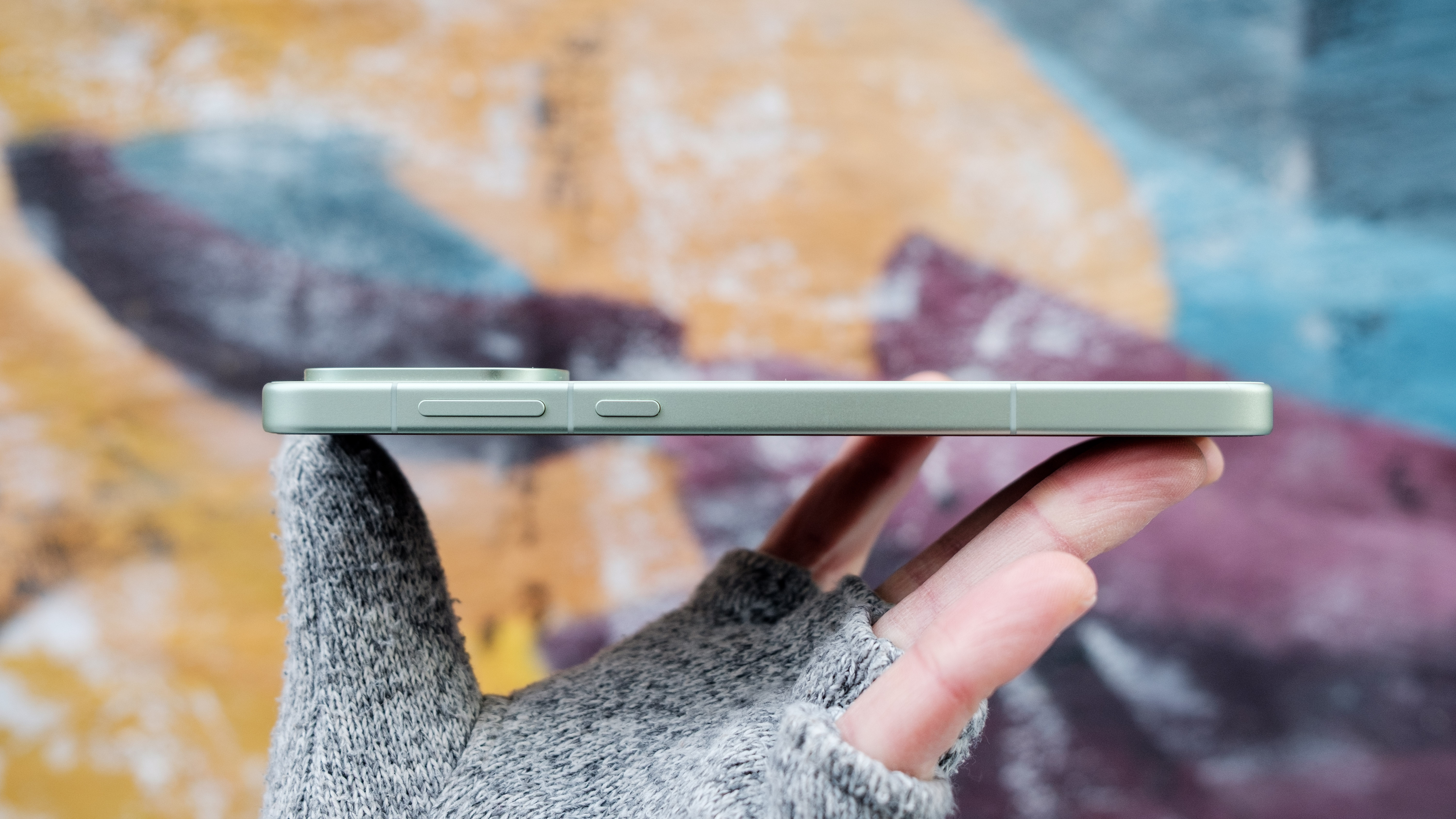
The OnePlus 15R comes in a lovely mint color.
Igor Bonifacic for Engadget

In short, the OnePlus 15R is the phone for people who don't care about photos and videos. That's the same conclusion I came to with the OP15. If you're a OnePlus fan, the 15R excels in all the areas you would expect the company's devices to make a good showing: performance, battery life and display responsiveness. Given I wasn't too impressed with the OP15's camera, I would actually recommend the 15R over that model. For $200 off the starting price of the OP15, you're getting a device that has almost all of the same strengths of its more expensive sibling.  

Compared to other phones in its price range, such as the Pixel 10 and Galaxy S25 FE, the 15R is not as well-rounded, and can't compete with those devices in camera quality, but you're getting much better performance, battery life and a display they can't match.  

This article originally appeared on Engadget at https://www.engadget.com/mobile/smartphones/oneplus-15r-review-a-165hz-display-and-big-battery-for-700-150000340.html?src=rss

2026 iPad mini Leak: Game Changer or Deal Breaker?

2026 iPad mini Leak: Game Changer or Deal Breaker?

Apple is preparing for a significant refresh of its iPad lineup in 2026, with the iPad Mini expected to take center stage. This compact yet powerful tablet is rumored to receive substantial upgrades that could redefine its role within Apple’s ecosystem. These enhancements aim to meet evolving user demands while aligning the Mini with Apple’s […]

The post 2026 iPad mini Leak: Game Changer or Deal Breaker? appeared first on Geeky Gadgets.

Posted in Uncategorized

How a VPN works (and why you should care)

The best VPNs can make your online life more private with software that's convenient and cheap — sometimes even free. While keeping your IP address invisible, you can use your VPN to explore streaming content from all over the world or (virtually) sneak into a sports event that's not available in your area.

However, while VPNs are widely available, there's a strange dearth of information on what they actually do behind the scenes. You may know that a VPN masks your device with a proxy server to make it look like you're somewhere else, and maybe even that encryption is involved. But finding any more details can mean running a gauntlet of misinformation.

That's a shame, because the inner workings of a VPN aren't all that difficult to understand. You may not be able to build one yourself without a degree in computer science, but with a little work, you can understand exactly what it's doing on your computer. That's information you can use to select the right VPN for you, and make the most of it once you've got it.

What is a VPN?

To make sure nobody gets left behind, I'll start from the beginning. A VPN (virtual private network) is a method of securely accessing a network, either a closed network (like you might have at the office) or the internet as a whole. Initially, organizations set up VPNs so remote workers can work with secure files. While this still happens, the last 15 years have seen VPNs increasingly marketed to individuals, with Proton VPN, ExpressVPN and others seeing massive user growth.

Broadly, a VPN consists of two parts: the server, which forwards requests to your chosen destination, and the client, a piece of software that lets you interact with the server. You can find a longer explanation here, but I'll use the two sections below to tell you what you need to know right now.

One more note before that — there are multiple kinds of VPNs, including the remote-access VPNs and site-to-site VPNs commonly used by workplaces. However, for this article, I'll be talking mainly about the commercial VPN services sold to individuals for general security needs. Instead of a specific network, these VPNs are designed to handle all of a user's traffic to any point on the internet.

What happens when you use a VPN?

First, you use the client to connect to a server — either the fastest one available or a particular location you need. Once you've connected, every request you send to the internet goes through the VPN server first. This communication between your device and the web is encrypted so it can't be traced back to you.

The VPN server decrypts your requests and sends them on. The destination then communicates with the VPN server, which relays the information back to you — after re-encrypting it so nobody follows it home.

Since the VPN does everything on your behalf, it's your "mask" online. Your internet service provider (ISP) and third parties can see what's being done, but — so long as you’re not otherwise logged in or identifying yourself — nobody knows that it's you doing it. It's like having a friend order pizza for you so the pizzeria doesn't hear you calling for the third time this week (not that I speak from experience).

What's the point of using a VPN?

Why add an extra step to the already complex process of getting online? The two biggest reasons are maintaining anonymity and changing your virtual location. I've already explained how a VPN keeps you anonymous. Among other things, this prevents your ISP from selling your browsing history to advertisers and protects activists who face government repercussions for what they do online.

Changing your virtual location is part of masking, but it can also be used to see the internet as it's visible in other countries. Streaming services are frequently limited to certain places, and almost all of them change the available content based on their licenses in each nation. You can also use a VPN in a country with a nationwide firewall, like China, to see forbidden outside information sources.

How does a VPN work? The full technical explanation

Most online explanations stop after defining a VPN as an anonymous agent between you and the internet — but I wrote this article to go a little bit deeper. To understand what a VPN is doing on a technical level, we'll need to cover how the internet works, how the VPN knows where to send encrypted information and just what "encryption" actually is.

How the internet transmits data

When you're not using a VPN, internet traffic goes directly from your modem to your ISP, then on to your chosen destination. The key technologies here are IP, which stands for Internet Protocol, and TCP, which stands for Transmission Control Protocol. They're usually combined as TCP/IP.

You may have heard that every online device has an IP address that identifies it to every other device. TCP/IP governs not just those names but how data moves between them. Here's how it works, step-by-step.

  1. You click a link or enter a URL into your web browser.

  2. Your computer sends a request to your modem, asking to see the page associated with the URL. Your modem forwards the request to your ISP.

  3. Your ISP finds a domain name server (DNS) that tells it which IP address is connected to the URL you asked to see. It then sends the request to that IP address along the fastest available route, which will involve being relayed between several nodes.

  4. That IP address is connected with a server that holds the content you're looking for. Once it receives the request, it breaks the data down into small packets of about 1 to 1.5 kilobytes.

  5. These packets separate to find their own fastest routes back to your ISP, your modem and finally your web browser, which reassembles them.

  6. You see a web page, likely no more than a second after you asked for it.

The outgoing requests and inbound packets are key to understanding VPN function. A VPN intervenes during step 2 (when your modem contacts your ISP) and step 5 (when your ISP sends the packets back to you). In the next section, I'll explain exactly what it does during those steps.

How VPN tunneling protects data

You might have heard a VPN's activities described as "tunneling." That term refers to a figurative tunnel being created between your device and the VPN. Data enters the tunnel when it's encrypted by the VPN client and exits when it's decrypted by the VPN server. Between those two points, encryption means nobody can see the true data. It's as though it's traveling through an opaque tunnel.

While the tunnel is a useful metaphor, it may be better to think of VPN encryption as an encapsulation. Each packet of data sent via VPN is "wrapped" in a second packet, which both encrypts the original packet and contains information for reaching the VPN server. However, none of these outer layers have the complete path — each just knows enough to reach the next relay. In this way, the origin point (that's you) remains invisible.

The same thing happens when the internet returns content to show you. Your ISP sends the data to the VPN server, because, as far as it knows, that's where the request came from. The VPN then encrypts each packet and sends them back to you for decryption and reassembly. It takes a little longer with the extra steps; that's why VPNs always slightly slow down your browsing speed, though the best ones don't do that by much (Surfshark is currently the fastest).

You learned in that last section that two protocols, IP and TCP (usually combined as TCP/IP), are responsible for letting online devices talk to each other, even if they've never connected before. In the same way, a VPN protocol is like a shared language that lets VPNs encrypt, move and decrypt information. See the next section to learn how a VPN protocol works in detail.

How VPN protocols encrypt data

VPN protocols are the technology behind VPNs; every other feature of your VPN is just a method of interacting with them. All protocols are designed to encrypt data packets and wrap them in a second layer that includes information on where to send them. The main differences are the shape of that second layer, the types of encryption used and how the client establishes its initial secure connection with the server.

It's extremely common for VPNs to advertise protocols with "bank-grade" or "military-grade" encryption. This is talking about the 256-bit Advanced Encryption Standard (AES-256), a symmetric encryption algorithm, which is used by financial institutions and the US government and military. AES-256 is indeed some of the strongest available encryption, but it's only part of the story. As a symmetric algorithm, it's not fully secure on its own, because the same keys are used to encrypt and decrypt it — and those keys can be stolen.

For that reason, most VPN protocols use AES-256 (or a similarly strong cipher like ChaCha20) to encrypt the data packets themselves, then combine it with a larger suite of multiple encryption algorithms. One of the most reliable and popular protocols, OpenVPN, uses the asymmetric TLS protocol to establish a secure relationship between client and server, then transmits packets encrypted with AES-256 across that channel, knowing the keys will be safe.

Explaining this could easily reach the length of a book, but the basic principle isn't complicated. In asymmetric encryption, a sender encodes data with a unique key, then a recipient decodes it with a different paired key. The keys are provided by a trusted third party. In a maneuver called a TLS handshake, the server and client send each other encrypted data. If each can decode the other's test data, they know they have a matched pair of keys, which proves that both are the same client and server that got the keys from the trusted authority.

Why not just use asymmetric encryption for the data itself, if it's more secure? Mainly, protocols don't do this because it's a lot slower. Asymmetric encryption requires a lot of resource-heavy math that makes connections drag. That's why OpenVPN and others use the asymmetric-to-symmetric two-step instead.

To summarize, a VPN protocol is a complex set of instructions and tools that control encryption and routing via VPN servers. Protocols still in use include OpenVPN, WireGuard, IKEv2, SSTP and L2TP. PPTP, one of the oldest protocols, is no longer considered secure. On top of these, VPNs often build their own proprietary protocols, such as ExpressVPN's Lightway.

Putting it all together

Now that we've hit all the relevant information, let's revisit that step-by-step from earlier, this time with a VPN in the mix. Here are the steps, starting with establishing the VPN connection and ending with anonymously viewing a website.

  1. You open your VPN client, choose a server location and connect. The VPN client and server authenticate each other with a TLS handshake.

  2. The client and server exchange the symmetric keys they'll use to encrypt and decrypt packets for the duration of this session (i.e. until you disconnect). Your VPN client tells you that it's established a secure tunnel.

  3. You open your web browser and enter a URL. Your browser sends a request to view the content at that address.

  4. The request goes to your VPN client, which encrypts it and adds an outer layer of information with directions to the VPN server.

  5. The encrypted request reaches the VPN server, which decrypts it and forwards it to your ISP.

  6. As normal, your ISP finds the IP address associated with the URL you entered and forwards your request along.

  7. The destination server receives the request and sends all the necessary packets of information back to your ISP, which forwards it to the VPN server.

  8. The VPN server encrypts each packet and adds a header directing it to the VPN client.

  9. The client decrypts the packets and forwards them to your web browser.

  10. You see the web page you opened.

Because of the encrypted tunnel, the request arrives at the VPN server without any information on where it came from. Thus, the VPN doesn't actually encrypt your activity on the websites themselves — for the most part, the HTTPS protocol does that. Instead, a VPN gives you a false name to put in the register, with no information that could be traced back to your real identity.

How to use this information

Now that you know how a VPN works on a technical level, you're better equipped to choose one for yourself. You can cut through marketing hype statements like:

  • "Military-grade encryption!" (It's the same algorithm everybody uses)

  • "Stay completely anonymous online!" (Plaintext you post on social media is not encrypted)

  • "Dodge ISP throttling!" (If your ISP is throttling you based on your IP address, this works — but if you're being slowed down because of your moment-to-moment activity, your identity doesn't matter)

A VPN is just one important part of a complete cybersecurity breakfast. While hiding your IP address, make sure to also use strong passwords, download updates immediately and remain alert for social engineering tactics.

This article originally appeared on Engadget at https://www.engadget.com/cybersecurity/vpn/how-a-vpn-works-and-why-you-should-care-143000250.html?src=rss

Naya Connect Keyboard Lets You Snap On a Trackball, Numpad, or Dial

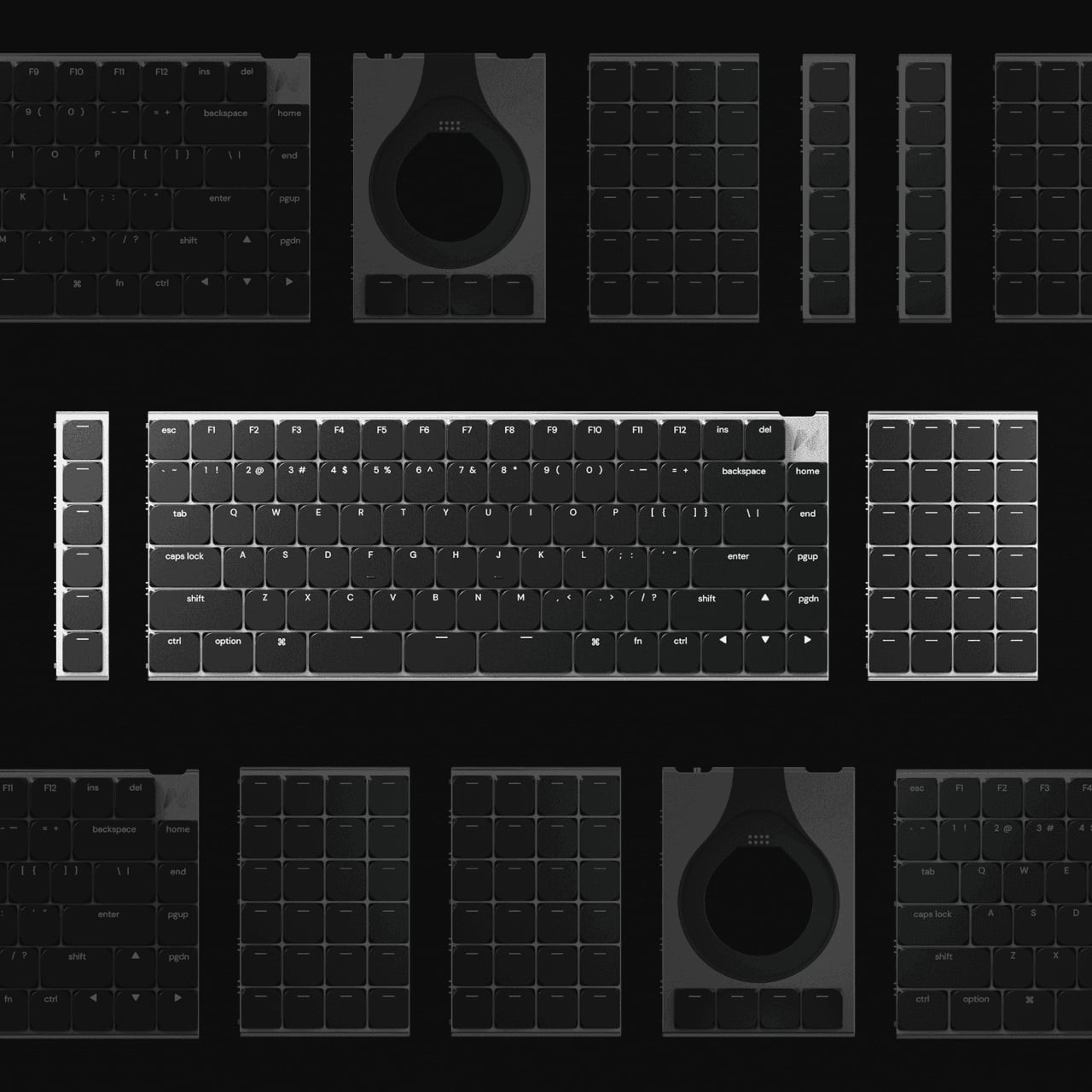
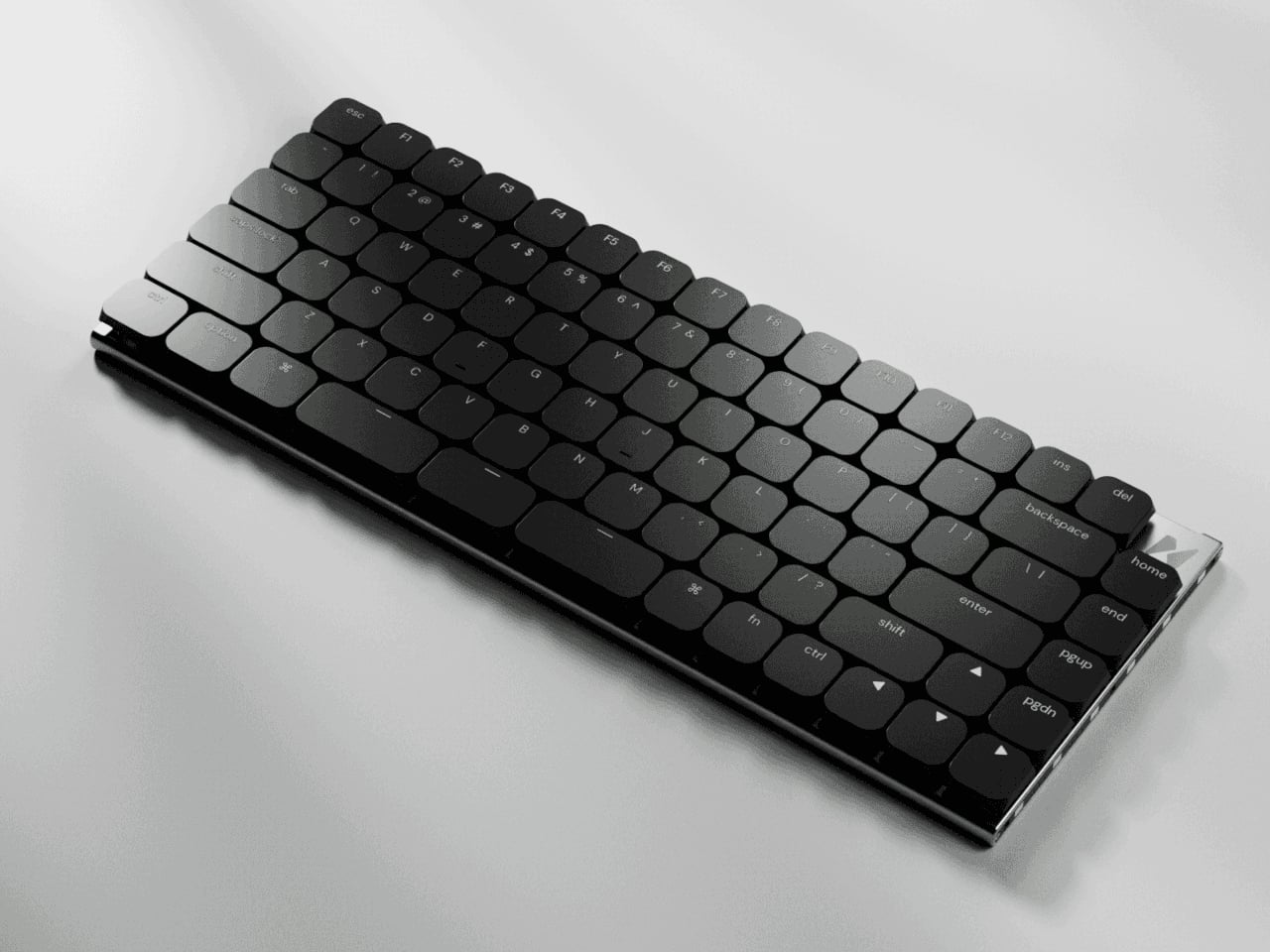
Most desks end up with a nice mechanical keyboard, a separate mouse, maybe a trackpad, a macro pad, and, if you work in 3D, a space controller, all fighting for room. Keyboards stay fixed layouts, even as workflows get more complex and tools multiply. Naya Connect treats the keyboard as the center of a modular workstation instead of just another rectangle, letting the rest of your input tools snap onto it and adapt as your work changes.

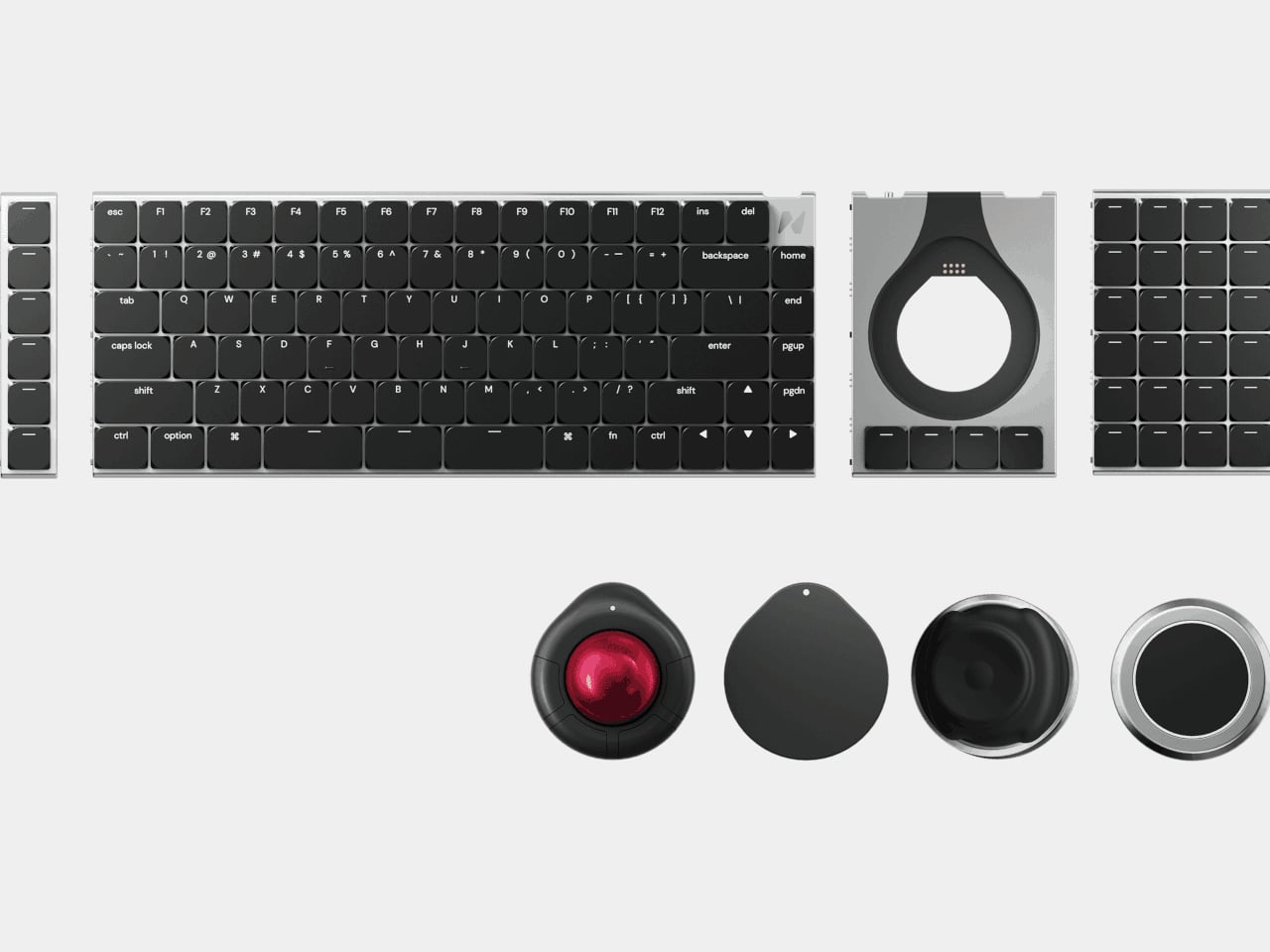
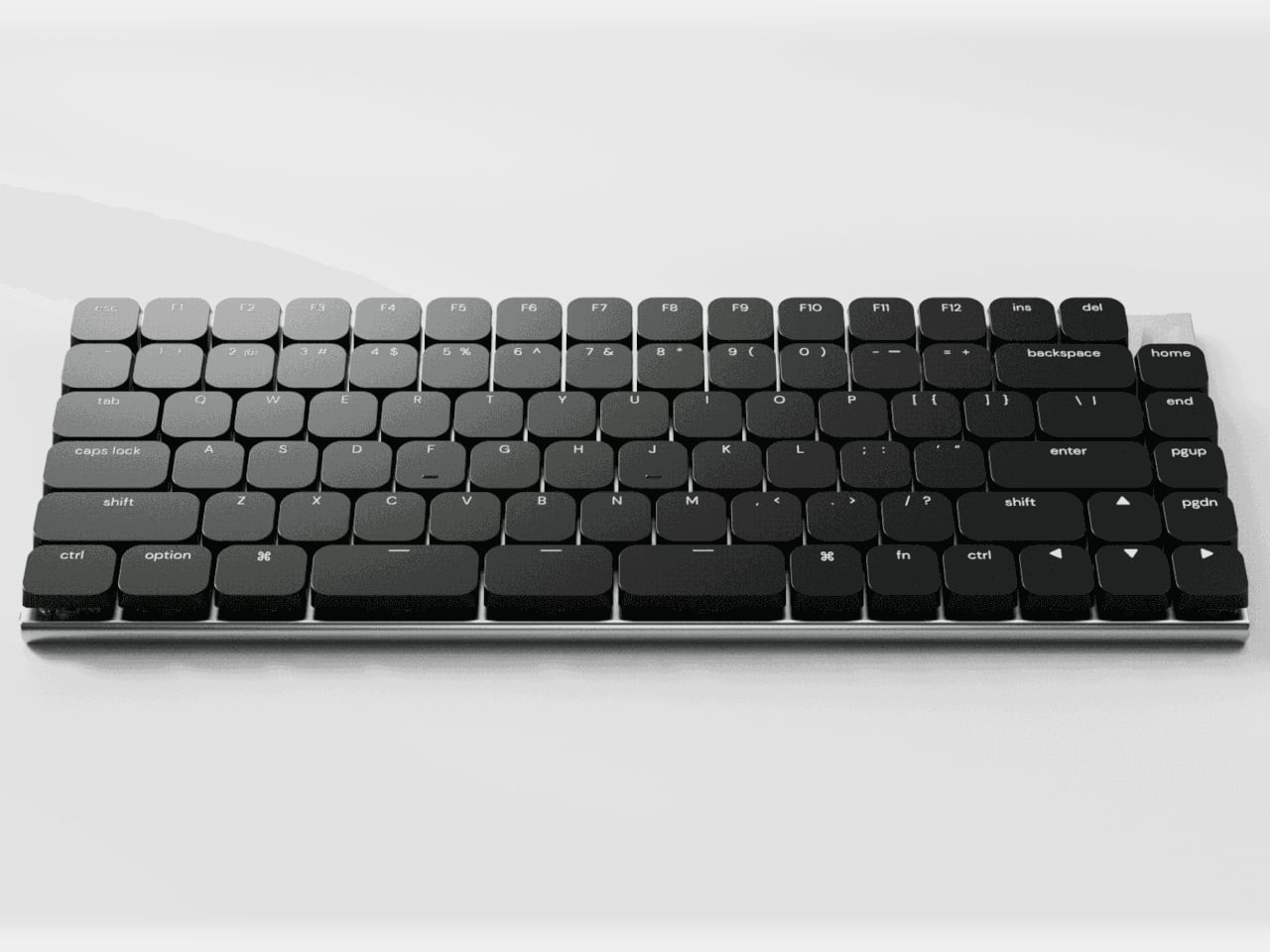
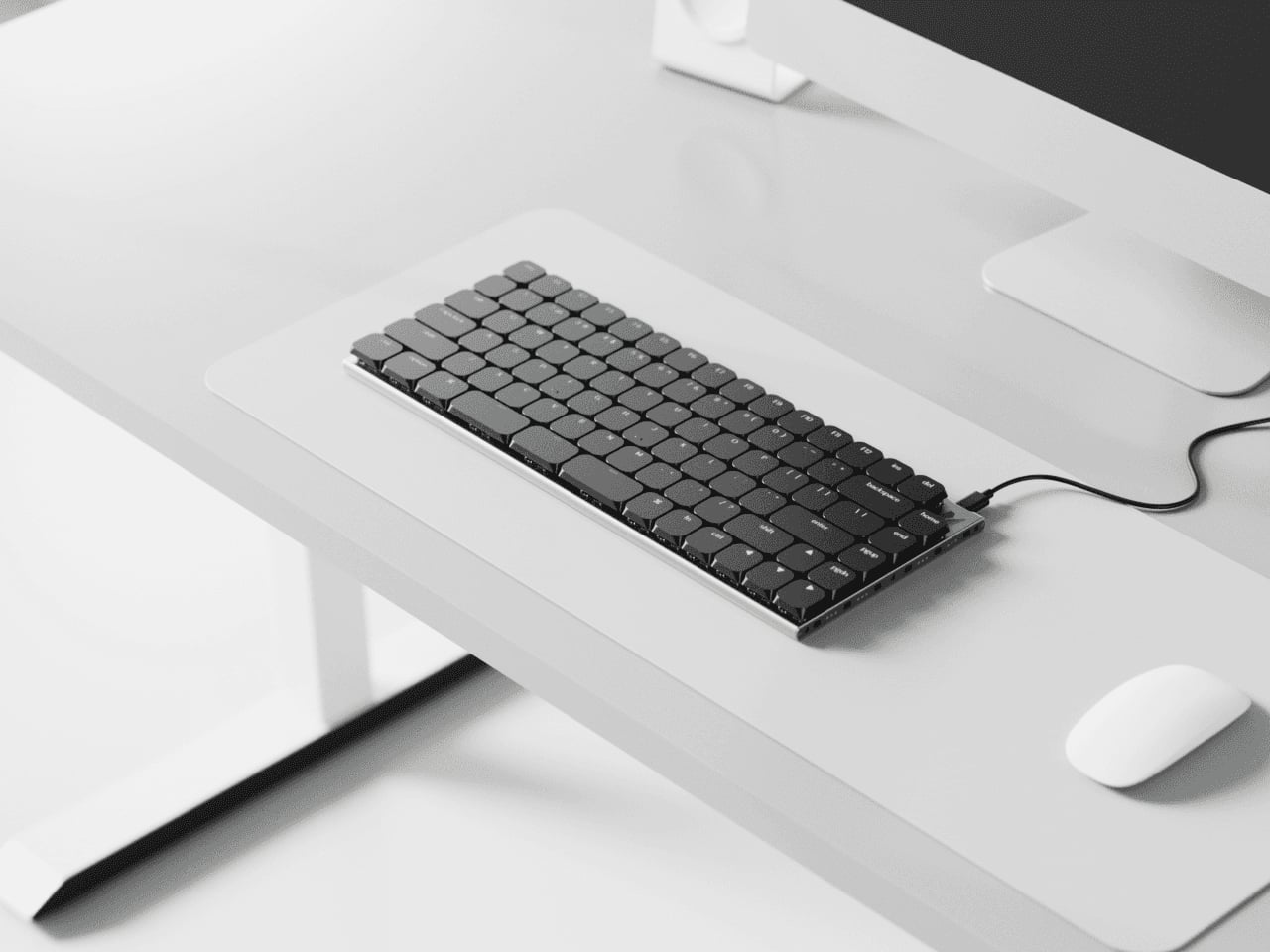
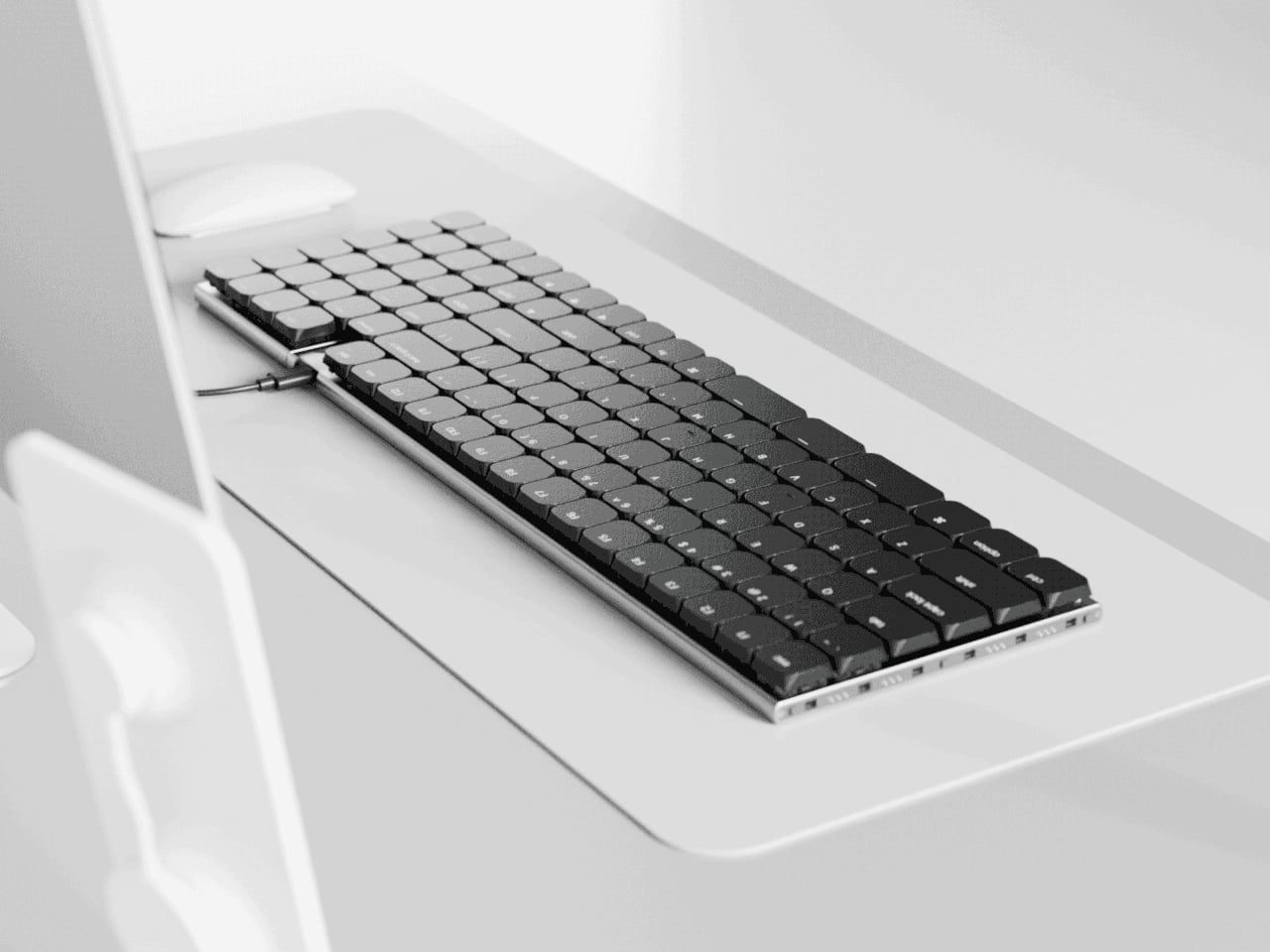
Naya Connect is a low-profile mechanical ecosystem built around the Naya Type keyboard and a dock. Naya Type is a slim 75% board with an aluminum body, Kailh Choc V2 switches, and a 14.9 mm profile, designed to be wireless when paired with the dock. The interesting part is not the layout, but what can snap onto it, a family of input modules that attach magnetically and talk to the same software layer.

Designer: Naya

The keyboard and dock have magnetic connection points on both sides, letting you attach modules wherever they make sense. You can add a Multipad as a numpad or macro pad, a six-key strip for extra shortcuts, or build a full console by chaining modules along one edge. The system grows sideways with your workflow instead of forcing you into a single configuration that never quite fits once your needs shift or projects change.

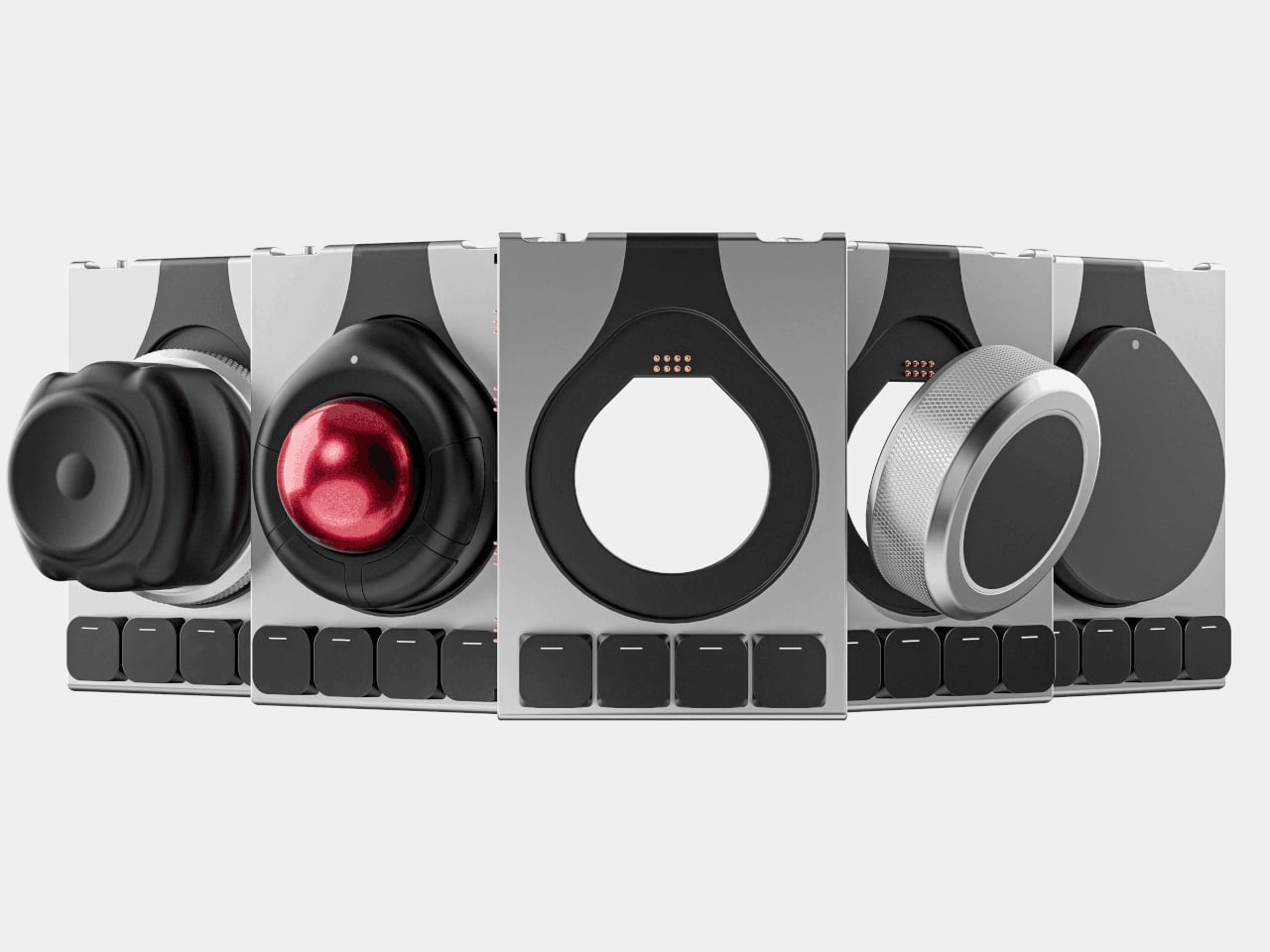
The modules cover different input modes. A Multipad acts as a numpad or macro grid, a six-key strip handles quick actions, a Track module replaces a mouse with a trackball, a Touch module works like a compact touchpad, a Tune dial offers dynamic haptics for scrubbing timelines or adjusting values, and a Float puck gives six degrees of freedom for 3D navigation and camera control.

The hardware only works because the software is flexible. Naya Flow is the configuration app that lets you remap keys, tune module behaviour, and build complex logic with drag-and-drop tools. You can set per-app profiles, change how the Tune dial feels depending on what you are doing, and decide what each touch zone or trackball gesture should trigger, without writing scripts or diving into config files.

The aluminum body, low-profile keycaps, and clean black aesthetic keep the keyboard from looking like a science project, even when it is covered in modules. The modules share the same design language, so a trackball, dial, and macro pad feel like parts of one system rather than a pile of mismatched gadgets. The result is a desk that looks intentional even when it is heavily customized and adapted to very specific tasks.

Naya Connect is aimed at people who live in code editors, timelines, spreadsheets, or 3D scenes all day and want input tools that can evolve with their work. It is not trying to be a mass-market keyboard. Instead, it’s trying to be a platform that grows and reconfigures as often as the projects do, without asking you to keep buying entirely new peripherals or cluttering the desk with orphaned tools.

The post Naya Connect Keyboard Lets You Snap On a Trackball, Numpad, or Dial first appeared on Yanko Design.

Samsung will show off its expanded Micro RGB TV series at CES

Last year at CES, Samsung debuted its first mainstream Micro RGB TV, a 115-inch model that surprised us with its rich, vivid colors and $30,000 price tag. Now, the company has announced that it will be showing off an entire lineup of Micro RGB TVs at CES 2026 ranging from 55- to 115-inch models, promising to set "a new standard for premium home viewing." 

As a reminder, Micro RGB is a unique new technology similar to Mini LED displays. Unlike the white backlights used on Mini LEDs, though, it uses tiny red, green and blue LEDs that produce more accurate colors and offer smaller and more controllable dimming zones. However, because pixels can't be turned on and off individually like Micro LED or OLED, Micro RGB contrast ratios aren't as high. They promise to be brighter and more color accurate than other technologies, though, hence the high prices and "premium" branding. 

Samsung's upcoming Micro RGB lineup will be available in 55-, 65-, 75-, 85-, 100- and 115-inch models and use the next evolution of the company's technology. The main claim to fame is near broadcast monitor-like color accuracy, covering 100 percent of the demanding BT.2020 HDR standard. That new standard now has a name and VDE certification: Micro RGB Precision Color 100. 

Other key features include Samsung's "Micro RGB AI Engine Pro" for more precise frame-by-frame clarity and realism, new color enhancement functions, Samsung's glare free tech and enhanced audio features including Dolby Atmos and Adaptive Sound Pro. 

Yesterday, LG announced that it would also show off new televisions using Micro RGB technology, with 75-, 86- and 100-inch models coming next year. What remains to be seen, however, is pricing. Given the $30,000 cost of the 115-inch model, you can likely expect the first Micro RGB televisions to be among the most expensive in the lineups of both LG and Samsung. 

This article originally appeared on Engadget at https://www.engadget.com/home/home-theater/samsung-will-show-off-its-expanded-micro-rgb-tv-series-at-ces-141716449.html?src=rss

Google Stitch Guide : No-Code to Working App in Minutes With Gemini 3

Google Stitch Guide : No-Code to Working App in Minutes With Gemini 3

What if creating a stunning, professional app interface took less time than brewing your morning coffee? Enter Google Stitch, the innovative AI-powered tool that’s turning the design world on its head. Imagine typing a few simple prompts and watching as a polished, multi-screen app layout materializes before your eyes, no coding, no technical expertise, just […]

The post Google Stitch Guide : No-Code to Working App in Minutes With Gemini 3 appeared first on Geeky Gadgets.

Posted in Uncategorized

The Ultimate Step-by-Step Guide to Transfer Data Between iPhones

The Ultimate Step-by-Step Guide to Transfer Data Between iPhones

Upgrading to a new iPhone is an exciting experience, but the process of transferring your data, apps, and settings can seem overwhelming. Fortunately, Apple offers a free, official, and wireless method to make this transition smooth and straightforward. By carefully following the steps outlined below, you can replicate your old iPhone on your new device […]

The post The Ultimate Step-by-Step Guide to Transfer Data Between iPhones appeared first on Geeky Gadgets.

Posted in Uncategorized

Big Tech bent the knee for Trump in 2025

Sure, we've seen millions poured into lobbying and other means of influence during every presidency, but the last two years set a whole new bar. Business leaders, including those from almost every Big Tech company, stepped over themselves to prove fealty to Donald Trump's second administration. It's easy to see why: Their kowtowing was meant to secure regulatory favors, gain tax and tariff advantages and avoid Trump's ire. Ultimately, it was all in the service of appeasing their shareholders. Why else would Apple CEO Tim Cook, someone who typically cultivates a progressive image, hand deliver a gold plaque to the President of the United States? 

Before we leave 2025 behind, it's worth documenting the many ways tech companies and leaders debased themselves for political favor with the Trump administration. 

Alphabet (Google)

Google dropped diversity recruitment goals in February, following Trump’s executive orders dismantling DEI programs in the federal government. Google also changed its AI principles to allow AI in weapons and surveillance, a move that is in line with the relaxed artificial intelligence regulation the Trump administration would later adopt for its AI Action Plan. To the chagrin of geographers everywhere, the company also replaced the Gulf of Mexico in Google Maps with "Gulf of America," following Trump's executive order.

Additionally, Alphabet agreed to pay $24.5 million to settle Donald Trump's lawsuit against YouTube, following the suspension of his YouTube accounts after the January 6th riot. Trump will receive $22 million, while another $2.5 million of the settlement will be paid out to additional plaintiffs who were part of the class action — which is to say, other rioters involved in the storming of the Capitol.

Joining plenty of other tech companies, Google donated $1 million to the Trump inauguration, and it’s also contributing to the cost of Trump’s reported $300 million White House ballroom.

Amazon

In August, Amazon Web Services said it would provide up to $1 billion in credits to the Trump administration through 2028. Those credits can be put towards AWS cloud services, training and certification and direct contracts.

Amazon founder Jeff Bezos also did his fair share to support Trump: He donated $1 million to Trump's inauguration, and since purchasing the Washington Post in 2013 he pushed the paper to the right. This year, Bezos declared that the Post’s opinion pages would be devoted to the support and defense of “personal liberties” and “free markets.” He added, “We’ll cover other topics too of course, but viewpoints opposing those pillars will be left to be published by others." To that end, the Post also hired three new conservative columnists. Bezos reportedly also blocked his paper from endorsing Kamala Harris in the 2024 election.

Amazon, too, is contributing to Trump's $300 million White House ballroom. The Washington Post, unsurprisingly, was one of the first major publications to praise Trump’s ballroom

Apple

Apple relied on big numbers and flashy trinkets to ingratiate itself to the Trump administration. In February, it said it planned to invest $500 billion into the US economy over the next four years. While that sounds impressive, Apple previously announced another $430 billion multi-year investment for the US in 2021. In a potential bid to avoid the administration’s volatile tariff plans, Apple also said it would invest another $100 billion into the US in August.

Tim Cook personally donated $1 million to the Trump inauguration fund, Cook's first political donation since 2017. At that August event, he also gave Donald Trump a now infamous gold statue for being a special little guy.

Additionally, Apple followed in Google’s footsteps by replacing the Gulf of Mexico in Apple Maps with the “Gulf of America.” The company is also chipping in for Trump’s $300 million White House ballroom.

Meta

Meta CEO Mark Zuckerberg wasted no time trying to get into Trump’s good graces, perhaps to erase his previous statement that the President should be “held responsible for his words” for inciting the January 6 Capitol riot. On top of donating $1 million to Trump's inauguration, Meta announced that it would be getting rid of third-party fact-checkers on Facebook and Instagram on January 7. Instead, it's relying on community notes similar to X. Meta also ended its DEI initiatives and changed its hate speech rules to allow for calling LGBTQ people “mentally ill.” 

"We do allow allegations of mental illness or abnormality when based on gender or sexual orientation, given political and religious discourse about transgenderism and homosexuality and common non-serious usage of words such as 'weird,'" reads the company’s updated policy.

Even Zuckerberg’s charity, which he runs alongside his wife, bowed to Trump. The Chan Zuckerberg Initiative ended its diversity programs and stopped providing “social advocacy funding,” which supported immigration and racial equity efforts. According to The Guardian, the charity’s website removed every reference to diversity or promoting scientific research from underrepresented groups.   

Similar to Google, Meta said it will pay Donald Trump $25 million to settle his lawsuit related to his Facebook suspension after the January 6 riot. And yes, Meta is also contributing to Trump's $300 million White House ballroom. 

Microsoft

Microsoft contributed $1 million to Trump's inauguration fund. Previously, it donated $500,000 to Biden's fund and the same amount for Trump's first term. It’s also contributing to Trump’s $300 million White House ballroom.

Similar to Amazon, Microsoft also offered up to $3.1 billion worth of services to the Trump administration as part of the American-centric “OneGov” strategy. That includes discounts for Microsoft 365, Azure cloud services and cybersecurity tools. Copilot AI will also be discounted to government agencies, and it’ll be completely free for a year for agencies subscribing to Microsoft G5 service.

Elon Musk (X, SpaceX, Tesla)

Elon Musk was by far the biggest booster for Trump in the business world. He spent a whopping total of $277 million to back Trump and other candidates in 2024, including $239 million to America PAC, his super PAC focused on securing votes for Trump and other Republicans. 

Musk went so far as to offer $1 million to people who said they would vote for Trump, a move that the Justice Department warned might be illegal. Wisconsin's Attorney General challenged Musk's ploy but the state's Supreme Court declined to hear a case on the matter, thereby giving Musk leeway to award two $1 million checks to voters. Musk's team edited a video of one of the recipients to remove her admission that she was paid "to vote." 

He also joked that he could be jailed if Kamala Harris won the 2024 election, which could be referencing potential election fraud, his penchant for busting unions, national security concerns from his uncomfortably close relationship with Vladimir Putin or any number of potential crimes.

Elon Musk spearheaded DOGE (Department of Government Efficiency), an unelected position from which he was given nearly unprecedented federal oversight. Once installed he hired his techie acolytes to chip away at government budgets and staffs. For the first few weeks of the second Trump administration, it appeared as if Musk had unfettered power to manipulate the government.

And let's not forget, while leading DOGE, the world's richest man also destroyed USAID, the world's largest food aid provider, for no apparent reason other than cruelty. 

After purchasing Twitter in 2022 and renaming it "X," Musk has also transformed Twitter into a Trump-friendly social network focused on “free speech.” He reinstated Trump’s Twitter account, which was banned after the January 6 Capitol riot, and he also paid Trump around $10 million to settle his lawsuit over being kicked off the platform. X is now a platform that amplifies far-right extremists, treats the inclusive term “cisgender” as a slur and doesn’t punish users for deadnaming and misgendering trans people.

What about the rest?

This is by no means an exhaustive documenting of every single tech tycoon that has bent the knee. NVIDIA CEO Jensen Huang, for instance, told Joe Rogan in an interview that “everything that [Trump] thinks through is very practical and very common sense, and, you know, it's very logical.” According to Axios, Huang added that Trump "wants to make sure that that the important, critical technology of our nation is built in United States, and that we re-industrialize and get good at manufacturing again, because it's important for jobs."

It’s also worth remembering that OpenAI CEO Sam Altman and Oracle chairman Larry Ellison joined President Trump onstage in announcing Stargate — “the largest AI infrastructure project by far in history.” The two were joined by Softbank CEO Masayoshi Son, who called the moment the “beginning of a golden age.” The next day, Altman posted on X that he believed Trump “will be incredible for the country in many ways!”

Ellison’s son David is the CEO of Skydance, and has infamously been rebuilding Paramount with Bari Weiss since the merger of Paramount Global and Skydance Media was approved this year. The list of major tech players bowing to Trump only grows from here, and putting the bulk of the transactions in one place should serve to remind us how closely tied Big Tech is with American (and global) politics.

This article originally appeared on Engadget at https://www.engadget.com/general/big-tech-bent-the-knee-for-trump-in-2025-140000365.html?src=rss

Fast 24A Home Charging, Plus App Control on the Flux Portable Unit

Fast 24A Home Charging, Plus App Control on the Flux Portable Unit

What if charging your electric vehicle (EV) could be as effortless as plugging in your phone, whether you’re at home, on a road trip, or navigating unpredictable weather? The EVDance Flux Portable SMART Charger promises to make this a reality. With its compact design, dual-level charging capabilities, and advanced features like real-time monitoring, this charger […]

The post Fast 24A Home Charging, Plus App Control on the Flux Portable Unit appeared first on Geeky Gadgets.

Posted in Uncategorized

Jetson Thor vs DJX Spark vs Mac Mini M4 Pro : Local AI ML Showdown

Jetson Thor vs DJX Spark vs Mac Mini M4 Pro : Local AI ML Showdown

Why pay more for the same specs? In the ever-evolving world of AI hardware, where performance and efficiency reign supreme, it’s not uncommon to see devices with nearly identical specifications priced worlds apart. Take, for instance, the battle between NVIDIA’s Jetson Thor, DJX Spark, and Apple’s Mac Mini M4 Pro. Two of these systems boast […]

The post Jetson Thor vs DJX Spark vs Mac Mini M4 Pro : Local AI ML Showdown appeared first on Geeky Gadgets.

Posted in Uncategorized