Apple is getting ready to release a new software update, iOS 17.4.1, this update will not be released as betas for developers. While it might seem like a small step in the vast journey of iOS updates, this particular version is critical, addressing specific issues that have been a thorn in the side for many […]
Deciding between the 8GB and 16GB M3 MacBook Air models can feel like a high-stakes choice, especially when you’re trying to balance cost against performance needs. If you’re on the fence about which version to invest in, you’ll be pleased to know that a detailed comparison has shed light on the differences in performance across […]
Imagine a world in which humanoid robots equipped with artificial intelligence can not only talk to you but also understand and interact with the environment around it just like a person would. OpenAI, a leading AI research lab an investor in the development of the Figure 01, has made a significant leap forward with their […]
Unlocking the full potential of your Apple Watch can transform it from a mere timepiece into a powerhouse of productivity and personal care. Proper Honest Tech’s video dives deep into the less-known features of the Apple Watch, aimed at both new and seasoned users. Here’s an engaging look into 12 essential tips and tricks that […]
Epic Games has already accused Apple of "malicious compliance" with the EU's new competition laws, and now it's making the same allegation stateside. In a new legal filing, it accused Apple of non-compliance with a 2021 ruling that allowed developers to bypass Apple's 30 percent cut of in-app payments and is asking the court to enforce the original injunction.
Once the Supreme Court declined to hear an appeal of the ruling, Apple released revised guidelines, forcing developers to apply for an "entitlement," while still offering the option to purchase through Apple's own billing system. Moreover, Apple still charged a 27 percent commission on any sales made through links to external payment systems (or 12 percent for participants in the iOS Small Business Program).
Epic argued that those fees are “essentially the same” as what it charges using its own in-app payment (IAP) system. To that end, it accused the company of failing to comply with the order, with the fees making the links "commercially unusable."
It also said that Apple requires a "plain button style" for external links that's "not a button at all" and violates the injunction forcing Apple to remove restrictions on "steering" users to alternative payment "buttons, external links or other calls to action." It added that Apple violated the injunction in a third way by prohibiting multi-platform apps like Minecraft from showing external payment links. Epic included statements from other developers including Paddle and Down Dog.
"Apple’s goal is clear: to prevent purchasing alternatives from constraining the supracompetitive fees it collects on purchases of digital goods and services," the document reads. "Apple’s so-called compliance is a sham. Epic therefore seeks an order (i) finding Apple in civil contempt, (ii) requiring Apple to promptly bring its policies into compliance with the Injunction and (iii) requiring Apple to remove all anti-steering provisions in Guideline 3.1.3."
Apple previously said that it has complied with the injunction with new rules that allow alternative payment buttons or links in apps, and by letting developers "communicate with customers through points of contact obtained voluntarily from customers through account registration within the app."
This article originally appeared on Engadget at https://www.engadget.com/epic-accuses-apple-of-flouting-court-order-by-charging-for-external-links-on-ios-apps-070036198.html?src=rss
Epic Games has already accused Apple of "malicious compliance" with the EU's new competition laws, and now it's making the same allegation stateside. In a new legal filing, it accused Apple of non-compliance with a 2021 ruling that allowed developers to bypass Apple's 30 percent cut of in-app payments and is asking the court to enforce the original injunction.
Once the Supreme Court declined to hear an appeal of the ruling, Apple released revised guidelines, forcing developers to apply for an "entitlement," while still offering the option to purchase through Apple's own billing system. Moreover, Apple still charged a 27 percent commission on any sales made through links to external payment systems (or 12 percent for participants in the iOS Small Business Program).
Epic argued that those fees are “essentially the same” as what it charges using its own in-app payment (IAP) system. To that end, it accused the company of failing to comply with the order, with the fees making the links "commercially unusable."
It also said that Apple requires a "plain button style" for external links that's "not a button at all" and violates the injunction forcing Apple to remove restrictions on "steering" users to alternative payment "buttons, external links or other calls to action." It added that Apple violated the injunction in a third way by prohibiting multi-platform apps like Minecraft from showing external payment links. Epic included statements from other developers including Paddle and Down Dog.
"Apple’s goal is clear: to prevent purchasing alternatives from constraining the supracompetitive fees it collects on purchases of digital goods and services," the document reads. "Apple’s so-called compliance is a sham. Epic therefore seeks an order (i) finding Apple in civil contempt, (ii) requiring Apple to promptly bring its policies into compliance with the Injunction and (iii) requiring Apple to remove all anti-steering provisions in Guideline 3.1.3."
Apple previously said that it has complied with the injunction with new rules that allow alternative payment buttons or links in apps, and by letting developers "communicate with customers through points of contact obtained voluntarily from customers through account registration within the app."
This article originally appeared on Engadget at https://www.engadget.com/epic-accuses-apple-of-flouting-court-order-by-charging-for-external-links-on-ios-apps-070036198.html?src=rss
Depending on how much stuff you need to plug in, your laptop may not have enough ports to support it all — particularly if you have more wired accessories than Bluetooth ones. Docking stations add different combinations of Ethernet, HDMI, DisplayPort, 3.5mm, memory card and USB connections and, unlike simple hubs, are often DC-powered. For those who switch up their working location regularly, a docking station can make it easier to swap between a fully-connected desk setup and a simple laptop, since just one port links your computer to the dock. Which docking station you should get depends in part on what you want to plug in, but sifting through the hundreds of models out there can be tough. We tried out a dozen different options to help you narrow down the best docking station for your needs.
What to look for in a docking station
First and foremost, consider what you need to plug in. This will likely be the deciding factor when you go to actually buy a docking station. Do you need three screens for an expanded work view? A quick way to upload photos from an SD card? Are you looking to plug in a webcam, mic and streaming light, while simultaneously taking advantage of faster Ethernet connections? Once you’ve settled on the type of ports you need, you may also want to consider the generation of those ports as well; even ports with the same shape can have different capabilities. Here’s a brief overview of the connectivity different docking stations offer.
Monitor ports
External monitors typically need one of three ports to connect to a PC: HDMI, DisplayPort or USB-C. HDMI connections are more common than DisplayPort and the cables and devices that use them are sometimes more affordable. The most popular version of the DisplayPort interface (v1.4) can handle higher resolutions and refresh rates than the most common HDMI version (2.0). All of the docking stations with HDMI sockets that we recommend here use version 2.0, which can handle 4K resolution at 60Hz or 1080p up to 240Hz. The DisplayPort-enabled docks support either version 1.2, which allows for 4K resolution at 60Hz, or version 1.4, which can handle 8K at 60Hz or 4K at 120Hz.
You can also use your dock’s downstream (non-host) Thunderbolt ports to hook up your monitors. If your external display has a USB-C socket, you can connect directly. If you have an HDMI or DisplayPort-only monitor, you can use an adapter or a conversion cable.
Of course, the number of monitors you can connect and the resolutions/rates they’ll achieve depend on both your computer’s GPU and your monitors — and the more monitors you plug in can bring down those numbers as well. Be sure to also use cables that support the bandwidth you’re hoping for. MacOS users should keep in mind that MacBooks with the standard M1 or M2 chips support just one external monitor natively and require DisplayLink hardware and software to support two external displays. MacBooks with M1 Pro, M2 Pro or M2 Max chips can run multiple monitors from a single port.
USB ports
Most docking stations offer a few USB Type-A ports, which are great for peripherals like wired mice and keyboards, bus-powered ring lights and flash drives. For faster data transfer speeds to your flash drive, go for USB-A sockets labeled 3.1 or 3.2 — or better yet, use a USB-C Thunderbolt port.
Type-C USB ports come in many different flavors. The Thunderbolt 3, 4 and USB4 protocols are newer, more capable specifications that support power delivery of up to 100W, multiple 4K displays and data transfer speeds of up to 40Gbps. Other USB-C ports come in a range of versions, with some supporting video, data and power and some only able to manage data and power. Transfer rates and wattages can vary from port to port, but most docks list the wattage or GB/s on either the dock itself or on the product page. And again, achieving the fastest speeds will depend on factors like the cables you use and the devices you’re transferring data to.
Nearly every dock available today connects to a computer via USB-C, often Thunderbolt, and those host ports are nearly always labeled with a laptop icon. They also allow power delivery to your laptop: available wattage varies, but most docks are rated between 85 and 100 watts. That should be enough to keep most computers powered — and it also means you won’t have to take up an extra laptop connector for charging.
Other ports
None of our currently recommended laptops include an Ethernet jack; a docking station is a great way to get that connection back. We all know objectively that wired internet is faster than Wi-Fi, but it might take running a basic speed comparison test to really get it on a gut level. For reference, on Wi-Fi I get about a 45 megabit-per-second download speed. Over Ethernet, it’s 925 Mbps. If you pay for a high-speed plan, but only ever connect wirelessly, you’re probably leaving a lot of bandwidth on the table. Every docking station I tested includes an Ethernet port, and it could be the connector you end up getting the most use out of.
Just two of our favorite laptops have SD card readers, and if you need a quick way to upload files from cameras or audio recorders, you may want to get a dock with one of those slots. Of the docks we tested, about half had SD readers. For now, most (but not all) laptops still include a 3.5mm audio jack, but if you prefer wired headphones and want a more accessible place to plug them in, many docking stations will provide.
When you’re counting up the ports for your new dock, remember that most companies include the host port (the one that connects to your computer) in the total number. So if you’re looking for a dock with three Thunderbolt connections, be sure to check whether one of them will be used to plug in your laptop.
Photo by Amy Skorheim / Engadget
Design
Most docking stations have either a lay-flat or upright design. Most docks put the more “permanent” connections in back — such as Ethernet, DC power, monitor connections and a few USBs. Up-front USB ports can be used for flash drive transfers, or even plugging in your phone for a charge (just make sure the port can deliver the power you need). USBs in the rear are best for keyboards, mice, webcams and other things you’re likely to always use. Some docks position the host port up front, which might make it easier to plug in your laptop when you return to your desk, but a host port in back may look neater overall.
How we tested
We started out by looking at online reviews, spec sheets from various brands and docking stations that our fellow tech sites have covered. We considered brands we’ve tested before and have liked, and weeded out anything that didn’t have what we consider a modern suite of connections (such as a dock with no downstream USB-C ports). We narrowed it down to 12 contenders and I tested each dock on an M1 MacBook Pro, a Dell XPS 13 Plus and an Acer Chromebook Spin 514. I plugged in and evaluated the quality of the connections for 12 different peripherals including a 4K and an HD monitor, a 4K and an HD webcam, plus USB devices like a mouse, keyboard, streaming light and mic. I plugged in wired earbuds, and transferred data to a USB-C flash drive and an external SSD. I ran basic speed tests on the Ethernet connections as well as the file transfers. I judged how easy the docks were to use as well as the various design factors I described earlier. I made spreadsheets and had enough wires snaking around my work area that my cat stayed off my desk for three weeks (a new record).
Other docking stations we tested
Plugable TBT4-UDZ
When I pulled the Plugable TBT4-UDZ Thunderbolt 4 out of the box, I was convinced it would make the cut: It has a practical upright design, an attractive metal finish, and the host connection is TB4. While there are plenty of USB-A and monitor ports, there’s just one downstream USB-C. A modern dock, particularly one that costs $300, should let you run, say, a USB-C cam and mic at the same time. Otherwise, it’s pretty limiting.
Anker 575 USB-C
At $250 (and more often $235), the Anker 575 USB-C could make for a good budget pick for Windows. It performed well with the Dell XPS 13 Plus, but had trouble with the third screen, the 4K webcam and headphone jack when connected to the MacBook Pro. It’s quite compact, which means it can get wobbly when a bunch of cables are plugged in, but it has a good selection of ports and was able to handle my basic setup well.
Belkin Connect Pro Thunderbolt 4
Belkin’s Connect Pro Thunderbolt 4 Dock is a contender for a Thunderbolt 4 alternative. It has nearly the same ports as the AD2010 (minus the microSD slot) and an attractive rounded design — but it’s $90 more, so I’d only recommend getting it if you find it on sale.
Acer USB Type-C Dock
Acer’s USB Type-C Dock D501 costs $10 more than our Kensington pick for Chromebooks, but it performs similarly and is worth a mention. It has nearly the same ports (including the rather limiting single downstream USB-C) but both the Ethernet and data transfer speeds were faster.
FAQs
Are docking stations worth it?
Docking stations are worth it if you have more accessories to plug in than your laptop permits. Say you have a USB-C camera and mic, plus a USB-A mouse, keyboard and streaming light; very few modern laptops have enough connections to support all of that at once. A docking station can make that setup feasible while also giving you extra ports like an Ethernet connection, and supplying power to your laptop. However, if you just need a few extra USB sockets, you might be better off going with a hub, as those tend to be cheaper.
How much does a laptop dock cost?
Laptop docking stations tend to be bigger and more expensive than simple USB-A or USB-C hubs, thanks to the wider array of connections. You can find them as low as $50 and they can get as expensive as $450. A reasonable price for a dock with a good selection of ports from a reputable brand will average around $200.
How do I set up my laptop dock?
Most docking stations are plug and play. First, connect the DC power cable to the dock and a wall outlet. Then look for the “host” or upstream port on the dock — it’s almost always a USB-C/Thunderbolt port and often branded with an icon of a laptop. Use the provided cable to connect to your computer. After that, you can connect your peripherals to the dock and they should be ready to use with your laptop. A few docking stations, particularly those that handle more complex monitor setups, require a driver. The instructions that come with your dock will point you to a website where you can download that companion software.
Does a laptop charge on a docking station?
Nearly all docking stations allow you to charge your laptop through the host connection (the cable running from the dock to your computer). That capability, plus the higher number of ports is what separates a docking station from a hub. Docks can pass on between 65W and 100W of power to laptops, and nearly all include a DC adapter.
Are all docking stations compatible with all laptops?
No, not all docking stations are compatible with every laptop. In our tests, the Chromebook had the biggest compatibility issues, the Dell PC had the least, and the MacBook fell somewhere in between. All docks will list which brands and models they work with on the online product page — be sure to also check the generation of your laptop as some docks can’t support certain chips.
What are some popular docking station brands?
Kensington, Anker, Pluggable and Belkin are reputable and well-known brands making docking stations for all laptops. Lenovo, Dell and HP all make docks that will work with their own computers as well as other brands.
This article originally appeared on Engadget at https://www.engadget.com/best-docking-station-160041863.html?src=rss
Are you ready to take your career to the next level? If so, we have the perfect opportunity for you. IDUNOVA, a leading online IT training provider with over two decades of experience, is offering a comprehensive Lean Six Sigma: Yellow Belt course. This course is designed to provide you with a foundational understanding of […]
There are 24 hours in a day, but almost half of those remains shrouded in mystery and, in some cases, fear. The darkness of the night makes us feel a little less secure because we can barely see anything, especially in areas away from bright city night lights. It’s an almost literally different world that’s just begging to be explored and enjoyed, provided we can see safely and adequately. Night vision cameras and equipment do shed some light on the subject, but they paint the world in dull shades of gray that make it impossible to actually enjoy the experience. That’s where the AKASO Seemor Night Vision Goggles come in, revealing the beauty and wonders of the night as if it were daytime, with some help from AI.
You need light to see things, and that’s true for both our eyes as well as the cameras that turn light information into the beautiful images and videos we enjoy. Of course, there isn’t much light at night, so cameras need to either add more lights or use a different kind of light. This is why most night vision cameras, including security cameras, only see the world in shades of black and white, because the light that they get is only enough to see the forms but doesn’t have sufficient color information.
Ultra-low Light Full-color Night Vision
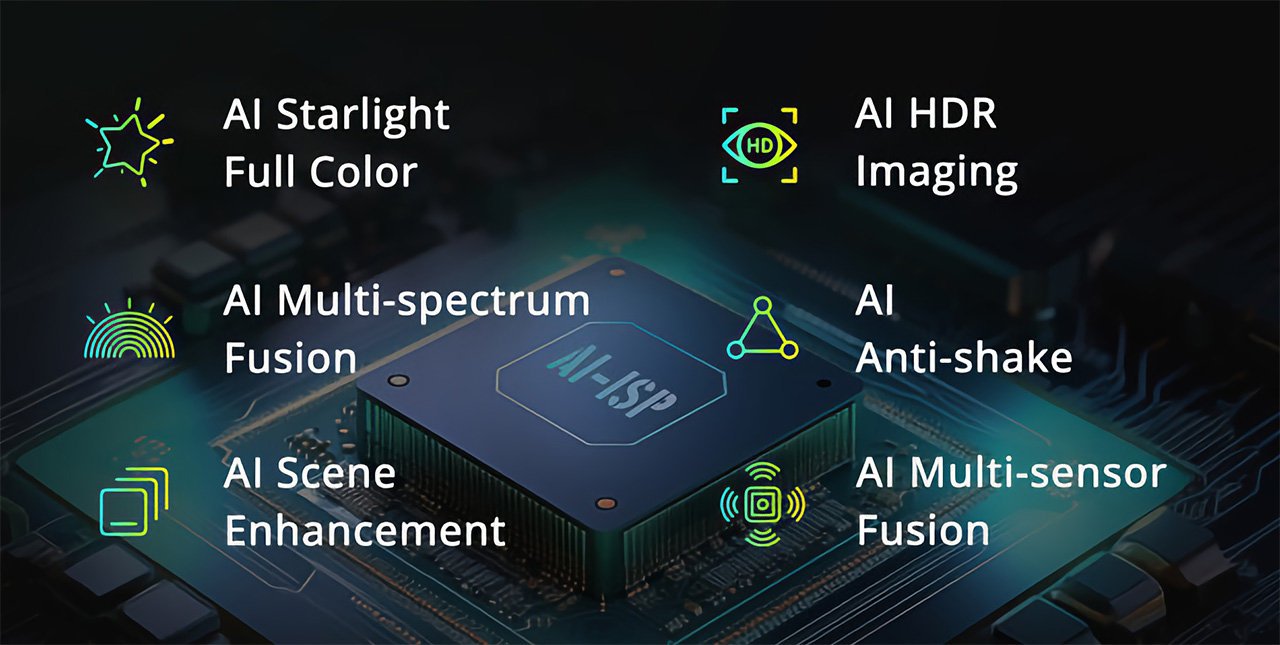
Fortunately, we have come to a point where what can’t be fully accomplished in hardware can be enhanced by software, particularly with artificial intelligence. The AKASO Seemor Night Vision Goggles is, in fact, the first of its kind to harness the power of AI for this very purpose. Labeled as “AI-ISP,” the technology integrates advanced AI algorithms with the binoculars’ Image Signal Processing (ISP) to enhance image and video quality. The result is a breathtaking view of the night in true full color, with rich hues and 99% color reproduction that blows any night vision camera out of the water. It accomplishes this without requiring more lights that would have disturbed the serenity of the night world and chased nocturnal creatures away.
Of course, AI can only use what it’s given, and the AKASO Seemor, fortunately, has solid foundations, starting with a large 1/1.79″ CMOS sensor that can “see” even with weak light. The more light it can gather, the more data the AI-ISP has to work with in order to create that magical experience of seeing the night in color. The visual range of the Seemor goggles is also mind-blowing, allowing you to spot human or animal movement 1,640 ft (500m) away or identify the outline of buildings that are 3,280 ft (1km) in the distance. All these stunning scenes can be recorded in high-resolution 4K, both for photos and videos, ensuring that those enchanting nighttime memories will be preserved in as high a quality as you saw them with your eyes.
The AKASO Seemor Night Vision Goggles isn’t just powerful, it is also simple and convenient to use. Built-in 2.4GHz Wi-Fi lets you connect to your smartphone both for remote monitoring of what the goggles see as well as fast transfer of photos and videos. Two 3,200 mAh batteries give you up to 8 hours of uninterrupted enjoyment, and two 1/4 nut ports at the top and bottom of the Seemor let you easily mount the device on tripods or even helmets. Whether you’re trying to observe the mysterious creatures of the night, chasing down urban legends, or simply trying to discover beauty in the darkness, the AI-powered AKASO Seemor True Full-Color Night Vision Goggles opens your eyes to a whole new world you could never see before.