Apple’s iOS 26.4 update is set to deliver a host of enhancements aimed at improving functionality, security, and personalization across its ecosystem. Whether you’re a casual user or a tech enthusiast, this update introduces features designed to make your experience more seamless and intuitive. Below is a detailed look at the most notable features and […]
Chances are that if a VPN is marketed to everyday users, it more or less runs itself. As long as you go with one of the best VPNs instead of setting up your own manual connection, the interface is likely built so you have to engage with it as little as possible. Generally, if you find yourself constantly thinking about your VPN while using it — as happened to me with Norton VPN — that's a bad thing and you should change providers.
That said, it's still useful to get a high-level view of how to use a VPN, especially if you've never used one before. In this article, I'll walk you through how to download, install and configure a VPN on any platform and how to choose servers for specific situations. I'll also discuss specific steps for desktop and laptop computers, phones, tablets, smart TVs, game consoles and routers.
How to download and install a VPN
There are over 100 VPNs available on the internet and the two big mobile app stores, but most of them follow a similar approach to download and installation. Except for certain free VPNs, you'll need to create an account on the VPN provider's website, install the VPN client, then use your account to log in. Here are the steps.
In a web browser, navigate to a VPN provider's website. For suggestions on where to start, check out our list of the best VPN deals. Click any link that mentions getting the VPN or claiming the deal — as a rule, they aren't hard to find.
Select a plan based on the length of time you need the VPN for, the features you want and the number of devices you'd like to use the VPN on simultaneously. Add a payment method. You'll be prompted to create the username and password for a new account.
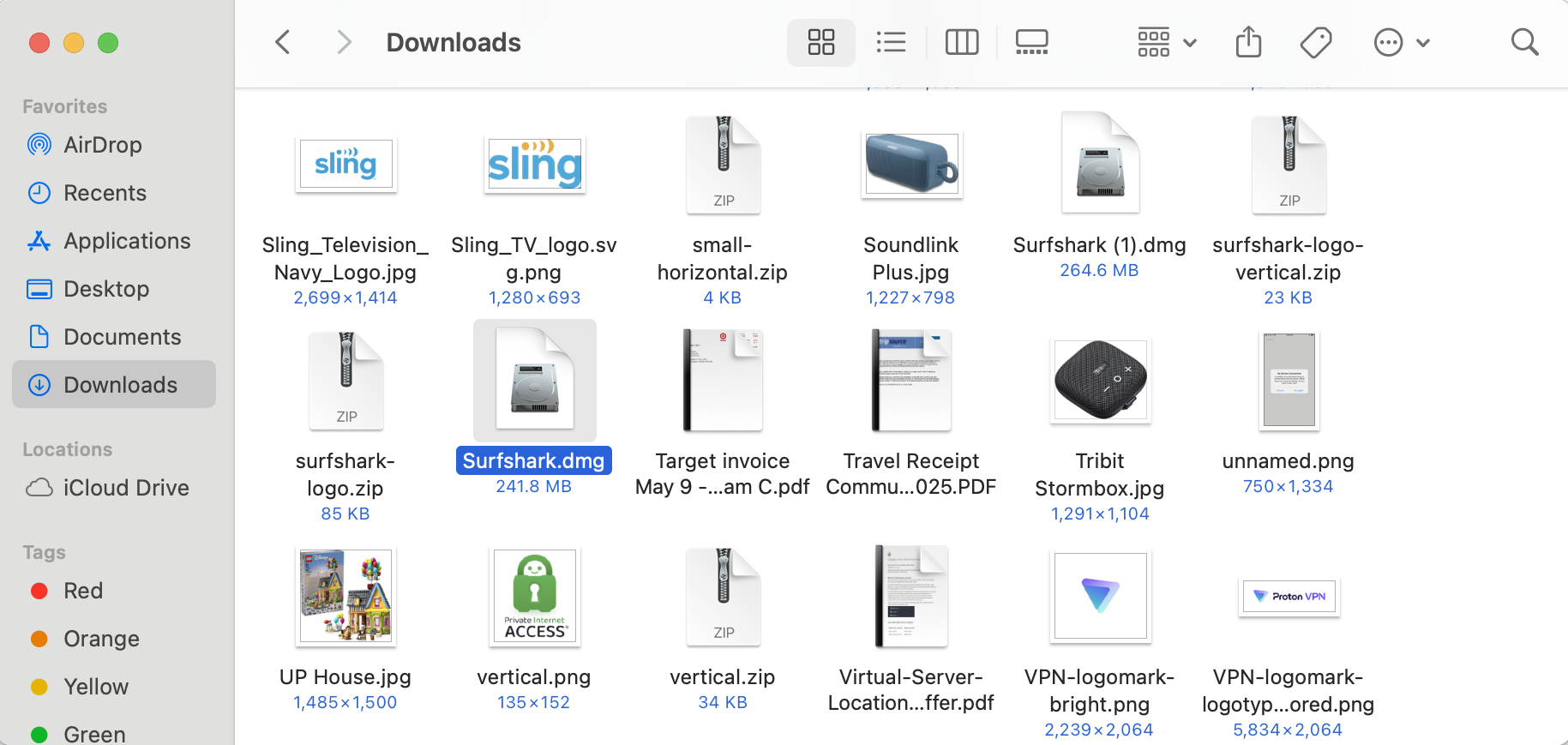
On desktop, you can start with the Mac or Windows app store, though some VPNs require a download directly from their respective website. That’s generally the way to get the most feature-rich version of the VPN, but just make sure you’re downloading from the provider’s website to ensure you don’t get a malicious copycat. On mobile, the app store is your only choice, but don't forget to check the reviews and make sure you're getting the service you paid for — unfortunately, rival (and sometimes less scrupulous) VPN brands can use paid placements to appear higher on search results, even for a rival product.
Follow the pre-programmed installation flow. Again, don't let a VPN make any changes to your system if you haven't thoroughly vetted the provider (or gone with one of our recommendations). If it's safe, allow the VPN all the setup permissions it needs.
Finally, open the VPN client and sign in with the credentials you created in step two. You're now ready to start using your new VPN.
Surfshark in Mac downloads folder
Sam Chapman for Engadget
With so many VPNs on the market, this process won't always be the same. Sometimes you'll have to make the account before paying, and some mobile VPNs let you handle the whole process in-app. What's always true, though, is that a good VPN will make the signup flow as easy as possible. If you have trouble before you even log in, that's a red flag.
How to configure a VPN app
Most VPNs are ready to go out of the box. However, even if you don't think you're a power user, it's a good idea to go through the settings and make sure they match what you need. Here are a few steps I recommend taking.
Activate the kill switch. This feature monitors your connection to the VPN server. If it ever drops — either from problems in the server, your client or somewhere in between — the kill switch instantly cuts off your internet until your VPN connection is restored. This saves you from accidentally broadcasting anything sensitive while also ensuring you only connect to legitimate VPN servers (avoiding the Tunnelvision bug).
Set up favorites and profiles. VPNs usually let you select servers you'll use regularly, websites you'll often connect to through the VPN and other preferences that will appear immediately when you open the app. Some go further, like Proton VPN, which lets you create user profiles that bundle several preferences together.
Decide if you want the VPN to automatically launch and connect when you start up your computer.
Check on split tunneling. There may be cases where you want a certain app or site to work outside the VPN, or where you want everything to go unencrypted except one site or app. You can set up a split tunnel when you need it, but if there's one you know you'll use regularly, it helps to build it early.
Activate or deactivate any content blockers the VPN comes with, including ad blockers, malware detectors and parental controls, as you see fit.
Decide whether you want the VPN to send you notifications, and how.
Select a VPN protocol. It's almost always best to let the VPN choose for itself, but it's helpful to at least know where the protocol-switching option is. Occasionally, if one protocol isn't working, you can troubleshoot by selecting another.
You can do all this by digging into your VPN's preferences control panel. A gear seems to be the universal icon for that, but Mac users may also find it by picking "preferences" or "settings" from the menu bar. When you find the preferences menu, go through each tab in turn and make sure everything is the way you like it.
How to choose a VPN server
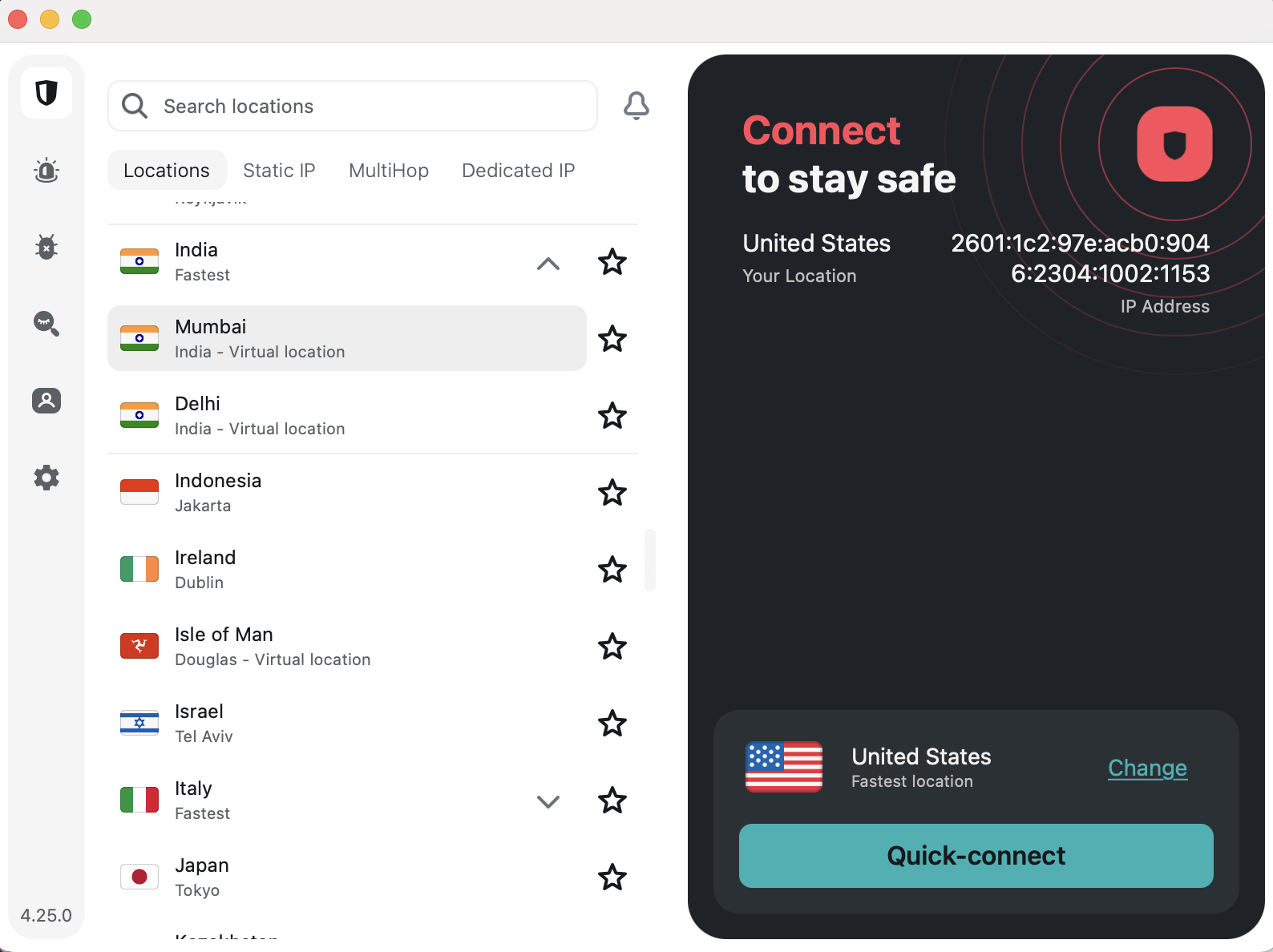
Picking a server location is the final box to check before connecting. You nearly always have the option of letting the VPN pick the best server. Most apps tend to determine the best server with a latency test, so it will almost always be a node very close to your physical location.
If you just want anonymity online, that's fine — it doesn't matter which IP address you use as long as it's not your real one. But several VPN use cases do require a specific server location. For those, follow one simple rule: Pick a server in the place you want your signal to come from.
Choosing locations on Surfshark
Sam Chapman for Engadget
For example, let's say you want to watch The Office, but you're only subscribed to Netflix and not Peacock. Luckily, Netflix is licensed to show The Office in the U.K. If you connect to a British server location before opening Netflix, you'll be able to access the show without paying for an extra subscription. (Of course, make sure VPNs aren’t expressly banned by the streaming service’s terms of service before accessing it while using one.)
Other than streaming, the most common reason you'll need a specific VPN server is to get around firewalls that block websites. Whether it's your school doing the censorship, your workplace or your entire state, the solution is the same: Pick a VPN server outside the restricted region. Censorship systems filter by location — they can't block where they don't have jurisdiction. Get a new virtual location and you should be free and clear. (Always be cognizant of the laws on VPN usage in your location before activating them.)
When to use a VPN (and when not to)
It's good to get into the habit of connecting to your VPN whenever you get online. You can never be sure what information your ISP is gathering on you. If you're using unprotected Wi-Fi, or a public network with a clearly visible password, anybody might be listening in. Even if you don't need a particular location, always be using your VPN.
The only reason you might want to be online without a VPN is that certain websites, especially online banks, get suspicious if they note repeated logins to the same account from too many different IP addresses. For those cases, you can either set up a split tunnel to exclude the website from encryption, or temporarily turn your VPN off altogether.
Instructions for specific devices
Although most VPNs try to keep their apps similar on every platform, the strictures of differing hardware and software lead them to install and operate differently. In case you still have questions after reading the general guide above, this section goes into detail on every platform where you might use a VPN.
How to use a VPN on desktop
After subscribing to a VPN on Windows, you should be directed to download an EXE file — if this doesn't happen, log into your account on the website and find the downloads center. Find the folder where the EXE is saved, double-click it and follow the onscreen instructions.
On Mac, the process is more or less the same, except you'll usually get a PKG file instead of an EXE. Go to your downloads folder (either in Finder or through your web browser) and double-click the PKG file. Grant the VPN whatever permissions it needs. (Again, this is why it’s important to only use a legitimate vendor, such as the ones we recommend.)
Once installed, you can open the VPN client at any time by double-clicking the icon again. Some VPNs open as separate windows, while others will add icons to your toolbar. This often varies by platform; if you're concerned that your VPN doesn't look like a screenshot you've seen, check which operating system the image comes from.
How to use a VPN on mobile
On Android and iOS, you'll download your VPN app through the Google Play Store or Apple App Store, respectively. Even if you get started through a mobile browser, it will probably redirect you to the app store for the actual download and installation.
Follow the usual step for downloading an app: search for its name in the app store, click "Get" or "Install," then let your phone cook. As always, so long as it's a vetted VPN, grant it the permissions it needs. You may be able to download and install the VPN first, then create your account and submit payment through the app afterward.
One final note: several leading VPNs offer free trials for mobile users. If you see a button that says something like "get free trial," you may be able to use the VPN for several days without paying. Just be warned that if the trial lapses, you might get automatically signed up for a plan that's longer than you'd like.
How to use a VPN browser extension
VPNs offer browser extensions as lightweight versions of their main clients. While a desktop or mobile VPN reroutes everything that device sends to the internet, a browser extension only protects traffic through your web browser. You can use one as a primitive form of split tunneling, but they're mainly for basic convenience — most of what you do online goes through a browser, so it's nice to be able to protect your connection without opening a separate app.
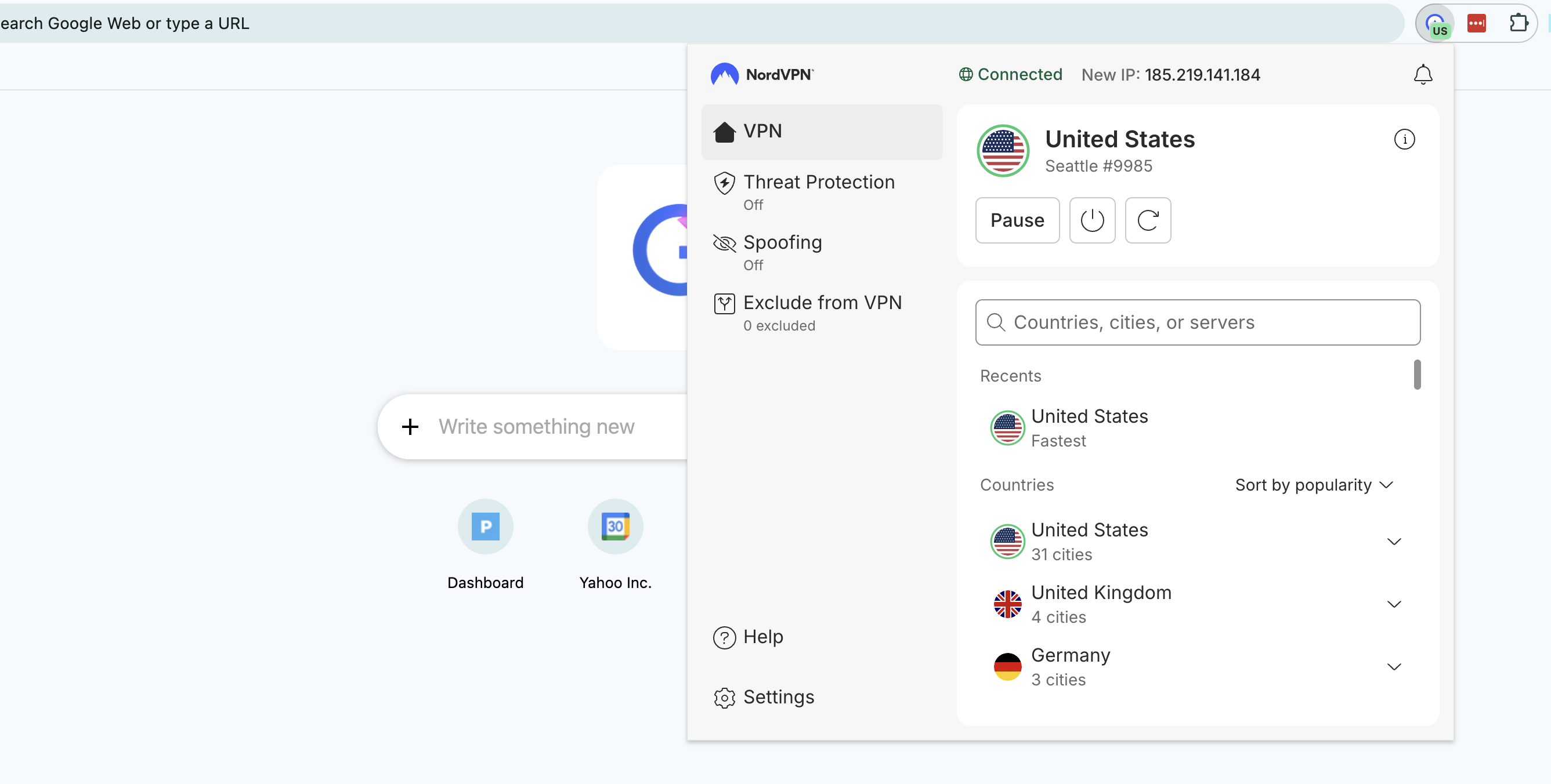
NordVPN browser extension on Chrome
Sam Chapman for Engadget
To use a VPN browser extension, just create your account as normal, then download the extension from your VPN's website. You can manage it from your browser's extensions center. That's a jigsaw piece at the top-right corner on most browsers, including Chrome, Edge and Firefox.
How to use a VPN on a smart TV
You can use a VPN to change your location and stream international content directly to a smart TV. The catch is that not all smart TV brands support VPN apps. For those that don't, you'll have to find a workaround.
The good news is that a ton of the best smart TVs can natively host VPNs, including Google TV, Android TV, Amazon Fire TV and Apple TV (though only tvOS 17 and above). To use a VPN on Android TV or Apple TV, go through the device's app store. On Fire TV, simply type the name of your chosen VPN provider into the search bar.
On smart TVs that don't have native VPN, like LG, Roku and Samsung, you have a few options. You can use a smart DNS feature like ExpressVPN's MediaStreamer to reroute smart TV traffic without full VPN encryption; the steps for this are different for every VPN, so check the provider's website. You can also install a VPN on your router (see below) so your smart TV automatically uses the router's location.
Finally, you can get a temporary fix by using your computer as a Wi-Fi hotspot while it has a VPN active. Follow the steps for your operating system.
On Windows:
In your system settings, go to "Network & Internet" and turn on the mobile hotspot.
Go to "Network & Sharing Center" and click "Change adapter settings."
Right-click the name of your VPN provider and go to "Properties," then "Sharing."
Check the boxes next to "Allow other network users to connect through this computer's internet connection" and "Allow other network users to control or disable the shared internet connection."
Click the "Home networking connection" dropdown and select "Microsoft Wi-Fi Direct Virtual Adapter."
Open your VPN client and connect to a server in your desired location.
On your smart TV, open the internet connections menu and select the name of your PC. Your TV is now online through the VPN server.
On Mac:
Open system settings and go to the "General" tab. Scroll down and click "Sharing."
Toggle "Internet Sharing" on, then click on "Configure."
Click the "Share your connection from" dropdown, then choose the VPN installed on the Mac. Under "To computers using," select "Wi-Fi."
Click on "Wi-Fi options" and enter a name and password for your hotspot network.
On your smart TV, connect to the network you just created.
How to use a VPN on a game console
Right now, there's no such thing as a game console with native VPN support. If you want to use a VPN while gaming — and I recommend that for safety if you're planning to play online — you can use two of the same methods that work for a smart TV: install a VPN on your router, or get your console online through a Mac or PC hotspot.
How to install a VPN on a router
When you install a router VPN, anything that gets online through your home network will be protected, including game consoles, TVs and smart devices that don't support VPNs natively. It's not a process for the faint of heart, though. You'll need to get a new router and potentially install VPN firmware on it yourself. If you want to go this route, the easiest option is to get an ExpressVPN Aircove router — not only does it come with all the settings done for you, but it can be managed through the same clean interface as ExpressVPN's other apps.
We don't have space here to go through the entire process, but here's a general overview. First, get a router with firmware that supports VPN configurations — most ISP default routers don't, so you'll have to go third-party.
Next, go to the downloads center of your VPN's website and look for the section with VPN configurations. A "configuration" is a complete set of the information needed to access a certain VPN server through a certain protocol — say, a Proton VPN server in Arizona through OpenVPN. Download a configuration file for the protocol and location you want all your home devices to connect through.
Finally, open your router control panel by entering your router's IP address into a web browser address bar, then log in with your router credentials (these should be marked on the router itself unless you've changed them). Go to the VPN tab — which should be there if it's a router with VPN firmware — and upload the profile you downloaded from the VPN website. Use the same router control panel to activate and deactivate the router VPN connection.
This article originally appeared on Engadget at https://www.engadget.com/cybersecurity/vpn/how-to-use-a-vpn-140000564.html?src=rss
The festive lights, time off and cute scarfs can only conceal the truth for so long: Winter can be pretty bleak. I don't mean to be a downer, but it's cold all of the time, dark most of the time and this lasts far beyond the most wonderful time of the year. Here at Engadget, we've tried so many tools and products to make winter more bearable from therapy lamps to heaters. We've invested in tea sets, wrapped ourselves in heated blankets and learned to grow herbs indoors — really, anything that will make these three-plus months more bearable, we've tried.
Here, you'll find some of the best winter tech getting us at Engadget through the coldest months, plus a number of recommendations from our other gift guides that will get anyone through the winter warm, comfortable and content.
Best winter tech and gear
This article originally appeared on Engadget at https://www.engadget.com/home/smart-home/the-best-winter-tech-for-2026-to-help-get-you-through-the-coldest-months-130009890.html?src=rss
What if the key to unlocking unparalleled efficiency in your development workflow was hiding in plain sight? Better Stack outlines how a seemingly quirky plugin, born from a bash loop and named after a lovable cartoon character, has quietly transformed into a innovative feature for developers. This isn’t just another coding gimmick, Anthropic’s Ralph plugin […]
The Lego Group is set to host its very first press conference at CES 2026 later today — but exactly what it plans to unveil is still under wraps. The iconic toy brick maker has offered no clues about what's on the agenda, leaving speculation wide open, from new video games to Formula 1 race cars.
Unlike nearly every other press event at CES today, however, Lego's event is not being livestreamed. Thankfully, Engadget is here to bridge the gap: Our own Nate Ingraham will be in the room at the Mandalay Bay in Las Vegas, liveblogging the event in real-time.
Follow Engadget's Lego CES 2026 press conference liveblog
The Lego CES press conference is scheduled for Monday, January 5 at 1PM ET (10AM PT). We have confirmed with Lego reps that this event will not be officially livestreamed, so we're sharing our real-time impressions right here. Our stream starts at noon ET, an hour before the official event.
What to expect
Thus far, Lego hasn't shared any public info about its CES plans, so we're largely in the dark as to what to expect. At CES 2025, for instance, the toy production giant partnered with Sony to announce the animated Lego Horizon Adventures online game. As such, Lego may spend some time talking up its new 2026 game, Lego Batman: Legacy of the Dark Knight. The company may also give some stage time to its Lego Group F1 Academy racing car, though that too would be more about brand building than consumer products.
While there are plenty of new Lego sets for 2026, however, this is CES, not Toy Fair. So we're assuming that the company will be showcasing something that's more tech-centric. Stay tuned.
This article originally appeared on Engadget at https://www.engadget.com/gaming/follow-the-lego-ces-2026-press-conference-live-right-here-130005940.html?src=rss
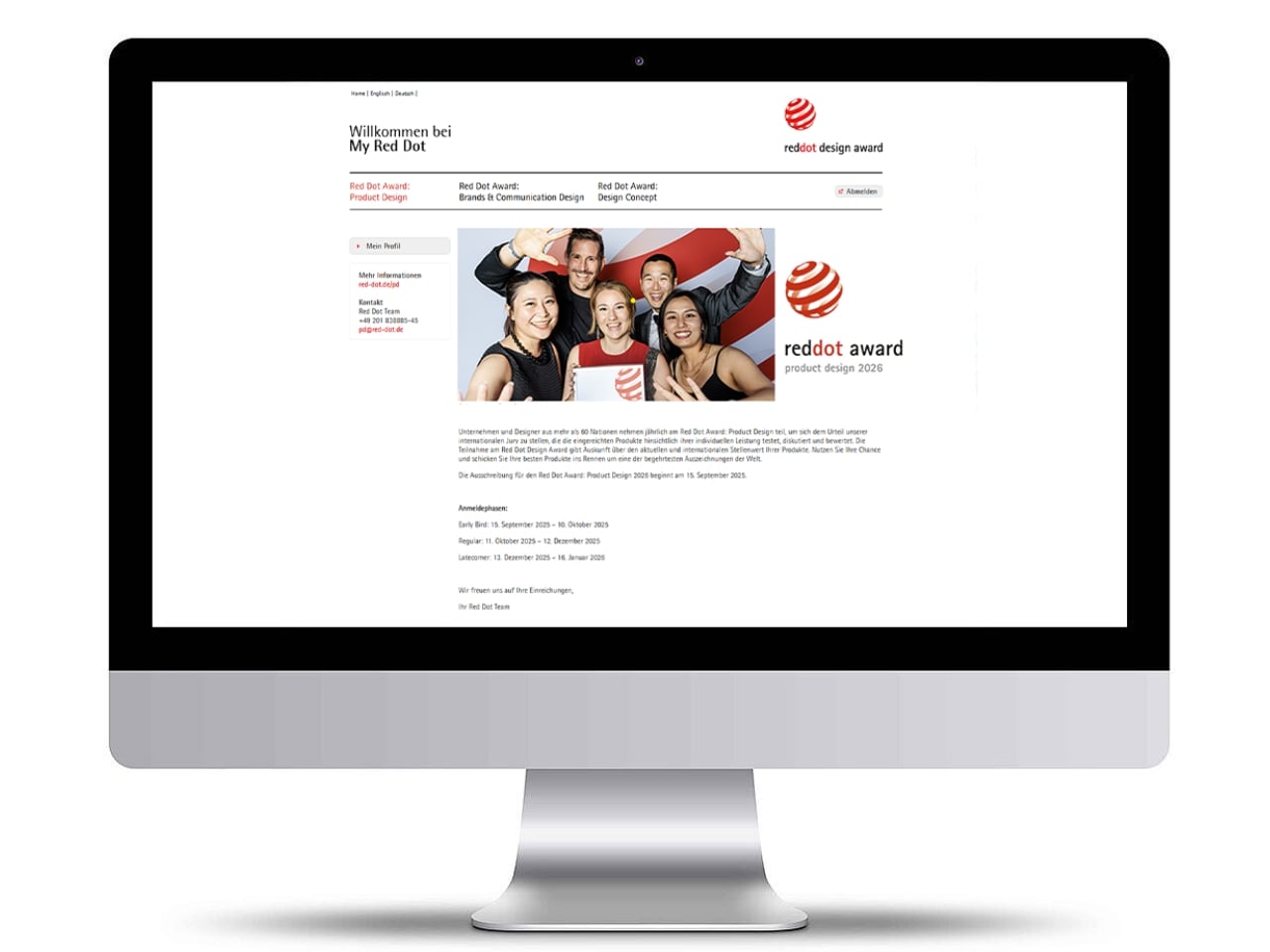
The world’s most prestigious design competition is back, and this year it’s bigger and more exciting than ever. Starting September 15, 2025, the Red Dot Award: Product Design 2026 has officially opens its doors to designers, manufacturers, and innovators worldwide who are ready to showcase their exceptional creations on the global stage.
For over 70 years, the Red Dot Award has been the ultimate benchmark for design excellence, celebrating products that push boundaries and redefine what’s possible. This year’s competition promises to be particularly thrilling, with exciting new developments that reflect our rapidly evolving design landscape.
What’s New for 2026: Gaming & Streaming Takes Center Stage
Perhaps the most exciting addition to this year’s competition is the brand-new Gaming & Streaming category. Recognizing the explosive growth of this industry that now reaches millions worldwide, Red Dot is giving these innovative products the dedicated recognition they deserve. From cutting-edge gaming peripherals to revolutionary streaming equipment, this category acknowledges that gaming and streaming have become key drivers of product innovation in our digital age.
Whether you’ve designed the next game-changing controller, a revolutionary streaming setup, or an immersive VR headset, this new category provides the perfect platform to showcase your work to an international audience of design professionals and enthusiasts.
Drawing Inspiration from Excellence: Here’s our Top 5 picks of 2025
Participation in the Red Dot Award holds significant value for designers seeking to elevate their careers and expand their influence in the design community. Winning this internationally recognized award makes creative skills visible to a global audience, as award-winning products are presented across multiple prestigious platforms including the Red Dot Design Museum Essen, worldwide exhibitions, the Red Dot Design Yearbook, and extensive online and social media channels.
For emerging designers, the recognition can be transformative – supporting product launches, opening doors to new opportunities, and expanding professional networks within the international design industry. The comprehensive visibility and credibility that comes with a Red Dot Award provides designers with a powerful tool to distinguish their work in an increasingly competitive market, while affirming their commitment to excellence in design innovation and quality. To understand what makes a Red Dot winner, let’s look at the ingenious designs that captured hearts and minds in 2025.
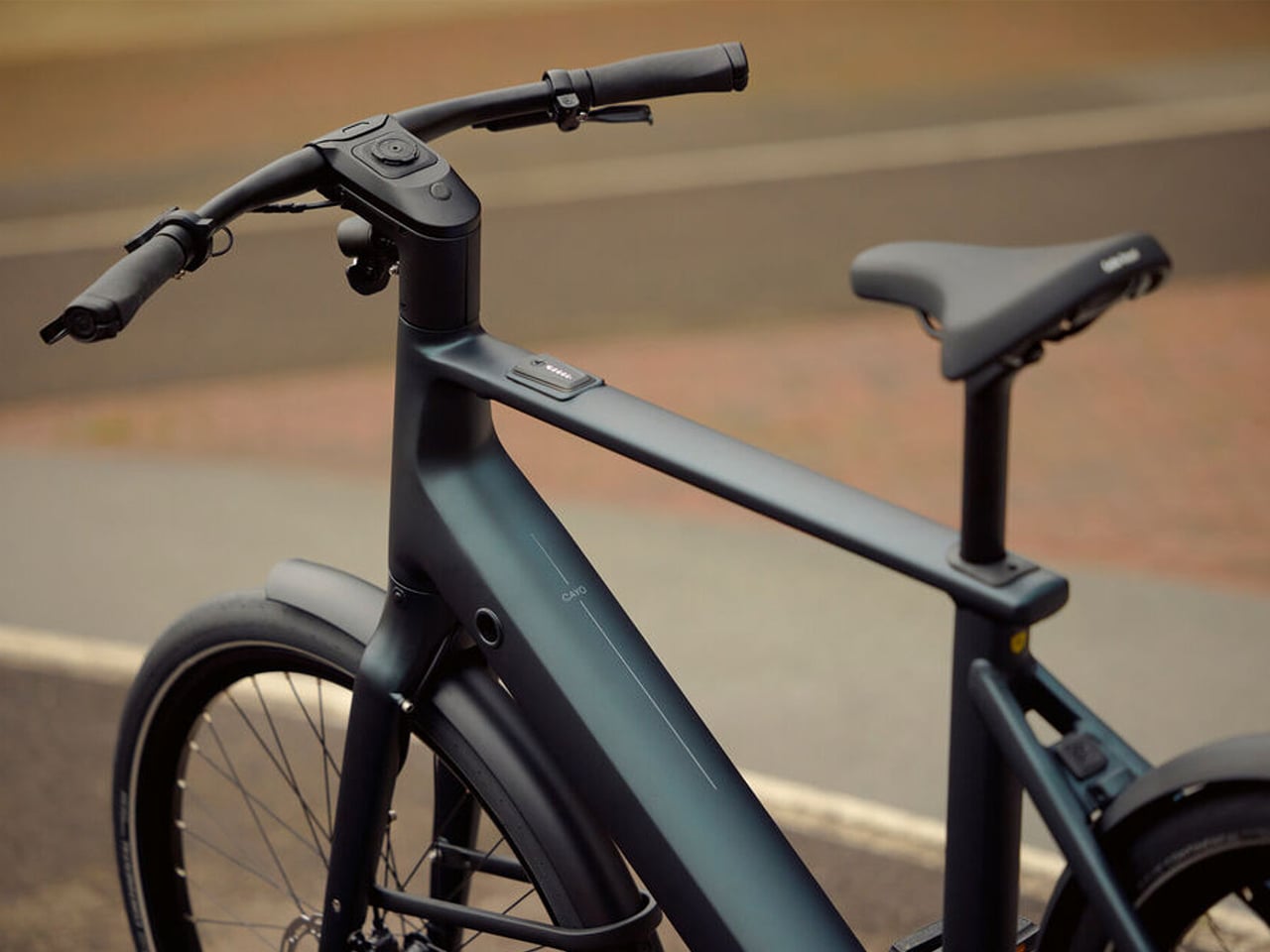
Cayo by Koninklijke Gazelle
This Dutch e-bike combines minimalist aesthetics with advanced technical innovation, seamlessly integrating all components into a clean, timeless design characterized by clearly defined lines and the absence of superfluous elements. The Cayo bridges traditional cycling culture with the future of urban mobility, proving that everyday transportation on two wheels can embody both urban elegance and cutting-edge technology.
Paper Stick by YONWOO
This revolutionary sustainable packaging solution for stick-form cosmetics eliminates plastic entirely by using moisture-resistant mineral paper made from quarry stone waste that users simply peel off in a spiral motion. The innovative design achieves clean tear-off edges through precision die-cutting while offering manufacturers extensive branding opportunities through customizable printing, hot foil stamping, and various paper types for different tactile experiences.
nwm ONE by NTT sonority, 83Design Inc.
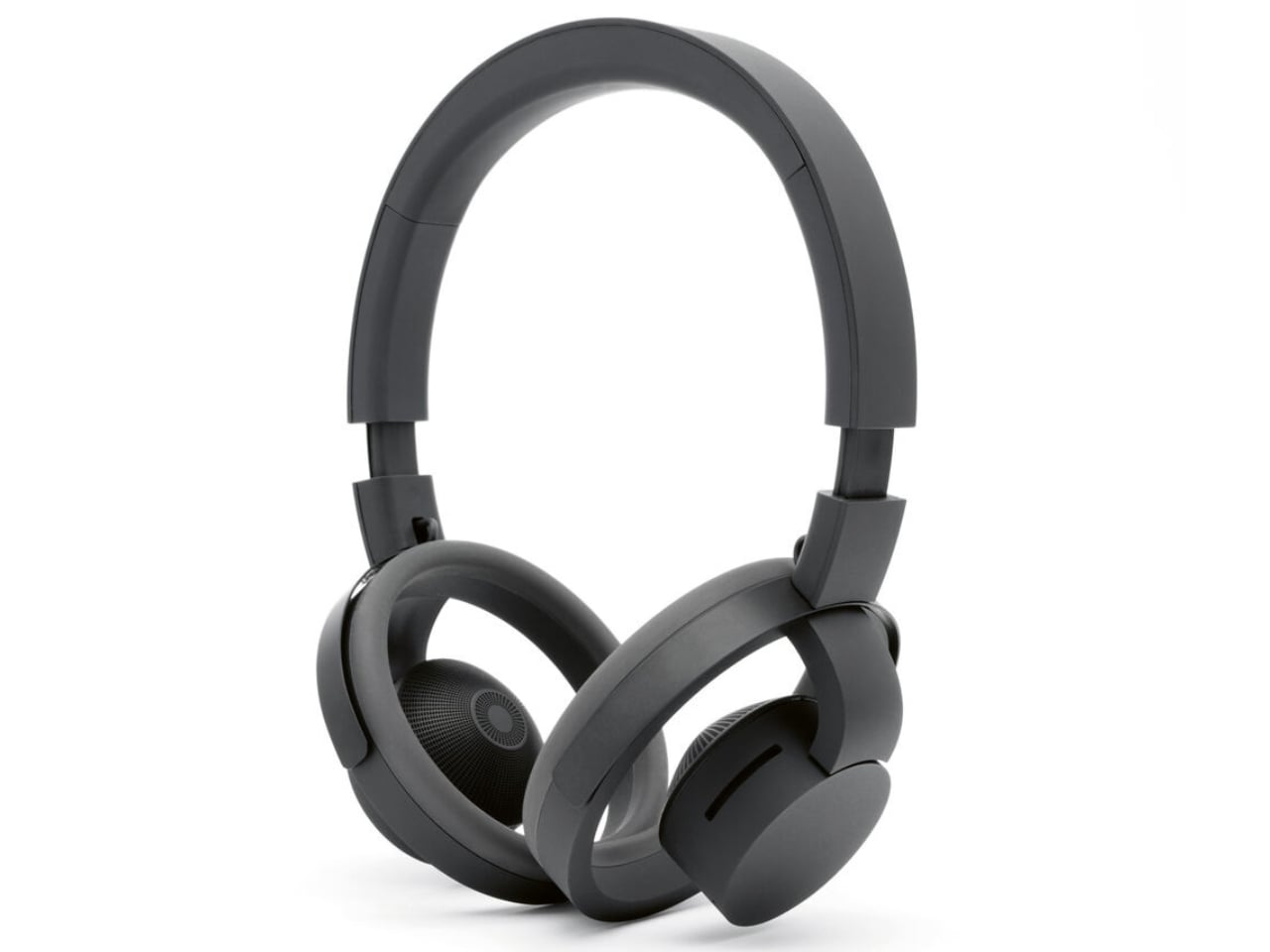
These groundbreaking open-ear headphones strip away traditional cushions and sealing, instead floating around the ears while using proprietary PSZ (Personalised Sound Zone) technology with inverse phase waves to prevent sound leakage. The minimal ring-shaped design features pivoting speaker units that deliver optimized audio directly into the ear canal without physical contact, creating an invisible bubble of sound that only the wearer can hear while staying fully aware of their surroundings.
iA Notebook by Information Architects Inc.
Originally designed as a gift for customers of their text and presentation software, this meticulously crafted notebook employs a lay-flat binding that allows writers to use entire double-page spreads without binding interference. Packaged in a wooden box with an embossed sleeve cover, every detail expresses appreciation for the written word through simple elegance and exceptional craftsmanship that required iterative prototyping to perfect.
VITILITY ID Walking Cane by MIXED.Industries BV
This mobility aid makes a conscious statement against the stigma of aging and physical limitations by combining clear, elegant design with functional excellence that proves good design can change social perceptions. The walking cane allows users who depend on mobility assistance to feel independent and style-conscious, transforming a traditionally stigmatized object into a character-defining accessory.
The Evaluation Process: Where Excellence Meets Expertise
Your submitted products will face scrutiny from approximately 40 international experts representing diverse fields and perspectives. This distinguished jury follows the evaluation philosophy established by Professor Dr. Peter Zec, Red Dot’s Founder and CEO, assessing each entry based on function, aesthetics, ease of use, and responsibility.
The jury awards two levels of distinction: the coveted “Red Dot” award and the prestigious “Red Dot: Best of the Best” for truly exceptional designs that set new standards in their categories.
Important Dates to Remember
Registration Period: September 15, 2025 to January 16, 2026
Jury Evaluation: Spring 2026
Award Ceremony: July 7, 2026
Your Path to Global Recognition
Winners don’t just receive an award. They gain access to a comprehensive platform for showcasing their achievements. Award-winning products are featured in the Red Dot Design Museum Essen, international exhibitions, the prestigious Red Dot Design Yearbook, and across digital platforms reaching design enthusiasts worldwide.
The celebration culminates at the glamorous Red Dot Gala on July 7, 2026, in Essen, where winners are honored before an international audience. For those unable to attend in person, the event will be livestreamed globally, ensuring maximum exposure for your innovative designs.
Ready to join the ranks of design excellence? Visit www.red-dot.org/pd to submit your groundbreaking products and compete for one of the most respected accolades in the design world. The Red Dot Award: Product Design 2026 isn’t just a competition. It’s your gateway to global recognition and design immortality.
Samsung is preparing to expand its foldable smartphone lineup in 2026 with the highly anticipated launch of the Galaxy Z Fold 8 series. This lineup will include two distinct models: the Galaxy Z Fold 8 and the Galaxy Z Fold 8 Wide. The latter introduces a passport-style design with a 4:3 aspect ratio, signaling a […]
Here are some of this year's biggest, most star-studded TV specials you can watch to help you ring in 2026. (CHARLY TRIBALLEAU / AFP via Getty Images)
CHARLY TRIBALLEAU via Getty Images
This year, it seems like there are more ways than ever to celebrate New Year's Eve... from the comfort of your couch, that is. Whether you want to catch the enduring Dick Clark's New Year's Rockin' Eve hosted by Ryan Seacrest and filmed live out of Times Square in New York City, or check out of one the many other live specials filled with music performances, comedy and celebrity guests, you've got options.
Thursday night's TV schedule also includes New Year's Eve Live: Nashville's Big Bash, a star-studded celebration of country music featuring five hours of performances from some of Nashville's most beloved stars, airing on CBS and Paramount+, plus CNN’s New Year’s Eve Live with Anderson Cooper and Andy Cohen, and a livestream of the Times Square ball drop, too.
Here's everything you need to know about some of this year's biggest New Year's Eve TV specials, including channels, streaming info, and more.
How to watch New Year's Eve Live: Nashville's Big Bash
Date: Wednesday, Dec. 31, 2025
Time: 8 p.m.-1:30 a.m. ET
Channel: CBS
Streaming: Paramount+, DirecTV + more
What time is New Year's Eve Live: Nashville's Big Bash on?
New Year's Eve Live: Nashville's Big Bash starts at 8:00 p.m. ET. The event will be broadcast live in two segments, from 8:00-10:00 p.m. ET/PT and 10:30 p.m.-1:30 a.m. ET/PT on CBS streaming on Paramount+.
Who is appearing at New Year's Eve Live: Nashville's Big Bash?
Nashville's Big Bash includes performances from, headliners Jason Aldean, Lainey Wilson and Bailey Zimmerman, and special guests CeCe Winans and the Fisk Jubilee Singers who will all perform live from Nashville's Bicentennial Park. Additionally, the five-hour special will feature performances by Dierks Bentley, Brooks & Dunn, Rascal Flatts, Riley Green, Marcus King, Megan Moroney, Zach Top, Keith Urban, Gretchen Wilson and Stephen Wilson Jr. from various venues across the city. The night will be hosted by comedian Bert Kreischer and country star HARDY, who will also perform. You can also expect additional appearances throughout the night by comedian Dusty Slay, TV host Cassie DiLaura, Sirius XM host Buzz Brainard and UFC champion Kayla Harrison.
How to watch Dick Clark's New Year's Rockin' Eve
Date: Wednesday, Dec. 31, 2025
Time: 8 p.m.- 4 a.m. ET
Channel: ABC
Streaming: Hulu + Live TV, DirecTV + more
What time is Dick Clark's New Year's Rockin' Eve?
Dick Clark's New Year's Rockin' Eve hosted by Ryan Seacrest begins at 8 p.m. ET and runs all the way until 4 a.m. ET, marking its longest New Year's Eve broadcast ever. You can tune in live on ABC, or stream it on DirecTV, Hulu + Live TV, Fubo and more.
Who is appearing at Dick Clark's New Year's Rockin' Eve?
This year's New Year's Eve celebration won't just be taking place in Times Square, the show will span multiple time zones, including hosts and performers stationed in Las Vegas, Chicago, Puerto Rico and beyond. In Chicago, Chance the Rapper is co-hosting the broadcast to help welcome in the new year from the Midwest and lead the live Central Time Zone countdown. Rob Gronkowski and Julianne Hough will be co-hosting the Las Vegas broadcast, and in New York, Ryan Seacrest will be joined by co-host Rita Ora.
The 2026 NYRE broadcast will feature 42 superstar performers across New York, Las Vegas, Chicago, Puerto Rico and beyond. Diana Ross will headline the evening with a midnight performance.
Ciara, LE SSERAFIM, Little Big Town, and Maren Morris will perform in Times Square. On the West Coast, there will be performances from 4 Non Blondes, 50 Cent, 6lack, AJR, The All-American Rejects, BigXthaPlug, Charlie Puth, Demi Lovato, DJ Cassidy’s Pass the Mic Live! featuring Busta Rhymes, T.I., and Wyclef Jean, Goo Goo Dolls, Jess Glynne, Jessie Murph, Jordan Davis, KPop Demon Hunters: The Singing Voices of HUNTR/X (EJAE, Audrey Nuna, and REI AMI), Leon Thomas, Mariah Carey, Madison Beer, New Kids on the Block, OneRepublic, Pitbull joined by Lil Jon and Filmore, Rick Springfield, Russell Dickerson, Tucker Wetmore, and Zara Larsson. Daddy Yankee will perform from Puerto Rico, Chappell Roan will perform from Kansas City and Post Malone will play from Nashville.
How to watch CNN’s New Year’s Eve Live with Anderson Cooper and Andy Cohen
Date: Wednesday, Dec. 31, 2025
Time: 8 p.m. ET
Channel: ABC
Streaming: Hulu + Live TV, DirecTV + more
Who is appearing on CNN's New Year's Eve Live with Anderson Cooper and Andy Cohen?
CNN's New Year's Eve special will feature performances by Robyn, performing live from Times Square, Shakira performing from Hard Rock Live at Seminole Hard Rock Hotel & Casino in Hollywood, FL, Brandy and Monica from The Boy Is Mine Tour presented by BPC, Bryan Adams from Madison Square Garden, Florence + The Machine, RAYE, mentalist Oz Perlman, plus appearances from Amy Sedaris, Brandi Carlile, Aloe Blacc, Patti LaBelle, singer Michelle Williams, Rebecca Romijn and Jerry O’Connell, comedians B.J. Novak, Leanne Morgan, Sarah Sherman, Stephen Colbert and more.
NYC Times Square Ball Drop New Year’s Eve free livestream:
There will be a free livestream of the Ball Drop on Timessquarenyc.org, offering commercial-free, webcast coverage of the Times Square festivities leading up to the Ball Drop at midnight. There will also be a livestream with open captions and American Sign Language (ASL) interpretation available on YouTube. Both livestreams begin at 6 p.m. ET.
More ways to watch this year's New Year's Eve specials
This article originally appeared on Engadget at https://www.engadget.com/entertainment/streaming/from-dick-clarks-new-years-rockin-eve-to-nashvilles-big-bash-heres-how-to-watch-this-years-biggest-new-years-eve-tv-specials-120016871.html?src=rss
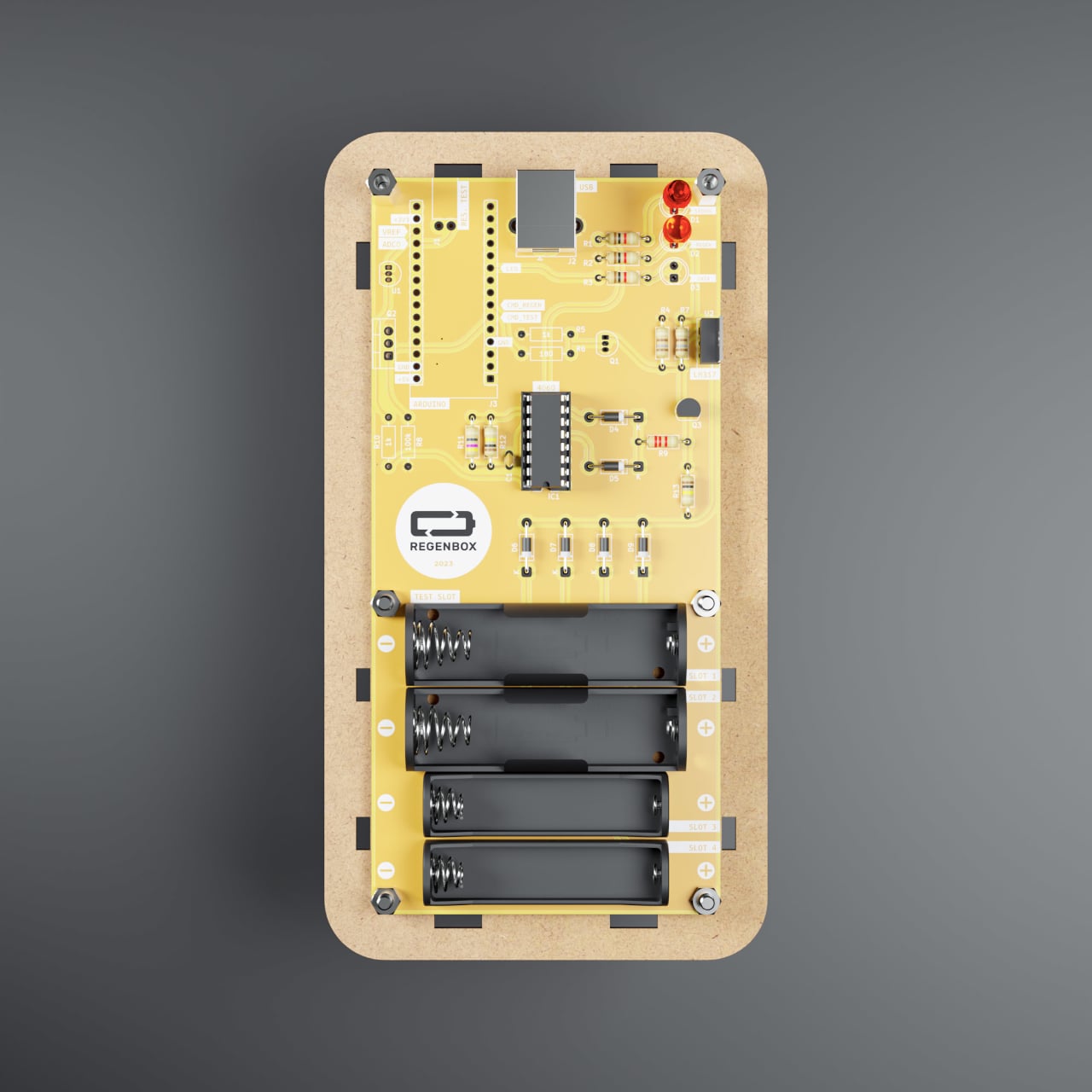
Most homes accumulate a drawer full of dead AA and AAA batteries, and the uneasy feeling of tossing heavy little cylinders into recycling or the trash. Alkaline cells are marketed as single-use, even though the chemistry can often be coaxed back to life with the right kind of intervention. RegenBox 1 is a small, hands-on challenge to that throwaway logic, turning battery regeneration into a bench-top ritual that requires patience, measurement, and a soldering iron.
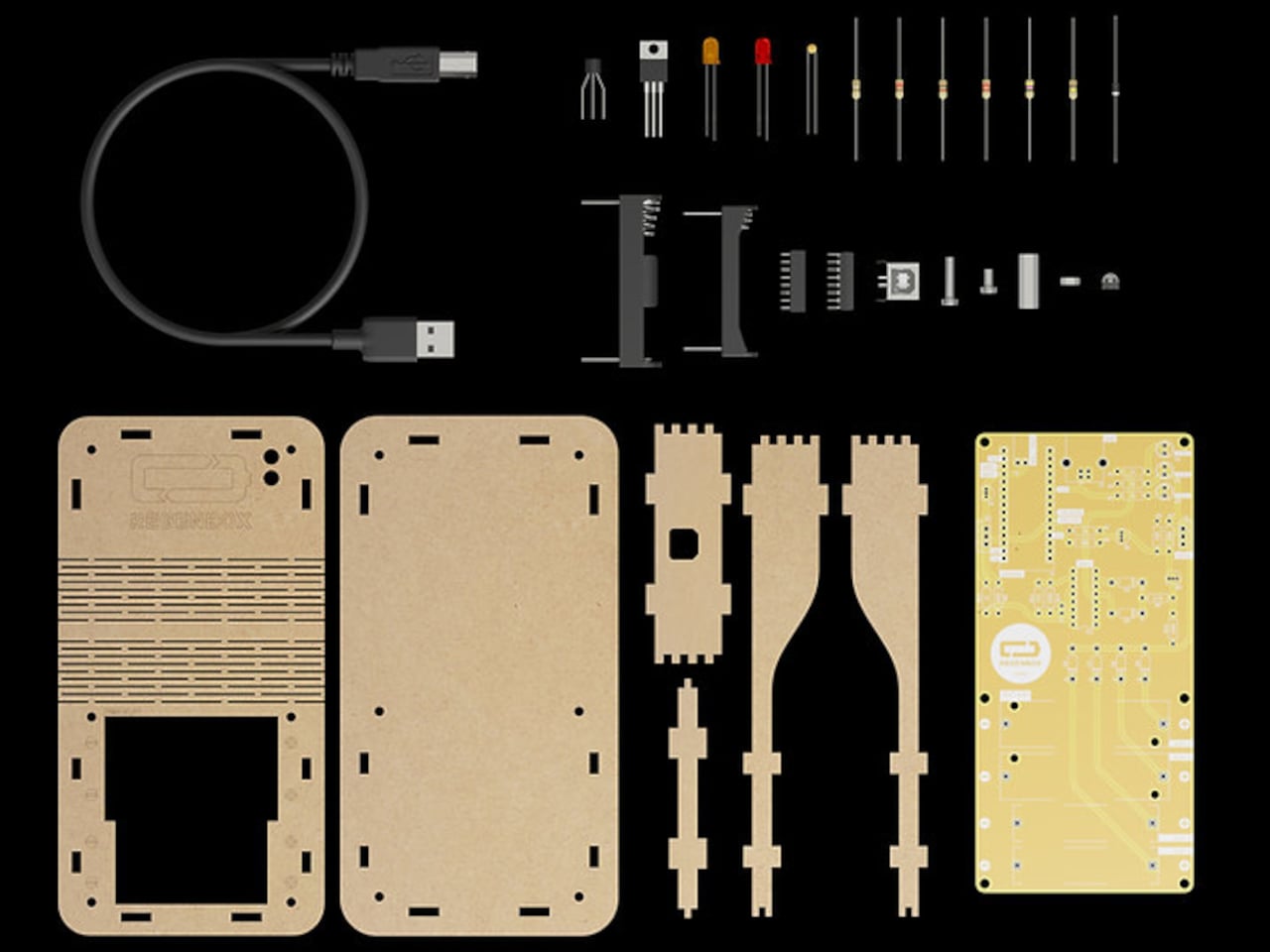
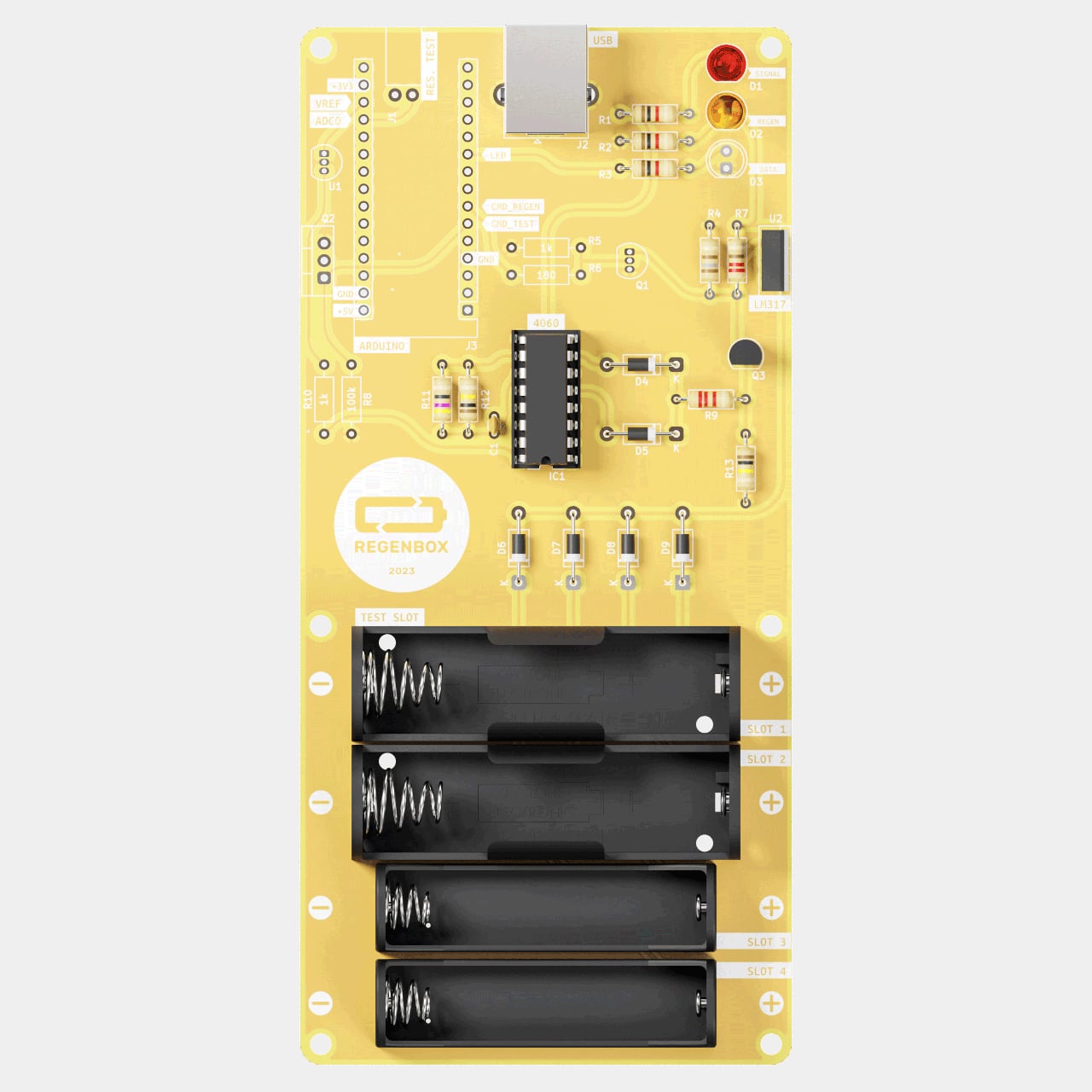
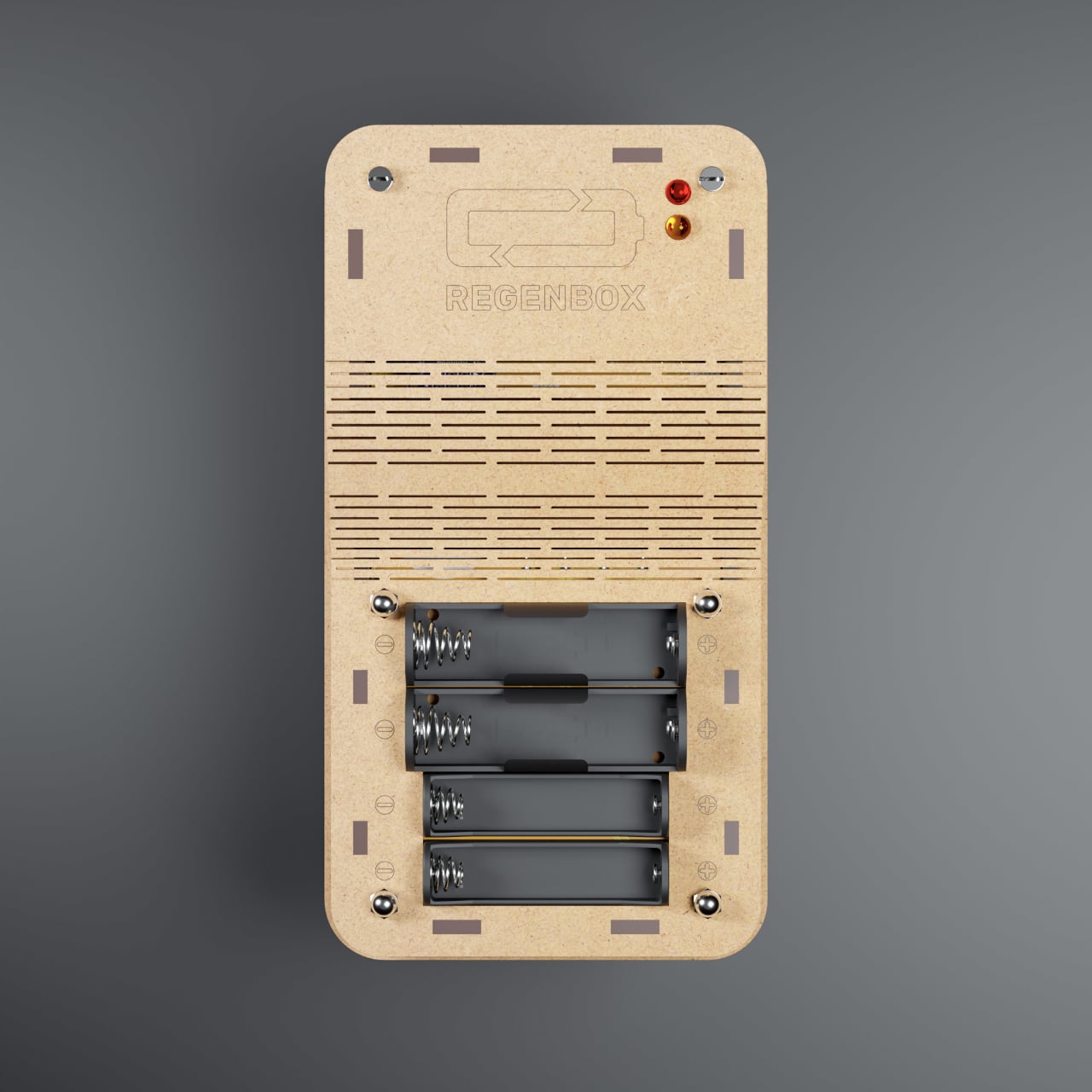
RegenBox 1 is a kit that arrives as a flat collection of components, a printed circuit board, electronic parts, and laser-cut wooden panels. Once assembled, it becomes a USB-powered regenerator for AA and AAA alkaline batteries, designed for electronics hobbyists rather than casual users. The wooden case and visible PCB make it feel more like a lab instrument or workshop project than a sealed plastic charger, and building it yourself is half the point.
Assembly requires a soldering iron and solder, a voltmeter, flat-nose pliers, wire cutters, and a small screwdriver, plus some electronics confidence. The kit supplies the PCB, resistors, diodes, LEDs, IC, battery holders, USB cable, and the wooden enclosure. You are not just buying a gadget, you are learning how it works as you put it together, turning the components into a functional regenerator that can sit on your desk or workbench for years.
Using it starts with testing each alkaline cell with a voltmeter. Below 0.9 V goes to recycling, 0.9 V to 1.35 V is a candidate for regeneration, and 1.35 V to 1.5 V is already reusable. Once cells are slotted in and the USB 5 V input is connected, the circuit feeds very low current for 8 to 24 hours, slowly reversing part of the discharge without stressing the casing or causing leaks.
The boundaries are strict, alkaline only, no lithium, no damaged or leaking cells, correct polarity, and room-temperature use. The red and orange LEDs indicate current flow and help with diagnostics, but the real discipline is in measuring voltages before and after, and respecting the chemistry. It is not a fast charger; it is a patient tool that trades speed for safety and extended second lives.
Getting one or more extra cycles out of batteries that would otherwise be discarded adds up across a household or community. The open, repairable design invites modification and learning, turning energy use into something you can see and tweak. RegenBox 1 becomes a quiet protest against sealed, opaque devices, and a small workshop ally for anyone trying to reduce waste while gaining control over the objects they depend on.
RegenBox 1 changes the way you look at dead alkalines. Instead of being the end of the story, they become candidates for triage, measurement, and careful regeneration. The wooden box on the bench is a reminder that design can intervene not just at the point of purchase, but at the moment we usually give up on an object, asking whether it really needs to be thrown away yet or if a slow, gentle charge might bring it back for another round.
What if you could build an AI chatbot that’s not only blazing fast but also works entirely offline, no cloud, no internet, just pure local processing power? Below, Jdaie Lin breaks down how he achieved exactly that using a Raspberry Pi 5, the RLM AA50 accelerator card, and some clever optimization techniques. Imagine a compact […]