The rapid expansion of IoT technologies has created an urgent need for businesses in sectors like industrial manufacturing, energy management, supply chain, and logistics to efficiently manage devices, scale infrastructure, and process vast amounts of data. Yet, implementing IoT solutions often proves challenging due to long development cycles, complex integrations, and high costs. Companies are […]
I can still remember the time when Samsung was all but ridiculed for launching the 12.2-inch Galaxy Note Pro in 2014, but who would have known that it was just too ahead of its time? Fast forward a decade later, even Apple has a 13-inch iPad Pro, and unsurprisingly, Samsung won’t be outdone. Of course, there might be a limit to what can still be considered a portable tablet, but those lines are being blurred now that “Pro” tablets are being positioned as laptop replacement. And just like many Windows laptops today boast Microsoft Copilot features, Samsung is bringing the full power of its Galaxy AI to its largest mobile screens.
Designer: Samsung
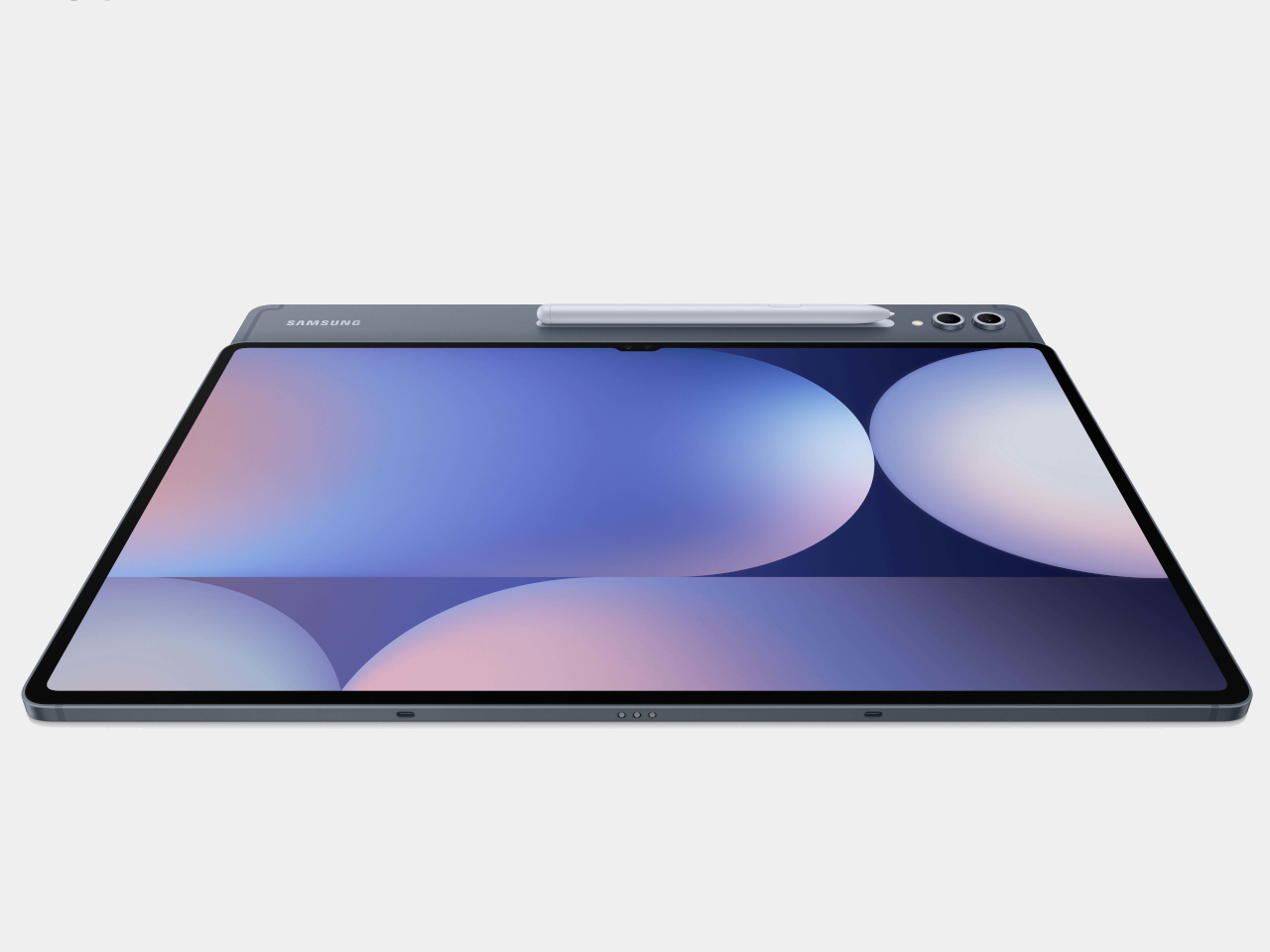
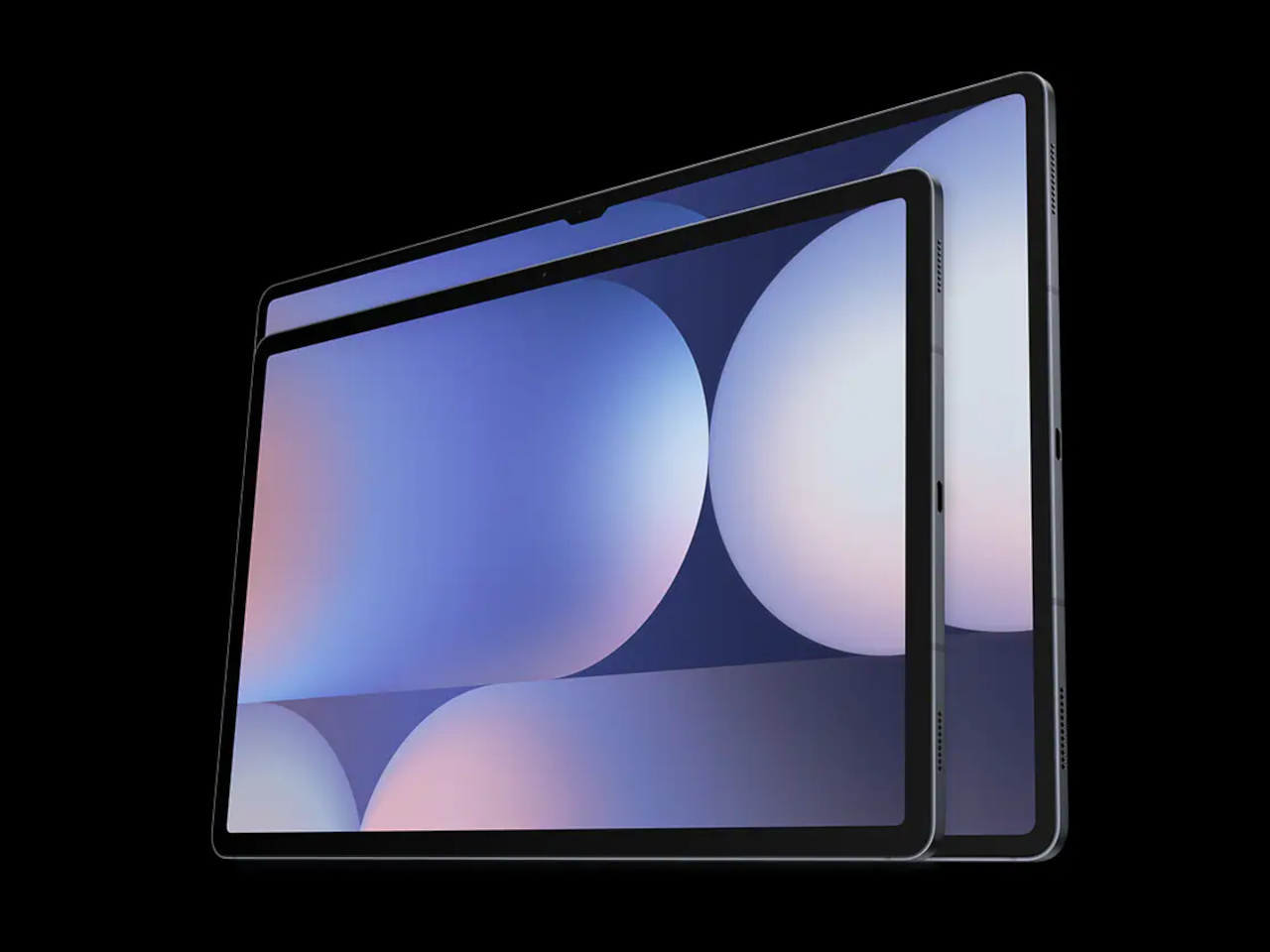
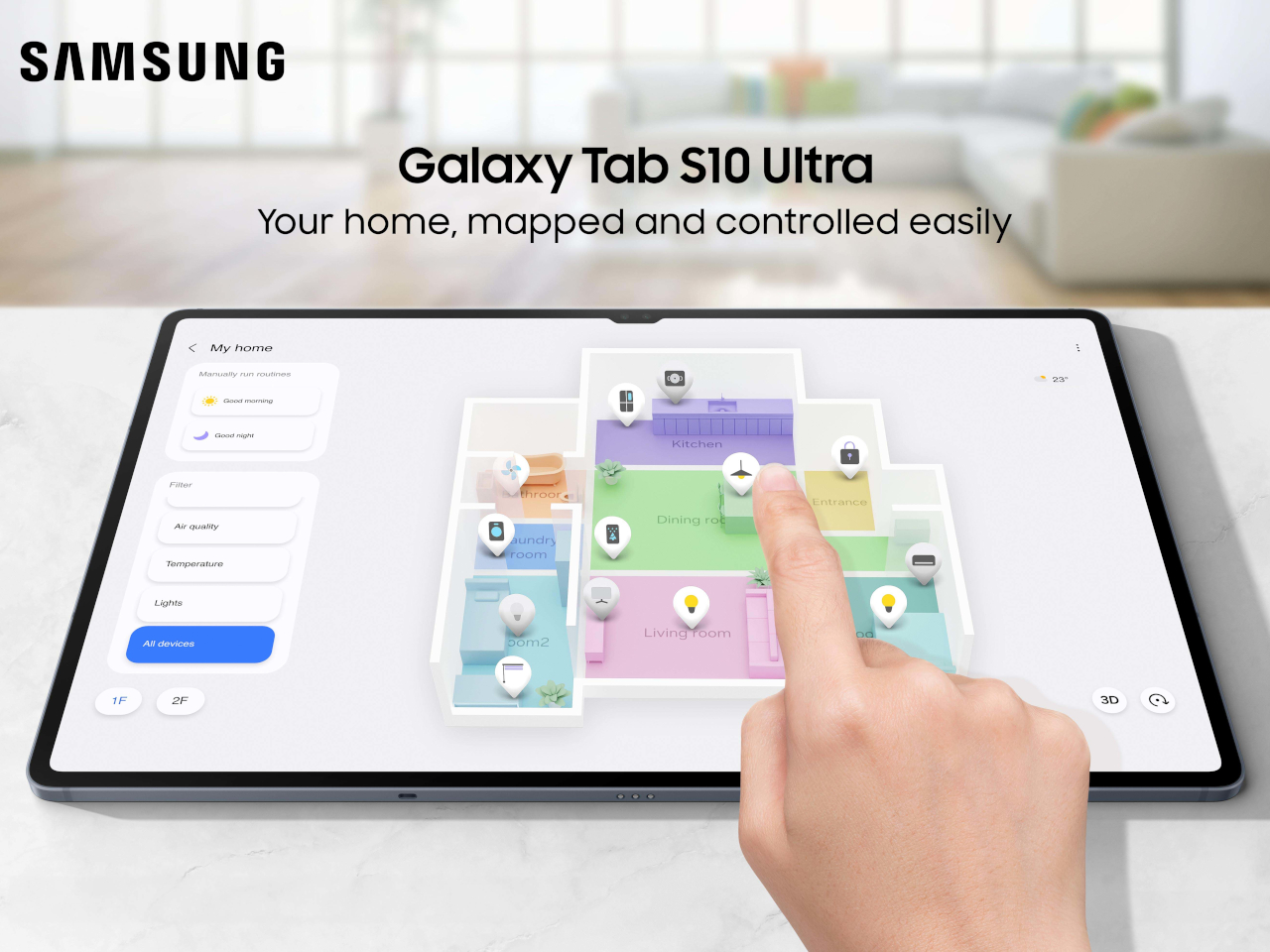
With a 14.6-inch screen, the Galaxy Tab S10 Ultra might be stretching the definition of a tablet, but it’s undoubtedly a very portable size for a detachable laptop and a digital drawing pad. Of course, Samsung has been marketing its Tab S series as a tablet for pros, but this time it’s adding a new element to the mix to make that even more plausible. Its putting AI, its own Galaxy AI, of course, front, center, and across the full width of that large screen, promising to upgrade your productivity as you upgrade your hardware.
In terms of design, the Galaxy Tab S10 Ultra is a dead ringer for last year’s Samsung flagship tablet, which means you’re still getting a simple and no-nonsense design. Mirroring the aesthetics of its current Galaxy S smartphones, it has flat edges, a flat back, and two separate rings for the 13MP and 8MP cameras. There’s still that magnetic charging groove across the back for the included S Pen, making sure you don’t lose the all-important accessory too easily.
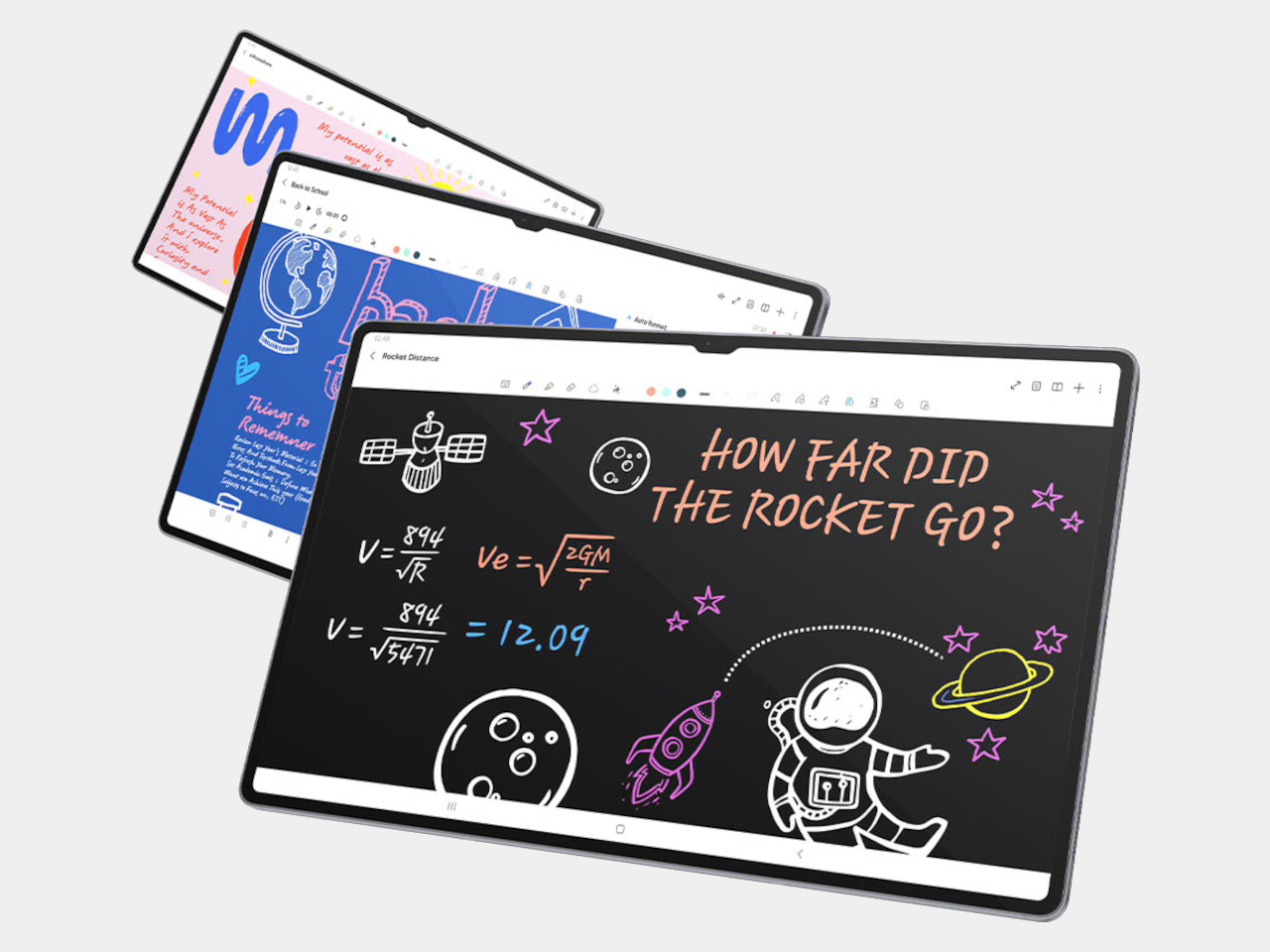
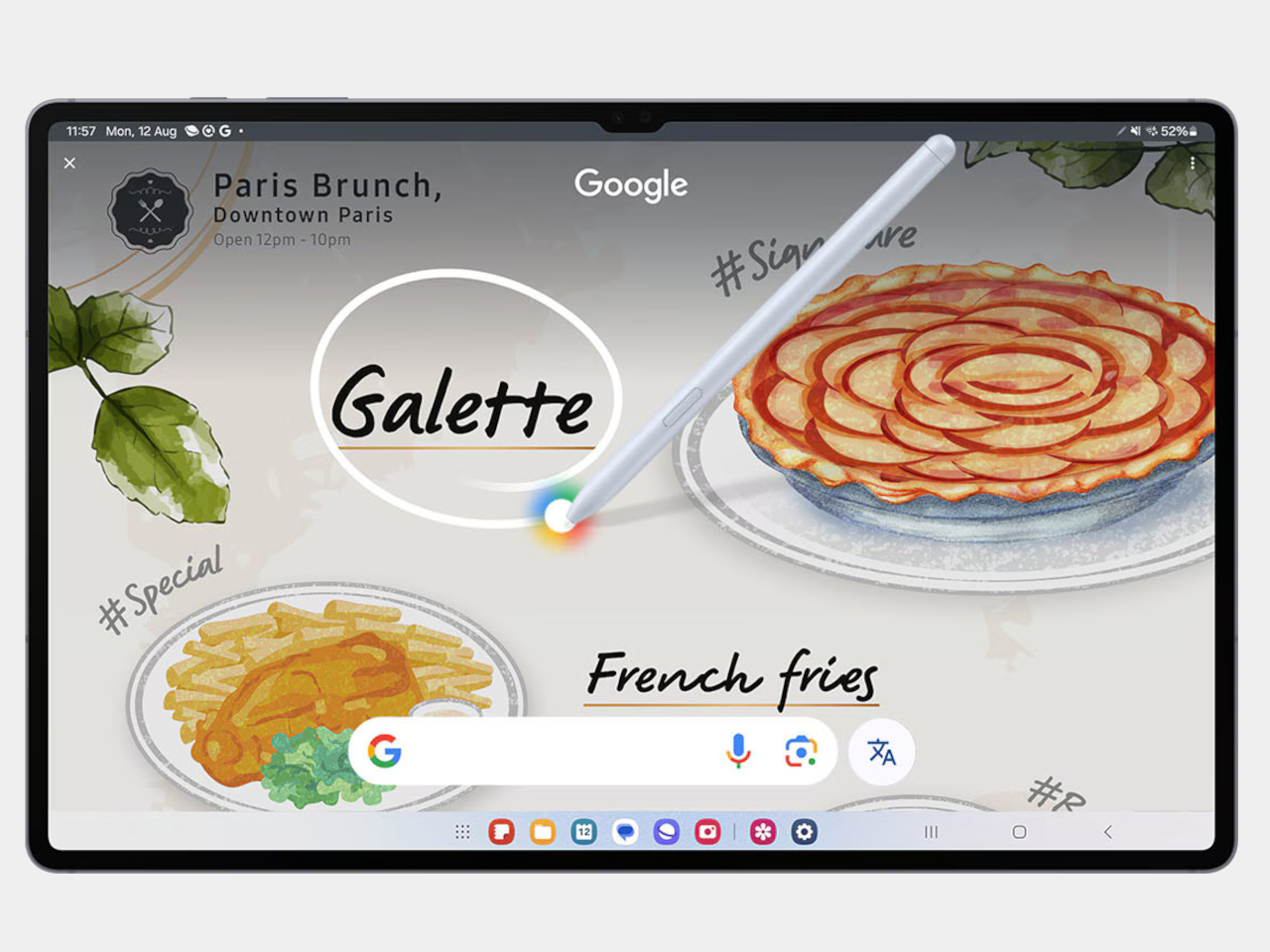
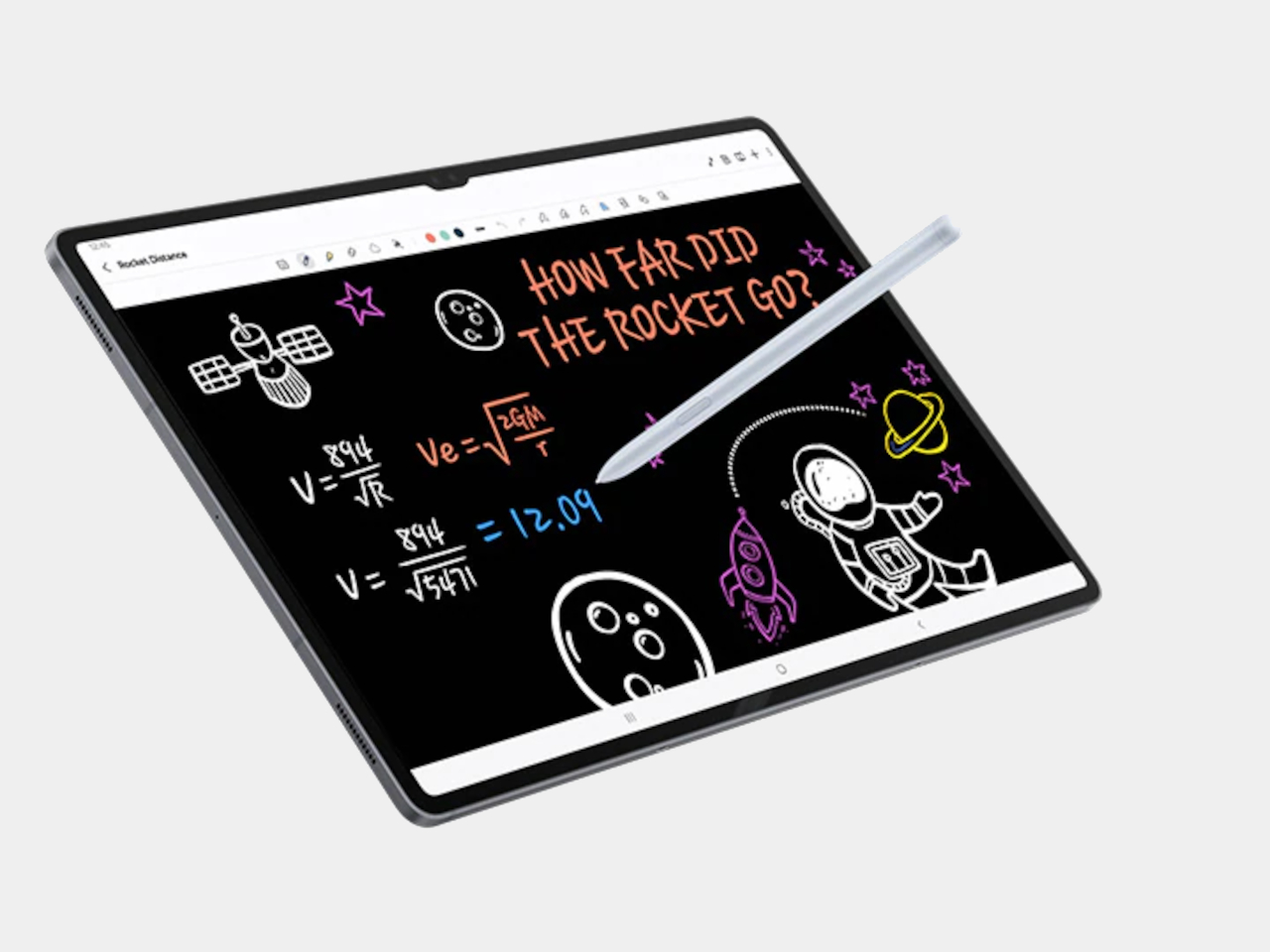
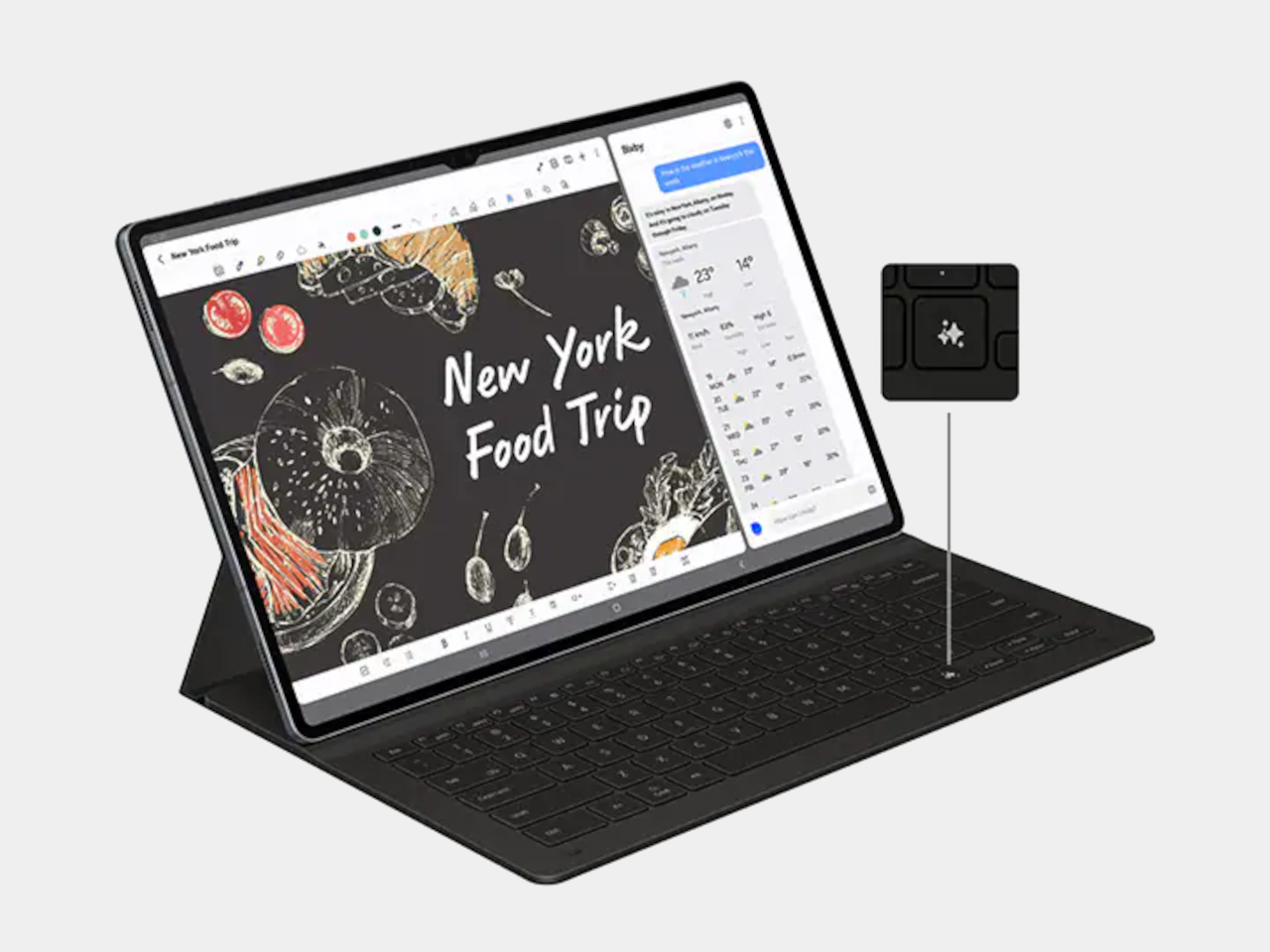
Samsung is making a lot of noise about the AI features on the tablet, all of them geared for productivity and creativity. Note Assist and Handwriting Help make it easier to make sense of notes, while Sketch to Image lets your artistic spirit free. There’s also Google’s now famous Circle to Search gesture, and the official Book Cover Keyboard naturally has a dedicated Galaxy AI Key to launch your AI assistant of choice, whether it’s Samsung Bixby or Galaxy Gemini.
In terms of specs, Samsung naturally crammed the best of mobile hardware inside, except for one curious but critical compoment. Samsung opted to use a MediaTek Dimensity 9300+ processor instead of the usual Qualcomm Snapdragon, and some might have doubts about whether it can handle heavy AI loads, among other tasks. Regardless, the 120Hz Dynamic AMOLED 2X screen, 12GB of RAM, and 11,200mAh battery all come together for a premium experience. The Galaxy Tab S10 Ultra starts at a rather eye-watering $1,200, but those who prefer slightly smaller screens can opt for the 12.2-inch Galaxy Tab S10+ with a matching $1,000 price tag. Sadly, no smaller Galaxy Tab S10 model this year.
Google has made a significant stride in the foldable phone market with the release of the Pixel 9 Pro Fold. This latest iteration showcases notable improvements over its predecessor, addressing many of the shortcomings while introducing a range of enhanced features. The Pixel 9 Pro Fold offers a refined design, improved display technology, and solid […]
With macOS Sequoia and iOS 18, Apple has a handy new way to hop between devices while on desktop. iPhone Mirroring shows your phone’s screen on your computer; you can even use your mouse and keyboard to interact with it. Here’s how to set up and get the most out of iPhone Mirroring.
Requirements
First, iPhone Mirroring has several conditions. It only works with Apple Silicon Macs (late 2020 and later) or Intel-based models with the Apple T2 Security Chip (2018 to 2020). Of course, you’ll need to install macOS Sequoia first to use the feature. Any iPhone running iOS 18 will do.
The feature only works when your iPhone is locked (it’s okay if it’s charging or using Standby). If you unlock your iPhone while using iPhone Mirroring, the feature will temporarily disconnect.
Both devices also need Wi-Fi and Bluetooth turned on, and you’ll have to sign with your Apple Account on each. Your account needs two-factor authentication (using a trusted device or phone number) activated. The feature won’t work if your phone’s Personal Hotspot is active or you’re using AirPlay, Sidecar or internet sharing on your Mac.
How to set up iPhone Mirroring
Screenshot by Will Shanklin for Engadget
Open the iPhone Mirroring app on your Mac. It should already be in your Dock (see the screenshot above), but you can also find it in your Applications folder.
The app starts with a welcome screen. Tap “Continue,” then follow the prompt to unlock your iPhone.
Next, approve iPhone notifications on your Mac. This feature shows your handset’s alerts in your Mac’s Notification Center. (When you click an iOS alert on your Mac, it will open the corresponding app in the iPhone Mirroring app.) iPhone notifications on your Mac work even when the iPhone Mirroring app is closed or inactive, or if your phone isn’t nearby.
After approving notifications, a final screen will confirm that iPhone Mirroring is ready. Click the “Get Started” button to start. Once it loads, you’ll see your iPhone’s screen.
Using iPhone Mirroring
First, you may want to resize the iPhone Mirroring app. Apple only gives you three options: actual size, smaller and larger. You can change them using keyboard shortcuts: larger (Cmd +), actual size (Cmd 0) and smaller (Cmd -). You can also resize the window in your Mac’s menu bar under the View section. Dragging the edges of the window to resize it (like with other macOS apps) won’t work here.
In most cases, interacting with your virtual iPhone on your Mac is as simple as mimicking its usual touch gestures with your trackpad and typing in text fields using your Mac’s keyboard.
Screenshot by Will Shanklin for Engadget
Swipe-based gestures for Home, App Switcher and Control Center won’t work on Mac, but they have shortcuts. If you move your pointer to the top of the iPhone Mirroring window, a new area will appear, revealing buttons for the iOS Home Screen (left) and the App Switcher (right). (See the screenshot above.) This area also lets you click-hold and drag the app to reposition it.
You can also go to the Home Screen by clicking on the horizontal bar at the bottom of the app’s window or using the Cmd 1 keyboard shortcut. In addition, Cmd 2 activates the App Switcher, and Cmd 3 triggers a Spotlight search. Or, swipe down with two fingers on your Mac’s trackpad from the iPhone Home Screen (in the Mac app) for Spotlight.
There’s no way to activate the iOS Control Center from your Mac. You also can’t manually change the orientation of the virtual iPhone screen, but it will rotate automatically if you launch a game that starts by default in landscape mode:
Screenshot by Will Shanklin for Engadget
iPhone audio will play on your Mac while using the feature. Some iPhone videos will play in the iPhone Mirroring window, too. However, copyrighted content will be restricted in some cases, so some videos will only be viewable through corresponding macOS apps or desktop browser windows.
Apple’s Universal Clipboard can be useful while using iPhone Mirroring. Copy something on your virtual iPhone, and you can paste it on your Mac, and vice versa. You can also use AirDrop to transfer files between the two devices while using iPhone Mirroring.
iPhone Mirroring will time out if you don’t use the virtual phone for a while. Ditto for if you move your handset away from your computer. If it times out, just follow the app’s prompt to reconnect.
iPhone Mirroring login settings
Screenshot by Will Shanklin for Engadget
You can choose whether to require authentication every time you use iPhone Mirroring. In the Mac app, choose iPhone Mirroring > Settings in the menu bar (or type Cmd space), and you’ll see a barebones settings screen.
You can choose “Ask Every Time” or “Authenticate Automatically.” The former requires your Mac login password, Touch ID or Apple Watch confirmation to use your virtual iPhone on your desktop. Meanwhile, the latter will log into your phone automatically without authenticating each time.
You can also reset iPhone access in this settings screen. This removes your entire setup, and you’ll need to start the process from scratch the next time you open the iPhone Mirroring app.
If you have more than one iPhone tied to your Apple Account, you can choose which one to use with iPhone Mirroring under Settings > Desktop & Dock on your Mac. If this applies to you, you’ll see the option under the “Use iPhone widgets” section. (If you only have one iPhone under your Apple Account, this option won’t appear.)
This article originally appeared on Engadget at https://www.engadget.com/mobile/smartphones/how-to-mirror-your-iphone-on-macos-sequoia-130003743.html?src=rss
IoT and wearable devices have become essential tools in our everyday lives. From health monitoring wearables to smart home sensors, they rely heavily on battery power to function. However, optimizing power consumption without compromising performance remains one of the most significant hurdles for developers. Continuous power drainage can lead to shorter battery life, frequent recharges, […]
Samsung, a global leader in consumer electronics, has once again pushed the boundaries of innovation with the launch of its Galaxy Tab S10 Series. This groundbreaking lineup of tablets is designed to cater to the evolving needs of modern users, offering a perfect blend of productivity, creativity, and entertainment. The Galaxy Tab S10 Series features […]
Intel's fortunes have declined so rapidly over the past year that chip designer ARM made a "high level inquiry" about buying its crown jewel product unit, Bloomberg reported. However, Intel said the division wasn't for sale and turned down the offer, according to an unnamed insider.
There are two main units inside Intel, the product group that sells PC, server and networking chips and a chip manufacturing foundry. ARM had no interest in Intel's foundry division, according to Bloomberg's sources. ARM and Intel representatives declined to comment.
Intel's fortunes have been on the wane for years, but the decline over the last 12 months has been especially dramatic. Following a net $1.6 billion loss in Q2 2024, the company announced that it was laying off 15,000 employees as part of a $10 billion cost reduction plan. Last week, the company also revealed plans to transform its ailing foundry business into an independent subsidiary. Intel lost half its market value last year and is now worth $102.3 billion.
ARM sells its processor designs to Qualcomm, Apple and other manufacturers (mostly for mobile phones) but doesn't build any chips itself. Purchasing Intel's product division would completely transform its business model, though that scenario seems highly improbable.
With Intel wounded at the moment, rivals have been circling. Qualcomm also expressed interest in taking over Intel recently, according to a report from last week. Any mergers related to ARM and Qualcomm would be regulatory nightmares, but the fact that the offers exist at all shows Intel's vulnerability.
Intel has other avenues to boost investment. Apollo Global Management (the owner of Yahoo and Engadget) has offered to invest as much as $5 billion in the company, according to a recent Bloomberg report. Intel also plans to sell part of its stake in chip-maker Altera to private equity investors.
This article originally appeared on Engadget at https://www.engadget.com/computing/intel-reportedly-rebuffed-an-offer-from-arm-to-buy-its-product-unit-120044228.html?src=rss
Ever wondered how different AI models stack up against each other when faced with the same coding challenges? All About AI has evaluated over 20 AI models using identical coding problems, aiming to find out which ones excel and which fall short. Both proprietary and open-source, using standardized coding problems to assess their performance, adherence […]
The Federal Communications Commission (FCC) has officially issued its full recommended fine against political consultant Steve Kramer. This is after he initiated a series of robocalls to New Hampshire residents with pre-recorded audio of President Biden’s voice, using deepfake AI technology. The fake Biden told voters not to vote in the upcoming primary, saying “Your vote makes a difference in November, not this Tuesday.” Kramer must pay $6 million in fines in the next 30 days or the Department of Justice will handle collection, according to a FCC statement.
Kramer doesn’t just face a fine; he also has criminal charges against him. New Hampshire Attorney General John M. Formella announced that he’ll face multiple counts of voter suppression and impersonation of a political candidate.
It wasn’t a hugely difficult process, either. Kramer hired New Orleans magician (an actual magician) Paul Carpenter to make the phony recordings. Carpenter showed NBC News how he made the deepfake audio files using ElevenLabs. He said it only took around 20 minutes.
In a surprise short-notice (and short!) event yesterday, Samsung unveiled new additions to its portfolio of devices, including the Galaxy S24 FE and the Galaxy Watch FE LTE. The highlight had to be the new Galaxy Tab S10 Ultra tablet. With the Tab S10 series, the company is adding to its flagship S24 phones features like Circle to Search and Sketch to Image. Those features that work with the S Pen on the S24 Ultra, like Handwriting Assist and Note Assist, are here too. While software is the main draw this year, the Tab S10 Ultra has a 120Hz 14.6-inch screen with an anti-reflective finish and a MediaTek Dimensity 9300+ processor, instead of the usual Qualcomm chip. The Galaxy Tab S10 Ultra will be available starting at $1,200 for the 256GB model — pre-orders are open now and the tablet will launch October 3.
Cheap picks for noise canceling, workouts and more.
It’s now very possible to find a clean-sounding, richly featured pair for well under $100, but there are, unsurprisingly, a lot of bad earbuds too. We’ve pulled in the best buds, including some that even manage to pack in noise cancellation. Expect capable buds from Anker, Jlab and even Amazon.
This article originally appeared on Engadget at https://www.engadget.com/general/the-morning-after-a-6-million-fine-for-robocalls-from-fake-biden-111601788.html?src=rss
Power BI, Microsoft’s powerful business analytics tool, empowers users to visualize and share data insights like never before. However, to truly harness its potential, it’s crucial to understand the technical terms and jargon that form the foundation of this tool. In this excellent overview guide by Chandoo, learn more about 50 essential terms, using an […]