The Morning After: Apple’s surprise AirPods Max refresh

You may have a little Apple fatigue after last week's barrage of Macs, iPhones and iPads. The company wasn't done, however. Surprise! Here is an updated pair of AirPods Max. It's a predictable surprise, perhaps, but one I wasn't expecting after so many other new devices.

It's also the first true update. The AirPods Max 2 look identical to their predecessor, but now have an H2 chip. First, the AirPods Pro 2 improve noise cancellation by 50 percent and add support for Adaptive Audio and Live Translation. It's a much-needed update for headphones that, barring a USB-C option, haven't changed since 2020.

They're still priced at $549. In Apple's recent press images for its cheapest MacBook ever, a child was using AirPods Max while working on their $599 MacBook Neo. Love it.

The new headphones are up for pre-order on March 25 and will ship in early April.

– Mat Smith


TMA
Engadget

What did I just say? Wrapping up the barrage of reviews of all that new Apple hardware (besides those new AirPods), we test out Apple's most powerful new MacBook. The new Pro has an M5 Max chip, plenty of memory and is a beast. Thankfully, it still has all the ports you'd want.

Continue reading.


xAI is facing a class-action lawsuit in California, after its Grok AI reportedly generated sexualized images of children. Three teenagers filed suit, alleging Grok used their photos to create child exploitation material. One teen was alerted in December that AI-generated, sexually explicit images of her and other minors were being shared "in settings with which she was familiar, but morphed into sexually explicit poses." The Center for Countering Digital Hate estimated in January that Grok produced millions of sexualized images, including 23,000 potentially depicting children.

Continue reading.


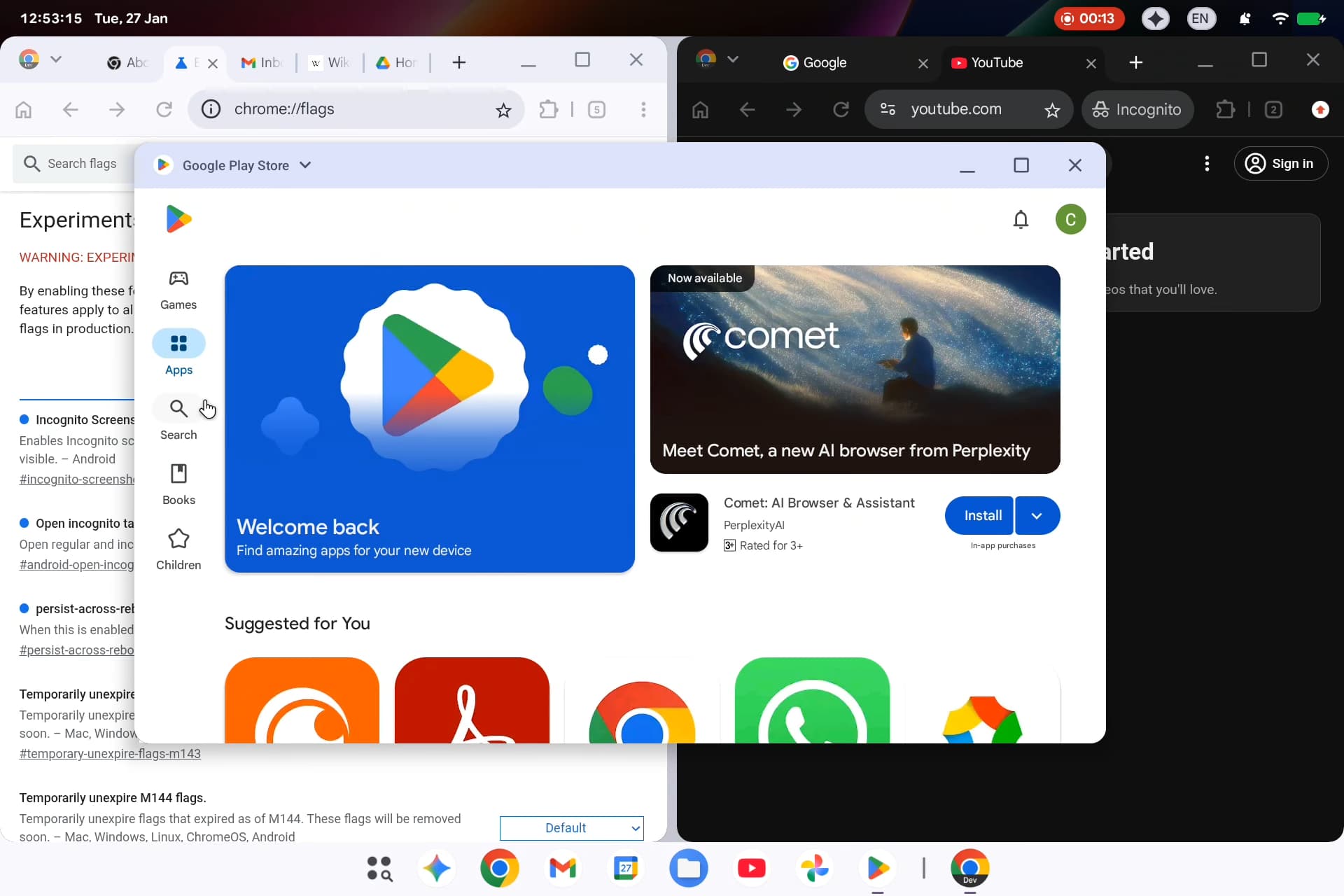
Google is rolling out a new feature for Chrome that will add a bookmark bar to the browser on Android foldables and tablets. Spotted by 9to5Google, this move will make the browsing experience on larger mobile devices more akin to that of laptops and desktops running Chrome. Perfect if you managed to grab Samsung's Galaxy Z TriFold before it disappears forever.

Continue reading.

This article originally appeared on Engadget at https://www.engadget.com/general/the-morning-after-engadget-newsletter-111501781.html?src=rss

Boox’s new Go E Ink tablet includes a 10-inch display and runs Android 15

There are many E Ink tablets out there, but most of them are basically digital notebooks. They are great for reading and handwriting notes, but not so great for doing all of that regular tablet stuff like checking emails and doomscrolling. Boox, however, has released a number of E Ink tablets that can access the Google Play Store, opening up users to the wide world of traditional smartphone apps.

The company's latest product is a refresh of the Go 10.3 tablet, called the Go 10.3 Lumi. This introduces plenty of new features and, as the name suggests, one is a front light. The tablet has been designed for both natural sunlight and low-light environments. The previous model was great, but it turns into a useless paperweight without access to ambient light. 

A tablet.
Boox

Despite the front-facing light, the Go 10.3 Lumi is still lighter than its predecessor, at 12.8 ounces. It's also on the thinner side, with a 4.8mm profile.

The basic specs are similar to the Go tablet, with an octa-core processor, 4GB of RAM and 64GB of internal storage. It runs on Android 15, which is a massive improvement for both security and access to apps. The previous iteration ran on Android 12, and Google stopped officially supporting that OS last year. That means no more critical security updates.

In addition to beefed up security, Boox promises the upgrade to Android 15 offers users improved memory management, better multitasking and smoother UI interactions. E Ink devices can be sluggish so I'm all for anything that speeds things up.

It integrates with external keyboards and boasts integrated speakers, which will certainly come in handy when navigating apps downloaded from the Play Store. Despite the screen technology, this is an Android tablet. It should be able to run just about any app available.

However, the E Ink technology will likely run into hiccups with video-based apps and games. It's just not made for that. This could be a great little gadget for emails and text-based social media, but not for something like TikTok. It should be able to handle non-animated games just fine, like crossword puzzles and stuff like that. 

Boox says the tablet gets "substantial battery life" and has been "optimized for extended usage cycles." The company hasn't announced detailed battery specs, but did say people "can work all day without looming battery anxiety." E Ink devices tend to last a good while, so I'm not worried about that.

The Boox Go 10.3 Lumi is available to order right now and costs $450. If you want to save a few bucks and have no interest in a front light, there's a stripped down version that also runs Android 15 but costs $420.

This article originally appeared on Engadget at https://www.engadget.com/mobile/tablets/booxs-new-go-e-ink-tablet-includes-a-10-inch-display-and-runs-android-15-020009621.html?src=rss

Android tablets and foldables are getting a Chrome bookmark bar

Sometimes, it's the little details in a software update that make the biggest improvements. Google is rolling out a new feature for Chrome that will add a bookmark bar to the browser on Android foldables and tablets. Spotted by 9to5Google, this move will make the browsing experience on larger mobile devices more akin to that of laptops and desktops running Chrome. For those people who do like to do more robust computing on their mobile gadgets, this will be a hugely welcome addition. It's rolling out in version 146 of the browser's Android version, which just dropped today.

The mobile version of the bookmarks bar will appear below the Omnibox, displaying Favicons and site names. A chevron will appear to scroll deeper into the list of bookmarks, and a long press on a bookmark will display the entire URL. 

If you're excited to take advantage of this new tool, you'll have to manually enable it. By default, devices will be set to "Hidden on narrow screens." Go to Settings, then Appearance and finally select "Show bookmarks bar."

This article originally appeared on Engadget at https://www.engadget.com/mobile/android-tablets-and-foldables-are-getting-a-chrome-bookmark-bar-222533702.html?src=rss

Sony’s enhanced PSSR upscaling arrives on PS5 Pro today

Sony's upgraded PlayStation Spectral Super Resolution (PSSR) tech is rolling out as part of the PlayStation 5 Pro system update that's available today. The company had teased last month that this update was in the works. These improvements should be a better reflection of why you might pay a premium price for the more powerful console if you value peak image quality in gaming.

For a very surface-level definition, PSSR is Sony's upscaling tech. It uses an AI library for a pixel-by-pixel analysis to display a game with better visuals even while running at a lower resolution. Today's update revamped the algorithm and neural networked in use, which in practice means that "image reconstruction is more precise, motion stability is improved, and developers have greater flexibility to balance performance and fidelity on PS5 Pro," according to the latest blog post from the company. For those who want more technical definition, you'll likely be familiar with the folks at Digital Foundry, who have a more detailed analysis with comparisons between the old and new upscaling on four titles. 

The improved PSSR is only available for supported games, but several familiar Sony partners are already on board. PS5 Pro owners can enable the enhanced PSSR image quality for all supported titles via a toggle in the Screen and Video settings menu. The following games are joining Resident Evil Requiem in offering the better upscaling experience:

  • Silent Hill 2

  • Silent Hill f

  • Dragon Age: The Veilguard

  • Control

  • Alan Wake 2

  • Senua’s Saga: Hellblade II

  • Final Fantasy VII Rebirth

  • Nioh 3

  • Rise of the Ronin

  • Monster Hunter Wilds

  • Dragon’s Dogma 2

This article originally appeared on Engadget at https://www.engadget.com/gaming/playstation/sonys-enhanced-pssr-upscaling-arrives-on-ps5-pro-today-201020423.html?src=rss

Samsung ends Galaxy Z TriFold sales three months after launch

Samsung will reportedly end Galaxy Z TriFold sales in South Korea on March 17, three months after the device went on sale, according to South Korean newspaper Dong-A Ilbo. Samsung has not yet confirmed the report, but Engadget has reached out for comment. In the US, where the TriFold arrived in January, the phone will remain available until existing inventory runs out. A unit at retail (if you can find it) will run you almost $3,000.

Samsung seemingly never intended the model for mass production. It sold the device in small batches through its website, with each selling out within minutes. Samsung reportedly moved roughly 3,000 units across the first two allotments and did not send review units to the media.

Industry sources told Dong-A Ilbo that the TriFold was a technology showcase rather than a revenue-generating product. Rising costs of components like DRAM and NAND flash have left virtually no profit margin on the device. In South Korea, the phone briefly traded for nearly three times its retail price on the secondary market.

In Engadget's limited time with the TriFold, the device felt solid, despite not having been built for a true production run. The original Galaxy Fold had to be delayed in 2019 after multiple review units sent to the press broke within days.

This article originally appeared on Engadget at https://www.engadget.com/mobile/smartphones/samsung-ends-galaxy-z-trifold-sales-three-months-after-launch-182903503.html?src=rss

Apple acquires popular video editing software company MotionVFX

Apple's latest acquisition could be a hint towards improvements for Final Cut Pro. The tech giant acquired MotionVFX, as seen on the company's website and first reported by MacRumors, which is known for providing plugins, templates, visual effects and more to video editors. MotionVFX currently offers its software for a handful of video-editing apps, like DaVinci Resolve and Adobe Premiere, but is also listed as a trusted Apple partner and found in the Final Cut Pro ecosystem of third-party products.

Apple hasn't revealed an acquisition price nor details of the deal. On its website announcement, MotionVFX wrote that it's "thrilled to embrace" similar values seen with Apple products and that it's the "beginning of something wonderful."

Considering a lot of MotionVFX's tools are designed for Final Cut Pro and Apple's Motion app, we could see native integration of popular visual effects and templates into Apple's app interfaces. It's worth noting that MotionVFX already offers an extension that creates a panel directly in Final Cut Pro for users to browse, download and apply visual effects from its repository. The acquisition could also hint at Apple trying to make its Creator Studio more enticing in the future, since it includes both Final Cut Pro and Motion. However, there hasn't been any clarity on what will happen to MotionVFX's monthly or annual subscription plans, nor its support for competing products.

This article originally appeared on Engadget at https://www.engadget.com/apps/apple-acquires-popular-video-editing-software-company-motionvfx-175429480.html?src=rss

How to find and cancel your unused subscriptions

Subscriptions are out of control. I can remember a time when the monthly payouts were few: just Netflix, a couple of magazines and a mobile plan. Now we have subscriptions for music, security cameras, cloud gaming, AI chatbots, meal kits, LinkedIn, DoorDash, Uber, Photoshop — the list is long. Basically, if there’s an app for something, there’s likely an associated subscription available, too. This guide was put together to help you locate and cancel the subscriptions that are no longer serving you. That way, you won’t end up paying for something you don’t use. Every time I go through this process, I’m always amazed at what random stuff I’ve signed up for — and cancelling always feels good.

It’s true that signing up for something is far easier than canceling — that’s by design. The FTC tried to pass a rule requiring companies to make cancelling a subscription as easy as it was to sign up for it. But that solution died before it ever went into effect.

That means it will still take some effort to get rid of the services you don’t use, but there are a couple of tactics that might make your efforts more effective. Here’s our advice on finding and cancelling your unneeded subscriptions.

Before putting this post together, I had no idea how many subscriptions I was paying for. Surprises included a coding game for my kid (that he no longer plays) and a British streaming app I’d gotten for one show (that I finished nearly a year ago). You, too, may not know what subscriptions are stealthily subtracting dollars from your accounts. One of the most comprehensive ways to see what you’re paying for is to look at your bank and credit card transactions, generating a search that includes every transaction in the previous full month. It may be a lot to scroll through, but each monthly subscription will appear at least once in that time frame.

Annual subscriptions can be tricker to track down. I was able to find most by searching for introductory emails, since most services send out an initial message confirming a new subscription. You can use the advanced search with the words “welcome” or “thank you” in the subject field, plus variations on the words “annual” “subscribing” and “membership” in the general or keyword search fields. You should get a decent idea of the things you’ve signed up for, but may have to wade through lots of promotional emails before you find the services you actually subscribed to. It could save you some time over searching through a year of bank statements.

Sometimes it’s helpful to simply see a list of common subscriptions people pay for (and often forget about). Here are a few:

Entertainment
YouTube Premium
Amazon Prime Video (or Prime in general)
Netflix
Disney+
Pandora Premium
Twitch Subscriber
Crunchyroll
Peacock

Gaming
PlayStation Plus
Xbox Game Pass
Nintendo Switch Online

Work/Productivity
LinkedIn Premium
Adobe Creative Cloud
Microsoft 365
ToDo
Evernote

Dating
Tinder
Grindr
Bumble
Hinge
Raya

Food
Hello Fresh
Green Chef
Blue Apron
Doordash DashPass
Uber Eats Uber One
• Monthly coffee, hot sauce and jerky boxes

For the most part, the way you sign up for a subscription is the way you’ll cancel it. If you signed up for Strava or Minecraft Realms from your iOS device, you’ll need to cancel it through your Apple account. If you signed up for Netflix through its website, you’ll cancel there. Sometimes even the device you use matters. For example, if you signed up for Paramount Plus via your Fire TV Stick, you’ll go through your TV to cancel instead of through the Amazon mobile app.

Once you’ve determined where to go, the cancellation processes will nearly always involve logging in to your account and navigating to your profile, then your account settings so you can view and end your subscription.

Here are steps to cancel a few of the most popular subs.

When you pay for a subscription through an app store, the transaction will likely be listed as a payment to either Apple or Google, so it’s harder to see what you’re paying for using the banking suggestion above. Here’s how to see what you’ve subscribed to using the two major app marketplaces, plus how to cancel.

How to cancel subscriptions through Apple’s App Store
1. Open the Settings app on your iPhone or iPad.
2. Tap your profile box at the top.
3. Tap on Subscriptions. Here, you’ll see your active and inactive subscriptions listed.
4. Tap the one you want to cancel and follow the prompts.

How to cancel subscriptions through Google’s Play Store
1. Open the Google Play app.
2. Tap your profile circle in the upper right.
3. Tap on Payments & Subscriptions.
4. Tap on Subscriptions.
4. You’ll see your active subscriptions and can decide which ones you no longer want.

Blue Amazon Prime logo on a white background.
Amazon

Amazon most recently raised the price of a Prime membership in 2022, bringing it to $15 per month or $139 per year. A membership gets you things like free shipping and access to Prime Video — though as of 2024, you’ll pay an additional $3 per month if you want to stream ad-free. If Prime isn’t worth it for you any longer, here’s how to cancel.

Through the Amazon app:
1. Tap the person icon at the bottom of the screen.
2. Tap on the Your Account button at the top of the screen.
3. Scroll down to and tap Memberships and Subscriptions.
4. You’ll be taken to a Prime page; tap Manage Membership in the drop-down menu at the top.
5. Select the Update, Cancel and More option, and tap End Membership. Here, you can also opt for a reminder to be sent three days before your next renewal if you don’t want to cancel right away.

Via a web browser:
1. Sign in to Amazon.
2. Hover over Accounts & Lists to the right of the search bar up top.
3. Click on Memberships & Subscriptions under Your Account.
4. Click the Cancel Subscription button.

Paramount Plus is one of the cheaper video streaming subscriptions out there, going for $9 per month for the ad-supported version or $14 monthly for the ad-free version with Showtime. But if you finished Starfleet Academy and want to cancel, here’s how. Remember, if you signed up for Paramount Plus through Prime Video or through the App Store, you’ll need to cancel through the same platform.

1. Log in to your Paramount Plus account on a web browser.
2. Select the username in the upper right corner.
3. Click on Account and scroll down to Cancel Subscription.
4. Click on Cancel Subscription.

The Apple TV logo with the liquid glass treatment on a black background
Apple

Probably the best thing about Apple TV is how lean it is. Sure, you may not want to watch everything on there, but the ratio of really good stuff to so-so fluff is far better than on most other services. But once you’ve gotten through Severance and Pluribus you may decide to save yourself the $13 per month.

Apple TV + requires an Apple ID to sign up, so the easiest way to cancel is through the Settings app on your Apple device. If you didn’t sign up through a Mac, iPad or iPhone or don’t have an Apple TV box, follow the PC instructions.

On an iPhone or iPad:
1. Open the Settings app.
2. Tap your profile box at the top.
3. Tap on Subscriptions.
4. Tap either Apple TV+ or Apple One membership, depending on how you first signed up.
5. Select the subscription you want to cancel, then click the Cancel Subscription button.

On a Mac:
1. Open the App Store app.
2. Click on your name and profile image at the bottom left.
3. Click on Account Settings at the top of the screen.
4. In the pop-up window, scroll down to the Manage section and click the Manage link to the right of the word Subscriptions.
5. Select the Edit link next to the subscription you want to cancel, then click the Cancel Subscription button.

On an Apple TV box:
1. Open the Settings app from the home page.
2. Click on Users & Accounts.
3. Click on Subscriptions.
4. Find the subscription you want to cancel and follow the prompts.

On a PC:
1. Go to tv.apple.com and sign in.
2. Click on the account icon at the top of the page.
3. Click on Settings and scroll down to Subscriptions, then click Manage
4. Choose Cancel Subscription.

If you downloaded Audible as part of a free trial or grabbed it for a 12-hour road trip but haven’t used it much since, here’s how to stop paying $15 per month. If you didn’t sign up via Amazon or Audible and instead went through Apple’s App Store or Google Play, follow the instructions for how to cancel subscriptions through Apple’s App Store or Google’s Play store above.

Through Amazon:
1. Sign in to your Amazon account.
2. Hover over Accounts & Lists to the right of the search bar.
3. Click on Memberships & Subscriptions under YourAccount.
4. You’ll see your Audible membership listed; click the Audible Settings button.
5. Scroll down to Membership Options & Help and click on Cancel Membership.

Through Audible (on a browser):
1. Sign in to your Audible account.
2. Hover over the link that says Hi [your name] and select Account Details from the menu.
3. You’ll see a box with your membership details; click on Cancel Membership.
4. Answer the “reason for canceling” question and follow the prompts.

Green Spotify logo on a white background
Spotify

Spotify only gets more expensive. If you just want to go back to the free version, here's how. You can change which tier you pay for through the app. But to cancel, you’ll need to go through a web browser. You can technically cancel through the app, but that involves deleting your account and all its data. If you want to preserve your playlists and just switch to the free version, do so with a mobile or desktop browser.

1. Head to Spotify on a web browser and log in.
2. If you haven’t logged in via the web before, you’ll see a button for Web Player or Account Overview; select Account Overview.
3. If you’re already in the Web Player, click either the gear icon (mobile browser) or your profile image (desktop browser) in the upper right corner and select Account.
4. Your subscription will appear in a box labeled Your Plan; click that box or scroll down to Manage Your Plan and click.
5. You’ll see your plan details, click the Cancel subscription button.

Pretty much every live TV streaming service has raised its prices over the past couple years. YouTube TV is no different. After starting at $35 per month at launch, it went up nearly every year to finally land at $83 with the latest price hike in December of 2024. If that’s edging too close to cable pricing, you can always cancel (after all, not requiring a contract is still one of streaming’s major advantages). And YouTube TV actually lets you cancel through the app.  

On an Android device:
1. Open the YouTube TV app.
2. Tap your profile circle at the top right.
3. Tap on Settings, then tap on Membership.
4. Under your membership details, tap Manage.
5. Click on Cancel Membership and follow the prompts.

Via a web browser:
1. Head to YouTubeTV.
2. Log in and click your profile circle in the top right.
3. Tap on Settings, then tap on Membership.
4. Under your membership details, tap on Manage next to Base Plan.
5. Click on Cancel Membership and follow the prompts.

Some finance apps will track and manage your subscriptions for you. We looked into the bigger ones to see how they can help. One of our previous recommendations, Mint, shut down, but ones from Experian and Monarch Money have cropped up to take its pace. We tried out Rocket Money to see how the process works and detailed it below.

Just note that these apps cost money to handle subscription cancellation on your behalf — and adding another paid service to your life can feel absurd when you’re trying to do the opposite. You’ll also need to give the apps your banking information and your data may, in turn, be sold or shared with third parties for marketing.

A couple of other apps we tried don’t ask for your banking info. Instead you manually enter your subscription details. That’s certainly more private, but might not be saving you much effort in the long run.

Owned by the same company as Rocket Mortgages, Rocket Money is a finance app that connects with your bank account and offers to help you budget and track your overall spending, in addition to managing your subscriptions. You’ll pay for the app using a sliding scale from $3 to $14 per month for the premium version, which includes automated cancellation and other features. To access the free version at sign-up, move the slider to the left until you reach $0.

Once you’ve linked your account, navigating to the Recurring tab gives you an overview of your subscriptions. I liked that you can access this using either the mobile or desktop app. After linking my accounts, it reminded me of an upcoming renewal for a magazine I don’t read and hosting fees for a website I no longer need. Canceling both of those would save me nearly $200 in a year. Unfortunately, my monthly Apple One payment and the Max access that I pay for through my Samsung TV didn’t show up as recurring subscriptions. That could be due to how my bank lists the transaction, but I’d like to have seen those on the list, too.

Next to each transaction is a three dot menu, which includes an option to “cancel this for me” for Premium subscribers. Click and you’ll see contact methods to handle it yourself or a button to have Rocket Money do it. After you provide your username and password for the service, you’ll get an email confirmation that tells you the process could take up to ten days to complete. When I had Rocket Money cancel Paramount Plus for me, I got an email later that night saying the cancellation was complete.

While it’s not a magic program that zaps your subscriptions away, Rocket Money could save you a few steps. Seeing (most of) your recurring charges together is also helpful for staying on top of things. It’s up to you whether the Premium charge (and taking on another subscription) is worth the cancellation service.

There are other apps, like Bobby (iOS) and Tilla (Android), that don’t connect with your bank account. Instead, you enter the details of the subscriptions you already have and add new ones as you go. The apps will remind you about upcoming renewals and let you quickly see what you’re paying for, all in one place. Both are free to use but limit the number of subscriptions you can track until you upgrade, which costs a flat $4 for Bobby and $2 for Tilla. I feel like if you possess the diligence to keep apps like these up to date, you could just as easily use a spreadsheet or native apps like Apple or Google’s Reminders, though these are more colorful.

Check out more from our spring cleaning guide.

This article originally appeared on Engadget at https://www.engadget.com/apps/how-to-find-and-cancel-your-unused-subscriptions-130036314.html?src=rss

Apple announces the AirPods Max 2 with improved noise cancelation and H2 chip

The AirPods Max 2 are almost here. Apple announced this morning that the first true update to its over-hear phones are up for pre-order on March 25 and will be shipping in early April. They look identical to the predecessor, with large, colorful earcups and a matching headband. But inside is the H2 chip that Apple first introduced with the AirPods Pro 2, which enables a host of new features. Chief among those is improved noise cancelation — Apple says with the H2 and improved audio algorithms, the AirPods Max 2 are 1.5 times more effective at reducing noise than the old model.

From an audio perspective, there’s a new amplifier on board here as well for clearer music and improved spatial audio performance. If you want lossless music, you can get that by using the included USB-C cable.

There are also a host of new features for the AirPods Max 2 enabled by the H2. These include an “Adaptive Audio” mode that balances between transparency and ANC modes depending on the environment so you can hear things when you need to while still blocking extraneous noise. Similarly, the conversation awareness features lower the volume of your content and increase transparency when your’e speaking. Live Translation comes to the AirPods Max 2 as well, a feature that uses your AirPods and iPhone to translate incoming speech to and from the language of your choosing.

Apple AirPods Max 2 colors
Apple

Essentially, the AirPods Max 2 now have almost all the features you’ll find in the AirPods Pro 3, just in an over-ear design. What hasn’t changed is the price — AirPods Max 2 still cost $549, notably more than most of the competition. Despite the high price, the first AirPods Max did sound exceptional — they’ve just been hard to recommend for years because of the aging feature set and cost.

Given that the first AirPods Max were released in 2020, these new headphones are long overdue and are probably what we should have got in 2024 when Apple added USB-C but otherwise didn’t change anything besides refreshing the colors.

This article originally appeared on Engadget at https://www.engadget.com/audio/headphones/apple-announces-the-airpods-max-2-with-improved-noise-cancelation-and-h2-chip-133319594.html?src=rss

How and where to buy refurbished tech online

In good news for our wallets and the environment at large, many electronic devices like phones and tablets last longer now than they once did. That means refurbished gadgets can have more life than ever before. There are no laws governing the terms, but refurbished or renewed devices tend to be a level above just plain “used.” At minimum, refurbished tech should have undergone cleaning and diagnostic testing. Some sellers also replace components like batteries and screens. Once ready for sale, these devices should operate as if they were new, with only minor scuffs indicating their history.

Refurbished devices not only save you a bit of cash, they have a drastically lower carbon footprint since most environmental impact comes from manufacturing. It’s more efficient than recycling and helps keep e-waste out of landfills. But there are better places to shop refurbished tech than others. We’ve gathered /a few recommendations, along with our advice on what to look for when you start shopping for refurbished gear.

Refurbished is not the same as used. Used items tend to be sold “as-is,'' which means you’re simply inheriting whatever mileage and quirks a device had when the previous owner said goodbye to it. It’s true that most refurbished items were previously owned, and many are a result of the growing trend of trading in your old device when you upgrade. But others were hardly used at all and are one of the millions of returns generated each year. Either way, a properly refurbished item has undergone testing to verify that it works, along with cleaning, repairs and parts replacement as needed.

Since there are no government regulations for renewed items, it’s up to the sellers to define what steps they take to ready a device for sale. And it’s up to the buyer to find out what those steps are before taking the plunge. The processes for refurbishing devices from Apple, Bose, Microsoft, Google Pixels and Samsung, for example, include cleaning, inspection, parts replacement as needed and shipment in a new box with the originally supplied accessories. They also all provide a one-year warranty.

A refurbished device should perform as well as its new counterpart, but the only way to guarantee that’s the case is to make sure it comes with a warranty. All of the sites we recommend below include a warranty with the products they sell. If you see something labeled as refurbished, but doesn’t include some sort of guarantee as to its reliability – shop elsewhere.

Also, a good return policy will let you send the item back (preferably with the same free shipping a new item gets) for any reason — including that you just changed your mind. That way if a refurbished product doesn’t look as good as you thought it would, you can send it back without having to prove there’s something wrong with it.

Most refurbished tech was used before it made its way back on the market. And while renewed items are cleaned, you’ll still need to consider your comfort with sanitation issues when buying things like headphones and earbuds.

Laptop and smartphone on round wooden table in cozy interior.
Polina Lebed via Getty Images

We recommend going directly to the manufacturer whenever possible, especially for more technical items like smartphones and laptops. If you need a new MacBook, check out Apple’s refurbished stock first; if you want a new Galaxy phone, hit up Samsung before anyone else. Repairs will be handled using genuine parts and you’re far more likely to get items that were properly unpaired from the original owner and all data wiped.

Retailers like Amazon, Walmart, and Best Buy are decent options if you’re on a tighter budget or if you’re looking for gadgets from a manufacturer that may not have its own refurbished outlet. Refurbished marketplaces like BackMarket can be useful if you’re looking for older, more specific items, or if price is the number one factor for your purchase.

Some smaller manufacturers like Dyson, Vitamix, Nintendo and JBL offer their own refurbished products, but for many other brands, you may need to head to a retailer.

Check out more from our spring cleaning guide.

This article originally appeared on Engadget at https://www.engadget.com/mobile/where-to-buy-refurbished-tech-140028700.html?src=rss

MacBook Pro M5 Max 16-inch review: Still the pinnacle

We've loved Apple's 2021-era MacBook Pro design from the start, and the M5 Max edition is once again the professional notebook to beat. But it's hard to deny that the star of Apple's recent laptop rollout wasn't its most powerful Pro systems — all eyes were on the $599 MacBook Neo. The MacBook Pro's next time to shine is likely this fall, when Apple is expected to finally deliver OLED models and a dynamic touchscreen interface.  (I’ve argued before that, at this point, Apple has no excuse not to give us touchscreen Macs.)

This generation of MacBook Pro might just be the last gasp of the 2021 remodel. It's still an incredibly powerful machine that's been honed to near-perfection, but if you're looking for something that feels truly new, it may be worth waiting several months. 

It's not too surprising to see the M5 Pro and Max MacBook Pros be relatively low-key efforts. Apple launched the M5 14-inch MacBook last fall with a mere press release. But at least that model delivered a noticeable leap in graphics performance. The new M5 Pro and Max chips are a bit faster than before, but they don't really have any major features to call out. (Unless you're super excited about Neural Accelerators for AI work.)

I don't want to sound like I'm complaining too much, though. The 16-inch M5 Max MacBook Pro I'm reviewing is still a gorgeous laptop, with an overall design that most premium Windows PC makers are still trying to copy. Apple's unibody metal frame design still feels rock solid. There's a generous amount of ports, including three Thunderbolt 5 USB-C connections, HDMI, a headphone jack and a SD card reader. Its 16-inch Liquid RetinaXDR screen also looks incredible, thanks to its bright Mini LED backlighting, and there's once again a nano-texture option to reduce glare. 

What else could you want in a laptop? I suppose there's the lingering feeling that an OLED screen would look better, with sharper contrast and pure black levels. But you'd be hard pressed to find much else to complain about with the MacBook Pro's screen. I'm also intrigued to see how Apple implements a touchscreen interface alongside macOS in upcoming MacBook Pros, but I'll admit, I haven't really been compelled to touch this laptop's display much. 

Touchscreens always seemed like a quixotic effort for laptops — they're nice to have, but Microsoft has been trying to shove them into PCs for 15 years now. The addition of touchscreens really didn't improve the overall Windows experience much. So I wasn't surprised to see Apple take its time bringing the technology to macOS — if you really want to swipe around screens, just get an iPad.

MacBook Pro 16-inch (2026, M5 Max) keyboard and trackpad
Devindra Hardawar for Engadget

But back to this MacBook Pro: I still love everything about Apple's current design. Sure, the keyboard could have a bit more depth, but it withstood my furious typing like a champ. (Unlike Dell's XPS 14, which tried so hard to be a MacBook Pro-killer.) And the MacBook Pro's glass touchpad is still one of the best I've ever seen in a laptop.

Our review unit was also equipped with 32GB of RAM, a 4TB SSD, a 40-core GPU and Apple’s $150 nano-texture display upgrade, bringing the total for this M5 Max system to a whopping $6,149. That may seem excessive to most consumers, but for creative professionals who actually need the power of the M5 Max chip, it’s not that unusual. You can also save over $1,000 by opting for the M5 Pro chip instead. 

So what does the M5 Max bring to the party? Obviously, it's speedier than the M4 Max. Our review unit was 30 percent faster than the M4 Max-equipped MacBook Studio in the Geekbench 6 multi-threaded CPU benchmark. It's only 10 percent faster in Geekbench's single-threaded test, but that still gives Apple room to claim that it has the fastest chip core around. If you've got an M4 Max machine, you certainly don't need to dump it for this lineup. But if you've been hammering on an M1 Max or M2 Max system for years, you'll see some meaningful benefits from upgrading now.

Computer

Geekbench 6

Geekbench 6 GPU

Cinebench 2024

Apple MacBook Pro 16-inch (M5 Max, 2026)

4,338/ 29,261

145,309

192/2,150 | GPU: 22,374

Apple MacBook Pro 14-inch (M5, 2025)

4,310/18,003

48,840

197/1,034 | GPU: 6,143

Apple MacBook Pro 16-inch (M4 Pro, 2026)

3,925/22,456

70,197

178/1,689 GPU 9,295

Apple MacBook Pro 16-inch (M3 Max, 2024)

3,202/21,312

92,344

143/1,686 GPU 13,182

Apple says this new line of MacBook Pros also feature its latest SSD technology, which is up to twice as fast as before. Our review unit reached 13.8 GB/s write speeds and 13 GB/s read speeds in the ATTO disk speed test, whereas previous MacBook Pros hovered around 6 GB/s for read/write speeds. If you're working with huge data files every day, you'll likely notice the difference. Another benefit to the new hardware? Apple is now equipping every MacBook Pro with 1TB of storage by default. 

All of the M5 chips feature faster GPUs than before, but that's less noticeable on the M5 Max. I've never had trouble running a high-end game like Lies of P on the M2, M3 or M4 Max hardware, and once again it still runs incredibly well with the M5 Max in its native resolution, and with all of the graphics settings cranked up. All I'm looking for is a smooth 60 fps frame rate, and the MacBook Pros have delivered on that for years. macOS isn't the sort of platform where you'll be playing many high fps games, but the MacBook Pro's 120Hz refresh rate is equipped to handle them.

MacBook Pro 16-inch (2026, M5 Max) on a doorstep.
Devindra Hardawar for Engadget

Beyond raw performance, the MacBook Pro continues to be a joy to use. Its screen is gloriously bright, and its smooth refresh rate makes scrolling through documents and websites easy on the eyes. Its six-speaker setup remains the best audio experience I've ever heard on a laptop, allowing for crisp, detailed and surprisingly dynamic bass. When I'm too lazy to cast music to my Sonos speakers, I can still have a decent jam session on the MacBook Pro's built-in setup.

It's hard to improve much on the 30 hours and 16 minutes of battery life we saw on last year's 16-inch MacBook Pro, but the M5 Max model managed to beat that by 30 minutes. Realistically, it means you can likely use the MacBook Pro for a few days without needing to recharge, assuming you're not doing heavy-duty work the entire time.

MacBook Pro 16-inch (2026, M5 Max)
Devindra Hardawar for Engadget

You don't need me to sell you on the MacBook Pro; all you need to know is that the M5 Max actually delivers. Given how well the standard M5 14-inch MacBook Pro performed, I'd also expect a decent speed bump from the M5 Pro model. The only downside to the M5 systems is that they'll feel out of date quickly if the rumored OLED and touchscreen models arrive later this year. But if you need the best performance now, it's hard to go wrong with any MacBook Pro.


This article originally appeared on Engadget at https://www.engadget.com/computing/laptops/macbook-pro-m5-max-16-inch-review-still-the-pinnacle-120000325.html?src=rss