Windows 11’s new AI features: How to use Paint, Clipchamp, Snipping Tool and Photos

Microsoft is injecting a ton of generative AI-powered features into Windows 11, but it's not all about the Copilot assistant. The company has started to update a string of apps with new AI functions, including Paint, Clipchamp, Snipping Tool and Photos. Microsoft released an update for Windows 11 2023, known as 23H2, on October 31. That update expanded access to Copilot and other AI features. 

Microsoft is rolling out the AI updates gradually, so you may not have access to everything just yet. Still, it may be handy for you to know what you can do with the new tools. Here are some pointers on how to use the AI features in each app.

How to use Paint in Windows 11

An AI-infused version of Paint that includes generative AI features is rolling out to Windows 11 users. Microsoft Paint Cocreator taps into the DALL-E model to enable you to create images based on a text description. The feature will whip up just about anything you can think of (within reason).

It's easy enough to get started with Cocreator, as long as you have access to it. To begin with, Cocreator is available in the US, UK, France, Australia, Canada, Italy and Germany. Only prompts in English are supported for now. At the outset, there's a waitlist to use Cocreator. You can join this from the Cocreator side panel and you'll receive an email to let you know when you can start using the feature.

You'll need to sign into your Microsoft account to use Cocreator. That's because the cloud-based service Cocreator runs on requires authentication and authorization. You also need to sign in to access credits; you'll need these to generate images with DALL-E. When you join Cocreator, you'll receive 50 credits with which you can create images. Each generated image costs one credit.

A screenshot of the Paint app in Windows 11, showing the Cocreator generative AI tool.
Microsoft

How to install Paint on Microsoft Windows 11

If you don't already have Paint installed, you can download it from the Microsoft Store. Once you have it, open Paint and select the Cocreator icon on the toolbar. From there, you can type in a description of the image you'd like the AI to generate. Microsoft suggests being as descriptive as possible in order to get results that match your concept.

After entering the text, select a style that you'd like your image to be in. Then hit the Create button.

Cocreator will then generate three different images based on your text input and the style you chose. Simply click on one of these images to add it to the Paint canvas so you can start modifying it.

Meanwhile, Paint now supports background removal as well as layers. With the help of AI, you can isolate an item (such as an object or person) and remove the background with a single click. You can also edit individual layers without affecting the rest of the image.

How to use video auto composition with Clipchamp on Windows 11

It should be easier for you to stitch footage together in the video-editing tool Clipchamp. The app will help guide you with automated suggestions for the likes of scenes, edits and narratives. But it's the auto compose feature that may prove most useful for many users. Auto compose is available on the web and in the Microsoft Clipchamp desktop app.

Microsoft says that the media you add to Clipchamp is not used to train AI models and all of the processing takes place in the app or browser. The app's AI video editor (which Microsoft says is useful for everyone) can automatically generate slideshows, montage videos and short videos in 1080p based on the photos and videos you add to it.

If you don't like the first video that Clipchamp offers up, you can check out a different version "instantly" since the app will generate multiple videos for you. Auto compose may also prove useful for professional video editors, Microsoft says, as the tool can generate several unique videos in the space of a few minutes.

Clipchamp's auto compose feature for automated video editing.
Microsoft

After you sign into Clipchamp, click the "Create a video with AI" button. You'll find this front and center on the main page. After you give your project a working title, you can upload media by clicking the "Click to add or drag and drop" button. Alternatively, you can simply drag and drop videos and photos into the media window.

Once you've finished adding everything, hit the "Get started" button. Now, it's a case of letting the AI know what kind of style and aesthetic you're looking for. Styles include things like elegant, vibrant and bold. You'll use thumbs up and thumbs down buttons to inform the AI of your preferences. Alternatively, you can leave the decision up to Clipchamp by selecting the "Choose for me" option. When you're ready to move onto the following step, click the Next button.

Clipchamp's auto compose feature for automated video editing.
Microsoft

Clipchamp will suggest a length for your video based on what it believes are the best combinations of your media. You'll be able to adjust the video length and the aspect ratio before moving on. Before you leave this screen, you can preview the video by clicking the play button.

Next up, you'll be able to change the background music on the "Finish your video" screen if you're not a fan of the track that the AI picked. Click the music button to change the tune. Again, you'll be able to preview your video and audio track. If you're not happy with the video, you can ask for a different take by clicking on "Create a new version."

Clipchamp's auto compose feature for automated video editing.
Microsoft

If you do like the video Clipchamp has created, you're pretty much done at this point. Click the Export button to save the video. From the export page, you can share your video directly to the likes of YouTube and TikTok, or add a copy to your OneDrive storage.

After the AI is done with your video, you can further customize it in Clipchamp. Click on the "Edit in timeline" button and you'll be able to do things like add stickers, captions, animated text and audio files.

In addition, you can enhance your video with AI options including a text-to-speech voiceover feature and automatically generated subtitles. The speaker coach tool aims to provide you with real-time feedback on your camera recordings to help improve your speaking skills and video presentations.

Many Clipchamp features are available for free. But for videos in 4K resolution and other premium tools, you'll need to pay for the essentials plan, which costs $12 per month or $120 per year.

How to use Snipping Tool's AI features

The Snipping Tool is one of the most useful in Windows 11. It's a cinch to capture and share some or all of your display. The app's AI functions should come in useful in a number of ways.

First, the app supports text recognition. If you use the Snipping Tool to take a screenshot of something with text in it, you can click the Text Actions button. At the outset, you'll have two main options. You can copy all of the text and paste it into another app.

Screenshot of Windows 11's Snipping tool, showing the option to copy all text from an image and the ability to redact email addresses and phone numbers.
Tech Based/YouTube

Alternatively, you can quickly redact private information. The tool should be able to recognize email addresses and phone numbers, and you'll be able to swiftly blue those out. That should save you having to manually cover up text in, say, Paint.

The Snipping Tool should work quite nicely with Copilot as well. As indicated in a Windows 11 promo video, you can paste something you've clipped with the tool into Copilot, then do things like ask the assistant to remove the background from the image.

How to use Background Blur in Windows 11's Photos app

The Background Blue feature in Windows 11's Photos app, showing two dogs on a chair against a blurred background.
Microsoft

The Windows 11 Photos app has some useful AI features as well. Those include improved search for images stored on OneDrive accounts —- it should be easier for you to find a photo based on content or location where it was taken.

The app’s editing features have been enhanced thanks to AI as well. One of the handier and easiest-to-use tools is the self-explanatory Background Blur (Paint 3D has a similar feature). That can help the subject of your photo stand out. AI separates the background from the subject, but to ensure your data stays on your device, the separation process takes place there rather than in the cloud.

To use Background Blur, first select the image you want to use and open it in the Photos app. Click on "Edit image" at the top of the screen and select Background Blur. You'll then have a few options to choose from. You can opt to enable the blur effect instantly; adjust the intensity of the blur before applying it; or have more granular control by turning on the "Selection brush tool."

Opt for the Selection brush tool and you can manually add denote more parts of the image for the AI to blur out. Alternatively, you can deselect parts of the image that you don't want to be blurred. You'll be able to change the brush size for finer control and modify the brush softness to intensify or turn down the blue effect.

This article originally appeared on Engadget at https://www.engadget.com/windows-11s-new-ai-features-how-to-use-paint-clipchamp-snipping-tool-and-photos-191541014.html?src=rss

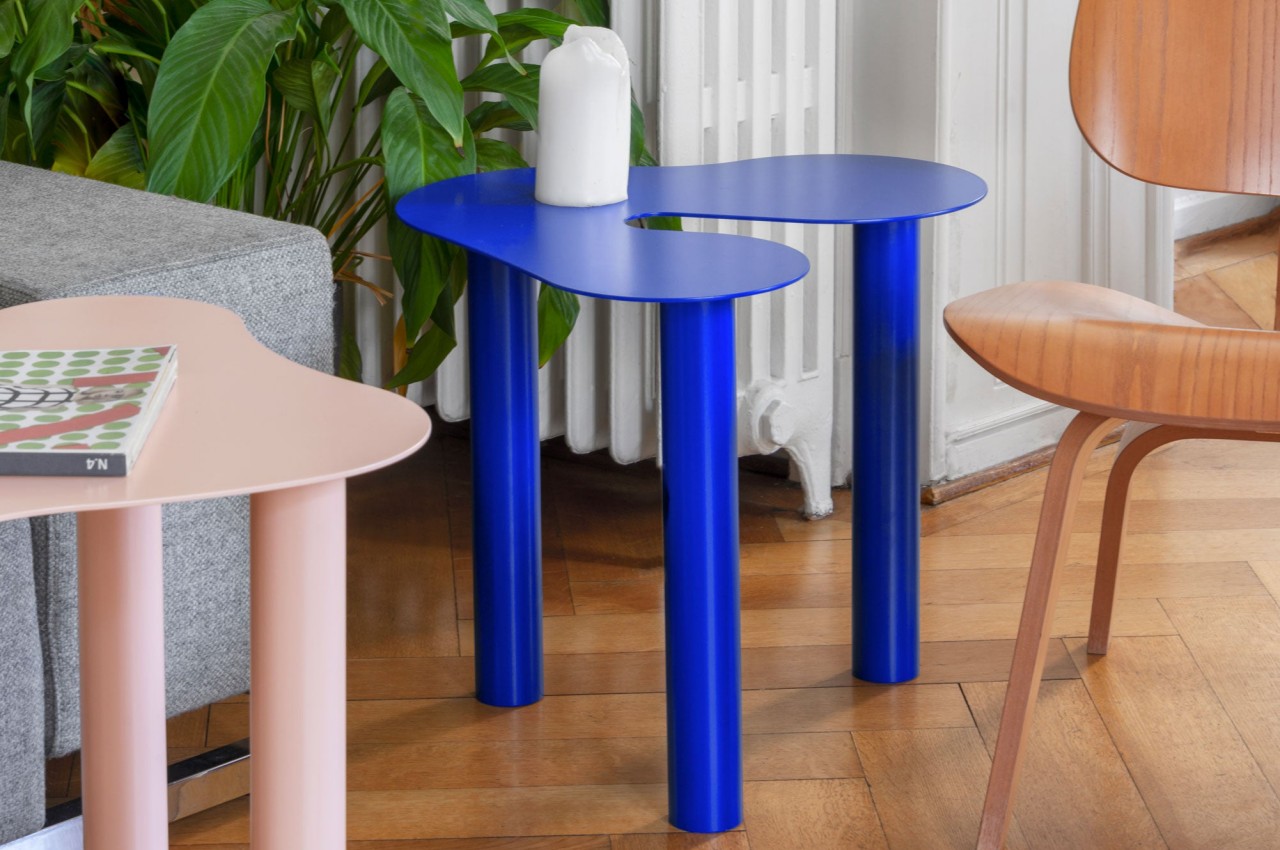
Quirky shapes make this modular table set a fun yet functional addition to your space

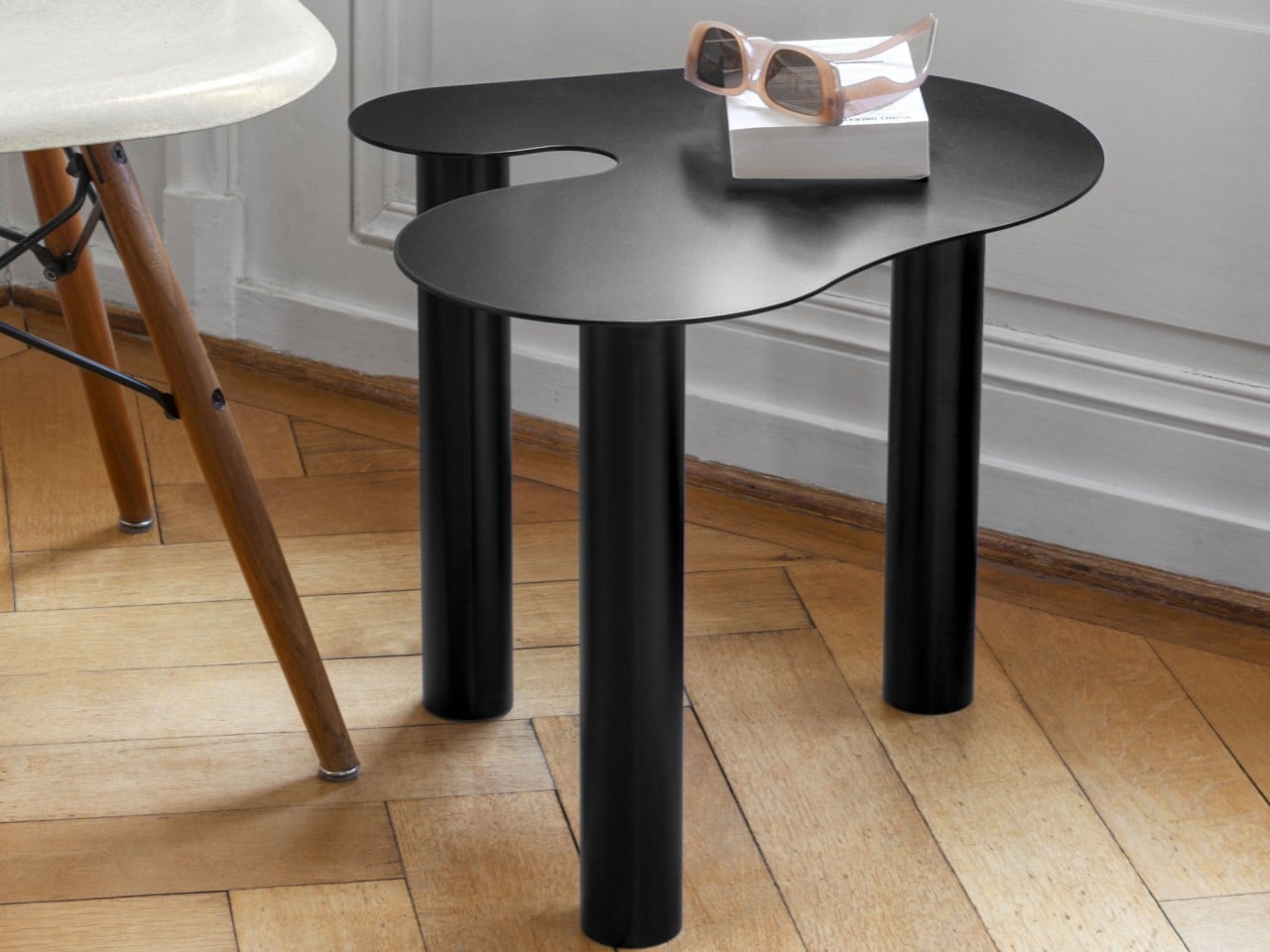
Tables primarily serve a functional purpose, providing a horizontal surface to place things. Considering the space they occupy, it’s only fair that they should also have some aesthetic value, adding to the ambiance of a room instead of sticking out like a sore thumb. Unfortunately, not all designs balance form and function equally, with one aspect getting a heavier focus than the other. Some might be extremely beautiful but have little room for use as an actual table, while others try to get too smart with features at the expense of a pleasing appearance. Fortunately, we have plenty of inspiration around us to help shape our designs, and this family of odd-looking tables takes a few pages from Mother Nature’s book to create pieces that offer both practical utility as well as visual interest, bringing any living space to life.

Designer: Superlife

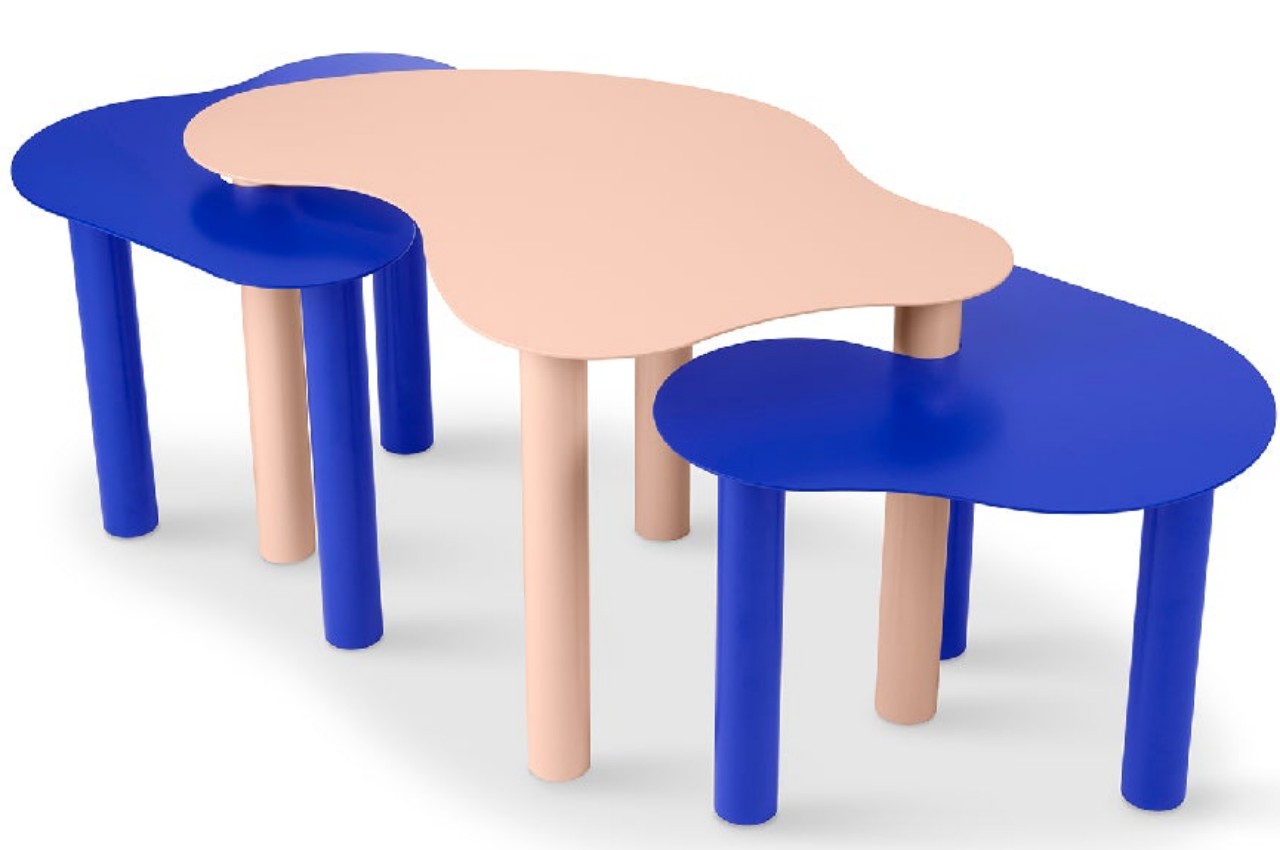
Most tabletops come in conventional shapes such as rectangles, squares, circles, or ellipses. These, after all, are the most space-efficient shapes around, maximizing the area that you can use to lay down objects like laptops, books, or cups. They’re probably also the most mundane shapes you’ve ever laid eyes on, and they are totally dependent on the rest of the table’s composition or materials to pique your interest. The Flow family of tables bucks that trend and presents a table that almost looks impractical but is actually quite flexible in its functionality, so it shouldn’t be a surprise that it pulls off this feat by learning from organic things designed by nature itself.

As the name somewhat implies, these tables are inspired by naturally occurring bodies of water. Whether they’re puddles or lakes, water doesn’t appear as a perfect circle or rectangle, not unless you put them in artificial containers. The amorphous and almost random shape that water comes in evokes a sense of fluidity, even while at rest. It’s almost the perfect metaphor for tables that become centers of activity even as they act as resting places for your stuff.

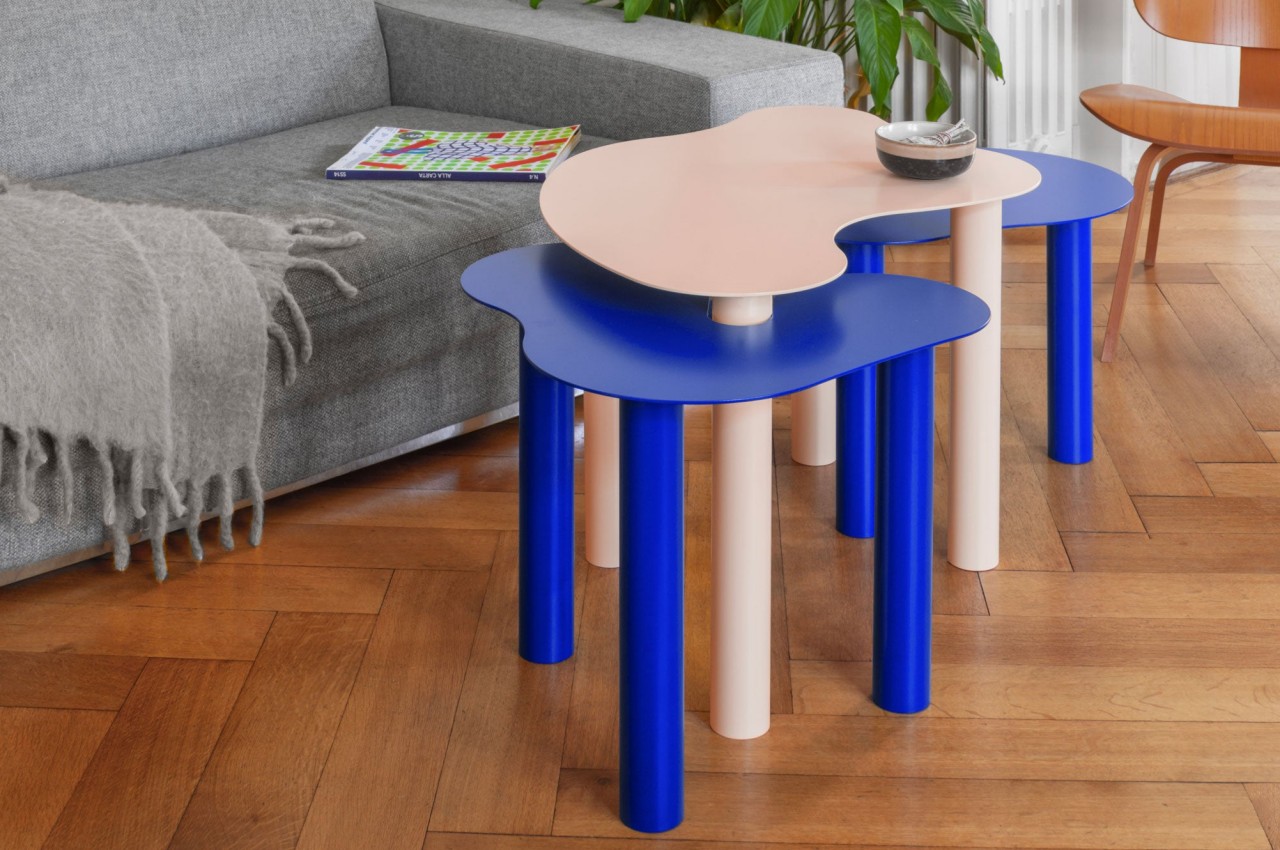
Flow, however, is also inspired by cells that take similarly undefined shapes. Each table in the collection also has different heights to add to its unique character. And just like cells, these distinct pieces can function independently or merge into one to provide a larger canvas to arrange objects. The dynamic shapes of the tables might even inspire you to inject some life into your room, just like how cells are the building blocks of organic life.

Whether alone or connected, the fluid shapes of the Flow tables create an interesting ambiance that is both lively and calm, just like water. The tables are both pieces of structural art as well as flexible furniture that provide a bold visual impact, blending form and function in harmony just as things in nature usually do.

The post Quirky shapes make this modular table set a fun yet functional addition to your space first appeared on Yanko Design.

Bored Ape NFT event leads to at least 15 attendees reporting severe eye burn

At least 15 visitors at Yuga Labs’ ApeFest, a celebration of the marvels of Bored Ape Yacht Club NFTs, may have experienced serious eye injuries. Bloomberg reports that multiple people attending the NFT event in Hong Kong last weekend say they experienced vision problems, which they suspect stem from the event’s stage lighting. Some of the attendees claim doctors subsequently diagnosed them with photokeratitis (aka “welder’s eye”), caused by exposure to ultraviolet rays.

“Woke up in the middle of the night after ApeFest with so much pain in my eyes that I had to go to the hospital,” the user Crypto June posted on X (via Coin Telegraph). “Doctor told me it was due to the UV from stage lights.” User @docwagmi suspected that the “ape friends” reporting problems appeared to have been “up close with us front stage.” 

Bathroom at a Hong Kong NFT party, featuring bright lighting and colors on toilets
The event’s elaborately stylized bathrooms.
@crypto_birb / X

Meanwhile, Adrian Zduńczyk wrote on X, “To all my friends who suffer now: go get your eyes checked. You’ve likely most literally got your eyes burnt with UV like I did, which requires medications, eye drops, eye protection, antibiotics and specialist care. Don’t ignore this health hazard. Without proper treatment, it may cause long lasting vision impairment and other serious damage.” Zduńczyk wrote that seeking medical attention quickly appears to have spared him long-term damage. “My vision was tested as close to perfect with no serious cornea damage, luckily.”

Yuga Labs briefly addressed the issue on X, saying it’s “aware of the eye-related issues that affected some of the attendees of ApeFest,” while claiming it’s “proactively reaching out to individuals since yesterday to try and find the potential root causes.” The company downplayed the number of people reporting issues, adding, “Based on our estimates, we believe that much less than 1% of those attending and working the event had these symptoms.” The NFT company advised attendees experiencing symptoms to “seek medical attention just in case.”

X users seemed none too pleased with Yuga Labs’ PR response:

The potentially dangerous incident echoes one in 2017 when attendees of a HypeBeast party reported eye damage. The event’s DJ later reported that the lighting contractor used Philips bulbs that emit UV-C, often used as a disinfectant.

This article originally appeared on Engadget at https://www.engadget.com/bored-ape-nft-event-at-least-15-attendees-reporting-severe-eye-burn-welders-eye-173746237.html?src=rss

Surfshark VPN plans are up to 86 percent off in an early Black Friday deal

Surfshark is one of the best VPN services around and there are deals available for its various plans as part of an early Black Friday sale. You can pick up a two-year subscription to the mid-tier Surfshark One plan for $2.69 per month (86 percent off the regular price of a one-month subscription), plus you’ll get an extra four months as a bonus. 

Surfshark One is probably the best option for most people. Along with a VPN that Surfshark says you can use across an unlimited number of devices without bandwidth restrictions, you'll get access to features such as antivirus software, data breach alerts (for things like email, credit card and ID leaks) and a privacy-focused search engine.

While we found it easy to set up Surfshark's VPN in our testing, it took us a few attempts before we were able to stream a show from Hulu. So it may not be the ideal VPN if you often stream shows, movies and games. But if you're just looking for a VPN that will help protect you as you browse the web, Surfshark is a solid option.

Meanwhile, Surfshark's basic plan is just $2 per month if you pay for 24 months upfront (that's 86 percent off a month-to-month plan). The company will also toss in three extra months for free. There aren't too many bells and whistles with this plan, but you'll still get a VPN you can use all compatible devices, along with an ad blocker and cookie pop-up blocker.

Your Black Friday Shopping Guide: See all of Yahoo’s Black Friday coverage, here. Follow Engadget for Black Friday tech deals. Learn about Black Friday trends on In The Know. Hear from Autoblog’s experts on the best Black Friday deals for your car, garage, and home, and find Black Friday sales to shop on AOL, handpicked just for you.

This article originally appeared on Engadget at https://www.engadget.com/surfshark-vpn-plans-are-up-to-86-percent-off-in-an-early-black-friday-deal-162730848.html?src=rss

Porsche To integrate Google Maps, Assistant and more into their cars

Porsche Google

Porsche has announced a new partnership with Google and the carmaker will integrate a range of Google services into their vehicles. This will include Google Maps, Google Assistant and the Google Play Store with a range of different apps. Picture this: you’re behind the wheel, and Google Maps charts your course, Google Assistant is your […]

The post Porsche To integrate Google Maps, Assistant and more into their cars appeared first on Geeky Gadgets.

Meater 2 Plus review: A more precise and durable wireless meat thermometer

Probe meat thermometers are insanely helpful whether you’re cooking indoors or out. They help ensure you don’t serve your family and friends undercooked chicken or an overcooked steak. While most of them use wired probes attached to some type of display or hub, Meater’s probes are completely wireless. This means you don’t have to dodge a cable when flipping or moving things around the grill. They’re also easier to use when wrapping large cuts like pork shoulders or brisket.

With two models under its belt, the Traeger-owned company is debuting its latest version today: the Meater 2 Plus. While the device may look awfully similar to Meater’s previous cooking gadgets and it still uses the charger as a Bluetooth range booster, there are some significant upgrades here. The company has installed additional sensors for more precise temperature readings, while also increasing heat resistance and overall durability. It has managed to do this without drastically increasing the price, too.

The biggest change for the Meater 2 Plus is on the inside. The company has added four more internal temperature sensors for a total of five. There’s also still the ambient temperature sensor on the opposite end to keep tabs on grill temps while you’re cooking. Meater says the five internal sensors offer “the real core temperature of the meat,” which it says can help reduce any subpar results due to an error in probe placement (the app helps with that, too). All five can measure temps down to a tenth of a degree with an accuracy that’s within half a degree.

The Meater app displays the lowest temperature of the five sensors in the main view of the app and goes by that for any targets you may have set. Additionally, you can see the real-time temps of all five sensors by tapping on the one being displayed. As it did before, the company’s mobile app offers guidance on target temperatures based on the doneness level you desire. There are lots of options for different types and cuts of meat, but you can also go full manual mode if you’re doing something like reheating leftovers or know exactly what you want. Either way, the app calculates estimated finishing time based on internal and ambient temperatures. It also warns you when there’s five minutes left, when you hit the target and when the required rest time (if any) is over.

Meater app
Photo by Billy Steele/Engadget

Meater also added a new Master Class feature to its app that will offer over 50 video courses that teach cooking techniques like two-zone BBQ, reverse searing and more. Step-by-step demos will include ingredient and tool checklists for easy shopping. There will also be detailed written instructions so you’re not constantly swiping back through videos. Meater says this is just the initial batch and it plans to release new classes on a weekly basis.

The other big physical updates are improved heat resistance and durability. First, the Meater 2 Plus can withstand open flames at temperatures up to 932 degrees Fahrenheit (500 Celsius). This allows you to keep the probe in place while you sear. What’s more, the Meater app will warn you when the device is getting too hot.

That’s over 400 degrees hotter than the max temperature rating of the Meater Plus (527 degrees Fahrenheit). Plus, much of the competition, like ThermoPro’s TempSpike, can only handle just under 600 degrees. The Meater 2 Plus also has nine degrees more when it comes to the hottest internal temperature, now topping out at 221 degrees. The Meater 2 Plus is fully waterproof, so you can use it to deep fry or sous vide, as well. And when you’re done, you can just pop it in the dishwasher. I’ve done it several times and it’s still working just fine.

The temperature and waterproof upgrades are made possible by a new full-metal, stainless steel probe design. The Meater 2 Plus is 30 percent slimmer than the Meater Plus and a new Zirconia ceramic band allows the Bluetooth signal to radiate from the device. Thanks to a “high-performance antenna” and “optimized RF design” specifically tuned for high heat, the Meater 2 Plus offers an expanded range of up to 250 feet. That’s up from 165 feet on the previous model. The company says the new version can technically achieve 2,500 feet, but that requires a direct line of sight and no RF interference.

Meater 2 Plus review
Photo by Billy Steele/Engadget

Most of our backyards won’t accommodate that, and you’re going to walk into the house to grab a beer at some point. In my tests, I was able to venture from my deck all the way to the mailbox on the street without losing connection. Like other Meater products, the 2 Plus works with Meater Link for Wi-Fi and Meater Cloud, providing unlimited range, though you’ll need to connect the Meater 2 Plus to another phone, tablet or laptop for these features.

Meater also improved battery life and charging efficiency. The Meater 2 Plus can be recharged for up to two years with one AAA battery, doubling the longevity of the previous model which the company rated at 100 charges. A fully charged probe will still last over 24 hours before you’ll need to dock it, unchanged from the Meater Plus. However, the Meater 2 Plus charges to 50 percent in only 15 minutes, enough for a 12-hour low-and-slow barbeque session. And as the company points out, you’ll never have to worry about charging if you keep the probe docked when it’s not in use.

I’ve tested the Meater 2 Plus for three cooks so far and I’ve been impressed with the performance for all of them. It’s completely wild to me to be able to throw this thing in the dishwasher instead of spending several minutes scrubbing the probe like I typically have to for all of my wired accessories. Of course, the highlight is the increased precision, which gives you a more detailed look at what’s going on during your cook. It was especially handy while smoking a turkey breast, allowing me to make sure the center was safe to eat while monitoring the rest to make sure it didn’t get too far past the coveted 165-degree mark. I also had no issues with high-heat use, though most of my testing was sub-350 degrees and primarily low-and-slow smoking. Besides turkey, I also used it for Over the Top Chili, smoked meatloaf and reheating leftovers.

The Meater 2 Plus is available now on the company’s website for $119.95. That’s $10-$20 more than the Meater Plus, depending on your wood preference for the charger on that previous model.

This article originally appeared on Engadget at https://www.engadget.com/meater-2-plus-review-a-more-precise-and-durable-wireless-meat-thermometer-160039734.html?src=rss

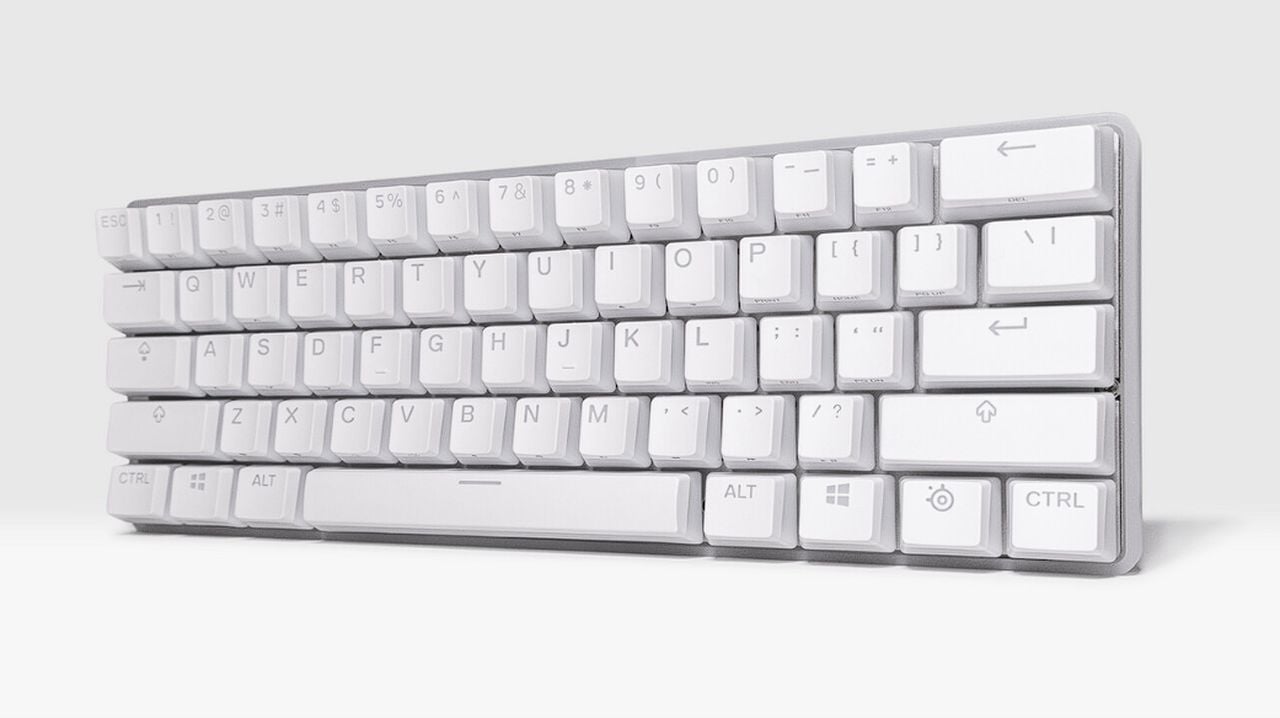
SteelSeries Ghost Edition Apex Pro Mini 60% limited-edition mechanical keyboard

SteelSeries Ghost Edition Apex Pro Mini keyboard

SteelSeries, a well-known name in the gaming and Esports peripherals industry, has recently unveiled a new addition to it’s range in the form of the Ghost Edition Apex Pro Mini. A limited edition 60% compact mini mechanical keyboard specifically designed for gaming but also just as home as an everyday go to keyboard. Featuring a […]

The post SteelSeries Ghost Edition Apex Pro Mini 60% limited-edition mechanical keyboard appeared first on Geeky Gadgets.

Kingdom of the Planet of the Apes film premiers May 24, 2024

Kingdom of the Planet of the Apes film

20th Century Studios has released a new trailer for the upcoming film Kingdom of the Planet of the Apes continuing the saga from the previous movies. The upcoming science fiction, action film, promises to be an exciting new chapter in the Planet of the Apes reboot franchise. With a star-studded cast and a dynamic team […]

The post Kingdom of the Planet of the Apes film premiers May 24, 2024 appeared first on Geeky Gadgets.

This cyberpunk mini PC adds a little RGB flavor to your workspace

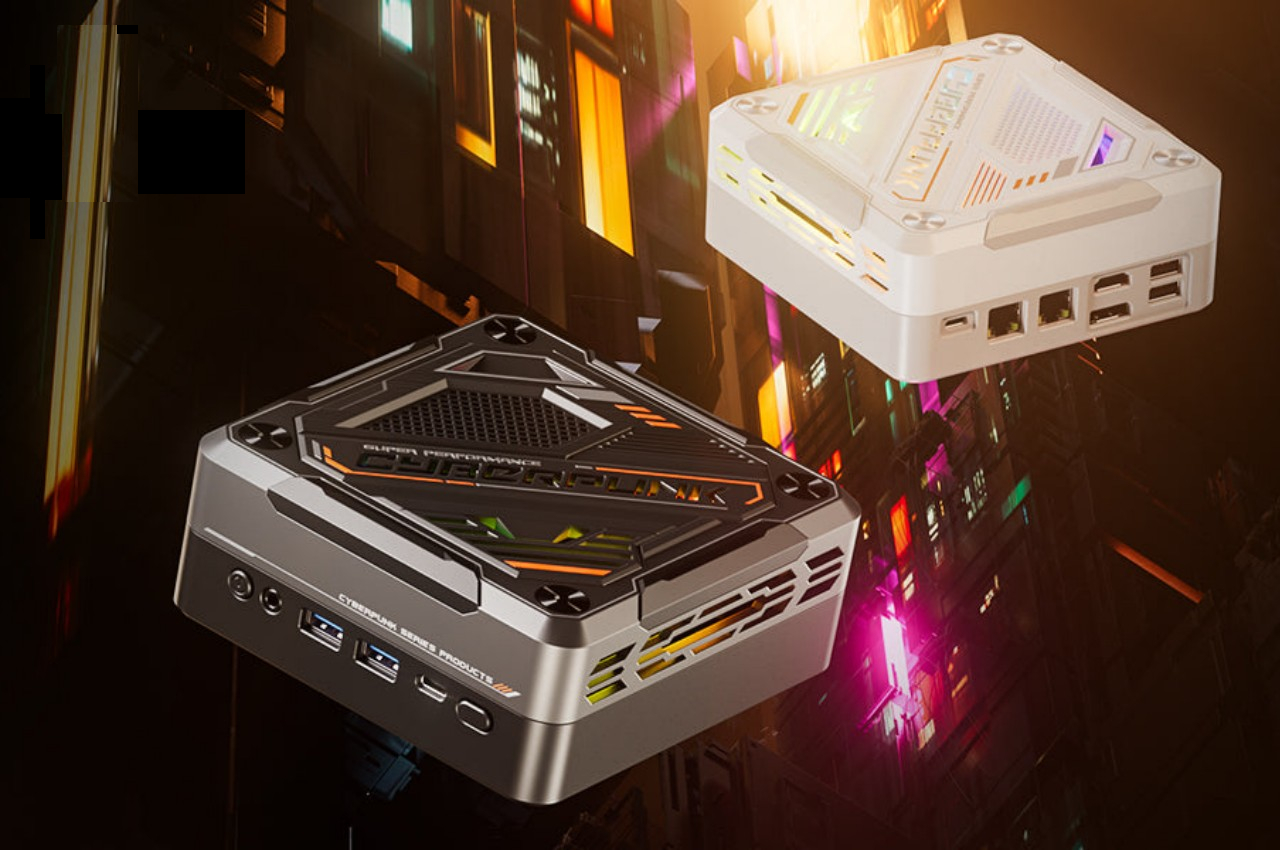
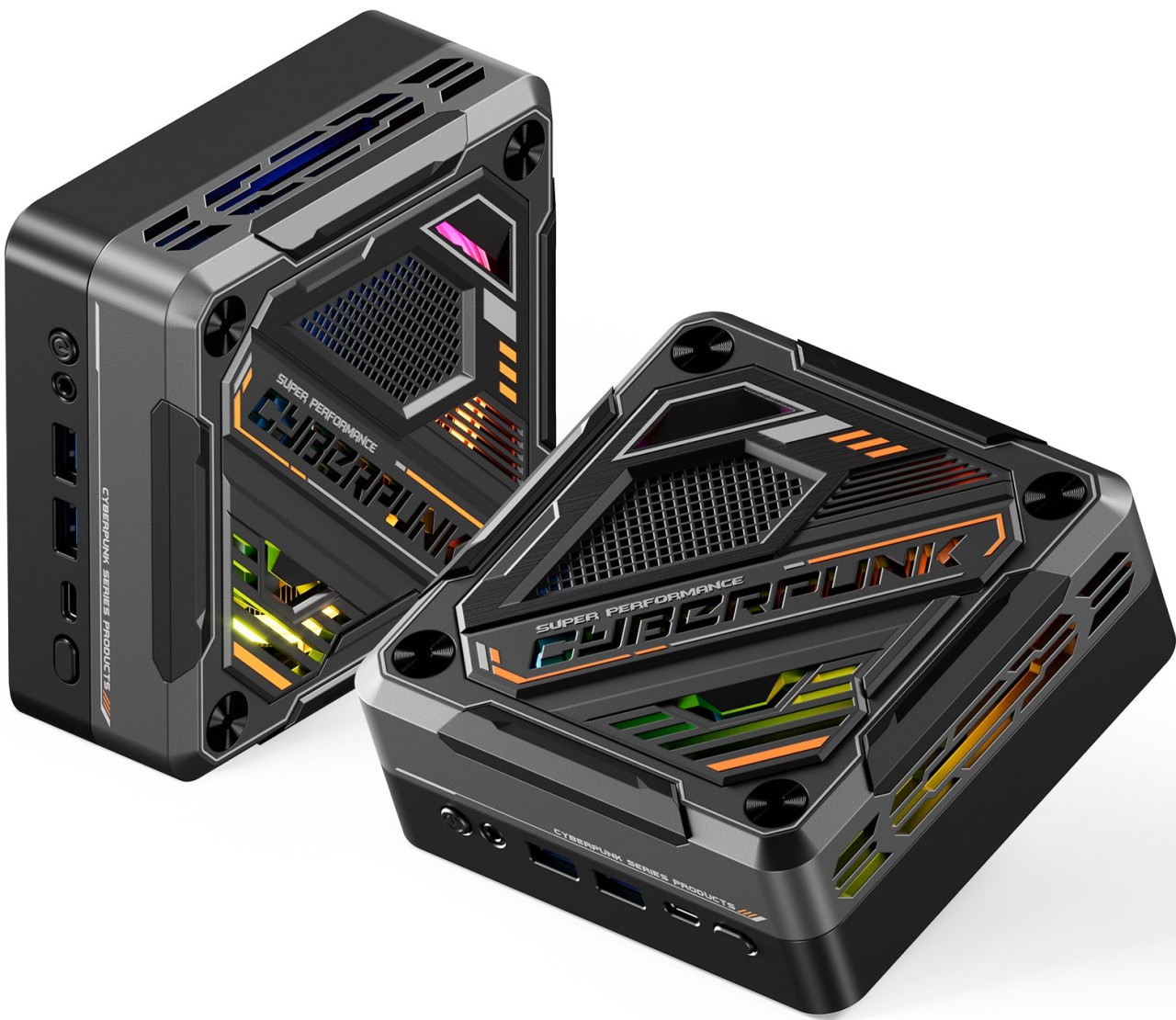
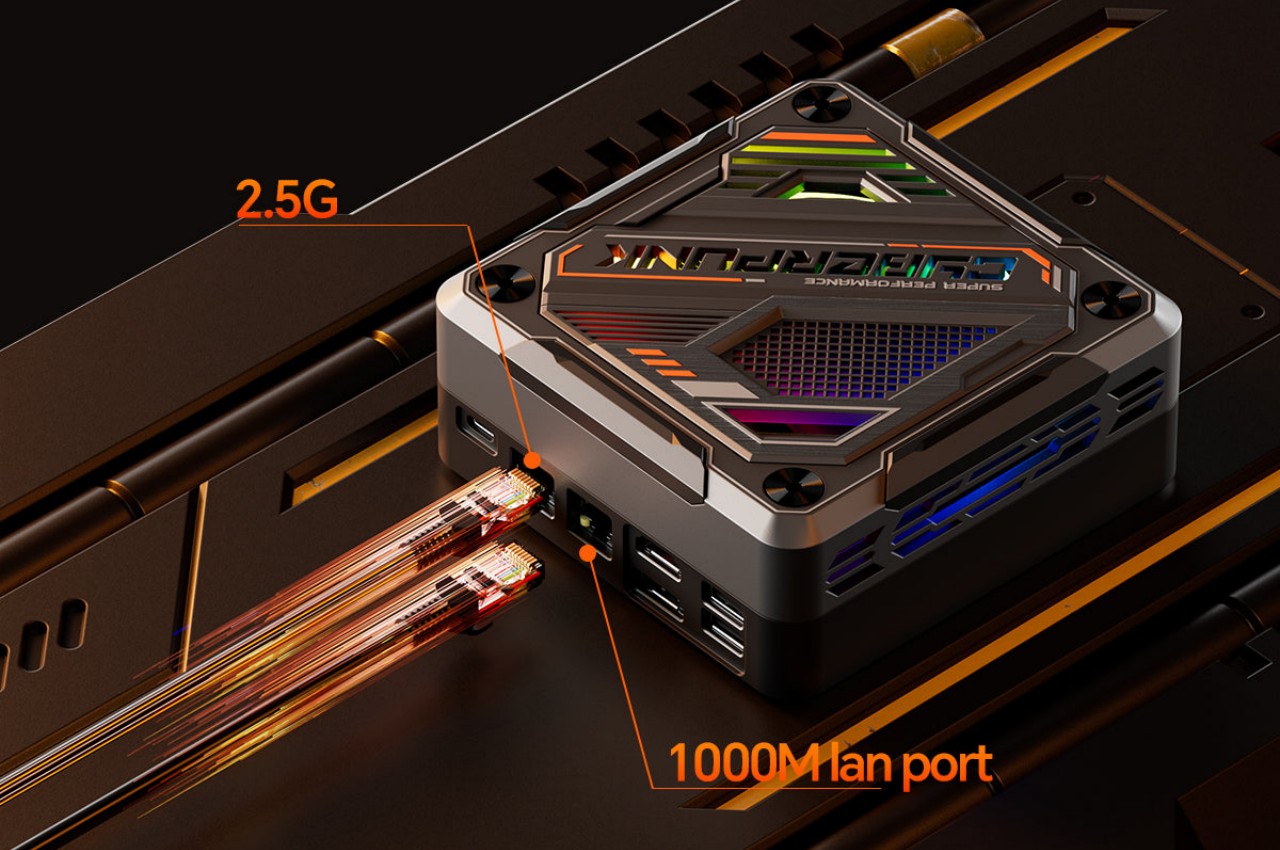
Mini PCs are becoming quite popular these days, especially with improvements in the processors that drive them. They’ve become dependable desktop PC options, especially for those with space constraints or who detest bulky towers. Some are even capable of gaming, at least within certain limitations. Despite all the internal upgrades, the majority of mini PCs retain their stereotypical box shapes with rather uninspiring designs. And unlike their towering cousins, customization options are pretty limited unless you buy one that was designed with a specific motif from the get-go. That’s the kind of visual experience that this unusual mini PC is trying to offer, carrying a cyberpunk-inspired design and RGB lighting to light up your desk a bit, quite literally even.

Designer: AOOSTAR

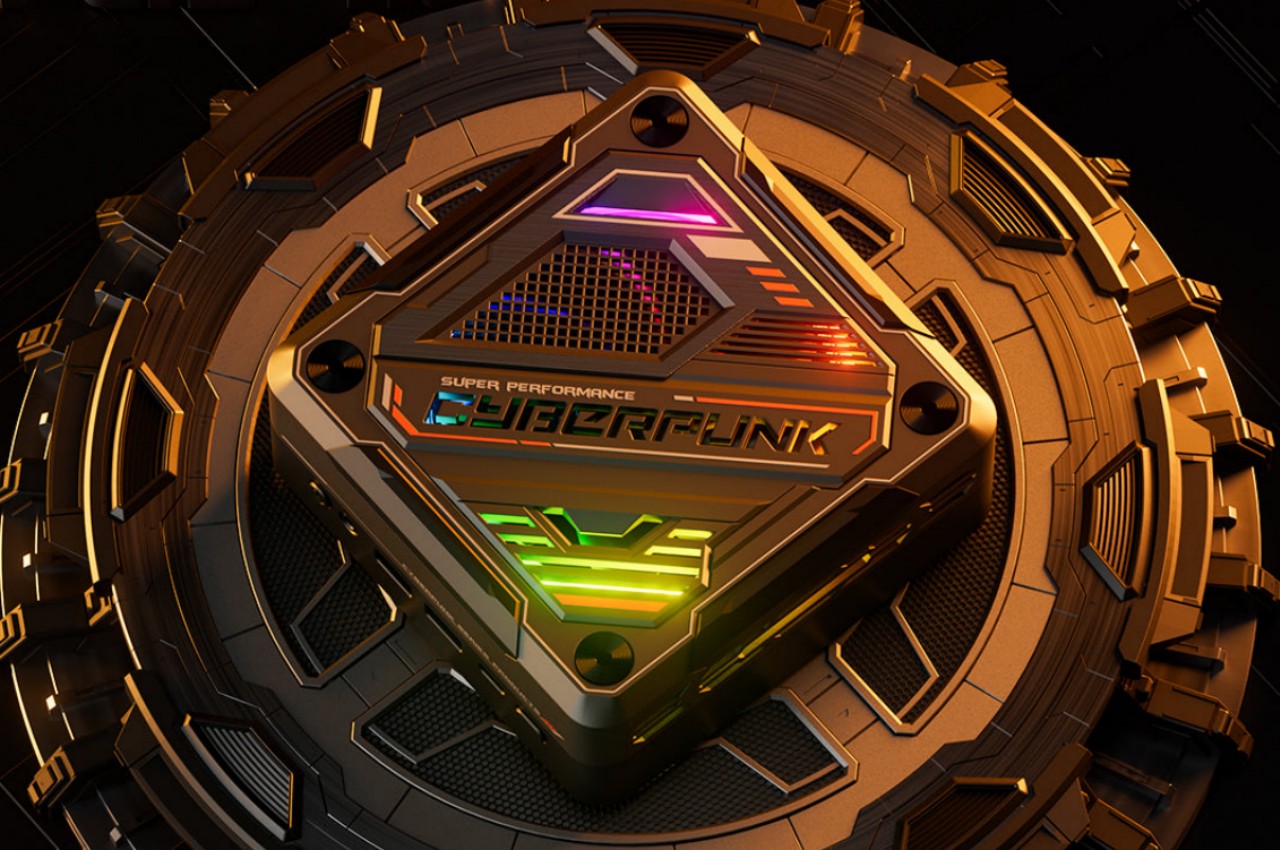
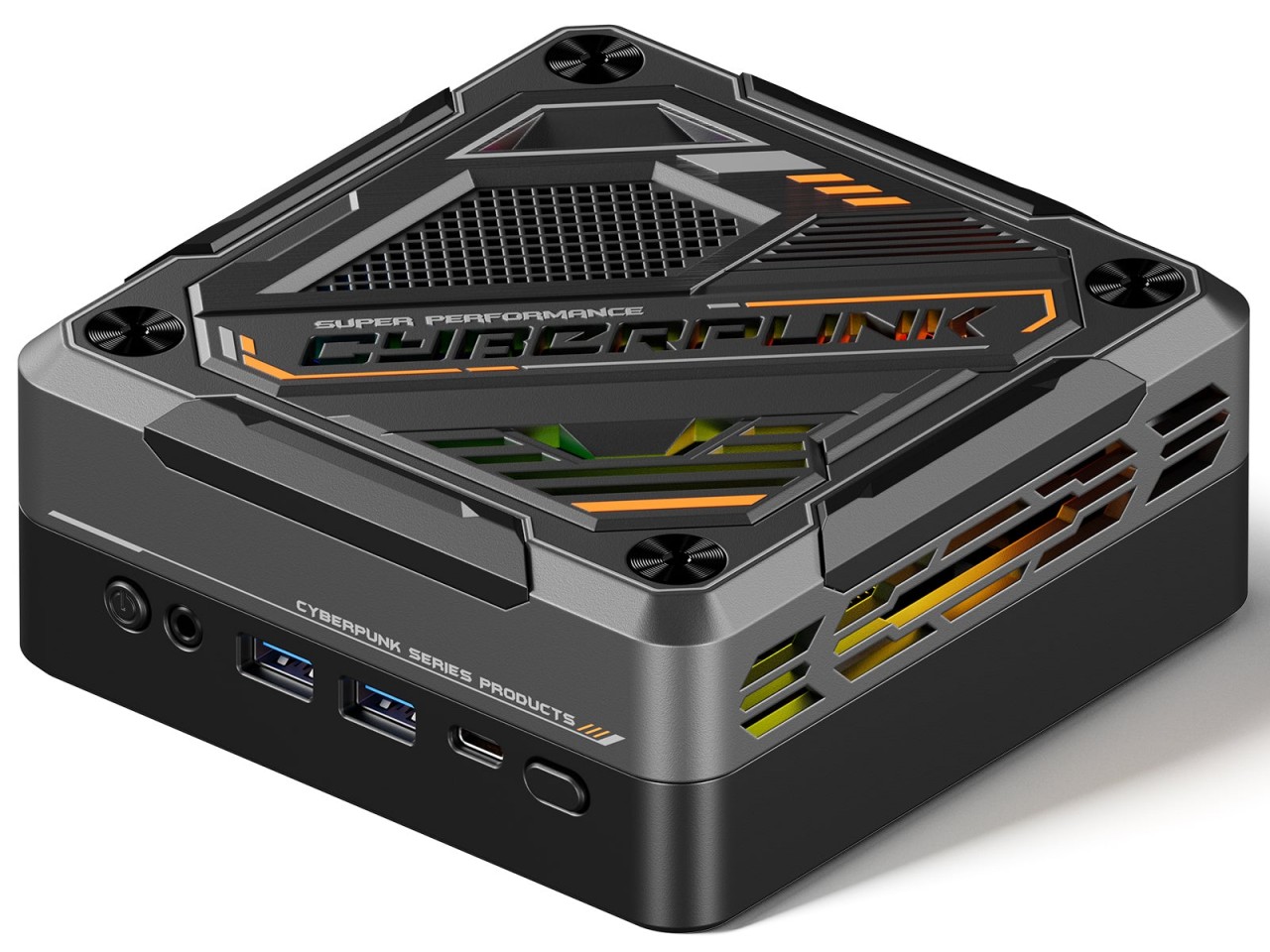
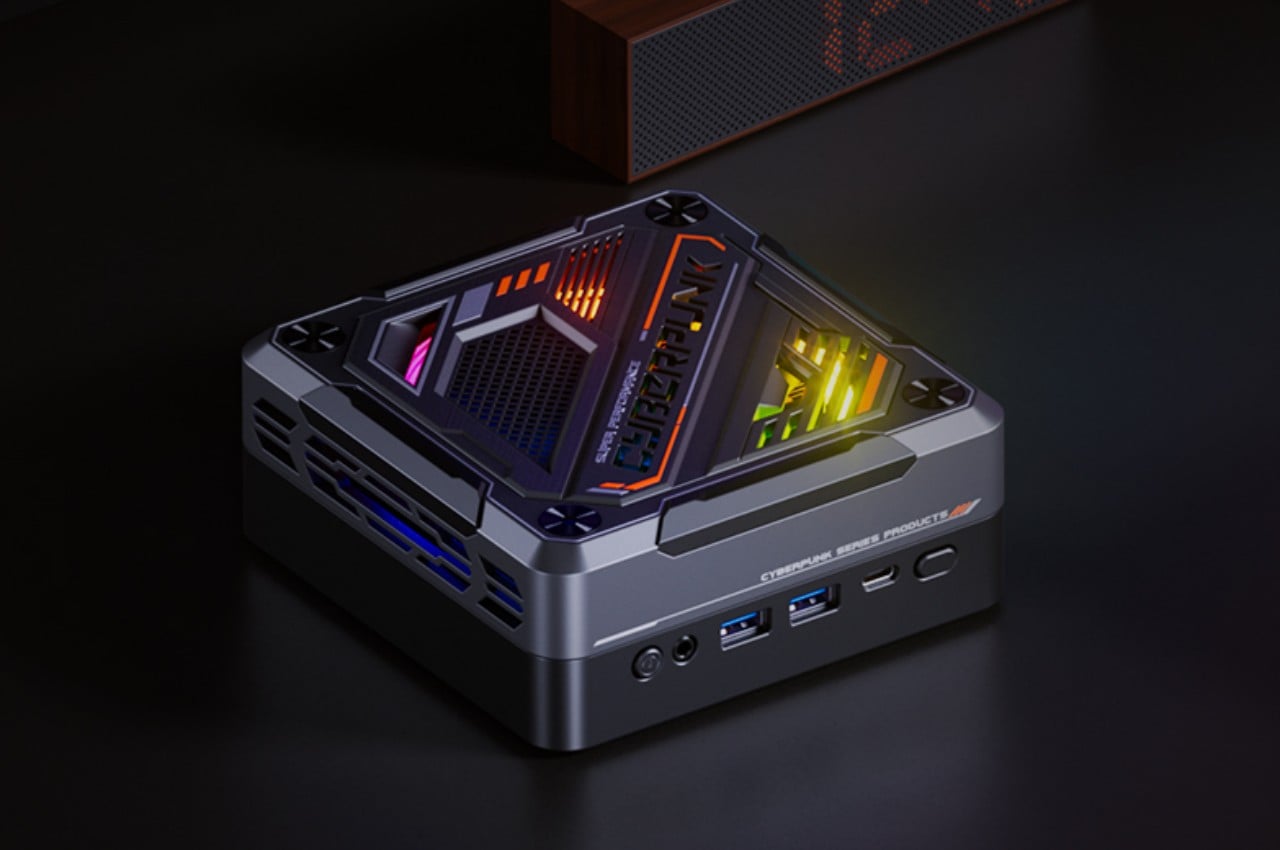
The cyberpunk genre gave birth to a design theme that involves bright neon colors set against dark backdrops and a somewhat disorganized composition of lines and polygons that suggest the presence of panels that hide some jungle of wires and circuits underneath. The fictional settings might be gloomy or even disheartening (it’s “punk,” after all), but the designs ironically bring life to products and spaces, at least when done tastefully and with a reasonable balance of elements. The AOOSTAR GOD7 mini PC definitely has that effect without going overboard and turning your desk into a blinding light show.

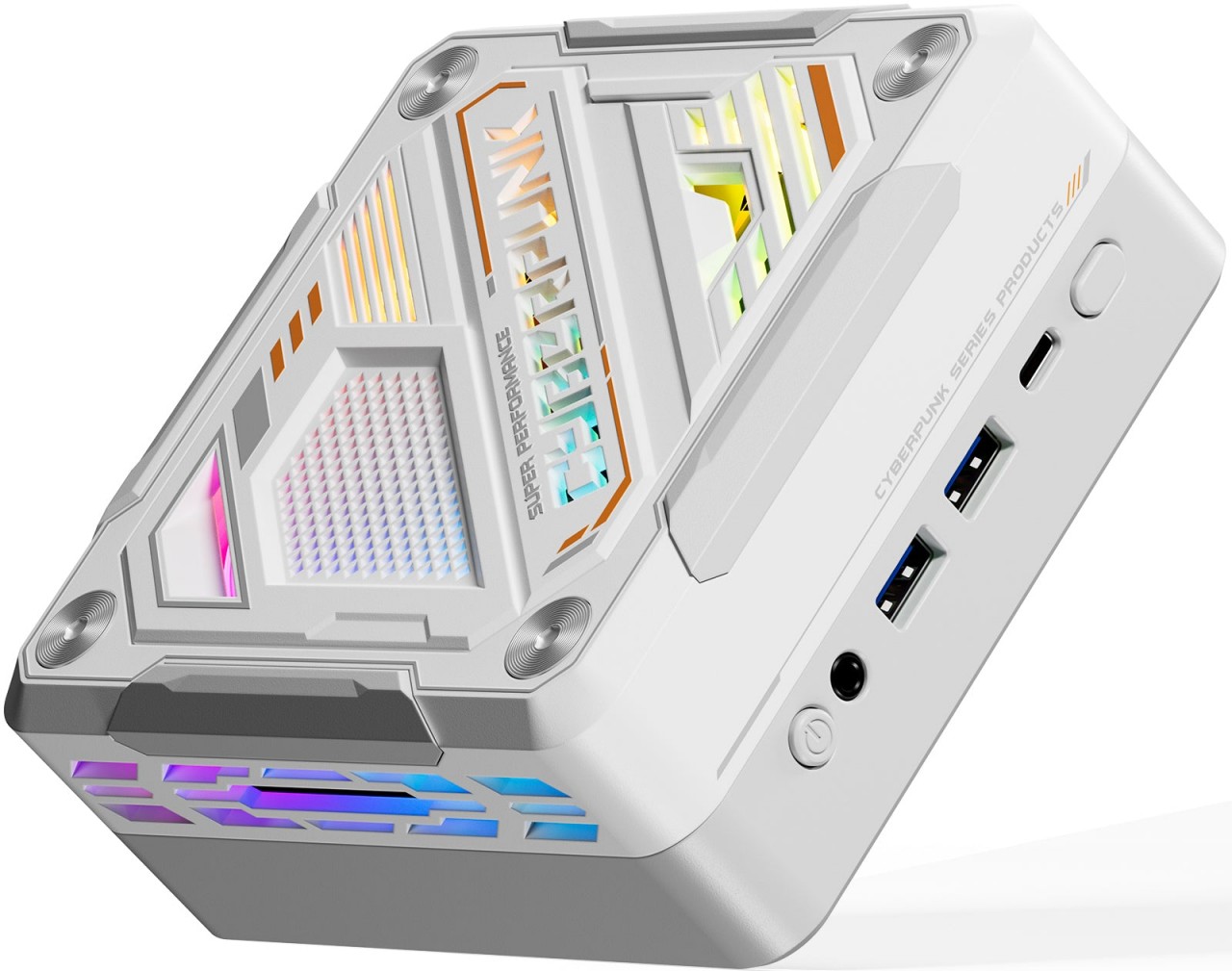
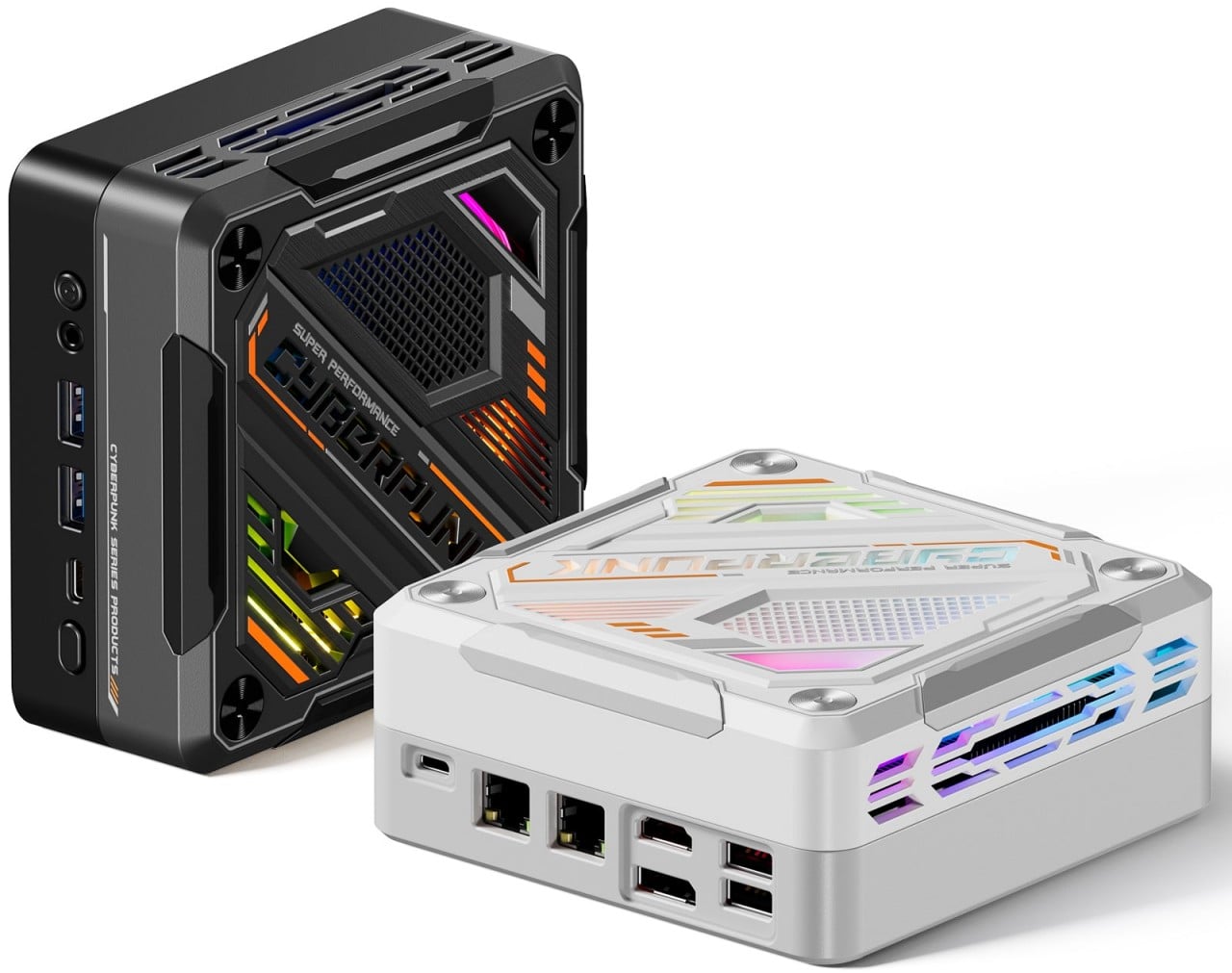
The design is available in white and black colorways, but it’s definitely the black model that captures the cyberpunk vibe best. The RGB lighting inside shines through polygonal cutouts and vents, giving the semblance of glowing lines and markings prevalent in cyberpunk design. There’s some level of customization when it comes to the colors and “rhythm” of the lights, but don’t expect as much as pro gaming desktops or laptops from bigger brands.

The mini PC is advertised as a gaming computer, but take that label with a grain of salt. It definitely has enough muscle to run a good number of games, but gamers will have to set their expectations properly. Given its more compact size, there is no room for a desktop-grade graphics card, but you can theoretically connect an external GPU enclosure to really take things to the next level. Other than consideration, it’s actually a rather capable computer that would be able to handle most gaming and multimedia tasks you throw at it.

With the rise in both interest and production of mini PCs, it’s only a matter of time before designs become more diversified and, hopefully, more interesting. The AOOSTAR GOD7 packs a decent set of hardware in a design that adds a little pizzazz to your desk without going overboard or becoming too distracting. It has just the right balance of interesting details that will make you want to place it somewhere everyone can see while still having enough room for the more important tools of your trade.

The post This cyberpunk mini PC adds a little RGB flavor to your workspace first appeared on Yanko Design.

What is Data Lineage and why is it so critical in today’s world?

What is Data Lineage

Data lineage is a vital aspect of data management. It refers to the life-cycle of data, including its origins, movements, characteristics, and quality. This article delves into the concept of data lineage, exploring its definition, importance, role, and impact on various aspects of data management and business decision-making. Data lineage can be described as the […]

The post What is Data Lineage and why is it so critical in today’s world? appeared first on Geeky Gadgets.