Waymo is voluntarily recalling its robotaxis after one of them collided with a telephone pole in an alley enroute to pick up a passenger, The Verge reported. The vehicle was unoccupied and no bystanders were injured.
At the time of the May 21st accident, the Waymo vehicle went through an alley lined with telephone poles mounted at street level rather than on a curb, with a yellow line showing where to drive. While pulling over, it struck one of the poles at 8 MPH and sustained some damage, Waymo said.
"It never made it to pick us up," the passenger waiting for the car, Jericka Mitchell, told 12News. Mitchell reportedly heard, but didn't see the accident.
The company filed a recall with the National Highway Traffic Safety Administration (NHTSA) after updating the software in its entire self-driving fleet of 672 vehicles. The update is designed to fix an error that assigned a low damage score to the pole and failed to account for the alleyway's hard edge.
It's only Waymo's second recall. The first happened earlier this year when two of its autonomous vehicles crashed into the same pickup truck that was being towed. In that one, Waymo found that its software failed to predict the movements of the vehicle due to "persistent orientation mismatch" between the towed vehicle and the one towing it.
Waymo is also under investigation for more than 24 incidents including crashes and traffic violations. Rival Cruise, owned by GM, was involved in a more serious incident last year, wherein one of its robotaxis accidentally dragged someone hit by another vehicle a few dozen feet down a San Francisco street. California then suspended its license to operate in the state and Cruise eventually paused all robotaxi operations
This article originally appeared on Engadget at https://www.engadget.com/waymo-issues-recall-after-one-its-self-driving-taxis-crashed-into-a-pole-121937607.html?src=rss
Since its recent launch GitButler is has been transforming the way developers manage their source code with its innovative approach to Git branching. Designed to enhance productivity and streamline workflows, GitButler offers a suite of features that cater to the needs of modern developers. This article delves into the advanced Git branching capabilities of GitButler, […]
Google has recently unveiled its latest Feature Drop for Pixel devices, introducing a range of new capabilities designed to enhance user experience and functionality. The standout feature of this update is the introduction of Gemini Nano, Google’s most efficient AI model built specifically for on-device tasks. This groundbreaking technology is now available as a developer […]
Elon Musk had sexual relations with a SpaceX intern who was later hired onto his executive staff as a troubleshooter, The Wall Street Journal reported. He also had an intimate relationship with a second employee and allegedly asked a third woman to have his babies, according to the report. When the latter refused, Musk denied her a raise and complained about her performance, according to the WSJ's sources.
In one case, Musk pursued a relationship with an intern. Later, he contacted her about a fulltime job at SpaceX to "find problems at the company and fix them," according to the report. She became a full-time member of Musk's executive group, something former employees found unusual for someone so junior — despite her talent as an engineer. (The woman told the WSJ that she didn't want to be part of the article and said in an affidavit that her and Musk remained friends.)
Another woman said she was accused by SpaceX President Gwynne Shotwell of having an affair with Shotwell's husband. The woman reported the event to HR, something that allegedly got back to Shotwell. Shotwell then demanded the woman be removed from the chief executive's office. Musk later had a sexual relationship with the same woman, who has since left the company.
The WSJ said its reporting is based on text message, emails, documents and interviews with more than 48 people, "including former employees, people familiar with Musk’s interactions with female subordinates and friends and family of the women."
Musk didn't reply to the WSJ. In a comment, Shotwell said:
"The untruths, mischaracterizations, and revisionist history in your email paint a completely misleading narrative. I continue to be amazed by what this extraordinary group of people are achieving every day even amidst all the forces acting against us. And Elon is one of the best humans I know."
This is far from the first report about inappropriate behavior at SpaceX, though. Late in 2021, former employees described a "culture of sexual harassment" at the company, including unwanted advances, lewd comments and physical contact. Last year, Musk was accused of sexual misconduct by a SpaceX flight attendant and earlier in 2024, a SpaceX lawsuit claimed repeated instances of gender discrimination and basic safeguarding failures.
This article originally appeared on Engadget at https://www.engadget.com/wsj-details-elon-musks-questionable-conduct-with-spacex-employees-120057625.html?src=rss
There’s about a one in three chance you’re reading this on a desktop computer — and you might be wondering whether there’s a way to make your computing-at-a-desk experience more ideal for your body. Sitting for hours on end appears to be the biggest detriment to our health, which is why getting up regularly or switching things up with a standing desk can help. Then there’s the health considerations of peripherals like mice and keyboards. A traditional mouse can constrict your wrist and put pressure on your forearm, something ergonomic mice can alleviate with their more natural orientations. I tried out around 20 highly rated vertical, semi-vertical and trackball mice to see which ones felt good, worked well and most importantly, did anything to alleviate my chronic shoulder tension. Here are the best ergonomic mice I found.
Like everything related to ergonomics, the mouse design that works best for you will depend on your body and what you need to do on a typical day. So the shapes, added features and how the mouse communicates with your computer will determine which you should get.
Types and shapes of ergonomic mice
When we’re talking about ergonomic mice for productivity purposes, it usually refers to mice that look distinctly different from the standard, typically with shapes that tilt your hand towards a more “handshake” position instead of facing your palm downward. A vertical ergonomic mouse has the most severe up-and-down angle, semi-vertical mice split the difference and trackball models stay put on your desk while your thumb controls the movement of the cursor. Gaming mice have an ergonomic category as well, but that simply refers to a mouse with curves designed to fit either the right or left hand. It differentiates those mice from ambidextrous models, which don’t conform to a particular hand.
Each of three ergonomic mice shapes can help address different concerns. If you’re trying to avoid twisting your forearm, a vertical mouse could be what you need. Clicking a vertical mouse feels more like pinching your finger and thumb together, which could relieve certain other wrist issues as well.
A semi-vertical mouse feels the most like a traditional mouse, with an angle closer to 50 or 60 degrees from your desk. Semi-vertical mouse clicks can feel easier too, since you're pushing down instead of pinching. Some vertical and semi-vertical mice have an optional flange that supports the heel of your palm. Instead of pivoting on those bones to make the mouse move, your palm and wrist stay aligned and the entire arm controls the motion.
A trackball mouse can also keep your wrist from bending, as it keeps your forearm planted. My personal struggle is with neck and shoulder tension, so trackballs and very lightweight vertical mice work best for me as their configuration lets me keep my forearm from moving.
DPI, weight and buttons
As this guide focuses on productivity mice, gaming-specific stats like polling rates and IPS values don’t really come into play. (My colleague Jeff Dunn does a good job of explaining those metrics in his gaming mouse review guide.) What matters here are numbers like DPI, or dots per inch, which indicates how sensitive a mouse is. The higher the setting, the faster your cursor will move across the screen. Low DPI settings let you do precision work like pixel-by-pixel editing in Photoshop. All the mice here have at least two and as many as five settings, ranging from 400 to 3,200 DPI. Mice that make it easy to switch from high to low DPI might make sense if you do a lot of detailed work.
Weight makes a difference in vertical and semi-vertical mice (but not trackballs, since they stay put). A lighter mouse will be easier to move around, which could put less strain on your wrist and arm. That said, a little weight can make the movements of your mouse feel more precise. For reference, a featherweight gaming mouse might weigh 45 grams and a large vertical mouse with a flange attached might weigh 140 grams. The latter may feel a little heavy, but a mouse with smooth feet and used with a decent mouse pad will feel lighter.
It's always nice to have easily clickable buttons, but that matters even more when body health is a concern. Pressing hard on a button tenses up my arm and shoulder like nobody’s business. Since it’s an action desk workers perform hundreds or thousands of times a day, it's essential that it be effortless — nothing ruled out a mouse quicker in my tests than tough buttons.
Photo by Amy Skorheim / Engadget
Extra features
All mice have the basics: a right and left button and a scroll wheel. All mice in this guide also have a DPI selector button. Some have other functions such as a scroll wheel that can click with a press or handle horizontal scrolling by tilting the wheel to the right or left. Many also have back and forward buttons for browser windows, and sometimes those two are programmable to perform different functions in other apps.
More complex mice have additional buttons to customize, typically using a mouse’s proprietary software. Depending on that software, you can set buttons to mute calls, copy and paste, undo and redo, switch tabs and more. Performing multiple functions without extraneous movement is a big plus in ergonomic design. Of course, there are a number of keyboards that let you program multiple functions into specific keys, which cuts down on superfluous movement even more, which you can read about in our ergonomic keyboard guide.
Connectivity and compatibility
All the mice here will work with Mac's operating system as well as Microsoft Windows, and some work with Chrome, Linnux and even iPadOS (though I didn’t test those) as well. They connect in three ways: Wired, via Bluetooth or with a 2.4Ghz wireless dongle. More devices have incorporated USB-C interfaces, but most mice still use USB-A. So if you have a laptop that only sports USB-C ports (looking at you, MacBook), you’ll need an adapter to use a wired or dongle-enabled mouse. You can use a hub or docking station for this purpose, but in testing this guide, I ran into connectivity issues using a wireless USB receiver in a docking station, particularly when there wasn’t a direct and completely clear path between the mouse and receiver. Everything worked far more reliably with just a direct USB-C to A adapter.
The difference between wireless and Bluetooth is twofold: a wireless dongle connection tends to be quicker to set up. You just plug in the accessory, turn on the mouse (potentially granting permission for the device) and you’re set. For Bluetooth, you need to open the settings menu, activate pairing mode on the mouse, search for the mouse and then click connect. There’s also a bit more latency when using Bluetooth versus a wireless mouse. It’s not something most people will notice doing workaday stuff, but if you plan on playing some Overwatch after hours and want to use the same mouse, you might want to go with the faster, 2.4Ghz route.
How we test ergonomic mice
After many hours of research and reading reviews, I gathered just over 20 mice with good claims to ergonomic design to test in my work setup. I mostly tried out mice geared towards a work-from-home or office setting, as opposed to gaming (we have a whole guide dedicated to that topic). I used each mouse for a few hours or a few days, noting how well they felt as well as how they performed. I mostly used a MacBook Pro M1 but verified Windows compatibility with an Asus ROG Strix laptop. For reference, my right hand measures 7.25 inches from the wrist crease to the tip of my middle finger, which is just under average for a man and large for a woman.
Best ergonomic mouse for 2024
Other ergonomic mice we tried
Logitech MX Master 3S
In our guide to the best productivity mice, we name the Logitech MX Master 3S the best you can get. As I considered its merits as a mouse, it was indeed an impressive option — it connected flawlessly, has a useful sideways wheel as well as the traditional scroll feature and the thumb rest is a nice touch. But the ergonomics didn't quite do it for me. For one, it holds your hand in the standard, palm-down, claw-grip position.
Logitech Lift Vertical
Logitech’s Lift Vertical is likely one of the more popular ergonomic mice out there. It’s fairly lightweight, has an attractive design with a nice feel to the exterior. The buttons are easy to click and nearly silent. It also connects quickly using either Bluetooth or a dongle. Unfortunately, it doesn’t glide across the mouse pad all that smoothly, and the pinch grip the design requires actually aggregated my wrist. The cursor movements are fairly precise, though I occasionally had trouble getting the cursor to land just where I wanted it. Also, it’s small; my hands are too large for the Lift. Logitech’s Logitech MX Vert is essentially a larger version, but again, the skinnier shape was uncomfortable in my hands and it was tough to get the cursor to go where I wanted it to.
HP 920 ergonomic vertical
The HP 920 ergonomic vertical also has a flange for resting your palm, but it makes the mouse overly heavy to move around. Without it, however, it's an extremely comfortable mouse with a premium feel, rechargeable battery, and two programmable thumb buttons. Unfortunately, the cursor movement was frustratingly imprecise and didn’t go exactly where I pointed, forcing a number of corrections — and extraneous movement is what we’re trying to avoid in ergonomic setups.
Turtle Beach Pure Air
Apart from the rather loud clicks, I was impressed with the build and performance of the Turtle Beach Pure Air. It’s lightweight, moves smoothly, and has impressively accurate cursor movements. But despite being labeled an ergonomic mouse, it’s particularly light on the ergonomics. There’s a divot for your right thumb, so it can't be called ambidextrous, but beyond that it’s a pretty standard (albeit quite nice) gaming mouse.
Perixx Perimice 719
The PERIMICE-719 from Perixx is a solid mouse with an exterior that feels nice to the touch. It has a comfortable, semi-vertical design, accurate cursor moves and a satisfyingly ratcheted scroll wheel. Plus, it offers reliable connectivity with a wireless dongle and only costs $22. Unfortunately, it was too small for my hand. Only folks with smaller glove sizes (or don’t mind adopting more of a fingertip grip) will be able to get the most out of this one.
This article originally appeared on Engadget at https://www.engadget.com/computing/accessories/best-ergonomic-mouse-120004931.html?src=rss
A true gentleman is always selective about the products he carries and uses since they are an extension of his own personal style. The first gentlemen we all encounter are our dads, and this Father’s Day why not gift your dad thoughtful and functional lifestyle products that will add to his natural aura, and charisma while adding value to his everyday life? Striking a unique balance between functionality and style is extremely important – especially when it comes to men’s lifestyle designs. And we do believe we may have found a collection of product designs that harmoniously capture this balance! From a portable shaver with ceramic blades to give you the perfect clean shave to an innovative key ring that will hold all keys – these products are essential must-haves for all the gentlemen out there.
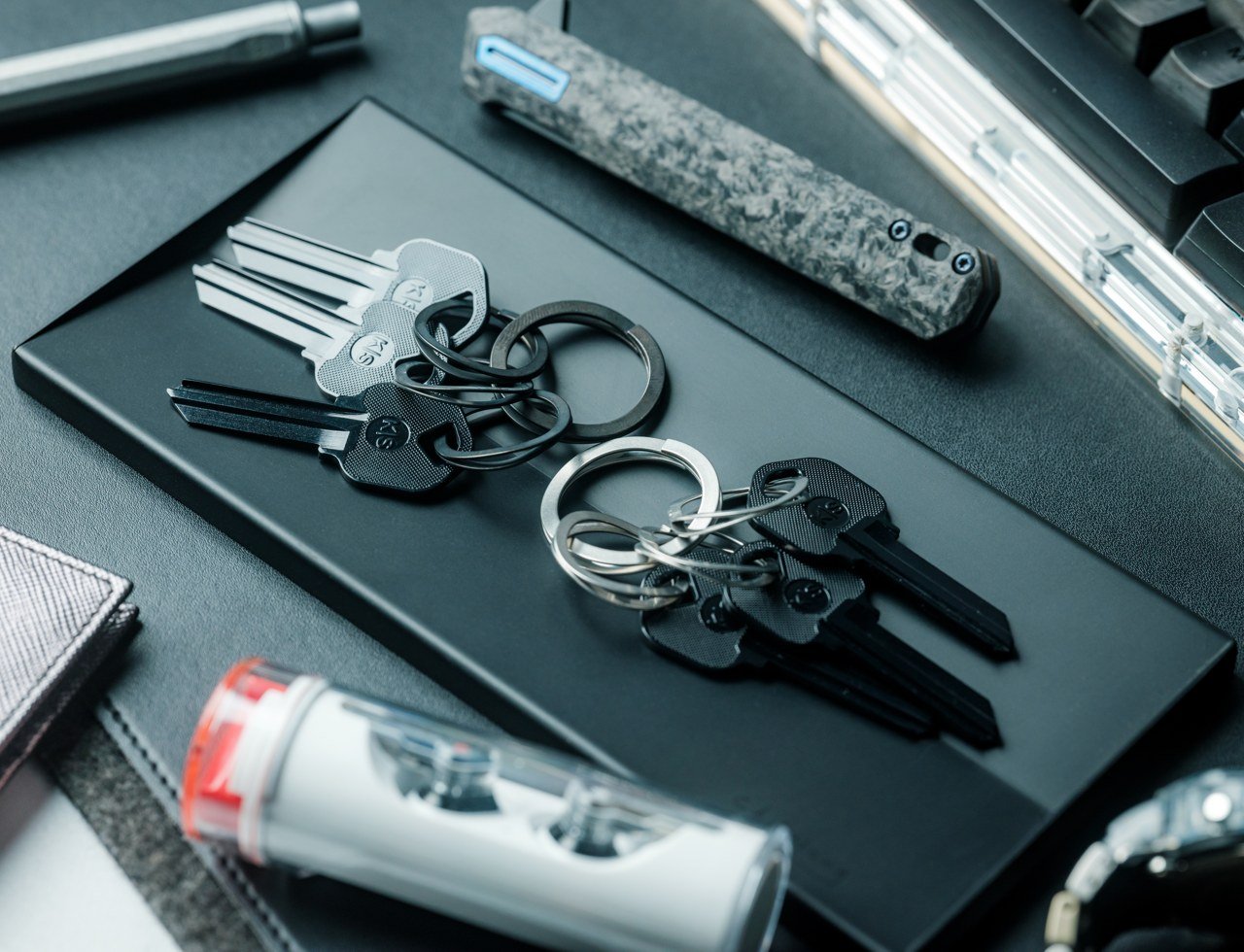
1. Painless Key Ring
Called the Painless Key Ring, this innovative product is equipped with a revolutionary wave spring key ring. The design draws inspiration from the mechanism used in the aerospace and automotive industries, ensuring you handle your keys in a smooth and hassle-free manner. If your dad tends to lose his keys easily or hates dealing with typical key rings, then he can finally bid farewell to them, and thank the Painless Key Ring!
This key ring organizes your keys using a high-tech and durable design letting you store your keys in an easy-to-access manner. It has. a compact and lightweight form which makes it easy to carry around and store.
What we like
It utilizes a wave spring tech to remove and add keys
What we dislike
More expensive compared to conventional keyrings
There is no system to differentiate between the keys they hold
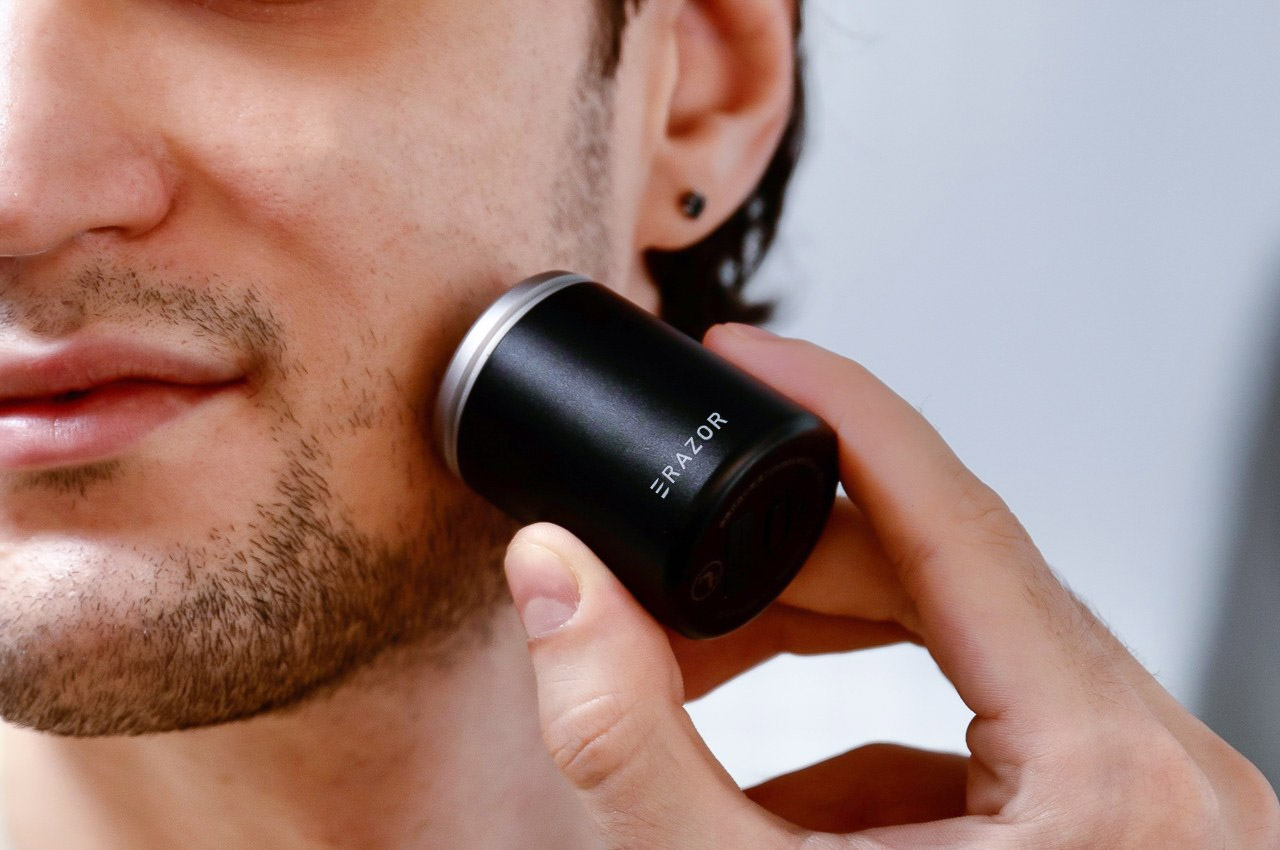
2. The Erazor
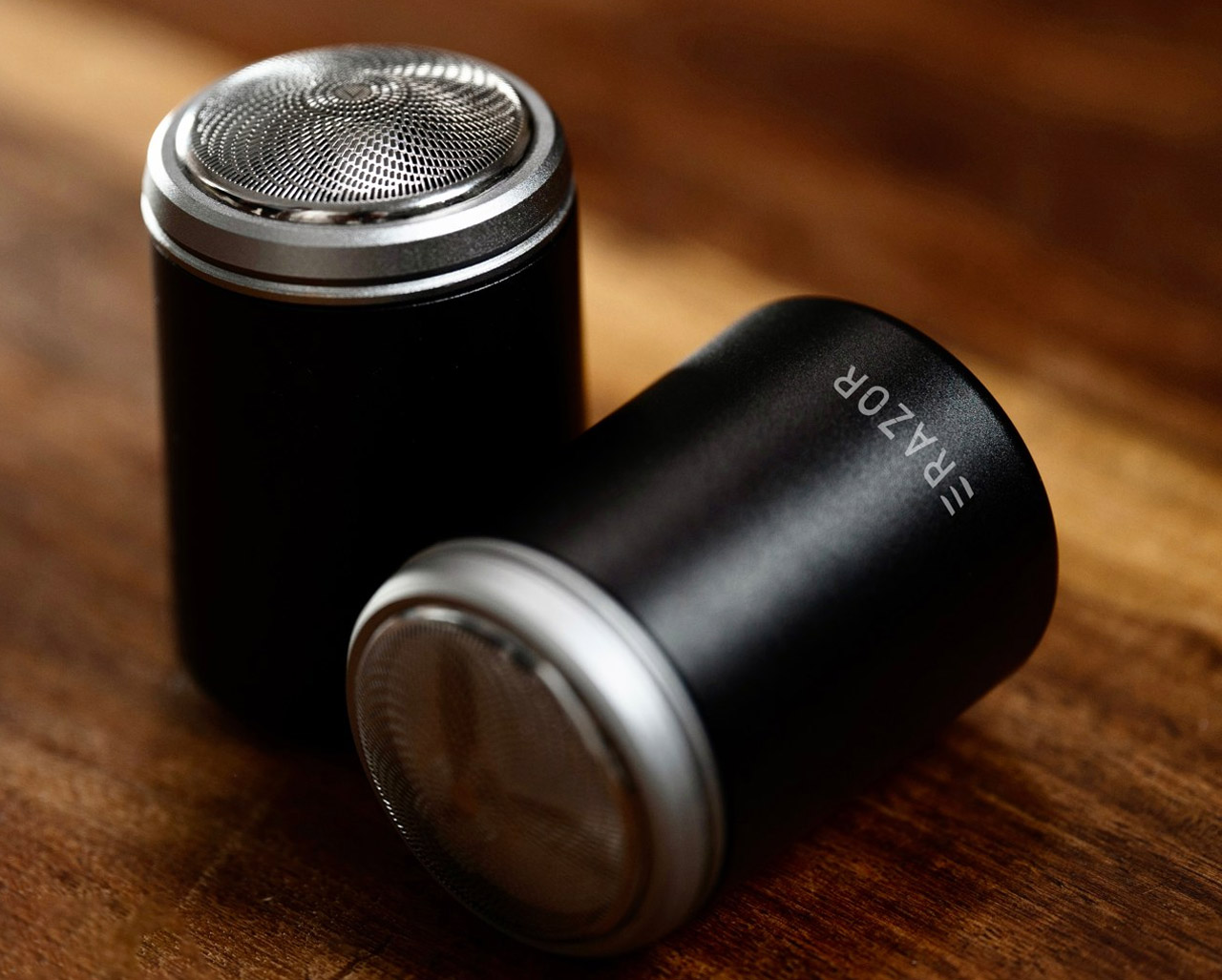
Called the Erazor, this unique portable shaver is designed to erase the stubble off your face, using ceramic blades. It is supposed to be the first shaver featuring ceramic blades. It is a compact and lightweight product that is quite easy to carry around, and also super comfortable to use. It makes for a thoughtful and functional Father’s Day present for your dad!
Why is it noteworthy?
The ceramic blades are designed to neatly and swiftly trim down your stubble, providing a totally clean shave, without causing any painful razor burns. The ceramic blades are a great alternative to meat blades which are coated with DLC for sharpness. But with time the coating can wear off, making the blades prone to nicking you.
What we like
The blades are made from Zirconium Oxide – an extremely durable material
What we dislike
The ceramic blades may take a while to adjust to if you’re used to metal blades
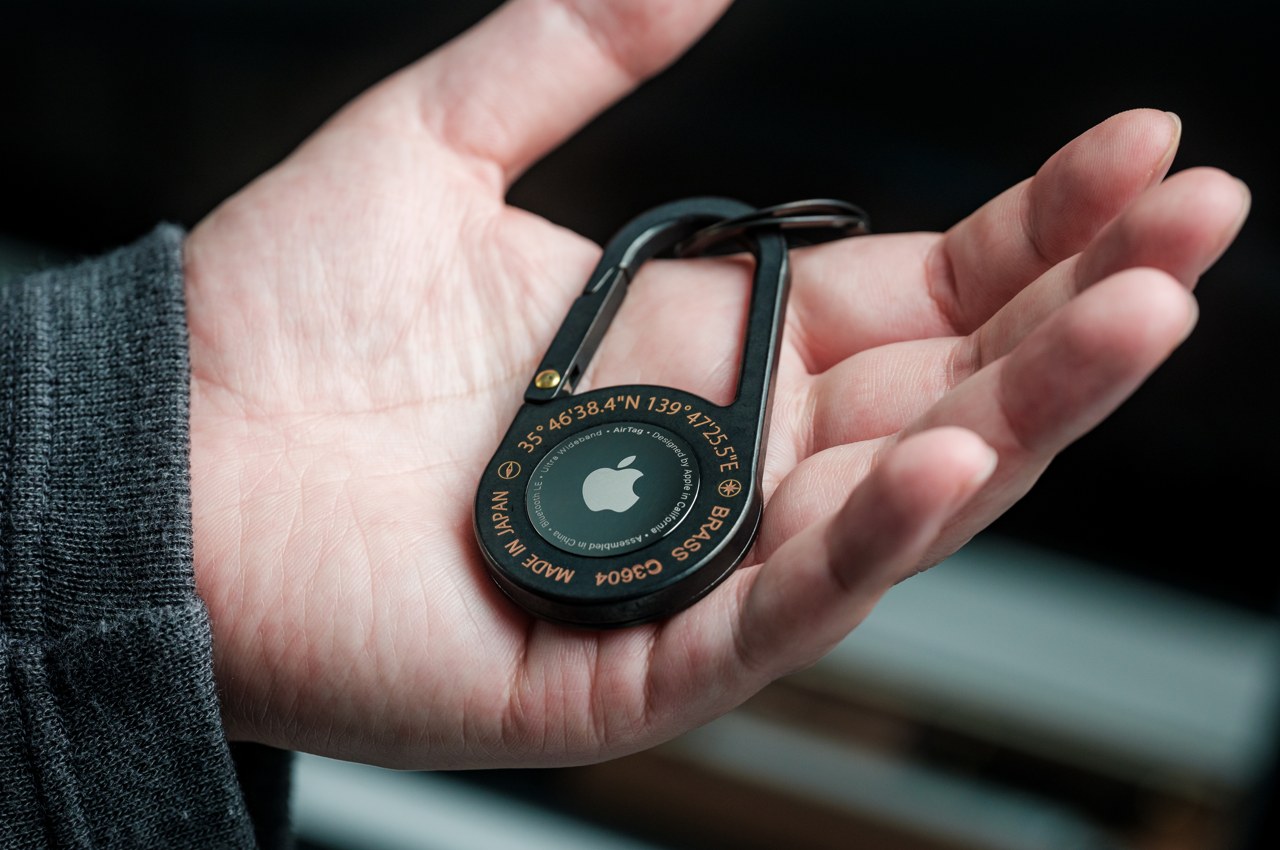
3. AirTag Carabiners
Called the AirTag Carabiners, these minimalist and good-looking designs are a refreshing new version of the typical old metal carabiners. They are precision-made and have a pretty compact form, making them easy to carry and even easier to use. The functional and portable design makes for a handy Father’s Day present.
They are handcrafted to make them durable and sturdy. These aren’t just simple melted metal casings, in fact, each piece is unlike any other, as manufacturing conditions alter the final design.
What we like
Handcrafted using premium-quality metal
Lightweight and easy-to-carry design
What we dislike
The process of attaching or detaching the AirTag isn’t very user-friendly and can be tedious
4. Pebble Time Watches
Called Pebble Time, this color e-paper smartwatch is designed to have seven days of battery, as well as a new timeline interface that highlights what’s most important in your day. There are two variants – Pebble Time and Pebble Time Steel, and they’re both infused with an improved timeline interface. If your dad doesn’t own a smartwatch, but you want to hook him up to the smartwatch game, then this is a good option for Father’s Day.
Why is it noteworthy?
The watches feature a color e-paper display as well as a microphone for responding to notifications. They are amped with four days of battery life, water resistance, and customizability. They are compatible with 6500+ existing Pebble apps and watch faces.
What we like
The e-paper display is ideal for displaying incoming notifications and your favorite watch face
What we dislike
Has a pretty thick bezel
Compatibility issues with certain apps
5. Unfiltered Titanium Whisky Glass
Dubbed the Unfiltered Titanium Whisky Glass, this classy glass draws inspiration from metallic hues and forms a fascinating light and color play. It builds a beautiful visual experience for you owing to its 1/f fluctuating pattern, which looks like a murmuring stream. Made from pure titanium, it elevates the drinking experience with its purity. It makes for an elegant and functional gift for your dad on Father’s Day, letting him enjoy his drink with class.
The whisky glass uses cutting-edge technology which creates a fascinating color play. It is biocompatible and safe, even more so than gold or platinum. The glass is pretty resistant to stains and odors and has long-term hygiene.
What we like
It uses advanced space development technology
What we dislike
Since it is a solid glass, you cannot see the quantity being poured or the amount in the glass from afar
6. MagSafe Origami Grip Stand
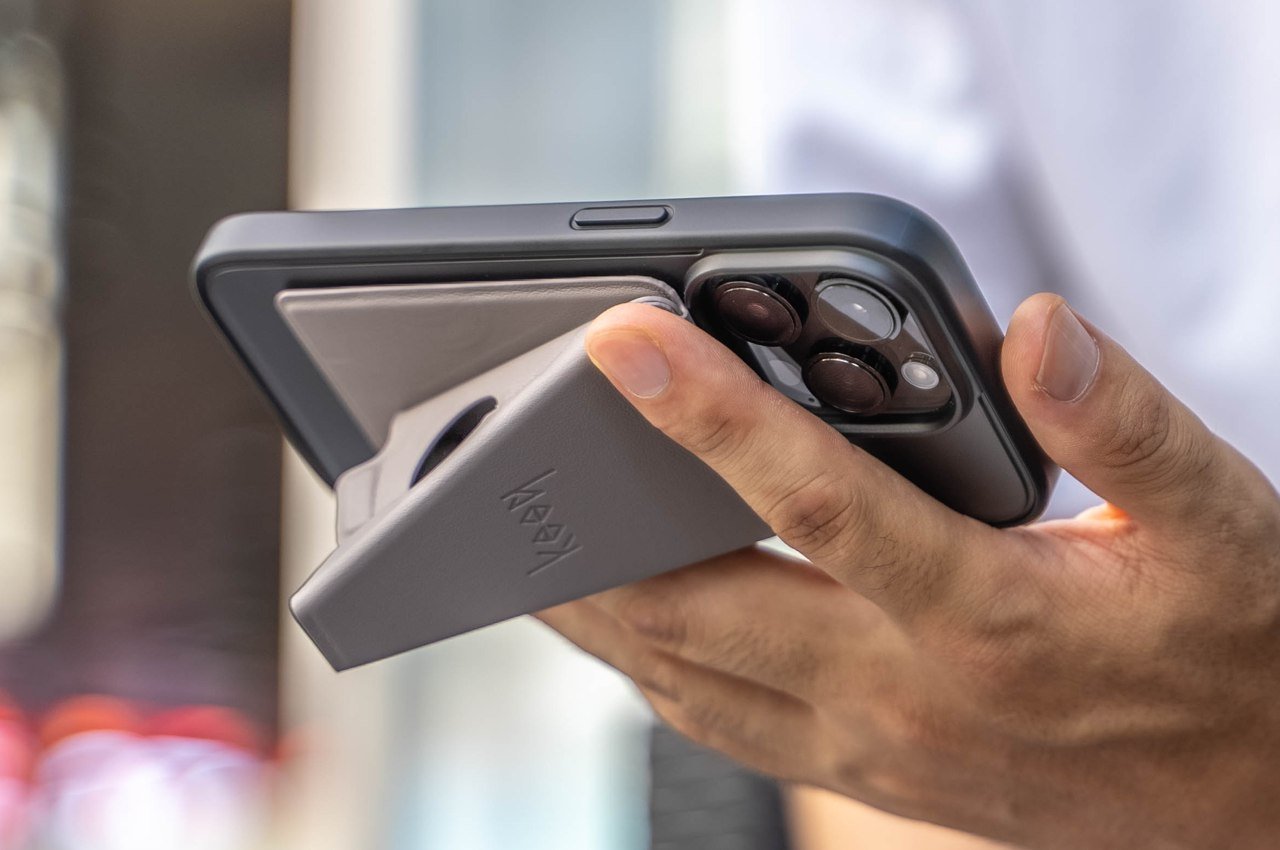
Called the MagSafe Origami Grip Stand – this sleek little stand is inspired by the Japanese art of paper folding. It can be folded flat and vice versa, cutting down the trouble of assembly and disassembly. This stand will offer excellent support to your dad’s iPhone, without causing any damage to it. We can watch his shows in peace, or scroll through his phone without having to hold it up.
The MagSafe Origami Grip Stand is lightweight, with a card-sized thin design. It can be easily attached to your phone, or slipping into your pocket, and it won’t look awkward or odd! The stand will be firmly attached to your phone, and it won’t fall apart even if you move about a lot.
What we like
Draws inspiration from the Japanese art of Origami
It will stay securely attached to your phone
What we dislike
It only works with iPhone 12 and later models, excluding the iPhone SE, making it a limited product
7. Everyday Messenger
Say hello to the Everyday Messenger – a visually stunning, smartly-designed, and adaptable messenger bag which is designed to be many things – ranging from a camera bag to a day-to-day essential carry workhorse. If your dad works in the creative field and has a ton of work gear he needs to carry around, but no stylish and convenient way to carry it, then you need to gift him the Everyday Messenger this Father’s Day!
Why is it noteworthy?
The Everyday Messenger is designed for photographers, creatives, travelers, and daily commuters. It is available in Charcoal and Heritage Tan colors and adds an element of sleek style and quick efficiency to your everyday carry experience. The bag maintains its shapely figure even if your load is light or heavy.
What we like
Features dividers that allow the bag to expand or contract depending on your gear
You can wear the strap in a multitude of styles
What we dislike
Users said it slides around too much when worn
8. AirCard
Meet AirCard – the first card-sized tracker in the world with an integrated Digital ID, which works exclusively with the Apple Find My network. There are multitudes of Apple products being used around the world, and the AirCard emits a strong Bluetooth signal which can be detected by devices surrounding it in the network. This allows you to track your wallet no matter where it is, ensuring you never truly lose. If your dad is someone who frequently loses his wallet, then the AirCard is an ingenious present for him.
Why is it noteworthy?
Even if your wallet is hidden somewhere close by, you can make it emit a noise using the AirCard app, allowing you to easily trace and locate it. You could also ask Siri where your wallet is, and to make it sound. Also if you leave your wallet behind somewhere, you will get a notification immediately due to the Find My app.
What we like
It also has an advanced lost mode to provide your contact details in case someone finds your wallet
What we dislike
The battery is not replaceable
9. Full Leather Wallet Case
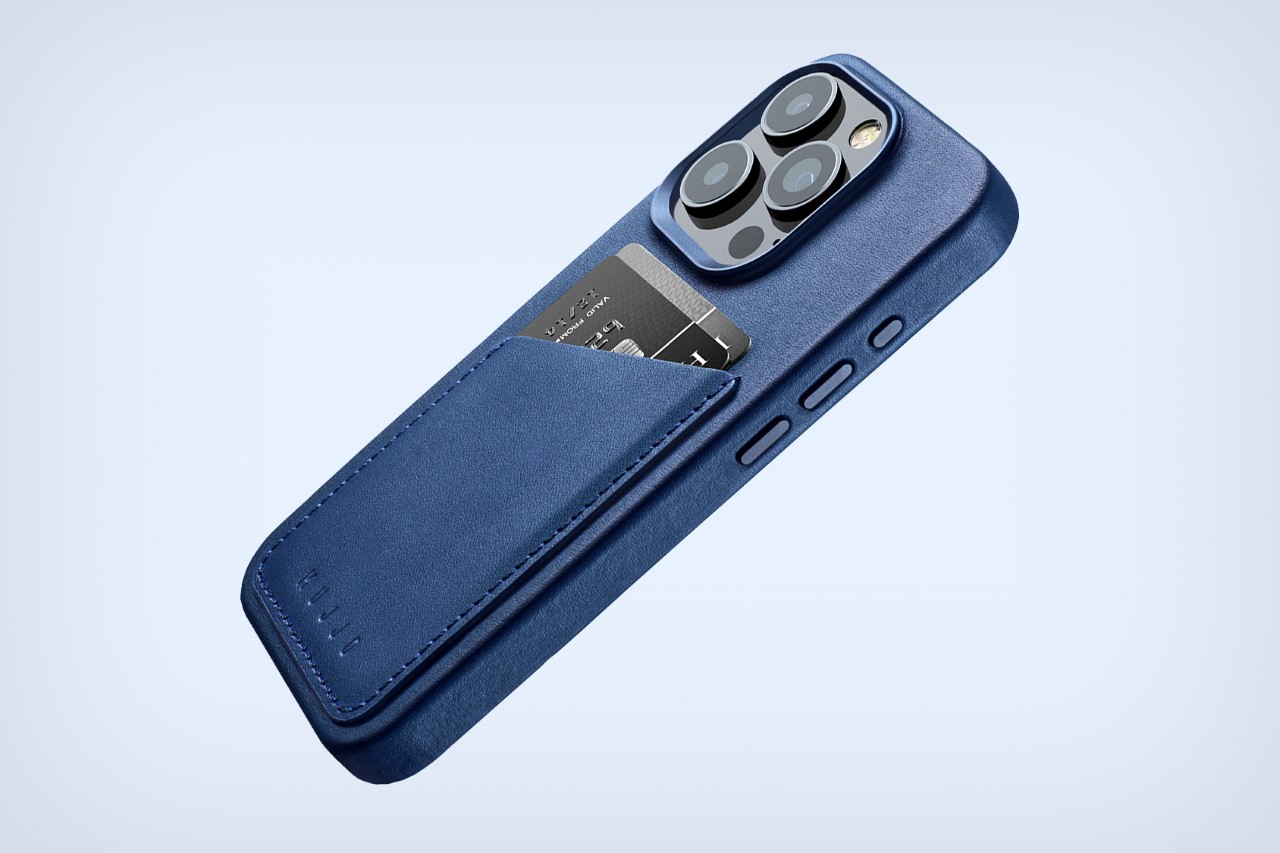
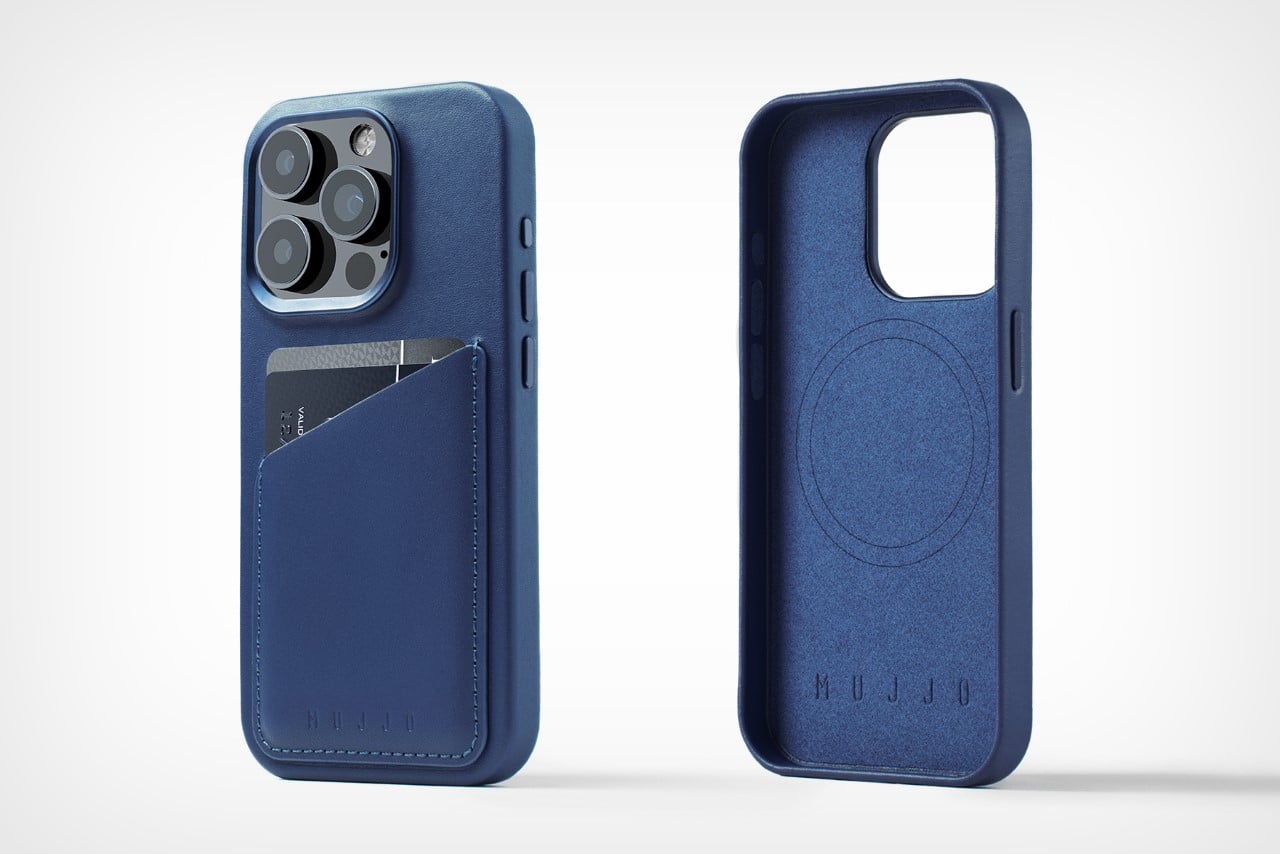
Called the Full Leather Wallet Case, this cover for the iPhone 15 Pro provides complete protection to your smartphone, while also making it look great. The cover features premium European leather tanned in the Netherlands, and there is a choice between black, brown, and blue finishes. The camera lenses are protected by a machined metal rim, while a polycarbonate inner structure with a microfiber interior lining provides protection against bumps.
Why is it noteworthy?
Each case features a slot on the back that can hold up to two cards with ease. You can also pull out the cards easily, and the wallet doesn’t detach or fall off from your phone when you pull it out of your pocket.
What we like
Utilizes the highest-quality leather and is tanned using a special DriTan process
What we dislike
You will need to remove the cards when you snap Apple’s MagSafe charger onto the back of the cover
10. BULLET
Say hello to the world’s smallest LED flashlight – the BULLET light. Designed to be functional, minima, and refined, the BULLET EDC is more than just your regular flashlight. It is a tiny flashlight designed to be the next step in mini everyday carry. If your dad loves carrying compact little tools with him on the go, then the BULLET light is a thoughtful and exceptional Father’s Day present for him.
Why is it noteworthy?
Shaped and sized like a bullet, the BULLET flashlight features a sleek and minimal design that isn’t too bad on the eyes. It is a strong LED mini flashlight in a lightweight and minimal form, and it eliminates the use of bulky flashlights from your everyday carry.
What we like
Features a built-in keychain that lets you carry the flashlight with you wherever you go
What we dislike
The size is pretty small, so it can be easily misplaced if not handled carefully
Invoicing is a crucial aspect of any business, but it can be time-consuming and prone to errors when done manually. Creating an automated invoice system in Python with a graphical user interface (GUI) can significantly streamline your invoicing process, saving you valuable time and ensuring accuracy. This comprehensive guide will walk you through the steps […]
There was so much Apple had to cram into its WWDC 2024 keynote that some features were left out of the spotlight. Here at the company's campus, I've had the chance to speak with various executives, as well as get deeper dives into iOS 18, iPadOS 18, Apple Intelligence, watchOS 11 and more. In these sessions, I've been able to learn more about how specific things work, like what steps exactly do you take to customize your iPhone's home screen and control center. I also got to see some other updates that weren't even briefly mentioned during the keynote, like new support for hiking routes in Apple Maps and what training load insights look like on watchOS 11. Of all the unmentioned features I've come to discover, here are my favorites.
Maps: Create and share custom routes
I've always been a Google Maps girl, in part because that app had superior information compared to Apple Maps in its early years. These days, I stick to Google Maps because it has all my saved places and history. When I found out that iOS 18 would bring updates to Apple Maps, particularly to do with hiking and routes, I was intrigued.
Basically, in iOS 18, when you go into search in Maps, you'll see a new option under "Find Nearby" called hikes. It'll show you recommended hikes, and you can filter by the type of hike (loop, for example) and specify a length. You'll find options in the vicinity and tapping into one will show you a topographical view with the elevation details, how challenging it should be as well as estimated duration. You can tap to save each route and store it for offline reference later and add notes too. There's a new Library view and you'll find it in your profile in Maps.
You'll also be able to create new routes in Maps by tapping anywhere to start defining your route. You can keep tapping to add waypoints, which will cause the trail to continue to connect them, then hit a "Close loop" button to finish your trail. These routes can be shared, though it's not yet clear if you can share it to, say, your friend or driver to have them take your preferred path to your destination.
Apple
The hikes that Apple will serve up in Maps are created by its own team, which is working with US National Parks, so they'll only be available for the 63 national parks in the country to begin with. In other words, it's not porting information from AllTrails, for example. In a press release, Apple said thousands of hikes will be available to browse at launch.
As a city dweller who only sometimes hikes, my excitement is less about hiking and more about the potential of sharing my custom routes to show people how they should walk to my building or favorite restaurant from the train station. It's a compelling feature, and arguably a reason I'd choose Apple Maps versus Google's.
Calendar integration with Reminders
Frankly, the Maps update might be my favorite out of everything that wasn't shown off during the WWDC 2024 keynote by a huge margin. But some of the new tools coming to Calendar tickle my fancy too. Specifically, the new integration with reminders makes it easier to not just schedule your tasks right into your daybook, but also check them off from the Calendar app. You can soon move reminders around by long pressing and dragging them, so that note to call your mom can be placed on a slot at 5pm on Wednesday, instead of sitting in your Reminders app. In addition, Calendar is getting new views that better detail your level of activity each day in a month, similar to how the Fitness app shows your daily rings progress quickly in the monthly view.
Tapback insights showing who exactly responded with what emoji
This isn't one that wasn't mentioned at all during the keynote, but there are details about how Tapback works that weren't described at yesterday's show. If you're like me, you might not even have remembered that Tapback refers to those reactions you can send in Messages by double tapping on a blue or gray bubble. With iOS 18, you'll get more options than the limited selection of heart, thumbs up, thumbs down, "Haha," exclamation points and question mark. They're also going to show up in full color with the update, instead of the existing (boring) gray.
What I found out later on, though, is that when you double tap a message that already has reactions attached, a new balloon appears at the top of your screen showing who has responded with which emoji. This should make it easier to lurk in a group chat, but also could double as an unofficial polling tool by asking your friends to react with specific emojis to indicate different answers. That should make Messages a bit more like Slack, and I wish Whatsapp and Telegram would take note.
Others: Math Notes in iPhone, updates to Journal and Safari
There are quite a lot of features coming to iOS 18 that didn't get much love on the WWDC stage, like the Journal app's new widget for the home screen, which shows prompts for reflection and lets you create new entries. Journal also has a new insights view that displays your writing streaks and other historical data, plus a new tool that lets you add your state of mind to each entry from within the app.
Meanwhile, Safari is getting a new "Highlights" button in the search (or URL) bar, and tapping it will show a machine-learning-generated summary of the webpage you're on. Tapping into this brings up a panel with more information like navigation directions to a restaurant mentioned on the page, for example, or a phone number to call up a business. You can also quickly launch the reader view from this pane.
I wasn't super enthusiastic about either of those, largely because I don't use the Journal app much and I don't need Safari summarizing a webpage for me. But there are some other buried updates that I really wanted to shout out. For example, Math Notes for iPad and with Apple Pencil certainly got a lot of time, but it wasn't till I looked at Apple's iOS 18 press release that I found out the iPhone's Notes app is also getting a version of it. According to the screenshot Apple included, it looks like you can tally up and split expenses between a group of friends by writing a list of expenses and how much each item cost, then add the names of each expense to a formula with plus and equal signs, then get that divided by the number of people in your group. Not quite Splitwise, but I could see this becoming more powerful over time.
I was also intrigued by some of the Smart Script features on iPadOS 18, especially when I realized that you can just move your handwritten words around by dragging your handwritten words further away from each other, and the rest of your scrawled text moves in tandem. This is hard to describe, and I'll have to wait till I can try it for myself to show you an animated example. But it was impressive, even if it's not extremely useful.
Finally, the Passwords app and other privacy updates got a shout out during the keynote, but I learned more about how things like accessory setup and contacts sharing with apps work. Apple is releasing a new accessory setup kit so that device makers can adopt a pairing interface similar to how you'd connect your AirPods or Apple Watch to your iPhone. If developers don't use this approach, the new Bluetooth connection interface will be clearer about what other devices are on your network and what you're actually granting access to when you let an app see other devices on your network. Though it wasn't entirely skipped during the keynote, the Passwords app is something that makes me happy, since I'm absolutely sick of having to dig through settings to get codes for apps which I use my iPhone's authenticator to unlock.
There are plenty of features that were talked about that I'm excited by and learned more about the workings of, including the new dynamic clock style in the Photos face in watchOS 11, pinned collections in the redesigned Photos app and iPadOS mirroring for easier remote tech support. Oh, and that Airplay feature that'll let you send money to friends by holding your phones together? Yes! Being able to pause and adjust your Activity rings in watchOS and that Training Load insight? Hallelujah!
And though I can see the appeal of locked and hidden apps, I'm not sure I'd find much use for that and it would probably exacerbate my already prone-to-suspicion nature.
I'm also a little wary of things like Genmoji and Image Playground, which are both Apple Intelligence features that won't hit all iOS 18 devices. There will be metadata information indicating when images were generated by Apple's AI, and guardrails in place to prevent the creation of abusive and exploitative content.
Clearly, there are plenty of updates coming to Apple's phones, tablets, laptops and wearables later this year, and I can't wait to try them out. The public beta should be ready around the end of summer this year, which is when most people (who are willing to risk an unstable platform) can check them out.
This article originally appeared on Engadget at https://www.engadget.com/my-favorite-ios-18-ipados-18-and-watchos-11-features-that-flew-under-the-radar-at-wwdc-2024-113044069.html?src=rss
There was so much Apple had to cram into its WWDC 2024 keynote that some features were left out of the spotlight. Here at the company's campus, I've had the chance to speak with various executives, as well as get deeper dives into iOS 18, iPadOS 18, Apple Intelligence, watchOS 11 and more. In these sessions, I've been able to learn more about how specific things work, like what steps exactly do you take to customize your iPhone's home screen and control center. I also got to see some other updates that weren't even briefly mentioned during the keynote, like new support for hiking routes in Apple Maps and what training load insights look like on watchOS 11. Of all the unmentioned features I've come to discover, here are my favorites.
Maps: Create and share custom routes
I've always been a Google Maps girl, in part because that app had superior information compared to Apple Maps in its early years. These days, I stick to Google Maps because it has all my saved places and history. When I found out that iOS 18 would bring updates to Apple Maps, particularly to do with hiking and routes, I was intrigued.
Basically, in iOS 18, when you go into search in Maps, you'll see a new option under "Find Nearby" called hikes. It'll show you recommended hikes, and you can filter by the type of hike (loop, for example) and specify a length. You'll find options in the vicinity and tapping into one will show you a topographical view with the elevation details, how challenging it should be as well as estimated duration. You can tap to save each route and store it for offline reference later and add notes too. There's a new Library view and you'll find it in your profile in Maps.
You'll also be able to create new routes in Maps by tapping anywhere to start defining your route. You can keep tapping to add waypoints, which will cause the trail to continue to connect them, then hit a "Close loop" button to finish your trail. These routes can be shared, though it's not yet clear if you can share it to, say, your friend or driver to have them take your preferred path to your destination.
Apple
The hikes that Apple will serve up in Maps are created by its own team, which is working with US National Parks, so they'll only be available for the 63 national parks in the country to begin with. In other words, it's not porting information from AllTrails, for example. In a press release, Apple said thousands of hikes will be available to browse at launch.
As a city dweller who only sometimes hikes, my excitement is less about hiking and more about the potential of sharing my custom routes to show people how they should walk to my building or favorite restaurant from the train station. It's a compelling feature, and arguably a reason I'd choose Apple Maps versus Google's.
Calendar integration with Reminders
Frankly, the Maps update might be my favorite out of everything that wasn't shown off during the WWDC 2024 keynote by a huge margin. But some of the new tools coming to Calendar tickle my fancy too. Specifically, the new integration with reminders makes it easier to not just schedule your tasks right into your daybook, but also check them off from the Calendar app. You can soon move reminders around by long pressing and dragging them, so that note to call your mom can be placed on a slot at 5pm on Wednesday, instead of sitting in your Reminders app. In addition, Calendar is getting new views that better detail your level of activity each day in a month, similar to how the Fitness app shows your daily rings progress quickly in the monthly view.
Tapback insights showing who exactly responded with what emoji
This isn't one that wasn't mentioned at all during the keynote, but there are details about how Tapback works that weren't described at yesterday's show. If you're like me, you might not even have remembered that Tapback refers to those reactions you can send in Messages by double tapping on a blue or gray bubble. With iOS 18, you'll get more options than the limited selection of heart, thumbs up, thumbs down, "Haha," exclamation points and question mark. They're also going to show up in full color with the update, instead of the existing (boring) gray.
What I found out later on, though, is that when you double tap a message that already has reactions attached, a new balloon appears at the top of your screen showing who has responded with which emoji. This should make it easier to lurk in a group chat, but also could double as an unofficial polling tool by asking your friends to react with specific emojis to indicate different answers. That should make Messages a bit more like Slack, and I wish Whatsapp and Telegram would take note.
Others: Math Notes in iPhone, updates to Journal and Safari
There are quite a lot of features coming to iOS 18 that didn't get much love on the WWDC stage, like the Journal app's new widget for the home screen, which shows prompts for reflection and lets you create new entries. Journal also has a new insights view that displays your writing streaks and other historical data, plus a new tool that lets you add your state of mind to each entry from within the app.
Meanwhile, Safari is getting a new "Highlights" button in the search (or URL) bar, and tapping it will show a machine-learning-generated summary of the webpage you're on. Tapping into this brings up a panel with more information like navigation directions to a restaurant mentioned on the page, for example, or a phone number to call up a business. You can also quickly launch the reader view from this pane.
I wasn't super enthusiastic about either of those, largely because I don't use the Journal app much and I don't need Safari summarizing a webpage for me. But there are some other buried updates that I really wanted to shout out. For example, Math Notes for iPad and with Apple Pencil certainly got a lot of time, but it wasn't till I looked at Apple's iOS 18 press release that I found out the iPhone's Notes app is also getting a version of it. According to the screenshot Apple included, it looks like you can tally up and split expenses between a group of friends by writing a list of expenses and how much each item cost, then add the names of each expense to a formula with plus and equal signs, then get that divided by the number of people in your group. Not quite Splitwise, but I could see this becoming more powerful over time.
I was also intrigued by some of the Smart Script features on iPadOS 18, especially when I realized that you can just move your handwritten words around by dragging your handwritten words further away from each other, and the rest of your scrawled text moves in tandem. This is hard to describe, and I'll have to wait till I can try it for myself to show you an animated example. But it was impressive, even if it's not extremely useful.
Finally, the Passwords app and other privacy updates got a shout out during the keynote, but I learned more about how things like accessory setup and contacts sharing with apps work. Apple is releasing a new accessory setup kit so that device makers can adopt a pairing interface similar to how you'd connect your AirPods or Apple Watch to your iPhone. If developers don't use this approach, the new Bluetooth connection interface will be clearer about what other devices are on your network and what you're actually granting access to when you let an app see other devices on your network. Though it wasn't entirely skipped during the keynote, the Passwords app is something that makes me happy, since I'm absolutely sick of having to dig through settings to get codes for apps which I use my iPhone's authenticator to unlock.
There are plenty of features that were talked about that I'm excited by and learned more about the workings of, including the new dynamic clock style in the Photos face in watchOS 11, pinned collections in the redesigned Photos app and iPadOS mirroring for easier remote tech support. Oh, and that Airplay feature that'll let you send money to friends by holding your phones together? Yes! Being able to pause and adjust your Activity rings in watchOS and that Training Load insight? Hallelujah!
And though I can see the appeal of locked and hidden apps, I'm not sure I'd find much use for that and it would probably exacerbate my already prone-to-suspicion nature.
I'm also a little wary of things like Genmoji and Image Playground, which are both Apple Intelligence features that won't hit all iOS 18 devices. There will be metadata information indicating when images were generated by Apple's AI, and guardrails in place to prevent the creation of abusive and exploitative content.
Clearly, there are plenty of updates coming to Apple's phones, tablets, laptops and wearables later this year, and I can't wait to try them out. The public beta should be ready around the end of summer this year, which is when most people (who are willing to risk an unstable platform) can check them out.
This article originally appeared on Engadget at https://www.engadget.com/my-favorite-ios-18-ipados-18-and-watchos-11-features-that-flew-under-the-radar-at-wwdc-2024-113044069.html?src=rss
MiCoin offers an easy way to have a powerful light source in your pocket everyday. Ready to illuminate your path whenever you need it. The MiCoin Titanium Flashlight is a game-changer in the world of EDC flashlights. Crafted from durable Gr5 titanium, this coin-sized flashlight is designed to be your reliable companion in any situation, […]