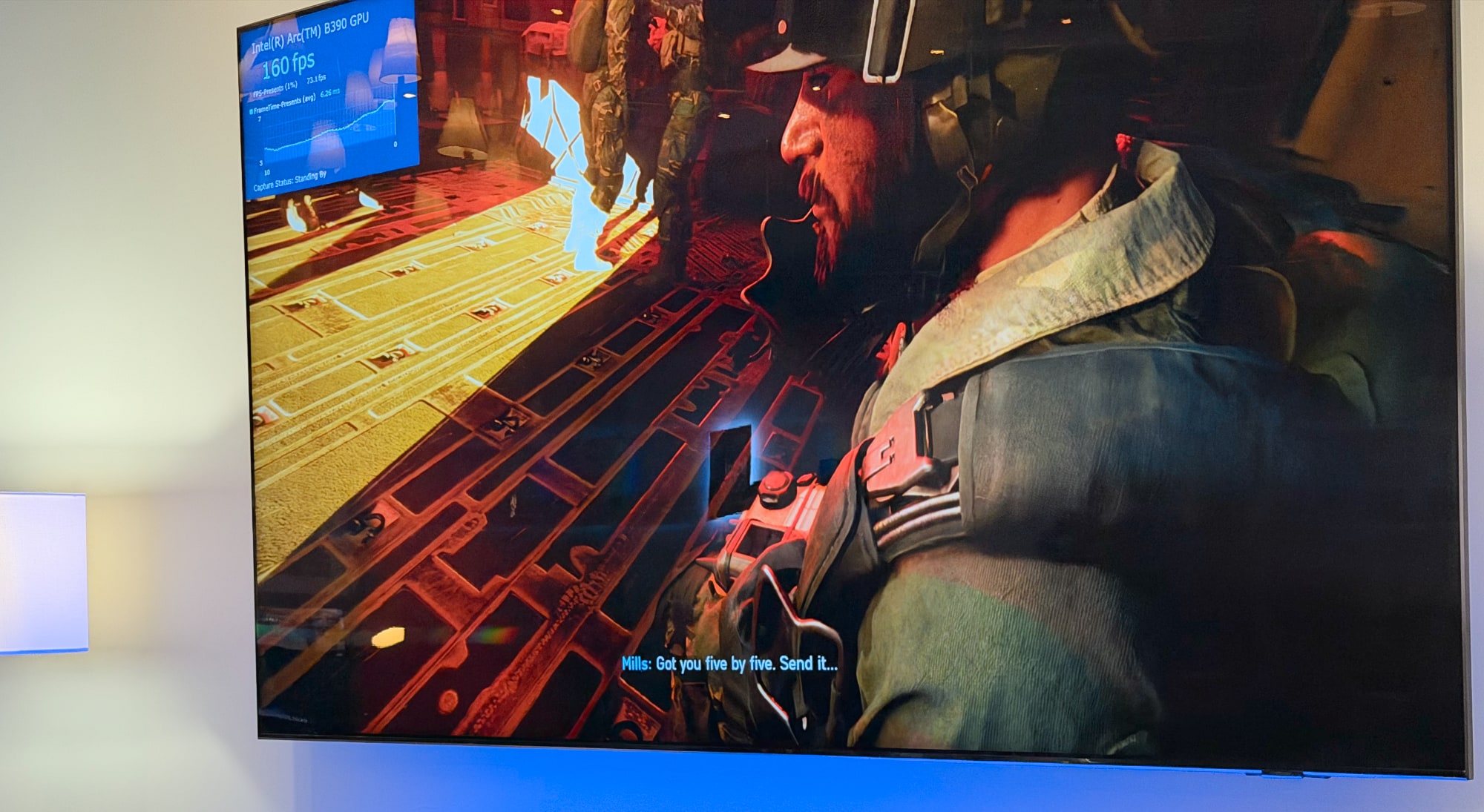
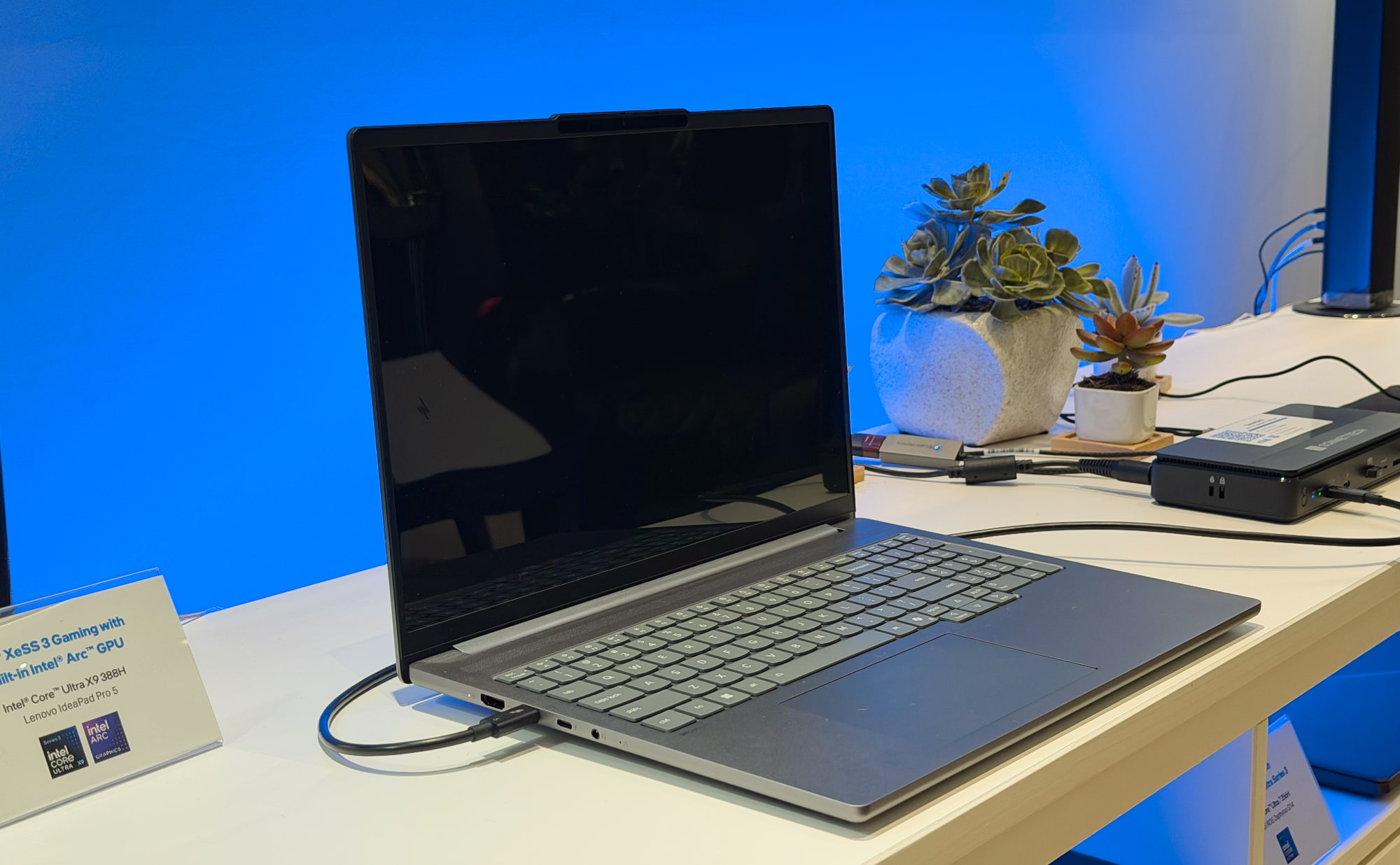
How far has Intel's embedded Arc graphics come over the years? Enough to let me play Battlefield 6 at up to 190 fps in 1080p, with the graphics settings set to high, all on an unassuming Lenovo IdeaPad Pro 5. There was no need for dedicated graphics, just the Intel Core Ultra X9 388H's built-in Arc B390 GPU.
There's a catch, of course: Intel's XeSS3 AI upscaling and 4X frame generation is the big reason why I was able to see such high fps figures. I was playing Battlefield 6 on a controller, with the Lenovo laptop connected to a TV, and I was surprised by how smooth the gameplay felt. There wasn't any sense of lag like I've seen in earlier frame-gen implementations, though any lag would probably be more noticeable if I was playing with a high DPI gaming mouse.
Environmental details, shadows, lighting and particle effects also looked flawless. If I was sitting on a couch, I’d think the game was being powered by a console or a budget gaming PC. I didn’t get a chance to push the resolution up to 1440p, but it’d be interesting to see if it could maintain at least 100 fps in that mode.
Playing "Battlefield 6" with a Lenovo IdeaPad Pro 5, powered by Intel's Core Ultra 3 chip.
Devindra Hardawar for Engadget
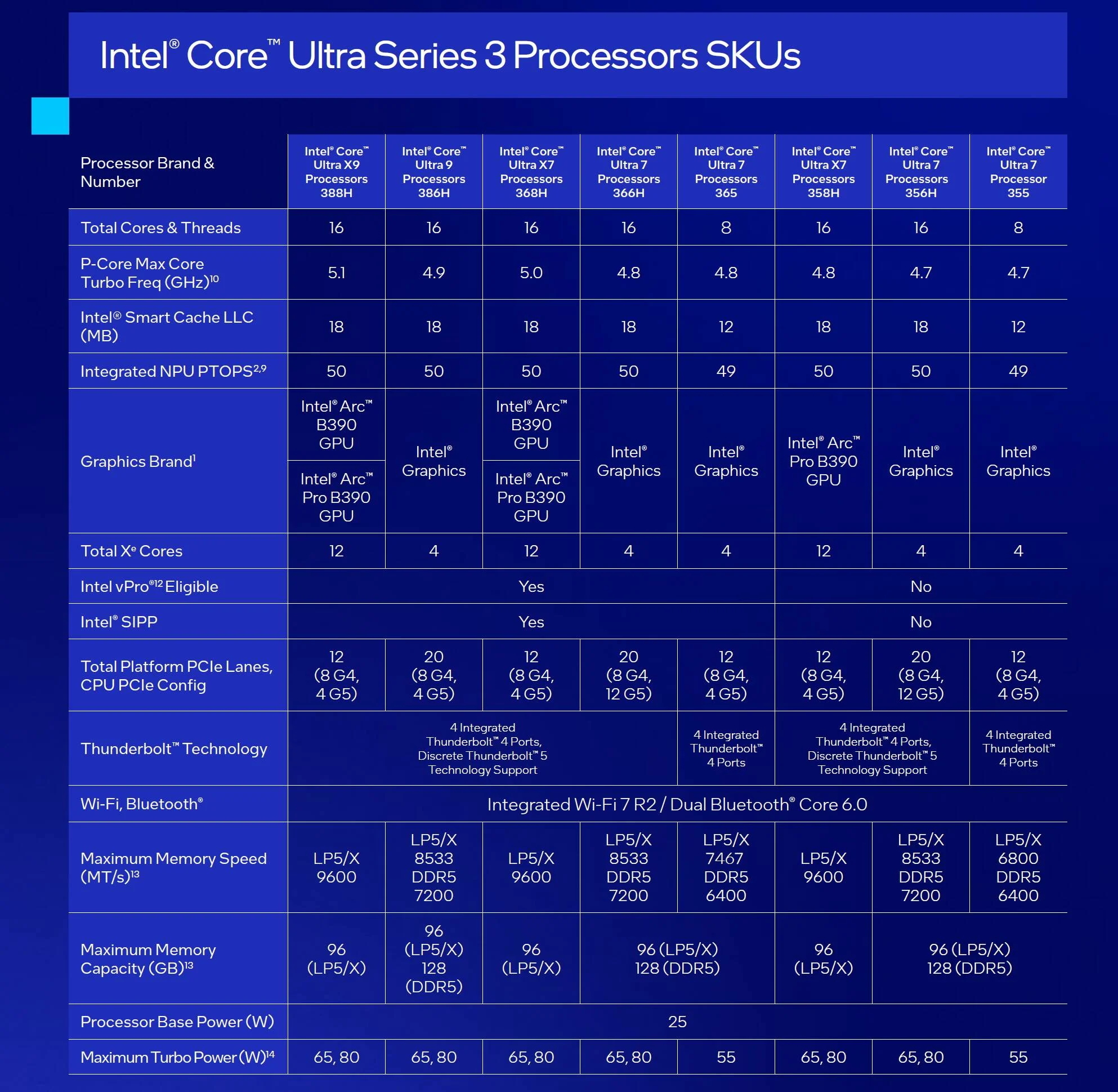
Not all of Intel's Core Ultra 3 chips will achieve such lofty gaming heights, unfortunately. Only the X7 and X9 chips include 12 Xe GPU cores and Arc B390 graphics. The rest of the Core Ultra 3 family has the typical four Xe cores and basic Intel graphics.
Intel claims the B390 is around 80 percent faster than the Radeon 890M, which is built into the Ryzen HX370. Additionally, the company says the new GPU is 76 percent faster than its Arc 140T, and overall it should offer similar performance to the mobile RTX 4050 GPU.
A Lenovo IdeaPad Pro 5.
Devindra Hardawar for Engadget
This article originally appeared on Engadget at https://www.engadget.com/gaming/intels-core-ultra-series-3-let-me-play-battlefield-6-at-190-fps-on-a-lenovo-ultraportable-220952246.html?src=rss
If I were building a new PC today, I'd go for a small form factor mATX or ITX build. With companies like Fractal Design and Lian Li making cases that can fit modern GPUs without sacrificing on thermals, you don't need to settle for the old mid-tower monstrosities of yesteryear. And that's why PNY's new "Slim” model RTX 50-series designs caught my eye. All three variants, covering the 5070, 5070 Ti and 5080, are two slot cards with just a pair of 120mm fans for cooling. As a result, even the largest of the three new models, the 5080, is relatively svelte, coming in at 11.8-inches or 300mm long. That means it can comfortably fit with room to spare in a media PC enclosure like the Fractal Ridge.
Technically, NVIDIA's reference designs for the 5070 and 5080 are also dual-slot solutions, but most of the company's manufacturing partners produce two-and-half or three slot variants of those cards. And with no Founders Edition version of the 5070 Ti available from NVIDIA, PNY's new take on that GPU will likely find a dedicated fanbase among PC enthusiasts.
PNY says the new cards will arrive in February, with the company planning to offer both standard and overclocked versions of all three models. However, PNY isn't sharing pricing details just yet. That probably has to do with the state of the entire PC industry right now. With the price of most RAM kits doubling and tripling in recent months due to the AI boom, building a new computer has become prohibitively expensive, and all signs point to GPUs getting more costly in 2026. In fact, the memory crunch is so bad that NVIDIA is reportedly planning to bring back the RTX 3060, a GPU from 2021, as a stopgap. Yikes.
This article originally appeared on Engadget at https://www.engadget.com/gaming/pc/pny-is-releasing-slim-sized-nvidia-rtx-gpus-just-as-pc-building-becomes-prohibitively-expensive-183127305.html?src=rss
CES remains a key stage for laptop makers to lay out their plans for the year ahead. At CES 2026, that meant new flagship productivity machines, reconsidered gaming notebooks and solid incremental updates across several major lineups. While we’re still seeing embargoes lift and hands-on time on the show floor, the announcements below reflect the most significant laptops we’ve seen so far. Plus, the list will grow as more companies reveal details throughout January 6 and beyond.
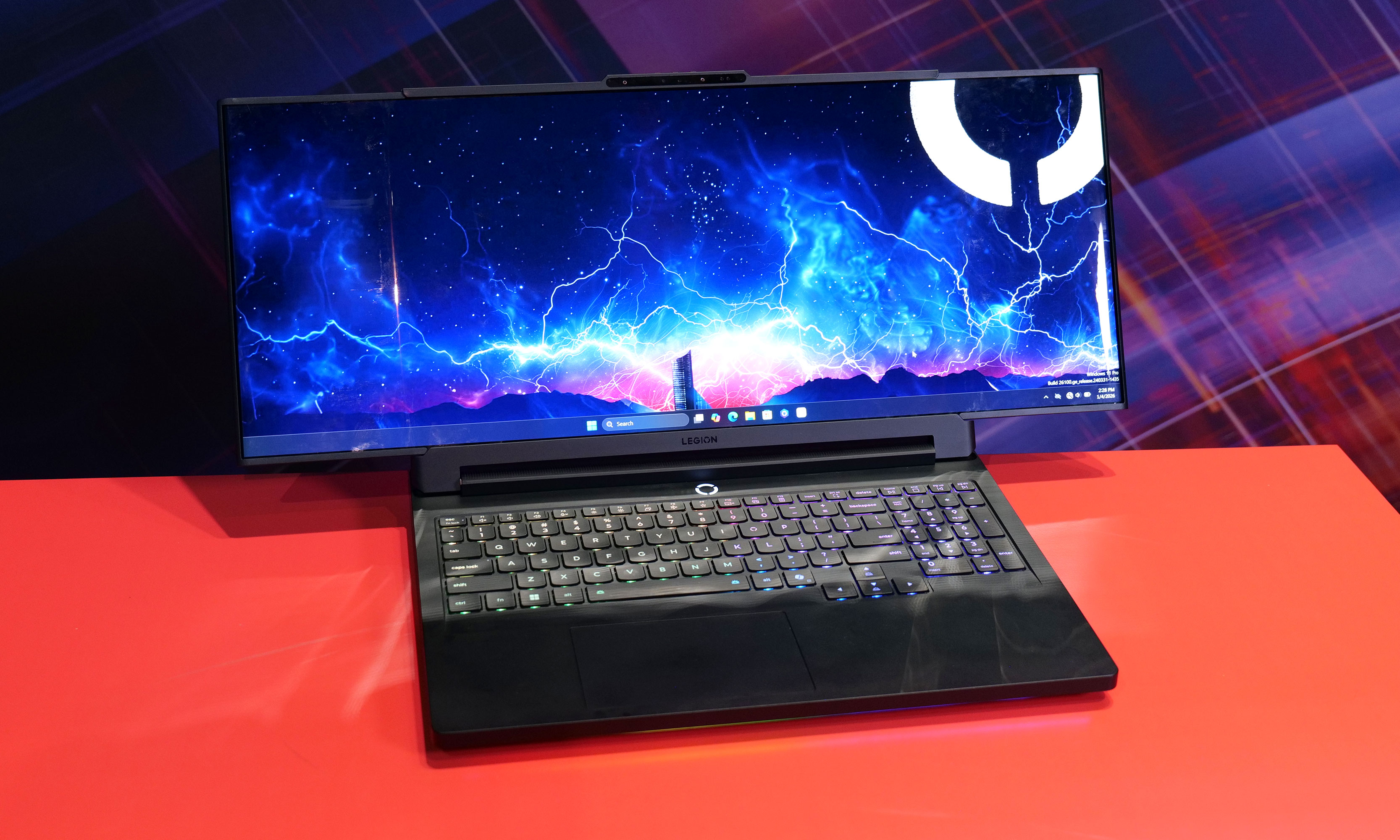
Lenovo Legion Pro Rollable
Lenovo Legion Pro Rollable
Engadget
Lenovo came prepared for CES 2026 with a ton of laptops — concepts, fully-formed designs and everything in betwee. The most striking concept was the Legion Pro Rollable, a gaming laptop built around a flexible OLED panel that expands sideways from a standard 16-inch footprint to 21.5 inches or 23.8 inches, shifting aspect ratios from 16:10 to 21:9 or even 24:9. It’s the kind of idea that makes immediate sense for flight sims, racing games and open-world titles that benefit from ultrawide views, even if the mechanics felt a bit prototype-like up close.
Lenovo also showed the XD Rollable concept, which takes a more familiar rollable approach, expanding a 13.3-inch OLED screen to 16 inches at the push of a button. The twist is that the “extra” display wraps around the back of the lid to create a world-facing surface for mirrored content or a secondary view.
Samsung Galaxy Book6 series
New Samsung Galaxy Book6 laptops offer NVIDIA RTX 50-series GPUs.
Samsung announced the Galaxy Book6 family at CES 2026, introducing three new laptops built around Intel’s Panther Lake chips: the Galaxy Book6, Book6 Pro and Book6 Ultra. The focus this year is on slimmer designs, improved thermals and longer battery life, with Samsung claiming up to 30 hours of video playback on the Book6 Ultra and Pro.
The 16-inch Galaxy Book6 Ultra sits at the top of the lineup, with configurations offering up to Intel Core Ultra X9 processors, Intel Arc graphics and NVIDIA RTX 50-series GPUs, including RTX 5070 and RTX 5060 options. Samsung says the Ultra delivers up to 1.6x better CPU performance and 1.7x improved graphics compared with the previous Galaxy Book generation, helped by a wider vapor chamber and a new dual-path fan system for GPU cooling.
Both the Book6 Ultra and Book6 Pro feature upgraded 2,880 x 1,800 AMOLED 2X displays with touch support, adaptive refresh rates up to 120Hz and peak brightness of up to 1,000 nits. The laptops are thinner than their predecessors, with the Ultra measuring 15.4mm thick and the Pro coming in at 11.9mm — and Samsung has added haptic trackpads across the series for the first time. Pricing and release dates have not yet been announced.
ASUS ROG Zephyrus Duo
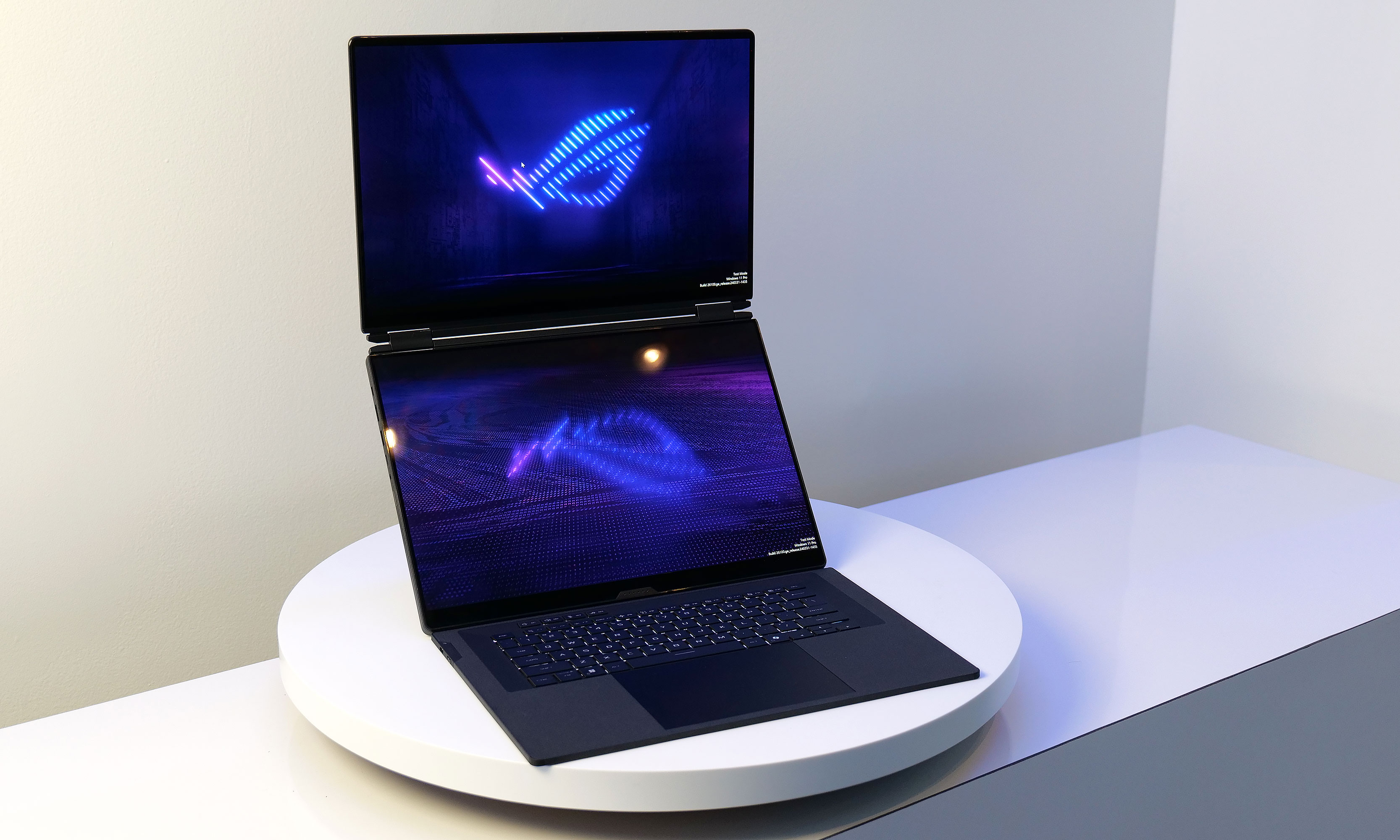
On top of having two displays, the Zephyrus Duo's screens also feature excellent brightness at up to 1,100 nits.
ASUS brought its dual-screen design into the gaming space at CES 2026 with the ROG Zephyrus Duo, a laptop that pairs two full-size 16-inch displays with high-end gaming hardware. Unlike productivity-focused dual-screen systems, the Zephyrus Duo is positioned as a hybrid machine designed to handle gaming, content creation and multitasking in a single portable setup.
Both 16-inch Nebula OLED panels support HDR with up to 1,100 nits of peak brightness, NVIDIA G-SYNC, stylus input and high color accuracy. Performance comes from Intel’s latest Core Ultra processors paired with NVIDIA RTX 50-series GPUs, up to an RTX 5090. While the system’s 135W power budget means it won’t match the raw performance of some single-screen gaming laptops, ASUS is clearly prioritizing versatility over maximum output.
The Zephyrus Duo includes a detachable wireless keyboard, a built-in kickstand and multiple usage modes, including stacked dual-screen layouts and drawing configurations. Despite weighing a whopping 6.28 pounds, ASUS has kept the chassis relatively slim at 0.77 inches and equipped it with a six-speaker system, vapor chamber cooling and a broad selection of ports including Thunderbolt 4, HDMI 2.1 and a full-size SD card slot. Pricing and availability have not yet been announced.
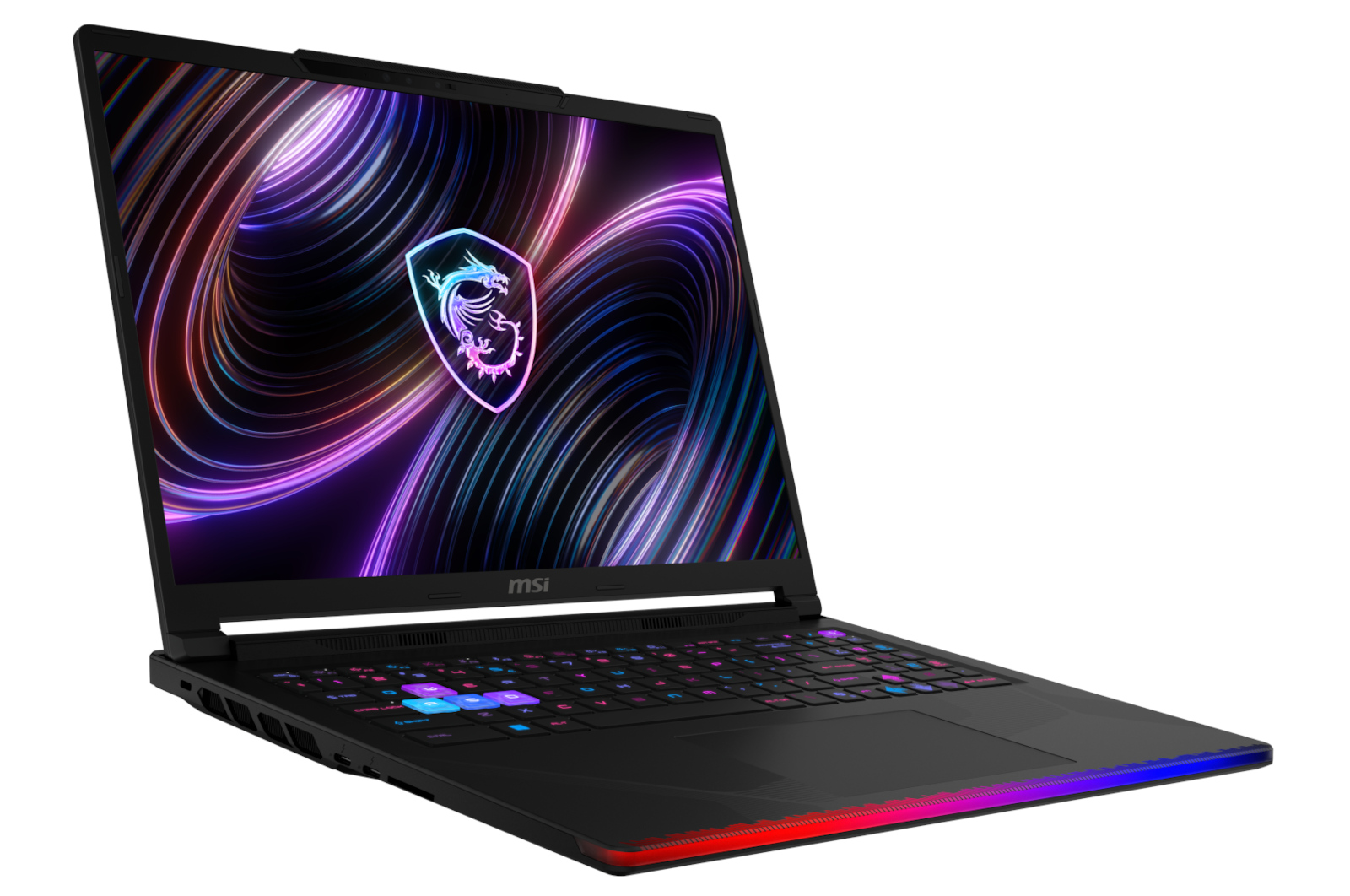
MSI Stealth 16 AI+
MSI's most powerful gaming laptop.
MSI
MSI updated its Stealth lineup at CES 2026 with the Stealth 16 AI+, a gaming laptop designed to balance performance and portability. The system measures just 16.6mm thick, weighs under two kilograms and is equipped with NVIDIA RTX 50-series graphics alongside Intel Core Ultra 200HX processors.
Despite its slim profile, the Stealth 16 AI+ includes dual memory slots and dual SSD bays, giving it more upgrade flexibility than many thin gaming laptops. MSI is positioning it as a versatile machine for users who want gaming performance without the bulk typically associated with high-end hardware.
MSI Crosshair 16 Max HX
The Crosshair 16 Max HX represents MSI’s more traditional gaming approach, pairing Intel Core Ultra 200HX processors with NVIDIA GeForce RTX 50-series GPUs. It sits below the company’s flagship Raider models but still targets players who want strong performance in a relatively streamlined chassis.
Buyers can opt for an optional QHD+ OLED display with a 165Hz refresh rate, adding sharper visuals and smoother motion for gaming and media. Alongside the Max HX, MSI also announced a Crosshair 16 HX variant, giving the Crosshair line a broader range of configurations aimed at mid-to-high-end gaming buyers.
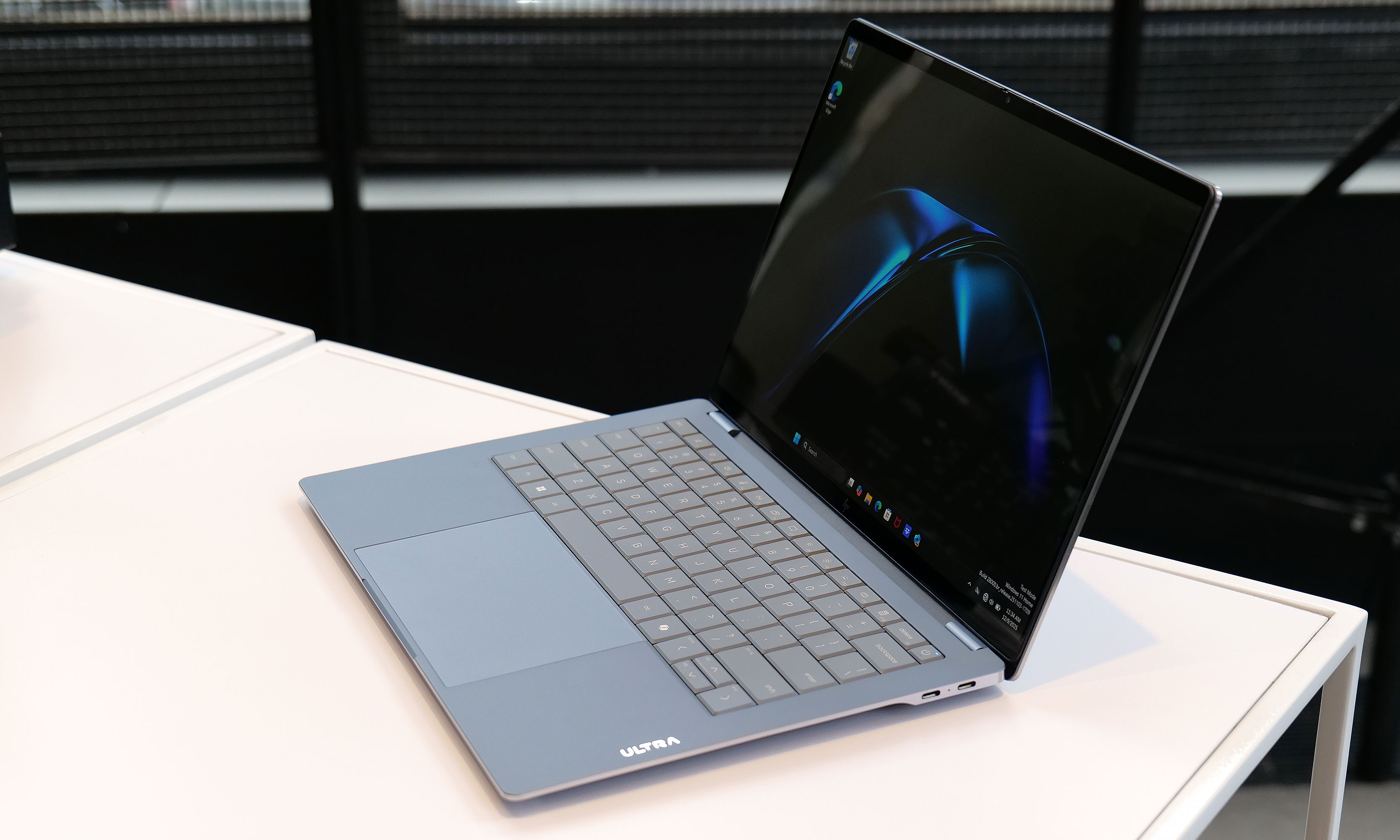
HP OmniBook Ultra 14
HP claims the Omnibook Ultra 14 has passed 20 different MIL-STD 810H tests for things like extreme temperature and shock resistance.
HP used CES 2026 to debut its new flagship consumer laptop, the OmniBook Ultra 14. It’s a premium ultraportable built around an ultra-thin but durability-focused design. The laptop measures just 0.42 inches thick and weighs 2.8 pounds, yet HP says it passes 20 MIL-STD-810 tests for shock, drops and extreme temperatures. Rather than a traditional unibody chassis, HP uses a forge-stamped aluminum construction designed to improve strength and bend resistance.
The OmniBook Ultra 14 features a 3K OLED display and can be configured with up to 64GB of memory and 2TB of storage. Buyers can choose between Intel Core Ultra processors or Qualcomm’s Snapdragon X2 Elite, with the Snapdragon version offering a more powerful NPU rated at up to 85 TOPS for AI workloads. HP has also added a vapor chamber for the first time in an OmniBook to support sustained performance in such a slim chassis.
HP rounds things out with a large touchpad, quad speakers and three USB-C ports supporting Thunderbolt 4, DisplayPort 2.1 and fast charging. The OmniBook Ultra 14 is expected to go on sale later this month starting at $1,550.
HP Omen Max 16
HP also refreshed its gaming lineup at CES 2026 with the Omen Max 16, which the company describes as its most powerful 16-inch gaming laptop to date. The system is built around Intel Core Ultra 200HX processors and NVIDIA RTX 50-series GPUs, with configurations reaching the high end of HP’s mobile performance offerings.
Designed for sustained gaming workloads, the Omen Max 16 features expanded thermal headroom and high-refresh-rate displays aimed at competitive players. HP is positioning the laptop as the flagship of its Omen lineup, sitting above refreshed Omen 15 and Omen 16 models that target more mainstream gaming buyers.
Pricing and availability for the Omen Max 16 have not yet been announced, with HP expected to share more details later this year.
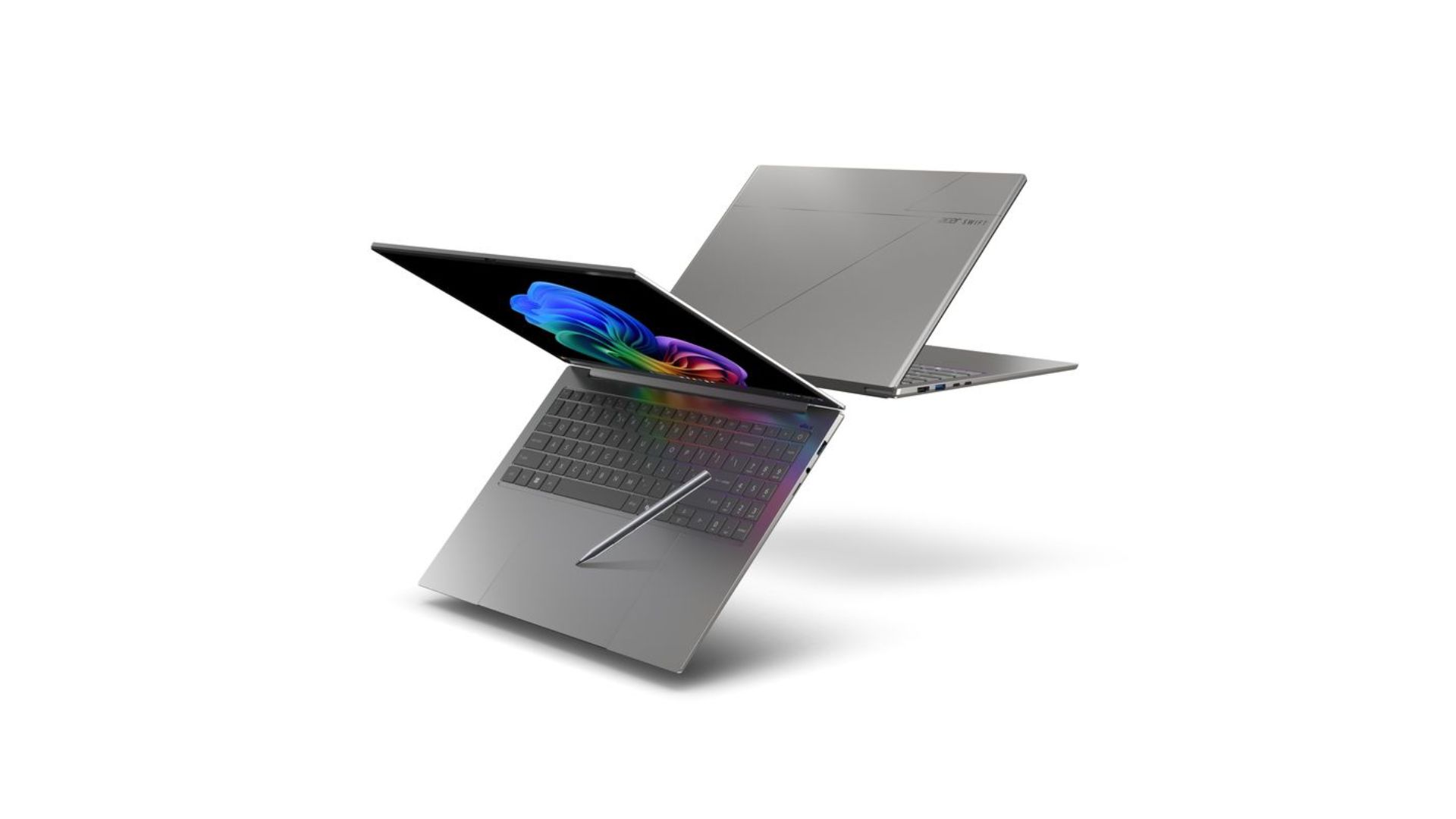
Acer Swift 16 AI
Promo photo of the Acer Swift 16 AI laptop
Acer
Acer expanded its flagship Swift lineup at CES 2026 with the Swift 16 AI, a large-screen ultraportable that leans heavily into input innovation and display quality. The standout feature is what Acer says is the world’s largest haptic touchpad, which supports MPP 2.5 stylus input and is designed to improve precision for creative and productivity tasks.
The Swift 16 AI features a 16-inch 3K OLED WQXGA+ touchscreen with HDR support, a 120Hz refresh rate and full DCI-P3 color coverage. It can be configured with up to an Intel Core Ultra X9 388H processor and Intel Arc B390 graphics, with up to 32GB of memory and 2TB of storage. Despite the large display, the laptop measures just 14.9mm thick and weighs about 3.4 pounds.
Acer says the Swift 16 AI is part of the Copilot+ PC program, positioning it around on-device AI features alongside performance and portability. Pricing and availability have not yet been announced.
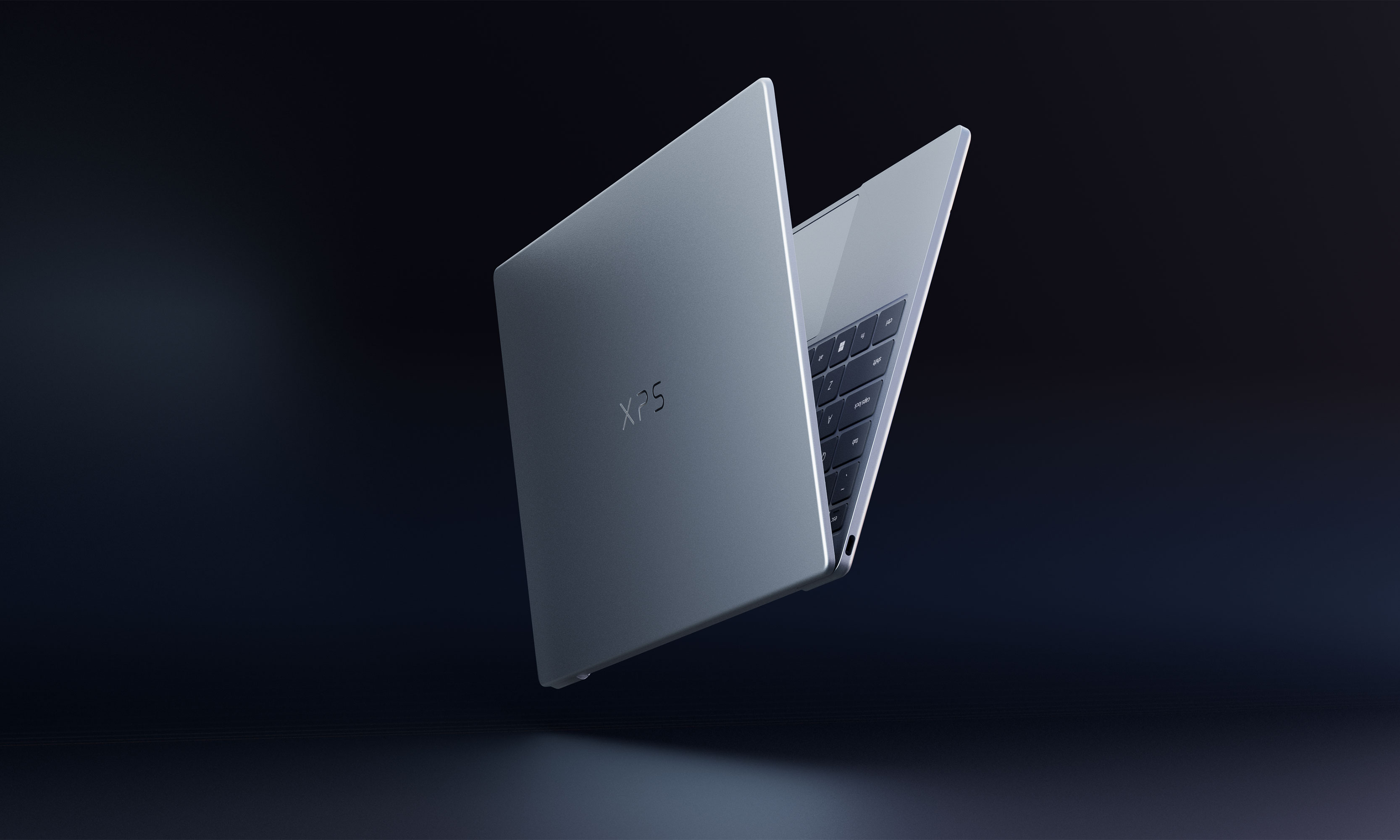
Dell XPS 13, XPS 14 and XPS 16
Dell wouldn't let me take photos of the XPS 13 prototype model, but here's a teaser it provided for CES.
Dell
Having a bit of déjà vu? You’re not alone. Dell killed its XPS branding last year only to bring it back this year after admitting it had made a mistake. Instead of simplifying its product offering, the rebranding only bewildered consumers and tech journalists alike, both of which had come to know the XPS lineup to be synonymous with quality. Now, Dell is getting back to its roots and coming out with a whole refreshed lineup of XPS laptops, including new XPS 13, XPS 14 and XPS 16 machines. Specific details for each model still remain under wraps, and there’s no word yet on when they will hit the market.
According to Alienware, the 16-inch version will feature NVIDIA discrete graphics paired with new, highly efficient CPUs. Rather than positioning it as a pure gaming machine, Alienware says the laptop is intended to balance gaming performance with creative work, productivity and everyday use.
Alienware has not shared pricing, availability or full specifications, and it remains unclear how the 14-inch and 16-inch models will differ beyond size.
Alienware also previewed a new entry-level gaming laptop aimed at expanding its reach to more budget-conscious players. While specs remain limited, the company says the system will deliver strong gaming performance at its most accessible price point yet.
Alienware suggests pricing should come in below the $1,199 starting price of the Alienware 16 Aurora, potentially making it the most affordable gaming laptop the brand currently offers. As with the ultra-slim model, full details are expected later this year.
Alienware Area-51 and Aurora
Alongside its new teasers, Alienware announced updates to several existing laptops. The Alienware 16X Aurora and Alienware 16 Area-51 are gaining new anti-glare OLED panels with up to 620 nits of peak HDR brightness and a 0.2ms response time, as well as Intel Core Ultra 200HX processors.
The Alienware 18 Area-51 is also being refreshed with the same CPUs. Alienware says the updated Alienware 16X Aurora, Alienware 16 Area-51 and Alienware 18 Area-51 laptops will be available in Q1 2026. Pricing has not yet been announced.
This article originally appeared on Engadget at https://www.engadget.com/computing/laptops/all-the-laptops-that-caught-our-eye-at-ces-2026-160610752.html?src=rss
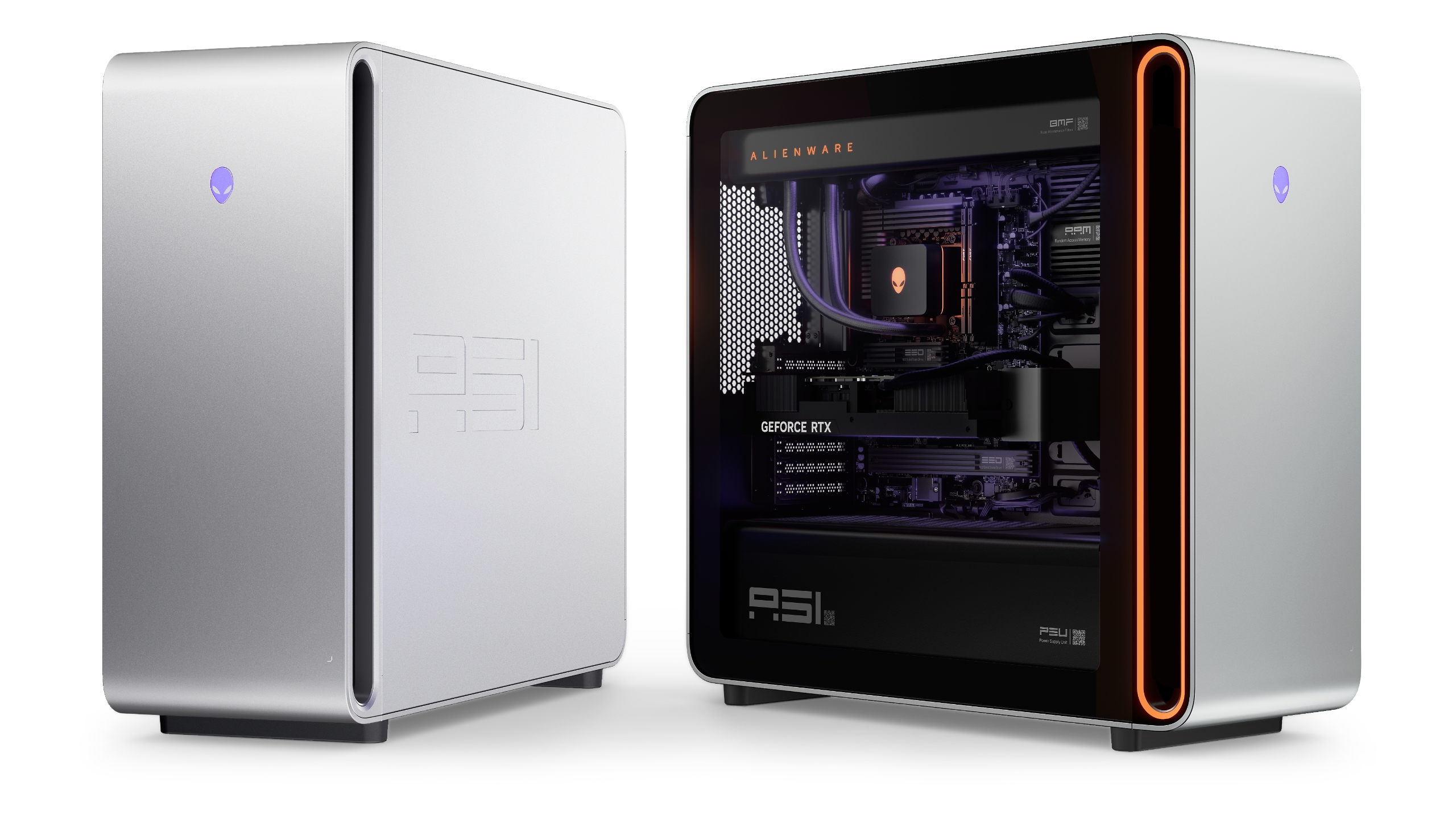
After relaunching its Area-51 brand with a new 16-inch laptop in 2025, Alienware is teasing two new laptops at CES 2026 in an attempt to reach an even larger audience. Dell's gaming brand plans to launch both entry-level and ultra-slim models later this year, and in the meantime, it's rolling out updates to its existing desktops and laptops to tide people over.
Alienware isn't sharing all the details of its new laptops at CES, but we do have the highlights. The company's new "ultra-slim gaming laptop" will be around 17mm or 0.67 inches thin, and come in either 14-inch or 16-inch variants. While the 16-inch version of the laptop will feature NVIDIA discrete graphics and "new highly efficient CPUs," it's not meant to be a gaming powerhouse like the Area-51. Instead, Alienware suggests the laptop will work for gaming and also "creative projects, productivity and everything in between."
The entry-level laptop is similarly not at Area-51-levels of power, but Alienware claims it'll deliver "strong gaming performance" at its "most accessible price point yet." That should ideally put the new laptop under the $1,199 starting price of the more streamlined Alienware 16 Aurora laptop.
The Alienware Area-51 Desktop will get updated with the latest AMD chips in February 2026.
Dell
On top of those two new models, Alienware is bringing new anti-glare OLED panels to a selection of its Alienware 16X Aurora and Alienware 16 Area-51 laptops, along with new Intel Core Ultra 200HX chips. The new display panels reach 620 nits of peak HDR brightness and have a 0.2ms response time for even smoother gameplay. The Alienware 18 Area-51 is also getting an upgrade to Intel Core Ultra 200HX chips, while the Alienware Area-51 Desktop will ship with AMD's new Ryzen 7 9850X3D chips.
There's currently no pricing available for Alienware's new laptops, or the updated versions of its older models. The updated Alienware 16X Aurora, Alienware 16 Area-51, and Alienware 18 Area-51 laptops will be available in Q1 2026. The update Alienware Area-51 Desktop is coming in February 2026.
This article originally appeared on Engadget at https://www.engadget.com/computing/laptops/alienware-teases-new-super-slim-and-entry-level-gaming-laptops-at-ces-2026-033000700.html?src=rss
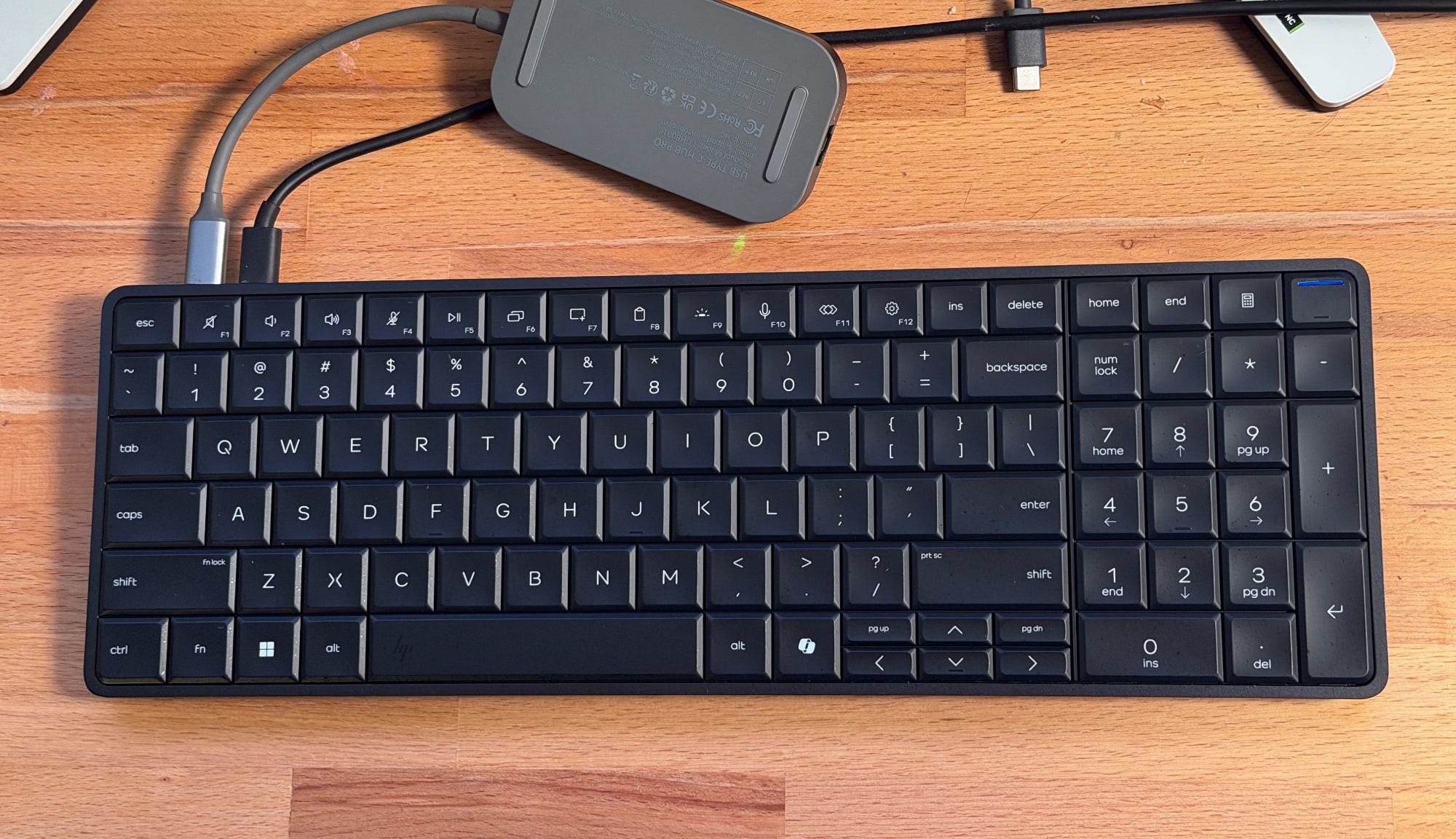
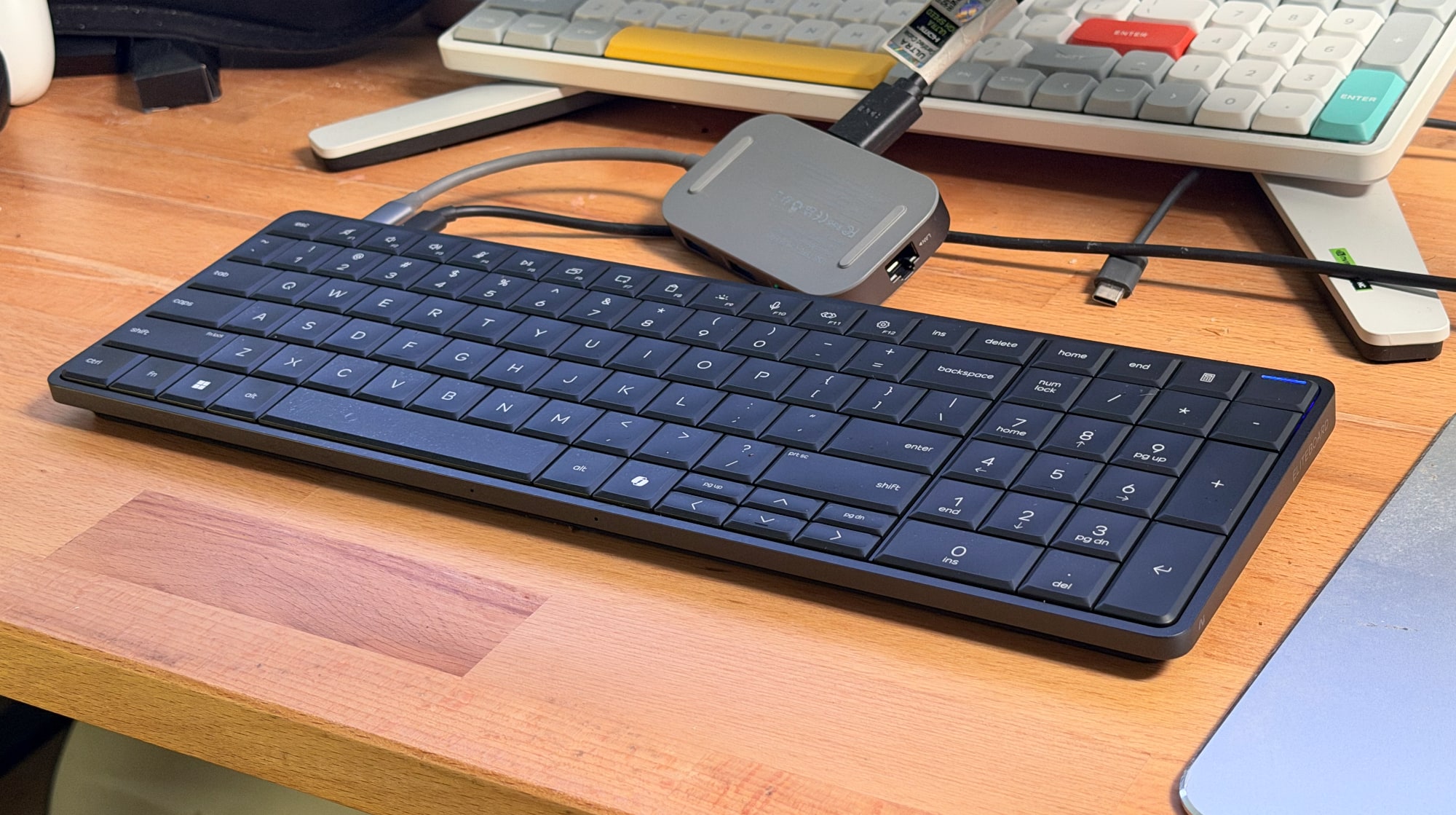
A keyboard computer has always been on my wishlist — that is, a computer where the entire machine was stuffed into a keyboard. Perhaps I caught a glimpse of the Commodore 64 at an impressionable age, but regardless, the idea has always been intriguing to me. At CES 2026, HP is bringing that concept back with the new EliteBoard G1a, which is dubbed a “Next Gen AI PC.”
It's an IT administrator's dream: It looks a typical desktop keyboard, but it has the full power of a Copilot+ AI PC inside. You can equip it with Ryzen 5 or 7 CPUs and their embedded Radeon 800 GPUs, up to 64GB of RAM and as much as 2TB of NVMe SSD storage. All you need to do is add a monitor and a mouse, and you've got a full-fledged desktop setup.
HP EliteBoard keyboard PC.
Devindra Hardawar for Engadget
The more I think about it, the more sad I am that the arc of the computing industry trended towards standardized desktops and laptops. There was a brief spark of interest with the UMPC (ultra mobile PC) trend in the 2000's, which Engadget covered extensively as a young blog, as well as ASUS's Eee keyboard. But they couldn't survive the rise of the smartphone and tablet. It turns out putting an entire computer behind a screen was more compelling than stuffing them into a keyboard.
I was able to test out an early EliteBoard prototype, and while the experience wasn't perfect, it's still an intriguing computing option. I had trouble setting it up initially because it only had two USB-C ports on its rear, which meant I had to find a way to power it through one port and pass a video signal through the other. Thankfully, my Anker USB-C charging hub was able to juice it up, and I also had a USB-C hub with an HDMI port, which allowed me to connect to my monitor.
Sadly, the overall setup was a jumble of wires, and not the clean layout I expected from a keyboard PC. Once I was able to start up Windows though, I was less annoyed and more amazed that the keyboard contained an entire computer. I suppose I shouldn't be too surprised, as Intel's Compute Stick placed a functional PC in a much smaller case, but unlike the failed product, the EliteBoard actually felt usable. I was able to load up several browser windows with tabs, edit a few photos and even play a few light games, like Vampire Survivors. And yes, typing on it felt pretty great too.
HP EliteBoard keyboard PC.
Devindra Hardawar for Engadget
Since I was testing out prototype hardware, I agreed not to benchmark the EliteBoard. But from the performance I saw, it felt about the same an entry-level laptop. Basically, it's perfectly suited to its main task: Being a boring office computer. Back in my IT days, I certainly would have preferred deploying a few light keyboards instead of the tank-like Dell desktops we typically ordered.
While the EliteBoard is targeted at commercial users, HP is considering it an experiment to see how people respond to a keyboard PC. There's a chance we could see one that's eventually meant for mainstream consumers. I'm not sure if that's exactly, necessary, though. The whole concept of a desktop PC mainly appeals to tinkerers and IT folks. And for anyone who wants to get their hands on an EliteBoard soon, there's really nothing stopping you.
This article originally appeared on Engadget at https://www.engadget.com/computing/hps-new-eliteboard-made-me-believe-in-keyboard-computers-again-033000022.html?src=rss
Intel turned up to CES 2026 to herald the birth of the Core Ultra Series 3, a new range of chips offering “exceptional performance.” It says the mobile processors, formerly known as Panther Lake, deliver great graphics and battery life alongside the aforementioned grunt. And that, for the first time, the silicon has been certified for embedded and industrial use cases, including robotics and smart cities. But, like so many stories about Intel these days, the launch is loaded with so much subtext you’ll need a copy of Cliffs Notes to understand it.
On the face of it, these are just some snappy flagship chips, available in Core Ultra 7 and 9 ranges as well as Core X7 and X9, which ship with 12 Xe graphics cores over the usual four. Almost all of them offer 16 total cores and threads, and all bar two have total NPU performance of 50 PTOPS.
Image of the Core Ultra Series 3
Intel
These chips are going to be famous for two key reasons: First, Intel claims they’re the most advanced chips ever manufactured in the US. Second, they’re the first to be made using Intel’s long awaited 18A process, which has dogged the company for several years. 18A was a key plank of former CEO Pat Gelsinger’s rescue plan to restore Intel to the top of the chip world. But sadly that comeback didn’t come fast enough to prevent the CEO from being (unfairly, in my mind) deposed at the end of 2024. It didn’t help that, for all of the money spent on 18A, as recently as August 2025, the company was reportedly still suffering from low yields and high defect rates.
18A is short for 18 Angstrom, a measurement that’s far smaller than the nanometers we currently use to denote transistor size in chips. 18 Angstrom is roughly equivalent to 1.8 nanometers, putting it on the same rough level as the most advanced manufacturing process — N2 — available at TSMC in Taiwan. At CES, Intel’s new CEO Lip Bu-Tan said the company was now ahead of schedule for ramping production on 18A, which could mark an important shift in the global chip market.
You should expect to see these chips show up in laptops from all the usual suspects, including HP, Acer, Lenovo, Dell, Samsung and the rest across this year.
This article originally appeared on Engadget at https://www.engadget.com/computing/ces-2026-intel-hopes-its-core-ultra-series-3-chips-are-the-start-of-a-comeback-000155611.html?src=rss
A couple years ago ASUS made its first dual-screen laptop in the ZenBook Duo. Now at CES 2026, the company has taken that idea and branched off in a somewhat unexpected way with the ROG Zephyrus Duo, which might just be the world’s first true dual-screen gaming laptop.
Unlike a more traditional productivity notebook with two built-in displays, the concept of a dual-screen gaming notebook doesn’t translate quite as naturally because powering two screens comes with a performance hit. Plus, in the heat of battle, it’s not like you have a lot of opportunity to utilize that second monitor. But if you view this Zephyrus Duo as more of an all-purpose portable content creation and gaming station, things begin to make a lot more sense.
Both of Zephyrus Duo’s 16-inch Nebula OLED panels have strong specs including support for HDR with up to 1,100 nits of peak brightness, NVIDIA G-Sync, stylus integration and a very strong Delta-E (which measures color accuracy) of less than one. Performance also looks solid with ASUS offering the latest Core Ultra processors from Intel and up to an NVIDIA RTX 5090 GPU. Sure, with a TDP of 135 watts, the Zephyrus Duo won’t be quite as punchy as a comparable single-screened 16-inch gaming notebook, but those won’t be nearly as adaptable as the ROG either.
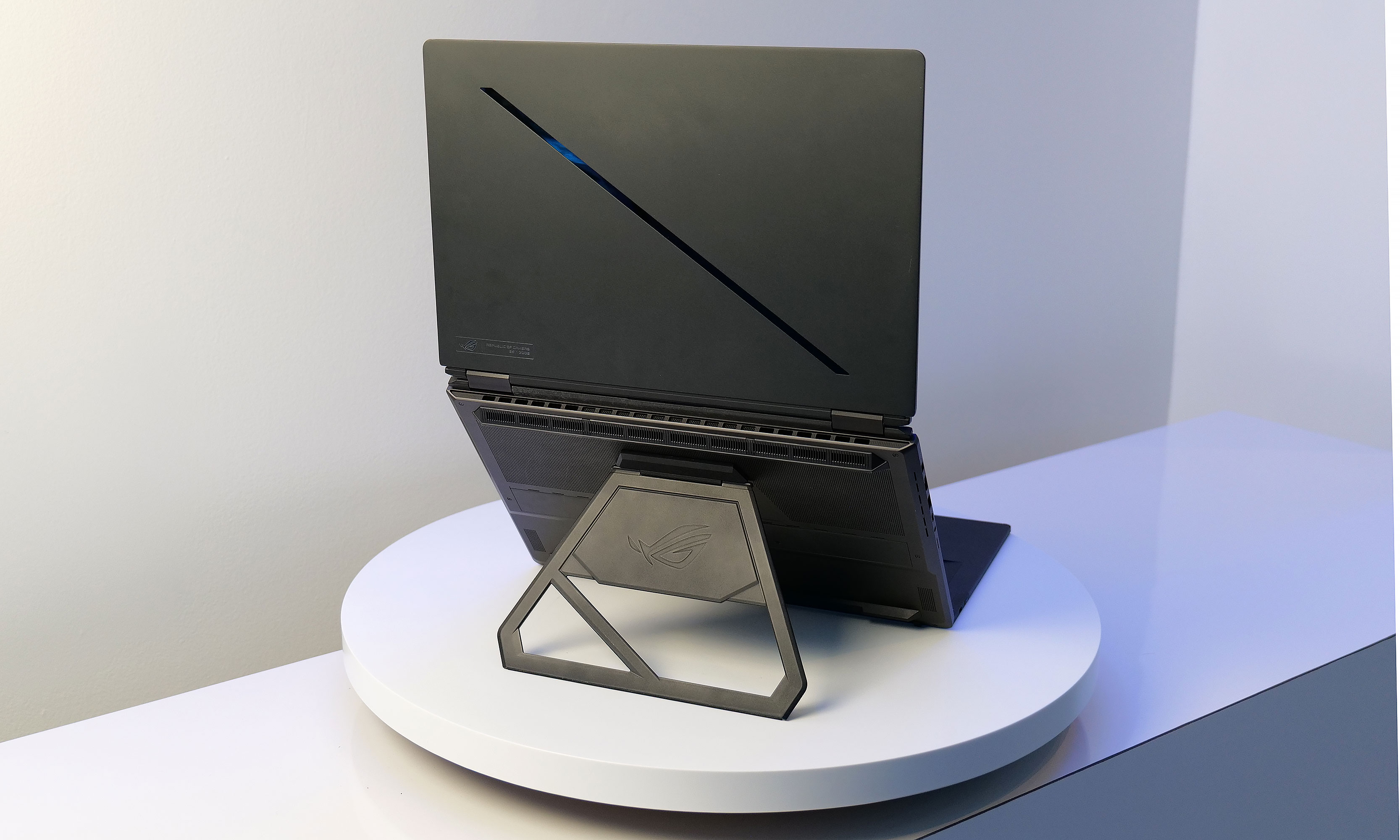
Just like the Zenbook Duo, the Zephyrus Duo comes with a detachable wireless keyboard that can be charged up magnetically. This allows users to set up the laptop in all sorts of positions, which are enhanced thanks to a built-in kickstand. The one people will use the most is probably the stacked arrangement with one display above the other. However, you can also keep the Duo and clamshell mode, slide the keyboard forward for drawing, lay it down flat on a table or even put it into tent mode and game on it. Though even ASUS admits that may not be super practical as apps will need to specifically support that use case. Though at the very least, you can mirror your screen for a friend on the other side of a desk/table.
The ROG Zephyrus Duo comes with a built-in kickstand which makes it easy to set it up in all sorts of different positions, even if it is a bit heavy.
Sam Rutherford for Engadget
Now I will admit that after messing around with the Zephyrus Duo in person, it is a bit ungainly due to its weight of 6.28 pounds. But ASUS managed to do a good job of keeping it relatively thin (0.77 inches) without skimping on features like sound thanks to the Duo’s six-speaker stereo system and cooling which features a vapor chamber and a liquid metal thermal material. You also get a surprising amount of ports including multiple USB-C with Thunderbolt 4, USB-A, HDMI 2.1 and a full-size SD card slot, plus a decently large 90Whr battery.
The one important thing we don’t know yet though is how much it will cost, particularly because this thing almost certainly won’t be cheap (I’m guessing a starting price of around $2,500). A dual-screen gaming laptop might not make a lot of sense, but I appreciate how ambitious ASUS is being with the ROG Zephyrus Duo and I’m looking forward to testing it out sometime later this year.
This article originally appeared on Engadget at https://www.engadget.com/computing/laptops/the-asus-rog-zephyrus-duo-is-big-weird-and-kind-of-awesome-000000156.html?src=rss
Acer just announced the Predator Helios 16S AI gaming laptop at CES 2026. This computer is filled with both bells and whistles, making it a decent choice for modern gamers.
To that end, the laptop can be equipped with up to an Intel Core Ultra 9 386H processor. This is Intel's upcoming flagship mobile processor that has previously been known as Panther Lake. The Helios 16S AI can also be outfitted with up to the NVIDIA GeForce RTX 5070 GPU.
Acer
It comes with a 16-inch WQXGA OLED display that offers true HDR imaging support. The laptop can be loaded with up to 64GB of RAM and up to 2TB of storage. The connectivity here is on point, with support for Thunderbolt 4, Wi-Fi 6E and Bluetooth. Everything is housed in an 18.9mm slim metal chassis. It looks pretty solid.
We don't have any pricing, and the company might still be calculating that, given that ongoing RAM shortage. Acer says they'll disclose that closer to launch.
This article originally appeared on Engadget at https://www.engadget.com/computing/laptops/acers-predator-helios-neo-16s-ai-laptop-can-be-outfitted-with-intels-new-core-ultra-9-386h-cpu-230048825.html?src=rss
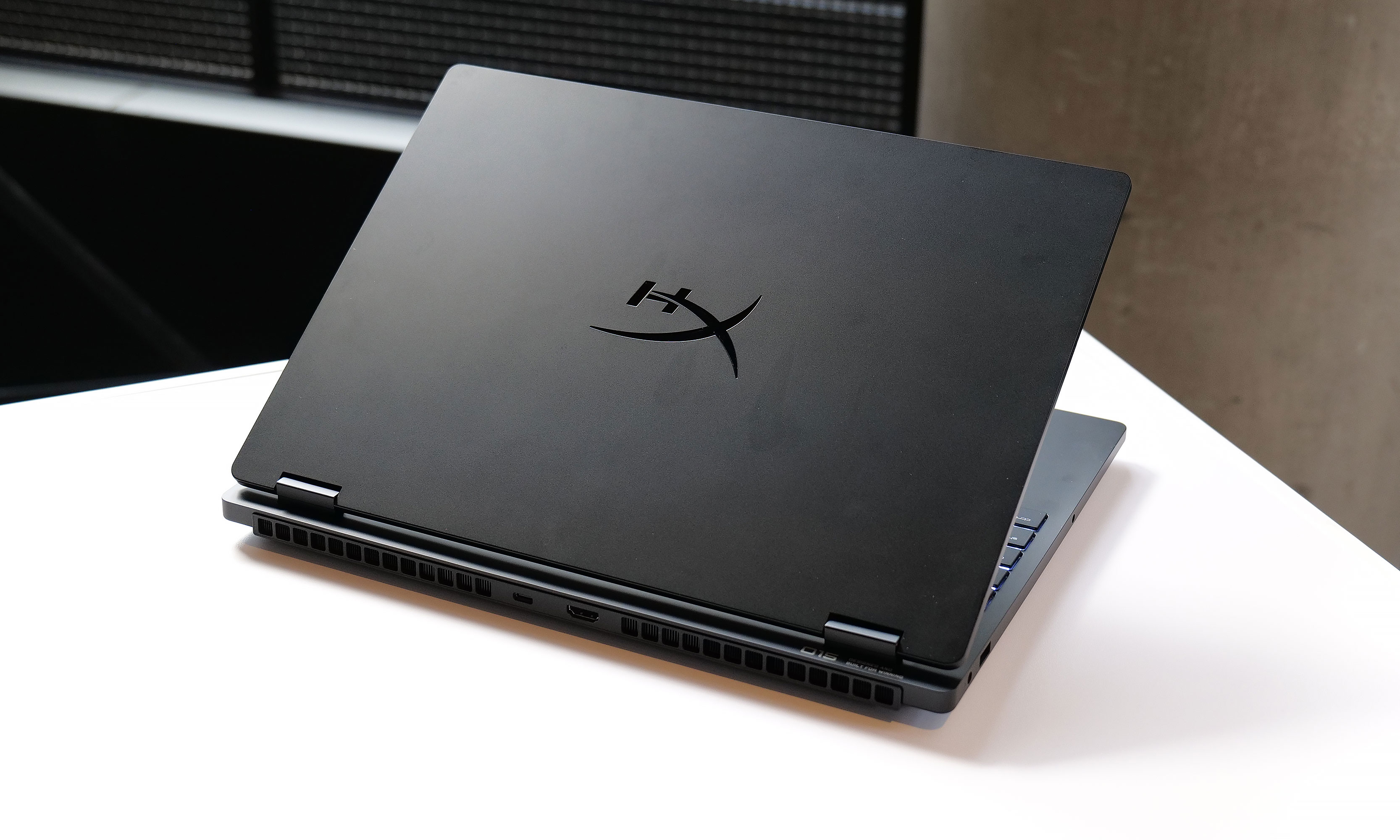
This year HP is making an important change by taking its name off its gaming hardware entirely and letting its HyperX branding take center stage. At CES 2026, the company is celebrating this transition in a big way with Omen Max 16, which is being heralded as the world’s most powerful gaming laptop with fully internal cooling.
Now the last part of that claim is a bit of a cop out, but considering that most gamers probably don’t want to lug around a notebook with hoses coming out the back, it’s an understandable qualifier. Plus, with a total platform power of 300 watts that includes support for the latest chips from Intel and AMD and up to an NVIDIA RTX 5090 GPU, this thing certainly won’t be lacking in speed. Under the hood, the Max 16 features a third cooling fan to prevent throttling under sustained workloads along with HP’s Fan Cleaner tech that reverses the direction of the laptop’s fans to prevent dust from building up inside.
As for its design, the Max 16 doesn’t stray too far from HyperX’s signature matte black color scheme, though I do appreciate that the company kept a handful of accents like the RGB lightbar mounted on the laptop’s front lip. The notebook also features a per-key RGB backlit keyboard with a 1,000Hz polling rate, which should all but eliminate any issues with ghosting or rollover during hectic facerolling sessions.
However, one quirk about the system I noticed when checking it out first hand is that even with above average brightness of 500 nits for its 2.5K OLED display, the screen also comes with an unusually glossy coating. The benefit of this is that colors appear super saturated. The downside is that especially in well-lit rooms with a lot of sunlight, there’s more glare and reflections than you might expect.
Another nice improvement about the Max 16 that might go unnoticed if you only look at its spec sheet is that despite having a TPP of 300 watts, its power brick is relatively compact. It wasn’t all that long ago that a laptop with this kind of performance might have required dual power cables in order to supply the notebook with the amount of juice it needs. That said, weighing between 6.1 and 6.5 pounds depending on the exact configuration, the Max 16 still isn’t the kind of laptop you’re going to want to carry around on a frequent basis.
Regardless, if you’re in the market for what is essentially an old-school desktop replacement laptop without moving up to even larger 18-inch machines, HyperX’s latest flagship gaming laptop should be a strong contender that won’t be lacking in speed.
One change for 2026 is that HP is taking its name off of its gaming systems and letting the HyperX brand take center stage.
Sam Rutherford for Engadget
Unfortunately, HP doesn’t have concrete info about how much the HyperX Omen Max 16 will cost or when it will go on sale. However, we should know more when it becomes available sometime later this spring. And finally, if you’re looking for something slightly smaller or a more affordable system (we don't have official pricing, but the Max 16 won't come cheap), HP is also updating the Omen 15 and Omen 16 with fresh components and new HyperX branding for 2026 as well.
This article originally appeared on Engadget at https://www.engadget.com/computing/laptops/ces-2026-hp-says-the-hyperx-omen-max-16-is-the-most-powerful-16-inch-gaming-laptop-in-the-world-230000272.html?src=rss
MSI has presented its refreshed Prestige lineup of business laptops, as well as its next-generation Raider, Stealth and Crosshair gaming models at this year’s CES. The Raider 16 Max HX is a 300w laptop, which the company says its its most powerful gaming model yet. It can supply 175w to its GeForce RTX 5090 or RTX 5080 GPU, while feeding 125w to its Intel Core Ultra 200HX processor at the same time under full-load conditions. To be able to handle that kind of power, MSI equipped it with a new cooling system consisting of three fans, six heat pipes, five exhaust vents and phase-change thermal compound. The Raider 16 Max also has a quick-access bottom panel that gives users an easy way to upgrade their storage and memory.
Meanwhile, the new Stealth 16 AI+ laptop’s selling point seems to be its portability. It’s just 16.6mm thin, weighs under two kilograms, comes equipped with RTX 50 series GPU and has dual memory and SSD slots. MSI has also introduced the new Crosshair 16 Max HX and Crosshair 16 HX laptops powered by Intel Core Ultra 200HX processors and NVIDIA GeForce RTX 50 series GPUs at the event. Buyers can pay extra for an optional QHD+ 165Hz OLED display if they want sharper visuals, as well.
In addition to its new gaming laptops, MSI has introduced its all-new Prestige 14 and Prestige 16 business laptops at CES. They’re slimmer with a more rounded silhouette compared to their predecessors, and they’re encased in full aluminum. The laptops are powered by the latest Intel Core Ultra Series 3 processors and are equipped with an 81Wh battery that can offer over 30 hours of video playback in 1080p. MSI has debuted the new Modern 14S and 16S series powered by the latest Intel Core Ultra Series 3 processors for everyday users, as well. Plus, the company has unveiled a Glacier Blue edition of its handheld gaming console, the Claw 8AI+, that’s powered by the Intel Core Ultra 200V processor with Arc Xe2 graphics.
This article originally appeared on Engadget at https://www.engadget.com/computing/laptops/msi-unveils-new-gaming-and-prestige-business-laptops-at-ces-2026-230000027.html?src=rss