Last year I put together a list of products everyone absolutely needed to own in 2025. It included basic stuff, AirTags, GaN chargers, and even some slightly complex gadgets like NAS devices to help you cut the cord on cloud storage subscriptions. This year’s list expands on the same philosophy from last year – make life easier, cheaper, and faster. Here are 5 pieces of tech you need to consider owning in 2026, they’re on the bleeding edge of tech now, but I assume will become mainstream in a decade. However, if you want to stay ahead of the curve, consider adopting them now!
The list is short but sweet – it includes AI recorders/notetakers, translator buds that do a way better job than the AirPods, personal AQI monitors, travel routers that make connecting to dubious airport and hotel WiFi networks much easier, and finally (my grand pick for 2026) a personal media server that helps you actually own movies instead of paying Netflix or Hulu or Paramount a monthly fee that they seem to increase every year without batting an eyelid.
1. AI Notetakers: Your Second Brain That Actually Shows Up
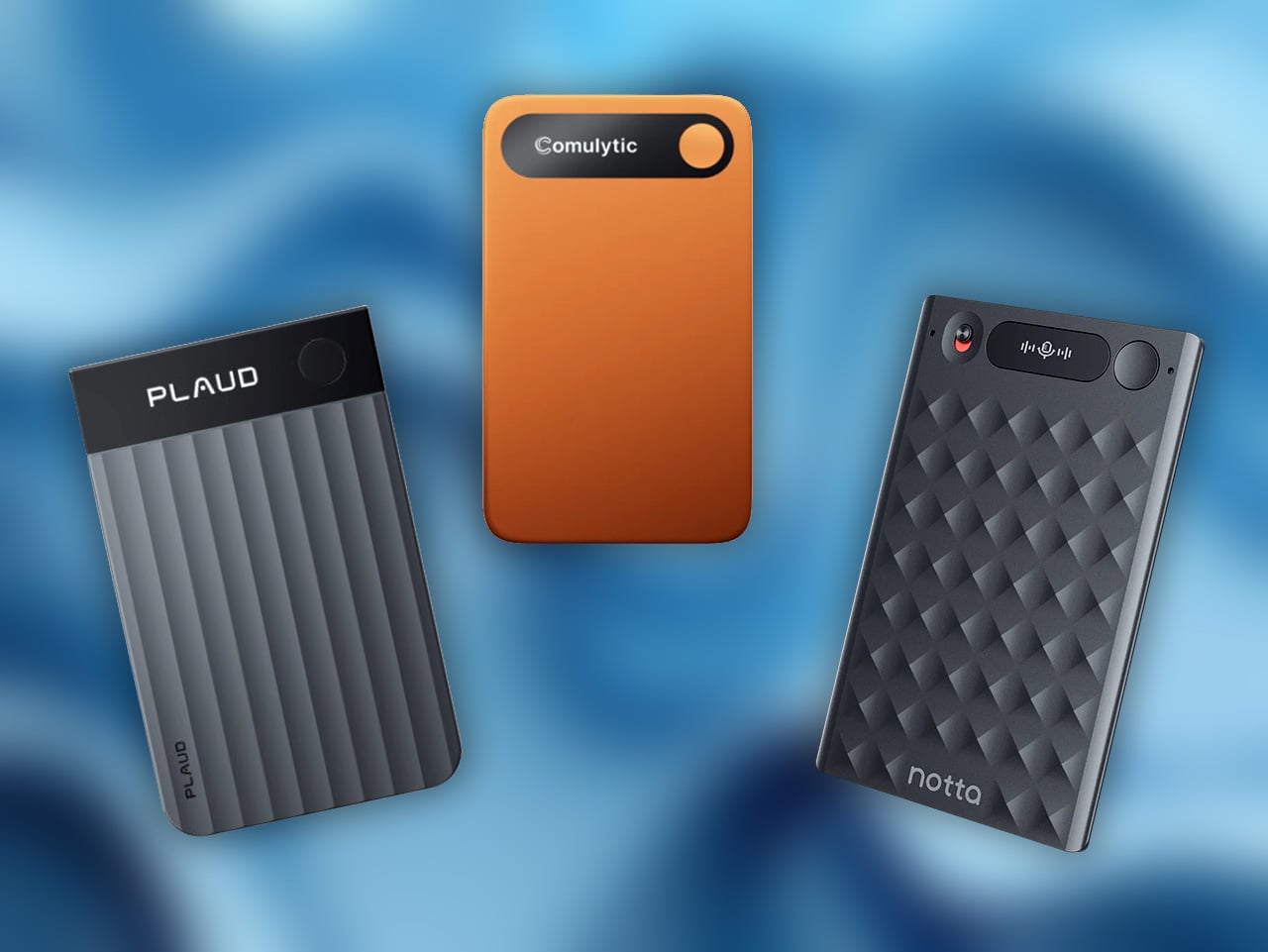
There is a very real advantage to having a dedicated AI notetaker that is not your phone. Phones are distraction machines; they are notifications, doomscrolling, unsolicited ads, and “sorry, I just need to reply to this Slack” all rolled into one. A device like Plaud Note, Comulytic, Mobvoi’s TicNote or a Notta‑powered recorder does one thing: it listens (and it remembers what it listens). You hit a physical button, drop it on the table, and forget about it. Later, the audio is cleaned up, transcribed, summarized, and tagged without you babysitting the process. That separation alone changes how you behave in meetings and interviews. You stop half‑typing notes while someone is talking and instead stay present, knowing you will get a clean transcript and a decent summary afterward.
The other big win is what happens after the recording. Tools like Plaud, Notta, and similar AI‑first platforms are not just dumping a raw audio file into your storage; they are turning it into something you can actually work with. Meetings become bullet‑point action lists, interviews turn into structured quotes you can drop into drafts, and keynotes morph into highlight reels and to‑do items. Compare that to your phone’s stock voice recorder, where everything is just “Recording 032.m4a” in a long, unlabeled list. No speaker separation, no smart search, no summaries, no automatic organization. Dedicated AI notetakers treat audio as input to a workflow, not a dead file. And once you have used one a few times for client calls or field interviews, going back to a generic phone app feels like going from a modern IDE back to Notepad.
2. Translator Earbuds: When You Actually Need To Talk To People
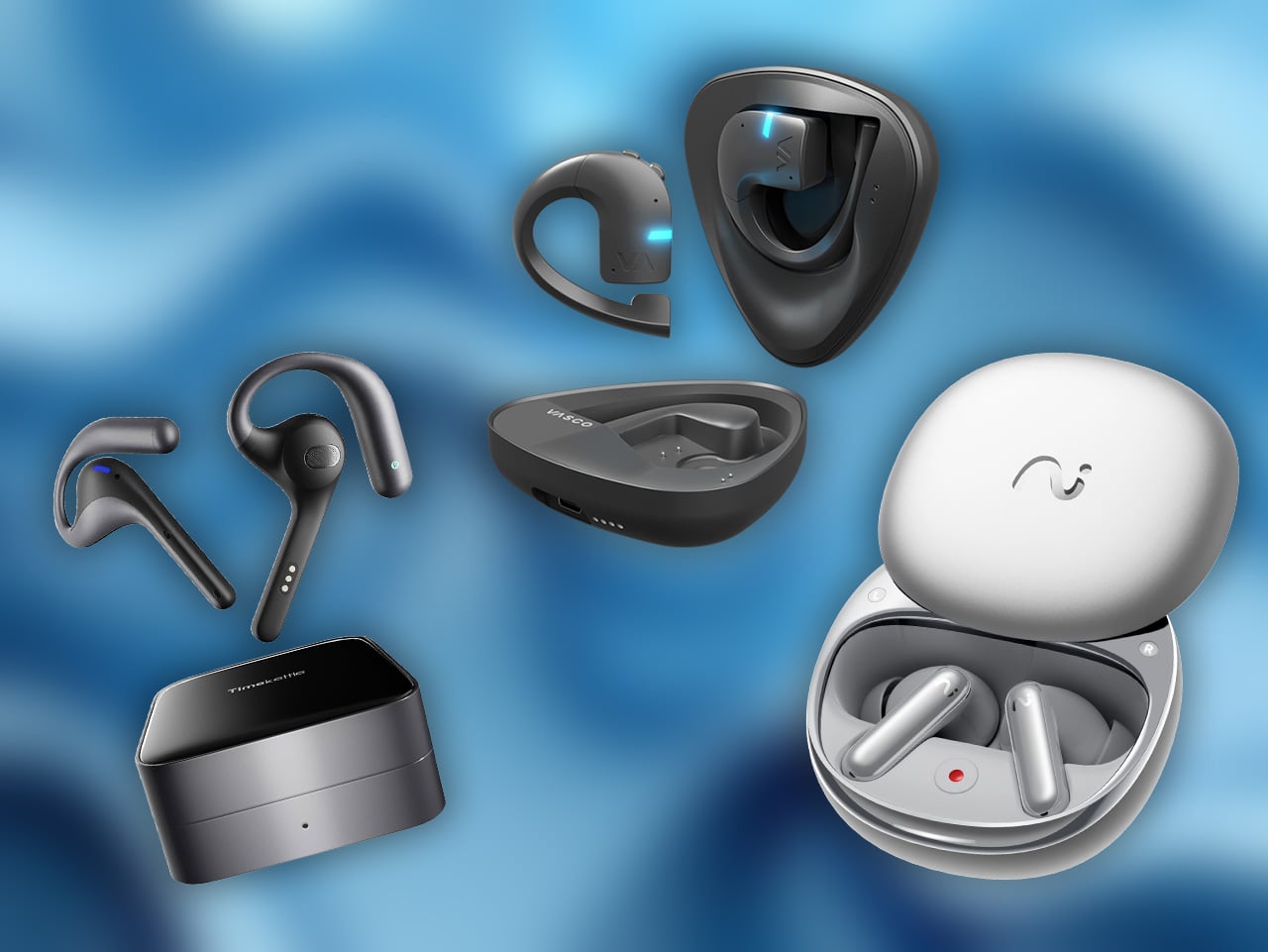
Apple adding Live Translation to AirPods is very on‑brand: take a niche idea, wrap it in a clean UI, and ship it as a feature most people will try once in a while. It is genuinely handy if you and the other person both live inside the Apple ecosystem, and you are somewhere with good connectivity. But at the end of the day, AirPods are music‑first earbuds that happen to do translation on the side. Brands like Vasco, Viaim, and Timekettle flips that completely. Timekettle products like the M3, WT2 Edge, and W4 are built as translation devices first, earbuds second. The hardware, the app, and the interaction modes are all tuned for one job: two‑way, face‑to‑face conversation that does not feel like you are dictating into Google Translate.
You see the difference the minute you try to use them in the real world. Timekettle lets both people wear an earbud and just talk, with the system handling two‑way interpretation in near real time. Even Vasco, which secured our award at CES 2025, offers incredible translation features with the added ability to clone your voice using AI. There are specific modes for sitting across a café table, walking side by side, or listening to an announcement, and you can preload offline language packs so you are not stranded the moment you lose data. That matters when you are in a noisy street market, on a factory floor, or in a client meeting where “sorry, can you repeat that for the app” gets old fast. AirPods’ live translation is clever, but it is still bolted onto a general‑purpose audio product, with limited languages and workflows that quietly assume ideal conditions. Dedicated translator earbuds are what you pack when you know you are going to be operating in another language for days at a stretch; AirPods translation is what you pull out when you are already there and hoping the feature is good enough.
3. Personal Air Monitors: The Little Box That Calls Out Bad Air
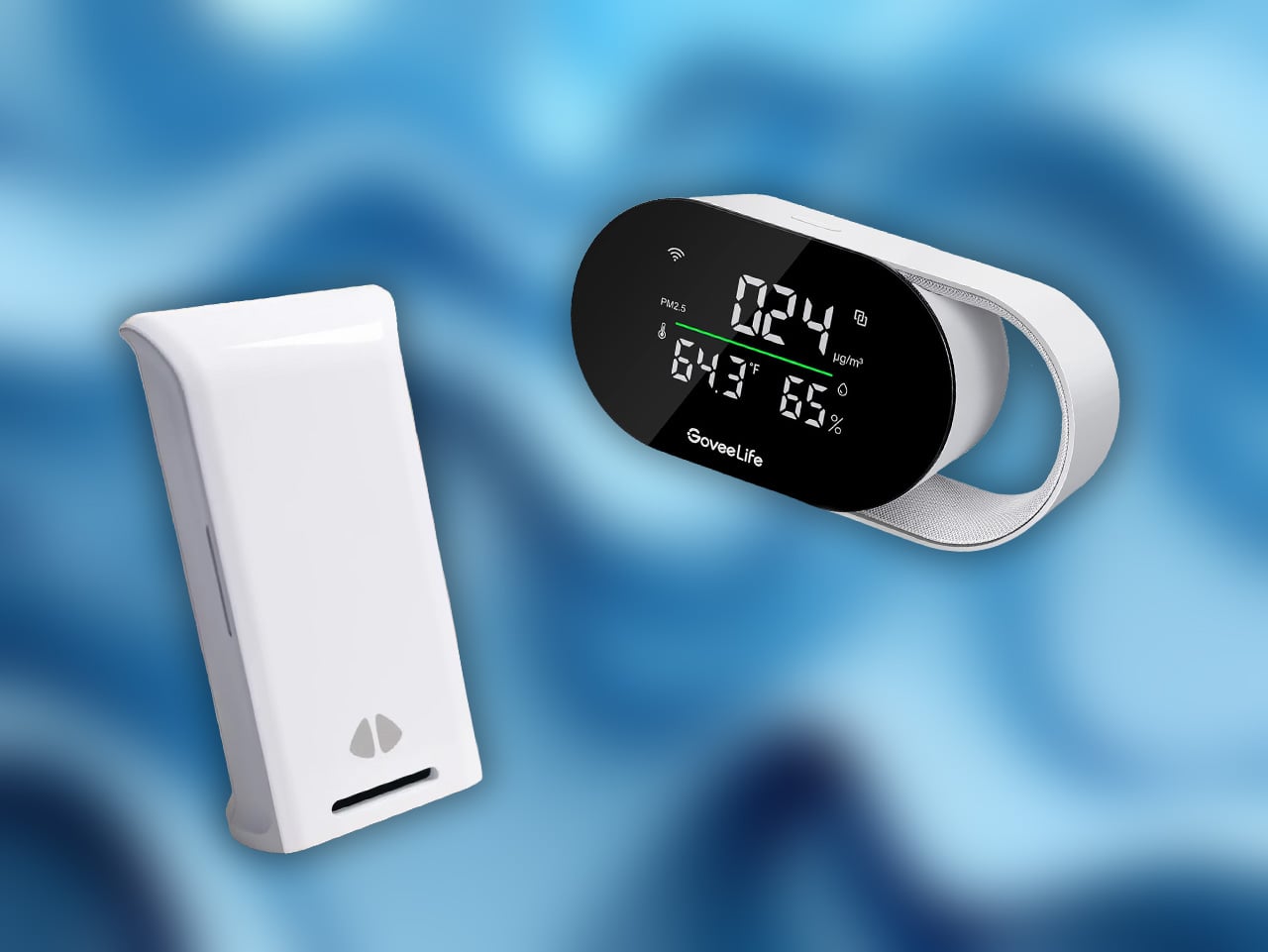
A personal air quality monitor is very different from the big purifier that sits in one corner of your living room. This is the pocketable version: a small, battery‑powered sensor that tracks things like CO₂, particulates, VOCs, temperature, and humidity, and comes with you everywhere. Think of the same mindset behind something like Goveelife or uHoo’s indoor monitors, but shrunk down into a device you can toss in a bag or park on your desk. The moment you start carrying one, patterns jump out. That “3 p.m. crash” in your home office often lines up perfectly with CO₂ quietly creeping past the point where your brain stops firing properly. The subway line that always gives you a headache is not just “crowded and stressful,” it is a mix of stale air and fine dust. Your favorite café might have great coffee and terrible ventilation, while the boring chain across the street quietly nails fresh air and lower CO₂.
Where this becomes essential is when you pair it with travel and health decisions. Instead of vaguely checking a city‑wide AQI number, you get hyper‑local readings: the actual air in your Airbnb bedroom, that underground bar, that coworking space with sealed windows. A personal monitor can be the thing that tells you “open a window now,” “today is an N95 day,” or “maybe do not work six hours straight in this meeting room.” It is not a glamorous gadget, but it quietly moves you from guessing to measuring. In a world of wildfire smoke, construction dust, packed trains, and increasingly sealed buildings, that shift feels very 2026: less “trust the vibes,” more “trust the numbers in your pocket.”
4. Travel Routers: Bring Your Own Internet, Not Just Your Own Laptop
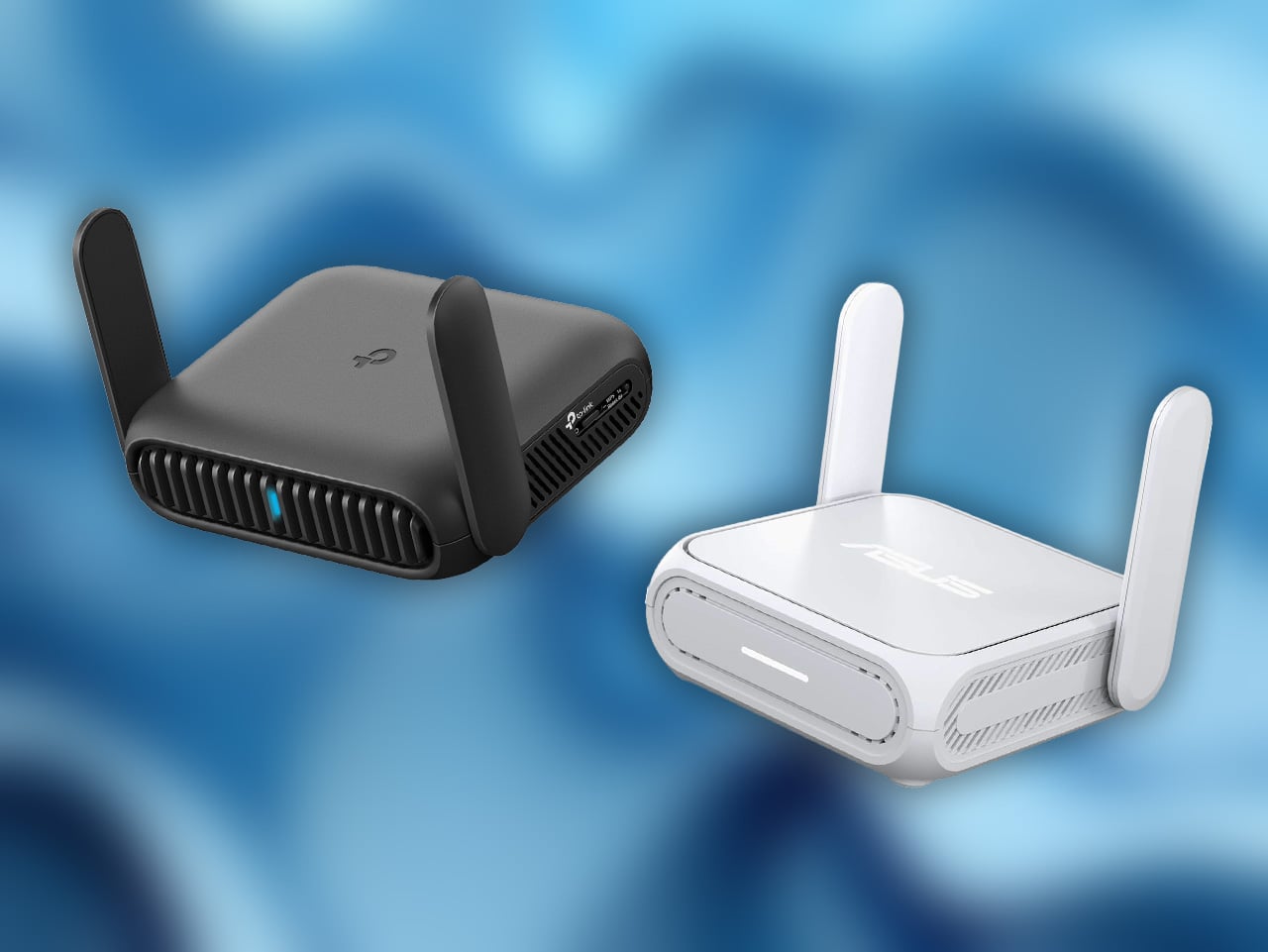
TCL and Asus quietly made one of the most important travel gadgets last year: routers built to live in your bag instead of under your TV. On the surface they look like yet another little plastic box with antennas, but the use case is very different from the router you got from your ISP. These are “BYO infrastructure” for people who work, stream, and store their lives online. You plug them into sketchy hotel Ethernet or join them to the random café Wi‑Fi, and they spin up your own private, password‑protected network for your laptop, phone, handheld console, and whatever else you are carrying. Instead of each device logging into “Hotel_WiFi_3” separately and fighting through captive portals, everything just connects to your SSID, with your own password, your own settings, and your own rules.
The VPN side is where they really earn a place in a 2026 kit. A good travel router can automatically tunnel all your traffic through a VPN or back to your home network, so every device behind it inherits that protection without you installing clients and certificates on each one. That means you can sit on airport Wi‑Fi and still safely access your media server at home, your NAS, your work tools, or region‑locked services, all as if you were on your own couch. For digital nomads and frequent flyers, it also solves a bunch of annoying edge cases: game consoles and streaming sticks that hate captive portals, devices that do not support VPNs natively, hotel networks that limit the number of devices per room. The travel router becomes the one “client” the hotel sees, while you hang a whole personal LAN off the back of it. It is not a glamorous product, but once you have had a week where your entire setup rides on that one little box, it is hard to go back to trusting whatever router the hotel happened to bolt to the ceiling.
5. Personal Media Servers: Owning Your Movies In A World That Hates Ownership
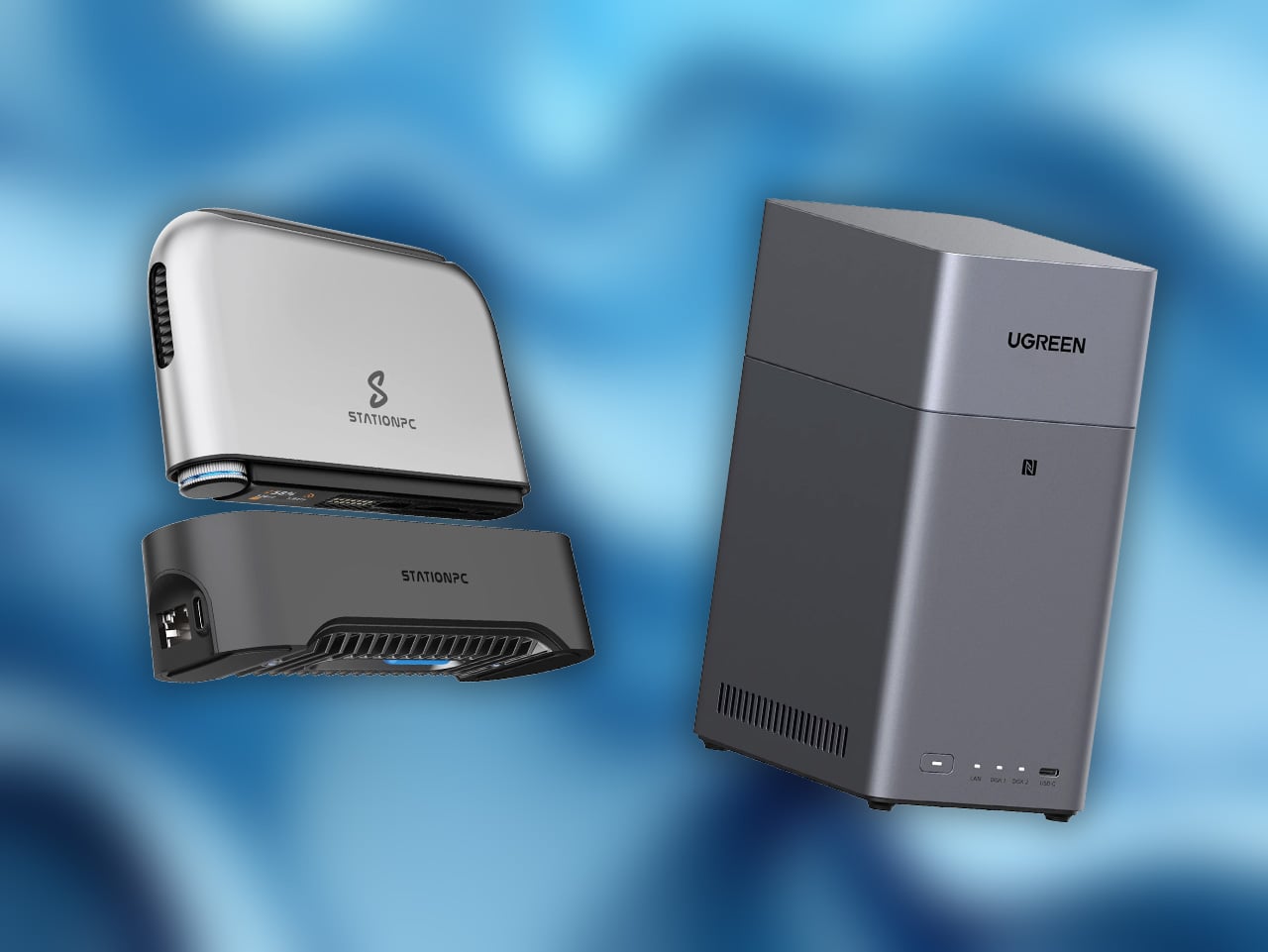
The idea of “buying” a movie used to be straightforward. You paid for a DVD or Blu‑ray, you got a disc, and that disc was yours until it got scratched to death or you moved house and lost it. You could watch it a thousand times, lend it to a friend, rip it for convenience, whatever. The streaming era quietly rewrote that deal. You are not buying movies anymore, you are renting access. A title lives on Netflix or Max or whatever for a while, then licensing changes, mergers happen, some accountant decides to write it off, and suddenly your favorite film or show just does not exist in your catalog. You can chase it across services, stacking subscriptions like trading cards, but that gets expensive very fast, and you are still at the mercy of contracts you never see.
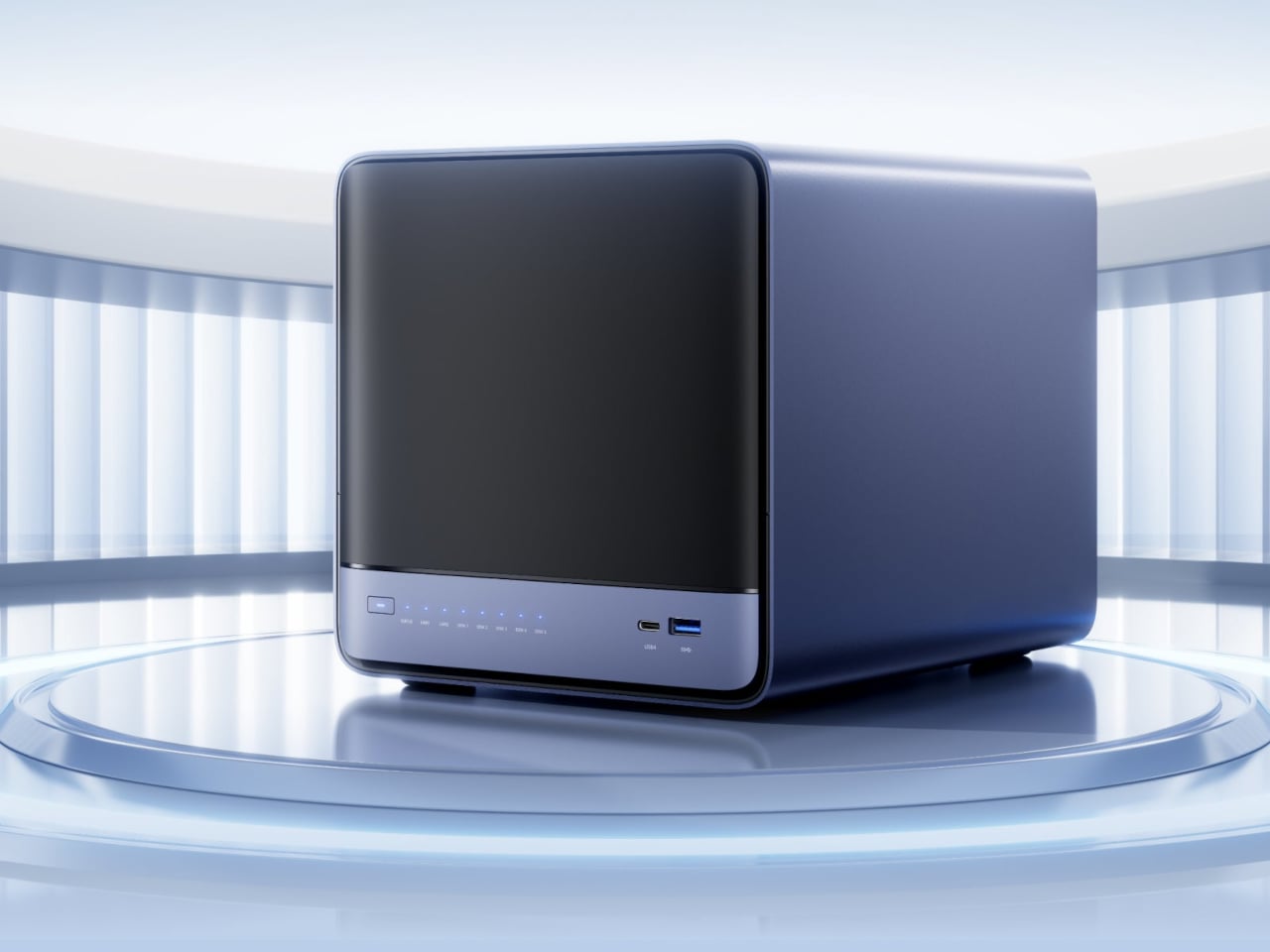
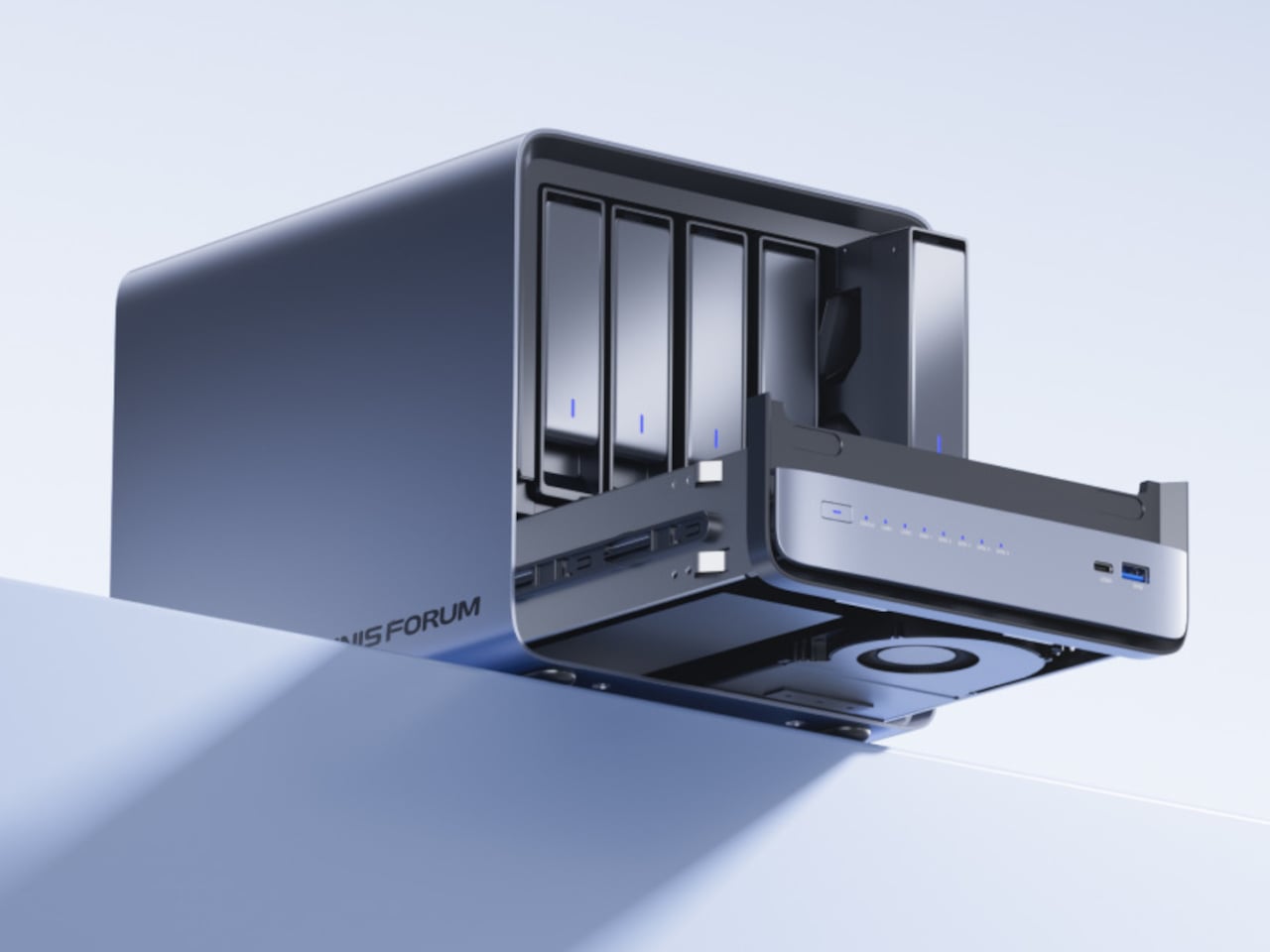
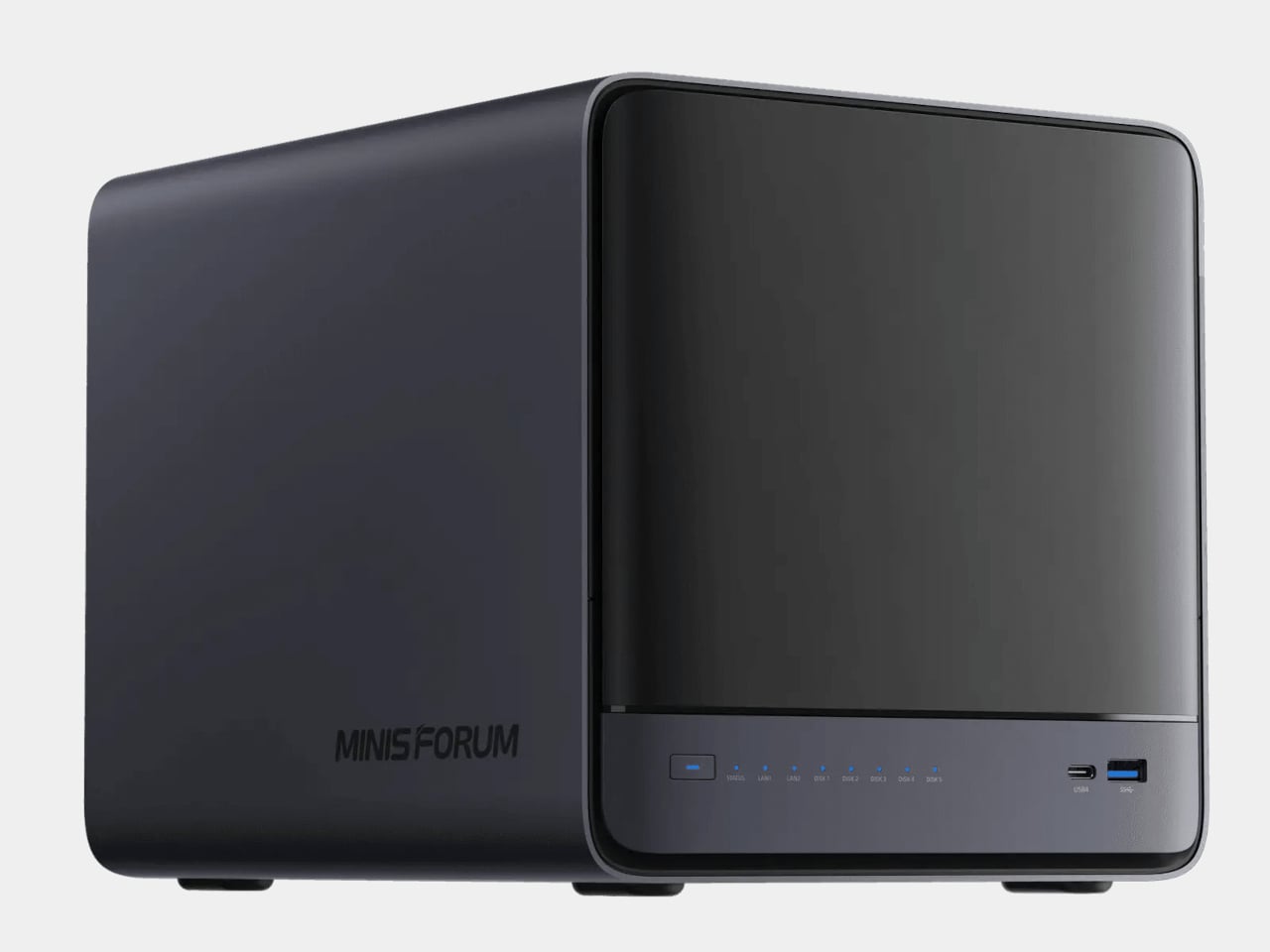
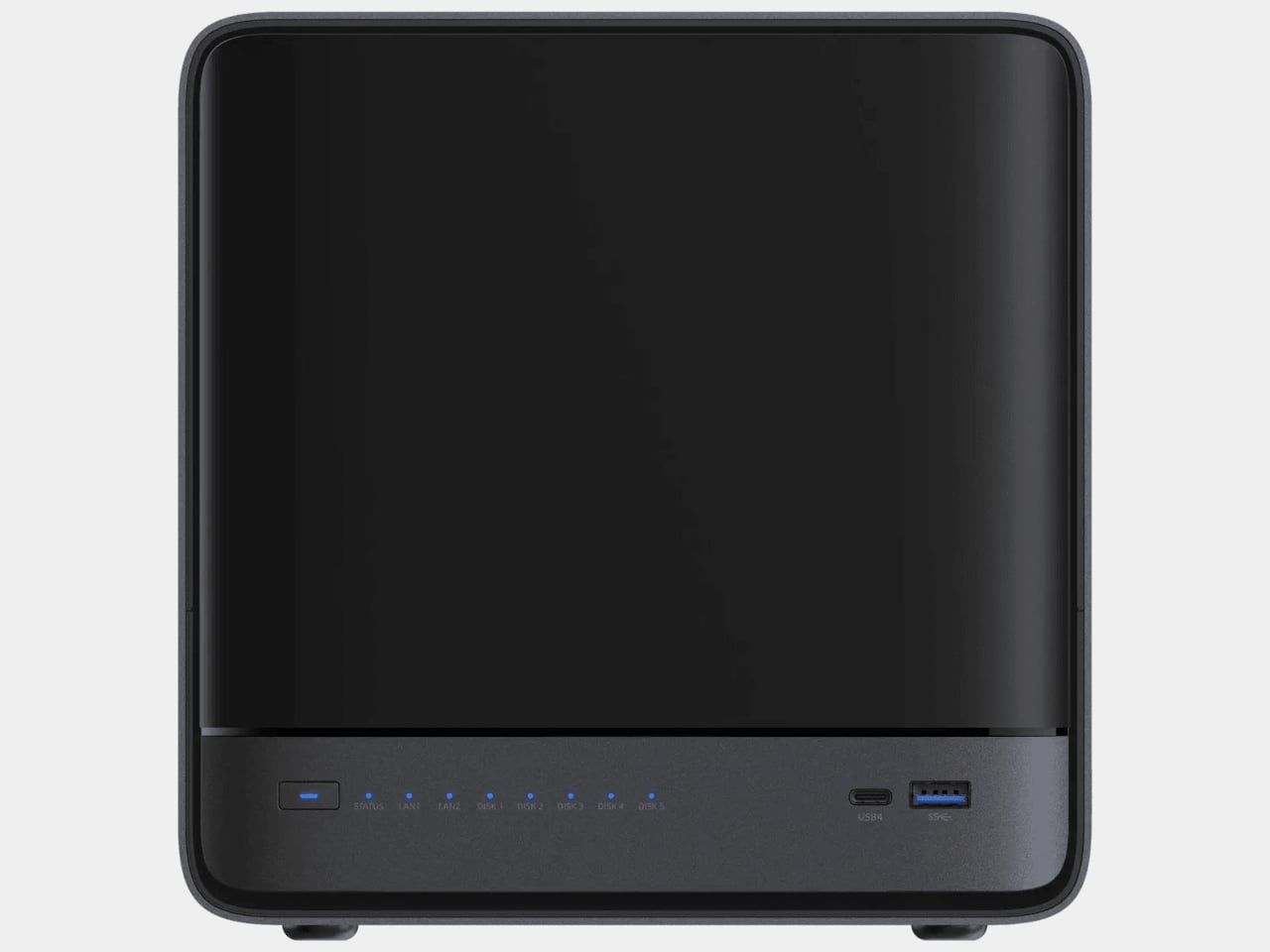
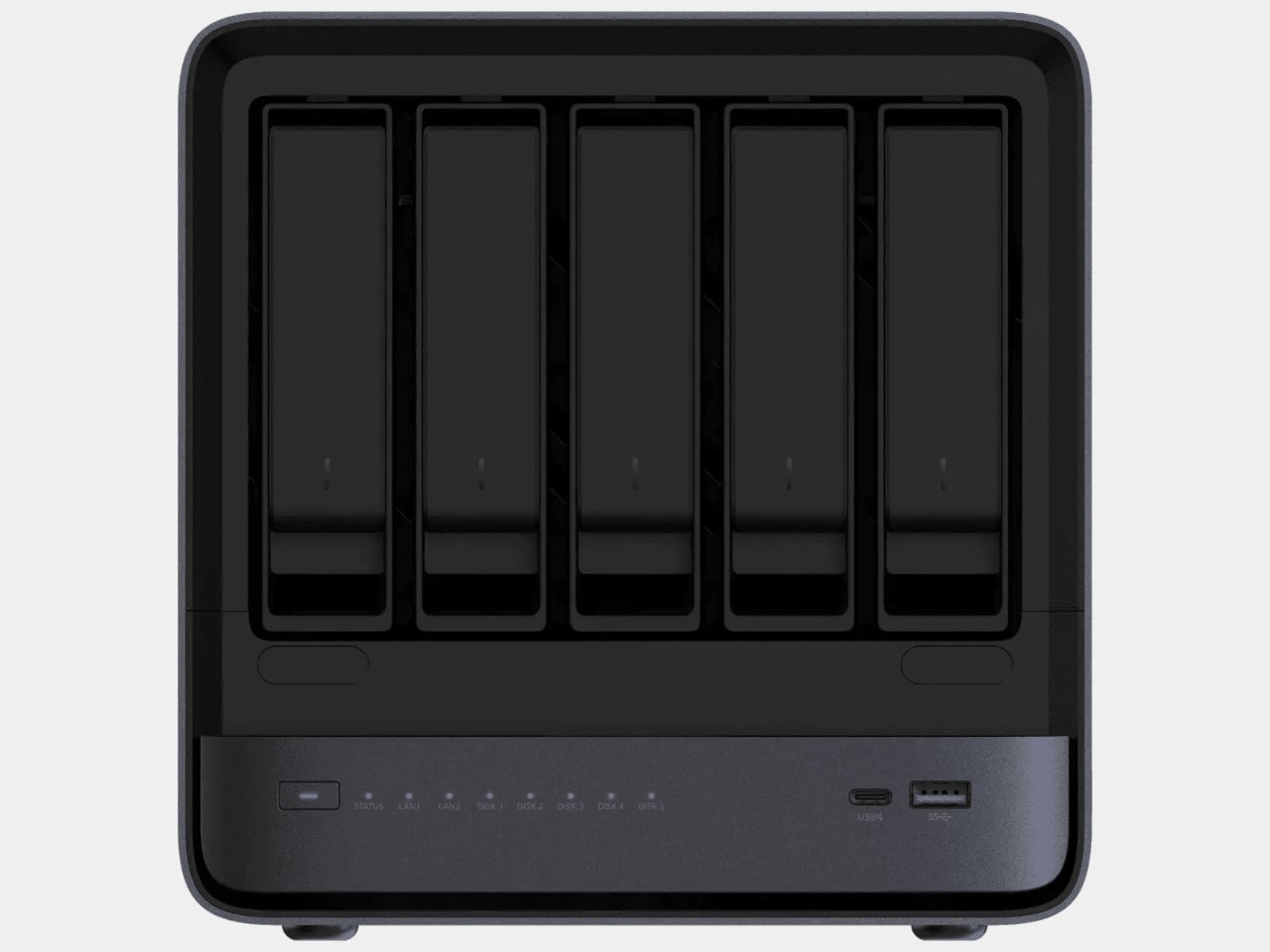
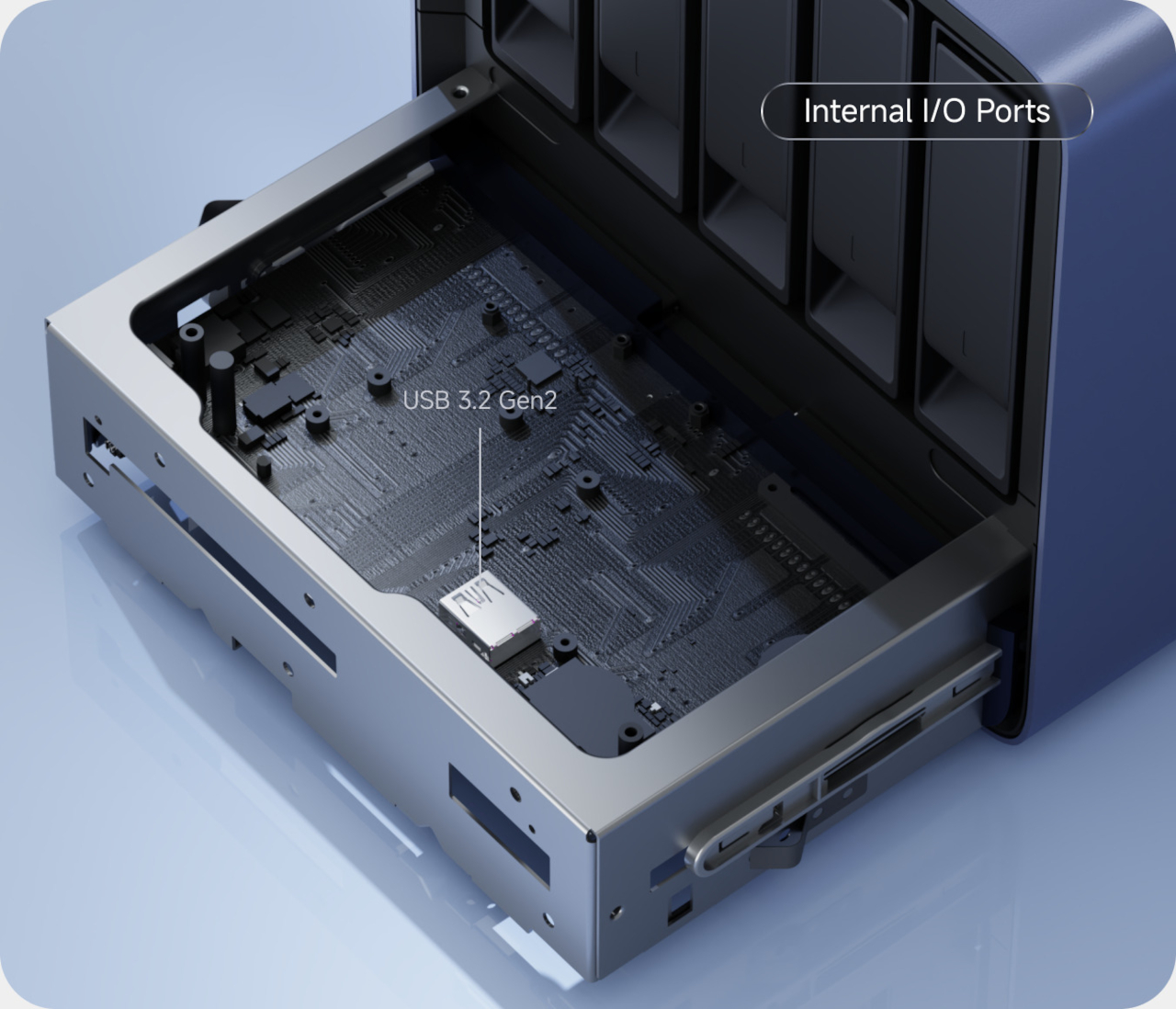
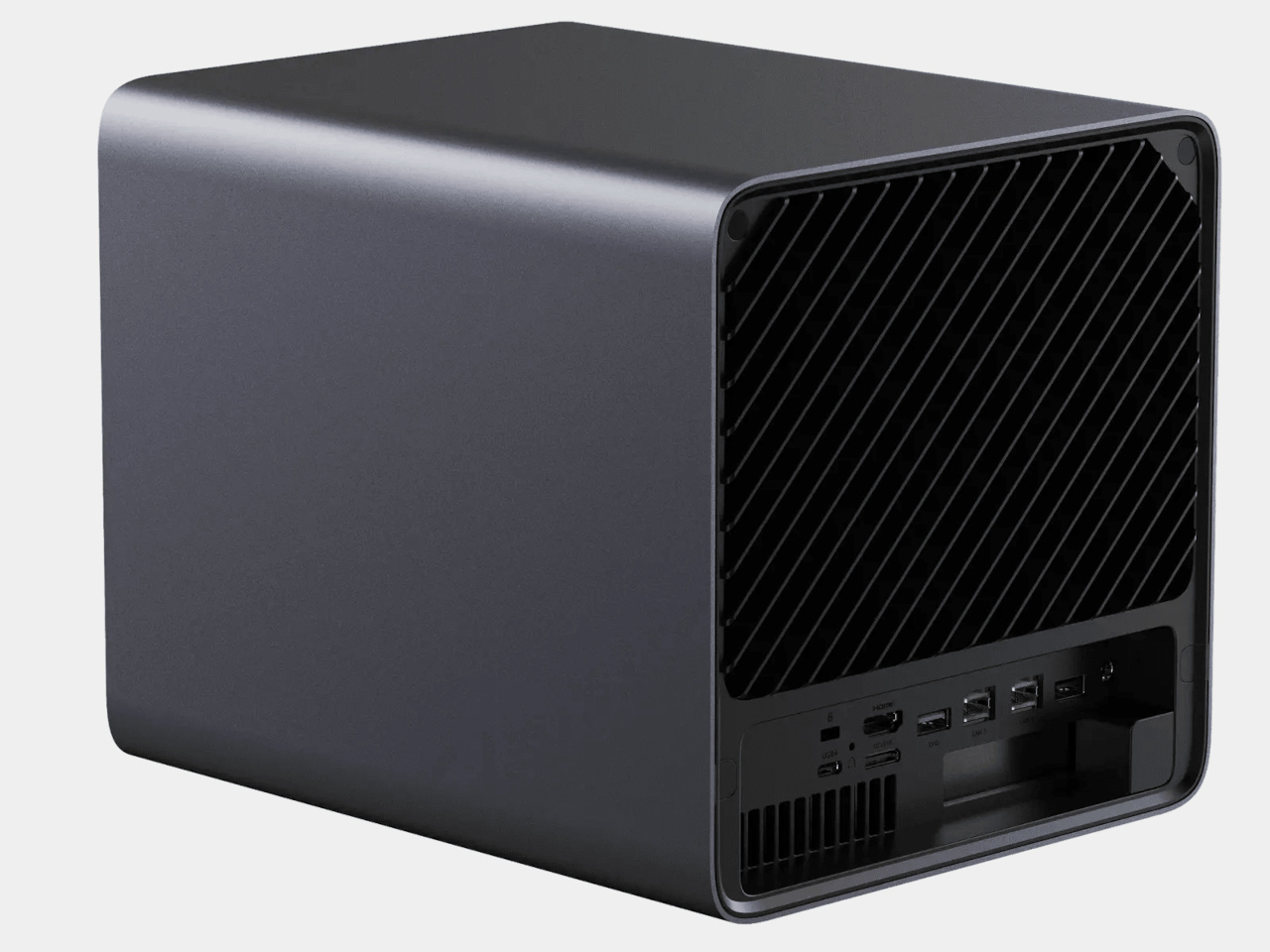
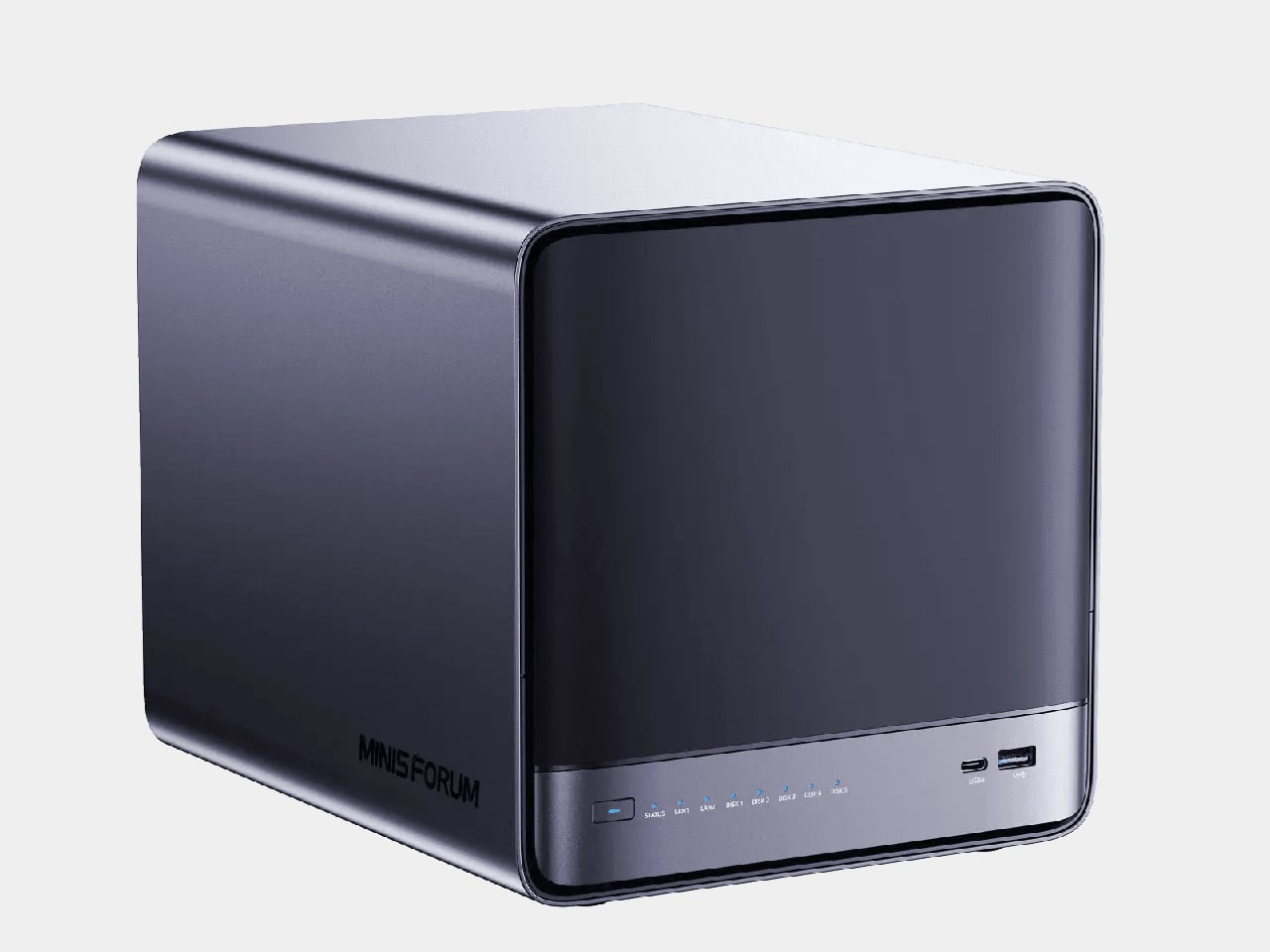
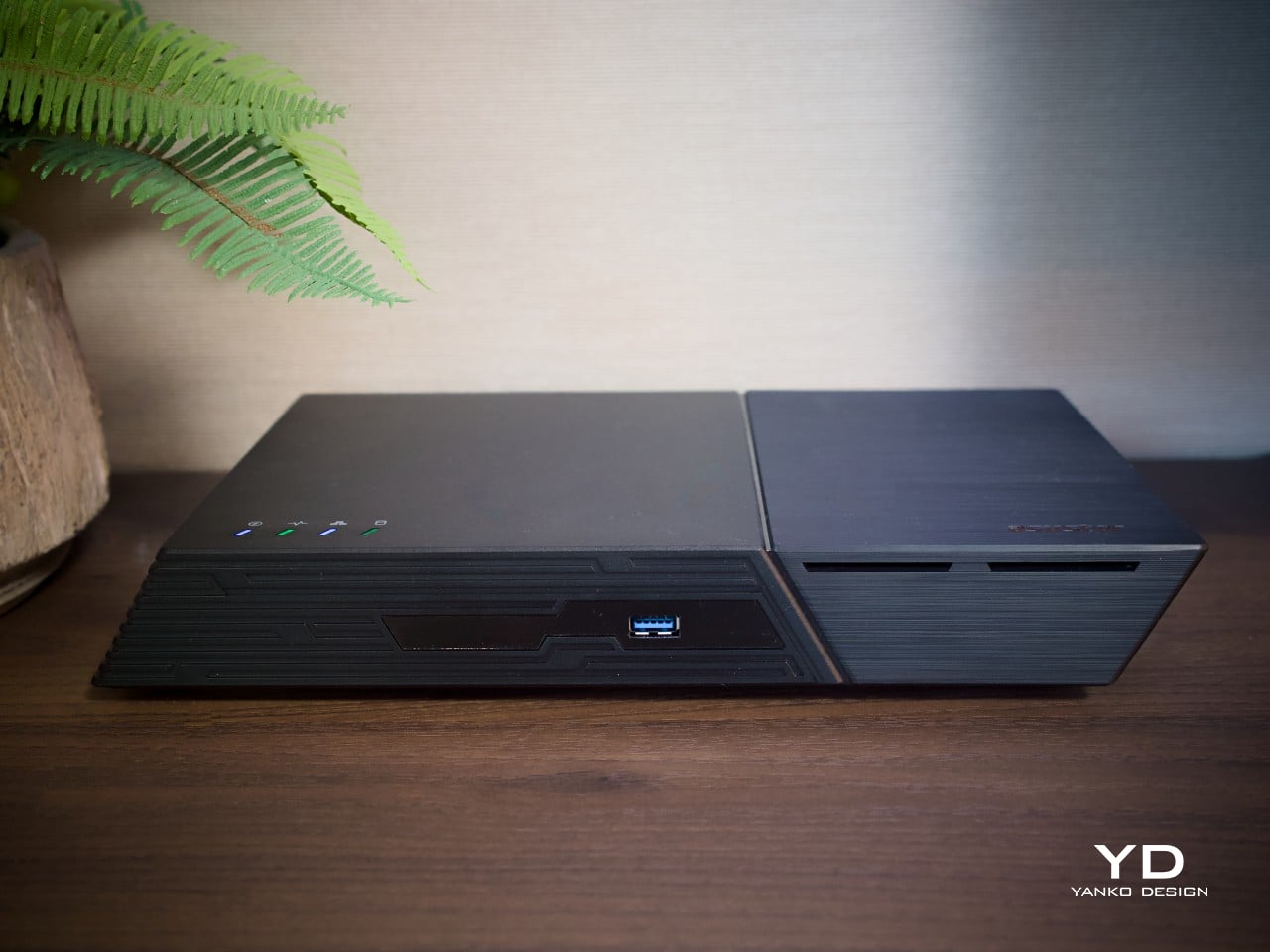
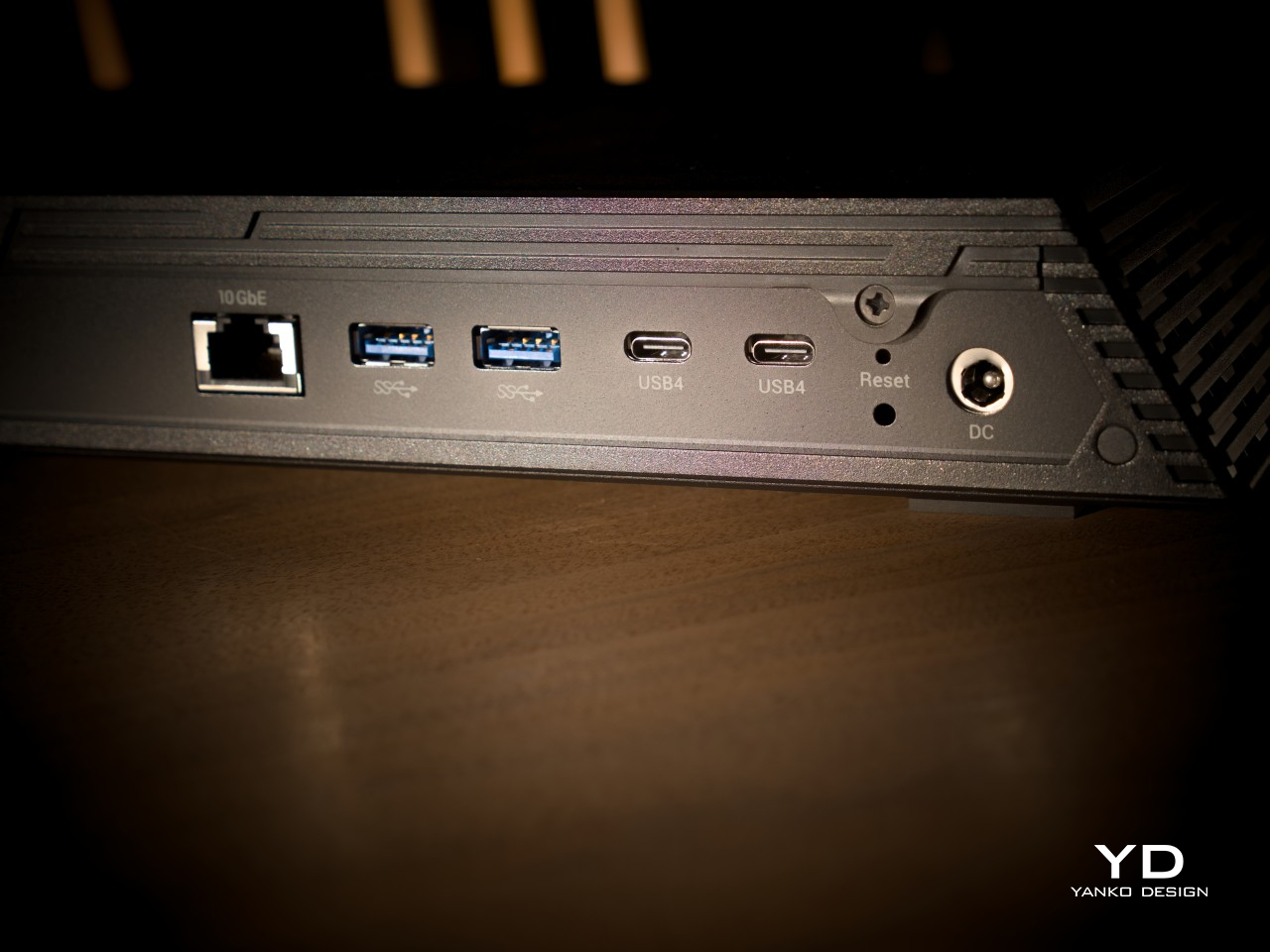
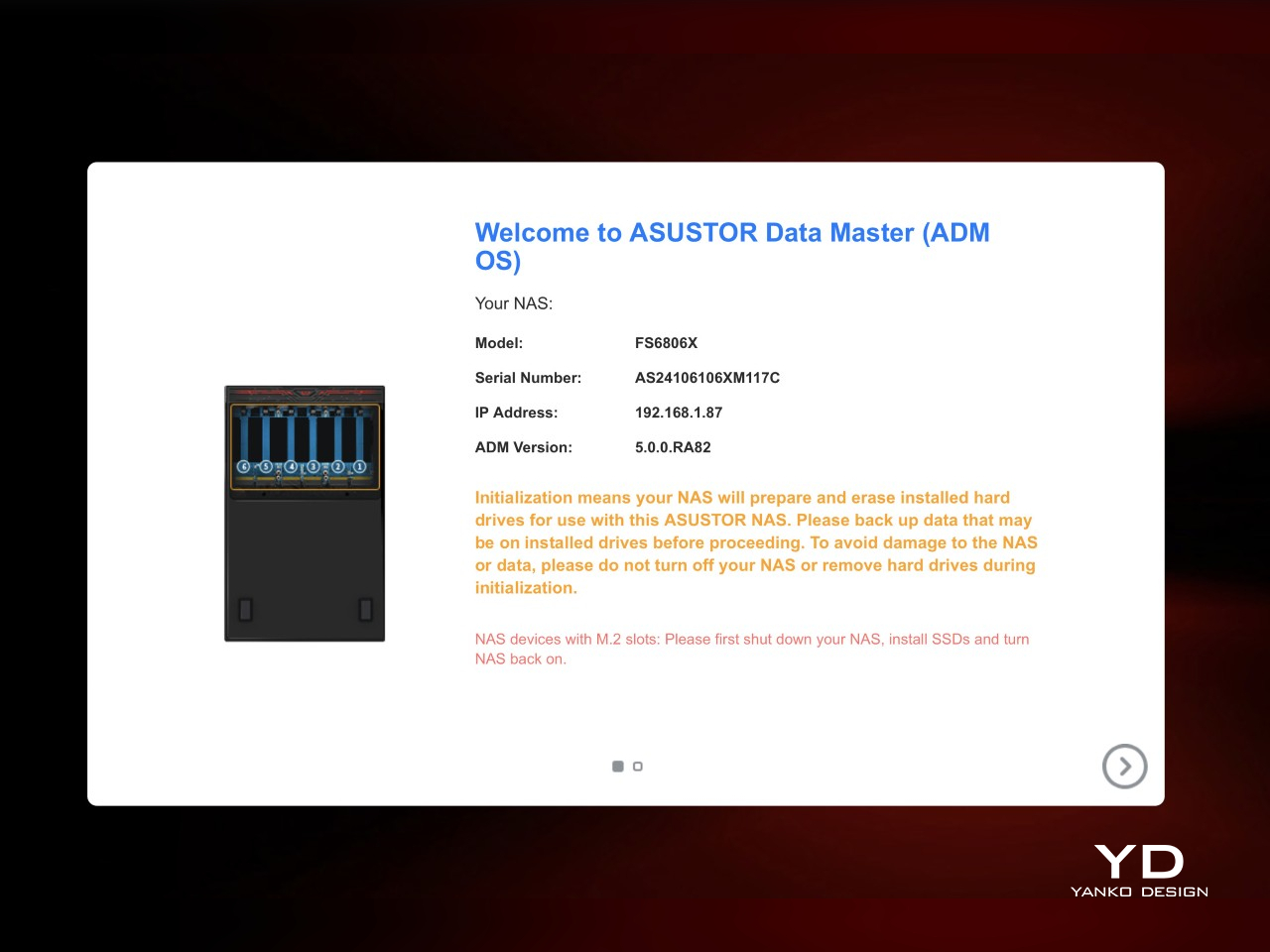
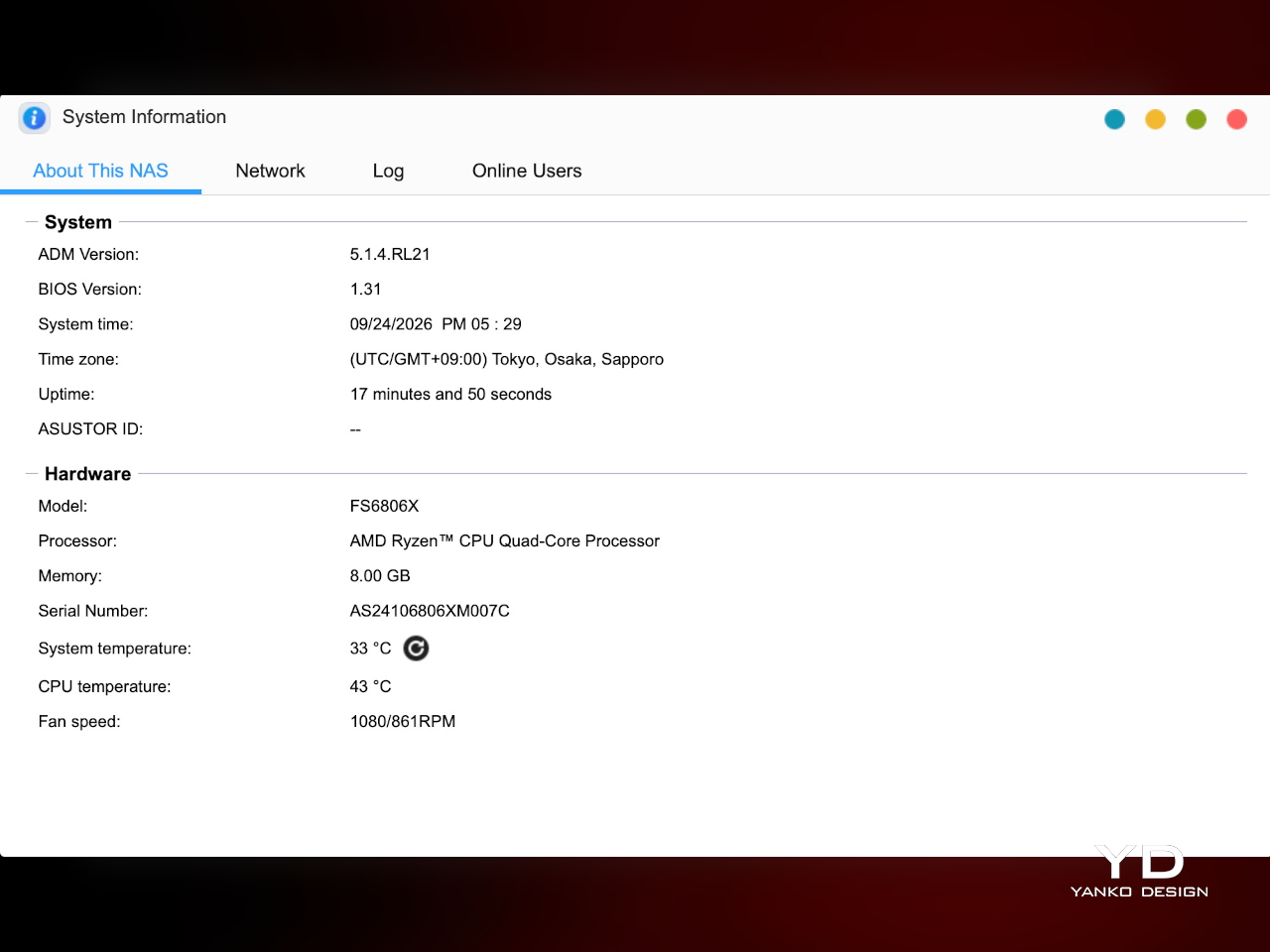
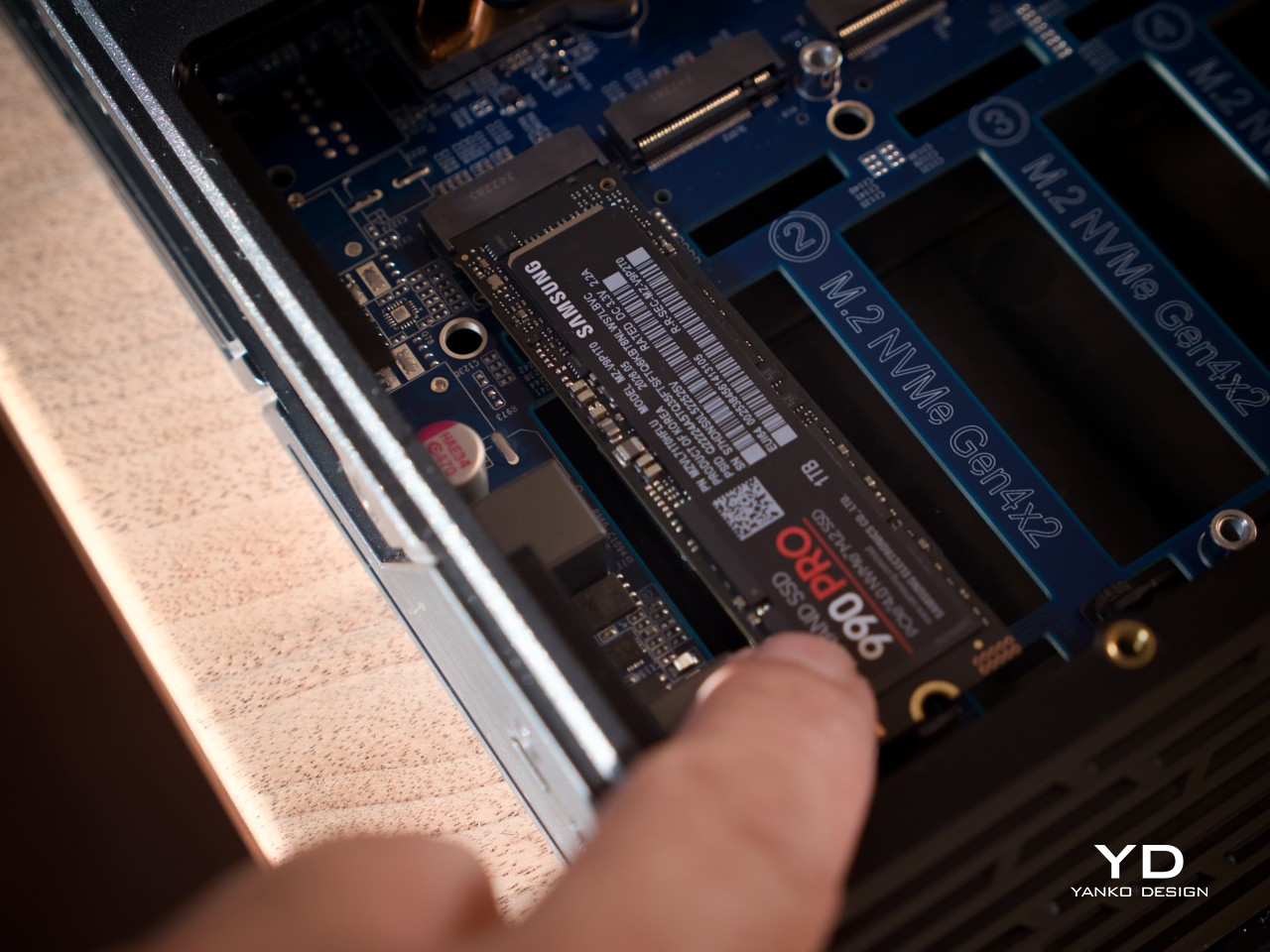
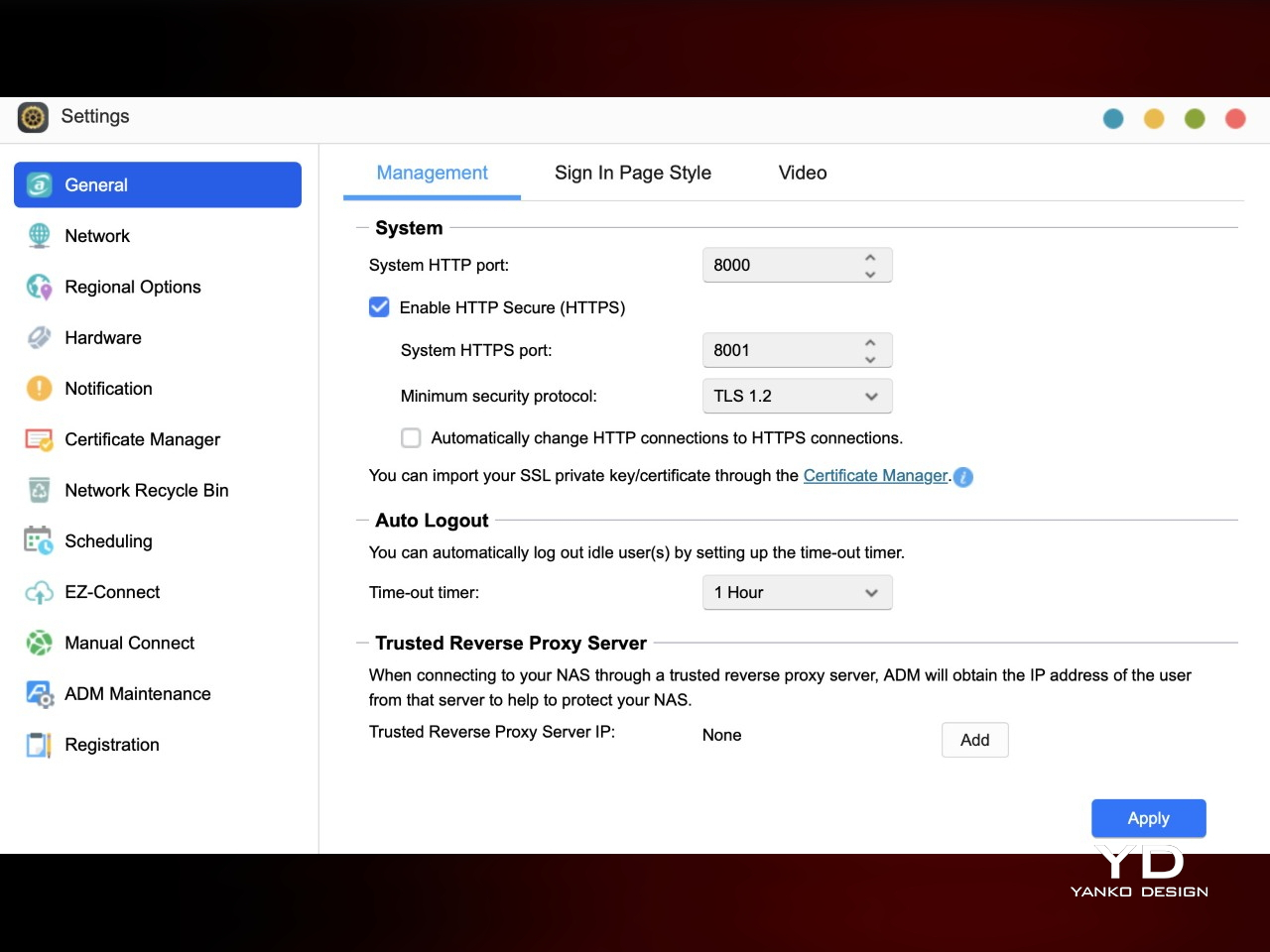
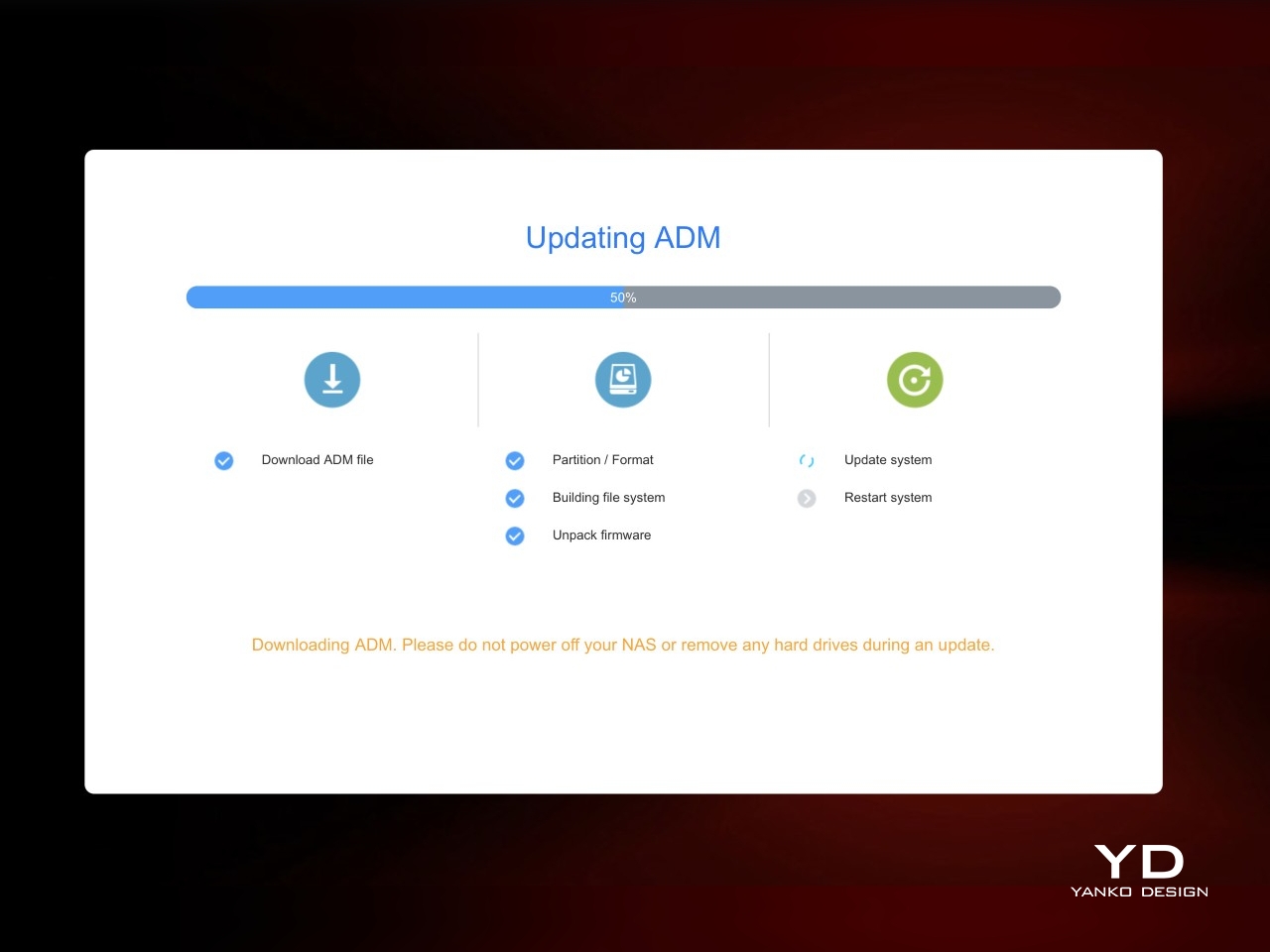
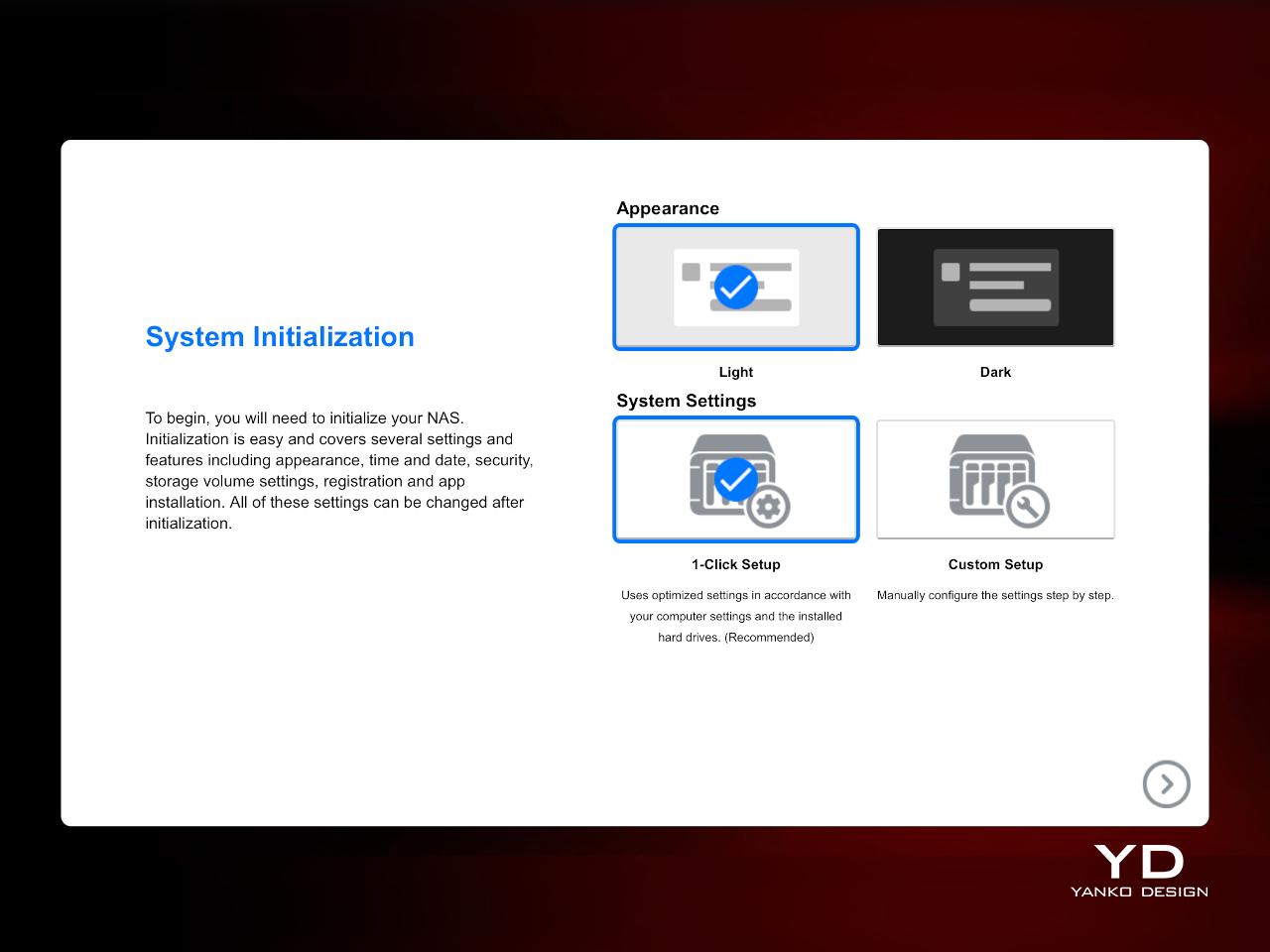
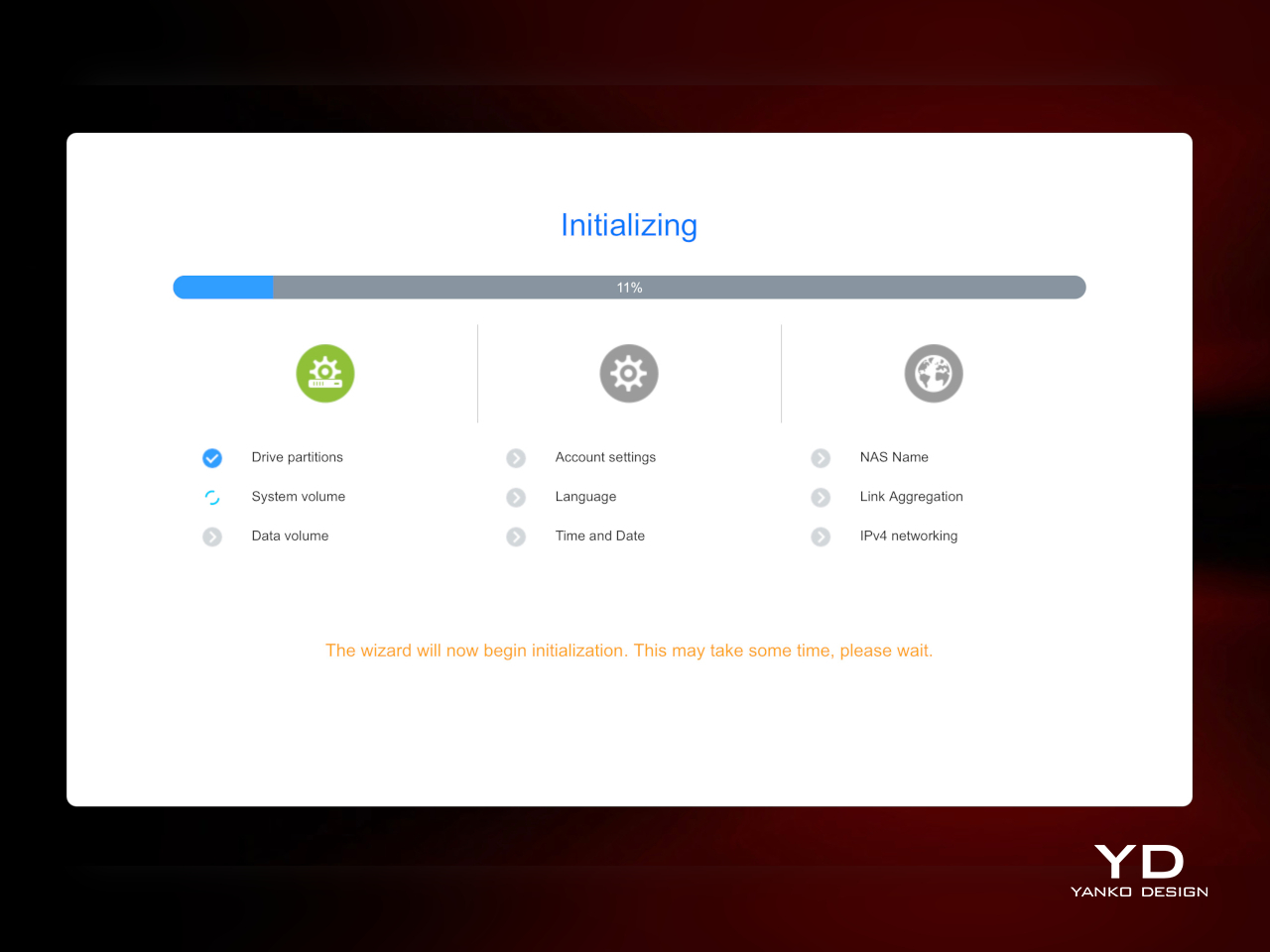
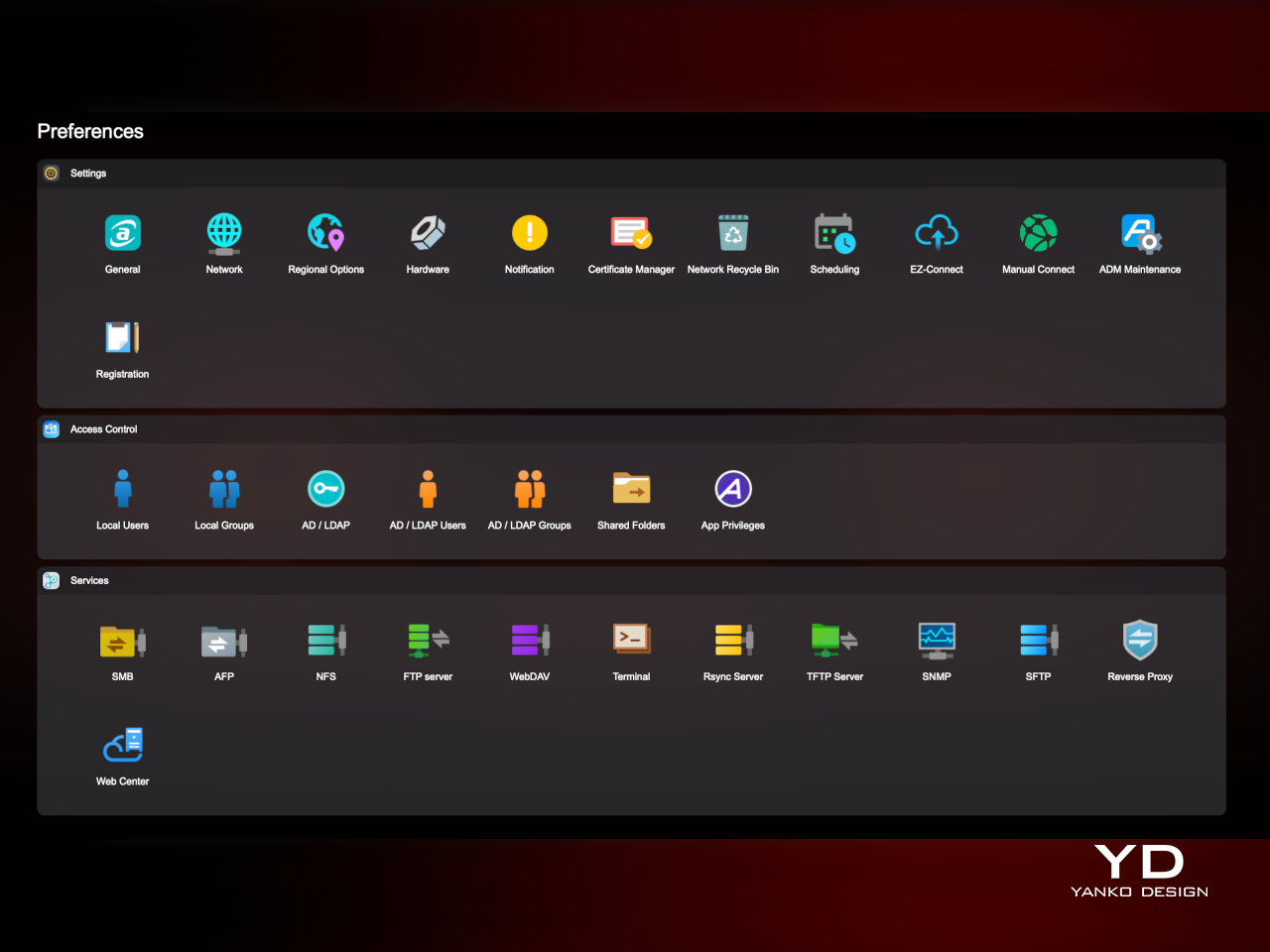
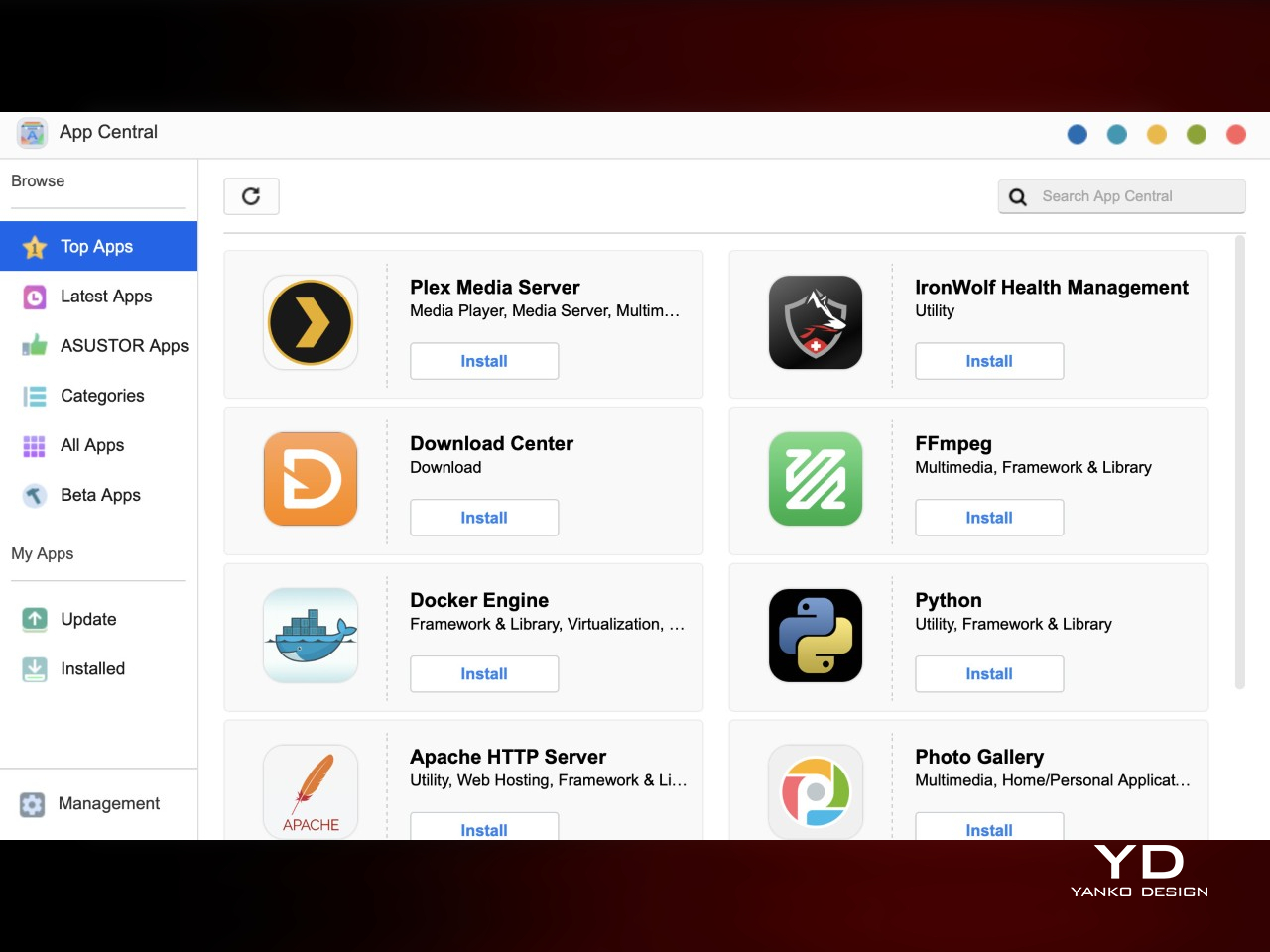
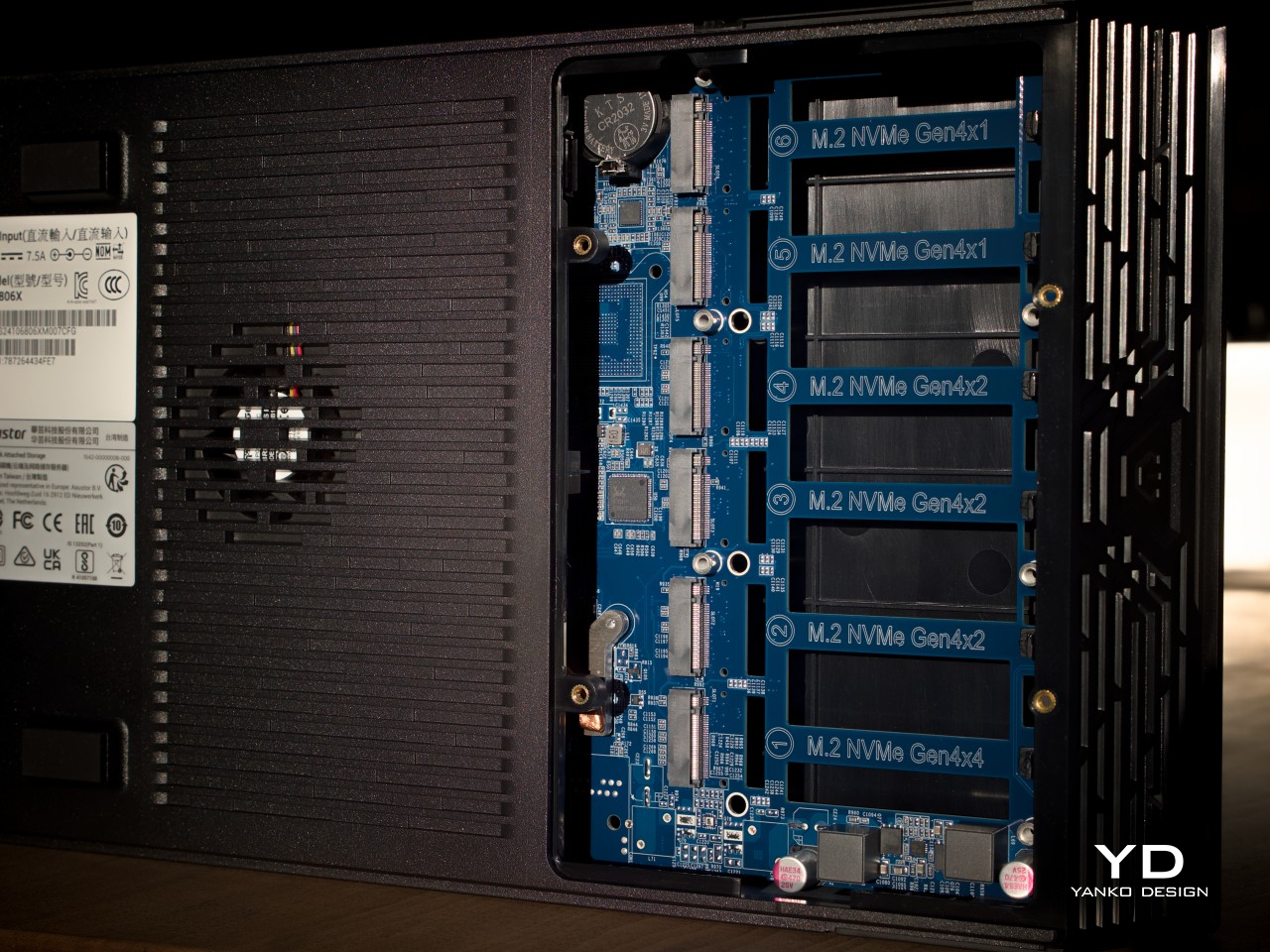
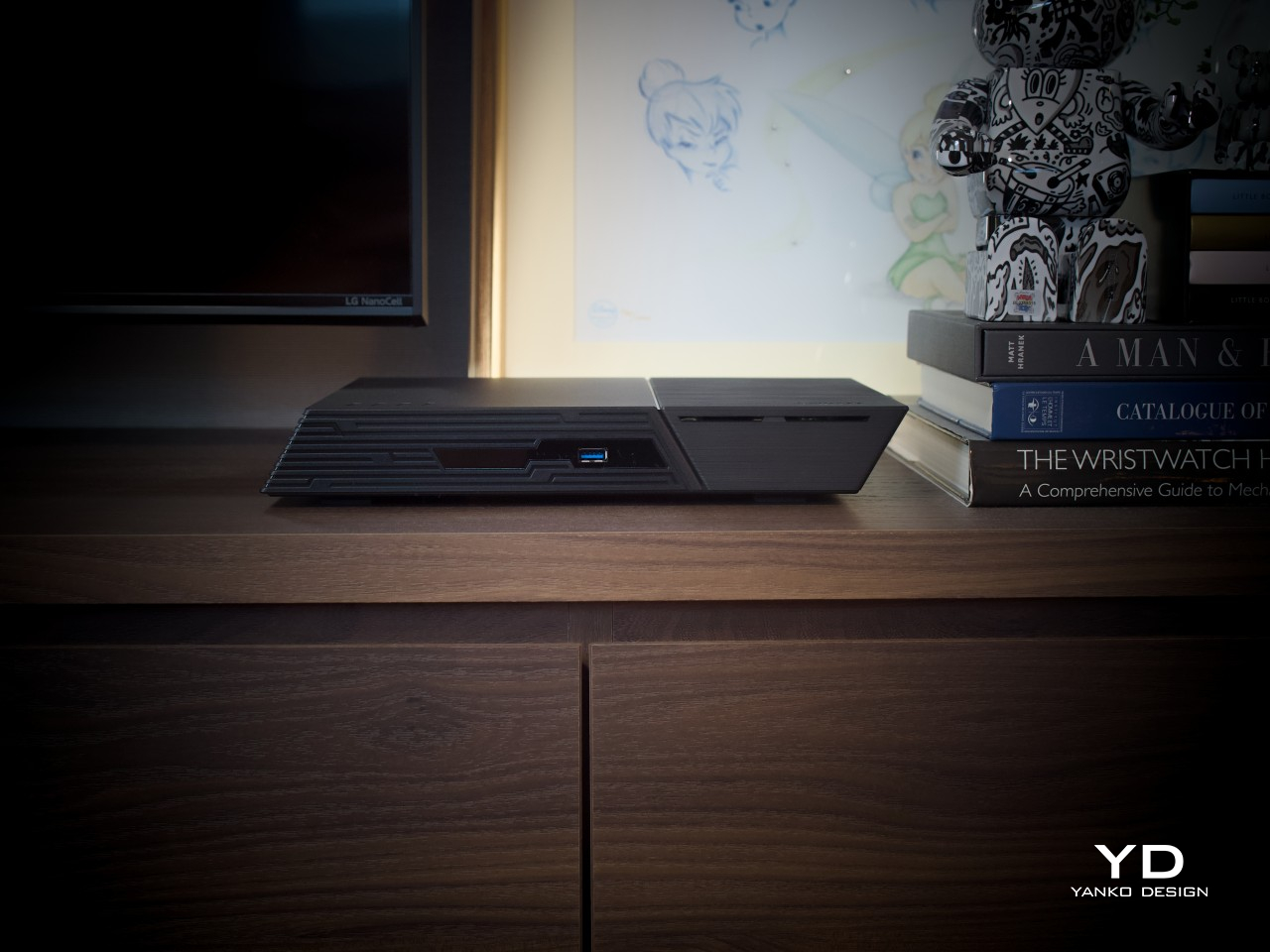
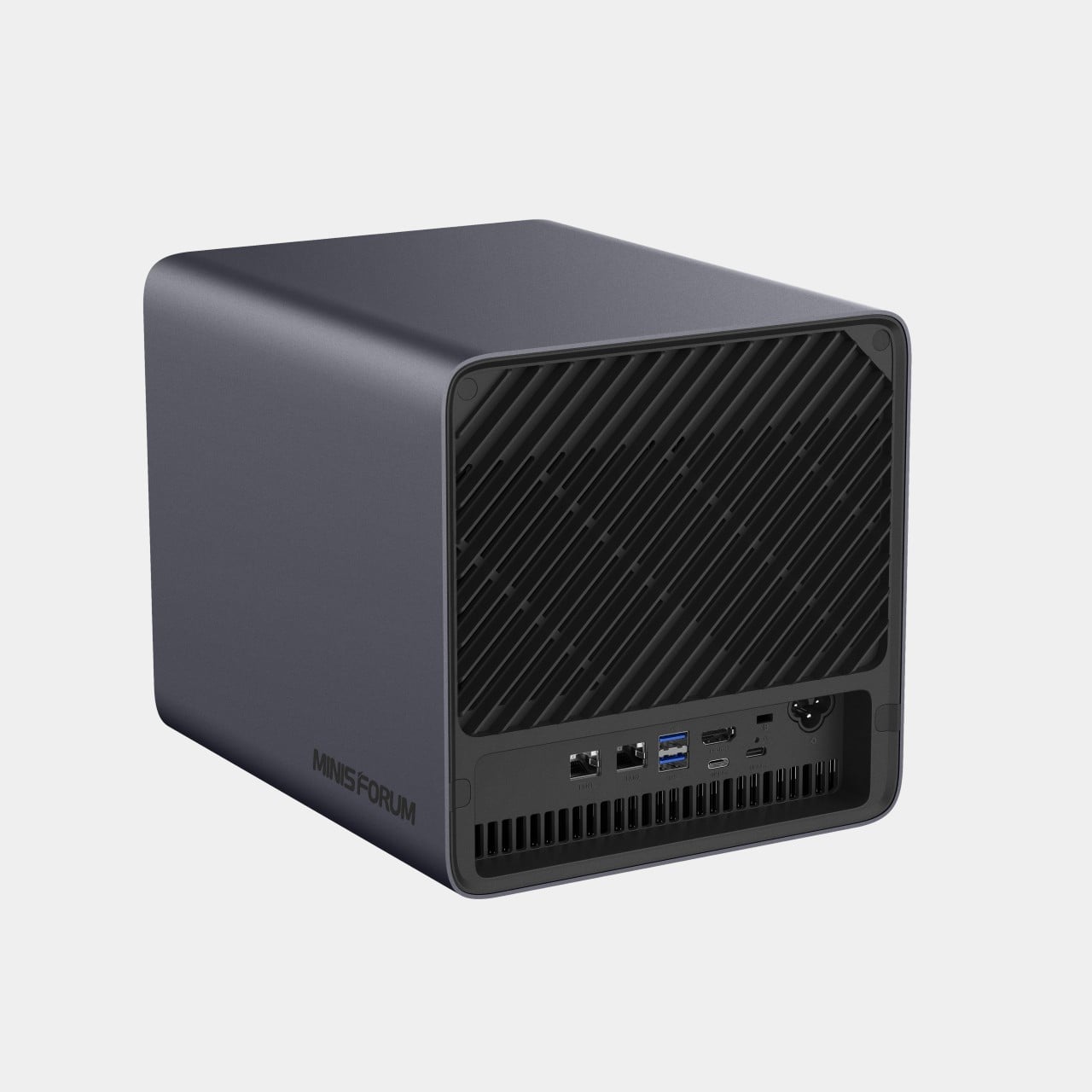
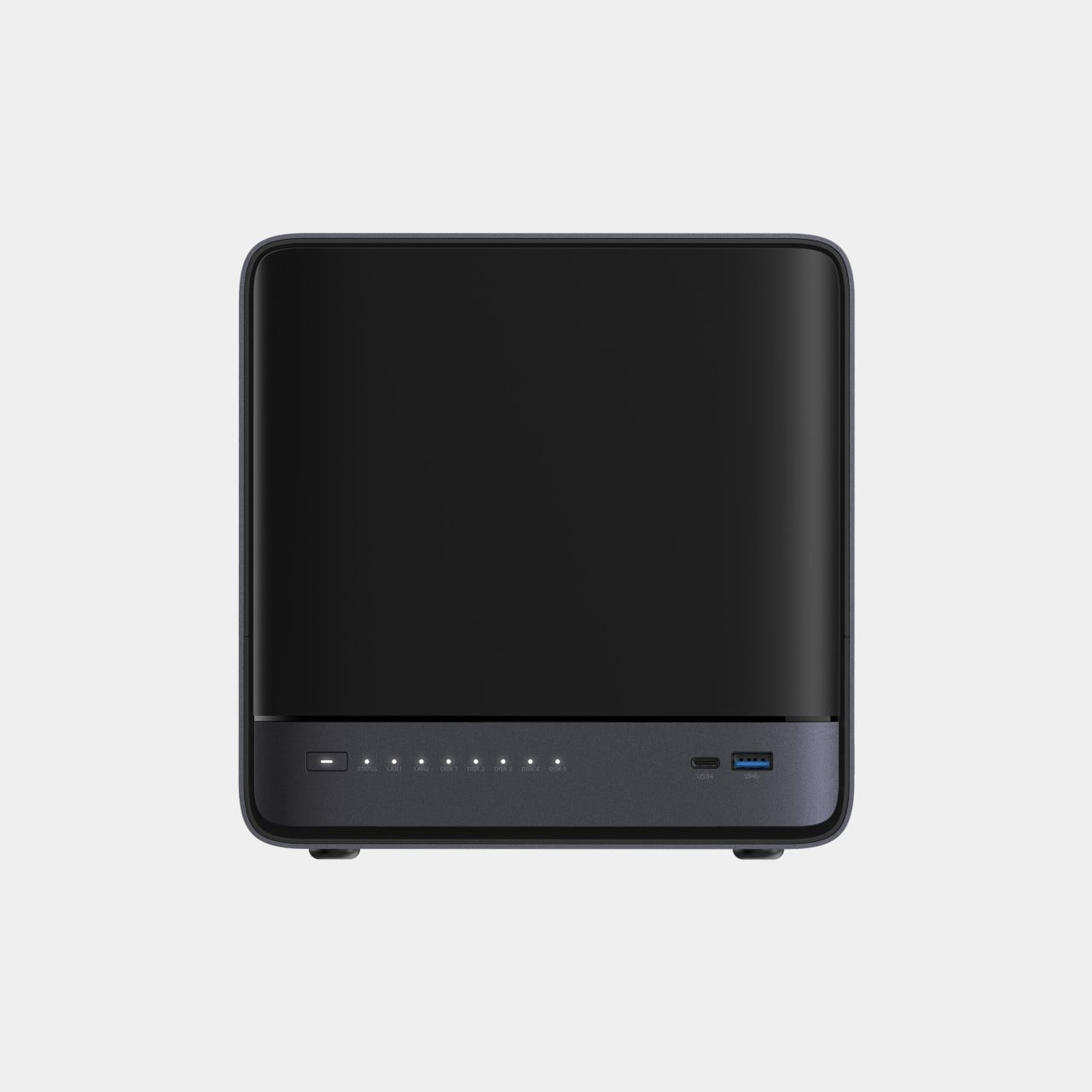
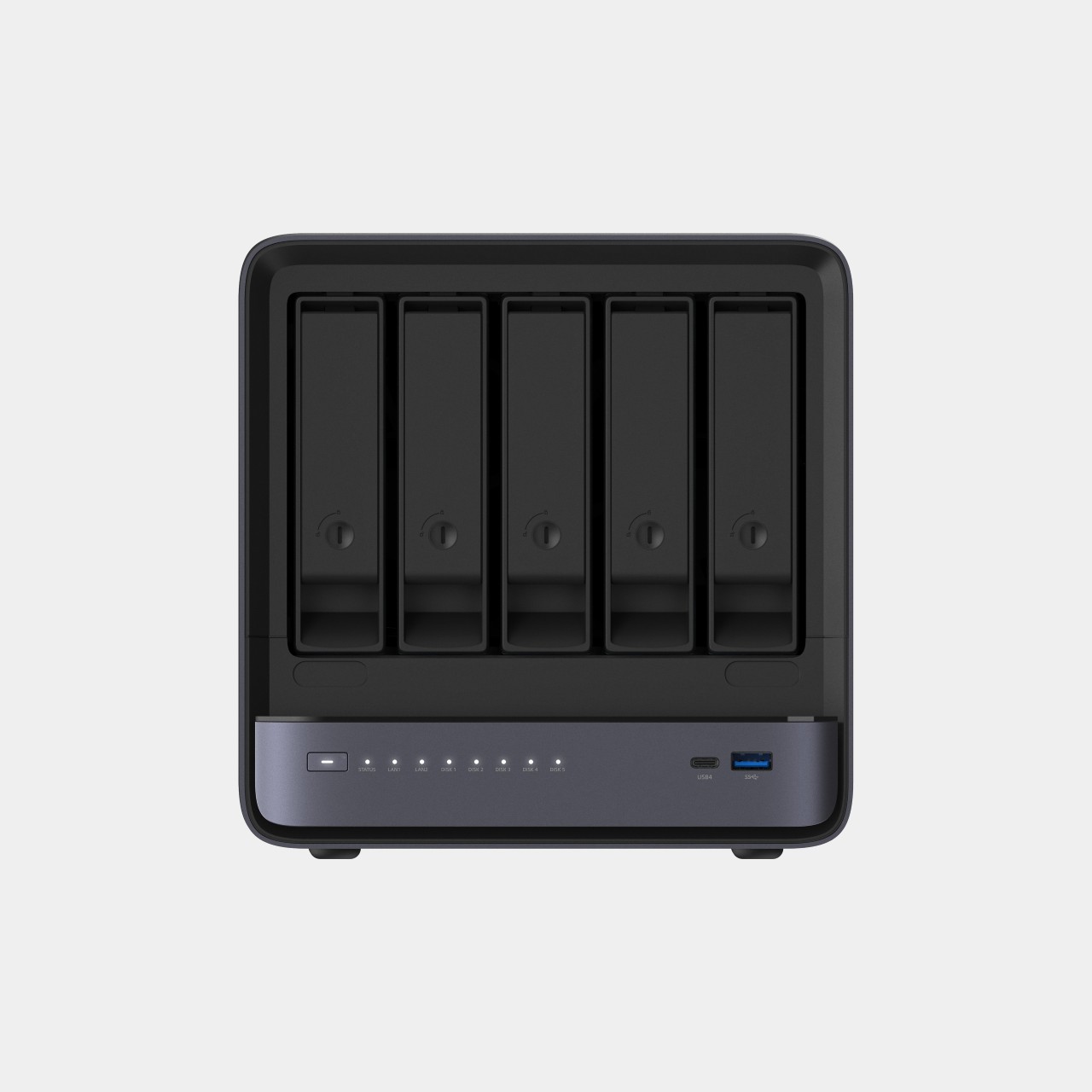
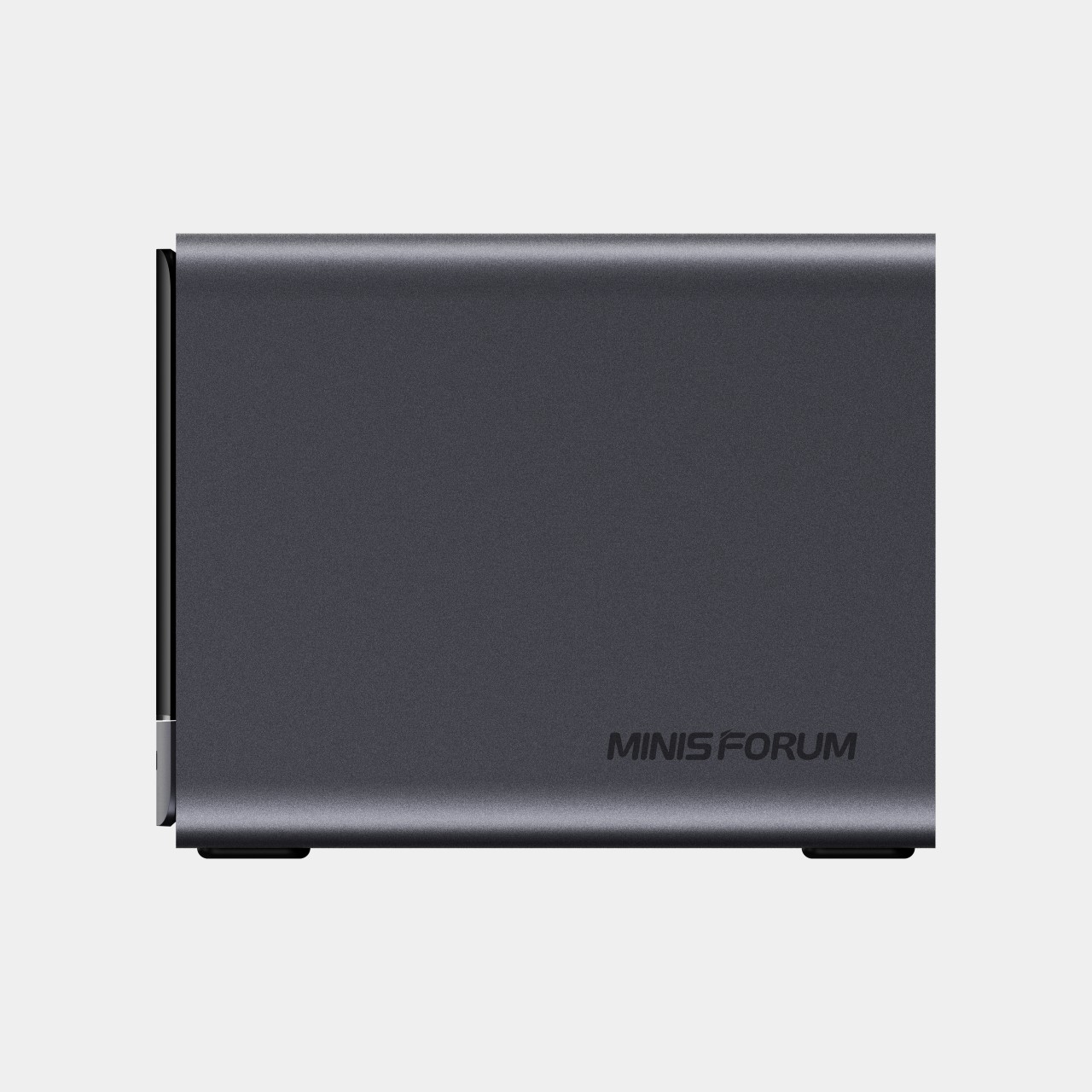
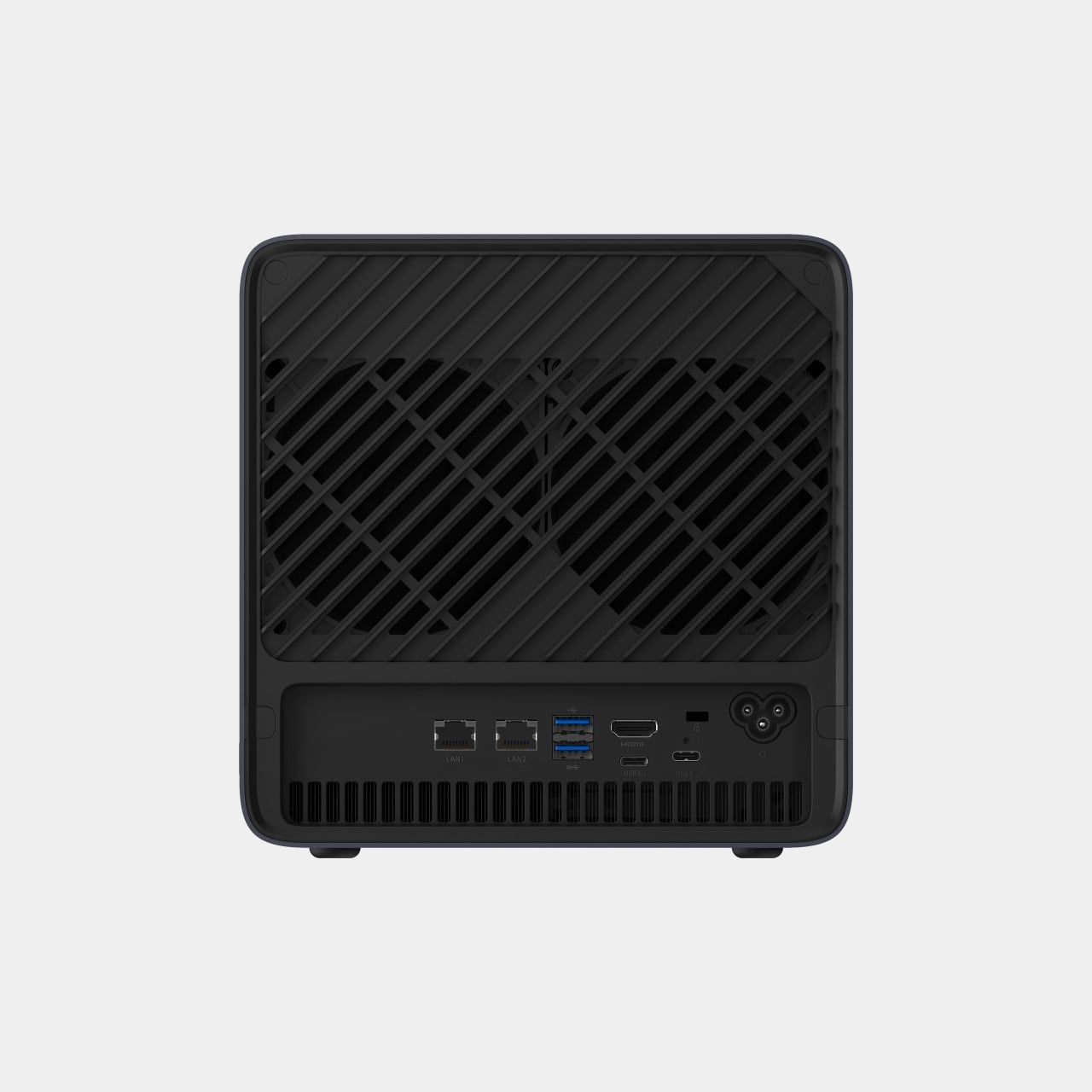
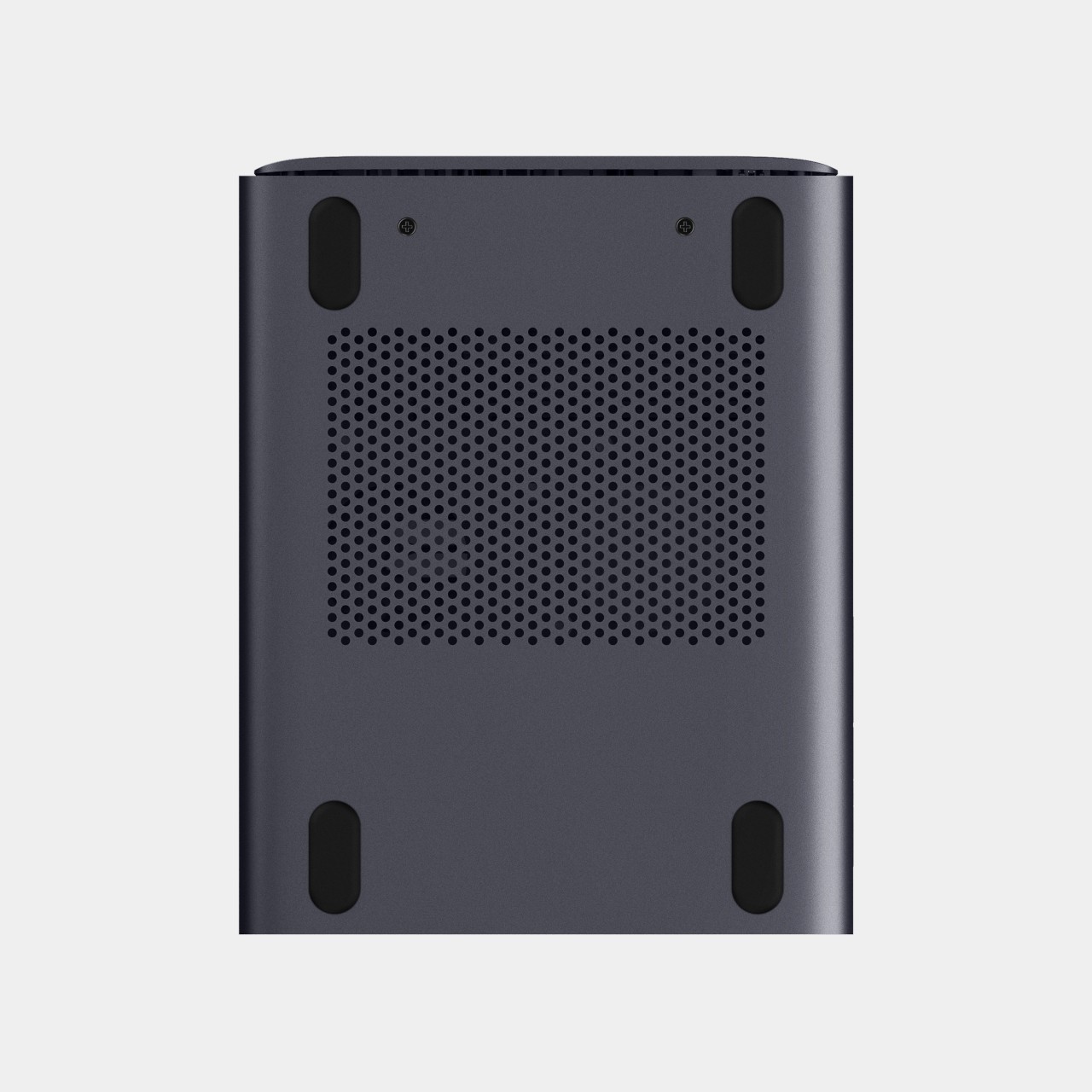
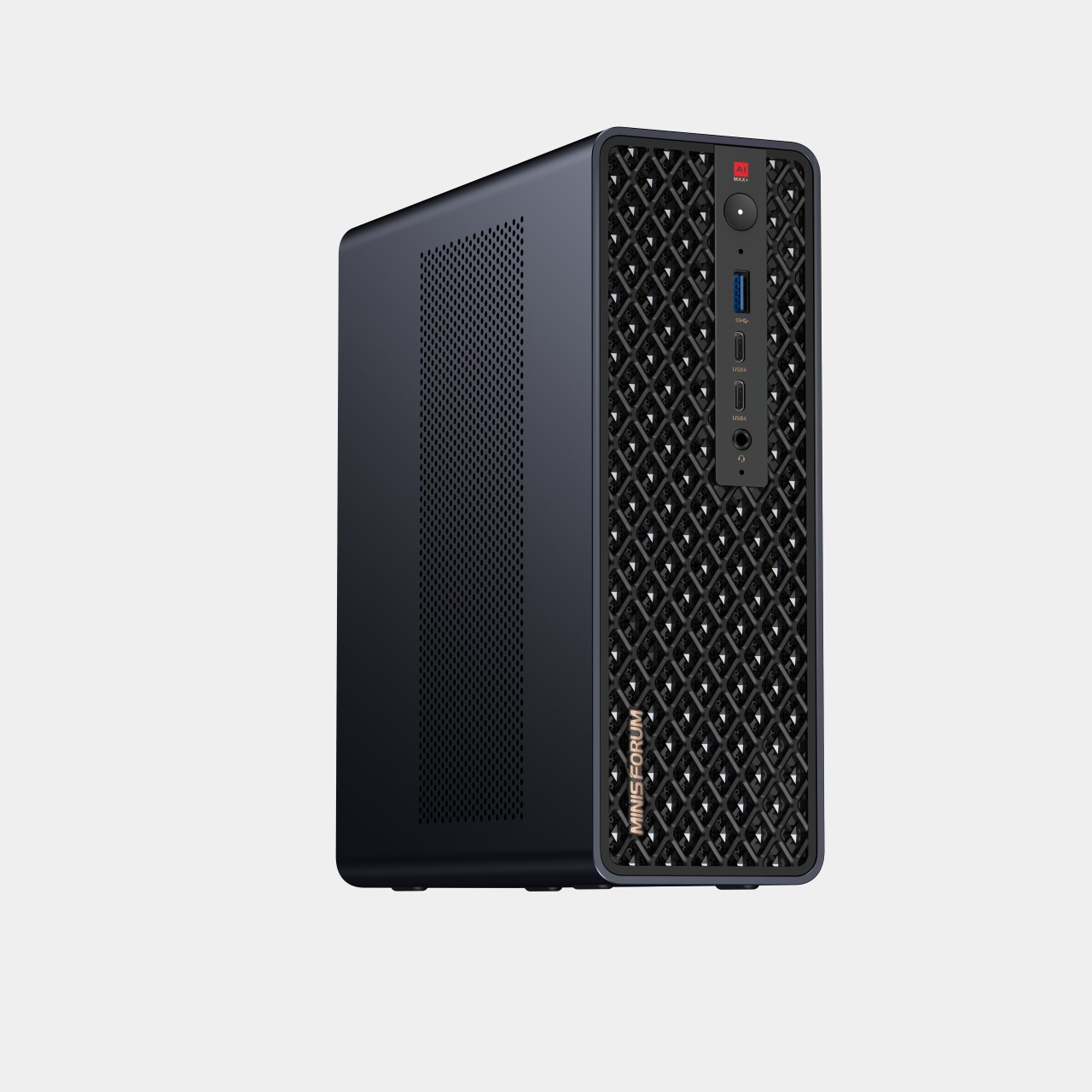
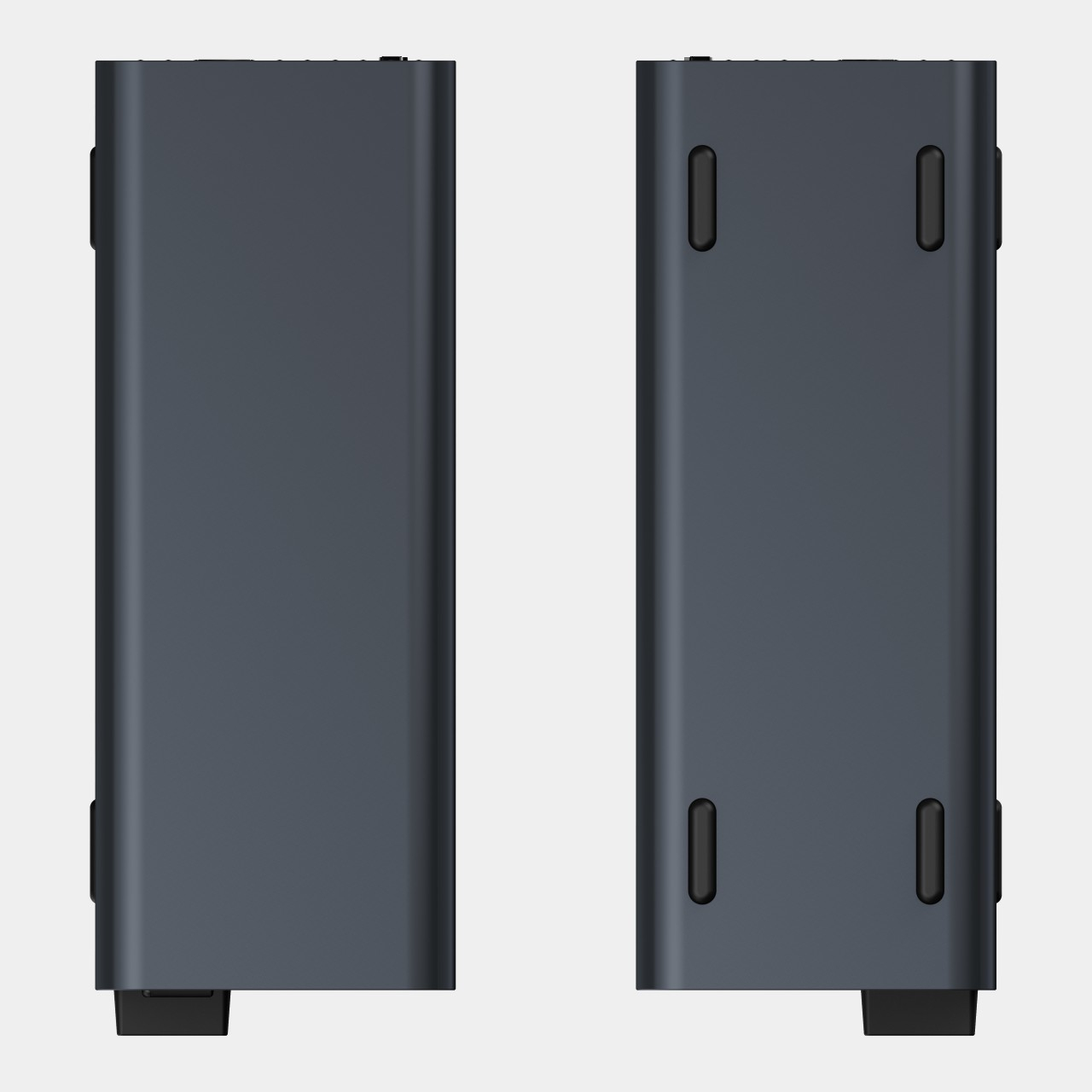
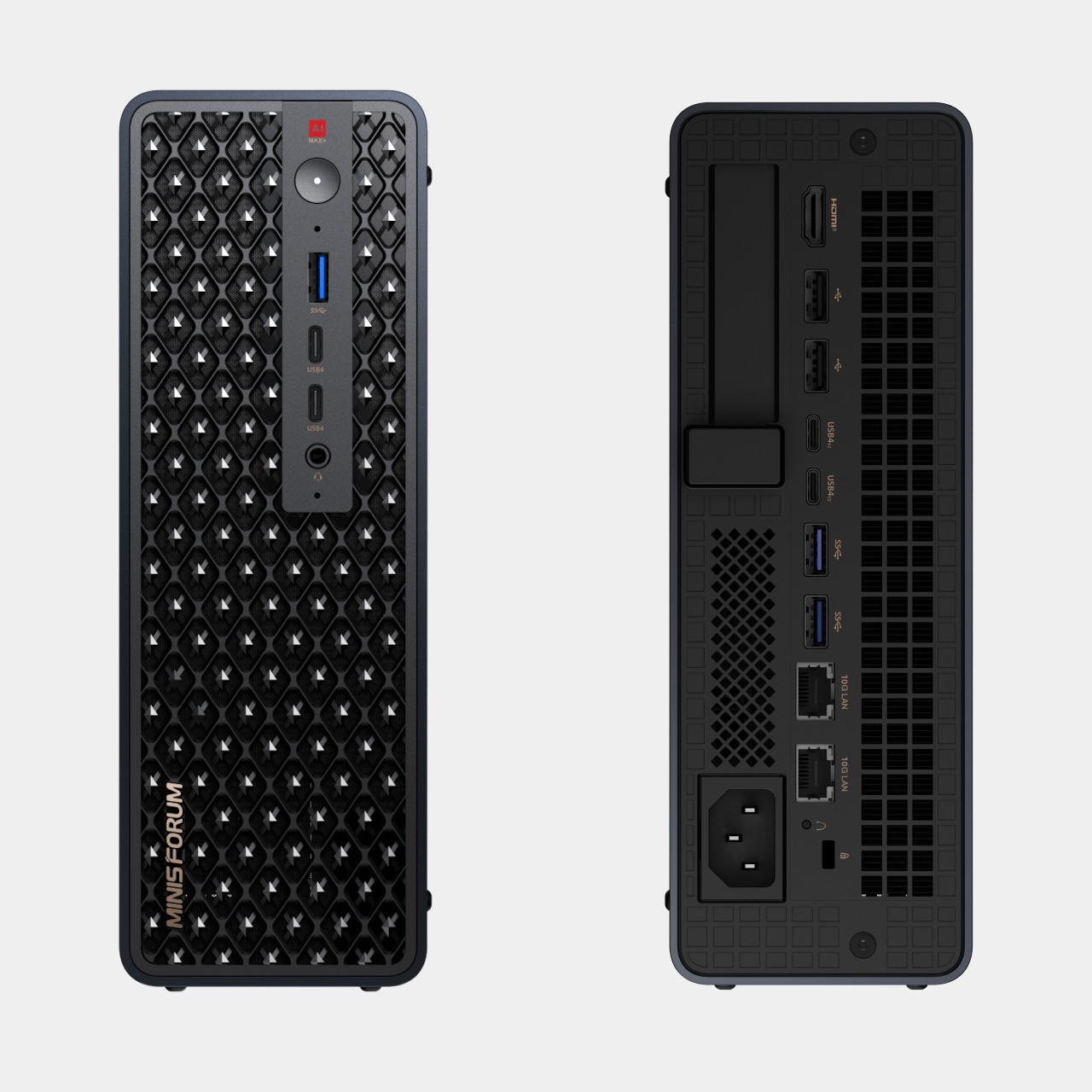
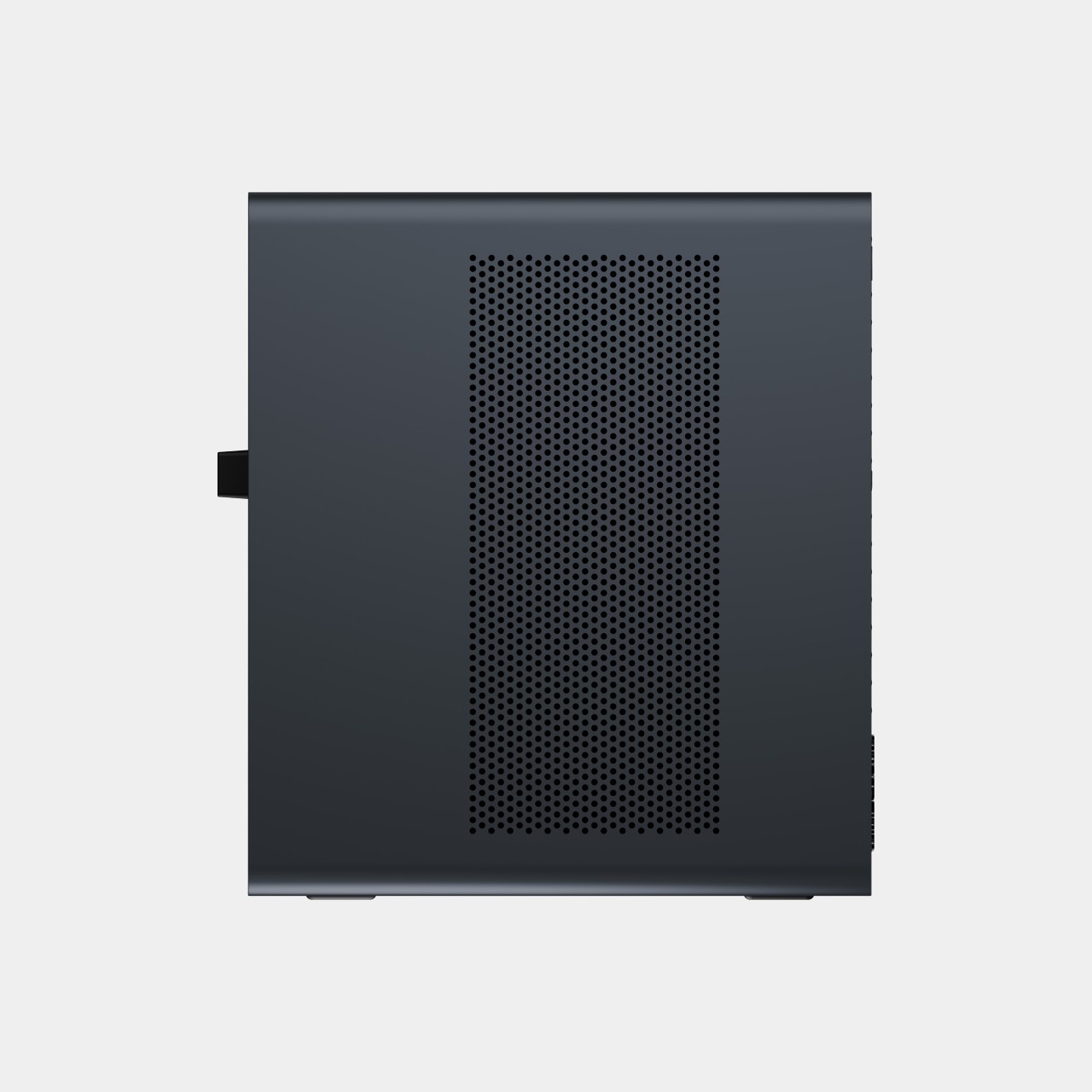
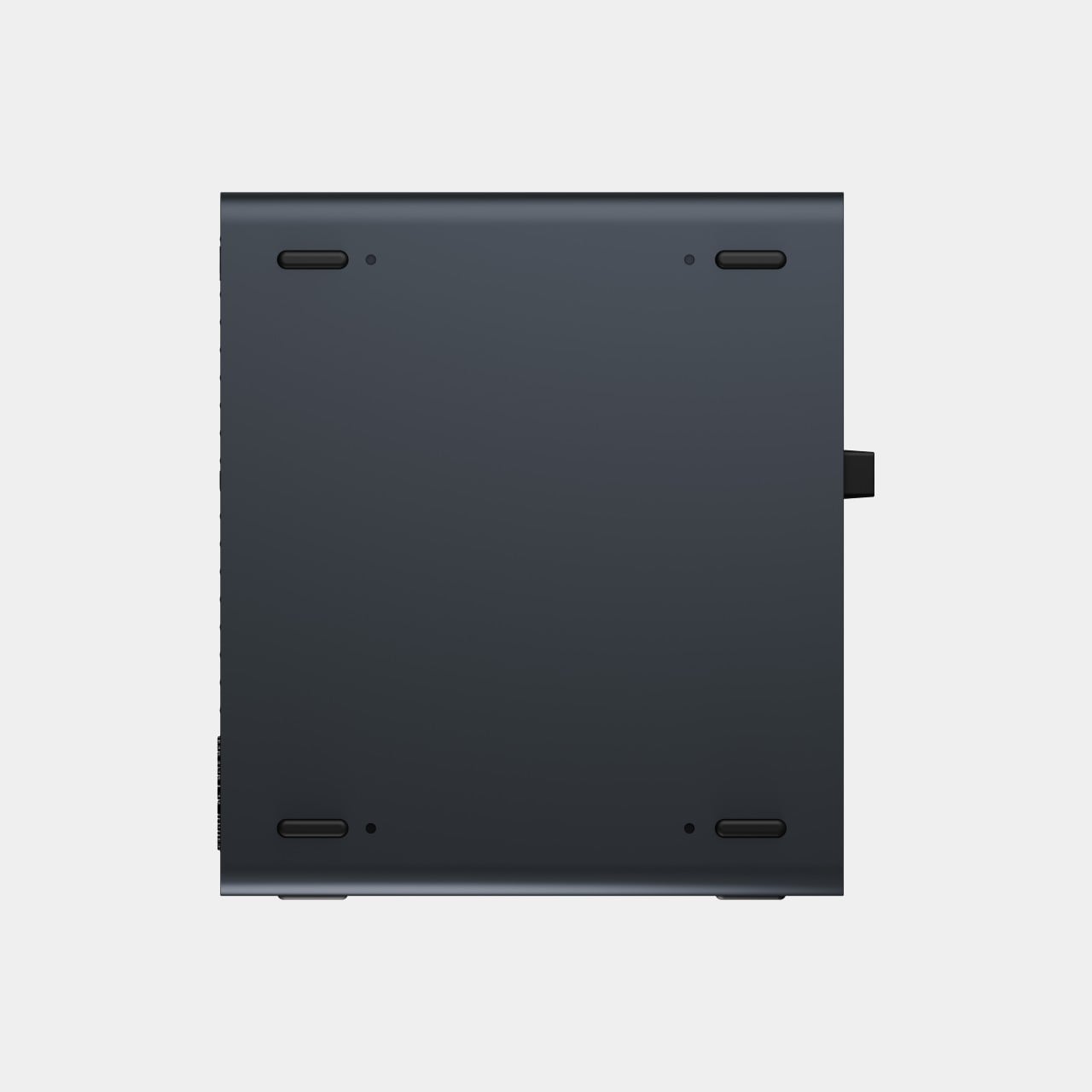
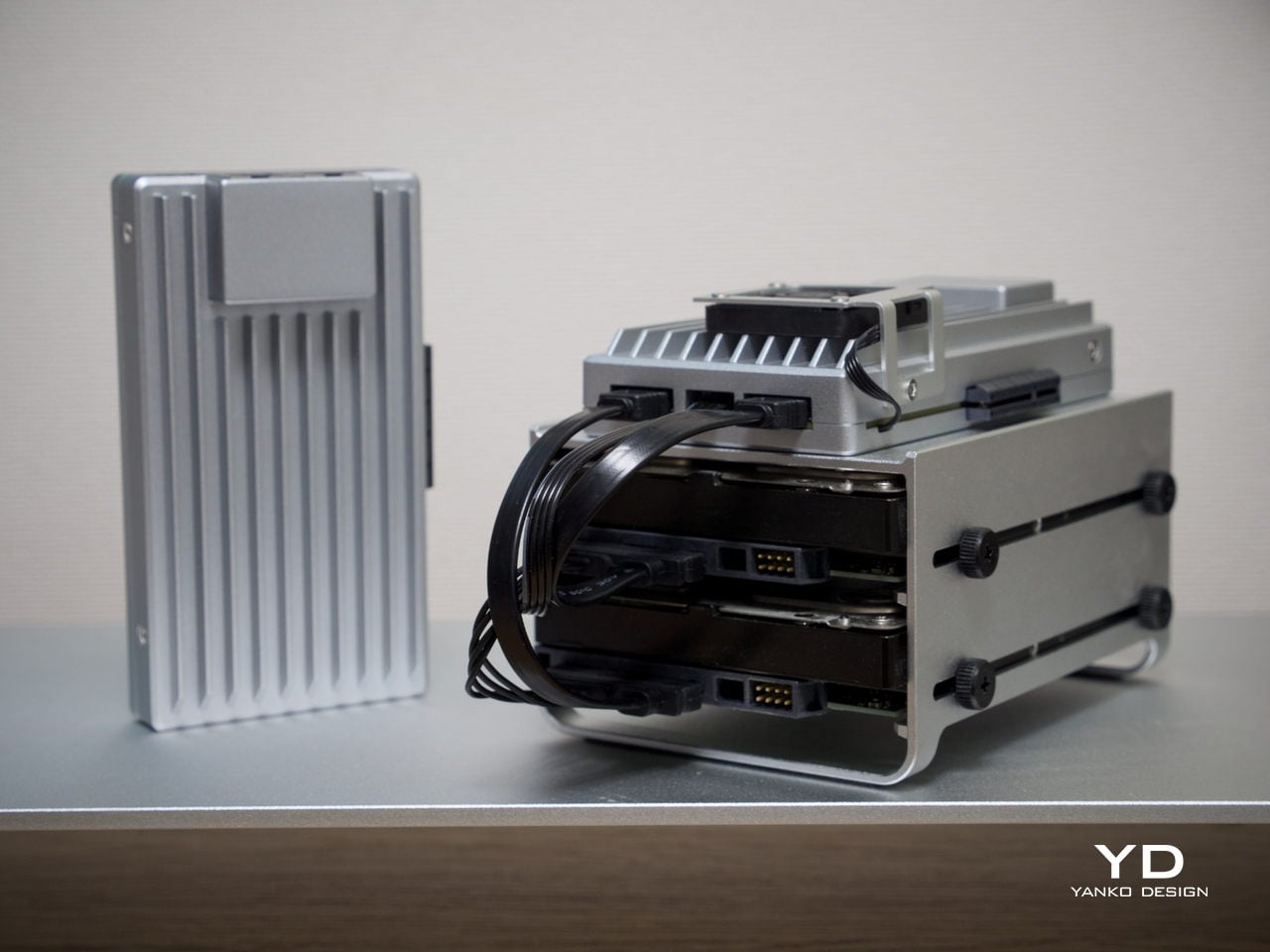
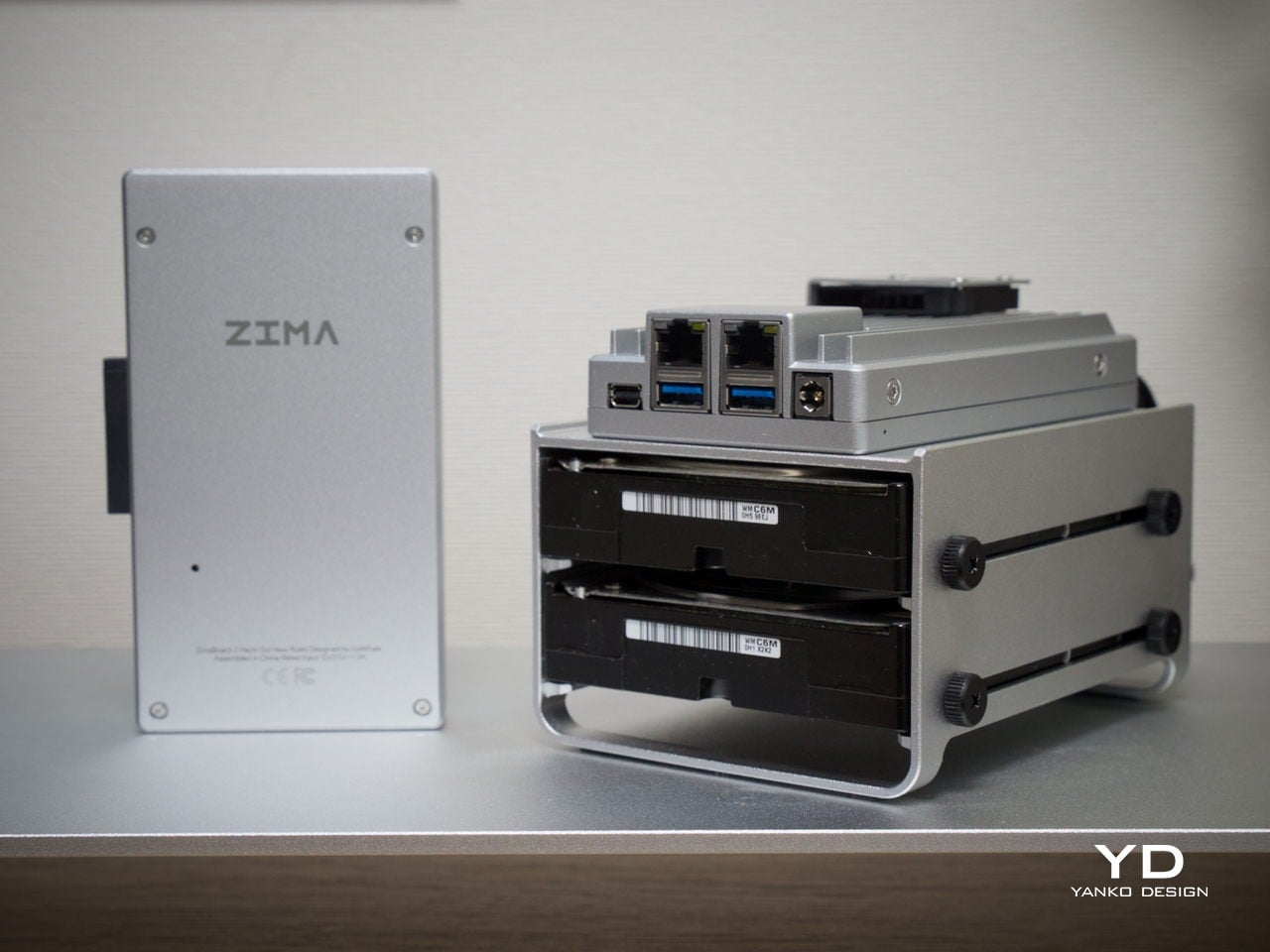
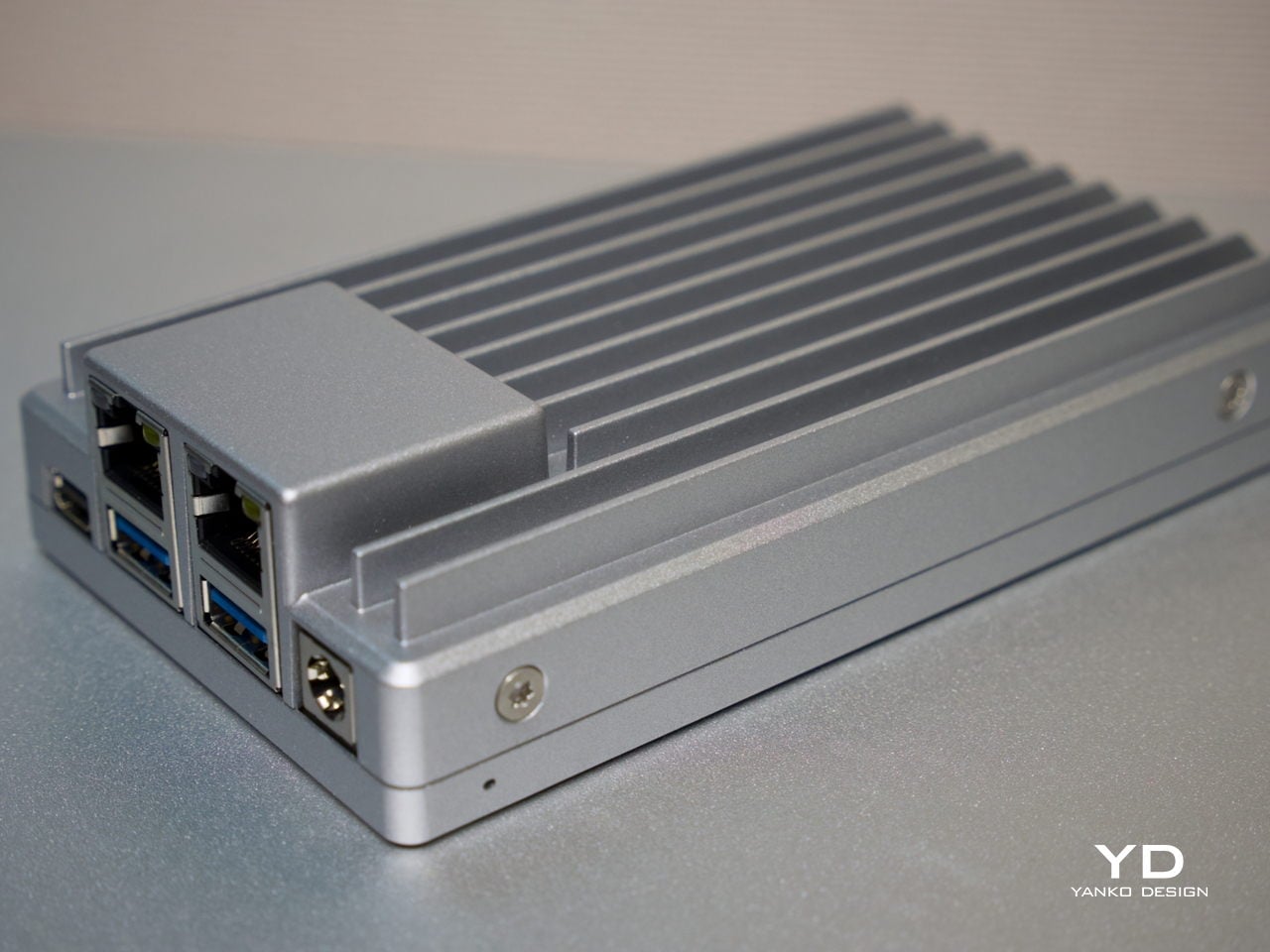
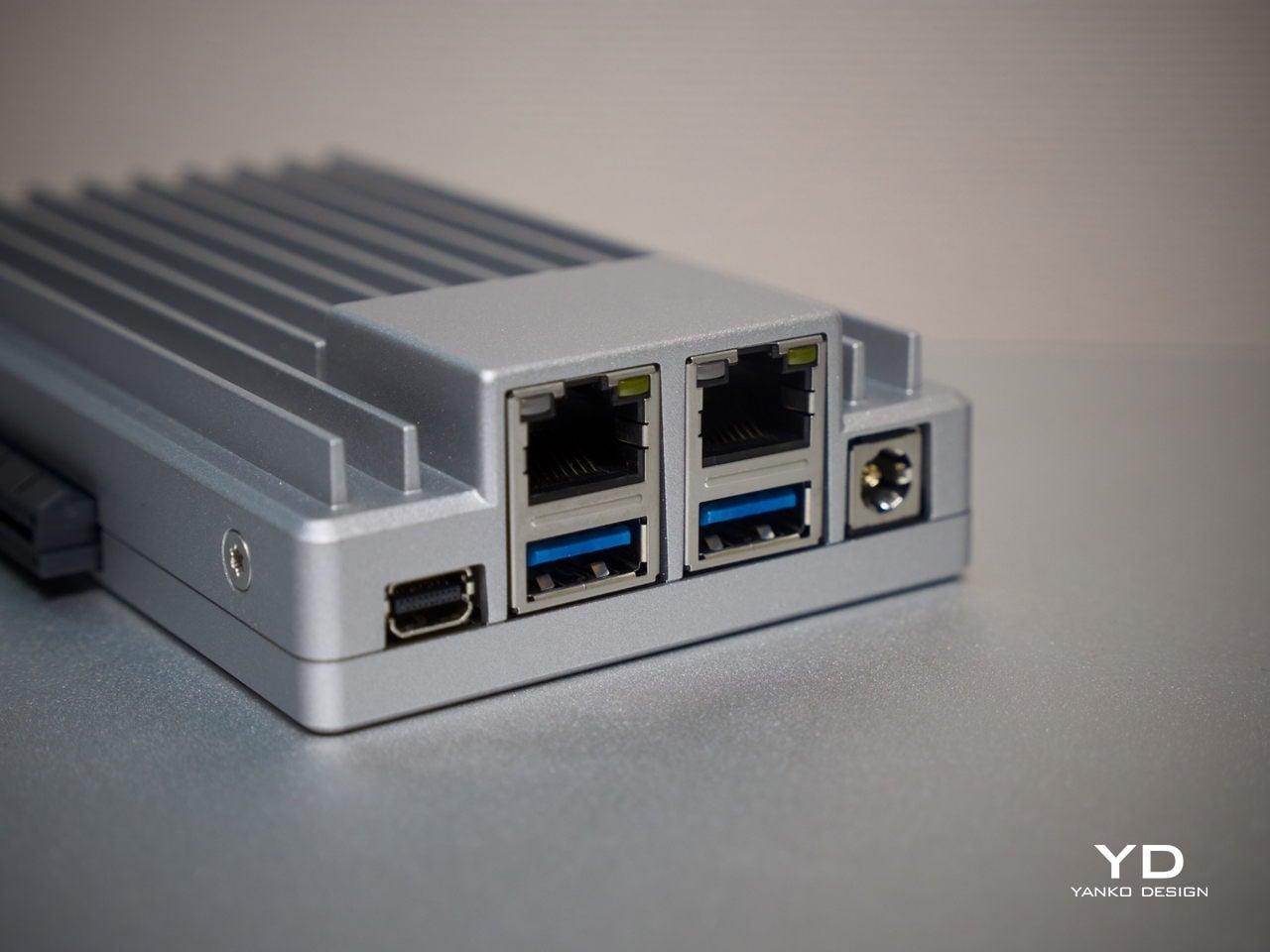
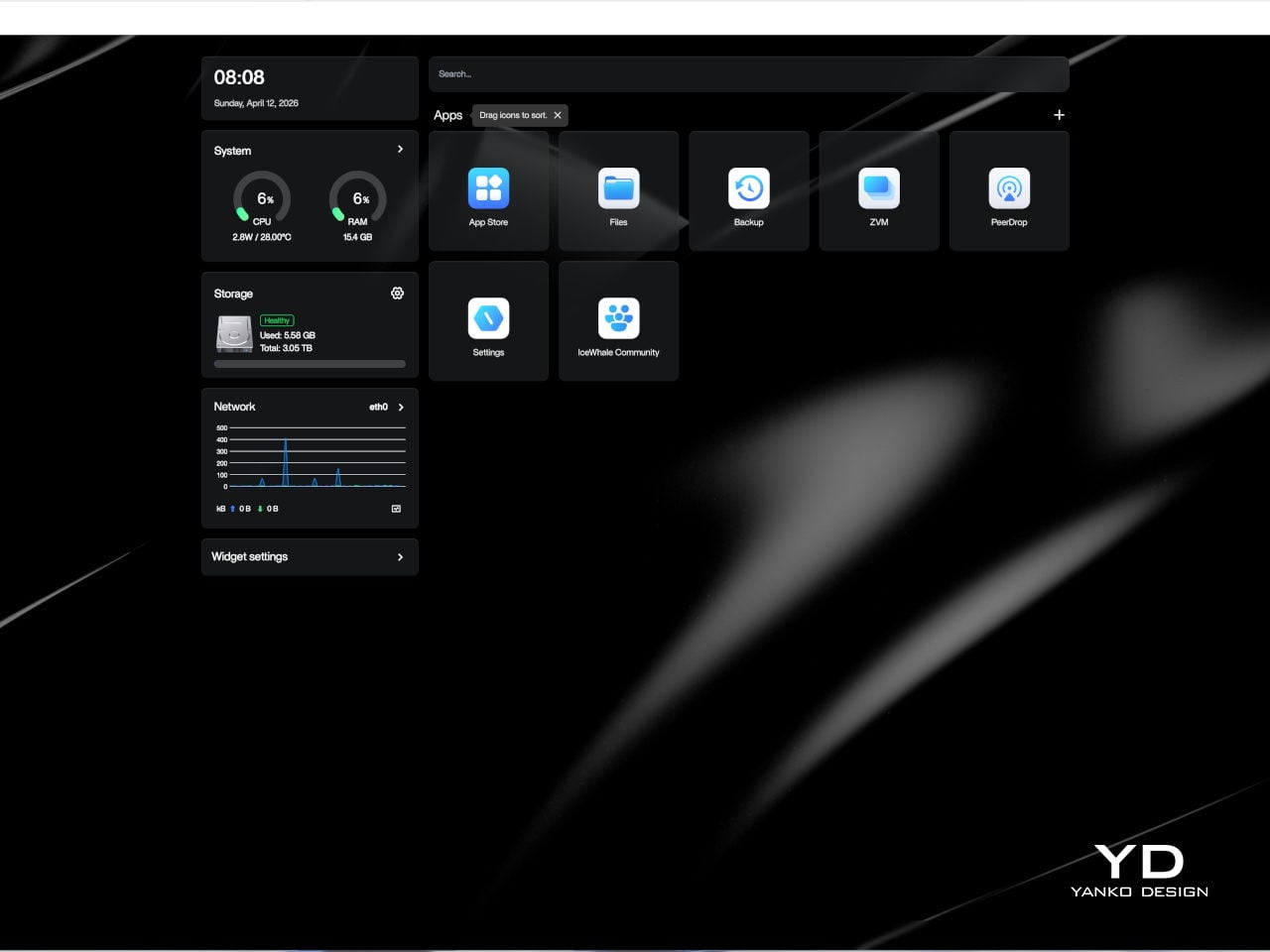
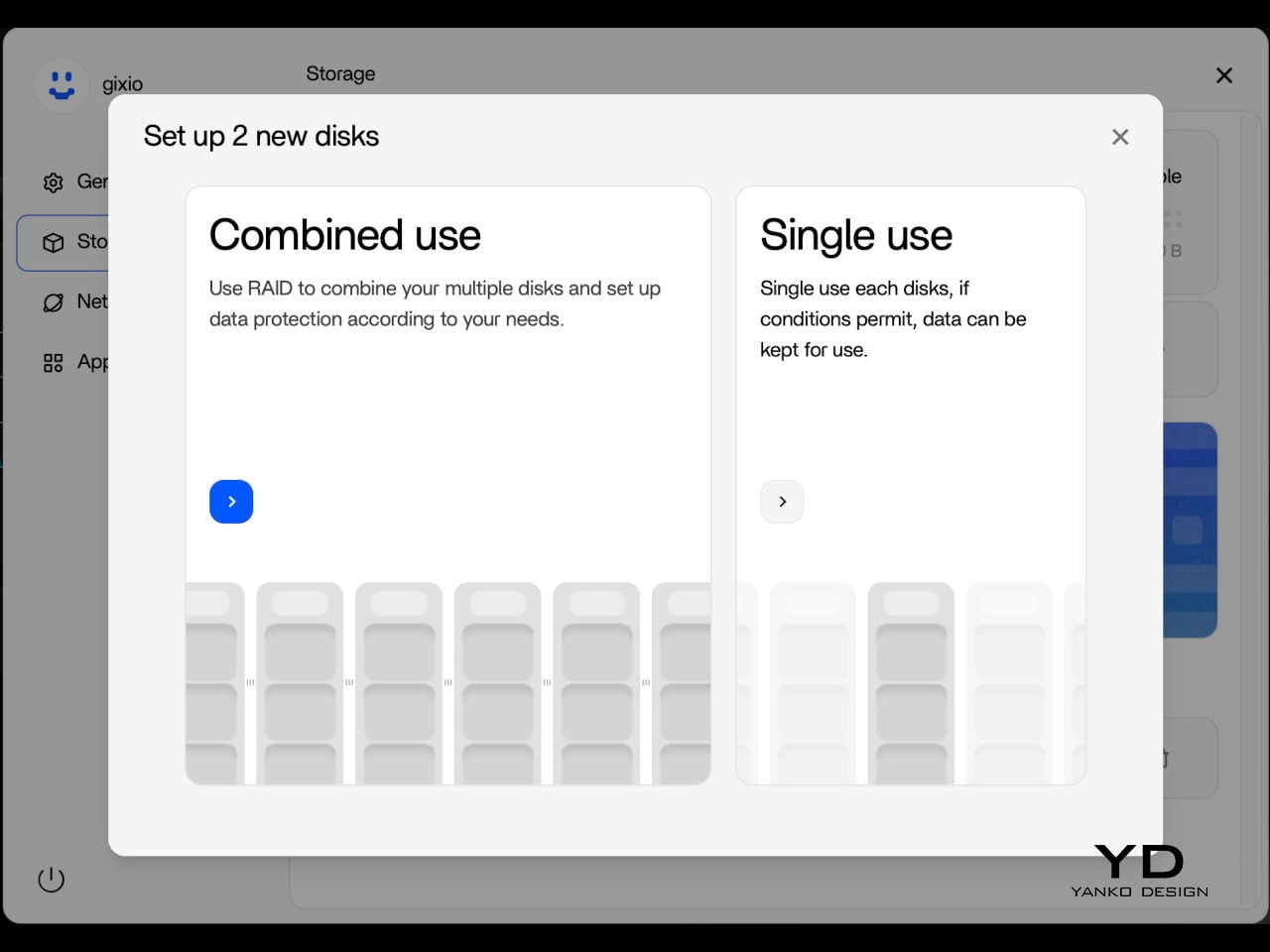
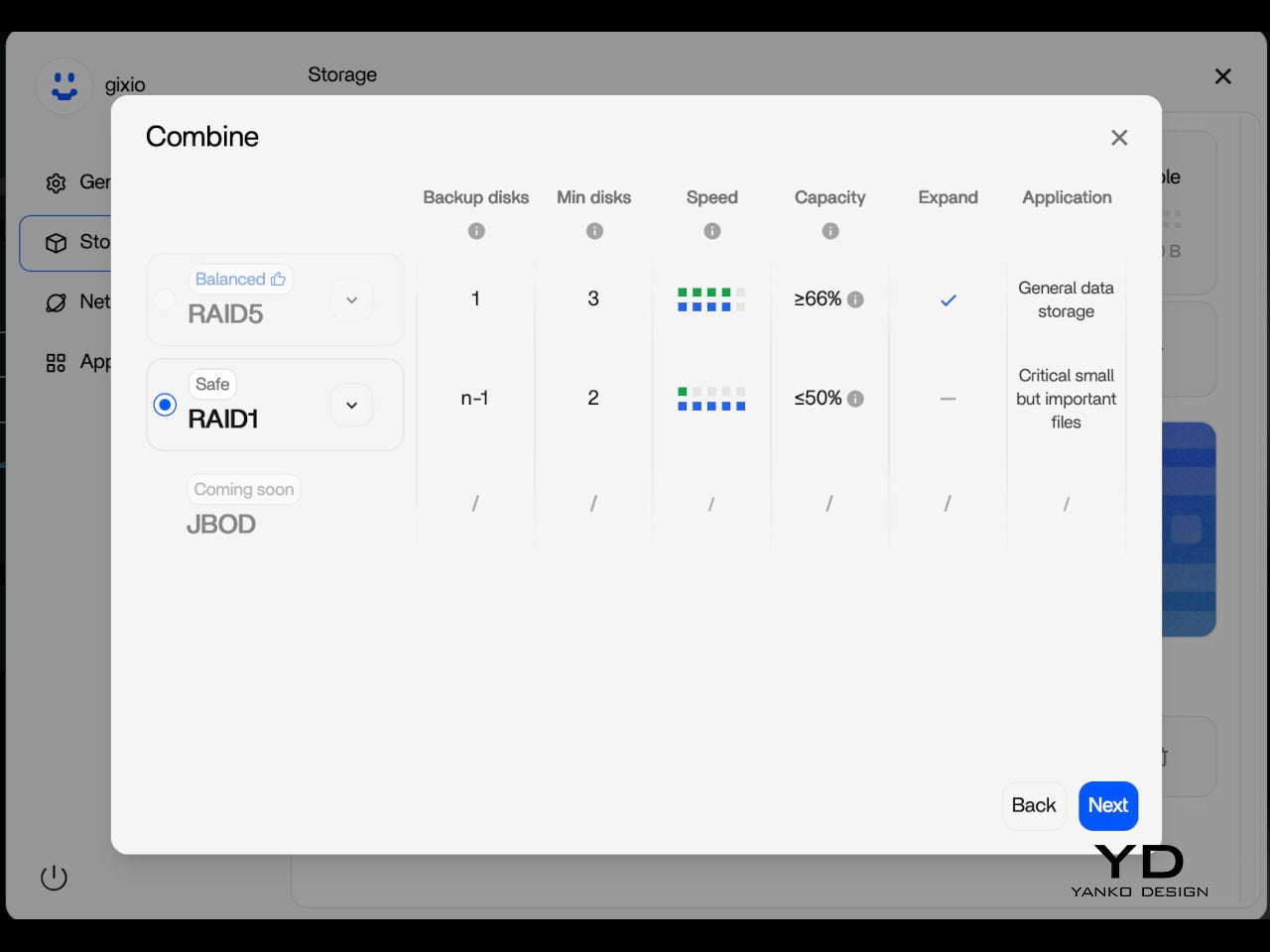
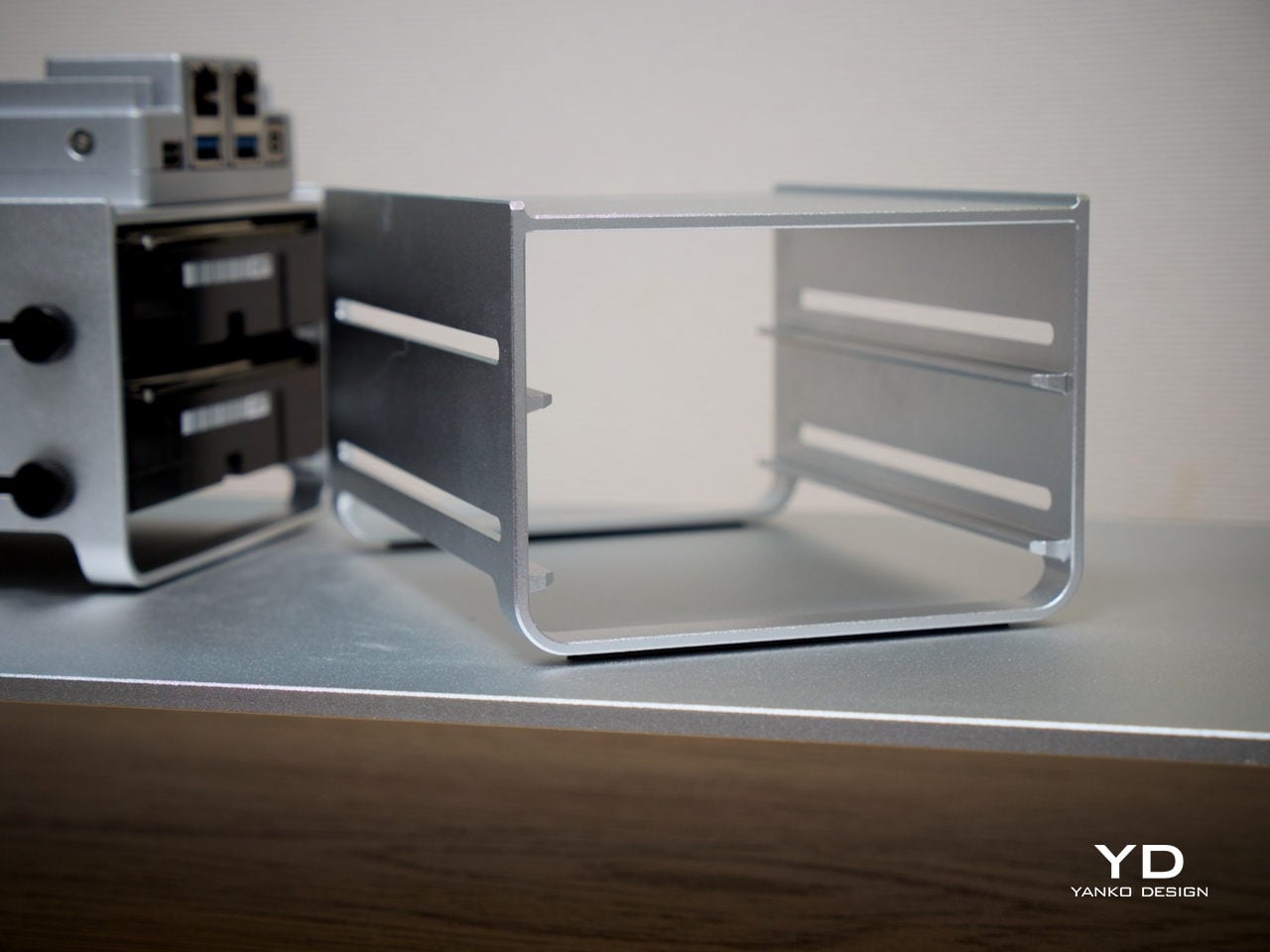
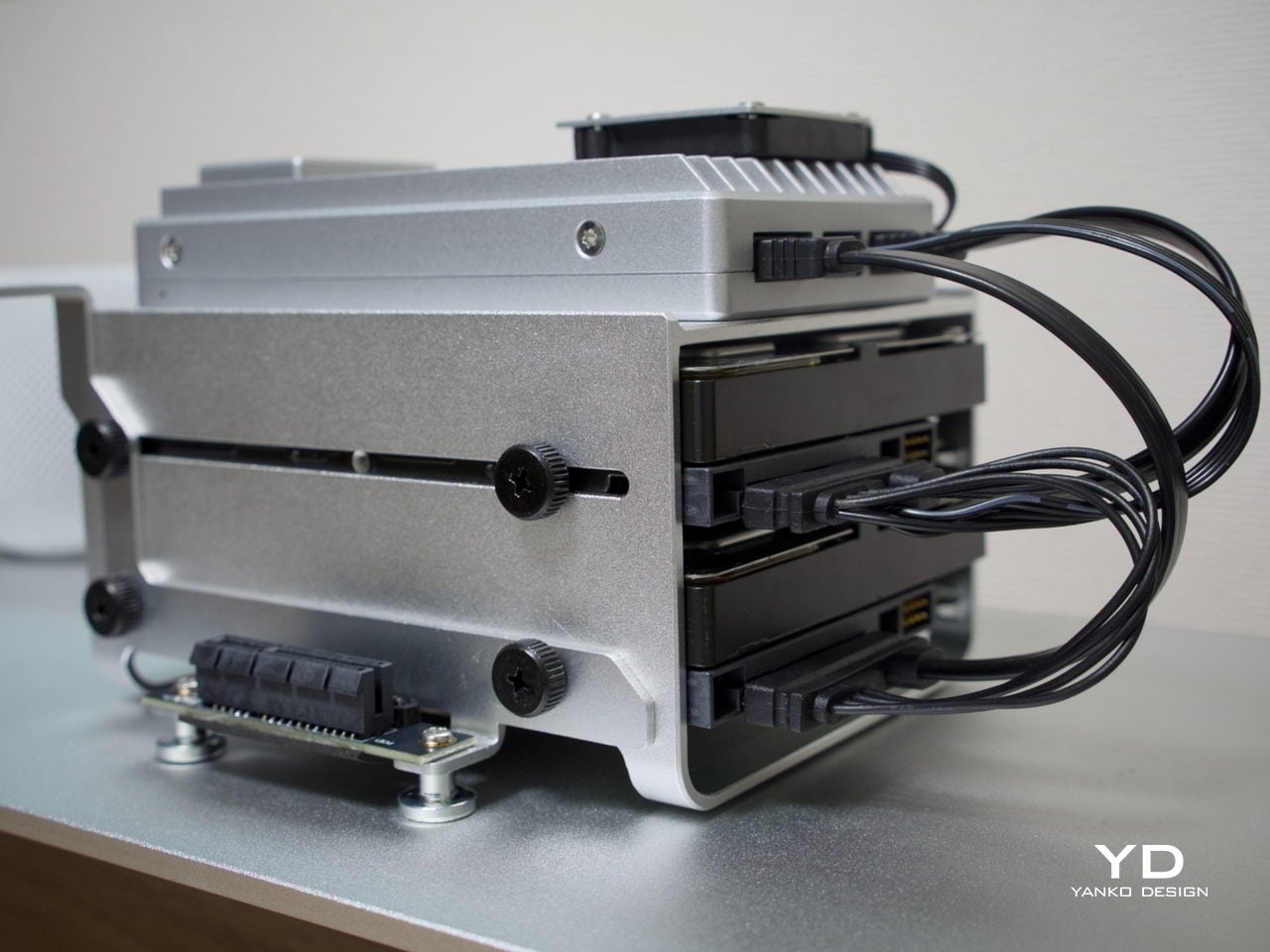
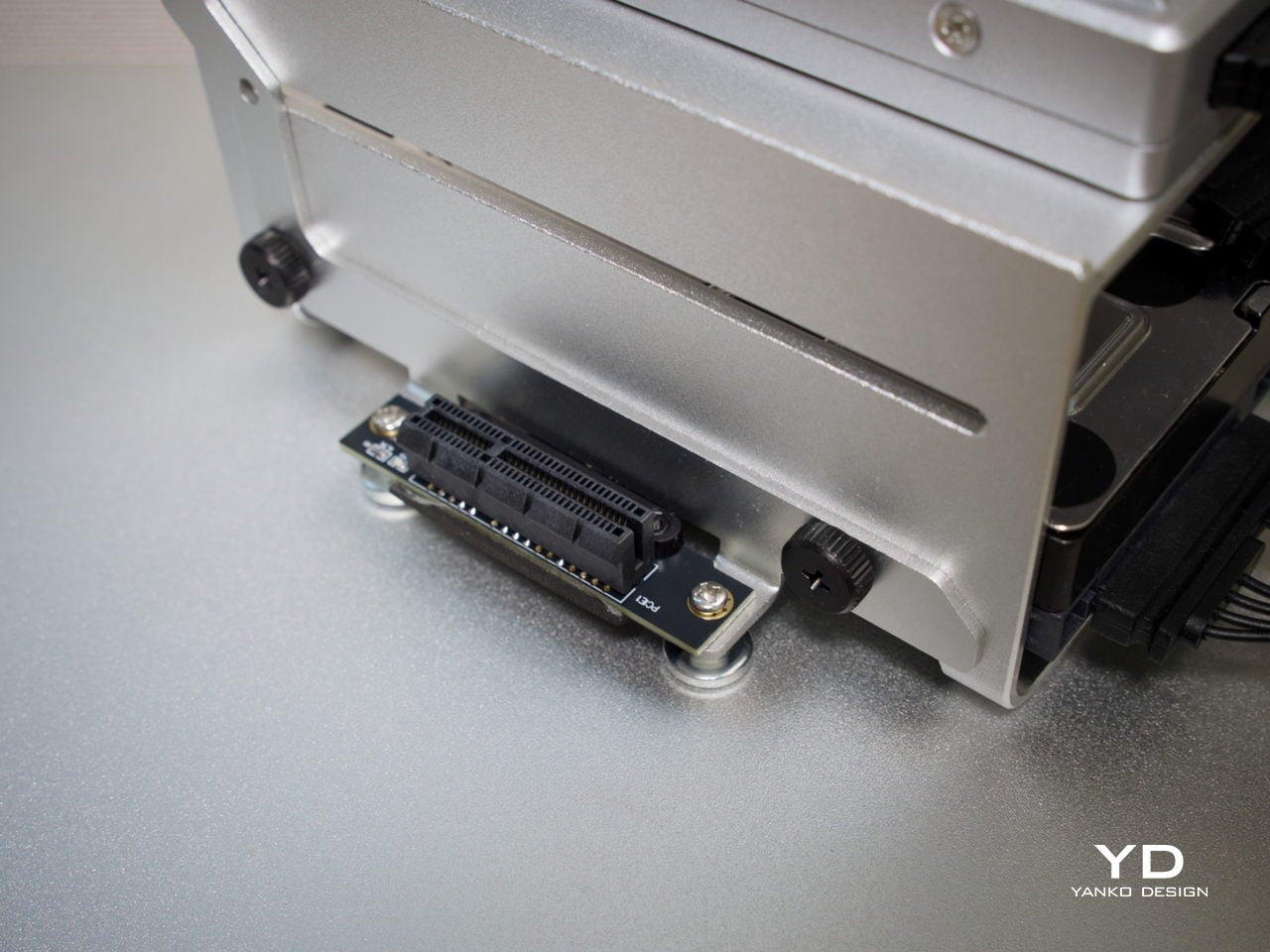
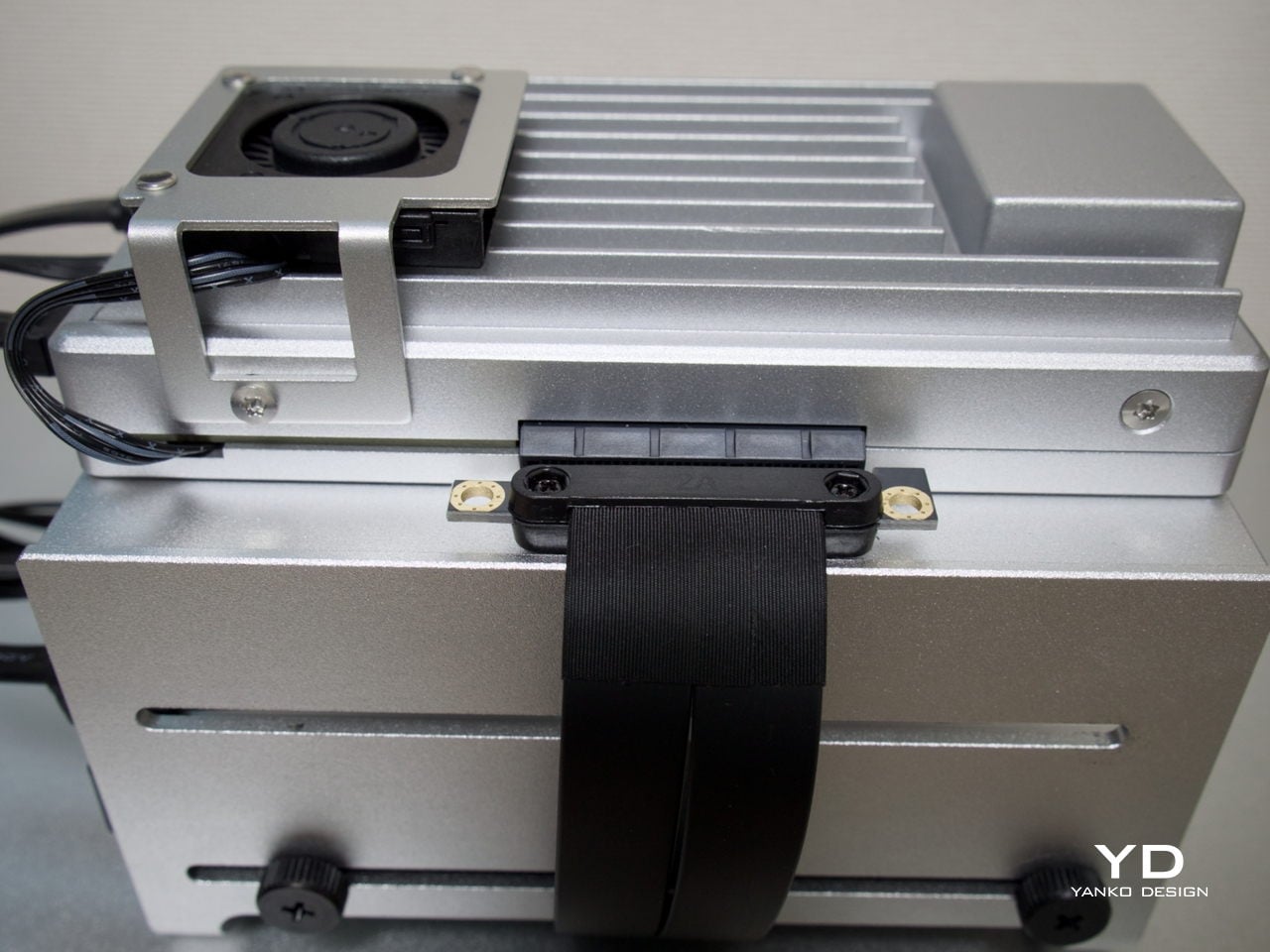
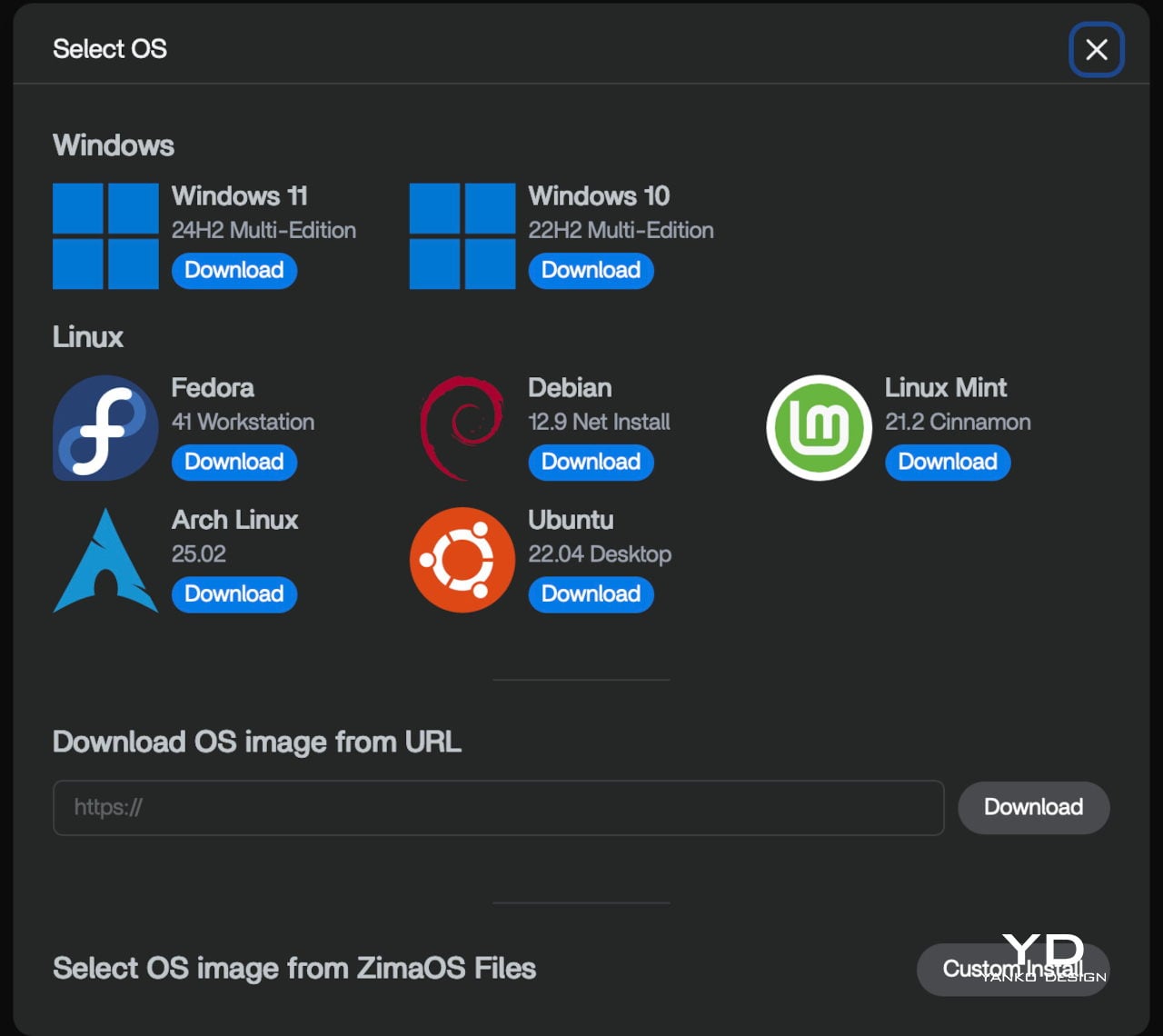
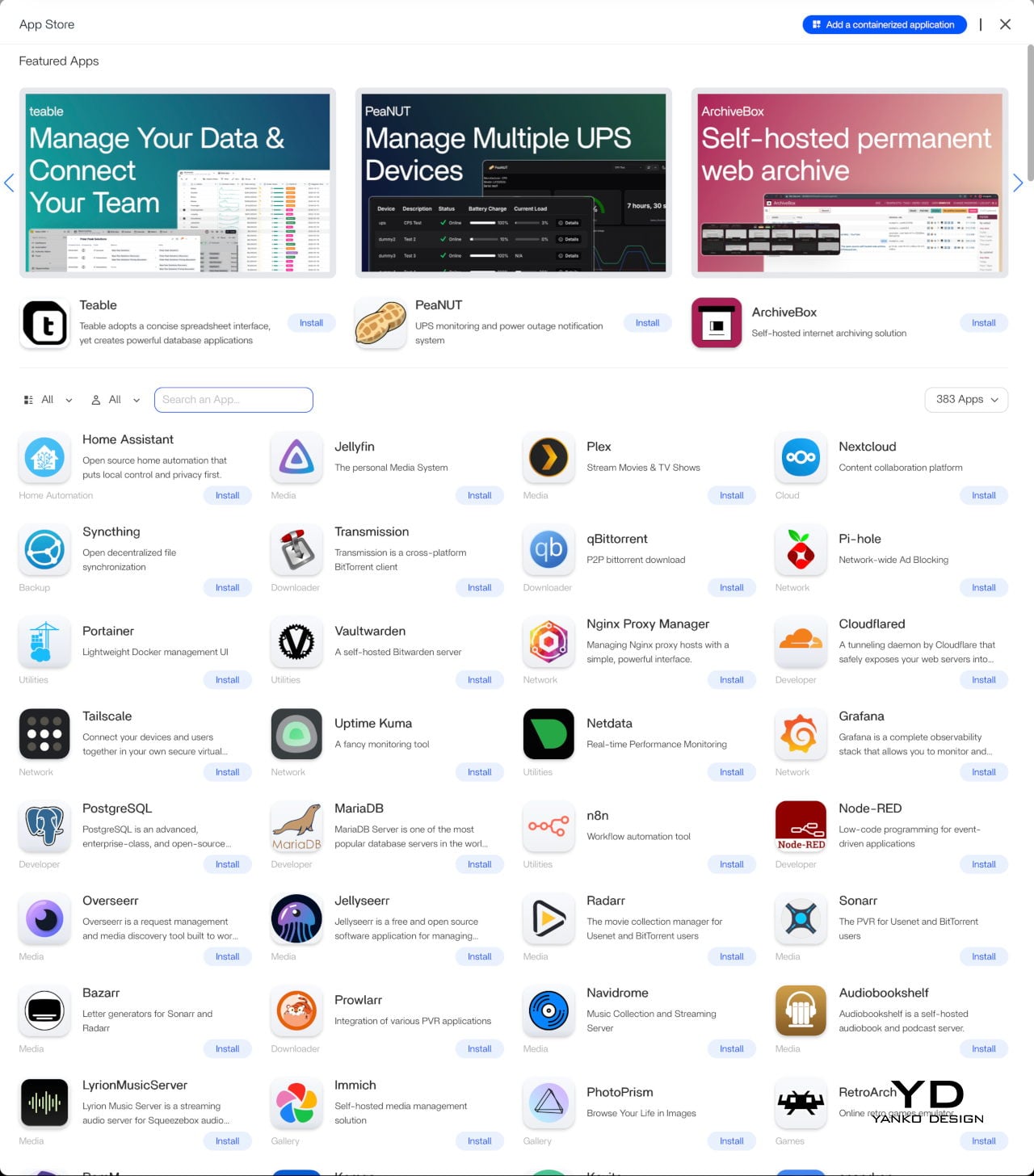
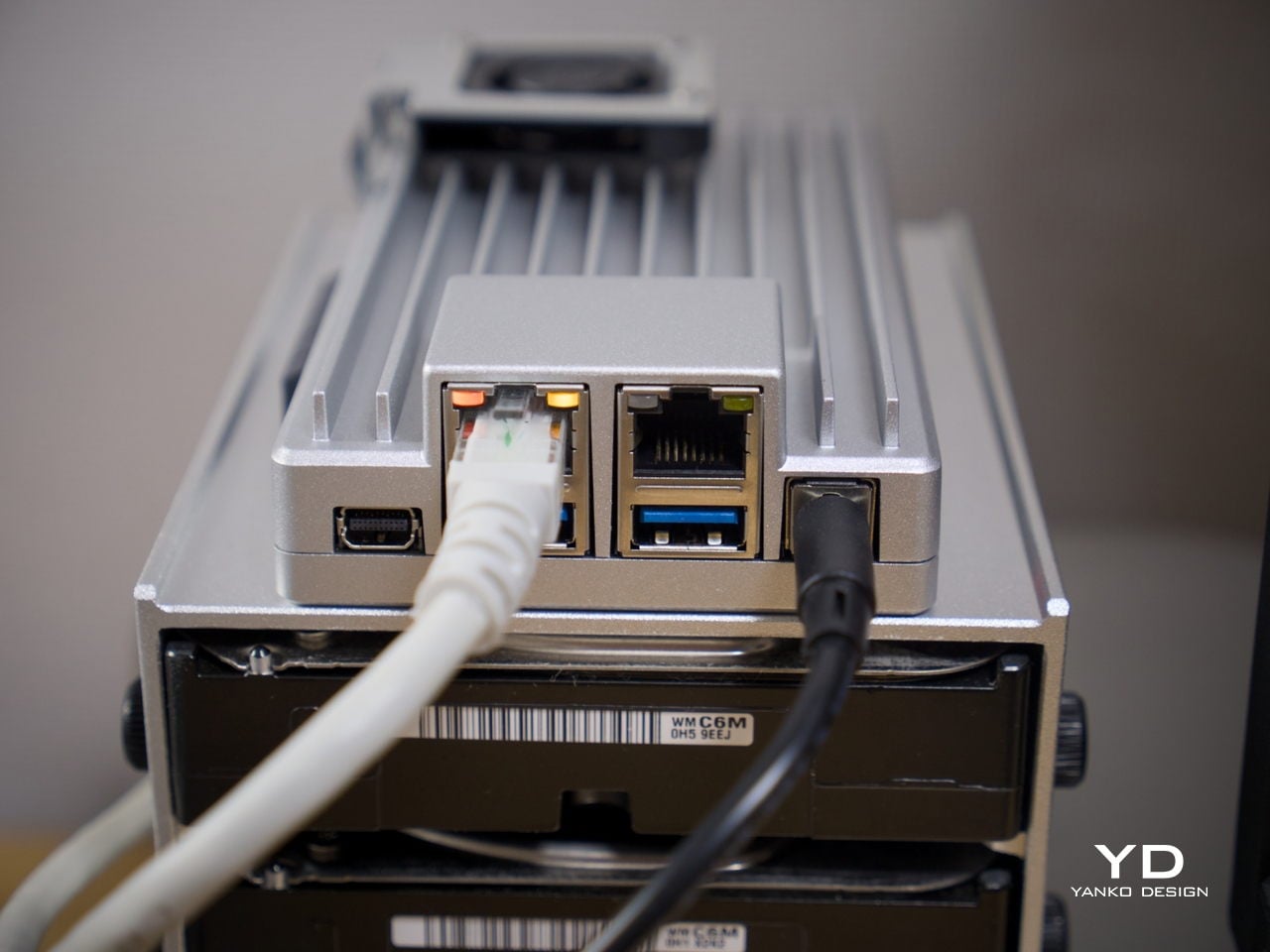
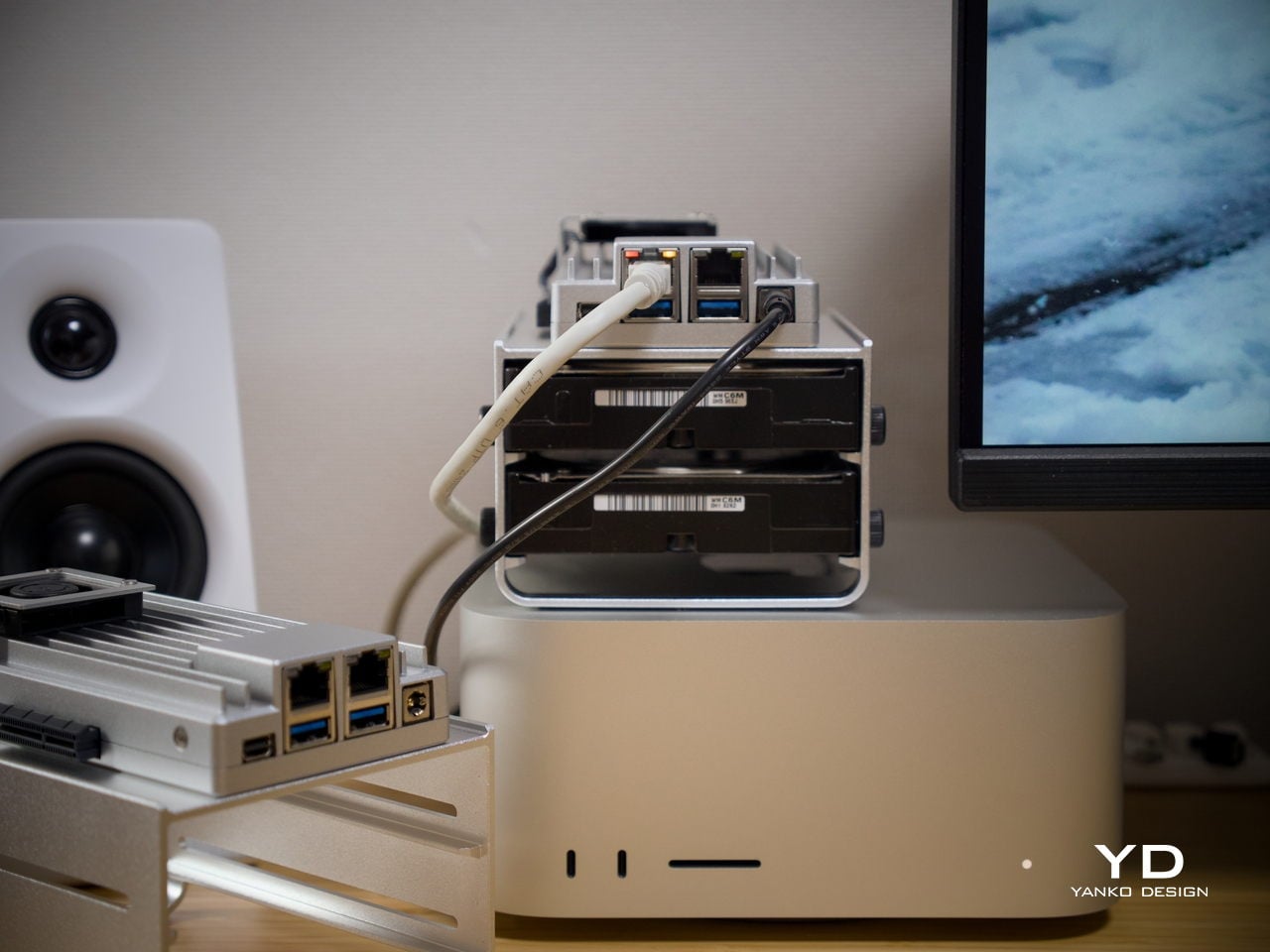
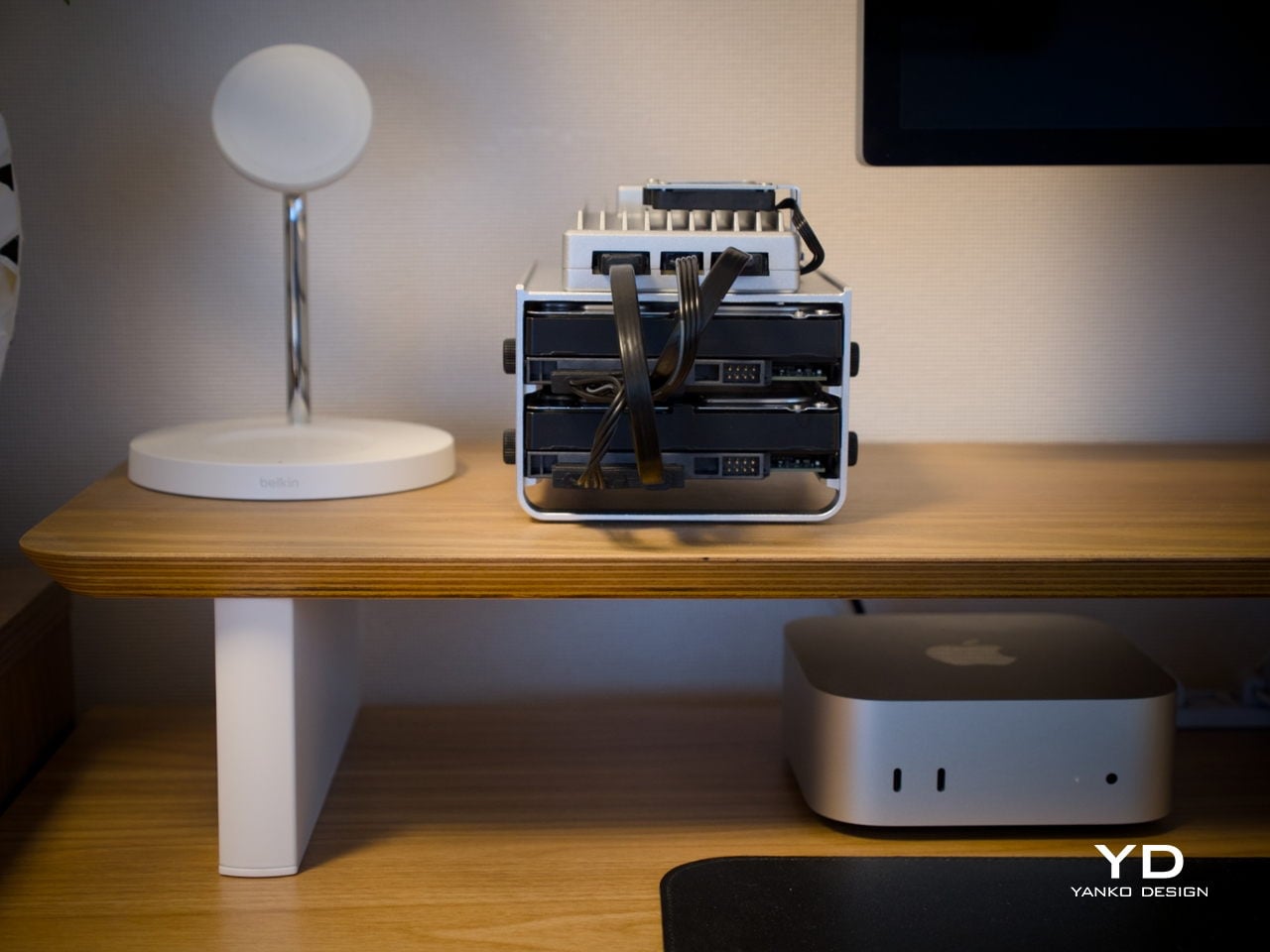
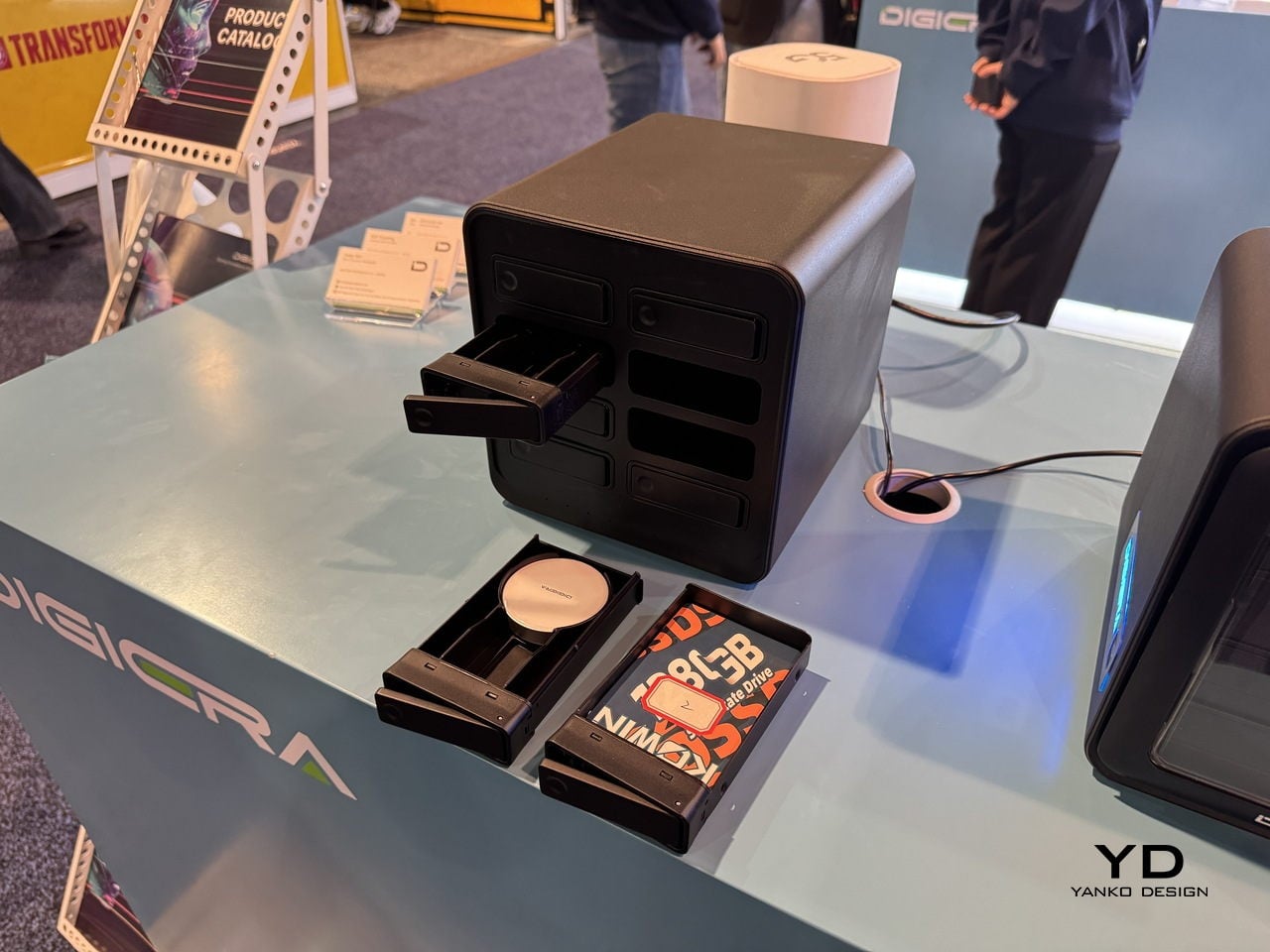
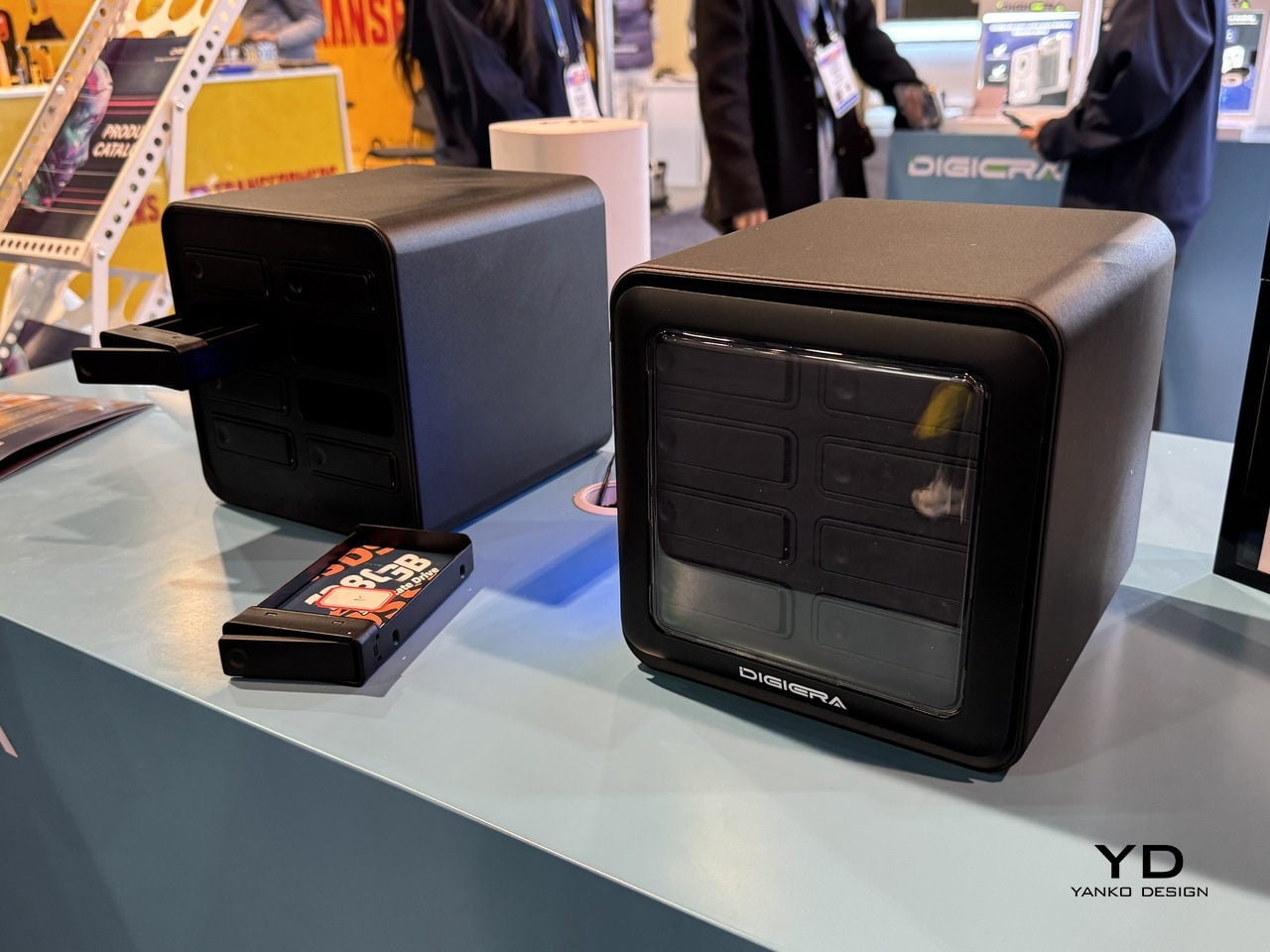
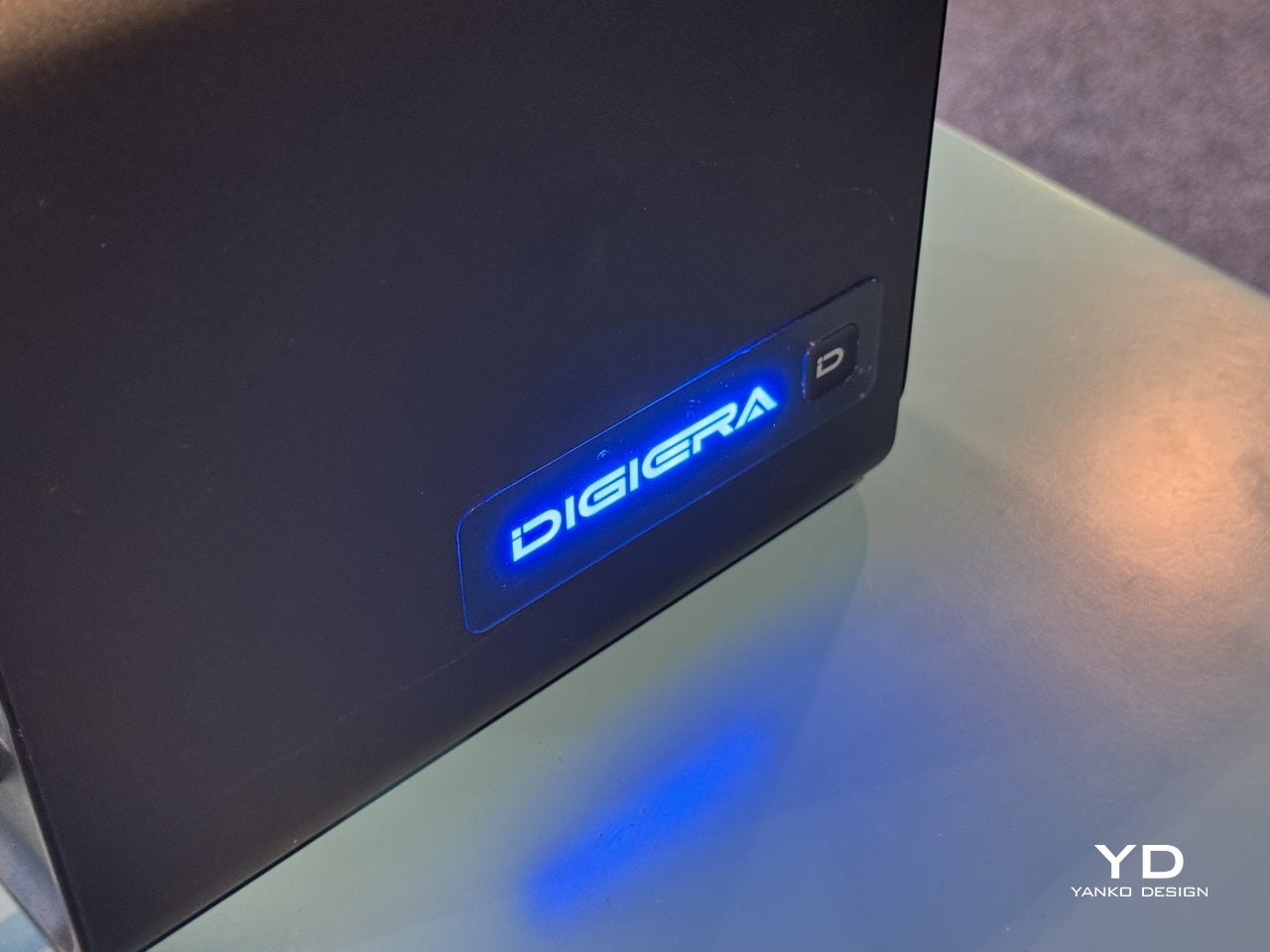
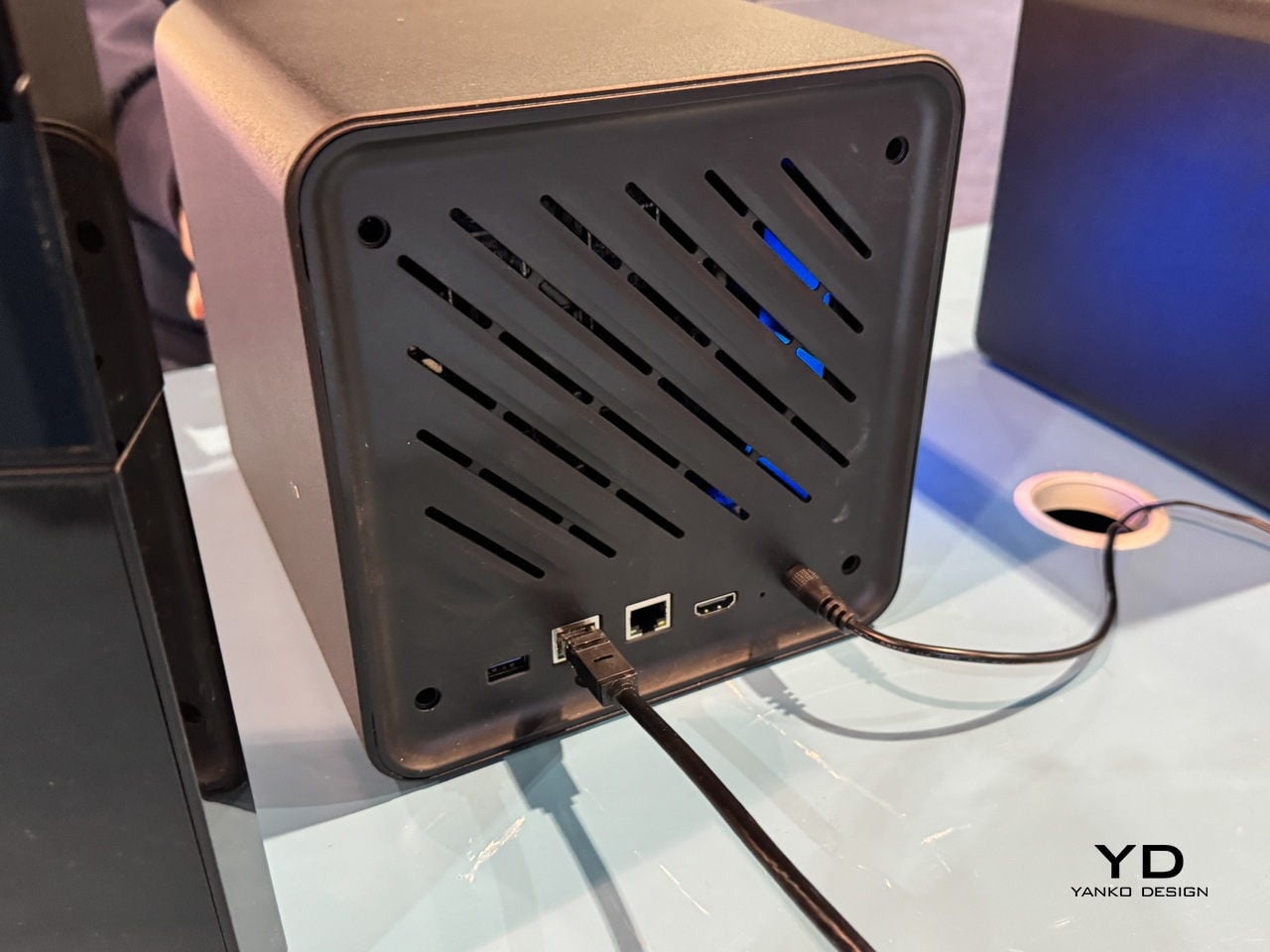
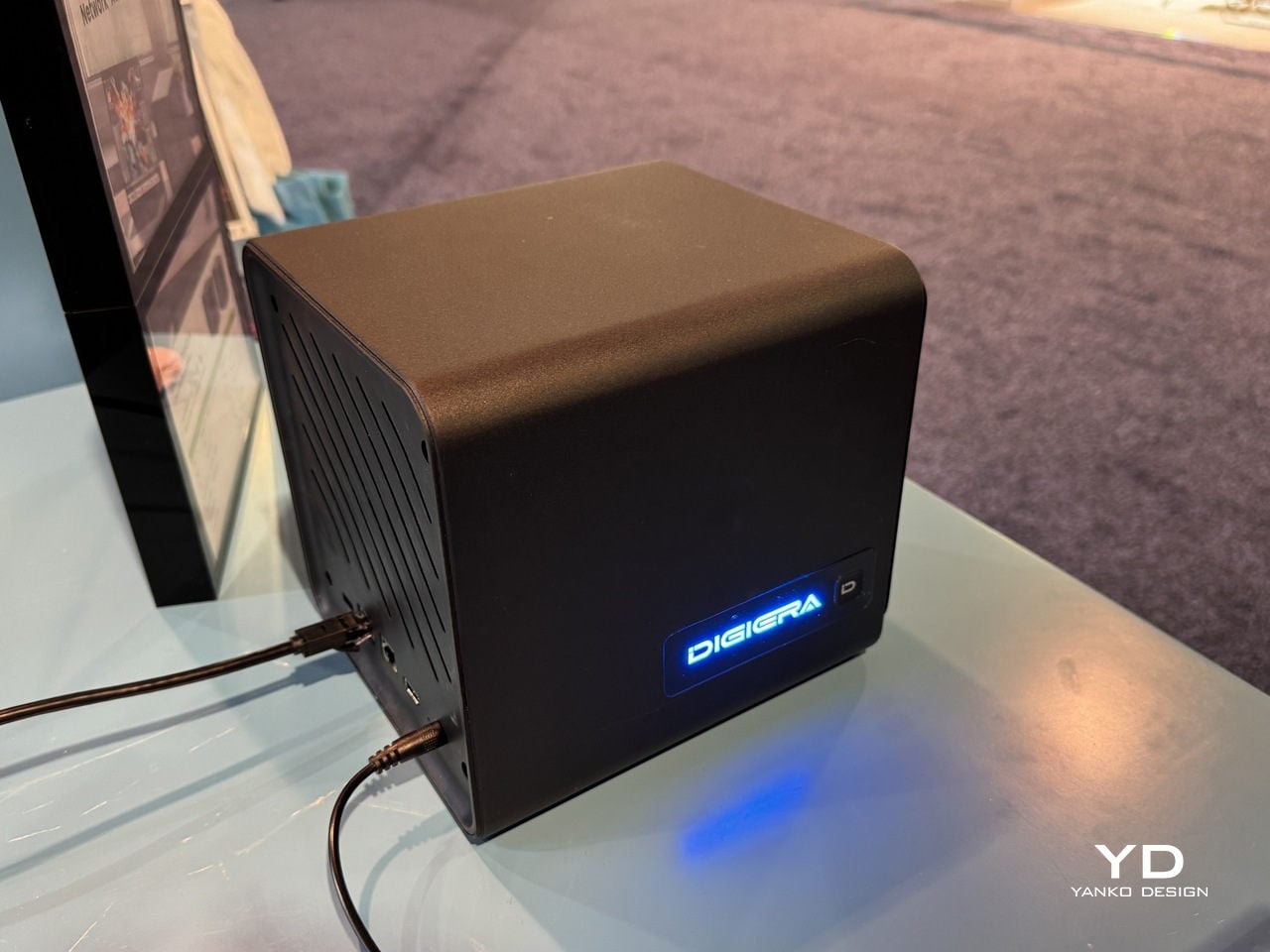
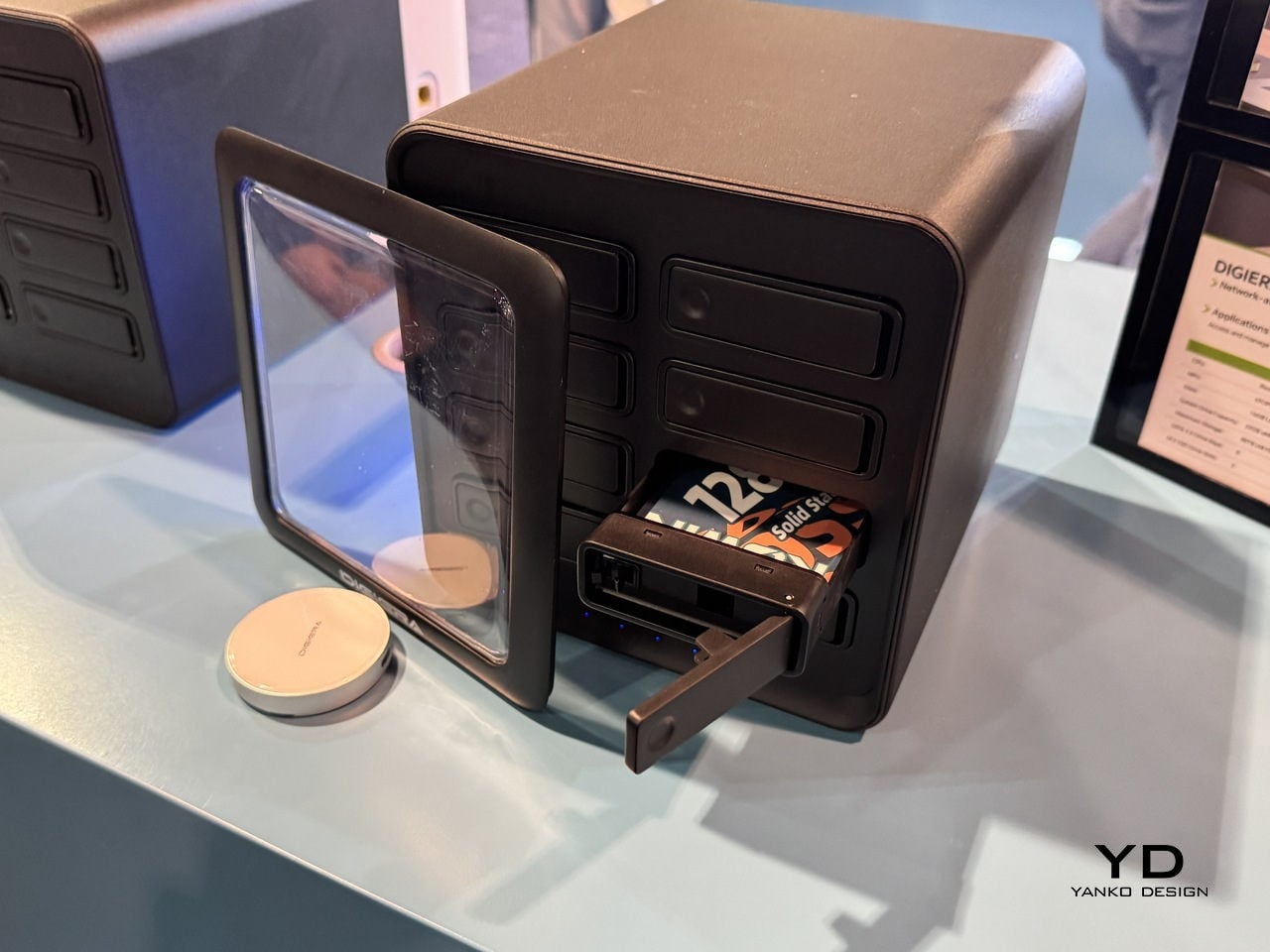
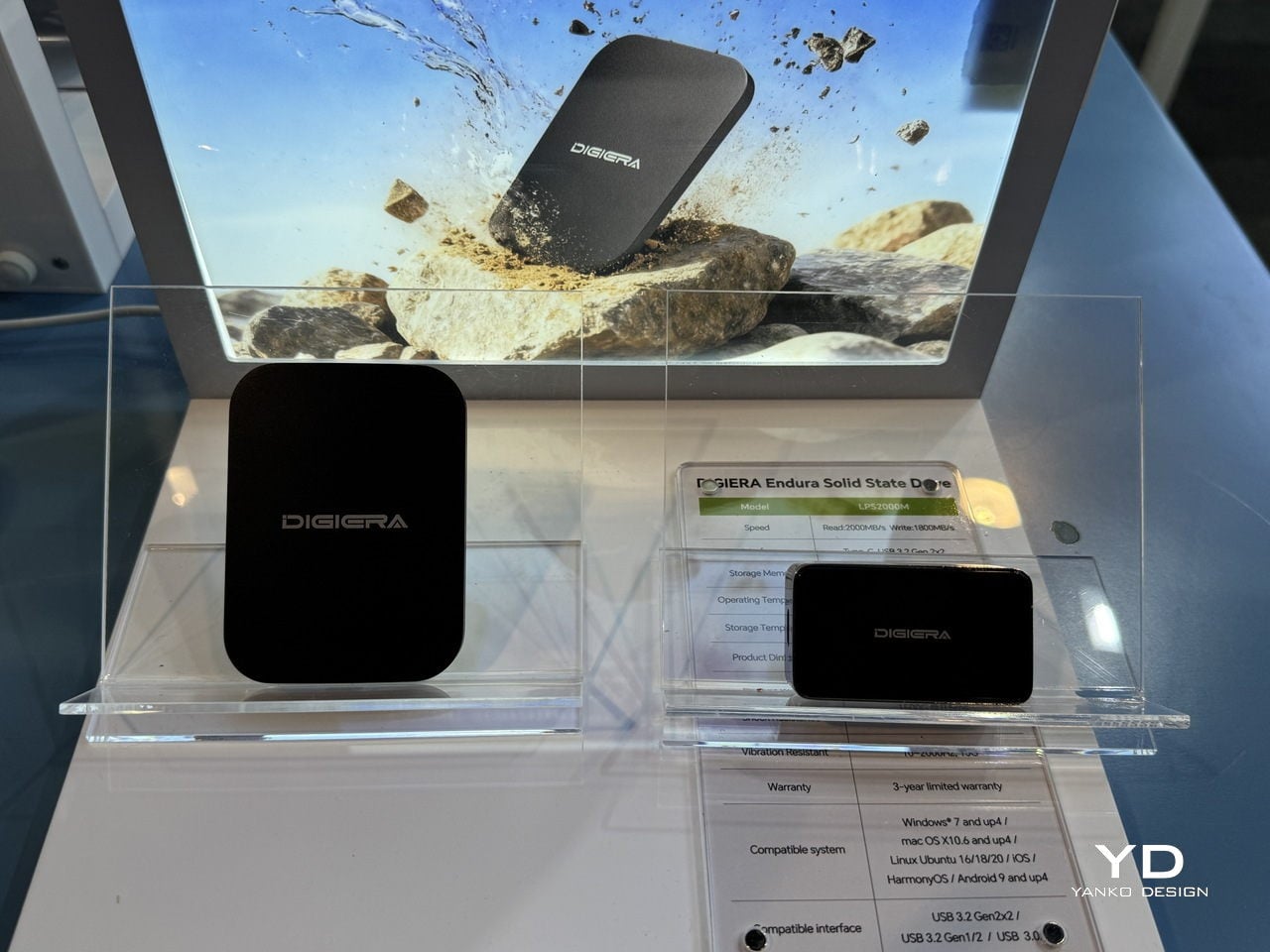
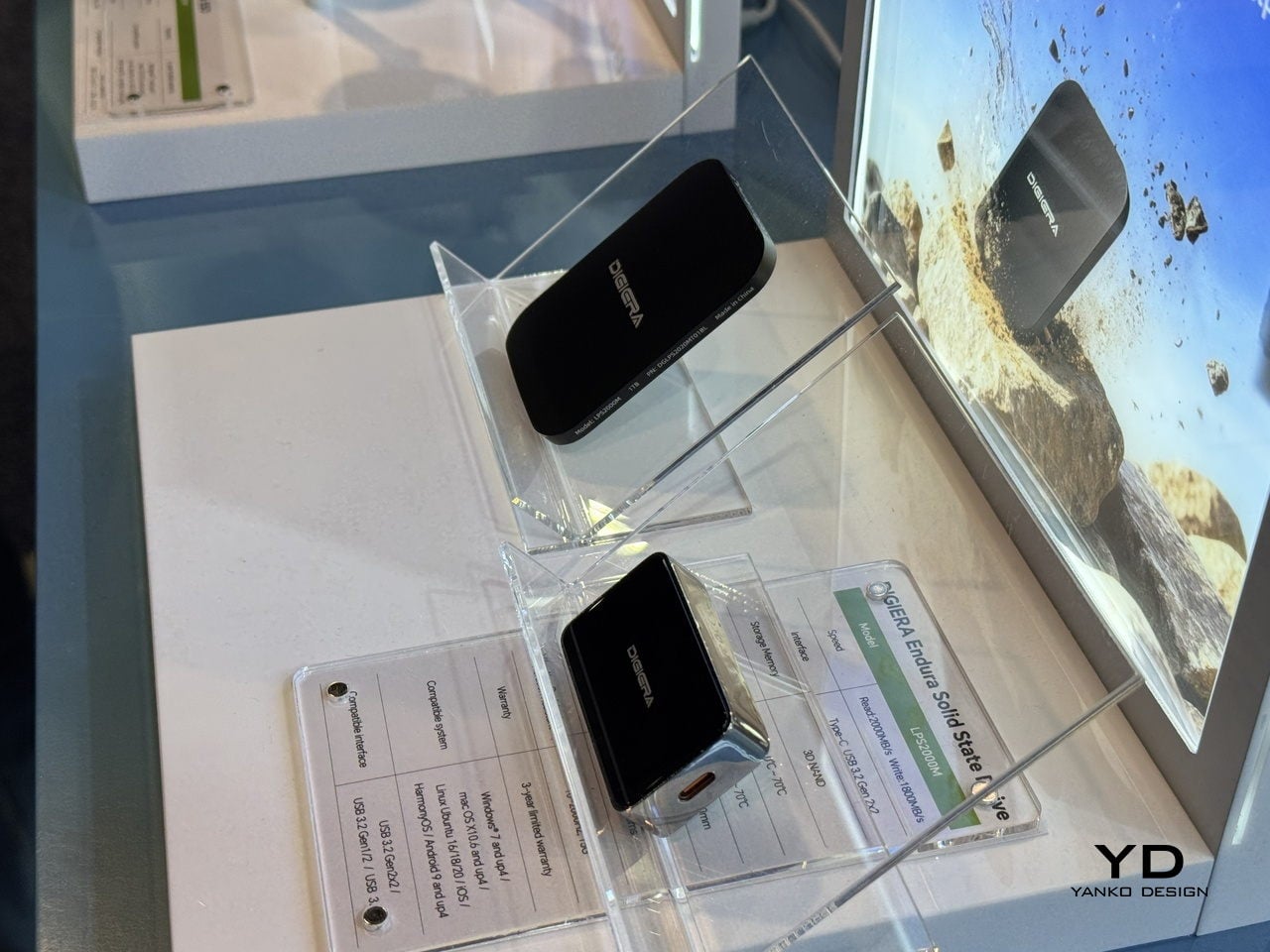
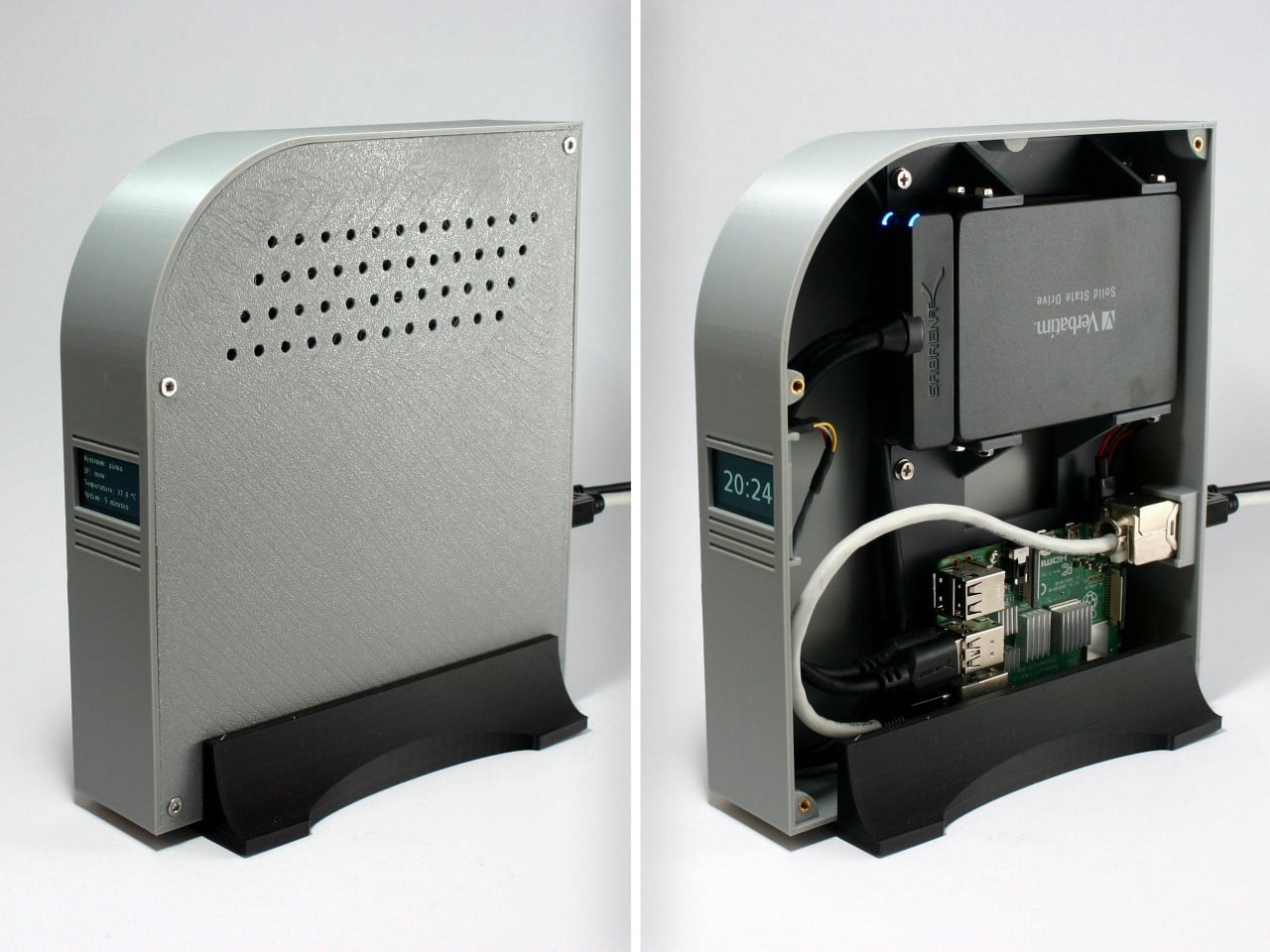
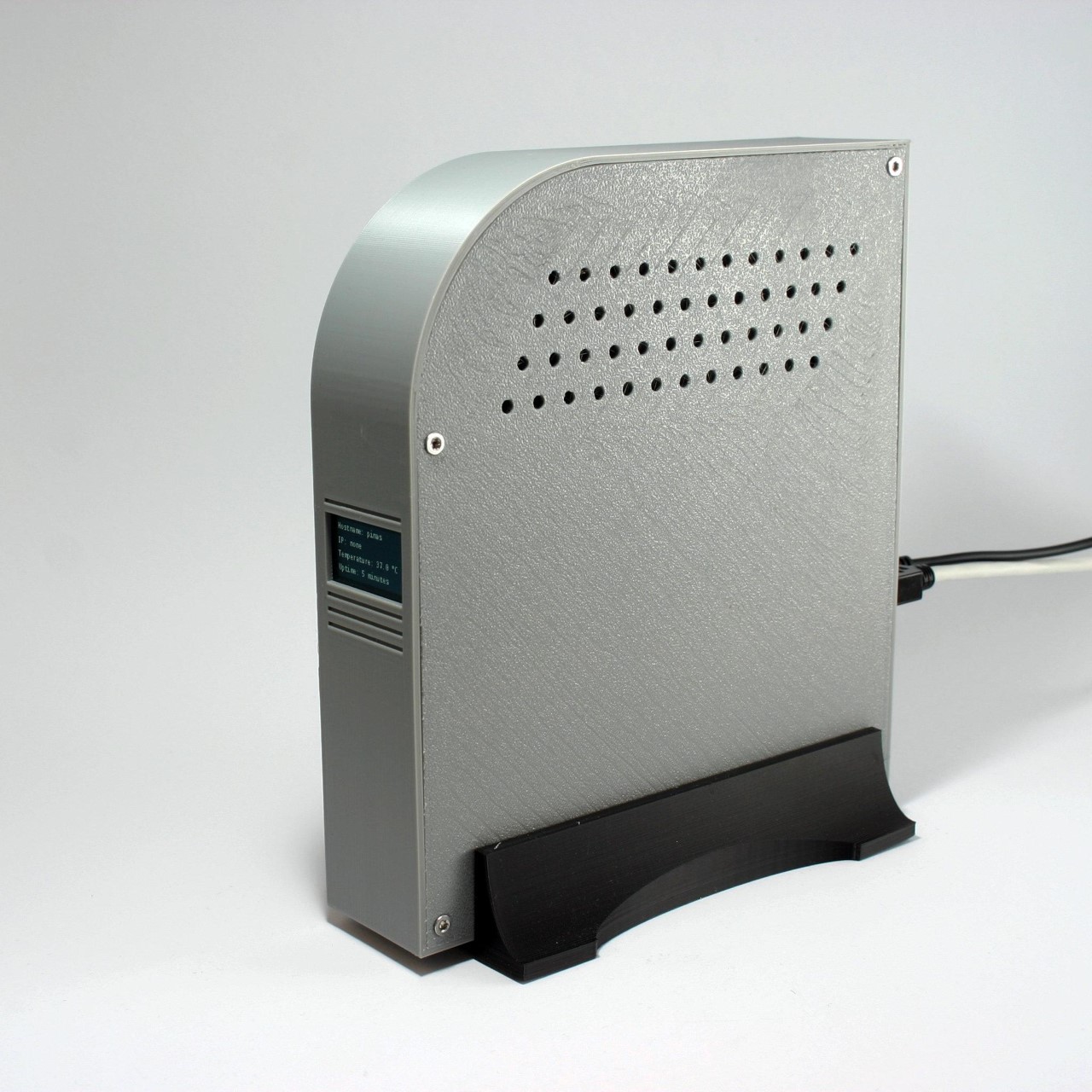
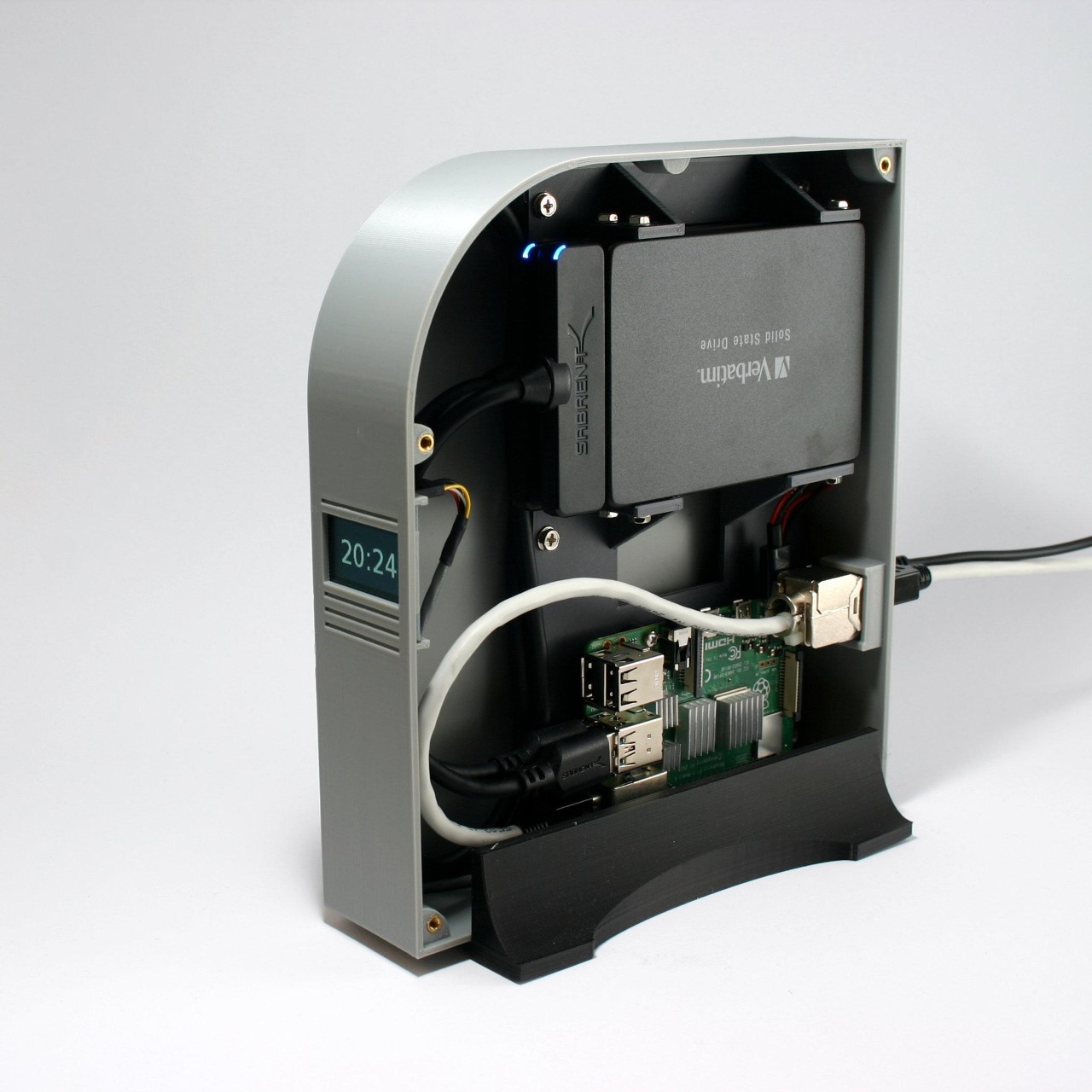
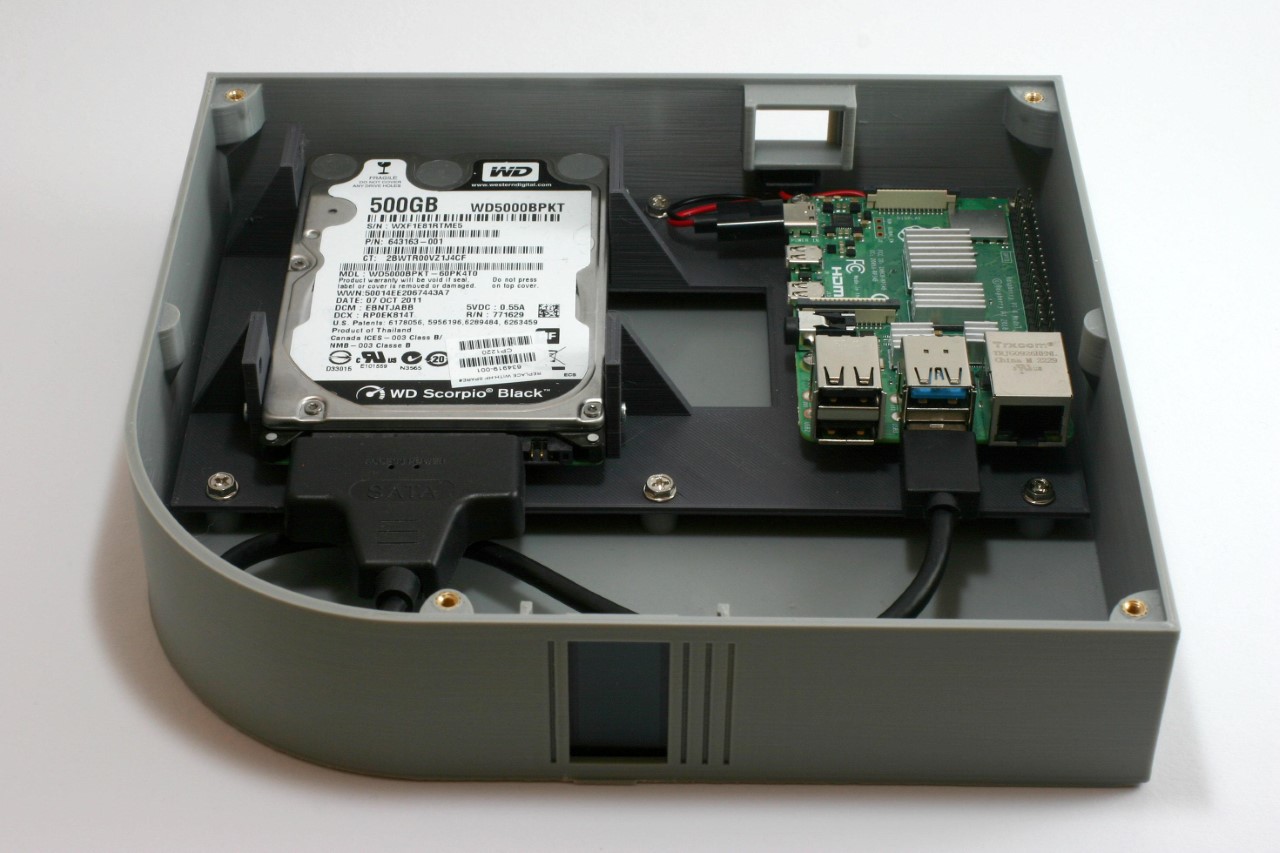
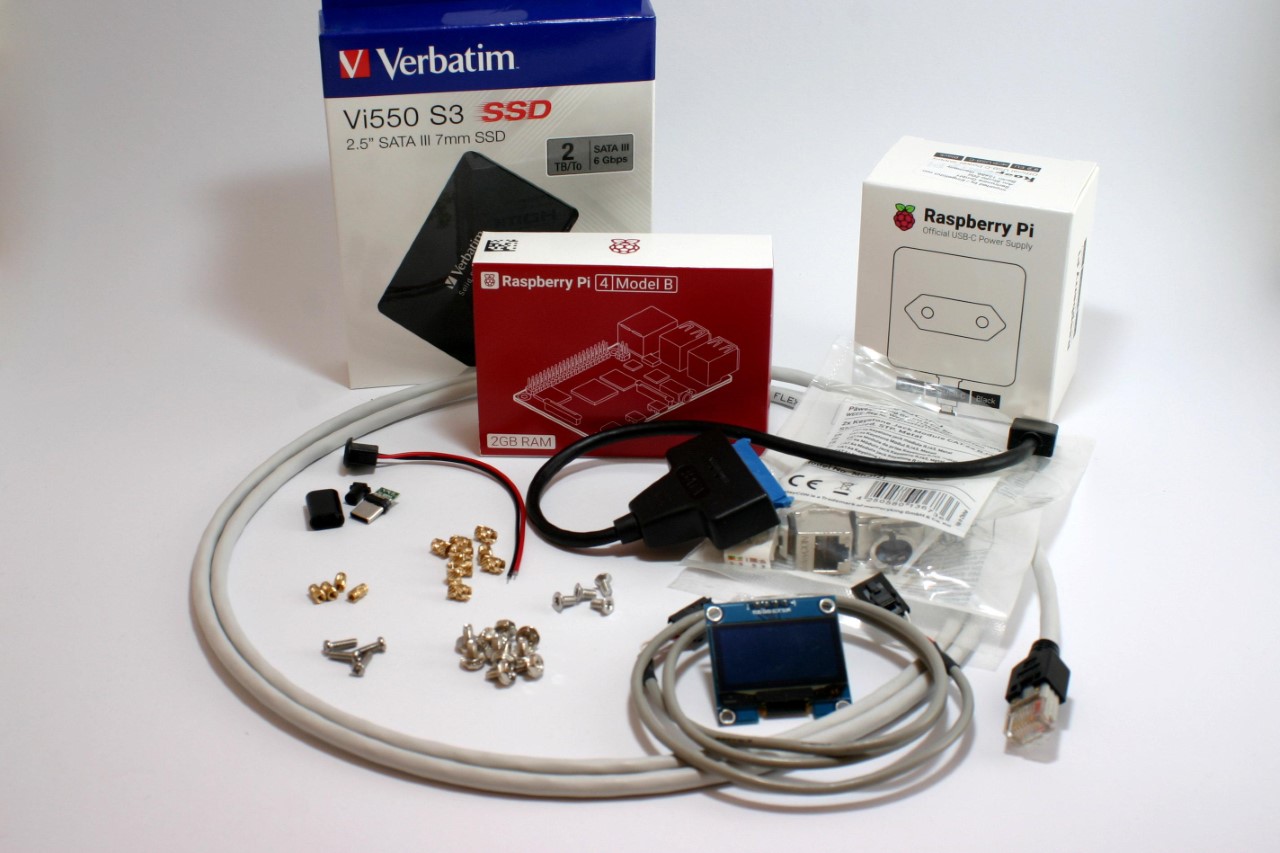
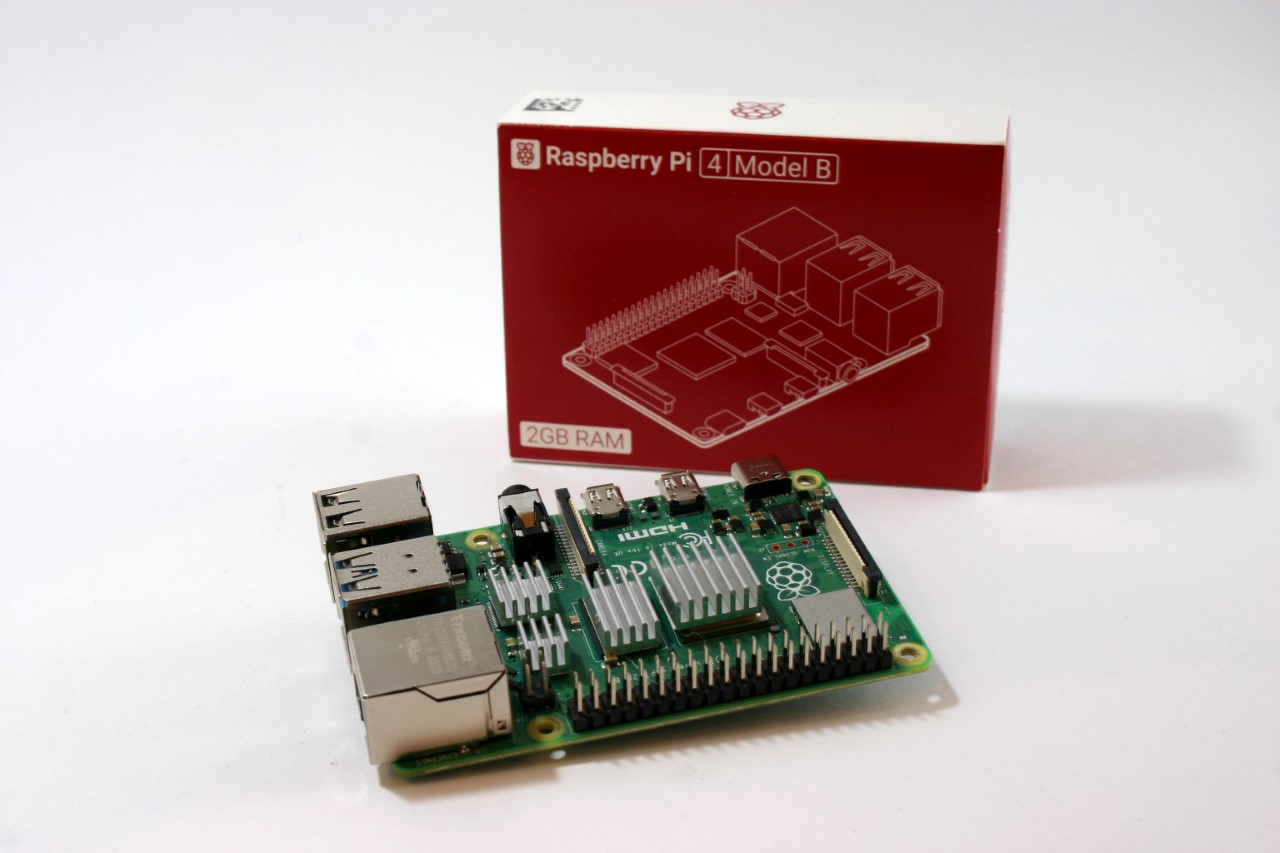
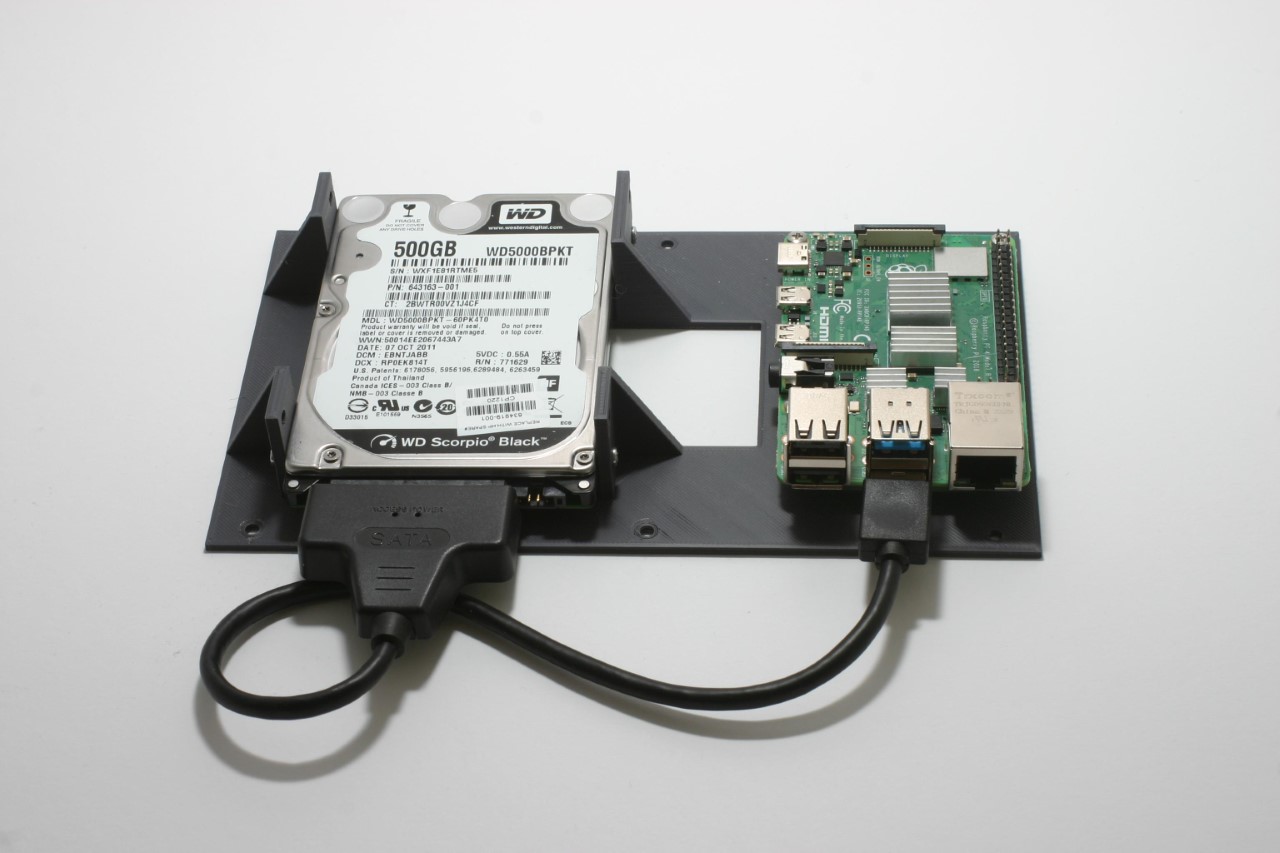
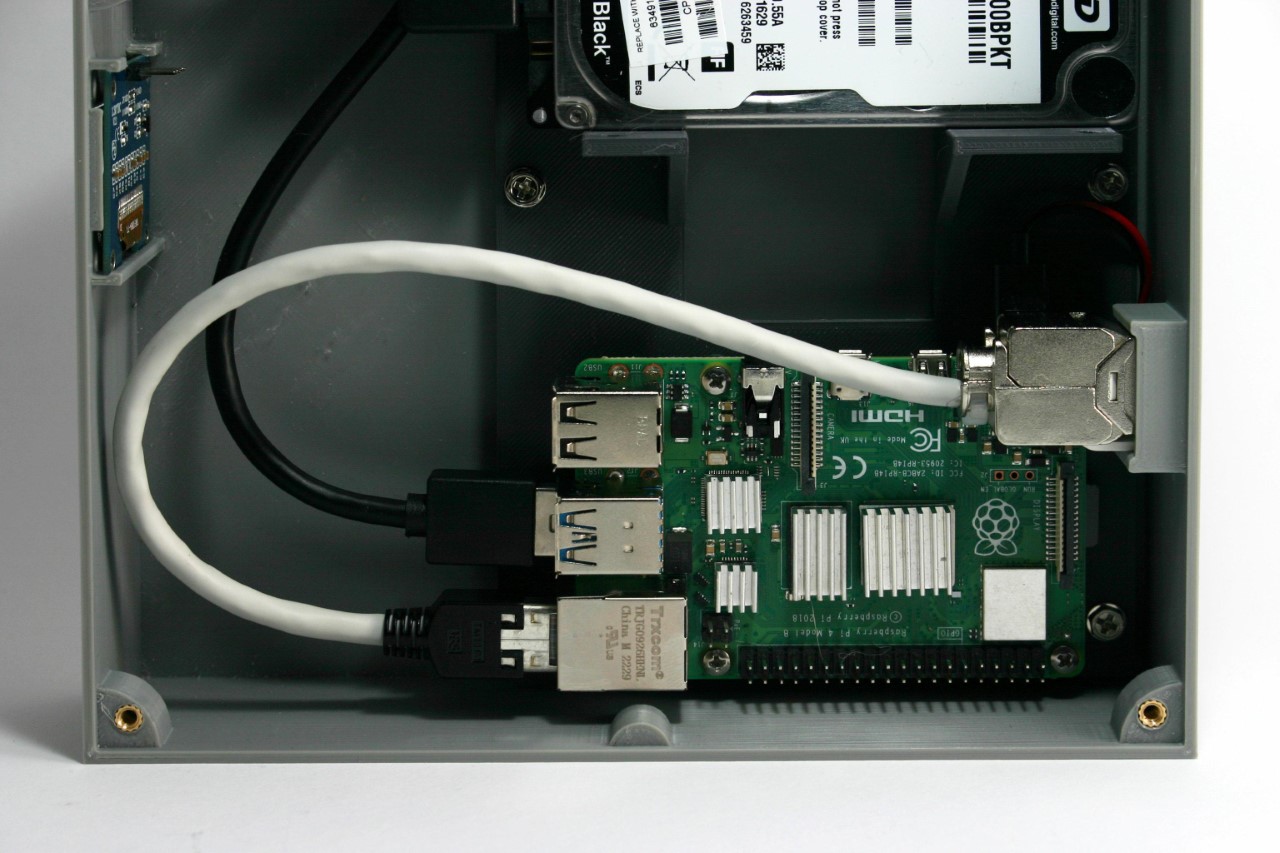
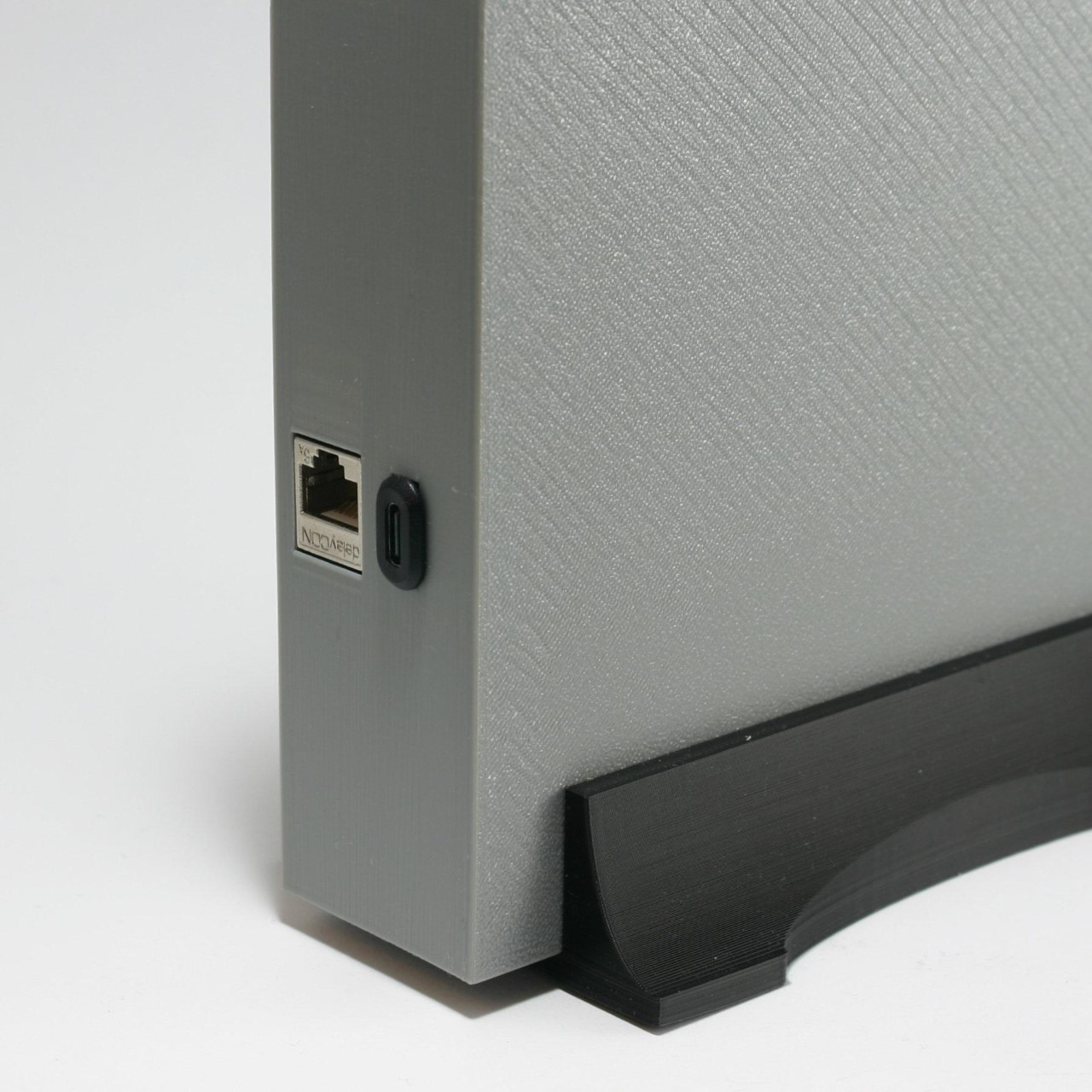
A personal media server is the underdog rebellion against that. If you already have a NAS, you are basically one weekend away from rolling your own “Netflix” with something like Plex, Jellyfin, or Emby sitting on top. The workflow is not rocket science: buy discs, rip them, store the files on your NAS, let the media server scrape metadata and artwork, and suddenly you have a slick, searchable library that shows up on your TV, laptop, phone, or tablet just like a streaming app. The difference is that nothing disappears because a studio changed its mind. You decide what lives there, how long it stays, what version you keep, and who gets access. You can share that library with parents or siblings across the country without running into “password sharing crackdown” nonsense, and you can watch your stuff in a cabin with terrible internet because it is all local. It is the same basic promise we had with physical media, just updated for a world where your screen is no longer tethered to a disc player.
Now, the awkward bit: yes, pirating content is illegal. That is the line, and it is worth stating clearly. At the same time, the industry has created a situation where it is technically legal to charge you repeatedly for non‑ownership, while making entire catalogs vanish, region‑locking films behind arbitrary borders, and punishing you for sharing an account with your own family. When a bidding war over something like Warner Bros Discovery means one or two mega‑streamers get even more control over what exists where and for how long, it is hard not to see why people fall back on “if buying is not owning, piracy is not stealing” as a coping mechanism. I am not here to tell you what to do with torrents, but I will say this: a personal media server built around content you actually own is one of the few sane, future‑proof ways to make sure the movies and shows you care about are still watchable ten years from now. In a landscape that keeps trending toward bigger monopolies and weaker ownership, that box in the corner of your house starts to look less like a nerd toy and more like self‑defense.
The post Your Personal Free Netflix and other Top 5 Tech you Absolutely Need in 2026 first appeared on Yanko Design.