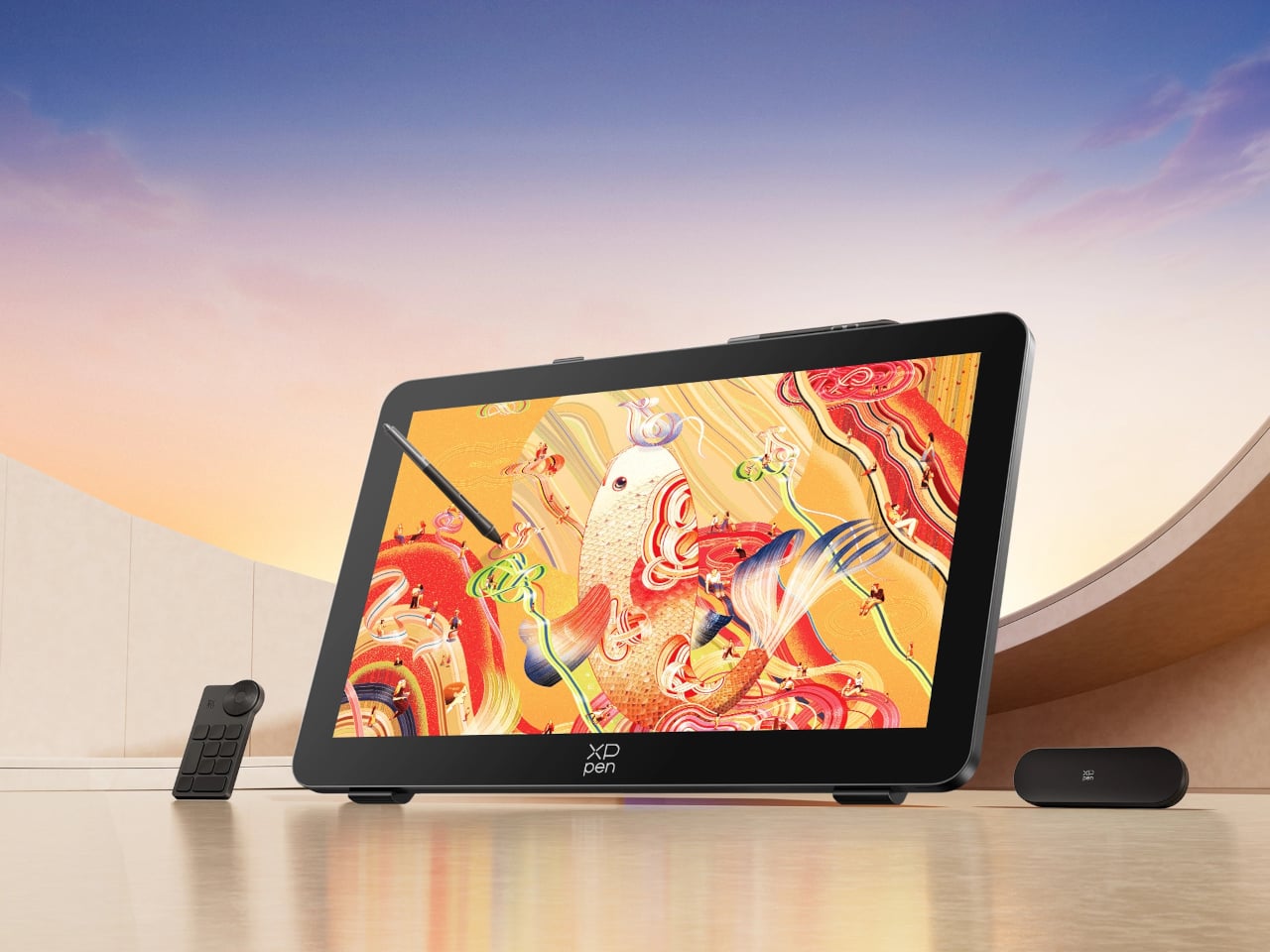
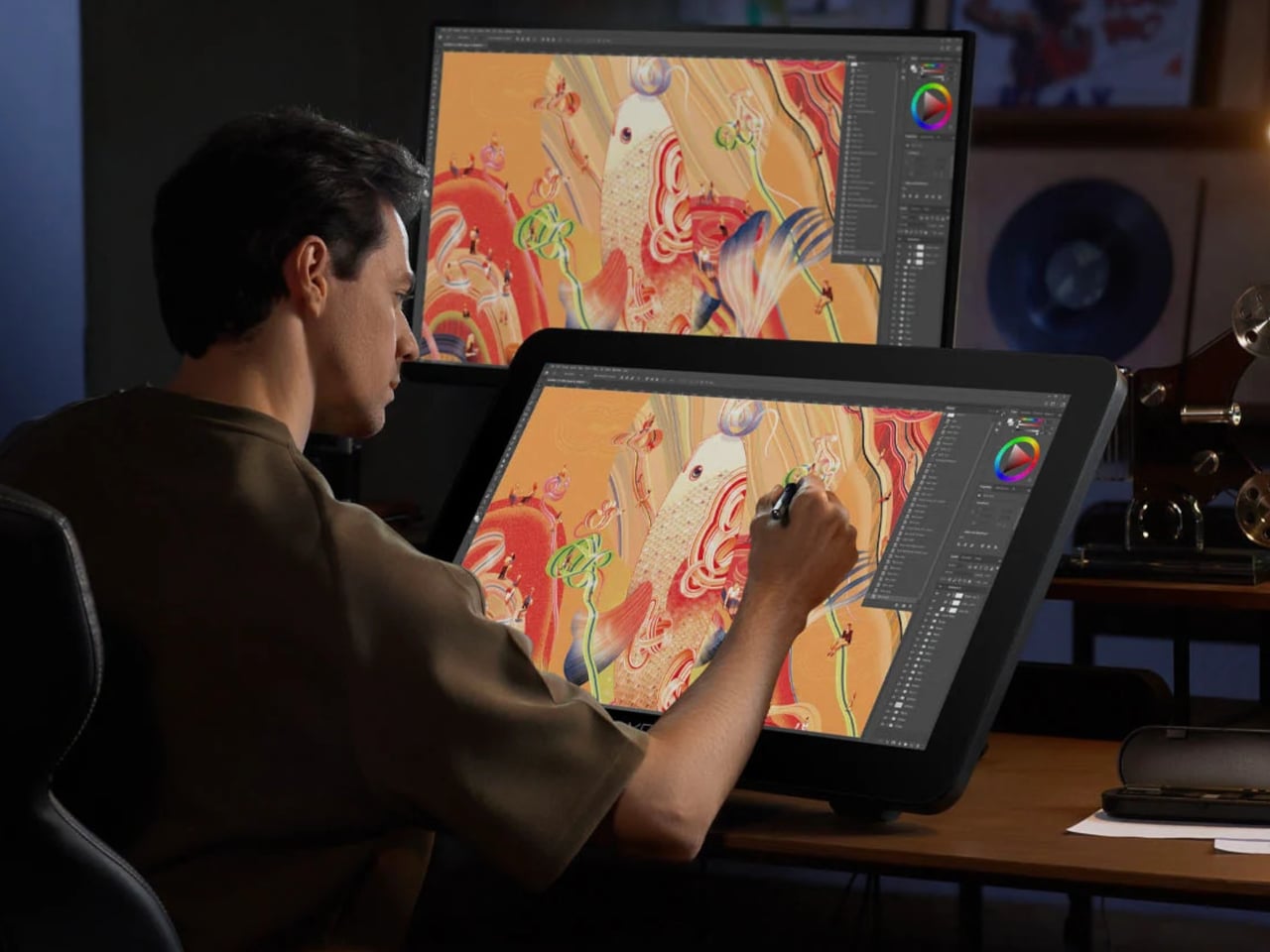
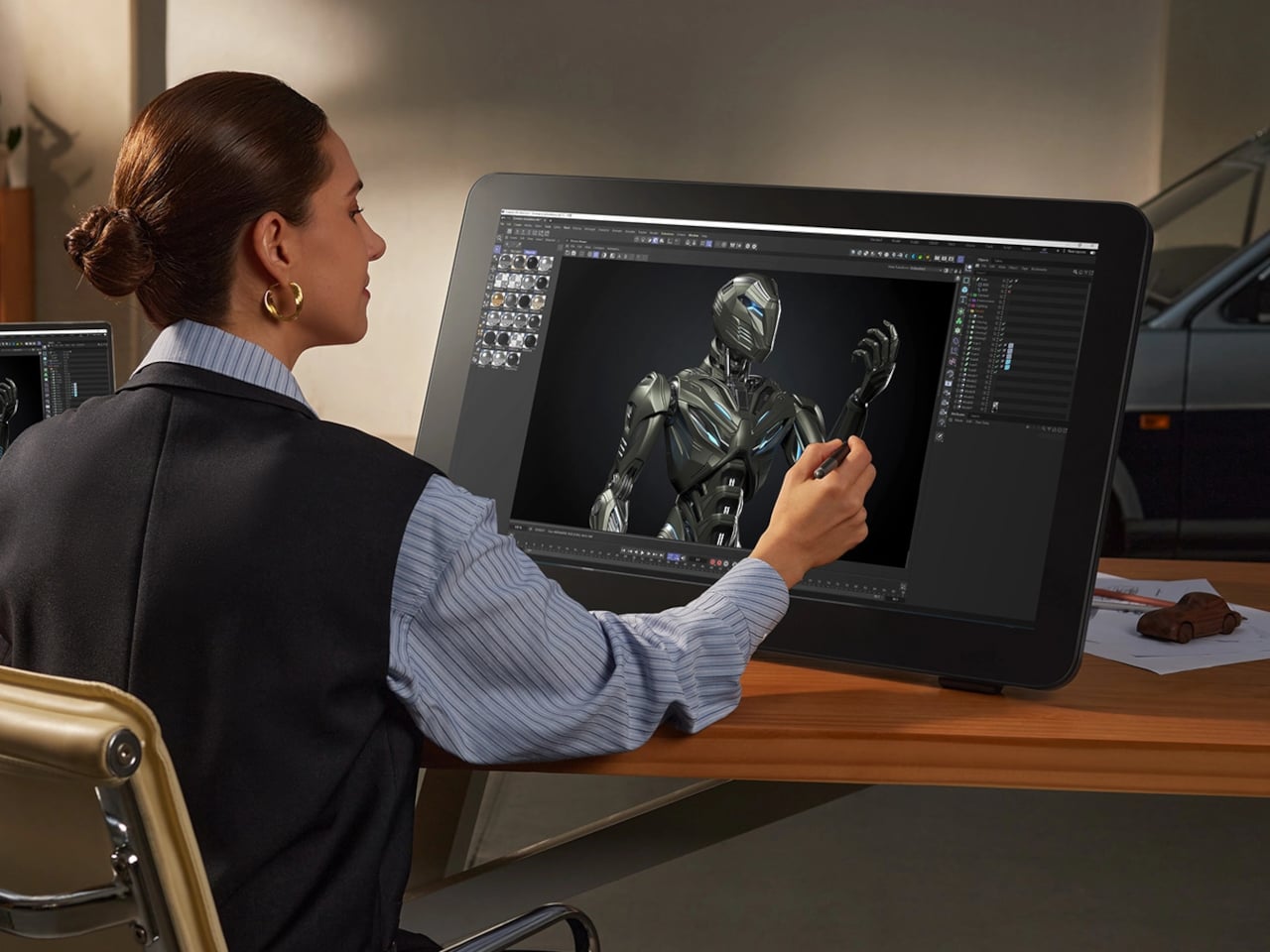
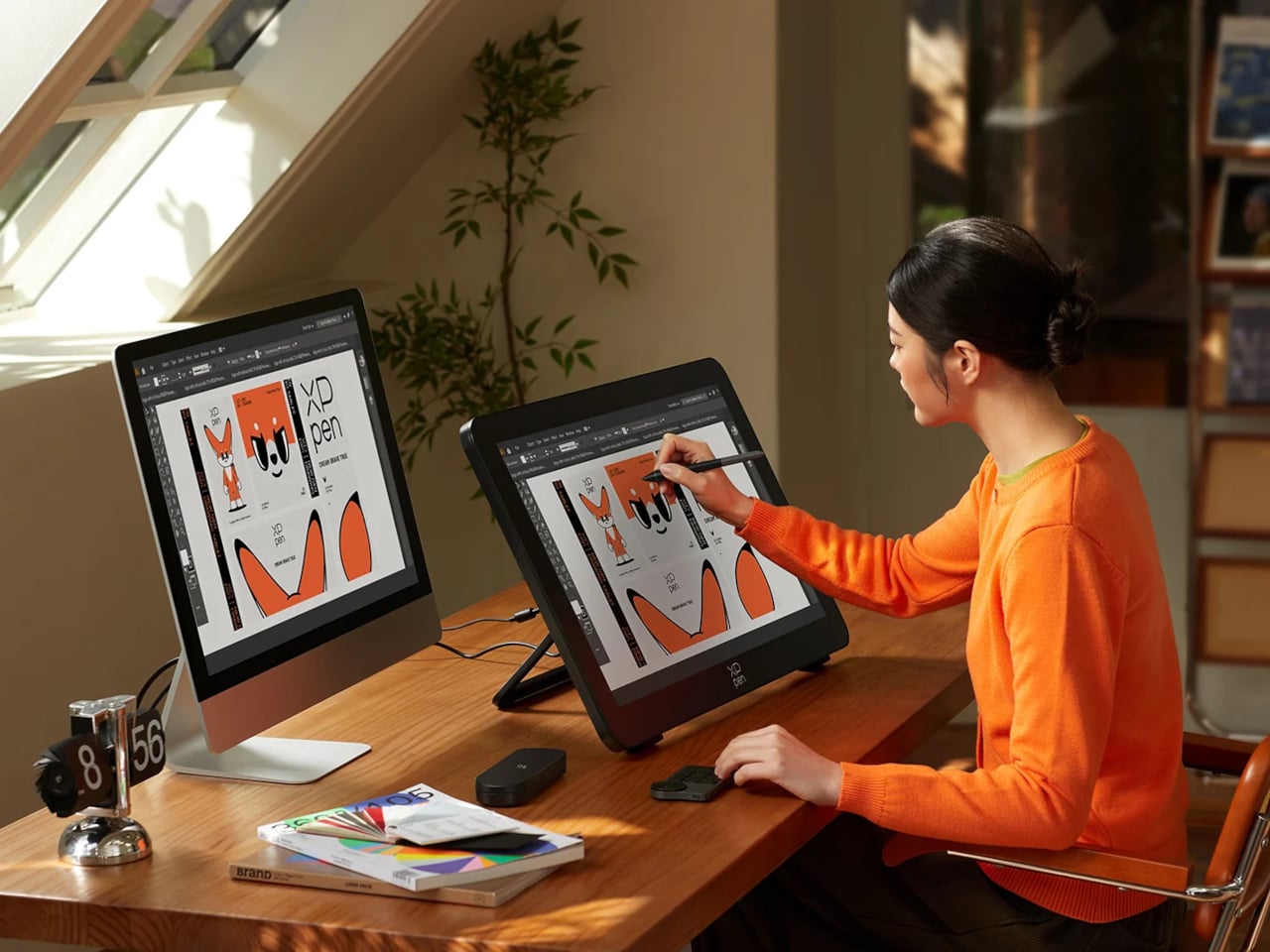
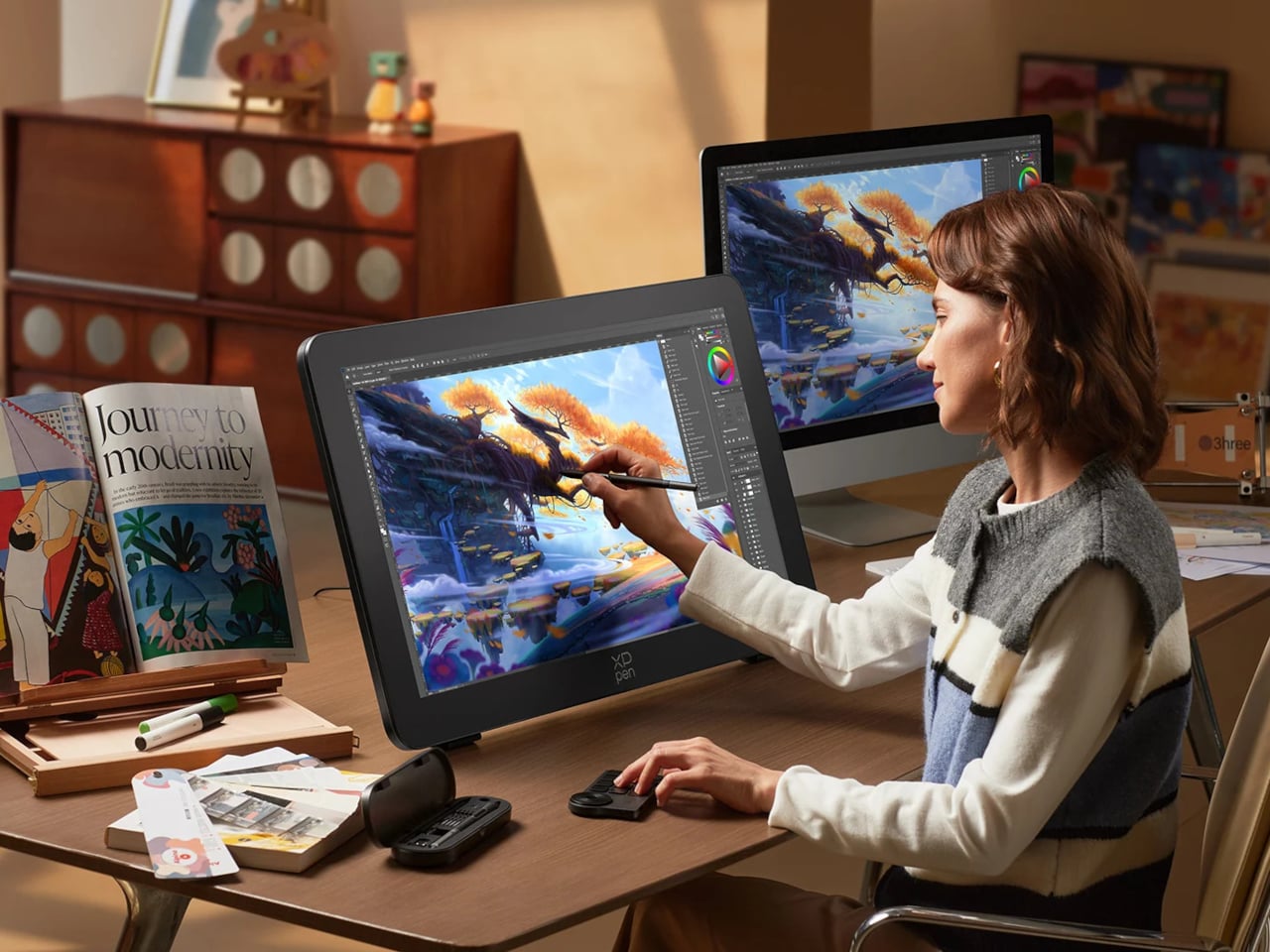
Finishing a piece of digital artwork only to discover that the colors on your client’s monitor look nothing like what you spent hours calibrating is a particular kind of frustration. It’s not dramatic. It just quietly drains trust in your tools and your process. The XPPen Artist Pro 27 (Gen 2) is a drawing display built around the premise that color accuracy, at a professional level, should be the starting point rather than an expensive add-on you negotiate into a purchase.
At 26.9 inches with a 3840×2160 resolution and a 120Hz refresh rate, the display gives designers, artists, and digital content creators sufficient room to work at a scale that feels genuinely close to physical media. That kind of canvas matters when you’re sketching compositions or reviewing color grading frame-by-frame on an animation timeline, where pixel-level decisions compound quickly, and a cramped workspace turns into a liability.
The color story is where XPPen is making the most aggressive claims. The 10-bit panel covers 99% of Adobe RGB and sRGB, and 97% of Display P3, all with a Delta E of less than 1, independently verified through Calman. For designers working across print, digital, and video deliverables simultaneously, that breadth matters more than any single gamut number. One device that holds accurate across three standards removes a class of color-management guesswork from the workflow entirely.
Getting there does require some setup. Activating the full 10-bit depth means going into display settings manually, and advanced color calibration through the bundled XPPen ColorMaster software requires a Calman colorimeter purchased separately. The hardware is capable; the software is ready. What XPPen doesn’t hand you automatically is the calibrated result itself, so buyers expecting out-of-the-box perfection should factor in that extra step and cost.
The display surface uses a new-gen luminous etched glass panel 0.7 mm thick, which XPPen claims offers 30% more light transmittance than its predecessor while keeping the anti-glare, paper-like texture. That texture is what keeps pen-on-glass from feeling clinical, and the thinner glass reduces the gap between pen tip and cursor, a physical detail that sounds minor until you’ve spent a session fighting it. Brightness is 350 nit, which positions this squarely as a studio tool.
Two styli ship with the unit: the X3 Pro Smart Chip Stylus with a standard silicone grip, and the narrower X3 Pro Slim Stylus, tapered at 26° to keep the tip in view during detailed line work. Both operate at 16,384 pressure levels with 3g activation force and 60-degree tilt sensitivity. A wireless shortcut remote with a 10 × 4 grid of programmable keys and a dial is also included, covering most of what keeps artists reaching for the keyboard mid-session.
The X-Touch multitouch system handles ten simultaneous touch points with native gesture support on Windows and macOS, customizable touch zones, and a floating shortcut menu accessible by gesture or button. Pen-priority mode suppresses accidental inputs while drawing. That last feature is the one that separates a touch-enabled display that genuinely fits a drawing workflow from one that just adds friction to it.
The usual night-vision experience involves green haze, grainy silhouettes, limited reach, and a red IR glow that gives you away the moment you turn on the illuminator. Most systems force you to choose between contrast and color, or between seeing far and staying invisible. The trade-offs are familiar enough that people who work or roam in the dark have learned to accept them, settling for monochrome when they need range or giving up clarity when they need stealth.
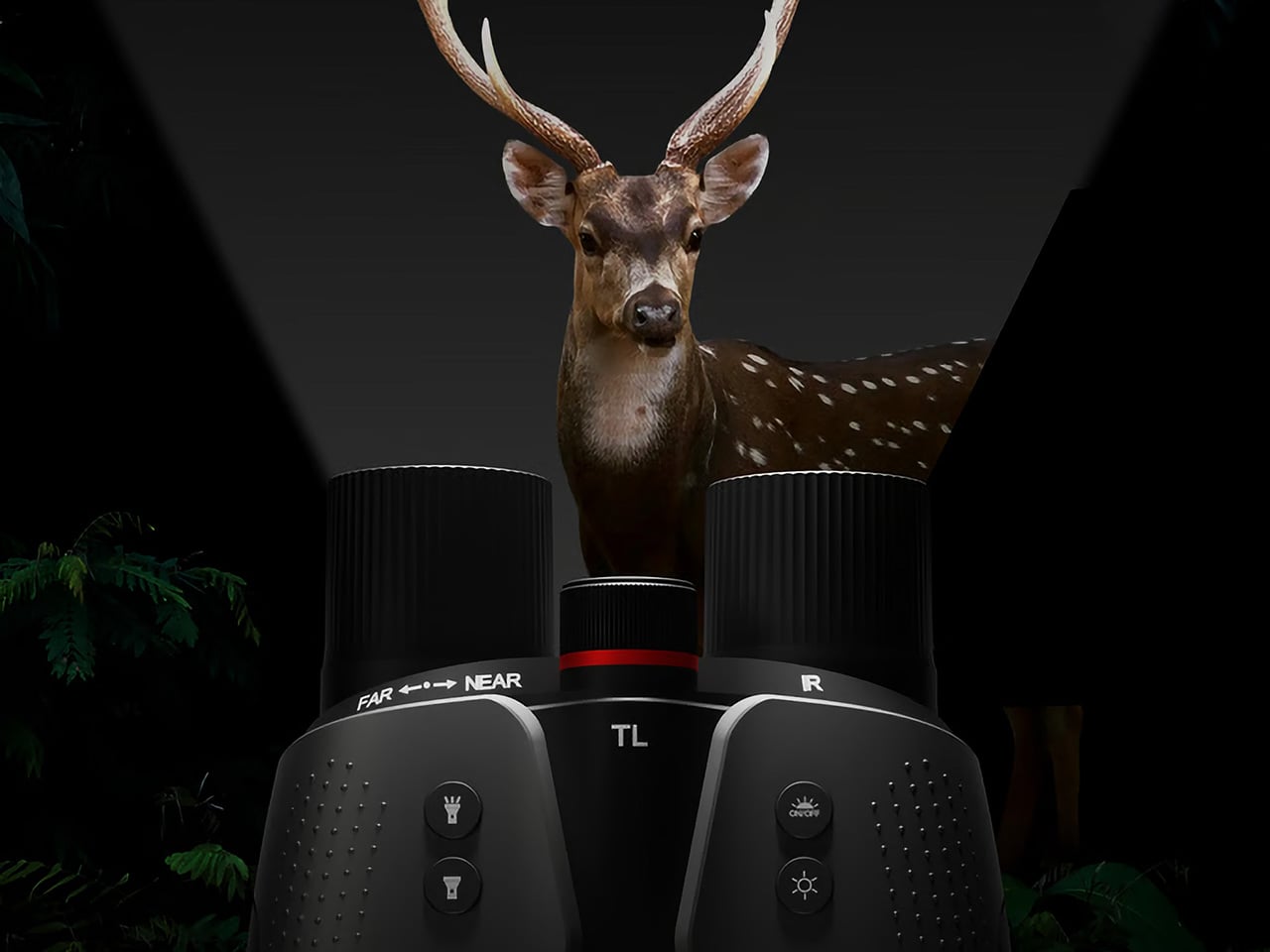
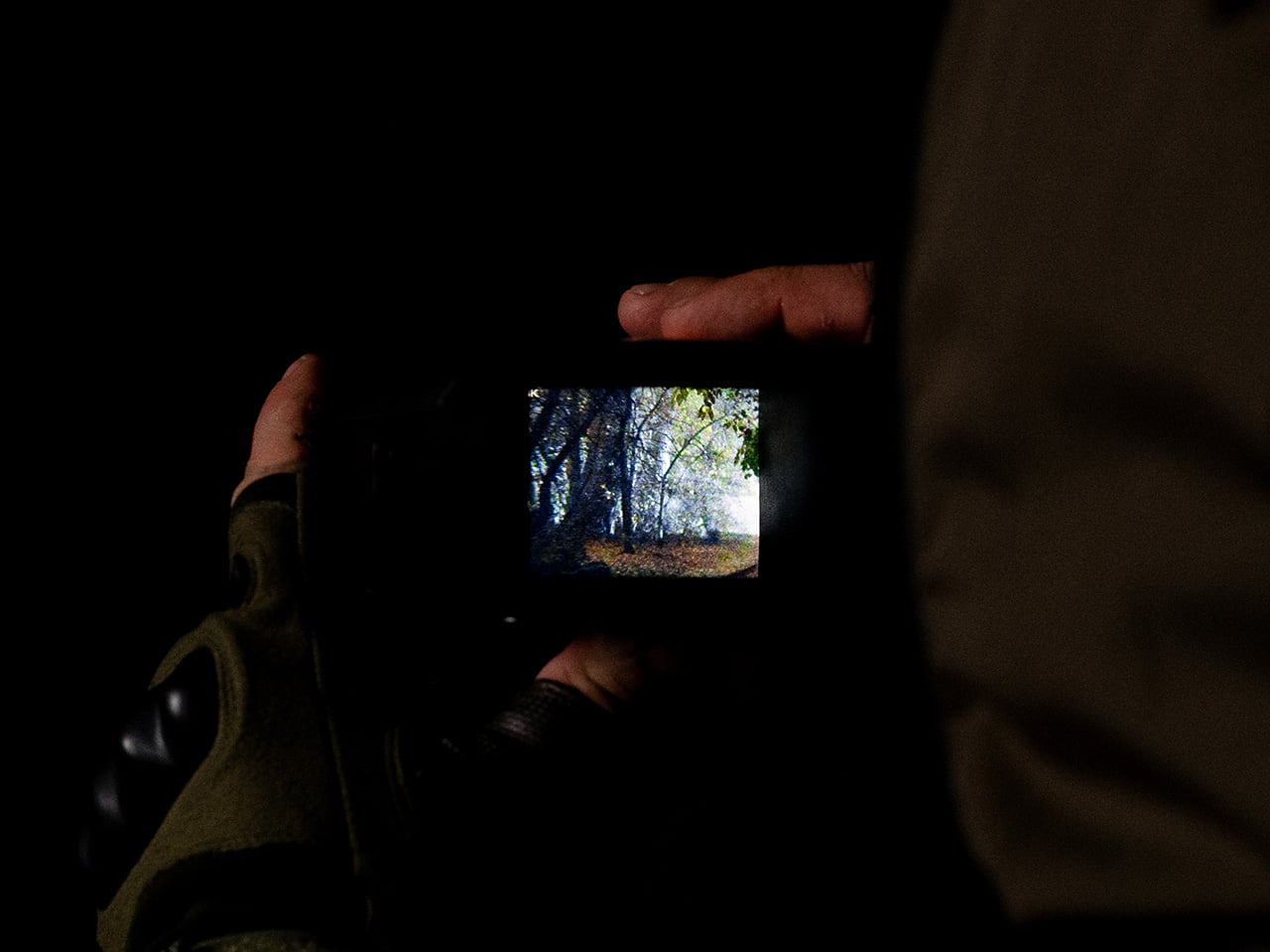
Night Storm X3 is aimed at people who move through the dark for work or passion and need more than a toy flashlight for their eyes. It is a binocular-style night-vision system that promises native 4K full-color imaging down to 0.0001 lux (10 times better than the previously industry-leading SONY Starvis), visibility out to 1,500m, and an invisible 950nm IR beam, all fused by a 20 TOPS AI engine in a rugged IP65 housing designed for long nights.
The Night Storm X3 is built around a ground-breaking architecture of not just one, but two proprietary 1-inch night vision CMOS sensors branded Luma-X and Chroma-X. One is a monochrome sensor that locks onto structure and edges in near-zero light, the other is a color sensor that pulls real color from light levels lower than starlight. The AI Neural Brain fuses them at the sub-pixel level, so you get both sharp contrast and natural color in a single 4K stream.
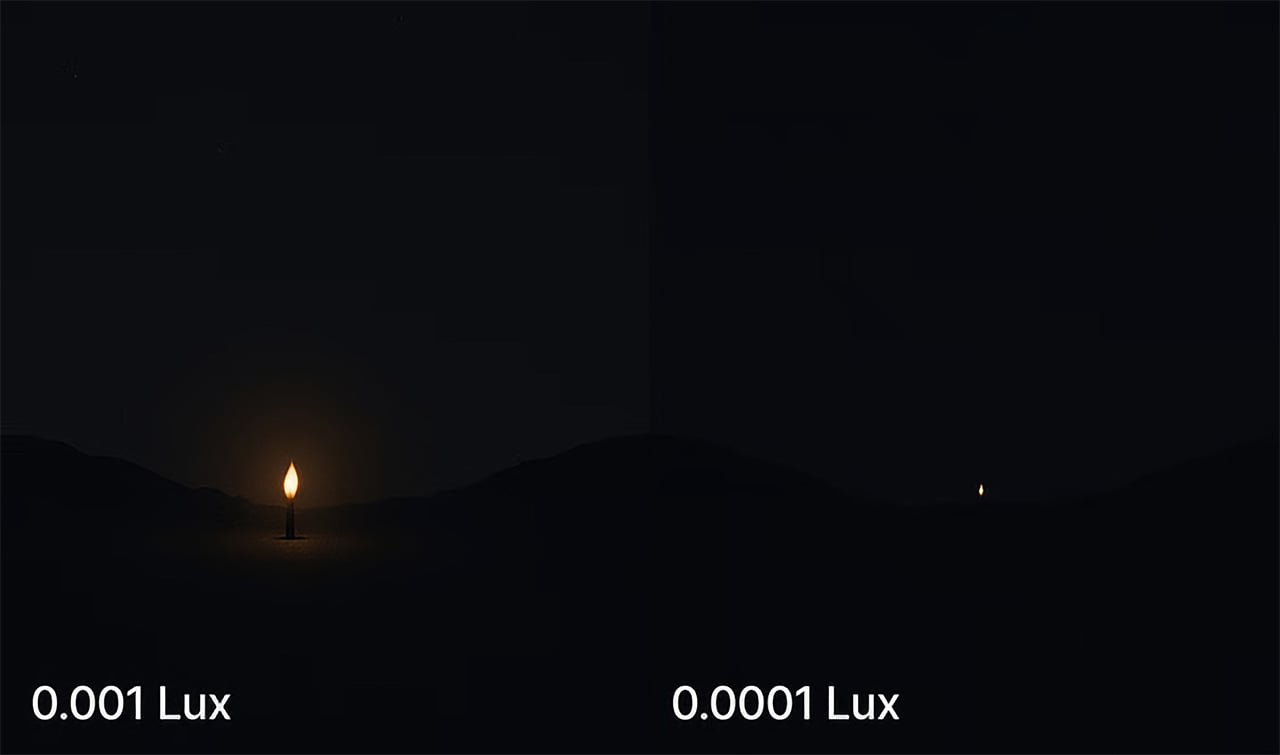
To understand what 0.0001 lux actually means, consider that a single candle at one meter is roughly one lux. By 0.001 lux, that glow is barely visible from 100m, and at 0.0001 lux it disappears to the naked eye. The Night Storm X3 still pulls full-color detail at that level, paired with optics tuned for a 13-degree field of view and 8x digital zoom, with minimal noise and interference thanks to its powerful AI imaging processing.
That optical system lets you scan valleys, fence lines, or shorelines up to 1,500m away. The narrow field of view, f/1.4 aperture, and 42mm focal length give you reach and detail rather than a wide panorama, which makes sense for tracking distant subjects or monitoring large open areas where you cannot physically move closer without being noticed or disturbing the scene.
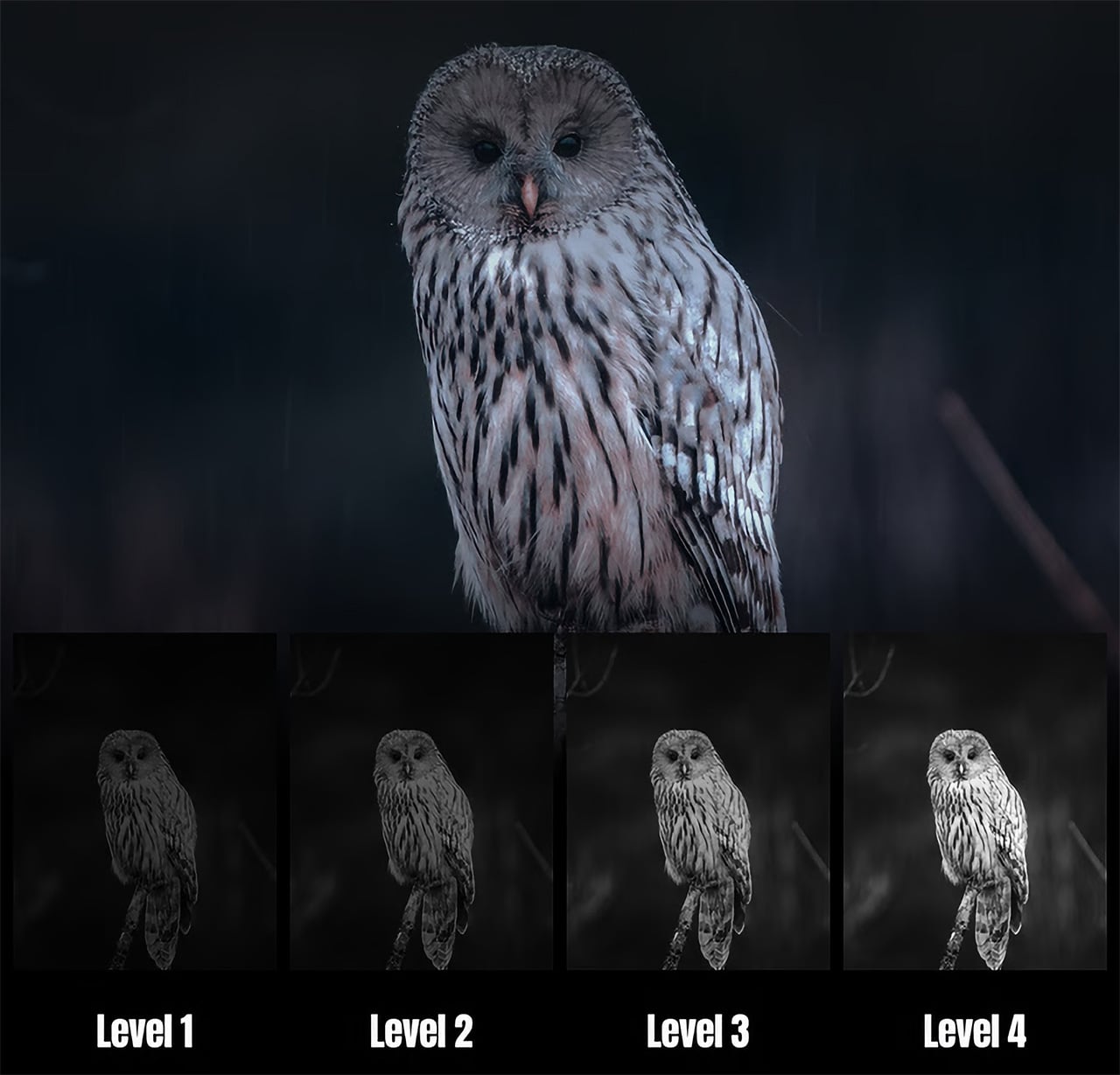
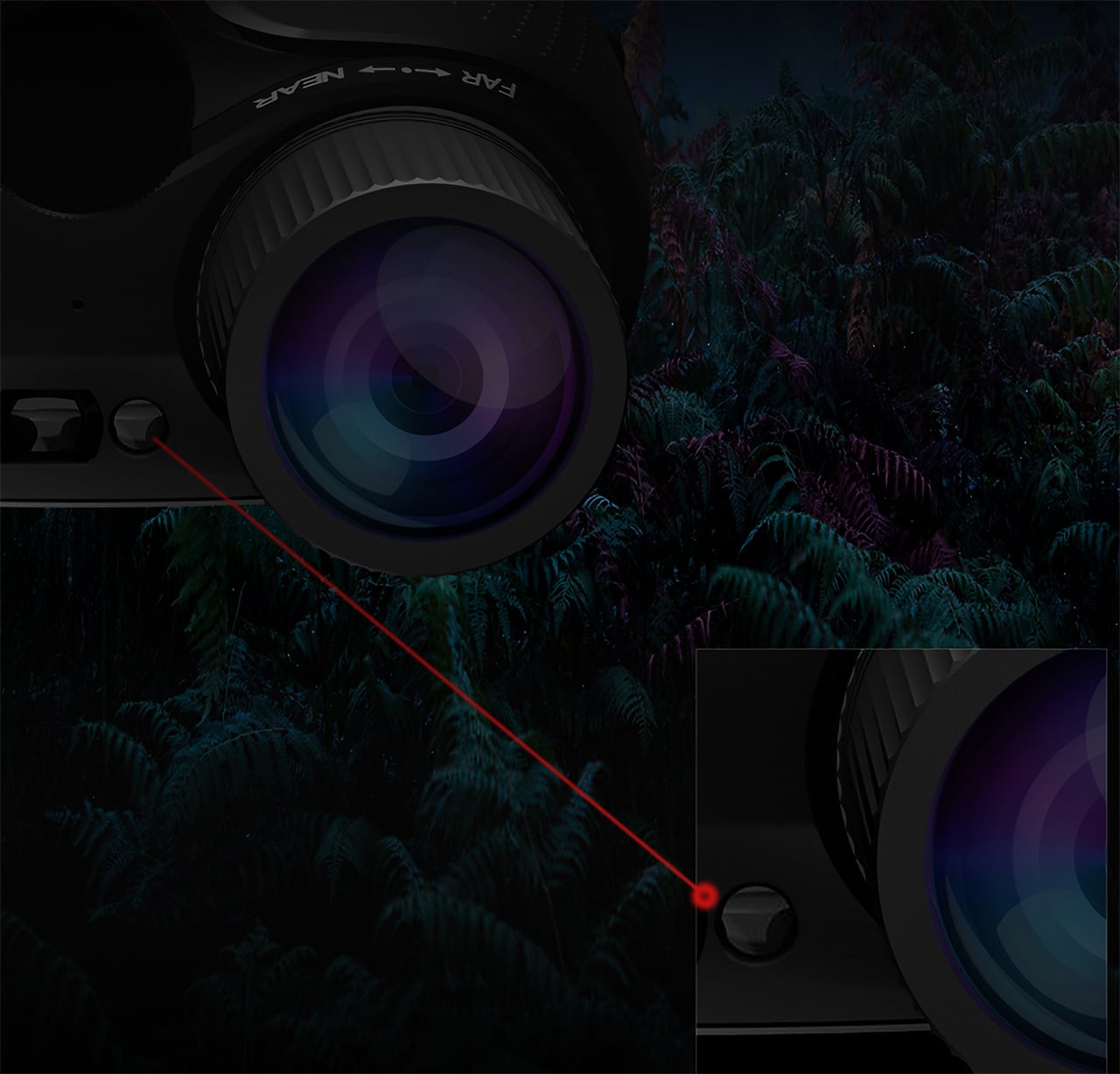
Older 850nm IR systems throw a visible red glow that is easy to spot and can spook animals or reveal your position. The Night Storm X3 uses a boosted 950 nm infrared system that stays invisible to humans and nearly undetectable to most animals. It provides powerful monochrome visibility up to 1,500m in 0-lux conditions, with four adjustable brightness levels to tune illumination and stay hidden.
The Pro model adds a built-in laser range finder that measures distance, angle, and drop up to 1,500m with a digital crosshair. Pair that with true 4K video and 52 MP stills, saved straight to a TF card at full resolution, and the X3 becomes a documentation tool. For professional night photographerx and animal observers, the built in LRF helps pin point distance of the objects down to the accuracy of centimetres, greatly enhance the overall performance and situation awareness. You can track animal patterns, log security incidents, or review what happened in a search corridor after the fact.
The 5,100 mAh battery and efficient NPU give you up to 24 hours of operation with IR off, enough to cover an entire night without swapping cells. The close-to-eye viewfinder feels more like binoculars than a screen at arm’s length, reducing fatigue during long sessions. The IP65 rating and -20 to 50 degree operation keep it running when you are out in harsh conditions for hours.
Built-in Wi-Fi and the DVX app let you stream, capture, and review footage from a phone, and TF card support up to 512GB gives you room for long sessions. Illuminated controls, audible alerts, a tripod mount, and a tactical light with constant and strobe modes slot into existing workflows without forcing you to reinvent how you work or carry extra accessories.
Night Storm X3 brings together dual sensors, AI fusion, stealth IR, and industrial design into something that feels like a serious tool rather than a gadget. It is built around the needs of people who spend long stretches in the dark and need color, range, and confidence. For anyone who has run out of battery mid-watch, squinted at grainy green footage, or been given away by a glowing IR emitter, the Night Storm X3 reads less like an incremental upgrade and more like the kind of gear that quietly changes what you can do when the sun goes down.
Getting a laptop or tablet onto a TV or projector usually involves digging for the right cable, switching inputs, or wrestling with built-in casting that drops connections at the worst moment. This happens in meeting rooms, classrooms, and living rooms, turning simple screen sharing into a minor technical puzzle. A small, dedicated wireless bridge feels like a relief when it just works without software or setup rituals that waste five minutes before anything appears.
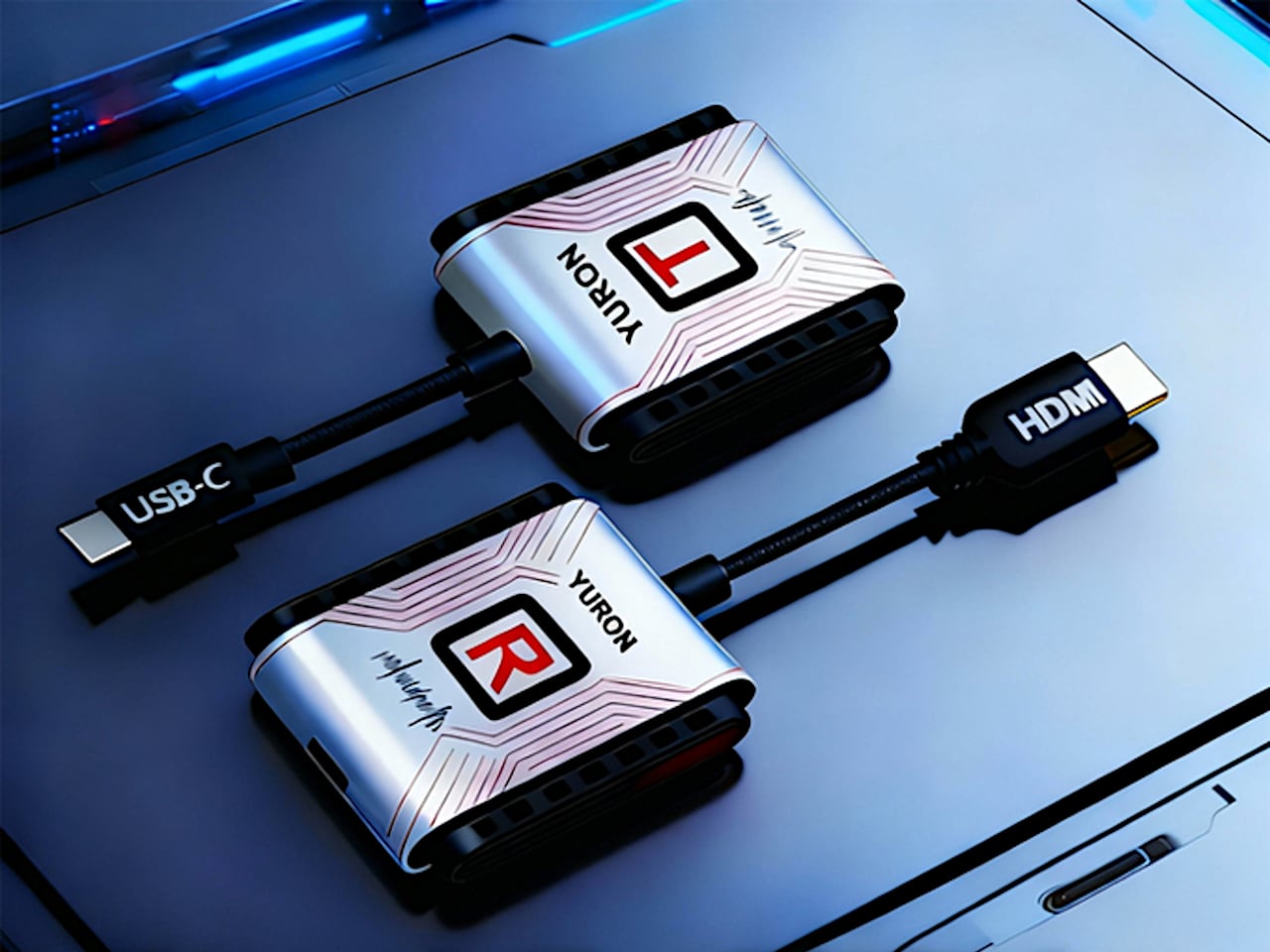
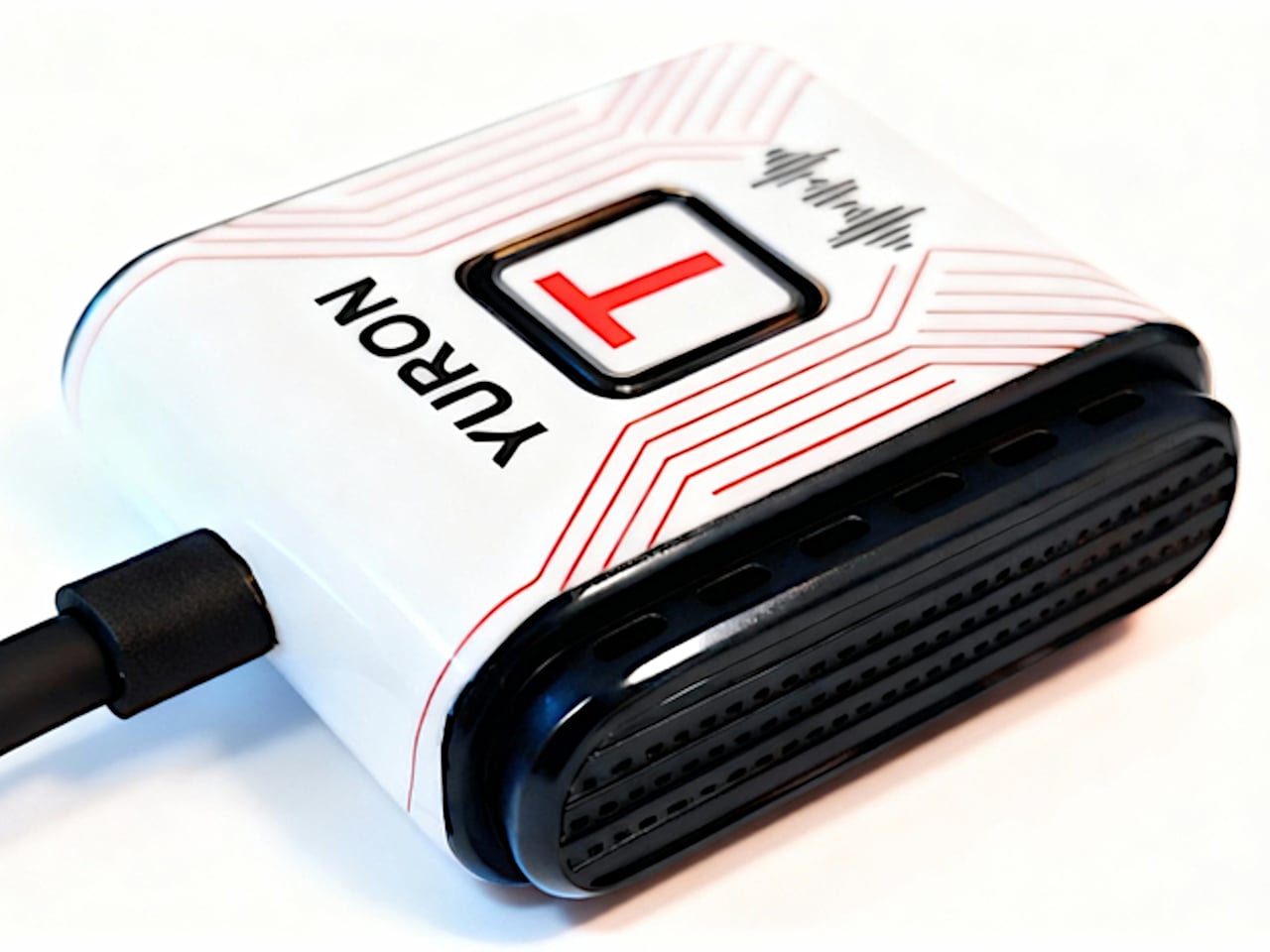
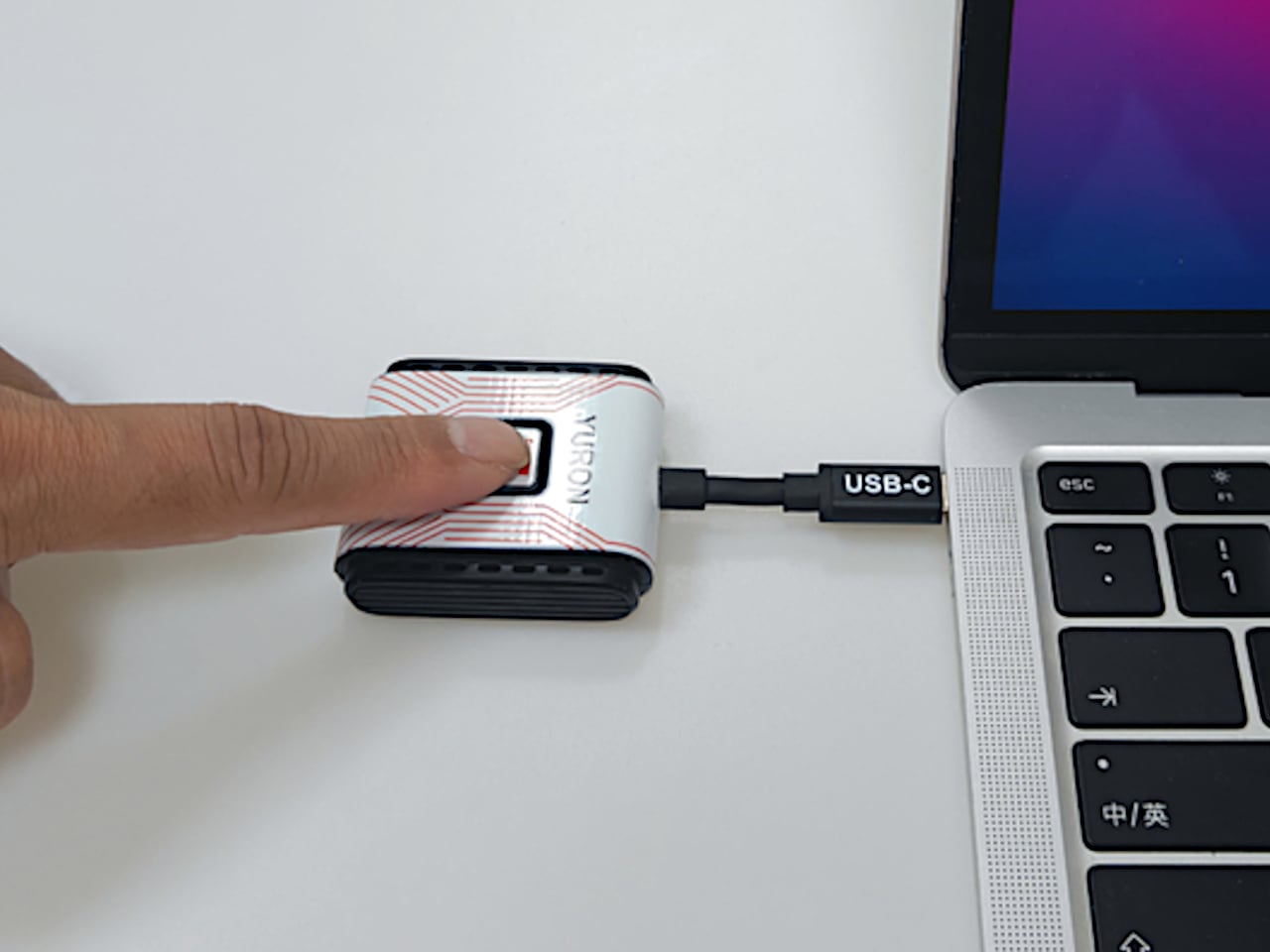
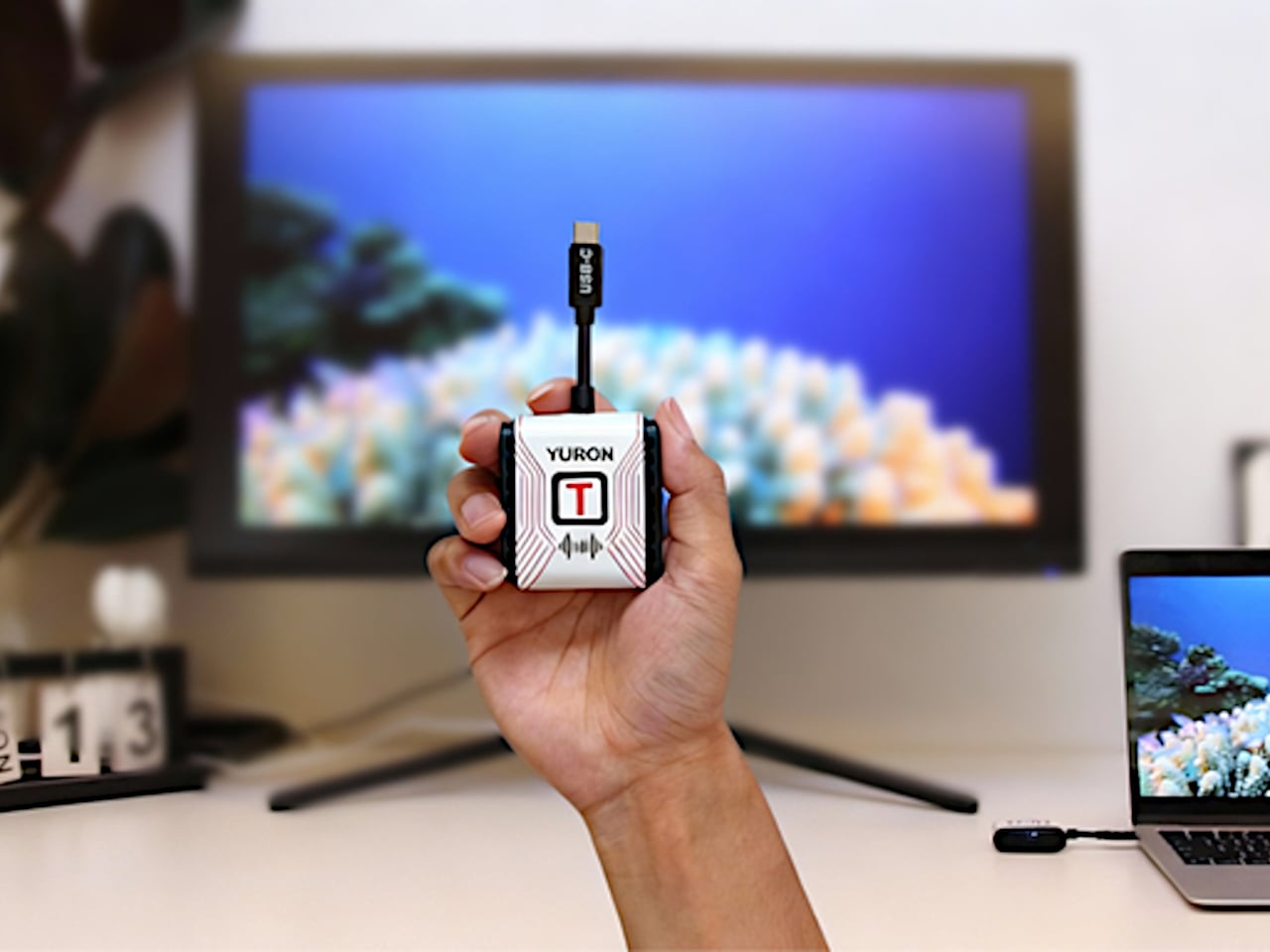
YURON is a plug-and-play 4K transmitter and receiver pair that lives in a bag or drawer until needed. One end plugs into a device over USB-C or HDMI, the other into a display’s HDMI port, and the link comes up automatically over its own 5G Wi-Fi connection. No apps, no pairing, no joining a network, just a direct path for video and audio that starts working the moment both sides power on.
YURON handles 4K 60 Hz HDR10 video up to 45 m, using H.265 compression, adaptive 5G Wi-Fi, and error correction to keep the picture smooth. It is fast enough for presentations, movies, and casual gaming, with audio and video traveling together, so there is no awkward lag. The point is to make the wireless link feel as transparent as a cable, without the cable running across the floor or desk.
Walking into a meeting room or classroom, you plug the receiver into the display once, then let different laptops or tablets take turns with the transmitter. YURON supports both mirror and extended modes, so someone can present slides on the big screen while keeping notes or chat on their own display. The 45 m range means it works in larger rooms without needing to huddle near the projector.
In a living room or dorm setup, a laptop, handheld console, or streaming box can send 4K content to a TV without an HDMI run. The low latency and 60 Hz refresh make it comfortable for games and sports, and the lack of app dependencies means guests can plug in and share videos or photos without installing anything. It becomes a quiet upgrade to movie nights and couch sessions.
The one-click control lets you cut the link instantly from the transmitter, useful when switching between apps with sensitive content or when you want to check something privately before sharing it again. A single receiver can pair with up to eight transmitters, with a button press cycling through them. In a studio, office, or classroom, multiple people can share the same screen without swapping cables or logging into accounts.
The hardware is compact and light enough to live on a key shelf or in a laptop sleeve, with a USB-C port that supports up to 100W Power Delivery, so a laptop can stay charged through the same connection. The internal cooling design, with multiple thermal zones and ventilation holes, keeps performance stable during long 4K sessions. It is the kind of detail that makes a small device feel engineered rather than improvised.
YURON turns screen sharing from a minor technical hurdle into something almost invisible. Instead of planning around cables or hoping a TV’s casting feature cooperates, you plug in a small pair of devices and treat any display as if it were directly connected. For people who move between work, study, and play, that kind of quiet reliability is often what makes a tool worth keeping in the bag, especially when the alternative is fumbling with adapters or explaining why the screen is still blank three minutes after the meeting was supposed to start.
The modern desk is a patchwork of small compromises. Your laptop has two USB-C ports, but you need displays, a wired network, external storage, and constant charging. That leaves you juggling dongles and adapters, with media controls and privacy shortcuts buried in software menus or keyboard combinations you can never quite remember. The setup works, but it never feels tidy or intentional, just workarounds gradually spreading across your workspace.
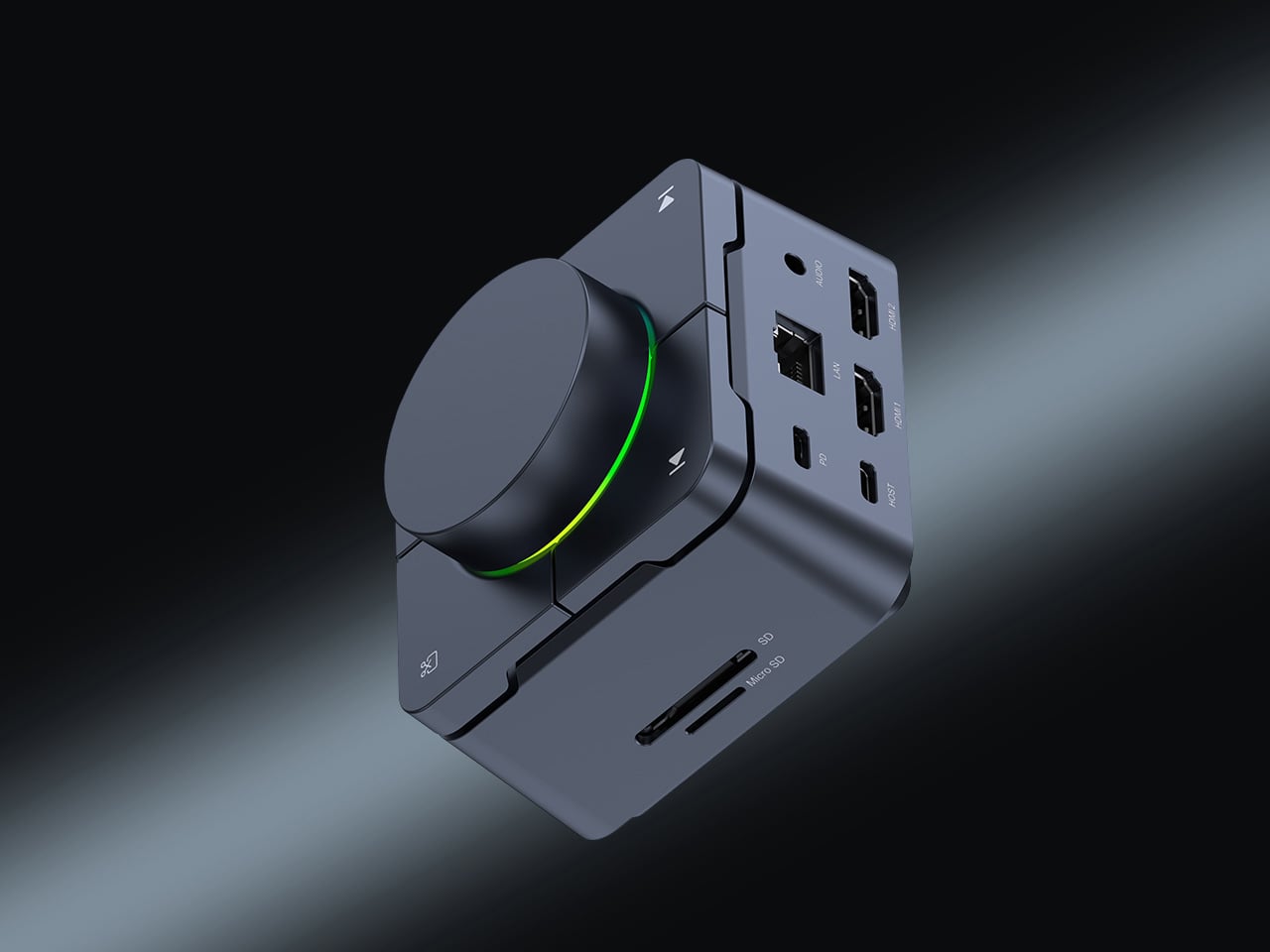
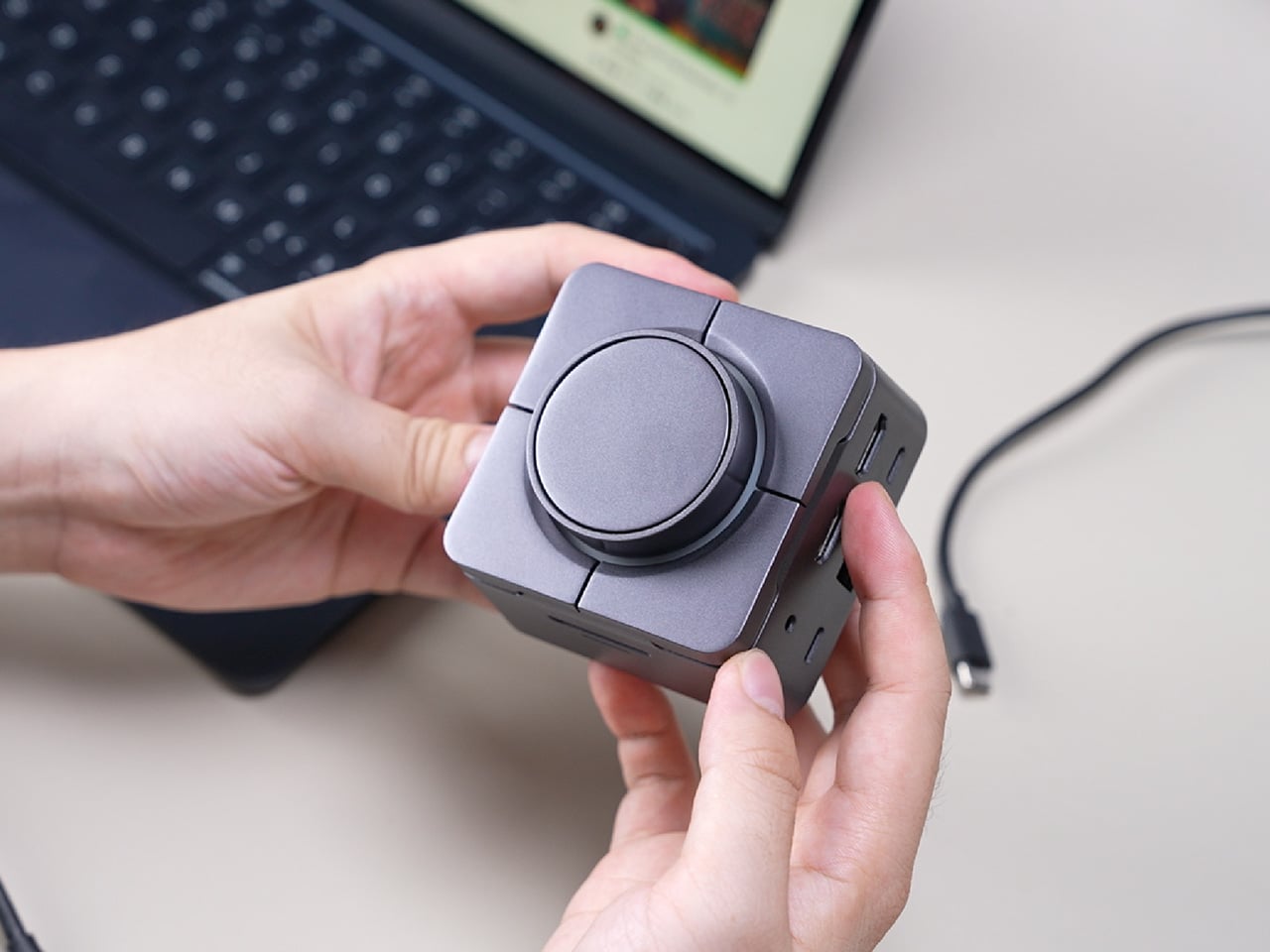
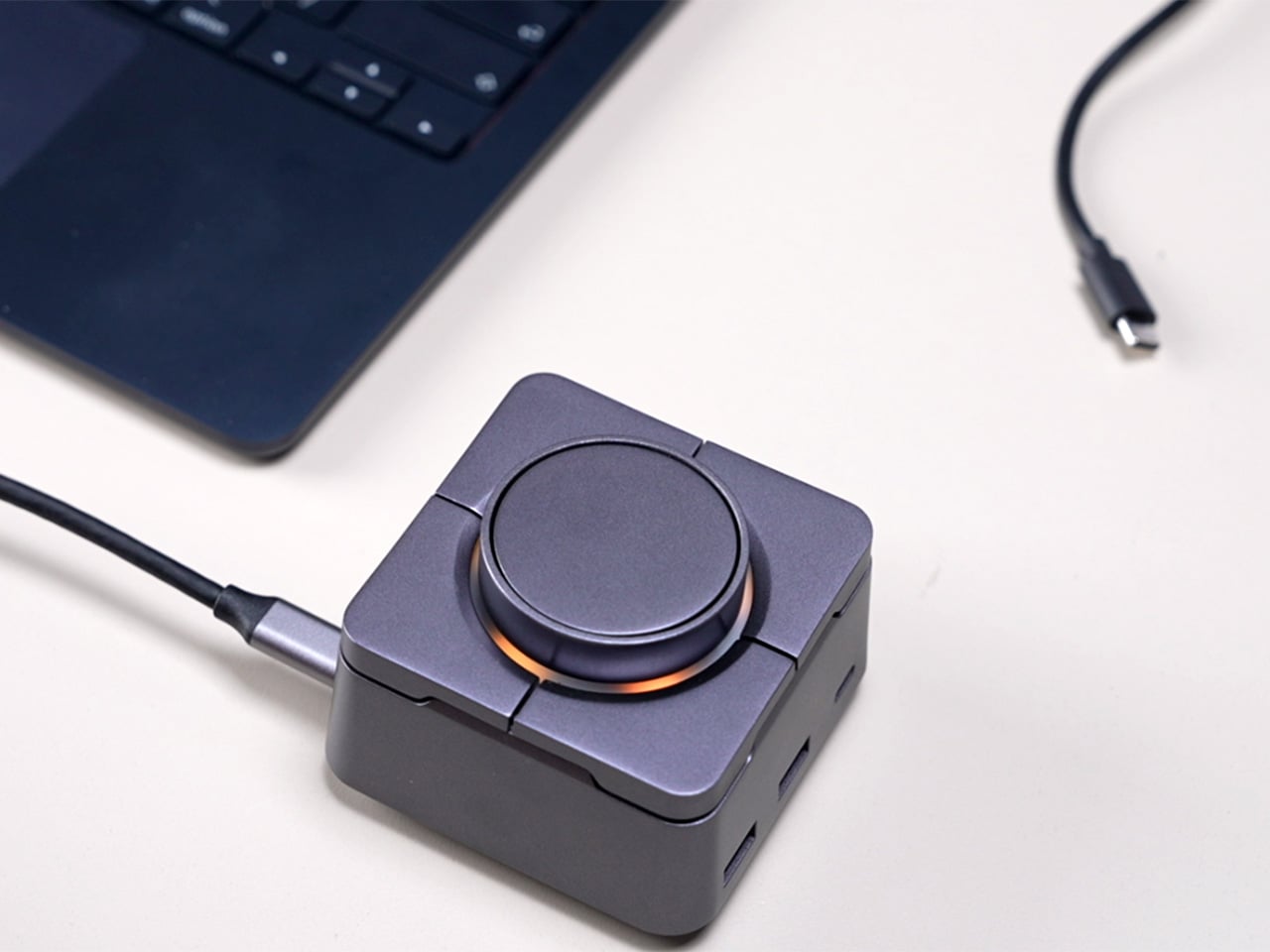
HubKey Gen2 tries to pull those pieces together in a single compact cube that sits within arm’s reach. It’s both an 11-in-1 USB-C hub and a small hardware control surface, with four shortcut keys and a central knob on top. The idea is to handle displays, power, storage, network, and a handful of everyday actions from one place, turning a desk full of little fixes into something more coherent.
The most requested improvement for this version was better display support and five keys which can be fully customized. HubKey Pro 2 now offers two HDMI ports, each capable of driving a 4K display at 60Hz. That means a laptop can suddenly run a pair of high-resolution monitors smoothly, turning a cramped single-screen setup into a proper workspace for editing timelines, keeping reference material open, or spreading code and documentation across both panels without stuttering.
Between the USB-A 3.1 and USB-C 3.1 ports at up to 10 Gbps, SD and TF card slots, a 2.5 Gbps Ethernet port, 3.5 mm audio jack, and a dedicated 100 W USB-C PD port, HubKey Pro 2 can replace a whole handful of adapters. One cable from the hub to your laptop or handheld PC brings everything else online, from wired internet to external drives and dual displays, cutting down on the usual cable mess.
The top panel is where the shortcut side comes in. Four keys and a central knob are mapped to actions like volume and mute, screen lock, display off, screenshot, and lighting control. Instead of hunting through menus or remembering key combinations, you can twist the knob to adjust sound, tap a key to blank the monitor when someone walks by, or grab a screenshot with a single press.
Under the surface, the shortcut side goes deeper than a few hard-wired functions. A built-in driver unlocks five preset systems with 170 fixed combinations, plus a sixth mode where you can fully customize the key bindings. When you plug HubKey Gen2 into your machine, a settings interface pops up automatically, letting you assign shortcuts, macros, and key sequences in a few clicks.
For basic use there are no drivers to hunt down; it’s plug-and-play with Windows, macOS, Linux, and even devices like the Steam Deck, while the optional driver adds a deeper layer of customization when you want to fine-tune the keys. The internal circuitry and firmware have been tuned for faster recognition and more stable power delivery, and the press logic for Windows and macOS has been refined to reduce delays or misfires.
The 100W USB-C PD port can keep a laptop charged while the hub is driving dual 4K displays and handling data transfers. The The 10 Gbps USB ports and card readers make moving large files feel less like a chore, especially for photographers and video editors who are constantly offloading cards. The goal is to reduce the number of separate chargers and adapters that need to live on the desk.
Of course, the central knob has a smooth feel when you adjust volume, and the integrated LED ring can be dimmed or toggled with a key. The lighting adds a bit of atmosphere without turning the hub into a light show, and the compact form factor means it can sit next to a keyboard or under a monitor without demanding attention when you’re not actively using it.
HubKey Gen2 doesn’t claim to replace a full keyboard or a studio-grade dock, but it does try to make a typical laptop-based setup feel more intentional. By combining dual 4K display support, a full spread of ports, and a handful of physical controls in one small object, it turns a desk full of little compromises into something more coherent and easier to live with.
We spend a lot of time staring at our screens, so it’s worth finding one that actually feels good to use. The right monitor can make your desk setup feel faster, brighter and easier on the eyes, whether you’re deep into spreadsheets, watching a show or chasing higher frame rates in your favorite game.
What the best monitor means, though, depends on what you do. Gamers might want smooth, fast refresh rates. Creators usually prioritize color accuracy. Office workers and students just need something clear, comfortable and reliable. Thankfully, monitors in 2025 cover all of those needs, with options that range from compact 24-inch displays to massive ultrawides built for serious multitasking.
We’ve tested a variety of monitors across price ranges and use cases to find the ones that stand out for everyday use. No matter your budget, setup or screen-size preference, these are the monitors that make your PC, and your time in front of it, a little better.
The cheapest monitors are still TN (twisted nematic), which are strictly for gamers or office use. VA (vertical alignment) monitors are also relatively cheap, while offering good brightness and a high contrast ratio. However, content creators will find that LCD, IPS displays (in-plane switching) deliver better color accuracy, pixel density, picture quality and wide viewing angles — making them a strong option for general computer monitor use.
If maximum brightness is important, a quantum dot LCD display is the way to go — those are typically found in larger displays. OLED panels are now available and offer the best blacks and color reproduction, but they lack the brightness of LED or quantum dot displays. Plus, they’re expensive. The latest type of OLED monitor, called QD-OLED from Samsung, is now common among gaming monitors. The most notable advantage is that it can get a lot brighter, with recent models hitting up to 1,000 nits+ of peak brightness.
MiniLEDs are now widely used in high-end displays. They’re similar to quantum dot tech, but as the name suggests, it uses smaller LED diodes that are just 0.2mm in diameter. As such, manufacturers can pack in up to three times more LEDs with more local dimming zones, delivering deeper blacks and better contrast. MiniLED displays also tend to offer excellent backlight control, making them a great choice for HDR content and video editing.
Screen size, resolution and display format
Where 24-inch displays used to be more or less standard (and can still be useful for basic computing), 27-, 32-, 34- and even 42-inch displays have become popular for entertainment, content creation and even gaming these days.
Nearly every monitor used to be 16:9, but it’s now possible to find 16:10 and other more exotic display shapes. On the gaming and entertainment side, we’re also seeing curved monitors and widescreen ultrawide monitors with aspect ratios like 21:9. If you do decide to buy an ultrawide display, however, keep in mind that a 30-inch 21:9 model is the same height as a 24-inch monitor, so you might end up with a smaller display than you expected.
A 4K monitor is nearly a must for content creators, and some folks are even going for 5K or all the way up to 8K. Keep in mind, though, that you’ll need a pretty powerful computer with a decent graphics card to drive all those sharp pixels. And 4K higher resolution should be paired with a screen size of 27 inches and up, or you won’t notice much difference between 1440p. At the same time, I wouldn’t get a model larger than 27 inches unless it’s 4K, as you’ll start to see pixelation if you’re working up close to the display. That’s when a lower resolution monitor shows its limits.
One new monitor category to consider is portable monitors designed to be carried and used with laptops. Those typically come in 1080p resolutions and sizes from 13-15 inches. They usually have a lightweight kickstand-type support that folds up to keep things compact and maximize portability and functionality.
HDR
HDR adds vibrancy to entertainment and gaming – but be careful before jumping in. Some monitors that claim HDR on their marketing materials don’t even conform to a base standard. To be sure that a display at least meets minimum HDR specs, you’ll want to choose one with a DisplayHDR rating with each tier representing maximum brightness in nits.
However, the lowest DisplayHDR 400 and 500 tiers may disappoint you with a lack of brightness, washed out blacks and mediocre color reproduction. If you can afford it, the best monitor to choose is a model with DisplayHDR 600, 1000 or True Black 400, True Black 500 and True Black 600.
Where televisions typically offer HDR10 and Dolby Vision or HDR10+, most PC monitors only support the HDR10 standard, other than a few (very expensive) models. That doesn’t matter much for content creation or gaming, but HDR streaming on Netflix, Amazon Prime Video and other services won’t look quite as punchy. In addition, the best gaming monitors are usually the ones supporting HDR600 (and up), rather than content creation monitors – with a few exceptions.
Refresh rate
High refresh rate is a key feature, particularly on gaming monitors. A bare minimum nowadays is 60Hz, and 80Hz and higher refresh rates are much easier on the eyes. However, most 4K displays top out at 60Hz with some rare exceptions and the HDMI 2.0 spec only supports 4K at 60Hz, so you’d need at least DisplayPort 1.4 (4K at 120Hz) or HDMI 2.1. The latter is now available on a number of monitors, particularly gaming displays. However, it’s only supported by the latest NVIDIA RTX 3000- and 4000-series, AMD RX 6000-series GPUs. Support for G-Sync and AMD FreeSync is also something to look for if you want to eliminate screen tearing and stuttering during fast-paced gameplay — especially when paired with a high refresh rate.
Inputs
There are essentially three types of modern display inputs: Thunderbolt, DisplayPort and HDMI. Most monitors built for PCs come with the latter two, while a select few (typically built for Macs) will use Thunderbolt. To add to the confusion, USB-C ports may be Thunderbolt 3, and by extension, DisplayPort compatible, so you may need a USB-C to Thunderbolt or DisplayPort cable adapter depending on your display.
Color bit depth
Serious content creators should consider a more costly 10-bit monitor that can display billions of colors. If budget is an issue, you can go for an 8-bit panel that can fake billions of colors via dithering (often spec’d as “8-bit + FRC”). For entertainment or business purposes, a regular 8-bit monitor that can display millions of colors will be fine.
Color gamut
The other aspect of color is the gamut. That expresses the range of colors that can be reproduced and not just the number of colors. Most good monitors these days can cover the sRGB and Rec.709 gamuts (designed for photos and video respectively). For more demanding work, though, you’ll want one that can reproduce more demanding modern gamuts like AdobeRGB, DCI-P3 and Rec.2020 gamuts, which encompass a wider range of colors. The latter two are often used for film projection and HDR, respectively.
Monitor FAQs
Is OLED better than mini-LED for monitors?
OLED is better than mini-LED in many areas but not all. Here are the advantages of OLED panels:
OLED monitors don't have any "blooming" or halos around bright parts of the image.
OLEDs have blacks with zero brightness, which is not achievable on mini-LED. That means they also have higher contrast ratios.
OLEDs consume less energy.
OLEDs have faster response times for gaming.
And here are the advantages of mini-LED monitors:
They are brighter (often much brighter), so it can be better for HDR content.
They don't suffer from burn-in like OLED can.
What size monitor is best for a home office?
This depends on the individual. For normal use, 27-32 inches is the sweet spot. If you're one who likes many windows open at a time (like a stock broker), then you might want to go up to 37 or even 42 inches.
Are curved monitors worth it for gaming?
If you need as much speed as possible, a curved monitor lets you rapidly look around the screen without changing focus or moving your head as much compared to a flat screen. It also provides more immersion. The drawback is that curved displays tend to be wider so they take up more desk space. They're also generally more expensive.
This article originally appeared on Engadget at https://www.engadget.com/computing/accessories/best-monitor-130006843.html?src=rss