Probably my favorite thing about the Lego Smart Play system unveiled this week at CES is that it was designed for kids, first and foremost. In the past 10 years or so, Lego has increasingly courted an older audience with more expensive and elaborate sets. But when it was time to bring more advanced technology to Lego, the idea right from the beginning was more social and interactive play.
If you haven’t heard about Smart Play yet, its a way for Lego to make its sets more interactive. A Smart Brick filled with sensors makes it so sets can respond to each other, know when they’re moving, play sounds and know when the corresponding Smart Minifigures are near them. Tiny Smart Tags, meanwhile, help the Smart Brick know the context of how it’s being used — whether it’s in a helicopter, car or duck for example.
Tom Donaldson, senior VP and Head of Creative Play Lab at the LEGO Group, told Engadget that the company worked on Smart Play for about eight years before introducing it this week, and that social play was the starting point. “We started really looking at consumer needs, and this idea that kids really like social play,” said Donaldson “Kids really like the sort of things that change when they come back to them, and the kids really like agency. They want to be able to change things.”
Lego's Tom Donaldson demoing Smart Play at CES.
LEGO
But a big part of the creation process was making the Smart Brick as flexible and powerful as possible and then seeing what scenarios could take advantage of it. “We wanted to build a really powerful platform,” he said. “What we shouldn't do is say, ‘this is what we think we're gonna need.’ We needed to say, ‘let's create something that has a lot of capabilities that we can then figure out how to use.’”
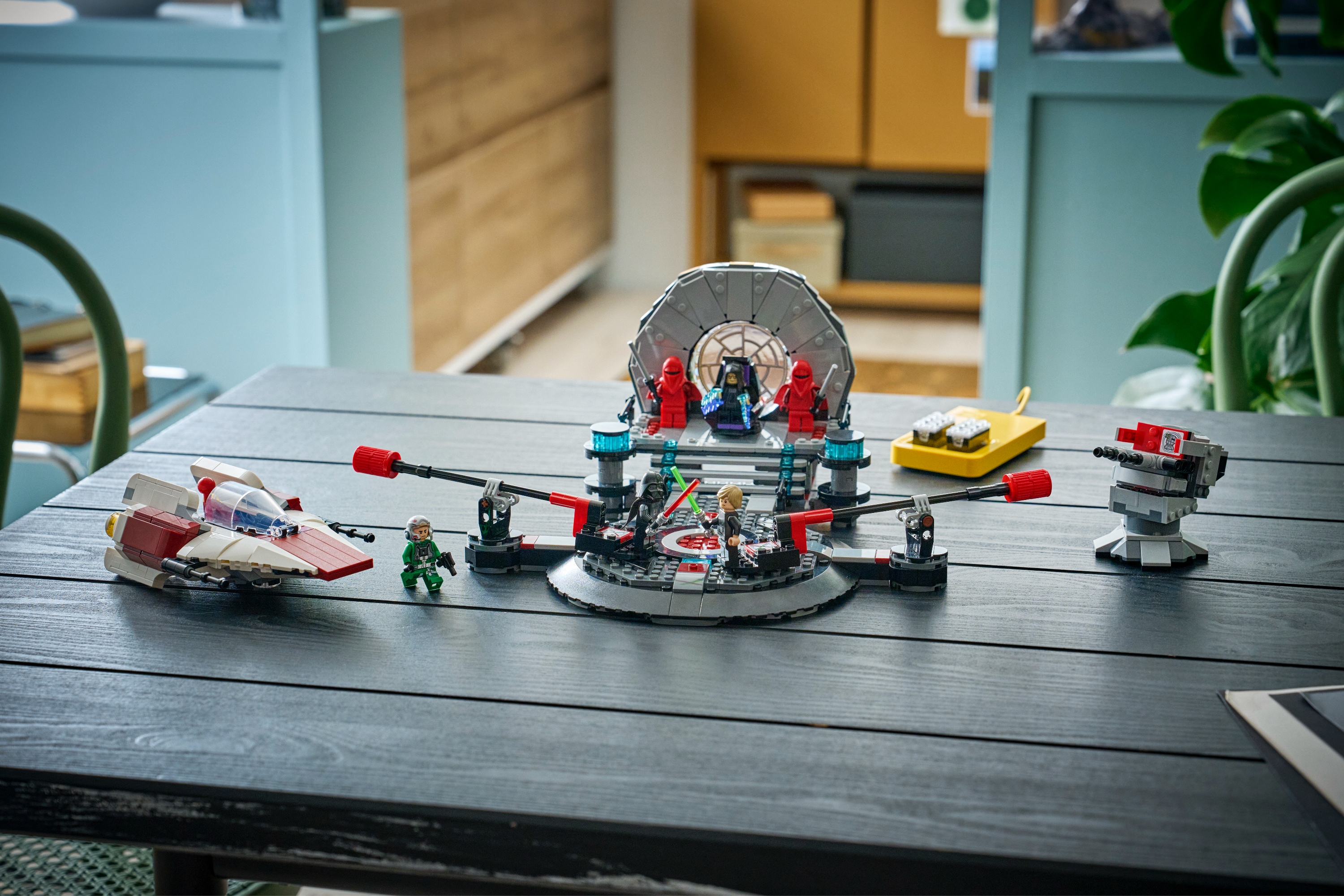
One of the conflicts with the tech-packed Smart Play system, though, might be the cost. Obviously, Lego has been successful at most ventures it has undertaken in recent years, but the pricing of Smart Play sets could make adoption a bit challenging. The biggest Smart Play set, Star Wars Throne Room Duel & A-Wing, for example, has almost 1,000 pieces and costs $160. That’s quite a bit more than comparably sized sets. The dual factors of the Star Wars license and Smart Play tech certainly impacted the cost.
Lego Smart Play Star Wars set
LEGO
The set includes two Smart Bricks, five Smart Tags and three Smart Minifigures, the most “smart” gear included in any of the initial three Star Wars Smart Play sets. Will parents shell out for the more advanced capabilities that Smart Play offers, or will they stick with standard sets?
For now, Lego is betting the extremely broad appeal of Star Wars will help these new Smart Play sets find an audience. About three years ago, Lego got its team focused on the Star Wars franchise involved, as well as Lucasfilm, to figure out how to roll Smart Play out to the world. “Very early on, we all decided that starting with the original trilogy would be great,” said Derek Stothard, Disney’s Director of Global Licensing “These are such well-known scenes and characters, and they cross generations, so parents can introduce them to their kids. All that works really well together.”
Unsurprisingly, Lego is being coy about where things go beyond the initial three Star Wars sets, but it’s clear that after eight years of development, they’ll want to bring it to as many product lines as possible. “We're announcing a platform that you can see has tremendous growth [potential], Donaldson said. “We made the analogy with the minifigure as something that you’ll see across the entire [Lego] system, maybe not in every single SKU but it’ll reappear in many different places. But ultimately we're a company that really focuses on giving kids what they want, what they love, and we'll have to see how it lives in a market.”
That last point about how it lives in the market is a good one, particularly given the pricing. We probably won’t know for sure until Lego moves beyond the safe confines of Star Wars and really shows us what Smart Play can do across more varied scenarios. And going to non-licensed sets might be where Smart Play really takes off — it’s easy to imagine a cheaper Smart Play add-on kit that can bring sets to life at a lower cost. But the idea of transforming anything kids create into something more interactive has a ton of potential if Lego can broaden its appeal beyond Star Wars fans.
This article originally appeared on Engadget at https://www.engadget.com/entertainment/lego-is-trying-to-make-tech-invisible-with-smart-play-130000979.html?src=rss
Lego’s Smart Play system announced at CES 2026 earlier this week is a new embrace of digital technology that we haven’t seen from the company before. While the demo Lego gave at its press conference on Monday was a good start to showing what Smart Bricks are capable of, it really isn’t a substitute for seeing it in person. I was able to get an extended demo that answered many of my questions about how the system will work once Lego fans of all ages get their hands on the first Smart Play sets.
As I detailed yesterday, the Smart Play system contains three elements. The Smart Brick is packed with technology like proximity sensors, an accelerometer, color sensors and a speaker, all powered by a tiny chip. It’s crucial to know that each Smart Brick is identical at this point; to really bring a set to life, you need to combine it with Smart Tags or Smart Minifigures. Both the Tags and Minifigures contain specific instructions that help the Brick understand the context that it is placed in.
The demo started out simply, with three small Lego builds: a car, a helicopter and a duck. Each of those builds had a unique Smart Tag that the Smart Brick uses to understand how it should respond to real-world stimulus. The car started making the sound of a revving engine, and when playing with it to drive it faster and more aggressively, the engine made more noise. Tilting the car would cause it to make some screeching sounds as if it was taking corners hard, and flipping it over would make the sound of a car wreck.
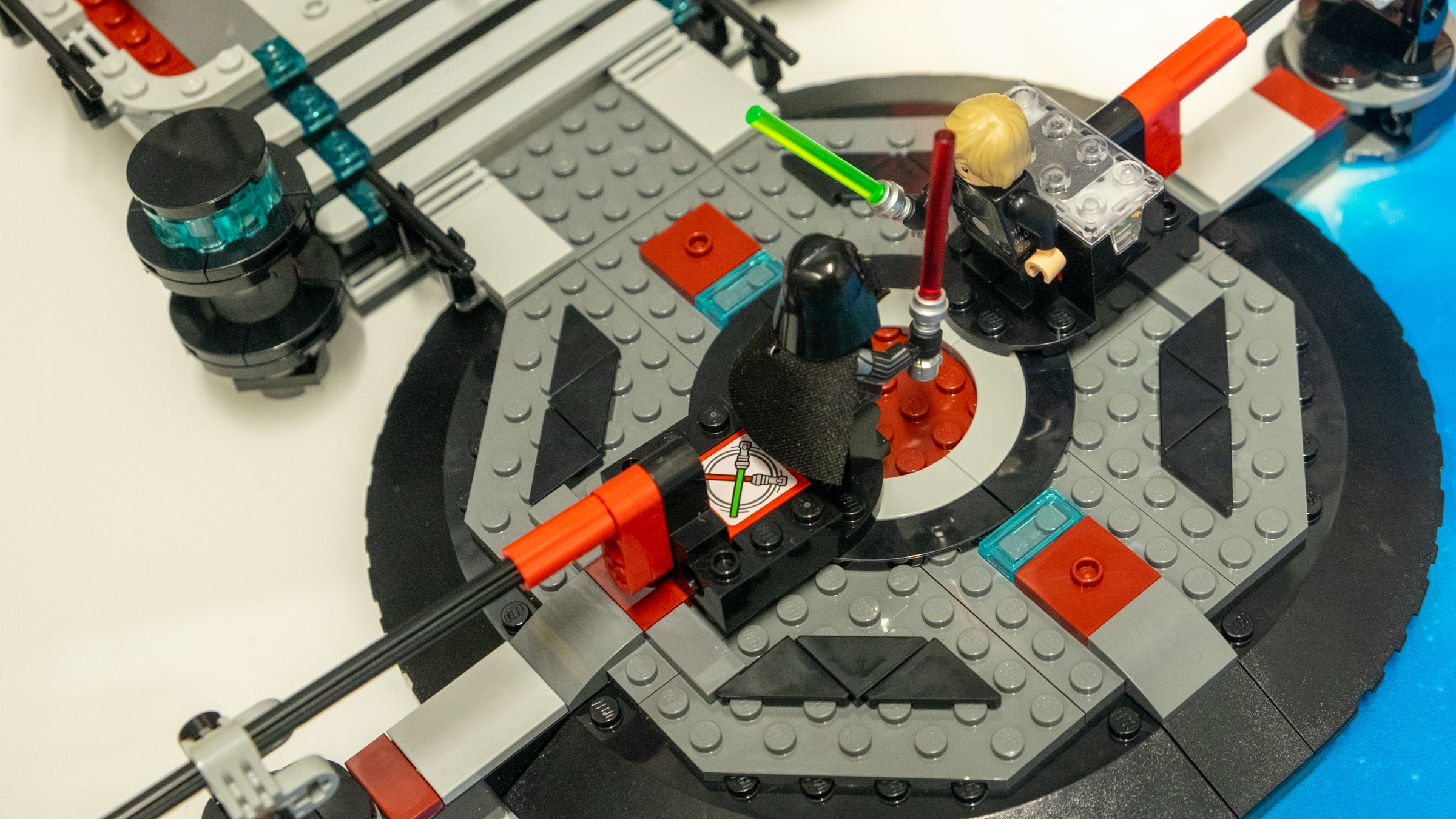
The Smart Brick can similarly sense what specific Smart Minifigures is near it and respond accordingly. Since the first three Smart Play sets are all based on Star Wars, it’s a little easier to explain how they interact with the Smart Brick. Take the Throne Room Duel & A-Wing set — it includes Smart Minifigs for Darth Vader, Luke Skywalker and Emperor Palpatine, and there are also Smart Tags that correspond to various actions the characters can take. If you place a Smart Brick behind Palpatine’s throne, the classic “Imperial March” theme will ring out and Palpatine himself will chatter a bit. The Minifigures don’t actually say real words, but they can still embody their characters well enough. Vader, for example, offers his classic breathing sound and exclaim if he’s defeated in a light saber duel.
Lego Smart Play Star Wars sets
Nathan Ingraham for Engadget
That duel is a clever part of this set. There are moveable mounts you can place Luke and Vader on, along with a Smart Brick. To complete the battle scene, a Smart Tag tells the brick to take on the characteristics necessary for a light saber battle. As such, when you place the Minifigures in the mount, you’ll hear the classic sound of a light saber humming to life. And if you move the characters around and crash them together, you’ll hear the sounds of battle. Finally, knocking a Minifigure off its spot will tell the brick associated with that character to make their trademark sound of defeat — in Vader’s case, that’s the iconic “noooooooo.”
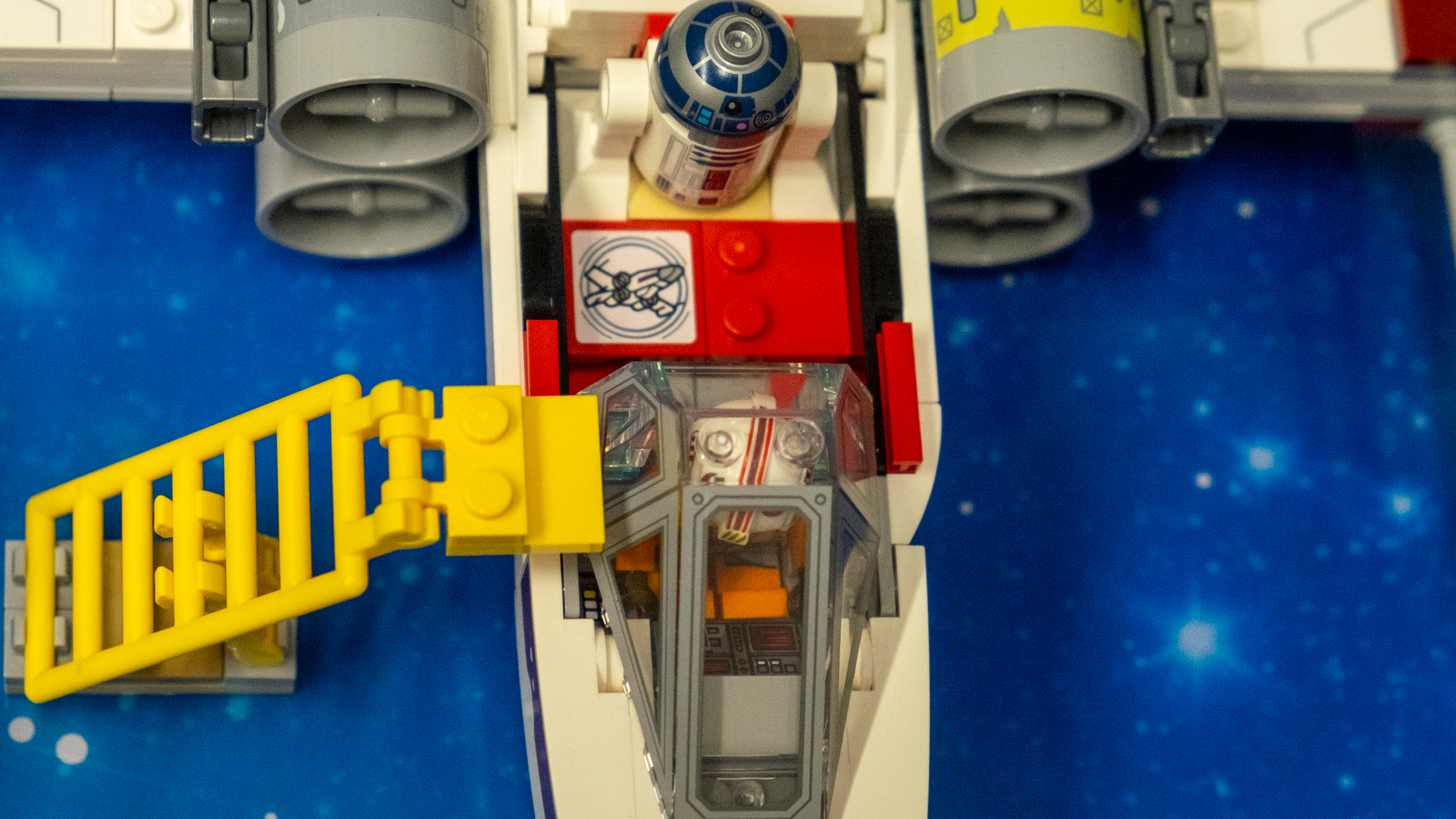
The other two new Smart Play sets are Darth Vader’s TIE Fighter and Luke’s Red Five X-Wing — an ideal pair for some space-based dogfighting. The X-Wing shows off how good the Smart Brick is at handling multiple inputs. Adding it to the X-Wing will make sounds of the ship humming to life, thanks to the X-Wing-specific Smart Tile. Sit Luke in the cockpit and you’ll hear the Jedi theme music play, and seating R2-D2 in the back will make the Droid chatter at you in its familiar tones.
The Smart Tile is how the Smart Brick identifies this set as an X-Wing figher.
Nathan Ingraham for Engadget
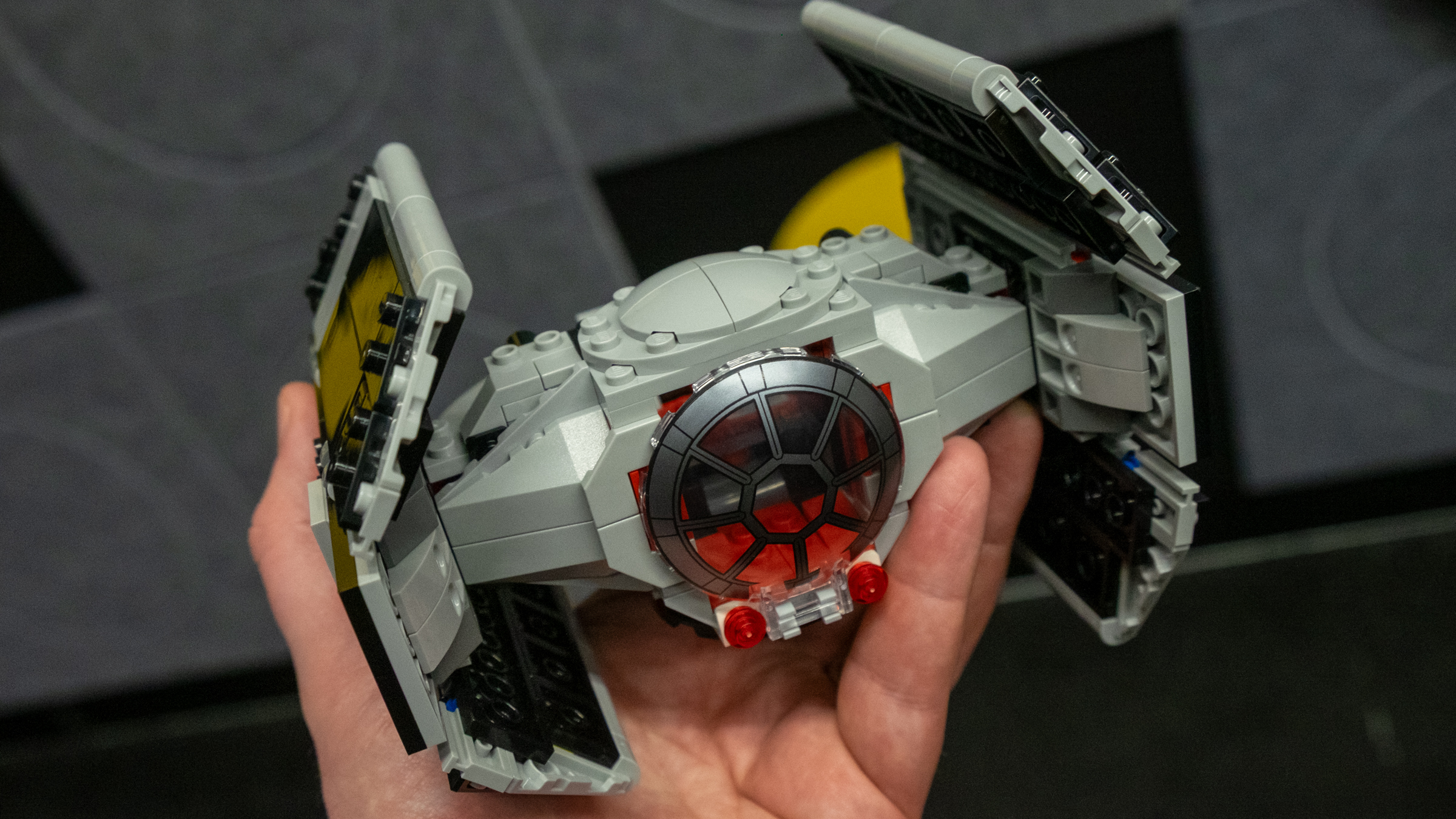
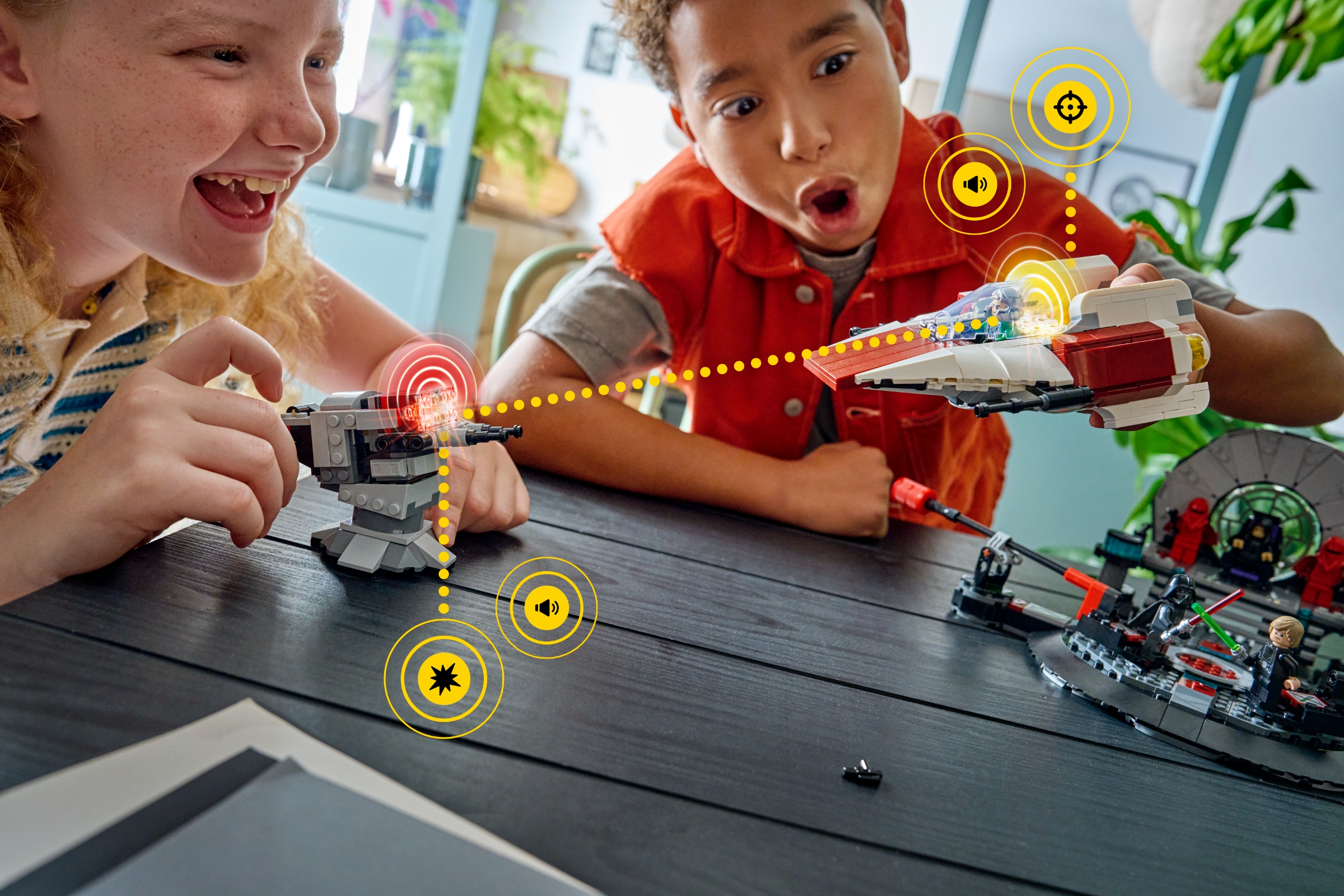
Pitting the two ships against each other shows off more of the Smart Brick’s capabilities. Grabbing the ships and whooshing them through the air will make the Smart Brick play sounds that aren’t just generic engine noises — you can definitely hear the difference between the X-Wing and the TIE fighter. Each ship also has lasers you can activate, and if two kids are in the same room flying ships around and firing off lasers, you’ll hear the ships taking “damage” as well. Firing enough shots while aiming at another ship will eventually cause it to play some exploding sounds to indicate that it has gone up in flames — the Minifigures associated with the ship will also make sounds of dismay, as well.
At first glance, the sets themselves don’t feel wildly different than other smaller-scale Star Wars sets, but the people from the Lego Group giving the demo pointed out a few notable characteristics. The TIE fighter and X-Wing are both specifically designed to withstand more abuse from active play scenarios than the average Lego set, and they’re also specifically designed to fit will in a kid’s hand so they can run around and propel them through the air. The Throne Room set, meanwhile, has a detachable area where Luke and Vader can battle — you can remove and re-attach it to the throne area easily enough, but it’s good to separate it out for more aggressive light saber battles.
Lego Smart Play Star Wars sets
Nathan Ingraham for Engadget
All told, I’m quite excited to see where Lego goes with its Smart Play system from here. Starting out with some simpler sets from a massive franchise like Star Wars is a logical way to introduce the system. There are obvious play scenarios that make perfect sense as a way to show off the Smart Brick. But I’m looking forward to a time when Lego starts selling tiles and Minifigures that can expand the capabilities of existing sets, whether they’re licensed or not. And the idea of smushing together Star Wars with some of the many other properties that Lego has access to (Jurassic World? DC or Marvel? Despicable Me or Bluey?) feels like just the kind of chaotic fun kids will love having.
That’s perhaps the most important point about Smart Play. While Lego has made major overtures for capturing the hearts and wallets of adult Lego fans, Smart Play is very clearly aimed at kids right now. There are no screens, apps or setup needed for Smart Play — it seems exceedingly easy to just pick up and start playing. Furthermore, Lego is using this technology to make Lego sets more interactive, something the company hopes will encourage more social play amongst kids. That’s a solid use of the technology packed into a Smart Brick if you ask me.
This article originally appeared on Engadget at https://www.engadget.com/entertainment/lego-smart-play-hands-on-using-smart-brick-technology-to-get-kids-to-play-together-133000740.html?src=rss
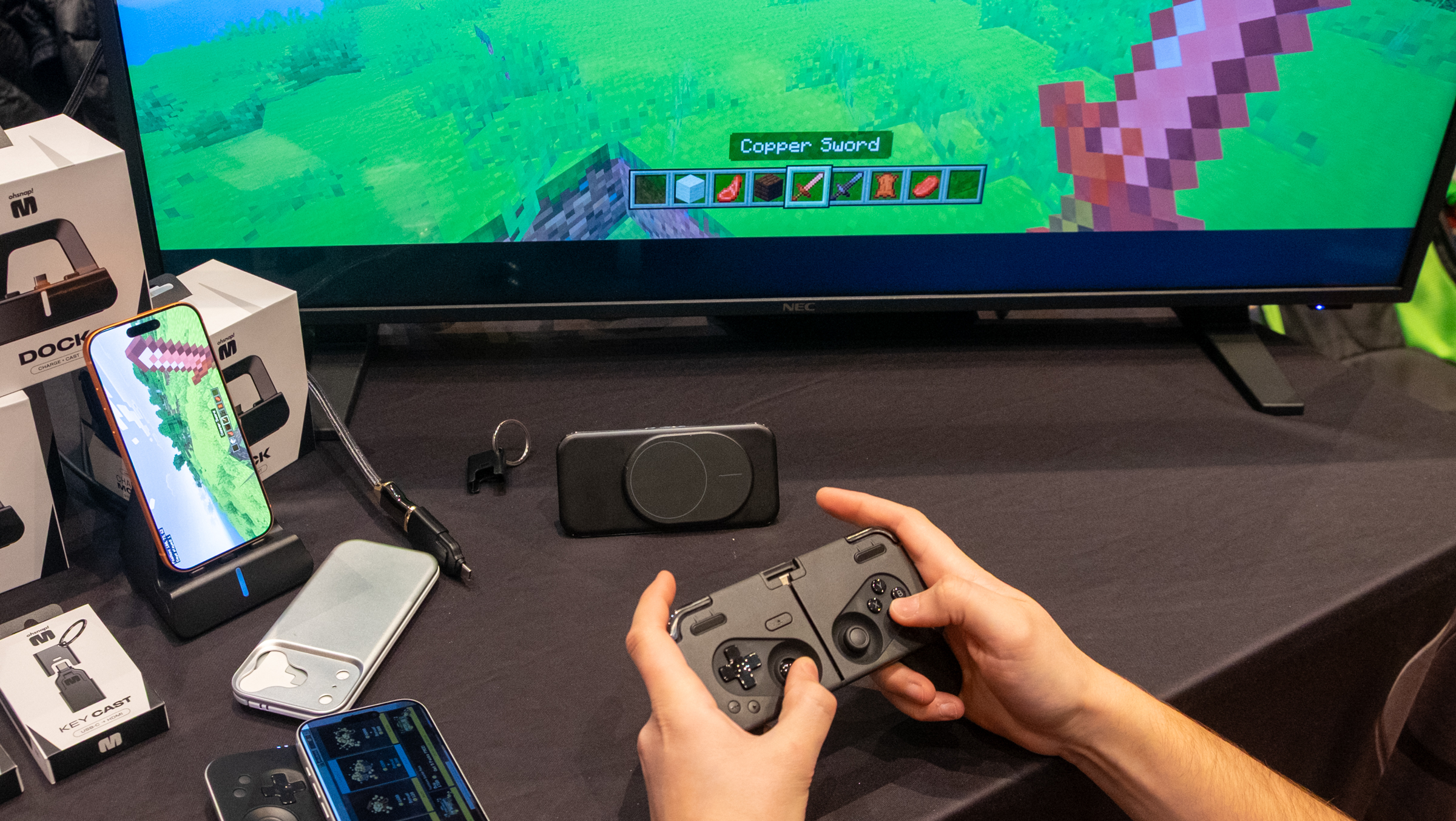
OhSnap won our hearts (and a best of CES award) last year with the MCON, its tiny Bluetooth game pad that magnetically connects to your phone. At the time, we tried a pre-production unit, but in the year since the MCON has been finalized and went on sale last month. I just got a chance to try the final version here at CES, and just a quick demo was enough to convince me that OhSnap has made some solid refinements over the last year.
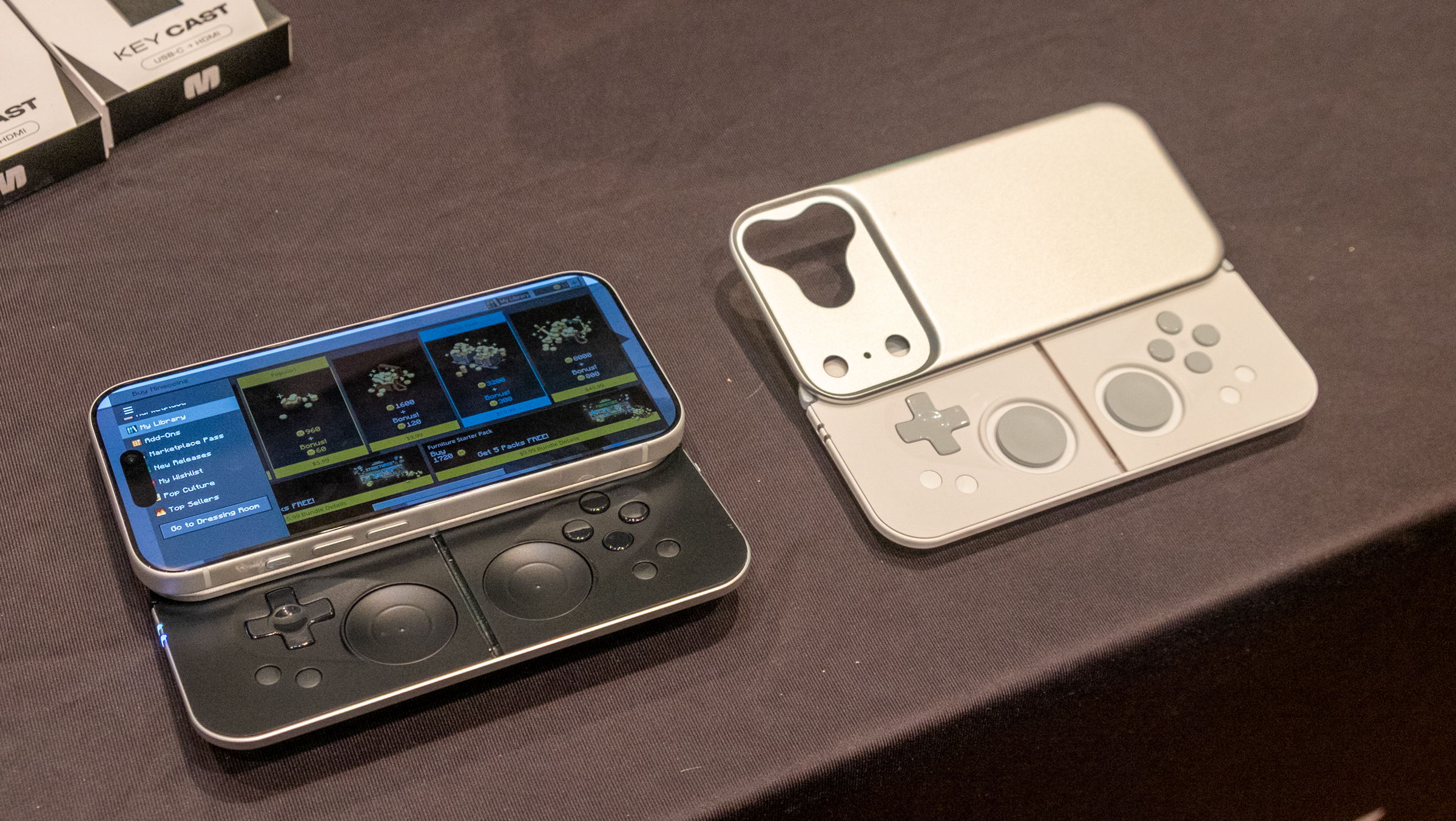
Just as we saw last year, the MCON attaches magnetically to an iPhone or any compatible Android phone (the company also includes a magnetic ring in the box for Androids that don’t have Qi2 yet). It has the full array of controls, including four face buttons, a D-pad, two joysticks and index finger buttons and full bumpers. It’s just sleeker and feels more solid than last year’s prototype, and while mounting your makes it feel a bit top-heavy, it’s not awkward enough to cause real issues when playuing (at least that’s how I felt after my brief demo).
The controller also has grips that unfold to help balance things, and the plate that attaches your phone to the controller has a kickstand. So if you want to drop your phone down on a tray table on a plane and play just holding the controller, feel free. All in all, the MCON feels like a flexible and high-quality device that’s probably worth the $150 OhSnap asks for it.
The MCON dock connects your phone to your TV for full-screen gameplay.
Nathan Ingraham for Engadget
The company also has some new accessories to show off. There’s a $70 TV dock that powers your phone and outputs video from USB-C to HDMI. You could use this dock with any Bluetooth controller hooked up to your mobile phone, not just the MCON. There’s also a tiny $30 adapter you can put on your keychain that has a USB-C plug that goes into your phone; plug an HDMI cable into the other end and you can broadcast your games to a TV anywhere you go and play them with a controller.
It’s a pretty clever and comprehensive set of products, and while there are tons of mobile game controllers, the OhSnap feels like one of the more portable and sleek options out there. OhSnap is working on something even slimmer, though. The company showed off two new prototype controllers, the MCON Lite and MCON Slim.
OhSnap is working on two new MCON controller that are more compact than the original.
Nathan Ingraham for Engadget
As the names suggest, they’re both more compact than the original model. The Lite uses concave joypads rather than full sticks, and the Slim makes things even smaller by using concave touch pads. Your’e not going to get quite the same quality experience with those as you would with the bigger version, but they are noticeably thinner; OhSnap says they’ll be cheaper, too. The MCON Lite is scheduled to arrive this summer, while the Slim should launch in the fall (around the same time as the iPhone 18).
This article originally appeared on Engadget at https://www.engadget.com/gaming/another-look-at-ohsnaps-mcon-a-magnetic-game-controller-for-your-phone-042424092.html?src=rss
Lego bricks come in a bunch of shapes and sizes, but they’re getting a big technical upgrade in 2026 thanks to news announced at CES this year. Meet the Lego Smart Brick, a standard-sized 2 x 4 brick that’s packed with modern technology to enable sets that can respond to how they’re played with or the sets you build. The company’s new initiative, Smart Play, encompasses the Smart Brick as well as Smart Minifigures and Smart Tags. It’s remains to be seen how diehard Lego fans will take to this new system, but it’s fair to say this is the biggest move Lego has ever made to infuse its products with connected technology.
The Smart Brick has a 4.1mm ASIC chip inside of it that Lego says is smaller than a standard Lego stud. It runs something called the Play Engine that can sense things like motion, orientation and magnetic fields. Thanks to this and some integrated copper coils, the Smart Brick can sense distance, direction and orientation of other Smart Bricks near it when you’re building. The brick also has a tiny built-in speaker, an accelerometer and an LED array. Lego says the speaker can produce audio that is “tied to live play actions” rather than just playing pre-recorded clips.
The Smart Tag and Smart Minifigures are a lot simpler. The Tag is a 2 x 2 studless tile with a digital ID embedded in it that the Smart Brick can read via “near-field magnetic communication.” This obviously sounds a lot like NFC, but we can’t be sure that these new Lego pieces will be able to communicate with any other NFC devices. Similarly, the Smart Minifigure also has a digital ID readable by NFC.
The purpose of the Smart Tag as well as the similar tech in a Smart Minifigure is to let the Smart Brick know what kind of context it is being used in. As Lego puts it, “The role of the Smart Tag is to tell the Smart Brick how it should play back with you.” The Tag tells the Brick what kind of object, animal, vehicle and so forth it should become. A Smart Tag in a Lego Star Wars X-Wing set, for example, will contain the unique ID and instructions for how the Smart Brick should behave.
If this isn’t enough, Lego has also built a local wireless layer that connects this all together called BrickNet. It’s based on Bluetooth and uses Lego’s proprietary “Neighbor Position Measurement" system, which is what lets the Smart Bricks know how close they are to each other and how they’re oriented. Lego says that this lets the bricks “talk” to each other directly without the need for apps, internet connections or external controls. It sounds like the idea is all three of these new Smart pieces can communicate and interact without any need for setup, which should make it refreshingly like a traditional Lego set.
That said, these bricks naturally will need some power. Lego says that their batteries should still perform even after “years” of inactivity, and the coils and power system is designed so that multiple bricks can be charged wirelessly on a shared charging pad.
Lego Star Wars set with Smart Bricks
Lego
Speaking of sets, Lego is unsurprisingly launching the Smart Play system with its biggest licensed partner: Star Wars. There will be three “all-in-one” Star Wars sets available, all of which are on the smaller side and definitely geared towards kids, rather than the 1,000 piece and up sets that the company has released to get adults (like me) interested.
The prices are inflated compared to non-smart sets, but not outrageously so. Darth Vader’s TIE Fighter is a 473-piece set with a smart Darth Vader Minifigure, one Smart Brick and one Smart Tag, priced at $70. Luke’s Red Five X-Wing is a 584-piece set with two Smart Minifigures, one Smart Brick and five Smart Tags, priced at $100. The Throne Room Duel & A-wing is a 962-piece set with three Smart Minifigures, two Smart Bricks and five Smart Tags, priced at a slightly shocking $160.
It’s an entirely new direction for Lego, and you won’t have to wait long to check it out. The company is putting those three sets up for pre-order on January 9, and they’ll launch on March 1. There’s obviously a lot of technology here that’s entirely new to Lego, and as such it’s hard to imagine just how this will all look when it comes together — but we’re hoping that Lego will have some sets on hand here at CES so we can get a closer look at how the Smart Play system works.
In the meantime, you can find a few videos on how Smart Play works here.
This article originally appeared on Engadget at https://www.engadget.com/entertainment/lego-unveils-a-technology-packed-smart-brick-at-ces-2026-190000511.html?src=rss
There are a slew of keyboards and apps that help people learn how to play the piano, but a small company called PopuMusic is showing off an intriguing set of products at CES to make the process easier. PartyKeys and PartyStudio are a 36-key MIDI keyboard and MIDI / Bluetooth speaker that pair together in seamless fashion. The PartyStudio is particularly interesting because it has a built-in library of 128 instrument tones and more than 50 different drum machine patterns. Naturally, it works with the PartyKeys, but any MIDI keyboard can connect to it and use those sounds.
The PartyStudio and PartyKeys both use NFC to connect to each other — you can just tap and hold the keyboard up to the speaker for pairing. You can connect up to three devices using MIDI over Bluetooth Low-Energy (BLE MIDI) as well as a fourth using a wired connection. If you have more than one keyboard, meanwhile, you can connect them together with NFC as well — you can pair three keyboards together total, giving you a huge 108-key surface to play.
Both the PartyStudio and PartyKeys have an understated but appealing look to them (they’re available in black or white) and feel quite substantial and well-made. PopuMusic has been releasing hardware via Kickstarters campaigns for a few years now, so even though they’re a relatively small and new company they have some experience in this department. The speaker seems to hit a nice balance of portability and power; it has two tweeters and two woofers and weighs in at 3.75 pounds. It’s about 13.5 inches wide, 5.2 inches tall and 4 inches deep, so it’s not a tiny speaker you’ll just throw in your bag, but it still feels easy to tote around thanks to its attached handle.
The other trick that the PartyStudio and PartyKeys have is on the software side. Using a companion app, multiple people can play along with a song. The light-up keyboard can show you what to play, and if you have multiple people playing each keyboard can display complimentary parts. It starts with simple three-key chord voicings, but I also saw a demo that used a familiar Guitar Hero-style interface of different notes flying down the screen, making for a more involved and advanced performance.
The PartyKeys are up for order on Kickstarter now for $199, while the PartyStudio costs $349. The company says they’re on track to ship both products in Q1 of 2026.
This article originally appeared on Engadget at https://www.engadget.com/audio/partystudio-is-a-wireless-midi-speaker-with-128-built-in-instrument-sounds-015511003.html?src=rss
There are way too many online services and subscriptions to keep track of these days, but the flip side is there’s a tool for just about everything. Time is just about up to get a physical gift shipped in time for the holidays, so below we’ve pulled together some of our favorite digital gifts and subscriptions, including time-tested video, music and gaming services as well as tools to clear your mental space and learn new skills. There are also a few subscriptions that provide ongoing, IRL deliveries, if you think your giftee will appreciate the nostalgic charm of a physical object.
Best digital gifts and subscription gifts
Gaming subscriptions
Game consoles are certainly among the most popular gift ideas this time of year. If you know someone who’s been so good that they’re getting a new Nintendo Switch, PlayStation 5 or Xbox Series X/S, one of these subscriptions will make their shiny toy immediately playable out of the box.
There’s no doubt that Microsoft has changed the value proposition for its Game Pass subscription service service. It recently raised the price for its most comprehensive Ultimate tier by 50 percent, to $30 a month. That’s a bitter pill to swallow — but devoted players who have an Xbox as their main (or only) console will still get a ton of value out of Game Pass.
The aforementioned Ultimate tier provides access to more than 500 games that’ll work on Xbox, PC and other supported devices. It’s also the only way to get “day one” release games like Hollow Knight: SilksongNinja Gaiden 4, The Outer World 2, Call of Duty Black Ops 7; in recent years other high-profile day one releases have included Doom: The Dark Ages, Starfield, Clair Obscur: Expedition 33, Forza Motorsport and numerous others. Game Pass Ultimate subscribers also have access to the highest quality and fastest game streaming Xbox offers. For a slightly less hardcore Xbox fan, though, the $15-per-month Premium tier is also worth considering.
Nintendo’s Switch Online subscription has gotten some nice upgrades in 2025, the year of the Switch 2. As it has for years, Nintendo offers two different Switch Online plans. The basic $20-per-year plan unlocks online play and enables Switch 2 owners to use the system's GameChat capabilities. It also includes more than 100 Game Boy, NES and Super NES games, cloud backups of your saved games as well as the occasional special offers. It also includes access to the rather silly but enjoyable Nintendo Music app, so you can listen to your favorite Zelda or Mario tracks at any time.
The $50 “expansion pack” adds a collection of N64, Game Boy Advance and Sega Genesis games as well as some DLC for games like Mario Kart 8, Animal Crossing: New Horizons and Splatoon 2. But most interesting are the new additions for Switch 2 owners: there’s a small but growing library of GameCube games, including classics like The Legend of Zelda: The Wind Waker and F-Zero GX. Switch 2 owners who have the expansion pack subscription can also upgrade to the Switch 2 versions of The Legend of Zelda: Breath of the Wild and Tears of the Kingdom for free.
A PlayStation Plus subscription is a must-have for any PS5 owners. That’s partially because you need one to play multiplayer games online, but there are plenty of other significant benefits. PS Plus comes in three tiers, but the middle “Extra” plan ($15/month or $135/year) is probably best for most gamers. In addition to cloud storage for saves, online multiplayer support and a couple of free games for your library every month, you get access to the PlayStation Plus catalog, which includes more than 400 PS4 and PS5 games.
There are a number of heavy hitters here, including The Last of Us Part I and II, Ghost of Tsushima, God of War Ragnarok, Death Stranding, Marvel’s Spider-Man Remastered and Returnal alongside lower-profile hits and indie games such as Citizen Sleeper, Sayonara Wild Hearts, Dave the Diver and Humanity. If you know someone who loves older games though, the “Premium” tier ($18/month or $160/year) adds a bunch of titles from the PS1 through the PS4 as well as perks like game trials and PS5 game streaming from the cloud.
This article originally appeared on Engadget at https://www.engadget.com/the-best-subscription-gifts-to-send-to-your-loved-ones-this-christmas-disney-bundle-masterclass-field-notes-and-more-141830326.html?src=rss
Chromebooks have quietly become some of the most useful laptops for everyday tasks. They boot fast, stay secure with automatic updates and often cost far less than traditional Windows or Mac machines. Modern Chromebooks also look and feel better than ever, with brighter screens, stronger processors and designs that range from simple clamshells to flexible 2-in-1s.
Whether you need a laptop for school, streaming or a portable option for travel, there is likely a Chromebook that fits your routine. After testing the top models, we picked the best Chromebooks you can buy today to help you find something that balances performance, price and reliability.
What is Chrome OS, and why would I use it over Windows?
This is probably the number one question about Chromebooks. There are plenty of inexpensive Windows laptops on the market, so why bother with Chrome's operating system? Glad you asked. For me, the simple and clean nature of Chrome OS is a big selling point. Chrome OS is based on Google’s Chrome browser, which means most of the programs you can run are web based. There’s no bloatware or unwanted apps to uninstall like you often get on Windows laptops, it boots up in seconds, and you can completely reset to factory settings almost as quickly.
Of course, simplicity will also be a major drawback for some users. Not being able to install native software can be a dealbreaker if you’re a video editor or software developer. But there are also plenty of people who do the majority of their work in a web browser, using tools like Google Docs and spreadsheets for productivity without needing a full Windows setup.
Google and its software partners are getting better every year at supporting more advanced features. For example, Google added video editing tools to the Google Photos app on Chromebooks – it won’t replace Adobe Premiere, but it should be handy for a lot of people. Similarly, Google and Adobe announced Photoshop on the web in 2023, something that brings much of the power of Adobe’s desktop apps to Chromebooks.
Chromebooks can also run Android apps, which greatly expands the amount of software available. The quality varies widely, but it means you can do more with a Chromebook beyond just web-based apps. For example, you can install the Netflix app and save videos for offline watching. Other Android apps like Microsoft Office and Adobe Lightroom are surprisingly capable as well. Between Android apps and a general improvement in web apps, Chromebooks are more than just portals to a browser.
What do Chromebooks do well?
Put simply, web browsing and really anything web based. Online shopping, streaming music and video and using various social media sites are among the most common daily tasks people do on Chromebooks. As you might expect, they also work well with Google services like Photos, Docs, Gmail, Drive, Keep and so on. Yes, any computer that can run Chrome can do that too, but the lightweight nature of Google Chrome OS makes it a responsive and stable platform.
As I mentioned before, Chrome OS can run Android apps, so if you’re an Android user you’ll find some nice ties between the platforms. You can get most of the same apps that are on your phone on a Chromebook and keep info in sync between them. You can also use some Android phones as a security key for your Chromebook or instantly tether your 2-in-1 laptop to use mobile data.
Google continues to tout security as a major differentiator for Chromebooks, and it’s definitely a factor worth considering. Auto-updates are the first lines of defense: Chrome OS updates download quickly in the background and a fast reboot is all it takes to install the latest version. Google says that each webpage and app on a Chromebook runs in its own sandbox as well, so any security threats are contained to that individual app. Finally, Chrome OS has a self-check called Verified Boot that runs every time a device starts up. Beyond all this, the simple fact that you generally can’t install traditional apps on a Chromebook means there are fewer ways for bad actors to access the system.
If you’re interested in Google’s Gemini AI tools, a Chromebook is a good option as well. Every Chromebook in our top picks comes with a full year of Google’s AI Pro plan — this combines the usual Google One perks like 2TB of storage and 10 percent back in purchases from the Google Store with a bunch of AI tools. You’ll get access to Gemini in Chrome, Gmail, Google Docs and other apps, Gemini 2.5 Pro in the Gemini app and more. Given that this plan is $20/month, it’s a pretty solid perk. Chromebook Plus models also include tools like the AI-powered “help me write,” the Google Photos Magic Editor and generative AI backgrounds you can create by filling in a few prompts.
As for when to avoid Chromebooks, the answer is simple: If you rely heavily on a specific native application for Windows or a Mac, chances are you won’t find the exact same option on a ChromeOS device. That’s most true in fields like photo and video editing, but it can also be the case in law or finance. Plenty of businesses run on Google’s G suite software, but more still have specific requirements that a Chromebook might not match. If you’re an iPhone user, you’ll also miss out on the way the iPhone easily integrates with an iPad or Mac. For me, the big downside is not being able to access iMessage on a Chromebook.
Finally, gaming Chromebooks are not ubiquitous, although they’re becoming a slightly more reasonable option with the rise of cloud gaming. In late 2022, Google and some hardware partners announced a push to make Chromebooks with cloud gaming in mind. From a hardware perspective, that means laptops with bigger screens that have higher refresh rates as well as optimizing those laptops to work with services like NVIDIA GeForce Now, Xbox Game Pass and Amazon Luna. You’ll obviously need an internet connection to use these services, but the good news is that playing modern games on a Chromebook isn’t impossible. You can also install Android games from the Google Play Store, but that’s not what most people are thinking of when they want to game on a laptop.
What are the most important specs for a Chromebook?
Chrome OS is lightweight and runs well on fairly modest hardware, so the most important thing to look for might not be processor power or storage space. But Google made it easier to get consistent specs and performance late last year when it introduced the Chromebook Plus initiative. Any device with a Chromebook Plus designation meets some minimum requirements, which happen to be very similar to what I’d recommend most people get if they’re looking for the best laptop they can use every day.
Chromebook Plus models have at least a 12th-gen Intel Core i3 processor, or an AMD Ryzen 3 7000 series processor, both of which should be more than enough for most people. These laptops also have a minimum of 8GB of RAM and 128GB of SSD storage, which should do the trick unless you’re really pushing your Chromebook. All Chromebook Plus models have to have a 1080p webcam, which is nice in these days of constant video calling, and they also all have to have at least a 1080p FHD IPS screen.
Of course, you can get higher specs or better screens if you desire, but I’ve found that basically everything included in the Chromebook Plus target specs makes for a very good experience.
Google has an Auto Update policy for Chromebooks as well, and while that’s not exactly a spec, it’s worth checking before you buy. Last year, Google announced that Chromebooks would get software updates and support for an impressive 10 years after their release date. This support page lists the Auto Update expiration date for virtually every Chromebook ever, but a good rule of thumb is to buy the newest machine you can to maximize your support.
How much should I spend on a Chromebook?
Chromebooks started out notoriously cheap, with list prices often coming in under $300. But as they’ve gone more mainstream, they’ve transitioned from being essentially modern netbooks to some of the best laptops you’ll want to use all day. As such, prices have increased: At this point, you should expect to spend at least $400 if you want a solid daily driver. There are still many Chromebooks out there available at a low price that may be suitable as secondary devices, but a good Chromebook that can be an all-day, every-day laptop will cost more. But, notably, even the best Chromebooks usually cost less than the best Windows laptops, or even the best “regular” laptops out there.
There are a handful of premium Chromebooks that approach or even exceed $1,000 that claim to offer better performance and more processing power, but I don’t recommend spending that much. Generally, that’ll get you a better design with more premium materials, as well as more powerful internals and extra storage space, like a higher-capacity SSD. Of course, you also sometimes pay for the brand name. But, the specs I outlined earlier are usually enough, and there are multiple good premium Chromebooks in the $700 to $800 range at this point.
This was our pick for best overall Chromebook for years, and it’s still one of the better options you can find for a basic laptop that doesn’t break the bank. It’s a few years older than our current top pick, so its processor isn’t fresh and it only has 128GB of storage. It also won’t get updates from Google as long as newer models. But it still combines a nice screen and keyboard with solid performance. This laptop typically costs $500, which feels high given its a few years old and Acer’s Chromebook Plus 514 is only $350, but if you can find it on sale and can’t find the Acer it’s worth a look.
ASUS CX15
This Chromebook is extremely affordable – you can currently pick it up for only $159 at Walmart. That price and its large 15.6-inch screen is mainly what it has going for it, as the Intel Celeron N4500 chip and 4GB of RAM powering it does not provide good performance if you’re doing anything more than browsing with a few tabs open. If you’re shopping for someone with extremely basic needs and have a small budget, the CX15 might fit the bill. But just be aware that you get what you pay for.
Samsung Galaxy Chromebook Plus
Samsung’s Galaxy Chromebook Plus, released in late 2024, is one of the more unique Chromebooks out there. It’s extremely thin and light, at 0.46 inches and 2.6 pounds, but it manages to include a 15.6-inch display in that frame. That screen is a 1080p panel that’s sharp and bright, but its 16:9 aspect ratio made things feel a bit cramped when scrolling vertically. Performance is very good, and the keyboard is solid, though I’m not a fan of the number pad as it shifts everything to the left. At $700 it’s not cheap, but that feels fair considering its size and capabilities. If you’re looking for a big screen laptop that is also super light, this Chromebook merits consideration, even if it’s not the best option for everyone.
This article originally appeared on Engadget at https://www.engadget.com/computing/laptops/best-chromebooks-160054646.html?src=rss
Another CES is nearly upon us, another year where we’ll see new gadgets aplenty from giant companies and tiny ones you’ve never heard of. And the not-so-secret secret of CES is that many of these things never make it to market — but usually it isn’t things companies like Samsung show off. But here we are, nearly six years since Samsung first showed off its Ballie personal robot and it is nowhere to be found.
For those who may not recall, Ballie is an adorable circular robot that can putter around your house and project things onto the floor and wall. It’s kind of a virtual assistant on the go. Samsung first revealed this tiny robot at CES 2020, but it was more of a prototype than something anyone expected to purchase. And then there was a global pandemic and we all sort of forgot about weird ball-shaped robots for a few. But Samsung triumphantly unveiled a larger and more refined Ballie at CES 2024, saying it would be on sale that year!
Well, that didn’t happen, but a year later Ballie was back at CES again. Samsung promised it would go on sale in 2025, and followed up with a press release this past April saying it was on track for a summer launch in Korea and the US. As far as I can tell, that’s the last we’ve heard of it.
But with CES looming again, I can’t help but feel like Samsung will roll Ballie out once more, trying to sell the dream of a cute robotic companion who just gets you. I spent some time watching Ballie do its thing in a carefully controlled demo at CES 2024, and I can’t say I was overwhelmed by its purported usefulness or thought there’d be much of a market for this thing. I now can’t help but wonder if Samsung has data backs up my intuition. If this thing was going to sell like gangbusters, it likely wouldn’t be subjected to such a long and public gestation period.
It reminds me a little of one of my favorite Samsung gaffes, the Galaxy Home smart speaker. It was announced at a time when Apple and Google were challenging Sonos and Amazon with voice-activated speakers of their own, moving Siri or the Google Assistant from your phone to a more omnipresent place in your home.
The first rumor of the Galaxy Home happened way back in 2017, and the speaker was officially revealed and briefly shown off by Samsung in August of 2018. My immediate reaction was that this product made very little sense for both Samsung and potential customers — Bibxy sucked, and there were plenty of speakers with better voice assistants. Apparently, Samsung agreed. After multiple years of vague commitments and references to the Galaxy Home, Samsung just… stopped talking about it. Oddly enough, a Galaxy Home Mini speaker was briefly released in South Korea, part of a promotion for people who pre-ordered the Galaxy S20. But I don’t think you could ever just walk into a store and buy one, and the larger Galaxy Home never materialized at all.
Ballie isn’t quite the abandonware situation that the Galaxy Home was, at least not yet. After all, it’s only been about eight months since Samsung dropped that press release claiming it would arrive soon. The company has definitely pushed Ballie in a more public way than the Galaxy Home, making it a little harder to just drop entirely. Maybe we’ll see a revamped Ballie with even more weird tricks next month, or maybe we’ll just get another vague promise that it’ll arrive in 2026. After failing to deliver two years in a row, though, I’m not going to expect Ballie to show up as a real product until I can punch in my credit card and pre-order it... not that I’d do that anyway. Ballie needs to show that it’s a lot more than a cute rolling robot before Samsung gets my cash.
This article originally appeared on Engadget at https://www.engadget.com/ai/where-the-hell-is-samsungs-ballie-robot-151112829.html?src=rss
It’s been 18 years since the last Metroid Prime game, but I felt right at home in Metroid Prime 4: Beyond. Almost too at home. Whether fighting my way through a volcano, exploring a research base in a frozen tundra or getting lost in a vast desert, I couldn’t shake the feeling I’d done this before. As the fourth game in a series, that’s not a huge surprise, but it was my main disappointment in Metroid Prime 4: Beyond. Think about the leap Nintendo took going from 2011’s The Legend of Zelda: Skyward Sword and 2017’s Breath of the Wild. They were both recognizably Zelda games, but Nintendo redefined what that means between those two games.
No such reinvention has happened with Metroid Prime 4: Beyond. But that doesn’t mean it isn’t a great time — it executes the template for a Metroid Prime game extremely well. It’s thrilling to see the series finally make the jump to HD, iconic bounty hunter Samus Aran has some intriguing new powers, there’s a badass motorcycle to shuttle her around the game’s open world hub and the game’s design and art direction show Nintendo at its best. It's everything you’d expect from a Metroid Prime game — no more, no less. Whether that’s a good thing is up to you to decide.
If you haven’t played the previous Metroid Prime games before, fear not. There isn’t anything story-wise that you need to know before you jump into this adventure. As with all Metroid games, you take control of acclaimed bounty hunter Samus Aran, an ultra-powerful warrior with a mechanized suit full of fun tricks. The vast majority of the game takes place in first-person view where you can lock on to the many creatures trying to kill you and blast away with an ever-expanding arsenal. The other main interface is your scan visor, where you can learn about your surroundings and enemies to find weaknesses and figure out what you need to do to advance.
Metroid Prime 4: Beyond
Nintendo
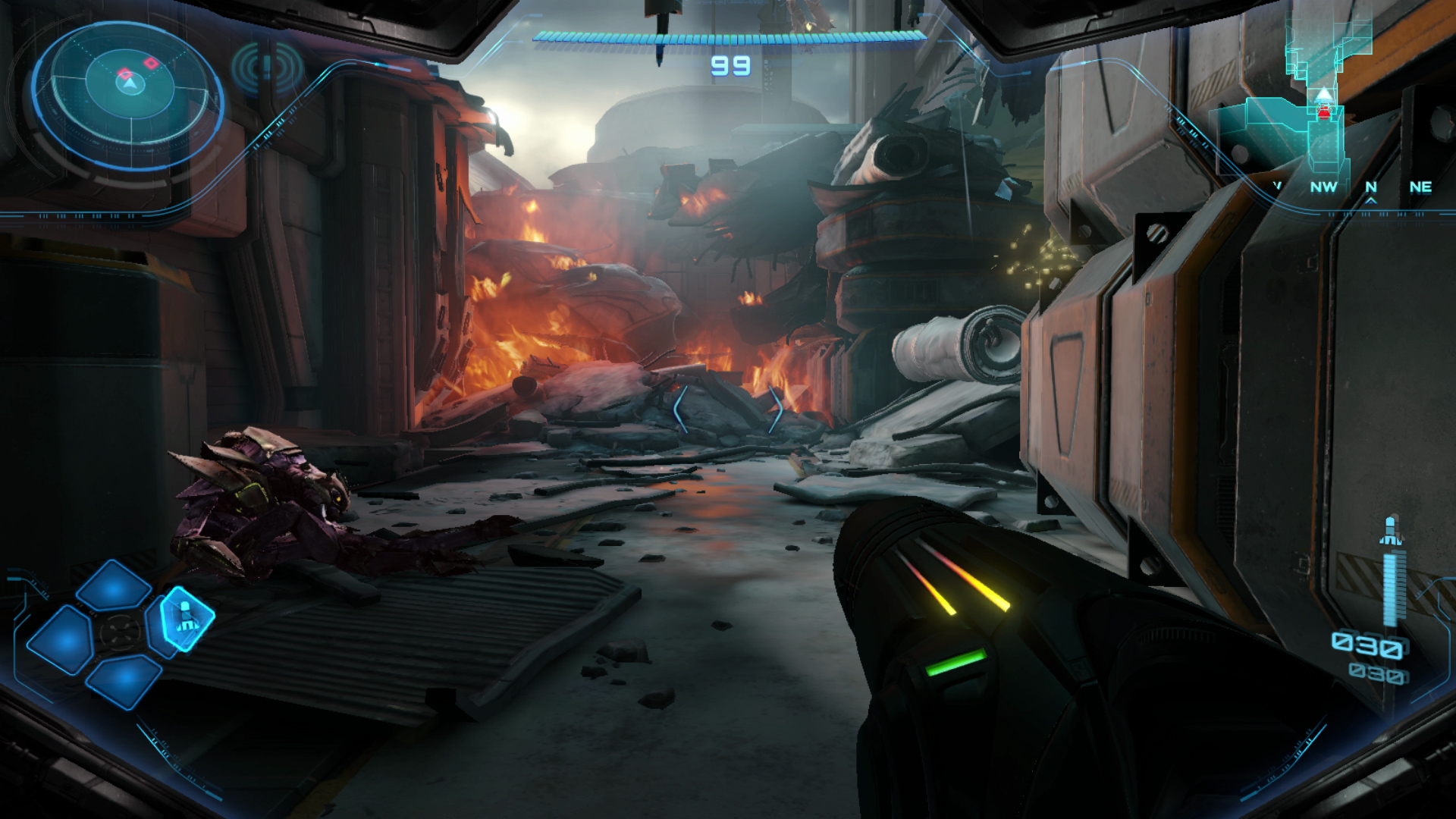
Beyond throws you right into a firefight that serves as a solid tutorial for the game's varied control schemes. A Galactic Federation outpost is under attack, and Samus flies in to help defend the troops and keep a secret artifact safe. This somewhat bombastic intro is a great way to show off the Switch 2's power. Sure, we're not talking about a PS5 Pro here, but this is perhaps the most visually-advanced game Nintendo has released. With a Switch 2 docked to a TV, you can play it at either 4K / 60fps or 1080p / 120fps (in handheld mode, that drops to 1080p or 720p with the same frame rates). I don’t have a huge TV, so I mostly went with “performance mode,” but in either case the game felt extremely fluid with no frame rate drops and looked outstanding.
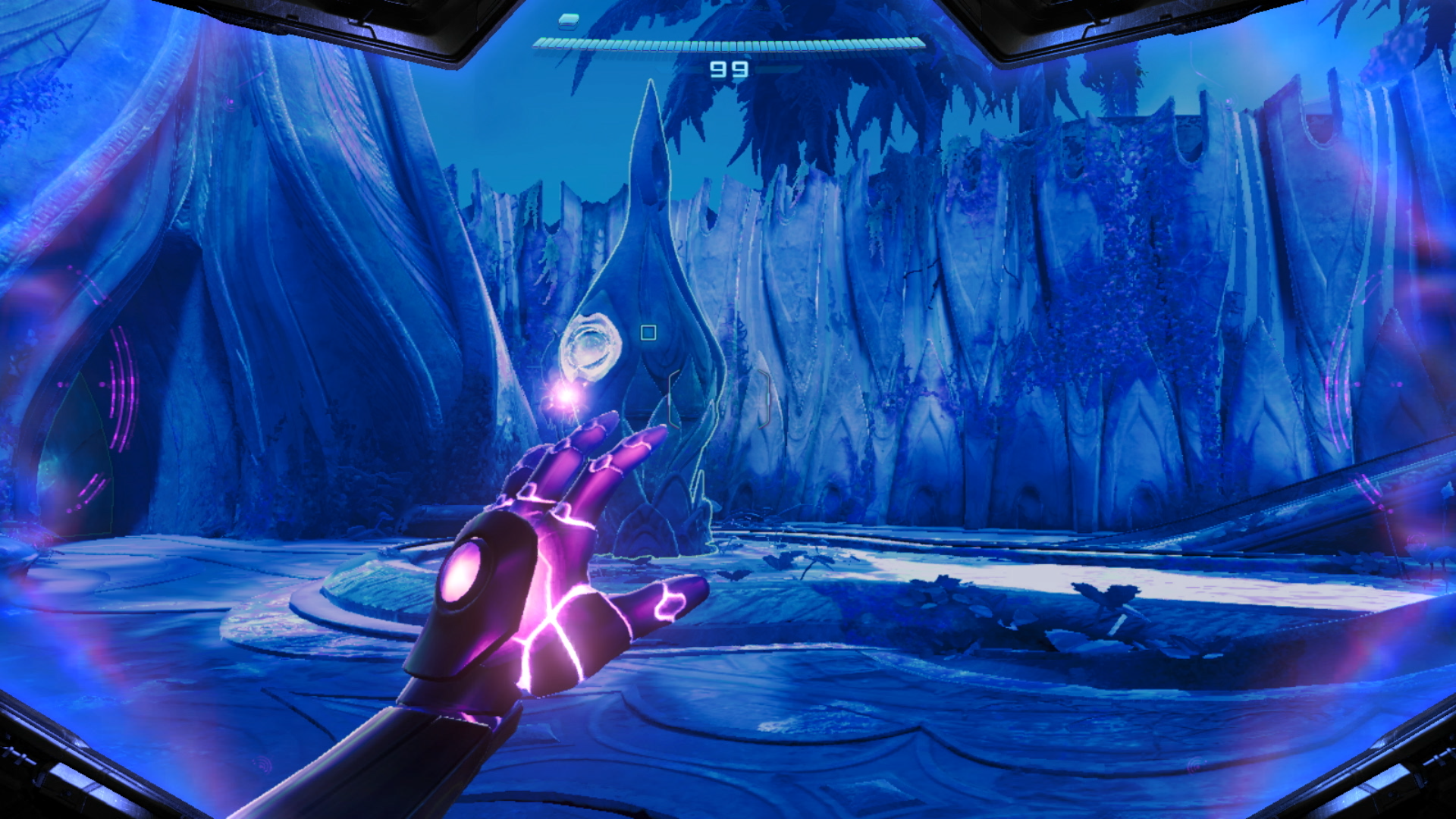
The game starts as Samus Aran flies in to help the Galactic Federation fight off an invasion, and that opening cut scene shows off with some HDR-enhanced explosions and a detailed environment of a space base in chaos. There are little fires and explosions everywhere; it's visually busy but in a good way that serves the setting, and it all looks vibrant and life-like. As with basically all Nintendo games, Metroid Prime 4: Beyond isn't aiming for realism, but it's closer to a game like Horizon Forbidden West or Cyberpunk 2077 than any other Nintendo titles I can think of. Things like the textures of metal installations, the leaves on alien trees or Samus' gloves all have a level of textural detail you don't usually see in Nintendo's games. Often, that's due to a conscious art direction choice to go in a more cartoonish direction, but the Switch 2's hardware is helping make the game as lifelike as possible.
Metroid Prime 4: Beyond
Nintendo
(Note that Metroid Prime 4: Beyond is also available on the original Switch. I didn’t play it there so I can’t comment on how things like frame rates and textures hold up on that much older console. If you’re thinking about trying this game on the first Switch, it’s probably a good idea to see how other reviewers find that experience before shelling out $60.)
The aforementioned intro sets up the big conflict in Beyond. As Samus comes in to try and help the troops defend a mysterious artifact, the game’s big bad Sylux shows up and everything hits the fan. Samus and some other Galactic Federation forces are mysteriously transported to the planet Viewros, where Samus comes into contact with a near-excinct society called the Lamorn. A Lamorn elder telepathically pleads with Samus to try and save the society from being totally forgotten — indeed, she may be able to bring them back from the brink of extinction if all goes well. They’ve been waiting for a “chosen one,” you see, and Samus is naturally it.
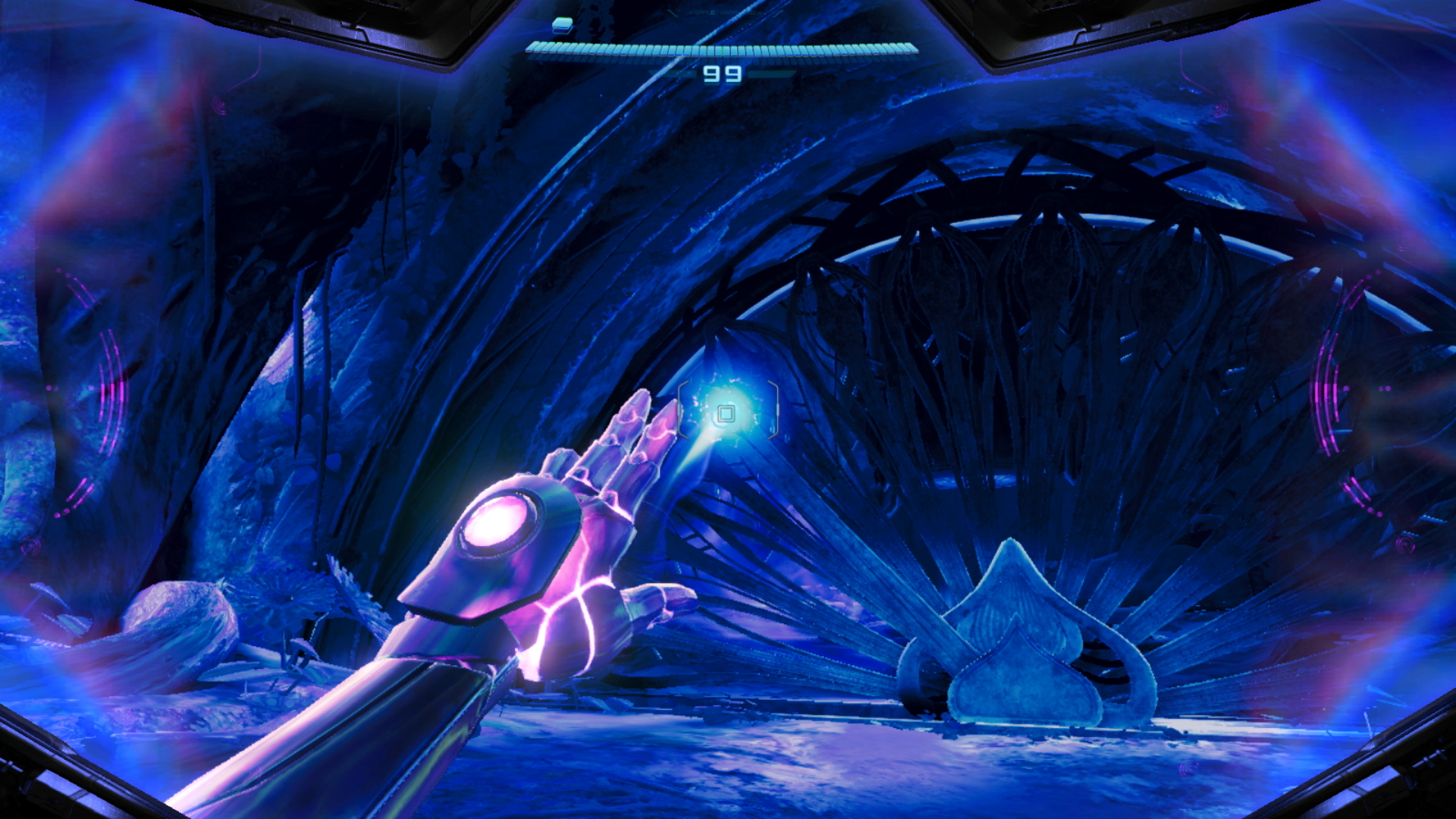
As part of this intro, Samus gains her signature new physic powers in Beyond. These allow her to interact with otherwise-hidden parts of the environment to solve puzzles. The most significant is the Control Beam. When you charge your arm cannon while in the psychic scan visor mode (a slight tweak on the environmental scanning feature that has been a major part of all Metroid Prime games), you can fire a beam that slows time down and can be controlled with the right joystick. That means you can pass the Control Beam through multiple targets, something you’ll need to do periodically to weaken enemies or unlock the way forward.
Metroid Prime 4: Beyond
Nintendo
For the most part, though, the psychic powers besides the beam are just repackaging of already-familiar tools. Metroid veterans will be familiar with the Spider Ball, an upgrade to the Morph Ball that lets Samus magnetically attach to tracks that help her get to out-of-reach areas. In Beyond, you instead get the “Psychic” Spider Ball — that does essentially the same thing. Occasionally, you’ll find Psychic Ball Tracks that you have to scan to reveal; they’ll then blast Samus into a secret area that usually has a weapon upgrade or energy tank. Even Samus’ main weapon gets a fancy “Psychic Beam” name — but the description of it in the inventory admits that it’s the same weapon. “The Psychic Beam’s strength and performance are equal to the standard Power Beam.” While the Control Beam adds a fun wrinkle to the gameplay, the psychic abilities don’t otherwise change the Metroid Prime formula in any significant way.
The main task Samus faces is collecting five Teleporter Keys that can get her off the planet. Those keys are hidden in various environments around Viewros that are all connected by Sol Valley, a large desert that holds lots of upgrades and side quests that you’ll need to clear to advance in the game. The desert is more of a hub than an open world — there are small areas to explore dotted around it, but the main action happens in places like Ice Belt, Volt Forge, Flare Pool and several others you’ll find your way to as you collect those teleporter keys.
Metroid Prime 4: Beyond
Nintendo
As those names suggest, Ice Belt is a frozen area where you explore an abandoned research facility, while Flare Pool is inside of a volcano. And, as you might expect, you’ll need certain weapons to advance in those areas. In addition to her standard beam and missile weapons, Samus collects the obligatory freeze ray and fire blaster sort of weapons. This is where the game really started to remind me of the original Metroid Prime — the three elemental weapons she collects are essentially the same as those in the first game, and environments like a frozen wasteland or a fiery volcano are nearly identical to ones you’ll find in that game. The Lamorn, meanwhile, reminded me a lot of the departed Chozo tribe you’ll find on Tallon IV in the first Metroid Prime. Of course, that game came out all the way back in 2002, and Metroid Prime 4: Beyond will likely be the first game of the series many play. A little recycling of classic elements is forgivable.
That said, I was a bit disappointed that the game has a tightly-scripted flow. After the intro and the first mission on Viewros, you hit the desert with multiple locations where Teleporter Keys are believed to be hidden. But you can’t tackle them in any order you choose. This is a Metroid game, after all, and that means exploring to find powers that let you explore a new area that was previously closed off. Part of me was hoping for the freedom of a game like Breath of the Wild where you could tackle areas in any order you choose. But after playing through nearly the entire game, I appreciate the excellent execution of the familiar formula.
Metroid Prime 4: Beyond
Nintendo
Another thing that’ll be familiar to those who’ve played the older Metroid Prime games is the control scheme. For the most part, you can pick up the controller and get right to it, as the main control layout employs a two-joystick first-person view that should be pretty easy to get the hang of. But there are definitely times where I found myself wishing for more precision. You can lock onto enemies and targets with the ZL button and start blasting away with your chosen weapon, but many of the boss battles require you to lock on to a large creature and then use the right stick to adjust your aim to hit very specific targets. This took some getting used to, because I was used to the lock-on target vulnerable areas. Doing it with a Switch Pro Controller made things much easier, but using the standard Joy-Cons could get frustrating in a hurry. If I was playing in handheld mode, I would often pause before a big battle and wait until I could hook up to my TV and use a proper controller. I’d recommend you do the same — it’ll make for a much more enjoyable experience.
Beyond also offers the option of using one Joy-Con in “mouse” mode for aiming while using the other for moving around. For me, this isn’t a viable option. I tried it a few times and immediately felt completely disoriented and far worse at aiming than I was with the right stick. I can appreciate the idea behind offering mouse-like controls for a first-person FPS game, but it just did not feel well executed. That said, this might be on me. I haven’t played a game with a keyboard and mouse in years; nearly all of my gaming is on a twin-stick controller, so I’m just more comfortable with that setup. I’m thinking about starting from the beginning and seeing how I adapt to mouse mode and will update this review if my opinion changes.
There are a few things that Beyond does that are completely new to the series. The most obvious one is Vi-O-La, the wild robotic motorcycle that Samus rides. You’ll unlock that early in the game, and its primary utility is to get around Sol Valley. For anyone worried that the game is overly focused on an element that admittedly feels a bit anachronistic to the usual Metroid vibe, fear not. You’ll use it a bunch, but it’s more about fast transportation and exploration than something that has detailed mechanics you need to master. There are a few segments where it’s a major part of the mission, but for the most part it’s just another tool in your arsenal rather than something that steals the focus of the game.
Metroid Prime 4: Beyond
Nintendo
The same can be said for the motley crew of adventures you assemble. One of the loudest bits of feedback that came out of the preview Nintendo offered the press a few weeks ago was “what’s the deal with Myles MacKenzie?” You see, in the first hours of the game you come across MacKenzie, a bumbling engineer type who you rescue in the jungles of Viewros shortly after landing on the planet. You then have to escort him around a bit, during which he makes some pretty bad and occasionally obnoxious jokes. This led many who played the preview to worry about MacKenzie shattering the quiet and lonely solitude the Metroid series is known for.
Don’t worry — Samus is on her own for the vast majority of the game. You’ll encounter a few more stranded Galactic Federation soldiers throughout the game, but they usually only stick around for short segments before returning to the home base you establish with Myles. And as for Myles himself, he’ll help upgrade your weapons and is available on the radio to give you hints on where you need to go, something that I honestly didn’t mind. I’d rather have hints at hand than spend all my time wandering lost throughout the vast world of Beyond. But I can also see that the hint system is occasionally too aggressive in dropping details on where to go next.
As a seasoned player, Beyond mostly felt challenging but fair. Games in the Metroid Prime series are notorious for moments of serious difficulty, but this one feels a little more forgiving. When battling bosses, there were plenty of ammo and energy drops that helped me even the score. I usually died a handful of times while figuring out my strategy or getting a feel for their attacks, but it wasn’t overly frustrating or tedious. That said, there were two bosses near the end (including the final boss) where the difficult curve spiked in a way that felt completely unreasonable.
Metroid Prime 4: Beyond
Nintendo
There were also a few times when I felt wildly lost, with no useful information about my next step to be found anywhere on the map. Myles told me to find a member of the crew “out in the desert.” And while Sol Valley isn’t the same open-world scale of some bigger games, it’s still a pretty big space to explore without any other indication of where to go. I wasted far too much time riding my motorcycle across dunes aimlessly figuring out where to go. It wouldn’t be a Metroid game if you didn’t get hopelessly stuck at some point, though.
For the most part, I enjoyed the addition of some people helping Samus along her way. It helps flesh out the world of the game in small ways, giving some perspectives on everything going on from people who aren’t ultra-powerful, silent bounty hunters. It did make Samus’ never-ending silence feel a bit awkward, but it also fits with her otherworldly, not-quite-human presence.
Metroid Prime 4: Beyond
Nintendo
In some ways, it’s easy to sum up Metroid Prime 4: Beyond. It’s the Metroid Prime experience, modernized. The graphics are better, the world is bigger, experiences like Vi-O-La and Samus’ psychic abilities offer a greater variety of gameplay experiences. But it’s also very much a Metroid Prime game at its core, with the familiar but effective mix of biomes to exploration, giant enemies to dispatch and weapon upgrades to find. And, of course, there were moments of immense frustration when things just got too difficult, another hallmark of the series. Seriously, the final battle is wildly frustrating. Maybe I just need to get good, but it felt so far out of sync with the entire rest of the game that it almost ruined the fun that came before.
That intense moment of frustration aside, anyone who played earlier games in the series will find a lot to love here. But, they also might be disappointed that Nintendo didn’t push the series further. However, there are also a lot of people who’ve never played a Metroid Prime game in the last two decades or so — those people will find that the formula Nintendo engineered in the 2000s still holds up here. Metroid Prime 4: Beyond is far more unique than your average first-person shooter, it was worth the long wait, and it’s a must-play for anyone who is up for the challenge.
This article originally appeared on Engadget at https://www.engadget.com/gaming/nintendo/metroid-prime-4-beyond-review-an-excellent-modernization-but-not-a-total-reinvention-150000082.html?src=rss
To the surprise of few, the new iPad mini that Apple announced last week is a small update rather than a major reinvention. It may have been three years between iPad mini updates, but the 2021 model was the first to ditch the formerly ubiquitous home button in favor of smaller bezels. Apple certainly wouldn’t redesign the iPad mini only to do so again after a single generation, so this is another example of a new Apple product that looks the same on the outside but has some notable upgrades on the inside.
What’s new here can be summed up quickly: more storage, support for the Apple Pencil Pro and, most crucially, a more powerful chip. The A17 Pro allows the iPad mini to use Apple Intelligence features when they launch later this month, which is probably why this tablet exists at all. Apple clearly wants to get as many people as possible using these features, and now every iPad the company sells (except for the entry-level model) will work with Apple Intelligence. Of course, that makes fully evaluating the iPad mini tough, because Apple Intelligence isn’t here yet. But there’s still plenty to know if you’re thinking about Apple’s newest tiny tablet.
What’s the same?
As is often the case with new iPads, no one will know whether you’re using the 2021 iPad mini or this one unless they’re an astute study of Apple’s color schemes. This year, extremely mild shades of blue and purple replace the richer pink and purple options — my test iPad mini is purple, but looks like a pretty straight silver in a lot of light. I really wish Apple would provide more bold color options in more of its products, but here we are.
Photo by Nathan Ingraham / Engadget
There isn’t a lot to complain about when it comes to the iPad mini’s design. It feels perfectly in line with the other iPads Apple sells, with modest bezels (that are starting to feel a bit thick) surrounding its screen and stereo speakers when held in landscape orientation. Those speakers sound much better than you’d expect given the mini’s small size; Apple has been putting surprisingly great speakers in all its products for a few years now and I’m glad this trend continues here.
The camera is still portrait-oriented, unlike all the other iPads you can buy. That doesn’t really bother me, because you’re rarely, if ever, going to put this tiny iPad in a keyboard dock and take a video call. I imagine most people making FaceTime calls will just hold it like they would a phone.
As with the prior mini and non-Pro iPads, there’s no Face ID array here. You’ll have to make do with the Touch ID sensor on the power button, which is fast and convenient enough, but still not quite as smooth as Face ID. It also has the same front- and back-facing cameras as the last iPad mini. The 12-megapixel camera on the rear takes surprisingly decent shots in low light and should work fine for scanning documents or QR codes. But as usual, just use your phone to take images and videos — chances are it has a better camera than the iPad mini.
Photo by Nathan Ingraham / Engadget
Same goes for the front-facing shooter. It’s fine for FaceTime calls, but photos are lacking in detail. That’s because it’s a 12-megapixel ultra-wide camera that then crops them into a more standard field of view. Long story short: this camera is just good enough for a tablet camera, but not much else. And that honestly doesn’t bother me.
The 8.3-inch screen on the iPad mini is about on par with the one on the iPad Air. It supports the P3 wide color gamut, has an antireflective coating and is fully laminated to the front glass, unlike the screen on the entry-level iPad. All these specs, including its resolution and 326 pixel-per-inch density, are unchanged from the last model. It’s a very nice screen, but it’s still a standard LCD display with a now-pedestrian 60Hz refresh rate. I’m not at all surprised by this, as Apple has kept its best screen technology for the iPad Pro. But very soon it’s going to need to up the refresh rate on other iPads (and iPhones if we’re being honest) besides the Pro models.
One bit of good news about the screen is that it seems Apple has fixed the “jelly-scrolling” problem that plagued the prior iPad mini. Jelly-scrolling occurs when one side of a screen doesn’t refresh at exactly the same rate as the other, and this effect was noticeable in portrait mode with the old iPad mini. It’s not something that I ever noticed while using the new iPad mini. I am curious to see if the issue has been totally resolved or if my eyes just didn’t catch it, but I’ll continue using the iPad mini in the coming weeks to see if I spot any display issues.
Photo by Nathan Ingraham / Engadget
What’s new?
The headlining new feature here is the A17 Pro chip, which Apple says is 30 percent faster than the A15 in the prior iPad mini. The 5-core GPU is 25 percent faster and supports hardware-accelerated ray tracing. One odd programming note: the A17 Pro in the iPad mini is slightly different from the one in the iPhone 15 Pro series. The chip in the iPhone 15 Pro has six graphics cores, while the one in the iPad mini only has five. It’s a weird bit of minor nerfing, but I also cannot imagine that anyone buying this iPad will notice or care about this slight potential performance difference.
Benchmarks from Geekbench 6 back this up. The A17 Pro in the iPad mini is ever so slightly less performant than the one in the iPhone 15 Pro, but not enough so that it’ll make any real difference in how you use the tablet. It still trails M-series chips and the brand-new A18 series, but provides more than enough juice for an iPad mini.
Some might have hoped for an M2 processor here, or even this year’s A18, but I’m confident that the A17 Pro is more than capable for basically anything you might do with the iPad mini. Given its small size, I never once thought about using it as a laptop replacement like I do with the iPad Pro. Instead, it made a comfortable couch companion for browsing the internet, messaging friends, triaging email, playing games and occasionally editing some photos. The A17 Pro was more than capable of all those tasks, with no slowdowns or stutters to note. Perhaps more importantly, it has the overhead to be capable for years to come.
Photo by Nathan Ingraham / Engadget
The other big change for the iPad mini is support for the Apple Pencil Pro that was introduced earlier this year. I’m glad to see that Apple now supports the Apple Pencil Pro on every iPad it sells aside from the entry-level model. The Pencil lineup was a bit of a mess for a while, but now there are just two options to consider: the $79 USB-C Apple Pencil and the more capable $129 Pencil Pro. Apple still sells the first- and second-generation Pencils for older iPads, but the lineup has thankfully been streamlined going forward.
The Apple Pencil Pro is quite a bit more capable than the standard one. It has pressure sensitivity, haptic feedback, a gyroscope so you can roll the pencil in your hands to change your brush width, a double-tab control to change tools, a “squeeze” feature to bring up the whole tool palette, support for the Find My app and magnetic charging and pairing when you snap it to the side of the iPad mini.
That’s a lot of bonuses for the extra $50, and the combo of the Apple Pencil Pro and iPad mini makes for a tiny but extremely capable digital notebook and canvas. It’s also the same price as the reMarkable Paper Pro tablet and stylus, though the devices have completely different screen types and the iPad does a whole lot more. Depending on what you’re looking for, that might not be a good thing, as a big part of the reMarkable experience is a lack of distractions that can pull you out of focus as well as a better writing experience than you’ll get with a glass LCD screen.
Finally, the iPad mini has 128GB of storage at the $499 price, double what it had before. This is a long-overdue change and makes it possible to recommend someone just grab that base model. There’s also a 512GB option for the first time. And, as usual, you can add 5G connectivity for an extra $150. The model I tried was a top-of-the-line 512GB model with 5G, which retails for a somewhat crazy $949.
Oh, and the new iPad mini supports Bluetooth 5.3 and Wi-Fi 6E. Not a game-changer, but good to have the latest wireless specs for future-proofing.
What’s an iPad mini for?
I haven’t used an iPad mini for an extended period of time in years, and as I settled in to testing it, Billie Eilish’s sultry voice drifted into my head, asking “what was I made for?” Yes, this is a highly ridiculous anecdote, but that was what I set out to find: what’s an iPad mini best-used for? It’s definitely not meant to be a laptop replacement, like the much larger and more capable 13-inch iPad Air and iPad Pro I reviewed earlier this year. Instead, it’s an enjoyable secondary device that I mostly used after the workday was done, in place of my MacBook Pro or iPhone.
The iPad mini, on top of an 11-inch iPad Pro, on top of a 13-inch iPad Pro.
Photo by Nathan Ingraham / Engadget
Reading
It’s a perfectly sized device for reading, whether it’s articles on websites, posts from Substack or novels using the Kindle or Apple Books apps. I still prefer a paper book or a Kindle device, as they’re both much more comfortable than reading on an LCD screen, but the iPad mini is overall a far better reading device than any other iPad. However, this was also one place where I wished the iPad mini had a higher refresh rate. Vertically scrolling through long articles is noticeably jerkier than doing so on my iPhone 14 Pro or an iPad Pro, both of which have 120Hz refresh rates.
Messaging
Its size also makes it a great messaging device, with the portrait-oriented keyboard totally comfortable for two-handed typing. If you’re chatting away in a messaging app, having immediate access to your conversations makes jumping from one contact to another a lot easier. I wouldn’t want to write an article on this, but it was fine for firing off messages. And again, it’s far better suited to this use than bigger iPads.
Gaming
Photo by Nathan Ingraham / Engadget
The iPad mini also became my go-to Balatro device. The game just hit iOS a few weeks ago and I’ve been completely sucked in, like many of my co-workers. It’s a little cramped on my phone, but feels great on the iPad mini. Other casual games like those you’ll find on Apple Arcade also feel great on the iPad mini, but I did have a tougher time with more fast-paced titles like Teenage Mutant Ninja Turtles: Shredder’s Revenge. The on-screen controls felt a little too cramped, something that can of course be alleviated by pairing a Bluetooth controller.
Thanks to the A17 Pro chip, the iPad mini can also play a handful of AAA games that you’d typically expect to see on a console or PC like Death Stranding and Assassin’s Creed Mirage, both of which were announced for the iPhone 15 Pro in September 2023. Only the iPhone 15 Pro and 16 Pro can play these games, along with iPads that have at least an M1 processor. Now that the iPad mini has (essentially) the same chip as the iPhone 15 Pro, those games are available. I haven’t had a chance to test them yet, but I’ll update this review once I get a chance to see how they hold up on this hardware.
Apple Pencil Pro
I’m no visual artist, but I can imagine people who love to draw finding the iPad mini to be a great portable sketchbook. Sometimes, having the larger canvas you can get on an iPad Air or Pro is preferable, but when it comes to something you can throw in your bag and forget about, the iPad mini is unrivaled. I got in the habit of using it as a digital notebook — just pulling the Apple Pencil Pro off the side and tapping the screen opened up a blank note document I could jot my thoughts and to-do items onto.
Watching video
While the iPad mini makes for a fine portable video player, it’s one scenario where I missed a bigger screen. If I was flying cross-country or over the Atlantic, I’d definitely prefer something larger. The standard iPad or the 11-inch iPad Air and Pro are slightly heavier, but they’re well-balanced enough that they aren’t a burden to hold and watch a movie on. If that’s a primary use case for you, consider stepping up to an iPad with a bigger screen.
Battery life
As for battery life, I didn’t always hit the 10 hours Apple promises. Using a variety of the apps and workflows I’ve described, I’d get around eight hours before needing a charge. Of course, those routines typically included a fair bit of gaming, which definitely takes a hit on the battery (even if it’s just casual things like Balatro). I haven’t had time yet to do a video playback battery test, but my guess is that one will come out a lot closer to the standard 10 hours.
Photo by Nathan Ingraham / Engadget
Wrap-up
This year’s iPad mini is one of those typical Apple updates that focuses on software and internal hardware rather than a flashy redesign. But that’s OK. If you bought the prior iPad mini, you can safely ignore this one unless you’re really all-in on Apple Intelligence. Anyone else who has a smaller iPad that still has a home button will get a ton of value out of this update. It has one of Apple’s best mobile chips and Apple Pencil Pro support makes it easy to recommend for anyone who wants a portable sketchbook.
I wouldn’t hate an improved display with smaller bezels and a higher refresh rate, and I wouldn’t have said no to an M2 or A18 Pro chip inside, but those are the only things I’d change here. And both would surely make the iPad mini more expensive. As it is, it’s a solid performer for $499. If you just want a little couch computing companion, or a tablet so small and light that you can take it everywhere with you, the iPad mini remains your best choice.
This article originally appeared on Engadget at https://www.engadget.com/mobile/tablets/ipad-mini-7-review-safe-boring-and-everything-i-want-in-a-small-tablet-130039378.html?src=rss