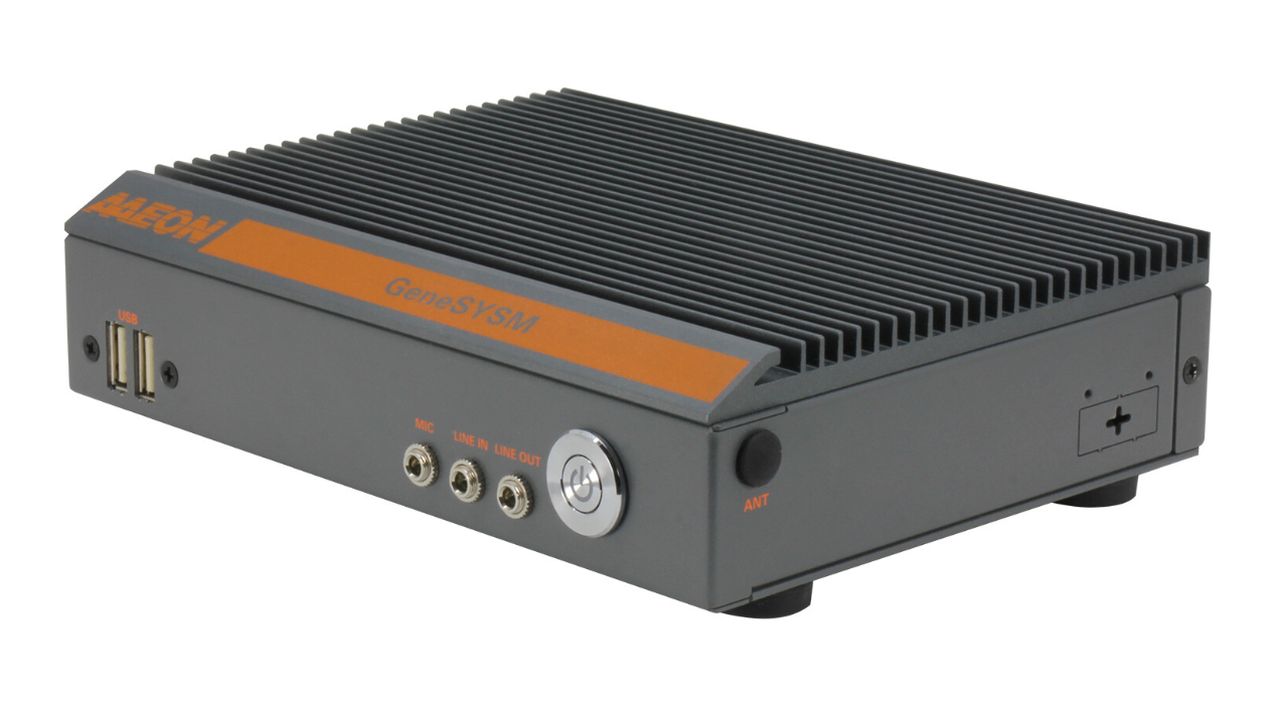
AAEON has recently launched the GENESYSM-ADN6, a slimline SubCompact System powered by Intel Core Processor N-series CPUs. This compact mini PC, measuring just 178 mm x 134.1 mm x 43 mm, is designed to meet the growing demand for edge computing solutions in smart retail, industrial automation, and edge gateway applications. The GENESYSM-ADN6 stands out […]
Last year, Logitech leaped into the content creator market by acquiring Loupedeck, which makes control surfaces for apps like Adobe Lightroom. Now, the company has unveiled its first Logitech-branded control panel, the MX Creative Console, a $200 device that includes a keypad, dialpad and plugins for popular Adobe apps like Premiere Pro.
Logitech is fighting rivals like the TourBox Elite controller and even its own Loupedeck CT, but its new offering is cheaper than the latter and sleeker than the former. The MX Creative Console features a modern design and a pair of slick control dials, along with dynamic display keys that change depending on the app and page you’re looking at.
I’ve tested a number of control panels going back to the original Loupedeck in 2017. To me, it always comes down to one main thing: Is this easier and faster than just using a keyboard and mouse? After over a week with the MX Creative Console, I found it to be powerful in some cases and too limited in others.
Hardware
The console comes in either pale gray or darker graphite and takes up very little space on your desk (3.8 x 3.1 inches for the keypad and 3.6 x 3.7 inches for the dialpad). A stand that angles the keypad or dialpad about 45 degrees toward you is also included. I prefer it flat on the table for speed, but the stand makes it easier to see the controls. The keypad has nine display keys, with the content changing based on the page and app you’re using. There are two regular buttons below to change the pages and a USB-C port on the bottom.
Steve Dent for Engadget
Meanwhile, the dialpad’s centerpiece is a large “contextual dial” since its function changes depending on the action selected. Plus, there’s a scroll wheel in the right top corner, two buttons on the top left and two buttons on the bottom in each corner. The bottom right button activates the dialpad’s “Actions Ring,” an on-screen circular display that gives you another way to tweak things like colors and text.
The keys require a light touch and have a smooth, clickless feel. The wheel on the dialpad has a nice amount of friction for precise work and lets you easily move frame-by-frame in Premiere Pro, or shuttle quickly through a timeline. It doesn’t have any haptic feedback, though, like the TourBox Elite. There’s a Bluetooth pairing switch on the bottom and a power switch on the back. It can connect to your computer either via LT Bluetooth or Logitech’s Bolt dongle also used on its mice and keyboards (not included).
Logitech says that the products are made with 72 percent post-consumer recycled plastics, low-carbon aluminum, micro textures instead of paint and FSC-certified responsible packaging. However, the dialpad uses AAA cells, either disposable or rechargeable. They’ll last a couple of months, according to Logitech, but it’s an odd choice for a product meant to be environmentally friendly.
Setup
Steve Dent for Engadget
The MX Creative Console is plug and play for Adobe apps so you can start twiddling the dials out of the box. It’s also customizable, letting you tweak settings within apps, create custom profiles and more. To set it up, I installed the Logi Options+ app on my PC (and Mac, I tested it with both), then connected the keypad via USB-C. I installed the dialpad separately by connecting it to my computers over Bluetooth.
Once the devices are recognized, clicking on “All Actions” installs the Adobe plugins. It also has direct support for apps including VLC media player, Spotify Premium, Capture One and Ableton. You can even use it to control apps without plugins like your browser for system volume, YouTube videos, emojis, screenshots and more. I found this useful just for the system volume alone (hello, terrible Windows 11 audio control).
Changing the default settings is about as easy as it gets. When you open the customization page, it shows the devices to the left (dialpad, keypad and Actions Ring), while all the possible settings are to the right. To change or add a new setting, just grab the one you want from the list and drag it over to the virtual keypad on the left. Keys can be rearranged on the same page, but it’s not easy to move a setting from one page to another.
As a Premiere Pro user, the first thing I did was create a new keypad page and add buttons to switch between the source, program and timelines to avoid a mouse click for those actions. That was relatively easy to do, thanks to the search function and intuitive drag-and-drop interface. If you’d rather not futz around with customization, Logitech has a plugin marketplace in the Logi Options+ app. I wasn’t able to use that ahead of launch, but it’s supposed to allow users to purchase or share plugins, profiles and icon packs.
Operation
Logitech
I primarily work on Lightroom Classic and Premiere Pro while occasionally making use of Photoshop and After Effects. All of those apps are supported natively by the MX Creative Console on Mac and PC.
I started with Premiere Pro, testing it on both Windows and Mac. After some pondering, I placed the keypad to the left of the keyboard and the dialpad on the right between the keyboard and mouse. That worked well visually and let me finetune edits and do adjustments with my right hand and press buttons with my left — much as I already do with a keyboard and mouse.
At first, I didn’t think the console would speed up my workflow in editing mode since I’ve memorized most of Premiere’s keyboard shortcuts. I was also worried that I’d be constantly jumping between the dial and the mouse. After playing around a bit, though, I noticed that scrubbing through the timeline with the dial offered finer and faster control than the keyboard and mouse, especially when using the scroll wheel to scale the timeline (I’d like to see faster scrubbing when I’m zoomed out though, Logitech).
Building on that, I added the split function and other click-free mouse tools I hadn’t touched in awhile. With that, I could work nearly as quickly as with a keyboard and mouse depending on the task, despite my previous fears. Though I’d be hesitant to use it myself for editing, I could see this being a good workflow for new Premiere Pro users as it visually shows actions so newbies don’t need to memorize shortcuts.
The MX Console is especially useful for color correction in Premiere. With a clip selected, you can click the bottom right dialpad button to activate the Actions Ring, move your mouse to one of the actions (exposure, contrast, whites, saturation, etc.) and turn the dial to adjust that setting. To avoid the mouse, you can also program major color adjustments into the keypad. Then, just hold the button on that setting while turning the dial.
Steve Dent for Engadget
Then it was on to Lightroom Classic. This app makes the most sense for the console, as you’re primarily performing actions (color correction, cropping etc.) on a single image. Quick keys include Develop mode, White Balance Selector, Auto White Balance, Auto upright and rating tools. Once you’ve imported images into your library, you can jump into Develop, shuttle between images using the dial and then tweak colors using the Actions Ring as with Premiere. Again, if you’d rather keep your hands on the MX Console, you can program common functions (temperature, saturation, highlights etc.) into the keypad.
The MX Console also has keys for copying and pasting Develop settings, before and after views, as well as cropping and opening images in Photoshop. A Lightroom power user could add more shortcuts to further boost efficiency. That makes it nearly as fast as the popular Loupedeck+ panel, but jumping between pages in the keypad can slow you down a bit.
Unfortunately, I found the MX Creative Console to be the least useful for Photoshop. Control panels are best for single-purpose tasks like color correction and audio adjustments, but Photoshop is designed for more complex operations. That meant I was forever taking my hands off the keypad and dialpad and putting them on the mouse and keyboard, making me less efficient, if anything. It could have been useful in Photoshop’s Camera RAW utility (which has Lightroom-like controls), but Logitech said that tool has no API and doesn’t support plugins.
Wrap-up
Steve Dent for Engadget
The MX Creative Console’s main competition is the $268 TourBox Elite, which has three dials and ten buttons. Designed to work in concert with your keyboard and mouse, it’s powerful for experienced editors, but looks a bit cheap. By contrast, Logitech’s MX Creative Console is more polished, and the visual interface its keypad provides makes it better for novices. It’s also worth noting that Elgato’s similarly priced Stream Deck+ recently added an Adobe Photoshop plugin, despite mainly being designed for live streaming. It promises easy access to Photoshop tools and adjustments via four dials and eight display keys.
Other options are more expensive, like the $529 Loupedeck CT, $395 DaVinci Resolve Speed Editor, $499 DaVinci Resolve Mini Panel and $595 Blackmagic Design DaVinci Resolve Editor Keyboard. Those are more powerful and look more professional, but will obviously cost you more.
Logitech’s MX Creative Console is a quality device with a fair amount of utility for apps like Premiere Pro and Lightroom Classic. Its usefulness will no doubt increase as Adobe adds more supported apps and the Logi Marketplace grows. However, it simply doesn’t have enough buttons and dials to perform tasks in many Adobe apps without falling back to the keyboard and mouse. If you do use apps where it works well, like Lightroom, it could provide a boost to your productivity and look cool doing it. It ships next month for $200 and Logitech includes a free three-month subscription to Adobe's Creative Cloud.
This article originally appeared on Engadget at https://www.engadget.com/computing/accessories/logitech-mx-creative-console-review-an-affordable-entry-point-into-edit-panels-070101321.html?src=rss
The iPhone 16 and 16 Pro are more than just incremental updates to their predecessors. These devices come packed with a wealth of hidden features and enhancements that are designed to elevate your user experience to new heights. From significant improvements in display technology and battery life to advanced camera capabilities and connectivity upgrades, the […]
Apple has recently released iOS 18.1 Beta 5 for registered developers, introducing a wealth of exciting features and improvements across various aspects of the operating system. This update not only focuses on iOS but also includes beta versions for iPadOS, macOS, watchOS, tvOS, and visionOS, showcasing Apple’s commitment to providing a seamless and integrated user […]
Sony has announced the PlayStation 30th Anniversary Collection, a special release that commemorates three decades of gaming excellence. This limited edition collection features exclusive designs and accessories that pay homage to the original PlayStation console, launched on December 3, 1994. The collection includes the PlayStation 5 Pro Console, PlayStation 5 Digital Edition, and various standalone […]
Restoring your iPhone using an iCloud backup is a straightforward process that ensures all your data is transferred seamlessly to your new device. Whether you’ve recently upgraded to a new iPhone or need to restore your current one, iCloud backup makes the process simple and efficient. The video from Apple, will walk you through the […]
In the ever-evolving world of smartphones, two titans stand tall: the iPhone 16 Pro Max and the Galaxy S24 Ultra. These flagship devices represent the pinnacle of mobile technology, each vying for the crown of the ultimate smartphone. The video below delves into a comprehensive comparison between these two powerhouses, examining their design, build quality, […]
We have become so dependent on our electronic appliances and devices that we start to panic when the grid suddenly goes down. While solar power generators now offer a more sustainable alternative to the gasoline-chugging relics of the past, it’s a different story when you’re out in the wild with the sun nowhere to be seen. Of course, we can’t control the weather, but we can be prepared for any situation, including when things don’t go according to our perfect plans. Just because the sun isn’t around doesn’t mean you have to stress over the lack of power. With this ultra-portable 50W power generator, you can have the confidence and peace of mind to stay outdoors longer, thanks to the power of the all-present wind.
Solar energy isn’t the only renewable energy source available. In fact, while solar panels are more popular for residential or personal uses, wind power is considered to be more reliable for wide-scale industrial use. Unfortunately, conventional wind turbines are neither small nor portable, making them inconvenient to use in more common, everyday scenarios. That is exactly what Shine 2.0 fixes, harnessing the power of the wind to power your outdoor adventures while enjoying the conveniences of modern technologies in a compact package that’s just the size of a large water bottle.
Shine 2.0 can generate up to 50W of power day or night, whether it’s sunny, cloudy, foggy, or even rainy. Its USB-C PD port outputs up to 75W to fast charge, smartphones, eReaders, tablets, and more. It can also power 12V devices, including laptops, and drones. Worried about a dry spell ruining your outdoor fun? The Shine 2.0 can generate as well as store power in its internal 12,000 mAh battery so you can use the oblong-shaped power generator as a power bank even after the wind has died down. And because of the wind’s cubic relationship with power, when the wind is twice as strong, the Shine 2.0 can generate eight times more power as well.
Shine 2.0 is designed for versatility. Are some low structures getting in the way of your wind? Shine 2.0’s 6-foot mount accessory raises it high above potential obstructions to capture more wind and maximize power generation. By using Shine 2.0’s custom adapter accessory, you can even charge power stations from EcoFlow, Bluetti, Jackery, and others. Sealed and weatherproof with an IP54 rating, Shine 2.0 is ready to face any condition to help you enjoy the great outdoors or even provide emergency backup power during an outage.
New to this second-gen wind turbine generator is a Bluetooth-connected app that lets you see all the critical stats like wind speed and power output without even having to get close. Weighing only 3 lbs and small enough to be stashed in a backpack water bottle compartment, Shine 2.0 offers unbeatable value in providing power on the go, wherever and whenever you need it. With this sleek, compact, and ultra-portable wind turbine, you no longer need to stress over surviving a few days away from power outlets, allowing you to enjoy the liberating experience of generating power from the wind.
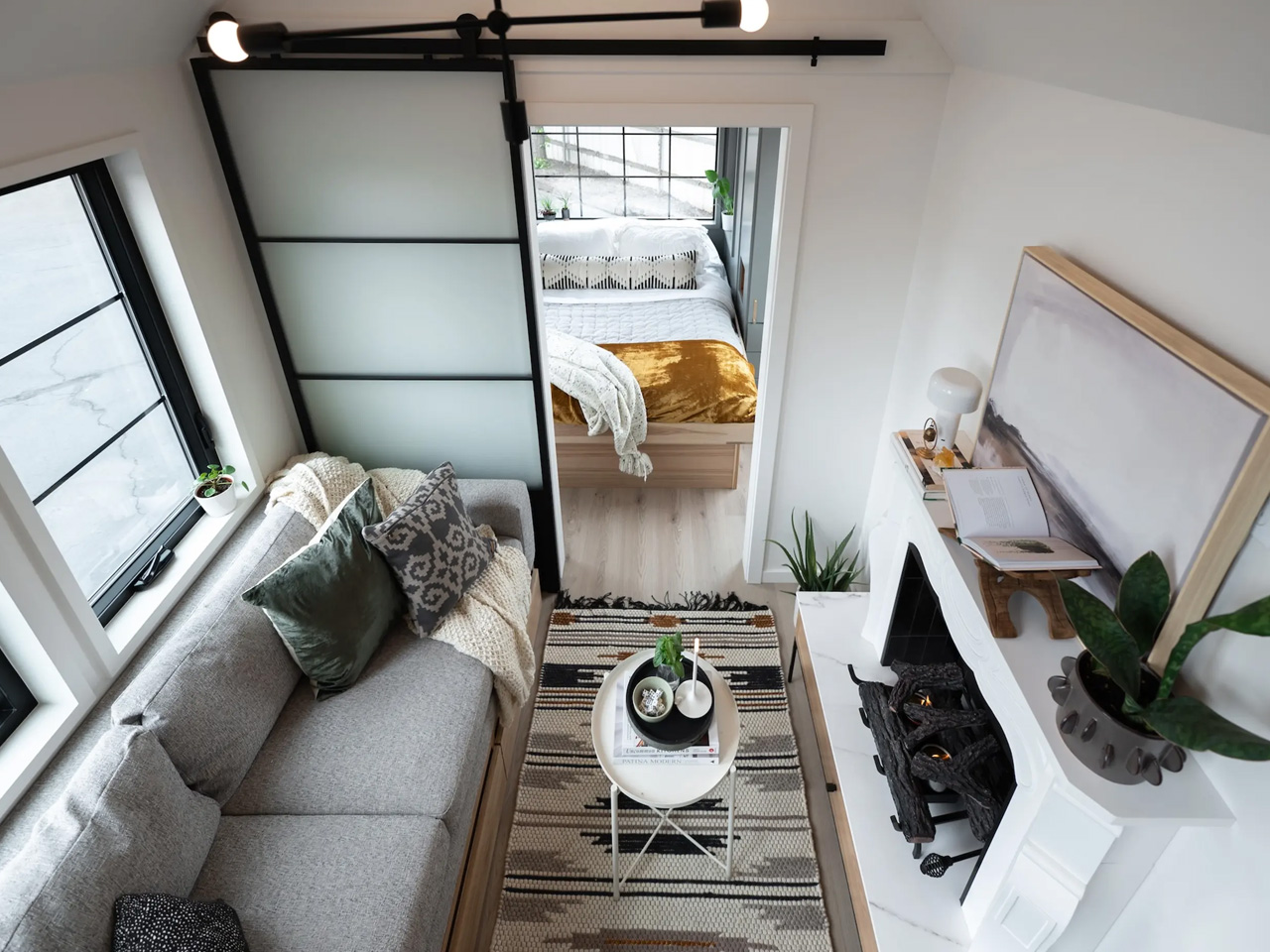
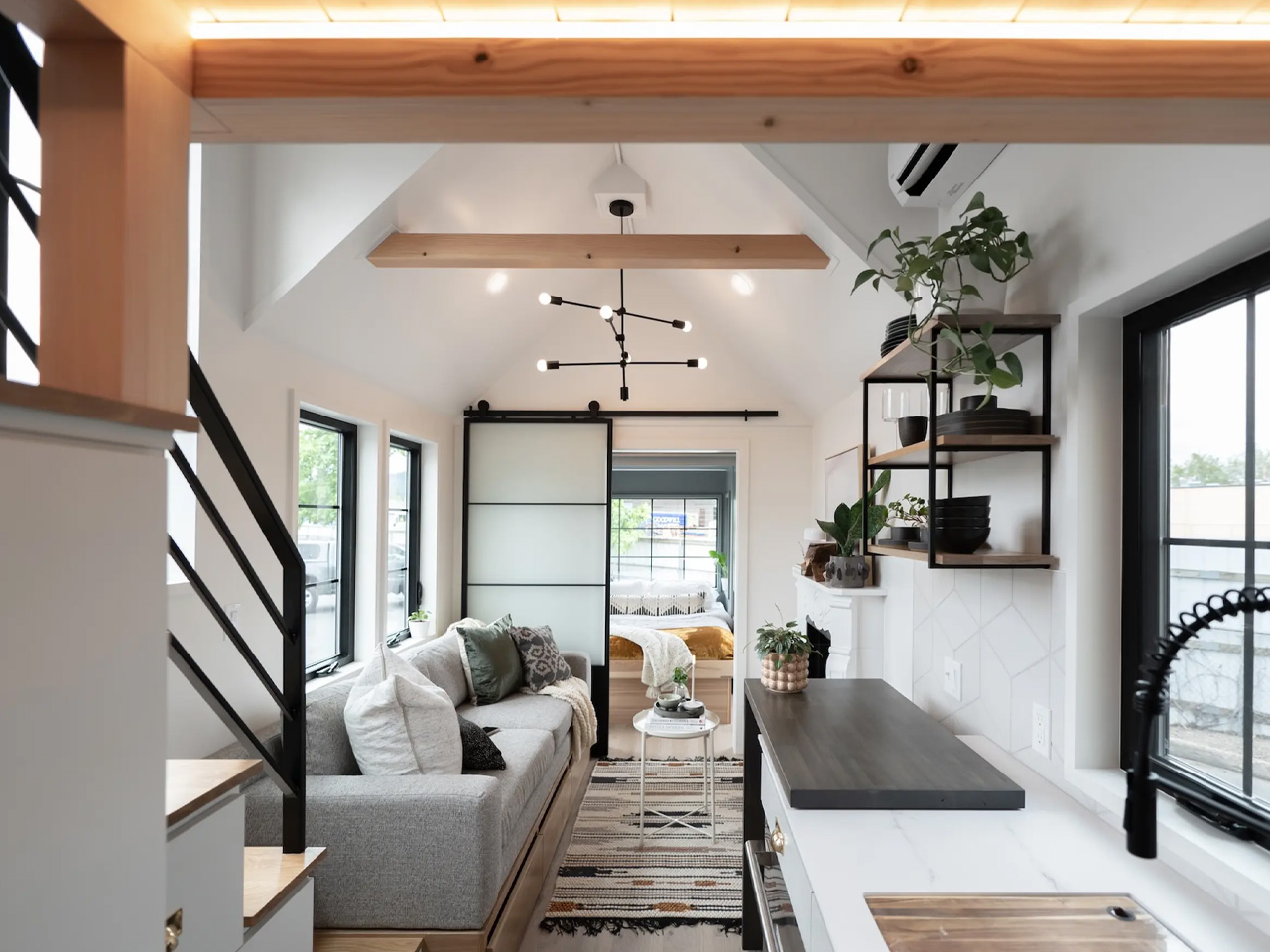
Designed by Truform Tiny Homes, the Kootenay Inventory is a tiny home with a well-designed and space-saving layout that is amped with loads of storage space. The home also features a bunch of lovely amenities, all packed into a length of 33 feet. The Kootenay Inventory is an updated and upgraded version of the original Kootenay home designed in 2017. It is founded on a triple-axle trailer and is powered by a standard RV-style hookup.
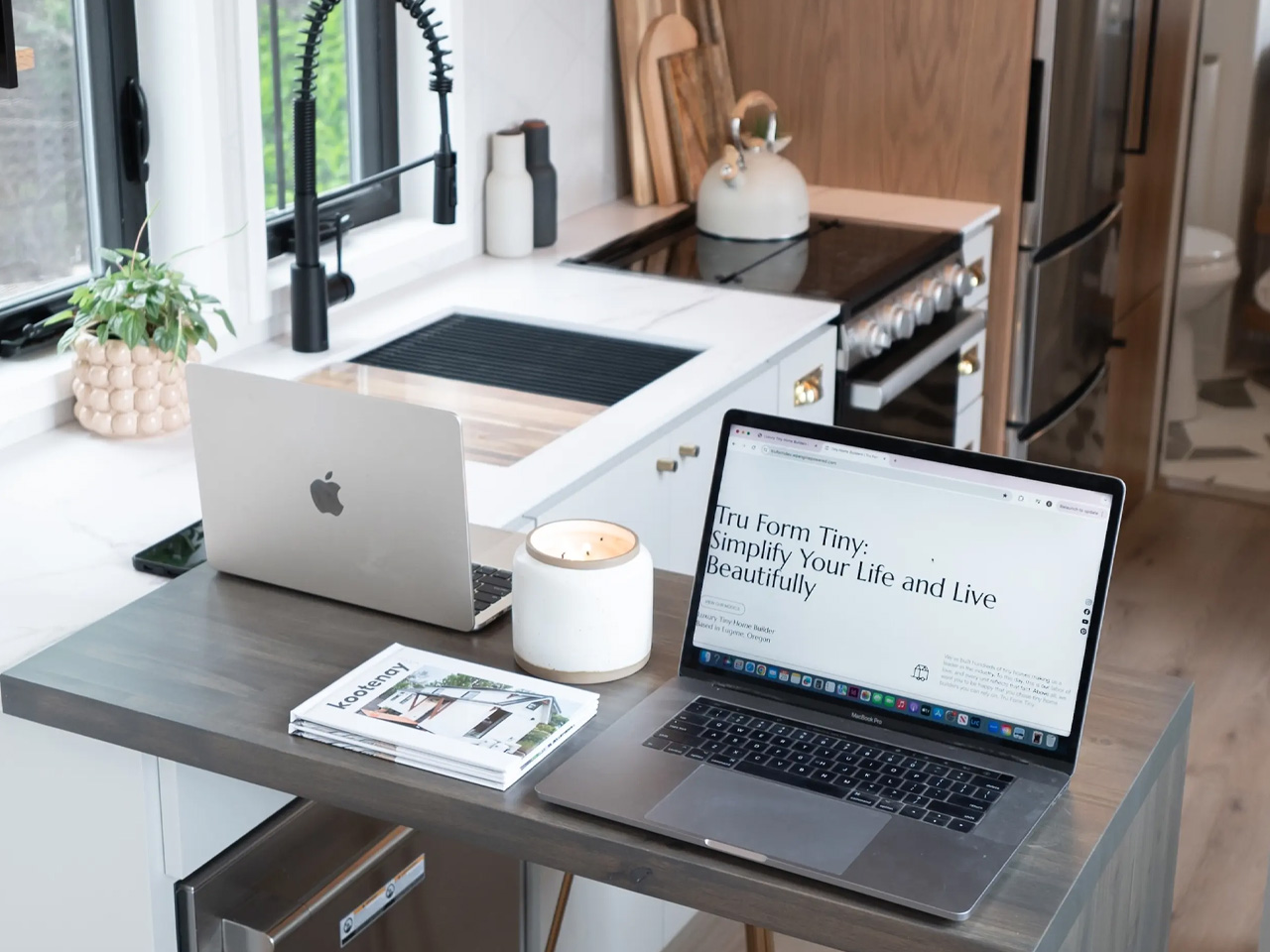
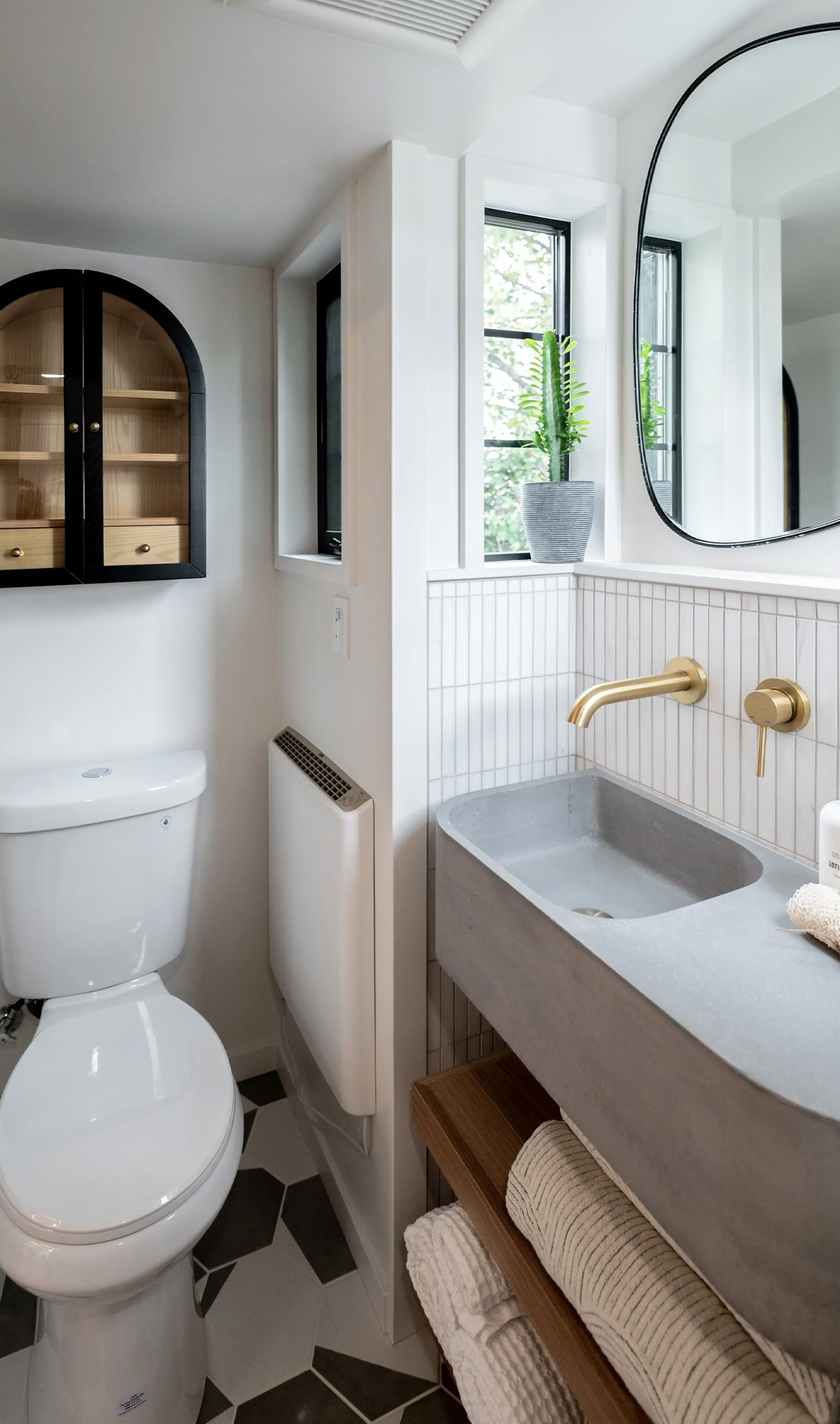
You can enter the home via a fold-down deck area and a front door that leads to a well-stocked kitchen. The kitchen is equipped with a three-burner propane-powered stove, a dishwasher, an oven, a fridge/freezer, a sink, a washer/dryer, and some cabinetry. The home also has a breakfast bar or office area that can be rotated sideways to offer more seating space. The living room is closely located, and it includes integrated storage, as well as a fireplace with a mantel. The bathroom is equipped with a chunky concrete sink, a flushing toilet, and a shower.
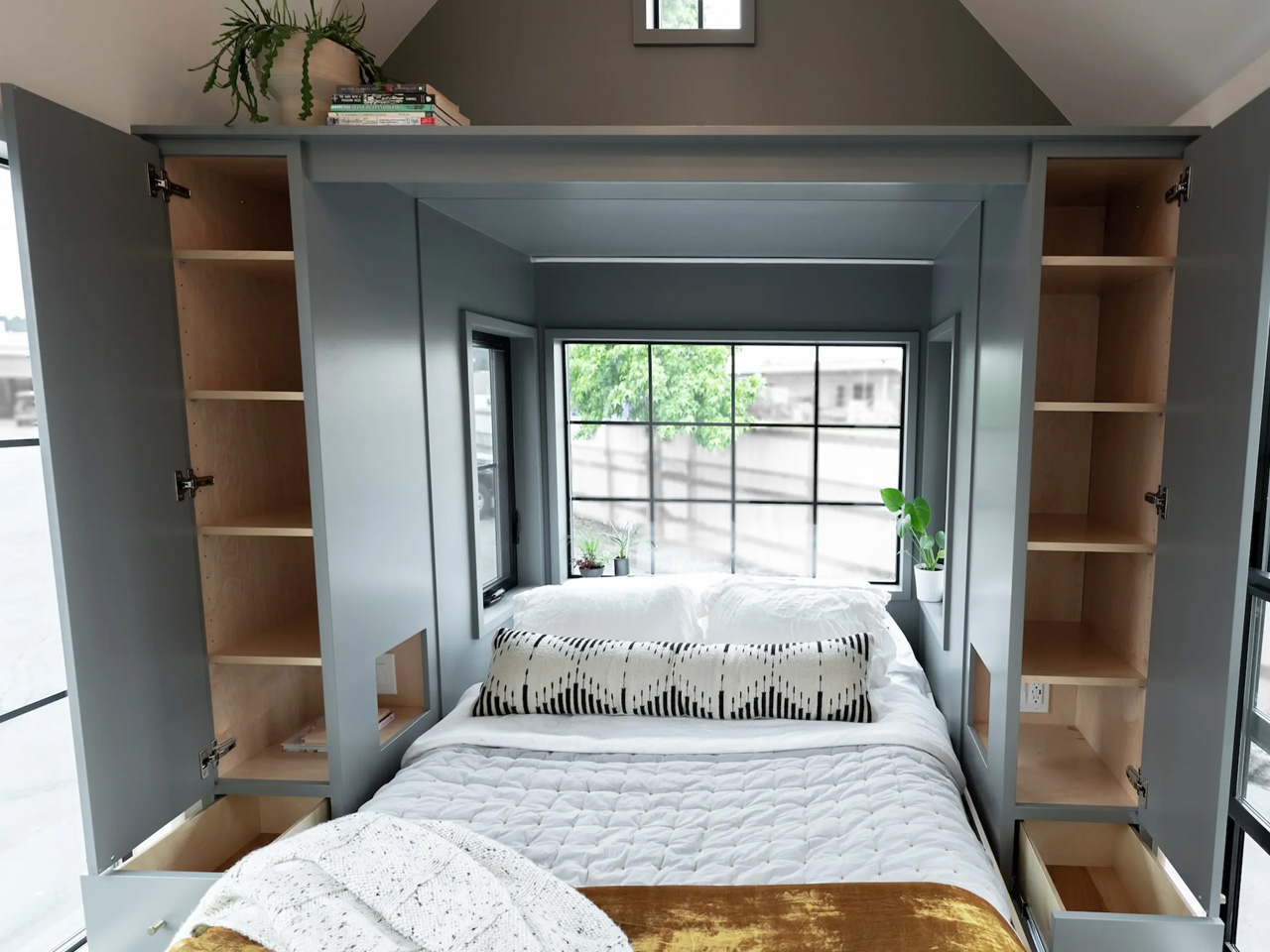
The Kootenay Inventory model includes two bedrooms. The master bedroom can be entered through the living room via a sliding door, and it has plenty of headroom to stand upright. The bedroom only has plenty of storage space, located under the double bed, as well as in the wardrobes.
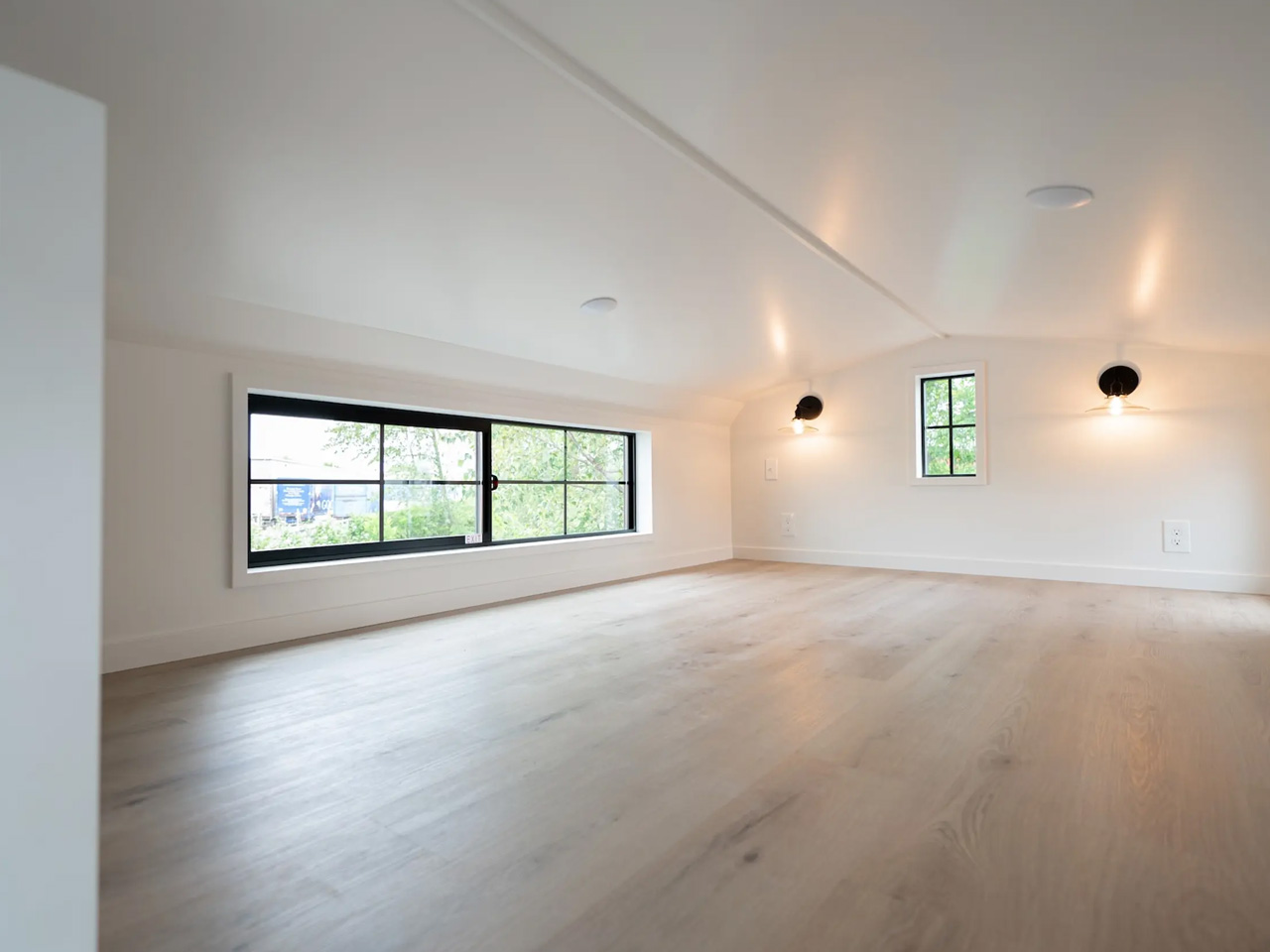
The second bedroom of the Kootenay is more like a typical loft-style space. You can access it via a storage-integrated staircase, and it features a low ceiling and plenty of storage space, as well as room for a double bed. This bedroom is situated on the opposite side of the downstairs bedroom, creating an ample amount of space between the two. The Kootenay Inventory is priced at US$174,900.
You’ve got Foosball, you’ve got Mini Golf, but have you ever heard of mini billiards? This tiny (yet somewhat playable) LEGO billiards set from the mind of LEGO builder Golden Eye captures the grandeur of a full-scale billiards table, but at a fraction of the size. Built with all the trims and fittings (including pockets, a gutter, and a cue-stand), Golden Eye’s Vintage Billiards Table is an adorable tabletop build that you can potentially even interact with, playing a game on its faux plastic turf!
Golden Eye’s MOC (My Own Creation) is a meticulously crafted homage to classic pool tables, incorporating both form and function in a way that LEGO enthusiasts and billiards fans alike will appreciate. It taps into the nostalgia of vintage recreational games while presenting an innovative challenge for builders. The table includes thoughtful design details, such as nets for catching balls, a built-in scoring system with chips, and hooks for accessories like a bridge stick. Every element is designed with precision to replicate the essence of a real billiards table, but in LEGO form.
The underneath tray is practical, offering a space to store additional balls, while also contributing to the table’s structural integrity. The cue stand on the side features both 9-ball and 8-ball racks, giving you the opportunity to explore different game styles, playable with the striped and solid balls that come with the table. As for the accessories, the inclusion of two chalks, two felt brushes, and even a hand-powder stone showcases the level of detail considered to make this as realistic as possible.
Although it isn’t possible to play a proper game on the table (the bricked surface is far too unreliable and the plastic balls have very little weight or inertia), you could totally engage with it on a purely fidget level, using it to pass time and probably settle quick wagers with friends/colleagues.
Golden Eye’s LEGO Vintage Billiards Table is currently a submission on the LEGO Ideas Forum, an online community for fans to share their own creative builds. With just under 2,000 votes, the entry is slowly making its way to the 10,000 vote mark, following which LEGO’s internal team considers it for review before deciding whether to turn it into a box set for people to buy. You can vote for the LEGO Vintage Billiards Table on the LEGO Ideas website here!