Samsung just released its lineup of Micro RGB TVs for 2026, and it includes models that start at 55 inches and go up to 85 inches. These 4K sets feature the company's Micro RGB display technology, which uses thousands of little red, green and blue LEDs to minimize color bleed and enable "expanded color with pinpoint accuracy."
The display is assisted by a new AI processor that has been specifically designed to calibrate the picture to bring out all of that gorgeous color. The company says this results in "stunningly sharp images with incredible detail." The processor also assists with motion smoothing, in addition to handling all of those smart TV apps.
These displays support HDR10+ Advanced, which is an updated standard co-developed by Samsung. This ensures genre-based optimization and enhanced brightness, among other features.
Samsung
The TVs are split into two lines. The R95H is the beefier of the two, with access to Samsung's anti-glare technology and a 165Hz refresh rate. The R85H tops out at 144Hz. All models include Dolby Atmos sound and the ability to pair up to five Samsung sound devices via its Q-Symphony technology.
They can also all access Samsung's Art Store, which is a platform that originally launched alongside the company's The Frame display. This lets subscribers choose from thousands of art pieces which will then be displayed on the screen when it's not being used to watch TV or play video games.
The R95H line starts at $3,200 for a 65-inch model, going all the way up to $6,500 for an 85-inch display. Samsung promises a 100-inch version is coming later this year. The R85H line is cheaper, starting at $1,600 for the 55-inch release and shooting up to $4,000 for the 85-inch model. The TVs are available right now, directly from Samsung and from retailers like Best Buy.
This article originally appeared on Engadget at https://www.engadget.com/home/home-theater/samsungs-new-micro-rgb-tvs-start-at-1600-for-a-55-inch-model-150023242.html?src=rss
Amazon has today announced it is merging with satellite internet provider Globalstar Inc. to bolster Leo, its Starlink rival. Globalstar isn’t a household name but you do know its work, as it provides Apple’s emergency satellite connectivity for compatible iPhones and Watches. In a statement, Amazon says the deal will grow Leo’s space-based footprint and enable direct-to-device service for its burgeoning satellite network.
An interesting wrinkle is Apple owns 20 percent of Globalstar, which it bought for $1.5 billion in 2024, but that didn’t get a mention. Instead, the release says Amazon and Apple have agreed Leo will “power satellite services for supported iPhone and Apple Watch models.” And that this support will continue as Leo’s network evolves, as well as collaborating “with Apple on future satellite services using Amazon Leo’s expanded satellite network.”
The release adds Leo’s direct-to-device service won’t start until 2028, and the deal itself isn’t expected to close until 2027. That is, of course, unless Amazon doesn’t placate the FCC into extending its deadline to get more satellites into orbit before July 2026. At present, the company needs to have 1,600 satellites in orbit by that deadline, but only expects to have around 700 actually up in the heavens and working by then.
This article originally appeared on Engadget at https://www.engadget.com/general/amazon-buys-the-satellite-internet-company-behind-apples-sos-system-130150744.html?src=rss
Amazon has today announced it is merging with satellite internet provider Globalstar Inc. to bolster Leo, its Starlink rival. Globalstar isn’t a household name but you do know its work, as it provides Apple’s emergency satellite connectivity for compatible iPhones and Watches. In a statement, Amazon says the deal will grow Leo’s space-based footprint and enable direct-to-device service for its burgeoning satellite network.
An interesting wrinkle is Apple owns 20 percent of Globalstar, which it bought for $1.5 billion in 2024, but that didn’t get a mention. Instead, the release says Amazon and Apple have agreed Leo will “power satellite services for supported iPhone and Apple Watch models.” And that this support will continue as Leo’s network evolves, as well as collaborating “with Apple on future satellite services using Amazon Leo’s expanded satellite network.”
The release adds Leo’s direct-to-device service won’t start until 2028, and the deal itself isn’t expected to close until 2027. That is, of course, unless Amazon doesn’t placate the FCC into extending its deadline to get more satellites into orbit before July 2026. At present, the company needs to have 1,600 satellites in orbit by that deadline, but only expects to have around 700 actually up in the heavens and working by then.
This article originally appeared on Engadget at https://www.engadget.com/general/amazon-buys-the-satellite-internet-company-behind-apples-sos-system-130150744.html?src=rss
GoPro has seen its action camera market share diminish due to strong competition from rivals like Insta360 and DJI of late. Now, the company is fighting back with a new line of flagship cameras called Mission 1, designed to greatly improve the video quality offered by its current Hero 13 camera. The company also introduced a new Wireless Mic system similar to DJI's Mic Mini, along with a point-and-shoot grip and other accessories.
"The combination of our new 50 megapixel one-inch sensor and ultra-efficient GP3 processor sets a new performance bar for compact cinema cameras, enabling resolutions, frame rates, low-light performance, runtimes and thermal capabilities never seen before in cameras this small," GoPro's senior VP Pablo Lema said in a statement.
Sample Photo from GoPro Mission 1 Pro action camera
GoPro
The new line includes three models: the Mission 1, Mission 1 Pro and Mission 1 Pro ILS. All have a one-inch 50-megapixel sensor, new GP3 processor and up to 8K video, but the Mission 1 Pro supports higher frame rates. The Mission 1 Pro ILS (interchangeable lens system) comes with a lens mount so you can use high-quality Micro Four Thirds lenses from the likes of Panasonic and OM System.
The Mission 1 has an updated lens design with a 159 degree native field of view, the widest in its category. It also features a new OLED rear display that's 14 percent larger than previous flagship GoPro cameras, along with bigger raised buttons for easier use with gloves and a removable lens hood to reduce glare and lens flare.
GoPro
The 50MP 1-inch sensor has large 1.6μm pixels at full resolution or 3.2μm fused pixels when it's in operating at 4K in quad-bayer mode. That allows for higher dynamic range up to 14 stops and improved low-light performance with "exceptional detail in the darkest of shadows while protecting highlight details," GoPro claims. That low-light performance is likely to be better in quad-bayer 4K mode than full resolution 8K, however.
Meanwhile, the new GP3 Processor offers a power-efficient 5nm design that allows "best-in-class resolutions, frame rates and image quality," the company says. Those resolutions include 8K at up to 60 fps for the Mission 1 Pro/Pro ILS models, 4K at up to 240 fps and 1080p at up to 960(!) fps. GoPro also offers 10-bit HLG/HDR and a 10-bit GP-Log2 mode to maximize dynamic range.
The Pro models support 4:3 open gate capture so you can easily reframe shots or export video for different platforms. The Mission 1, meanwhile, captures up to 8K 30 fps, 4K 120 fps and 1080p 480 fps video, along with 4K 120 fps open gate video. You can capture 50MP RAW stills at up to 60 fps burst speeds on all Mission 1 models.
GoPro
The lineup promises excellent battery life thanks to the new Enduro 2 battery, with three-plus hours of 4K 30p recording on a charge. You can use the Hero 13 batteries as well albeit with shorter recording times. The company is also promising faster charging speeds. Thermal performance is solid despite the small size, with 8K 60p capture possible for 37 minutes straight with no airflow, or 74 minutes with airflow (when riding a bike for instance). However, unlike recent rivals, the Mission 1 supports microSD storage but has no internal memory.
Like its DJI and Insta360 rivals, the Mission 1 cameras offer multiple intelligent capture modes, including subject tracking, Dive (underwater stabilization) and Low-Light, along with Slow-Mo, Lapse, Sport POV, Vlog and Open Gate. GoPro action cams generally have excellent stabilization, so it'll be interesting to see if the Mission 1 series continues that trend, especially in low-light conditions.
GoPro isn't skimping on audio either, as the Mission 1 models offer a four-mic system with 32-bit float along with stereo recording and wind noise reduction. You can connect wirelessly to compatible devices via Bluetooth 5.3 or wired mics over USB-C audio.
GoPro
The Mission 1 Pro ILS appears to be the first action camera with an interchangeable lens mount that's compatible with any Micro Four Thirds lenses and adapters. GoPro's HyperSmooth electronic video stabilization will work with any prime (non-fisheye) lens. It's "the world’s smallest, most rugged and versatile high-speed cinema camera at a fraction of the cost and size of comparable cameras," GoPro said. Most lenses will likely make the camera too heavy and awkward to attach to a helmet or body, but you could certainly mount it to a motorbike, car or other vehicle.
Along with the Mission 1 cameras, GoPro is introducing some new accessories. Key among those is the new Wireless Mic System designed for easy pairing with the Mission 1 cameras, along with DSLRs and smartphones. With a charging case and magnetic clips, it looks a lot like DJI's Mic Mini system and offers 24-bit/48kHz audio with Dynamic Noise Reduction, 150 meters of wireless range, 6.5 hours of run time, adjustable gain and a safety track mode.
GoPro
Other accessories include a Media Mod kit with a built-in multi-pattern mic and expanded I/O capability including 3.5mm mic and headphone ports, a micro HDMI port and a line-in port for timecode sync. GoPro is also offering a new Point-and-Shoot grip, M-Series ND Filters, a protective housing, a dual Enduro 2 battery charger, Volta battery grip and Light Mod 2 LED light. It's compatible with a GoPro subscription and Quick App, along with GoPro Labs that lets you unlock higher data rates (up to 300Mbps) and over 1,000 complex settings.
The new models will be available individually or in kits, including the Mission 1 Pro Creator Edition bundled with the Media Mod, Wireless Mic System and Volta battery grip. The Mission 1 Pro Ultimate Creator Edition includes those while adding GoPro's Fluid Pro AI gimbal and Light Mod 2. Pricing and availability will be announced at a later date.
This article originally appeared on Engadget at https://www.engadget.com/cameras/gopros-mission-1-offers-8k-60p-video-and-interchangeable-lenses-130018643.html?src=rss
The price of nearly every type of gaming gadget has skyrocketed recently. RAMageddon has caused the cost of memory to double or triple in the last six months, with companies like HP saying that RAM now accounts for more than a third of a new PC’s bill of materials. Meanwhile, the Xbox Series S/X and the PS5 have gotten price hikes, and a similar bump for the Switch 2 is starting to look “inevitable.” Even mobile devices are not immune, with Samsung jacking up the cost of the Galaxy Z Fold 7 nine months after release. But with the $350 27-inch QD-OLED (AW2726DM), Alienware hasn’t just created a gaming display that’s an excellent value, it’s made a beacon of hope for anyone looking to upgrade their setup without emptying their bank account.
Design
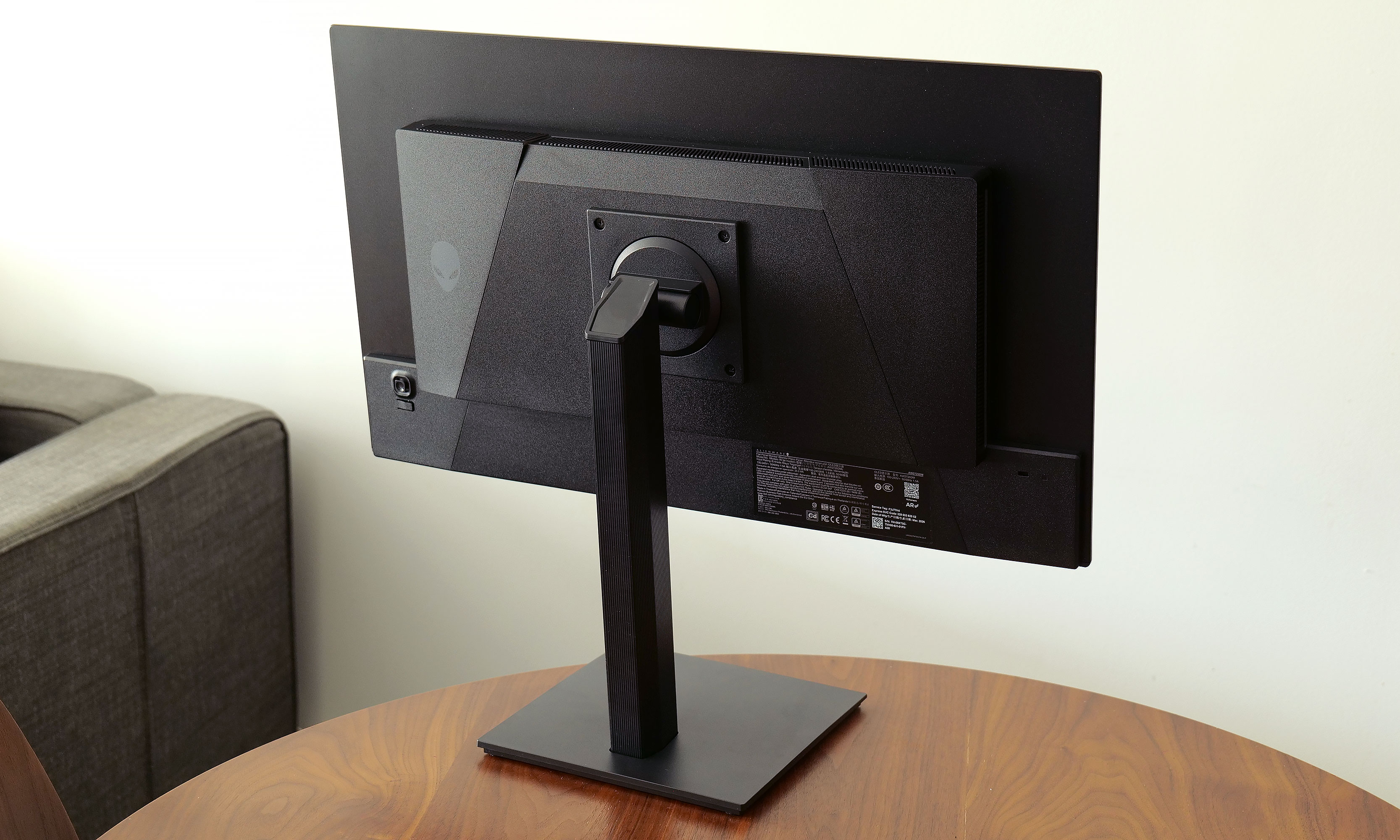
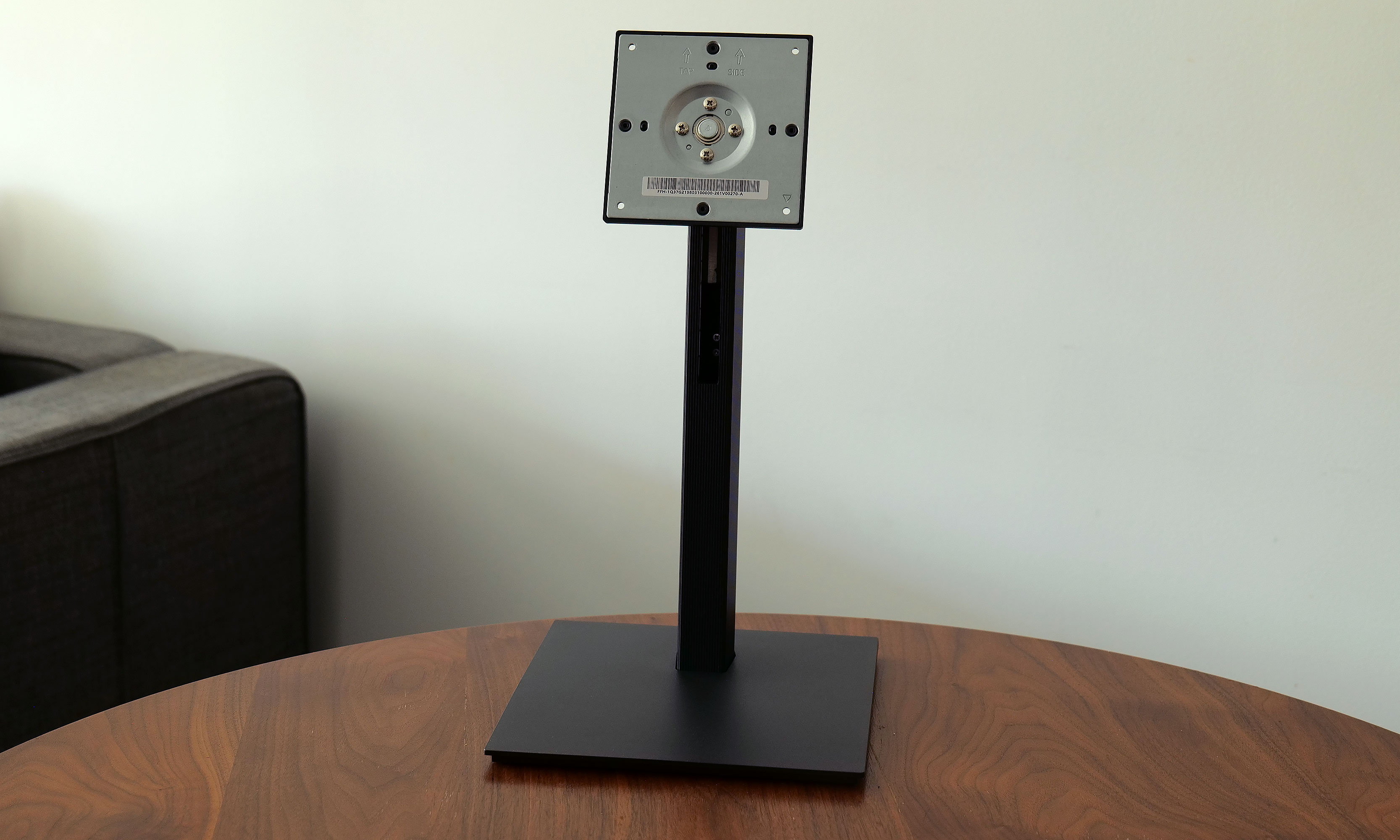
Unlike some of Alienware’s more expensive displays, the AW2726DM’s design couldn’t be simpler. It sits on a square 8.75-inch base that supports tilt, pivot and height adjustments. Though it does require a little assembly, everything you need comes in the box. Alienware’s monitor arm attaches via a captured thumb tab, while the monitor relies on four screws and a VESA mount that can be connected using the bundled Philips wrench. (Though if you have a proper screwdriver, that would be even better.) Setup only took me a few minutes and after arranging it properly on my desk, the monitor felt quite solid. The only potential drawback is that if you have limited desk space or you’re the kind of gamer that likes jamming your keyboard as close to your monitor as possible, Alienware’s stand might get in the way.
The back of the monitor has an easy-to-use joystick for controlling its on-screen settings menu.
Sam Rutherford
At around 4mm thick, the AW2726DM’s panel is exceedingly sleek, though naturally that expands a bit on the lower portion of the monitor where its ports are located. This brings us to one of the biggest differences between Alienware’s budget display and more premium options: limited connectivity. All you get here is two HDMI 2.1 jacks, one DisplayPort 1.4 slot and a 3.5mm plug for audio out. There’s no support for data transfer, power sharing or anything else. Heck, there isn’t even any RGB lighting, which feels weird on a product from Alienware. But given its price, I’m not upset. In fact, it’s actually kind of refreshing. Finally, there’s a handy control stick on the back of the display for navigating its on-screen menu.
Visuals
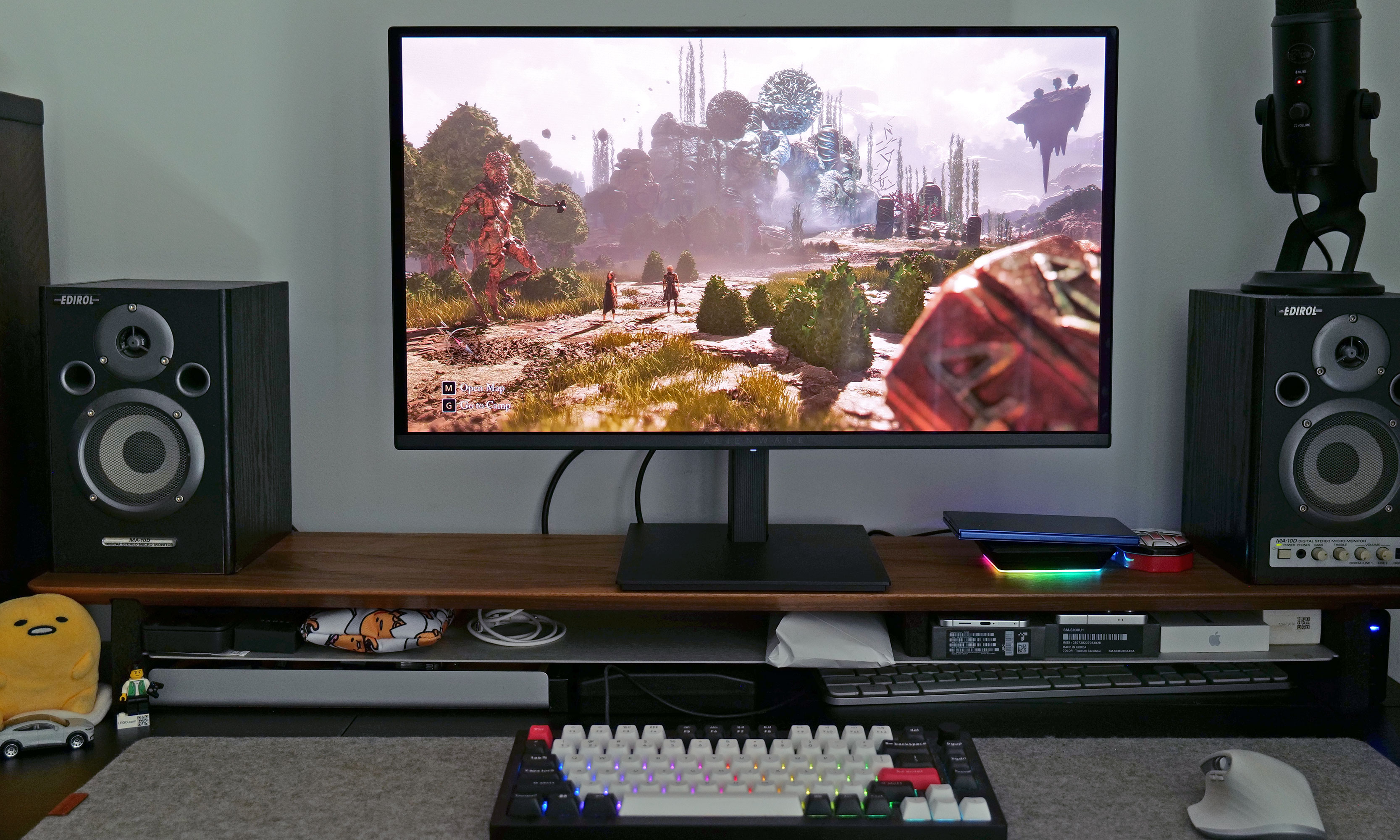
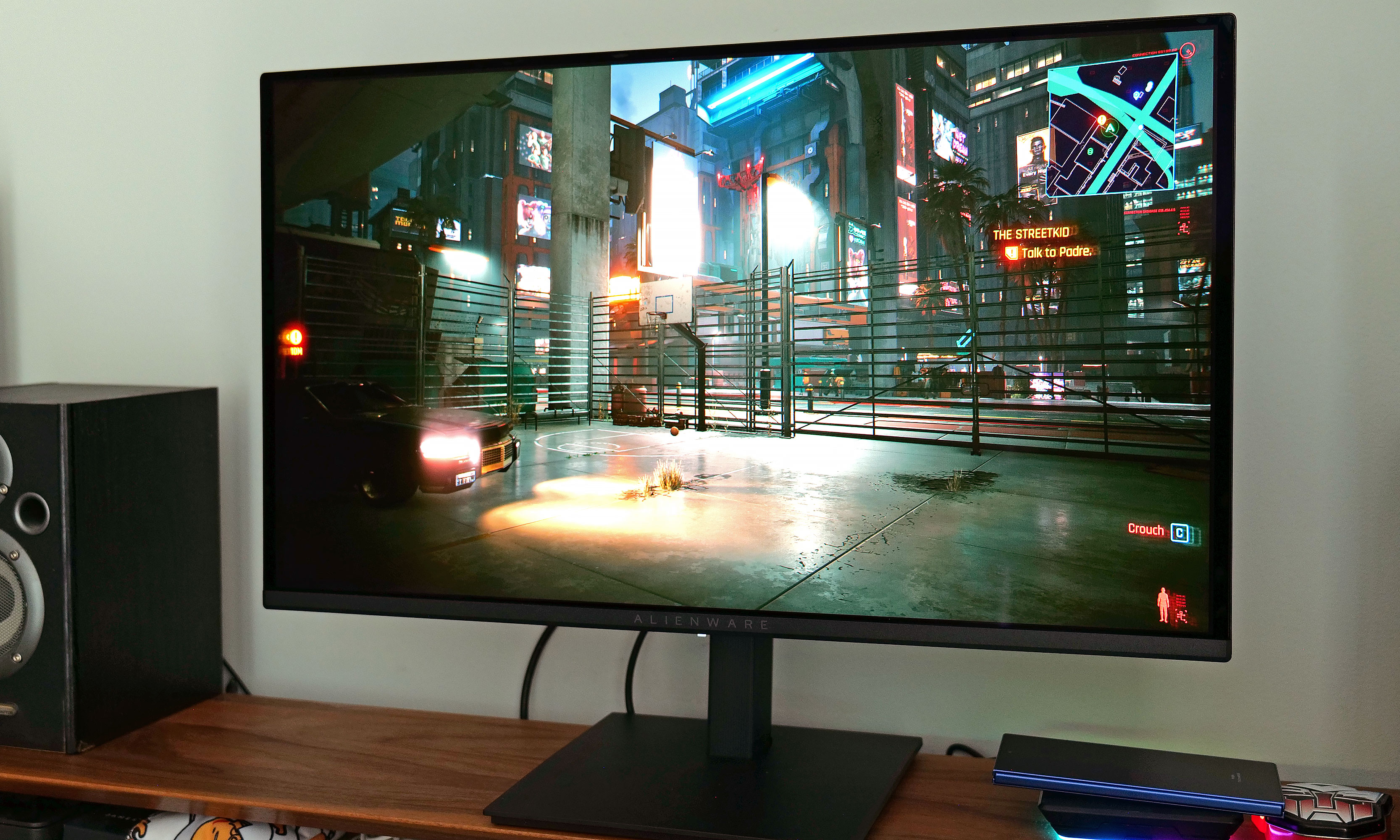
As long as it's not too sunny or bright, the AW2726DM delivers excellent visuals for the money.
Sam Rutherford for Engadget
The AW2726DM features a QD-OLED panel supplied by Samsung that comes with a QHD resolution (2,560 x 1,440) and up to a 240Hz refresh rate. Alienware supports VRR via AMD FreeSync Premium and VESA AdaptiveSync, though sadly there’s no native option for NVIDIA G-Sync. That means if you have a GPU from Team Green and want to take full advantage of the monitor’s potential, you’ll want to rely on that DisplayPort for optimal compatibility.
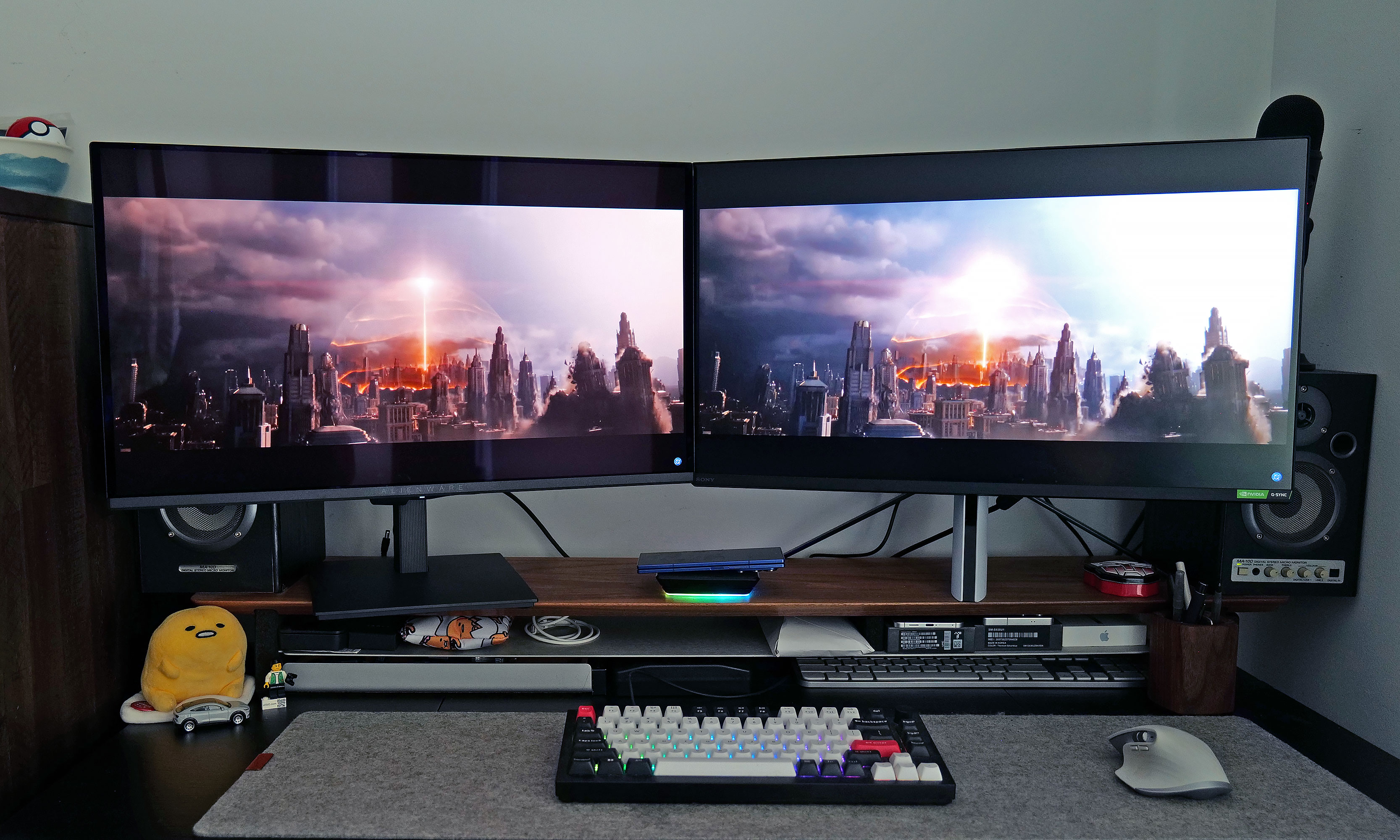
Regardless, for a $350 gaming display, the AW2726DM checks all the most important boxes and it looks fantastic. Alienware’s budget monitor showcases the strengths of OLED panels versus LCD, even when compared to Sony’s Inzone M9, which was a much more expensive monitor when it debuted back in 2022. Alienware offers richer colors (it covers 99 percent of DCI-P3), and thanks to its deep inky blacks, contrast is significantly better as well.
Here's a direct comparison between the AW2726DM and the Sony Inzone M9, the latter of which cost $900 when it came out in 2022.
Sam Rutherford for Engadget
The one big drawback is that, with a typical brightness of 200 nits, the AW2726DM is dimmer than more expensive rivals. That means the monitor doesn’t have fancy certifications for stuff like VESA True Black and instead relies heavily on general HDR10. Furthermore, Alienware chose a glossy (and quite reflective) finish that makes colors look even more saturated while improving perceived brightness. The one thing you need to watch out for is glare, especially if your PC or console lives in a room that gets a lot of sunlight. But if you’re like a lot of gamers that prefer to frag at night or in the dark, this may not be an issue.
Outside of gaming, there’s another shortcoming of the AW2726DM. Between its QHD resolution and the arrangement of Samsung’s QD-OLED subpixels, folks with good eyesight may notice a little fringing, especially when compared to higher-res 4K displays. This means some Word docs and web pages may not look quite as sharp as you’d like, but that’s a small price to pay for some of the best visuals you can get on a gaming monitor in this price range.
Warranty and care
The stand for the AW2726DM supports tilt, height adjustment and even pivoting all the way into portrait mode.
Sam Rutherford for Engadget
One of the major concerns about OLED displays when they first hit the market was the potential for burn-in, resulting in permanent damage to the panel from things like static UI elements staying on the screen too long. Thankfully, the AW2726DM comes with a three-year warranty that includes a clause covering burn-in, along with a free panel replacement in case there’s even a single bright pixel. Furthermore, Alienware uses a graphite film heatsink and an AI algorithm to prevent any sort of ghosting from appearing in the first place.
Wrap-up
Alienware also conveniently includes both HDMI and DisplayPort cables in the box, along with the required screws for mounting the panel to the stand.
Sam Rutherford for Engadget
The AW2726DM might not have all the fancy features you get on more expensive monitors, but it’s an excellent example of a no frills gadget done right. You get just enough ports, a straightforward design and a beautiful QD-OLED panel with a solid resolution and refresh rate — all for just $350. It would certainly be nice if it was a little brighter or if text looked a touch sharper, but those shortcomings are pretty easy to live with. For anyone looking to upgrade what might be arguably the second most important part of your gaming setup (your screen is your window into new worlds after all), this display is budget gold.
This article originally appeared on Engadget at https://www.engadget.com/gaming/pc/alienware-27-aw2726dm-qd-oled-monitor-review-a-budget-pc-gamers-new-best-friend-130000287.html?src=rss
If you were looking for the worst AI project announced so far this week, try Meta. According to a Financial Times report, the company is developing its own Mark Zuckerberg AI, training it on Zuckerberg’s mannerisms, tone and publicly available statements. AKA, the good stuff. (Will it smoke meats?)
The company has reportedly been working for some time on creating photorealistic, 3D-animated AI characters that can manage interactions. However, it now appears to be focusing on this Zuckerberg AI character, which would interact with employees in his stead. Yeesh. Remember when the Meta boss introduced legs to the metaverse? Hopefully, a backbone is in the works soon.
Dozens of civil rights organizations have written a letter to Meta CEO Mark Zuckerberg warning of the dangers posed by adding facial recognition technology to the company’s smart glasses. More than 70 groups have urged Zuckerberg to abandon plans to incorporate the tech on the grounds that it would empower stalkers, sexual predators and other bad actors. They also want the company to disclose past or ongoing discussions with federal law enforcement agencies, including ICE, about the use of Meta smart glasses and other wearables, according to a report by Wired.
Adding to the grossness of all this, according to The New York Times, Meta issued an internal memo last year suggesting it could roll out this technology “during a dynamic political environment where many civil society groups that we would expect to attack us would have their resources focused on other concerns.” In short, attempting to add the feature when pushback would be limited or unfocused. The coalition called this “vile behavior” that looks to take advantage of “rising authoritarianism.”
Xbox’s new chief exec, Asha Sharma, reportedly wrote in a memo to employees that the current pricing of the Game Pass subscription service might be too high. According to the note, seen by The Verge: “Short term, Game Pass has become too expensive for players, so we need a better value equation.”
Microsoft raised the price of Game Pass twice in 15 months, and many Xbox exclusives have made their way to rival PlayStation. Game Pass continues to add games: the April update adds indies like Hades 2 and Double Fine-project Kiln alongside Call of Duty: Modern Warfare. The Verge reports the addition of the CoD franchise might have contributed to Game Pass price increases, as in the past, buying the game at retail value was less favorable than a one-month subscription.
It’s a real connected-story edition of TMA today. Bloomberg reports Apple could reveal its smart glasses by the end of this year, and it’s already testing four eyewear styles. Apple is reportedly mulling over a large rectangular frame comparable to Ray-Ban Wayfarers, a slimmer rectangular design, like the one Apple CEO Tim Cook wears, as well as an oval or circular frame in large and small iterations. Apple is also working on a selection of colors.
Apple’s upcoming smart glasses will compete directly with the second-gen Ray-Ban Meta model. While similar, Apple might be differentiating its design with “vertically oriented oval lenses with surrounding lights,” according to the report. Apple’s upcoming product will capture photos and videos but is meant to play better with iPhones, so users can take advantage of Apple’s ecosystem for editing, sharing and more.
Many creators have already switched from Adobe Premiere to DaVinci Resolve, and now the developer, Blackmagic Design, is going after Lightroom and Photoshop. The Australian company just unveiled DaVinci Resolve 21 in beta at the NAB 2026 broadcast convention with a brand new page called Photo designed to let you do things like crop and color-correct still images. At the same time, the new version introduces video AI tools that can age a subject or reshape their facial features.
DaVinci Resolve has always let you edit photos as clips on a video timeline, but now it's greatly simplified with the Photo page. You can import and manage photographs, including RAW files from Canon, Fujifilm, Nikon and Sony, directly into the new page. Then, you adjust them using the node-based Color page that offers similar and arguably even more powerful tools than Adobe's Lightroom.
Just as with video, the Color page includes primary color correction, curves, qualifiers and power windows (along with noise reduction, sharpening and more). However, Resolve's node-based workflow really shines for photo editing. You can add nodes in series or parallel to build complex grades, then save them to apply to other images or an entire photo album. You can also reframe and crop images at their original source resolution and aspect ratio, without affecting the original image quality.
Steve Dent for Engadget
The LightBox view lets you see an entire album with grades applied. "Select any image and grade it live while seeing the results update across the whole collection in real time. Filter by graded, ungraded, star rating, flag and clip color," Blackmagic Design explains in a press release. Albums, meanwhile, let you build collections like you do in Lightroom. Those also appear as timelines in the Color, Cut and Edit pages for easy access.
For pro photographers, the Color page includes camera controls that let you tether a Sony or Canon camera to Resolve for live image capture, while adjusting settings like ISO, exposure and white balance. You can save capture presets to "lock in a consistent look before customers shoot," according to Blackmagic.
Other Resolve tools also work with the Photo page, like the AI Magic Mask that lets you make one click selections of an object or person. It's also possible to do advanced VFX on still photos using Resolve's Fusion page, or add OpenFX or FusionFX filters directly on the Photo page. Finally, you can collaborate with others using Blackmagic Cloud, though that does require a paid subscription.
I briefly tested the Photo and Color tools and, as someone who's admittedly familiar with DaVinci Resolve, I found it easy to grasp. It's simple to import and organize images (easier than Lightroom in my opinion) and is as powerful as Lightroom's Develop page for most adjustments, though I really missed the latter's "Clarity" tool. The node based workflow is powerful, and Resolve makes it easier to apply adjustments to multiple images. When you're ready to export, that's done through a special photo-only version of the "Export" page and is relatively intuitive as well. Whether or not I'll cancel my Photoshop/Lightroom subscription remains to be seen, however.
Blackmagic Design
On top of the Photo page, Blackmagic Design introduced a number of new features for video and VFX as well. Among the most interesting are a series of AI tools for facial adjustments. The AI Face Age Transformer tools lets you analyze a face, enter the subject's age and adjust the age offset slider to add things like wrinkles and facial fullness. You can also change the way a subject looks through the AI Face Reshaper tool that lets you adjust the eyes, nose, mouth, eyebrows and overall face shape. Plus, you get an AI Blemish Removal feature that reduces the appearance of superficial skin imperfections like acne, discoloration and large pores, while retaining the skin's natural texture.
Another tool that will no doubt be popular is AI UltraSharpen that can upscale video "to make previously unusable footage sharp in higher resolutions," according to the company. It can also be used to improve slight focus errors. Meanwhile, the AI Motion Deblur fixes slightly blurred images, making it particularly useful for slow motion and freeze frame shots.
Other key new upgrades, to name just a few, include the ability to edit Fusion effects from within the Cut and Edit pages, the addition of the Krokodove library of compositing tools and new immersive VR tools for delivery to platforms like Meta Quest and YouTube VR. Most of the new features are available in Blackmagic Design's free version of DaVinci Resolve, though a couple of tools (AI Magic Mask and Film Look Creator) are only available with the paid, $295 DaVinci Resolve Studio version. A complete list of new features is here and you can download the free and paid versions here.
This article originally appeared on Engadget at https://www.engadget.com/apps/blackmagics-davinci-resolve-21-takes-on-adobe-lightroom-with-a-new-photo-page-053034084.html?src=rss
Xbox's new chief exec, Asha Sharma, has only been in charge for a few months but things already seem like they might be changing for the better. Or at the very least, they might be getting cheaper. The Verge reported that the new Xbox CEO wrote a memo to employees addressing the current pricing of the Game Pass subscription service.
"Game Pass is central to gaming value on Xbox. It’s also clear that the current model isn’t the final one," Sharma allegedly said. "Short term, Game Pass has become too expensive for players, so we need a better value equation. Long term, we will evolve Game Pass into a more flexible system which will take time to test and learn around."
After Microsoft upped the price for Game Pass twice within 15 months, many of us certainly felt that the service had gotten too costly to keep. Xbox is still offering a wide range of titles on Game Pass; the April update is adding indies like Hades 2 and new Double Fine project Kiln alongside AAA hits like the remake of Call of Duty: Modern Warfare. The Verge's sources suggested that the addition of the CoD franchise might have been a factor in some of the Game Pass price increases, since Microsoft would lose out on revenue by making the latest entries in the series available under the subscription.
It's too early to say whether this memo from Sharma means Xbox is on the brink of a resurgence. And there are changes the company could make, like adding ever more complicated tiers, that would further hamper interest and uptake of Game Pass. But acknowledging the problem, even internally, is refreshing to see after so many baffling moves from Xbox in recent years.
This article originally appeared on Engadget at https://www.engadget.com/gaming/xbox/xbox-ceo-called-game-pass-too-expensive-for-players-in-a-leaked-memo-194749597.html?src=rss
Xbox's new chief exec, Asha Sharma, has only been in charge for a few months but things already seem like they might be changing for the better. Or at the very least, they might be getting cheaper. The Verge reported that the new Xbox CEO wrote a memo to employees addressing the current pricing of the Game Pass subscription service.
"Game Pass is central to gaming value on Xbox. It’s also clear that the current model isn’t the final one," Sharma allegedly said. "Short term, Game Pass has become too expensive for players, so we need a better value equation. Long term, we will evolve Game Pass into a more flexible system which will take time to test and learn around."
After Microsoft upped the price for Game Pass twice within 15 months, many of us certainly felt that the service had gotten too costly to keep. Xbox is still offering a wide range of titles on Game Pass; the April update is adding indies like Hades 2 and new Double Fine project Kiln alongside AAA hits like the remake of Call of Duty: Modern Warfare. The Verge's sources suggested that the addition of the CoD franchise might have been a factor in some of the Game Pass price increases, since Microsoft would lose out on revenue by making the latest entries in the series available under the subscription.
It's too early to say whether this memo from Sharma means Xbox is on the brink of a resurgence. And there are changes the company could make, like adding ever more complicated tiers, that would further hamper interest and uptake of Game Pass. But acknowledging the problem, even internally, is refreshing to see after so many baffling moves from Xbox in recent years.
This article originally appeared on Engadget at https://www.engadget.com/gaming/xbox/xbox-ceo-called-game-pass-too-expensive-for-players-in-a-leaked-memo-194749597.html?src=rss
There are plenty of retro gaming handhelds on the market, but Anbernic is introducing one that offers a unique spin on the square shape. The retro gaming handheld maker revealed the RG Rotate on its YouTube channel, showing off a 1:1 display that swivels out much like the T-Mobile Sidekick of yore.
Anbernic often drip feeds details of its upcoming products over time, but so far, we know that the RG Rotate will run on Android, feature an aluminum alloy frame and come in Polar Black and Aurora Silver. Anbernic's video detailed that the handheld will have a "proprietary ultra-thin alloy hinge" that went through "high-durability testing." While the handheld maker has experience with other hinges as seen with its RG DS and RG 34XXSP, the RG Rotate's hinge mechanism could prove to be a new engineering challenge.
As for the rest of the build, Anbernic is adding swappable L2 and R2 buttons that allow users to adjust the height of the shoulder buttons. From the video, the RG Rotate might only be built with a single USB-C port, which has irked a few fans hoping for an audio jack. Anbernic hasn't announced pricing for the RG Rotate yet, but it'll likely be much cheaper than more premium options from Ayn or Retroid.
This article originally appeared on Engadget at https://www.engadget.com/gaming/retro-handheld-maker-anbernics-latest-device-has-a-swiveling-display-174705958.html?src=rss