The commercial laptop market has gotten good at making portable computers slim and powerful, but it hasn’t quite figured out what to do with people who want something truly pocketable. A growing number of DIY enthusiasts have taken matters into their own hands, building compact personal computers known as cyberdecks from scratch, and the results have been growing increasingly polished and impressive.
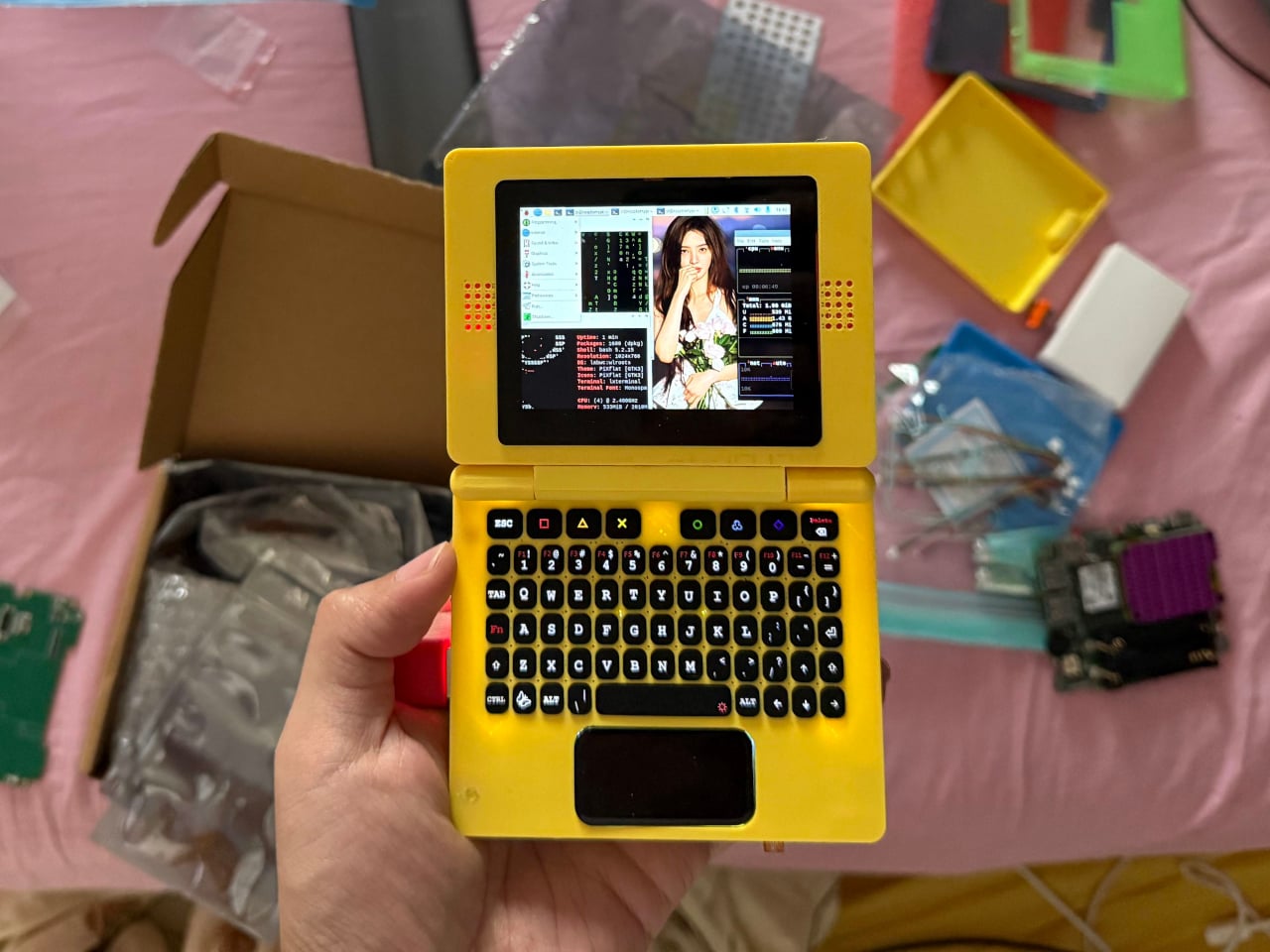
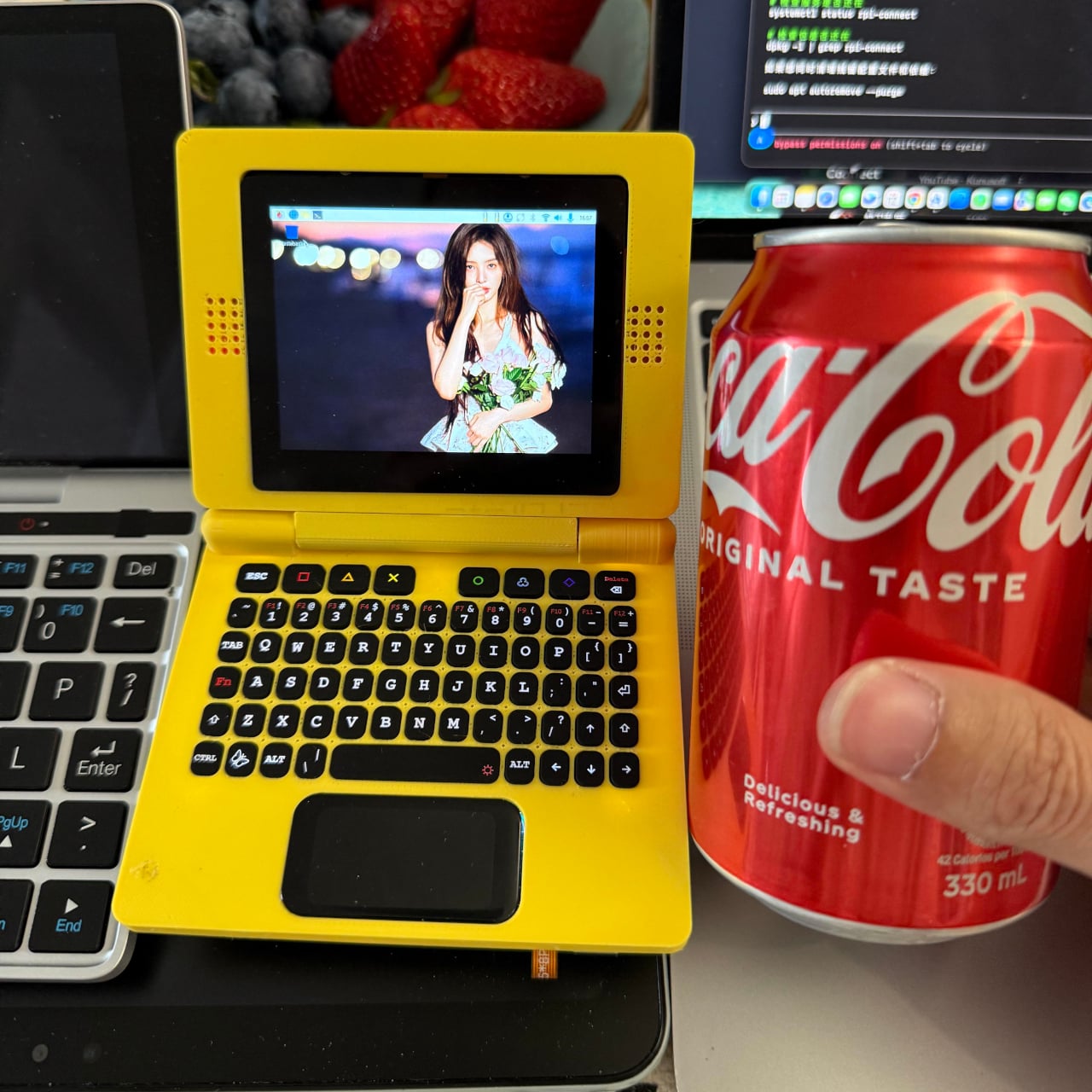
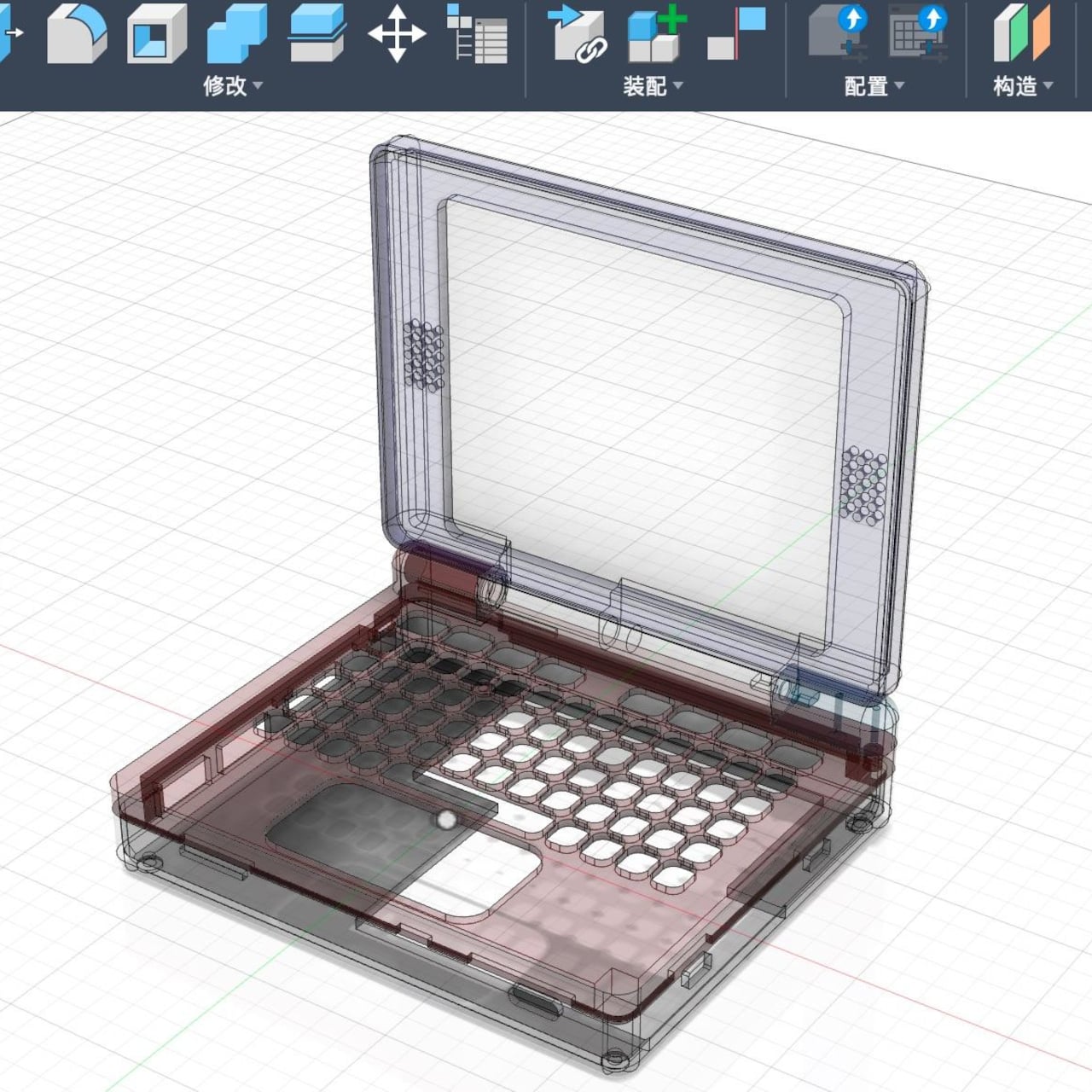
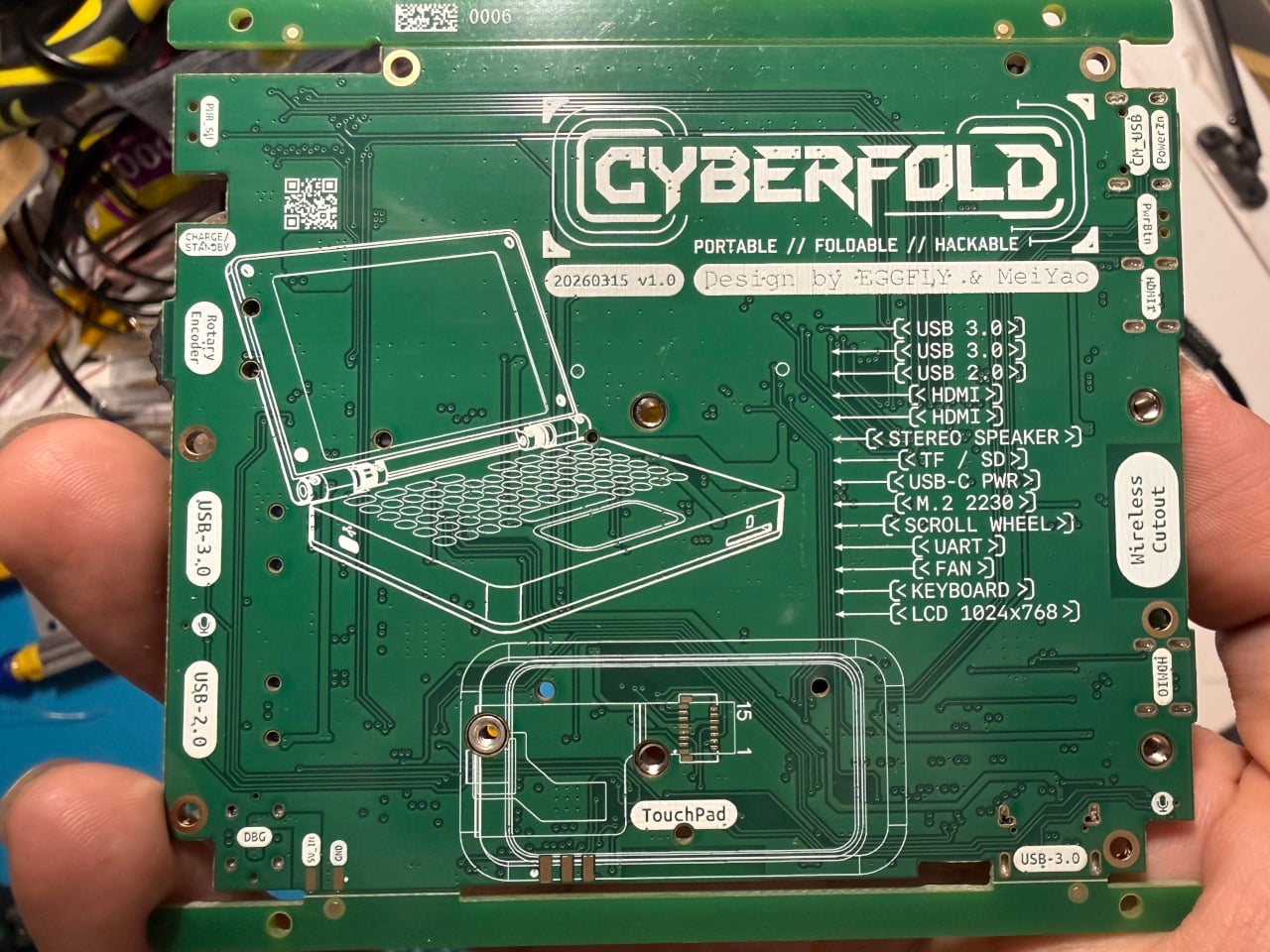
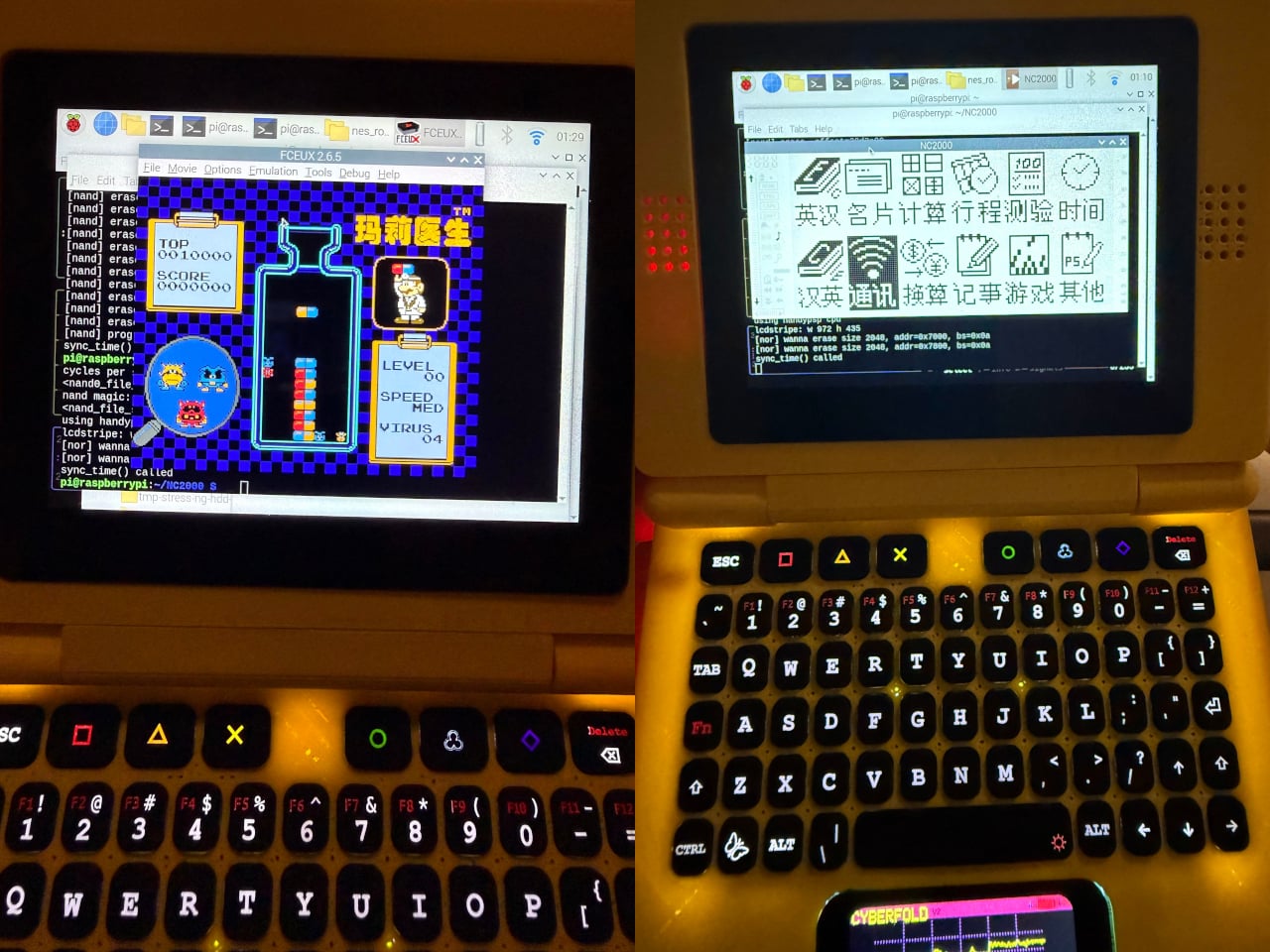
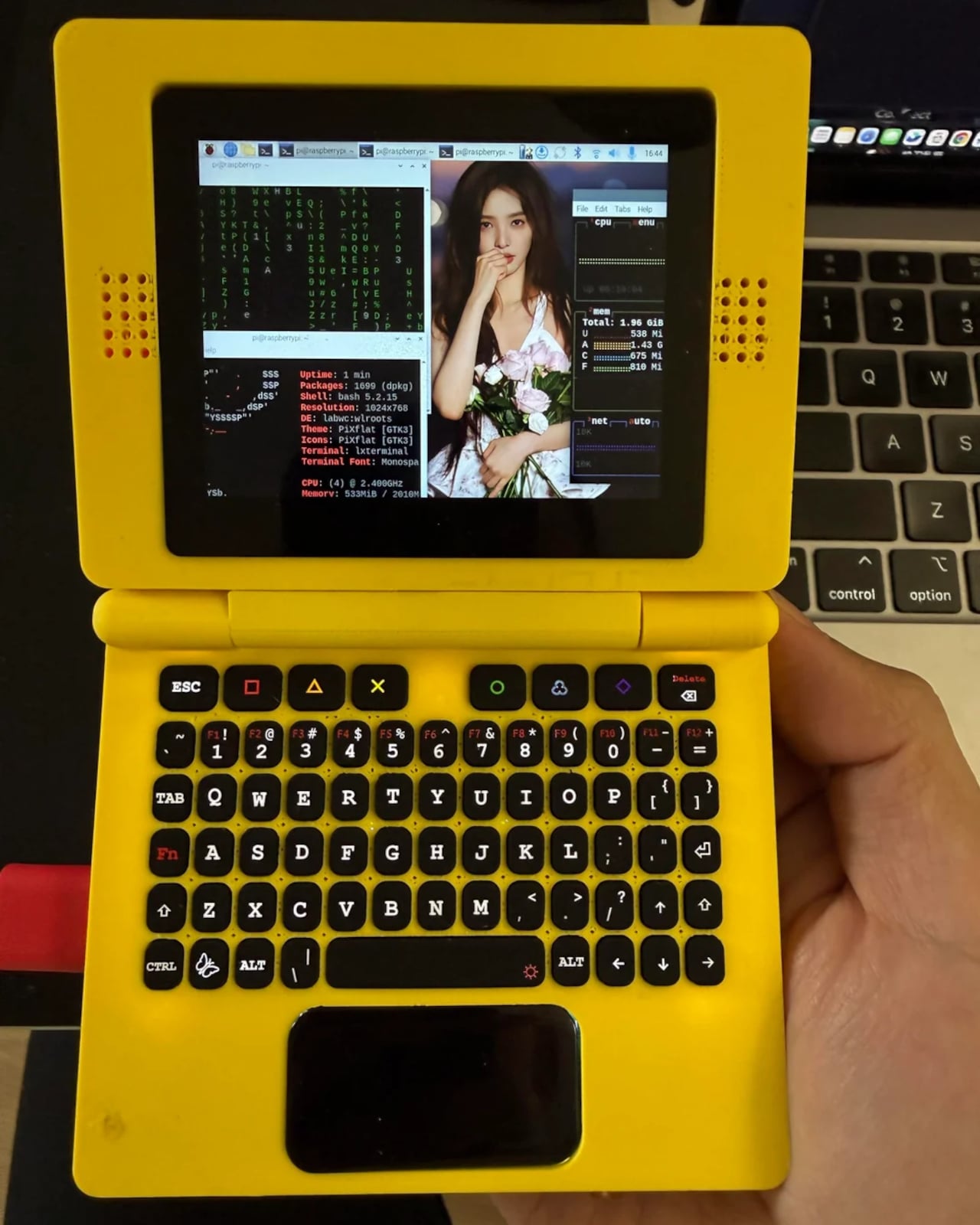
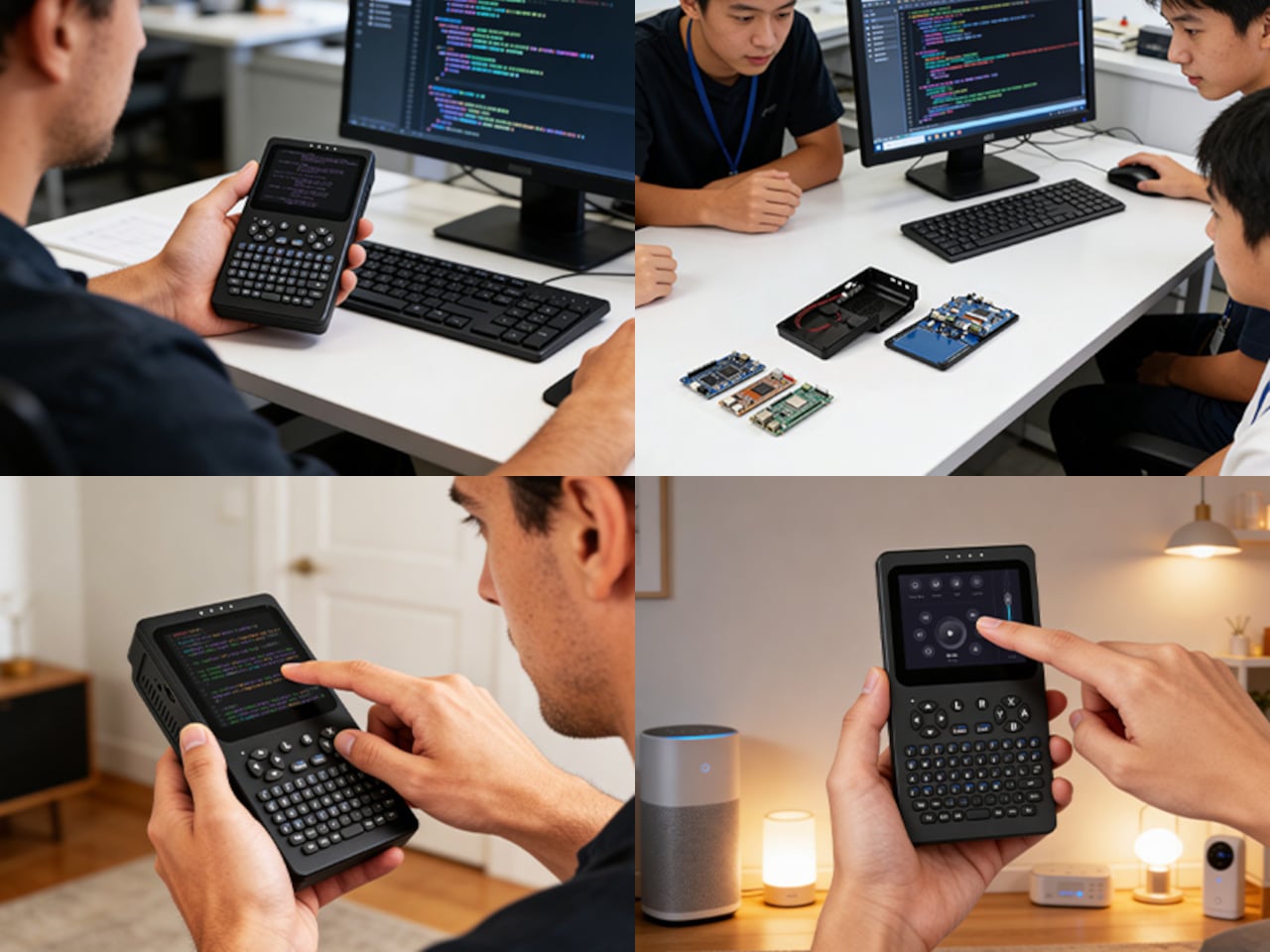
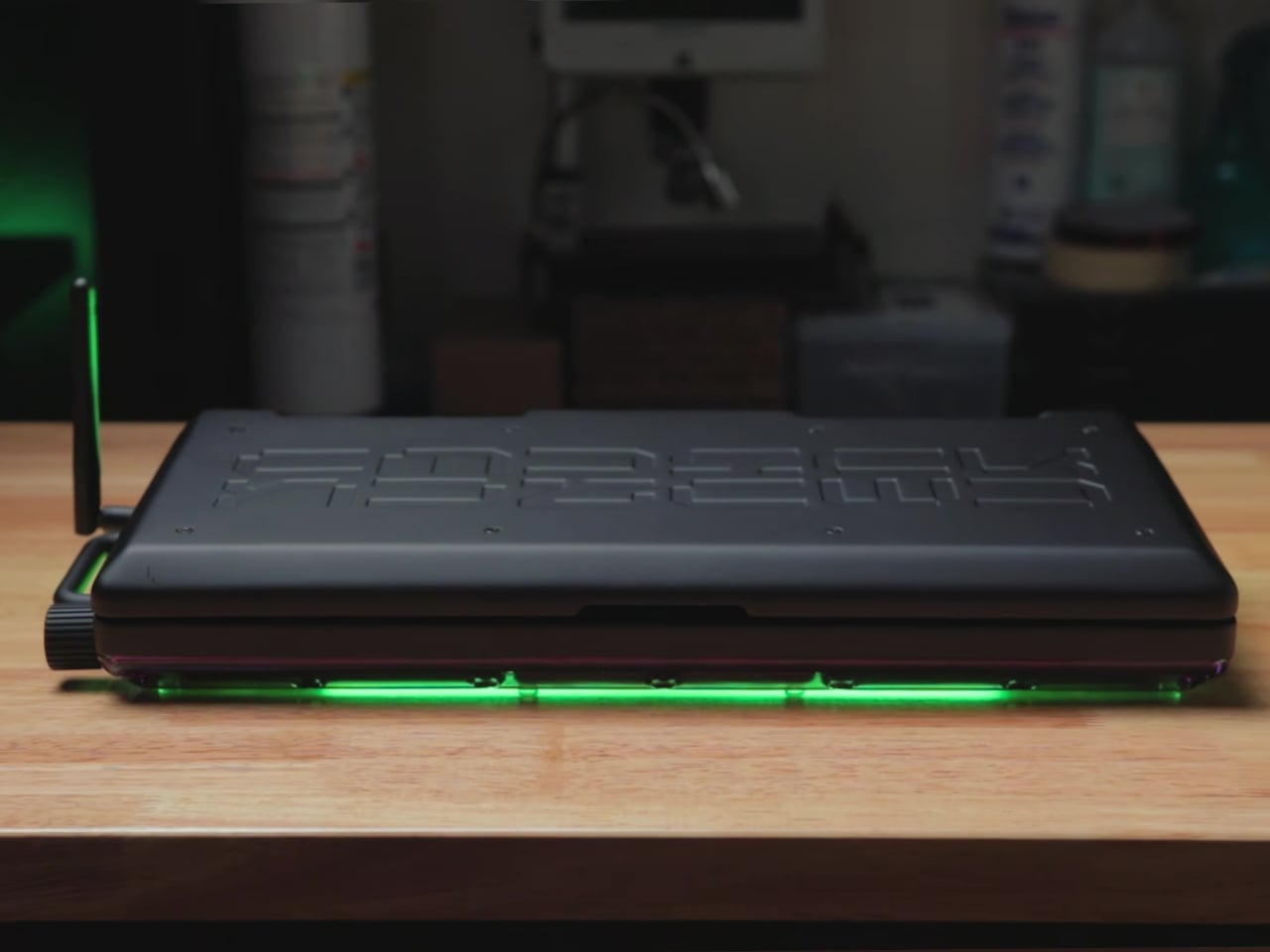
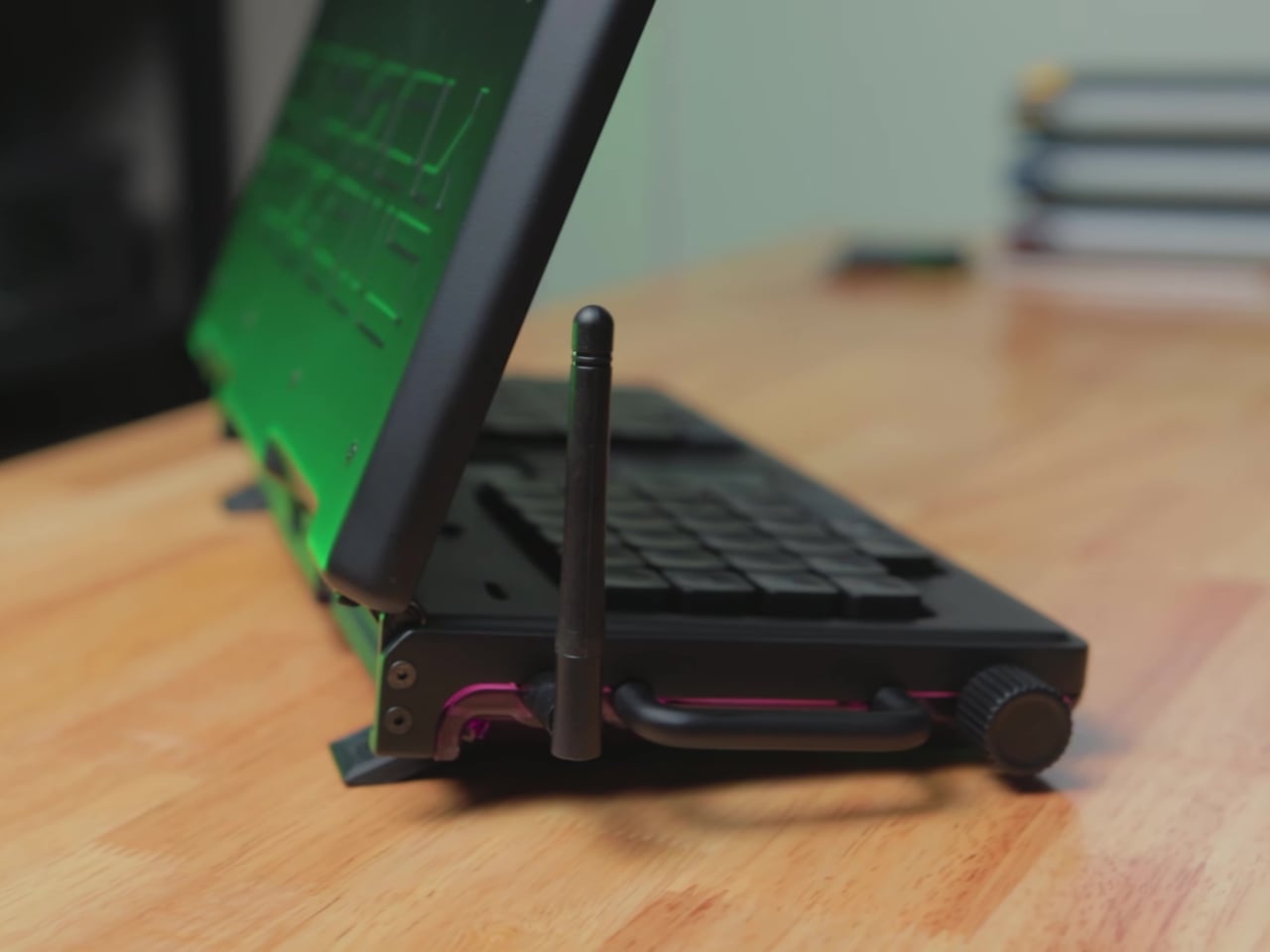
The CyberFold is a recent and remarkably polished example of just that. Made by a pseudonymous duo going by Eggfly and MeiYao, it’s a foldable clamshell cyberdeck that bears a striking resemblance to an oversized Nintendo Game Boy Advance SP. But flip it open, and what you’ll find inside is a surprisingly capable Linux computer, complete with a touchscreen, a full QWERTY keyboard, stereo speakers, and a proper port selection.
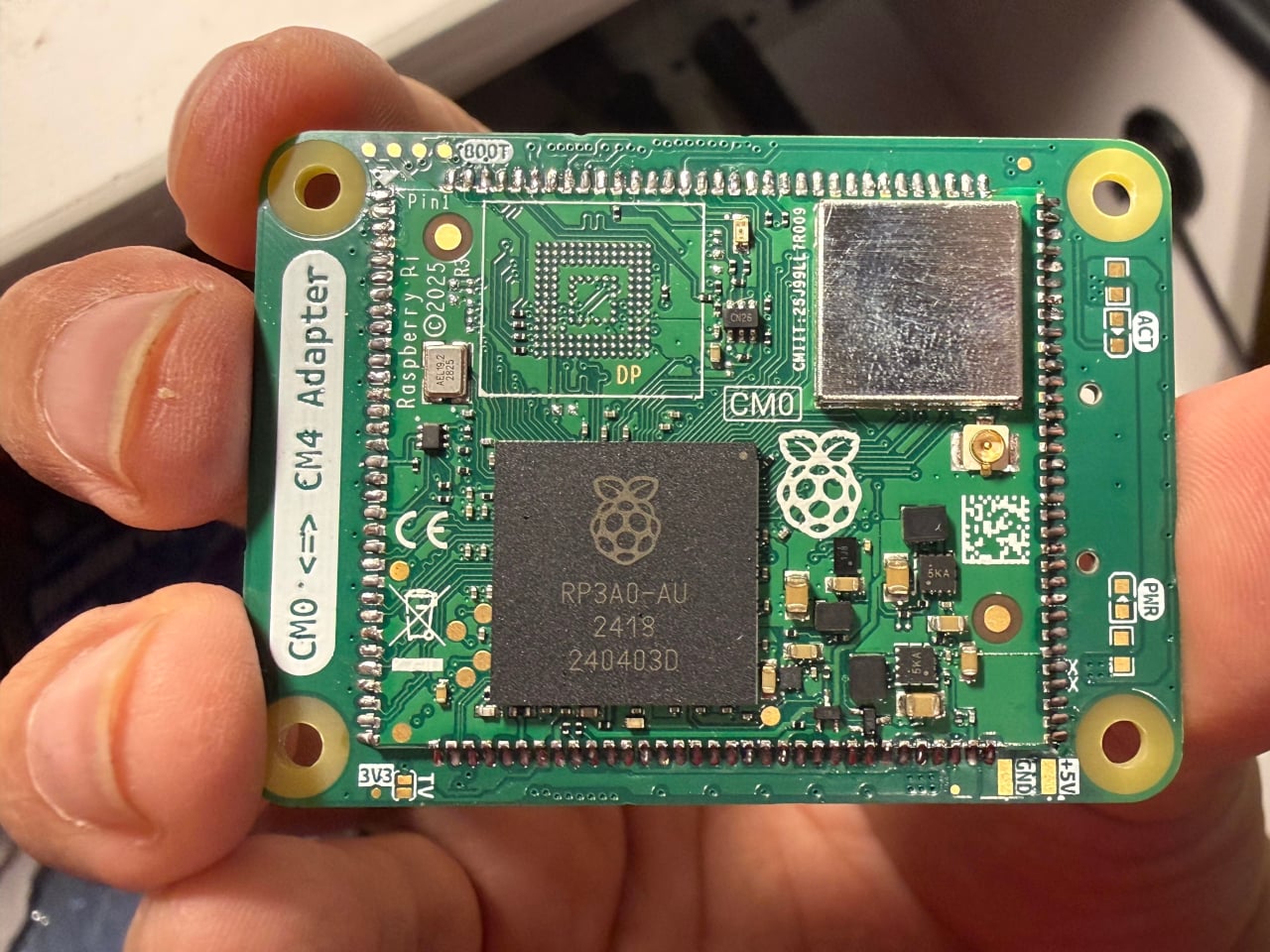
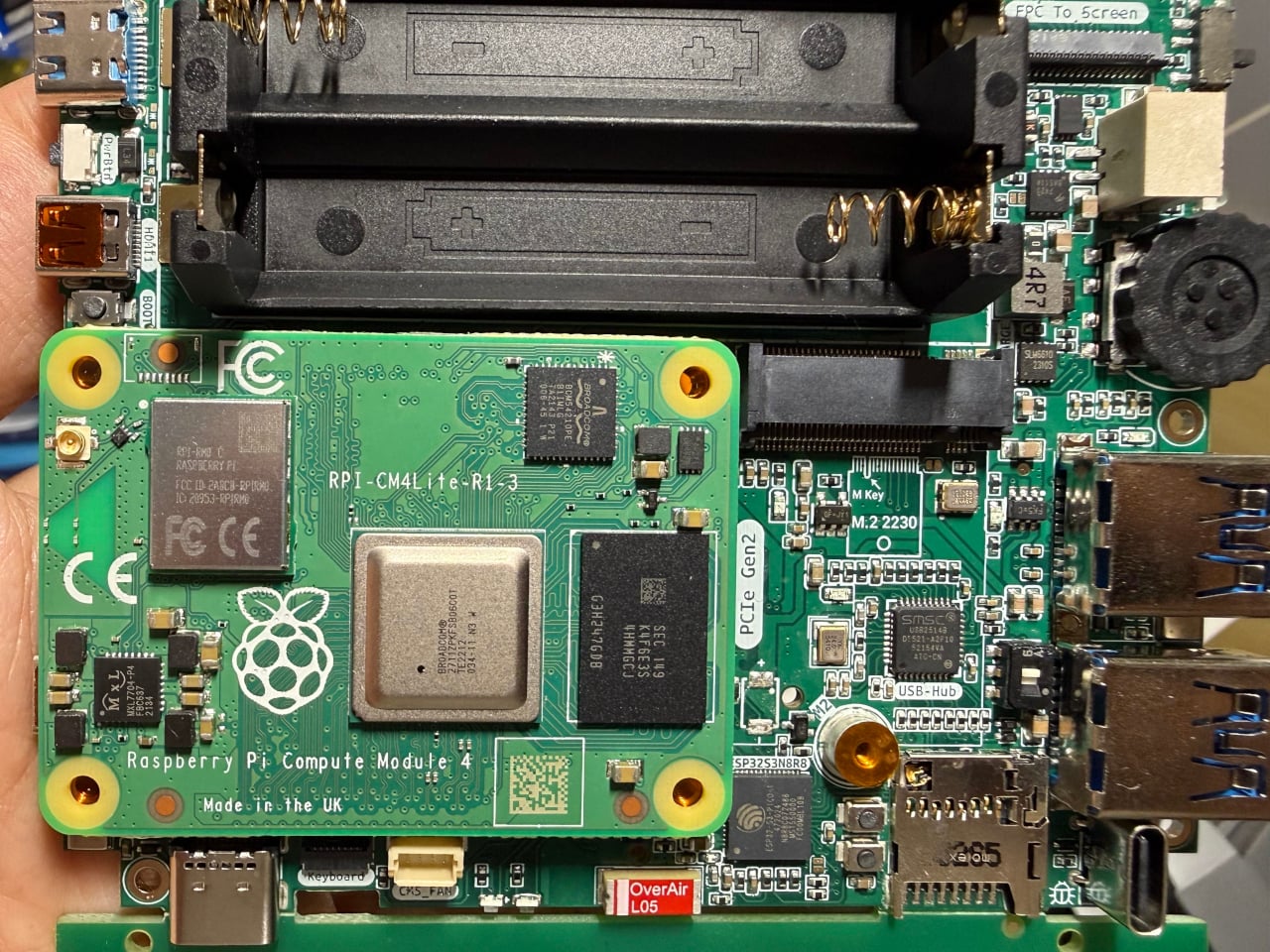
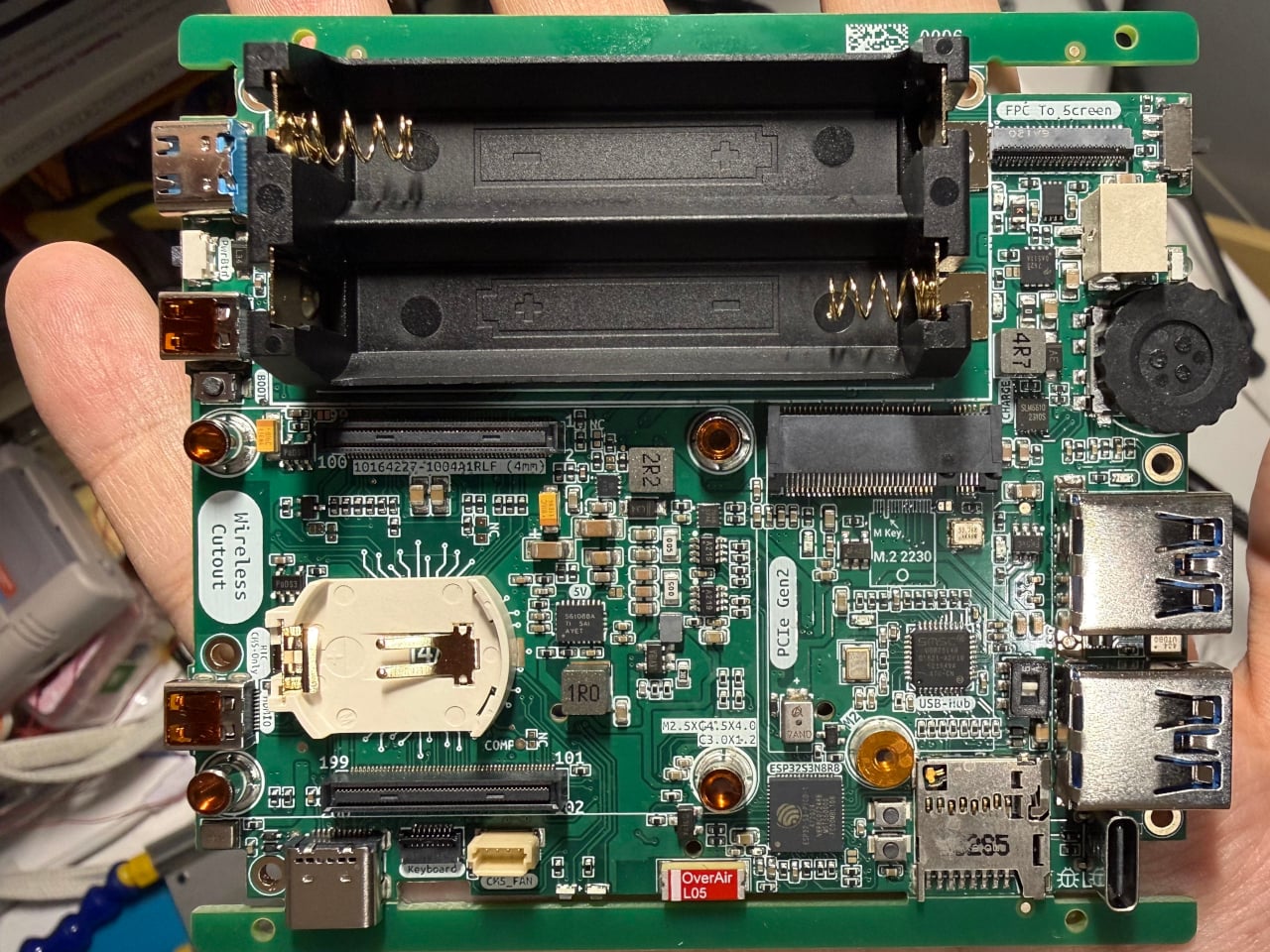
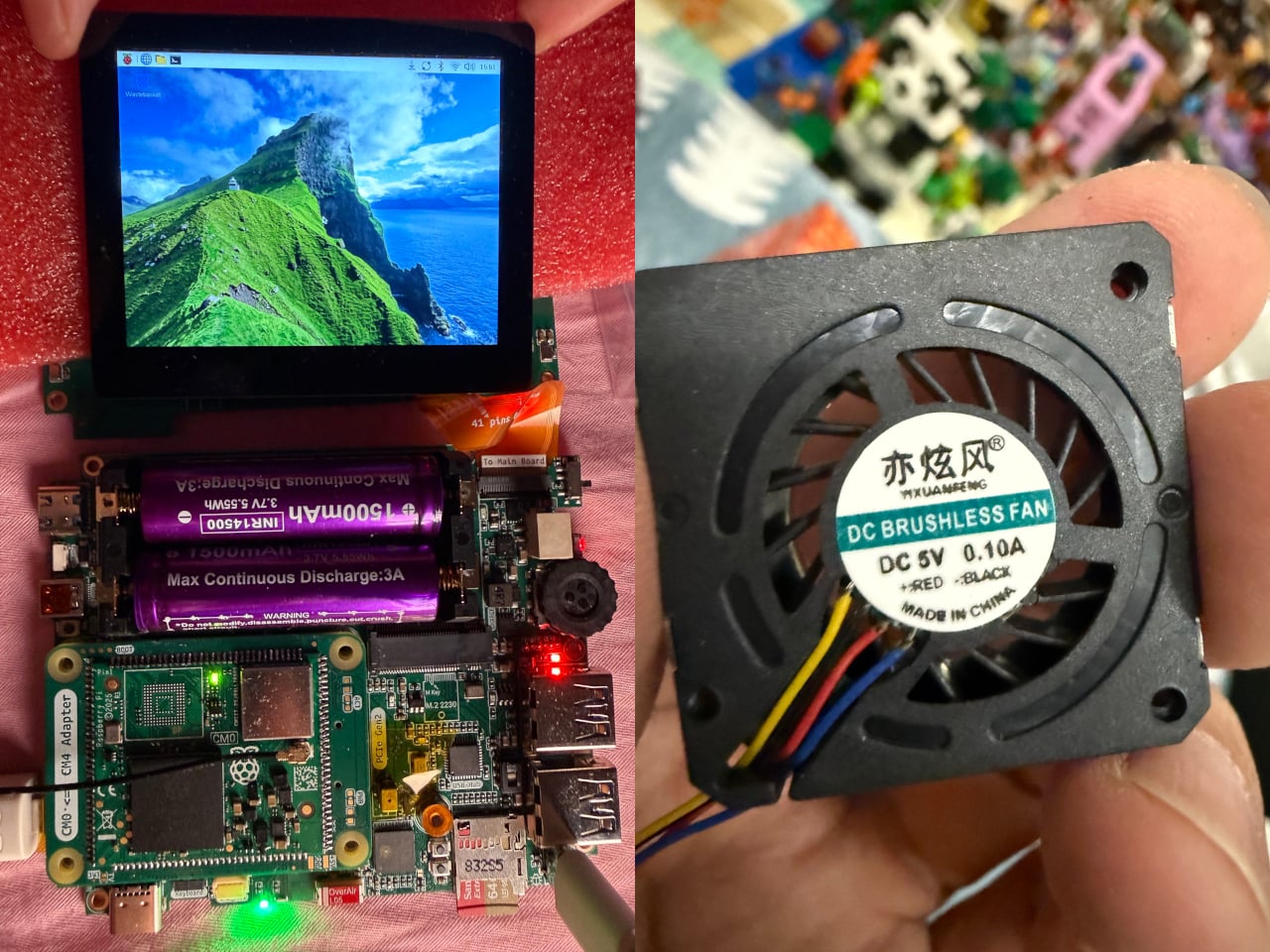
The computing heart of the CyberFold is a custom motherboard that accepts the Raspberry Pi Compute Module family, specifically the Compute Module 4, Compute Module 5, or the affordable Compute Module Zero. These are the embedded variants of the popular Raspberry Pi 4 and Raspberry Pi 5, shrunk to a compact form factor without sacrificing real processing power, making them a natural fit for a pocketable machine.
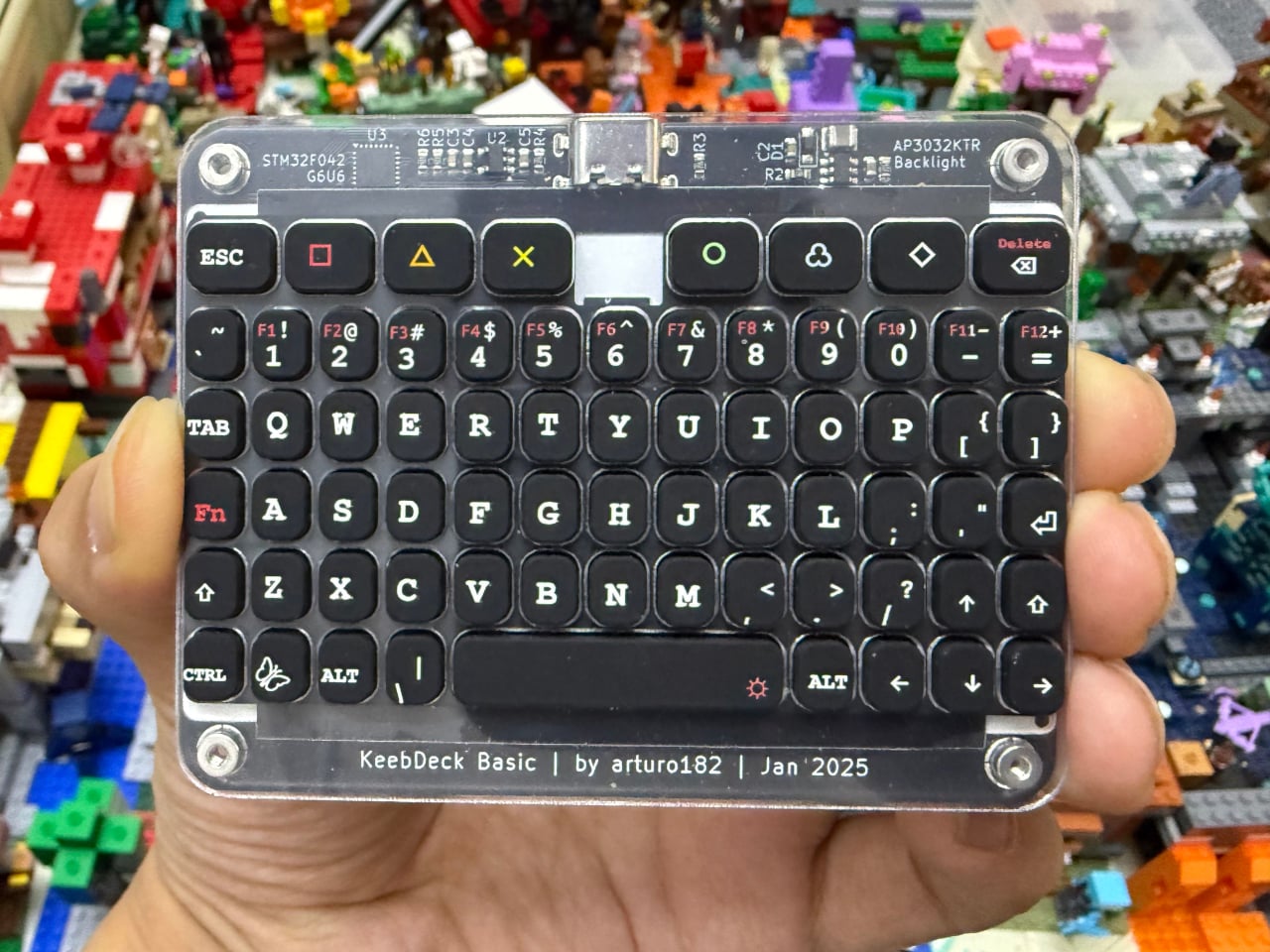
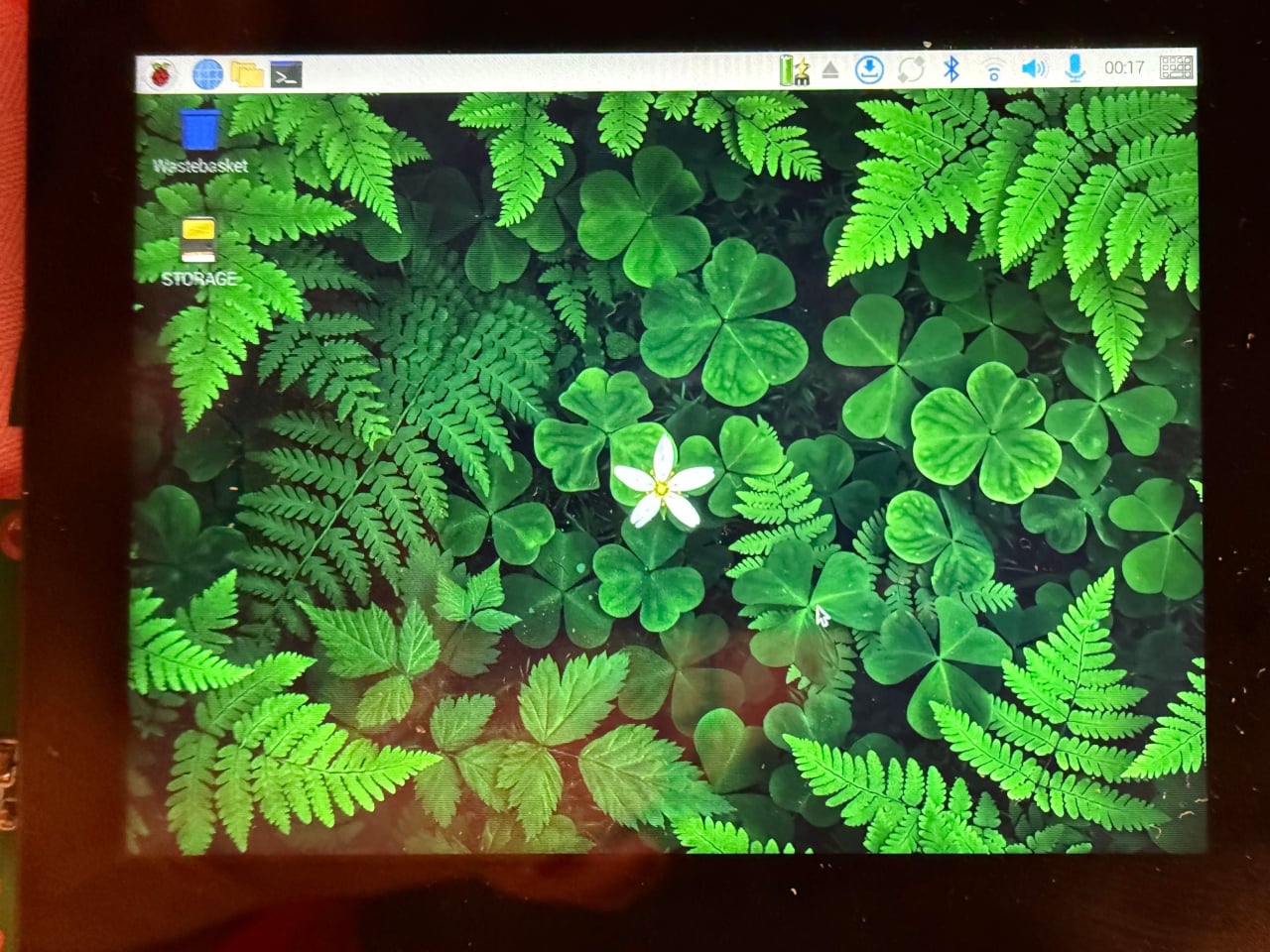
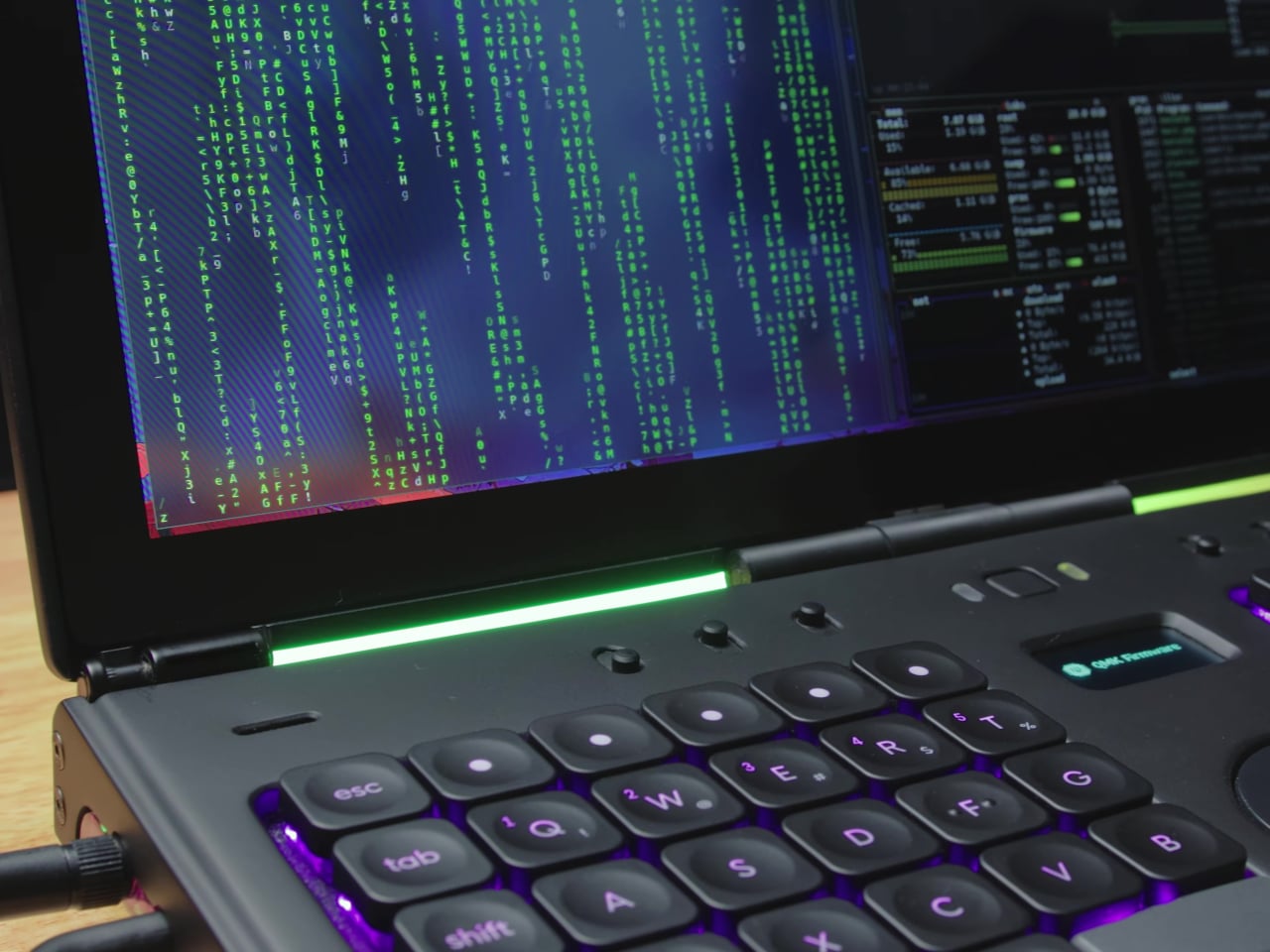
Open the CyberFold mid-commute or at a workbench, and you’re greeted by a 1024×768 capacitive multi-touch display, responsive enough for everyday computing and comfortable for touch-based navigation. Below it is a compact QWERTY silicone keyboard based on Solder Party’s open-source KeebDeck design, which Eggfly built from the original design files. It’s the kind of input that calls to mind old-school palmtop computers, but with a full operating system running underneath.
One of the more clever details on the CyberFold is the touchpad, which pulls double duty as a secondary display. Running on an Espressif ESP32-S3 microcontroller, it shows live battery percentage and power consumption data, independent of the main computer. It’s the kind of thoughtful feature you’d normally see on a commercial device that went through multiple rounds of product refinement, not something you’d expect from a maker’s personal project.
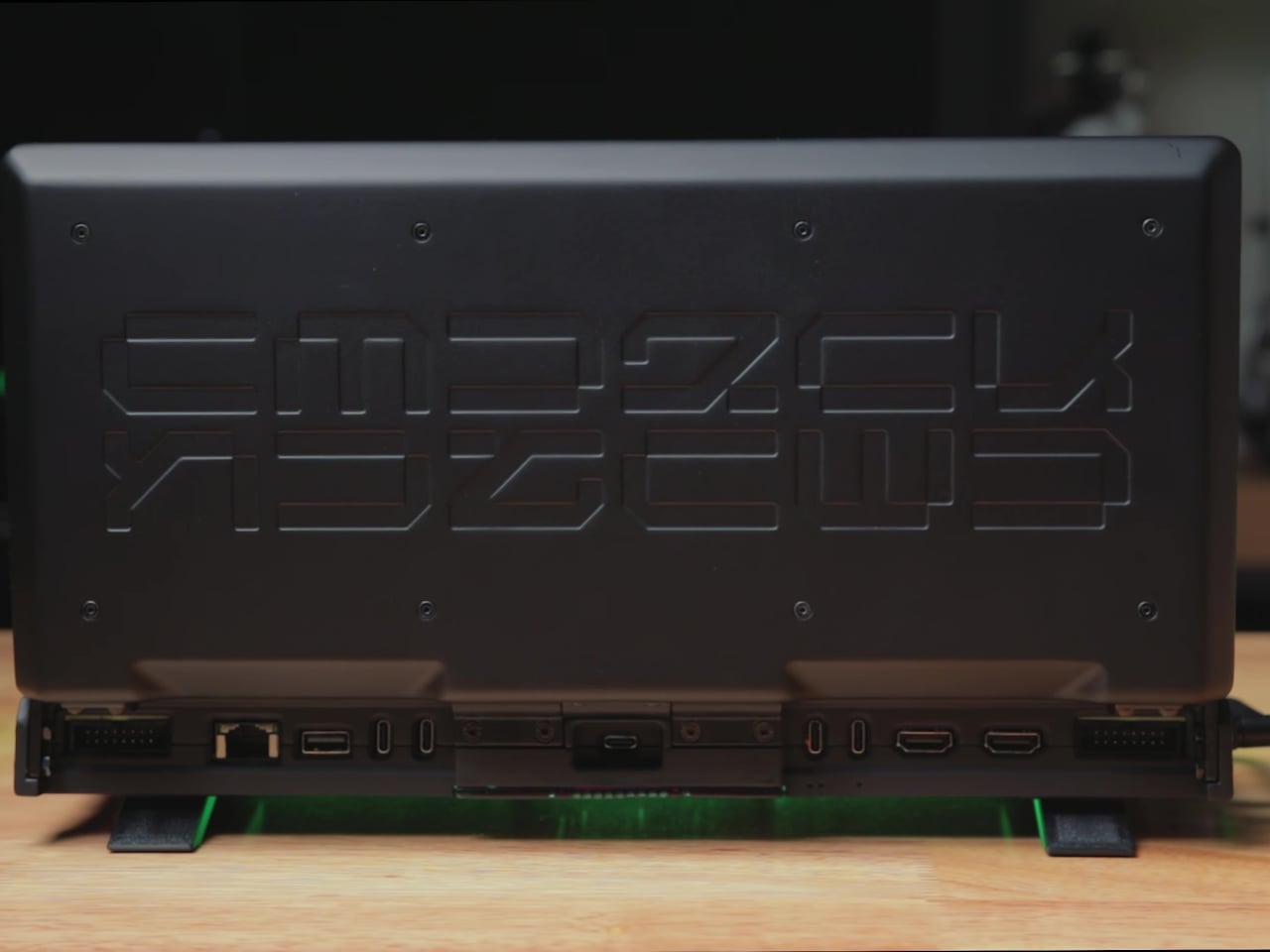
Connectivity isn’t something the CyberFold cuts corners on. Full-size USB 3.0 and USB 2.0 ports handle peripherals easily, while two HDMI outputs let you extend to a larger screen when needed. A microSD card slot, a debugging port, and stereo speakers flanking the display round things out, and a rotary encoder scroll wheel adds a satisfying tactile element to everyday navigation.
Power comes from a pair of batteries in an integrated holder with a built-in charging circuit, so you can top it off without cracking the device open. The clamshell form factor keeps the screen and keyboard protected when closed, making the whole thing practical enough to slip into any bag. Eggfly hasn’t released the design files publicly yet, but the maker community has already taken a keen interest.
There’s something appealing about the CyberFold that goes beyond its spec sheet. It represents a very specific kind of ambition: the desire to own a computer that fits in your jacket pocket, runs whatever software you choose, and was assembled by hand. Commercial products can maybe deliver two of those three things at best, and that gap is exactly what keeps the cyberdeck community building.
Writing on a laptop or phone is convenient, but it rarely stays that way. Notifications, browser tabs, and social media feeds have turned the most basic tasks into exercises in self-discipline. Writers, journalists, and anyone who just needs to put thoughts to paper have been searching for a better solution, and a growing community around dedicated, distraction-free writing devices called writerdecks has quietly been gaining momentum.
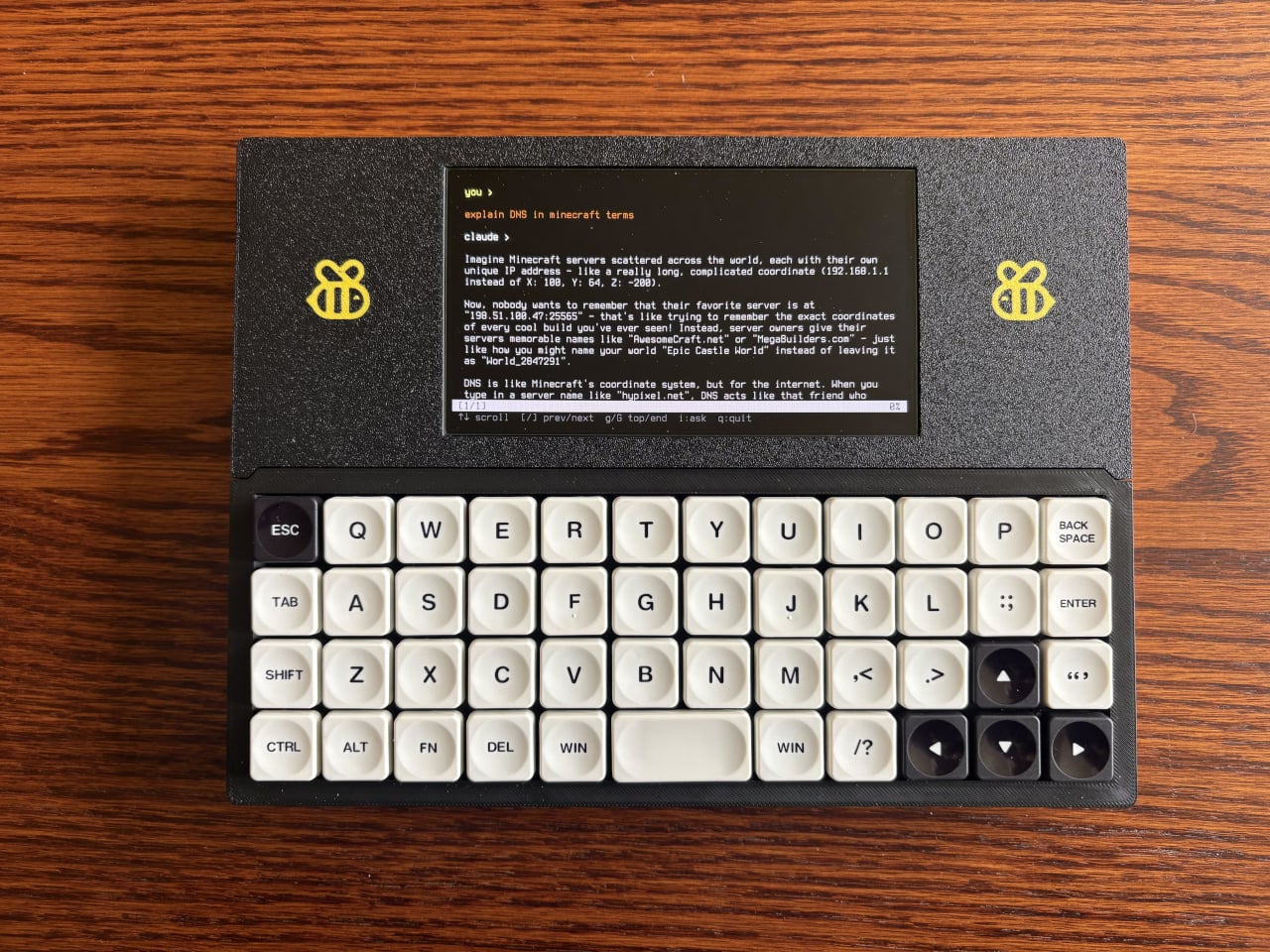
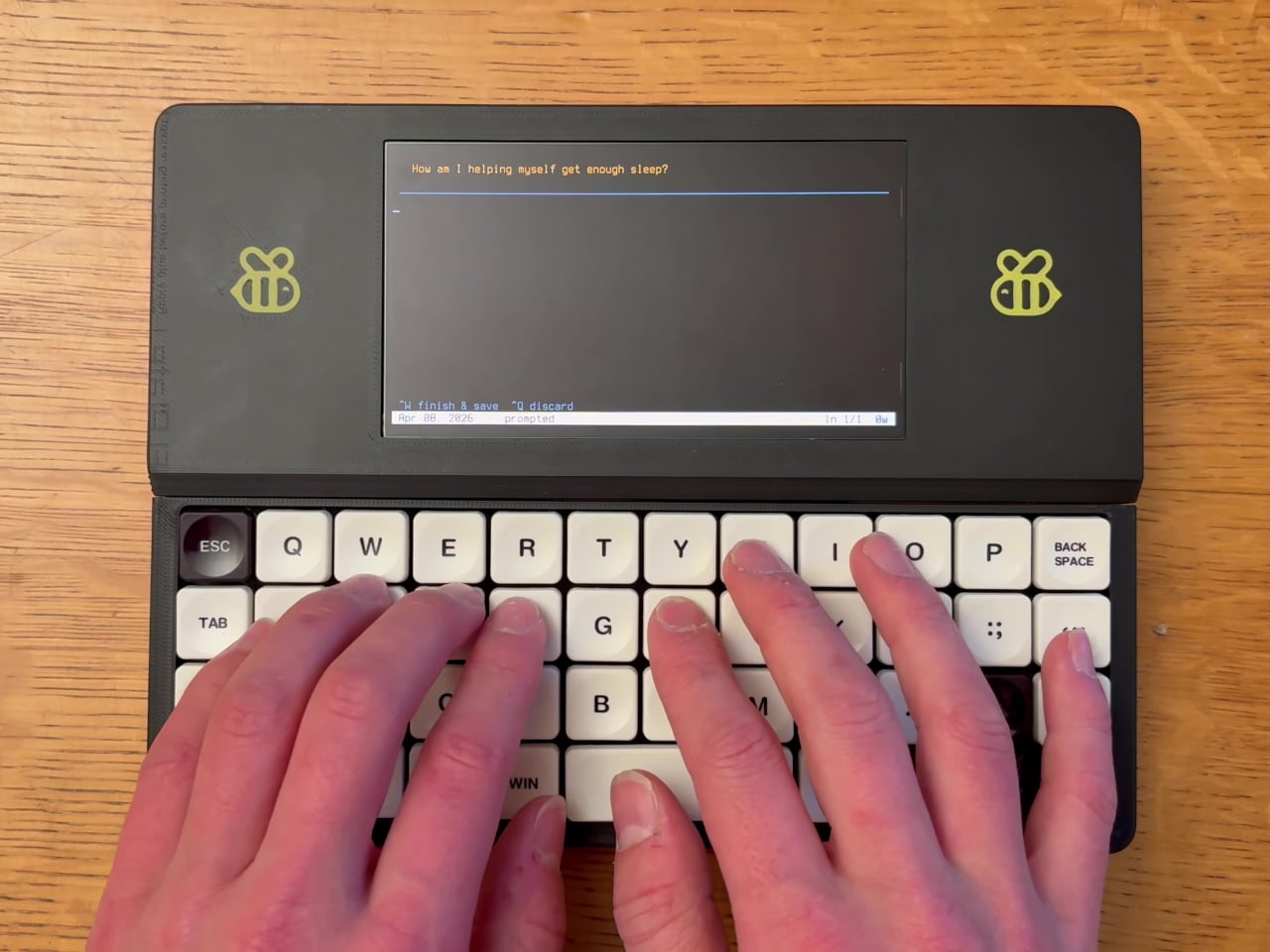
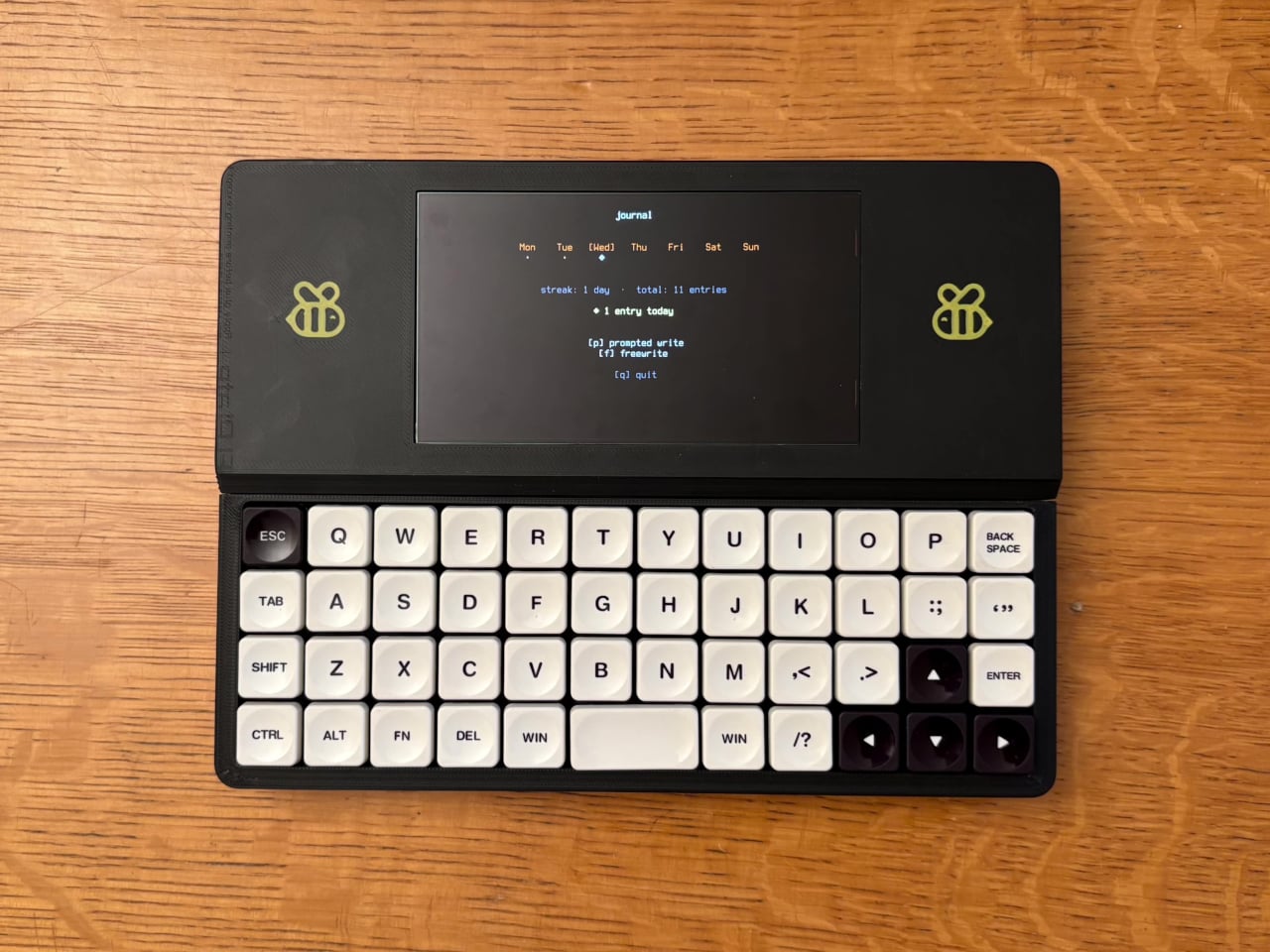
The Bee Write Back is one of the more charming entries in that space. Built by a maker named “shmimel”, the device grew out of a deeply personal need: he was having trouble sleeping and found that journaling helped, but couldn’t quite commit to a handwritten journal. So he did what any tinkerer would do and built his own dedicated writing machine from scratch.
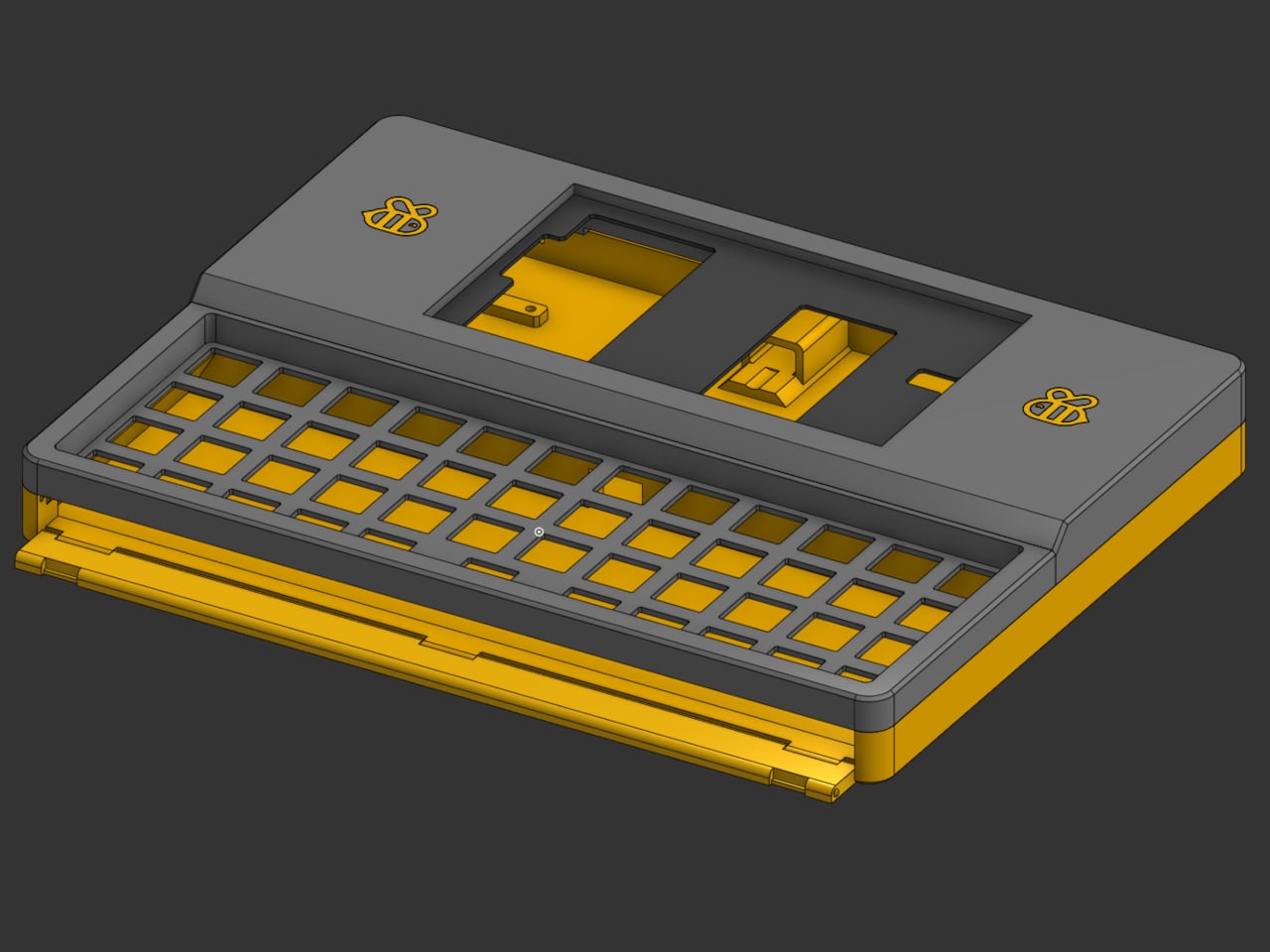
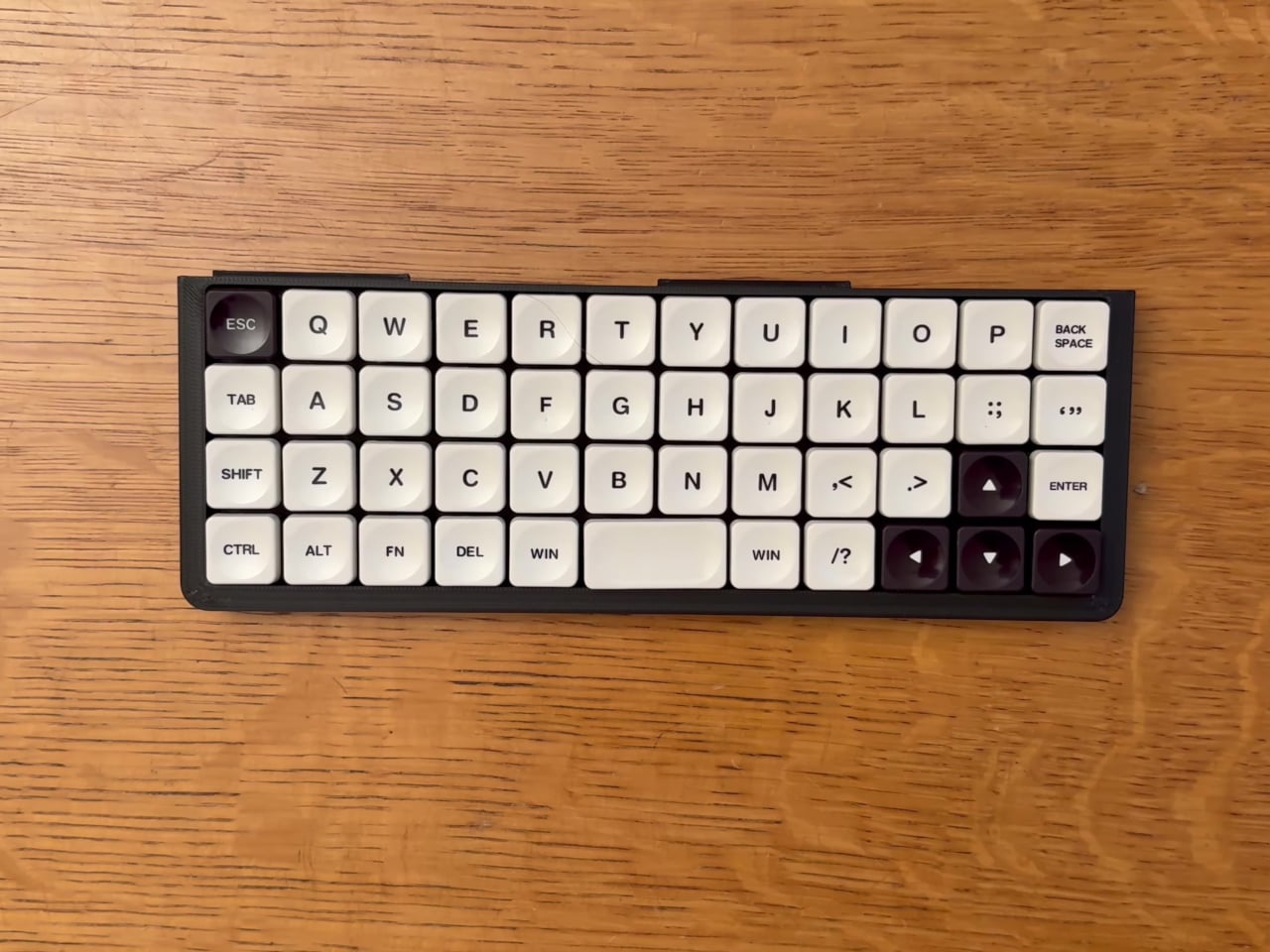
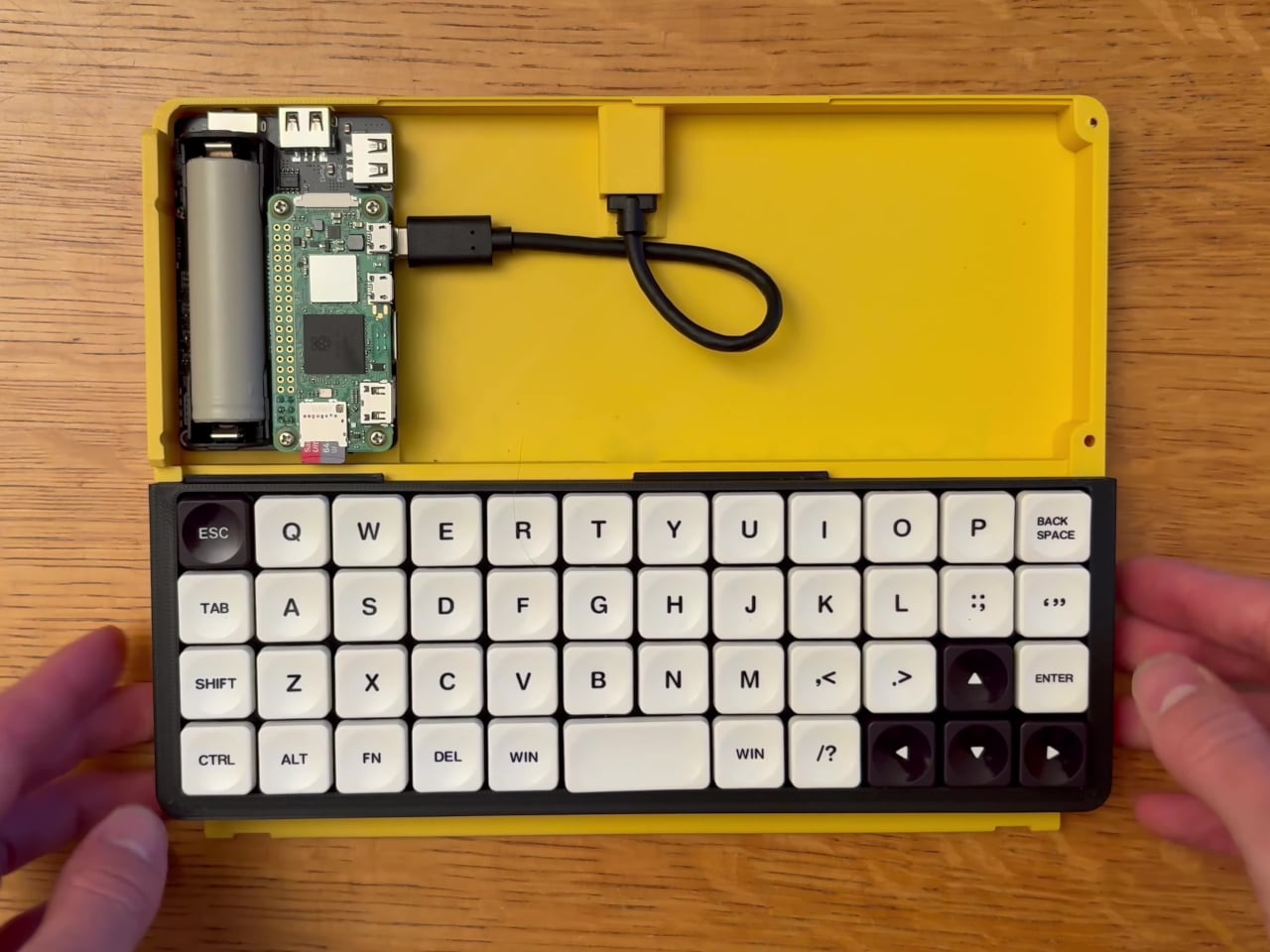
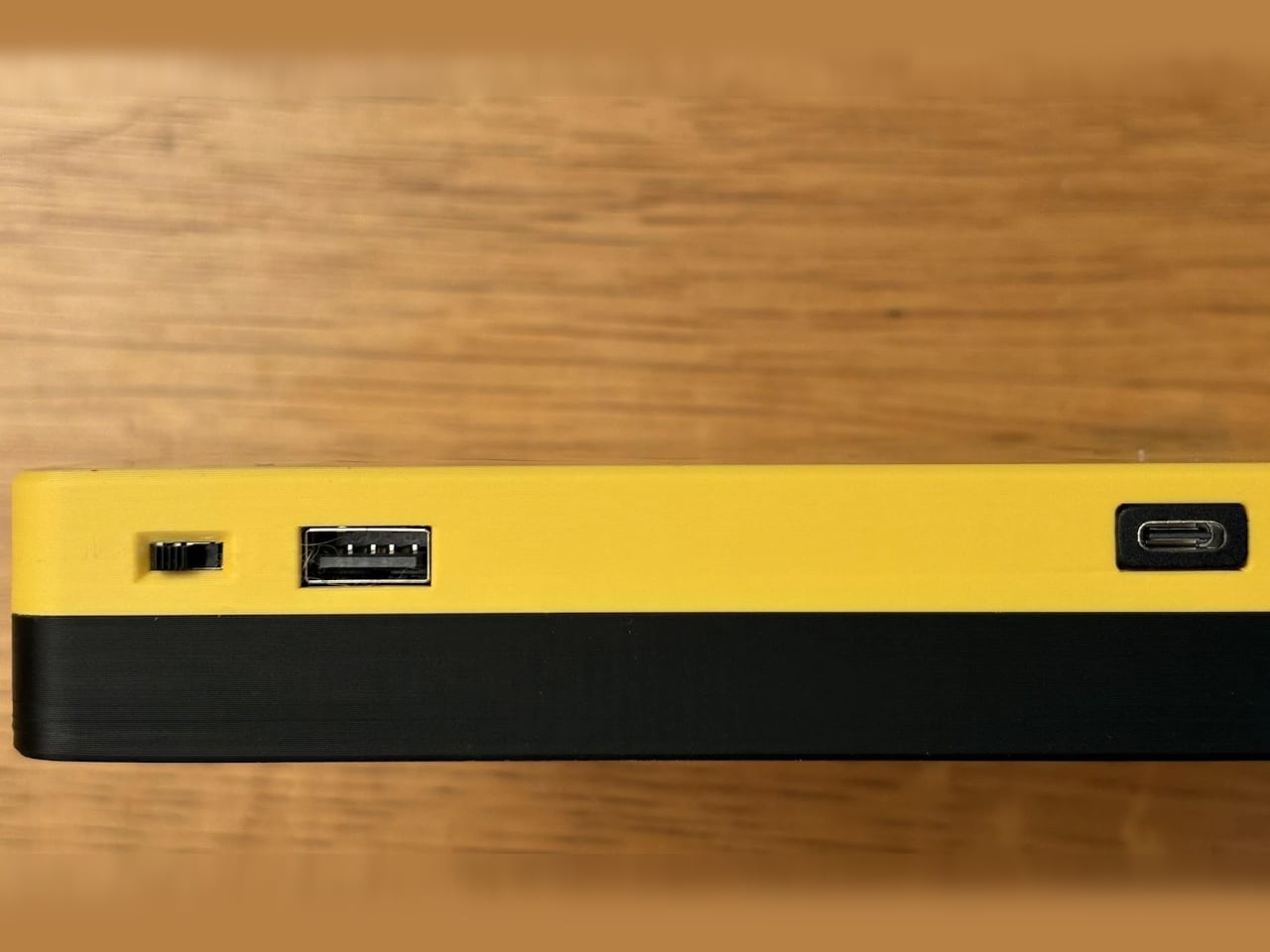
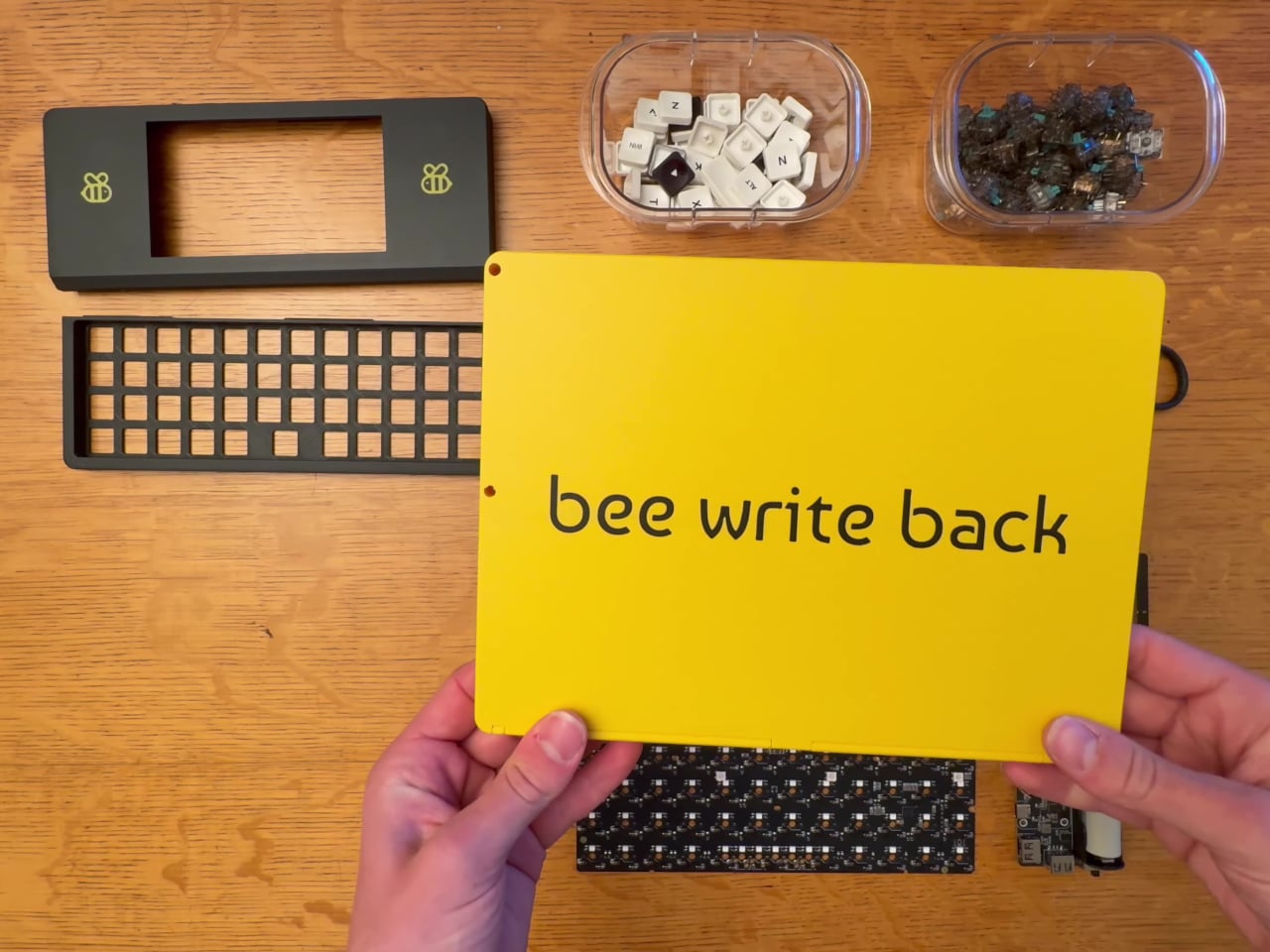
The result is compact and immediately recognizable. Its 3D-printed enclosure comes in two tones: a bright yellow base that houses the electronics, and a matte black screen cover adorned with bee emblems. The whole thing has a hand-built charm that no mass-produced gadget can replicate, and it’s the kind of device that tends to make people stop and ask, “wait, what is that?”
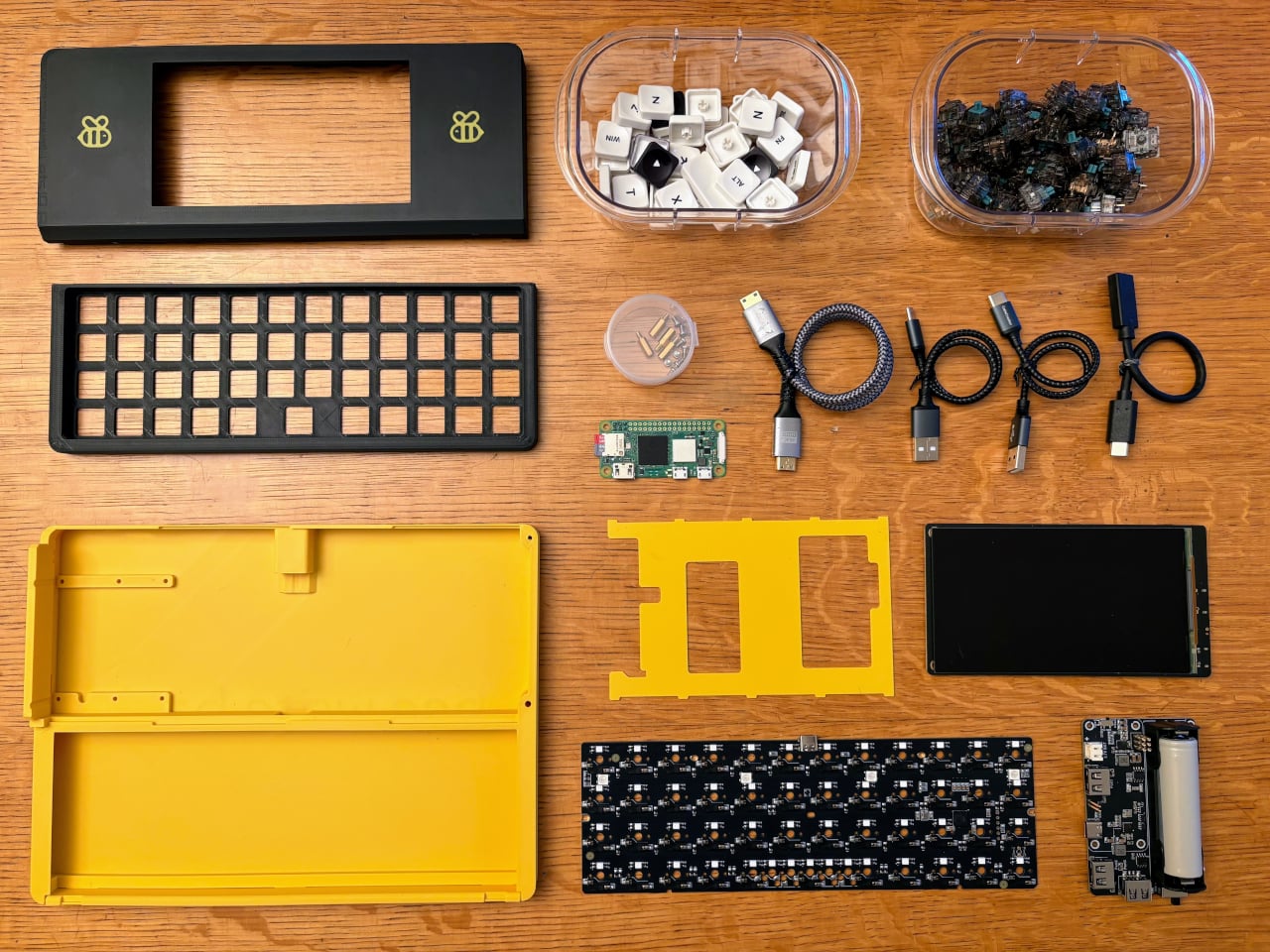
At the heart of the typing experience is a YMDK Air40 keyboard PCB loaded with 47 hot-swappable mechanical switches and matching keycaps. For anyone who’s spent years on laptop chiclet keys or membrane keyboards, the tactile feedback of a proper mechanical switch changes everything. The satisfying click or thump of each keystroke becomes almost meditative, which is exactly what you want when words need to keep flowing.
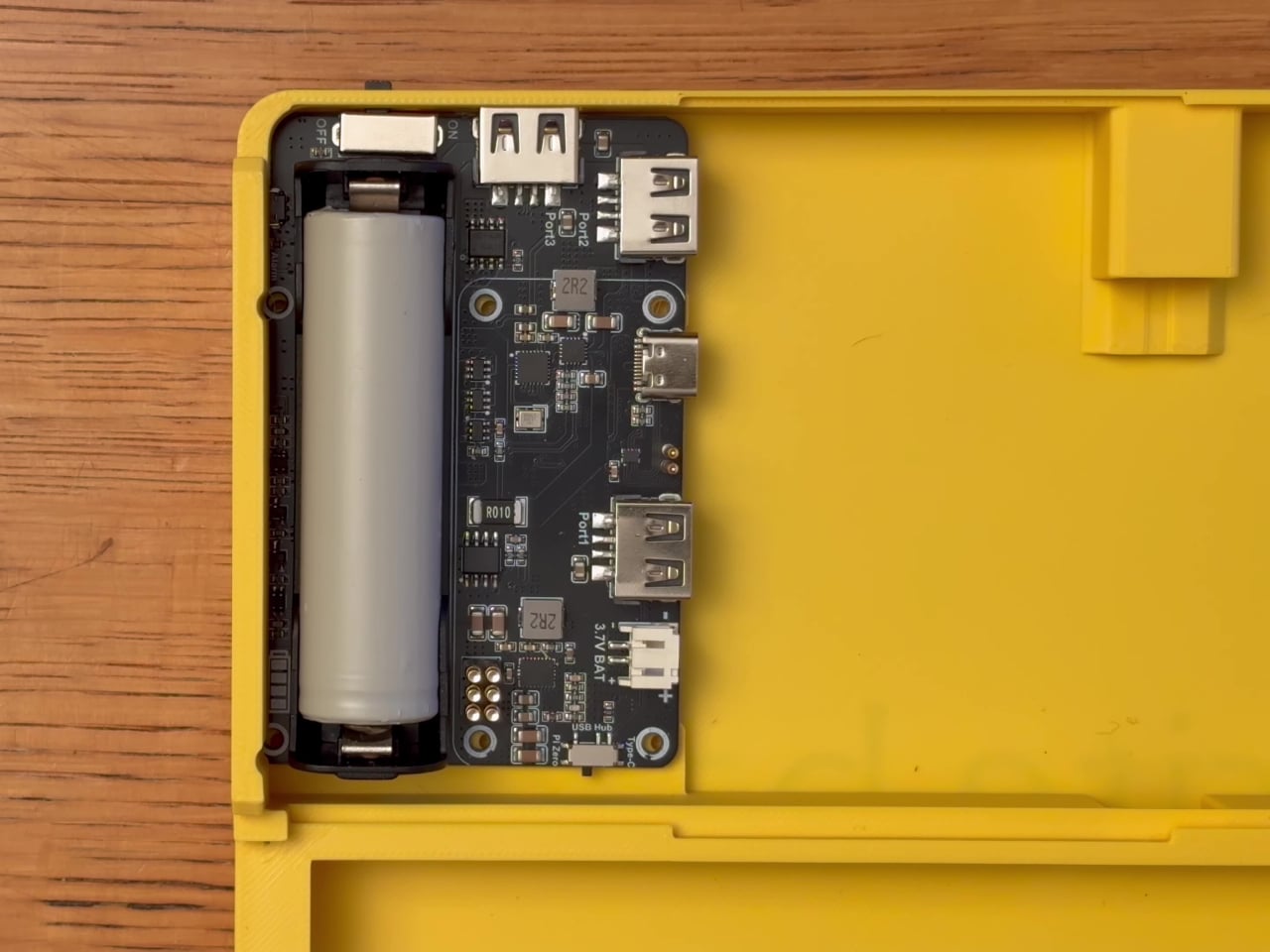
The display is a 5.5-inch AMOLED panel at 1280 x 720 resolution, vivid enough for comfortable reading without the eye strain of a typical laptop screen. Powering it all is a Raspberry Pi Zero 2 W, with a quad-core Cortex-A53 chip, 512 MB of RAM, and built-in Wi-Fi. A Seengreat UPS Hat with an 18650 battery keeps everything running away from any wall outlet.
Boot it up, and you’re in Raspberry Pi OS Lite, a stripped-down Linux environment that loads fast and stays focused. There are no app stores, no notification bubbles, and no algorithms fighting for your attention. It’s the kind of thing you pull out before bed to journal, bring to a coffee shop to draft, or pack on a trip when you need a writing-only companion.
The creator made the entire project open source, with build files and a detailed assembly guide available on GitHub. The total material cost comes to roughly $200, excluding 3D printing costs. That puts it roughly in line with some off-the-shelf writing gadgets, but with the added satisfaction of building it yourself and the freedom to swap out parts, tweak the layout, or change the enclosure color entirely.
What makes the Bee Write Back worth paying attention to is less about its specs and more about what it deliberately leaves out. Most devices pack in as many features as possible, but shmimel’s creation goes the other direction: pare things down until only the writing remains. For anyone looking to reclaim the quiet, focused experience of putting words down without fighting their tools, that restraint speaks for itself.
The handheld computer has always been a compelling idea that rarely lives up to its promise. Smartphones are too locked down for real development work, and tablets occupy an awkward middle ground between a phone and a laptop. Pocket PCs, mini notebooks, and DIY computer builds have all tried to fill the gap, but each one compromised too heavily on usability or demanded too much assembly.
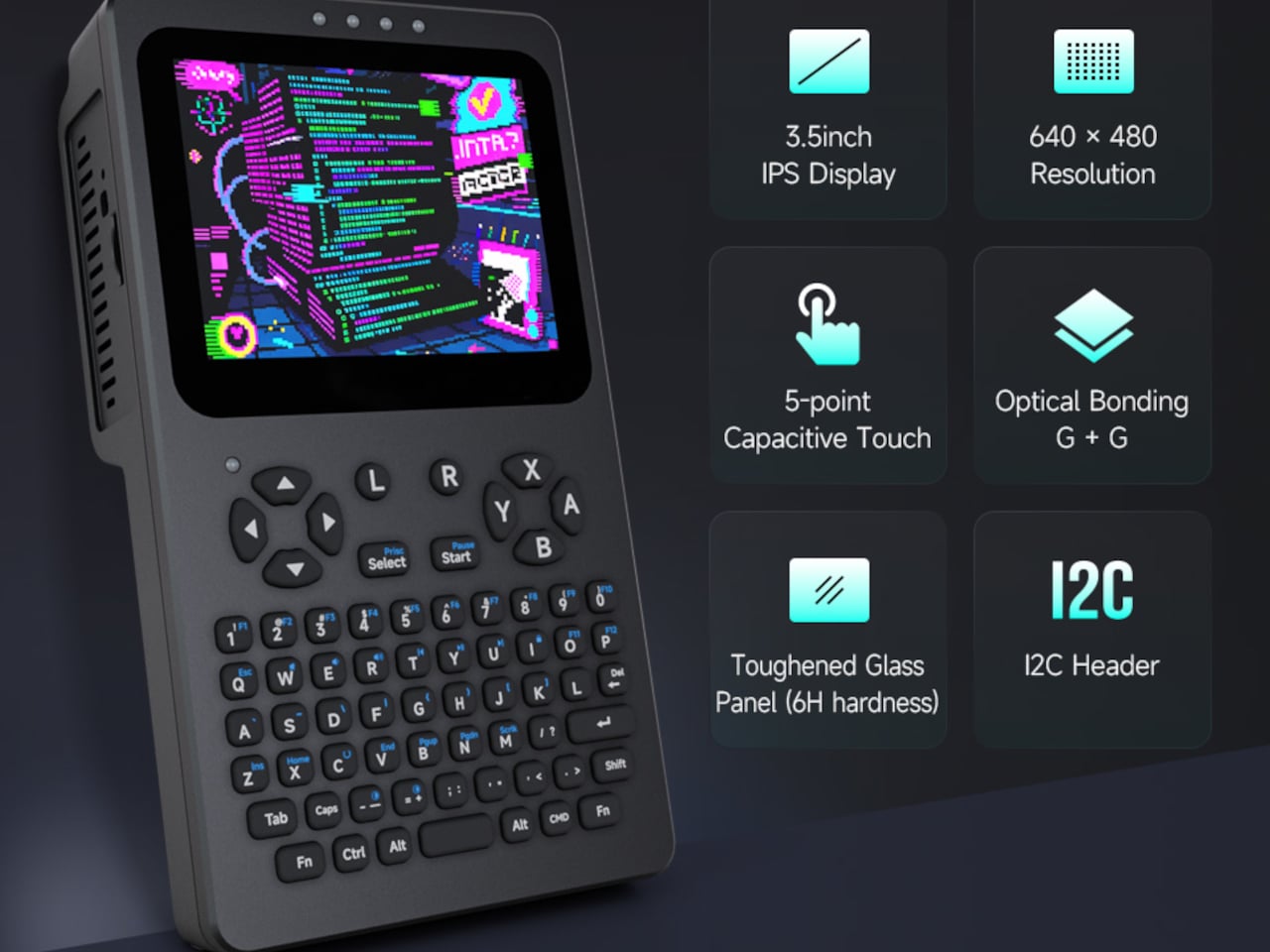
Waveshare’s PocketTerm35 takes a more deliberate approach, landing somewhere between a purpose-built tool and a proper portable computer. Compatible with the Raspberry Pi 4B and Pi 5, it wraps a complete Linux terminal experience into a handheld unit that’s ready to use right out of the box. Everything from the display and keyboard to the battery and connectivity is already integrated, so there’s nothing left to hunt down or assemble.
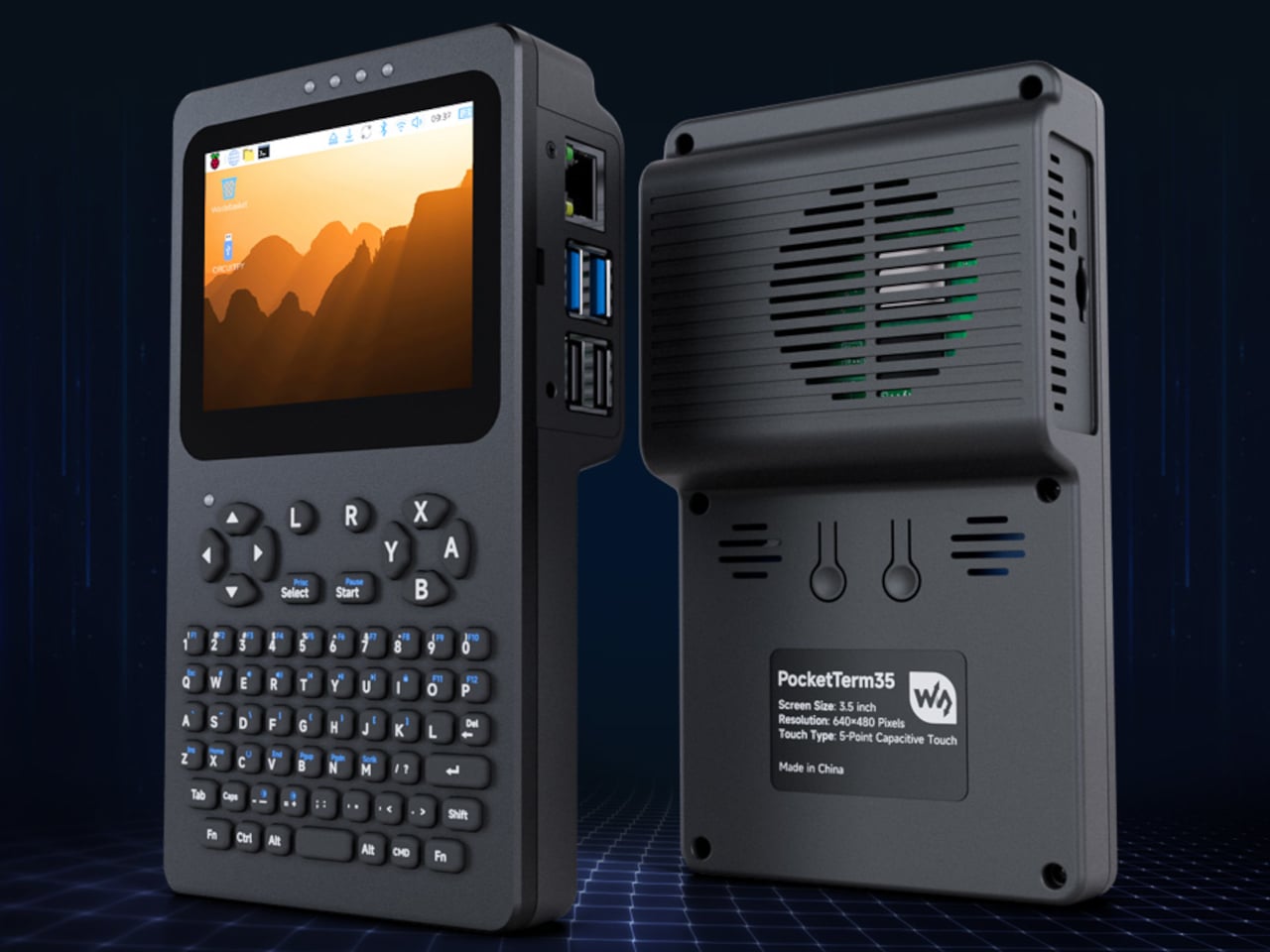
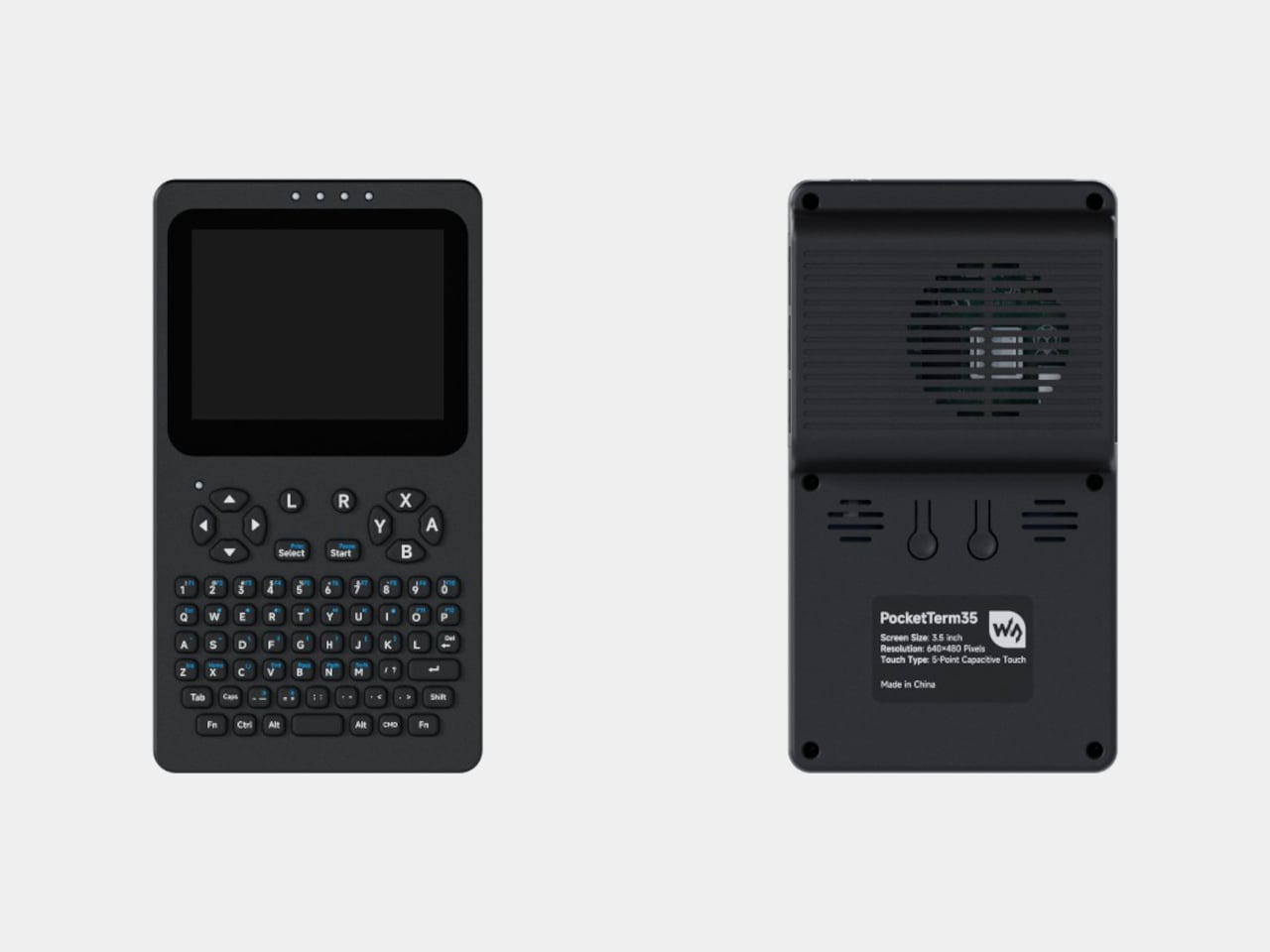
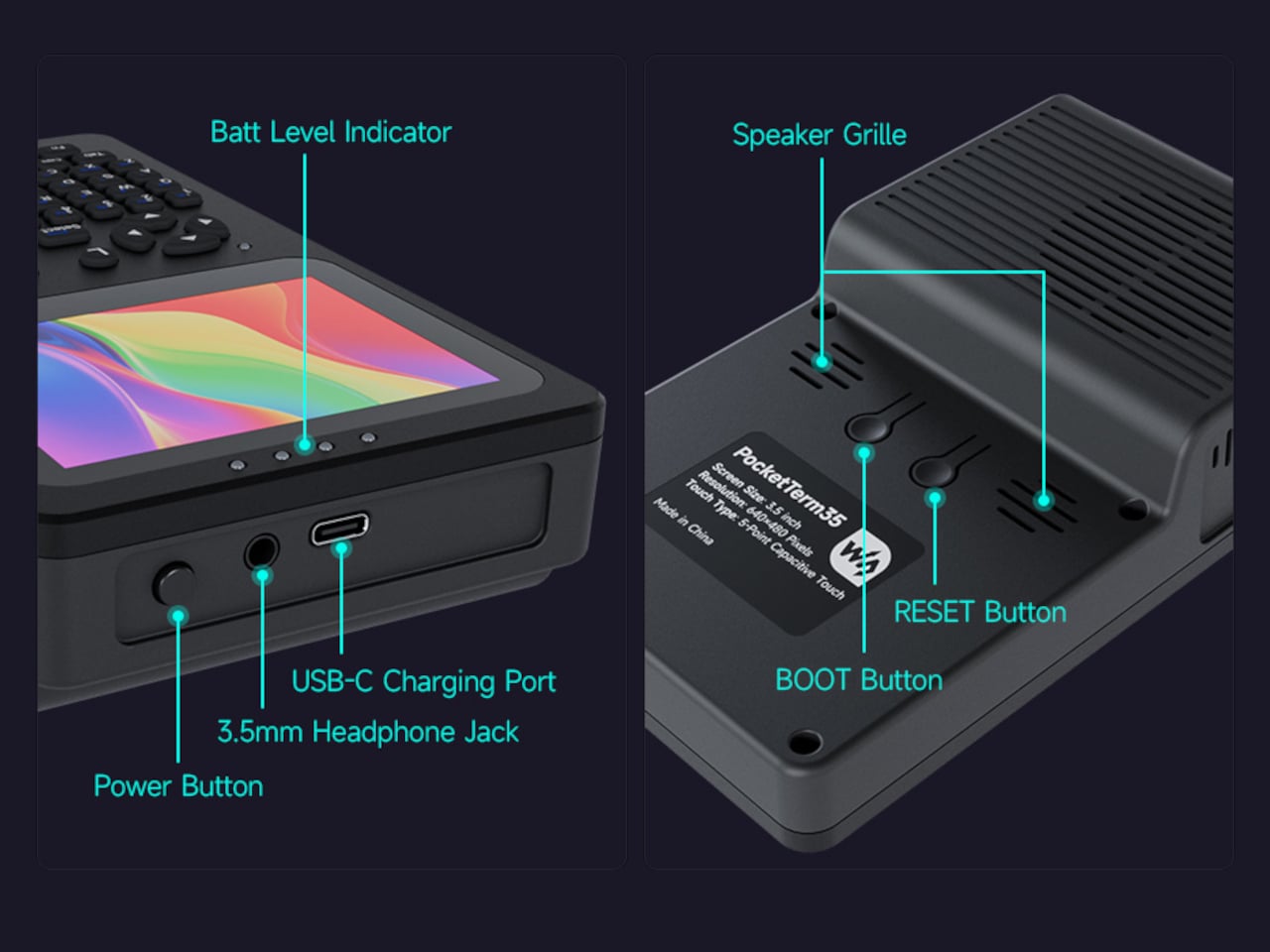
At 93.5mm x 168.5mm x 37mm, the PocketTerm35 fits comfortably in one hand, though it has enough weight to feel substantial rather than cheap. The front panel is CNC-machined aluminum, giving the face a solid, slightly industrial character. The rear is plastic, which helps keep the overall weight manageable. Status LEDs sit above the display, and dedicated boot and reset buttons are tucked on the back.
The 3.5-inch IPS touchscreen sits at a 640 × 480 resolution, which is modest by modern standards but appropriate for a terminal environment where text clarity matters more than pixel density. Optical bonding seals the glass to the panel, reducing reflections and making the screen usable outside without squinting. The 5-point capacitive touch surface sits under toughened glass with 6H hardness, which should hold up well against daily wear.
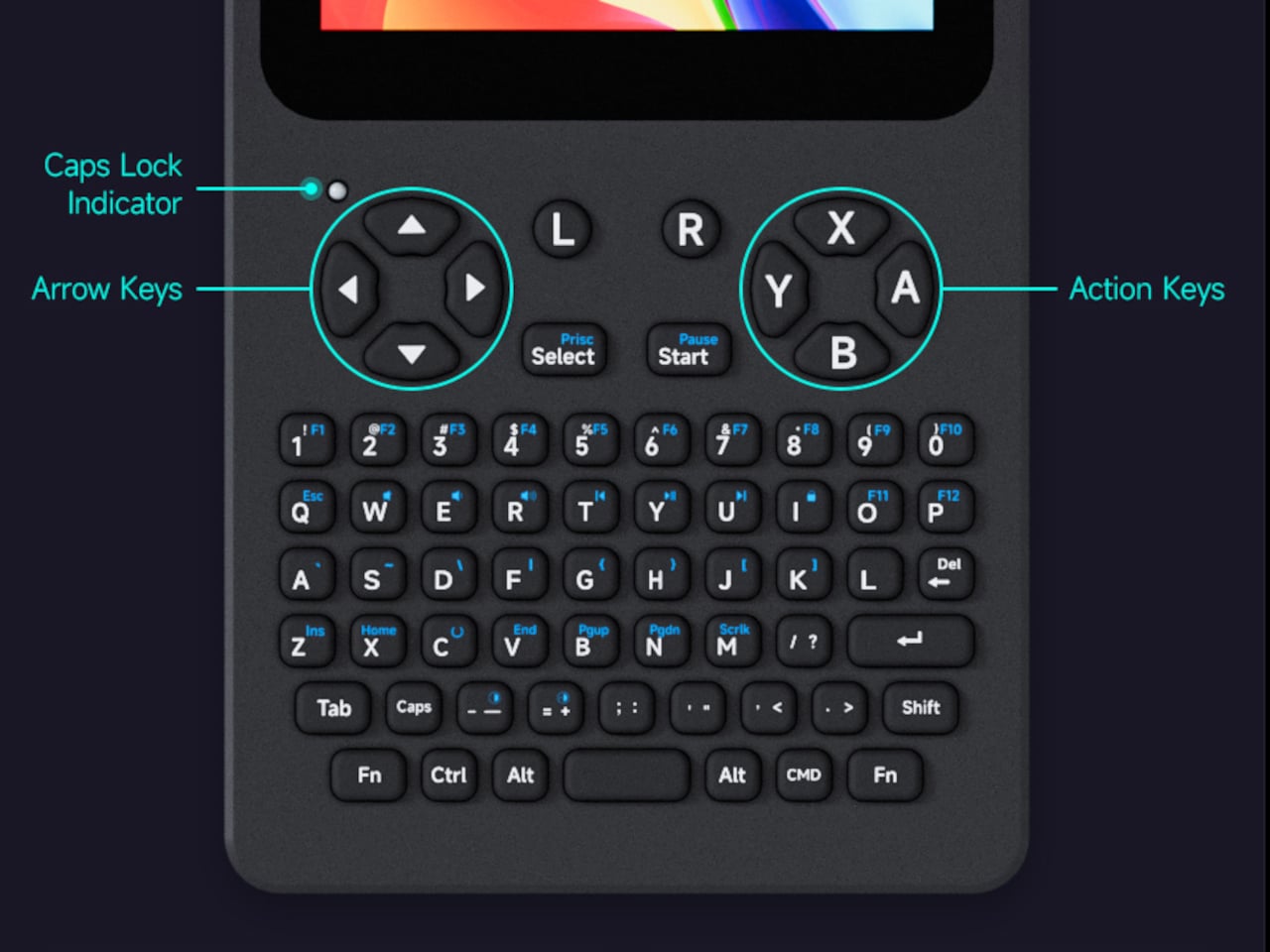
Below the screen is a 67-key QWERTY silicone keyboard laid out in a standard layout for typing commands, editing code, or navigating menus. A dedicated RP2040 microcontroller manages keyboard input, screen brightness, and volume, offloading those control tasks from the Raspberry Pi itself. The arrangement keeps the main processor free for heavier work, which is the kind of practical engineering detail that makes the difference in a device like this.
Power comes from a 5,000mAh lithium battery with a built-in UPS system that supports seamless switching between battery and external power without losing your session. You can run it plugged in at your desk, then pull the cable and walk away without any disruption to whatever’s running. It’s the kind of reliability that makes a handheld device genuinely trustworthy to use rather than just technically portable on paper.
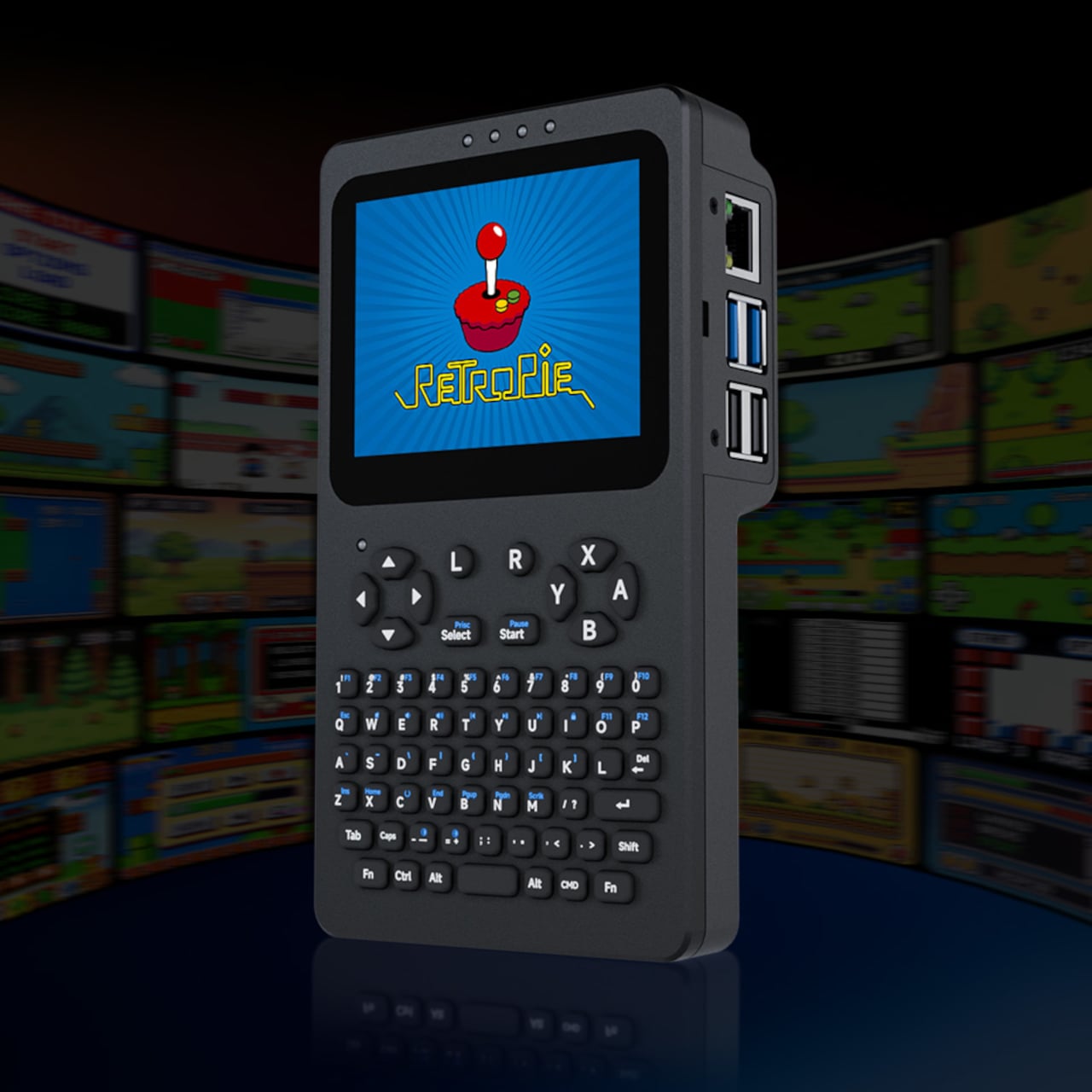
Connectivity is where the PocketTerm35 avoids the usual compromises. Four USB-A ports and an RJ45 Ethernet jack handle wired needs, alongside a 3.5mm audio jack and a 2W built-in speaker. An I2C expansion header opens things up for custom hardware add-ons. It also supports RetroPie, so the same machine that handles a terminal session during a work trip can become a retro gaming console once the day is done, especially considering it has ABXY buttons.
The PocketTerm35 ships in a few configurations. The Pi5 variant includes a 1GB Raspberry Pi 5, a 64GB microSD card with the system preloaded, and the 5,000mAh battery, all for $148.99. A Pi 4B version is available for $179.99. Developers who’ve been carrying a laptop just to have a real terminal within reach might find the PocketTerm35 a far more sensible answer to that specific problem.
The Raspberry Pi has always been a tinkerer’s dream, a tiny board that can become almost anything with enough creativity. Over the years, its growing capabilities have attracted developers, home automation enthusiasts, and even edge AI experimenters who want real processing power in a compact, low-cost package. The persistent challenge has been housing all of that potential in something that looks and works like a proper desktop.
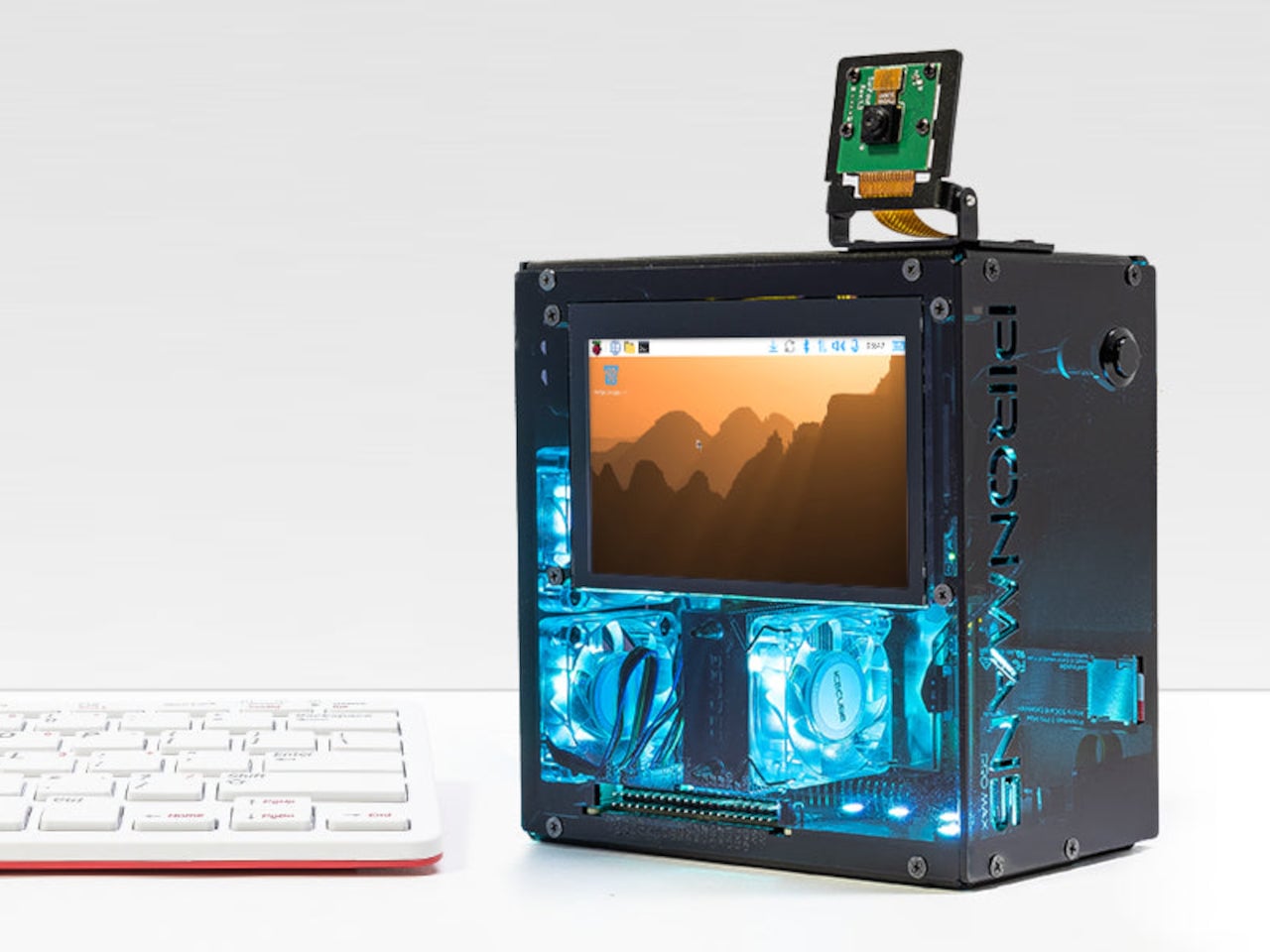
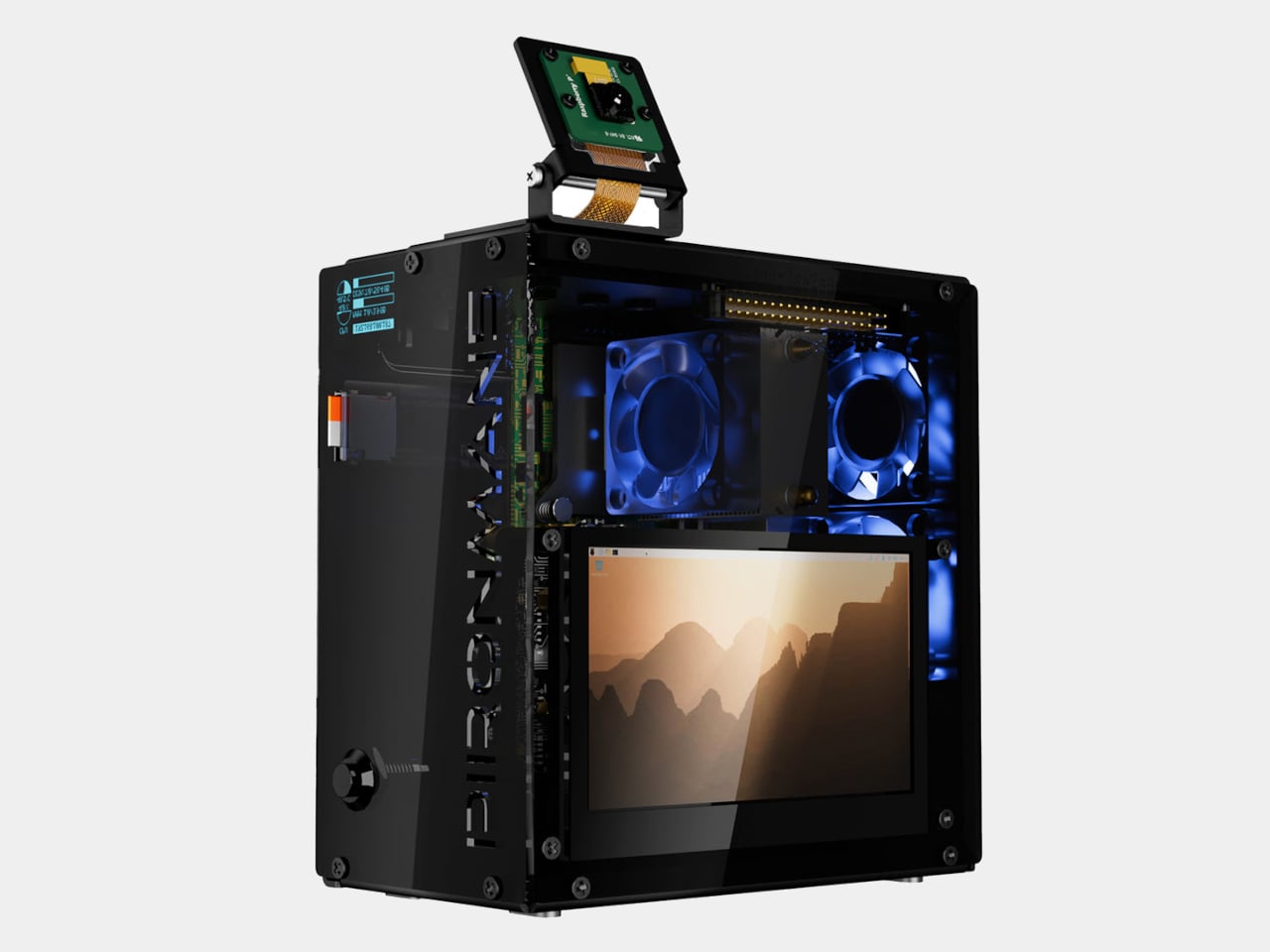
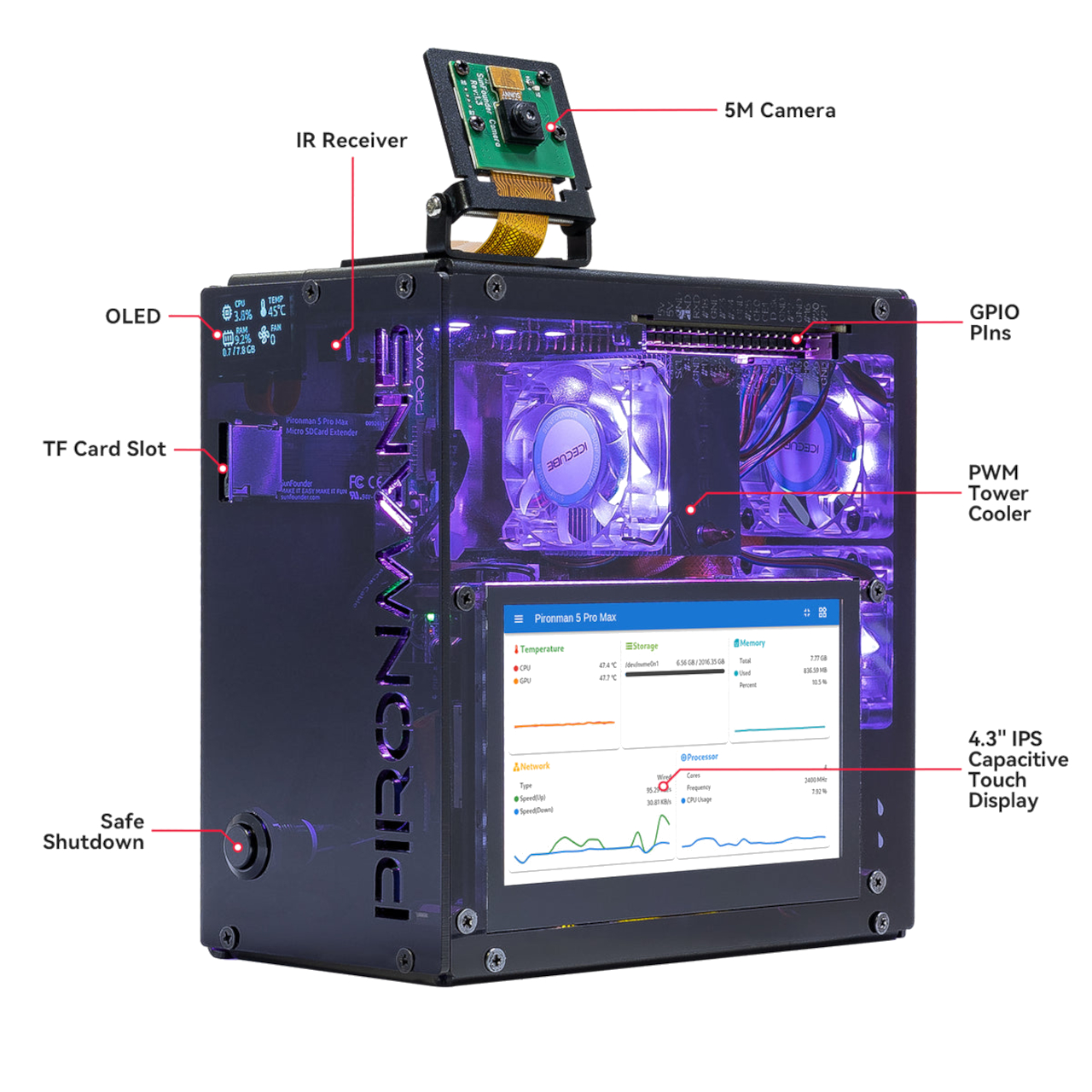
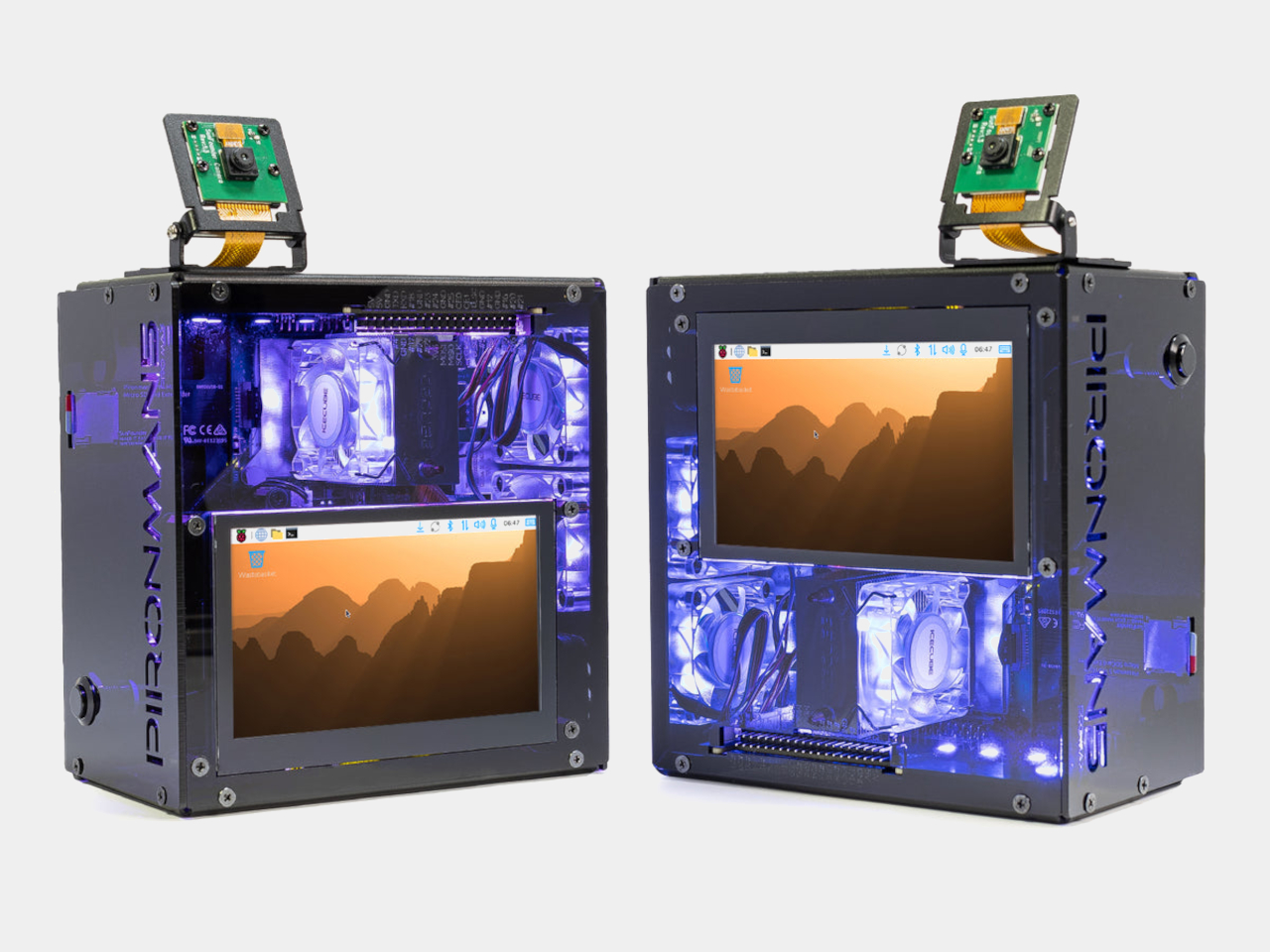
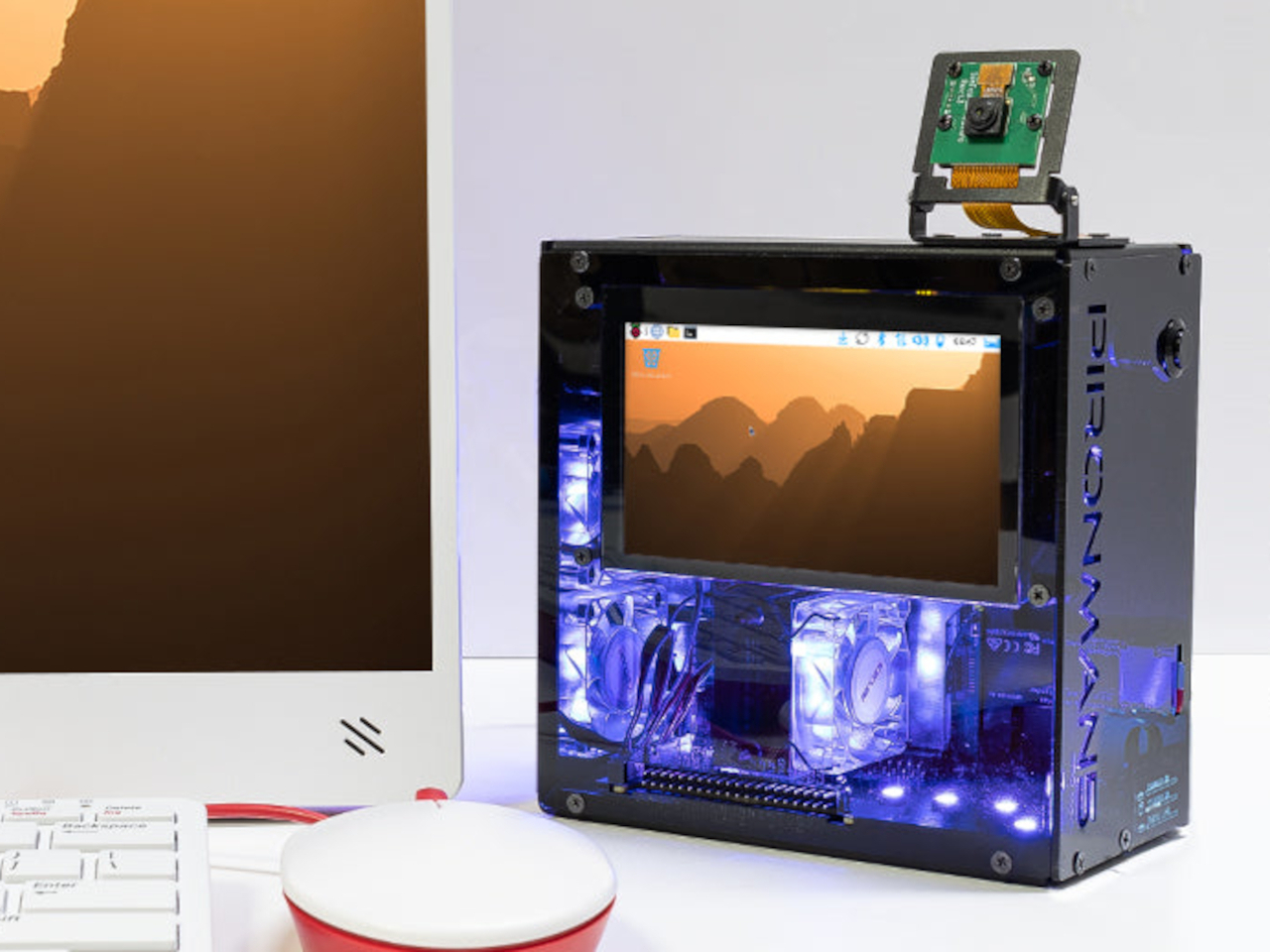
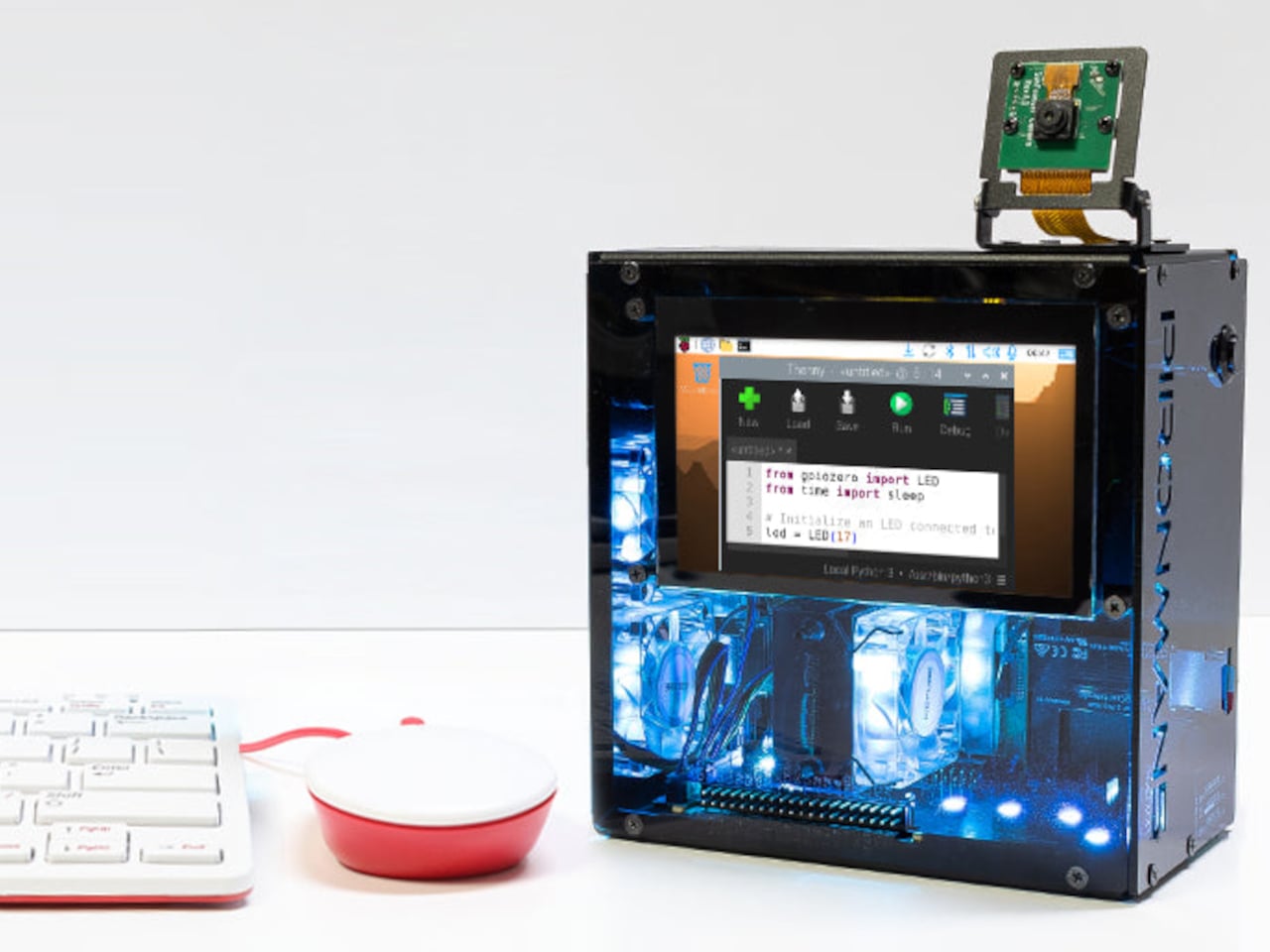
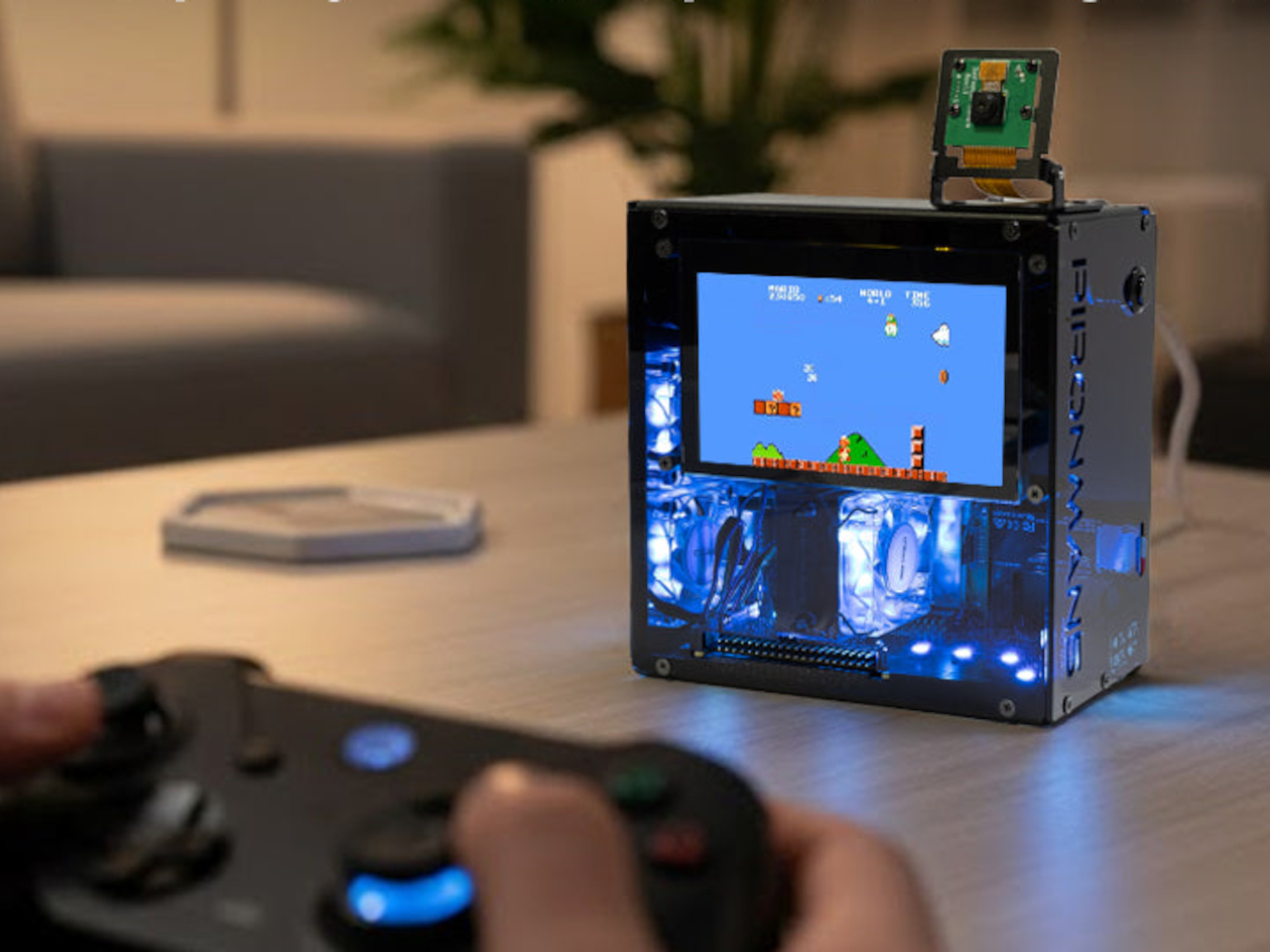
SunFounder’s Pironman 5 Pro Max takes a direct swing at that problem. It’s a dark anodized aluminum tower case designed exclusively for the Raspberry Pi 5, surrounding it with enough hardware to make it a genuinely capable desktop machine. The case and all its bundled accessories start at $145.99 without the Pi itself, which is a lot of kit for something technically sold as a bare enclosure.
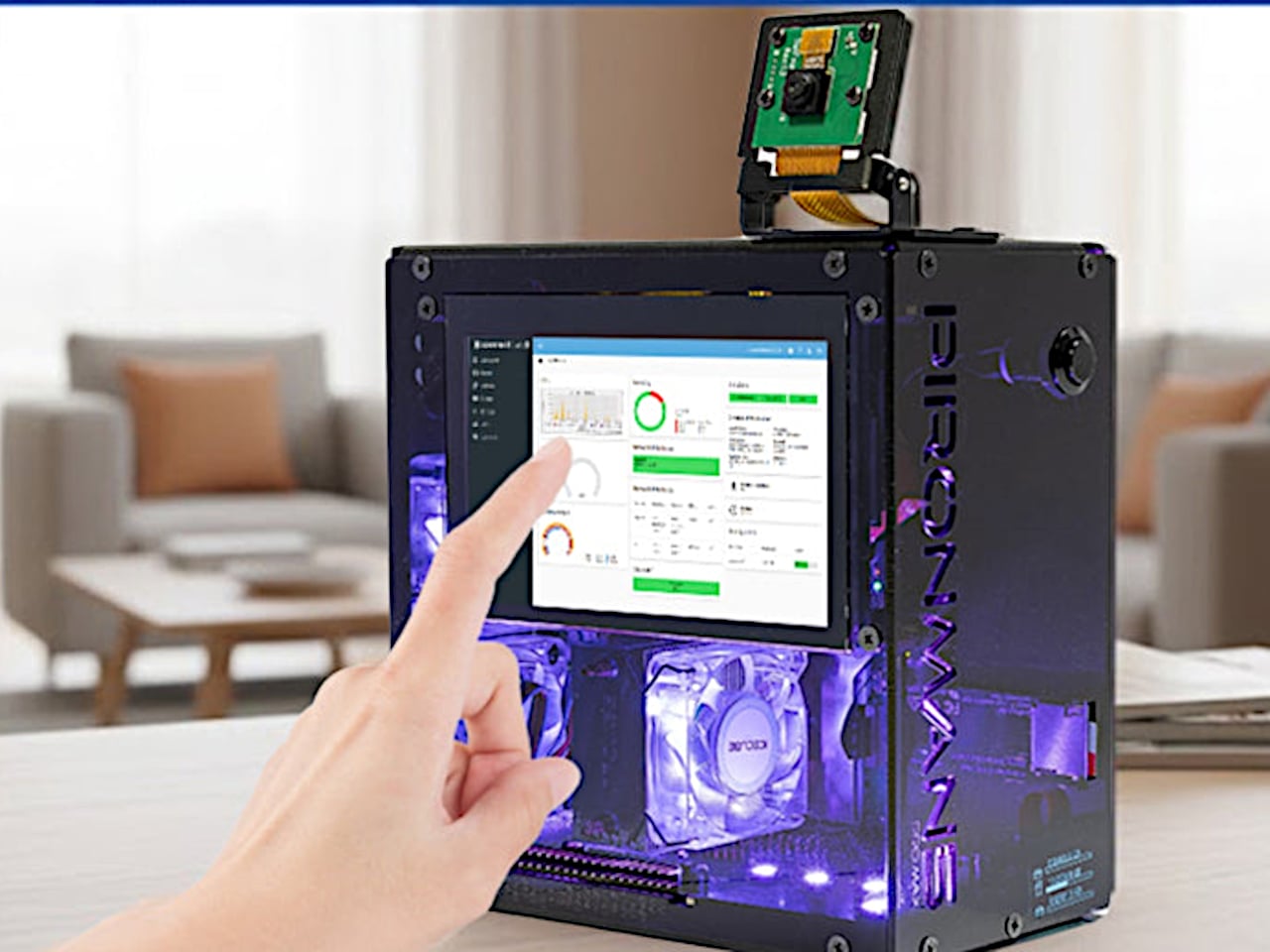
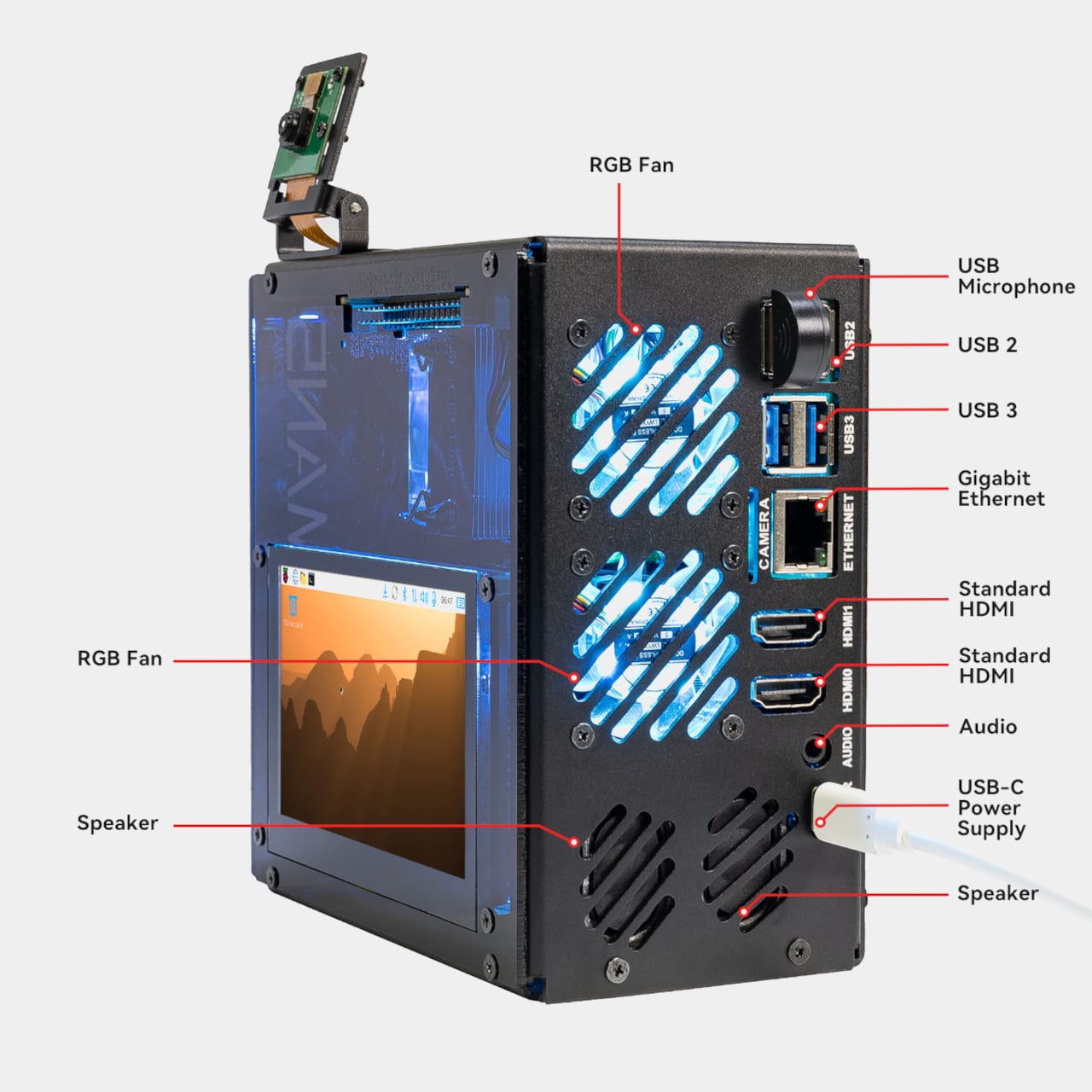
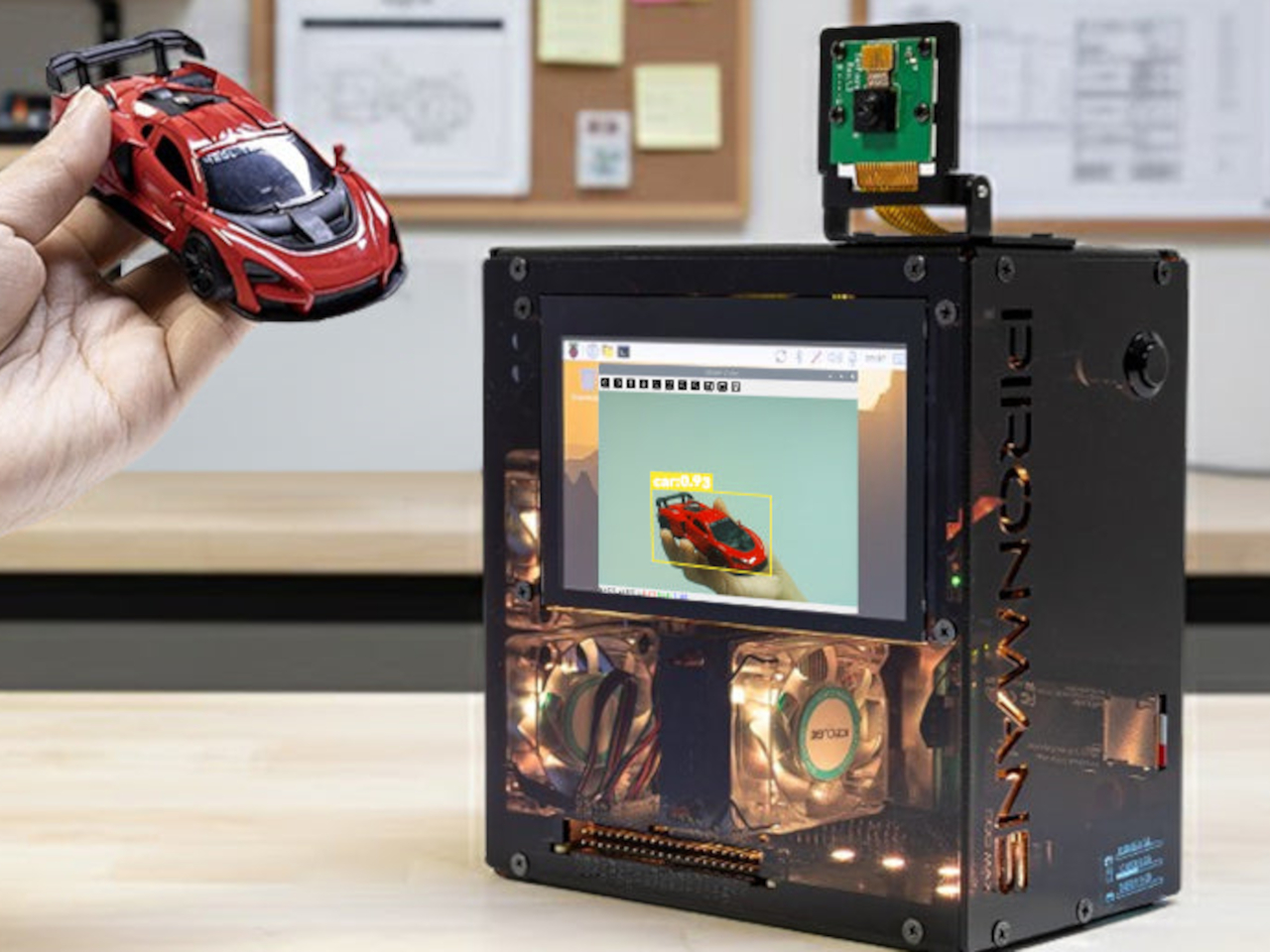
The most visible feature is the 4.3-inch capacitive touchscreen on the front (or side, depending on your point of reference), giving direct, tactile access to whatever you’re running. Alongside it are a 5MP adjustable camera module, stereo speakers, a USB microphone, and a 3.5mm audio jack, all included in the box. Together, they open the door to voice interfaces, video recording, and interactive displays without requiring a single extra module or dangling cable.
Storage and AI expansion come from dual NVMe M.2 slots driven by a PCIe Gen 2 switch. They support RAID 0 for speed or RAID 1 for redundancy, making the Pironman a surprisingly capable home NAS. The same slots are also compatible with Hailo-8 and Hailo-8L AI accelerators for running local language models like DeepSeek or Ollama without a cloud connection.
SunFounder’s OpenClaw platform ties a lot of that together, letting you build a personal AI agent directly on the hardware. You can connect it to cloud-based services like ChatGPT and Gemini, or keep everything local with Grok, Ollama, and DeepSeek. It’s a bold pitch for a single-board computer, but one the Raspberry Pi 5’s improved architecture was quietly building toward.
Cooling is managed by a PWM tower cooler with dual RGB fans, keeping the Pi 5, NVMe drives, and any attached Hailo accelerator stable under sustained load. A front-facing OLED display shows real-time CPU usage, RAM, temperature, and IP address, while a metal power button handles safe shutdowns and an RTC battery holder supports projects that can’t afford unexpected downtime.
The chassis measures 140.9mm x 77.0mm x 138.7 mm and includes a GPIO extender, a spring-loaded microSD slot, rear USB 2.0 ports, and a 27W USB-C power input. It runs on Raspberry Pi OS, Ubuntu, Kali, and Homebridge OS, giving it the range to serve as a media center, development workstation, or smart home hub without needing to swap hardware between projects.
For $145.99, the Pironman 5 Pro Max is selling the hardware to build a finished computer around a board that already fits in your pocket. That gap between bare single-board computer and fully equipped desktop has always been the Raspberry Pi community’s favorite problem to tackle, and few cases have gone after it with quite this much ambition.
There’s a particular visual language that 1980s science fiction used for technology. It was chunky, industrial, and slightly alien in form, the kind of hardware that felt like it belonged on a spaceship more than in a pocket. That aesthetic has been largely absent from consumer electronics for decades, replaced by sleek glass rectangles and matte aluminum that all end up looking roughly the same.
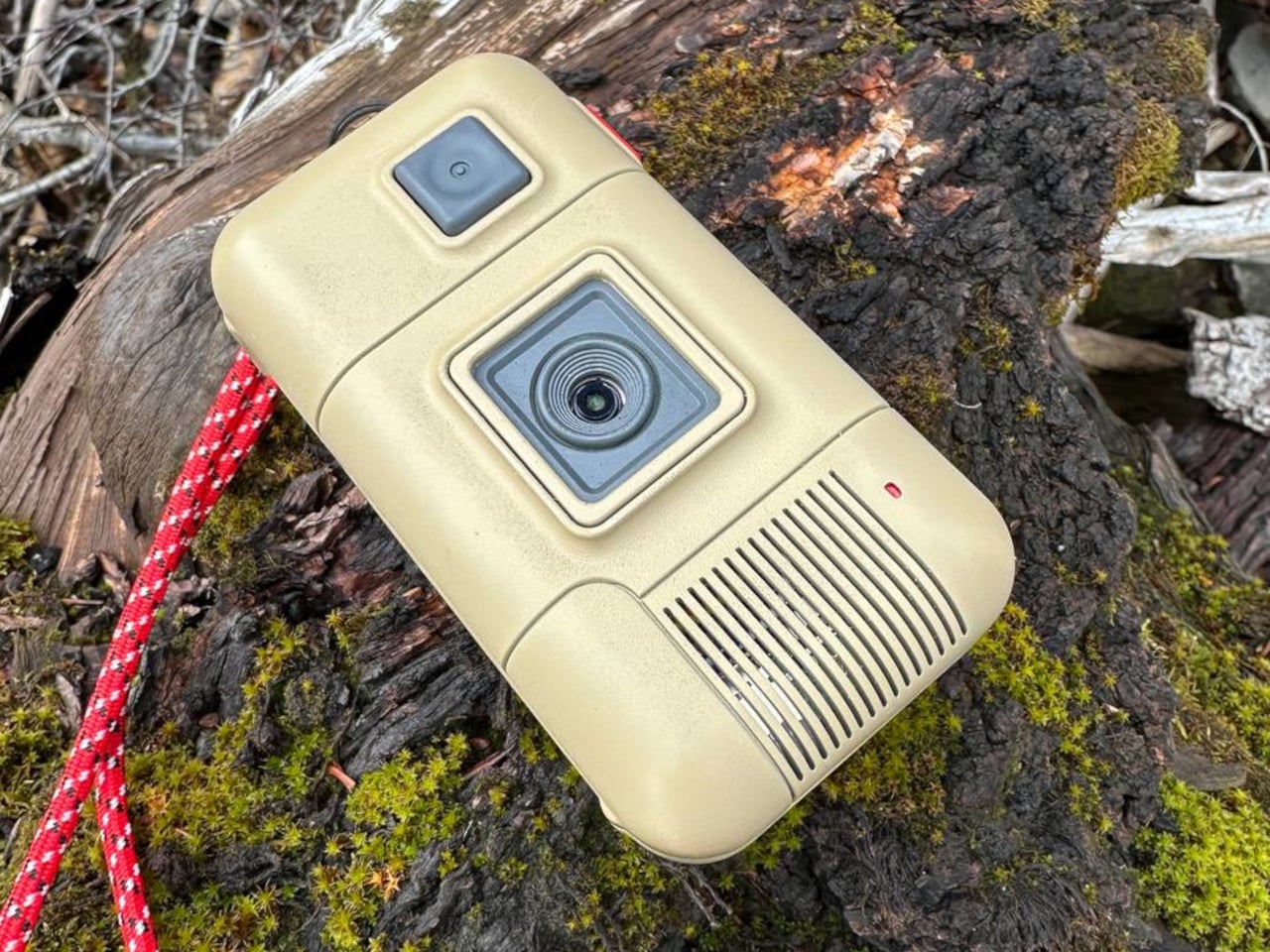
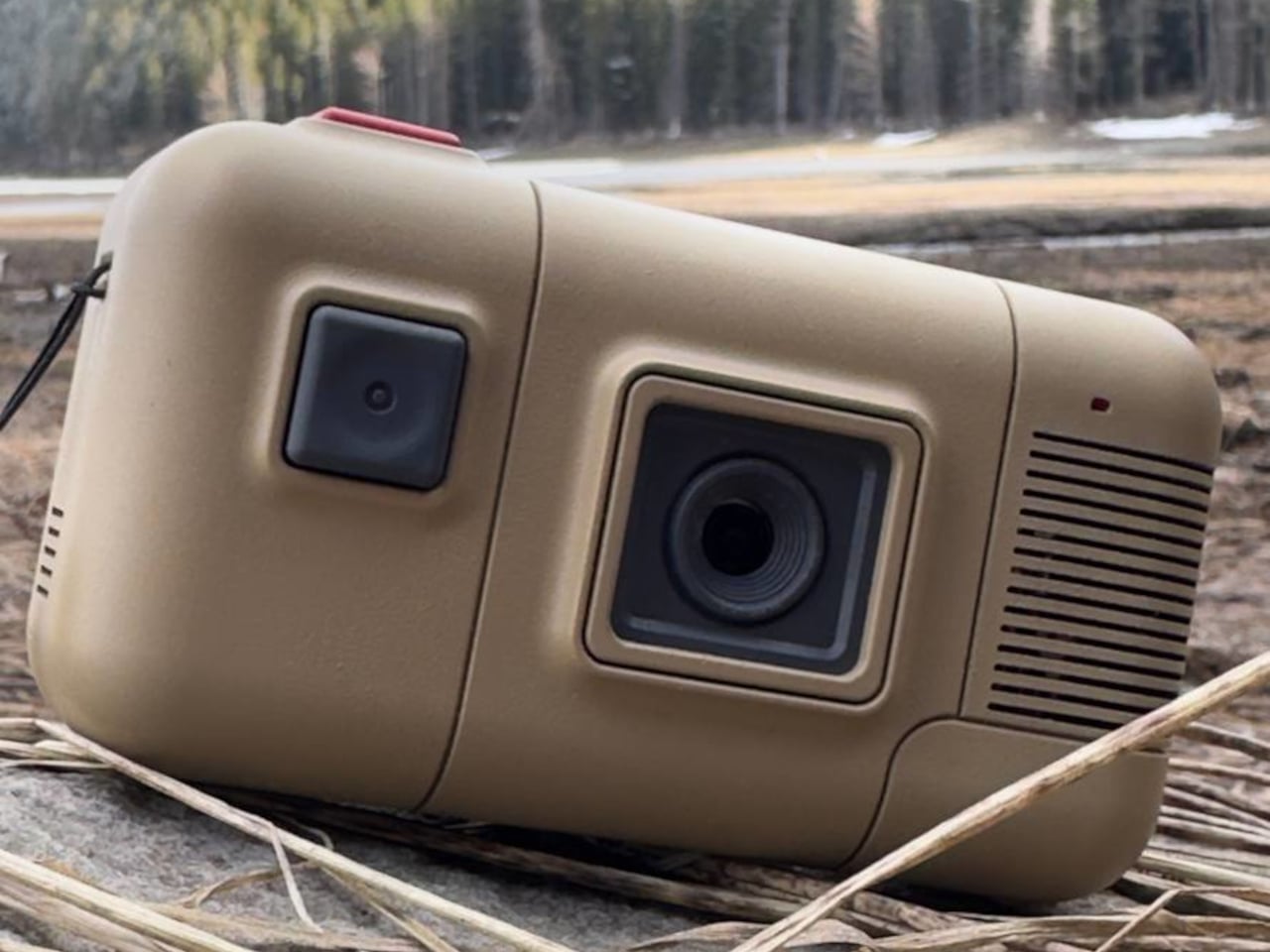
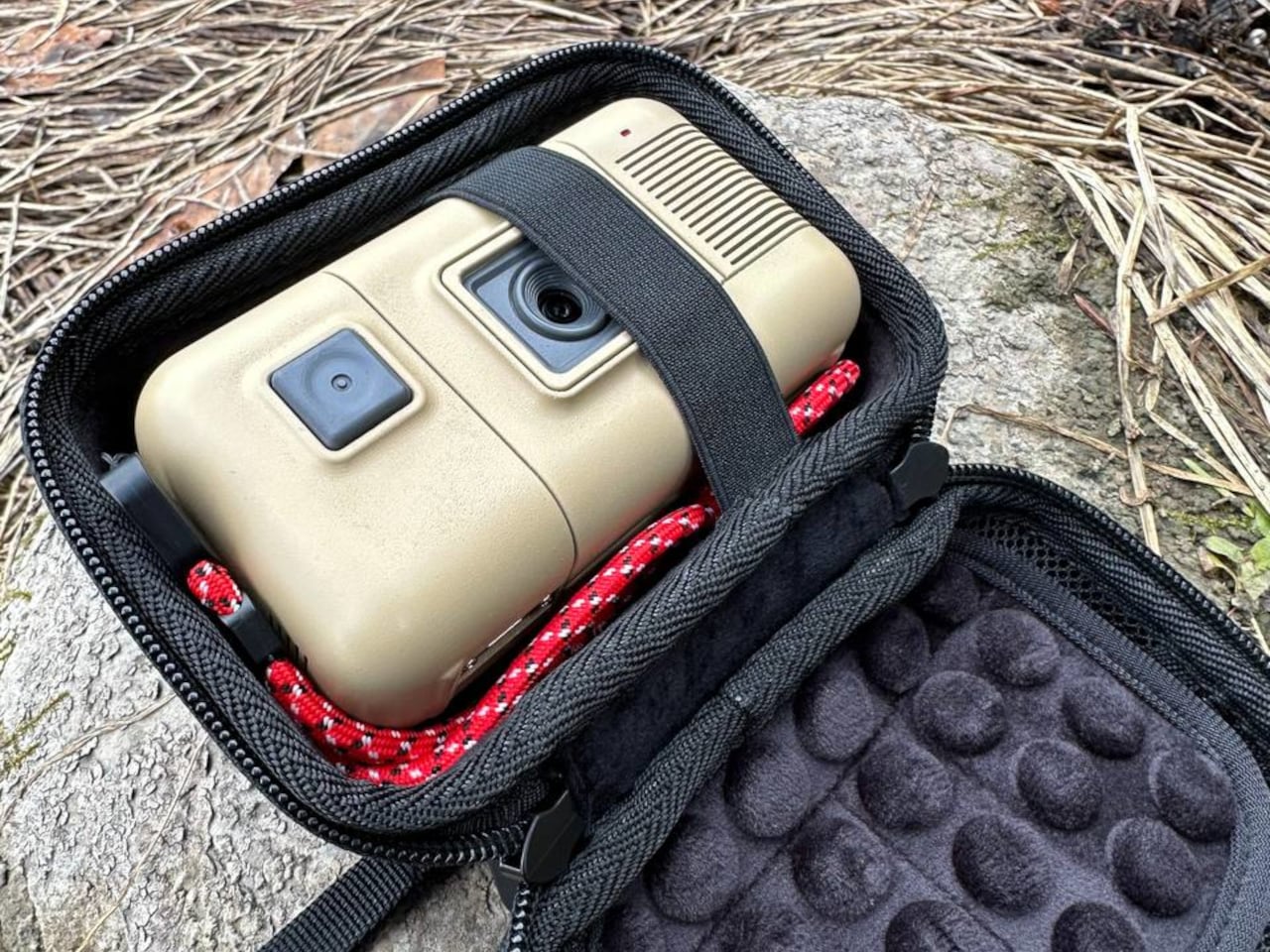
A maker going by Yutani on Reddit has built something that resurrects that forgotten design language in the form of a functional digital camera. It’s called the Saturnix, and the concept is simple but strange: what would a camera look like if it were designed in the 1980s, not to look like what cameras looked like then, but to look like what cameras were imagined to eventually become?
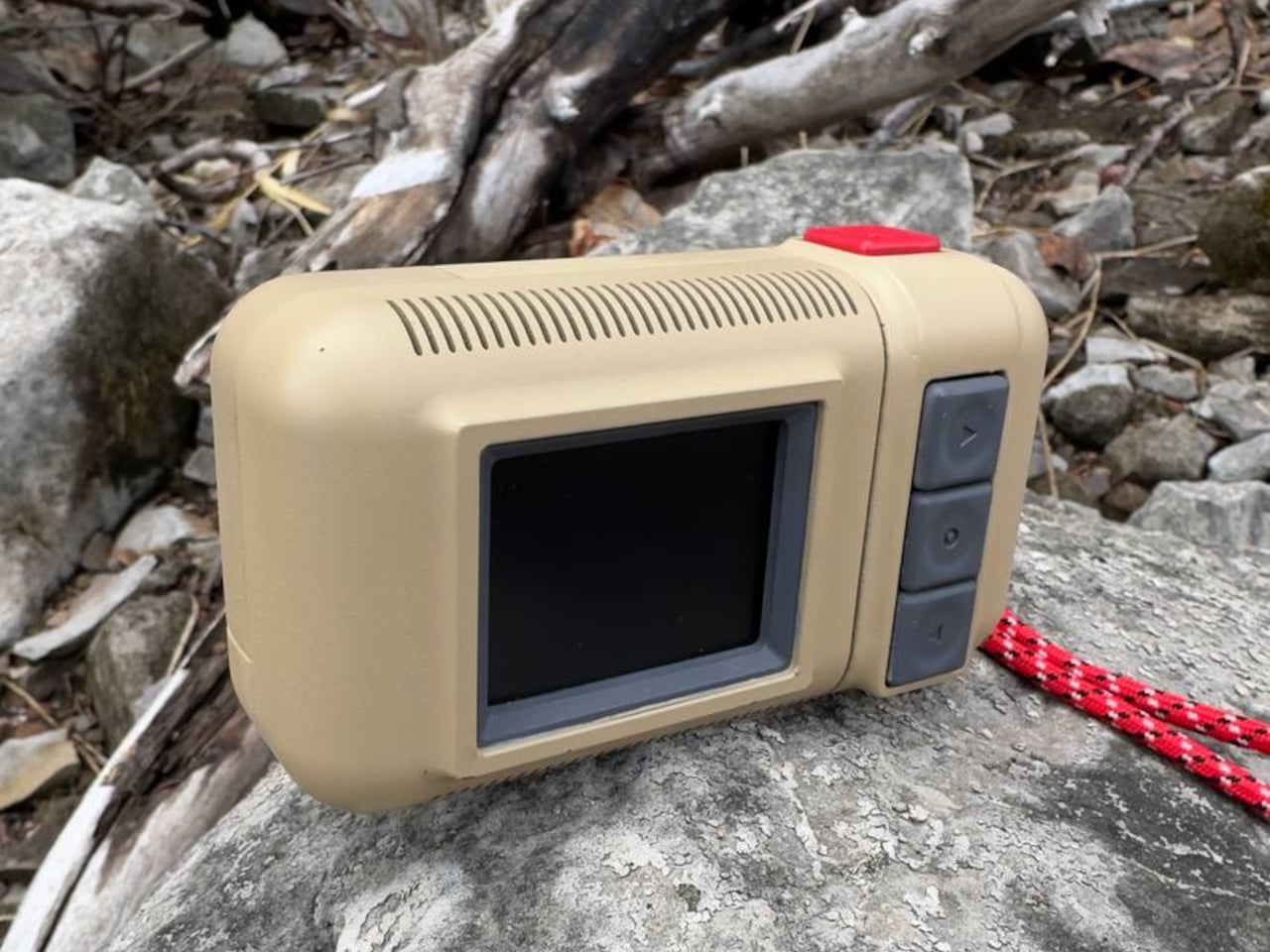
The body is 3D printed and draws clear inspiration from the science fiction hardware of that era, specifically the industrial aesthetic of films like Alien. It’s chunky and deliberate by design. The five control buttons use mechanical Kailh switches, a choice the creator was specific about: “a camera should feel like a real tool, not a touchscreen.” The tactile feedback from each press reinforces exactly that.
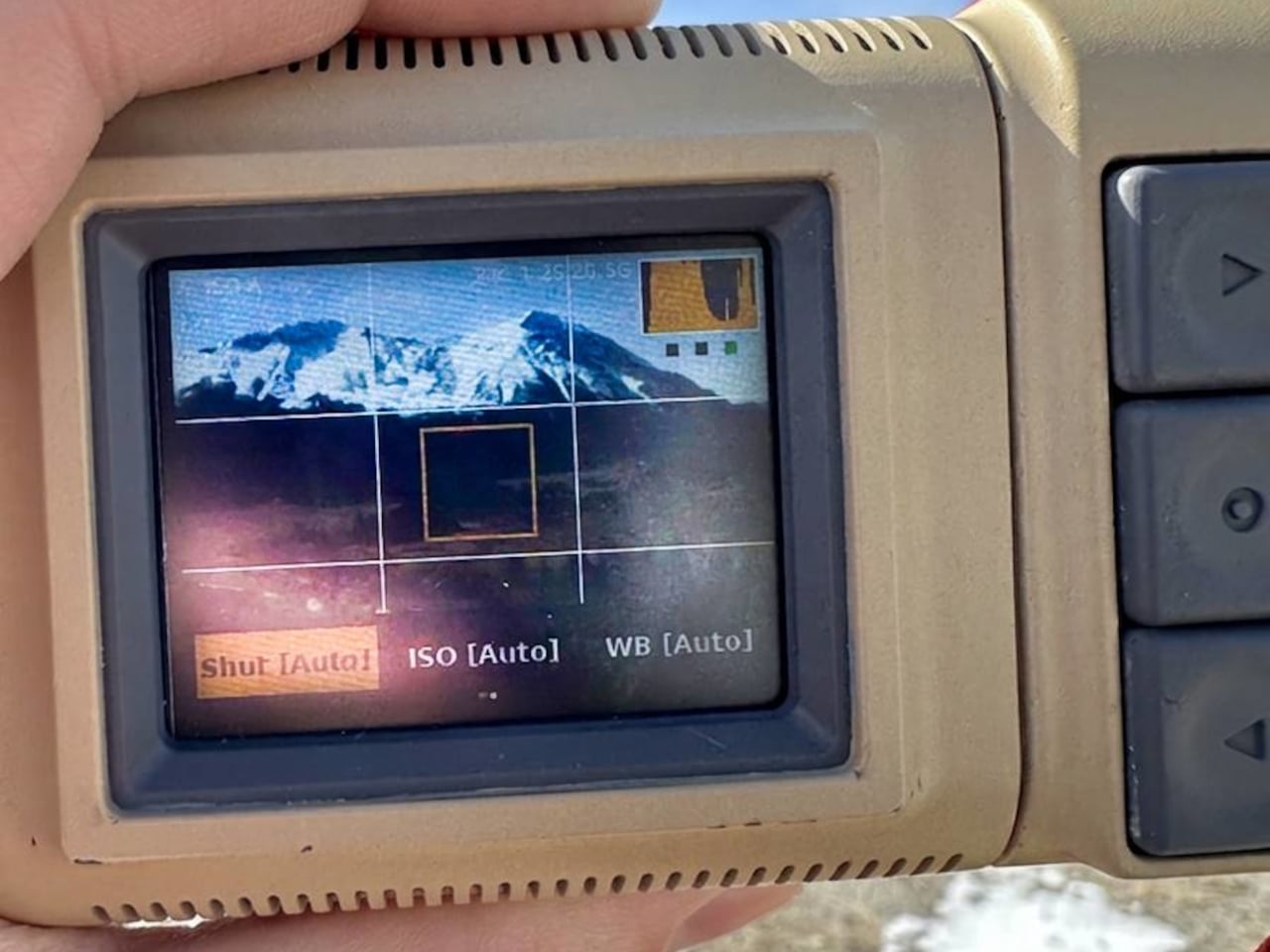
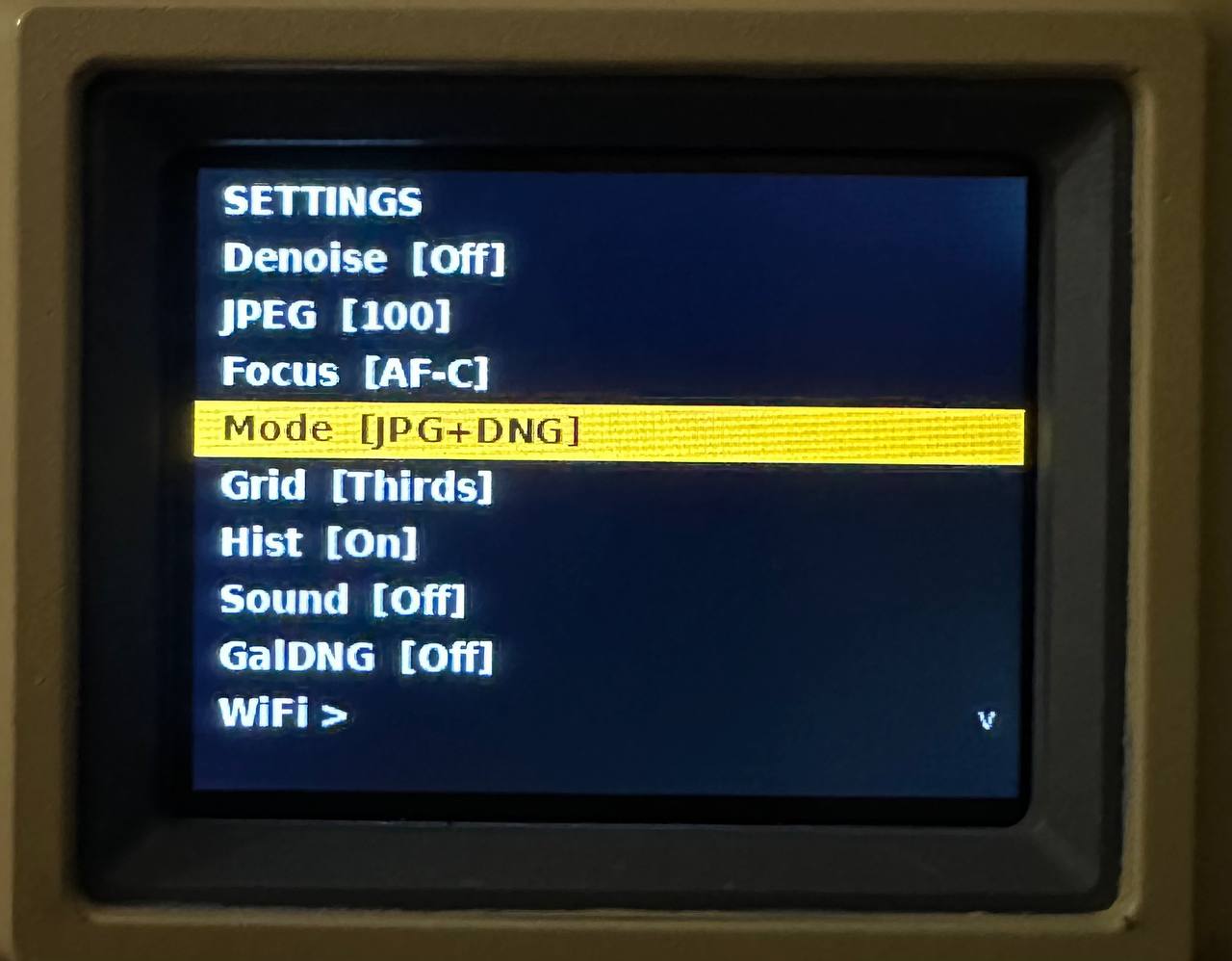
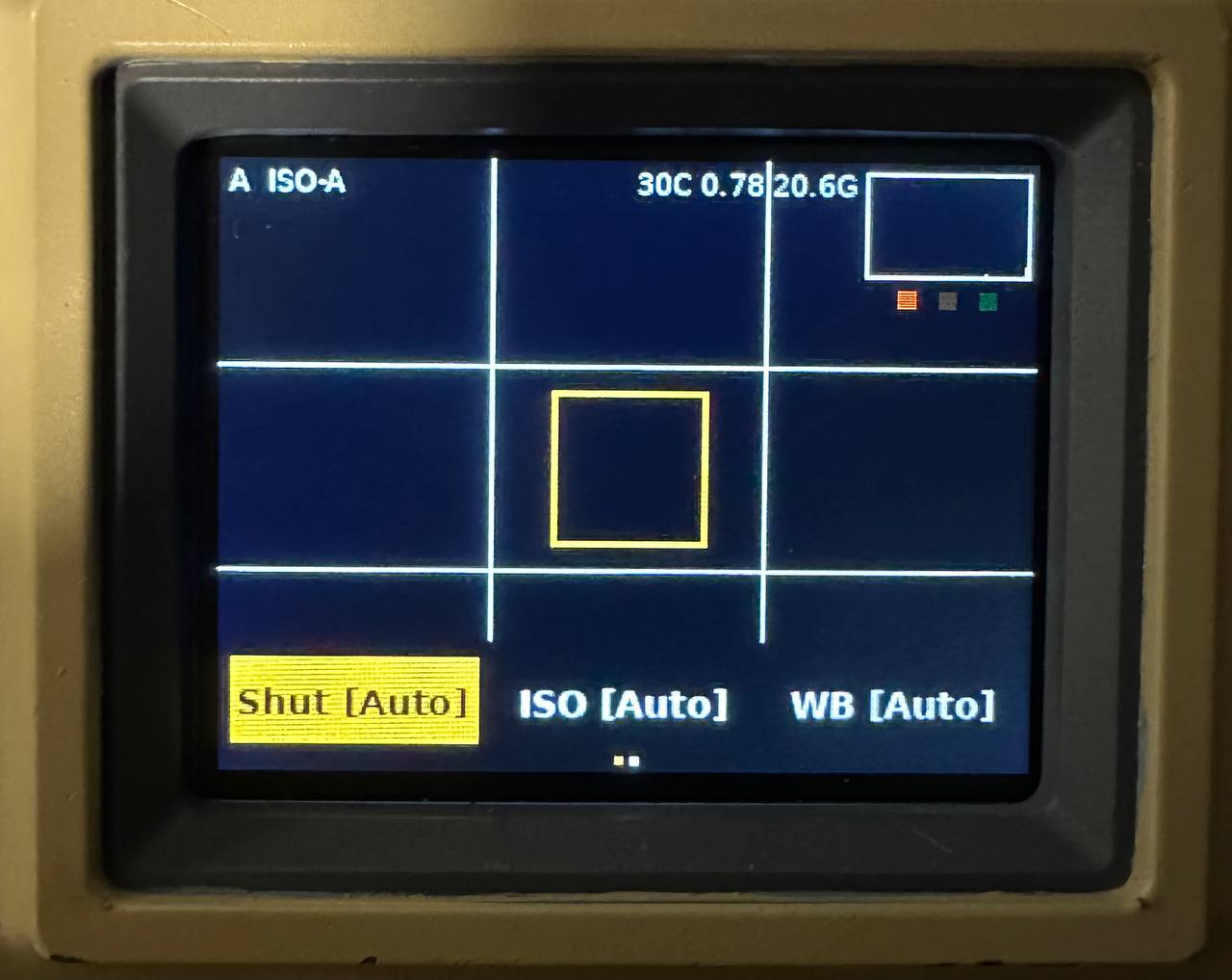
Inside, the Saturnix runs on a Raspberry Pi Zero 2W paired with a 16-megapixel Arducam IMX519 autofocus sensor and a 2-inch IPS LCD viewfinder. It captures RAW and JPG simultaneously, with full manual controls covering shutter speeds from 30 seconds to 1/4000, ISO from 100 to 3200, and white balance and exposure compensation adjustments. Three autofocus modes round out the shooting options.
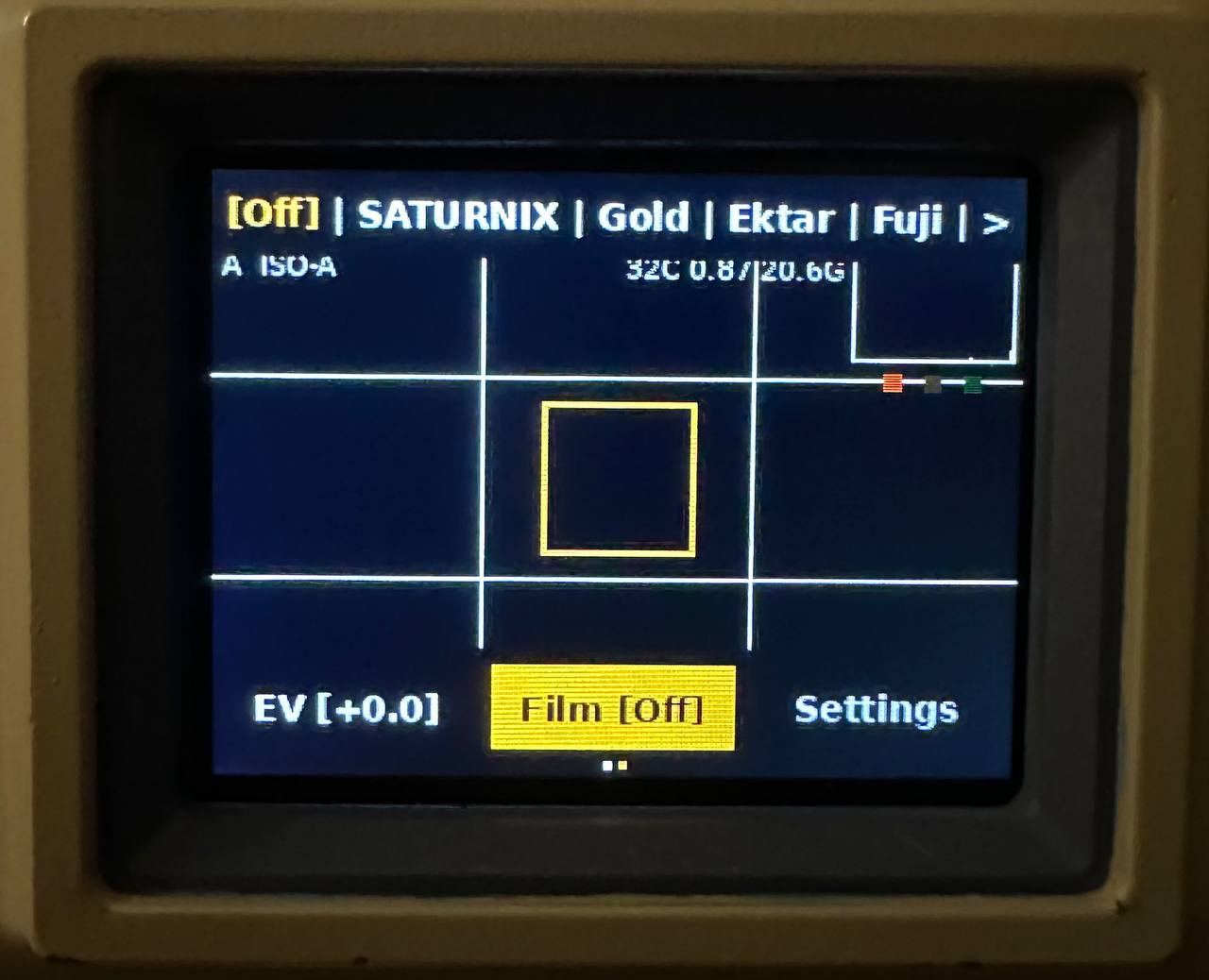
The film simulation engine is what separates the Saturnix from other DIY camera builds. Six presets are available, all processed on-device with no apps or cloud services involved. You can shoot with profiles mimicking Kodak Gold’s warm analog tones, the hyper-saturated punch of Kodak Ektar 100, the cool greens of Fujifilm 400, and the rich grain of Kodak Tri-X 400 black and white.
Filter: Kodak Gold
Filter: Fujifilm 400
Photo transfers happen via a built-in Wi-Fi hotspot, keeping the entire process completely self-contained. The entire project is open source. The code, STL files for the 3D-printed case, and sample outputs from each film simulator are all available on the Saturnix GitHub page under MIT and Creative Commons licenses, meaning anyone with a printer and the right components can build one. A firmware release hasn’t shipped yet, but the creator is actively developing it.
Filter: None
The Saturnix doesn’t compete with commercial cameras on paper, and it doesn’t try to. What it does is offer something most cameras, cheap or expensive, don’t bother with anymore: a strong point of view about what a camera should feel like to hold, use, and look at, from a set of aesthetics that mainstream design long since walked away from.
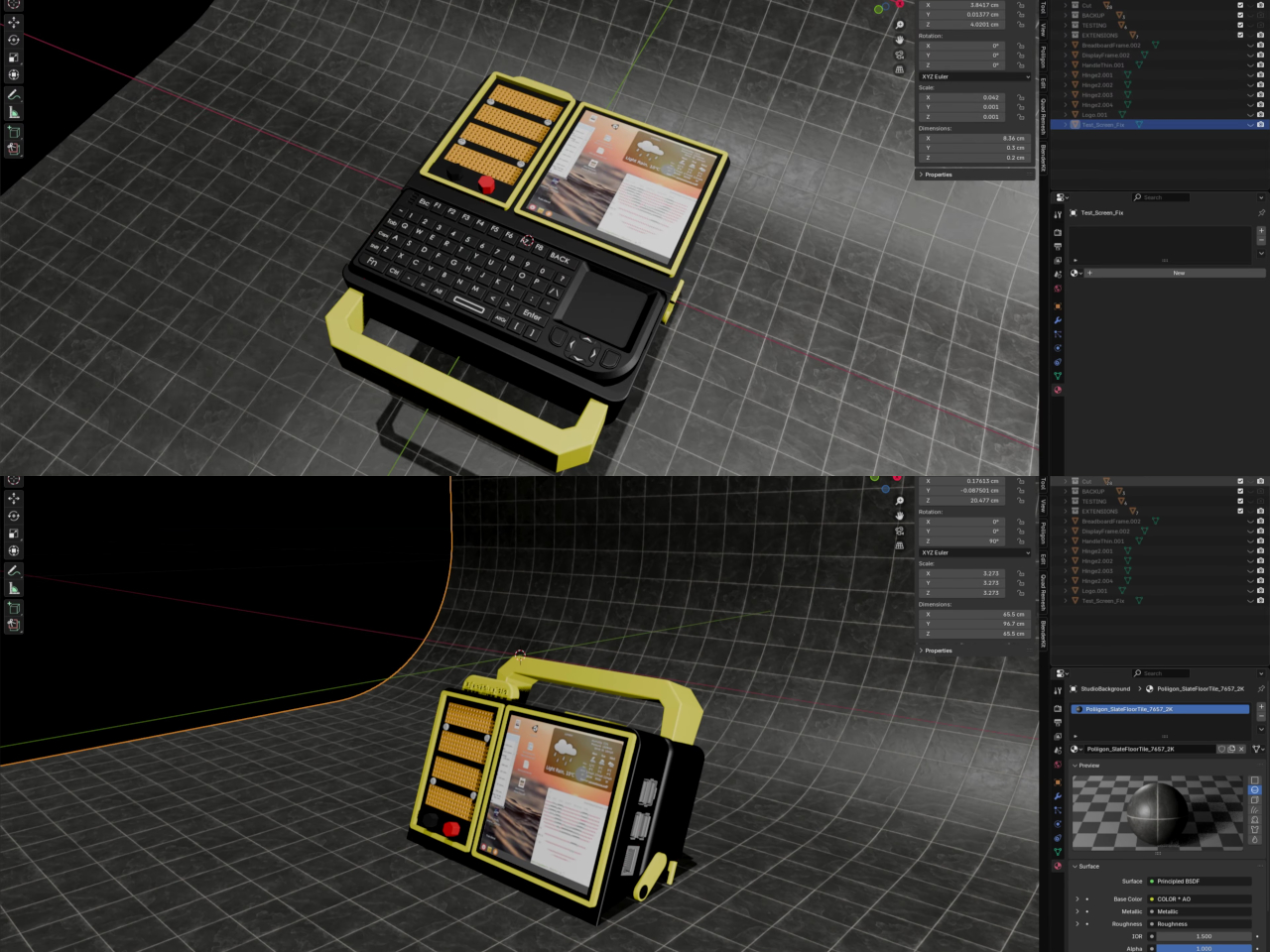
Most portable computers are sealed boxes, which is exactly what makes them frustrating for anyone who wants to experiment with electronics. You can run code on a laptop, but try wiring a temperature sensor or an infrared transmitter directly to it, and you’ll realize that consumer hardware was never designed for that kind of access. A maker who goes by PickentCode got tired of that gap and built something to close it.
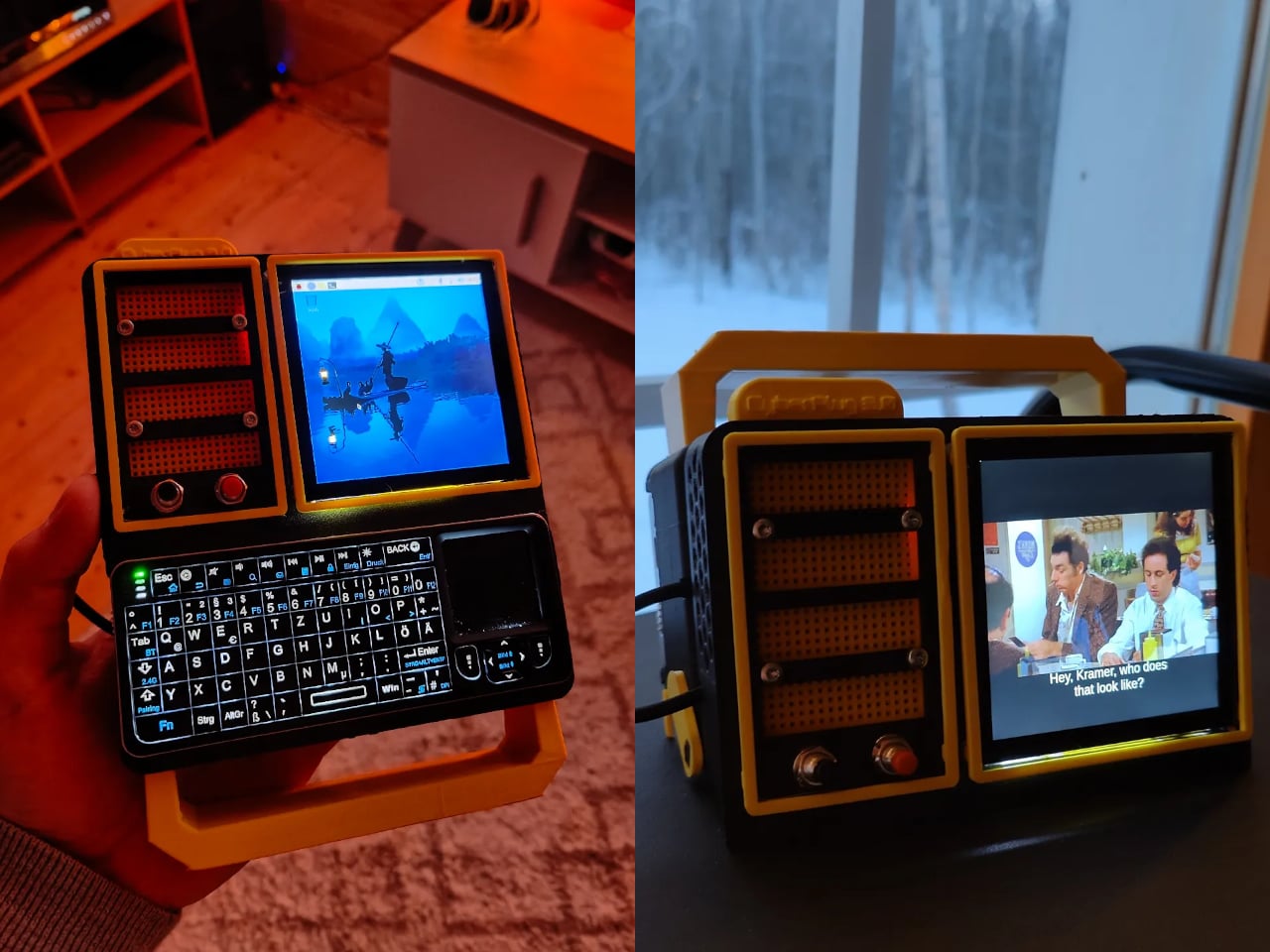
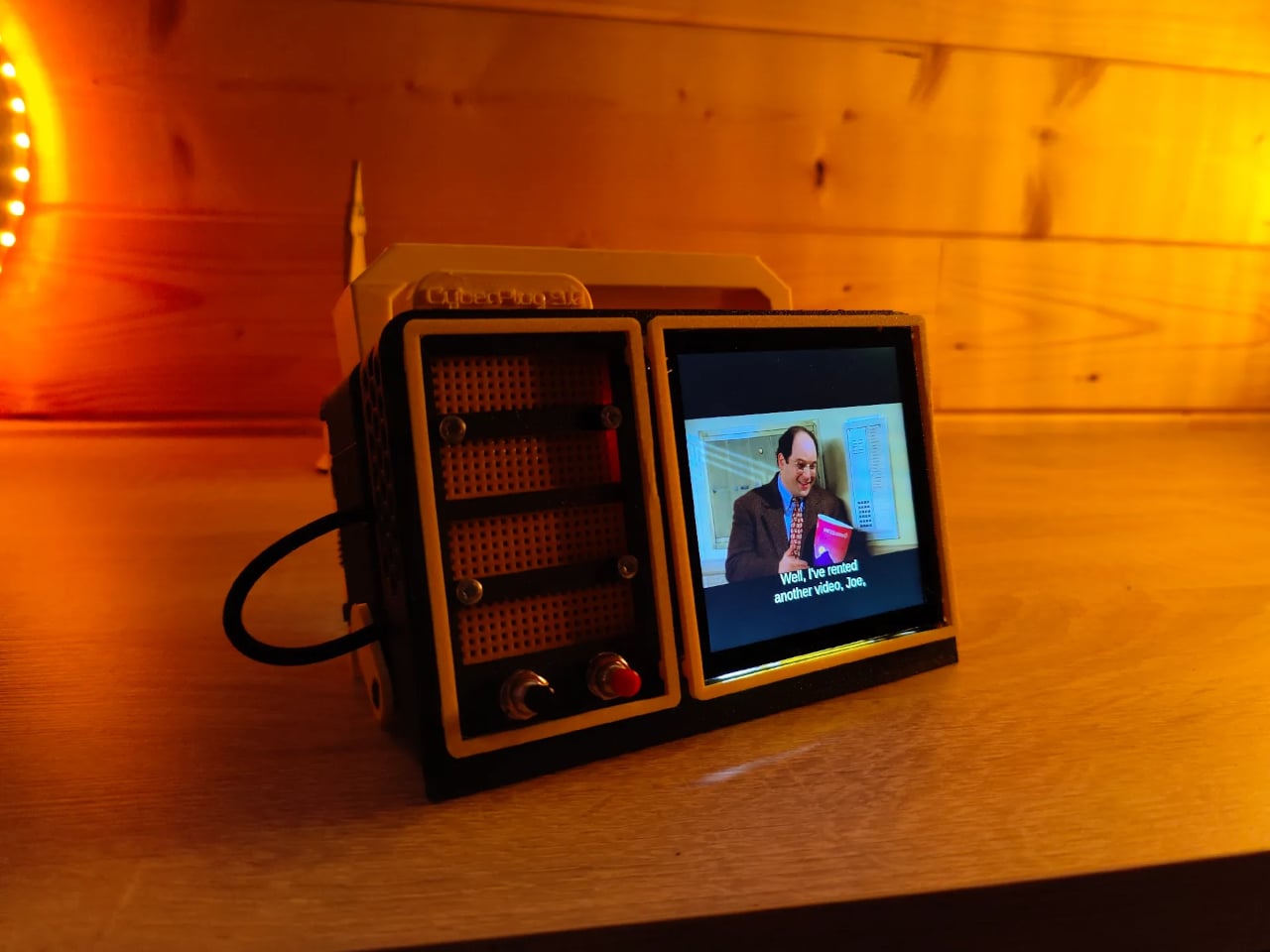
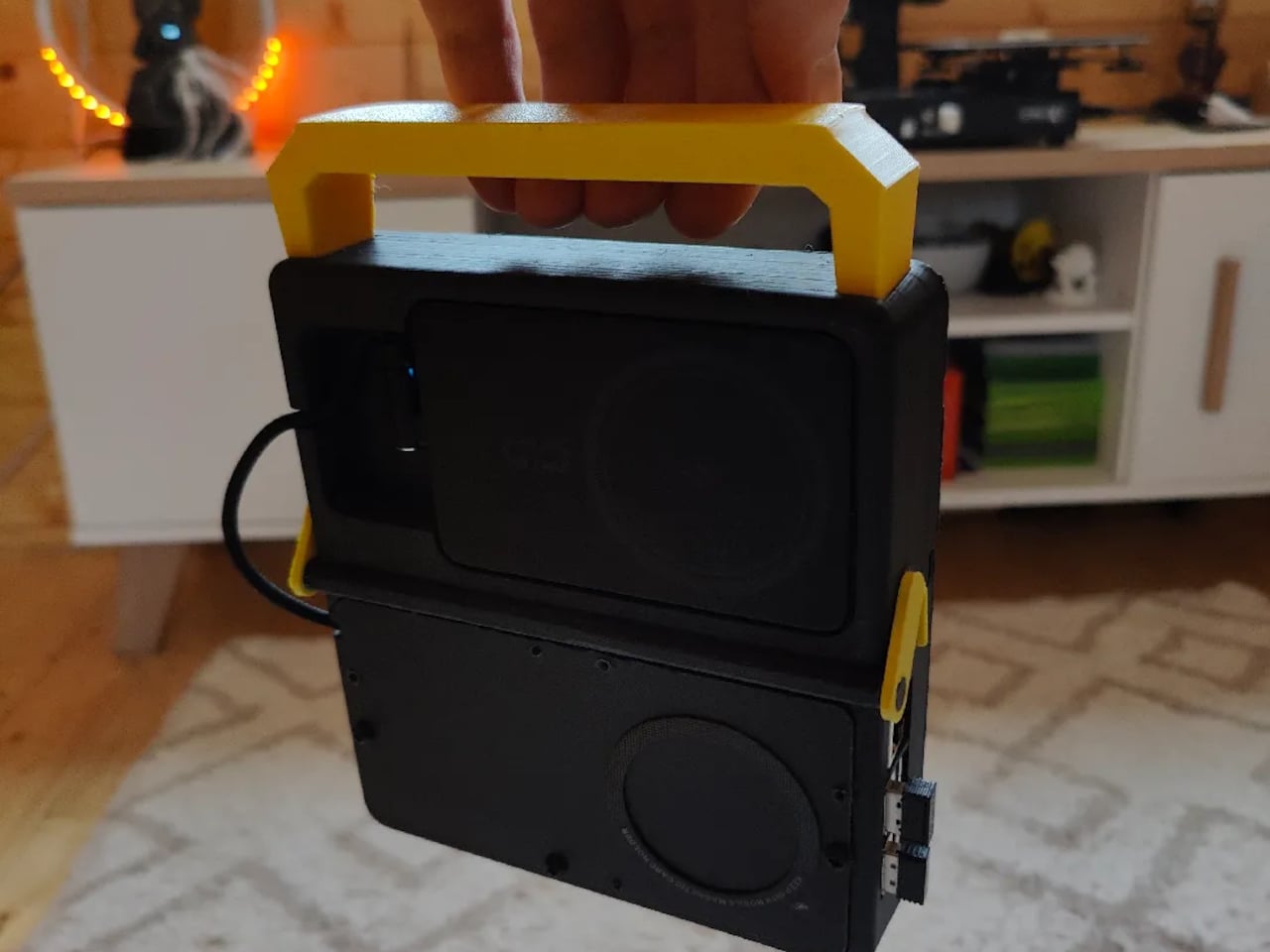
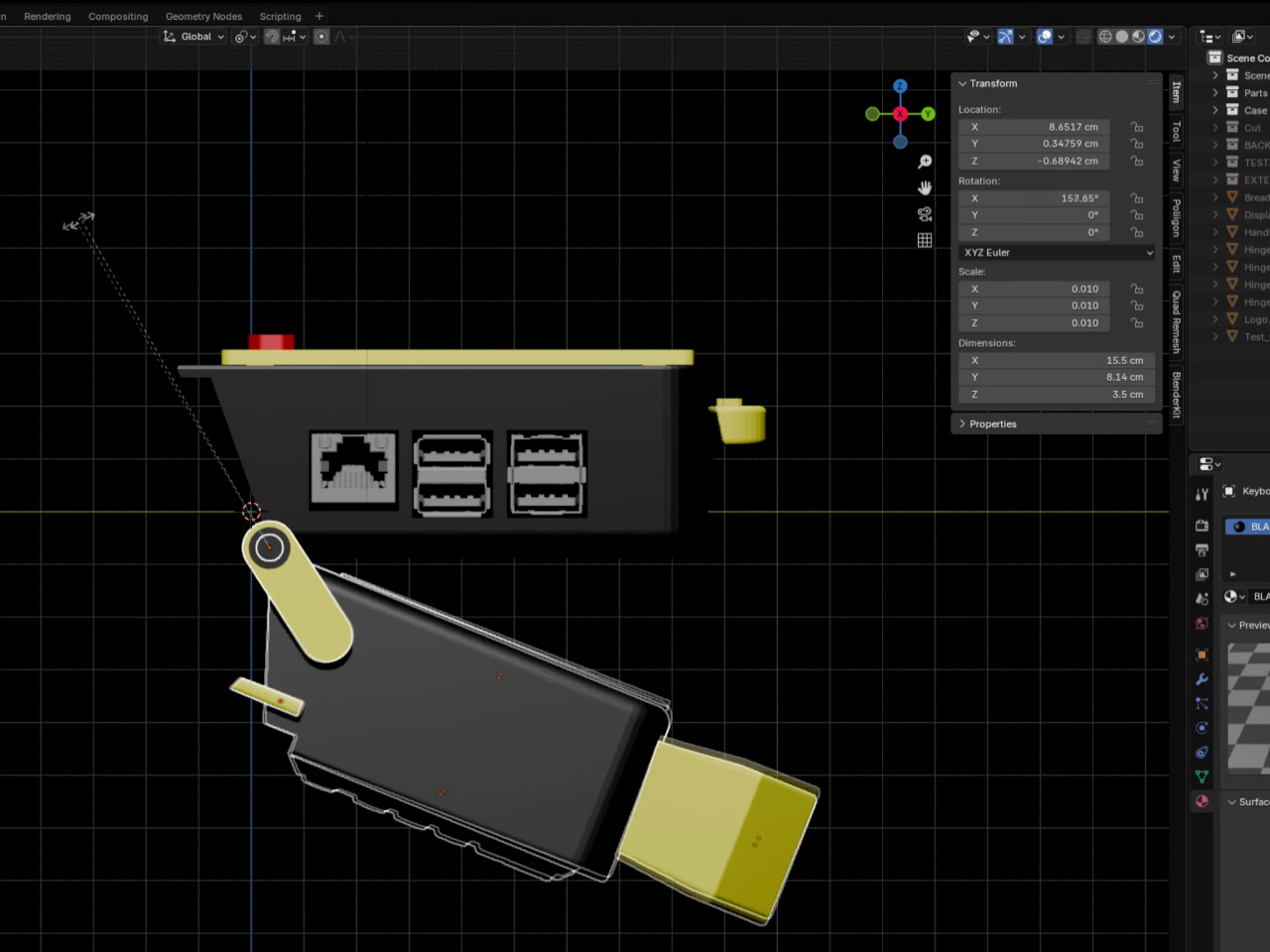
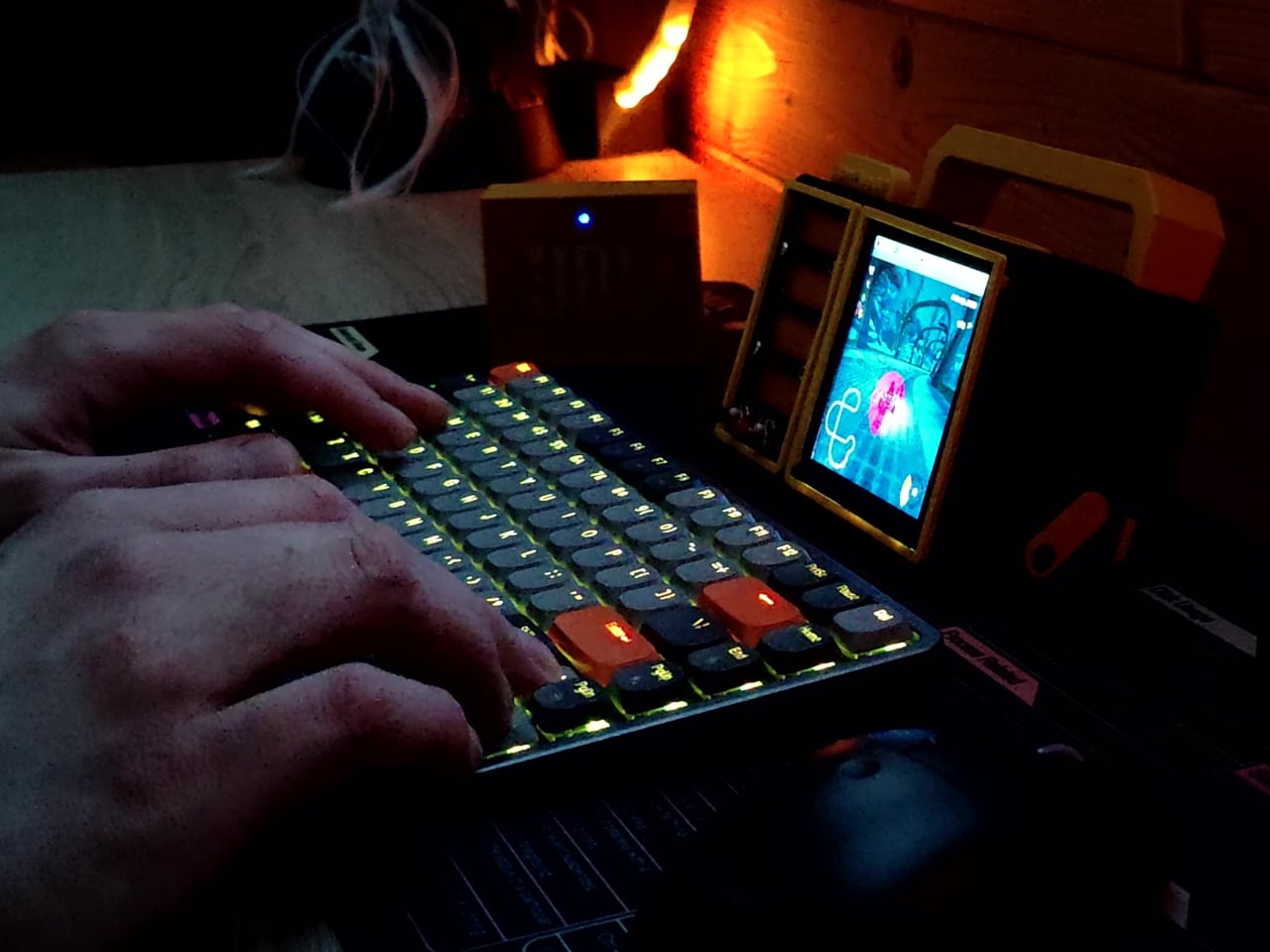
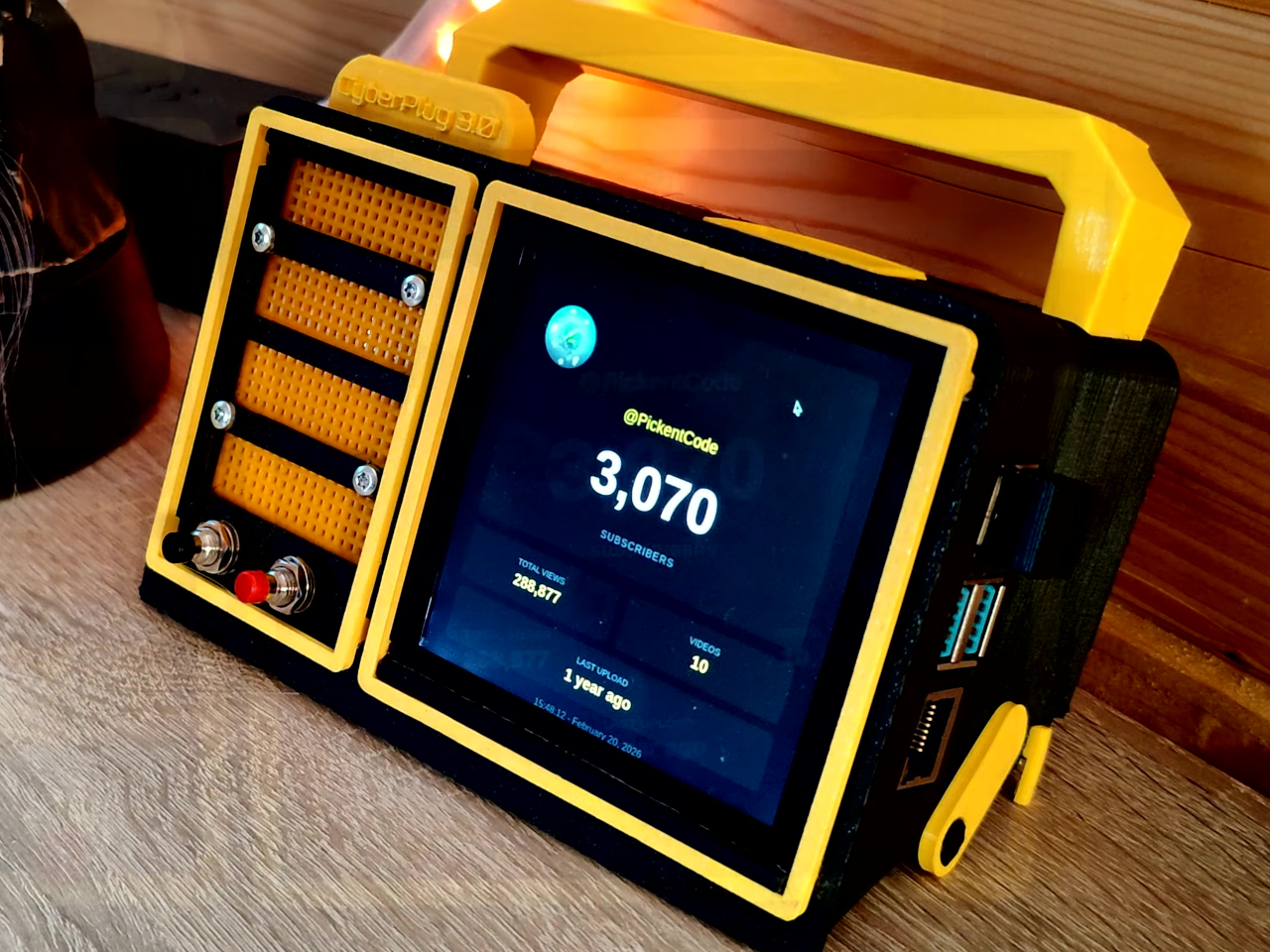
The CyberPlug 3.0 is the third iteration of a personal cyberdeck project, the earlier two having usability problems that sent PickentCode back to Blender to redesign. The final build packs a Raspberry Pi 4 Model B, a 4-inch IPS touchscreen, a Rii K06 mini keyboard with a built-in touchpad, and a 5,000 mAh USB-C power bank into a 3D-printed hinged body that folds flat for handheld use or props open at a desk-friendly angle.
Designer: PickentCode
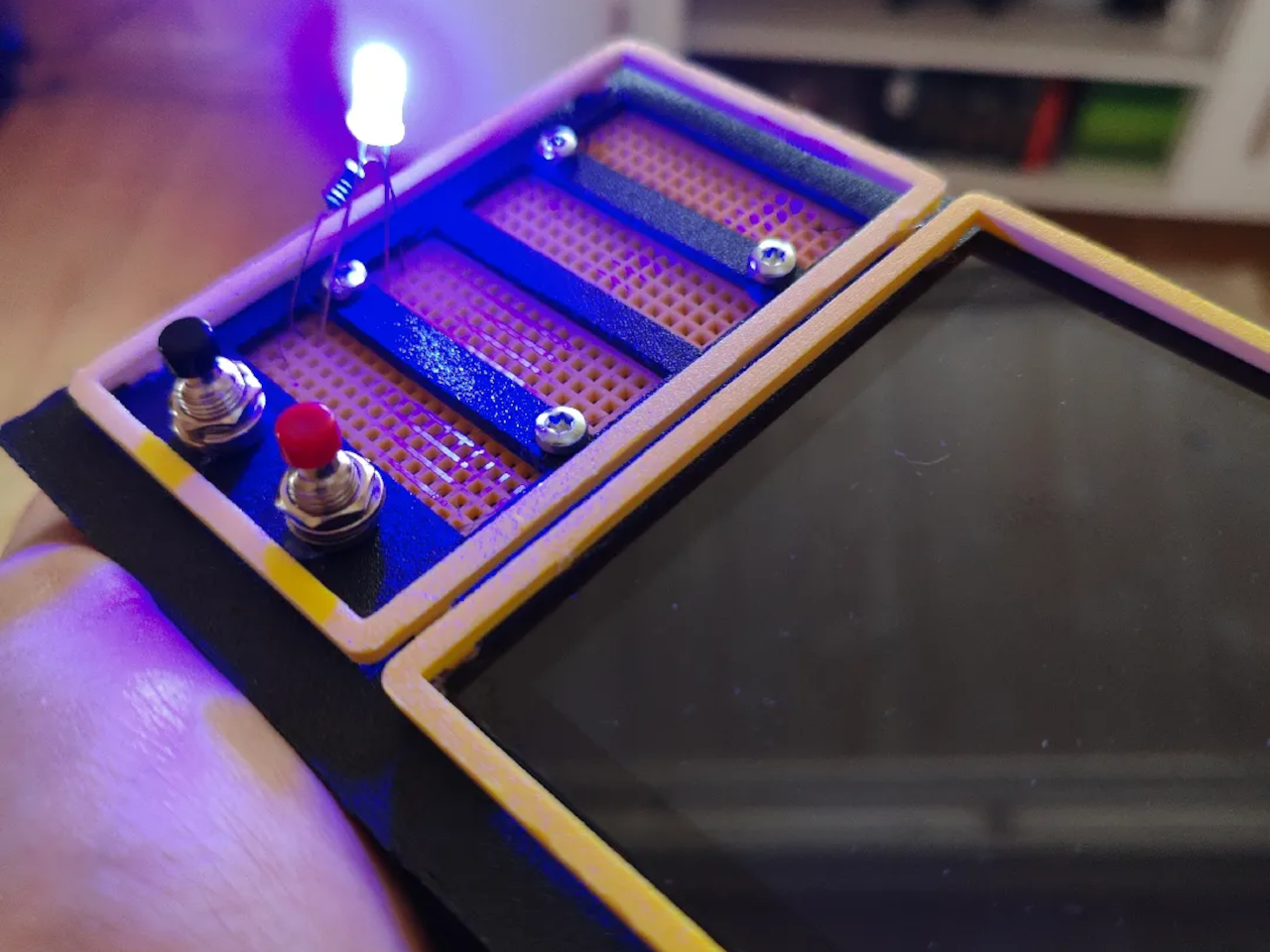
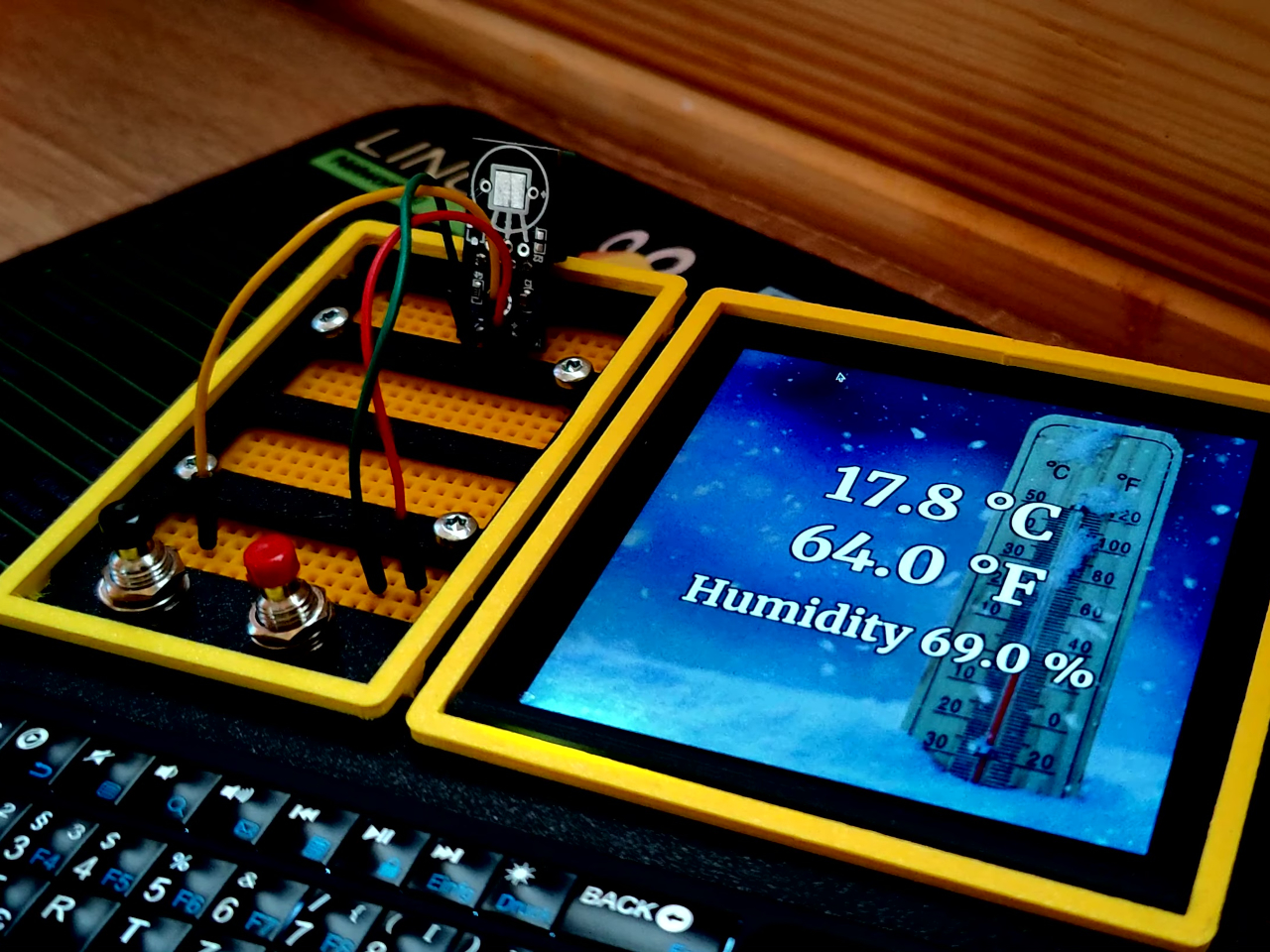
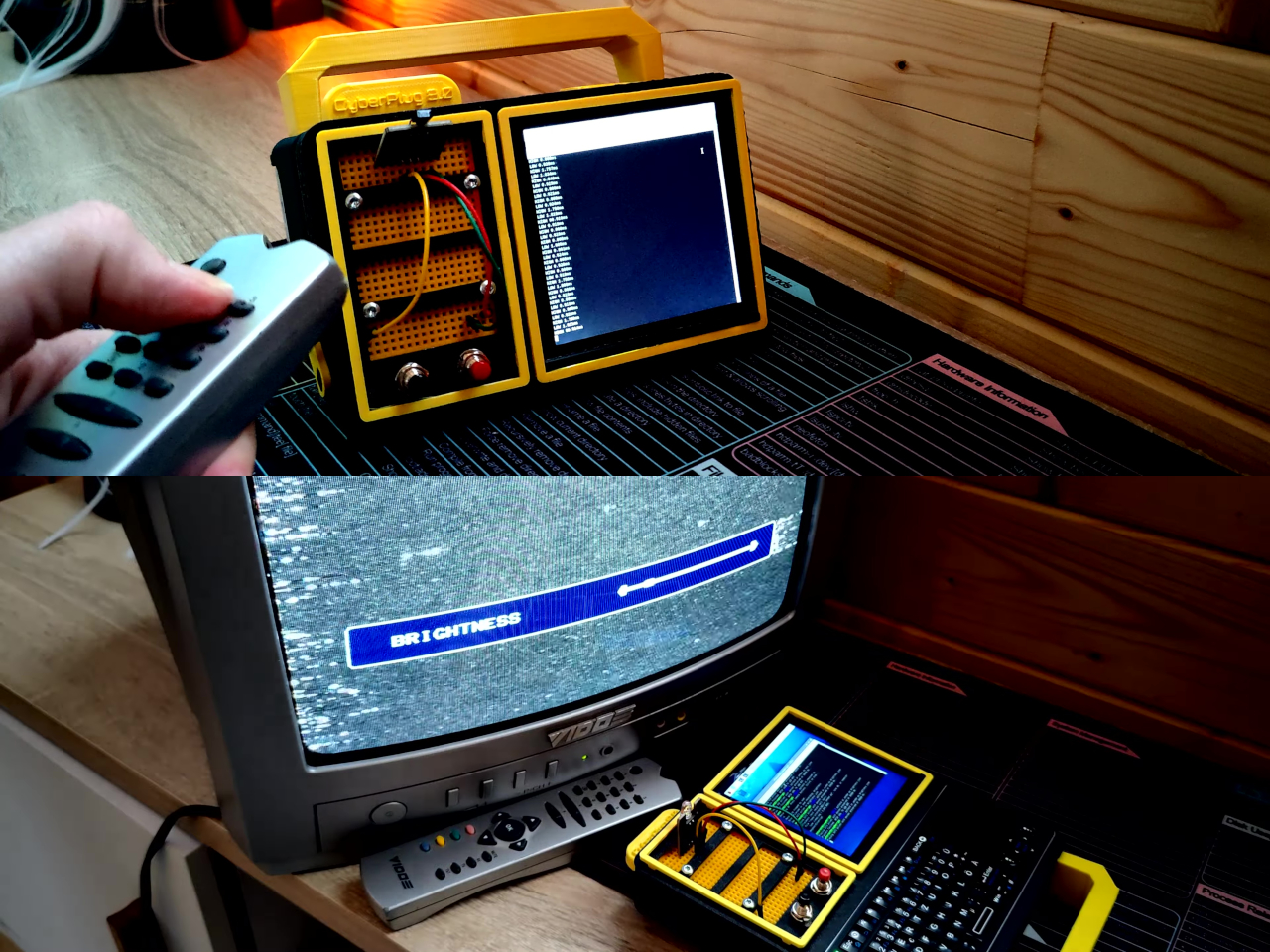
What separates this from a standard Raspberry Pi build is the pair of breadboards soldered directly to the GPIO pins, seated inside the case, and accessible through a removable back panel. Connecting a sensor no longer means hunting for a separate breadboard and a tangle of jumper wires. PickentCode plugged in a temperature and humidity sensor and had it reading live data within minutes, then built an infrared setup that records remote control signals and replays them as single-button macros.
The two form factors each have a distinct locking mechanism rather than just flopping into position. In handheld mode, twin magnets pull the two halves together. In desktop mode, a metal ring on the back grabs the MagSafe-style power bank magnetically, holding the whole thing at a stable upright angle. Both the keyboard and the power bank slide out independently, and the deck keeps working on a desk without either of them.
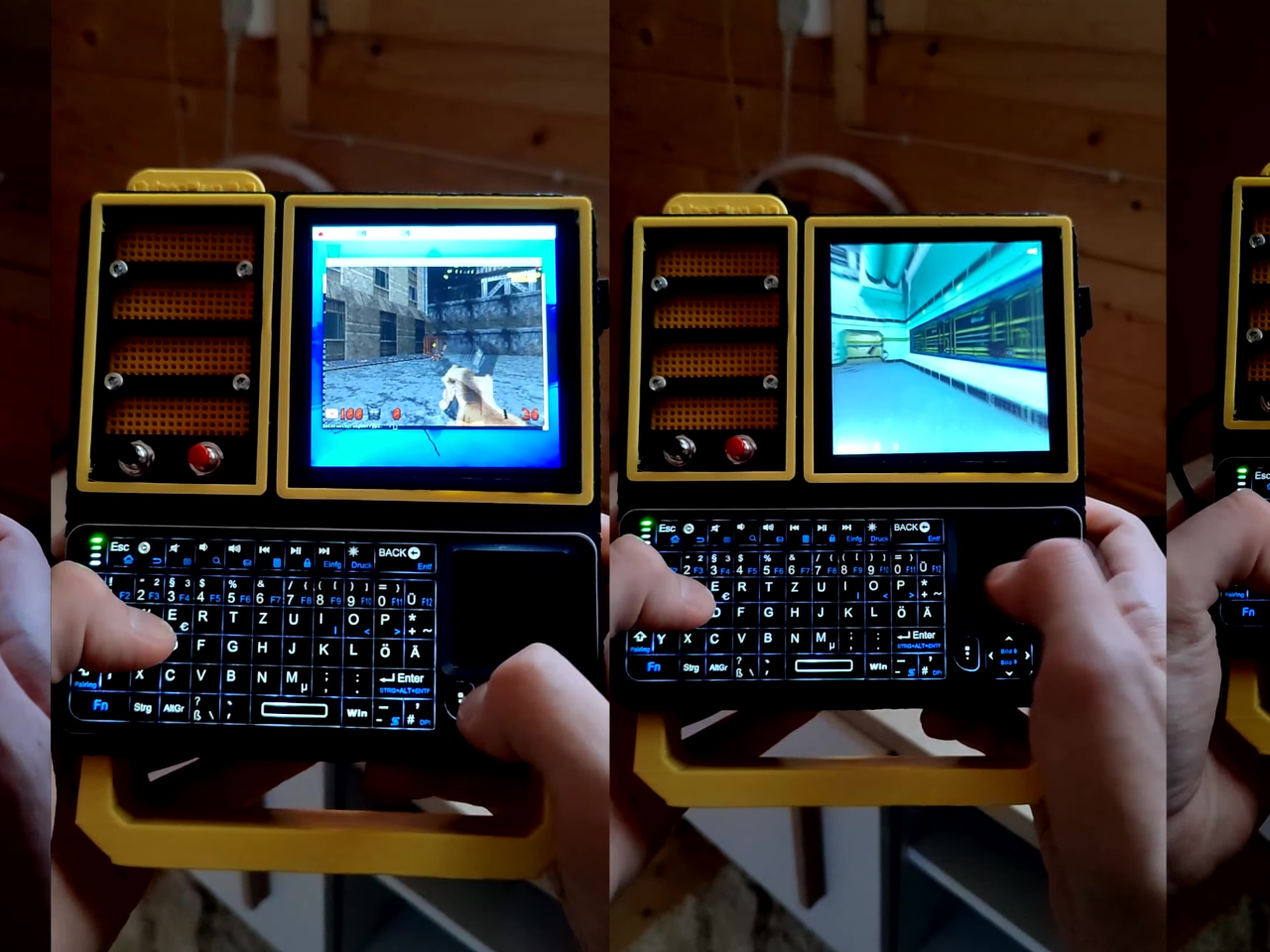
Extensions are where the project gets more interesting. PickentCode added a PWM-controlled external fan that reads CPU temperature and adjusts speed automatically, and a small speaker module that opened the door to YouTube and older games. Doom, Half-Life, and GTA: Vice City all ran on it, better with an external setup in desktop mode, though workable in handheld after some button remapping.
PickentCode frames this plainly as a testbed for learning electronics, not a replacement for a phone or a real computer. The 3D files are free on Printables, so the main cost is filament, time, and the components. For anyone who has ever stared at a sealed laptop wishing they could just plug something into it, that framing is probably the most relatable thing about it.
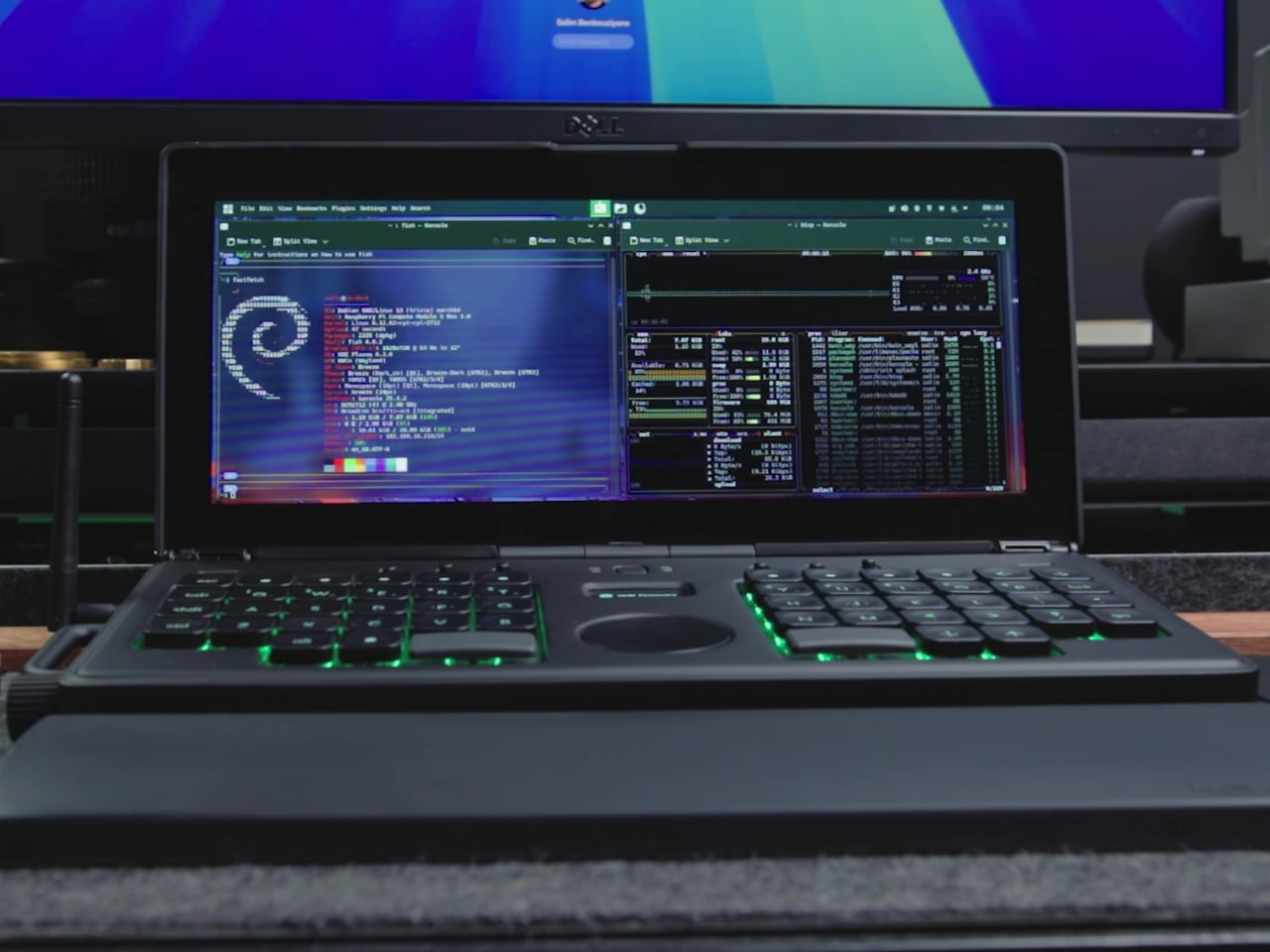
Most cyberdecks sit somewhere between prop and prototype, fun to look at but often awkward to use, with bolted-on parts and layouts that prioritize aesthetics over ergonomics. They’re conversation starters that rarely stay on the desk once the novelty wears off. This “CMDeck” build is interesting because it tries to behave like a real laptop-class machine you could actually reach for when you want to write or tinker.
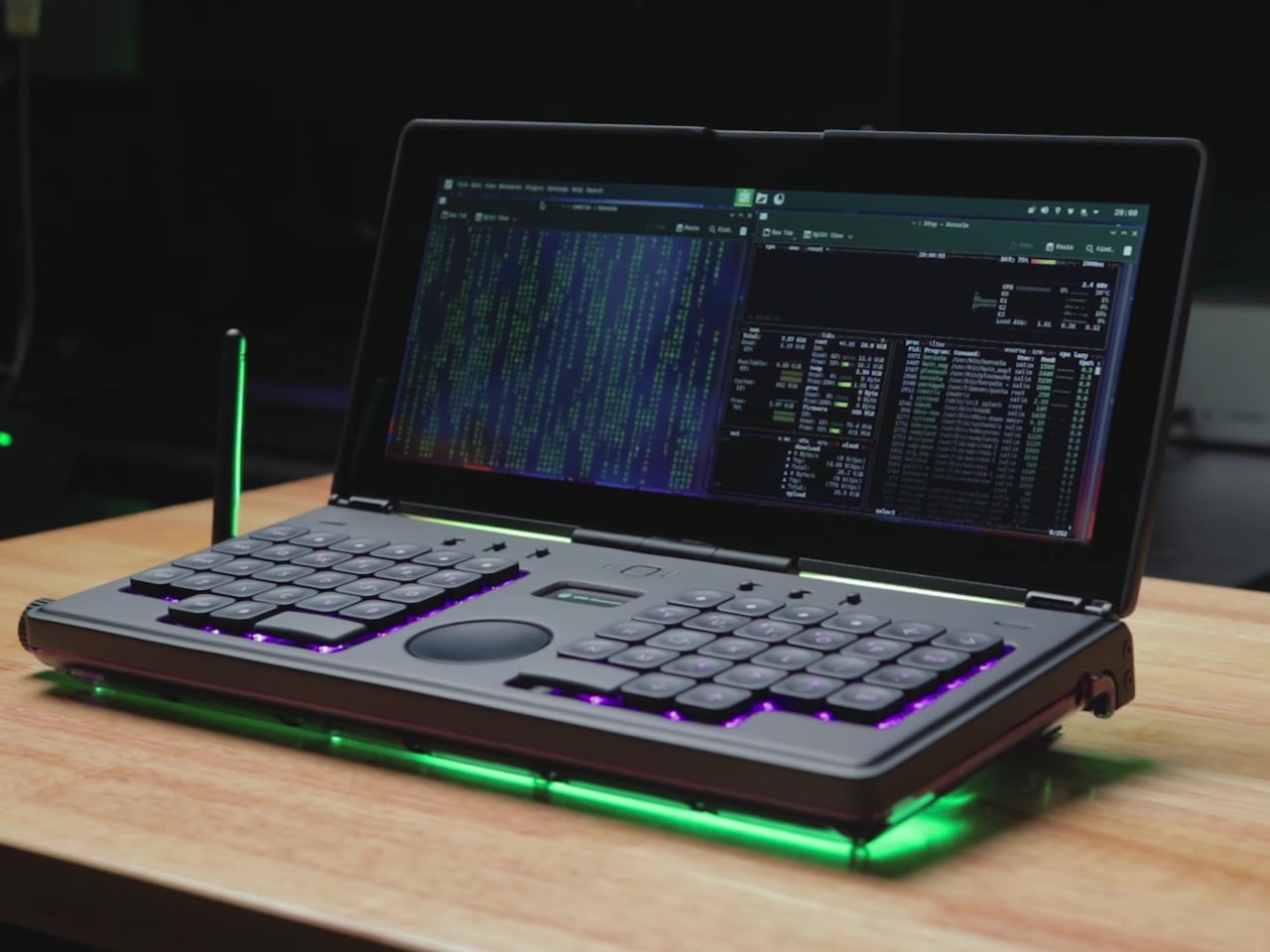
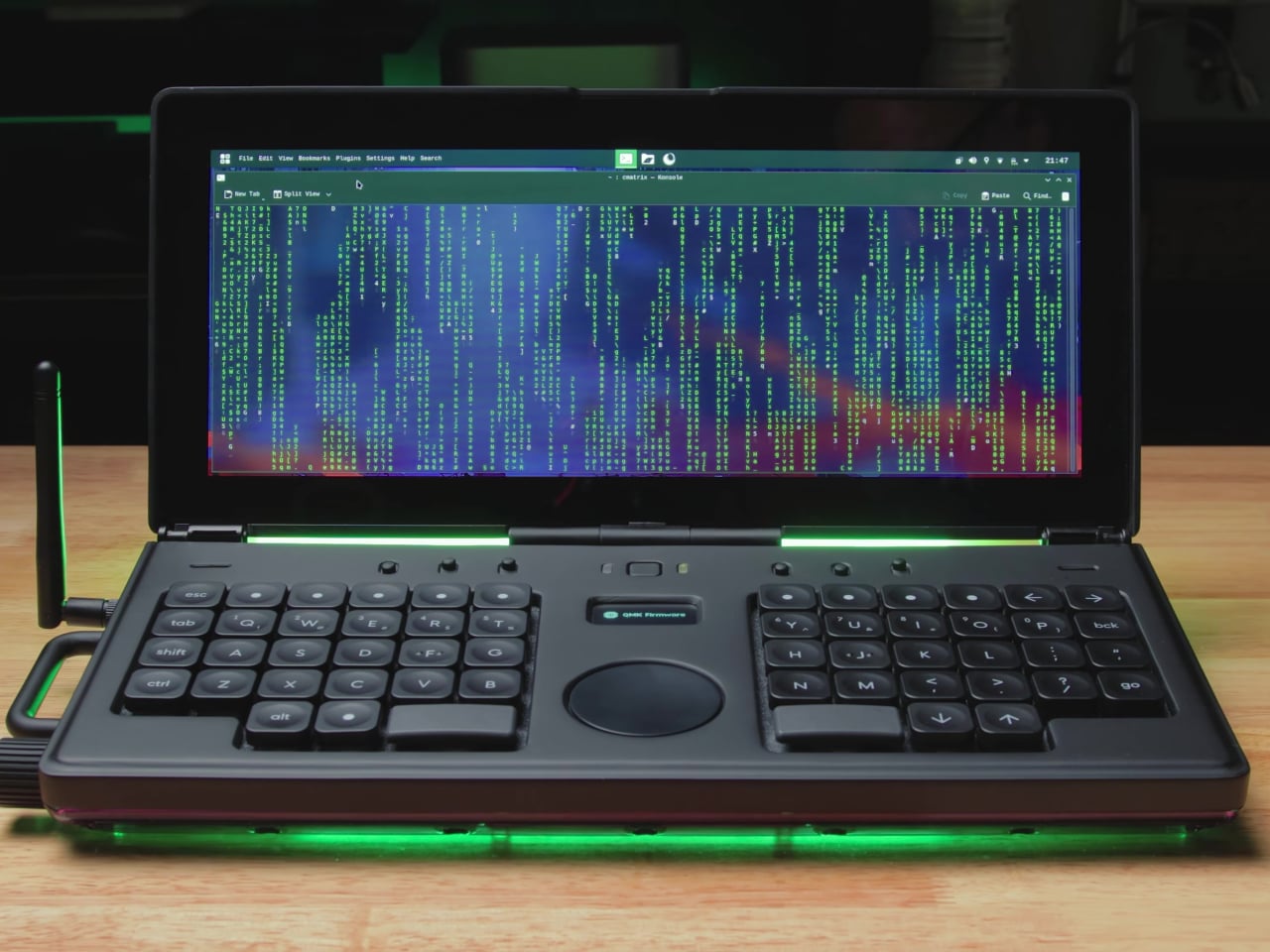
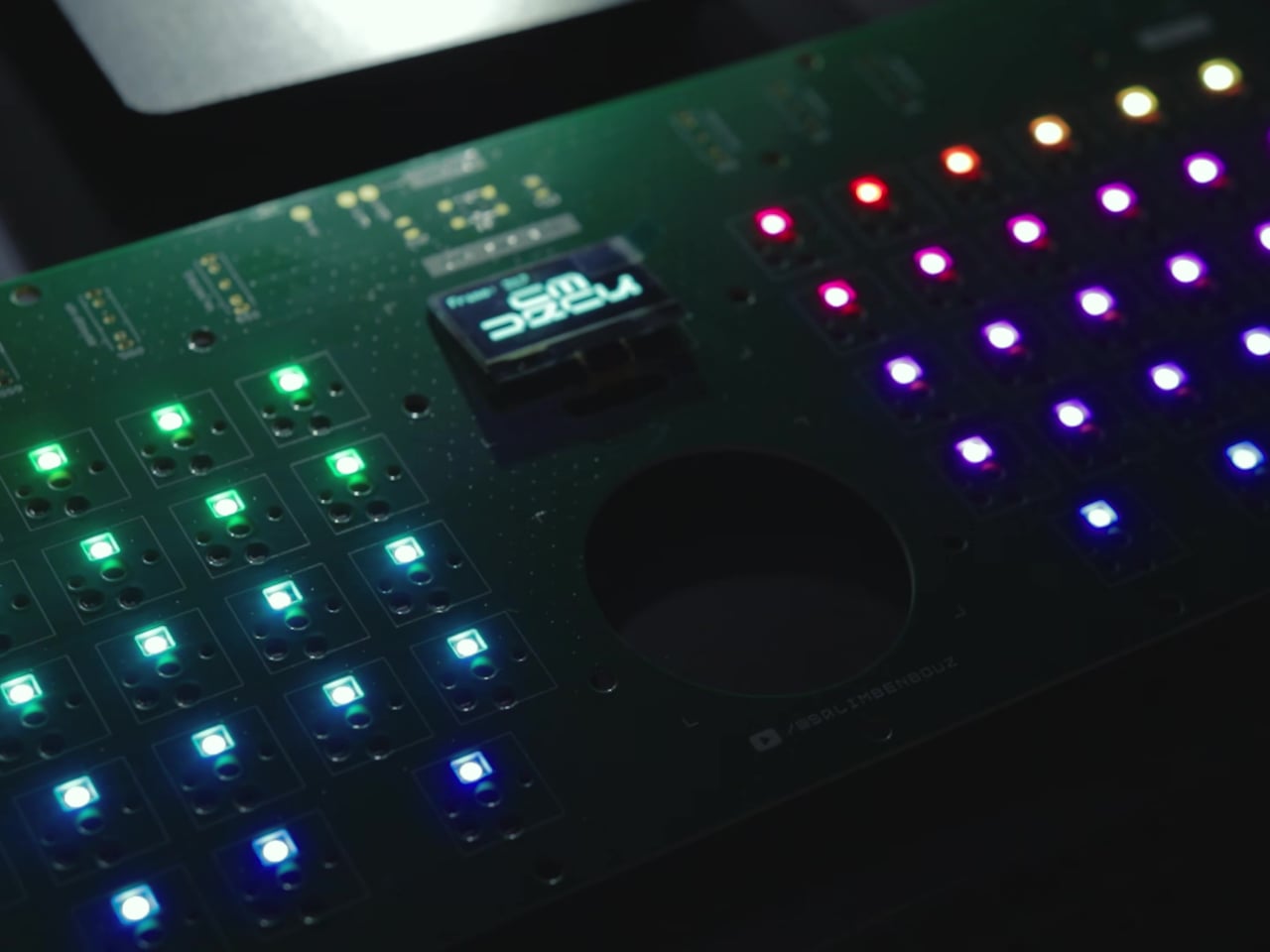
Salim Benbouziyane’s core decision was to give the deck the footprint of a full-size keyboard, a wide clamshell that feels anchored instead of chunky. A 12-inch touch display sits up top, and a custom low-profile mechanical keyboard lives below, with a split ortholinear layout, central trackpad, and small OLED. It’s framed as a deliberate workspace rather than a random collection of parts that happened to fit in a box.
Designer: Salim Benbouziyane
The split ortho layout and central trackpad push your hands outward, leaving a clear middle zone for navigation and status. The low-profile switches and custom keycaps keep the deck thin enough to feel like a proper clamshell, while the OLED hints at system status without cluttering the surface. It’s a layout aimed at writing, coding, and multi-window work, not just showing off an unusual key arrangement that makes typing harder.
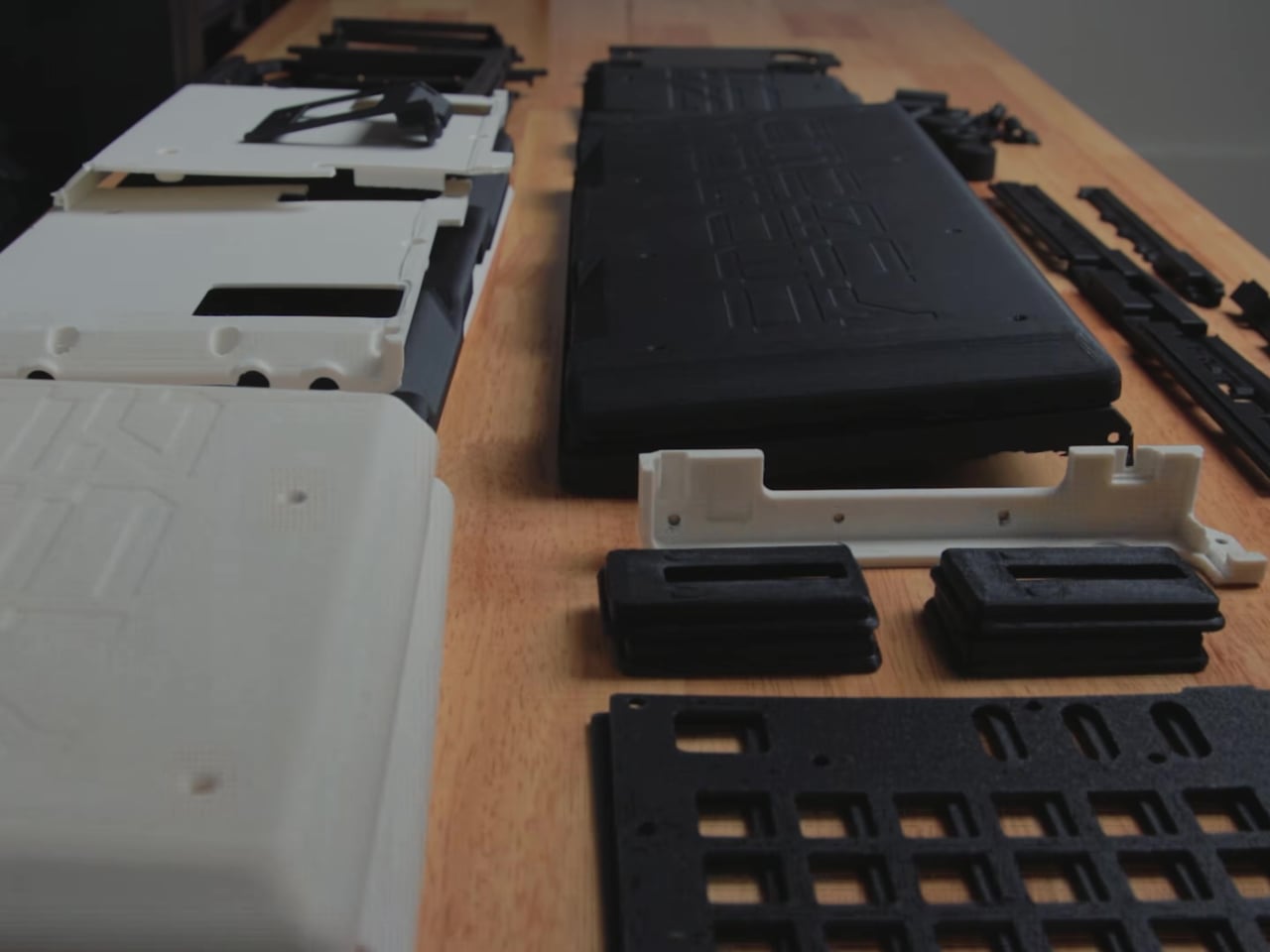
The enclosure journey is where the design process shows most clearly. The first CAD pass looked clean with all the I/O on the back, then immediately ran into reality when cables blocked the lid from opening. Salim carved clearances, added a removable rear section for assembly, and reworked hinge mounts after early prototypes ripped screws out. The heavy display forced him to add brass weights so the deck could open fully without tipping backward.
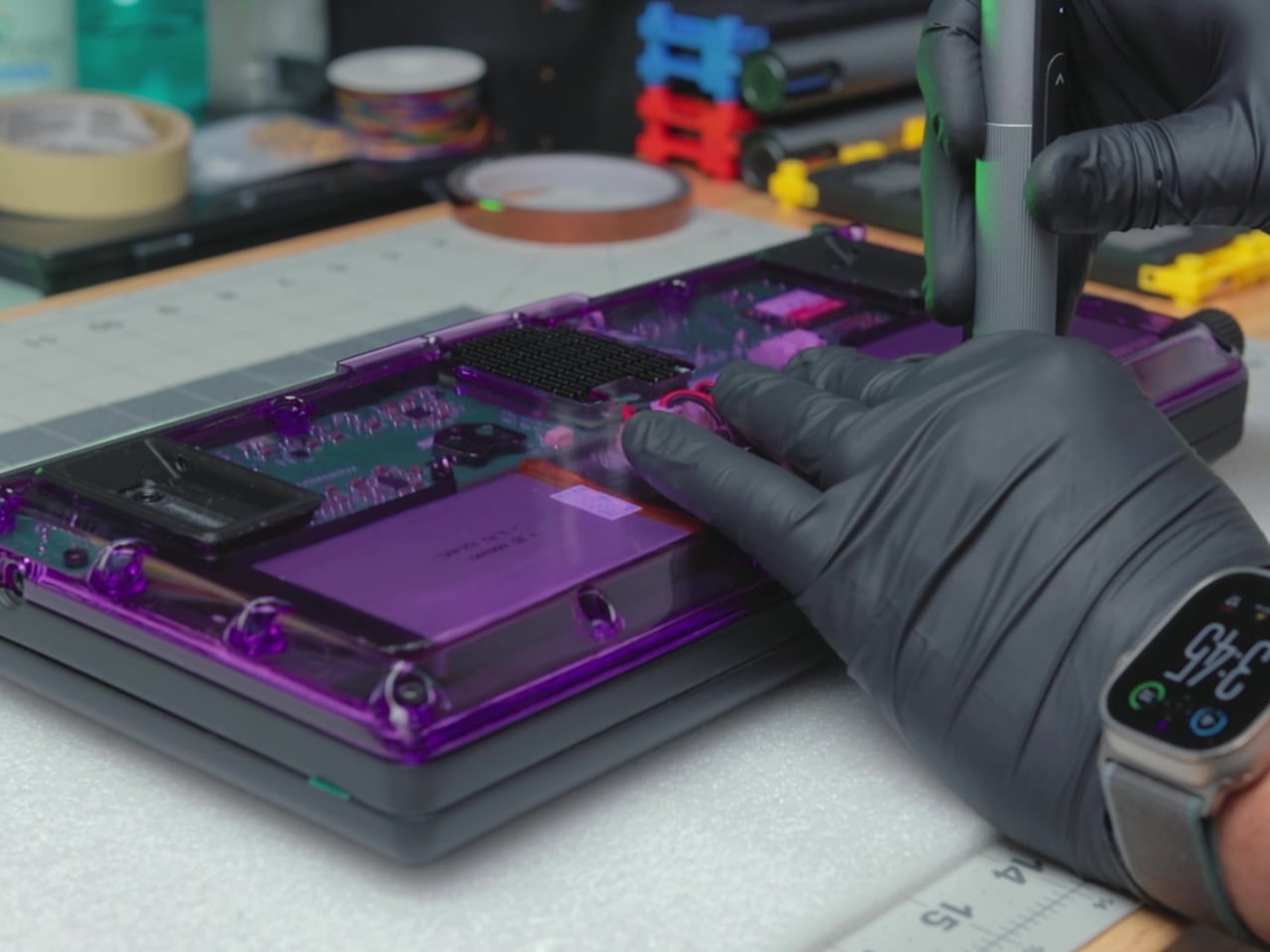
The decision to make the bottom shell translucent purple is a nod to transparent tech nostalgia that also turns the internals into part of the visual identity. Resin-printed and CNC-finished parts give the case a smooth, almost commercial feel, while PETG support structures and brass inserts handle the mechanical load. It’s a mix of show and structure that makes flipping the deck over as interesting as opening it to type.
Small interaction details make it feel finished. Riser modules tilt the keyboard and improve airflow, magnets in the lid help keep it closed, and the touch display keeps the deck usable even when the keyboard is borrowed by another machine through a special USB port. These are the kinds of decisions that make the deck feel like a finished object rather than a one-off experiment you’d be afraid to actually use daily.
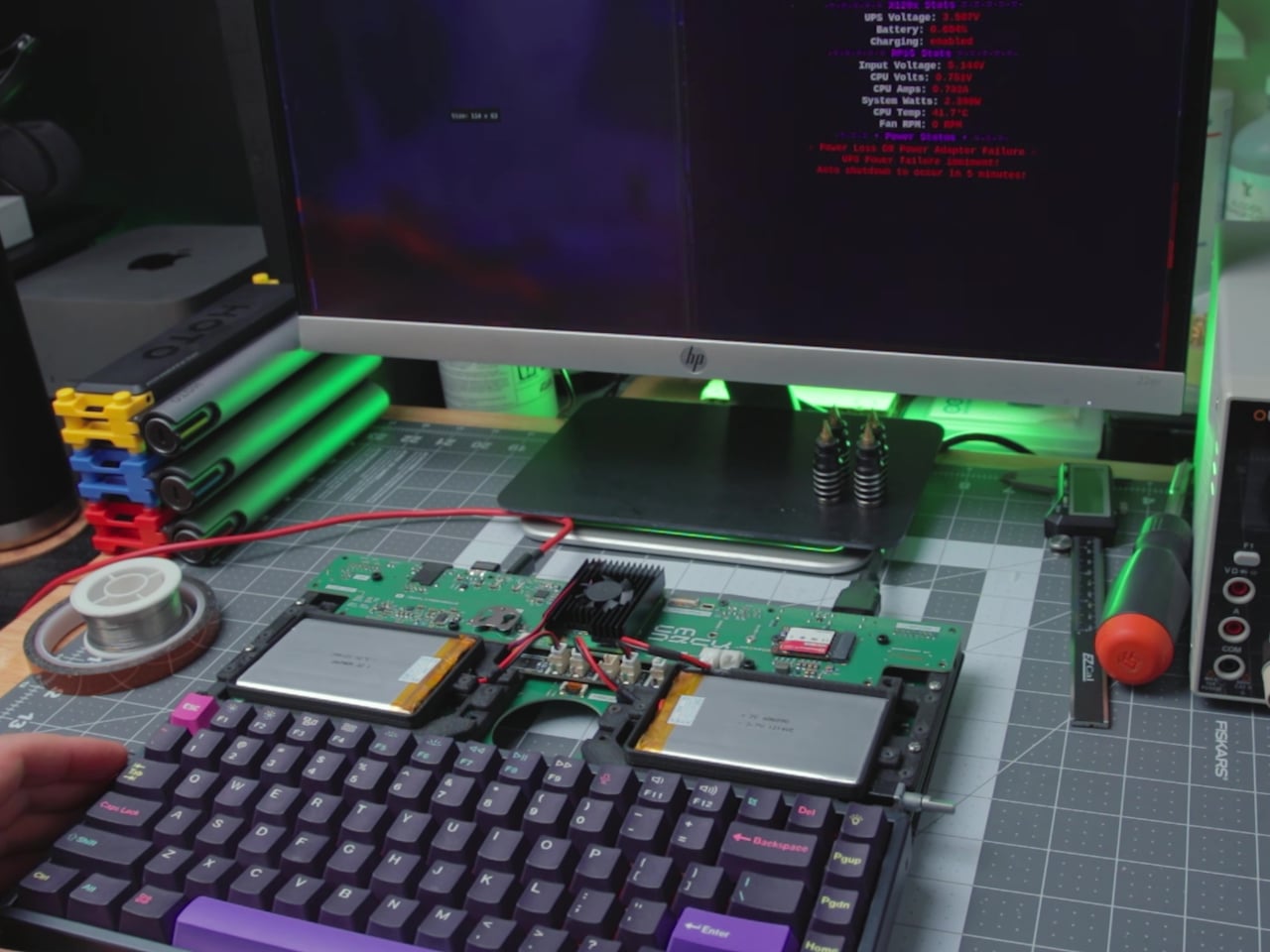
The project took months of iteration, from fighting ribbon cables to reprinting support structures and swapping coolers, all in service of a form factor that feels right on a desk. The result is a cyberdeck that invites everyday use, especially for writing and side-by-side windows, and a reminder that the most interesting DIY builds now are as much about industrial design as they are about electronics, where getting the hinge geometry right matters just as much as the circuitry underneath.
Cory Doctorow coined the term “enshittification” to describe how internet platforms inevitably decay, prioritizing advertisers and shareholders over users who made them successful in the first place. What begins as a useful service gradually transforms into an advertising delivery system wrapped around minimal functionality. Websites that once loaded instantly now take seconds to render as they auction off your attention to the highest bidder. Social media feeds become algorithmic nightmares designed to maximize engagement with sponsored content rather than connections with actual people. This isn’t accidental degradation but a deliberate business model that treats users as products to be packaged and sold.
Fighting back against enshittification requires taking control of your own infrastructure rather than hoping platforms will respect your time and privacy. The Raspberry Pi Zero 2W running Pi-hole software represents a practical form of digital self-defense that costs less than $30 and works continuously in the background. This tiny computer sits on your home network and blocks advertising domains before they reach your devices, creating a cleaner internet experience across phones, tablets, computers, and smart TVs simultaneously. Adding Tailscale extends this protection beyond your home, ensuring that your browsing remains uncluttered whether you’re traveling or working remotely. The setup takes an evening and requires no programming expertise, just a willingness to reclaim your digital experience from platforms that have forgotten who they’re supposed to serve.
Designer: Enrique Neyra
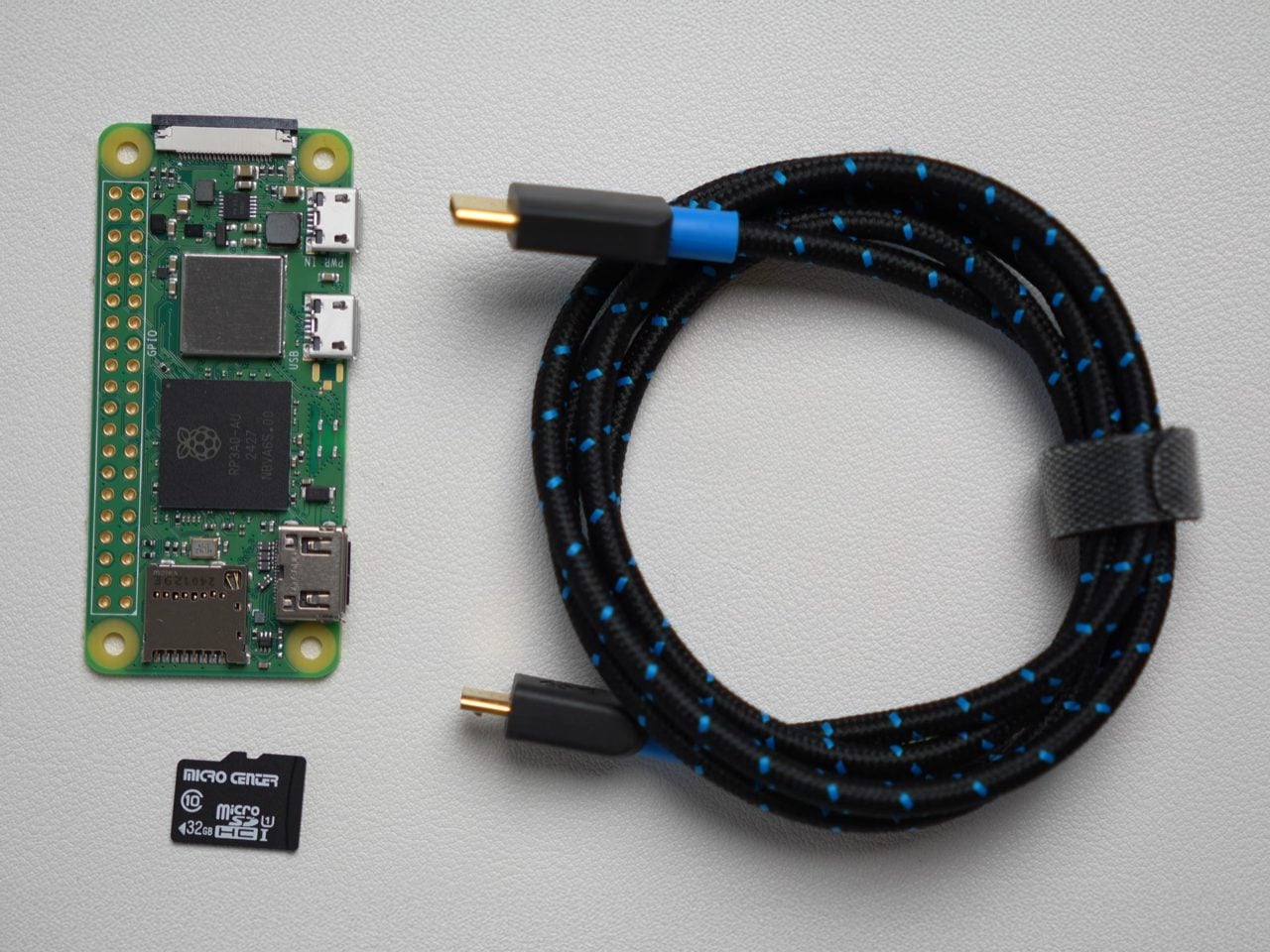
You’d expect an ad-blocker to be substantial on either the hardware or the software front, but this build proves just how small, easy, and cheap everything is. The Raspberry Pi Zero 2W running this entire thing measures 65mm by 30mm, smaller than most people’s wallets, drawing about 2 watts when it’s actually working. You could run this thing 24/7 for a year and spend less on electricity than a single trip to Starbucks. The whole shopping list is stupidly cheap too: the Pi itself runs $15, throw in an 8 dollar micro SD card and whatever USB cable you’ve got rattling around in a drawer. Thirty bucks max, and suddenly you’ve got hardware that can filter ads for every single device in your house.
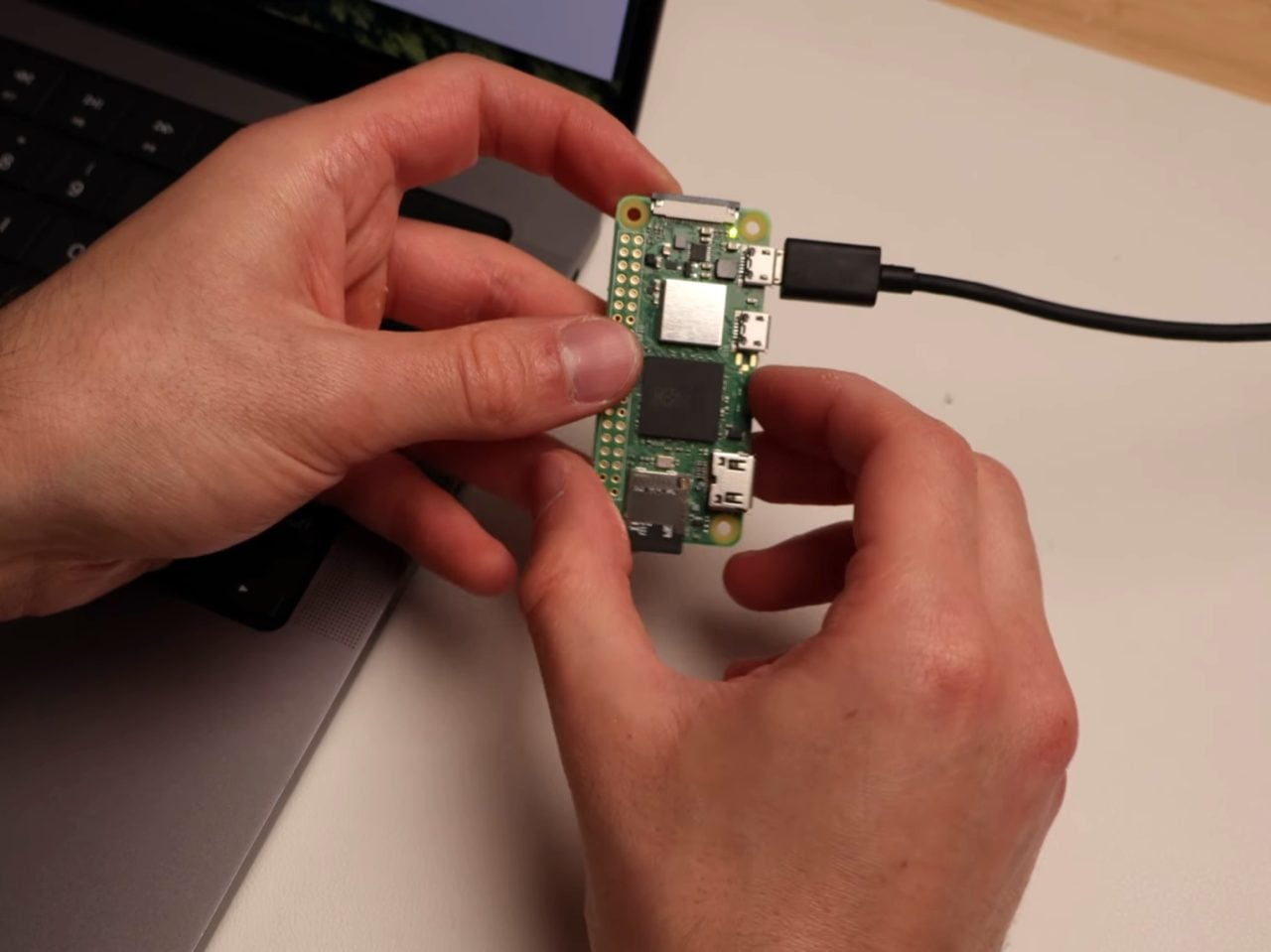
The Pi runs headless, meaning no monitor, no keyboard, just sitting there quietly doing DNS work in the background. You flash Raspberry Pi OS Light onto the SD card using their imaging tool, which strips out all the desktop environment bloat since you’ll never actually see a screen. During setup you punch in your WiFi credentials, enable SSH so you can talk to it remotely, and give it a hostname. Three minutes later the OS is ready and you’re plugging the card into the Pi. Boot it up, SSH in from your laptop, and you’re looking at a command prompt on a computer the size of a pack of gum.
Pi-hole (an open-source software that blocks ads across the entire network) installs with one command. Literally paste it into the terminal and the script handles everything, walking you through prompts about which DNS provider you want upstream and whether you want query logging enabled. You absolutely want the web admin interface because that’s where you’ll watch the magic happen in real time. The trickier bit is the static IP assignment, which sounds intimidating but really just means logging into your router and clicking a button that says “reserve this IP for this device.” Most modern routers make this dead simple. ISPs like Spectrum have apps where you just scroll through connected devices, find your Pi, and hit reserve. Done.
Once the Pi has its permanent address, you point your router’s DNS settings at it instead of whatever your ISP provides by default. Every device on your network now funnels DNS requests through Pi-hole before connecting to anything. Pi-hole maintains these massive blocklists of known advertising and tracking domains, thousands of entries that get updated regularly. Your phone tries to load an ad from doubleclick.net? Blocked. Facebook wants to ping its analytics server? Blocked. The actual content you’re trying to see loads normally while all the parasitic garbage just vanishes. The Pi-hole dashboard shows you this happening in real time, queries flying in and getting either allowed or blocked based on the lists.
The really clever part is Tailscale, which turns your home setup into something you can use anywhere. Tailscale creates this encrypted mesh network between all your devices using WireGuard under the hood, and it’s shockingly easy to configure. Install it on the Pi with another single command, authenticate through their web console by clicking a link, and boom, your Pi appears in the Tailscale admin panel. Then you tell Tailscale to use your Pi’s IP as the DNS server for everything connected to your account. Now your laptop routes through your home Pi-hole whether you’re at a coffee shop in Brooklyn or an airport in Singapore. The VPN overhead adds maybe 10 milliseconds, completely imperceptible during actual browsing.
What you get is immediate and obvious. News sites that normally assault you with autoplaying video ads and popup overlays suddenly render clean. Mobile apps stop shoving interstitials between every interaction. Your smart TV’s interface becomes less cluttered with sponsored content tiles. Pi-hole typically blocks 20 to 30 percent of all DNS queries, which translates directly into faster page loads because your devices skip downloading megabytes of ad scripts and tracking pixels. Battery life improves on phones and laptops since they’re not constantly rendering and refreshing ad content in the background. The internet feels faster because it actually is faster when you’re not waiting for seventeen different ad networks to respond.
Now, the limitations. DNS blocking works great until it doesn’t, and the main place it fails is when ads come from the same domain as the content you want. YouTube is the classic example because Google serves ads from youtube.com subdomains that the platform needs for actual video playback. Block those domains and you break the whole site. Some news organizations have gotten smarter about this too, serving ads from their own CDNs to sidestep DNS filters. You’re looking at maybe 95 percent effectiveness across the broader web, which is substantial but leaves gaps. For the stubborn stuff you still need browser extensions (or use the Brave browser that even blocks YouTube ads) or just simply accept some ads will slip through. If you’ve reached this far, the latter clearly sounds like it isn’t an option.
The other consideration is dependency. If your home internet goes down and you’re traveling somewhere relying on Tailscale to route back through your Pi-hole, you lose DNS resolution entirely. You can mitigate this by configuring a secondary DNS server like Google’s 8.8.8.8 as a fallback, though that partially defeats the privacy angle. Some people solve this by running Pi-hole in the cloud on something like Google Cloud’s free tier, which gives you better uptime but requires more sophisticated networking to avoid creating an open DNS resolver that attackers can hijack for DDoS amplification. That’s a whole different level of complexity that I’m frankly not equipped to even explain.
The upside, even with this regular build, is massive. For thirty bucks and an evening of tinkering, you get network-wide ad blocking that follows you everywhere and works on every device you own without individual configuration. That’s precisely the practical digital self-defense Doctorow addresses about when he describes taking back control from platforms designed to extract value rather than provide it. The web becomes usable again, and I know that shouldn’t sound like a massive deal… but honestly, after seeing ads in Google, Gmail, Instagram, YouTube, Uber, heck, even ChatGPT, it kinda does feel game-changing.
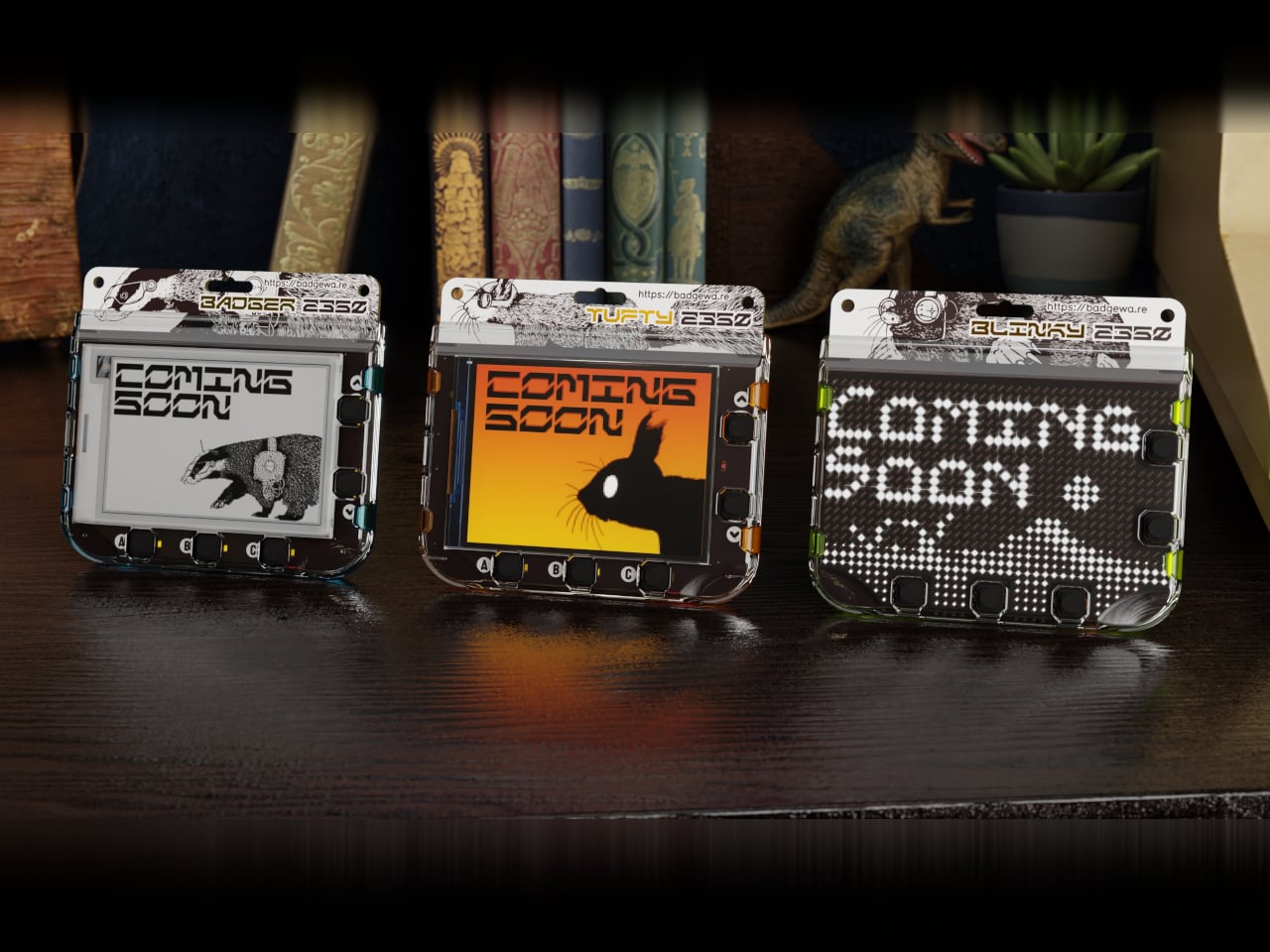
Conference badges are usually flimsy cardboard, a lanyard, maybe a QR code, and they end up in a drawer once the event wraps up. In the maker world, people already strap LEDs and e‑paper to their jackets for fun, but those tend to be one‑off hacks held together with tape and hope. Pimoroni’s Badgeware line asks a simpler question, what if the badge itself was a tiny, finished computer you actually wanted to keep wearing.
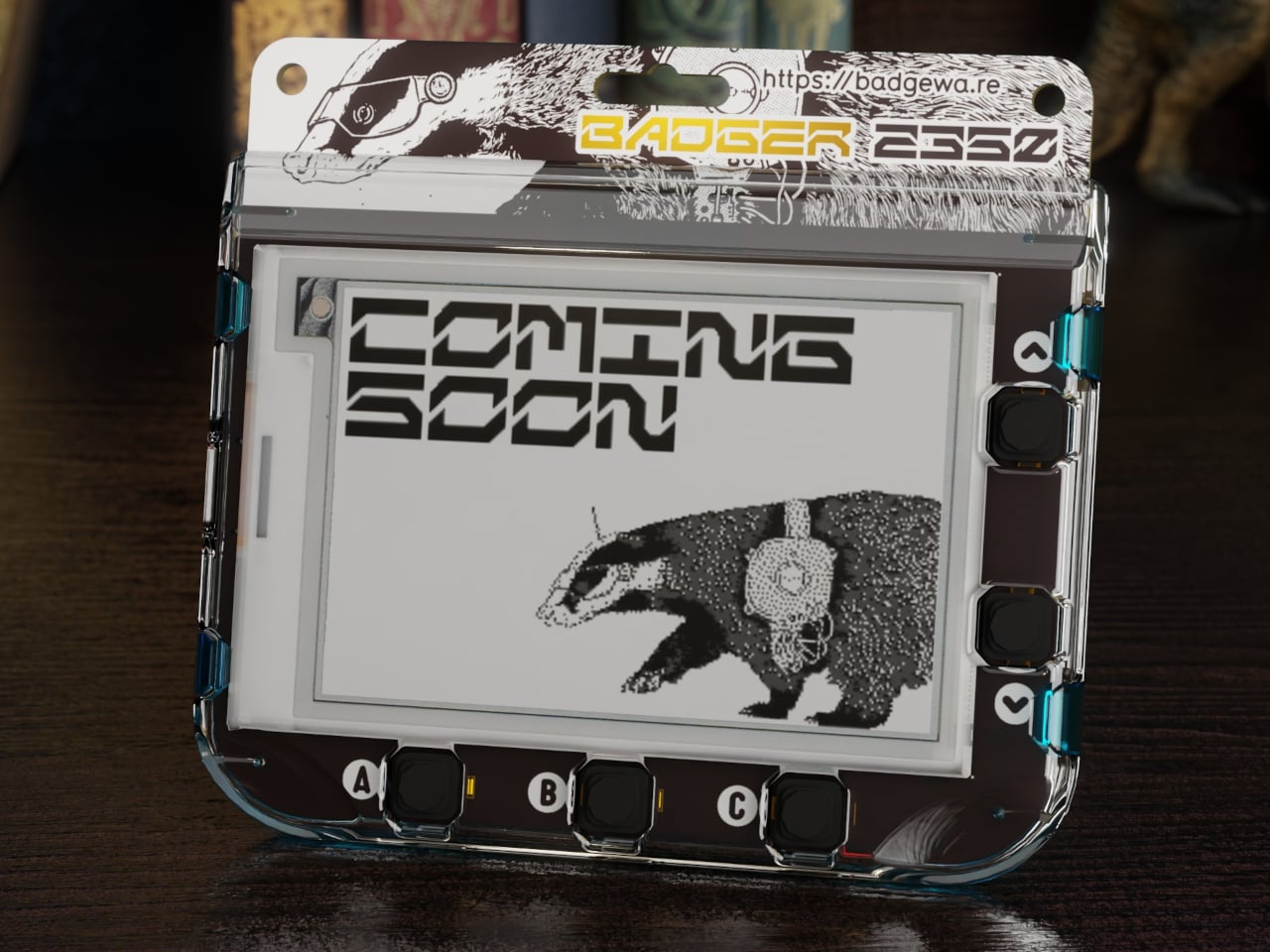
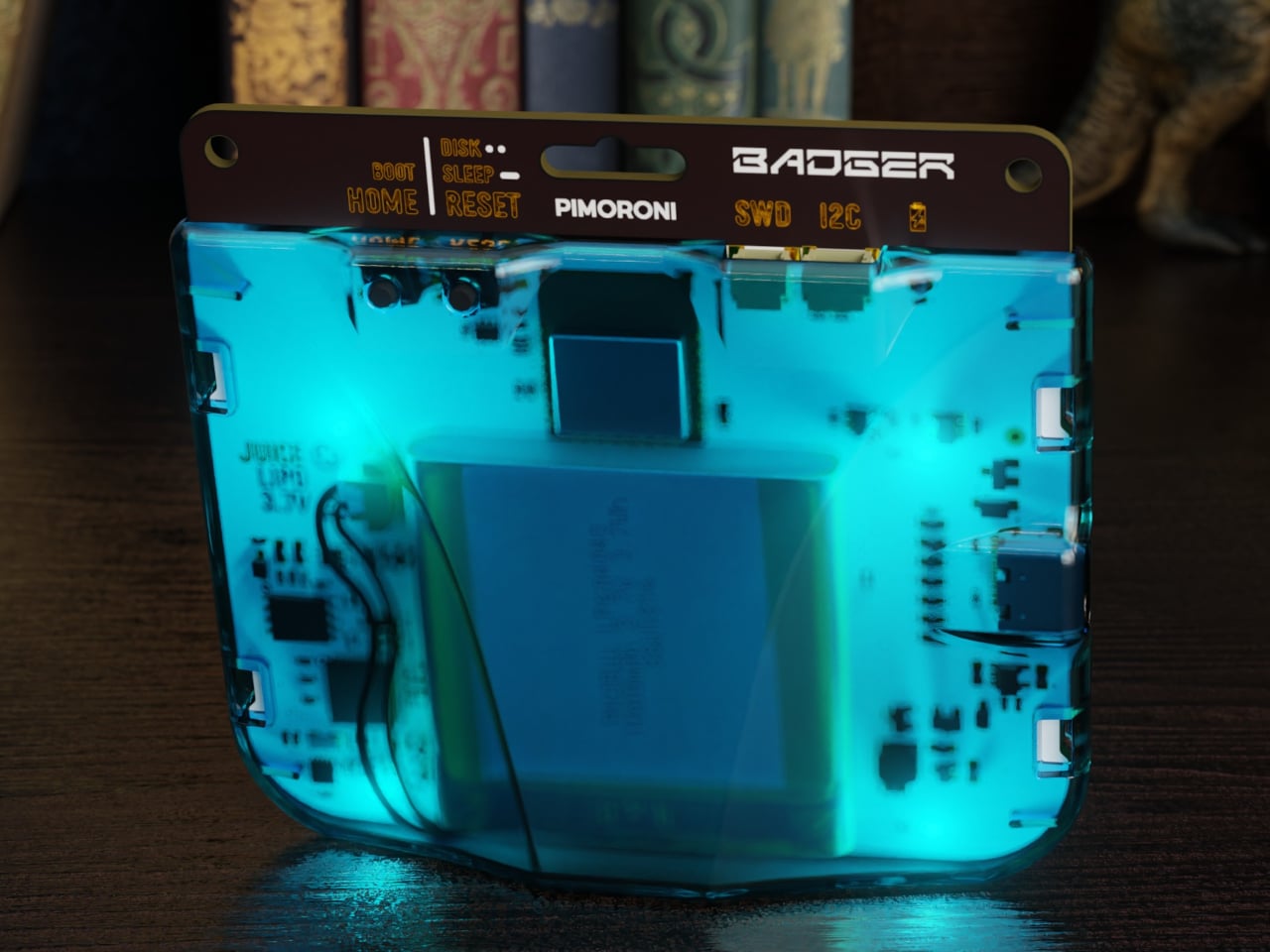
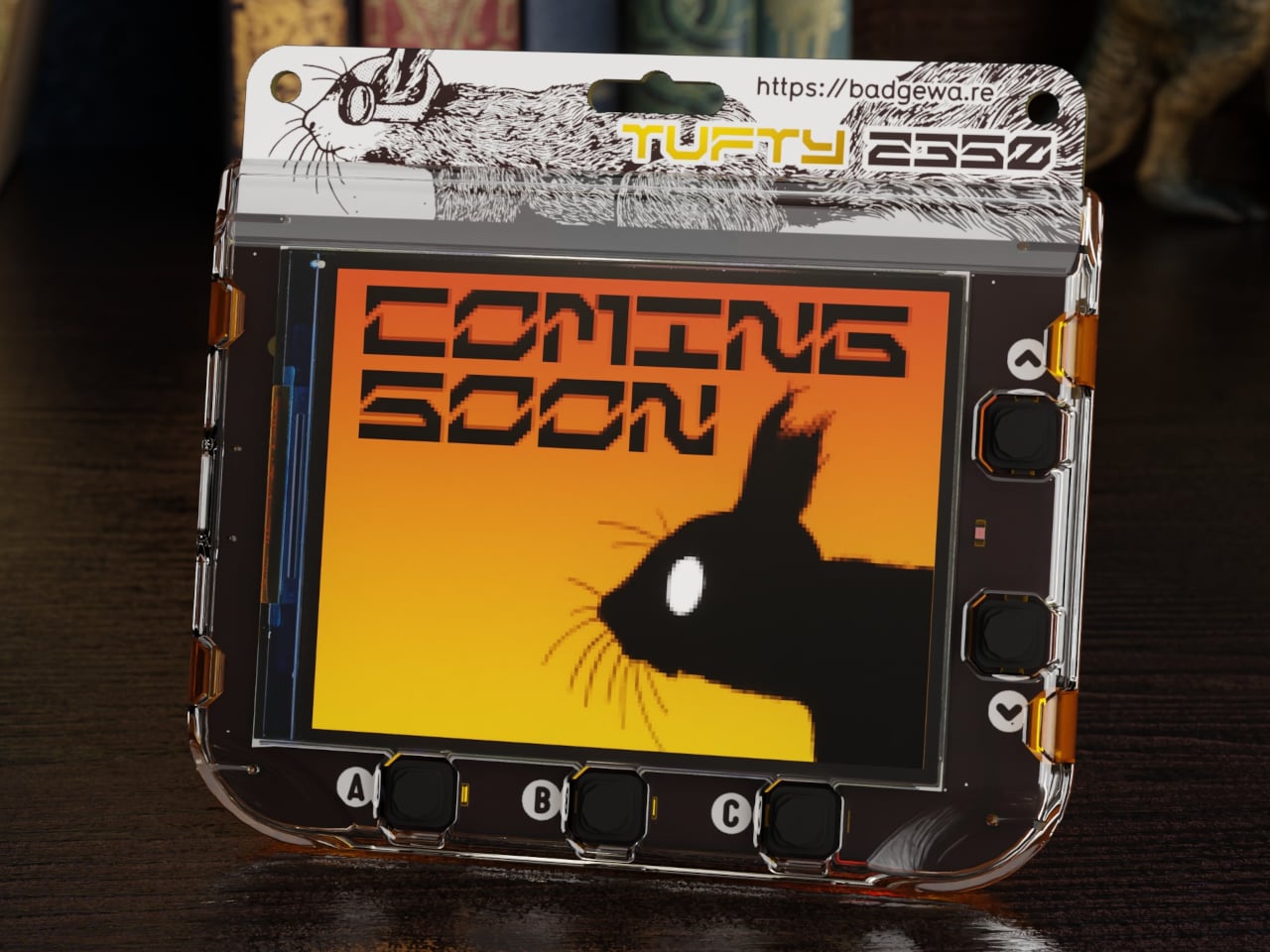
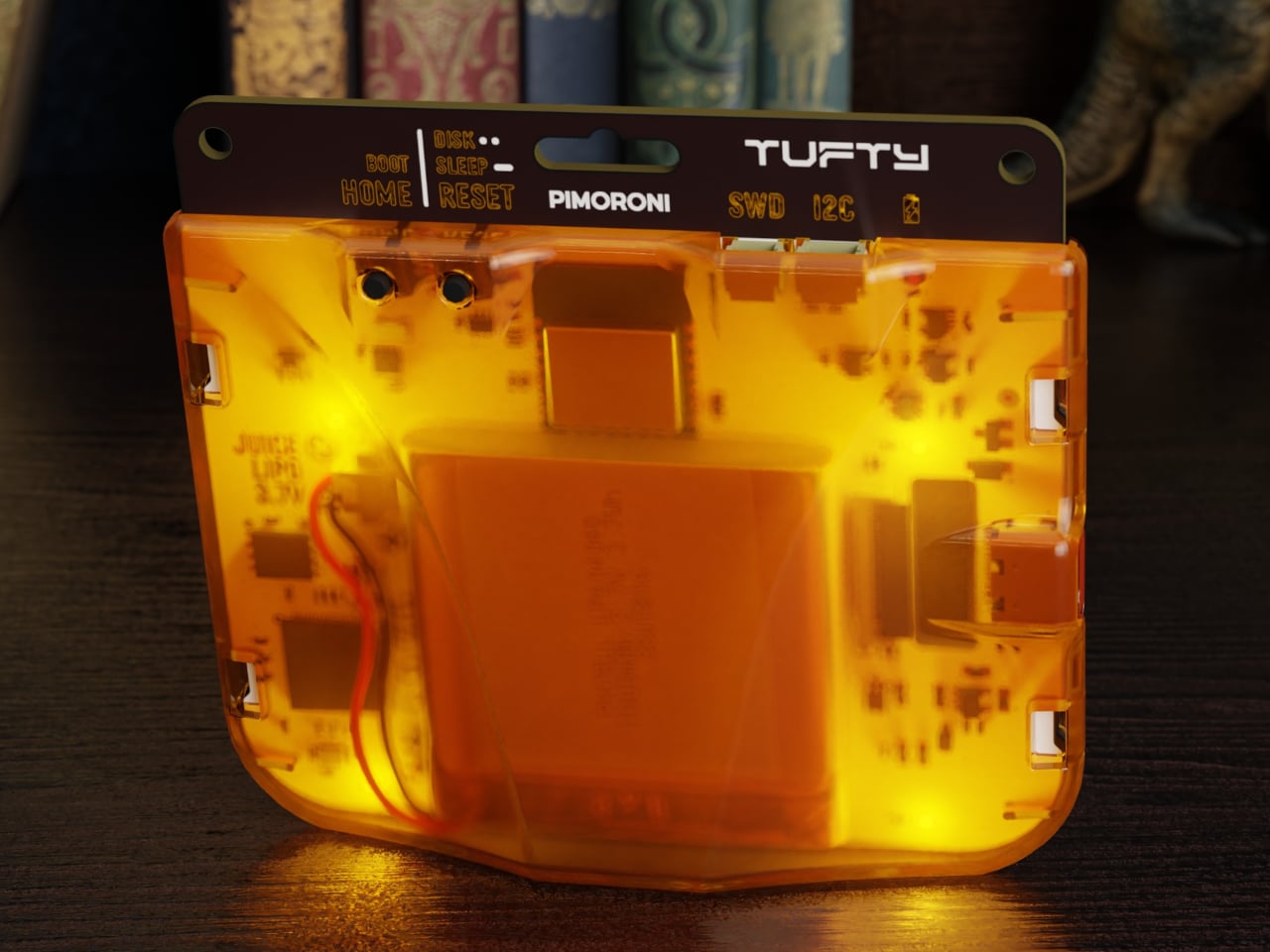
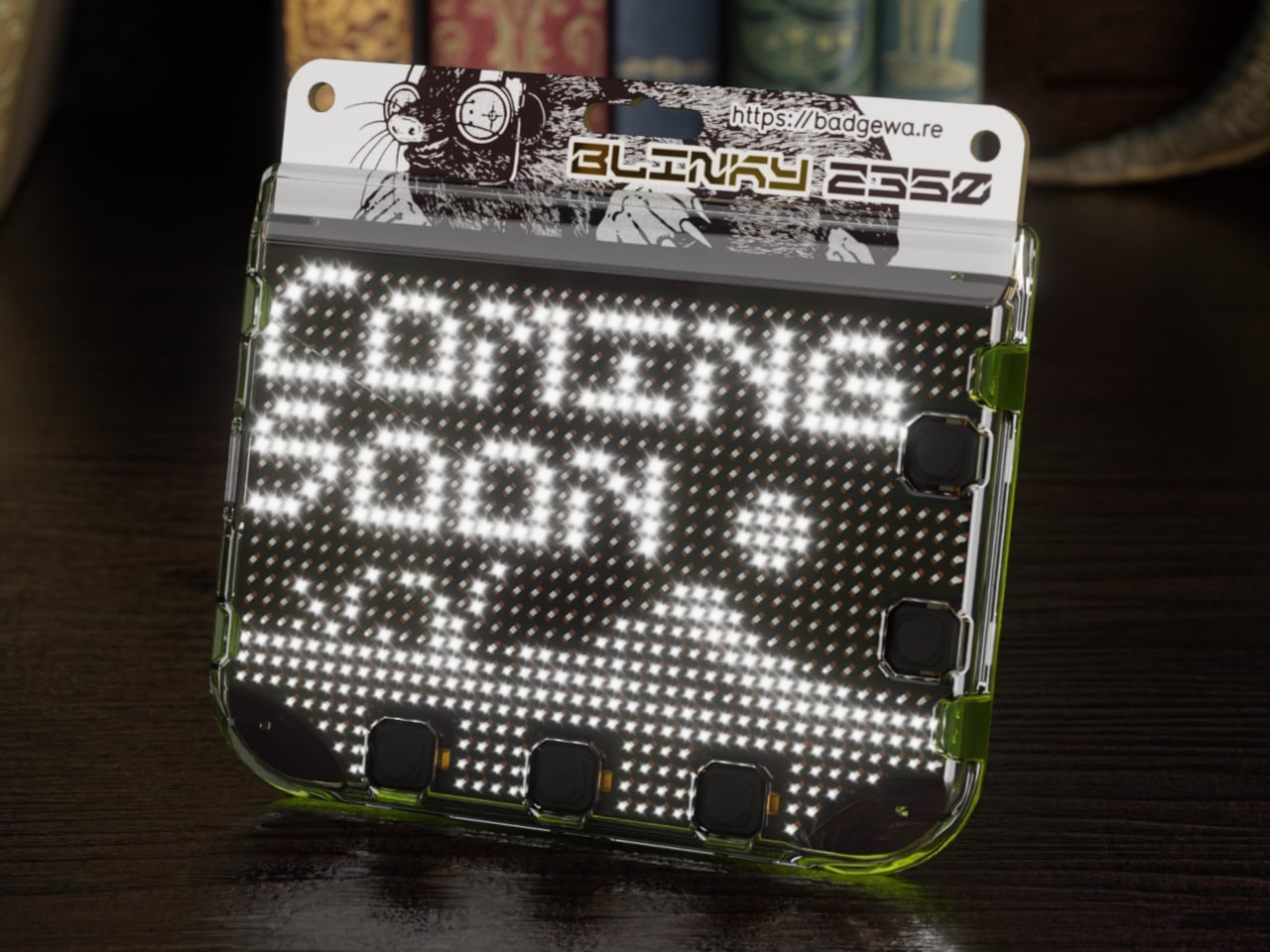
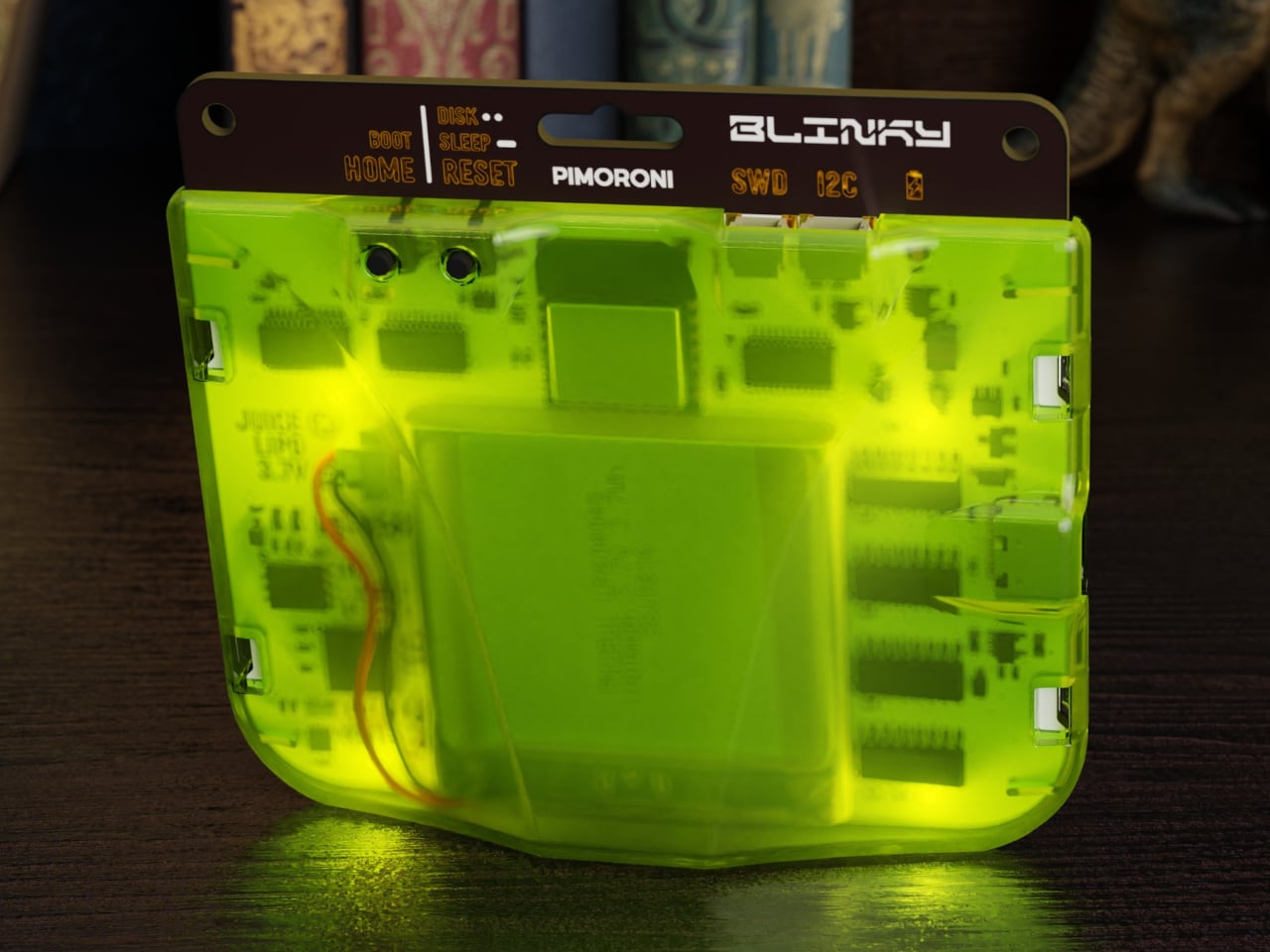
Badgeware is a family of wearable, programmable displays powered by Raspberry Pi’s new RP2350 chip. The trio gets names and personalities, Badger with a 2.7 inch e‑paper screen, Tufty with a 2.8 inch full colour IPS display, and Blinky with a 3.6 inch grid of 872 white LEDs. Translucent polycarbonate shells in teal, orange, and lime glow softly when the rear lighting kicks in, making them look like finished toys instead of bare dev boards.
The shared hardware is serious for something pocket sized. An RP2350 running at 200 megahertz with 16 megabytes of flash and 8 megabytes of PSRAM, Wi‑Fi and Bluetooth 5.2, USB C, and a built in 1,000 milliamp hour LiPo with onboard charging. The Qw/ST expansion port on the back lets you plug in sensors and add ons without soldering, while user and system buttons plus four zone rear lighting give each badge its own under glow.
Badger is the quiet one, four shade e‑paper that sips power and holds static content like names, pronouns, and tiny dashboards for days. Tufty is the show off, full colour IPS and smooth animation for mini games, widgets, and scrolling text. Blinky is the extrovert, a dense LED matrix that spells messages and patterns bright enough to read across a room. Together they cover calm, expressive, and loud without changing the basic wearable form factor.
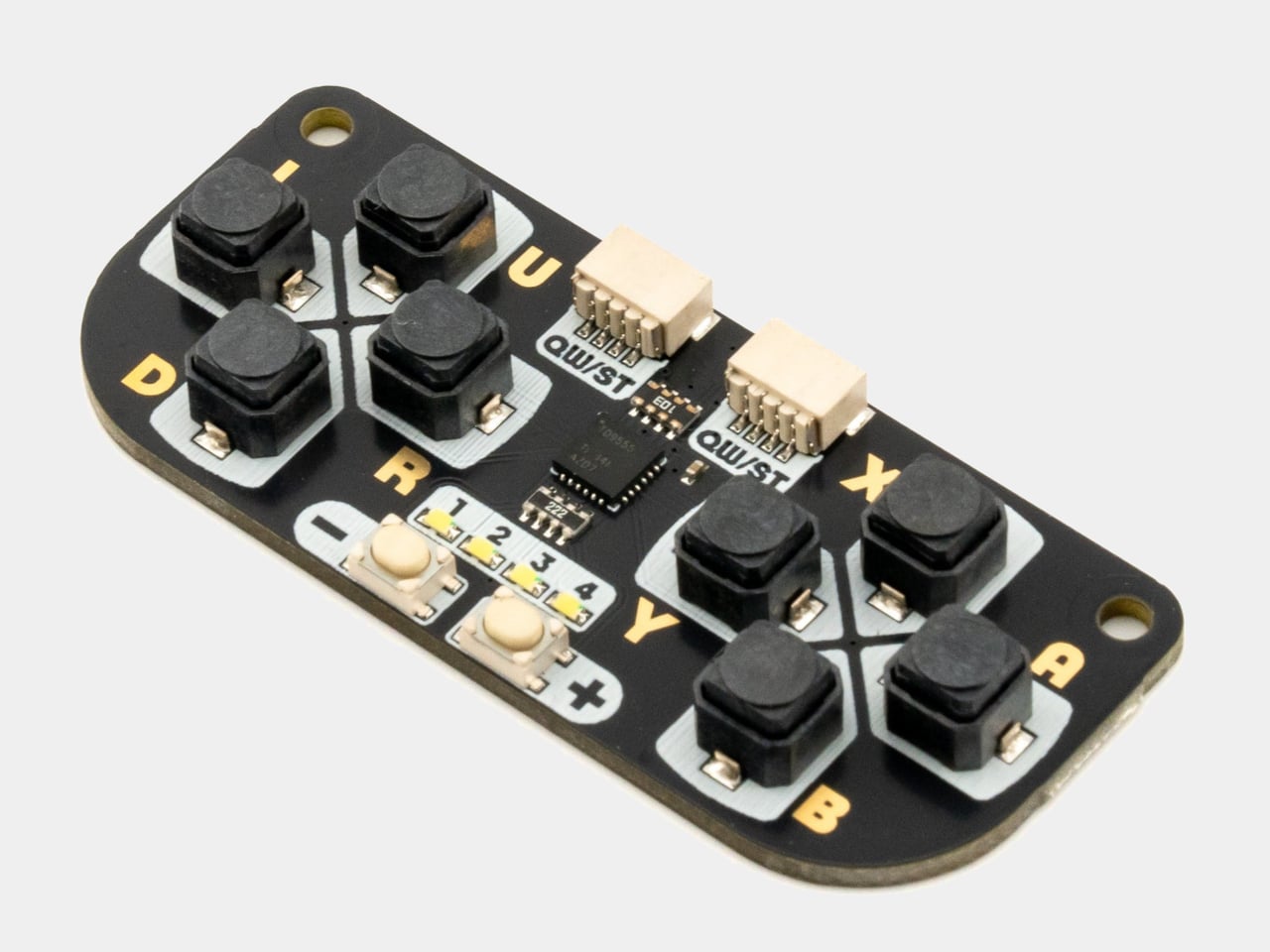
All three come pre loaded with a launcher and a bunch of open source apps, from silly games like Plucky Cluck to utilities like clocks and ISS trackers. Everything runs in MicroPython with Pimoroni’s libraries, and the optional STEM kit adds a multi sensor stick and a gamepad so badges can react to temperature, light, motion, and multiplayer button mashing, turning them into wearable sensors or tiny game consoles.
Double tapping reset drops the badge into disk mode so it shows up as a USB drive, letting you edit Python files directly without juggling tools or serial consoles. The cases have lanyard holes and can free stand on a desk, so they work as both wearable name tags and tiny desk dashboards. The clear shells and rear lighting make the electronics part of the aesthetic instead of something to hide.
Badgeware turns the throwaway conference badge into a reusable platform. Instead of printing your name once and tossing it, you get a little object that evolves from ID tag to art piece to sensor display as your code and curiosity grow. For people who like their gadgets small, expressive, and open ended, Badger, Tufty, and Blinky feel like digital jewellery that actually earns its lanyard space, whether you wear it to a meetup or keep it glowing on your desk.
Most productivity tools are designed to grab your attention constantly with pop-up reminders, blinking notifications, and endless browser tabs competing for focus throughout the day. But sometimes, the best way to stay focused is to keep your most important information quietly in view, not fighting for your eyes or demanding immediate action every few minutes. Finding that balance between visibility and distraction remains surprisingly difficult in modern productivity software.
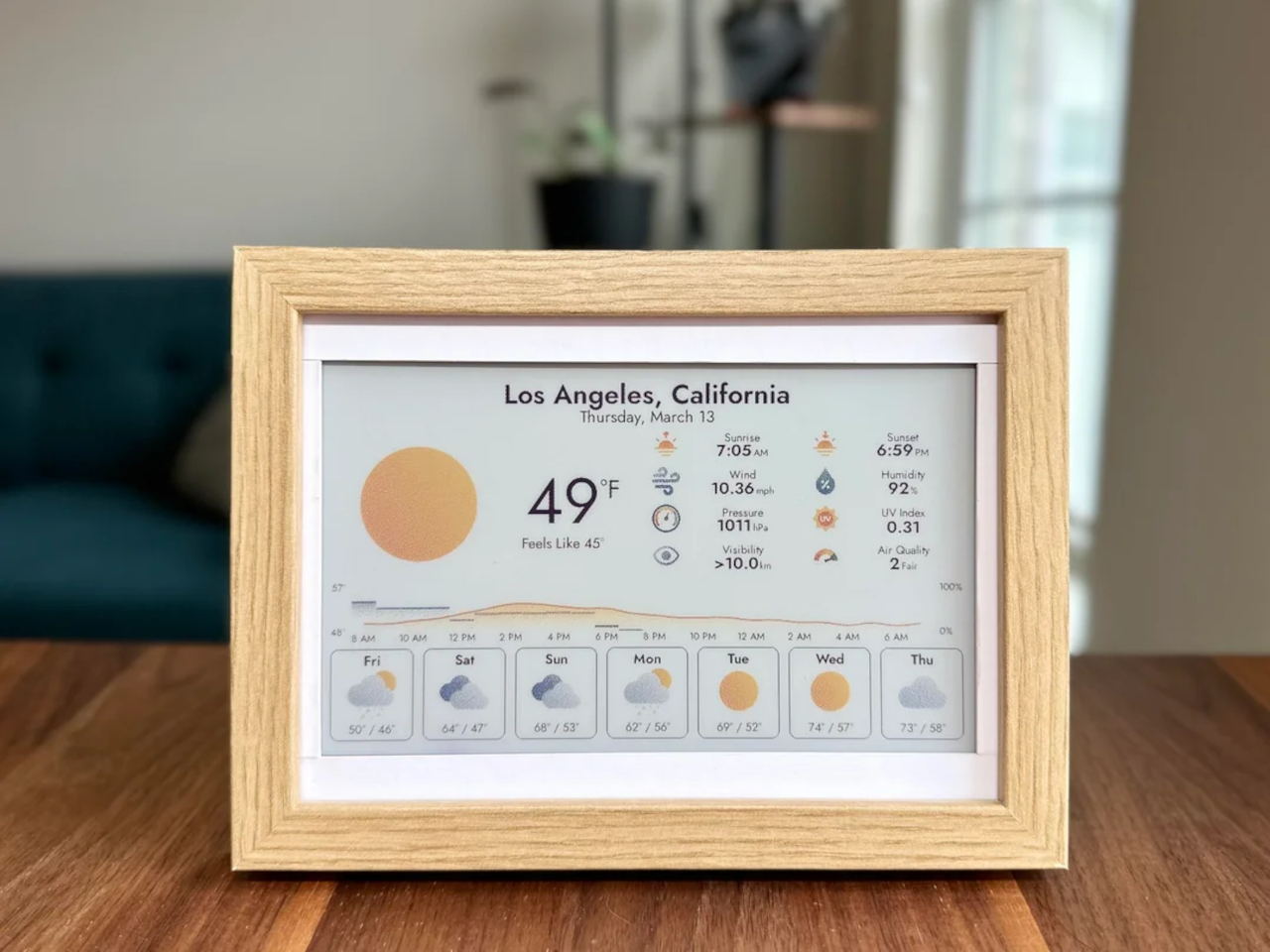
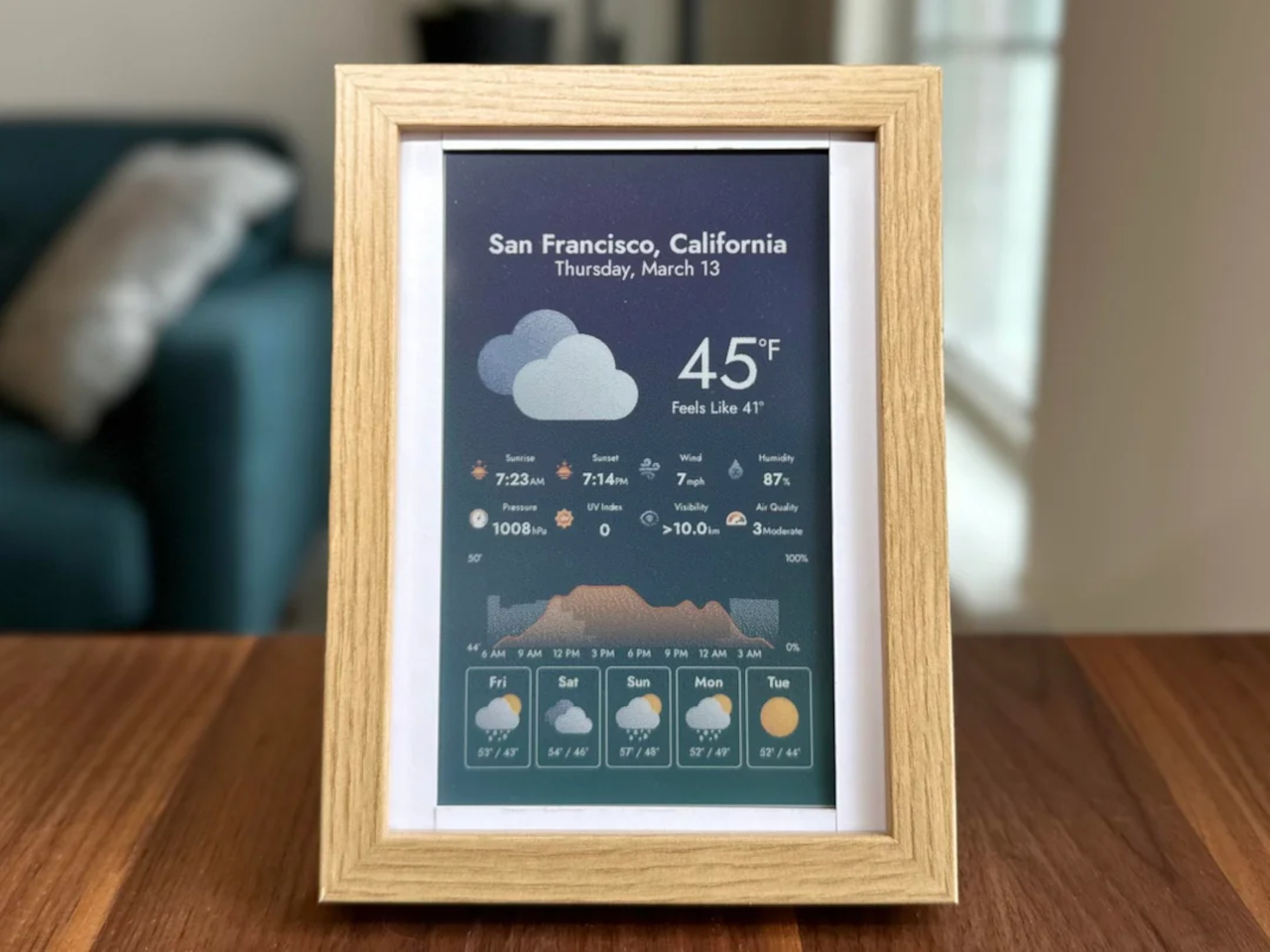
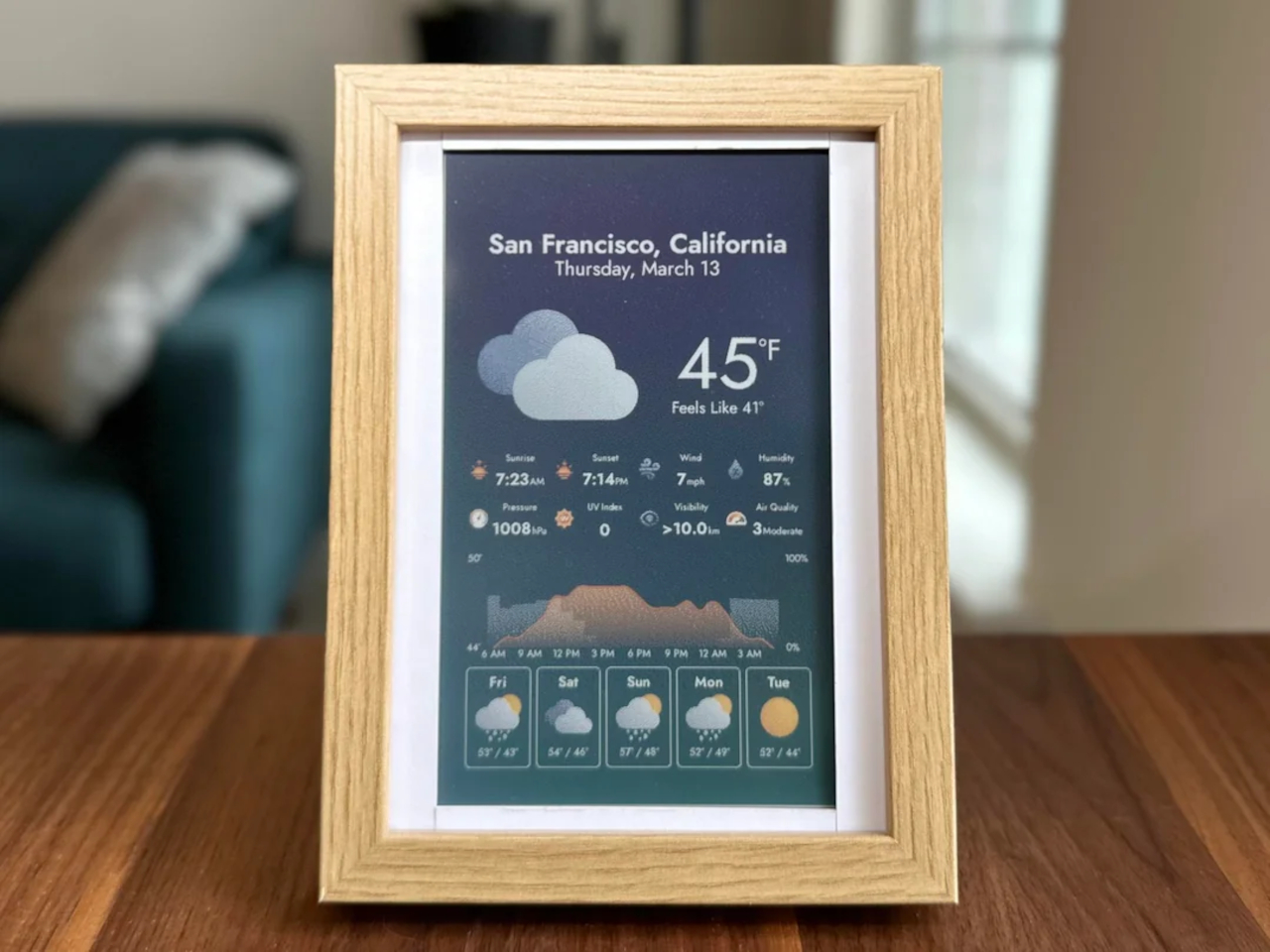
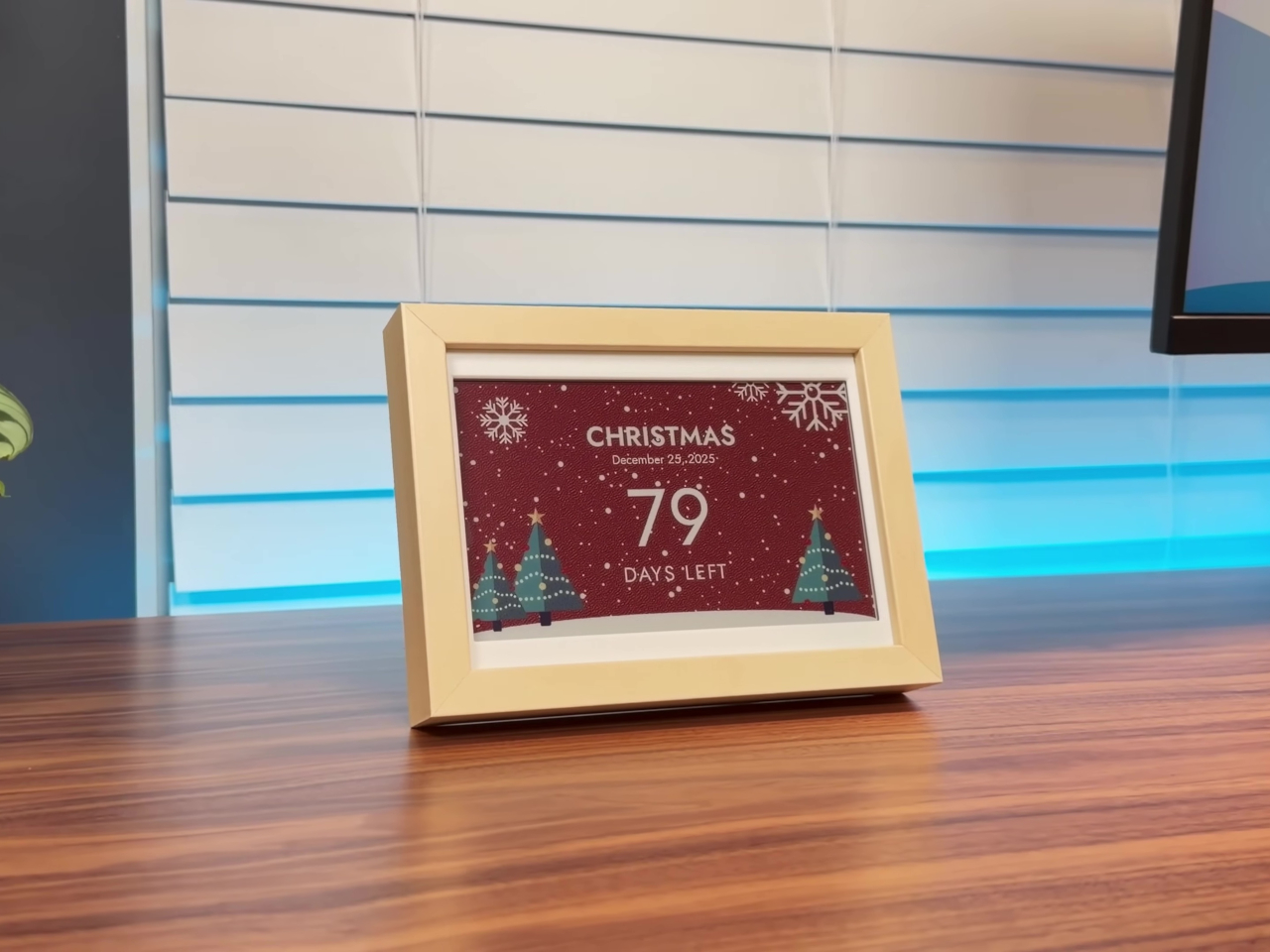
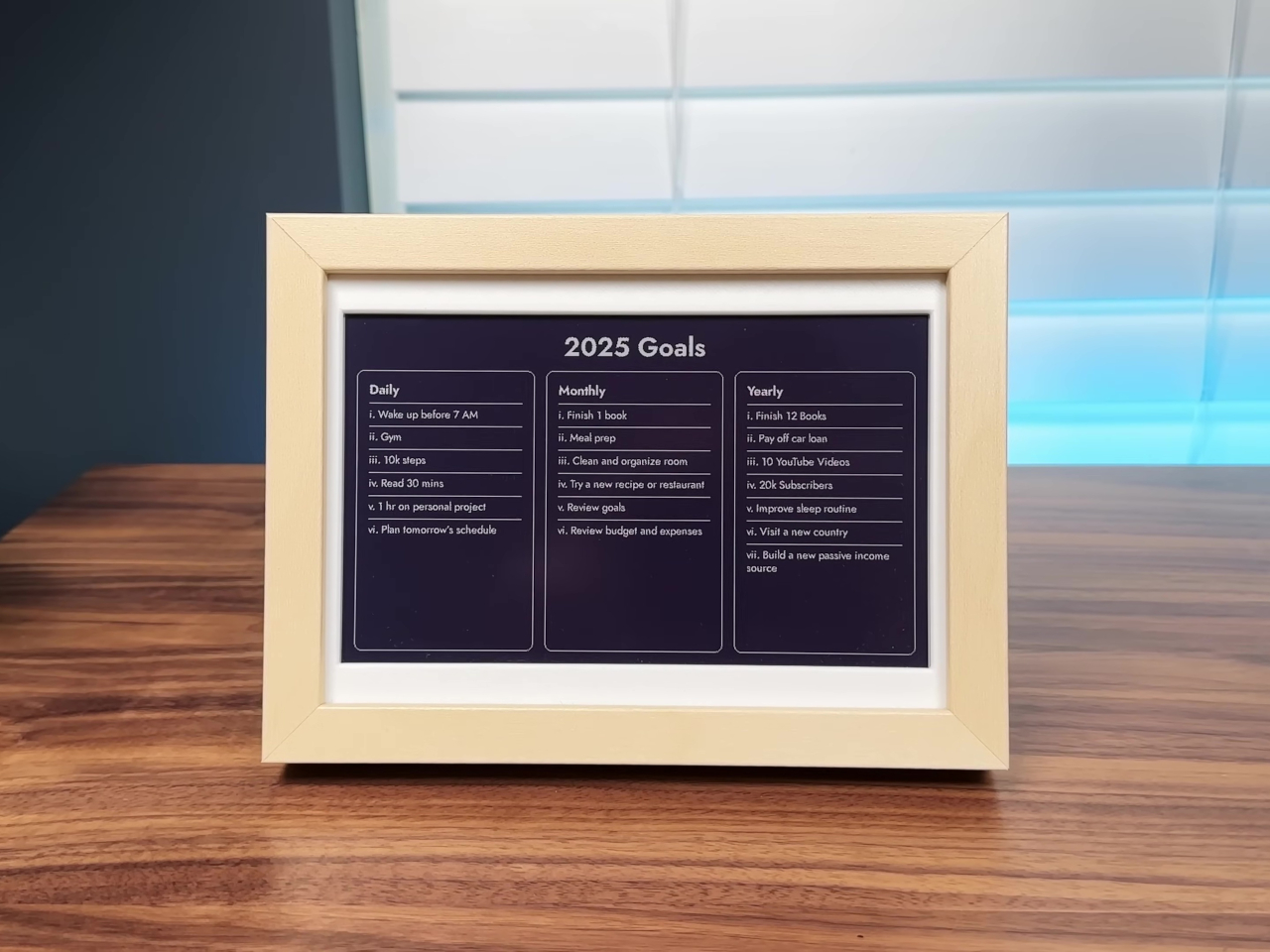
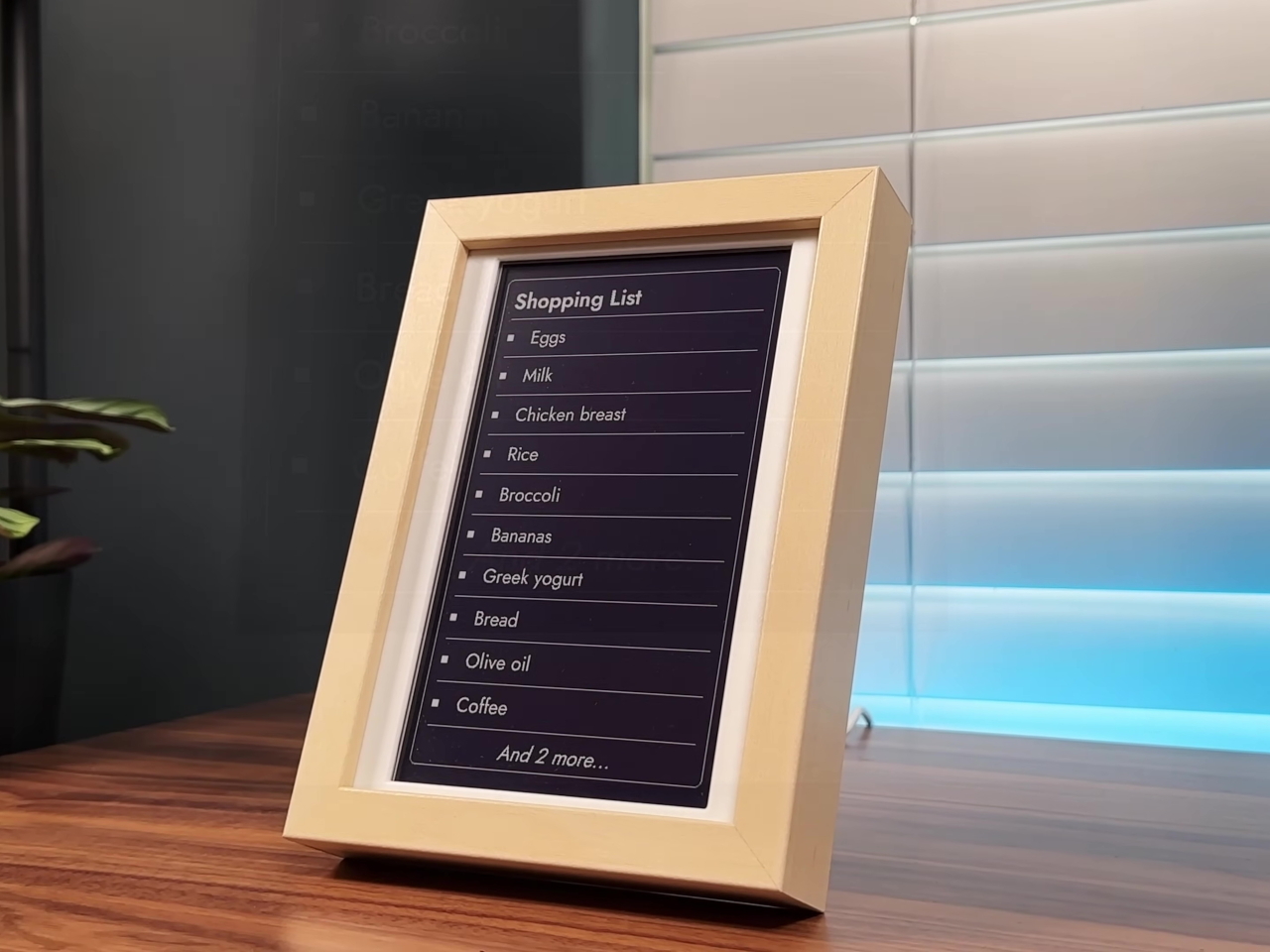
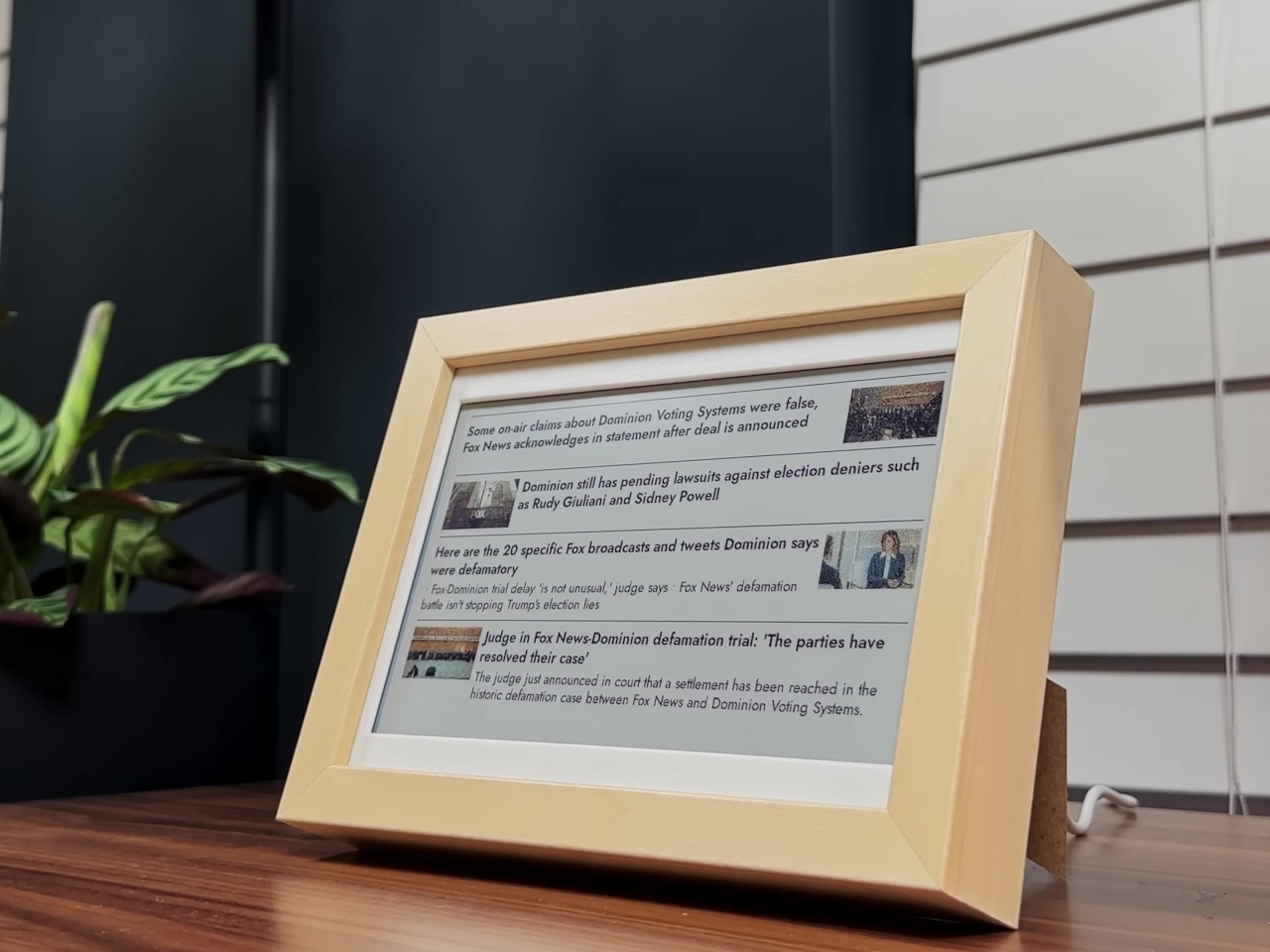
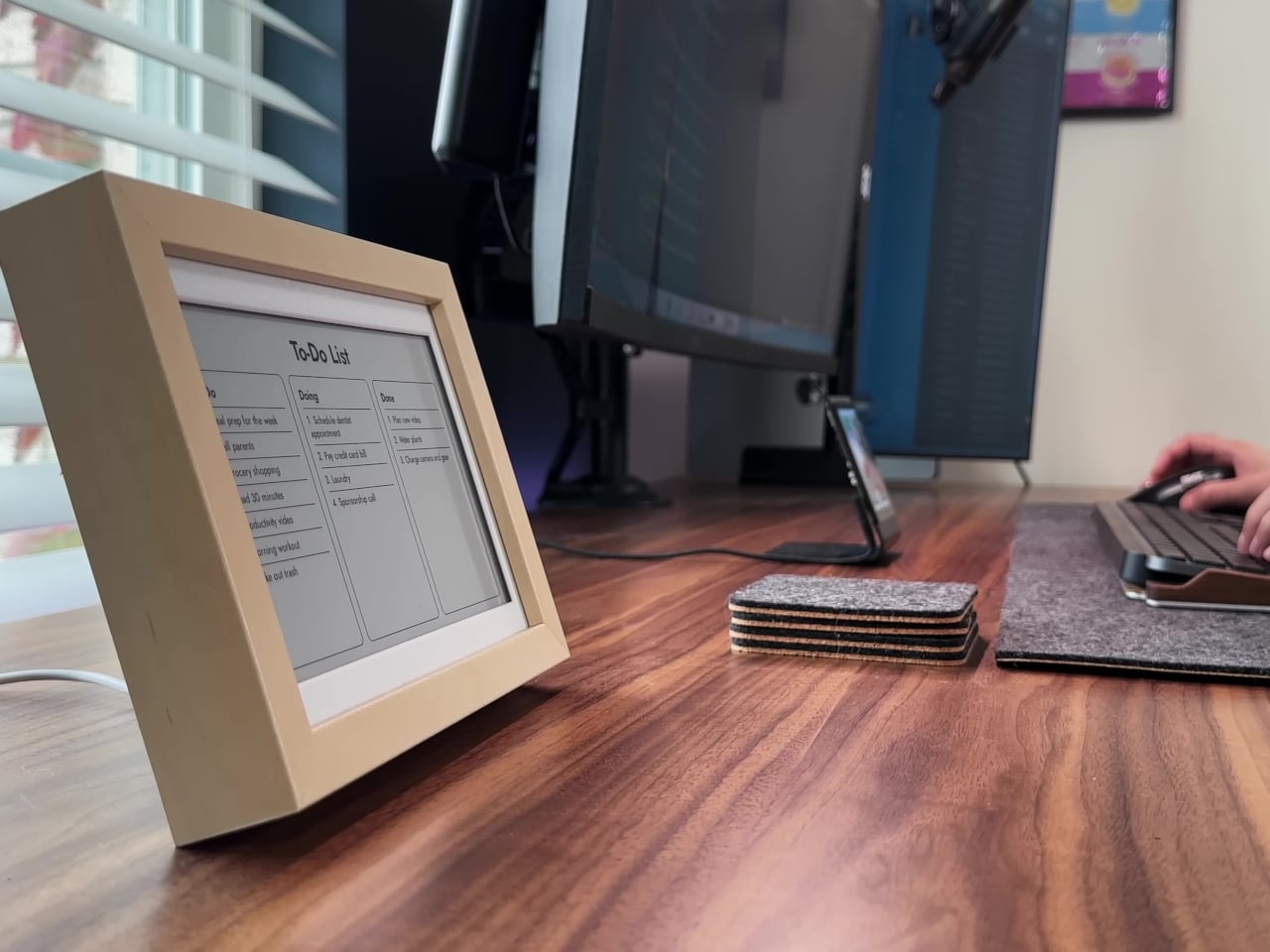
The InkyPi E-Paper Productivity Display is a DIY project that addresses this challenge directly and elegantly with minimal hardware. Built with a Raspberry Pi Zero 2 W and a crisp E-Ink screen, it turns your to-dos, deadlines, and progress into a calm, always-on dashboard that helps you stay organized without the noise. The project is open-source, customizable, and refreshingly simple in its approach to keeping you on track without overwhelming you.
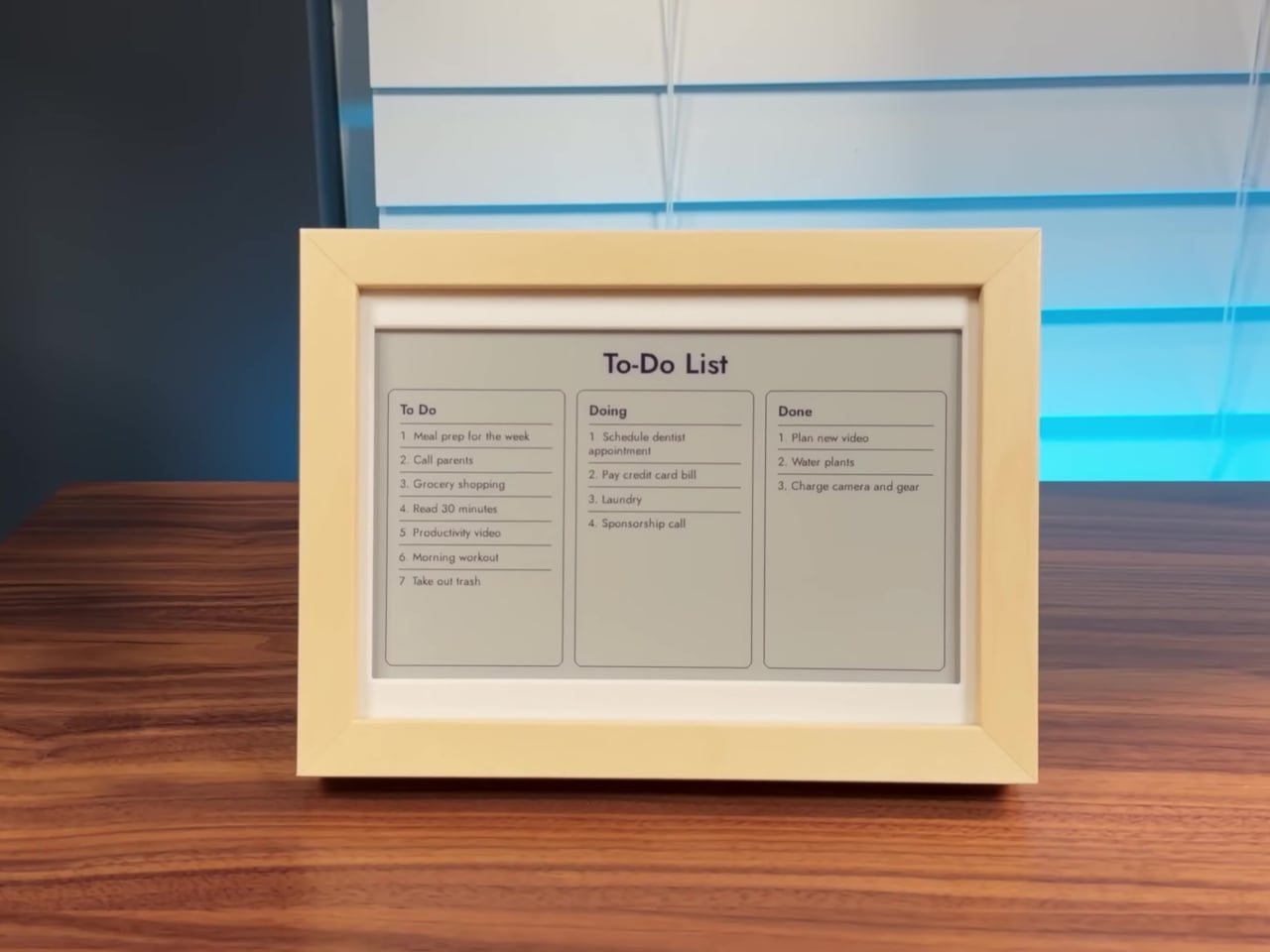
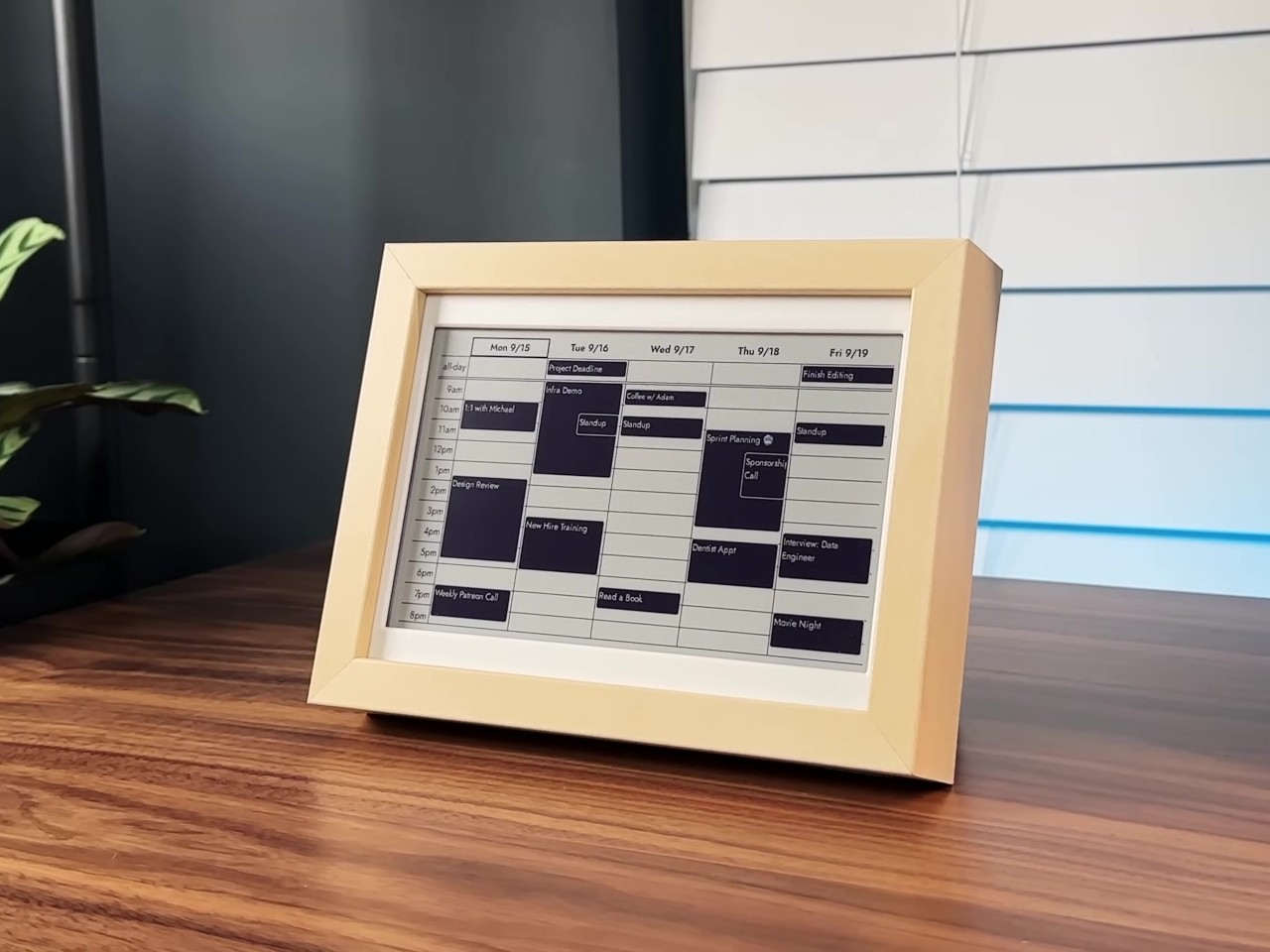
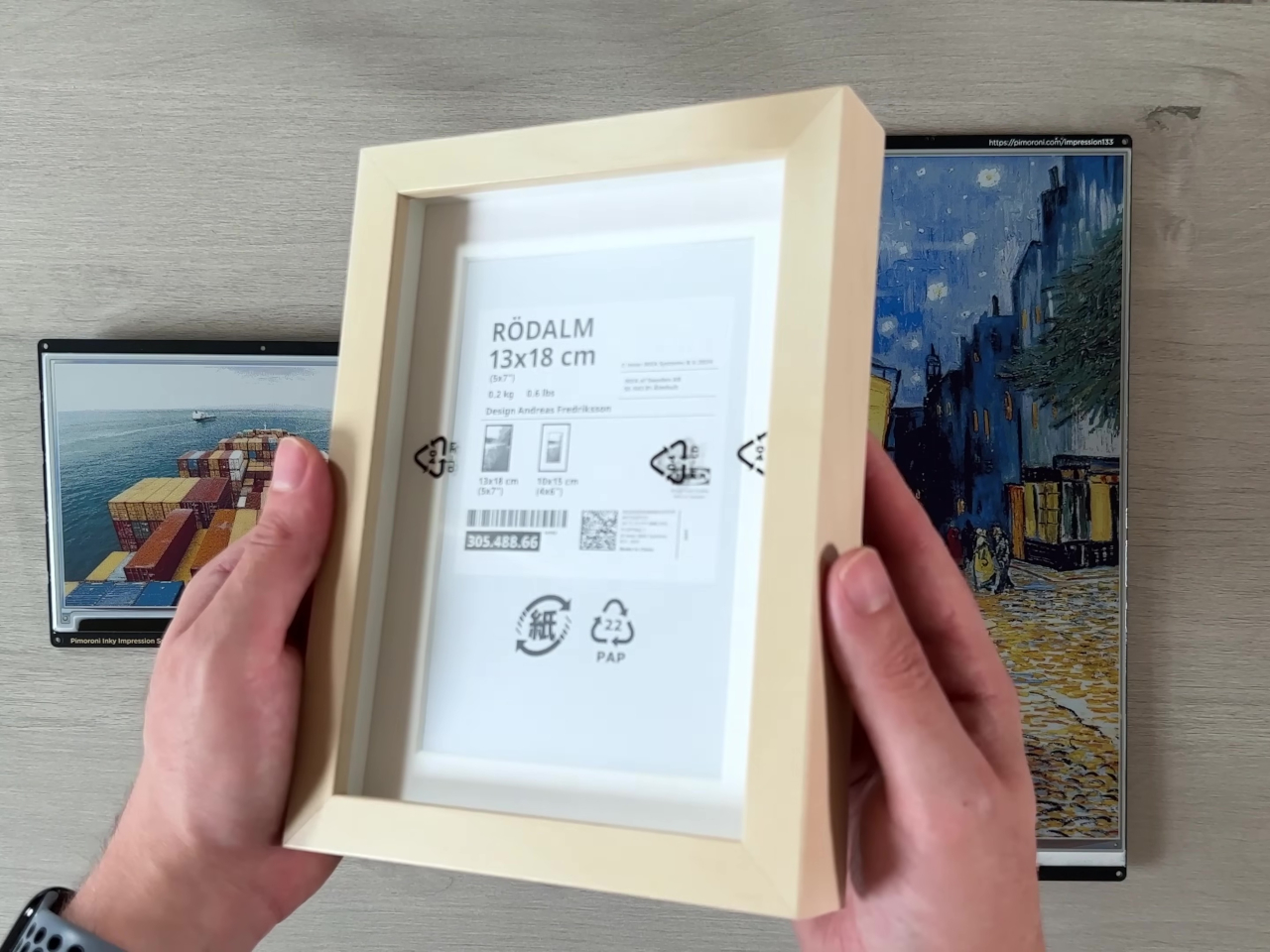
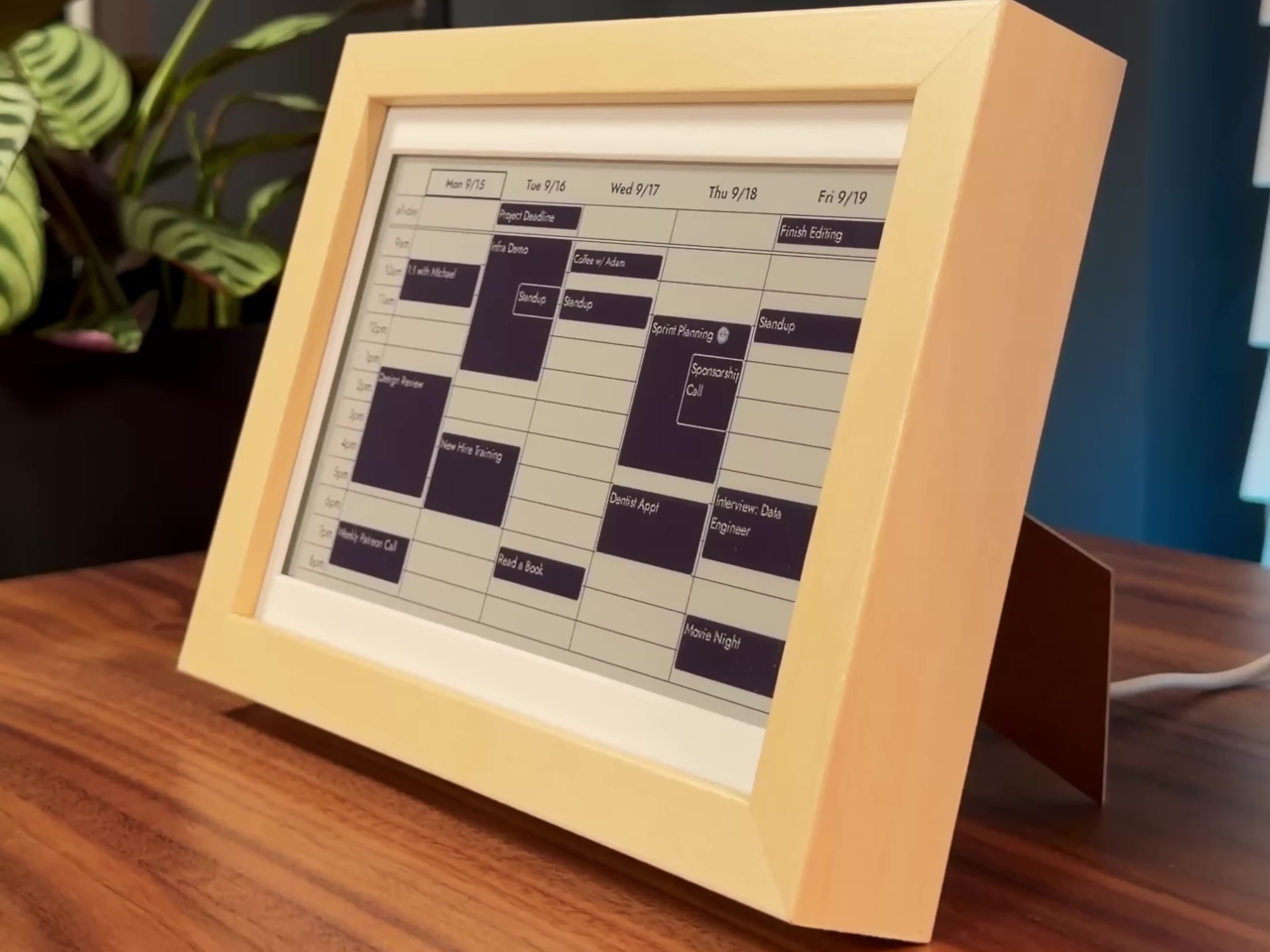
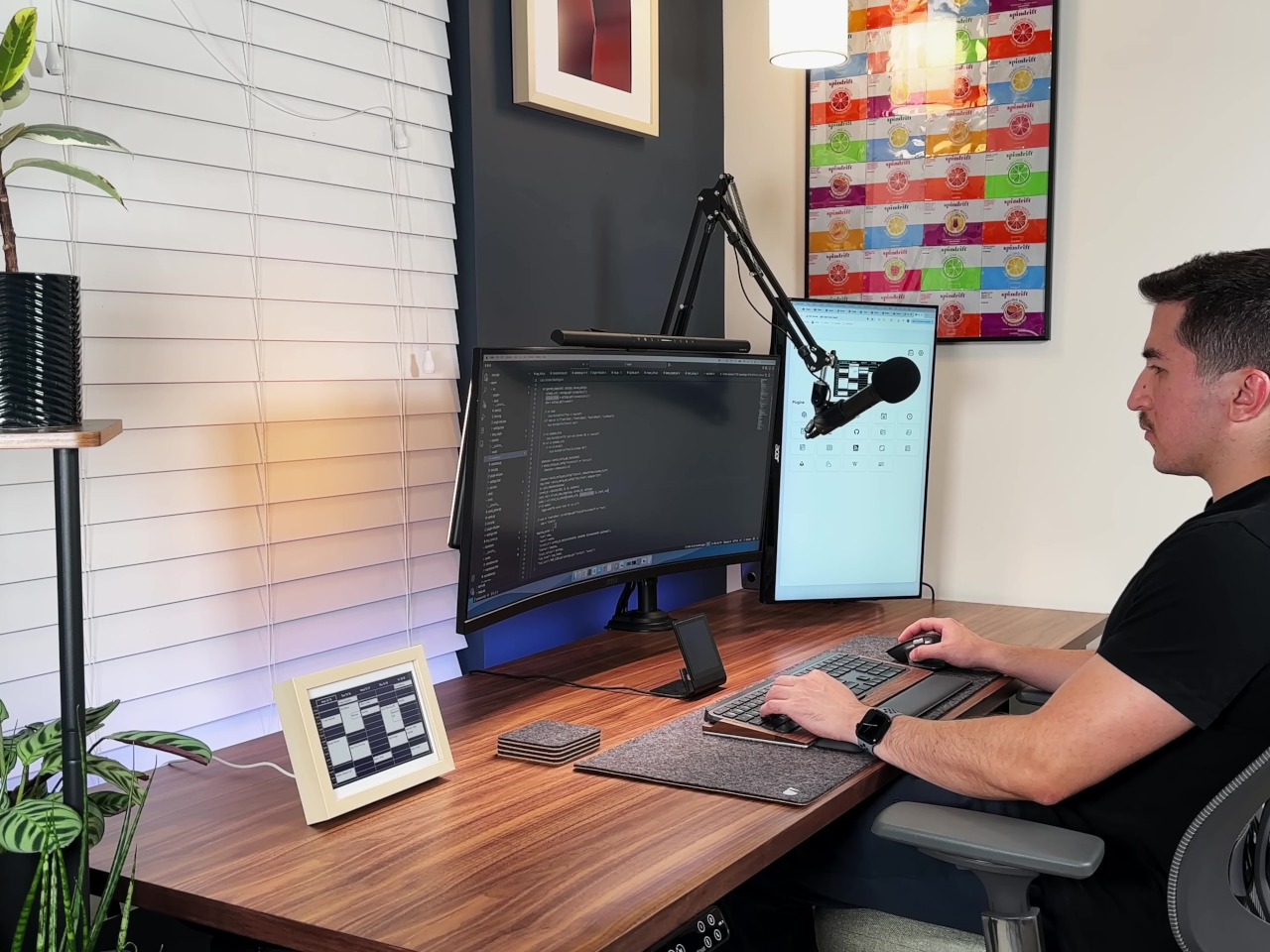
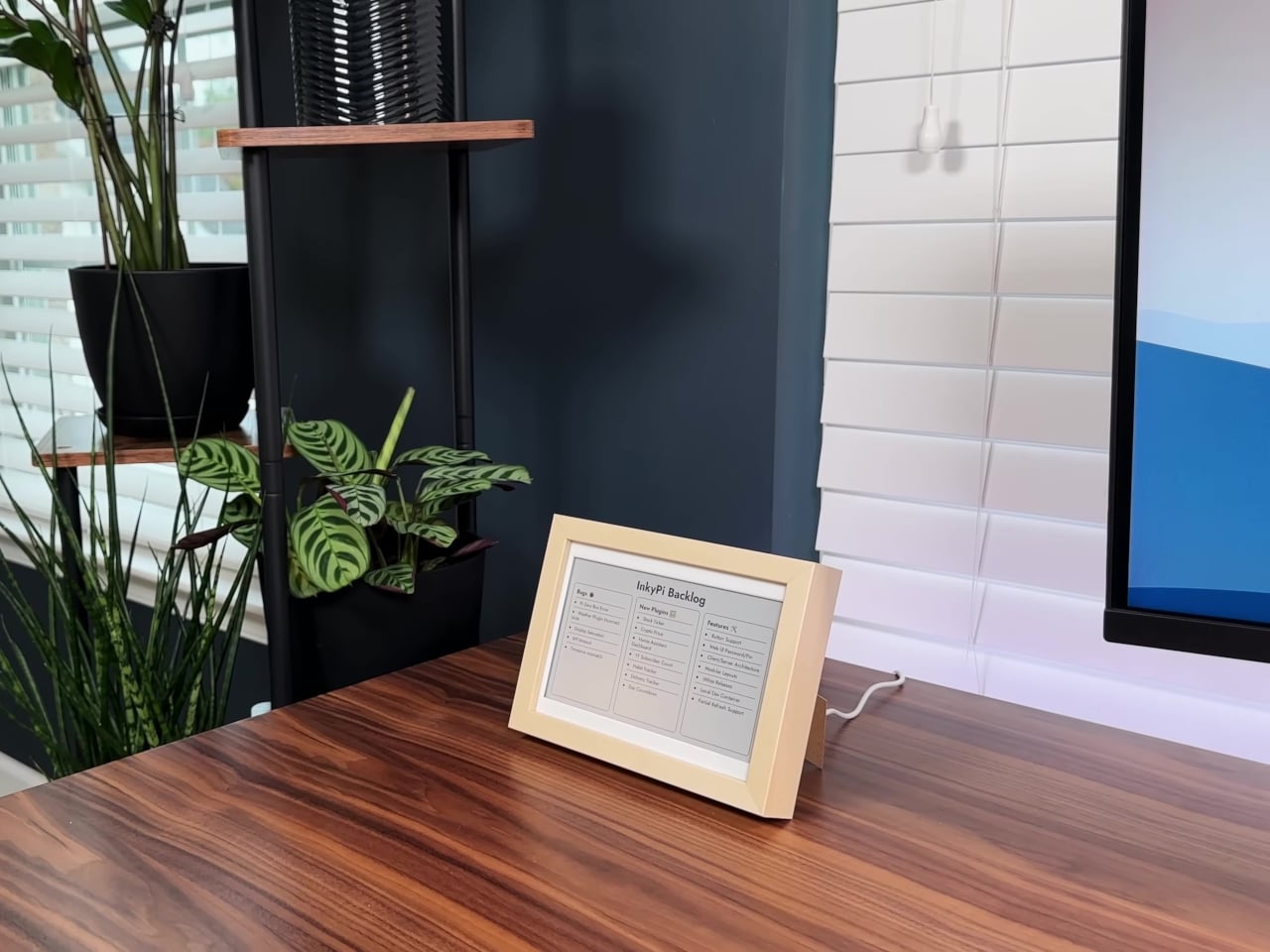
InkyPi’s minimalist design starts with a 7.3-inch or 7.8-inch E-Ink panel from Pimoroni or Waveshare, framed in a simple IKEA picture frame that looks more like a piece of art than a gadget on your desk. The Raspberry Pi Zero 2 W sits discreetly behind the display, keeping the whole setup slim, silent, and consuming minimal power throughout the day. The paper-like display is easy on the eyes and never glows or flickers.
The framed display can be wall-mounted above your desk for easy glances throughout the day or set on a stand for desktop reference during intensive work sessions. The E-Ink screen shows information with the clarity of printed paper, making text and graphics readable from across the room without squinting. The lack of a backlight means it works well in any ambient lighting without causing eye strain during long days.
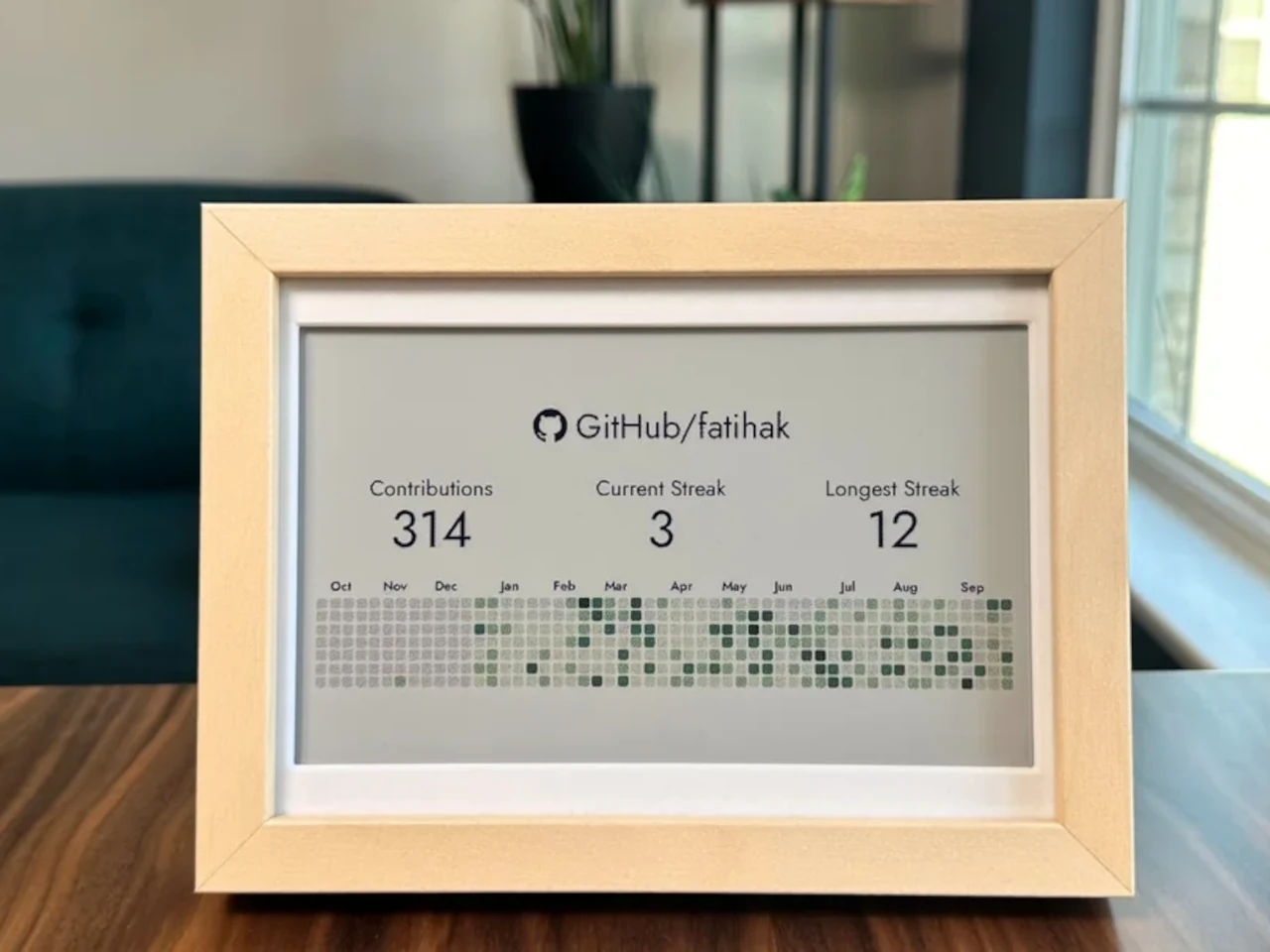
The open-source InkyPi dashboard runs a growing library of 20 plugins, all managed through a web-based user interface that’s accessible from any device on your network. You can schedule automatic refreshes, rotate through different plugins throughout the day, and customize layouts for your specific workflow. Recent plugin additions include a to-do list, day countdown, GitHub commit graph, year progress bar, and RSS feed reader for staying informed.
Each plugin is designed to give you just enough information to stay on track without overwhelming you with excessive detail or constant updates that break concentration. The to-do list shows three customizable lists with clean formatting, the year progress bar visualizes how much of the year remains for goal planning, and the GitHub graph motivates coding consistency through visual streak tracking. Everything updates automatically on your chosen schedule without requiring manual intervention.
The E-Ink display’s slow refresh rate and lack of backlight mean it’s only updated when necessary, keeping your focus on the task at hand rather than the screen itself pulling attention. The dashboard is intentionally passive, meant for glancing rather than interacting, so you’re never tempted to click, scroll, or dive into rabbit holes when you should be working. The analog feel makes it more like checking a wall calendar or notepad.
All hardware and software files are open-source on GitHub, with active community support and ongoing plugin development from contributors worldwide who continue adding features. For anyone tired of digital noise and constant notifications interrupting deep work, the InkyPi E-Paper Productivity Display offers a reminder that sometimes less screen time is exactly what you need to accomplish more meaningful work throughout your day without burning out.