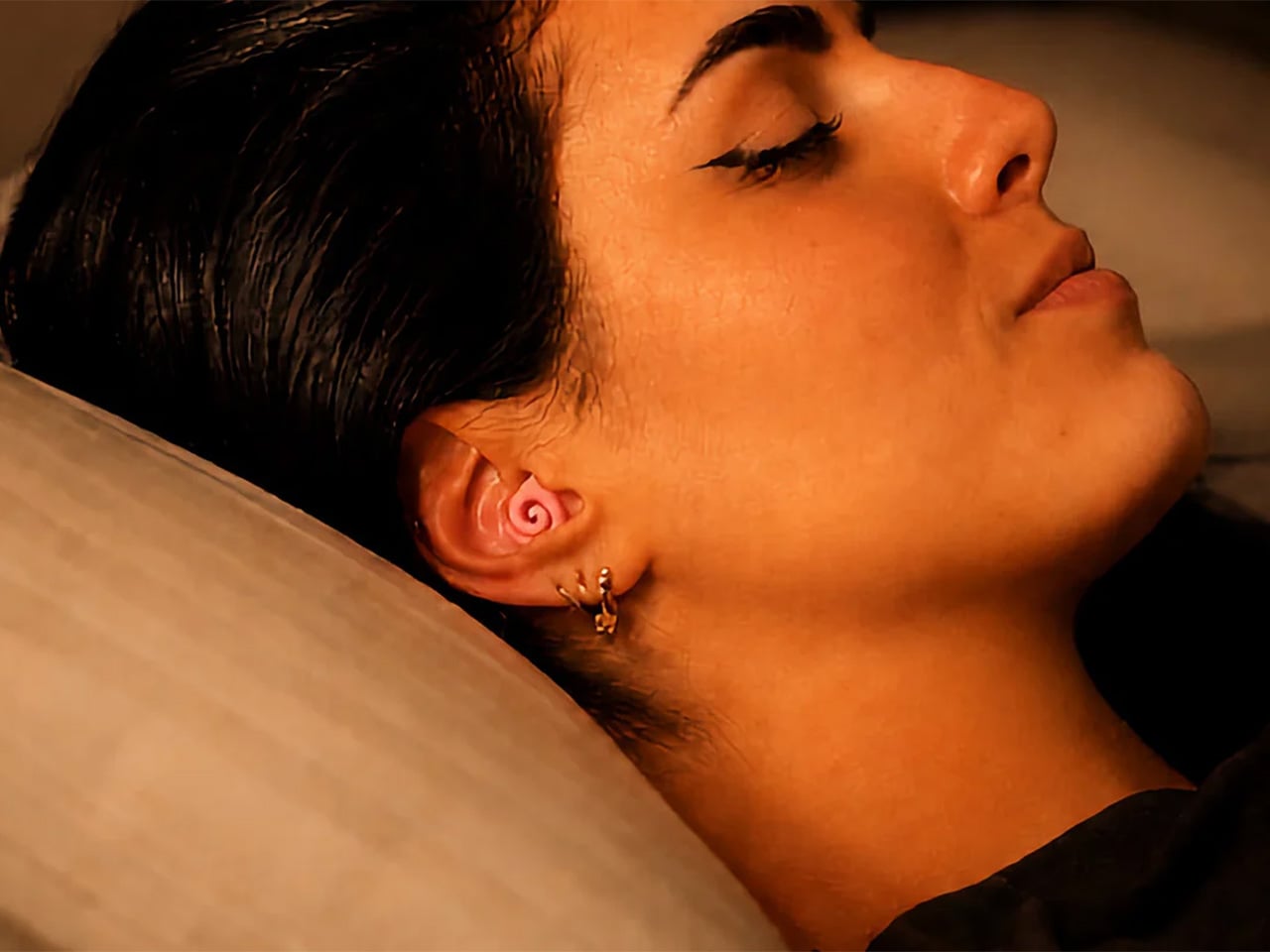
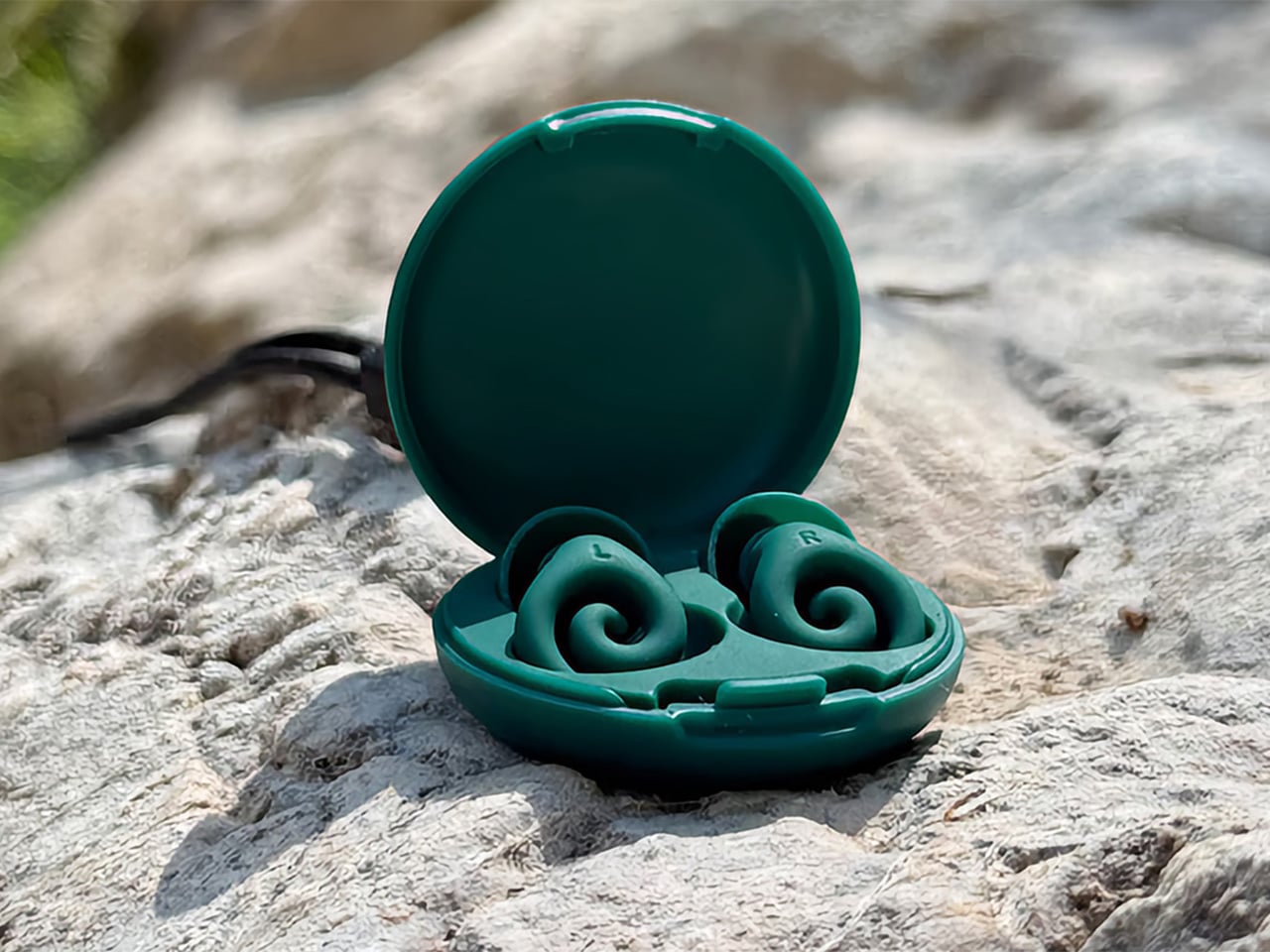
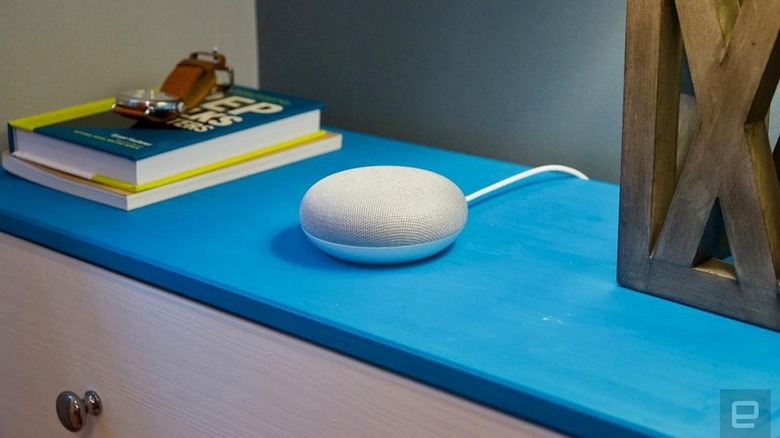
Most earplugs are built for your ear canal. Ears 360 Silence was built for your pillow as well. The French-designed earplug swaps the usual foam cylinder or silicone bud for a soft, retractable spiral that curls against the outer ear instead of wedging deep inside. The promise is simple: stay put through a full night’s sleep, filter out unwanted noise, and disappear until you forget it’s there.
The mechanism behind that promise is simple engineering. Twist the spiral open, tuck it against the ridges of your outer ear, then let it retract back into shape. It locks in place through geometry, not pressure, so there’s no tip wedged deep into your ear canal, nothing to ache by 2 a.m. The whole body sits nearly flat, flat enough to sleep on your side.
That geometry matters most at night. Side sleepers know the drill: a plug that protrudes gets crushed against the pillow, and foam that expands too much starts to throb before sunrise. With the Ears 360 Silence tucked into the curve of your ear, nothing stands proud enough to notice. You roll over, the plug stays where you left it, and the room stays quiet until your alarm decides otherwise.
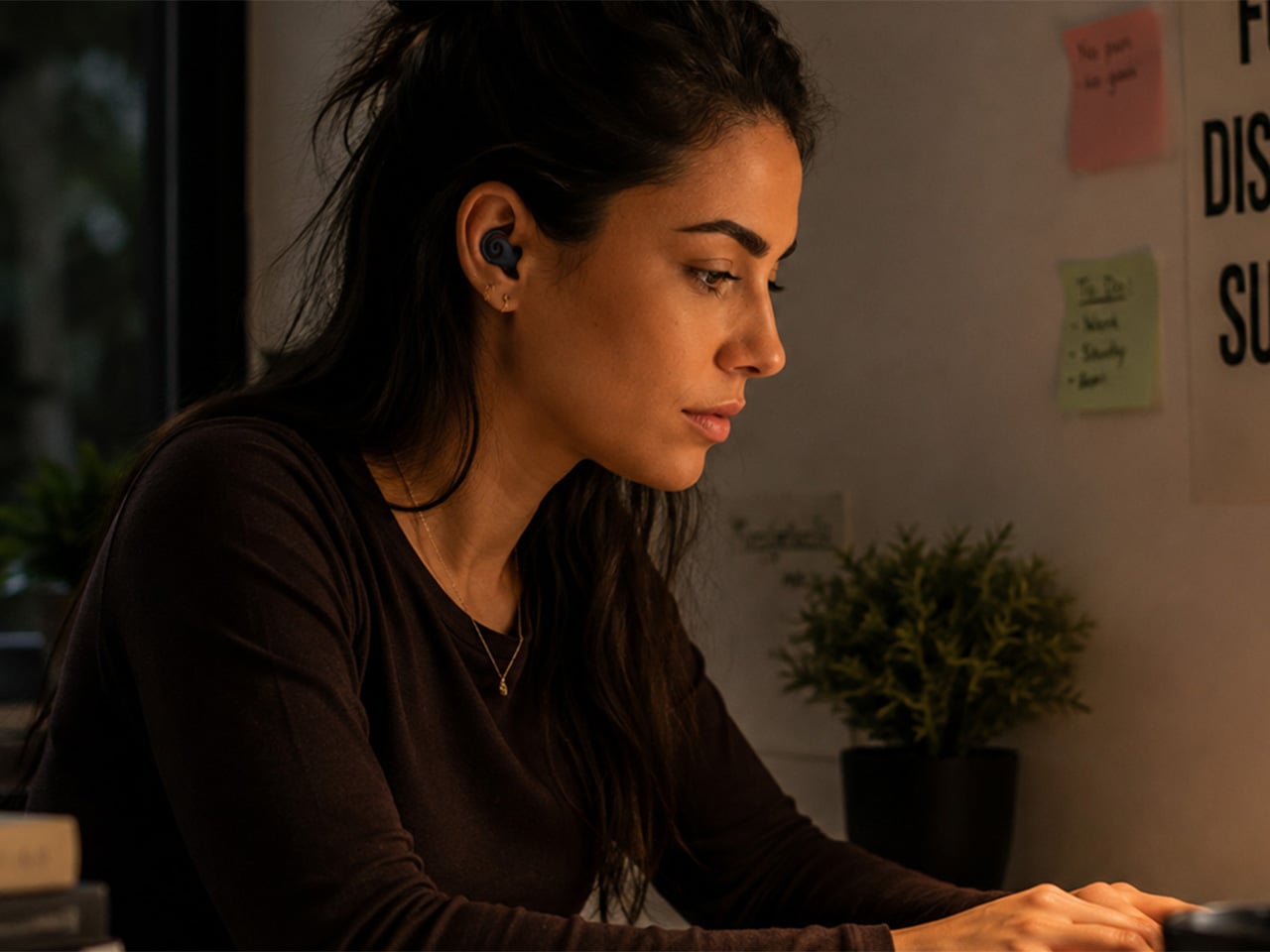
Sleep isn’t the only place this earplug earns its keep. Slip it in at a coffee shop or an open-plan office, and it softens the clatter around you without shutting out the person talking across the table. That’s the filtering trick at work, dialing down ambient chaos while keeping voices intelligible. And because the spiral sits low against the ear, nobody nearby even notices you’re wearing it.
Of course, comfort isn’t the whole story. Ears 360 Silence carries a certified 24 dB noise reduction rating under the EN 352-2:2020 standard, independently lab-tested rather than self-reported. Its attenuation peaks right around the frequency range where snoring and conversation both live, exactly where extra help matters most. It’s also rated IPX7 for water resistance and ships standard with four pairs of tips: S, M, L and a double-flange pair
Swap the standard tip for the clip-on triple-flange tip from the Swim & Work Kit, sold as a separate add-on, and attenuation climbs toward 29 dB. That’s enough for a construction site or a pool deck without having to switch out a different pair of buds. The tips swap in seconds, so the same pair that quiets a bedroom at night can handle a job site or open water the next afternoon.
Build quality is, of course, top-notch as well. The body is soft silicone, meant to be reused for years rather than tossed after one restless night, and it wipes clean easily. Four pairs of tips come in every box, so the fit adjusts to your ear rather than the other way around. Plus, the whole kit tucks into a case small enough to close in one hand, so there’s absolutely no reason you can’t take it anywhere with you, even if you’re not going to bed just yet.
Design touches carry through to the small stuff, too. The Ears 360 Silence comes in black, pink, and green, each paired with a case in the same shade, small enough to vanish into a pocket. And with the latest stretch goal reached, every backer gets a soft silicone neck cord, one per pair, to keep your Ears 360 Silence around your neck between uses. The whole object reads more like a considered accessory than a medical necessity you’d hide in a drawer, something you’d actually want sitting on your nightstand in plain sight.
Wake up after a full night wearing one, and you’ll notice what’s missing rather than what’s there. No hunting around the sheets for a stray foam cylinder, no ache in your ear canal from a tip jammed in too far. Just a quiet room and a plug that did its one job so well you forgot you were wearing it, which was the entire point.
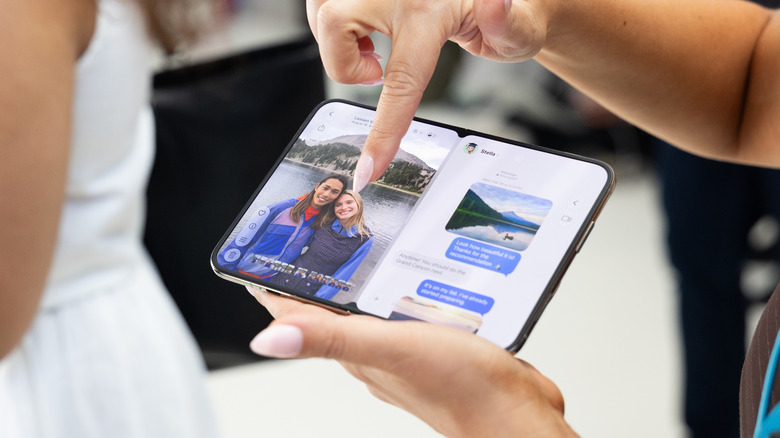
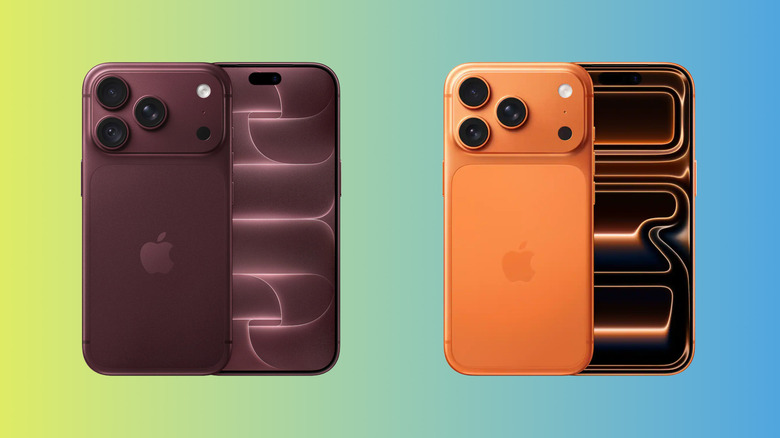
The iPhone Duo has an impressively minimal crease, but that's only how it looks at the start. We'll have to wait a while to see what develops over time.
The best camping gear doesn’t announce itself. It disappears into your pack, shows up when things go sideways, and handles the job without drama. Most outdoor gear fails this test in predictable ways: battery doors that ice shut, handles that bend under load, plastic panels that feel like props the moment you’re actually outside. What survives the cut tends to be smaller, smarter, and more carefully considered in its construction.
Fall raises the stakes in ways summer doesn’t. Daylight disappears faster than expected, temperatures drop sharply once the sun clears the treeline, and the gap between a manageable evening and a rough one closes quickly. These nine picks earned their spot because they perform in that specific context without adding unnecessary weight or complexity. Each one solves a real problem in a considered way, which turns out to be a narrower category than it sounds.
1. Lumitwin DL700
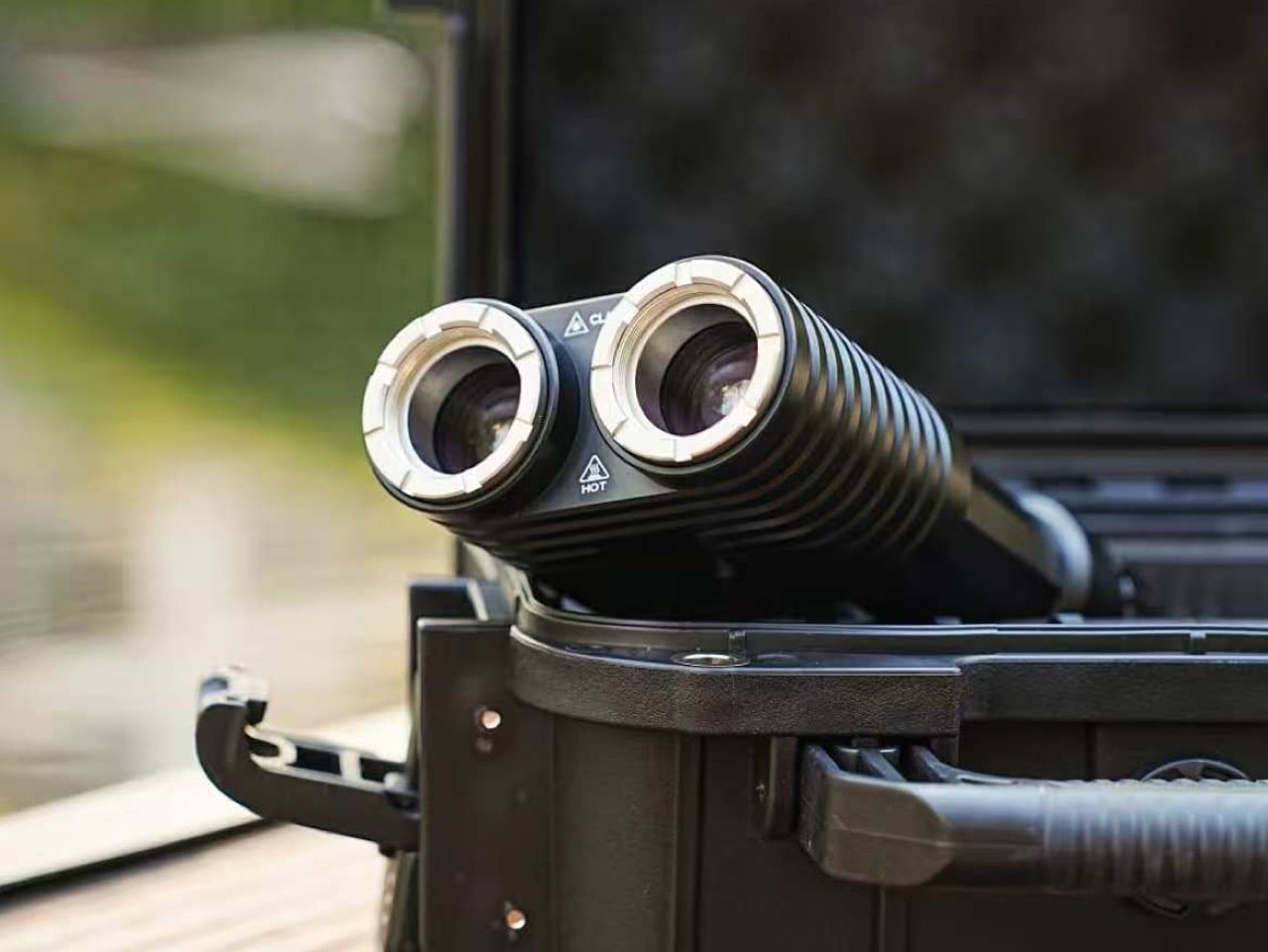
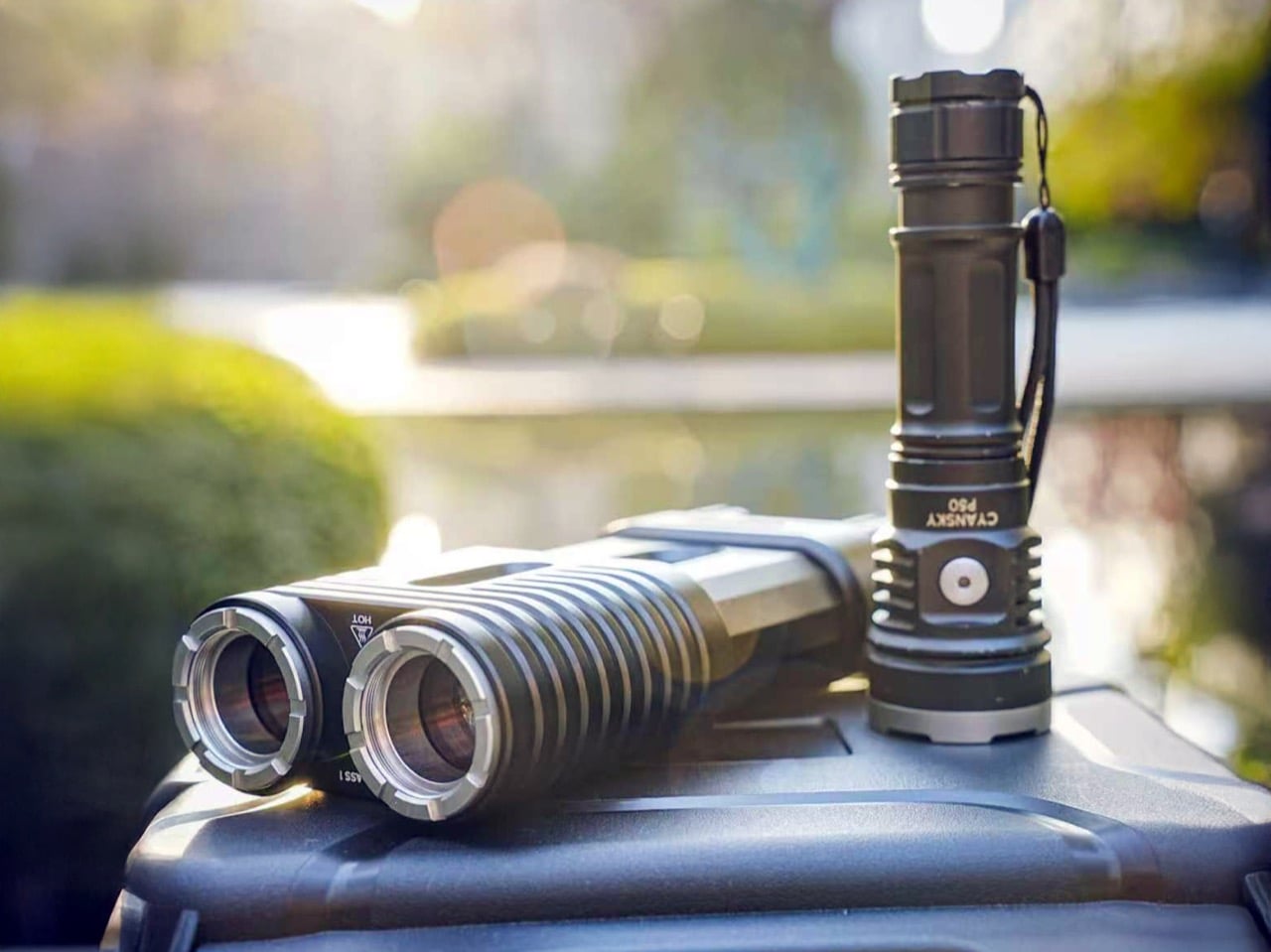
Most EDC flashlights make a trade: compact body, compromised throw. The Lumitwin DL700 refuses that deal. Using laser-excited phosphor technology, the same light source found in high-end automotive laser headlights, it produces 1,100 lumens and a combined 958,000 candela when both barrels fire together, pushing a coherent beam two kilometers into the dark. That is 1.24 miles of reach from a body machined from 6061 aerospace aluminum, IP68-rated to 1.5 meters, and built to survive a ten-foot drop.
Each barrel operates independently with its own switch and brightness control, letting you run different configurations at once: red filter on one barrel for night-vision preservation while the other throws white for distance spotting, or flood mode for close-range work around camp. At 1,032 grams and $329, it asks for commitment on both fronts. What you get in return is a flashlight that sits in a different performance category than anything else currently clipped to your pack.
What we like:
958,000 cd combined output and 2km throw from a carabiner-clippable body
Swappable red, green, and flood filters give you six functional configurations in a single unit
What we dislike:
1,032 grams is real weight that belongs on a belt clip rather than a jacket pocket
$329 is a deliberate purchase, not an impulse one
2. RetroWave Radio
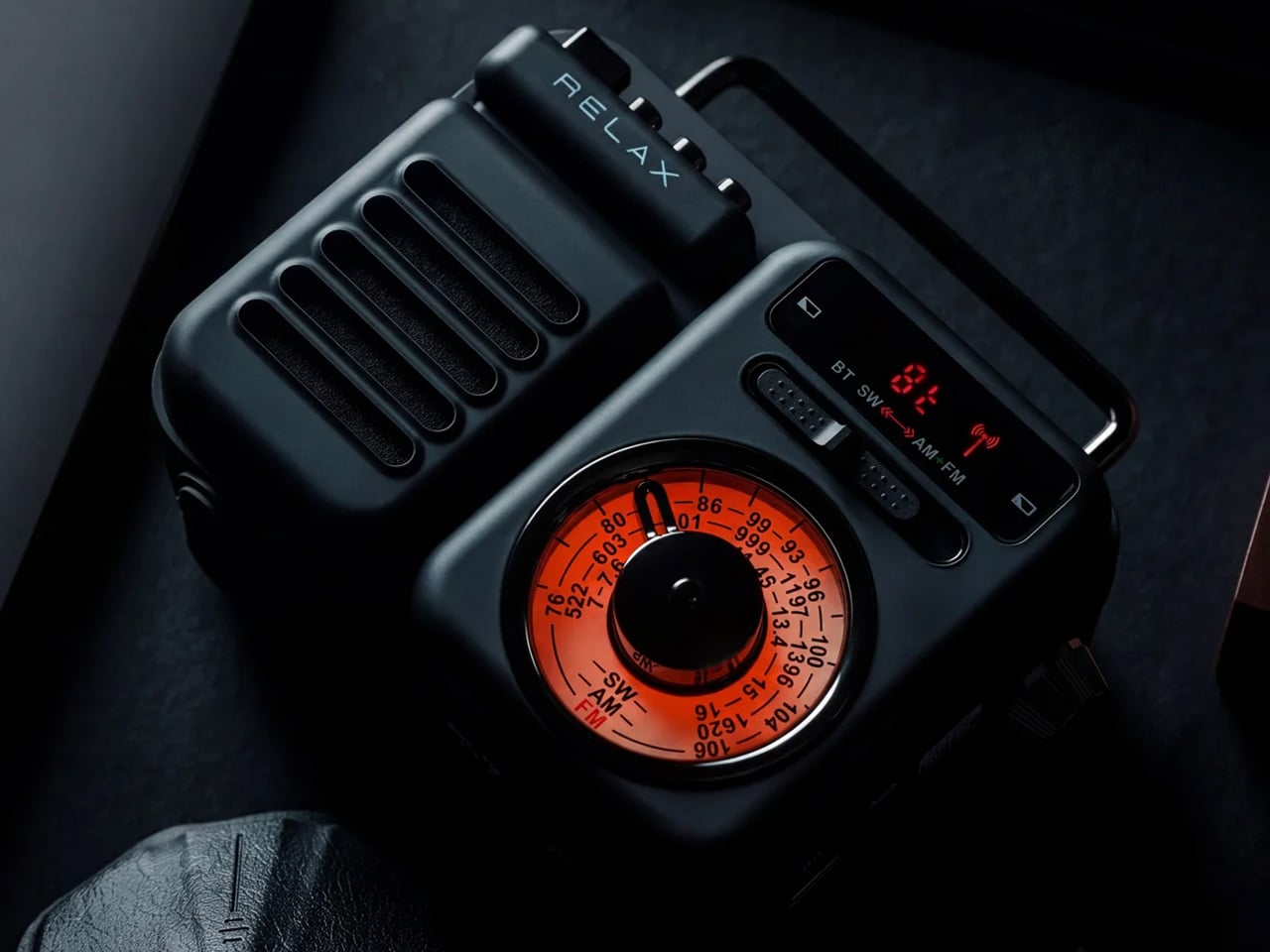
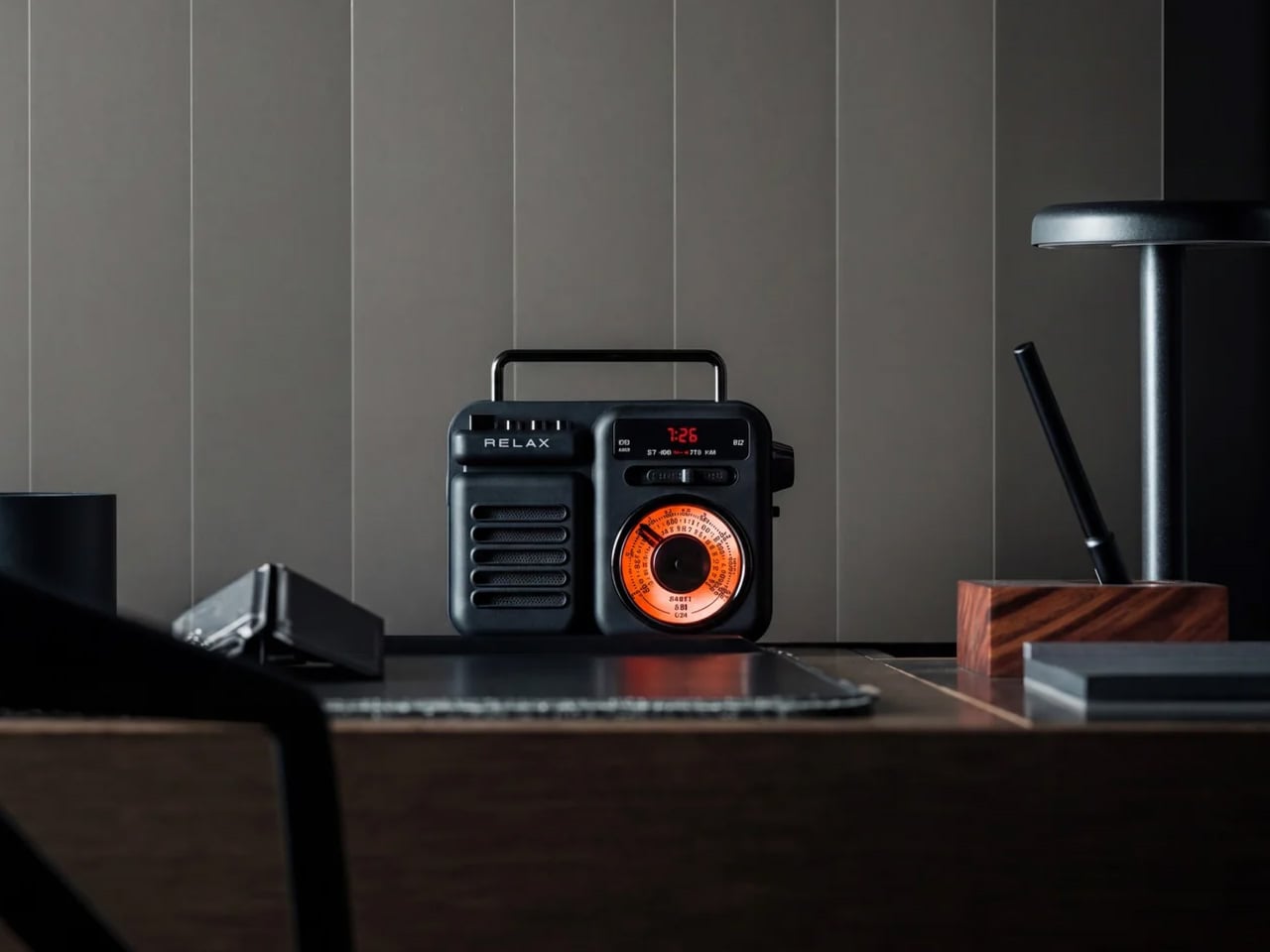
Weather shifts fast in fall, and a radio that receives NOAA weather alerts reads less like a retro novelty and more like actual preparation. The RetroWave pulls in AM, FM, and shortwave bands alongside dedicated NOAA weather channels, with Bluetooth for streaming when you have signal. It charges via a built-in solar panel or a hand crank, meaning you won’t find yourself rationing its runtime against your phone. That range of power inputs separates genuinely useful camp electronics from decorative ones that fail first.
The design language leans toward mid-century Japanese radio, warm and industrially restrained in a way that holds up as well on a desk at home as it does on a picnic table. For fall camping specifically, having a dedicated weather channel available without burning through your power bank is a genuine advantage. Dual charging paths mean it survives multi-day trips where sunny hours aren’t guaranteed. It earns its place before you’ve left the driveway and keeps justifying that decision every night after dark.
NOAA weather band combined with solar and hand-crank charging covers every outdoor power scenario
Design language that works equally well off-trail and at home
What we dislike:
Shortwave reception varies significantly with terrain and atmospheric conditions
Bluetooth adds weight for a function most campers skip on a real multi-day trip
3. Camprit TiStove
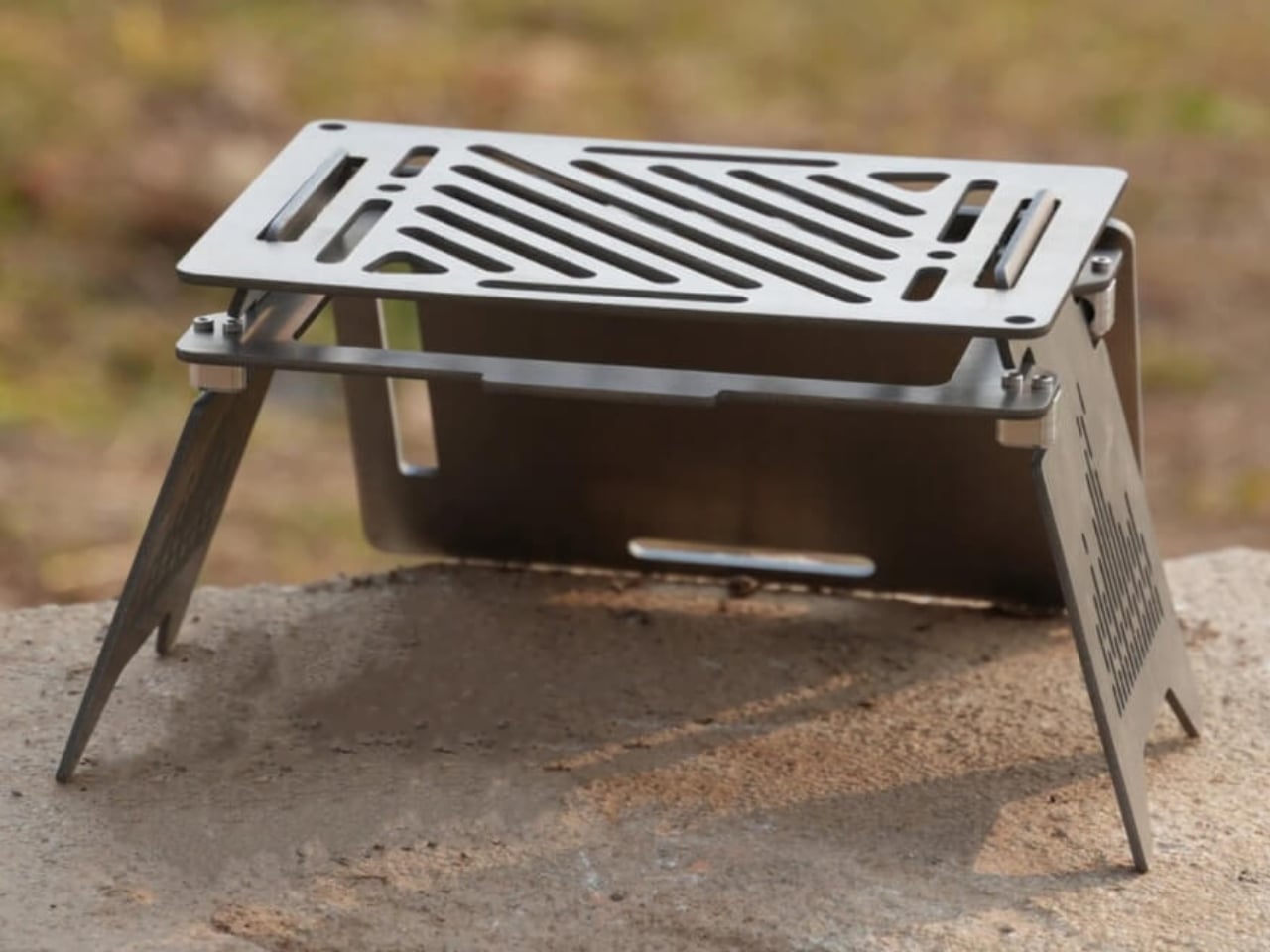
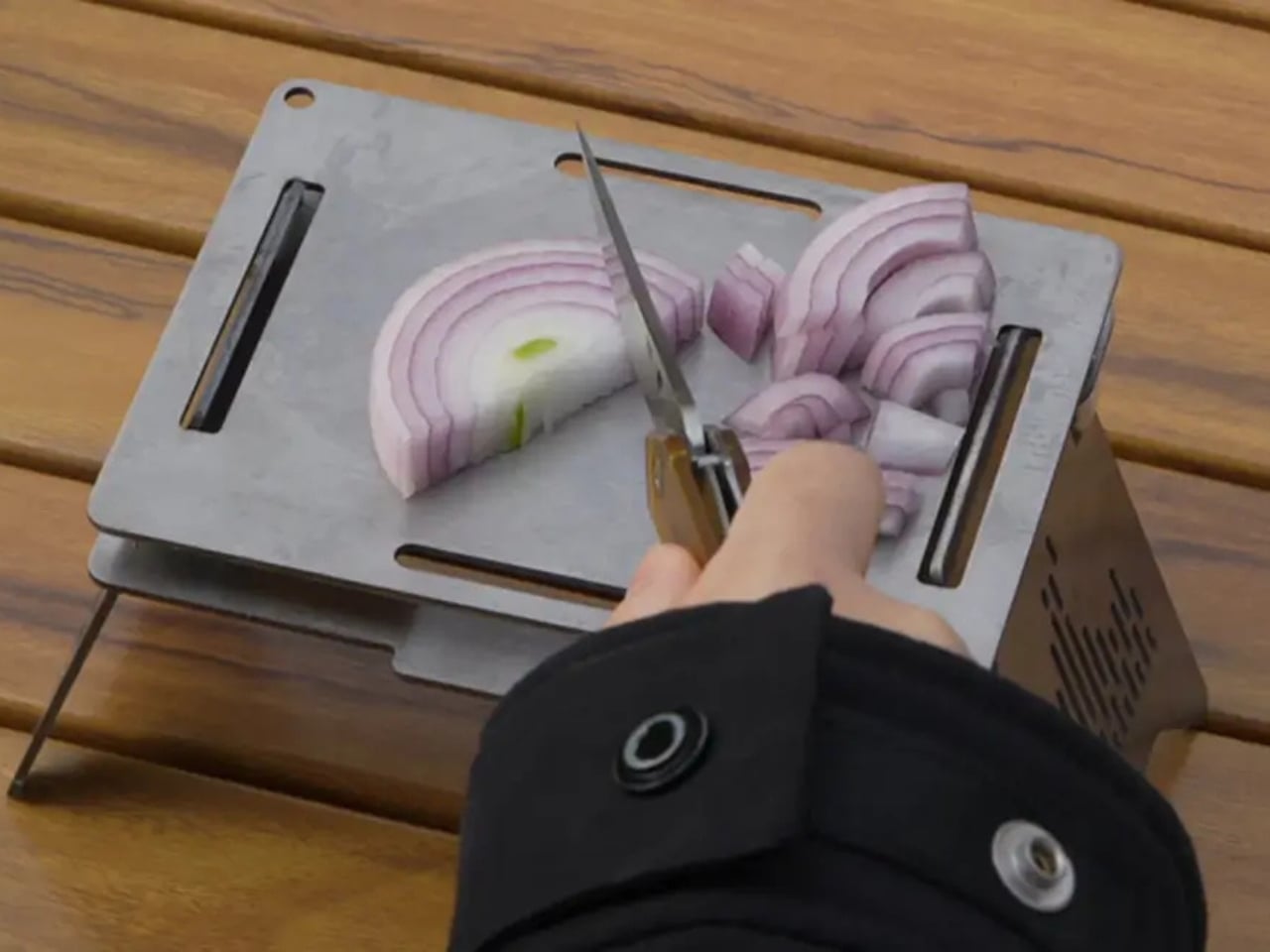
Titanium camp stoves have been around long enough to feel familiar, but the Camprit earns its place by solving the thing most of them get wrong: modularity. The body reconfigures for boiling, grilling, or searing across different heat sources without a dedicated ignition system to fail. That detail matters more than it sounds on a cold fall morning when a butane lighter won’t click. No moving ignition parts means fewer opportunities for your gear to let you down at exactly the wrong moment.
The titanium construction delivers a weight-to-durability ratio that camp cooking has been chasing since aluminum reached its ceiling. You get a stove that handles open flame, direct contact, and rough packing without deforming or trapping residue in ways that become a hygiene problem by day three. For fall trips where you’re cooking real food rather than just boiling water, the Camprit makes that effort feel like a deliberate design choice rather than a compromise you’re tolerating until you get back to a real kitchen.
What we like:
Fuel-agnostic design with no ignition system to fail in cold weather
Titanium build that handles rough packing without warping or trapping residue
What we dislike:
Modular configuration takes a few trips to feel intuitive and fast
No integrated windscreen is a real limitation on exposed ridge or clifftop sites
4. Blavor PN-W43 Solar Power Station
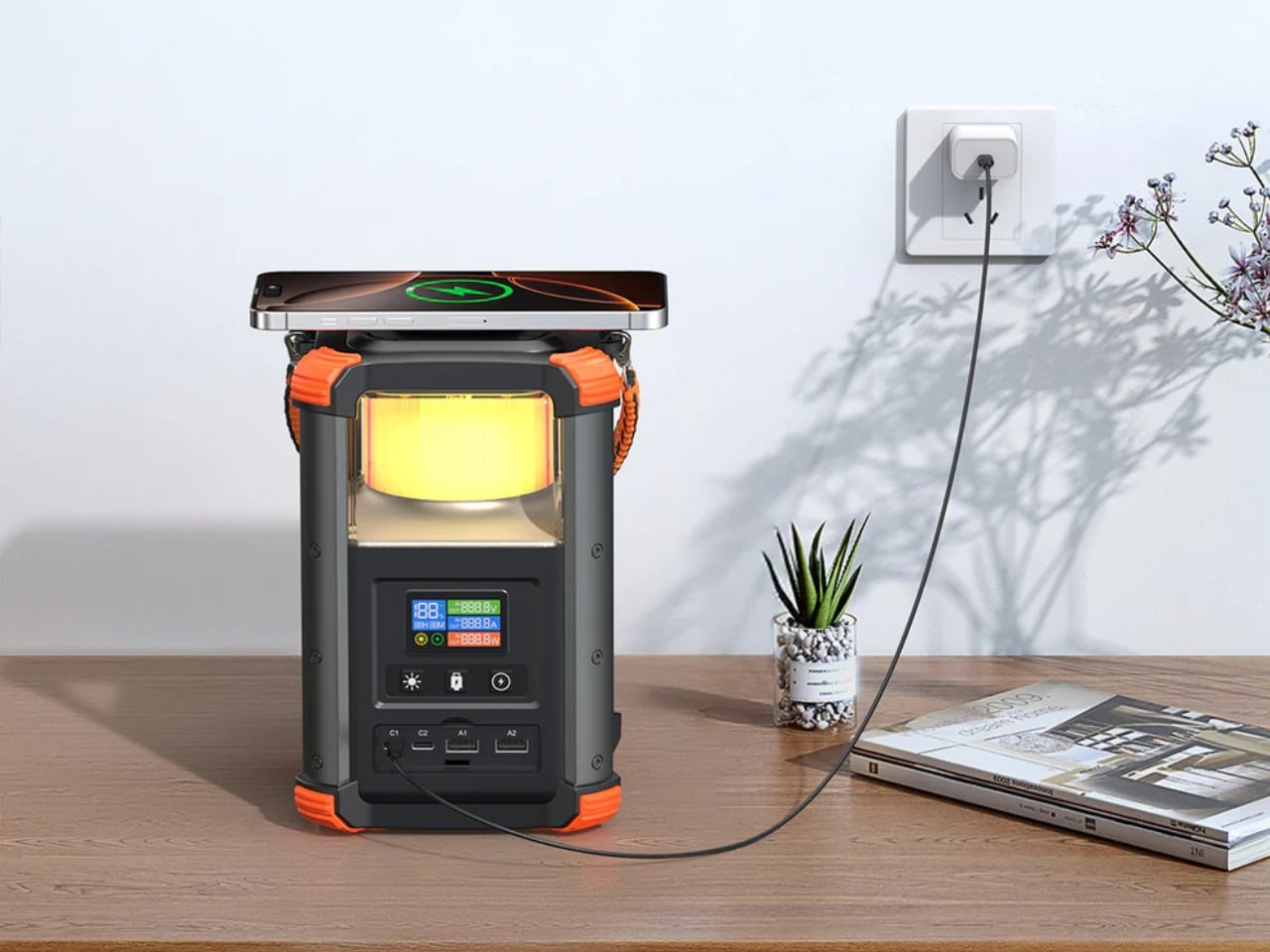
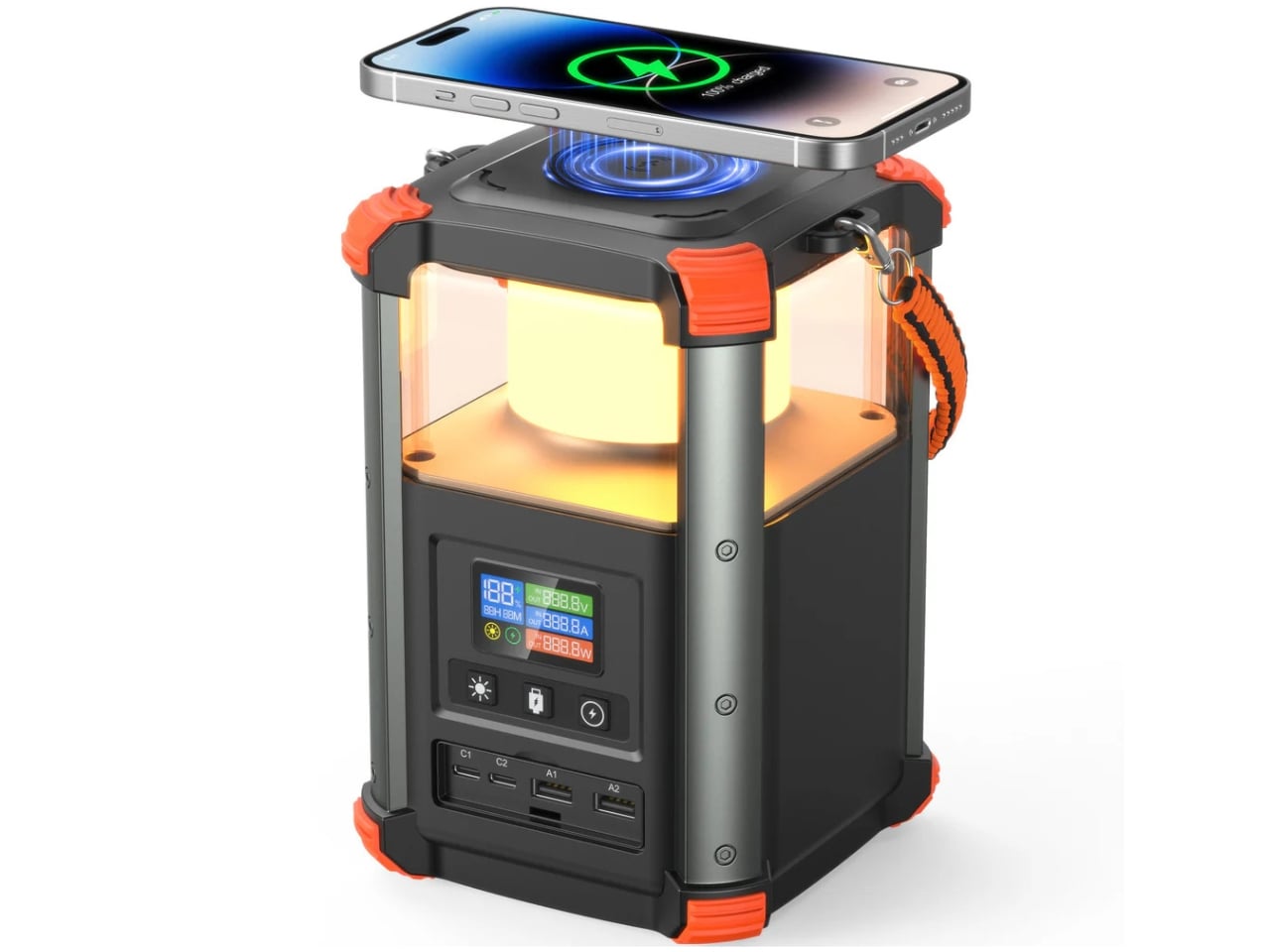
A power bank that also functions as a camp lantern isn’t a new concept, but the Blavor PN-W43 executes it better than most. The built-in LED panel delivers diffuse light across a tent interior without the directionality problem you get from propping up a flashlight. Five charging inputs, solar and AC among them, cover nearly every scenario between a home base and a remote campsite. For fall trips where dusk arrives earlier each week, having light and power in a single unit removes one item from the checklist entirely.
The high-capacity cell gives you meaningful device runtime across a multi-day trip without making compromises about which things get priority. Five charging inputs mean you’re not locked into a single power source, which matters when plans change, and the solar window turns out shorter than forecast. The lantern mode alone justifies the carry weight. Everything else the PN-W43 does reads as a bonus that makes it increasingly difficult to leave behind the longer and colder the trip gets.
What we like:
Five charging inputs, including solar, cover variable outdoor power conditions
Integrated lantern mode eliminates a separate light source from the kit entirely
What we dislike:
High capacity means more weight than a dedicated power bank or standalone lantern
Casing is larger than ultralight alternatives in either category
5. NoxTi Tritium Keychain
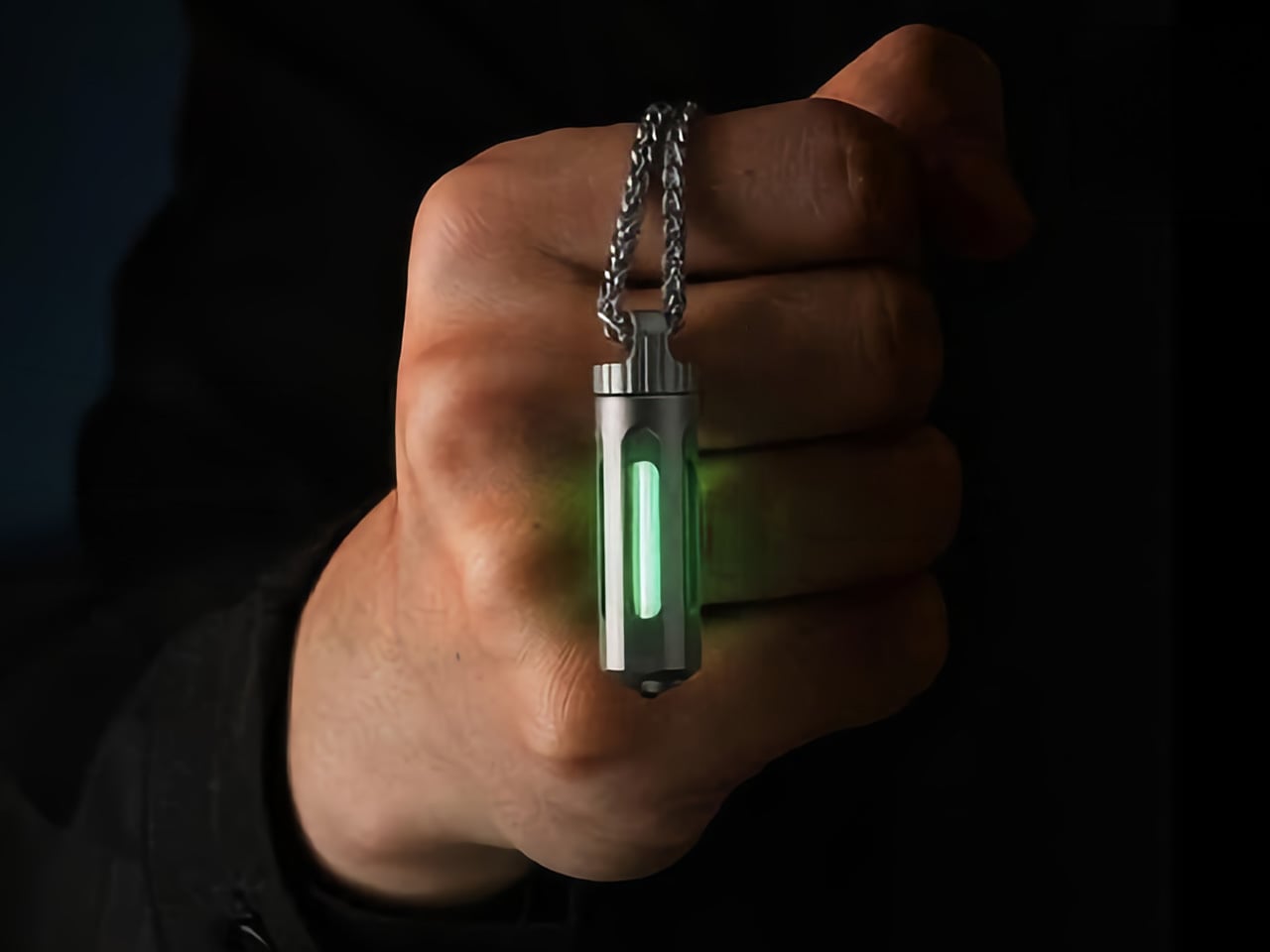
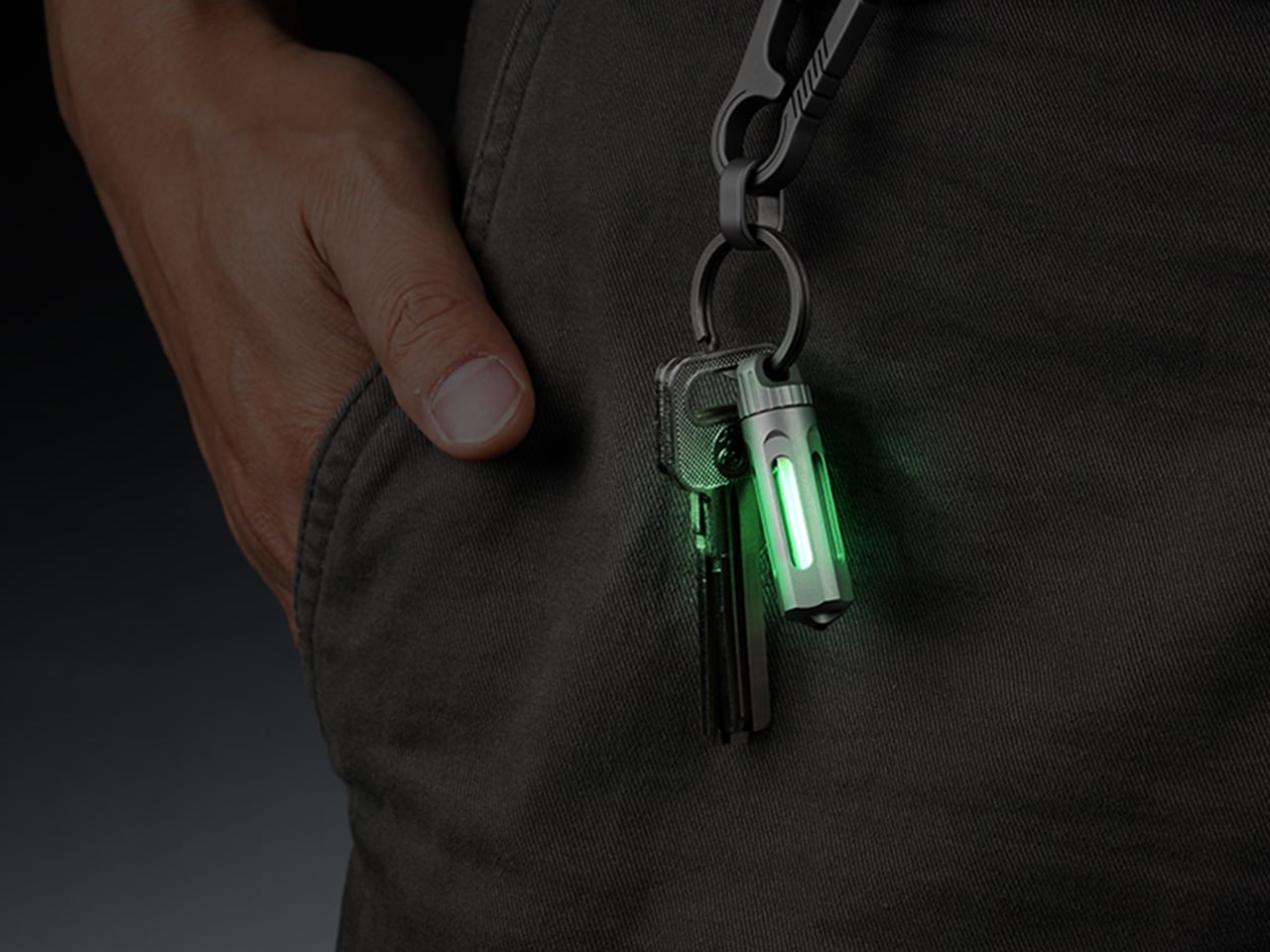
A tritium vial needs no battery, no button, no charging cable. It produces light through a sealed self-luminous reaction that continues for roughly twenty-five years at consistent brightness with zero input from you. The NoxTi packages that chemistry inside a CNC-machined Grade 5 titanium shell compact enough to ride alongside your house keys without adding meaningful weight. For fall camping, it gives you a minimum-weight emergency reference light that is always on and findable by feel in a pitch-black tent.
The design strips away everything that isn’t structural. Titanium resists corrosion without adding weight, and the sealed tritium element requires zero maintenance across its full service life. It won’t flood a campsite with task-level light, and it isn’t designed to. What it gives you is orientation in the dark at zero battery cost: the thing you reach for when the main light is dead, and the spare has sunk to the bottom of a bag you simply can’t see into.
What we like:
Twenty-five-year self-luminous service life with zero battery dependency
Grade 5 titanium construction that handles weather and impact without corroding
What we dislike:
Ambient glow only, not functional as a task or reading light
Visibility is subtle in anything less than near-complete darkness
6. VSSL Camp Supplies
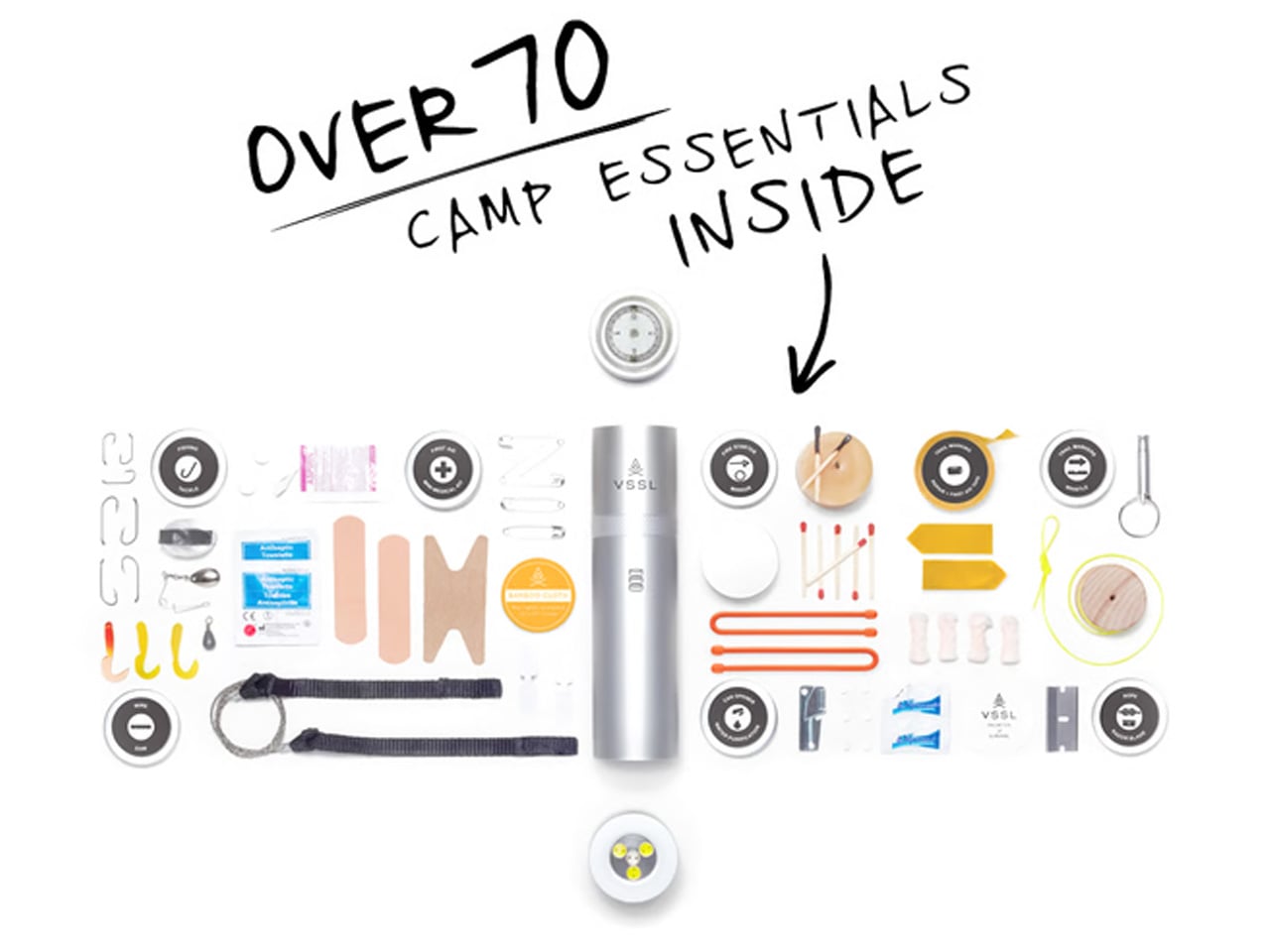
The VSSL Camp Supplies cylinder reads as a storage object until you open it, at which point it reads as a complete kit in miniature. The machined aluminum shell packs tight and absorbs impact without compromising the contents. The canister format keeps small essentials organized: the kind of gear that typically scatters across the bottom of a bag and turns a simple task into a ten-minute search at exactly the wrong moment. On a fall trip with shorter days and less margin for fumbling, knowing where everything is has real value.
VSSL built this one with practical priorities in mind, and that focus shows in the execution. No features are included for novelty value. Every element in the kit is there because someone eventually needed it at a campsite and didn’t have it. The cylinder integrates with any pack layout without creating pressure points or awkward bulk. It disappears into your system until the moment it’s relevant, which is the highest compliment you can give a piece of camp gear.
What we like:
Canister format keeps small essentials organized and protected without scattering across the pack
Machined aluminum shell handles rough packing without compromising the contents
What we dislike:
Fixed form factor means the contents aren’t easily customizable to your specific kit
The cylinder shape rolls in open pack pockets without a tether
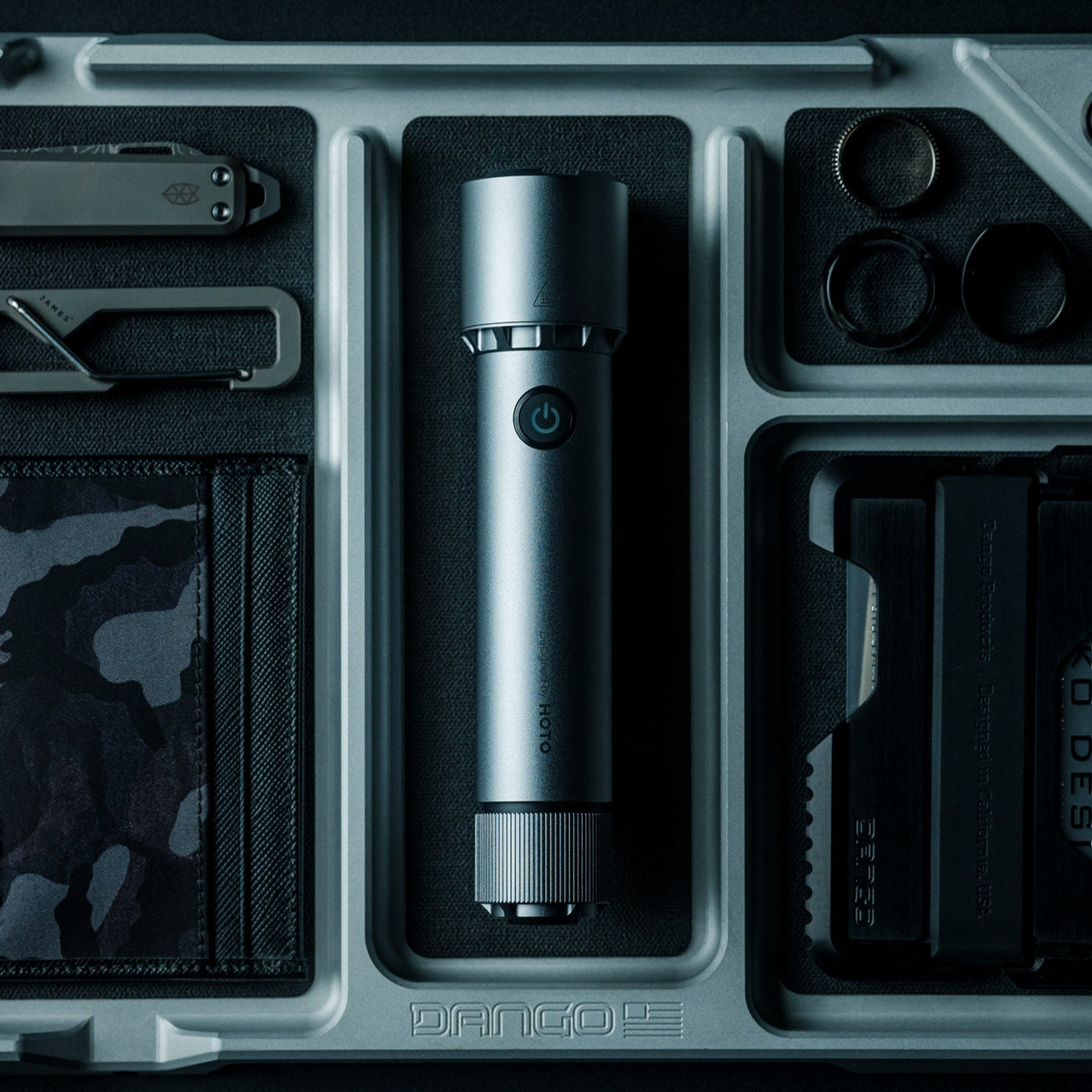
7. Blackout Beam Tactical Flashlight
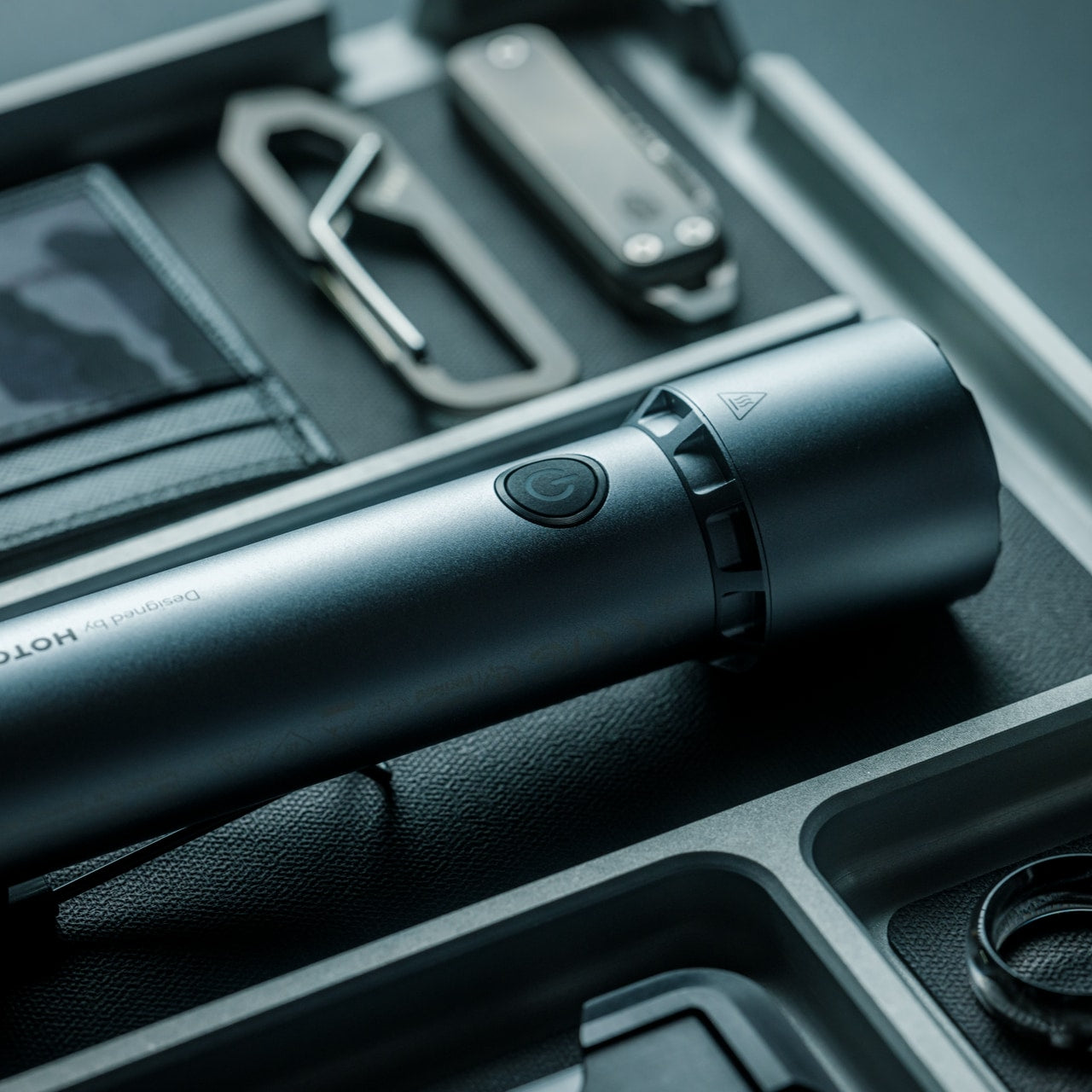
Not every camp scenario calls for maximum throw distance. The Blackout Beam approaches flashlight design from the tactical side of the category, prioritizing controlled high-output illumination and a grip profile engineered for extended handheld use. The body handles the conditions you would expect from a product built for demanding environments: weather resistance, impact tolerance, and a switching mechanism that works reliably with cold hands or gloves on. For fall trips where temperatures drop sharply after sundown, operational reliability matters as much as any output specification.
What separates a tactical light from a conventional camp flashlight is the intentionality of its beam control. The Blackout Beam gives you deliberate, high-output illumination in a format that doesn’t compromise build quality to hit a price point. It covers the scenarios where you want a serious grip-ready handheld source rather than a mounted lantern or a clipped EDC piece. Its presence in the kit means you’re covered across every kind of darkness fall camping tends to produce, from a tent perimeter check to an unexpected late-night navigation call.
Tactical grip profile designed for extended handheld use and reliable cold-weather operation
Controlled output that fills a distinct role from the other lights in this lineup
What we dislike:
Bulkier than EDC flashlight alternatives at comparable output levels
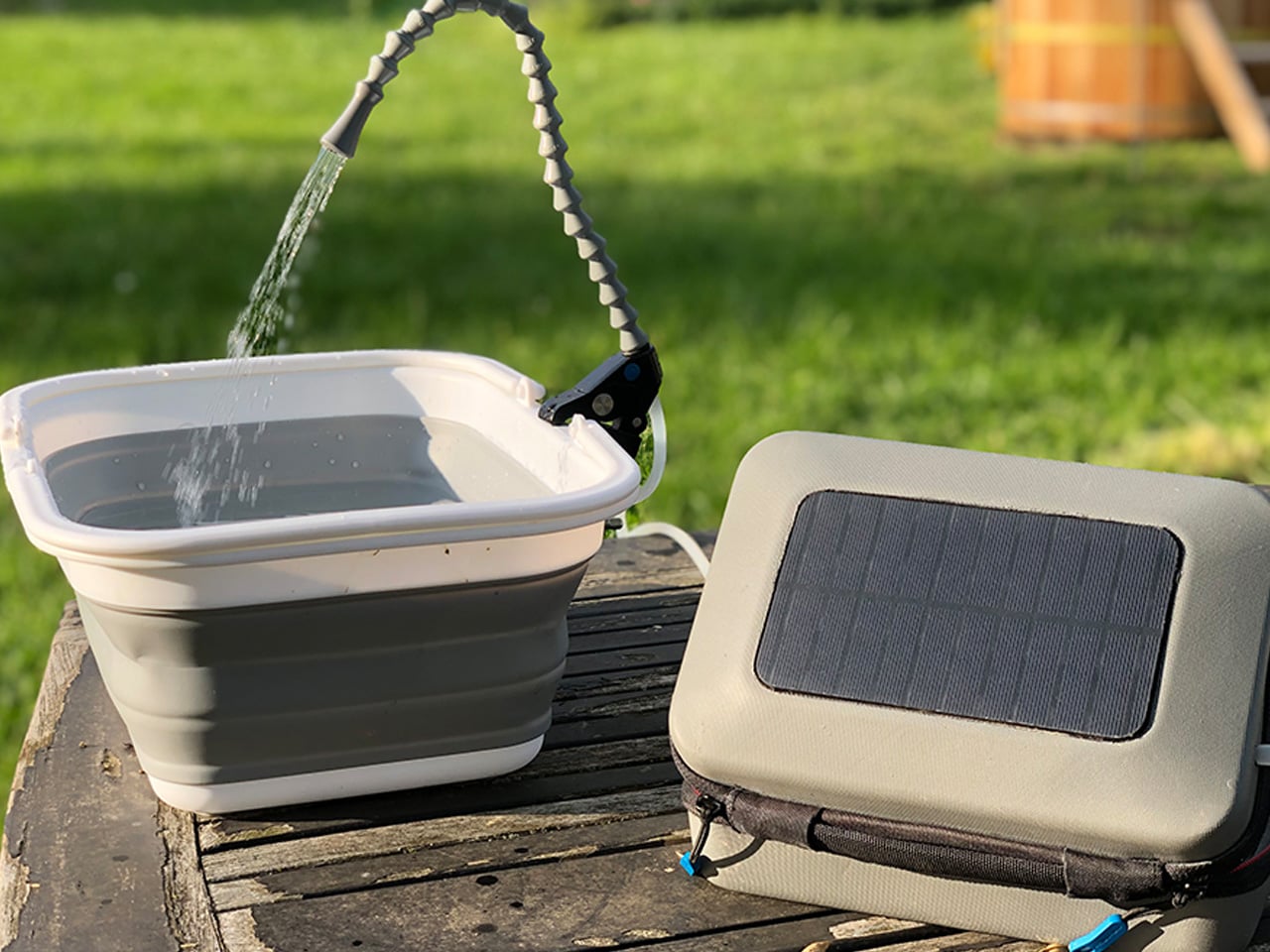
8. GoSun Flow Solar Water Purifier
Water is the one thing you can’t improvise on a backcountry trip, and most solutions to that problem add significant bulk or require chemical inputs that change the taste of everything you drink. The GoSun Flow approaches purification differently, using solar power to drive the filtration process rather than hand pressure or chemical treatment. For fall camping, where natural water sources are abundant but treatment capacity matters, having a system that runs on available sunlight removes a critical dependency from your daily camp routine.
The design keeps the process simple enough to become automatic after a single use. Solar input drives the pump, filtered water comes out, and the system resets without cartridge replacement on the trail. That frictionless operation is what makes it genuinely valuable on a multi-day trip rather than just functional on a weekend one. Paired with the power station and stove elsewhere in this lineup, it closes the last real gap in a fall camp setup built around reducing single-use dependencies.
What we like:
Solar-powered filtration removes both the physical effort of hand-pump systems and the taste compromise of chemical treatment
Intuitive operation that becomes automatic after a single use, with no mid-trail cartridge management
What we dislike:
Solar input means filtration rate slows on overcast fall days when you may need it most
Higher upfront cost than conventional filter or chemical treatment alternatives
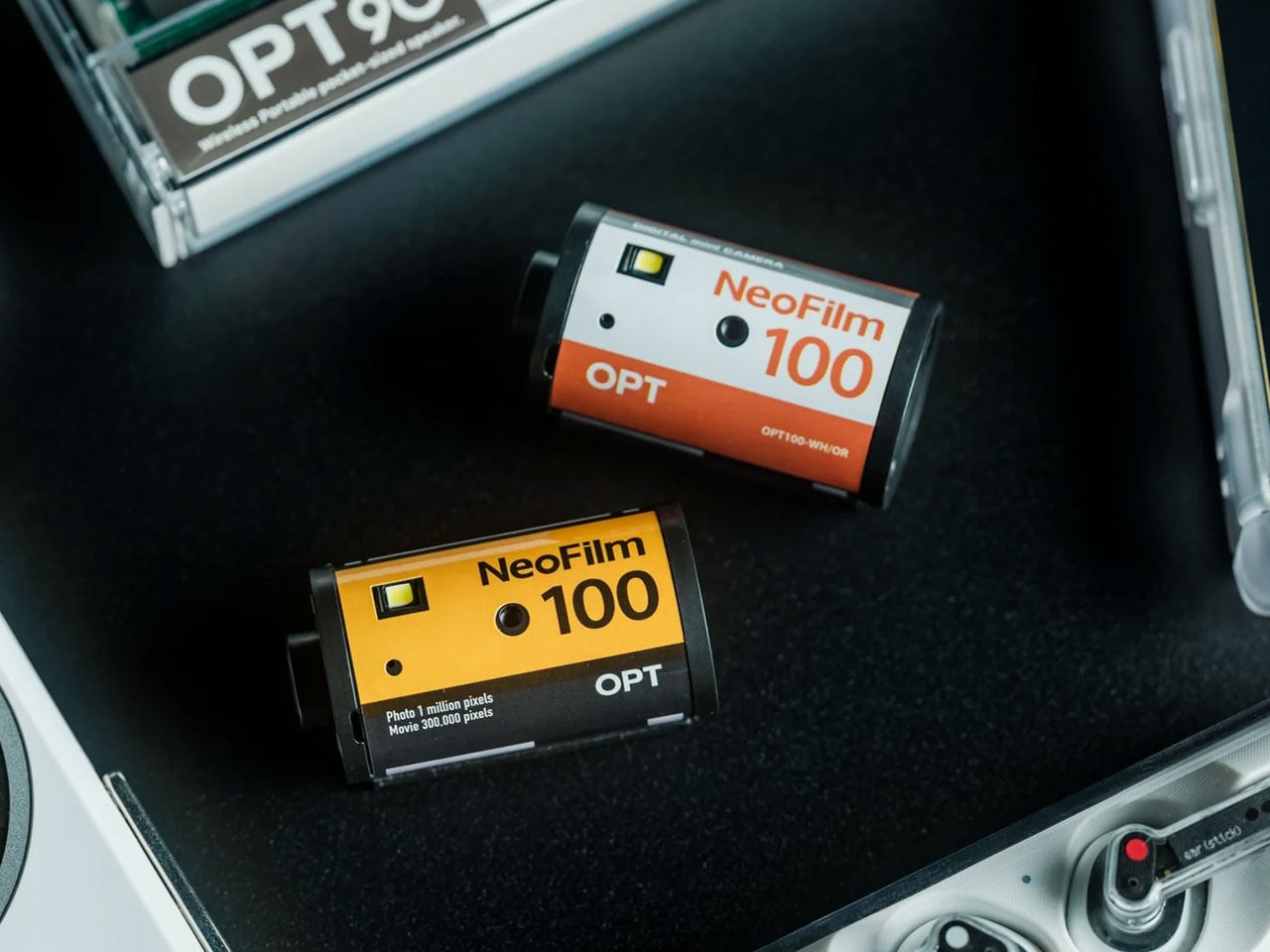
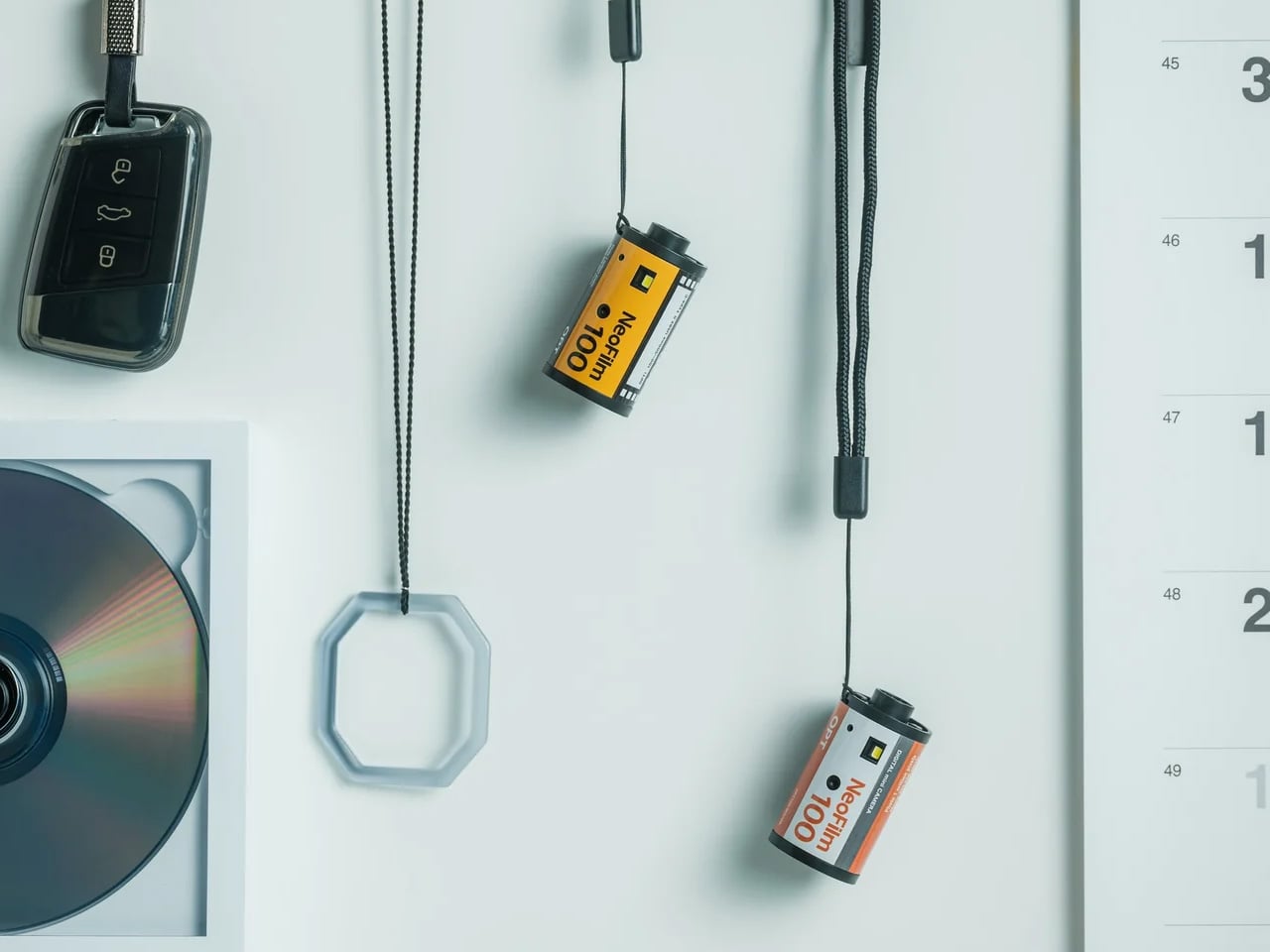
9. Analog Capsule Camera
The case for bringing an analog camera on a fall camping trip isn’t nostalgia. It’s constraint. Shooting on film removes the infinite-scroll mentality from the act of taking photographs, leaving you with a fixed frame count and the awareness that each exposure carries a real cost. The Analog Capsule Camera distills that discipline into a form compact enough to justify the carry weight without feeling like a gear compromise. For a trip where the goal is presence rather than documentation, it reframes what taking a photograph actually means.
The capsule format is the right choice for camping specifically. It packs without bulk, survives the light impacts that would concern you with a more complex camera body, and requires no battery management across the full length of the trip. Shooting on film produces a different quality of attention to light and framing than digital capture allows. The images from a fall trip tend to feel like artifacts of the experience rather than a record of it, and that difference is worth more than any specification printed on the box.
Film constraint encourages intentional, presence-first shooting that changes how you experience the trip
No battery dependency across the full trip length
What we dislike:
Film stock and development add an ongoing cost beyond the initial purchase price
No image review between exposures
Pack Smart, Go Further
Fall camping asks different things from your gear than summer does. The days are shorter, temperatures drop faster, and the margin for equipment failure narrows when conditions turn. Each pick on this list was chosen because it performs in that specific context without adding unnecessary complexity. Solving one real problem in a considered way turns out to be a narrower category than it sounds when you’re standing in front of a gear wall deciding what actually deserves a slot in the bag.
Most of them also look good enough to live on a shelf between trips. That’s a small thing until you’re deciding what to pack, and then it becomes a useful filter: gear that integrates into daily life tends to be gear you actually carry. Pick two or three that address the specific gaps in your current kit and build from there. Fall is short. The right gear makes it feel considerably longer than it is.
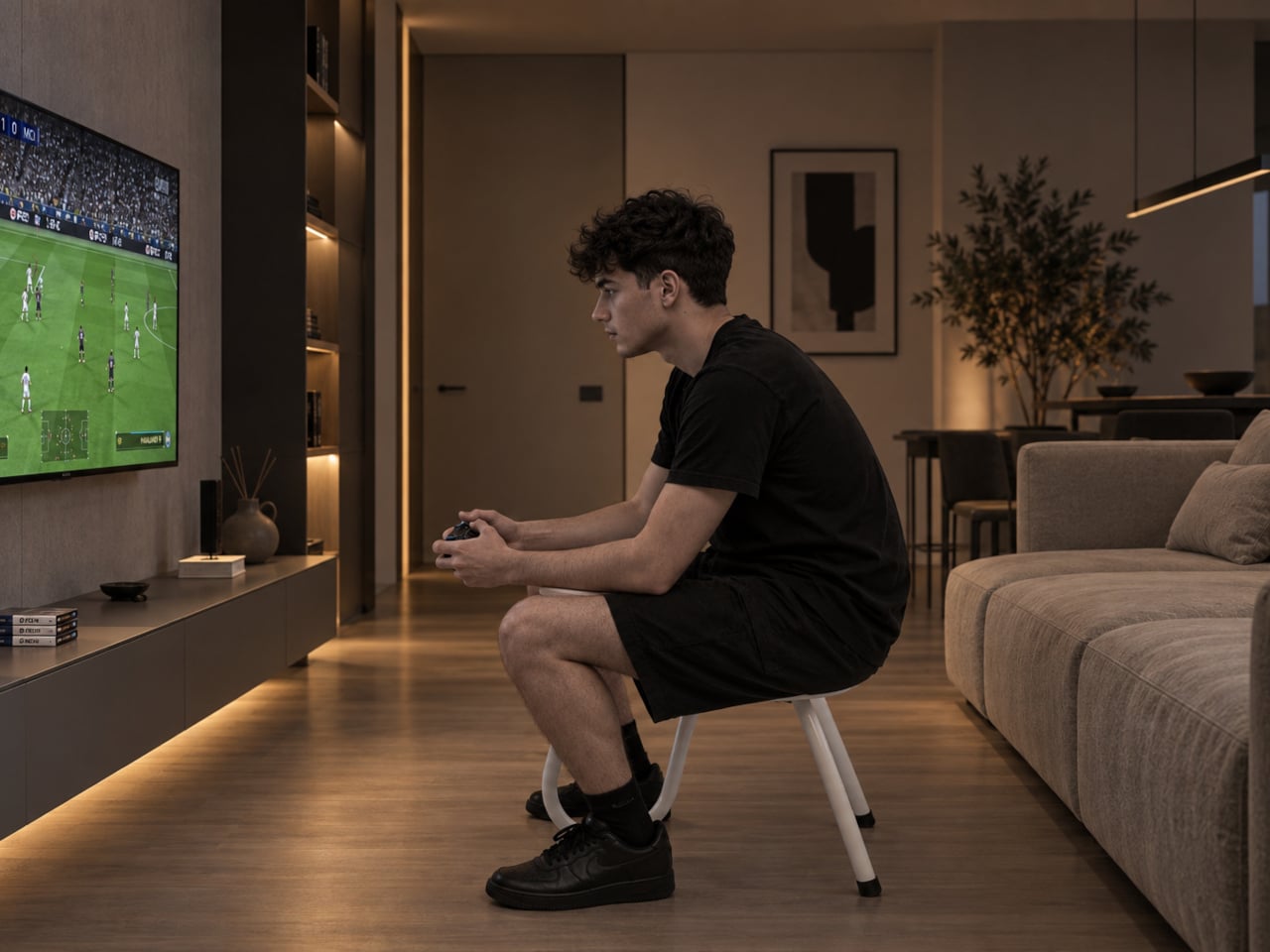
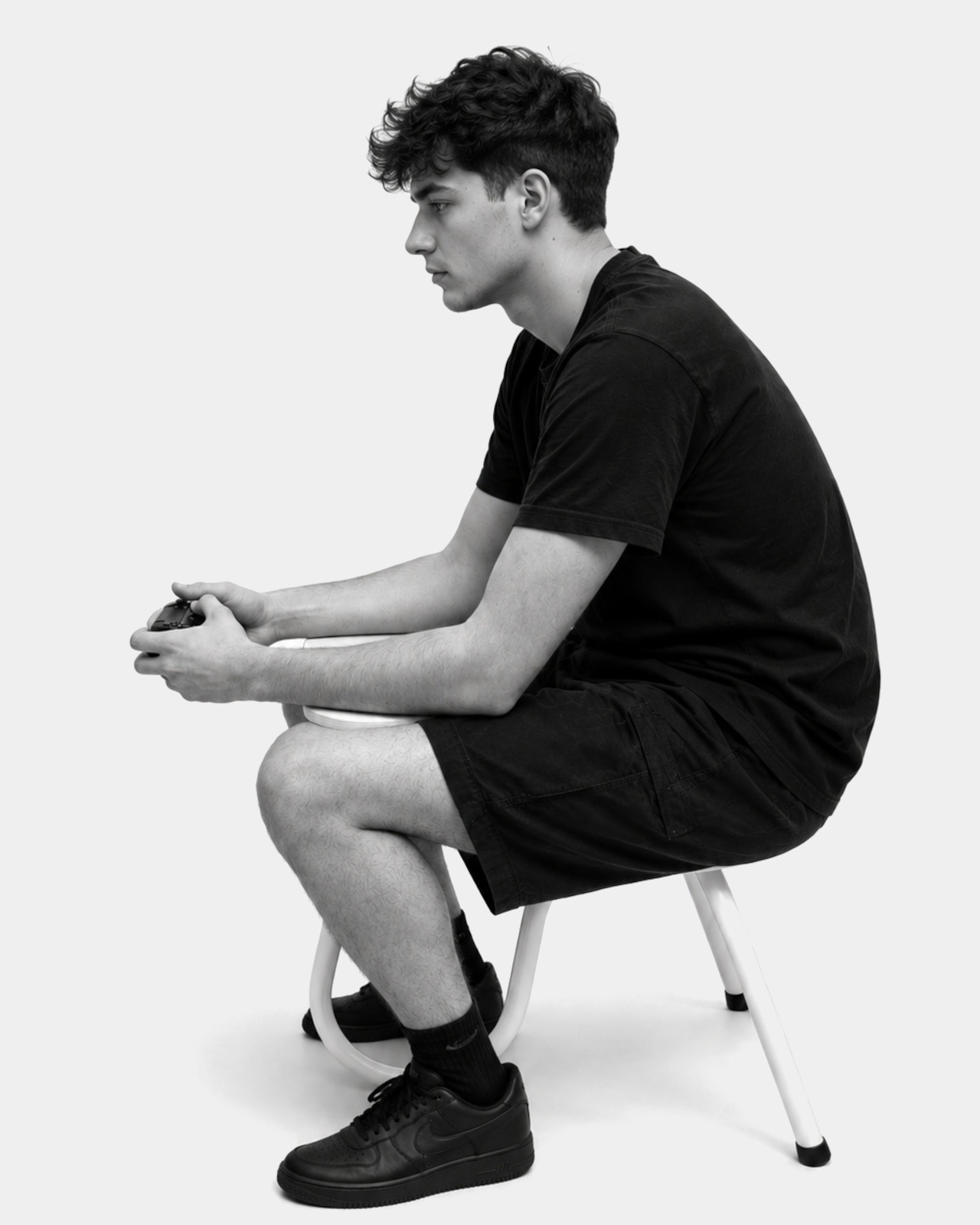
Anyone who’s spent a tense hour of competitive gaming knows the posture without ever naming it: leaning forward, elbows braced against the thighs, spine curved toward the screen like the controller demands it. Uplay starts from that exact unconscious habit rather than fighting it. Instead of asking players to sit properly, it builds a stool specifically shaped around the slouch competitive gaming already produces on its own.
Most gaming chairs still borrow their DNA from office seating or racing simulator rigs, neither of which was ever built around a controller-holding body. Uplay skips that inherited logic entirely, starting instead from actual hand position, actual posture, and how a player’s body relates to a screen a few feet away. That’s a narrower, more specific starting point than most furniture in this category bothers to consider.
That posture came with a real cost before Uplay existed. Hours spent bracing elbows against legs leave pressure marks and genuine discomfort, the kind that quietly ends a gaming session before the match does. A search across furniture retailers and marketplaces turned up nothing built to solve that specific problem, which is what pushed this concept from personal annoyance into an actual design brief worth pursuing.
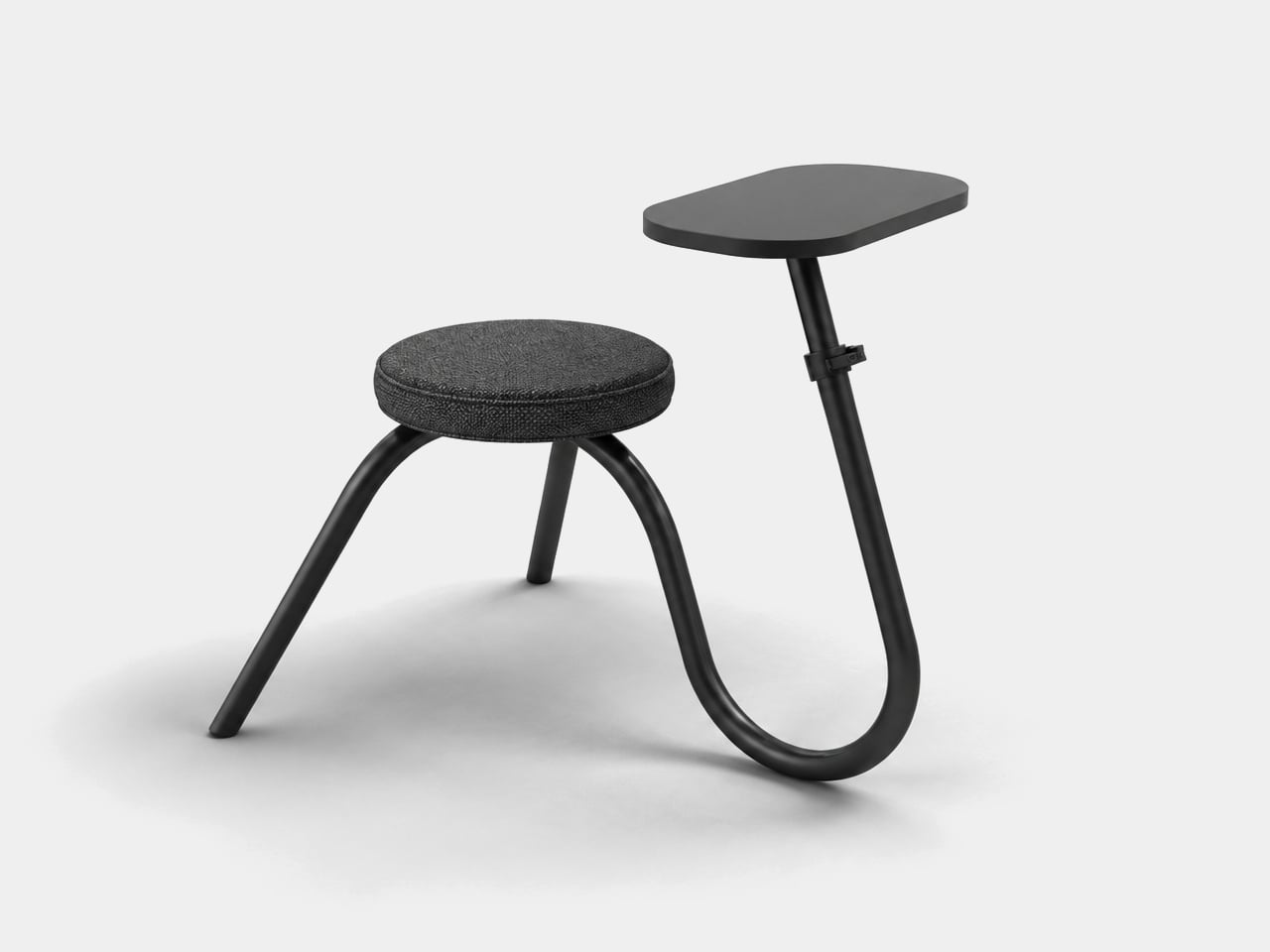
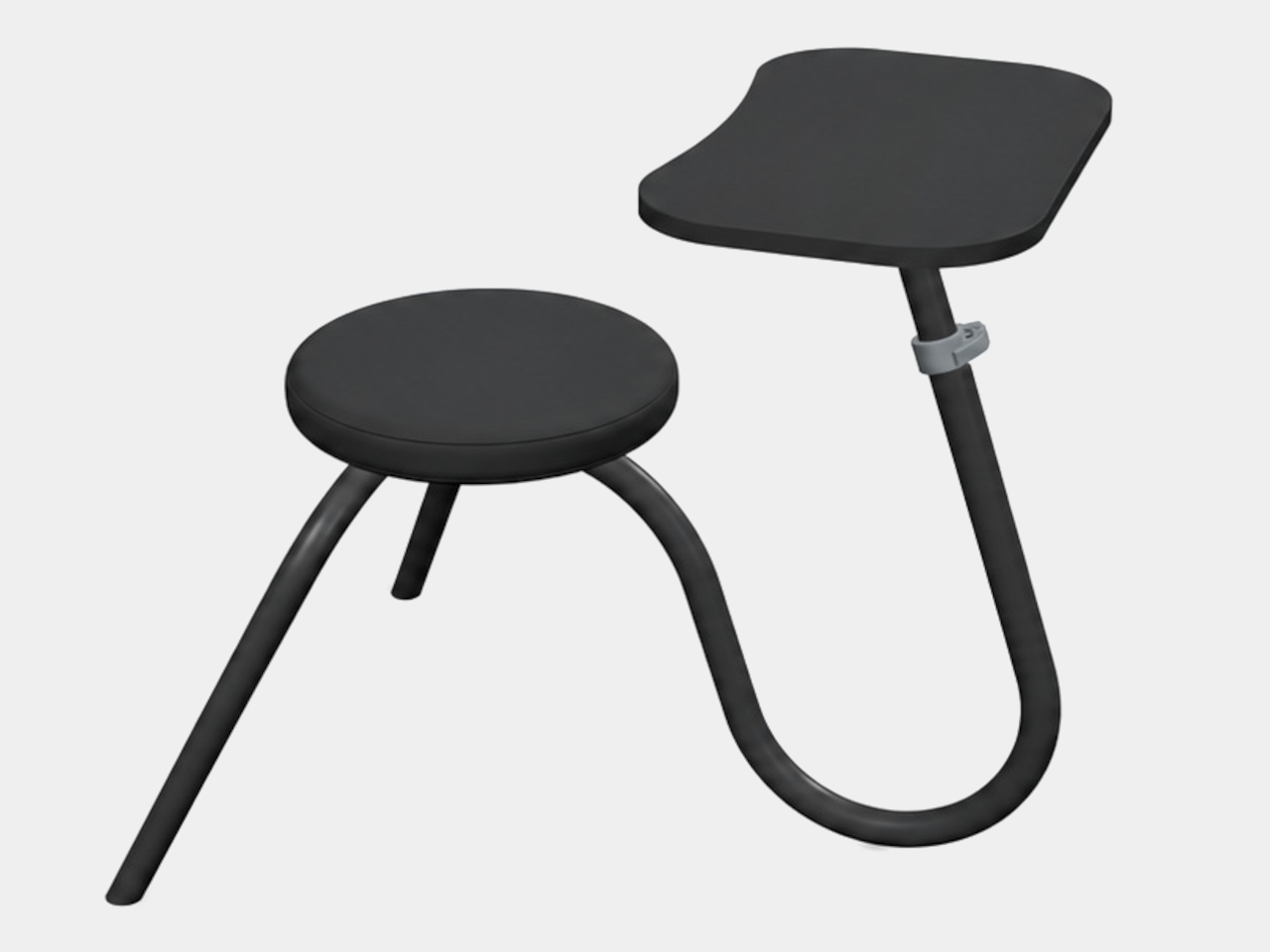
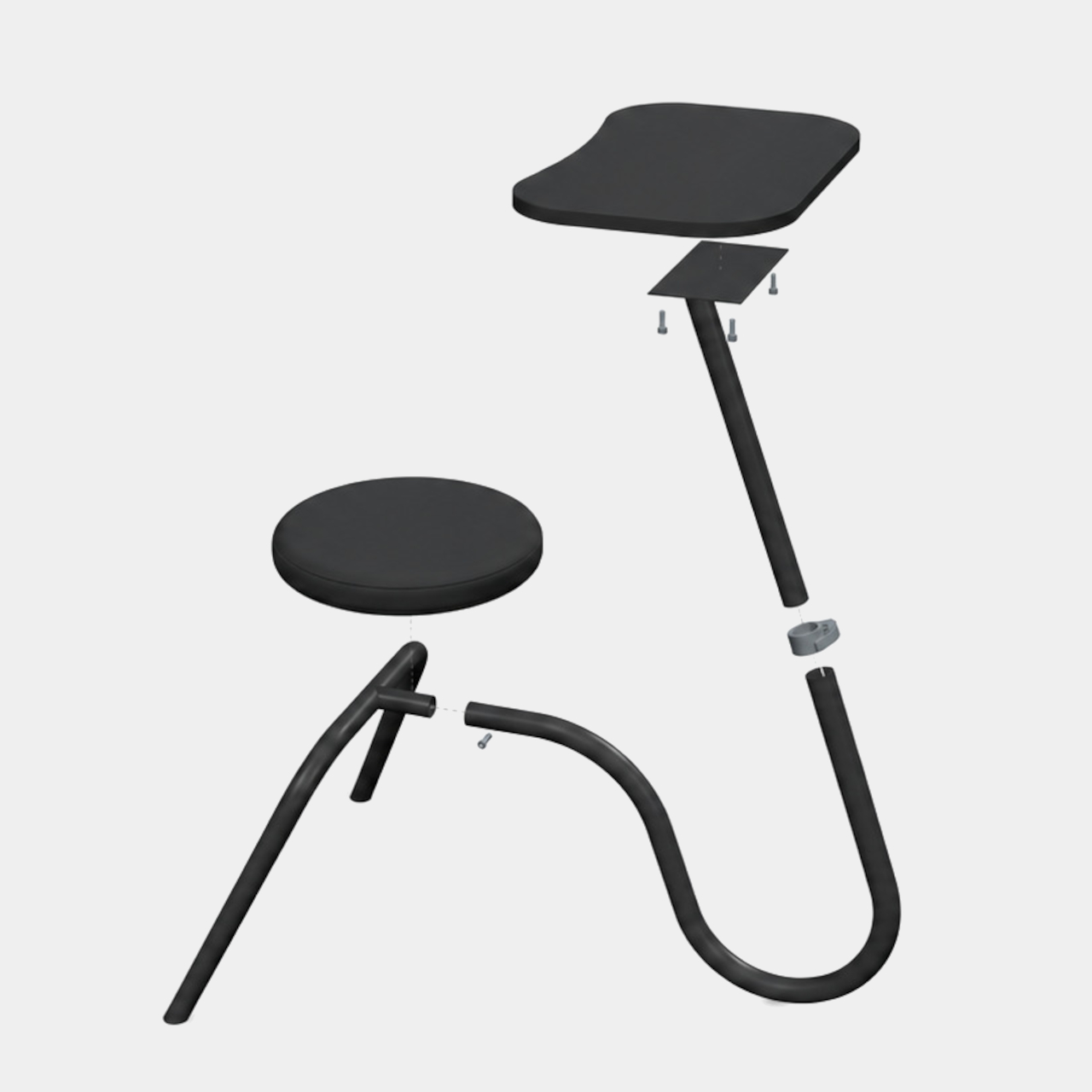
The solution reads deceptively simple: a round seat, a tubular frame, and a tabletop positioned just ahead of the sitter. What makes it work is that both surfaces share one continuous bent tube rather than existing as separate pieces bolted together. That single curve carries weight from the tripod legs up into the armrest’s support column, turning what looks like two objects into one structurally unified piece of furniture.
Height adjustment borrows hardware from an entirely different category of design. An eccentric clamp, the same mechanical principle used to secure a bicycle seat post, lets a lever release the tabletop’s support column, slide it to a new height, and lock it back down. That borrowed mechanism means the armrest can sit exactly where a specific body and a specific controller grip actually need it, rather than settling for one fixed compromise height.
Nothing about Uplay stays permanently assembled either. The seat, the tabletop, and the frame elements all separate into individual components by design, not as an afterthought for shipping. That knock-down structure means a gaming setup that lives in a corner during a match can collapse down small enough to slide under a bed or into a closet once the session ends, a detail that matters more in small apartments than any spec sheet suggests.
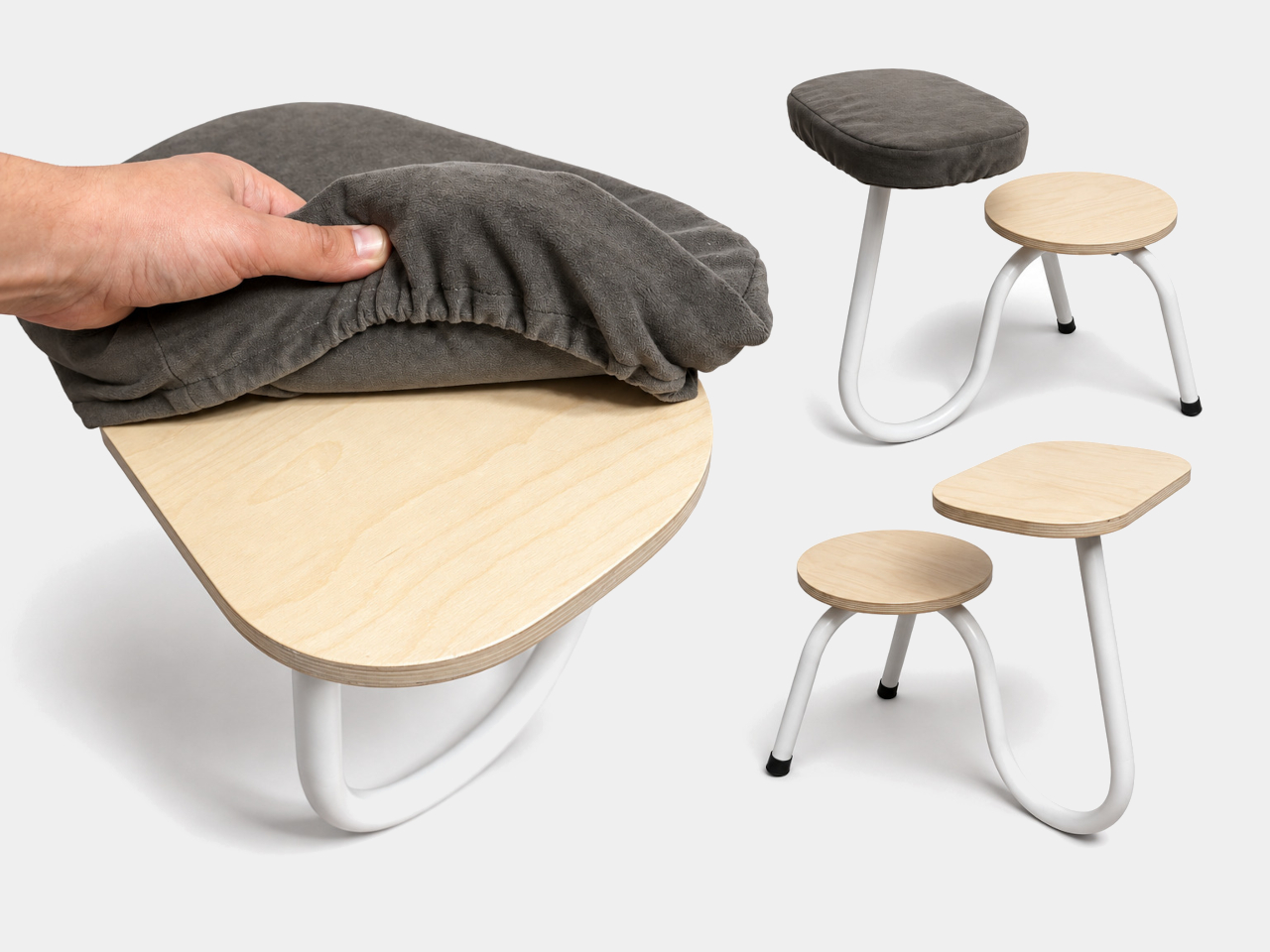
Materials extend beyond a single fixed look. Some versions pair painted steel tubing with a plain plywood tabletop and seat, left exposed in a natural wood tone. Others wrap that same plywood in a soft, removable fabric slipcover, turning a utilitarian frame into something that can match a couch instead of looking bolted on from a hardware store. Either way, the underlying structure and adjustment mechanism stay identical.
Sit on it without touching the tabletop at all, and Uplay works as an ordinary low stool; nothing about its shape forces the armrest into use. That flexibility matters because a gaming session rarely stays static for hours straight. A player might brace forward through a tense match, then lean back and set the controller down entirely, all without needing to swap furniture or leave the room to find a different chair.