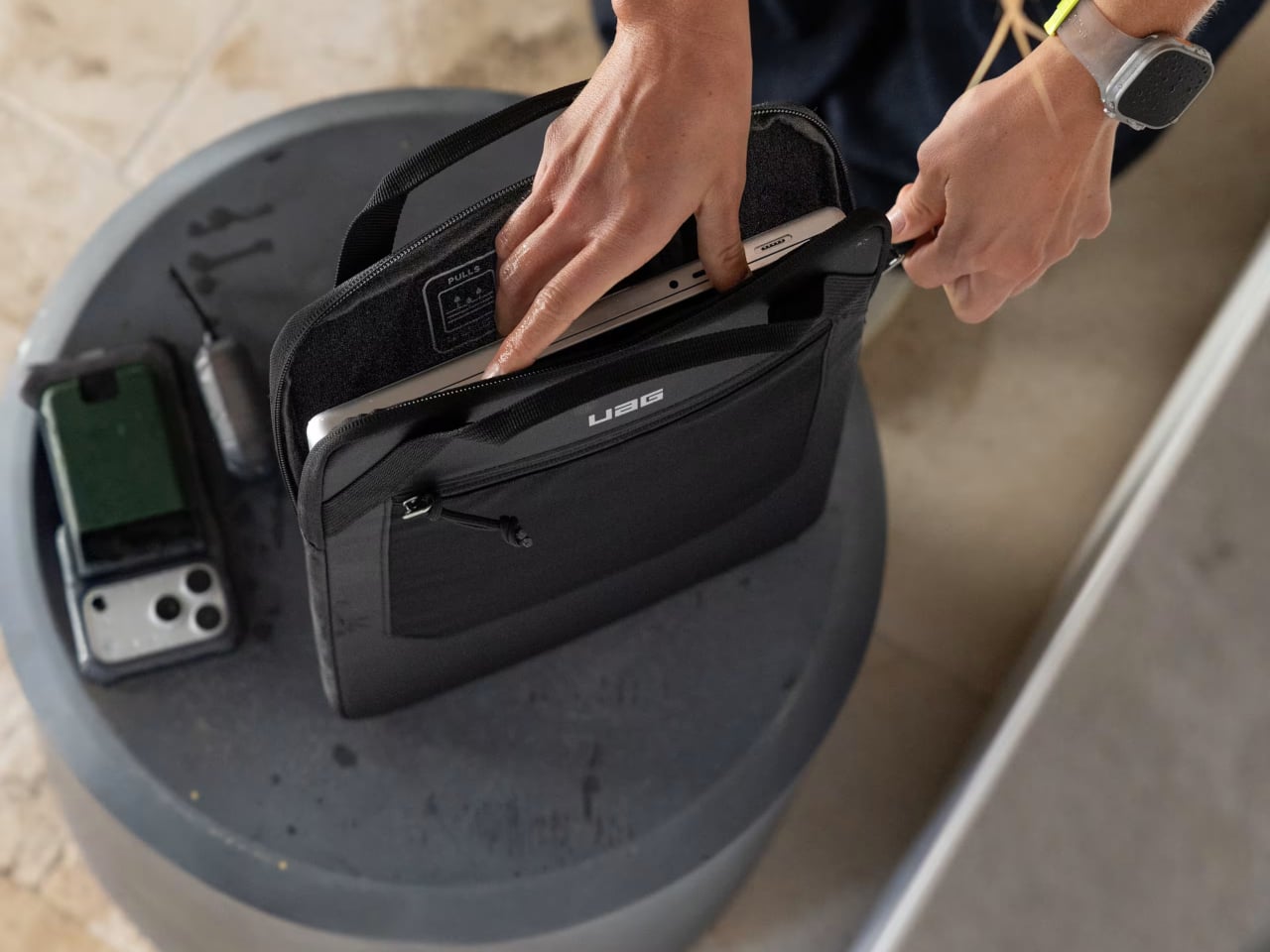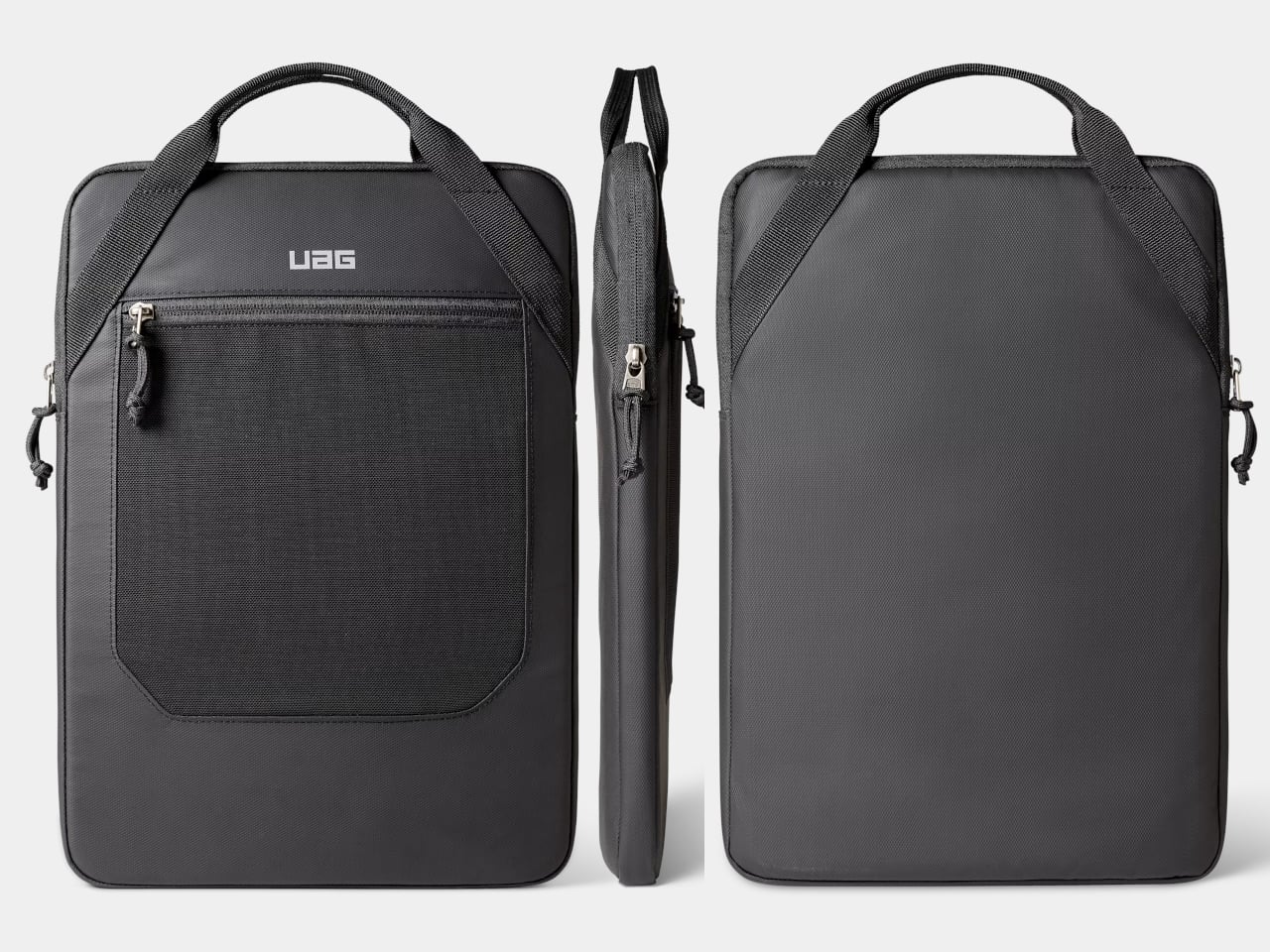
A lot of work now happens on beds, sofas, and in hotel rooms, with laptops balanced on knees and chargers snaking across blankets. Most lap desks are flimsy plastic trays that solve heat and stability but do nothing for clutter, leaving pens, earbuds, and phones scattered around you. The Arlo Skye Stowaway Lap Desk is a piece of travel-inspired furniture that tries to make mobile work feel less improvised and more intentional.
The Stowaway Lap Desk 19 is a compact mobile workstation built around a white-oak work surface and a cushioned base. It is sized for a 16-inch laptop, with room for a mouse or notebook, and designed to move between bed, sofa, and carry-on without looking like office gear. The defining move is the hidden storage built into the desk itself, turning it into a portable drawer for your laptop and everyday tools.
A slot along the back edge holds a tablet or phone upright, turning the lap desk into a small command center with multiple screens. The oak surface is framed by a low lip on three sides, which keeps devices and pens from sliding off when you shift position. The result is a stable, furniture-like platform that feels more like a small table than a tray, with enough space to spread out without everything falling into the blankets.
The top opens to reveal a compartment large enough for a laptop, tablet, and flat accessories. That means when you are done working, everything can live inside the desk instead of being scattered across the bed or sofa. A cut-out doubles as a cable pass-through, so you can charge devices while they are tucked away, keeping cords from tangling around your legs or snagging on bedding when you move.
The microbead cushion attached to the underside conforms to your lap and lifts the wooden surface off your legs. It helps with ventilation and spreads weight more evenly than a hard board. Some reviewers find microbeads firmer than expected, but the combination of cushion and wood still feels more considered than a bare tray or a laptop directly on your knees, especially during longer work sessions that stretch past an hour.
The lap desk doubles as a side table or serving tray when you are not working, holding breakfast, snacks, or a book without needing a separate piece of furniture. The oak top and dark cushion let it blend into a bedroom or living room without screaming office, so it can live out in the open instead of being hidden in a closet between uses, ready to grab whenever you need it.
The Stowaway Lap Desk changes the experience of working away from a desk. It corrals your tools, gives them a defined home, and makes it easier to pack up in one motion when you are done. The idea of a lap desk that behaves like a small, self-contained workstation feels like a welcome upgrade over the usual plastic slab, especially when your office is often a bed, sofa, or hotel room and you need every piece of gear to earn its footprint.
Chromebooks have quietly become some of the most useful laptops for everyday tasks. They boot fast, stay secure with automatic updates and often cost far less than traditional Windows or Mac machines. Modern Chromebooks also look and feel better than ever, with brighter screens, stronger processors and designs that range from simple clamshells to flexible 2-in-1s.
Whether you need a laptop for school, streaming or a portable option for travel, there is likely a Chromebook that fits your routine. After testing the top models, we picked the best Chromebooks you can buy today to help you find something that balances performance, price and reliability.
What is Chrome OS, and why would I use it over Windows?
This is probably the number one question about Chromebooks. There are plenty of inexpensive Windows laptops on the market, so why bother with Chrome's operating system? Glad you asked. For me, the simple and clean nature of Chrome OS is a big selling point. Chrome OS is based on Google’s Chrome browser, which means most of the programs you can run are web based. There’s no bloatware or unwanted apps to uninstall like you often get on Windows laptops, it boots up in seconds, and you can completely reset to factory settings almost as quickly.
Of course, simplicity will also be a major drawback for some users. Not being able to install native software can be a dealbreaker if you’re a video editor or software developer. But there are also plenty of people who do the majority of their work in a web browser, using tools like Google Docs and spreadsheets for productivity without needing a full Windows setup.
Google and its software partners are getting better every year at supporting more advanced features. For example, Google added video editing tools to the Google Photos app on Chromebooks – it won’t replace Adobe Premiere, but it should be handy for a lot of people. Similarly, Google and Adobe announced Photoshop on the web in 2023, something that brings much of the power of Adobe’s desktop apps to Chromebooks.
Chromebooks can also run Android apps, which greatly expands the amount of software available. The quality varies widely, but it means you can do more with a Chromebook beyond just web-based apps. For example, you can install the Netflix app and save videos for offline watching. Other Android apps like Microsoft Office and Adobe Lightroom are surprisingly capable as well. Between Android apps and a general improvement in web apps, Chromebooks are more than just portals to a browser.
What do Chromebooks do well?
Put simply, web browsing and really anything web based. Online shopping, streaming music and video and using various social media sites are among the most common daily tasks people do on Chromebooks. As you might expect, they also work well with Google services like Photos, Docs, Gmail, Drive, Keep and so on. Yes, any computer that can run Chrome can do that too, but the lightweight nature of Google Chrome OS makes it a responsive and stable platform.
As I mentioned before, Chrome OS can run Android apps, so if you’re an Android user you’ll find some nice ties between the platforms. You can get most of the same apps that are on your phone on a Chromebook and keep info in sync between them. You can also use some Android phones as a security key for your Chromebook or instantly tether your 2-in-1 laptop to use mobile data.
Google continues to tout security as a major differentiator for Chromebooks, and it’s definitely a factor worth considering. Auto-updates are the first lines of defense: Chrome OS updates download quickly in the background and a fast reboot is all it takes to install the latest version. Google says that each webpage and app on a Chromebook runs in its own sandbox as well, so any security threats are contained to that individual app. Finally, Chrome OS has a self-check called Verified Boot that runs every time a device starts up. Beyond all this, the simple fact that you generally can’t install traditional apps on a Chromebook means there are fewer ways for bad actors to access the system.
If you’re interested in Google’s Gemini AI tools, a Chromebook is a good option as well. Every Chromebook in our top picks comes with a full year of Google’s AI Pro plan — this combines the usual Google One perks like 2TB of storage and 10 percent back in purchases from the Google Store with a bunch of AI tools. You’ll get access to Gemini in Chrome, Gmail, Google Docs and other apps, Gemini 2.5 Pro in the Gemini app and more. Given that this plan is $20/month, it’s a pretty solid perk. Chromebook Plus models also include tools like the AI-powered “help me write,” the Google Photos Magic Editor and generative AI backgrounds you can create by filling in a few prompts.
As for when to avoid Chromebooks, the answer is simple: If you rely heavily on a specific native application for Windows or a Mac, chances are you won’t find the exact same option on a ChromeOS device. That’s most true in fields like photo and video editing, but it can also be the case in law or finance. Plenty of businesses run on Google’s G suite software, but more still have specific requirements that a Chromebook might not match. If you’re an iPhone user, you’ll also miss out on the way the iPhone easily integrates with an iPad or Mac. For me, the big downside is not being able to access iMessage on a Chromebook.
Finally, gaming Chromebooks are not ubiquitous, although they’re becoming a slightly more reasonable option with the rise of cloud gaming. In late 2022, Google and some hardware partners announced a push to make Chromebooks with cloud gaming in mind. From a hardware perspective, that means laptops with bigger screens that have higher refresh rates as well as optimizing those laptops to work with services like NVIDIA GeForce Now, Xbox Game Pass and Amazon Luna. You’ll obviously need an internet connection to use these services, but the good news is that playing modern games on a Chromebook isn’t impossible. You can also install Android games from the Google Play Store, but that’s not what most people are thinking of when they want to game on a laptop.
What are the most important specs for a Chromebook?
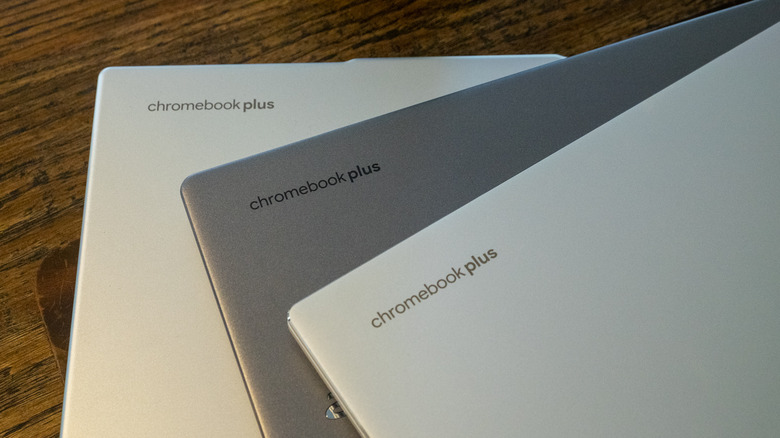
Chrome OS is lightweight and runs well on fairly modest hardware, so the most important thing to look for might not be processor power or storage space. But Google made it easier to get consistent specs and performance late last year when it introduced the Chromebook Plus initiative. Any device with a Chromebook Plus designation meets some minimum requirements, which happen to be very similar to what I’d recommend most people get if they’re looking for the best laptop they can use every day.
Chromebook Plus models have at least a 12th-gen Intel Core i3 processor, or an AMD Ryzen 3 7000 series processor, both of which should be more than enough for most people. These laptops also have a minimum of 8GB of RAM and 128GB of SSD storage, which should do the trick unless you’re really pushing your Chromebook. All Chromebook Plus models have to have a 1080p webcam, which is nice in these days of constant video calling, and they also all have to have at least a 1080p FHD IPS screen.
Of course, you can get higher specs or better screens if you desire, but I’ve found that basically everything included in the Chromebook Plus target specs makes for a very good experience.
Google has an Auto Update policy for Chromebooks as well, and while that’s not exactly a spec, it’s worth checking before you buy. Last year, Google announced that Chromebooks would get software updates and support for an impressive 10 years after their release date. This support page lists the Auto Update expiration date for virtually every Chromebook ever, but a good rule of thumb is to buy the newest machine you can to maximize your support.
How much should I spend on a Chromebook?
Chromebooks started out notoriously cheap, with list prices often coming in under $300. But as they’ve gone more mainstream, they’ve transitioned from being essentially modern netbooks to some of the best laptops you’ll want to use all day. As such, prices have increased: At this point, you should expect to spend at least $400 if you want a solid daily driver. There are still many Chromebooks out there available at a low price that may be suitable as secondary devices, but a good Chromebook that can be an all-day, every-day laptop will cost more. But, notably, even the best Chromebooks usually cost less than the best Windows laptops, or even the best “regular” laptops out there.
There are a handful of premium Chromebooks that approach or even exceed $1,000 that claim to offer better performance and more processing power, but I don’t recommend spending that much. Generally, that’ll get you a better design with more premium materials, as well as more powerful internals and extra storage space, like a higher-capacity SSD. Of course, you also sometimes pay for the brand name. But, the specs I outlined earlier are usually enough, and there are multiple good premium Chromebooks in the $700 to $800 range at this point.
This was our pick for best overall Chromebook for years, and it’s still one of the better options you can find for a basic laptop that doesn’t break the bank. It’s a few years older than our current top pick, so its processor isn’t fresh and it only has 128GB of storage. It also won’t get updates from Google as long as newer models. But it still combines a nice screen and keyboard with solid performance. This laptop typically costs $500, which feels high given its a few years old and Acer’s Chromebook Plus 514 is only $350, but if you can find it on sale and can’t find the Acer it’s worth a look.
ASUS CX15
This Chromebook is extremely affordable – you can currently pick it up for only $159 at Walmart. That price and its large 15.6-inch screen is mainly what it has going for it, as the Intel Celeron N4500 chip and 4GB of RAM powering it does not provide good performance if you’re doing anything more than browsing with a few tabs open. If you’re shopping for someone with extremely basic needs and have a small budget, the CX15 might fit the bill. But just be aware that you get what you pay for.
Samsung Galaxy Chromebook Plus
Samsung’s Galaxy Chromebook Plus, released in late 2024, is one of the more unique Chromebooks out there. It’s extremely thin and light, at 0.46 inches and 2.6 pounds, but it manages to include a 15.6-inch display in that frame. That screen is a 1080p panel that’s sharp and bright, but its 16:9 aspect ratio made things feel a bit cramped when scrolling vertically. Performance is very good, and the keyboard is solid, though I’m not a fan of the number pad as it shifts everything to the left. At $700 it’s not cheap, but that feels fair considering its size and capabilities. If you’re looking for a big screen laptop that is also super light, this Chromebook merits consideration, even if it’s not the best option for everyone.
This article originally appeared on Engadget at https://www.engadget.com/computing/laptops/best-chromebooks-160054646.html?src=rss
Your laptop can do anything, which increasingly means it’s optimized for nothing. This isn’t a new observation, but the solutions have mostly been software-based: distraction-blocking apps, focus modes, website blockers that you can disable the moment willpower falters. The Typeframe project takes a more permanent approach – build a computer that literally cannot do anything except let you write.
Jeff Merrick’s open-source writerdeck designs come in two flavors. The PX-88 is a desktop-style portable with a full keyboard and integrated screen, styled after the 1985 Epson PX-4 that inspired it. The PS-85 shrinks down to a 40% keyboard layout while maintaining that same retro-futuristic aesthetic. Both use Raspberry Pi boards as their brains, and both are documented with the kind of step-by-step detail that assumes you’ve never touched CAD software or soldered components together.
Designer: Jeff Merrick
For the uninitiated, the Epson PX-4 was a chunky CP/M portable that field engineers actually carried into the field, with swappable keyboards and modular components that could turn it into different tools for different jobs. It ran on batteries and had a tiny 40×8 character display that virtually expanded to 80×25. The appeal wasn’t raw computing power – it was that the thing did exactly what you needed and nothing more. Merrick’s designs capture that purposefulness while swapping in modern components that are actually available and affordable.
The community around writerdecks has been growing quietly alongside the broader cyberdeck movement. Where cyberdecks lean into the hacker aesthetic with exposed electronics and tactical mounting points, writerdecks prioritize the writing experience itself. There’s active discussion on Reddit’s r/cyberDeck forum, open-source software projects like WareWoolf and ZeroWriter built specifically for distraction-free writing, and a thriving market for vintage AlphaSmart Neo devices – basically the original writerdecks from the early 2000s that are still beloved for their springy keyboards and complete lack of internet connectivity.
Merrick freely admits this is his first project at this scale, and he’s documented it with that beginner perspective intact. The full documentation lives at typeframe.net, with all the CAD files and electronics details on GitHub. It’s the kind of project that invites participation rather than demanding expertise, which feels increasingly rare in maker spaces that sometimes forget not everyone solders for fun.
The broader question is whether dedicated writing devices actually help people write more. The answer seems to be yes, but not because of any technical magic. Sitting down at a machine that only does one thing creates a kind of ritual commitment. You’re not just opening a document – you’re physically moving to a different device that exists solely for this purpose. It’s closer to the experience of sitting down at a typewriter or picking up a pen, except what you write is instantly digital, searchable, and portable. The AlphaSmart Neo proved there’s real demand for this experience, and projects like Typeframe are making it accessible to anyone willing to spend a weekend with a soldering iron and some determination.
The budget laptop market has long been dominated by Chromebooks and entry-level Windows machines, but Apple may be about to crash the party. Reports indicate the tech giant is preparing to launch a $599 MacBook featuring the A18 Pro chip, offering desktop-class macOS performance at a price point that directly challenges competitors. If true, this could be Apple’s biggest strategic shift in the laptop space in over a decade.
The rumored device would mark a dramatic departure from Apple’s traditional pricing strategy, which has kept MacBooks firmly in premium territory. But with Chromebooks capturing the education market and budget Windows laptops satisfying casual users, Apple has watched from the sidelines as millions of potential customers chose competitors simply because the price of entry was too high. This move could change that calculus entirely.
Designer: Apple
The laptops could sport a colorful design, helping differentiate it from the more capable Air and Pro models.
The A18 Pro chip is the same processor that powers the iPhone 16 Pro, and Apple claims it delivers performance comparable to the M1 MacBook Air. That’s a legitimately capable chip for everyday computing tasks like web browsing, document editing, video streaming, and light photo work. You’re looking at a 12.9-inch display housed in what’s described as an ultra-thin, lightweight frame, with color options including silver, blue, pink, and yellow. The base model comes with 8GB of RAM, though there’s reportedly an option to upgrade to 16GB. It runs full macOS, which means you get access to the entire Apple ecosystem and software library, something Chromebooks fundamentally cannot offer.
But here’s where things get interesting, and where Apple’s compromises become obvious. No Thunderbolt ports. Limited external display support. That base 8GB of RAM is going to struggle with anything beyond basic multitasking. This machine is clearly designed for a specific user: students writing papers, casual users checking email and browsing the web, first-time Mac buyers who want to dip their toes into the ecosystem without dropping two grand. Apple isn’t trying to replace the MacBook Air or Pro with this device. They’re creating an entirely new category within their lineup, one that prioritizes accessibility over capability.
Spring 2026 puts this launch alongside the M5 MacBook Air, which will undoubtedly carry a higher price tag and more robust specs. Apple gets to segment their market cleanly: budget buyers get the A18 Pro MacBook, mainstream users get the M5 Air, and professionals stick with the Pro and Max configurations. Analysts are predicting this could boost MacBook shipments by up to 40 percent, which would be massive for a company that’s watched competitors dominate the sub-$700 laptop space for years.
There’s a real risk here that Apple cannibalizes their own iPad sales. Why would someone buy an iPad in the same price range when they could get a full laptop with macOS instead? The value proposition shifts dramatically when you’re comparing a tablet with accessories that cost more than this MacBook to an actual laptop with a keyboard included. Apple clearly thinks the trade-off is worth it, betting that bringing more people into the Mac ecosystem will pay dividends down the line when those users eventually upgrade to pricier models.
Convertible laptops with creative, flexible hinges are usually reserved for the premium end of the market, where prices climb well beyond what most people can comfortably afford. The Microsoft Surface Laptop Studio is a dream machine for designers and students. Still, its price tag puts it completely out of reach for anyone working with a tight budget or limited funds for technology investments that exceed a thousand dollars.
The NWNLAP H140S brings that unique pull-forward, 4-in-1 design to a much lower price point, around $500, depending on promotions and configurations you choose. It’s a laptop that looks the part and offers surprising versatility for everyday tasks, but also comes with a few trade-offs you’ll want to consider carefully before making a purchase. The design inspiration is clear, but so are the practical compromises.
Designer: NWNLAP
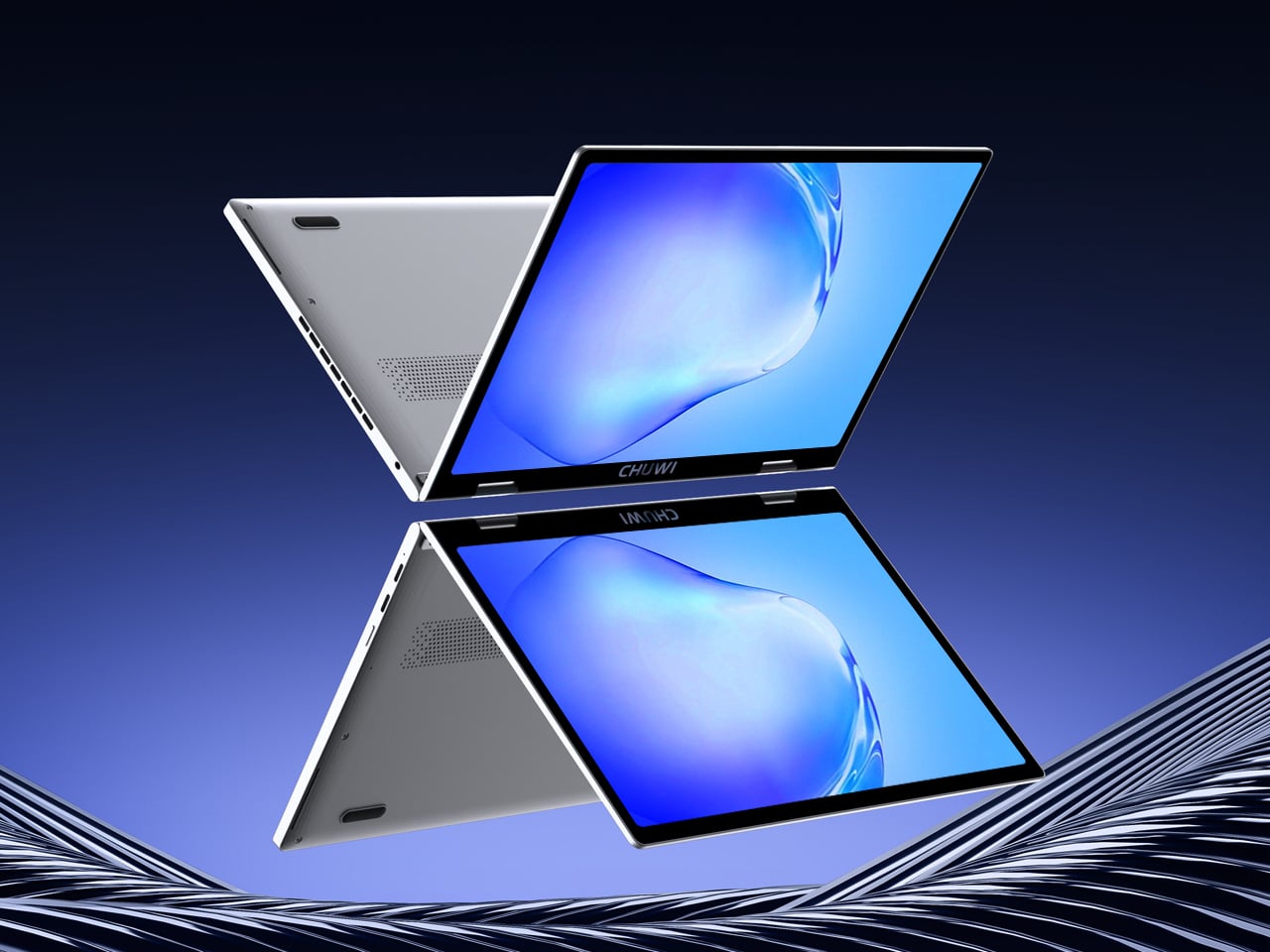
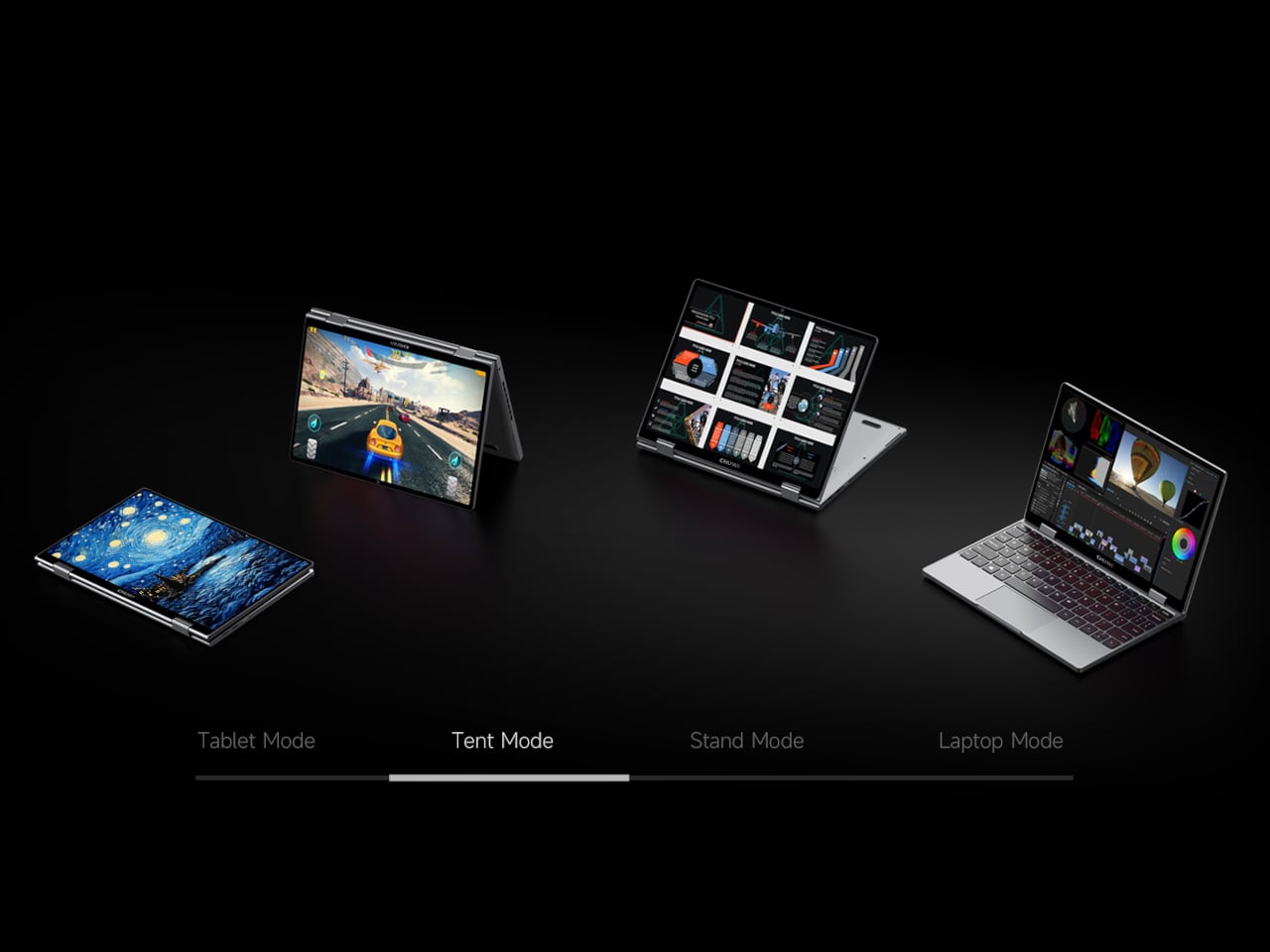
The H140S stands out with its 14-inch touchscreen and a 360-degree hinge that lets you use it as a traditional laptop, tablet, tent, or presentation stand during meetings and classes. The 16:10 aspect ratio at 1920×1200 resolution and slim aluminum profile give it a modern, premium vibe that’s genuinely hard to find in this price range for convertible designs.
The minimalist lines and overall aesthetic echo the Surface Studio’s distinctive appearance, making it a statement piece for classrooms, coffee shops, or home offices where visual presentation matters to you. For students or remote workers who want their tech to look professional without spending professional-level money on flagship devices, the visual appeal alone makes it worth considering despite its performance limitations.
Under the hood, the H140S runs on an Intel 12th Gen N95 processor with up to 32GB DDR4 RAM and SSD storage options reaching up to 2TB for extensive file storage needs. It’s more than enough for web browsing, note-taking, video calls, and office work throughout the day, but don’t expect smooth gaming, video editing, or heavy creative workloads that demand dedicated graphics processing power.
The 1920×1200 IPS LCD touchscreen is bright and responsive enough for reading, sketching with a stylus, or streaming video content during breaks, but it can’t match the color accuracy, contrast, or peak brightness of true premium panels found in laptops costing three times as much or more. The difference becomes noticeable when working with photos or design files that require precise color representation.
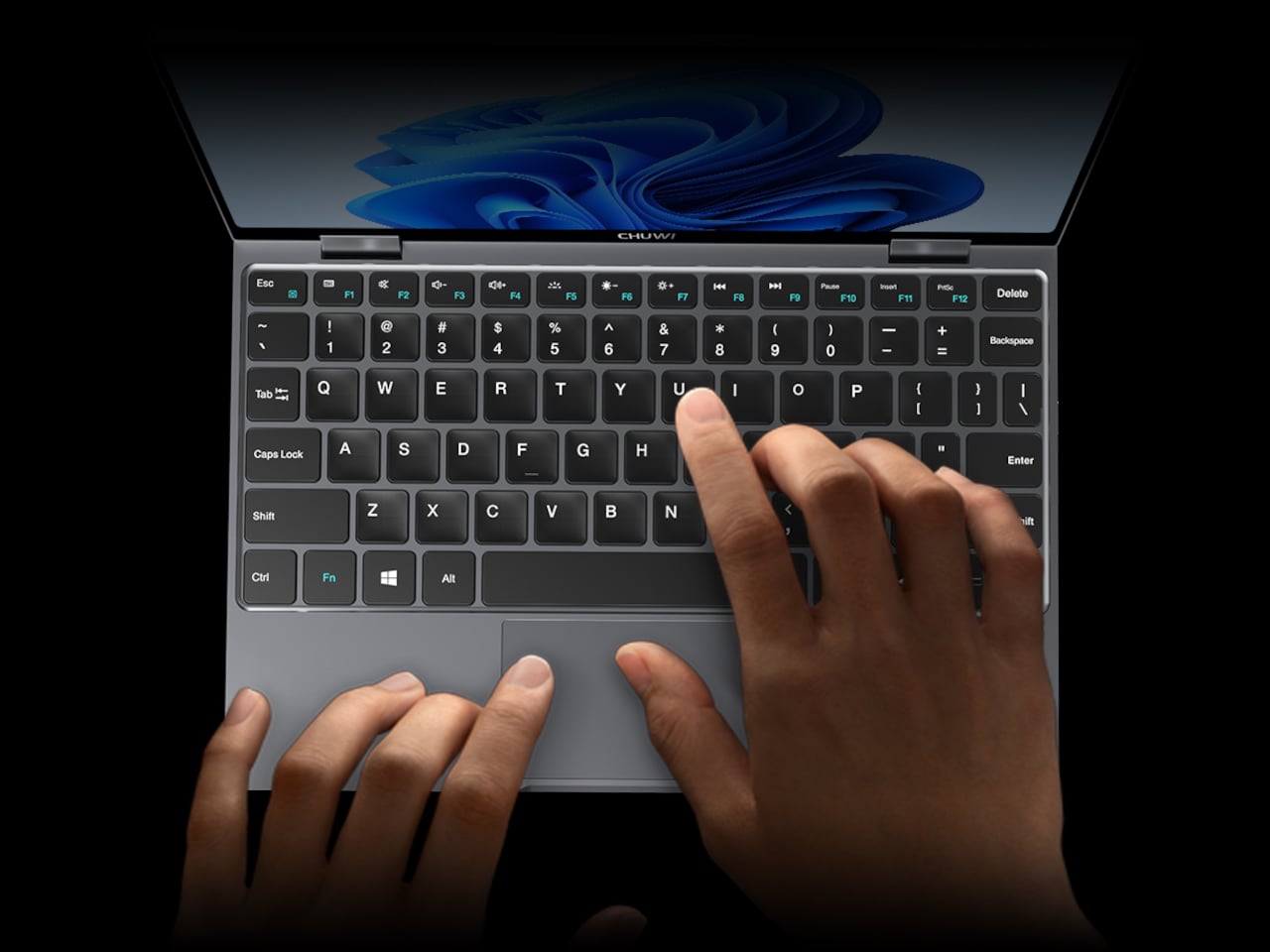
With two USB 3.0 ports, USB-C, mini HDMI, microSD card slot, and a 7-color RGB backlit keyboard, the H140S covers the basics for students and remote workers without requiring dongles for everything you need. Dual-band Wi-Fi and a 4500mAh battery promise several hours of use, though battery life will depend heavily on your workload and brightness settings throughout the day.
The H140S is fundamentally about trade-offs and knowing what you’re getting for your money before committing. You get a flexible, Surface Studio-inspired design and impressive specs for around $500, but you’ll notice compromises in display quality, trackpad precision, build refinement, and overall performance under demanding tasks. For those who want the look and versatility of a premium convertible without the premium price, it’s a smart option.
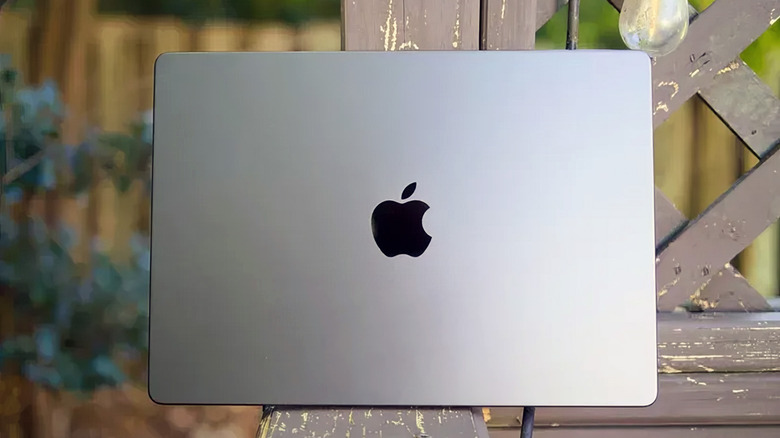
When Apple introduced the nano-texture display option, it revolutionized how creators like me interacted with their most crucial tool. Let’s face it, we look at the display on the laptop 100% of the time we use it, so it needs to be as perfect as humanly possible. Until now, despite countless improvements from Apple and others, no display has truly nailed the combination of resolution, quality, accuracy, and glare reduction. This is the first time it genuinely feels like everything has come together perfectly. As someone who frequently battles glare while simultaneously demanding the ideal combination of portability and power, I wholeheartedly believe that the MacBook Pro 14-inch, equipped with the formidable M4 Pro chip, represents a significant improvement that fully satisfies all my creative demands.
Designer: Apple
The Glare-Killing Game Changer: How Does Nano-Texture Technology Work?
The magic lies in microscopic etchings that break down light waves. Instead of applying a coating that dulls the display, Apple precisely alters the glass surface itself. These nanometer-scale etchings scatter ambient light while attempting to maintain the display’s inherent color accuracy and contrast.
The nano-texture display, a $150 upgrade, felt like a luxury at first—until I used it for the first time today. Working outdoors, on airplanes, in cars, or any bright environment is now effortless. Previously, my 16-inch M1 Max MacBook Pro would glare so much under sunlight that I’d have to squint or move indoors. Now, with the nano-texture display, direct sunlight feels irrelevant. I placed both laptops side-by-side during my testing, and the difference was immediate. The nano-texture display stood out, turning a frustrating glare-filled workspace into a productive one.
Apple’s nano-texture technology effectively reduces glare—it’s the closest thing to a paper-like feel I’ve experienced on a laptop screen, offering a unique viewing experience akin to a printed photograph. The etched surface scatters light evenly, making it comfortable to look at for long hours without that usual agony of dealing with glare. The crisp colors and contrast are still intact, which is crucial for my work. The nano-texture display also gives me a genuine sense of immersiveness, drawing me in without distraction, which is particularly beneficial for long sessions of writing, editing images, and videos. Whether I’m writing or editing images or videos, the screen performs seamlessly, with wide viewing angles and consistent quality, regardless of lighting conditions.
Performance Characteristics and Viewing Experience:
Glare Reduction: Exceptional, with near-complete elimination of reflections in diverse lighting conditions.
Color Preservation: Slightly reduced color vibrancy compared to glossy displays but maintains remarkable consistency across different environments.
It feels like viewing a printed photograph
Maintains readability in bright sunlight
Provides consistent visual performance from multiple angles
Nano-texture is specifically designed for the following professional use cases:
Photographers and visual artists
Professionals working in variable lighting environments
Creators who prioritize consistent display performance over peak color saturation
Portability Without Performance Compromise
For someone who is always on the move, the weight of my gear matters as much as its performance. The M4 14-inch MacBook Pro is incredibly light at 3.5 pounds compared to the 16-inch, which is heftier at 4.7 pounds and almost on par with the 15-inch MacBook Air M3, which weighs 3.3 pounds. This reduction might not sound significant on paper, but it’s transformative in daily use—especially when carrying other essentials.
The smaller display size could seem limiting, but it works perfectly for my needs in real-world use. As an editor and journalist who runs multiple tasks simultaneously—often including working in tight spaces like cafés or planes—the compact form factor fits seamlessly into my workflow without feeling like a compromise. As a one-bag packer, the smaller M4 MacBook Pro fits easily into my backpack, allowing me to travel light without sacrificing capability.
Performance: Effortless Efficiency
Apple Silicon has spoiled me with its reliability. The M4 Pro chip continues the tradition of handling demanding tasks without hiccups. Whether I’m editing a 4K video, running multiple content creation applications, or using a native AI app to transcribe audio to text, the performance is seamless. Efficiency isn’t just about speed—it’s about working without worrying if my machine can keep up.
What’s most surprising is how quiet it remains, even under heavy loads. I’ve been extremely spoiled by the noiseless MacBook Air, thanks to its fanless architecture, so this is a welcome feature during late-night writing sessions or when working in quieter environments. Nano-Texture: The Heart of the Upgrade
This display technology presents the perfect opportunity to upgrade—at this very moment. The nano-texture screen significantly reduced reflections, transforming how I work in mixed lighting conditions. My work remains vibrant and clear in a sunlit office, where glare usually dominates. At the same time, in dimly lit offices, the contrast and color accuracy stay sharp. It feels like the display adapts to me rather than vice versa.
For those already using an M1 Max MacBook Pro, the move to the M4 Pro might feel incremental on paper. But for me, it’s the culmination of subtle refinements: the nano-texture display, compactness of the 14-inch form factor, and even more efficient performance. These changes align perfectly with all my daily needs. It’s about having reliable tools that enhance my workflow and make my day-to-day tasks more efficient.
The M4 14-inch MacBook Pro is a reliable and essential part of how I create, edit, and collaborate every day. This is just a rough hands-on, and the full review is forthcoming. I have a trip to Japan, China, and then Dubai in the next few weeks back to back, and I can’t wait to put it through real-world tests. Starting at $1,999, with the nano-texture display option adding $150, it’s an investment that feels justified every time I power it on. For anyone who demand the best from their gear, this MacBook Pro delivers an experience worth every dollar.
Laptops are getting thinner and smaller, but their functionality is getting even more powerful. The usually means plenty of things to control, and some of them need to be reached faster than digging through menus and clicking on buttons. Keyboard shortcuts are, of course, a viable solution, but they can also be cumbersome, complicated, and unintuitive.
Something as normal and as regular as changing the volume, for example, shouldn’t take two keystrokes or scrolling your mouse wheel (which might not exist) over some tiny icon. This simple yet useful accessory brings a bit of sanity and physicality to that action on laptops, at least if you have an extra USB-C to spare.
Depending on your laptop’s keyboard layout and settings, turning the volume up or down can involve one or two keystrokes. The problem is that the location of these keys is inconsistent across keyboards and laptop brands, and they’re not exactly memorable or intuitive in their location. Having dedicated volume keys would be nice, but it could be a waste of precious space on the keyboard.
SoundSlide attacks that problem from a different angle by providing a physical volume control that you can connect and remove as needed. It’s a rather small object, smaller than a USB-A port and only 3.5mm thin, so it barely sticks out from the side of your laptop. It does connect via a USB-C port, and when it does, it gives you a way to actually feel like you’re raising or lowering your laptop’s volume.
The flat capacitive surface has exposed gold contacts that translate the sliding gestures to volume controls. A tap also mutes or unmutes the volume, giving you instant physical control without having to second guess which keys to press. It’s also promised to work out of the box on Windows, macOS, and even Linux, so you can use it without any setup or configuration. That said, you can also change a few settings such as sensitivity, orientation, and custom gestures using a Web-based interface.
The catch to this almost wonderful trinket is that it does occupy a USB-C slot. Some laptops have a limited number of ports, so you’re sacrificing what could be a potentially critical connection. That said, you don’t always need to have SoundSlide connected, so it’s not like you’re permanently losing an important USB-C port either.
The M4 MacBook Pro is a powerful and versatile device that can help you achieve new levels of productivity and efficiency. To fully unlock its potential, it’s important to understand how to optimize your device’s settings and features. The video below from Brandon Butch will walk you through essential tips and tricks, from initial setup […]