Bluetti’s Charger 2 uses solar and engine power to charge your portable battery

If you’re off-roading, it’s a neat idea to use your engine to top up your battery, which prompted Bluetti to launch the Charger. You could hook it to your alternator and draw off energy as you drove to make sure you turned up to your campsite with full batteries. But if you’re also toting around solar panels on your roof, then it’s a shame you can’t also use that power to top up. This omission is what prompted Bluetti to turn up to CES 2026 with the Charger 2, which will take power from your engine and your solar panels at the same time.

Bluetti says the Charger 2’s dual-input architecture will accept 600W from the panels, 800W from the engine. All of that power will charge your batteries significantly faster than the first model, claiming it’s 13 times faster than a standard car charger. In addition, Charger 2 can manage more than one Bluetti power station and expansion batteries, should your power needs stretch. And the system is smart enough to know where the energy is coming from, managing the sources based on their availability. Plus, you can use it to jump start your engine should you need the help.

If you’re a Charger 1 owner and want to upgrade, it’s fairly painless to drop the old unit out in favor of its replacement. It uses the same cabling, so you can just hook the new model to your existing wires without having to get your fingers greasy. To reward that loyalty, the company will sell you an upgrade for $99, at least through February 7.

As for everyone else, you’ll be able to pick up the Charger 2 for $349 through February 7, at which point the price leaps to $499.

This article originally appeared on Engadget at https://www.engadget.com/general/bluettis-charger-2-uses-solar-and-engine-power-to-charge-your-portable-battery-230000270.html?src=rss

Bluetti’s Charger 2 uses solar and engine power to charge your portable battery

If you’re off-roading, it’s a neat idea to use your engine to top up your battery, which prompted Bluetti to launch the Charger. You could hook it to your alternator and draw off energy as you drove to make sure you turned up to your campsite with full batteries. But if you’re also toting around solar panels on your roof, then it’s a shame you can’t also use that power to top up. This omission is what prompted Bluetti to turn up to CES 2026 with the Charger 2, which will take power from your engine and your solar panels at the same time.

Bluetti says the Charger 2’s dual-input architecture will accept 600W from the panels, 800W from the engine. All of that power will charge your batteries significantly faster than the first model, claiming it’s 13 times faster than a standard car charger. In addition, Charger 2 can manage more than one Bluetti power station and expansion batteries, should your power needs stretch. And the system is smart enough to know where the energy is coming from, managing the sources based on their availability. Plus, you can use it to jump start your engine should you need the help.

If you’re a Charger 1 owner and want to upgrade, it’s fairly painless to drop the old unit out in favor of its replacement. It uses the same cabling, so you can just hook the new model to your existing wires without having to get your fingers greasy. To reward that loyalty, the company will sell you an upgrade for $99, at least through February 7.

As for everyone else, you’ll be able to pick up the Charger 2 for $349 through February 7, at which point the price leaps to $499.

This article originally appeared on Engadget at https://www.engadget.com/general/bluettis-charger-2-uses-solar-and-engine-power-to-charge-your-portable-battery-230000270.html?src=rss

Engadget Podcast: CES 2026 and the rocky year ahead for the PC industry

CES 2026: A rocky year ahead of the PC industry

We're halfway through CES 2026, and it’s clear that it's going to be a rough year for the PC industry. In this episode, Devindra chats with Engadget's Dan Cooper about Intel, AMD, NVIDIA and the sad state of the PC industry. We've got some new CPUs, but the volatile RAM market will likely make everything expensive this year. Also, they dive into Dell's revival of the XPS brand, as well as iPolish's smart nails and Subtle's AI-powered VoiceBuds.

  • The state of the PC industry in 2026 -- 02:22

  • Intel's new Core Ultra Series 3 chips --  12:41

  • Dell's XPS lineup is back -- 17:41

  • Our favorite products from  CES: 26:36

Hosts: Devindra Hardawar and Dan Cooper
Producer: Devindra Hardawar
Music: Dale North

This article originally appeared on Engadget at https://www.engadget.com/computing/engadget-podcast-ces-2026-and-the-rocky-year-ahead-for-the-pc-industry-221500019.html?src=rss

Samsung Display at CES 2026: Playful demos and mysterious prototypes

Samsung Display is the part of its giant parent company that makes OLEDs, LCDs and other screens for both Samsung devices and anyone else that can afford them. This year, it’s going all-in on OLEDs of the future. And that meant things like foldable displays with invisible creases, robots hurling basketballs at supertough OLED panels, and OLED screens packed into baffling form factors for no good reason.

Samsung Display at CES 2026
Samsung Display

The “seamless” foldable display that might be a part of a future foldable iPhone disappeared from the booth during our tour, reappearing when it was time to leave. (This is an image provided by Samsung Display.) The device was labelled as an R&D concept, but it somehow disguised the crease in the center of the main display, making the (unlabelled) Galaxy Z Fold on the left look like a messy first-iteration foldable. There's still a crease there Will it actually form part of Apple’s foray into foldables, or just part of the Z Fold 8?

Why not both?

Samsung Display at CES 2026
Mat Smith for Engadget

This isn’t a record player you’ll ever buy. You don’t need an OLED display on the side of your wireless headphones, but you could have them. I liked the cute OLED pendants; a customizable near-future button badge, but a lot of this is just devices for the sake of making them.

The booth tour had a small segment dedicated to portable gaming OLED, adding more possibilities whether that’s an eye-sight for FPS games or extra HUD for the most important info.

Samsung Display at CES 2026
Mat Smith for Engadget

Reaching 4,500-nit brightness, I had to squint when sat in front of this beastly OLED. For reference, consumer-level TVs typically peak at around 2,700 nits. Compared to other display technologies, OLED can achieve deeper contrast and more accurate color reproduction, but it often lacks the brightness of rival TV technologies. Not for this prototype. Let me get my sunglasses.

Samsung Display at CES 2026
Mat Smith for Engadget

I didn’t consider OLED displays to be more fragile than other display technology, but that didn’t stop Samsung Display from installing a robot arm that throws a basketball at a hoop with a backboard made of 18 foldable OLEDs. With a bang, making Samsung Display execs and engineers nearby increasingly anxious as the days of CES go on.

Samsung Display at CES 2026
Mat Smith for Engadget

After Samsung finally solved the problem of weight and thickness with the Galaxy Z Fold 7, it made life hard for itself again with the TriFold, with 50 percent more foldable screen. But it's worth seeing how Samsung’s foldables have evolved over the past few years. A solid reminder that the first Galaxy Fold (2019) was beefy.

Samsung Display at CES 2026
Mat Smith for Engadget

Samsung Display has begun mass production of its 360Hz QD-OLED panel, with new “V-Stripe” RGB pixel structures. Inside each pixel, subpixels are vertically aligned, which appears to improve the clarity of text edges and other small contrast objects. While it was framed at the booth as a boon for office workers, a corner was dedicated to gaming applications.

Samsung Display at CES 2026
Mat Smith for Engadget

Digital cockpits are the lifeblood of a CES showfloor, and Samsung Display’s version is predictably loaded with yet more OLEDs. The centerpiece is a “Flexible L” display that flows into the dashboard. A dedicated 13.8-inch display on the passenger side also slides out of the dash.

This article originally appeared on Engadget at https://www.engadget.com/home/home-theater/samsung-display-ces-2026-playful-demos-and-mysterious-prototypes-220407696.html?src=rss

Samsung Display at CES 2026: Playful demos and mysterious prototypes

Samsung Display is the part of its giant parent company that makes OLEDs, LCDs and other screens for both Samsung devices and anyone else that can afford them. This year, it’s going all-in on OLEDs of the future. And that meant things like foldable displays with invisible creases, robots hurling basketballs at supertough OLED panels, and OLED screens packed into baffling form factors for no good reason.

Samsung Display at CES 2026
Samsung Display

The “seamless” foldable display that might be a part of a future foldable iPhone disappeared from the booth during our tour, reappearing when it was time to leave. (This is an image provided by Samsung Display.) The device was labelled as an R&D concept, but it somehow disguised the crease in the center of the main display, making the (unlabelled) Galaxy Z Fold on the left look like a messy first-iteration foldable. There's still a crease there Will it actually form part of Apple’s foray into foldables, or just part of the Z Fold 8?

Why not both?

Samsung Display at CES 2026
Mat Smith for Engadget

This isn’t a record player you’ll ever buy. You don’t need an OLED display on the side of your wireless headphones, but you could have them. I liked the cute OLED pendants; a customizable near-future button badge, but a lot of this is just devices for the sake of making them.

The booth tour had a small segment dedicated to portable gaming OLED, adding more possibilities whether that’s an eye-sight for FPS games or extra HUD for the most important info.

Samsung Display at CES 2026
Mat Smith for Engadget

Reaching 4,500-nit brightness, I had to squint when sat in front of this beastly OLED. For reference, consumer-level TVs typically peak at around 2,700 nits. Compared to other display technologies, OLED can achieve deeper contrast and more accurate color reproduction, but it often lacks the brightness of rival TV technologies. Not for this prototype. Let me get my sunglasses.

Samsung Display at CES 2026
Mat Smith for Engadget

I didn’t consider OLED displays to be more fragile than other display technology, but that didn’t stop Samsung Display from installing a robot arm that throws a basketball at a hoop with a backboard made of 18 foldable OLEDs. With a bang, making Samsung Display execs and engineers nearby increasingly anxious as the days of CES go on.

Samsung Display at CES 2026
Mat Smith for Engadget

After Samsung finally solved the problem of weight and thickness with the Galaxy Z Fold 7, it made life hard for itself again with the TriFold, with 50 percent more foldable screen. But it's worth seeing how Samsung’s foldables have evolved over the past few years. A solid reminder that the first Galaxy Fold (2019) was beefy.

Samsung Display at CES 2026
Mat Smith for Engadget

Samsung Display has begun mass production of its 360Hz QD-OLED panel, with new “V-Stripe” RGB pixel structures. Inside each pixel, subpixels are vertically aligned, which appears to improve the clarity of text edges and other small contrast objects. While it was framed at the booth as a boon for office workers, a corner was dedicated to gaming applications.

Samsung Display at CES 2026
Mat Smith for Engadget

Digital cockpits are the lifeblood of a CES showfloor, and Samsung Display’s version is predictably loaded with yet more OLEDs. The centerpiece is a “Flexible L” display that flows into the dashboard. A dedicated 13.8-inch display on the passenger side also slides out of the dash.

This article originally appeared on Engadget at https://www.engadget.com/home/home-theater/samsung-display-ces-2026-playful-demos-and-mysterious-prototypes-220407696.html?src=rss

Samsung Display at CES 2026: Playful demos and mysterious prototypes

Samsung Display is the part of its giant parent company that makes OLEDs, LCDs and other screens for both Samsung devices and anyone else that can afford them. This year, it’s going all-in on OLEDs of the future. And that meant things like foldable displays with invisible creases, robots hurling basketballs at supertough OLED panels, and OLED screens packed into baffling form factors for no good reason.

Samsung Display at CES 2026
Samsung Display

The “seamless” foldable display that might be a part of a future foldable iPhone disappeared from the booth during our tour, reappearing when it was time to leave. (This is an image provided by Samsung Display.) The device was labelled as an R&D concept, but it somehow disguised the crease in the center of the main display, making the (unlabelled) Galaxy Z Fold on the left look like a messy first-iteration foldable. There's still a crease there Will it actually form part of Apple’s foray into foldables, or just part of the Z Fold 8?

Why not both?

Samsung Display at CES 2026
Mat Smith for Engadget

This isn’t a record player you’ll ever buy. You don’t need an OLED display on the side of your wireless headphones, but you could have them. I liked the cute OLED pendants; a customizable near-future button badge, but a lot of this is just devices for the sake of making them.

The booth tour had a small segment dedicated to portable gaming OLED, adding more possibilities whether that’s an eye-sight for FPS games or extra HUD for the most important info.

Samsung Display at CES 2026
Mat Smith for Engadget

Reaching 4,500-nit brightness, I had to squint when sat in front of this beastly OLED. For reference, consumer-level TVs typically peak at around 2,700 nits. Compared to other display technologies, OLED can achieve deeper contrast and more accurate color reproduction, but it often lacks the brightness of rival TV technologies. Not for this prototype. Let me get my sunglasses.

Samsung Display at CES 2026
Mat Smith for Engadget

I didn’t consider OLED displays to be more fragile than other display technology, but that didn’t stop Samsung Display from installing a robot arm that throws a basketball at a hoop with a backboard made of 18 foldable OLEDs. With a bang, making Samsung Display execs and engineers nearby increasingly anxious as the days of CES go on.

Samsung Display at CES 2026
Mat Smith for Engadget

After Samsung finally solved the problem of weight and thickness with the Galaxy Z Fold 7, it made life hard for itself again with the TriFold, with 50 percent more foldable screen. But it's worth seeing how Samsung’s foldables have evolved over the past few years. A solid reminder that the first Galaxy Fold (2019) was beefy.

Samsung Display at CES 2026
Mat Smith for Engadget

Samsung Display has begun mass production of its 360Hz QD-OLED panel, with new “V-Stripe” RGB pixel structures. Inside each pixel, subpixels are vertically aligned, which appears to improve the clarity of text edges and other small contrast objects. While it was framed at the booth as a boon for office workers, a corner was dedicated to gaming applications.

Samsung Display at CES 2026
Mat Smith for Engadget

Digital cockpits are the lifeblood of a CES showfloor, and Samsung Display’s version is predictably loaded with yet more OLEDs. The centerpiece is a “Flexible L” display that flows into the dashboard. A dedicated 13.8-inch display on the passenger side also slides out of the dash.

This article originally appeared on Engadget at https://www.engadget.com/home/home-theater/samsung-display-ces-2026-playful-demos-and-mysterious-prototypes-220407696.html?src=rss

Artly Robots Master Latte Art and Drinks for CES 2026 Debut

People gather around a robot arm in a café, half for the drink and half for the performance. Most automation in food and beverage still feels either like a vending machine or a novelty, and the real challenge is capturing the craft of a skilled barista or maker, not just the motion of pushing buttons. The difference between a decent latte and a great one often comes down to subtle pressure, timing, and feel.

Artly treats robots less like appliances and more like students in a trade school, learning from human experts through motion capture, multi-camera video, and explanation. At CES 2026, that philosophy shows up in two compact robots, the mini BaristaBot and the Bartender, both built on the same AI arm platform but trained for different kinds of counters. Together, they make a case for automation that respects the shape of the work instead of flattening it.

Designer: Artly AI

Click here to know more.

mini BaristaBot: A 4×4 ft Café That Learns from Champions

The mini BaristaBot is a fully autonomous café squeezed into a 4 × 4 ft footprint, designed for high-traffic, labor-constrained spaces like airports, offices, and retail corners. One articulated arm handles the entire barista workflow, from grinding and tamping to brewing, steaming, and pouring, with the same attention to detail you would expect from a human who has spent years behind a machine. “At first, I thought making coffee was easy, but after talking to professional baristas, we realized it is not simple at all. There are a lot of details and nuances that go into making a good cup of coffee,” says Meng Wang, CEO of Artly.

The arm is trained on demonstrations from real baristas, including a U.S. Barista Champion, with Artly’s Skill Engine breaking down moves into reusable blocks like grabbing, pouring, and shaping. Those blocks are recombined into recipes, so the robot can reproduce nuanced techniques such as milk texturing and latte art, and adapt to different menus without rewriting code from scratch or relying on rigid workflows. “Our goal is not to automate for its own sake. Our goal is to recreate an authentic, specific experience, whether it is specialty coffee or any other craft, and to build robots that can work like those experts,” Wang explains.

“The training in our environment is not just about action: it is about judgment, and a lot of that judgment is visual. You have to teach the robot what good frothing or good pouring looks like, and sometimes you even have to show it bad examples so it understands the difference.” That depth of teaching separates Artly’s approach from simpler automation. The engineering layer uses food-grade stainless steel and modular commercial components, wrapped in a warm, wood-clad shell that looks more like a small kiosk than industrial equipment.

A built-in digital kiosk handles ordering, while Artly’s AI stack combines real-time motion planning, computer vision, sensor fusion, and anomaly detection to keep quality consistent and operation safe in public spaces where people stand close and watch the whole process. “Our platform is like a recording machine for skills. We can record the skills of a specific person and let the robot repeat exactly that person’s way of doing things,” which means a café chain can effectively bottle a champion’s technique and deploy it consistently across multiple sites.

The ecosystem supports plug-and-play deployment, with remote monitoring, over-the-air updates, and centralized fleet management. A larger refrigerator and modular countertops in finishes like maple, white oak, and walnut let operators match different interiors. For a venue, that means specialty coffee without building a full bar, and for customers, it means a consistent drink and a bit of theater every time they walk up.

Bartender: The Same Arm, Trained for a Different Counter

The Bartender is an extension of the same idea, using the Artly AI Arm and Skill Engine to handle precise, hand-driven tasks behind a counter. Instead of focusing on espresso and milk, the robot learns careful measurement, shaking, or stirring techniques, and finishing touches that depend on timing and presentation, all captured from human experts and turned into repeatable workflows. “If the robot learns the technique of a champion, it can repeat that same pattern at different locations. No matter where it performs, it will always create the same result that person did,” Wang notes.

Dexterity is the key differentiator. The Bartender uses a dexterous robotic hand and wrist-mounted vision to pick up delicate garnishes, handle glassware, and move through sequences that normally require a trained pair of hands. The same imitation-learning approach that taught the BaristaBot to pour latte art is now applied to more complex motions, so the arm can execute them smoothly and consistently in a busy environment.

For a hospitality space, the Bartender offers a way to standardize recipes, maintain quality during peak hours, and free human staff to focus on conversation and creativity rather than repetitive prep. Because it shares hardware and software with the BaristaBot, it fits into the same remote monitoring and fleet-management framework, making it easier to run multiple robotic stations across locations without reinventing operational infrastructure for each new skill type.

Artly AI at CES 2026: From Robot Coffee to a Skill Engine for Craft

The mini BaristaBot and the Bartender are not just two clever machines; they are early examples of what happens when a universal skill engine and a capable arm are pointed at crafts that usually live in human hands. For designers and operators, that means automation that respects the shape of the work, and for visitors at CES 2026, it is a glimpse of a future where robots learn from experts and then quietly keep that craft alive, one cup or glass at a time, without demanding that every venue become bigger or that every drink become simpler just to fit a machine.

Click here to know more.

The post Artly Robots Master Latte Art and Drinks for CES 2026 Debut first appeared on Yanko Design.
This haptic wristband pairs with Meta smart glasses to decode facial expressions

It's only been a few months since Meta announced that it would open its smart glasses platform to third-party developers. But one startup at CES is already showing off how the glasses can help power an intriguing set of accessibility features.

Hapware has created Aleye, a haptic wristband that, when paired with Ray-Ban Meta smart glasses, can help people understand the facial expressions and other nonverbal cues of the people they are talking to. The company says the device could help people who are blind, low vision or neurodivergent unlock a type of communication that otherwise wouldn't be available.

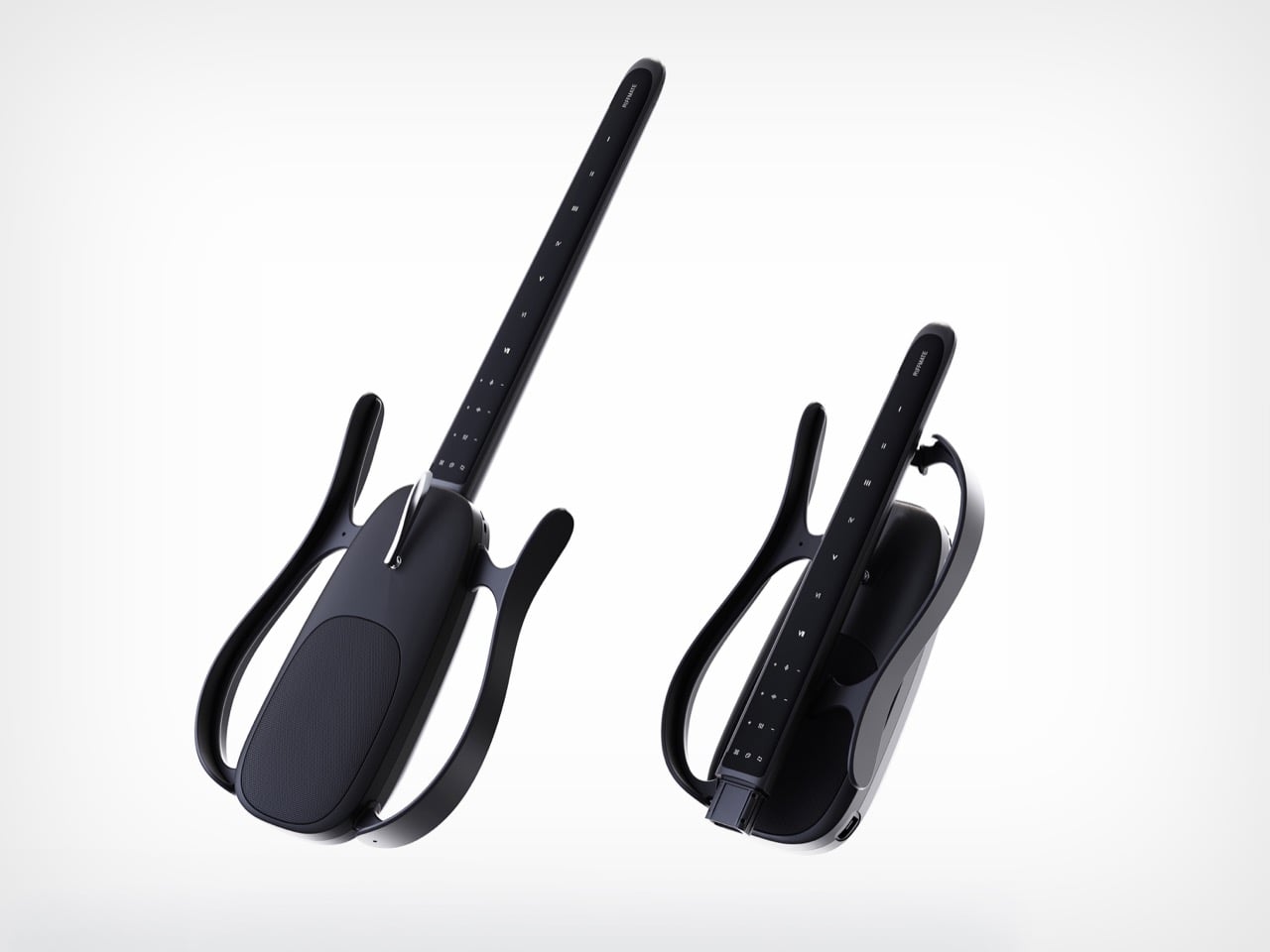
Aleye is a somewhat chunky wristband that can vibrate in specific patterns on your wrist to correspond to the facial expressions and gestures of the person you're talking to. It uses the Meta Ray-Ban glasses's computer vision abilities to stream video of your conversation to the accompanying app, which uses an algorithm to detect facial expressions and gestures.

The bumps on the underside of the Aleye vibrate to form unique patterns.
Karissa Bell for Engadget

Users can customize which expressions and gestures they want to detect in the app, which also provides a way for people to learn to distinguish between the different patterns. Hapware CEO Jack Walters said in their early testing people have been able to learn a handful of patterns within a few minutes. The company has also tried to make them intuitive. "Jaw drop might feel like a jaw drop, a wave feels more like a side to side haptics," he explains.

The app is also able to use Meta AI to give vocal cues about people's expressions, though Hapware's CTO Dr. Bryan Duarte told me it can get a bit distracting to talk to people while the assistant is babbling in your ear. Duarte, who has been blind since a motorcycle accident at the age of 18, told me he prefers Aleye to Meta AI's other accessibility features like Live AI. "It will only tell me there's a person in front of me," he explains. "It won't tell me if you're smiling. You have to prompt it every time, it won't just tell you stuff."

Hapware has started taking pre-orders for the Aleye, which starts at $359 for the wristband or $637 for the wristband plus a year subscription to the app (a subscription is required and otherwise will cost $29 a month). A pair of Ray-Ban Meta glasses is also not included, though Meta has also been building a number of its own accessibility features for the device.

This article originally appeared on Engadget at https://www.engadget.com/wearables/this-haptic-wristband-pairs-with-meta-smart-glasses-to-decode-facial-expressions-214305431.html?src=rss

ChatGPT is launching a new dedicated Health portal

OpenAI is launching a new facet for its AI chatbot called ChatGPT Health. This new feature will allow users to connect medical records and wellness apps to ChatGPT in order to get more tailored responses to queries about their health. The company noted that there will be additional privacy safeguards for this separate space within ChatGPT, and said that it will not use conversations held in Health for training foundational models. ChatGPT Health is currently in a testing stage, and there are some regional restrictions on which health apps can be connected to the AI company's platform.

The announcement from OpenAI acknowledges that this new development "is not intended for diagnosis or treatment," but it's worth repeating. No part of ChatGPT, or any other artificial intelligence chatbot, is qualified to provide any kind of medial advice. Not only are these platforms capable of making dangerously incorrect statements, but feeding such personal and private information into a chatbot is generally not a recommended practice. It seems especially unwise to share with a company that only bothered paying even cursory lip service to the psychological impacts of its product after at least one teenager used the chatbot to plan suicide.

This article originally appeared on Engadget at https://www.engadget.com/ai/chatgpt-is-launching-a-new-dedicated-health-portal-210150083.html?src=rss

How to use a VPN on iPhone

Installing a virtual private network (VPN) on an iPhone or iPad is easy. The days are gone when Apple users had to be content with the leavings from the Windows ecosystem — in 2026, all the best VPN services have secure, user-friendly iOS apps on par with every other platform. If you've decided to add a VPN to your iPhone to stay anonymous online and change your virtual location, you've got plenty of great choices.

Since you're here, chances are you're familiar with the benefits of using a VPN, including security on public Wi-Fi and the ability to explore streaming libraries in other countries. But you may still be daunted by the process of actually choosing, installing and configuring a VPN on your iPhone.

In this article, I'll walk you through the steps, including how to configure a VPN manually without going through a service. Check out my how to use a VPN piece for more general information.

One of the trickiest parts of installing an iPhone VPN is picking the right service. That brings us to our first pro tip: Don’t just go to the App Store and search on “VPN.” That will simply front-load whichever vendor(s) are paying for top placement (note the little “Ad” icon) as well as a laundry list of free services that come with big caveats. There are dozens of mobile VPNs out there, and many of them don't put the user first (for example, I reported last year on popular VPNs that failed to disclose shared security flaws). Choosing hastily can leave you stuck with an iOS VPN that's either mediocre or actively harmful.

Before downloading an iPhone VPN, do some research into the provider's background. A dependable VPN should have a well-written customer support page, a clear timeline of its history and a way to tell at a glance who actually owns and operates it. Check the reviews on the app store — it should have at least several hundred, almost all 4s and 5s.

iPhone users have a particular advantage here: several VPNs let you download their iOS app and start using it without paying. You can use this free trial period to put the VPN through its paces. Start by testing its speed using Ookla speedtest or a similar app. You should also use an IP address checker to make sure it isn't leaking; to confirm this, just check your phone's IP address before and after connecting to the VPN and make sure it's different the second time.

To keep things simple, my top recommendation for all platforms is Proton VPN. Out of all VPNs, it strikes the best balance of solid security, fast performance, useful features and a commitment to user privacy. Other iPhone VPNs I love include ExpressVPN, Surfshark and NordVPN.

Installing an iPhone VPN is like installing any other app. Just go to the App Store, find the VPN you've chosen and download it onto your phone. When it finishes downloading, open the app to grant permissions and finish setup. However, since there are a couple of potential sticking points, I'll run through the steps in more detail.

Proton VPN on the iOS app store.
Sam Chapman for Engadget
  1. Open the App Store.

  2. Tap the search bar and type in the name of your chosen VPN. Hit Search and look through the list of results. Be careful to pick the right one — there are some "mockbuster" VPNs that try to snare people looking for well-known names. As a rule, the one with the most reviews is the service worth using.

  3. On the page for the VPN app, tap Get. Enter your Apple ID and password to begin the installation.

  4. Once installation is complete, either tap Open in the App Store or find the new VPN icon on your home screen.

  5. Create a VPN account with a username and password. Most services let you do this within the app, but you may have to shift temporarily to a browser, so make sure you've got internet access.

  6. Choose a subscription. If there's a free trial, grab it and use it to test the VPN. If not, or if it's already expired, choose a plan that fits your budget and needs. Longer-term plans tend to save you money on average, but cost more at the start.

  7. On the VPN app, log in with your new credentials. You're now ready to get started.

If you aren't interested in paying for software right now, you can still get an iOS VPN. Check out my list of the best free VPNs, which all have iPhone apps. We also constantly update a curated list of the best VPN deals for bargain hunters.

An iOS VPN is generally usable with the default settings. Even so, it's a good idea to look through the options — you may not end up using all of them, but many of them are vital security checks or important quality-of-life boosters.

Proton VPN's NetShield content blocker on iOS.
Sam Chapman for Engadget

Here are some quick steps to make sure you're getting the best performance. These settings are in different places on each VPN, but most can be found by clicking a button with a gear icon, or any page labeled "settings" or "preferences."

  1. Turn on the kill switch. This will protect you from broadcasting any data the VPN hasn't encrypted. In the event the VPN suddenly disconnects, the kill switch also cuts off your internet connection.

  2. Set the VPN to always reconnect automatically if it disconnects. The method for doing this varies between services, so check the VPN's help page. Some (like Proton VPN) have an always-on VPN setting in the app itself, while others (like ExpressVPN) handle it through iOS settings.

  3. Configure split tunneling. Not many iPhone VPNs have this option, but if yours does, you can use it to let certain apps or websites skip the VPN tunnel. Make sure to only bypass the VPN on sites and apps that share no sensitive information, or that refuse to work with a VPN active (some banks are like this).

  4. If your VPN has a feature for blocking ads and malware domains, I recommend using it — the worst it can do is not work. Some also include parental controls, in case you're setting up the VPN on your child's phone.

  5. Create shortcuts. Sometimes called Profiles, this relatively common feature lets you connect to the VPN and open a certain website with one tap.

  6. Decide when and how you want the VPN to send you notifications.

  7. Check available protocols. It's almost always best to let the VPN pick for you, but if you want to choose for yourself, IKEv2 is generally the fastest.

  8. Look over the server list to see what choices are available.

When choosing a VPN server, think about what you need the VPN for. If you're just using it for privacy, pick the fastest server (or let the VPN app choose it for you). On the other hand, if you want to watch a movie or TV show that's only on streaming in another country, choose the fastest server in that country. If you're on a good VPN, it still shouldn't slow you down too much.

If you have the address of a VPN server and the necessary credentials, iOS lets you set up your own VPN and connect directly. This is less convenient than using a provider app, since you need to know the details about every server you connect to, but it's nice if you're worried about trusting your privacy to a third party. It can also be convenient for quickly accessing a work or school VPN from your phone. Here's how to do it.

Manually setting up a VPN connection on iOS.
Sam Chapman for Engadget
  1. Open the Settings app. Scroll down and tap General.

  2. Scroll down again and tap VPN & Device Management. Tap the word VPN on the new page, then tap Add VPN Configuration. You should reach the screen shown above.

  3. Make sure Type is set to IKEv2, then enter the Description, Server and Remote ID for the server you're connecting to (plus the Local ID if there is one).

  4. Your source for the server information should also have told you if it authenticates access with a username/password or certificate. Pick the correct option, then enter the credentials required.

  5. Tap the Done button or the blue checkmark at the top-right of the screen.

  6. You'll arrive back on the previous menu with your new VPN option available. Toggle it on to connect. To turn it off, return to the same menu and deactivate the switch.

Whenever you get online, your internet service provider (ISP) assigns an IP address to your device — a unique fingerprint that follows you throughout the session. Your ISP may sell this knowledge to marketers to target ads at you, or in worse cases, collaborate with governments willing to violate their citizens' rights to privacy.

When you use a VPN, though, your real IP address is hidden behind that of the VPN server, so nothing you do on the internet connects back to you. That's why I always advise using a VPN on any device, including iPhones, that connects to the internet. It's even more important on the unprotected public networks you sometimes find in cafes and hotels. On the fun side, you can also use a VPN to change your virtual location to show you different content libraries on Netflix and other streaming platforms.

One more thing: I often hear iPhone users ask whether they need a VPN, since iCloud Private Relay comes standard on iOS devices. Just to clear this up, iCloud Private Relay is not a VPN. As you can see from this support page, your ISP can still see your real IP address when it’s active.

This article originally appeared on Engadget at https://www.engadget.com/cybersecurity/vpn/how-to-use-a-vpn-on-iphone-201743118.html?src=rss