Rugged Phones Are Ugly, but FCNT Just Proved They Don’t Have to Be

Rugged smartphones have always carried an inherent compromise. They’re built to take punishment, so manufacturers typically bulk them up with thick rubber borders, angular shapes, and enough plastic to survive a construction site. The result is a phone that can handle almost anything but looks conspicuous in everyday settings. That tradeoff has become so accepted that few people bother to question it.

The arrows Alpha 2 takes the opposite position. It’s built around a brushed metal frame with a textured back panel, comes in four bold colors, and carries an 8.6 mm profile that doesn’t betray its durability credentials at all. Underneath the considered design is a phone that has passed 23 MIL-spec tests and holds IP66, IP68, and IP69 water and dust resistance ratings simultaneously.

Designer: FCNT (Lenovo)

The drop resistance is the detail that stands out most. FCNT claims the arrows Alpha 2 can survive a 1.8-meter fall onto concrete without the screen cracking, thanks partly to Gorilla Glass Victus 2 sitting on a flat, 2D panel. The display itself is a 6.4-inch LTPO OLED capable of hitting 3,000 nits, which also lets the phone hold its own outdoors, where most screens struggle to stay visible.

The battery is a silicon-carbon cell at 5,370mAh, the largest ever used in an Arrows-series phone. FCNT claims it delivers two full days on a single charge, engineered to sustain that performance for roughly four years. A 90W fast charger, sold separately, takes the battery from zero to full in about 40 minutes for those days when two days of stamina isn’t quite enough runway.

The camera system doesn’t make the compromises you’d expect from a phone that prioritizes toughness. The main shooter is a 50 MP Sony LYTIA 710 sensor on a 1/1.5-inch chip with optical image stabilization, backed by a 50 MP ultra-wide lens covering a 120-degree field of view. The front camera is also 50 MP. All three support 4K/60fps HDR video, which puts the image capabilities well outside what most rugged phones offer.

A MediaTek Dimensity 8350 Extreme chip handles performance, with the base model offering 8 GB of RAM and 256 GB of storage, and the higher-end variant stepping up to 12 GB of RAM and 512 GB. Virtual RAM expansion pushes the ceiling to 24 GB. The phone ships with Android 16 and arrives with three major OS upgrades and five years of security patches promised alongside the hardware.

The brushed metal frame and textured back give the phone a natural grip that doesn’t need rubber armor to achieve. FCNT also made some sustainability choices: the frame uses recycled aluminium, and the packaging is FSC-certified and fully recyclable. The arrows Alpha 2 goes on sale in Japan through NTT Docomo from late August 2026, with the 512 GB model exclusive to the Docomo Online Shop.

It’s a phone that argues against the idea that durability and design can’t occupy the same body. The 8.6mm profile doesn’t look like it belongs strapped to a workbelt, and the four color options reinforce that this wasn’t designed purely for industrial deployment. The battery engineering alone makes it stand apart from most competitors in the category, and the rest of the spec sheet does little to undermine that case.

The post Rugged Phones Are Ugly, but FCNT Just Proved They Don’t Have to Be first appeared on Yanko Design.

The Titanium Chess Set That’s Also the Best EDC Object We’ve Seen

Chess has had a genuine cultural resurgence lately, finding its way into cafés, offices, and living rooms that wouldn’t have bothered with it a decade ago. But for all the renewed enthusiasm, the portable chess set hasn’t really evolved. Most options are flimsy plastic affairs that feel like an afterthought, with the same old problem of pieces scattering the moment you set the bag down.

BESIDAR’s Victory approaches the problem differently, treating the portable chessboard as an engineering challenge rather than a sizing exercise. It’s built entirely from titanium, uses a mechanical folding structure that collapses the board into something genuinely pocketable, and relies on magnets to keep all 64 pieces organized and secure. It also happens to support several other games on the same set of pieces, which we’ll get to.

Designer: BESIDAR

Click Here to Buy Now: $69 $130 (50% off). Hurry, 128/1000 left! Raised over $111,000.

The defining feature is the board itself. Victory’s playing surface consists of multiple hinged titanium panels that interlock mechanically, letting you fold and unfold them endlessly without resistance or wear. It sounds like a gimmick until you have it in your hands, because the action is satisfying in the way a good infinity cube is. You’ll end up folding it between moves or absentmindedly during a thinking pause.

1

1

All 64 pieces attach magnetically to the board’s surface, staying in place during play and holding firm when the board is folded for transport. The two board halves also connect to each other magnetically, so the whole set becomes one compact, integrated unit. There’s nothing loose rattling around, no separate case to hunt for, and no tedious piece-sorting ritual before you can sit down and actually start playing.

1

The two-sided pieces also give the set a wider range of use than expected. One face carries a surface pattern while the other is a solid contrasting color, and that choice alone supports chess, Go, Gomoku, international checkers, and Othello. That’s five strategy games from one set of 64 pieces, with the folding board itself counting as a sixth mode when you just want something satisfying to fidget with.

1

What makes Victory feel genuinely premium is the material. Both board and pieces are CNC-machined from titanium, giving the set a density and tactile precision that plastic travel versions can’t replicate. It’s cool to the touch, holds its finish, and doesn’t feel like something you’d toss carelessly into a bag. Left on a desk between games, it reads less like a board game and more like a well-made EDC object.

1

1

At 5.24 inches (133.20 mm) across and just 7 mm thick when folded, Victory fits in a pocket without creative gymnastics. The two-board structure means each player’s pieces are already arranged on their own half, so you unfold, connect the two sections, and you’re ready in seconds. Whether it’s a café table, a park bench, or a few spare minutes between meetings, there’s no setup ritual to slow things down.

1

What you end up with is a chess set that’s genuinely interesting to own, even if you’re not a serious player. The mechanical folding keeps your hands busy, the titanium build makes it worth displaying, and the magnets mean you can bag it and go without a second thought. It won’t replace the full-sized board on your shelf, but for everything else, it’s the set that actually comes with you.

Click Here to Buy Now: $69 $130 (50% off). Hurry, 128/1000 left! Raised over $111,000.

The post The Titanium Chess Set That’s Also the Best EDC Object We’ve Seen first appeared on Yanko Design.

Dasung Made a Phone Screen for People Who Hate Screens

Screens keep getting sharper and brighter, though the one complaint that never goes away is eye fatigue. LCDs and OLEDs are impressive, but both still rely on backlit panels aimed directly at your eyes, hour after hour. The e-reader crowd has long known that E-Ink is easier to live with, though swapping your daily phone for a dedicated E-Ink device is a trade-off most people aren’t willing to make.

The Dasung Link 2 offers a different answer to that familiar problem. Rather than replacing your smartphone with an E-Ink device, it works alongside whatever phone you already have, mirroring its display onto a 6.7-inch monochrome E-Ink screen. The idea is straightforward: keep your apps, your contacts, and your habits, but read, scroll, and type on a surface that feels far closer to paper than any OLED ever will.

Designer: Dasung

What makes the Link 2 practical as a daily companion rather than just a reading gadget is DASUNG’s 60Hz refresh technology. Most E-Ink screens run at a fraction of that speed, producing noticeable lag when scrolling or typing. At 60Hz, the Link 2 handles those tasks with minimal ghosting, making it comfortable for messaging, browsing, and even light video, things that would have been genuinely frustrating on earlier E-Ink displays.

The screen measures 6.7 inches at 300 PPI, putting it in the same resolution range as premium e-readers. Text is sharp, and the display reflects ambient light the way paper does, staying legible in bright outdoor conditions where most LCD phones need to max out their brightness just to stay visible. For low-light reading, an adjustable dual-tone front light handles the darker hours without harshness.

The Link 2 also supports reverse touch, which lets you interact with your phone directly through the E-Ink screen’s surface without picking your phone up separately. Physical keys on the body handle quick contrast and image adjustments, so you aren’t hunting through menus when the light around you changes. It makes a secondary screen feel less like a burden and more like a natural tool.

The hardware is built from metal and kept thin and light enough to slip into a pocket alongside your phone. It connects wirelessly for screen mirroring and works with magnetic power banks, which helps on longer outdoor outings where a wall outlet isn’t nearby. Compatibility spans Android 12 and later, modern iOS, and HarmonyOS, so it isn’t tied to any single phone brand or operating system.

One thing worth noting is that the Link 2 doesn’t operate independently. It relies on your phone’s processing power, RAM, and installed apps to function, so it’s less a standalone gadget and more a screen you borrow for your phone. The battery-free model starts at $329, with the battery-equipped version available at $349, both offered in Space Gray and Glacier Blue.

It’s admittedly a niche proposition, and the limitations are real. Monochrome E-Ink isn’t ideal for color photos, and carrying a second screen is an extra thing to manage throughout the day. But for anyone who spends long stretches reading articles, messages, or documents on their phone, shifting that habit onto a paper-like surface rather than a glowing backlit display is a genuinely compelling idea.

The post Dasung Made a Phone Screen for People Who Hate Screens first appeared on Yanko Design.

5 EV Charging Designs So Beautiful You’d Actually Want to Stop There

EV charging infrastructure has grown considerably in recent years, but the experience of actually using it rarely gives people much to think about. Most stations are indistinguishable from the utilities they resemble, built for function with little thought for the space they occupy. That’s a missed opportunity in a technology that already asks drivers to rethink a habit as ingrained as stopping for gas.

A series of five conceptual EV charging station designs takes a different view of what that infrastructure could look like. Rather than treating the wait as dead time to get through, they propose something closer to a destination, structures that generate solar and wind energy while also giving people a reason to look twice, and maybe start a conversation about why they’re there.

Designer: Michael Jantzen

The Silver Solar Charging Station rises as a steel structure with a large photovoltaic panel angled overhead on a tall vertical arm. Drivers pull inside to access the charging connections, sheltered from the weather while the panel converts sunlight into electricity stored directly in connected batteries. The charging bay is practical, though the frame around it looks nothing like anything built with that purpose in mind.

The Black Waves Solar Charging Station shares the drive-in shelter principle but trades angular geometry for something far more fluid. Ribbon-like steel sections curve and undulate overhead, each covered in photovoltaic panels. The design functions exactly like the others, but the wave-like form overhead gives drivers something to look at while they wait, the kind of structure that prompts questions before it answers them.

The Red Solar Charging Station doesn’t try to blend in. Its vivid color marks it on the horizon well before you reach it, and the zig-zag arrangement of solar panels on top gives the structure a jagged, almost aggressive silhouette that contrasts with the smooth drive-through tunnel below. The photovoltaic cells are fully functional, drawing power from sunlight to feed the charging points inside.

The Yellow Solar Charging Station takes a completely different approach to form. An arched dome made from eco-friendly concrete composite curves over the charging bay, painted in the kind of yellow that reads clearly from across an open field. Circular disc-shaped photovoltaic panels are mounted in a ring around the crown of the dome, turning the roof into something that looks as deliberate as the structure below.

The Solar Wind Charging Station breaks from the others in one important way: it isn’t designed to be driven into. Cars pull alongside it to access the charging points while the station itself stands as a tall sculptural object, a curved photovoltaic panel at its base and a vertical-axis wind turbine rising above. It draws from both sun and wind, storing electricity in batteries for continuous output.

All five sit somewhere between infrastructure concept and large-scale sculpture. The thinking behind them is that a charging station people actually stop to look at can do something a plain utility box never could. It places the shift from gasoline to electric into visible, physical form, turning an ordinarily forgettable errand into a small but deliberate presence in public space.

The post 5 EV Charging Designs So Beautiful You’d Actually Want to Stop There first appeared on Yanko Design.

Samsung’s Best Foldable Has 4,400mAh, Vivo’s Has 7,000

Foldable phones have gone from novelties to genuine daily drivers, but the category still wrestles with two persistent complaints: battery anxiety and cameras that don’t quite match their non-folding counterparts. The big names have made progress on both fronts, though rarely at the same time, and rarely without some trade-off in thickness, weight, or price. That tension has defined the foldable experience for years.

The Vivo X Fold 6 takes aim at both problems at once, arriving with a 7,000mAh silicon-carbon battery and a 200MP ZEISS-tuned main camera on a form factor that still manages to fold flat into your pocket. It’s a foldable that doesn’t ask you to pick between photography and endurance, and the spec sheet makes a strong case that Vivo isn’t bluffing on either front.

Designer: Vivo

That 7,000mAh figure deserves some context. Samsung’s Galaxy Z Fold 7 packs a 4,400mAh battery, a 2,600mAh gap that isn’t a rounding error. The X Fold 6’s cell is a silicon-carbon design, which keeps the phone from becoming unreasonably thick despite the capacity. It charges at 80W over wire and 40W wirelessly, so topping up on a desk or a hotel nightstand doesn’t take long.

The camera system is where things get genuinely interesting. The 200MP main sensor, which measures 1/1.4 inches and opens at f/1.68, is ZEISS-tuned and sits alongside a 50MP ultrawide and a 50MP 3x periscope telephoto. That telephoto sensor, a Sony LYT-602, is larger than the one found in competing foldables from Samsung, OPPO, and Honor. Vivo’s Blueprint V3+ imaging chip handles processing duties across the setup.

There’s also a first for the X Fold series: support for an external camera lens. The second-generation 200mm telephoto extender, which clips onto the 3x camera, enables native 8.3x shots and lossless 17x captures. For video, the phone records at up to 8K and supports 4K/60fps Dolby Vision, along with film styles borrowed from Vivo’s higher-end lineup. Two 20MP front cameras, one per display, handle video calls.

Unfold the device, and you’re greeted by an 8.02-inch AMOLED inner display, powered by a Samsung M14 panel, with a peak brightness of 5,000 nits and a variable refresh rate between 1Hz and 120Hz. The cover screen is 6.51 inches. Both carry IP58 and IP59 ratings for dust and water resistance, which actually puts the X Fold 6 ahead of Samsung’s current flagship on that particular front.

OriginOS 6 Fold is built specifically for the foldable experience rather than simply scaled up from a phone UI. The upgraded Atomic Workbench makes keeping multiple apps side by side less of a chore, with AI tools for transcription, file suggestions, and document summaries. The Dimensity 9500 Super Edition, the first MediaTek chip in an X Fold flagship, does the heavy lifting across all of it.

The X Fold 6 launched in China starting at CNY 7,999 (around $1,180) for the 12GB/256GB variant, with the top-tier 16GB/1TB Black Gold Edition at CNY 11,299 (roughly $1,660). A global release date hasn’t been announced yet. It comes in Blue Hole, Salt Lake, Polar Night, and Black Gold, and its hinge is rated for 600,000 folds, which should cover years of daily use.

The post Samsung’s Best Foldable Has 4,400mAh, Vivo’s Has 7,000 first appeared on Yanko Design.

Get Ready for the $395 Tablet That Makes iPad Look Overpriced

Large Android tablets have long occupied an awkward middle ground. They’re capable enough to replace a laptop for basic tasks, but the best ones tend to carry prices that push them out of reach for most people. Apple’s iPad Pro remains the benchmark, but it demands a premium few can justify. Smaller competitors have tried to close that gap, though few have done so convincingly at the high end.

The Moto Pad 70 Pro takes a different approach by packing a flagship-grade experience into a price most people can actually stomach. It’s a 13-inch tablet running on Qualcomm’s Snapdragon 8s Gen 4, and it comes with the Moto Pen Pro stylus already in the box. That last detail is worth pausing on, considering that rival devices often charge extra for that same privilege.

Designer: Motorola

The display is the first thing that wins you over, and rightly so. The 13-inch screen hits a 3.5K resolution, runs at 144Hz, and supports Dolby Vision with 12-bit color depth. At 800 nits in HBM mode, it handles most well-lit rooms with little trouble. For streaming, sketching, or just browsing through a long article, the panel holds up comfortably.

Performance is handled by the Snapdragon 8s Gen 4, which Motorola claims scores around 2.5 million on AnTuTu. In practical terms, that means the tablet can run games at 120FPS without breaking a sweat. It ships with Android 16 and is promised updates through Android 18, alongside security patches until 2030. Storage goes up to 256GB internally, with a microSD slot supporting cards up to 2TB.

The Moto Pen Pro is included in the box, which makes a bigger difference than it might seem. It connects to AI tools like Sketch to Image, which turns rough doodles into finished artwork, and AI Live Transcript, which converts spoken audio to text in real time. Smarter Reader, meanwhile, summarizes long documents on the fly. These features feel genuinely practical when the stylus is already in your hand.

Audio on a tablet this size can either be forgettable or genuinely useful, and the Moto Pad 70 Pro leans toward the latter. Four JBL speakers tuned with Dolby Atmos make the difference noticeable, especially during video calls, movie sessions, or when someone’s presenting a slide deck to a small group. It’s the kind of audio setup that makes you reach for external speakers far less often.

Battery life is anchored by a 10,200 mAh cell with 45W charging, though Motorola bundles a 68W adapter in the box. The tablet’s productivity credentials go further with a PC Mode that gives the interface a desktop feel, and Smart Connect for file sharing between devices. A snap-on keyboard is available separately, and a USB Type-C 3.2 port lets you hook it up to an external display.

The Moto Pad 70 Pro goes on sale July 4 in India, starting at ₹36,999, roughly $395, for the 8GB/128GB variant and ₹39,999, around $425, for the 8GB/256GB model. It has no LTE option, and the single Pantone Titan finish doesn’t leave much room for personalization. But at 6.2mm thin, weighing 589g, and with a bundled stylus already in the box, there’s a lot here for the price.

The post Get Ready for the $395 Tablet That Makes iPad Look Overpriced first appeared on Yanko Design.

This USB-C Dongle Just Let You Control an iPhone From Windows

Remote work has fundamentally changed how often people need access to devices they aren’t sitting in front of. The tools built for this, however, haven’t kept up. Software-based remote access drops the moment a device sleeps or the screen locks, traditional KVMs demand a tangle of HDMI, USB, power, and Ethernet cables, and phones and tablets have been left out of the picture entirely.

GL.iNet, the Hong Kong-based networking company behind a range of popular OpenWrt routers, has built the Comet Q to tackle all three of those problems at once. Officially designated the GL-RMQ1, it’s described as the world’s first browser-based, pocket-sized remote-control device built specifically for USB-C devices, covering laptops, phones, tablets, and Mac minis. You plug it in, open a browser, and you’re in.

Designer: GL.iNet

Click Here to Buy Now: $89 $129.9 (31% off). Hurry, only 866/2500 left! Raised over $1 million.

What sets the Comet Q apart is that it operates at the hardware level, not through software installed on the target device. That distinction matters more than it sounds. Traditional remote desktop software relies on the operating system and an active network connection, failing the moment a device sleeps, locks, or loses Wi-Fi. The Comet Q keeps working through all of that, as long as the device stays powered on and hasn’t entered a hibernation state that cuts off its HDMI/USB output.

That control comes through a single USB-C cable that simultaneously carries video, data, and power, doing away with the HDMI dongle and USB hub that traditional KVMs require. Video output reaches up to 2K at 60 fps with two-way audio, and a built-in USB-C passthrough port means the device being controlled stays charged throughout the session. It’s a genuinely pocket-sized setup that actually earns that description.

Where the Comet Q breaks new ground is with mobile devices. No KVM was ever built for them, and if something went wrong remotely, there was no clean solution short of being physically present. It connects directly through the USB-C port, working with iPhones from the iPhone 15 onward (excluding the iPhone 16e and later budget models), iPads, and a wide range of Android phones and tablets, provided the port supports DisplayPort Alt Mode.

All of that also means the OS combination no longer matters. Users can control an iPhone from a Windows PC, a MacBook from an Android tablet, or an iPad from a Linux machine. Developers can manage test devices without being at their desks, IT teams can monitor a fleet of phones from one interface, and content creators can run a dedicated recording device from anywhere in the same room.

There’s a surprisingly personal side to this. If you’ve ever tried walking a parent through a tech problem over the phone, knowing you could take over their screen remotely would have saved everyone a lot of stress. The Comet Q makes that possible, and since Wi-Fi credentials can be preset before shipping the device, the person receiving it doesn’t need to set it up.

Accessing the Comet Q doesn’t require any downloads. From a laptop or desktop, any browser pointed to glkvm.com is enough to take full control, with no account creation needed. When controlling from a phone or tablet, the GLKVM app, available on Windows, macOS, App Store, and Google Play, handles touch gestures more precisely. A 1.8-inch circular touchscreen on the device also makes initial setup possible without opening a laptop.

Security runs through every layer of the design. Each session ends the moment the Comet Q is physically disconnected, leaving no residual access or background processes behind. Built-in support for Tailscale, ZeroTier, and WireGuard VPN keeps remote connections encrypted and firewall-friendly, while two-factor authentication adds yet another layer on top. Remote access that works through hardware rather than software has been a long time coming for phones and tablets.

Click Here to Buy Now: $89 $129.9 (31% off). Hurry, only 866/2500 left! Raised over $1 million.

The post This USB-C Dongle Just Let You Control an iPhone From Windows first appeared on Yanko Design.

The Jerry Can That’s Actually a 300W Party Speaker With a Guitar Input

Portable party speakers have settled into a comfortable but predictable aesthetic: boxy, rugged, cylindrical, occasionally translucent. They compete mostly on specs, with loudness and battery life doing most of the heavy lifting in marketing copy. The design rarely causes a double-take. Most of them look like pieces of gear that belong in a hiking backpack, not a conversation starter you’d voluntarily carry to a campsite because someone just had to see it.

The Ultimea Go throws all of that out by doing something nobody asked for but nobody can really argue with: it looks exactly like a jerry can. The resemblance isn’t a stretch or a loose visual metaphor. It’s a deliberate full-scale commitment to the fuel container form, right down to the handle and the boxy proportions. The gimmick and the product are the same thing here, and it lands.

Designer: Ultimea

Under the shell, the speaker pulls its weight acoustically. The driver setup includes dual 5-inch woofers, dual 3-inch full-range drivers, and a 1-inch tweeter, all contributing to a 300 W peak output that Ultimea says is loud enough for groups of 10 to 20 people. The 360° omnidirectional design means the sound radiates in all directions rather than projecting from one face, which matters when a crowd is gathered around rather than sitting in front of it.

What tips it further toward the unexpected is the inclusion of two microphone inputs and a guitar input alongside the standard Bluetooth 5.4 connection. That turns it from a passive playback device into something a busker could plug into on a street corner or a backyard musician could use for a spontaneous after-dinner set. The inputs don’t feel like afterthoughts; they actively expand what the speaker is for.

For anyone who wants to scale up, Auracast support allows playback to sync across up to 100 devices simultaneously. Practically, that means linking multiple speakers across a large space without the usual signal degradation or timing offsets that come with daisy-chaining Bluetooth units together. Two Ultimea Go speakers can also be paired in TWS mode for true stereo output, making the jerry can a unit that can grow with the occasion.

The battery runs for up to 16 hours on a single charge, which holds through a full outdoor day without needing a top-up. IPX4 water resistance adds a reasonable layer of protection against splashes and light rain, so setting it near a pool or leaving it outside during a light drizzle isn’t cause for panic. RGB lights add the requisite visual flair without being the only thing the design has going for it.

An app handles the finer controls, and a bass boost function gives the low end an extra push when the situation calls for it. The speaker ships in black, with the jerry can silhouette doing most of the visual work in any setting. It’s the kind of thing that gets spotted across a campsite and prompts a walk over to find out what it actually is.

The post The Jerry Can That’s Actually a 300W Party Speaker With a Guitar Input first appeared on Yanko Design.

Wacom MovinkPad Pro 14 Review: The $900 Sketchbook Designers Needed

PROS:


  • Minimalist design streamlined for focused work on the go

  • Paper-like experience when drawing or writing

  • Comes with Wacom Pro Pen 3 in the box

  • Large, bright, color-accurate OLED screen with anti-reflective surface


CONS:


  • Quite a significant investment

  • Uncertain software update roadmap

  • Instant Pen Display Mode is currently offered as a beta feature

RATINGS:

AESTHETICS
ERGONOMICS
PERFORMANCE
SUSTAINABILITY / REPAIRABILITY
VALUE FOR MONEY

EDITOR'S QUOTE:

The Wacom MovinkPad Pro 14 isn't another Android tablet. It's a sketchbook that happens to run one.
award-icon

For decades, Wacom has held an almost unchallenged grip on the drawing tablet and pen display market. Its products are so trusted that studios and design firms often keep them running for years, sometimes long after they’ve been discontinued. Lately, though, its rivals have been gaining a lot of attention, pushing increasingly attractive prices and expanding into new product categories.

That doesn’t mean Wacom has been idling. The company is finally wading into standalone Android tablet territory with the MovinkPad 11 and the more premium MovinkPad Pro 14, a proper portable drawing machine aimed squarely at working creatives. We’ve been spending time with the larger of the two, along with the new Wacom Art Pen 2, and the question is whether it’s worth every dollar of its price tag.

Designer: Wacom

Aesthetics

Right out of the box, the MovinkPad Pro 14 doesn’t dazzle the way other tablets in its price range tend to. There are no flashy colors, no ultra-thin borders, no polished surfaces. The bezels are noticeably wide, the default wallpaper is a solid, flat light gray, and the whole thing carries a stubbornly plain look that feels almost out of step with the competition.

It’s all very much by design. Wacom’s intent is to mimic the look and feel of a physical sketchbook, the kind artists, designers, and architects carry everywhere. The device comes in one color, light gray, which echoes the tone of most sketchbook paper. Its rectangular form, wide borders included, also closely mirrors the footprint of an A4 pad, binding and all.

The sides of the device carry that same restraint. One long edge holds the power button, volume rocker, and microSD slot, while the opposite edge features connectors for the optional cover accessory. The short edges house the speakers, and the bottom is reserved for branding, regulatory inscriptions, and four rubber feet. There’s nothing extraneous, nothing decorative, and nothing that distracts from the task you’re there to do.

The included Pro Pen 3 follows the same philosophy. It’s all black, slim, and cylindrical, with a body so uniform it almost looks like a high-end mechanical pencil. The three side buttons are barely raised, sitting nearly flush against the barrel for a cleaner look. Unscrewing the rear half reveals three replacement nibs tucked inside: a Carbon Shaft nib, a Felt nib, and a POM nib.

Wacom’s vision for the MovinkPad Pro 14 is to replicate the feeling of picking up a sketchbook, flipping to a fresh page, and getting straight to work. That intent comes through clearly because the tablet removes just about every visual, physical, and digital distraction it can. It doesn’t try to be the slickest-looking device in the room. It tries to be the one you reach for first.

Ergonomics

At 14 inches, the MovinkPad Pro 14 isn’t something you’d hold up one-handed for long, but at just 699 grams and 5.9mm thin, it slips easily into any bag. Resting it on your arm or lap doesn’t feel like a chore either. For creatives who move between locations throughout the day, that combination of size and lightness goes a long way toward making it a genuinely portable tool.

The four rubber feet on the underside keep the tablet from sliding around on a desk and slightly raise the back off the surface, which helps with airflow. There’s no built-in kickstand or angled stand, so if you prefer working at a tilt, you’ll need to source one separately, either from Wacom’s own accessory line or from a third-party option. It’s a small gap in an otherwise thoughtful package.

Those wide bezels, which might seem like a design quirk at first, actually earn their place here. They give you a comfortable inactive area to rest your palm or fingers when gripping the tablet from the sides, so your touch input doesn’t accidentally interfere with whatever you’re drawing. It’s the kind of practical thinking that tends to reveal itself only once you’re deep into a long session.

That said, the MovinkPad Pro 14’s footprint means it isn’t something you’d pull from a bag and start sketching on at a moment’s notice. For that kind of spontaneous work, the smaller MovinkPad 11 is probably the better fit. The Pro 14 is better suited to longer, more involved sessions away from the desk, as long as you’ve found a comfortable spot to settle in.

The Pro Pen 3 is well-balanced and comfortable enough in the hand, though your experience will vary depending on what you’re used to. Its slim, pencil-like build can lead to some cramping over long sessions for those accustomed to thicker tools. Official grips are available but aren’t cheap. The nearly-flushed buttons are also too easy to press accidentally. The Art Pen 2, which we’re also reviewing, offers a wider barrel as an alternative but is sold separately.

Performance

Under the hood, the MovinkPad Pro 14 runs on a Qualcomm Snapdragon 8s Gen 3 with 12GB of RAM and 256GB of storage, expandable via microSD up to 2TB. The processor isn’t the newest available, but it handles everything thrown at it with ease. Multitasking is smooth, app switching is fluid, and there’s no sense that the hardware is struggling to keep pace with anything.

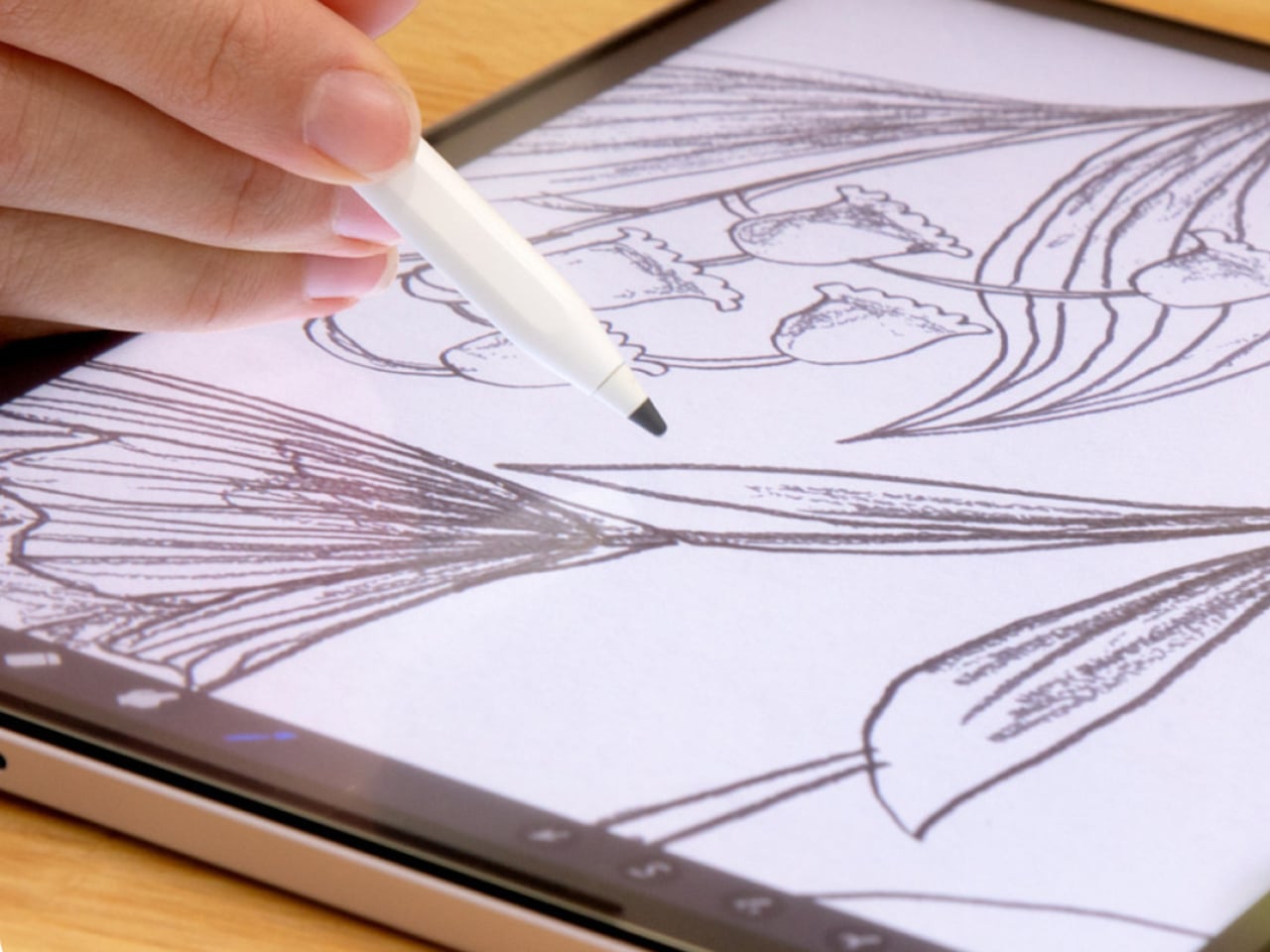
The 14-inch OLED display runs at a 2880×1800 resolution with a 120Hz refresh rate, treated with anti-fingerprint, anti-reflective, and anti-glare textured glass. The wide rectangular aspect ratio works in favor of drawing apps that line their UI panels along the sides, something squarish iPad screens can’t accommodate as cleanly. The textured coating adds a satisfying scratchiness to each stroke, and pen accuracy is, naturally, exactly what you’d expect from Wacom.

There are no cameras on the MovinkPad Pro 14, front or back. That’s a deliberate choice. There’s no temptation to flip over to social media, no accidental video calls, nothing that pulls focus away from what you’re there to do. Passively watching a tutorial in a corner of the screen is about as off-task as it gets, which, honestly, isn’t a bad thing for anyone prone to distraction. Split-screen functionality makes it easy to have a reference off to the side while you work.

The software side is equally stripped down. Android 15 comes installed with zero bloatware and just three Wacom-made apps: Shelf for your gallery, Tips for settings, and Canvas, a quick sketching surface that wakes directly from sleep with a tap of the pen. It’s intentionally bare-bones for capturing fleeting ideas, though a few more brush options would genuinely be welcome. From Canvas, you can instantly send your sketch to an Android app, though it seems to be limited to Clip Studio Paint, iBisPaint, and Autodesk Sketchbook. Hoping it will offer some flexibility in the future.

Speaking of apps, desktop-grade drawing applications like Clip Studio Paint and Krita run without issue. The broader Android ecosystem opens up a decent range of options, though it’s worth remembering that anything exclusive to Windows or Mac won’t be available here. Customizing the pen buttons is also off the table, a limitation of the Android platform rather than any fault of the hardware itself.

The Instant Pen Display Mode is arguably the most intriguing feature here. It converts the tablet into a secondary display for a Windows or Mac computer, via USB or Wi-Fi, turning it into a portable, makeshift Cintiq. It’s part of Wacom Lab, an experimental creator community that lets users explore and provide feedback on new creative possibilities through beta features. As of this writing, the setup process involves quite a number of steps, and pen button support is currently limited to toggling a small side panel for common modifier keys. It definitely shows promise, so hopefully development will be quick.

Battery life is genuinely impressive. The 10,000mAh cell can sustain nearly five days on standby and supports 65W fast charging, though you’ll need to bring your own charger since none is included in the box. The USB-C port is only 2.0, so it doesn’t charge as quickly as the spec might suggest, but an hour or more of active drawing barely makes a dent in the battery.

Sustainability

Wacom doesn’t use recycled or notably sustainable materials in the MovinkPad Pro 14 itself, but the company does meet several other environmental benchmarks worth noting. Its packaging is compact, minimal, entirely plastic-free, and fully recyclable, while the device is built with the kind of durability Wacom products are known for, the sort that keeps them in active use long after most gadgets would have been binned.

That longevity argument holds well for Wacom’s drawing tablets and pen displays, which tend to outlast their useful lives many times over. A standalone Android tablet is a different matter, though. Apps like Clip Studio Paint have already dropped Android 12 support, making regular OS updates critical. Wacom has committed to keeping the MovinkPad Pro 14 current, but no clear update schedule or roadmap has been shared publicly yet.

Value

At $899.95, the MovinkPad Pro 14 isn’t an impulse buy, but it’s a reasonably grounded one. An equivalent iPad would require buying the Apple Pencil separately, while a comparable Samsung Galaxy Tab tends to run noticeably higher. For a tablet built specifically around the drawing experience, with Wacom’s pen technology at its core, the price lands in a range that’s genuinely difficult to argue against.

The large screen and capable hardware make it a compelling option for creatives who frequently work away from their desks. It doesn’t sacrifice quality for the sake of portability. With the right app installed, it functions as a capable mobile workstation wherever you happen to be. And when a PC or Mac app becomes unavoidable, Instant Pen Display Mode is there to bridge the gap.

There are caveats, of course. The beta status of Instant Pen Display Mode means it’s not quite ready to be a daily driver feature. You’ll also need to feel at home with Android’s drawing ecosystem for this workflow to really make sense. And the uncertainty around long-term Android updates is a concern that Wacom will need to address more concretely before most buyers can put it fully to rest.

Verdict

The MovinkPad Pro 14 isn’t Wacom’s first stab at a standalone portable device. Veterans will remember the Windows-based Cintiq Companions and the MobileStudio Pros. But this is by far the most portable and clearly focused version of that idea. It doesn’t try to cram Windows into a pen display. It’s a purpose-built mobile experience that happens to carry a Cintiq-like trick discreetly tucked away.

At the same time, it doesn’t operate like an Android tablet with a Wacom digitizer tacked on, which is essentially what Samsung’s Wacom-enabled slates are. Wacom has built something around a specific, coherent idea: a true digital sketchbook. Some software edges still need ironing out, but for artists and designers craving genuine creative freedom outside the studio, the MovinkPad Pro 14 offers something few tablets in its class can match.

The post Wacom MovinkPad Pro 14 Review: The $900 Sketchbook Designers Needed first appeared on Yanko Design.

Wacom Art Pen 2 Review: A Stylus That Finally Moves Like a Real Brush

PROS:


  • Ergonomic design with raised and angled buttons

  • 360-degree barrel rotation sensitivity

  • Iconic Wacom flared grip design

  • Accessible price point for a pro tool

CONS:


  • Limited compatibility with Wacom drawing tablets

  • No option for custom weight swapping


RATINGS:

AESTHETICS
ERGONOMICS
PERFORMANCE
SUSTAINABILITY / REPAIRABILITY
VALUE FOR MONEY

EDITOR'S QUOTE:

The Wacom Art Pen 2 proves that sometimes one feature is all it takes to make a tool feel irreplaceable.

Digital drawing has matured to a point where the pen you use often defines the kind of work you’re capable of. Most tablets ship with a capable stylus included, and pressure sensitivity has become nearly standard. Where real differences emerge is in the finer details: tilt support, button placement, barrel thickness, and the nuanced control that separates a general sketching tool from something more professional.

Wacom knows this territory well, having refined its pen technology across decades of products. The Art Pen 2 is its latest attempt to push that nuance even further, reviving a feature from its predecessor that dedicated artists genuinely missed: 360-degree barrel rotation. It’s an accessory designed not for everyone, but for those who want their digital brushes to behave as closely as possible to the real thing.

Designer: Wacom

Aesthetics

The Art Pen 2 carries Wacom’s iconic flared grip design, widening toward the tip and tapering toward the back. It gives the pen more visual character than a plain cylinder, while the two raised side buttons, set at a slight angle, add a bit of intentional texture to an otherwise clean barrel. The shape looks distinctly professional without being flashy, which suits the kind of serious work it’s built for.

Unscrew the back half, and a small nib compartment is tucked inside, keeping replacement tips within arm’s reach during a session. It’s a detail borrowed from the Pro Pen 3 and one that makes swapping nibs far less disruptive mid-drawing. The pen comes in an all-black finish, which keeps things clean and consistent, and makes the angled buttons stand out just enough to locate them quickly by sight.

Ergonomics

The pen is well-balanced and feels substantial in the hand without being heavy. The wider barrel suits anyone who finds slimmer pens like the Pro Pen 3 a bit uncomfortable during long sessions, though that’s always a personal call. The three raised, angled buttons make accidental presses nearly impossible and are effortless to identify by feel, which matters when your eyes are glued to the canvas.

The flared shape does come with a trade-off. It won’t sit easily in most pen loop accessories or grip covers, and there’s no way to slim it down if the barrel feels too wide. That’s the opposite situation from the Pro Pen 3, where an aftermarket grip can always bulk things up. The Art Pen 2’s shape is fixed, and you work with it or find something else.

Performance

Pressure sensitivity sits at 8,192 levels with full tilt support, putting it on par with the best pens at any price. Accuracy and response are exactly what you’d expect from Wacom, meaning there’s nothing to second-guess. What sets the Art Pen 2 apart, though, is the 360-degree barrel rotation, which picks up precisely how much and in which direction the pen shaft is turned.

For tools like calligraphy brushes or natural-media simulations, barrel rotation is genuinely transformative. It’s worth noting, though, that it’s also a fairly niche feature and not many drawing apps currently support it. Casual users probably won’t miss it at all. Where it resonates most is as an upgrade path for those who owned and relied on the original Art Pen before it was discontinued.

Compatibility is currently limited to a specific set of devices: the Wacom MovinkPad Pro 14, select Cintiq models (DTK168, DTK246, DTH246), and three Intuos Pro variants (PTK470, PTK670, and PTK870). Wacom has said that support for additional Pro Pen 3-enabled devices will be added over time, but for now, buyers should double-check their tablet is on the list before committing.

Sustainability

Like most professional accessories, the Art Pen 2 is plastic and metal, with nothing notably sustainable about the materials themselves. There’s no recycled content or eco-conscious material choice to speak of. Packaging tells a different story, though. It’s minimal, plastic-free, and fully recyclable, which aligns with what Wacom has been doing across its more recent product releases. A small step, but a consistent one.

What does count in the pen’s favor is Wacom’s track record for longevity. The original Art Pen was in production and active support for close to 16 years, an almost unheard-of lifespan for a digital accessory. If the Art Pen 2 follows a similar path, the investment stretches well beyond what most accessories can promise, and that kind of durability is its own quiet form of sustainability.

Value

The barrel rotation feature does limit the Art Pen 2’s broader appeal. Plenty of artists won’t need it, and for those users, there’s still a reasonable case for sticking with the more standard Pro Pen 3. If rotation has never factored into your workflow, the Art Pen 2’s most distinctive selling point simply won’t move the needle for you, and that’s worth being honest about.

That said, there’s a hidden value worth considering. At $99.95, the Art Pen 2 is $30 cheaper than the Pro Pen 3, with nearly identical core performance and barrel rotation on top. For those who prefer a thicker grip, it also sidesteps the added cost of official grip accessories. As a package, it makes considerably more financial sense than it first appears.

Verdict

The Wacom Art Pen 2 is a well-considered accessory for a specific type of creative. It doesn’t try to replace the Pro Pen 3, and it’s clearly not aimed at casual sketchers. What it offers is a combination of pro-level pressure sensitivity, a comfortable and distinctive grip, and a rotation feature that no competing pen at this price comes close to matching.

The limited compatibility list is a real constraint, and Wacom should address it sooner rather than later. But for those drawing on a supported device, particularly the MovinkPad Pro 14, the Art Pen 2 is a genuinely valuable add-on that earns its asking price without much argument. Especially at $99.95, it delivers a kind of brush-like expressiveness through barrel rotation that no standard pen, regardless of price, can replicate.

The post Wacom Art Pen 2 Review: A Stylus That Finally Moves Like a Real Brush first appeared on Yanko Design.